
It really is rather surprising that given the widespread adoption and use of Google Photos, that I can not find a sensible, easy to read, introductory guide on how to use it. Perhaps it’s because it’s so easy to use? Well, it is – up to a point. That point being how it works alongside Google’s other cloud-based software, ie Google Drive and Backup and Sync, and the now defunct and disconnected Picasaweb – where your photos are still accessible in your Google Archive.
So this note is an attempt to set out what you can do with Google Photos using images obtained on your phone or tablet, or uploaded from your camera’s SD card. It will principally work from the principle that you’ve taken the photos, you want to upload them to your laptop or desktop (PC or Mac) and then want to work on them there using a web browser. That is not an essential workflow, you can do everything on your mobile device – if that’s where the photos are, even down to editing the photos using Google’s Snapseed application for iOS, or Android devices, it’s just the approach I’ve taken here. So if you want to do everything on your iPhone/iPad or Android device you can learn how to use Snapseed on iOS here, I believe the application is nearly the same on Android.
To avoid duplication of effort however, here is an article that you should read first. It covers nearly all the features of the device apps, and the web browser version, and in particular handles some of the editing functions available, but it doesn’t cover the intricacies and peculiarities of the Backup and Sync tool.
So … how do you get photos into Google Photos? This Google article tries to explain how you can use Backup and Sync to do that. How does Google Photos work with Google Drive? This Google article attempts to explain how. Confused, I thought you would be! This is what I’ve done, why I’ve done it and perhaps most importantly how I do it!
Sometimes, it’s best to work backwards from Google’s most recent announcement because in doing that you can be reasonably sure you’ll be moving in the right direction … forwards! Google has separated Photos from Drive and is encouraging users to deal with them separately. It’s a continuation of the separation which started when Photos was spun out of Google+.
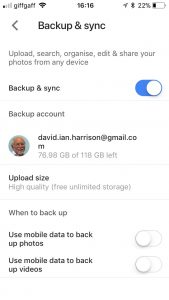 So how do I get my photos into Google Photos? From the iPhone/iPad (or any other smartphone that has the Google Photos app) it’s quite straightforward.
From the menu icon, choose Settings, enable Backup & sync and then make decisions as to the quality of the images, and when they’ll be backed up (uploaded). I have opted to use the High Resolution storage option, and for them only to be uploaded when connected to a WiFi network. The reasons for this are that my main photo software is Lightroom and I have a different method of working with that. What I want to use Google Photos for is essentially sharing albums with family and friends.
 From my desktop/laptop it’s almost as straightforward. I connect the camera by USB cable to the computer, or insert the SD card from the camera into the SD card reader in the computer and I will be prompted with this message …
They should then get uploaded to Google Photos and the images can be seen in my Google Drive as an entry under USB Devices & SD cards, from which I could copy them to a folder on my Google Drive – I don’t recommend you do this.
So there you have it. I’ve disentangled Google Photos from Google Drive; I’ve used Backup and Sync to upload photos to Google Photos and I’m now ready to edit photos, create albums and share images through Google Photos.
Finally … if you were a user of Picasa and Picasaweb, your photos are still accessible. What you can, and cannot do with them is recorded in this Google Help document. You can still download and use the PC or Mac Picasa desktop client for editing your pictures and if you want a simple photo-editing tool to get started with as long as you’re using a 32-bit operating system (ie not Apple’s Catalina or later), it’s a good place to start, but, it is no longer linked to Google Photos (or Picasaweb). However, there is a workaround!
When you save an image that you’ve edited in Picasa, you can save it to a folder that will then be automatically scanned by Backup and Sync and thus uploaded to Google Photos.
[NB Only those who attended my two sessions on Google Photos will actually understand why I included the really uninteresting image at the top of this post – I’ll leave the rest of you to ponder on what could possibly be the reason 🙂 ]