
Prompted by an article in the latest WebUser mag, I have installed Microsoft’s Your Phone app on my laptop. This allows me to see the last 25 photos I have taken with my Android phone on my laptop without going to Google Photos. I can also read and reply to text messages, and receive notifications, should I wish to. I already had the WhatsApp app installed, to read and reply to messages there.
On a related matter, I only recently discovered that my phone’s photos are stored in the My Files folder, and there are over 400 of them. I don’t see the need for that, so I will be doing some de-cluttering to reduce the memory used.
Digital image editing – Feb 14th 2019
Boot-up
Any follow-up on our Tidying-up Photos session last time?
Phishing quiz – https://www.makeuseof.com/tag/google-quiz-help-spot-phishing-emails/ – any feedback? [Ted was concerned about providing his details at the start of the Quiz. His fears were understandable, but unnecessary – read the Comment beneath this post, from me.]
Jim’s keyboard experience
My iMac adventure [Update: Not only did I get a free drive, but a free screen AND a replacement case which had a dent in it – possibly caused by Apple they admitted/offered/suggested.]
Any other member issues?
News
Facebook Messenger, WhatsApp and Instagram to possibly share same messaging infrastucture – BBC report, Cult of Mac article.
Have yourself a digital calling card, or alternatively create an online presence; for instance – this is me.
Keyless cars at risk of theft. [Sianed advised us that VW are apparently the worst and uses a lined purse for her keys, the same as the one she puts her contactless cards in.]
Protect your browsing history with a VPN. [We’ll come back to look at VPNs another day.]
Facebook in-house developers blocked by Apple, and Google too!
Google+ closing down in April. [Don raised this issue. If you’ve got a Google+ account then it will cease to work after April 1st. Google allow you to “Takeaway” your data – I gave a link to this in the previous notes – I believe you can’t do the same with your Facebook information.]
Google launches apps to help the hard of hearing (volunteers?). [Thanks Ted, Martin and Jim for offering to look at this, which is only (I know see) available for Android devices, so you might not be able to do the testing. Apologies if this applies.]
How to Back-up your iCloud Photo Library.
Google’s contribution to Internet Safety Week, including Protecting your data wherever you go on the web.
Mesh WiFi router firm bought by Amazon. [Thanks Paul for volunteering to research Mesh WiFi systems for us for the next meeting.]
Samsung’s first TV with Apple’s Airplay 2 now on sale (US only?).
Digital Image Editing using Gimp
Gimp stands for GNU Image Manipulation Program and was written originally for the operating system GNU but has been ported to many other platforms including Windows and MacOS; GNU stands for GNU’s Not Unix; it’s open source software; it’s free and it can be trusted.
You can download Gimp for your computer from this link. User documentation is available from this link, and some tutorials are available here.
So first of all you need to Install Gimp.
For today, I’m just going to concentrate on a couple of areas
A simple introduction to Gimp, including changing the size of an image, and cropping an image.
Using curves to improve the quality of the colour in an image
However, I can’t recommend using Gimp. It’s a techies toy, not really a usable photo-editing tool. So what do I suggest for free photo-editing?
For tablet/smartphone users it has to be Snapseed (from Google) which is available for both Android and iOS platforms. A tutorial on what you can do it with Snapseed is provided here. You could also try Adobe Photoshop Express.
For Windows there’s Adobe Photoshop Express, or you could try Microsoft Photos.
For Mac users you really only have their Photos app as Photoshop Express is not available for MacOS, so it’s Gimp or maybe Fotor which you can get from the Apple Appstore – but I don’t have any experience of using it. I don’t think I can recommend using Picasa any longer.
If you want to do your photo-editing online, then apart from Google Photos and editing your photos stored in iCloud (for Mac users), you should look at Pixlr, which has a whole range of free and chargeable offerings that run from your browser and in particular Pixlr X which doesn’t require Flash, looks really good and easy to use, and is probably better investing time and effort in than trying Adobe Photoexpress Online, which is a bit clunky and requires Adobe Flash Player to be installed.
Getting to grips with Google Photos
It really is rather surprising that given the widespread adoption and use of Google Photos, that I can not find a sensible, easy to read, introductory guide on how to use it. Perhaps it’s because it’s so easy to use? Well, it is – up to a point. That point being how it works alongside Google’s other cloud-based software, ie Google Drive and Backup and Sync, and the now defunct and disconnected Picasaweb – where your photos are still accessible in your Google Archive.
So this note is an attempt to set out what you can do with Google Photos using images obtained on your phone or tablet, or uploaded from your camera’s SD card. It will principally work from the principle that you’ve taken the photos, you want to upload them to your laptop or desktop (PC or Mac) and then want to work on them there using a web browser. That is not an essential workflow, you can do everything on your mobile device – if that’s where the photos are, even down to editing the photos using Google’s Snapseed application for iOS, or Android devices, it’s just the approach I’ve taken here. So if you want to do everything on your iPhone/iPad or Android device you can learn how to use Snapseed on iOS here, I believe the application is nearly the same on Android.
To avoid duplication of effort however, here is an article that you should read first. It covers nearly all the features of the device apps, and the web browser version, and in particular handles some of the editing functions available, but it doesn’t cover the intricacies and peculiarities of the Backup and Sync tool.
So … how do you get photos into Google Photos? This Google article tries to explain how you can use Backup and Sync to do that. How does Google Photos work with Google Drive? This Google article attempts to explain how. Confused, I thought you would be! This is what I’ve done, why I’ve done it and perhaps most importantly how I do it!
Sometimes, it’s best to work backwards from Google’s most recent announcement because in doing that you can be reasonably sure you’ll be moving in the right direction … forwards! Google has separated Photos from Drive and is encouraging users to deal with them separately. It’s a continuation of the separation which started when Photos was spun out of Google+.
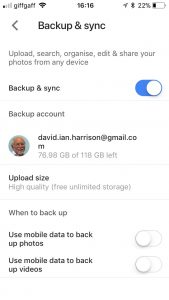 So how do I get my photos into Google Photos? From the iPhone/iPad (or any other smartphone that has the Google Photos app) it’s quite straightforward.
From the menu icon, choose Settings, enable Backup & sync and then make decisions as to the quality of the images, and when they’ll be backed up (uploaded). I have opted to use the High Resolution storage option, and for them only to be uploaded when connected to a WiFi network. The reasons for this are that my main photo software is Lightroom and I have a different method of working with that. What I want to use Google Photos for is essentially sharing albums with family and friends.
 From my desktop/laptop it’s almost as straightforward. I connect the camera by USB cable to the computer, or insert the SD card from the camera into the SD card reader in the computer and I will be prompted with this message …
They should then get uploaded to Google Photos and the images can be seen in my Google Drive as an entry under USB Devices & SD cards, from which I could copy them to a folder on my Google Drive – I don’t recommend you do this.
So there you have it. I’ve disentangled Google Photos from Google Drive; I’ve used Backup and Sync to upload photos to Google Photos and I’m now ready to edit photos, create albums and share images through Google Photos.
Finally … if you were a user of Picasa and Picasaweb, your photos are still accessible. What you can, and cannot do with them is recorded in this Google Help document. You can still download and use the PC or Mac Picasa desktop client for editing your pictures and if you want a simple photo-editing tool to get started with as long as you’re using a 32-bit operating system (ie not Apple’s Catalina or later), it’s a good place to start, but, it is no longer linked to Google Photos (or Picasaweb). However, there is a workaround!
When you save an image that you’ve edited in Picasa, you can save it to a folder that will then be automatically scanned by Backup and Sync and thus uploaded to Google Photos.
[NB Only those who attended my two sessions on Google Photos will actually understand why I included the really uninteresting image at the top of this post – I’ll leave the rest of you to ponder on what could possibly be the reason 🙂 ]
Getting started with Digital Photography: Part 1

A new venture for Thought grazing …
This article starts from the assumption that you already have a digital camera, or smartphone, and doesn’t pretend to give advice on how to proceed to purchase one except to say that I would strongly recommend buying from a camera shop for the after-sales service you would get. In buying a digital camera you’re buying into a system – Canon, Nikon, Sony, Fuji, Panasonic etc. – it can be a painful (and expensive) decision to change later, so it’s worth talking to someone who can talk about their experiences, or who can match your needs to what is available.
This article starts from the assumption that you already have a digital camera, or smartphone, and doesn’t pretend to give advice on how to proceed to purchase one except to say that I would strongly recommend buying from a camera shop for the after-sales service you would get. In buying a digital camera you’re buying into a system – Canon, Nikon, Sony, Fuji, Panasonic etc. – it can be a painful (and expensive) decision to change later, so it’s worth talking to someone who can talk about their experiences, or who can match your needs to what is available.
So therefore this article focusses on the software and in later posts – the processing of images using software.
Photography is a hobby that cries out to share its results (images) with other people and so therefore it’s best to work back from answering the question – what are you going to do with the images? By answering that question, the rest of the toolkit and the workflow you adopt is easier to answer. Typical workflows might be …
I just want to take a photo and print it.
I want to take a photo and possibly share it on Facebook, Instagram.
I want to take photos and make them into photobooks.
I want to take photos and post them to a website.
… of course it could be all of the above. One thing tends to unite them however, you need a place in the cloud to store your photos, from which you can then share them. If at all possible you should adopt a platform t
hat provides the maximum flexibility to allow you to do all of the above, and more, so that you don’t need to keep changing your systems as you develop your hobby. I’ve written about my workflow here.
So apart from the local USB disk-storage I use (with its backups, of course) to store and post-process my images, I use Google Photos as my main way of sharing photos in albums eg Orchids from Changi Airport, linked to the free storage (as long as you don’t store images at high resolution) you get on Google Drive. I do have other cloud storage/sharing platforms, but this is the one I use for photographs. I do also have a flickr account to share images – and I use it occasionally, as I do Instagram. As you develop your interest in photography, you may wish to have a more professional platform (I have used 500px), or the sharing platform that may be provided by your preferred software supplier (eg Adobe).
If you’re starting-out (or don’t want to spend any money) then you can use the editing software available within Google Photos, or if on a phone, or tablet, use Google’s Snapseed apps. You can still get Picasa for Windows
and the Mac, which is software Google bought and supported for a while, but it is probably better to bite the bullet and use their Photos app in a browser, as it integrates well with Drive and Google+.
Then of course you might (like me) be an Apple user, and could of course use their Photos app and iCloud, but at the moment the editing facilities offered in the app are not (in my humble opinion) as good as Google’s. You can sync your smartphone “camera roll” to Google Photos automatically which is nice.
Other free photo-editing options are available. I will however after reviewing the other possibilities, only mention and discuss Google Photos on this blog.
 If you’re a bit more sure that you want to invest in digital photography then there’s no better (imho) software than Adobe Lightroom. I’m not going into a whole set of reasons why you should invest in Lightroom rather than Photoshop Elements, or Apple’s Photo app, Paintshop, or even full-blown Photoshop. However for me these are the main benefits …
Photography is a hobby that cries out to share its results (images) with other people and so therefore it’s best to work back from answering the question – what are you going to do with the images? By answering that question, the rest of the toolkit and the workflow you adopt is easier to answer. Typical workflows might be …
I just want to take a photo and print it.
I want to take a photo and possibly share it on Facebook, Instagram.
I want to take photos and make them into photobooks.
I want to take photos and post them to a website.
… of course it could be all of the above. One thing tends to unite them however, you need a place in the cloud to store your photos, from which you can then share them. If at all possible you should adopt a platform t
hat provides the maximum flexibility to allow you to do all of the above, and more, so that you don’t need to keep changing your systems as you develop your hobby. I’ve written about my workflow here.
So apart from the local USB disk-storage I use (with its backups, of course) to store and post-process my images, I use Google Photos as my main way of sharing photos in albums eg Orchids from Changi Airport, linked to the free storage (as long as you don’t store images at high resolution) you get on Google Drive. I do have other cloud storage/sharing platforms, but this is the one I use for photographs. I do also have a flickr account to share images – and I use it occasionally, as I do Instagram. As you develop your interest in photography, you may wish to have a more professional platform (I have used 500px), or the sharing platform that may be provided by your preferred software supplier (eg Adobe).
If you’re starting-out (or don’t want to spend any money) then you can use the editing software available within Google Photos, or if on a phone, or tablet, use Google’s Snapseed apps. You can still get Picasa for Windows
and the Mac, which is software Google bought and supported for a while, but it is probably better to bite the bullet and use their Photos app in a browser, as it integrates well with Drive and Google+.
Then of course you might (like me) be an Apple user, and could of course use their Photos app and iCloud, but at the moment the editing facilities offered in the app are not (in my humble opinion) as good as Google’s. You can sync your smartphone “camera roll” to Google Photos automatically which is nice.
Other free photo-editing options are available. I will however after reviewing the other possibilities, only mention and discuss Google Photos on this blog.
If you’re a bit more sure that you want to invest in digital photography then there’s no better (imho) software than Adobe Lightroom. I’m not going into a whole set of reasons why you should invest in Lightroom rather than Photoshop Elements, or Apple’s Photo app, Paintshop, or even full-blown Photoshop. However for me these are the main benefits …
- It doesn’t matter where your images are stored; you don’t have to import them into a database, but you can choose to import new images into a single location of your choice which is unconnected to the software.
- It employs a catalogue which references where the images are stored. You can have multiple catalogues referencing the same set of images.
- All changes (edits) to the images are stored in the catalogue.
- The original images are left untouched. This is called non-destructive editing.
- You can go backwards and forwards through your edits, and can even create multiple virtual copies that allow you multiple versions of the same image, but only one actual (original) image.
- You can store your images in Collections which equate to virtual albums unconnected to the actual folders the actual images are stored in.
- You are supplied with a huge range of Plugins to allow you easy publishing to social media sites (eg flickr, Instagram, Dropbox), in addition to publishing to photobook websites (eg Blurb) and print sites (eg Smugmug).
- You can apply presets to your images at import, developing or export so that the same look and feel can be achieved.
- It integrates well with a whole range of other software such as WordPress (for blogging).
… I just feel that (for me at least) Lightroom is the best at the moment and it integrates with Adobe’s other software. It also now has a mobile version that allows editing on your iPad (or iPhone) if you subscribe to their Photography Creative Cloud Plan. This costs c.£9 a month and gives me both Lightroom and Photoshop, storage space in the cloud, and more besides, plus all the upgrades.
If you decide to go down the Lightroom route then here are a couple of resources you might wish to reference …
Laura Shoe’s Lightroom – http://laurashoe.com/
Lightroom Killer Tips – http://lightroomkillertips.com/
Adobe Training – http://tv.adobe.com/product/lightroom/ and https://helpx.adobe.com/lightroom/tutorials.html
… and for Lightroom tuition, you’ll do well to beat …
Scott Kelby’s Lightroom books for digital photographers, New Riders
Adobe Training – http://tv.adobe.com/product/lightroom/ and https://helpx.adobe.com/lightroom/tutorials.html
… and for Lightroom tuition, you’ll do well to beat …
Scott Kelby’s Lightroom books for digital photographers, New Riders