The right way to change Ts&Cs – Google learnt it’s lesson

It’s not long ago that Google was described as “the evil empire” because of its perceived intent on hoovering up all the data it could about us in the endeavour to “provide the best search experience for its users”. Baloney of course – they just wanted to drive the monetisation of their platform as far as they thought they could get away with, and by now you shouldn’t pay too much attention to the search results that appear at the top of a Google search – they’ve almost always been “paid-for”.

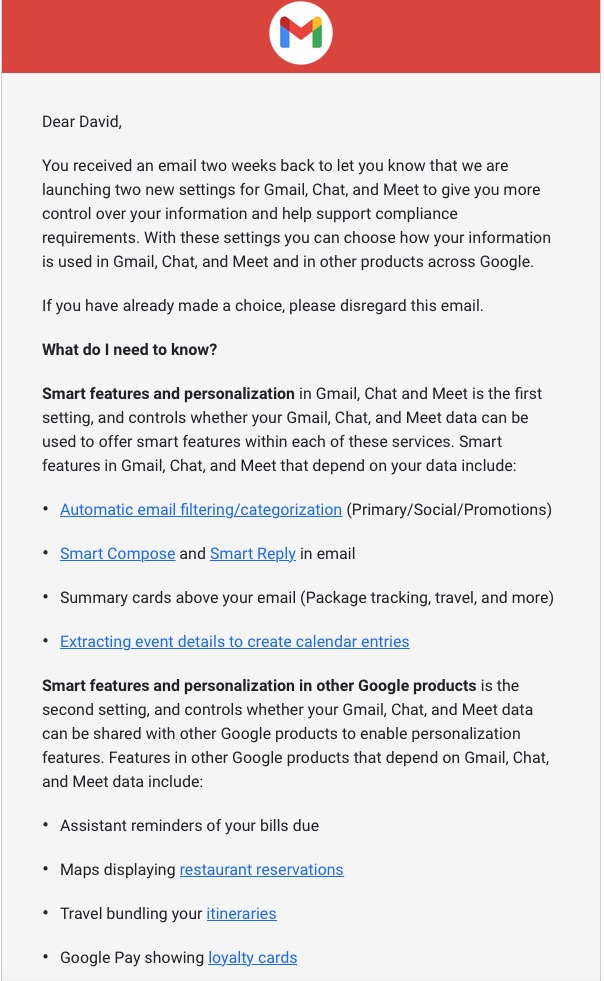
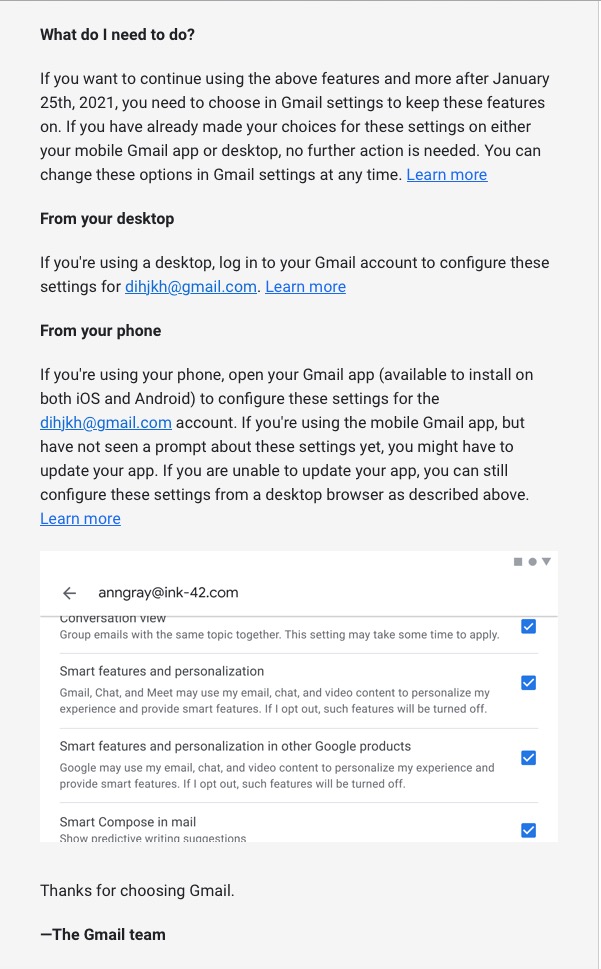
However, out of bad publicity they learned a lesson. When changing terms and conditions of use, or service, its best to explain clearly, and in advance, what they want, and expect, to do, and invite comment. That was most certainly missing from Facebook’s recent debacle with WhatsApp. So to show how it perhaps should be done, I’me including some recent screen shots from Google over the past few months …

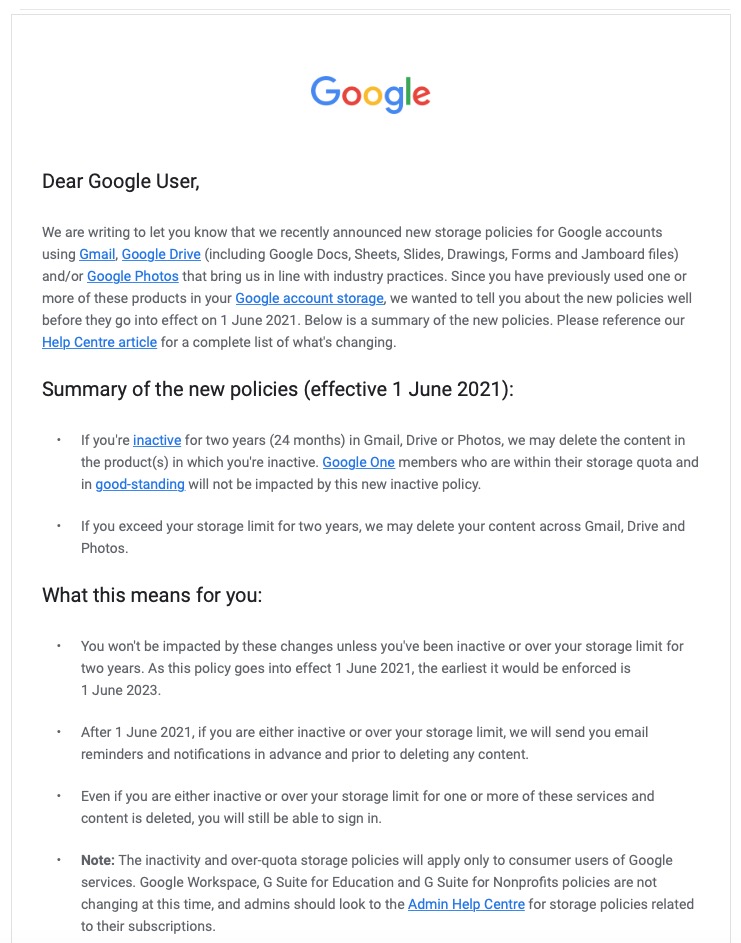
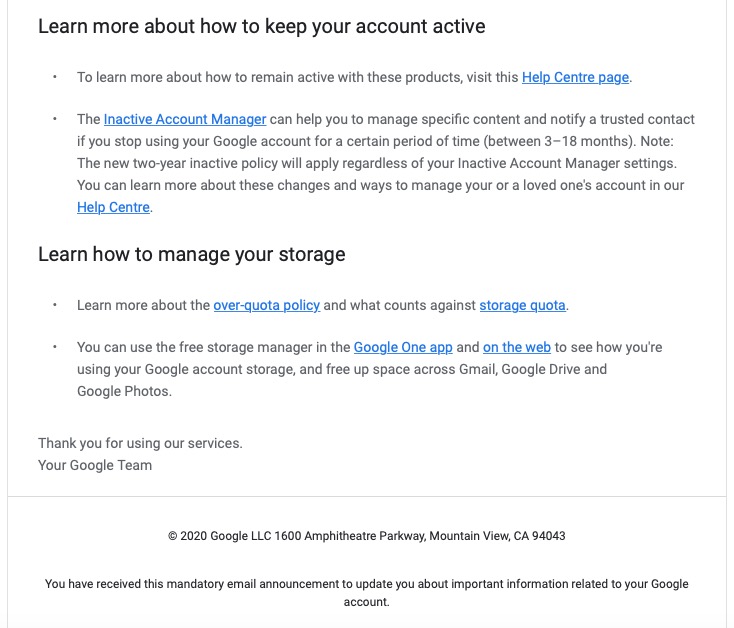
A very recent change to Google services that is being proposed and communicated to users in an email. This was the first email sent …

… which was followed up with this one, which prompted me to do something about it!!!

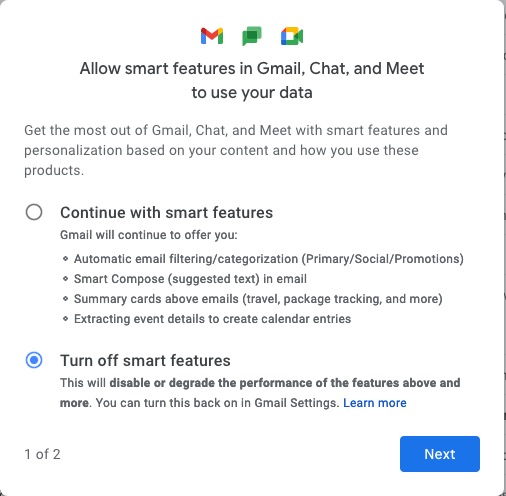
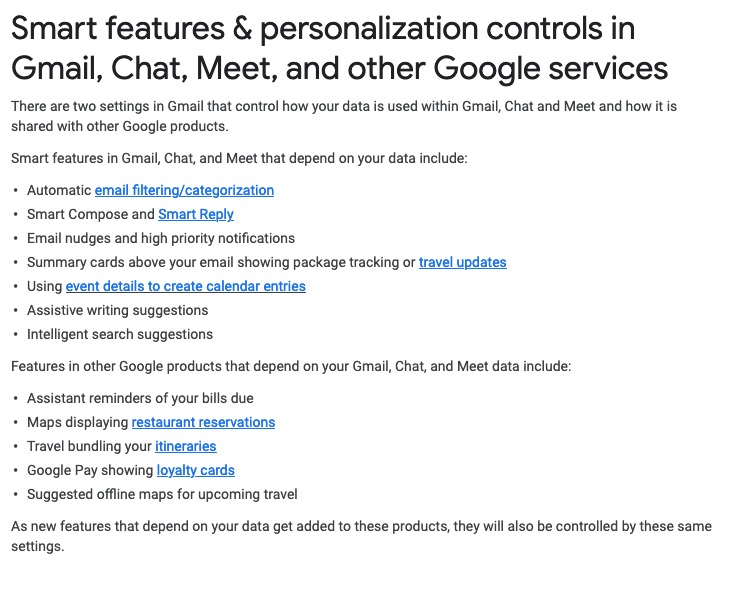
Once into the application, you receive a screen like this one …

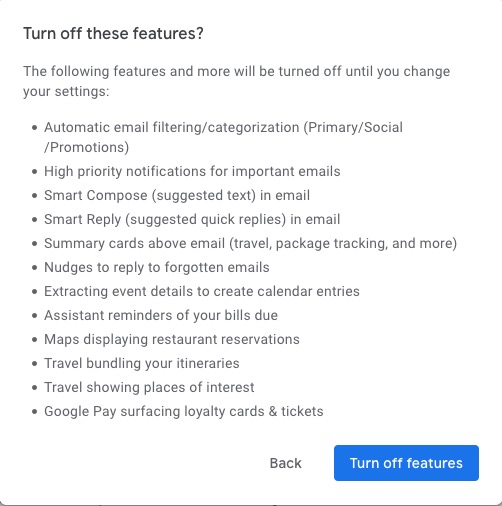
I’ve now switched off these personalisations, but what I was doing was very clearly explained.

Then there is this advance warning of changes to the storage policy that covers your Drive and Photos accounts. [I must do something about this as I have a number of Google accounts knocking about.]

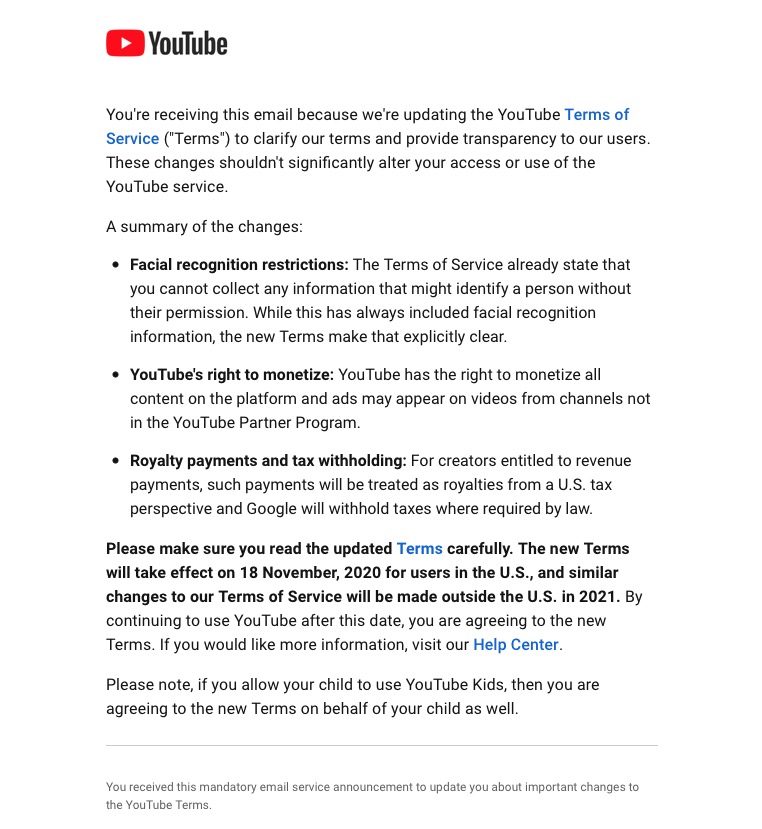
A clear explanation of changes to YouTube – not ones I like, but there’s no attempt to hide what they intend to do, and it provides a hint that they will apply to us later this year when Google leave Ireland for the US.

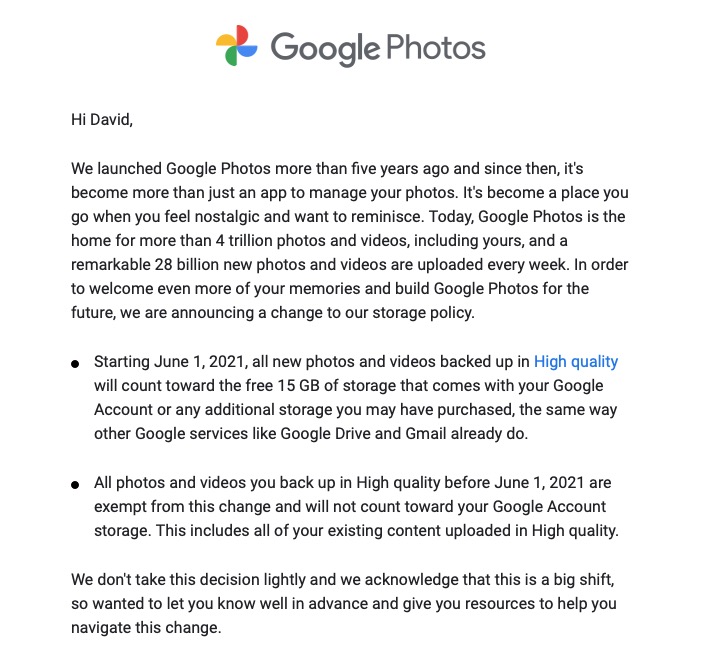
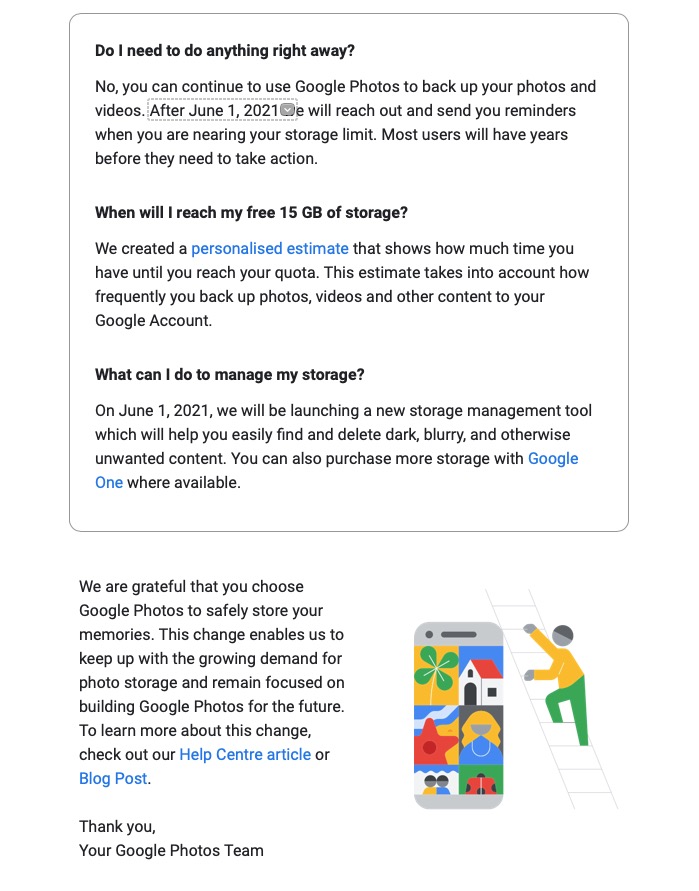
Changes to the Google Photos policy which is causing some distress, but is explained clearly and gives you a lot of time to work out how to use the service after June 1st 2021.

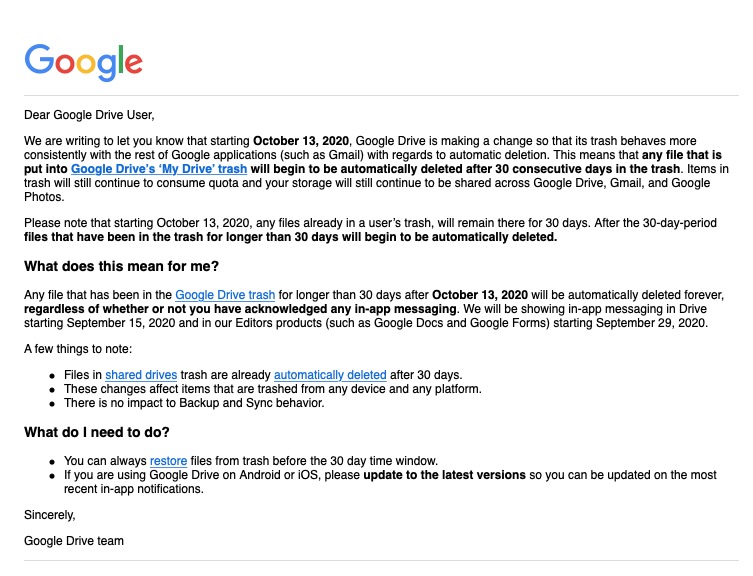
Early notice of the intended changes to Google Drive, and how files will be deleted.

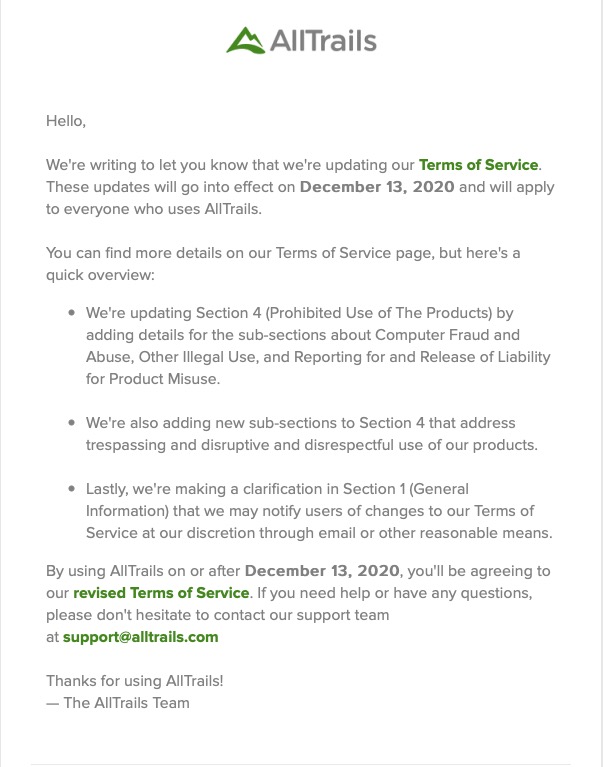
Finally, another company explains clearly how and why it’s changing it’s Terms and Conditions – not something WhatsApp did. Shame on them!

Notes from Zoom meeting – 18th June 2020

I’ve learnt my lesson from last week and am writing up the notes immediately. First a set of topical points/issues, and then a report on “What we do with our computers”.

Paul reported that he’d been experiencing Gmail opening, closing and then re-opening when using a browser on Windows? Is this a Windows thing, a browser thing (Chrome), or what? Owen was also experiencing it (but Renee on a Mac using a browser wasn’t). Owen undertook to investigate. Paul also asked whether anyone knew whether there was any advantage in responding to the request to Archive when prompted from Photos, or Mail on Google. I promised to look into this.

Renée reported that her Zoom meeting (one including participants from Italy) had been a great success. She wondered whether being “upgraded” to be given more time, when she thought she was only going to get 40mins was a standard thing. Group members seemed to think that maybe this only happened on a first call, others seemed to think if there was less than 3 participants the “upgrade” was standard; others thought the “upgrade” to more than 40mins could happen at any time – perhaps this is a factor of what the demand at any time might be?

Owen commented that some Zoom meeting hosts had implemented Mute participants on entry when it was a talk (History Group). I discovered that I could Mute All at any time – if I wanted. We’re all learning about this new technology!

Stella was still investigating a dongle, or method for connecting her TV to headphones using BlueTooth. We talked around the issue, resolved that if the BT version was higher than the device version, it should work; but then decided that actually what Stella required was a device similar to the one that Paul/Jim had researched for Marilyn – Paul suggested this one back in October (the Search facility in WhatsApp actually works!!!). I wrote then “I did a bit of googling on the bus on the way home, and all I would (probably stating the obvious) say is that what you should be looking for is a device that attaches a Bluetooth TRANSMITTER (or one that handles both Transmitter and Receiver states) to the Headphone Jack” and I sent this link to Marilyn in addition to the one Paul had sent.” In the meeting Phil suggested that Stella also look at this page.

Phil told us about a website he’d created for a Music application. You can see it, and try it out from this link. He also told us about the book he’d just finished – Teething Troubles – and which was available in eBook and print (from Amazon). More information about it is to be found here. He also invited us to use the quiz he’d prepared for his family, which is available on his website here with the answers here. He also thought you might like to see this from twitter.

Ann told us about her need for an Office application as she had misplaced her licence key for MS Office. She’d looked at Google Docs and OpenOffice but because she thought the documents were always stored in the cloud (they aren’t) she’d taken out a subscription to Office 365. I suggested that she looked at LibreOffice –  a successor to OpenOffice, and one that works better with PDF and .docx files (imho); it has the following components – Writer (word processing), Calc (spreadsheets), Impress (presentations), Draw (vector graphics and flowcharts), Base (databases), and Math (formula editing) all of which (to the best of my knowledge) are compatible with Microsoft’s packages.

Don told us about the positive experience he’d had using software from Wesley Media to attend an ex-colleagues funeral. When working on a tablet he was able to pinch the image to feel more intimately connected to the ceremony; something he couldn’t do on his laptop. He also reported that he’d tried using Brave, but had been a bit disarmed by the security controls which also incidentally prevented the software just mentioned from running on anything other than Chrome. I reported that this was quite normal and that some pieces of software are written just to run on particular browsers. Although Brave uses the same engine as Chrome (called Chromium) developers write code for specific browsers and so I often found I needed to use Chrome after I’d also tried it first on Safari (for the Mac). I also reported that I’d read some good reviews on Firefox recently, and this one too, and this might be an alternative to Brave if the security controls were too restrictive.

Christine reminded me that she was still researching a TV replacement and looking at 4K. The advice remains the same, it has to be a large display to make 4K useful and worthwhile. Also the quality of the display is related directly to the price you pay. Whether a less-costly option, such as Cello, is worth looking into – I wouldn’t like to say [Amazon]. My criteria would be as little SMART as possible (use a secondary streaming device, eg NowTV or Roku, or Amazon Fire, or Google Chromecast); as many HDMI ports as possible; optical output for sound (if you want to connect to a soundbar, AV system or HiFi) and the correct display size for the room – not in that order!! She also enquired whether anyone had used Jitsi Meet for video-calls. I said I hadn’t but I thought sticking with something I knew, Zoom, would suit me for the time being. I did say I would look into it though, as I would look into Cello.

We then had a general discussion about what applications we used on our computers.

Jim used some photo-editing software (Paintshop Pro, and ImageGlass – which was looking promising). He was a Fb user and used Flickr a lot as well.

David H valued the computer for access to online newspapers and apart from the Office applications he also used it for shopping and banking. He was a born again LastPass user!

Christine used her computer for general organisation – meetings, searches etc as well as buying/selling on Gumtree/eBay, printing labels and genealogy.

Don also used his computer for genealogy and printing (including labels) as well as the office apps and banking.

Ann (aside from her iPhone/iPad) used the computer for backing-up photos and music, ripping CDs, and doing office apps (eg accountancy). She particularly enjoyed watching the video content from the Hay Festival on her laptop.

Phil has an involvement in his websites, and uses Fb and twitter – which he said was valuable in times of crisis – I’m sure he has a keen and acute Fake News detector employed!He does online banking. We talked about the risks of online banking because Ann wouldn’t do it. With the recent enhancements to the web browser access to banking, it was probable that there was little difference in safety between mobile apps and the web browser access method.

Stella enjoyed music and DVDs on her machine as well as buying and selling. She also liked to be able to read foreign (Italian) newspapers which kept her in touch with events there.

Marilyn used her machine for photo-editing and had an Adobe Creative Cloud subscription. She watched quite a lot of YouTube videos to further her knowledge of photography, and followed a Welsh duo-lingo course online.

Sianed used her computer for banking, duo-lingo French and some proof-reading of documents sent to he by her children.

Owen was rarely far away from his computer with the U3A website, Beacon administration, Zoom administration and Writers Group internet presence to manage … but he did find time for Fb and banking!

Renée had discovered Zoom to be a pleasurable experience with friends and bookclubs. She loved the fact that you could attend conferences and take part in webinars without having to travel to London! She was also enjoying being taught IT by her grandchildren – Giffy. Another online banking user.

Paul did most of the above but enjoyed using the internet for researching prospective purchases. He also told us about a Dutch news aggregation site – DutchNews.nl which looks rather interesting.

And me … websites, photography, banking everyday (takes seconds and I remember the credentials to login because I do it all the time), researching (RSS reader – Feedly), bookmarking research (Pocket), publishing (Flipboard), music (iTunes -> Apple Music), etc etc.



Microsoft re-enters the browser war!

After Netscape Navigator was eclipsed by Microsoft’s  Internet Explorer as the browser of choice for many – mainly because it was hard-wired into Windows initially – the world of internet browsers has seen first the rise of Firefox from the Mozilla Foundation as an alternative open source option and then the succession to Google’s Chrome and it’s huge market presence.
I’ve written about Google’s dominance and the alternatives to Chrome before in “Just Google it …
Now Microsoft has stirred from its inactivity in the browser market place. It has ditched its proprietary Edge browser and replaced it with … Microsoft Edge. No confusion there then!
It is interesting because it will run on MacOS as well as Windows, something the old Edge didn’t do, and will use the same open source code base – Chromium – as Google’s Chrome and of course Brave (my browser of choice). This allows them to use Extensions written for that code base. I already use many extensions written for Chrome in my Brave browser.
What will this mean for Google especially as Microsoft Edge will effectively have a built-in ad-blocker? Who knows. It’s certain that as more users decide to use the Microsoft version of Chromium, so Google’s business model and revenue stream will come under attack. Will they retaliate in some way? Probably not. Interesting times.
Here’s an article that describes keyboard shortcuts that you can use with Microsoft Edge.

All things Google (and more) – 13th February 2020

Boot-up

Visit to Barclays Eagle Labs – now arranged for the next meeting – 27th February. Here’s some more detail about what they’re all about.

As part of Barclay’s community commitment,  we have also opened a new office in Cardiff designed to help businesses grow and start up in Cardiff. Great for budding Entrepreneurs (which statistics show can be high in the over 50s)  and inventors. Part of the Eagle Lab office hosts  a “Maker Space’ that houses laser cutting, vinyl printing, 3D printing, electronics equipment including soldering etc. It has a distinctly digital feel too with a really switched on Engineer running the lab. I will contact them to discuss what is actually available there and suggest things you might be interested in.

I have  13 confirmed attendees. I’ll contact Ashley Croome (the switched on Engineer) with details of who’s coming and discuss whether we need to split into two groups, or just stay at one. After the Science Group visit he advised me … “For group sizes, with the science group we had about 10-15 per group and that seemed to work really well as it wasn’t so overcrowded that people didn’t get a chance to ask questions, and try things like the VR we have set up here.”
The venue for the visit is:
Barclays Eagle Lab, 1st Floor Brunel House, 2 Fitzalan Road, Cardiff, CF24 0EB

Next meeting after Eagle Labs is on 12th March, then Paul will lead on 26th March and 23 April. I’m assuming there will not be a meeting on 9th April because of Easter. I’ll be back after that … for a while at least 🙂

Whats Up with WhatsApp – an interesting discussion about how you can “trick” an Android tablet into believing it’s a phone (without a SIM) between Margaret, Jim, Paul and myself. I’m not sure I’m completely the wiser, but it revolves around a solution for an Android tablet that Paul had already described (which works for him) and is also described in this post and on an iPad this post describes how to do it. If you want to see the WhatsApp log of the chatter and confusion, look here.
Undo Send function in Gmail (from desktop, not mobile) setup in Gmail Settings > General, selectable from 0 -30 secs, so not as long as I thought.
Clearing Off-Facebook Activity and a video to help you.
The death of Adobe Flash – Apple puts the boot in.
We had a question about Exporting email from Tiscali (TalkTalk) from Ann, who was concerned she might lose her old emails. It looks like the most useful way of doing it is to setup POP3 Forwarding of an Email account into Gmail – in Gmail > Settings (gear wheel) in the browser …

… get the correct settings for your server, as in …

and as long as you’ve selected Enable POP for all mail (even mail that’s been downloaded) and as long as your email provider supports POP3, your email should be downloaded from that server and into Gmail.

Gear Guide

Has anyone bought, or obtained anything recently they’d like to tell us about? It doesn’t have to be a computer, laptop, tablet or phone – just something that’s digital, ie used a computer processor in some way?
Here’s a provocative thought … what applications do you use that depend largely upon the use of a peripheral? Are you using the best application for that hardware? Perhaps you don’t have any choice, but if you do perhaps you should choose the most appropriate application for the hardware.
Jim updated us on his broadband upgrade using his new Router liked to a SIM-card (have I got that right, Jim?). He’s also purchased a dongle to watch live Freeview TV. This is not connected to the broadband, but it might cause his battery to lose power a bit more rapidly than it did before.

Apps Galore

That slot in the meeting where members are encouraged to share their experience (and possibly excitement) at a new app they’ve started using for their smartphone, tablet, laptop or desktop machine.
OpenStreetMap – creating maps for collaborators – a couple of examples – Canals and Railways, Land use and Buildings, but what about creating a shared Google Map ?

What’s IT all about?

That occasional slot in the meeting when we might do a bit of explanation of terms used in Computing, or in the use of digital devices.
Mesh Networks – which ones are members using:
Paul – BT solution
Don – Deco M4, with TP-Link AC1200
WiFi Reception – interesting fact … the range of the WiFi Router decreases as the signal frequency increases. However, the inverse also holds true, namely the closer you are to your WiFi router the greater the bandwidth you have as signal frequency increases. Therefore in a big house, maybe you need to employ 2.4Ghz; in a compact house it’s a good choice to use 5Ghz and maybe even employ a router that supports tri-band – which might give the best of both worlds!

The main topic

I use Google apps on my desktop and mobile devices – and I’m an Apple fanboy! However, it’s just come to my notice that a couple of Google developments have passed me by, which have caused me to think about whether I might be better to use more Google apps on my Apple mobile devices, rather than the native Apple apps
I rely on Gmail and Calendar. I have done for years. It’s a family joke – “if it’s not in the Google Calendar – it’s not happening”. I have been caught out  few times. I also use (and will continue to use) Google Maps extensively for mapping, the Apple version is not quite there yet, but it’s improving!
I have used Google Hangouts and Paul and I have tried to get that working – but it’s impractical to even try and demonstrate it at this location 🙁
We have looked at Google Assistant, as a way of interfacing with the virtual world, but I haven’t embraced it – probably because I still rely on the native Apple mobile apps and Siri is the way into these; but, it would have to be said, probably not as well as Google (or Amazon – Alexa).
But now I’ve become aware of Tasks, which you can access from Gmail, and  Calendar and if only it interfaced completely with Google Assistant – I think I’d be making the switch to using more Google apps on my Apple devices, but, and there’s always a but … why does Google makes things so difficult! Just remember there’s Google Keep (for notes) and Google Reminders (for reminders); and … you always have to remember Google have the nasty habit of dropping things just after you’ve got used to using them – Reader, Picasa and Google+ to name but three! Let’s have a look!


Settings II (Google) – 9th May 2019

Boot-up
Any progress with websites??
Alternatives to Word on the Mac, but also see this choosing between Libre Office and Open Office, but also look at this article. I think the USP for me to adopt Libre Office is that it will read and write to .docx and .xlsx, not just read which is what Open Office does. The downside is that you can only download the complete office suite, not individual components which might be an inconvenience if you’ve only got limited hard disk space. Let’s do an install. And it installed using c.630Mb of disk storage. I’ve checked to see whether you can use Google docs, sheets and slides offline and you can! So that’s another alternative to using either Libre Office or Open Office and doesn’t require you to install a whole Office suite – just what you want to use as an app on your smartphone or tablet, or through using Google Chrome. Go here to find how to use an “offline” version of the Google apps with Google Drive.
John has offered to lead the session on 13th June.
Here’s another reminder about the format I’m suggesting for next year working with Digital Projects. What I’d like to do is have a Computer Group meeting on the fourth Thursday of the month (OK Christine?) and the Digital Projects on the second Thursday of the month. Generally the Computer Group will be much as it is at the moment catering for internet apps using a browser first and foremost, and then picking up iOS and Android issues as well as Windows and Mac items as well. The Digital Projects group will go into topics such as creating a website (which we’ve just done at a basic level), digital photography (re-visiting Lightroom for instance), digital audio and video editing, building a Linux computer, home media centres, integrating hifi with TV, etc etc. If anyone wants the Computer Group to continue fortnightly, then I need a volunteer to lead that session, I’d still attend if I can, and I will arrange the Digital Projects for another day/time.
Support for General Meeting 9th July, Chris Higley: Maps of Wales and Maps of War. Thanks for those who’ve offered to help; I’ll be sending a message round to those that weren’t present to sign-up, together with a guidance sheet  that explains what’s involved.
Anything else, issues, problems.
News
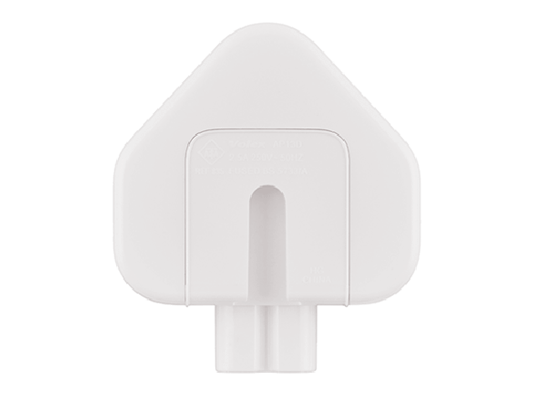
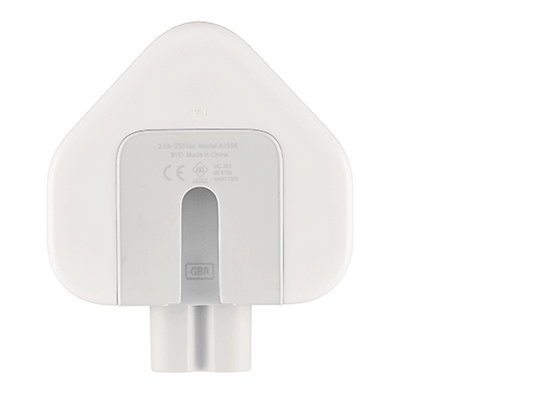
Problems with Apple power adaptor plugs manufactured between 2003 and 2010.

Affected New
Affected adapter slot detail New adapter slot detail

Anyone using (subscribed) to Apple Music? Anyone chosen the Family subscription? I need to check on saving a downloaded track to MP3 format.
How to uninstall programs on a Mac.
A guide on How to take photos with your iPhone.
Searching for a Copyright Free Image to use. What is Creative Commons?
Windows 7 support ends Jan 14th 2020 – what does this mean? What should you do? Your options – Cross-your fingers, Windows 8.1, Chromebook, Mac, Linux or Windows 10.
Experiences with Google Assistant? Paul has “volunteered” to look into this for next time.
You may be able to delete data held with Google automatically now.
Google and Windows 10 settings
Google Account settings (mainly referencing Android)
My Google Account – this is how you do it. I will look into using the native Gmail app with shared contacts.
 

Organising and tidying-up – Part 1 – 6 Dec 2018

Boot-up
We had a lively discussion at which members raised issues connected to their network falling-out; possible reasons why this might be – for example clashing with a neighbour’s network; solid walls in old houses – but felt that this sounded like a hardware, or CONFIGURATION problem that only the ISP (Internet Service Provider) could fix with an engineer’s visit.
I mentioned my problems with upgrading an iMac and how I decided – having looked at the work involved – that I should take it to Neil’s workshop … We will fix your PC. [Update: I’ve just spoken to him and he’s explained the risk in doing the job and that of course that risk needs to be passed on to me, so I’m going to have to think about it!]
We also through the meeting talked about browsers and search engines. I referred you to the post I wrote a few weeks back – “Just Google it …” – I’ve also researched a couple of sources for a good definition of what a browser does, this is the best I could come up with …
“Short for web browser, a browser is a software application used to locate, retrieve and display content on the World Wide Web, including webpages, images, video and other files. As a client/server model, the browser is the client run on a computer or mobile device that contacts the Web server and requests information. The web server sends the information back to the browser which displays the results on the Internet-enabled device that supports a browser.
Today’s browsers are fully-functional software suites that can interpret and display HTML Web pagesapplicationsJavaScriptAJAX and other content hosted on web servers – this makes a browser a platform for running web-applications (like your banking application) in its own right. This means that some websites stipulate which browser you must use to access their services. Many browsers offer plug-ins which extend the capabilities of the software so it can display multimedia information (including sound and video), or the browser can be used to perform tasks such as videoconferencing, to design web pages or add anti-phishing filters and other security features to the browser. When used like this it is a fully fledged application environment in much the same way as Microsoft Office, or Adobe Photoshop is.
“The three most popular desktop browsers, according to Net Marketshare, are Chrome, followed by Microsoft Internet ExplorerFirefox and Edge.  Other major browsers include Apple Safari and Opera. While most commonly used to access information on the web (or internet), a browser can also be used to access information hosted on Web servers in private networks or intranet.”
I hope that helps. You’ll notice that the word Google isn’t mentioned at all!! However Google does provide us with Chrome. As we discussed (and as I demonstrated) you can decide which search engine to use – this could be Google, or Bing, or Yahoo, or DuckDuckGo – which I am currently using. You decide this in the Settings of your browser.
We also looked briefly at these three posts on the website
Sextortion (Private site)
Subscription services (Public)
Creating an online magazine (Public)
News
Quora gets hacked
… and so does the Marriott
Google Fi brings WiFi to the masses
A change in direction for tumblr
Google’s Wing delivery drones to be tested in Finland
BT begins to take Huawei kit out of it’s forthcoming 5G network
and finally … the trials and tribulations of Facebook continue
Password managers
How do they work – I will just be describing how LastPass works, but others will be similar …
“LastPass is a browser extension that generates, stores, and fills in passwords. It makes practicing good security a little easier, by letting you generate unique, random, very long passwords for each website you go to. If one website is compromised, attackers only have access to your account on that one website, and only until you change the password.
“On the backend, the security of your LastPass vault hinges on the “master password”. When you create your LastPass account, the vault is encrypted with the master password. The master password, thus, is the key to the vault, which is protected by mathematics. For a decent password, it would take longer than the age of the universe to crack your password and enter your vault. On top of this, LastPass artificially makes logging in take *much* more time (on the order of a few seconds, but this adds up to billions of years for a brute force attack) and thus more difficult to attack.
“LastPass never sees the “raw” contents of your vault. When you log in, your master password is scrambled through a one-way hash function, and sent to LastPass. LastPass compares this with the hash they have on file, and if everything checks out, they send your encrypted vault to your computer. Your computer then decrypts your vault using the master password, and stores it for the duration of your session.
“In the unlikely event that LastPass is compromised, or LastPass receives a government request for your information, all LastPass has is your hashed master password, and an encrypted vault. These are both absolutely worthless without the master password itself. The only way around this is to try every possible password to see if it matches the hashed version. This is why resetting your LastPass master password also empties your vault.”
[Source: Quora but see also Guide to getting started with LastPass]
You can increase your security by using two-factor authentication linked to your master password, but if you feel your master password is strong enough that should probably be sufficient.
What do you need to do?
Two approaches – from the browser, or by downloading an application and then installing browser extensions (see article above). The first way is probably the easiest, watch this!
What’s the choice?
Well obviously LastPass, but here is a review of other password managers as well.
Live Demonstration!!! 
We didn’t have enough time to get round to looking at email – clients and accounts, so I’ve transferred the content I’ve prepared over to a new post for the first meeting in the new year.

Is it time to move to more paid subscription services?

I have to admit, the events of the past few weeks have made me look much more seriously at paying more for the IT services that I’ve taken for free up until now. Of course they’ve never been free, I’ve had to put up with the adverts and the email messages I don’t really want – alerting me to this deal, or that deal, and I’ve willingly put up with that as a price worth paying for the service I’ve been receiving. But two events have changed my mind, and moreover I feel the IT world is actually changing slowly as a consequence of the mistakes (to be exceptionally generous) of Facebook and Google; and the decision of Apple to switch more attention to Services, targeting this as their  main income stream for the future, and not relying on Hardware alone.
So what were the earth-shaking events in the Harrison-IT-world? Well the first was Google’s announcement that having hidden the news of a potential security weakness in an API, for several months (presumably to secure their stock-market price at the time Facebook was struggling, and presumably also after ensuring that the potential breach was secured) they used this as an excuse to kill-off (sorry “sunset”) Google+ next August. Now this service was not the success Google hoped it to be, and most definitely has not generated the revenue they hoped it might, but for me, my family and for many communities (particularly of photographers – because of the close linkage to Google Photos) – it was a hugely valuable tool. Now, we have to look for another social media platform. It could be Google Photos – Google may have plans to “enhance” it to take on features from Google+, or it could be another platform, but it’s just a pain in the neck having to move off something we’re used to! Google have real history with “sunsetting” tools that people get used to using [Thanks to @MrSimonWood for this link.]
The second was Flickr’s announcement that they were going to limit their Free account to 1000 imagesexcluding those that were licensed under Creative Commons, which a lot of mine are. They are encouraging users to take out a Pro subscription to remove restrictions and allow more and larger images to be uploaded. This didn’t meet with the same “horror” feeling. I immediately felt that this was a decision that would secure the future long-term of the service under the new owners – SmugMug. [A feeling that I didn’t have when 500px made changes to their platform which led me to delete my account.] So I immediately subscribed and took advantage of the first-year discount price (still available for a few more days I believe).
So what am I saying. I’m saying that if there’s a service that I really want, and I really need some feeling that it’s going to be around for a while, I should pay for it. I wasn’t given that option by Google – shame on them; it appears I’ll never be given that opportunity by Facebook. Both of them are essentially marketing and advertising platforms. I don’t see either of them being able to develop a hybrid model as Flickr has been able to do.
This all makes Adobe’s Creative Cloud Photography Plan and Microsofts’ Office 365 seem so much more sensible. I’ll continue with the former, but decline the latter as my roots are now firmly planted in the Apple world where I look to see how they will develop their Service offerings in Music, TV, Home and Car fields.
Interesting times.

"It's getting to be a bit like Christmas" – 22 Nov 2018

Boot-up
These were the suggestions from last time that you came up with
Password Manager [Aelfryn]
Creating and updating a website [Martin]
Google settings [Paul]
Facebook settings [Me ???]
Windows settings [Don]
Backups (and archiving) [Stella]
Labels (next session) [David]
Photos – organisation and folders (finding) and editing [Toni]
Video-editing [Toni]
Building an internet browsing computer using Linux from an old laptop [David – Digital Projects maybe]
Have I forgotten any? Send me any further suggestions.
Charging your phone overnight
News
Not much …
Facebook execs deny knowing anything!
YouTube video-streaming in Europe may be curtailed due to EU Copyright legislation.
Google runs into “problems” with use of health data.
Black Friday, Voucher Codes, etc. etc.
… anything else???
Labels
You need a printer! If you’re using an iPad/iPhone – you need a printer that supports AirPrint.
Sorry … nothing I could try out for Android tablets, or phones – does anyone want to research this?
Finding a solution that works on every machine is challenging. Using Google suite the best bet – Contacts, Sheets and Docs with an add-on from Avery.
Start with Contacts. If you don’t use gmail for contacts, go to the Contacts in your eMail application – you need to Export chosen Contacts as a .csv file.
So for Google (gmail) – go to contacts.google.com …

You also need to add the Avery Label “add-on” to Google Docs
– docs.google.com
 

Then in Google Sheets (sheets.google.com), you Import the .csv file

Back to Google Docs and choose new merge from Avery Label Merge Add-on …

Select the Avery Product Code – L7160 – 21 labels is a pretty good starting point …

… and then the .csv file you want to merge …

Select the fields that you want to print from the panel on the right-hand side of the Google Docs screen …

… and then Merge at the bottom of the Panel. A message should appear telling you that a new document Avery_L7160 has been created, and it should look something like this …

… which you should then be able to print – once you’ve loaded the Label Printer Paper!
Also a demo of using Label Printer for iPad/iPhone.
Here’s a good summary of how to do it in Word, Pages (Mac) and Google Docs


Creating a "magazine" – 25 Oct 2018

Boot-up
Meeting – 11th October. Ted Richards was the Convenor of the Group that day looked at Family History software – any questions or issues arising?
Changes to Thought grazing – https://thoughtgrazing.org
Logging in to Thought grazing – any problems or issues.
Password: Ca3rdyddU3A
Sextortion!!!!
Email scam threatens to show you watching pornography to your friends
An old scam with a new “flavour”

How safe are you online? 10 Questions to ask yourself
Another Facebook security breach
What to do if your Facebook account has been hacked
Google gets itself into trouble too by not telling users of a security hole and kills off Google+
The Brave browser – follow-up
also The best secure browser

News

Apple and Samsung fined for slowing-down older smartphones
Deleting your search history if you use Google
Fake review factories on Facebook
How to spot a fake five-star review on Amazon
Creating a magazine using Feedly, Pocket and Flipboard
Public article will follow – “Creating a Lightroom magazine”
Curating the web
Step 1 – create a Feedly account
Step 2 – select websites you want to get an RSS feed from [What is an RSS feed?]
Step 3 – check periodically to see what has “popped-up” in your feed reader.
[NB You can also download an app for your phone or tablet for Feedly]
Saving for another day, or for off-line reading (bookmarking+)
Step 1 – create a Pocket account
Step 2 – save to Pocket from your browser (perhaps using a browser extension), or from a feedly sharing icon
Step 3 – tag your articles, and read at your leisure, or when you want to
[NB You can also download an app for your phone or tablet for Pocket]
Creating a magazine to share with others
Step 1 – create a Flipboard account
Step 2 – create a Magazine, and decide whether to make it Private or Public
Step 3 – add articles to your magazine from Pocket, or from your web browser
[NB You can also download an app for your phone or tablet for Flipboard]

Getting to grips with Google Photos

It really is rather surprising that given the widespread adoption and use of Google Photos, that I can not find a sensible, easy to read, introductory guide on how to use it. Perhaps it’s because it’s so easy to use? Well, it is – up to a point. That point being how it works alongside Google’s other cloud-based software, ie Google Drive and Backup and Sync, and the now defunct and disconnected Picasaweb – where your photos are still accessible in your Google Archive.

So this note is an attempt to set out what you can do with Google Photos using images obtained on your phone or tablet, or uploaded from your camera’s SD card. It will principally work from the principle that you’ve taken the photos, you want to upload them to your laptop or desktop (PC or Mac) and then want to work on them there using a web browser. That is not an essential workflow, you can do everything on your mobile device – if that’s where the photos are, even down to editing the photos using Google’s Snapseed application for iOS, or Android devices, it’s just the approach I’ve taken here. So if you want to do everything on your iPhone/iPad or Android device you can learn how to use Snapseed on iOS here, I believe the application is nearly the same on Android.

To avoid duplication of effort however, here is an article that you should read first. It covers nearly all the features of the device apps, and the web browser version, and in particular handles some of the editing functions available, but it doesn’t cover the intricacies and peculiarities of the Backup and Sync tool.

So … how do you get photos into Google Photos? This Google article tries to explain how you can use Backup and Sync to do that. How does Google Photos work with Google Drive? This Google article attempts to explain how. Confused, I thought you would be! This is what I’ve done, why I’ve done it and perhaps most importantly how I do it!

Sometimes, it’s best to work backwards from Google’s most recent announcement because in doing that you can be reasonably sure you’ll be moving in the right direction … forwards! Google has separated Photos from Drive and is encouraging users to deal with them separately. It’s a continuation of the separation which started when Photos was spun out of Google+.

So how do I get my photos into Google Photos? From the iPhone/iPad (or any other smartphone that has the Google Photos app) it’s quite straightforward.

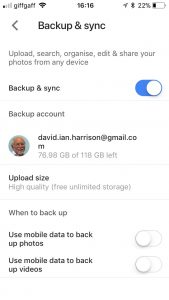
From the menu icon, choose Settings, enable Backup & sync and then make decisions as to the quality of the images, and when they’ll be backed up (uploaded). I have opted to use the High Resolution storage option, and for them only to be uploaded when connected to a WiFi network. The reasons for this are that my main photo software is Lightroom and I have a different method of working with that. What I want to use Google Photos for is essentially sharing albums with family and friends.

From my desktop/laptop it’s almost as straightforward. I connect the camera by USB cable to the computer, or insert the SD card from the camera into the SD card reader in the computer and I will be prompted with this message …

They should then get uploaded to Google Photos and the images can be seen in my Google Drive as an entry under USB Devices & SD cards, from which I could copy them to a folder on my Google Drive – I don’t recommend you do this.

So there you have it. I’ve disentangled Google Photos from Google Drive; I’ve used Backup and Sync to upload photos to Google Photos and I’m now ready to edit photos, create albums and share images through Google Photos.

Finally … if you were a user of Picasa and Picasaweb, your photos are still accessible. What you can, and cannot do with them is recorded in this Google Help document. You can still download and use the PC or Mac Picasa desktop client for editing your pictures and if you want a simple photo-editing tool to get started with as long as you’re using a 32-bit operating system (ie not Apple’s Catalina or later), it’s a good place to start, but, it is no longer linked to Google Photos (or Picasaweb).  However, there is a workaround!

When you save an image that you’ve edited in Picasa, you can save it to a folder that will then be automatically scanned by Backup and Sync and thus uploaded to Google Photos.

[NB Only those who attended my two sessions on Google Photos will actually understand why I included the really uninteresting image at the top of this post – I’ll leave the rest of you to ponder on what could possibly be the reason 🙂 ]