So you want a new laptop? [from Which?]

How to buy the best laptop

Five crucial questions you need to ask to find the perfect laptop.

With hundreds of models to choose from, you’ll want to a laptop that ticks the boxes and will last the test of time. One of the biggest decisions will be how much you want to spend – what many don’t realise is that if you’re after a good all-rounder for day-to-day tasks, it doesn’t have to be a lot.

We award Best Buys to our top-performing laptops, and our cheapest Best Buys costs less than £500. Plus if you’re willing to compromise you can find good models for as little as £150.

Top five questions to ask before buying a laptop

Before you start shopping for a laptop, it will help to know the answers to the following five key questions.

1. How much should I spend on a laptop?

  • Less than £200 – Intel Celeron or Atom processors, 2GB of Ram and 32GB of storage. Won’t be particularly fast, but fine for note taking and browsing the internet.
  • Less than £400 – Intel Pentium, Core i3, AMD Ryzen 3 and 4GB Ram. Fast enough for web browsing and research work. Aim for a Full HD screen and an SSD if you can.
  • Less than £600 – Intel Core i5, i7, AMD Ryzen 5, 7 and 8GB of Ram. Should be ideal for photo editing and some light video work. Look for a thin and light design, a Full HD screen and an SSD.
  • Less than £800 – As above, but in increasingly high-end designs. Look for great battery life on premium ultrabooks.
  • More than £800 – Some stunning designs, great screens and good speakers. High-end laptops will suit more intensive tasks, such as video editing or playing games. You can buy Apple MacBooks from £950 and above.

2. Operating system – what type of laptop do I need?

There are three major players when it comes to the software (operating system) your computer runs on. Windows, MacOS, and ChromeOS.

Buy a Windows 10 laptop if…

  • You prefer the familiarity of Windows
  • Have specialist software you can’t live without
  • Want a big variety of laptops to choose from

Buy a MacBook if…

  • You have a budget of at least £950
  • Value longevity and build quality
  • Use other Apple products, or are happy to learn a new operating system

Buy a Chromebook if…

  • You’re on a budget
  • Value simplicity
  • Don’t mind working in web-based applications

3. How powerful does my laptop need to be?

In short: If you need a laptop for light use and note taking, look for Intel Pentium or Intel Core i3 and at least 4GB of Ram for a great experience. Go for Intel Core i5 and i7 and AMD Ryzen 5 and 7 and at least 8GB of Ram if you’re a heavy user. Look for dedicated graphics from Nvidia and AMD if you want to game.

Processing power really matters if you’re planning on using a laptop for photo or video editing, or are otherwise a very heavy user, opening lots of programs and browser tabs.

When looking at laptop processors, you’ll see two main specifications beyond the product name: clock speed (measured in Gigahertz or GHz and number of cores) and Ram. Think of clock speed as the speed limit on a road and the number of cores as the number of lanes. As on a road, depending on traffic conditions – the tasks being done on your computer – a road might see a greater benefit from more lanes or a higher speed limit.

In the simplest way possible, more of both is better, and all of our reviews describe what sort of tasks a laptop is good for.

Think of Ram (Random Access Memory) like a desk and your hard drive like a filing cabinet. You pull files out of the cabinet and it takes a while, but once they’re on your desk, you can reach for them instantly. The same is true of Ram; once you have loaded a file from the hard drive, it’s now in the Ram and can be accessed almost instantaneously.

The bigger the desk you have, the more items you can access more quickly, and the same goes for Ram. Most mid-range laptops come with at least 4GB of Ram, and we’d tend to recommend 8GB for people who are heavy web users or usually have lots of documents and pictures open.

You can manage with less, but you’ll have to rein in your use. If you fill up your Ram, some of the things you’re working on will be moved back to the hard drive, making things feel a lot slower.

Some cheap computers come with 2GB – this is usually fine on a cheap Chromebook, but some Windows 10 laptops will struggle.

When you close a program or file, it is removed from the Ram and makes room for other things to be accessed immediately. This is part of the reason why closing programs you aren’t using can make your computer faster.

4. Screen – what size and resolution of laptop display do I need? 

In short: Unless you have a very low budget, don’t settle for less than Full HD, no matter the size.

image072.jpg

A laptop’s screen is one case where bigger isn’t always better. If you want a longer-lasting battery and a more portable device, you may want to go for an 11, 12 or 13-inch display; most of these will weigh between 1kg and 1.5kg.

The largest you’re likely to see is 15 or 17 inches, with weight increasing to around 2kg to 3kg.

Most machines on the shelves now have a Full-HD 1,920×1,080-pixel resolution display, and high-end models can have even sharper screens with even more pixels up to and beyond 4K Ultra HD. Generally, the higher the resolution, the sharper the picture.

Only cheaper laptops should have a lower screen resolution of 1,366×768. This is fine for most people, but if you like to have lots of items on screen at once you’ll prefer a higher-resolution display.

5. How much laptop storage do I really need?

In short: Go for an SSD unless you really, really need more storage at all times. Storage capacity, measured in the size of the hard disk drive (HDD) in gigabytes (GB) or terabytes (TB, equal to 1,000GB), determines how many things your PC can hold.

Documents, photos, music, movies, programs – they all take up space. Bigger is usually better, although solid-state drives (SSDs) are often more expensive for considerably less space. This is because they load much quicker and are completely silent.

We’re also seeing a lot of cheaper laptops (including Chromebooks) carrying eMMC (embedded Multi-Media Controller) flash storage, which is slower than SSDs and gives you very little storage space.

If you cleared out all the stuff on your computer you don’t actually need, how much space do you think you’d have? How much do you have now? Check ‘My Computer’ if you’re using Windows to gauge how big your next laptop’s storage needs to be.

Laptop battery life: manufacturer claims vs reality

In short: Manufacturer battery claims aren’t useful unless you’re only comparing models from the same brand. Use our reviews to get the full picture. Manufacturers often make heady claims about how long their laptops’ batteries last. Our tests ignore the manufacturer claims and involve multiple battery rundowns while simulating web browsing and watching videos.

If you’re buying a portable laptop that you intend to use when travelling or on your commute, make sure the battery life is at least six hours based on our reviews. We’ve tested some models that last for more than 10 hours before they need recharging.

But we’ve also found companies claiming 10 hours of battery life on average, while our own tests found 6.3 hours was closer to the mark.

Battery stamina on large, desktop-replacement models won’t be as crucial, as they’ll almost always be near a power socket, but we still mark them down if they run out of juice in under four hours.

Do you need to use anti-virus software on a Mac?

Probably not.

I’ve just loaded Malwarebytes on our iMac and MacBook Pro computers – provided by our bank – and only found one piece of tracker code, on one machine, which was very old and most probably not active. I deleted it.

Macs have a very good history of not being hacked, and when they are they close the problem down very quickly. This is a benefit of Apple owning both the hardware and software and being able to control which of the latter is installed on MacOS.

Covid-19 Tracing app

What is Contact Tracing, and how does an app help?

This video from The Guardian is an excellent review of how Contact Tracing works in both a traditional and technology-enable world. You should watch it.

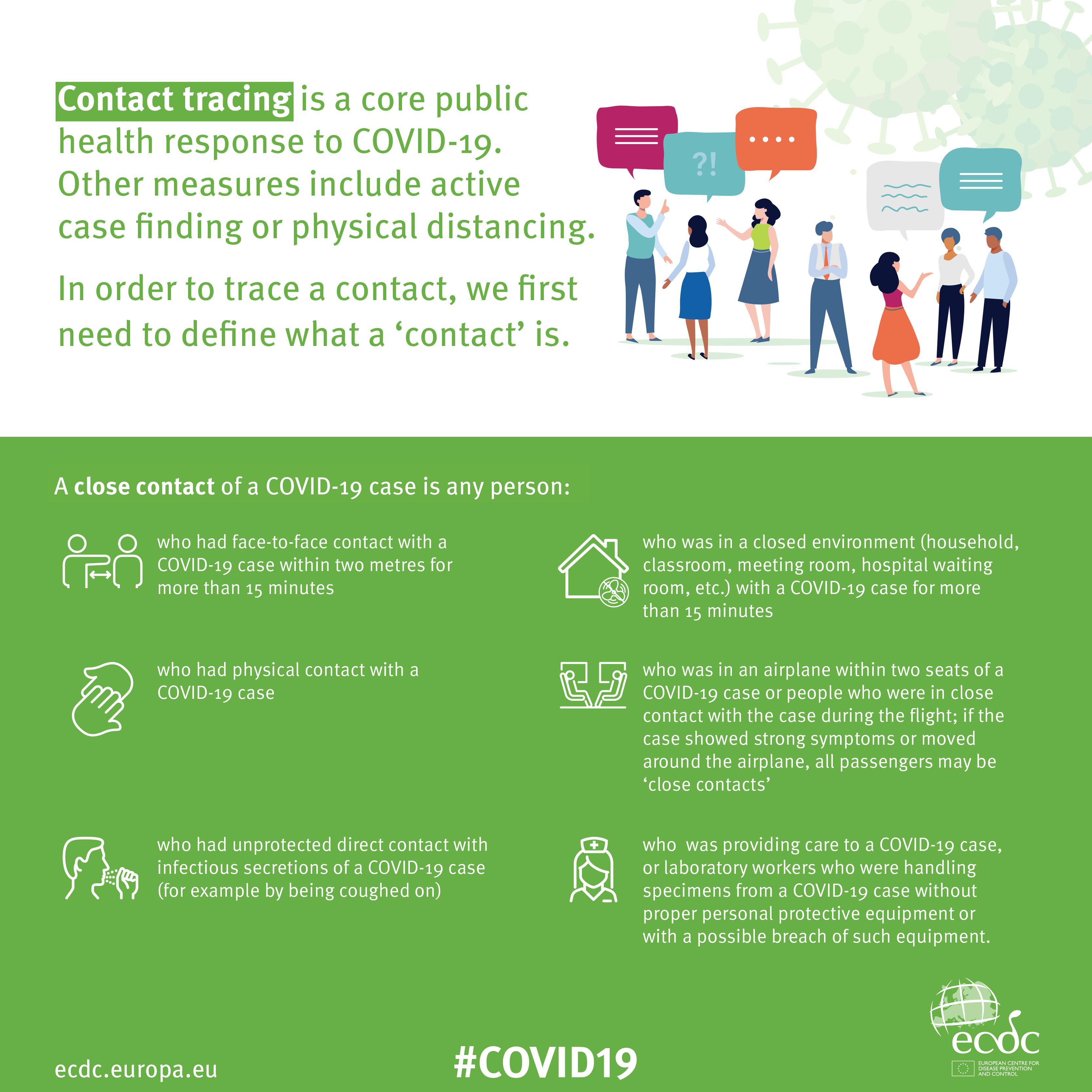
Contact Tracing Infographic

An Infographic that explains how Contact Tracing works

Approaches to creating a Contact Tracing app

Google and Apple have combined to work out a solution that works across iOS/Android devices. Here’s a document that explains how what they have done would work …


But there are Privacy concerns as this BBC article (with video) explains.  Regardless of those concerns the app is being trialled in the Isle of Wight. It’s useful to know the difference between the approach being used by the NHS and the Google-Apple approach, this article explains those differences.

However there are potentially difficulties …

France (how unexpected) have threatened Google-Apple over the fact they won’t work with France’s standalone approach (a similar approach to the UK); and it has been suggested that failure to adopt a common approach could threaten international travel – as “health passports” will be impossible to implement.

Then there are technical difficulties as iOS and Android devices work in different ways (not unsurprisingly) causing success of the Google-Apple approach to be dependent on a very high adoption amongst Android users.

The new NHS contact-tracing app could be used to send malicious alerts causing people to isolate unnecessarily, The Independent has been told. The app, which is being trialled in the Isle of Wight, tells users if someone they have been in close proximity with may be suffering from coronavirus, meaning they could be exposed. But because users can set off the warnings themselves by reporting symptoms – rather than positive Covid-19 test results – it could be used to send out false alerts. Dr Michael Veale, a lecturer in digital rights at University College London, said Britain’s tracing app had no measures in place to stop individuals “maliciously triggering notifications” using its normal functionality.

Then, on the technical front, some notes from Phil Edwards’ friend

On the Apple-Google Indirect approach

“Their approach seems pretty solid. I think they’re basically exposing some features that previously weren’t available to app developers. Both seem pretty determined to limit the potential for it to be exploited by governments; I think they announced yesterday/the day before that any apps using their system can’t also access location data.

Contact tracing is totally doable without central databases. I can see why a government might want to own data themselves, but there are big downsides (especially security when building in such a rush).”

On the NHSx Direct approach

“The implementation of this contact tracing app really hits that sweet spot between ‘Are they incompetent?’ and ‘Do they have ulterior motives?’ I’d advise against installing it but I doubt it’s going to work properly anyway in its current implementation because of various oddities around how Bluetooth LE works. This isn’t a great article but covers some of it.”

A better comment from Hacker News covers it clearer:

“‘Bluetooth LE has four main states: scanning, advertising, peripheral connection, and central connection. In order to exchange the data that the app needs it needs one device in the peripheral connection mode and the other in the central connection mode. This means one device must have previously been advertising and the other scanning. The two important states are advertising and scanning.Android devices can advertise in the background but they can’t scan reliably, they can do this for a short period of time enforced by the Android time limits on apps running in the background and possibly manufacturer specific power savings measures. These limits are not well documented and cause issues on any device using Bluetooth.iOS devices can’t advertise in the background, however they do advertise an Apple specific advertisement which can’t be controlled by the app but can still be connected to. iOS devices also can’t reliably scan in the background however they can scan more reliably for iBeacons (special adverts) [1]Combined this makes it difficult to work well in the background, Android devices can’t reliably connect to any device, iOS devices can’t connect to each other but iOS devices may be able to connect to Android devices.'”

Finally, a potential for Fraud

Plus fraudsters have not been slow to latch-on to the possibility of piggy-backing on the NHS app as this article in The Guardian show (thanks Phil for the link).

Other references:

The NHS Covid-19 website


Notes from Zoom Meeting – 30th April 2020

Apologies for the slight delay; if you look on the Notice Board and the Guides Menu bar, you can see I haven’t been idle. All the guides are offered unread; I can’t recommend them as I haven’t looked at them yet, but I have used BDM publications on a few occasions in the past and they produce the “manuals” that you often see in WH Smith & Sons, and in their Motorway Service outlets. Pictorial and easy to read is how I’d describe them.

A good attendance again, up to 15 at one time – I was willing two more people to join to force the Gallery view to extend on to a fifth line; maybe next time.

A Review of items from the last meeting:

David H was happy to report that his issue with shielding and deliveries from Supermarkets was now resolved and that Tesco had offered to provide the service to them without the paperwork (as I understand it). Paul on the other hand described the trials and tribulations in getting Asda to amend their online order.

I reported back that I’d been unable to help Ann with her Nest problem, we’d given some suggestions to Margaret on WhatsApp about her router/printer problem, and to Christine (in the last notes) about her Digital TV antenna query. Jenny was going to follow-up her hardware issues with Neil next week.

Today’s issues:

Owen gave us the good news that U3A had purchased a subscription for Zoom and that he was maintaining a diary for any group wanting to use it. I requested that our weekly meetings be put in the diary.

Renee had received her new iPhone SE (review from The Guardian here) but was having problems with her internet connection – someone will have to help me, I’ve forgotten what the problem was!! Duh!

John was experiencing a number of problems with his MacBook Air  with files being greyed out (presumably in Finder). He was going to do more research of the problem and get back to us. Perhaps Creating a Topic in the Computing Forum might be a good idea John? He was also disturbed that in setting up email for his wife on the computer that her email was now in the same system as his, whereas before it wasn’t. I suggested that this was almost certainly due to the necessity of them both needing to have separate Login IDs and accounts on the machine.

David H asked a question of Paul about the Honor phones, to which Paul replied it was wise to investigate whether they had the Google suite of programs available to them as Trump had barred the US from installing them – same for Huawei phones as well. If you bought an 8A (?) this would not be a problem as this model pre-dated the ban. These phones are available from Argos and Carphone Warehouse.

Jim showed us his new external DVD/CD Drive to replace one that had failed in his Laptop. [I forgot to write the model down – can you remind me] He also enquired whether anyone could help him preview photos on his Windows Laptop (outside his photo-editing software). The order in which the pictures occurred seemed to appear in different orders and so it was difficult to review to delete duplicates etc. Owen suggested that he might look at Irfanview. Someone else suggested that there were specific programs to sort out duplicates – indeed we dealt with that in an earlier meeting – dupeguru was used.

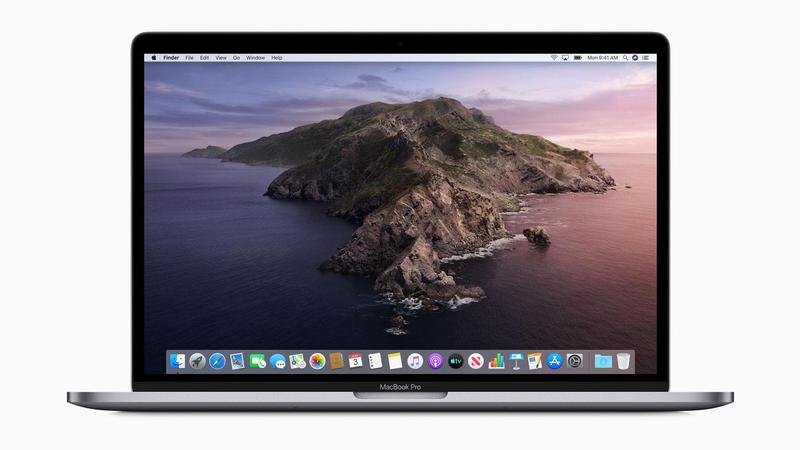
Marilyn asked whether it was safe now to upgrade to Catalina on her Mac. I agreed to check and for her, and did, and as she had no Legacy Software installed, it was now perfectly safe to upgrade.

Jenny gave an account of her work for the National Pensioners Convention (?) and asked members whether any of us had experience of providing training for older people. Some of us shared our rather jaundiced experience. We wish her good luck!

Christine alerted us to the fact that Ancestry was now available online through the Cardiff Library Service – but you had to have a current Library account, with a PIN to access it. I received an email alerting me to the fact that Kew was making a lot of its digital records available online during the Covid-19 lockdown – here’s a link to that. You need to have registered with them. Could be an opportunity for genealogy work?

Don gave a very positive account of his experience in using a TP-Link mesh network device to extend his WiFi network in his house. He also alerted us to a service available for Which? to sign-up for a Scams Newsletter. I told the group that I’d purchased another Trendnet WiFi extender device for outdoor use.

Ann thanked us for our advice to clean her Home button on her iPad with an alcohol-based solution to improve the performance of the button. She also enquired on whether anyone had experience of using any video-editing software. I thought I had some notes somewhere on the subject – maybe done for a Digital Group session, but I can’t find them currently. I did find however that I installed (and used) Shotcut and had also (but not purchased) Wondershare Filmora – these are cross-platform programs which work n both PC & Mac. I also mentioned that I thought you could do some basic editing in YouTube, and then download the finished work back to the home machine and delete the uploaded video(s). This feature of Windows 10 might be of use too. I can see that it might be an interesting idea to try a special Zoom meeting on video-editing – especially since I have to do some myself at the current time.

My notes:

Google (and Microsoft in recent adverts) is responding to the rise in the use of Zoom to extend the use of Google Meet (formerly just for business use) to everyone who has a gmail address. The problem with both of these is that you need to have a Google (or Microsoft) account to make use of the service. Zoom is service and platform independent as it’s web/cloud based.

Zoom has responded to security concerns and this article and video might be worth looking at. Those of us in the Apple camp might find this article interesting for group calls.

Google and Apple combine to provide indirect method of doing contact tracing, but UK government decides to go alone with another NHS IT project. [Watch this site for details if and when it appears – there are also pages on other NHSx Covid IT services.]

I mentioned that I’d found an app to help me tune my guitar (Fender Tune), and that I’d also purchased (£4.99) an app called SongShift to copy Playlists from Spotify to Apple Music (and many other services as well) and back again. It works very well!

Finally, we looked at Phil’s experiences of plumbing in a new dish washer, but more interesting than that was his work in installing Ubuntu Linux on an old laptop. Here’s an article that explains the key differences between Windows and Linux. Something that I’d been meaning to do for some time now and had always intended as a Digital Project. Quite a few members were interested in this as the subject of a Zoom Digital Project and Phil and I will be putting our heads together to try and set this up. Watch this space.


Microsoft re-enters the browser war!

After Netscape Navigator was eclipsed by Microsoft’s  Internet Explorer as the browser of choice for many – mainly because it was hard-wired into Windows initially – the world of internet browsers has seen first the rise of Firefox from the Mozilla Foundation as an alternative open source option and then the succession to Google’s Chrome and it’s huge market presence.
I’ve written about Google’s dominance and the alternatives to Chrome before in “Just Google it …
Now Microsoft has stirred from its inactivity in the browser market place. It has ditched its proprietary Edge browser and replaced it with … Microsoft Edge. No confusion there then!
It is interesting because it will run on MacOS as well as Windows, something the old Edge didn’t do, and will use the same open source code base – Chromium – as Google’s Chrome and of course Brave (my browser of choice). This allows them to use Extensions written for that code base. I already use many extensions written for Chrome in my Brave browser.
What will this mean for Google especially as Microsoft Edge will effectively have a built-in ad-blocker? Who knows. It’s certain that as more users decide to use the Microsoft version of Chromium, so Google’s business model and revenue stream will come under attack. Will they retaliate in some way? Probably not. Interesting times.
Here’s an article that describes keyboard shortcuts that you can use with Microsoft Edge.

Watch out for Catalina!

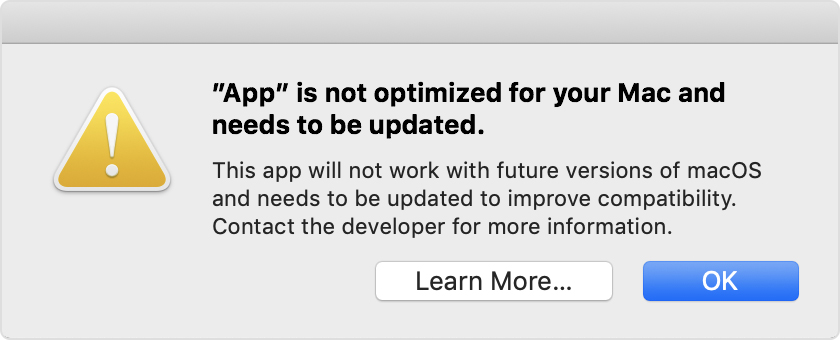
I was asked last week about a message that had appeared on a Lightroom 4 users’ screen with this warning …

… scary eh!?
Well yes it is but if you’ve got a relatively new Mac you do have the choice NOW of making sure you have the latest version of software that will support older versions of Lightroom, and do an upgrade to Mojave (v.10.14) BEFORE Catalina (v.10.15) is released later this year – probably in October. That way you’ll be nearly up-to-date with your version of MacOS and that may be sufficient for you if you don’t feel the need to have the latest version of MacOS.
If you have Lightroom 6 installed (or even 3, 4 or 5), you may be getting the message above EVEN THOUGH it is a 64-bit app. This is because the Installer/Uninstaller and Activation code software is 32-bit. That means the software “should” continue to work, but you won’t be able to re-install it to a MacOS of Catalina (v.10.15), or later.
The only other alternative if you want to stick with Adobe Lightroom is to swallow hard and subscribe at £9.98pm to the Photography Plan of Adobe’s Creative Cloud programme. You do get Photoshop as well as what Adobe call Lightroom Classic, plus their in the cloud version of Lightroom which they (confusingly) call Lightroom!
Adobe detail the changes and implications in this blog post. Another post from Laura Shoe Training gives more information here.
UPDATE: I’ve just read this really useful and interesting article from the magazine MacWorld – I suggest you read it too – and I’ve found out that Microsoft 2011 and Picasa (amongst others on my iMac) will not work with Catalina. Whilst I’m not particularly concerned about losing either of these as there are alternatives I’m already using – such as (in the case of the former) Google Docs, Open Office, Libre Office or Apple’s Pages, Numbers or Keynote applications – it’s better to be prepared and to have made the decision to move before I have to jump! Also in the case of Picasa, that I haven’t got anything in the database that I haven’t catalogued elsewhere – I think that unlikely, but I ought to check!
I’ve also stumbled upon an entry in “About This Mac > System Report …” which you get to from the Apple Icon in the top-left corner of your desktop. Go to Software and if you’re running Mojave there’s an entry called Legacy Software. Look at that and you’ll be able to see quickly what software is unlikely to work in Catalina. If you’re running an earlier version of MacOS go to Software and click on Applications and look for non 64-bit applications (a column to the right of the window).
Other links worth following …
MacOS 64-bit – what it means to you
32-bit app compatibility for Macs with current Mojave operating system


Sound session – 25th July 2019

Boot-up
Renee has asked a question about PDF converters. I’ve attempted to answer part of the question, but have not come up with any answer yet on electronic signatures – any thoughts, anyone? A former colleague has suggested that OpenOffice might provide the solution that Renee requires. I haven’t had the time to test that idea, but if it works – it might mean that this software is a better choice than LibreOffice which we looked at earlier in the year but you’d have to forego the ability to read AND write in Office formats (.docx and .xlsx), I believe.

The other thing I wanted to raise with you was how I was going to decide whether to use Apple Music (rather than Spotify, Google Music, Amazon Music, or whatever). I really haven’t had the time to give it a serious tryout but I can see that there’s some music available that I haven’t seen anywhere else – compilations of live music for an artist, for example – which looks very interesting. So I’ll subscribe for a while, see how the breakup of iTunes this autumn works out and then make a decision about whether £9.99 a month is a worthwhile subscription cost.

There was no interest from my family – I could have added them at an additional cost of £5pm – they’re all Spotify users. I guess that’s the issue. If you’re a user of another service and have set up Playlists, or whatever, and know the interface – why would you change? Me … I’m very slow into digital music. I’ve always wanted to hold the CD, and before that the vinyl/cassette, but as I have no interest in the latter anymore, perhaps it’s also time to ditch the former too!

Whatever I decide to do, I must remember to back-up my iTunes Library and iTunes Media Folder before I do anything – and that includes cancelling my iTunes Match subscription, which I’ve not been totally sure what it gives me, but which I know now is unnecessary if I have Apple Music.

Anything else anyone?
News
Continuing our paranoia theme of the year – ways in which to find out if accounts are linked to your email or phone.
How to avoid fake ads disguised as fake download links.
An unexpected upgrade for old iPhones.
Sound
So this part of the session is a bit of a “digital project”, but one where I have very little expertise, so I’m hoping (praying) for some help from Jim and anyone else who knows something about this area!

The challenge was thrown down by Renee. To paraphrase what she said: “How do I get music off old analog devices” (ie cassette recorders and record decks). I knew I had a a device to help in that – it was just a challenge to find it, to see if it would still work and more importantly whether it would work with current hardware PCs and Macs.

I’m delighted to say I found it (in the same box as my record deck); it appeared to be still working; which was then confirmed when I connected it to both a PC and my Mac running the latest versions of Windows 10, and MacOS (Mojave). So as long as I didn’t want to use the software provided by Creative – which I didn’t – all was ready to go.

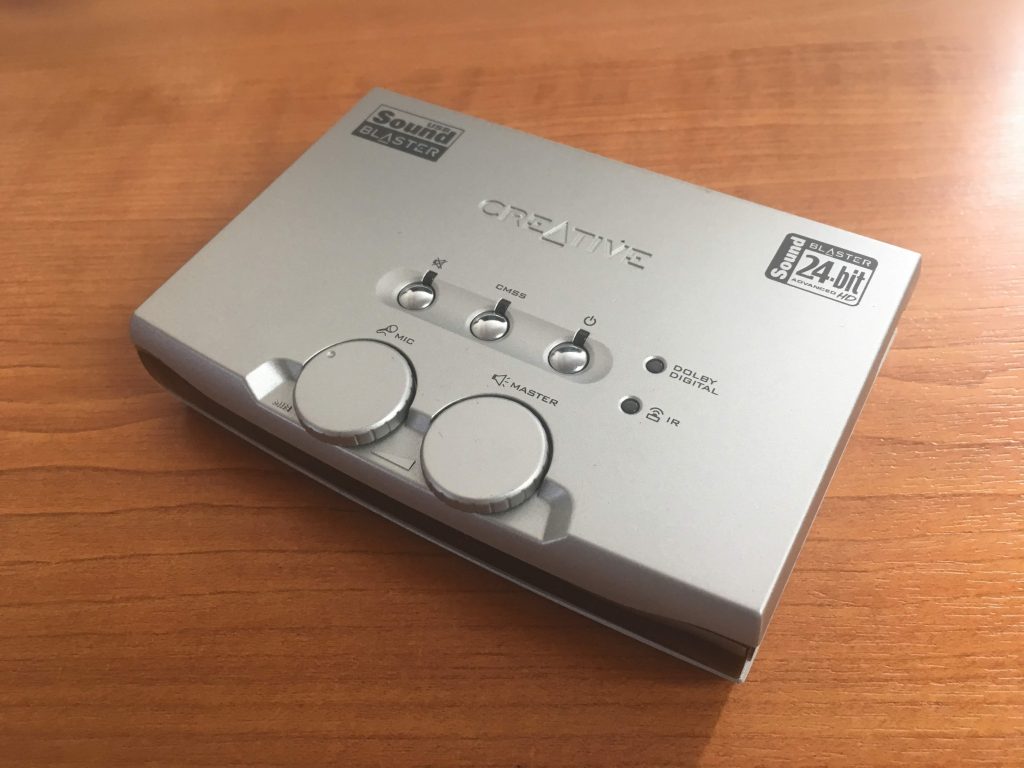
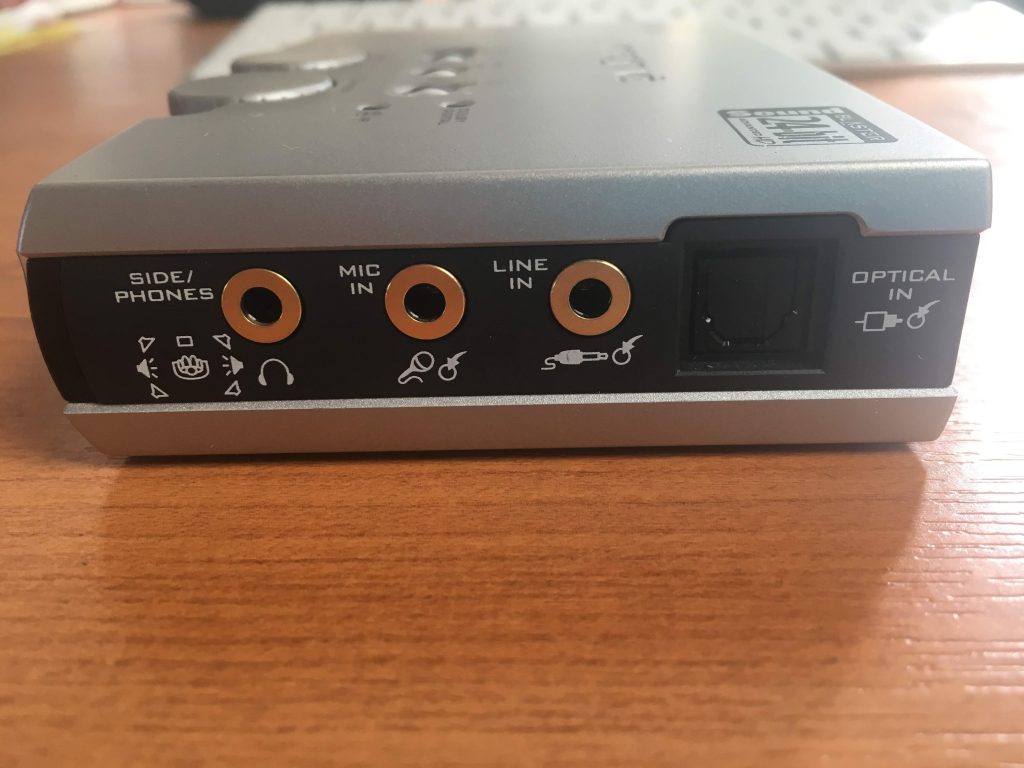
Here’s the Creative SoundBlaster Audigy NX-2 external sound card – to be found in every home … NOT, just in a geeks home, like mine!

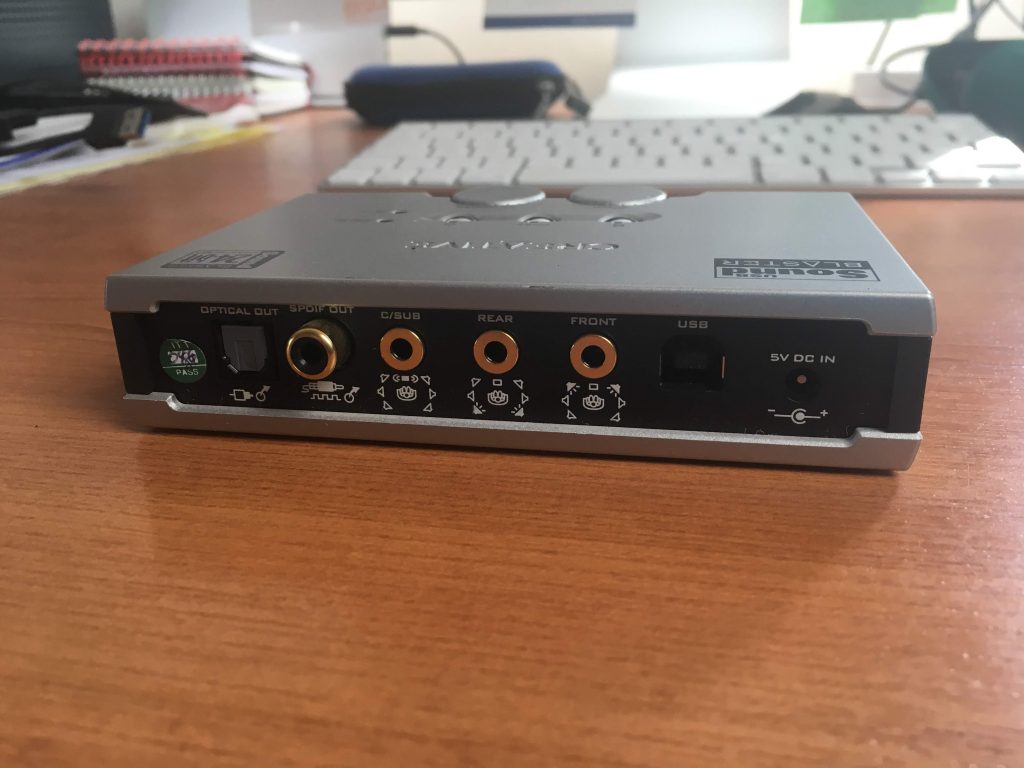
On the back you have a number of ports and the power connection, but most importantly the USB port.


On the side you have the port I’m going to use for input (Line In) – but you can see also a port for Mic In.


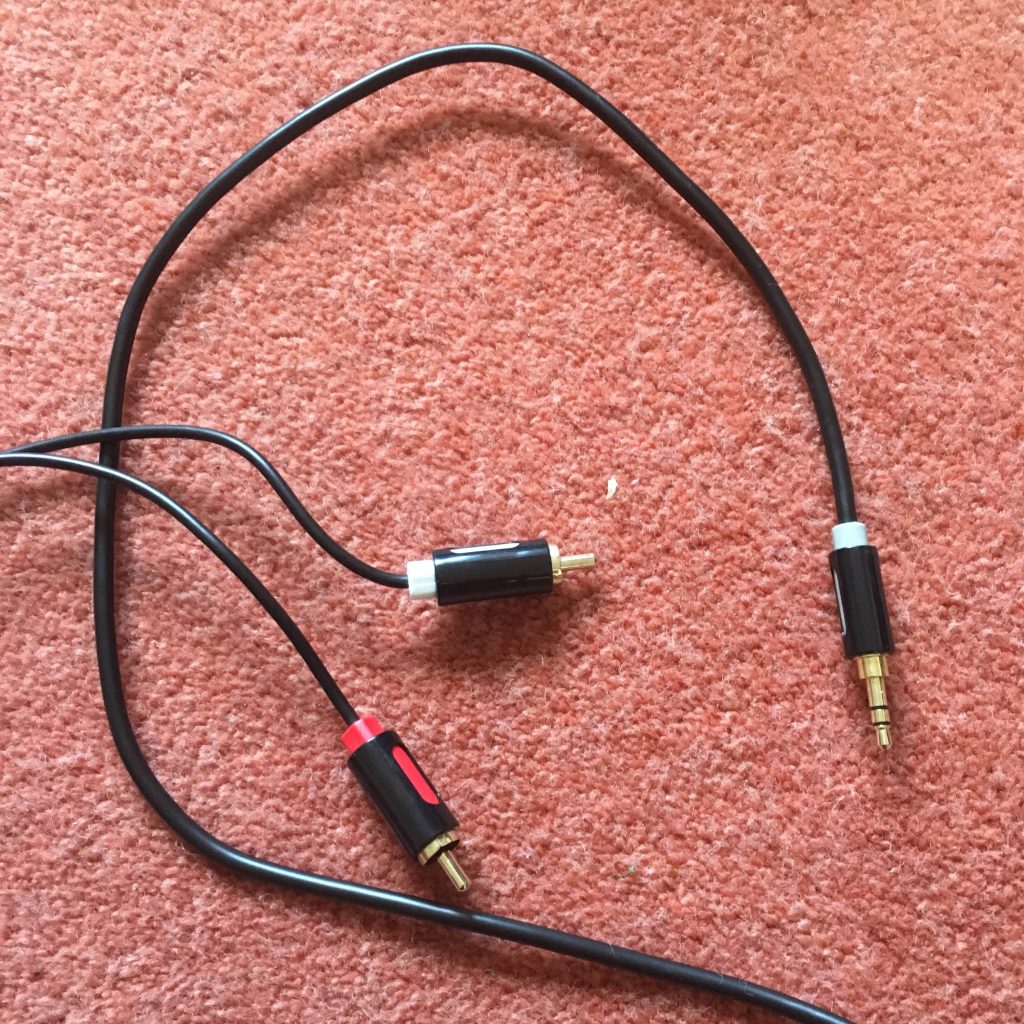
So having connected the power cable, and the USB cable to the SoundBlaster and the computer, it’s now time to connect the sound source cables. For that you’ll need either a cable like this …


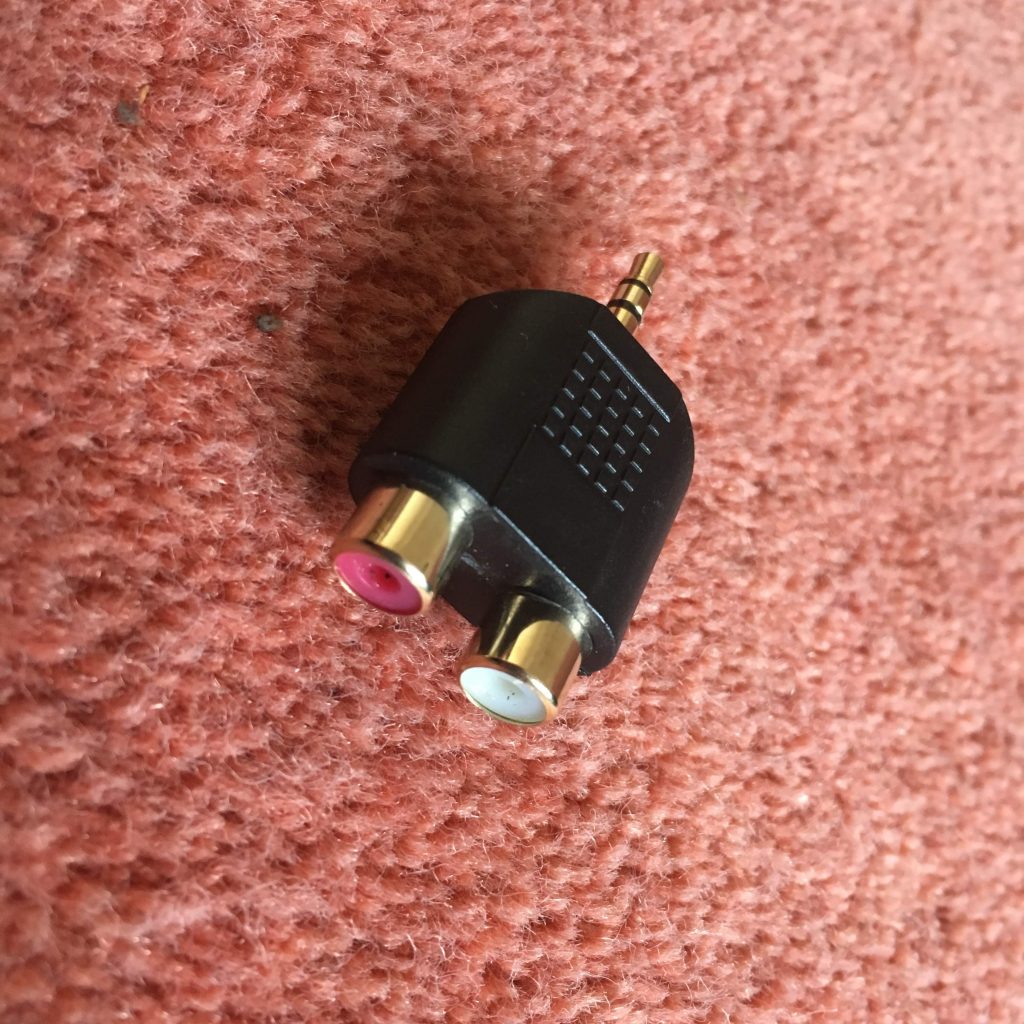
… or have a splitter to join two red and white hifi cables to the Line In …


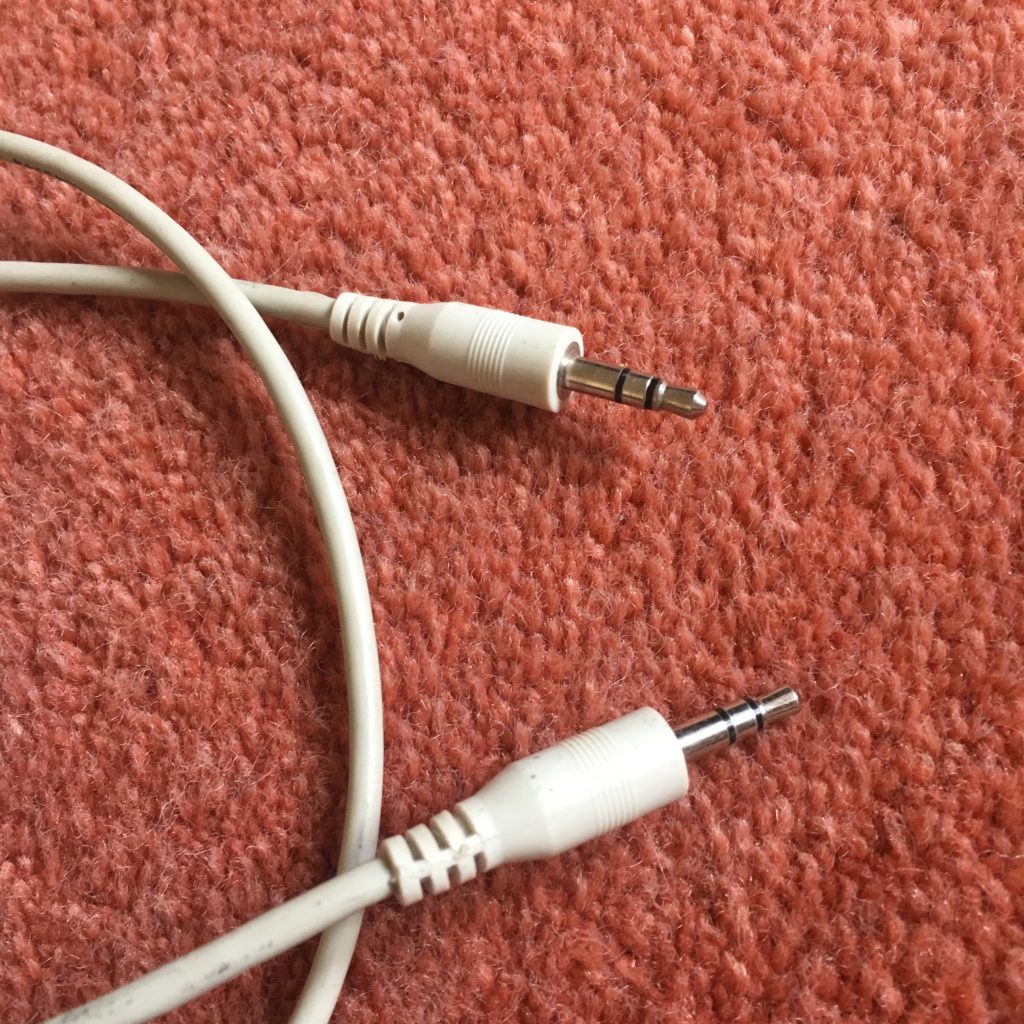
… or in my case for testing only, a cable like this …


… so that I can connect my iPhone to it! Yes, I know that’s totally pointless as the music on that device is already digital BUT I wasn’t going to lug a cassette deck in today, let alone a record deck! I haven’t tested output from a headphones socket into Line In which would use a similar cable. I can’t see any reason why that wouldn’t work as well. [NB This won’t work with more recent Apple devices than the iPhone 6s which I had at this time, as Apple have discontinued the headphone jack on their devices.]

You might also be able to connect another music device – keyboards or whatever using this method.

There is one caveat if you’re using the red and white cable connectors. You may well (certainly in the case of a record deck) need to take the feed from an amplified source as the sound output is unlikely to be sufficient for the software on the computer to pick-up. So you may need to take the feed from your hifi amplifier rather than the decks. Which neatly leads us to the software we’re going to use. Which is called Audacity …


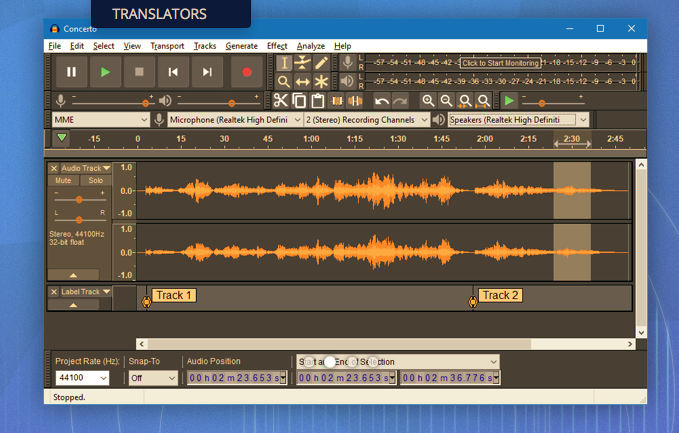
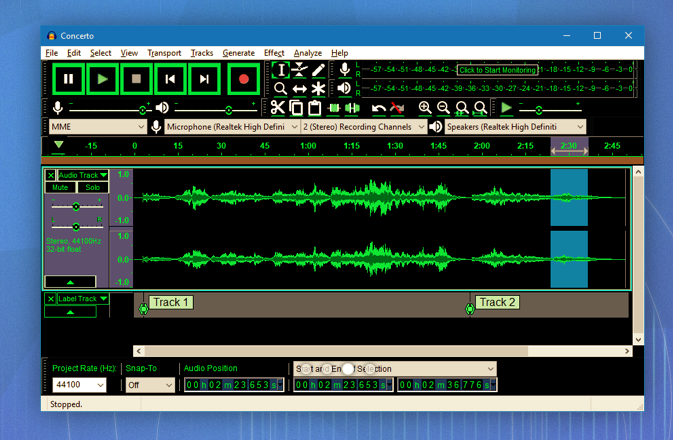
and which can be downloaded from this link. Make sure you choose the right format – Windows or Mac. Below are a couple of screen shots of the software in action, but now (drum roll), I’m going to try another live demo, which I have absolutely no confidence of achieving success, whatsoever!

However, hopefully, Jim will have helped me a bit and it’s not been a complete disaster and it’s good to know that the software is well documented here.

I’ve got a printout of the instructions on how the SoundBlaster card works, and I can make them available if anyone wants to borrow the device and cables.


A satisfying and pleasant end to a trying day.

You’ve got to hand it to Apple. They do look after their customers well – at least this one they do!
You may remember I’d been having trouble with the boot-up of my 2013 iMac – yes, it’s at least 5 years old. It’s a powerful machine which I bought to do photo work and it’s been a delight, but the problems reported here …
I’ve now had an introduction to the SBOD
… had come back this month. After a couple of attempts to fix the problem myself, which I had assumed to be software problems, which involved me re-installing the operating system on a completely clean disk (ie I had to re-install all my data and applications from backup which was painless and automatic, but took a bit of time), I contacted their support via online chat, and after Traci had exhausted everything she could remotely, I was referred to the Genius Bar in the local Apple Store for an appointment that same day (actually 18:45 in the evening). A very competent and pleasant hardware technician (David) did “triage” on the machine and announced that the Fusion Drive was in fact faulty – it was a hardware problem.
And … they offered to replace and repair it at no cost to myself as I’d bought it from Apple, not elsewhere.
That’s the way to create brand loyalty. Thanks David. Thanks Apple Store, Cardiff.

Is it time to move to more paid subscription services?

I have to admit, the events of the past few weeks have made me look much more seriously at paying more for the IT services that I’ve taken for free up until now. Of course they’ve never been free, I’ve had to put up with the adverts and the email messages I don’t really want – alerting me to this deal, or that deal, and I’ve willingly put up with that as a price worth paying for the service I’ve been receiving. But two events have changed my mind, and moreover I feel the IT world is actually changing slowly as a consequence of the mistakes (to be exceptionally generous) of Facebook and Google; and the decision of Apple to switch more attention to Services, targeting this as their  main income stream for the future, and not relying on Hardware alone.
So what were the earth-shaking events in the Harrison-IT-world? Well the first was Google’s announcement that having hidden the news of a potential security weakness in an API, for several months (presumably to secure their stock-market price at the time Facebook was struggling, and presumably also after ensuring that the potential breach was secured) they used this as an excuse to kill-off (sorry “sunset”) Google+ next August. Now this service was not the success Google hoped it to be, and most definitely has not generated the revenue they hoped it might, but for me, my family and for many communities (particularly of photographers – because of the close linkage to Google Photos) – it was a hugely valuable tool. Now, we have to look for another social media platform. It could be Google Photos – Google may have plans to “enhance” it to take on features from Google+, or it could be another platform, but it’s just a pain in the neck having to move off something we’re used to! Google have real history with “sunsetting” tools that people get used to using [Thanks to @MrSimonWood for this link.]
The second was Flickr’s announcement that they were going to limit their Free account to 1000 imagesexcluding those that were licensed under Creative Commons, which a lot of mine are. They are encouraging users to take out a Pro subscription to remove restrictions and allow more and larger images to be uploaded. This didn’t meet with the same “horror” feeling. I immediately felt that this was a decision that would secure the future long-term of the service under the new owners – SmugMug. [A feeling that I didn’t have when 500px made changes to their platform which led me to delete my account.] So I immediately subscribed and took advantage of the first-year discount price (still available for a few more days I believe).
So what am I saying. I’m saying that if there’s a service that I really want, and I really need some feeling that it’s going to be around for a while, I should pay for it. I wasn’t given that option by Google – shame on them; it appears I’ll never be given that opportunity by Facebook. Both of them are essentially marketing and advertising platforms. I don’t see either of them being able to develop a hybrid model as Flickr has been able to do.
This all makes Adobe’s Creative Cloud Photography Plan and Microsofts’ Office 365 seem so much more sensible. I’ll continue with the former, but decline the latter as my roots are now firmly planted in the Apple world where I look to see how they will develop their Service offerings in Music, TV, Home and Car fields.
Interesting times.

Creating a "magazine" – 25 Oct 2018

Boot-up
Meeting – 11th October. Ted Richards was the Convenor of the Group that day looked at Family History software – any questions or issues arising?
Changes to Thought grazing – https://thoughtgrazing.org
Logging in to Thought grazing – any problems or issues.
Password: Ca3rdyddU3A
Sextortion!!!!
Email scam threatens to show you watching pornography to your friends
An old scam with a new “flavour”

How safe are you online? 10 Questions to ask yourself
Another Facebook security breach
What to do if your Facebook account has been hacked
Google gets itself into trouble too by not telling users of a security hole and kills off Google+
The Brave browser – follow-up
also The best secure browser

News

Apple and Samsung fined for slowing-down older smartphones
Deleting your search history if you use Google
Fake review factories on Facebook
How to spot a fake five-star review on Amazon
Creating a magazine using Feedly, Pocket and Flipboard
Public article will follow – “Creating a Lightroom magazine”
Curating the web
Step 1 – create a Feedly account
Step 2 – select websites you want to get an RSS feed from [What is an RSS feed?]
Step 3 – check periodically to see what has “popped-up” in your feed reader.
[NB You can also download an app for your phone or tablet for Feedly]
Saving for another day, or for off-line reading (bookmarking+)
Step 1 – create a Pocket account
Step 2 – save to Pocket from your browser (perhaps using a browser extension), or from a feedly sharing icon
Step 3 – tag your articles, and read at your leisure, or when you want to
[NB You can also download an app for your phone or tablet for Pocket]
Creating a magazine to share with others
Step 1 – create a Flipboard account
Step 2 – create a Magazine, and decide whether to make it Private or Public
Step 3 – add articles to your magazine from Pocket, or from your web browser
[NB You can also download an app for your phone or tablet for Flipboard]