All things Google (and more) – 13th February 2020

Boot-up

Visit to Barclays Eagle Labs – now arranged for the next meeting – 27th February. Here’s some more detail about what they’re all about.

As part of Barclay’s community commitment,  we have also opened a new office in Cardiff designed to help businesses grow and start up in Cardiff. Great for budding Entrepreneurs (which statistics show can be high in the over 50s)  and inventors. Part of the Eagle Lab office hosts  a “Maker Space’ that houses laser cutting, vinyl printing, 3D printing, electronics equipment including soldering etc. It has a distinctly digital feel too with a really switched on Engineer running the lab. I will contact them to discuss what is actually available there and suggest things you might be interested in.

I have  13 confirmed attendees. I’ll contact Ashley Croome (the switched on Engineer) with details of who’s coming and discuss whether we need to split into two groups, or just stay at one. After the Science Group visit he advised me … “For group sizes, with the science group we had about 10-15 per group and that seemed to work really well as it wasn’t so overcrowded that people didn’t get a chance to ask questions, and try things like the VR we have set up here.”
The venue for the visit is:
Barclays Eagle Lab, 1st Floor Brunel House, 2 Fitzalan Road, Cardiff, CF24 0EB

Next meeting after Eagle Labs is on 12th March, then Paul will lead on 26th March and 23 April. I’m assuming there will not be a meeting on 9th April because of Easter. I’ll be back after that … for a while at least 🙂

Whats Up with WhatsApp – an interesting discussion about how you can “trick” an Android tablet into believing it’s a phone (without a SIM) between Margaret, Jim, Paul and myself. I’m not sure I’m completely the wiser, but it revolves around a solution for an Android tablet that Paul had already described (which works for him) and is also described in this post and on an iPad this post describes how to do it. If you want to see the WhatsApp log of the chatter and confusion, look here.
Undo Send function in Gmail (from desktop, not mobile) setup in Gmail Settings > General, selectable from 0 -30 secs, so not as long as I thought.
Clearing Off-Facebook Activity and a video to help you.
The death of Adobe Flash – Apple puts the boot in.
We had a question about Exporting email from Tiscali (TalkTalk) from Ann, who was concerned she might lose her old emails. It looks like the most useful way of doing it is to setup POP3 Forwarding of an Email account into Gmail – in Gmail > Settings (gear wheel) in the browser …

… get the correct settings for your server, as in …

and as long as you’ve selected Enable POP for all mail (even mail that’s been downloaded) and as long as your email provider supports POP3, your email should be downloaded from that server and into Gmail.

Gear Guide

Has anyone bought, or obtained anything recently they’d like to tell us about? It doesn’t have to be a computer, laptop, tablet or phone – just something that’s digital, ie used a computer processor in some way?
Here’s a provocative thought … what applications do you use that depend largely upon the use of a peripheral? Are you using the best application for that hardware? Perhaps you don’t have any choice, but if you do perhaps you should choose the most appropriate application for the hardware.
Jim updated us on his broadband upgrade using his new Router liked to a SIM-card (have I got that right, Jim?). He’s also purchased a dongle to watch live Freeview TV. This is not connected to the broadband, but it might cause his battery to lose power a bit more rapidly than it did before.

Apps Galore

That slot in the meeting where members are encouraged to share their experience (and possibly excitement) at a new app they’ve started using for their smartphone, tablet, laptop or desktop machine.
OpenStreetMap – creating maps for collaborators – a couple of examples – Canals and Railways, Land use and Buildings, but what about creating a shared Google Map ?

What’s IT all about?

That occasional slot in the meeting when we might do a bit of explanation of terms used in Computing, or in the use of digital devices.
Mesh Networks – which ones are members using:
Paul – BT solution
Don – Deco M4, with TP-Link AC1200
WiFi Reception – interesting fact … the range of the WiFi Router decreases as the signal frequency increases. However, the inverse also holds true, namely the closer you are to your WiFi router the greater the bandwidth you have as signal frequency increases. Therefore in a big house, maybe you need to employ 2.4Ghz; in a compact house it’s a good choice to use 5Ghz and maybe even employ a router that supports tri-band – which might give the best of both worlds!

The main topic

I use Google apps on my desktop and mobile devices – and I’m an Apple fanboy! However, it’s just come to my notice that a couple of Google developments have passed me by, which have caused me to think about whether I might be better to use more Google apps on my Apple mobile devices, rather than the native Apple apps
I rely on Gmail and Calendar. I have done for years. It’s a family joke – “if it’s not in the Google Calendar – it’s not happening”. I have been caught out  few times. I also use (and will continue to use) Google Maps extensively for mapping, the Apple version is not quite there yet, but it’s improving!
I have used Google Hangouts and Paul and I have tried to get that working – but it’s impractical to even try and demonstrate it at this location 🙁
We have looked at Google Assistant, as a way of interfacing with the virtual world, but I haven’t embraced it – probably because I still rely on the native Apple mobile apps and Siri is the way into these; but, it would have to be said, probably not as well as Google (or Amazon – Alexa).
But now I’ve become aware of Tasks, which you can access from Gmail, and  Calendar and if only it interfaced completely with Google Assistant – I think I’d be making the switch to using more Google apps on my Apple devices, but, and there’s always a but … why does Google makes things so difficult! Just remember there’s Google Keep (for notes) and Google Reminders (for reminders); and … you always have to remember Google have the nasty habit of dropping things just after you’ve got used to using them – Reader, Picasa and Google+ to name but three! Let’s have a look!


Managing email – 23rd January 2020

Boot-up

Visit to Barclays Eagle Labs – I’m thinking 13th February, but failing that 12th or 26th March
Need a convenor/facilitator/presenter for 27th February, Paul has kindly offered to do 26th March and 23 April. I’m assuming there will not be a meeting on 9th April because of Easter.

Gear Guide

Has anyone bought, or obtained anything recently they’d like to tell us about? It doesn’t have to be a computer, laptop, tablet or phone – just something that’s digital, ie used a computer processor in some way?

Apps Galore

That slot in the meeting where members are encouraged to share their experience (and possibly excitement) at a new app they’ve started using for their smartphone, tablet, laptop or desktop machine.

What’s IT all about?

That occasional slot in the meeting when we might do a bit of explanation of terms used in Computing, or in the use of digital devices.

The main topic


Managing your eMail


This post was created for the Cardiff U3A Computer Group meeting on the 23rd January 2020, but is possibly of more general interest.

Starting Point – the givens; what we’re trying to achieve

  • Having a manageable amount of email will make your life easier and better.
  • Focus on lifestyle habits rather than hard-and-fast rules.
  • Work out what you don’t want from your email, and then create habits that prevent it from happening.
  • Work out how you will handle email daily and if you can – weekly, and monthly, and decide whether you need a method to archive or store emails, or the information contained in them.
  • The importance of context. Use the appropriate tool wherever possible.
    • You need an immediate answer – use the phone, and leave a voice message if there’s no reply, possibly with a text message – “please get back to me after you’re listened to your voice mail” – as backup.
    • You need a record of the answer to a question – use email; and seek confirmation by email if the answer comes back a different way.
    • You need to just keep in touch, or chat – use text (SMS) messaging or WhatsApp (or any other – I don’t want to recommend one – chat platform).

Tools you can use (all the “F’s”)

Forever email – whatever your email address is now, seriously consider getting an email address that will last forever and not be dependent upon your currently favoured Internet Service Provider (ISP). So … Google’s gmail.com mail would be a good choice, as (if you’re wedded to one technology, say Apple) would be the email provided by that supplier, eg icloud.com. Here’s an article that lists the best email accounts currently. Personally, I wouldn’t go beyond the first three, and I would be tempted to say only the first two! So that would give you a choice of Google, Microsoft plus (in my case) Apple.
Fake email address – you don’t have to have just one email address. Create a duplicate for using when a retailer asks for your email address.
For you alone – don’t share an email address with a partner; have separate ones; you can always setup an email programme to read both email accounts on one device (eg a tablet). Keep your personal email address for yourself, and for life!
Feature-rich email program (a rather contrived “f” this one) – use the mailer that your operating system provides for you. On Windows and Apple this would be called Mail. On your phone or tablet it might be called Gmail or Outlook. There are others as well.
Forward your email to one place – if you’ve set up a new email address, you can forward mail from your old address to your new one and then apply filters (see below).
Filters – these are very useful and relatively easy to set up (or create). They allow rules to be followed and your email to be handled the way you want it to be handled and not just hang around clogging up your Inbox.
Flags (or labels) – you can put a marker against individual messages in some email programs. Perhaps a colour code to indicate their urgency or priority.
Folders – these are invaluable and when combined with a service such as the three (Google, Microsoft or Apple) I’ve mentioned, can ensure that you have an archive of messages that should last as long as you realistically would ever want them.

Techniques to keep your eMail under control

Aim for Only 20 Items in Your In-box
[Warning … Do as I say, not as I do!!!]. Twenty e-mails means that you can see your whole in-box without scrolling. As soon as you deal with a message, file or delete it. Only messages from the past week that you’ve yet to respond to belong in your in-box.
Stick to a Schedule (difficult but invaluable)
[Warning … Discipline needed] Even though I check my mail several times a day just in case something pops up which really needs to be urgently handled, I try to not process them right away. I try to only do that once a day, either at the beginning of the day or in the evenings. So I need to adhere to respecting the difference between checking and processing. So …
Delete ruthlessly, when you’re checking
Don’t reply immediately unless …
Can you write back in two minutes or less? If so, do it immediately, and delete the incoming email from your Inbox. Your reply together with the original message should be in your Sent mail.
If an e-mail requires more time, perhaps flag it so it can be handled during a scheduled window later that day or the next morning.
Important … if an email looks as though it can’t be answered easily – pick up the phone!
Sounds obvious but … you don’t need to read every single mail that comes in. Pick and select what’s relevant to you.
I subscribe to several newsletters – but I don’t read all the mails that are sent to me. I don’t delete them either, because I know they may have valuable information contained in them. Instead, I sometimes set up filters to automatically archive them to different folders (labels on Gmail), or move them to the appropriate folder manually. I only read them when I want to get more information on the topic.
Remember you can Unsubscribe from an email list – it’s not difficult and can reduce the amount of email you get quite considerably!
Turn off notifications that appear on your desktop. You really don’t need that kind of message appearing which drags you to your Inbox!!
Close email when you need to concentrate on something else. Close your email application or sign out of webmail when you need to do work that requires real focus for at least 30 minutes. When an email program is open, it’s tempting to check periodically (or obsessively) for new mail. Closing the program entirely (not hiding it)  removes the temptation.
Try to remember to remove old email messages from your Trash Can, unless you’ve set it to Auto-Delete after a week, or a month, or whatever.
Email programs and setting up accounts. This is much easier now than it used to be and instructions are usually provided for your email provider on their website, eg Google’s Gmail.

More on Folders and Filters, and Flags (Apple)

Folders (or labels, if you use gmail) are there to help you organise your mails.
Firstly, use a relevant naming system to what you’re doing.
Secondly, use hierarchy structure. First level folders are for the big categories, and second level folders are for sub-categories, and so on.
These work best when you’re using an email program such as Mail or Outlook.
Filters are tools that help you sort out the mail automatically when it gets into your mail. There are 2 basic things are required for a filter – (1) The term to look out for (2) Action to apply if the term is matched.  You can set up filters for different email addresses, subject titles, body text … whatever! Depending on what filter it is, the mail will be automatically sorted into a respective folder / archived, or moved to the Trash can.
Flags are ways of colour coding a message to give you an indication of how you might want to handle the message.

Systems that operate – 9th January 2020

Boot-up

Happy New Year

Your Computing or Digital Resolutions? These were received and will prove very useful in framing the programme for the next few months. I’ll try and get a pretty copy of it prepared and provide a link to it so that you can all see what you wanted to achieve!

News and other issues raised

Last time I showed you Ookla’s Speedtest to find out the bandwidth (speed) of your home internet connections from wired and WiFi connections to your Router. We’ve got some Speedtest results posted on WhatsApp, but could do with some more. Any comments from David, Jim, Marilyn and Paul?
Anyone on Virgin, who’s seen an improvement in their bandwidth? They’re upgrading all their customers (pre 1st Dec 2019) to 100Mbps download.
End of life for Windows 7  (with video)
What does this mean? What should you do? Further reading with suggested alternatives should you not wish to upgrade to Windows 10.

Gear Guide

Has anyone bought, or obtained anything recently they’d like to tell us about? It doesn’t have to be a computer, laptop, tablet or phone – just something that’s digital, ie used a computer processor in some way?

Did anyone buy (or was given) anything interesting for Christmas

What about the Turing Tumble – Build Marble-Powered Computers
I bought an Apple HomePod and we’re delighted with it, although Siri does seem to be selective in what it finds from our Music Library, preferring to search Apple Music rather than look for our locally installed tracks. I’ve linked it to our Sonos Play:5 system – which has very good sound quality and through our Apple TV I can also play the Siri selected music through the HiFi system. It’s been an interesting project!

Apps Galore

That slot in the meeting where members are encouraged to share their experience (and possibly excitement) at a new app they’ve started using for their smartphone, tablet, laptop or desktop machine.
Mario told us about an App that he’s found very useful in getting vertical lines for door frames, etc – or even getting the coffee table level! It is called Clinometer HD (on Android) and I think the same app is called Clinometer + bubble level (on iOS) where it costs £1.99.
Renee told us about iNaturalist which is Free on iOS (not sure whether it’s available on Android) which is helpful in identifying matters natural (plants, etc.)
I added there was an app called iGeology which gives you an idea of the geology of anywhere in the UK through maps.

What’s IT all about?

What’s an Operating System?

I thought given the immediacy of the Windows 7 “end-of-life” date, that discussing and talking about Operating Systems might be appropriate, and thanks Paul for planting the seed of the idea!
First a set of videos to set the scene …
An introduction (see Reference List below for text accompanying this video) …

… and the place of Operating Systems in a historical context …

… and then the beginnings of a technical information fo what they do …

[If you want to learn more you can follow the later videos in the series of the last one.] So … some of important functions of an Operating System that originated and still exist in multi-user computers  – the ones we may connect to when doing online banking, or shopping, are:

  • Memory Management
  • Processor Management
  • Device Management
  • File Management
  • Security
  • Control over system performance
  • Job accounting
  • Error detecting aids
  • Coordination between other software (applications) and users including the provision of application program interfaces to allow applications access to core OS functions

… and some of the important activities that an Operating System performs on a shared multi-user mainframe-like computer are:

  • Security − By means of password and similar other techniques, it prevents unauthorised access to programs and data.
  • Control over system performance − Recording delays between request for a service and response from the system.
  • Job accounting − Keeping track of time and resources used by various jobs and users.
  • Error detecting aids − Production of dumps, traces, error messages, and other debugging and error detecting aids.
  • Coordination between other softwares and users − Coordination and assignment of compilers, interpreters, assemblers and other software to the various users of the computer systems.

Of course Operating Systems have evolved from being programs that manage multi-user access to a shared computer, to being the program that controls (manages) a single-user’s access to their personal computer or mobile device through a User Interface – perhaps the feature most users equate with an Operating System –  but that’s not where it ends.
The OS is critically involved in the way that computers are connected to networks, and in the way that computers (devices) are connected to each other. This extension of the Operating System (the incorporation of the way personal computing devices connect together using a LAN, dial-up or WiFi into the code of the OS) is where we are today. Together they work effectively as the brain of the computer.
From the second reference below …
An operating system is the core set of software on a device that keeps everything together. Operating systems communicate with the device’s hardware. They handle everything from your keyboard and mice to the Wi-Fi radio, storage devices, and display. In other words, an operating system handles input and output devices. Operating systems use device drivers written by hardware creators to communicate with their devices.
Operating systems also include a lot of software—things like common system services, libraries, and application programming interfaces (APIs) that developers can use to write programs that run on the operating system.
The operating system sits in between the applications you run and the hardware, using the hardware drivers as the interface between the two. For example, when an application wants to print something, it hands that task off to the operating system. The operating system sends the instructions to the printer, using the printer’s drivers to send the correct signals. The application that’s printing doesn’t have to care about what printer you have or understand how it works. The OS handles the details.

The OS also handles multi-tasking, allocating hardware resources among multiple running programs. The operating system controls which processes run, and it allocates them between different CPUs if you have a computer with multiple CPUs or cores, letting multiple processes run in parallel. It also manages the system’s internal memory, allocating memory between running applications.
The operating system is the one big piece of software running the show, and it’s in charge of everything else. For example, the operating system also controls the files and other resources these programs can access.
Most software applications are written for operating systems, which lets the operating system do a lot of the heavy lifting. For example, when you run Minecraft, you run it on an operating system. Minecraft doesn’t have to know exactly how each different hardware component works. Minecraft uses a variety of operating system functions, and the operating system translates those into low-level hardware instructions. This saves the developers of Minecraft—and every other program that runs on an operating system—a lot of trouble.
In complex control systems such as a power station, or weapons system there will be elements of a stripped down operating system at the core of the dedicated task the system is programmed to carry out. It is important that there is at the heart of every system some core code that interacts with the basic components of the system – its processor, its memory, the resources it calls upon and the devices it controls. That is the Operating System.
A selected reading list:
What is an Operating System (with the first video)
What is an Operating System (a bit more technical, and informative)
How Operating Systems Work (the more or less complete guide for those who have difficulty sleeping)
… and here with a little history for those that have an Apple bent …

… and for a bit of fun, back to 1998 when personal computers first became a piece of equipment that you’d consider having in your living room …

… by the way, I have a friend who still has a working G3 iMac. I’m moving his work on it on to a new iMac in the next couple of weeks.
 

It's Internet Thursday – 28th November 2019

Boot-up
No meeting in December – apologies
News and other issues raised
I came across this in my Feedly – which I wouldn’t have seen in any other way – you might want to follow it up. Energy Pricing from the Big Six.
Gear Guide
Has anyone bought, or obtained anything recently they’d like to tell us about? It doesn’t have to be a computer, laptop, tablet or phone – just something that’s digital, ie used a computer processor in some way?
Not bought but perhaps considering buying a grandchild, niece or nephew a camera? [US site, so you’ll have to search for a UK price and supplier.] Similarly, not gear exactly but are you making the most of your Amazon Prime subscription – if you’ve got one?
Christmas Gift Ideas
Turing Tumble – Build Marble-Powered Computers
Apps Galore
That slot in the meeting where members are encouraged to share their experience (and possibly excitement) at a new app they’ve started using for their smartphone, tablet, laptop or desktop machine.
Feedly, Flipboard, Pocket and Evernote re-visited – getting the information delivered to you, that you want, when you want it! Today I want to look principally at Feedly.
Feedly and Feedly Pro
– the Pro version offers no adverts, ability to save to Pocket, Evernote, etc. Let’s look at the free version (using a free account I set up earlier) …
Login to Feedly
Flipboard
I use this application to create magazines as I’ve described in the link to an earlier post; but you can also use it in a similar way to Feedly to search for content and have that delivered to you. The latest article I added to my Thought Grazing magazine for you to read is here. It describes the way that Firefox is attempting to create a “more friendly” web. A subject we’ll return to later.
Pocket and Evernote I’ve recently discussed. These are (with Browser extensions, or linked apps on a smartphone, or tablet) great ways of curating, or archiving, content to read later.
What’s IT all about?
About time for another batch of Speedtest results? Get the Speedtest app from your Apple or Google app store to test your Internet speed and share the results on WhatsApp.
Here’s the result from my iMac beside the router that sits on my desk …

… and an impressive result using WiFi from the computer to the router beside the computer …

 
… and for my iPad beside the iMac, using WiFi …

What do you think that tells me? You can even share your results using a link like this one.
A contract for the web
The Richard Dimbleby Lecture (ignoring the rudeness of Jonathan D. towards the Russian Embassy person towards the end) on iPlayer.
Tim Berners-Lee and “Contract for the Web
An Article in The Guardian from earlier this year and one from the NY Times this week.

Video-calling, new use for Kindle/Evernote, different realities? – 14th November 2019

Boot-up
Visits. We agreed visits to the Barclays ‘Maker Space’ which Mario will arrange for us after Christmas, and also a visit to the new BBC Centre after Easter.
Fred has offered to contact Brains and their new brewery at Cardiff Gate for a visit before Christmas. This has fallen through – should we have a social event instead; maybe at Cornerstone?
I have agreed with Mario that I will make the arrangements for the ‘Maker Space’ visit.
News and other issues raised
Posting to the blog – thanks Jim; you’re all welcome and able to post.
A thumbs-up for “We will fix your PC” – Renee and Margaret …
“Located on Parc Ty Glas directly opposite Bannatynes Health Club. 39 Lambourne Crescent Cardiff Business Park CF14 5GG.
Mon – Fri 9 – 17 30 Sat 10 – 14 30. No appointment needed.
Friendly. Experienced. Local. No fix no fee. Free quote.
Phones repaired whilst you wait.
iPhones fixed within 15 – 60 minutes.
iPads repaired the same day.
Walk in service. 02920 766039. 07999 056096″.
… personal recommendations from at least three members!
An update for older iOS (Apple) devices – linked to GPS signals changing which mean location-based services on old iPhones/iPads would cease to work.
New Apple MacBook Pro announced … in time for Christmas. Anyone got £2500 to spare for the base model.
Gear Guide
Has anyone bought, or obtained anything recently they’d like to tell us about? It doesn’t have to be a computer, laptop, tablet or phone – just something that’s digital, ie used a computer processor in some way?
Bluetooth transmitter [Marilyn, David] Augmented reality on a phone [Jim] Apps Galore
That slot in the meeting where members are encouraged to share their experience (and possibly excitement) at a new app they’ve started using for their smartphone, tablet, laptop or desktop machine.
Using a Kindle, or a Kindle app (desktop or tablet) in a novel way. An attempt at a demonstration??
Removing content from a Kindle Device and deleting it from your Amazon account
Another use for Evernote – Evernote Web Clipper extension. Demonstration.
What’s IT all about?
Not this week
Video-calling
Facebook Portal – and options
Can you trust Facebook Portal devices with your Privacy – surprisingly … possibly yes! It works with Facebook Messenger and WhatsApp and makes use of Alexa.
What are the alternatives?
Google Hangouts – multi-point video-conferencing (Personal if using Chrome/Brave and logged-in to your Google account) and Google Duo – new point-to-point video-calling (Personal – same advice applies).
Apple Facetime and Group calls
Amazon Alexa and Echo
Always Skype (from Microsoft) – same flexibility as Google Hangouts
and of course video-calls in WhatsApp
A review from Time magazine of the alternatives.


Updating Browsers etc

Once a week I check to see if my Chrome and Firefox browsers are up to date, and occasionally they will install an update.  Maybe that would happen automatically, I’m not sure, but it’s nice to know they are up to  date.  To do this I click on About Google Chrome or About Firefox, which are both in the Help menus.  The Firefox menu is via a tab at the top of the page, the Chrome one is via the three dots on the top right.
This also applies to updating other programs, by the way.

Photos on Your Phone

Prompted by an article in the latest WebUser mag, I have installed Microsoft’s Your Phone app on my laptop. This allows me to see the last 25 photos I have taken with my Android phone on my laptop without going to Google Photos. I can also read and reply to text messages, and receive notifications, should I wish to. I already had the WhatsApp app installed, to read and reply to messages there.
On a related matter, I only recently discovered that my phone’s photos are stored in the My Files folder, and there are over 400 of them. I don’t see the need for that, so I will be doing some de-cluttering to reduce the memory used.

Microsoft PIN

I tried to log in to my Windows 10 laptop with a password as usual yesterday, but Microsoft insisted I had to choose a PIN instead.  While I resented that at the time, it does in fact speed things up.
Update: Whatever happened when I was asked to choose a PIN, I do now have the option to go back to using a  password, should I so wish.

Making your browser work for you – 24th October 2019

Boot-up
Is anyone having any difficulties in connecting to the Thought grazing website?
Does anyone want to join the WhatsApp Group but is unsure how to do it?
[Note for self … I need to add member to Contacts on my phone, then I can see them in WhatsApp to add them as a member of the Group. Easy when you know how … duh!]
Incidentally Paul has written a post detailing how you can add WhatsApp to a Tablet.
Any other ideas?
Visits. We agreed visits to the Barclays ‘Maker Space’ which Mario will arrange for us after Chrtistmas, and also a visit to the new BBC Centre after Easter.
Fred has offered to contact Brains and their new brewery at Cardiff Gate for a visit before Christmas. Any update?
News and other issues raised
Renee asked about opening compressed files in emails on an iPhone. We got some way to solving that one, but agreed to take it onboard as a conversation on the WhatsApp Group. I must confess to having forgotten about this – apologies.
I’ve switched-off Office 2011 already as my default app on my Mac for opening Microsoft Office files, it’s now the Apple programs that open these for me, but you could chose Open Office, Libre Office or Google Docs – they are all compatible with the .docx, and .xlsx file formats. I covered how to change the default apps to open a document for MacOS last time, here (taken from this link) are the instructions for doing the same in Windows 10 …

You may need to deal with different types of files on daily use. Windows 10 uses certain program to open certain types of files by default. For example, a text file with .txt extension will always open in a Notepad app. It works fine in general scenario for quickly accessing the file content. However, it will be annoying to open HTML file in Edge when you want to open it in Google Chrome installed on your PC. Good thing is that you can choose the default program to open a file type in Windows. In addition, you can also setup default applications like browsers for general use and select the different programs on need basis.
To skip to the place where you can assign a file extension to an application – scroll down to Point 4. Also note (as in Point 7) that Windows allows you to do things in more than one way – choose whichever one you feel comfortable with. Finally Point 9 allows you to change the default app to open the file by right-clicking on the filename – much the same way as I described for the Mac.

1. Setup Default Apps in Windows 10

Windows 10 offers a dedicated setting to setup default apps to open different files. Press “Win + I” shortcut keys and open Windows Settings app and click on the “Apps” option.

Windows App Settings

Select “Default apps” from the left sidebar. You will see a list of default apps assigned to open email, music, photos and web browser.

Windows Default Apps Settings

Click on any of the app to change the default settings. For example, you will see that Outlook 2016 has been set here as a default email client, however Windows 10 recommends using the Mail app. You can change the default Email client from Outlook 2016 to the Mail app. Click on Outlook 2016 and a popup will show all available email apps on your computer.

Change Default Email App

Select Mail app from the list and the default Email app will change immediately. However, should you want to change the web browser to Chrome or Firefox, Windows will push will push you to confirm the switch.

2. Additional Default Apps Settings

Scroll down the settings page to view additional options:

  • Reset
  • Assign app for file types
  • Setup apps for protocols
  • Set defaults by app
Resetting and Other Default Apps Settings

3. Resetting Default Apps to Recommended Apps

Windows 10 recommends apps like Mail for opening emails. If you have changed the default app settings, click on “Reset” button. This will help you to reset back the recommended apps as your default apps.

4. Choose Apps for File Types

Scroll down to the bottom of “Default apps” settings screen and click on the link on “Choose default apps by file type”. You will see a huge list of file extensions and the application you can use to open each file type. For example, the default app to open .pdf file is Microsoft Edge. However, you can click on it and change to Adobe Acrobat Reader.

Choose Apps for File Types

You will see a “Choose a default” option when there are no default apps available. This is a useful option to check and assign apps or install required apps to open a file type. So that each time you do not need to select or search the app.


5. Choose Default Apps by Protocol

Windows use many protocols to open specific files. For example, it uses the popular HTTP or HTTPS whenever you access a HTML webpages. It uses MailTo protocol for opening email messages. So, click on “Choose default apps by protocol” link if you want to set up default apps according to individual protocols. You can assign a new app when there are no default apps setup or change the existing app by clicking on it and choosing a new one.

Setup Apps Based on Protocols

6. Set Defaults by App

Windows 10 also allows you to set defaults for any installed apps on your computer. This feature is useful when you have multiple apps installed on your PC which can open same file types. Simple example is Firefox or Chrome which open HTML pages similar to Edge. Click on the “Set defaults by app” link and choose the app from the list. You will see a “Manage” button and click on it.

Set Defaults by Apps

On the next screen, you can assign the app to open supported file types.

File Types Supported by App

7. Accessing Default Apps from Control Panel

The problem with Windows operating system is that you can the same settings in different ways. Being said that, you could also access “Default apps” settings from Control Panel.

  • Press “Win + E” keys to open File Explorer.
  • Paste this path on the address bar “Control Panel\Programs\Default Programs” and hit enter key.
  • You will see the “Default Programs” settings open from Control Panel like below.
  • Click on one of the following links to go the “Default apps” settings as explained above.
    • Set your default programs
    • Associate a file type or protocol with a program
    • Set program access and computer defaults
Default Programs Settings from Control Panel

8. Choosing Default App When Opening File

It is difficult to setup the default programs in advance when you do not have a specific file on your PC. For example, someone can send you a YAML file in email and Windows 10 will not have any default apps associated to open .yaml files.
When you have a file with no associated apps, Windows 10 will show the file with plain white file icon. Double click on the file and choose “Try an app on this PC”.

Double Click to Choose App

You will see list of apps that can help to open the file. Choose an app and click “OK” to open the file.
If you always want to open the file type with the selected app, then check the option “Always use this option to open .xxxx files”. Now that Windows will change, the file icon with the selected app icon file and always open the file with the selected apps. In this way, you can setup default apps when you received an unknown file type.

Set Default Apps
Set Default Apps

9. Change Default Apps

Finally, you may have another scenario wrongly assigned a default app to a file type. Do not worry! Right click on the file and you will see different content menu depending on the file type.

  • Click on “Open with…” option.
  • Select “More apps”.
  • Choose the app you want to change.
  • You can use different app for one time or check “Always use this app… option to change the default app.
Change Default App
Change Default App

On certain apps, the “Open with” menu will also show additional sub-menu items like below.

Sub Menu for Open With Option
  • Choose one of the available apps to open the file for one time with that app.
  • Select “Search the Store” to open Windows Store and search relevant apps to open the file.
  • Click “Choose another app” and choose another app that is not showing in the list. You can use the app for one time and set it as a default app.

Conclusion

Many times, you will receive unknown files from your family or friends and you cannot open in Windows 10 default apps. Now you know how to setup default apps, change them and search in Windows Store for relevant apps. Good luck!

Opening a Compressed File on a Smartphone
Renee asked about opening compressed files on her iPhone. I found this article which seems quite comprehensive. It would appear that a general purpose way of doing things is first to “share” the file to the Files application which is present on iOS after v.7. You can then do much more with the file once you’ve moved it out of the email application. A similar post for Android is to be found from this link.
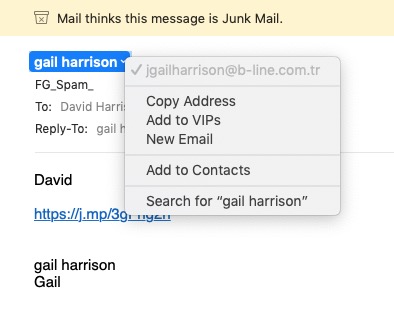
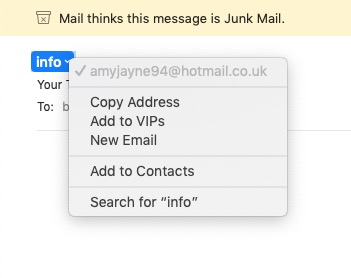
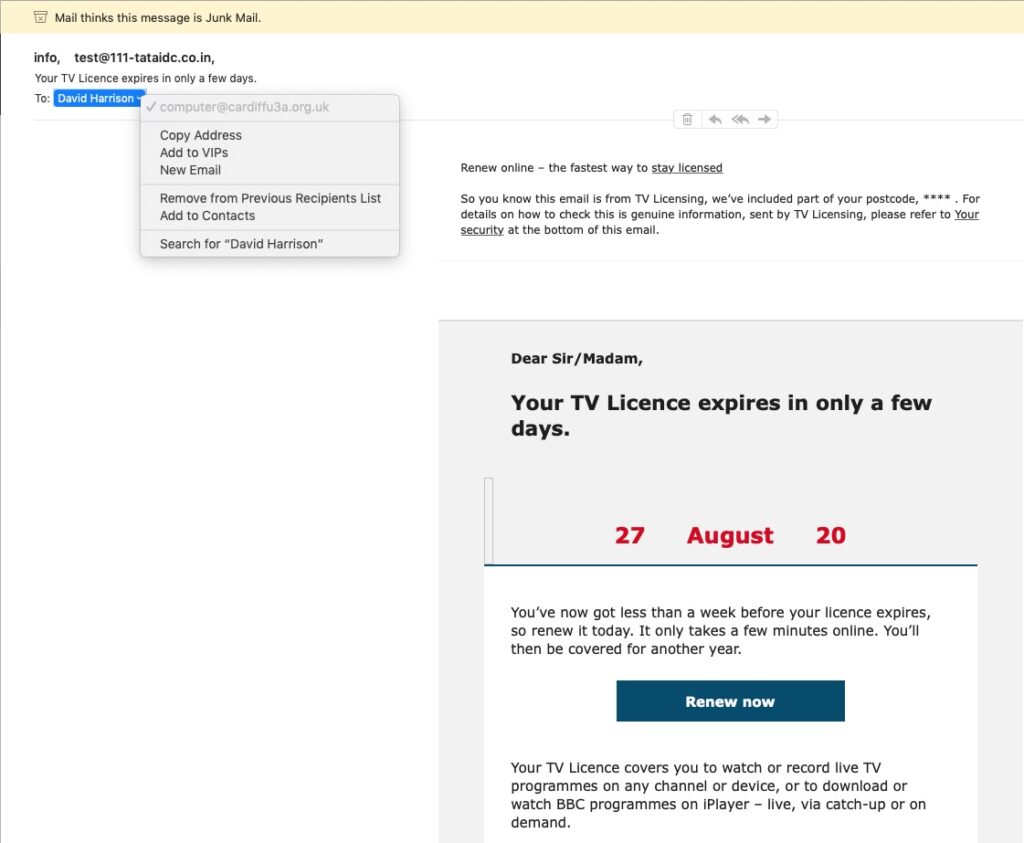
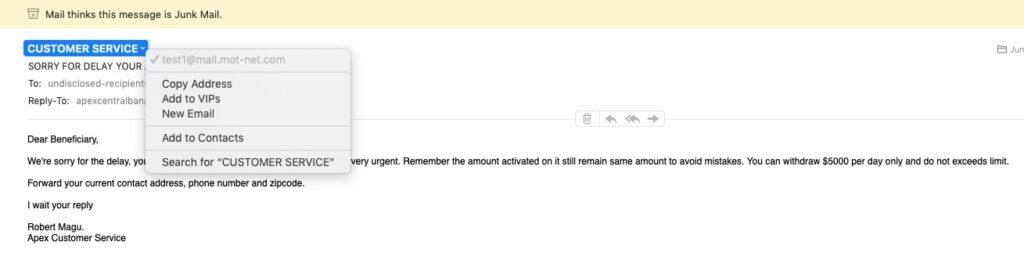
Email messages going to Spam Folder which are legitimate
This is a problematic issue. Generally there may be a number of levels of Spam intervention, and it’s not easy always to detect where the incorrect marking is going on.
Here is a lengthy article that explains how email is marked as Junk, and how to prevent it happening (so-called Whitelisting) for a number of eMail providers …
When emails arrive from <insert email address here> they may periodically be placed in your junk or spam folder by your email software. The information below describes how to stop this from happening.  The first step is usually to add <insert email address here> to your email contact list (so they know you know us).
Why you may be having email problems
The volume of Spam/Junk Mail/Bulk Mail nowadays has caused ALL email providers to now “filter” your emails on their mail server before they deliver them to you.
Unfortunately these filters tend to be very aggressive and are far from fool-proof. It’s very common for email filters to mistake legitimate email for junk, so emails you wanted to receive don’t get delivered to you.
How your email providers filtering system works
When someone sends you an email, first it arrives at your email providers mail server (eg btinternet.com, yahoo.com, hotmail.com, gmail.com, msn.com, etc) where their system filters it by scanning it and checking it for spam.
If the email looks legitimate, they then deliver it to your inbox.
But, if their filter suspects that the email might be junk, it places it in a separate “junk” folder where you can go in later and review it to decide for yourself if you want to receive it or not.
Below are listed instructions on how to whitelist (allow emails) for the most popular types of email programs. For email programs that run on your PC as well (i.e. Outlook Express or Microsoft Outlook), please see your programs help files for adding <insert email address here> to your address book.
Whitelist Instructions (alphabetically)
BTInternet
BT Internet is now operated by Yahoo Mail – you can go to this link to discover more if you still have your email service from BT supplied by Yahoo and follow the link “Marking emails as Spam or Not Spam”. If your service is supplied by their “new” email service – BT Mail – use this link. Follow the Safe Senders link on this page.
Gmail
For Gmail, I would suggest you look at this link.
Hotmail:
Click the Options link, on the main menu tabs, then Safe List. Type: <insert email address here> in your Safe List. If you see a message that should not be in your Junk Mail folder, click ‘This is not Junk Mail’ to avoid having e-mail from the same source sent to the Junk Mail folder in the future.
Apple iCloud 
Manage junk mail using the online iCloud service.  Click here for guidance

Mozilla Thunderbird

Initially, the automatic junk mail detection for incoming messages might not be very accurate and you should check your Junk folder to see whether e-mail has been mistakenly detected as junk. To prevent this from happening in the future, you need to mark e-mail as not junk. Do this by right-clicking on the e-mail and choose “Mark -< As Not Junk”.
Outlook 2003
If the Junk E-Mail Filter accidentally catches mail from <insert email address here>, you can simply add the From address, <insert email address here>, to the Safe Senders list, and no future e-mail from this address will be inspected by the filter.

Yahoo! Mail (also BTInternet)

Yahoo mail filters work on the Yahoo server so your emails are filtered by Yahoo BEFORE they arrive at your computers email program. So, if you’ve looked inside the spam folder on your computer and the email is not there, it is most probably sitting in your other spam folder on the Yahoo server:
Open your Yahoo mailbox (http://www.mail.yahoo.com) or BTYahoo mailbox (http://www.bt.yahoo.com).
Click Mail Options.
Click Filters.
Click Add Filter.
In the top row, labelled ‘From header:’ make sure Contains is selected in the pull-down menu. Click in the text box next to that pull-down menu, then enter the address: <insert email address here>
At the bottom, where it says “Move the Message To:” select Inbox from the pull-down menu. Click the Add Filter button again.
If Alert has been filtered to your “bulk” folder, simply open the message and click on the “This is not Spam” link next to the “From” field.

Other providers:

If an obvious option is not available, try moving the message to your ‘inbox’ or forwarding the message to yourself.
If subsequent messages continues to be filtered, call or e-mail your ISP’s technical support and ask how you can be sure to receive all e-mails from <insert email address here>.
If you use a Web mail system or email application not listed above, the instructions for whitelisting our address will depend on the specific email program you are using.
If you access the help files, instruction manual or customer support, there should be instructions on how to do this.
In most cases, just by adding our From address, <insert email address here>, to your address book, safe list, white list or contact list will be sufficient.
Otherwise, the most likely course of action to provide a solution if all else fails is to select one of the emails from <insert email address here>  and click on the Not Spam or Not Junk button, if available.
For more information about your mail application, please visit the help section that is associated with your mail application.
Here are some relevant links:
An easy guide covering the same ground as above.
Virginmeda Email spam settings
If you’re with TalkTalk – there may be a bit of an issue!!
Sky’s email is provided by Yahoo! So follow the advice above and mark email as “Not Spam” – hopefully it will learn!
Generally, I recommend using Gmail and ignore the ISP’s email – it’s much easier to switch supplier. If you don’t want to use Gmail, then use Apple’s email or Microsoft’s email – you know they won’t disappear and will be reliable.
Mailtrack (for Gmail) to get Reply Receipts
You can get Mailtrack for Gmail (to work in Chrome/Brave) or as an Android app. There isn’t an iOS version currently. After you’ve installed Mailtrack you will get a screen like this when you open Gmail after connecting Mailtrack to a Google Account …

… you can then compose a message …

… and you have the choice of being notified, or not, about the reception of the message. Opening the Sent Folder, you will see this …

… which shows one green tick against the message – it’s been sent, but not read. In the recipient’s Inbox you might see something like this …

… the message hasn’t been opened yet. Once I’ve opened it, the message appears at the bottom of the email that the Sender has been notified of read receipt …

… and returning to the sender’s email Sent Box you can see that the message now has two green ticks indicating read as well as sent …

… I hope this helps. I haven’t found anything similar for the iPhone/iOS but I understand Mailtrack may be working on it.

Gear Guide
Has anyone bought, or obtained anything recently they’d like to tell us about? It doesn’t have to be a computer, laptop, tablet or phone – just something that’s digital, ie used a computer processor in some way?
Apps Galore
That slot in the meeting where members are encouraged to share their experience (and possibly excitement) at a new app they’ve started using for their smartphone, tablet, laptop or desktop machine.
What’s IT all about?
Not this week
Making your browser work for you
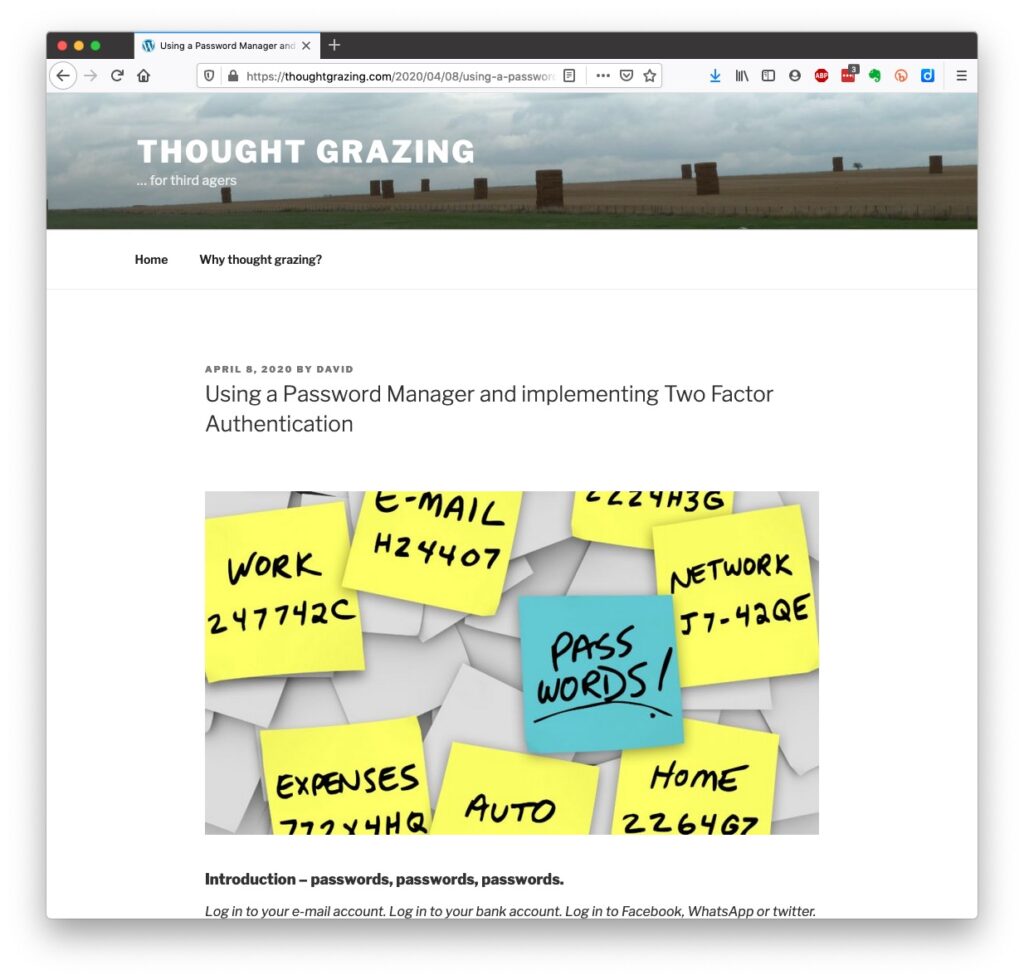
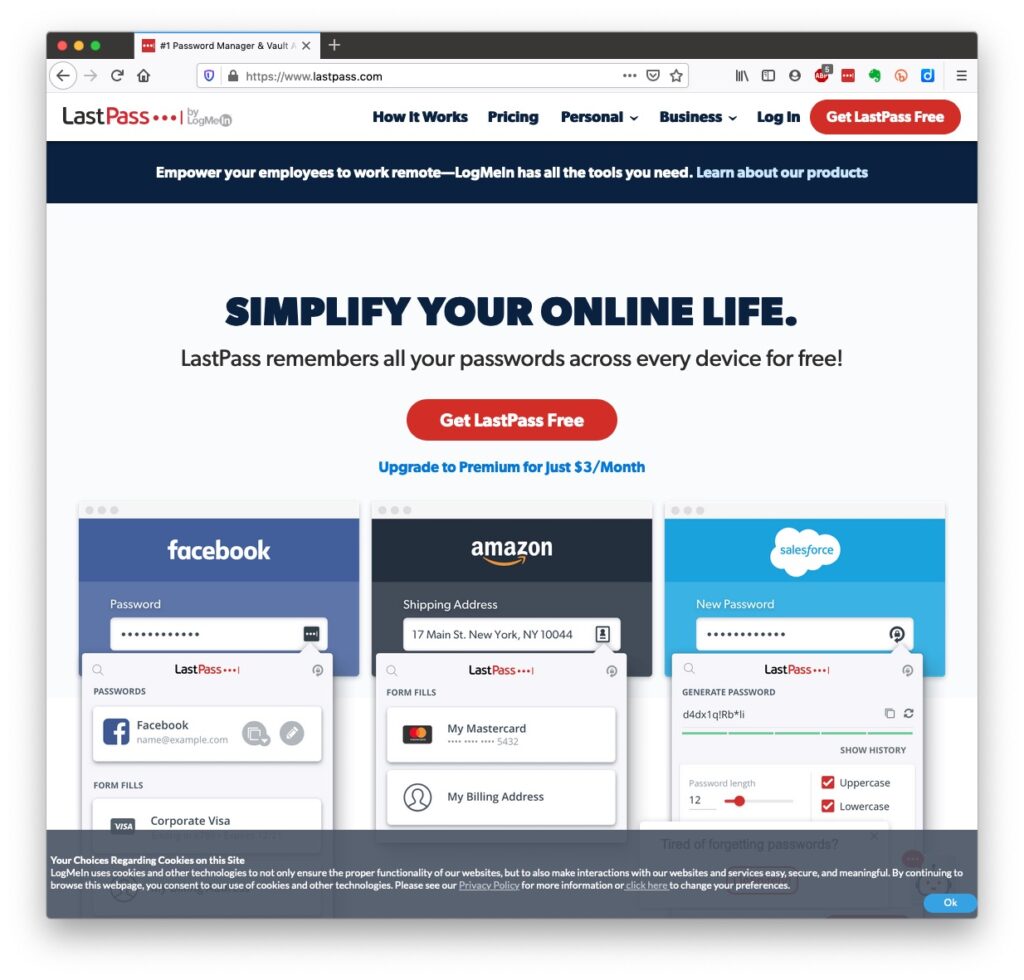
But first … LastPass. A password manager is an application that stores URLs that you ask it to together with the user credentials that you supplied the website with when you registered with it. There are a number of password managers – here’s one review of the best of them and here’s another one. I’ve been using LastPass for a number of years now, and I don’t propose to change! So, I’ll be focussing on showing you how I use it. [Dashlane does come out as a possible alternative though.] Although there are Free (or trial) versions of most of these, if you want to use the same system on more than one machine, or have a version that works on your smartphone/tablet as well then you’ll probably have to pay something to use it. Against this expense you MUST match the convenience of never having to write your user credentials (UserID and Password) down in a book, stick it on a Post-IT note on your computer or a scrap of paper that you never can find again! And that it is secure. How does it work …
An introduction to LastPass
Setting up a Family Vault
A complete list of LastPass Training Videos
Setting up LastPass as a Browser Extension
… so Extensions – making life easier?!? Available for Chrome (Brave), Firefox, Safari and Microsoft Edge. I’ll try and show you how they work, how to install them. The ones I like and use are listed below …
LastPass
Evernote – clips content from a webpage so that I view it offline, annotate it and Bookmark it for future reference. You could also use OneNote in the same way.
Pocket – again a Bookmark application that stores the content of a webpage online and then syncs it to your device for offline reading.
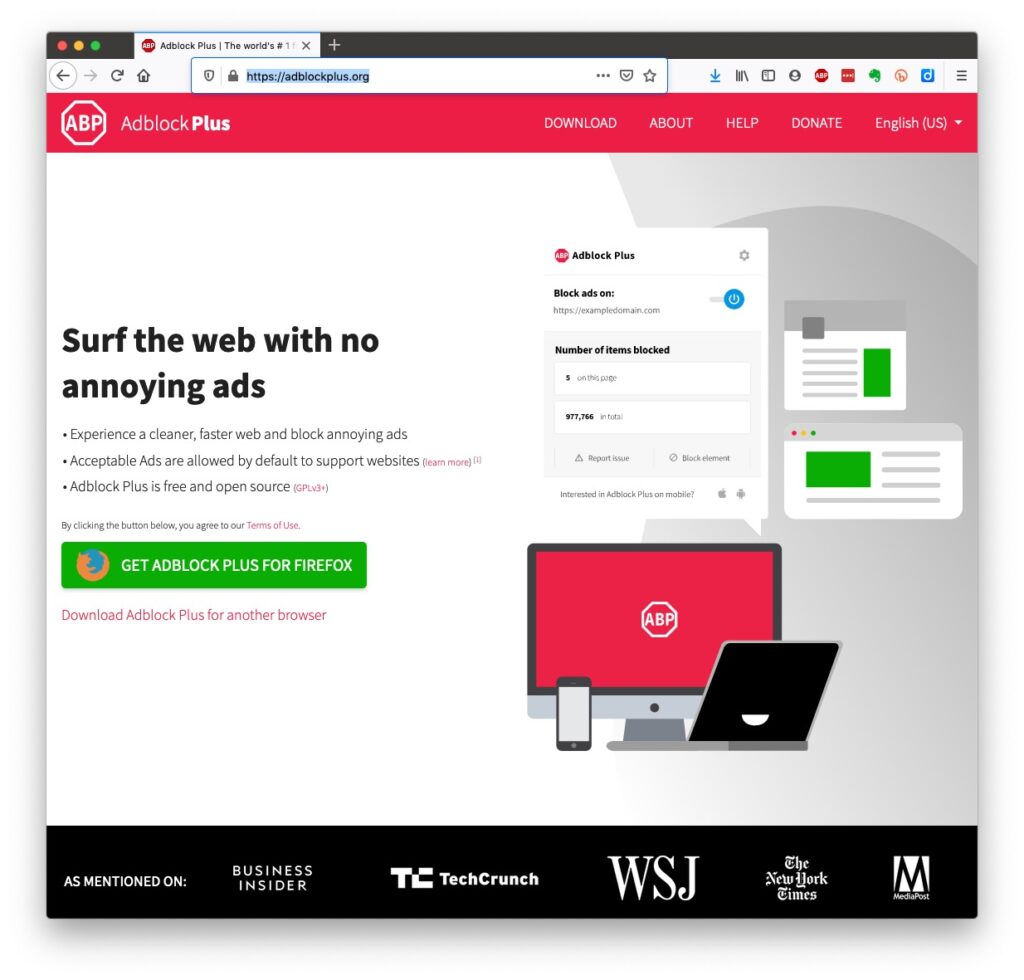
AdBlock Plus – blocks ads, allows you to Whitelist certain sites
Zoom – to change the size of the fonts on the webpage
Bitly – shortens a URL, also Tiny URL