This post is a sequel to the article (see link below) that I wrote in November, and reflects a little more of what I’ve learnt about the crazy world of how Apple Photos and Google Photos interact (or work) with each other. I’m pretty sure it won’t be the last.
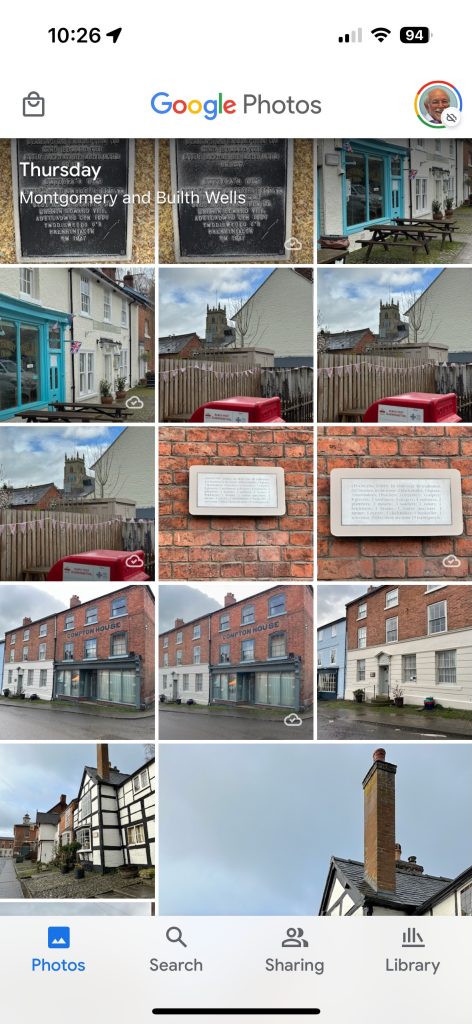
This one starts from an observation I made this morning that some recent photos I’d taken with my iPhone and which were in my Photos Library also seemed to have been added to Google Photos on my iPhone (but not my iPad) as well. From the outset let me assure you that this is the normal behaviour. You have to set Google Photos to see all the photos in your local Photos Library {Settings > Google Photos > Allow Google Photos to Access – All Photos} otherwise it can’t work. What you are seeing in Google Photos is the app getting a view of what’s in your Camera Roll on the iPhone/iPad – you haven’t added anything at this stage to the Google Photos app, and more importantly, nothing has been uploaded to Google Photos at photos.google.com.
What I did see however additionally in Google Photos were some edits of recent photos that I’d done in Lightroom which I’d exported to my desktop, and then uploaded to photos.google.com. They could be identified by the little cloud icon on the picture.
It got me to thinking; what is the best way of sending photos from the iPhone/iPad to Google Photos – if I don’t want to sync everything using Google Backup (which as I explained in the previous post, I most certainly don’t want to do as they’ve already been backed up to iCloud). Am I doing it the best way?
Method 1
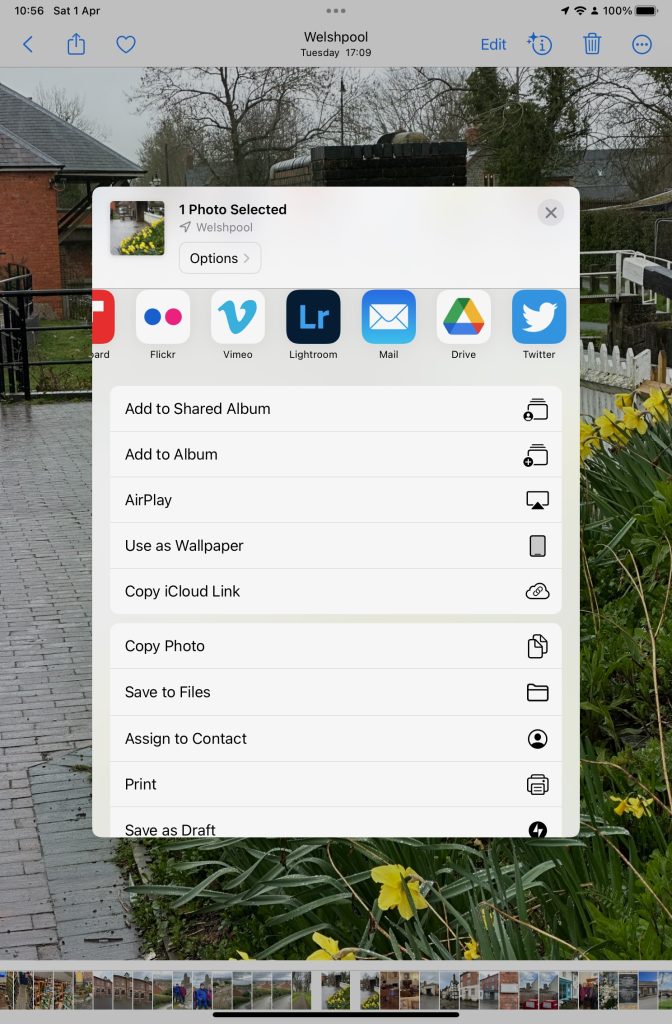
As above. Share (export) the photo from the iPhone/iPad to a chosen folder in the Files app or Google Drive, and then upload from that folder to Google Photos from photos.google.com (see also Method 3).
Upload from iPhone/iPad Camera Roll to a variety of services
Method 2
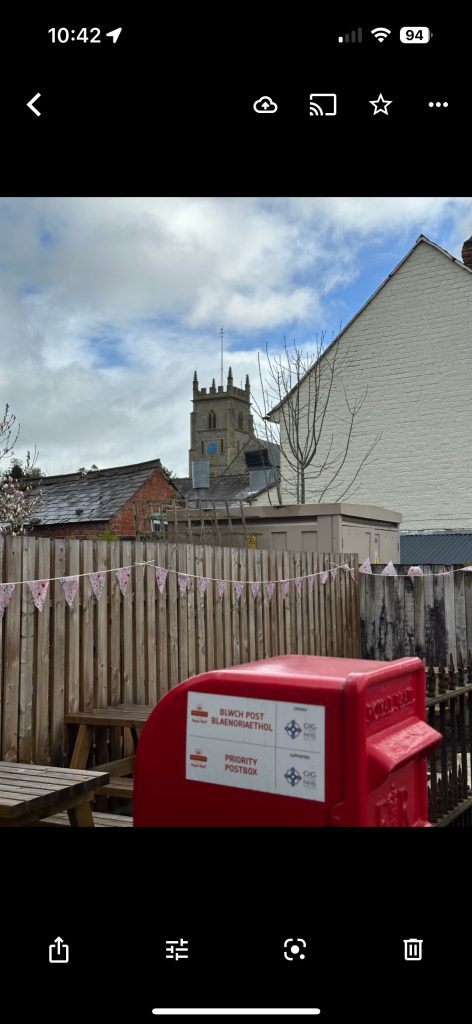
This is by far the easiest, and simplest way (and believe it or not I didn’t know you could do this). Open the Google Photos app on the iPhone, select a photo and then select the Upload (cloud) icon …
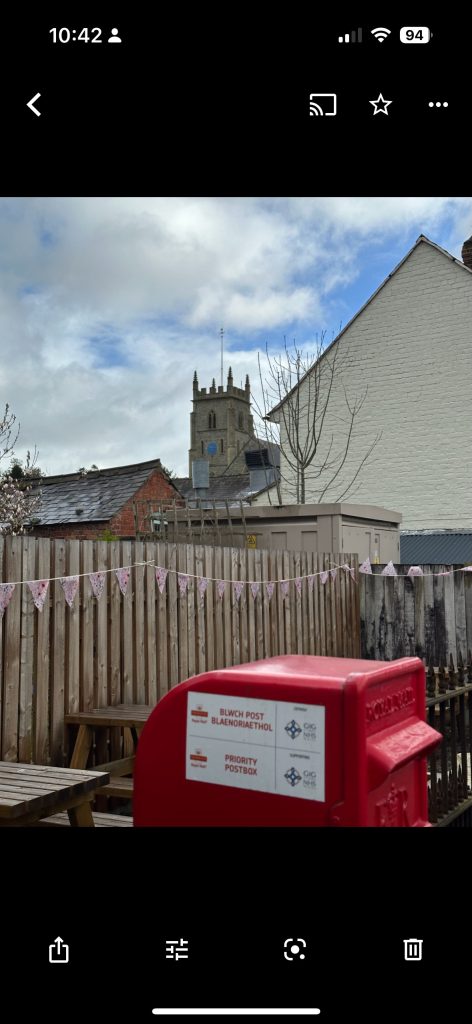
… the photo will be backed up to Google Photos (and photos.google.com); you will also note (see above) that once you’ve done that the Upload (cloud) icon is removed from the screen. In the Google Photos app, the photo will now have a cloud icon. Simple, eh!
Method 3
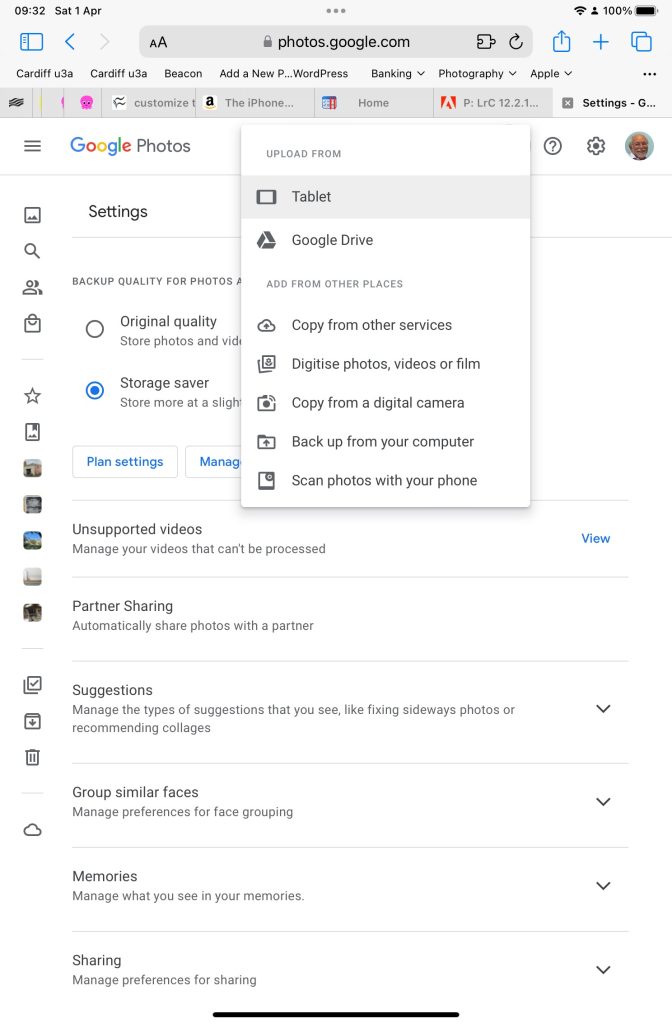
You can do the process in reverse. Go to photos.google.com and select Upload. You will be offered a variety of options …
An upload to photos.google.com from the Safari browser on my iPad
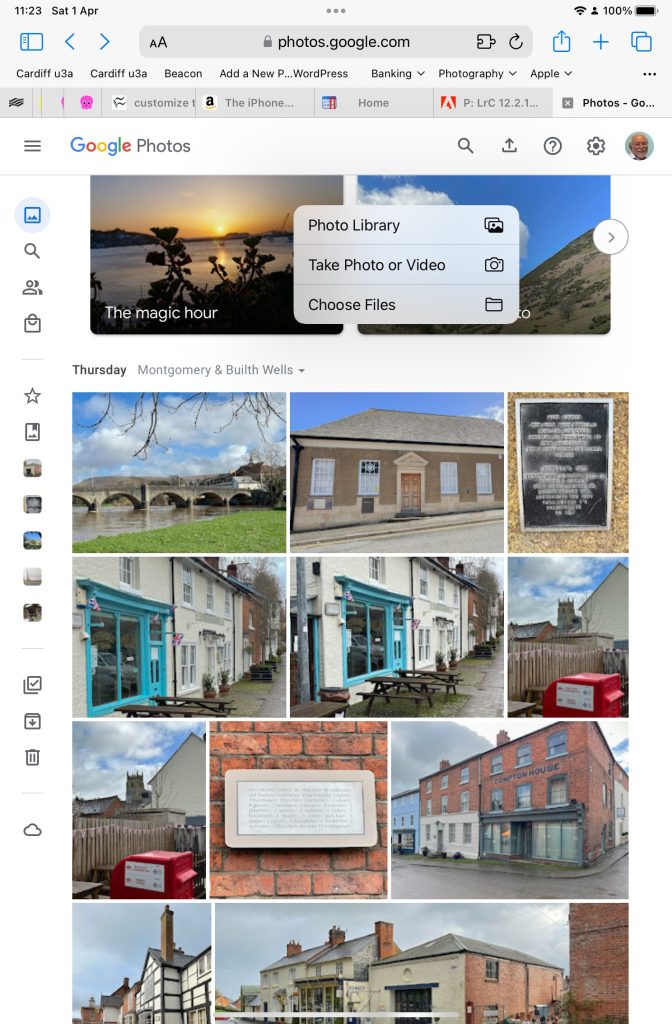
Choose (in this case) Tablet – as I was using my iPad to get the screenshots and you will get this dialogue …
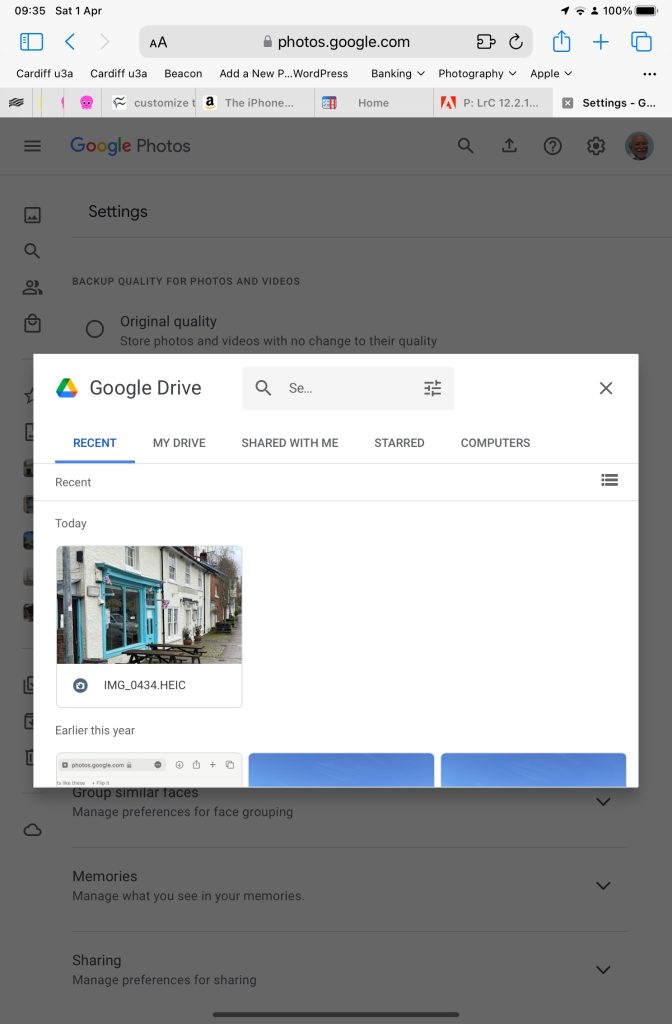
Choose Google Drive and you will get this dialogue …
Choosing an image you’ve uploaded to Google Drive
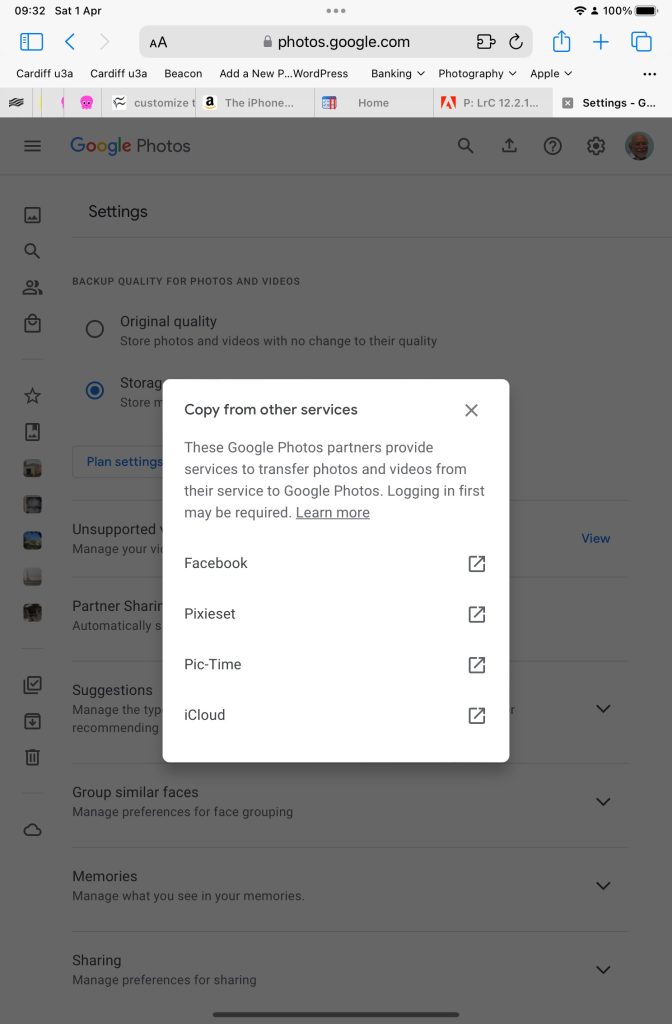
Choose Copy from other services and you will get these options …
From which you can see (something else that I’ve learnt), that you can copy from iCloud – where all my iPhone photos are backed-up – to Google Photos. Duh!!!
What a wonderful (and complicated) world Google Photos is, and think – this was just prompted by me seeing photos in the Google Photos app I knew I hadn’t “uploaded” to Google Photos. Rest assured, they’re just views into the Apple Photos Library, not copies!!!
This article is prompted by a combination of a casual enquiry about sending photos from your iPhone to Google Photos (hosted on a Google Drive), and my own discovery that I was backing-up iPhone photos to BOTH iCloud and Google Photos.
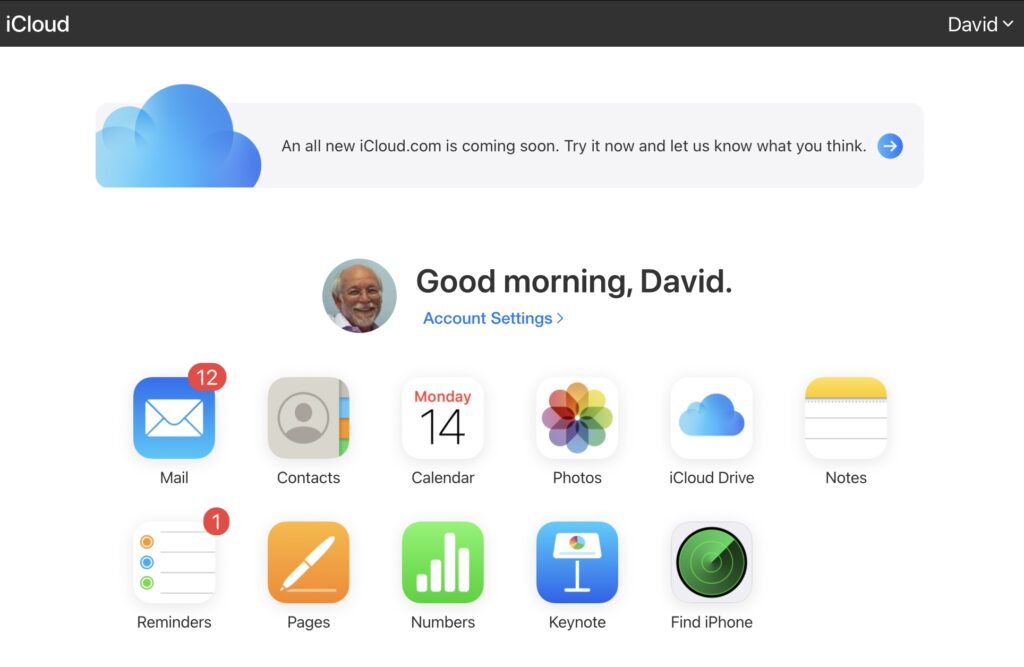
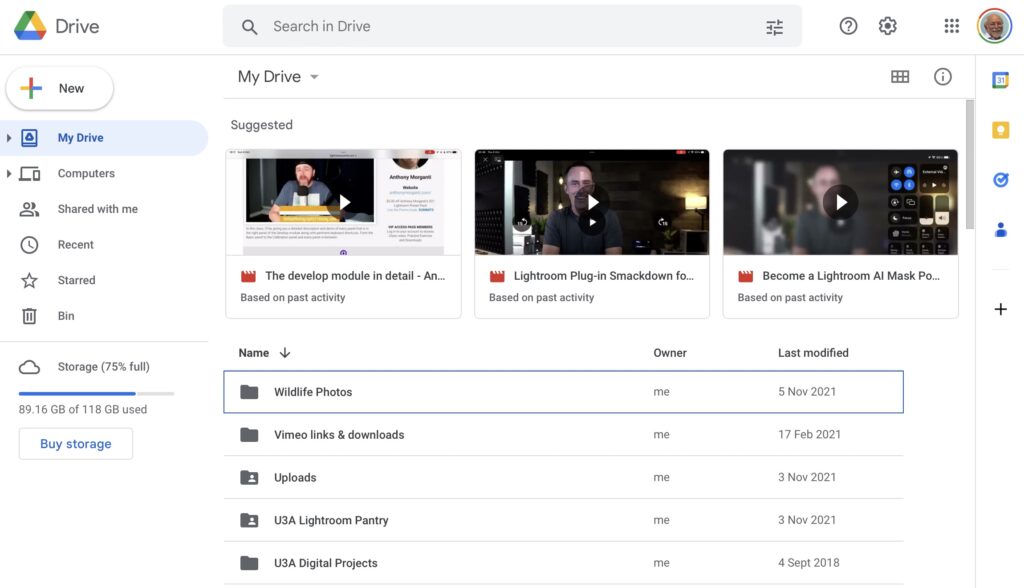
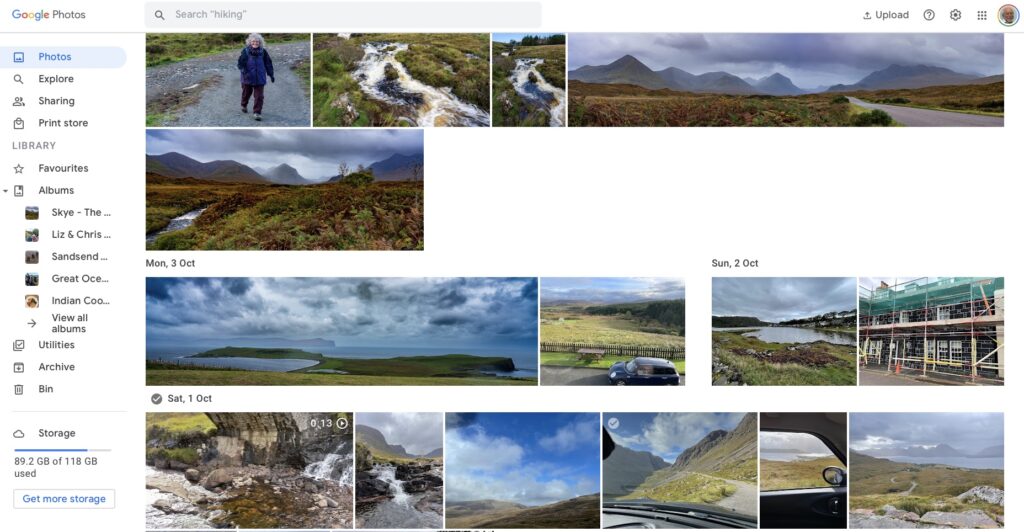
Observation one. Google Photos and iCloud Photos don’t work in quite the same way. Whereas you can access the Photos you may have stored on Apple’s iCloud storage from icloud.com through the iCloud Photos app, you cannot access Google Photos from drive.google.com directly – you have to go to photos.google.com to access them. Google Photos uses up some of your Google Drive storage – you get 15Gb “for free” with a Google account – but it’s a standalone application, in the same way as Google Mail is. It’s an important distinction. Google provides you with applications which make use of their cloud storage, Apple provides cloud storage alongside access to applications which use that storage and which synchronises back to devices.
The iCloud window {Access to all Apple applications and cloud storage}
The Google Drive window {NB No access to Photos, or Mail}
The Google Photos window {separate from Google Drive}
Observation Two. This article concentrates principally on Google and Apple, because they are the two principal players in the Camera and Cloud Storage space. There are other cloud storage solutions on which you can store photos, eg Microsoft’s OneDrive, and Dropbox. I will only refer to these briefly at the end of this article. There are undoubtedly other cloud storage solutions, but I won’t be writing about them.
Observation Three. Anything I write about the link between Camera and Photos on an Android/Google system is second-hand knowledge, and I cannot verify it!
Observation Four – the final one. This article does not seek to cover the general topic of transferring photos from a phone to your computer. This is more than adequately covered in this article. I suggest you read it too.
Not wishing to be dismissive, but just because it’s so straightforward – I’m going to discuss Google Photos first. If you have an Android phone and thereby have a Google account, you automatically have 15Gb of cloud storage and the two are linked, and by default any photos you take on your phone are backed-up to your Google account. This is described well in the Google Support article. A couple of things are worth highlighting however: a) you can switch-off automatic back-up and synchronisation of your photos, in which case all backups would need to be done manually; b) you should carefully choose the “quality” of the photos you back-up – they may not be the same as that of the photo on your device; and c) it would appear that you could backup photos to a different account from your main one, thus adding to the free 15Gb you get with each account. [Alternatively, for £15.99 a year you could get an additional 100Gb of storage from Google. If you aren’t an Apple user this is definitely worth considering.]
It’s not that much more difficult if you want to save photos from your iOS (iPhone or iPad) device to the Google cloud storage. Again the Google Support article describes the process and the options quite well.
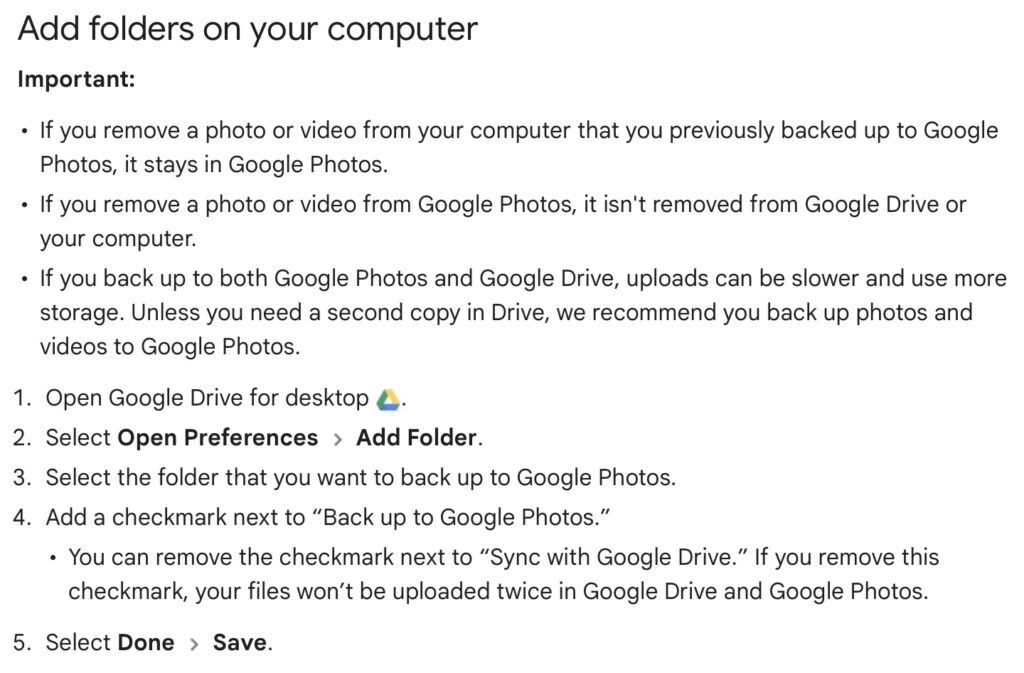
Similarly if you’ve transferred photos to your computer (eg from a camera SD-card), then Google’s got you covered to back-up and sync to their Cloud storage in this article. You should nominate a folder on your computer that Google Drive will monitor for newly added files which will then be backed-up and synced to either Google Drive, or to Google Photos, or both, depending upon the option(s) you’ve chosen.
Note (4) – you might get two copies if you don’t uncheck “Sync with Google Drive”
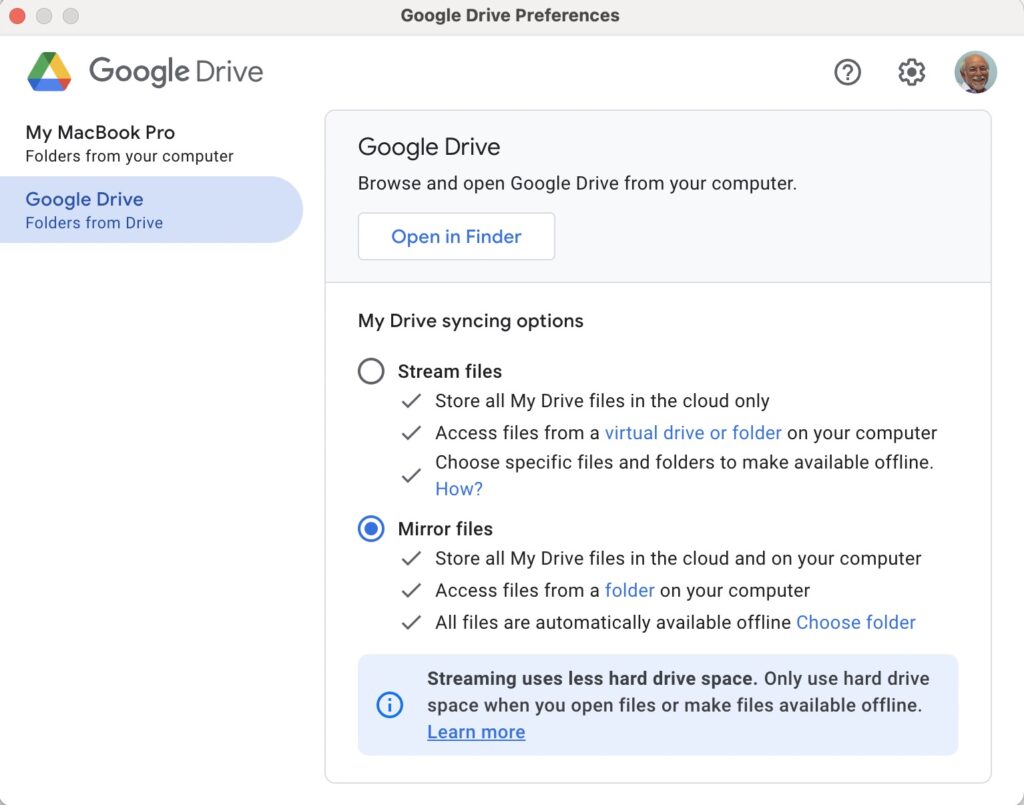
For this to work however, you do need to be sure you’ve a) installed the Google Drive on your computer, and b) you’ve set the preferences the way you want them. In my case, since I’ve increased the amount of Google storage I have, I’ve chosen to Mirror a folder (in itself called Google Drive) – then both the folder on the computer, and the one in the cloud should be exactly the same. A mirror in fact. Anything I add to (or edit on) my local Google Drive will be copied to my Google Drive in the cloud.
So we turn next to the Apple ecosystem. [I should feel more confident here, but as you may have noted that I disclosed at the start of this article that I was doing something extremely stupid and not noticing my idiocy.] Here the support page on Apple Photos and iCloud I think really does a good job of explaining your choices and how to set up backup to their cloud storage. I don’t think I can improve on it. But what if you’ve got Google Photos installed as well on your iOS device? This is where I made my foolish mistake. I enabled Backup and Sync on my iPhone and so I got TWO copies of every photo – one in my Google storage in Google Photos and the other in my iCloud storage. Duh!!!
Disabling the Backup and Sync left me with an image which was shared locally between the Google Photos and Apple Photos apps. How could I get that image (or group of images) onto Google Photos to perhaps share with friends or family?
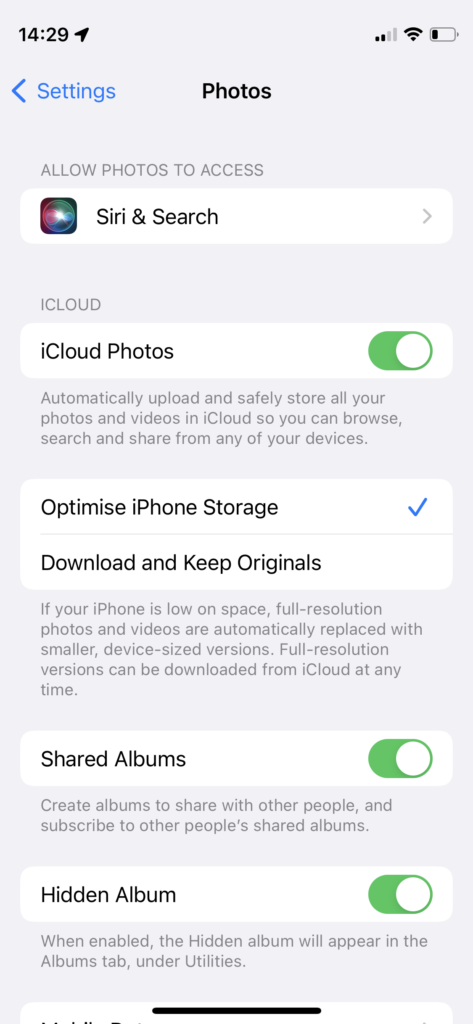
It turns out that there are two reasonably easy ways of doing this. By enabling iCloud Photos on the phone (or tablet) …
Set iCloud Photos to On
… I can then download from iCloud to a folder on my computer which I can then upload to Google Photos from. Really rather simple and not a use case for Google Photos Backup and Sync to be employed.
Alternatively, I could go into the Google Photos app, select the image I want to send to Google Photos in the cloud and Share it by getting a link and then sending myself a message. The act of sharing it copies the image to the cloud, from which I can then add it albums, etc.
Using either of these approaches allows you then to obtain a link for the album which you can then Share to a list of users, or obtain a link for public sharing.
Once you get the photos onto Google Photos the fun starts. It’s not intuitive what happens when you decide you want to delete them either from the cloud, or from your device. In fact it’s downright confusing. I’ve written about this in another place (the public Thought grazing) and life is too short to repeat anything on here that I’ve already written over there, and believe still to be correct. Best of luck!!!
The situation with deleting photos from Apple Photos and iCloud Photos is slightly more straightforward and I’ve written this up already, so won’t repeat it.
It goes without saying that keeping it all in the Apple ecosystem (for me) makes a lot of sense, and with the ability to share albums on the way – it’s not yet as sophisticated as the Google Photo Albums service – I may transition away from Google Photos altogether in time.
For Dropbox users, you can setup an automatic upload of photos to the service. They even give you a bit more free storage if you enable this, or at least they used to!
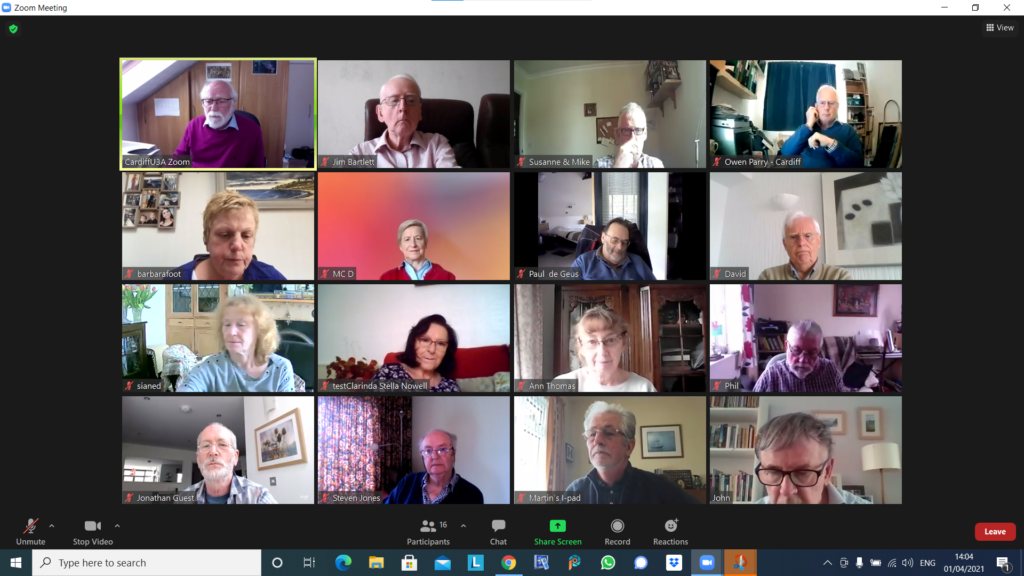
Thanks Jim for the screenshot; I’m glad it’s just your internet connection that’s unstable! We had apologies from Mike, Jenny, Jonathan and Margaret. I’d forgotten to send out the calling notice until David Hughes reminded me – my apologies if that caused problems for anyone wanting to join. I caused problems for myself by trying to run the session from my laptop as I wanted to be near the front door to receive a parcel, but that caused a different set of self-inflicted problems as I started up the wrong Zoom session – The History Group to be precise – and wondered why no one was joining the meeting. Duh! Still, it caused some merriment at my expense and the meeting continued in a very light-hearted manner.
As suggested at the last meeting, I started with a description of what Google Drive for Desktop replacing Back up and Sync means for users of Google Drive on Desktops or Laptops. It has very little impact upon the use of Google Photos on Mobile devices which still has a Backup and Sync option. The slides from the presentation are available here to download as a Powerpoint presentation to play offline – with active links; or to read/download as a clickable PDF file.
We then reviewed the notes from the last meeting. We noted that the issue of Margaret‘s Modem/external drives/computer being switched-off would need to be followed-up at the next meeting. We were pleased to see that Jonathan had been able to get away on holiday to Cornwall, despite his Covid-scare reported at the last meeting. We were even more pleased (and impressed) to hear that he’d solved his McAfee Popup situation – something I’d managed to add to the last meeting’s notes. Steve had looked at the link to change YouTube videos to MP3’s but hadn’t tried it yet. Ann had solved her Printer and SkyQ Modem issue with acknowledged assistance from Owen – she offered to write what she did up as a Comment to these notes.
I suggested I leave the review of news (Flipboard) to the end of the meeting.
Sianed had been troubled by a popup when accessing Gmail that she was being asked whether she wanted to grant access by Google to her accounts. I was of the opinion that this was normal Windows security (now) and that she could probably switch off the prompting from with in Windows (somewhere).
This “problem” enabled me to raise the issue that I felt I was not doing the best for the group in not being able to answer Windows “issues”, or attempt to “solve” Windows “problems”. During the meetings Owen and Paul were doing a sterling job of trying to provide answers, but I felt it would be useful if someone in the Group could take the “Windows brief”. After a brief discussion, I sort of persuaded Paul to take on that role. Many thanks.
Jim reported that he was continuing with his work in adding to the metadata stored with his digital photos. Some of it was recorded in the EXIF data of the photo, but some was not – being camera specific. He offered (and I accepted gladly) the offer for him to write-up what he’d discovered. I added that a similar situation occurred in the world of Adobe Lightroom in merging of EXIF data, and also shared a tip to always take one photo with your smartphone (which stored location data) alongside any photos taken with a digital camera – if you wanted to add location information to your picture in your photo editing software.
Ann described her solution to the printer problem mentioned above and offered to write it up. Many thanks.
Ted had also had a printer problem, to the extent he’d nearly bought a new printer! However, after a bit of research, he found that the problem – blocked printer heads – could be resolved by purchasing a kit costing less than £10 which he intended to apply. It was also suggested that putting the cartridge heads in a saucer of water can resolve the problem as well. I can’t verify whether this is a foolproof, or damage-less solution.
Christine was able to announce that she’d moved the VM Extender to another power outlet the previous day and they’d had perfect reception. Let’s just hope this continues and the problem of poor WiFi reception is behind them. She also had noticed that one of the Icons that had been visible from her Windows Start Icon – that for People (her Contacts) – had disappeared. A solution was proffered (forgive me if I’ve got this wrong): Right-click on the bar on the screen; choose the option to show People on the Taskbar.
Paul was having “fun” with a new dash-cam which used different cable connections – a rather common problem unfortunately with digital devices. We noted that the EU was trying to standardise on USB-C. We also noted that the lack of printed manuals with new devices was not as good for the planet as might be imagined because we had to print them quite often. It was therefore good for the supplier in terms of cost-reduction.
Steve reported that following the last meeting he’d been able to remove the McAffee pop-up reminder; we advised him that he could quite safely use the Windows Defender software rather than pay £4 extra to TalkTalk for McAffee.
Don (with new devices at home recently) would quite like a session on Connecting Devices to the Network. He recently used his phone to take snaps of meter readings as they had fallen foul of the companies going bust. He also described what appeared to be a rather strange scenario (at first hearing) where he was being asked whether he wanted to register a Direct Debit payment for PAYG for the London Exclusion Zone for his car. After some discussion we came to the conclusion it was a valid offer [Ann reported something similar after an experience of entering the Birmingham Zone – and suggested that going on the .gov.uk website might explain more.] It appeared that this would be a personal decision to make. Setup an account, or just remember to pay if you DID happen to enter a zone.
Renee asked for any information on alarm systems as her COD Security system had recently requested a large hike in costs. Paul suggested approaching O’Brien Systems (Swansea); other suggestions were Sonic Alarms and Cardiff Alarms. She asked whether it was OK to upgrade her MacOS and iOS systems now. I suggested waiting for iOS 15.1, but that point releases of MacOS were generally safe to upgrade, and Safari upgrades should always be done. Following the meeting I sent a message to the Signal Group about a new “feature” for MacOS which should possibly be installed when offered – Mac Device Support.
Stella requested advice and information about different disk formats. I explained the origins of NTFS, and why exFAT was better in many ways as it could be used for disks attached to either Macs or PCS. Paul mentioned that FAT32 was another format that was relevant in the Windows world, but there was a fundamental problem with what Stella was hoping to achieve. A disk formatted for use specifically when connected to a TV could not be read on a PC, and vice versa. This was a protection mechanism on the TV to prevent copyright infringement.
David Hughes told us he’d had great pleasure watching his niece play her harp from the college where she was playing but wondered whether there was anyway he could have watched it on the TV. We thought that either Google’s Chromecast, or Apple’s AirPlay might do the trick if his Smart TV supported either of these. Here’s a link for Android devices and here’s how to show an iOS screen on a TV. He also asked about the connection of a sound-bar to his new TV. I stated that for decent sound he would have to use a cable connection – usually HDMI – and not rely on a wireless solution. Others suggested that there might be a Setting to change the “environment” of what he was watching, ie Music, Drama, News, etc which might improve the quality of the sound. He also praised the route information provided by his Maps on his iPad which indicated the best way to get to M&S, now that his local store was closing.
Owen updated us on Beacon issues including the fact that Chrome currently doesn’t work, but Firefox does. He described how a hybrid (in person + zoom) meeting had gone, but that the sound quality on his laptop was probably not good enough – perhaps using external powered speakers (£20-£40) connected to the earphone jack would be necessary; I have some connected to both the TV in the kitchen (from Logitek) and to my iMac (from Creative). Much better sound quality than the internal speakers of both.
To end the meeting, which had now extended to nearly 2 hours – partly due to my trials and tribulations at the beginning – I went briefly through the items I had added to the Flipboard magazine. I highlighted the features that were in the new iOS 15 release (again, I caution on upgrading until 15.1 is released); an important security upgrade for older iPhones; changes in the way people will be able to switch Broadband suppliers; the changes proposed by the EU to standardise on one kind of phone/tablet/device charger (USB-C form); and the release of an app from the Met Office and Exeter University that might be able to predict (using AI) whether it’s going to rain in the next 90mins!
I’ve noted (apart from Don’s suggestion to look at connecting devices to a network) the following topics I may look at in the future – Virtual Private Networks; and ways of using Google Contacts and Google Calendar with native Microsoft/Apple applications.
I’ll also raise the signposting of this website on the Cardiff U3A site (thanks to Steve for alerting me to this) and send an email message to the Group also advising them of the way to access it – just in case they’d forgotten.
I asked members to consider reporting – using this page – any scams they’d encountered to the Which? Scam Alerts Service – which I encourage you all to subscribe to.
I’m grateful for Owen offering to host the next meeting whilst I take the last of our “autumn breaks” in sunny Aberystwyth – well hopefully it will be sunny.
If you’ve got a Google account – you use Google Photos, Google Drive (and the Google Docs suite) or Gmail – you’ll probably have received an email telling you about the changes that Google are making to the way it calculates how much of the 15Gb of storage the company allocates to you has been used. They have also spelled out clearly when they will delete content that has been inactive for more than two years.
This post relies heavily (almost verbatim) on information already available on Google’s Help Pages – which should always be taken as the main source for information.
Currently each Google Account includes 15 GB of free storage quota, which is shared across Gmail, Google Drive, and Google Photos. You can add to your storage quota by purchasing a Google One membership (where available). To learn more about your quota, see what items count towards your storage.
Prior to June 1, 2001
The following items count against your storage quota
Gmail messages and attachments, including your Spam and Trash folders
Most files in Google Drive, including PDFs, images, and videos
If you go over your storage quota
You can no longer upload new files or images to Google Drive
You can’t back up Original quality photos and videos to Google Photos
Your ability to send and receive email in Gmail may be impacted
You can still sign into and access your Google Account
After June 1, 2001
The following additional items will count against your storage quota:
High quality and Express quality photos and videos backed up to Google Photos after June 1, 2021. Learn more about this change.
Files created or edited in collaborative content creation apps like Google Docs, Sheets, Slides, Drawings, Forms and Jamboard.
Only files created or edited after June 1, 2021 will count against your quota.
Files uploaded or last edited before June 1, 2021 will not count against your quota.
And this is how your usage impacts your data
If you do not use Gmail, Google Drive (including Google Docs, Sheets, Slides, Drawings, Forms or Jamboard) or Google Photos for 2 years, your content within the inactive product(s) may be deleted (after reasonable advance notice).
If you go over your storage quota
You can’t upload new files or images to Google Drive.
You can’t back up any photos and videos to Google Photos.
Your ability to send and receive email in Gmail can also be impacted.
You can’t create new files in collaborative content creation apps like Google Docs, Sheets, Slides, Drawings, Forms and Jamboard. And until you reduce your storage usage, neither you nor anyone else can edit or copy your affected files.
You can still sign into and access your Google Account.
When you have been over your storage quota for 2 years, your content in Gmail, Google Drive (including Google Docs, Sheets, Slides, Drawings, Forms and Jamboard files) and Google Photos may be deleted.
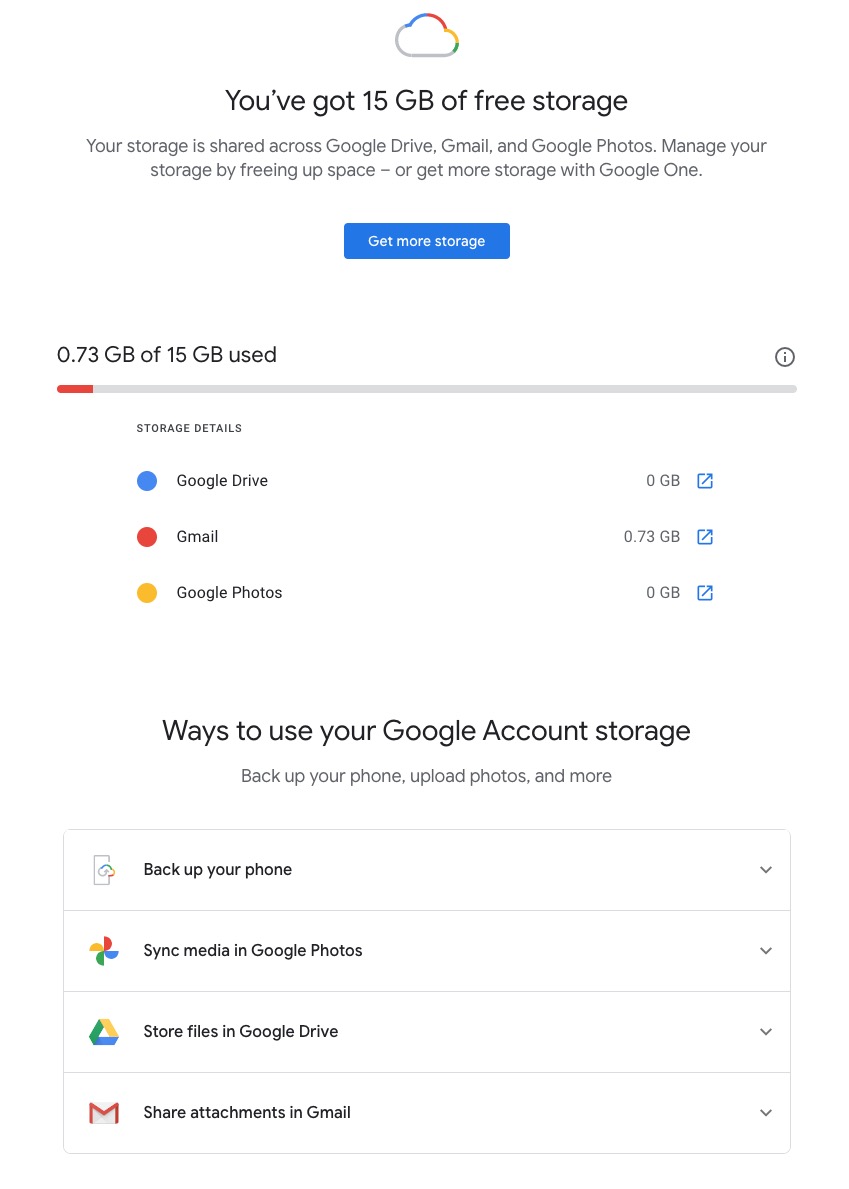
So it’s time to do a stock take of what Google Storage you’re using. You’ll see something like this if you’ve got an active Google account …
Seeing how you may be using your Google Storage, with June 1st approaching might seem pretty frightening to you, so you might need some help to know what you should do, and whether purchasing a Google One plan might be right for you …
What happens when you’re over quota
When you’re over quota, it means you’re using more storage space than you have available. If you’ve been over quota for 2 years or longer, and you have not freed up or purchased more space to get back under quota, all of your content may be removed from Gmail, Drive and Photos. But before that happens, we will:
Give you notice using email and notifications within the Google products. We will contact you at least three months before content is eligible for deletion.
Give you the opportunity to avoid deletion (by paying for additional storage or removing files)
We provide access to storage management tools that help you identify ways to free up storage space at https://one.google.com/storage. Another option to free up space is to download your files to your personal device and then delete them from your cloud storage.
However …
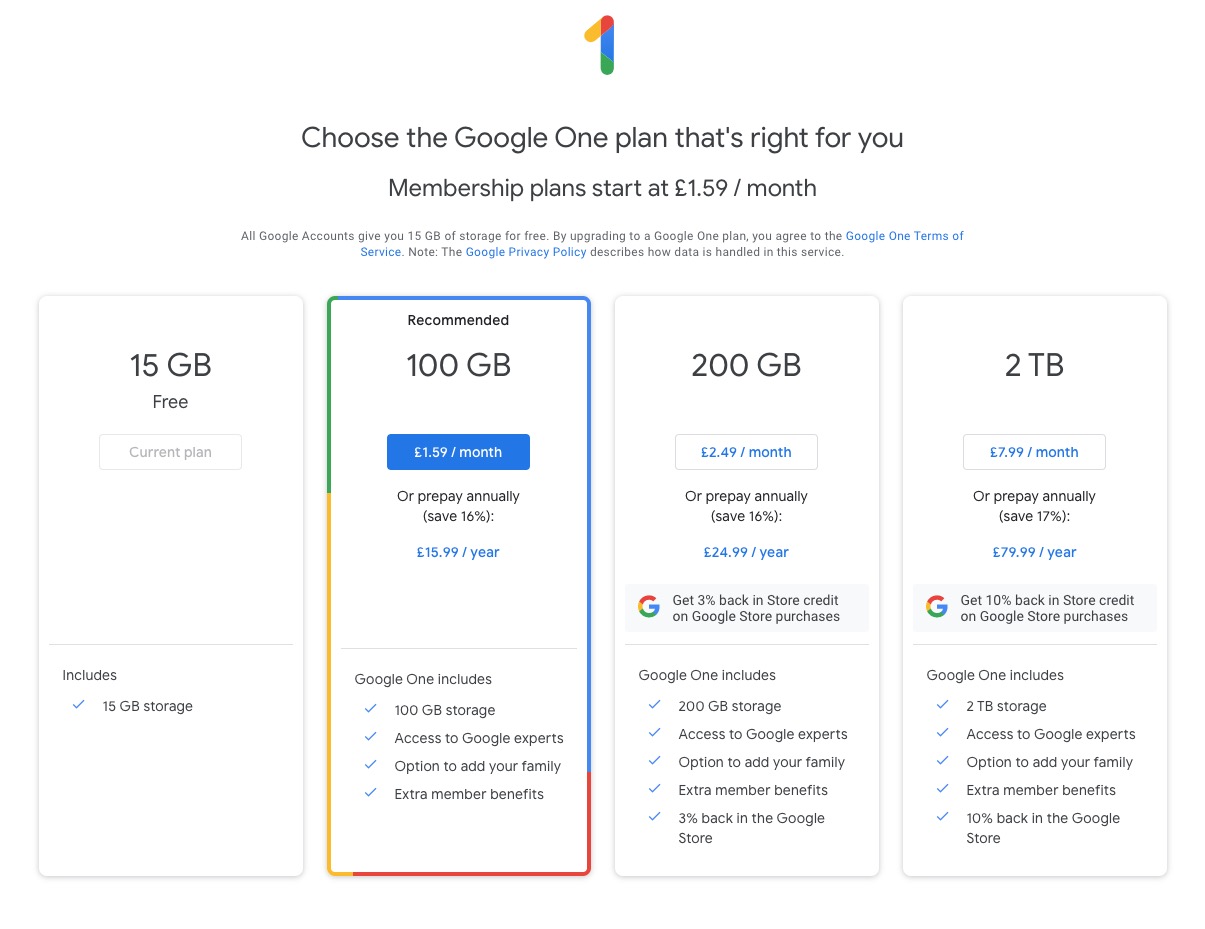
If you want more storage space for Gmail, Drive, and Photos, you can upgrade to a larger storage plan with Google One. You can click on the link “Get more storage” from the page that you should have arrived at above, and you’ll be offered the opportunity of purchasing a Google One Storage Plan …
But what happens when you’re inactive?
When you have been inactive in Gmail, Google Drive (including Google Docs, Sheets, Slides, Drawings, Forms, Jamboard or Sites files) or Google Photos for 2 years, all of your content may be removed from that product. But before that happens, we will:
Give you notice using email and notifications within the Google products. We will contact you at least three months before content is eligible for deletion.
Give you the opportunity to avoid deletion (by becoming active in the product)
If you’re a Google One member with no outstanding payment or quota issues, you are considered active.
Important: As an example, if you’re inactive for 2 years in Photos, but still active in Drive and Gmail, only your Google Photos content will be deleted. Content in Gmail and Google Drive (including Google Docs, Sheets, Slides, Drawings, Forms and Jamboard files) will not be deleted if you are active in those products.
How to stay active in these products
The simplest way to keep your data active is to periodically visit Gmail, Google Photos, and Google Drive (and/or collaborative content creation apps like Google Docs, Sheets, Slides, Drawings, Forms, Jamboard and Sites) on the web or through a Google app. Make sure you’re signed in and connected to the internet.
Please note that you may have multiple accounts set up on your device. Activity is considered by account, not by device. Make sure you’re using the services for all accounts on which you wish to remain active.
The article from Google concludes with some FAQ which you might like to refer to, including one answer on how to preserve content from a loved one if they pass away and the use of their Inactive Account Manager.
In another article, I will attempt to answer the vexed question of how to delete photos from Google Photos in your storage plan, your computer and your device the way that you want them to be deleted, ie not deleting them all, just deleting them from the place you want them deleted!!!!
Another full screen with 16+ of us spurring the lovely sunshine for a chat! I started the meeting off by talking about the changes to Google Photos that will occur on June 1st and the 15Gb of free storage you get with Google Drive. I’ve written about these separately, so won’t include that content with these notes.
I also touched upon the deletion of photos from Google Photos, on computers, the cloud and mobile devices, but again, I’ve written a separate post on that so won’t repeat anything here.
I rushed through the new content on the Flipboard magazine, highlighting the post on Reddit, which was a response to the question Steve asked at the last meeting (he also asked about RSS feeds but I responded to that one in the last notes); the iOS 14.4.2 (or 12.5.2 for older devices) that Owen had alerted us to; and articles on the latest update to Audacity and a review of the “best” photo-editing apps – I can recommend Snapseed for anyone using Google Photos in particular.
We then went round the screen (although not in the order of Jim’s screenshot above – many thanks again). I’ll only mention things that people raised …
Owen opened a discussion about the possibility of mixed media (in person, face-to-face PLUS Zoom) that the Committee was going to discuss in the near future. The following suggestions were put forward, and Owen would welcome any further ones as well. Don suggested Alternate Meetings rather than joint ones. Jim suggested that there might be challenges with getting the sound quality right.I said that I thought the management of the meeting might prove challenging, and in particular Screen Sharing might be difficult. Steve commented on the number coming into such meetings. Paul highlighted the issue of remote attendees being able to see in person attendees. Phil suggested the setup would have to be – two laptops, two screens, two cameras and a high quality WiFi!!! We all agreed this would be unlikely at the URC 🙁
Barbara would be grateful for any information on Google Photos and I promised to make available some links to articles I’d written in the past. [This prompted me to think that a lot of what we’d got on the old Google+ platform would still be relevant, and caused me to look after the meeting at this presumably underused resource.] After the meeting I resolved to do more actively with the Forums and Topics area of the website – so watch out, you’ve been warned – another place for you to look!!
Paul retold his recurring story of negotiations with TalkTalk suggesting he was thinking of moving to Sky Central. He managed to reduce his fee to £22 for Broadband, TV – no premium channels, free calls and overseas calls) from £27pm. Seems like a bargain!!!
David H had been alerted that his Google Photos account was at 85% storage capacity and he’d been asked to consider upgrading to Google One (Jim and I both have such accounts) which would give a total of 115Gb of storage. He’d started looking round for a method of transferring photos from the Google Photos Cloud to his desktop and had settled upon using the Mozilla Foundation’s free email client – Thunderbird to do that job. [Personally, I’m not sure why David couldn’t have just downloaded the photos, but perhaps I’ve forgotten to note something he said.]
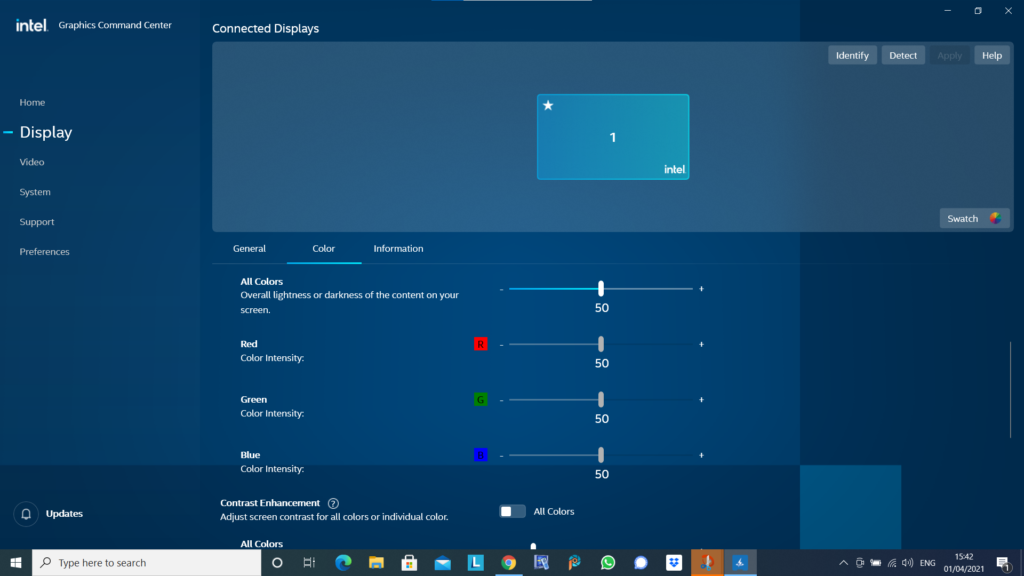
Jim mentioned that he’d been experimenting with the Intel Graphics Command Centre (see below) …
… as a means to calibrate the displays on his devices so that the colours were comparable. I commented that I’d spent some time recently trying to do the same with a Samsung TV and after some time had completed the calibration, only to end up with a Profile that I couldn’t detect a difference from the supplied one!!!!
Jonathan mentioned he’d recently been working on Photos Books using a process he’d been introduced to by Jessops (now sadly going into administration for the third time). The system he’d used was from a company called Cewe – I will include the details he supplied to me in a Forum called Photo Albums, and add a few other possibilities there as well – please feel free to add any you have chosen with a brief review of what you like, or dislike about it.
Steven was interested at Paul’s TalkTalk pricing – he might be taking that further as it’s approaching his contract renewal time. I mentioned that anyone thinking of changing ISP should very seriously consider opening a Gmail, Yahoo mail or Outlook/Hotmail (Microsoft) account and use that as it would ease the pain of moving away from one ISP to another. You can setup forwarding from your ISP’s mailer to the chosen one before you move (or even if you don’t intend to move at this time), and inform everyone (I did so by putting a note in the Signature of my email) of your new email address.
Don was doing just this email accounts thing at this very moment, and I quickly showed how to add a Google account to an existing account from the Icon displayed on a Google Chrome (or Gmail, Drive, or Photos) page.
John also commented on Photo Albums, but I didn’t note down the one he was using. Perhaps you could add a Comment/Reply in the Photos Albums Topic? I have recorded he said it cost c.£30 for 28 photos, and you could get both hardback and softback editions.
Phil noted that in his research recently for a new computer he’d realised that cloud storage was cheaper than hard disk storage. [My comment: you need to get the right balance. Cloud storage is slow – it’s OK for archiving stuff. I’ll set out my thinking/strategy in a Topic at a later date.]
Boot-up
A couple of postings from Jim and me on Thought grazing, including Jim’s annoyance at having a Windows 10 upgrade foisted on him. Google Photos and Google Drive
Jim posted on Thought grazing last month about the proposed changes to the way that Google Photos, Google Drive and Backup and Sync were going to work together. This is Google’s blogpost on the changes they are making and here is the help document explaining what will happen after July 10th, I suspect many of you will also have received this email …
Simplifying how Google Photos & Google Drive work together
You are getting this email because you sync items between Google Photos and Google Drive.
Over the next few weeks, we are making some changes to help simplify how Google Photos and Google Drive work together. We are making these changes based on the feedback that we’ve heard that the connection between these services is hard to understand.
•
Your photos and videos will no longer automatically sync between Google Photos and Google Drive.
•
You will still be able to upload to both services using the Backup and Sync app on your computer.
•
We’re also adding a new “Upload from Drive” feature that lets you copy photos and videos to Google Photos.
•
Your existing photos and videos are still in Google Photos and Google Drive.
You can read our Help Centre article or learn more about these changes in our blog post.
Add photos and videos from Google Drive to Google Photos
So … it’s really important to understand what Backup and Sync is doing, and this is determined from the Preferences screen.
Also from Backup and Sync you have links to your local Google Drive, your Google Drive on the web and Google Photos on the web …
… the interface is slightly different on Windows, but the first button will bring up something like this …
… the second button (from the web) will bring up something like this …
… and the third button (again from the web) will reveal something like this …
Now I wanted to test the Upload from Google Drive (which you should be able to do from the Upload button on the top-right of the screen), but it’s not yet operational – and it’s the 11th July! However, I see now that I can drag and drop images which is new, although the imported image is not easy to find unless you add it to an album at the time of import!
On my iPhone, the Google Photos app settings look like this …
… and then the Settings screen looks like this …
… with everything I’m uploading (Backup and Sync) NOT counting towards my storage limit as I’ve chosen the “High Quality” (15Mp) option. Then on my Google Drive app, the open screen looks like this …
… and if I open the Google Photos folder that I had at one time been syncing with Google Drive, it looks like this …
… with the warning that they are no longer connected. If I then look at Google Drive settings …
… the Photos setting being like this …
… and the Backup settings being like this …
… you can see the Backups are clearly defined. As it happens I don’t Backup from my iPhone as I sync everything to my Desktop and that’s where my Backups of Google Drive, Contacts, Calendar are done.
So I think the separation of automatic sync’ing between the two could be a distinct advantage. You just need to make sure you set up your Backup and Sync options, or preferences the way you want it to work for each of Google Drive and Google Photos. PS: How to do screen shots from an iPhone – hold the Power button down and press the Home button and then release the Power button. The image will transfer to your Photos Library, and if you’ve got Google Photos linked to your Photos Library, it will appear there as well, and then be Sync’d up to your Google Photos on the web, from where you can Download them to your desktop to insert them in a document – like this one! Anything else, issues, problems.
Next and last meeting: Sound News Google Maps may be getting public transport information. New warning over automated phone call scams. BT to offer Free Telephone Number to Report Nuisance Calls – 0800 150 150 – it’s a scam!!! Reasons to Install a Password Manager How to find out if your Facebook account has been hacked. George Felton has passed away. The Apps I can’t do without Working smarter?
eMail – use a client and link it to the service; that way you can archive mail and contacts locally rather than leave it on a server which is useful if you change provider; you can also read your mail offline. I also recommend using Google (Gmail) – they have no restrictions on the number of accounts you have. Each one you open – you get 15Mb of cloud storage on Google Drive too.
Calendar – I’d be lost without my Google Calendar. Everything goes into it and it’s held in an account which my wife and I share. So everything that either of us puts in, appears in the others Calendar and we then use the Calendar client on our devices. I’m also beginning to use Reminders on my iPhone as I quite like the nagging it does on the lock screen, so that I don’t forget to do something!
Contacts – we do the same with Contacts; the same Google Account holds all our contacts. We don’t store number on our phones, we just sync them down to the client application on our devices. Cloud storage
You name it, I’ve tried it and/or am using it. In practice my preferred method of working separates things I may wish to share – which I put on Google Drive, or Dropbox – and those things I want to access from more than one device – which I put on iCloud. I tried OneDrive, but it’s just too “windoesy”. Browser?
I think I’ve tried them all and I change about a bit. Currently my preferred one is Safari because all my kit is Apple, but Brave is a really strong contender to replace Chrome (it’s the same “under the hood”). I’m now exclusively using DuckDuckGo as my search engine of choice on all but Chrome. Text
I hate to admit it but I’ve got to like texting and also using WhatsApp – rumoured to be about to arrive on the iPad soon! The important thing about using communication tools is to use the most appropriate one in its correct context.
For example
You require an answer to a question, or you want to make arrangements with someone – use eMail; it provides a better message trail and usually there is no urgency, so asynchronous communication is best.
You want to let someone know what time you’re arriving – unless it’s urgent and you need to arrange a meeting in which case use a phone – use text.
You want to discuss something but it’s not time critical – use WhatsApp.
You want to discuss something and it is time critical – use the phone!
Note taking
I’ve mentioned it so many times before, it must be boring but Evernote is just great for recording almost everything and for saving/archiving almost anything. Maps
I still prefer Google Maps, but Apple’s Maps are getting better and now that our cars have got Apple’s CarPlay, I may be tempted to move. [I can also use Google Maps through CarPlay, I believe.] I also have a subscription to OS Maps – as they’re the best [I’ve an annual subscription which allows me to print maps off as well]. Photography
I prefer Google Photos to Apple’s Photo app, because Google works better with Apple, than Apple works with Google. I also love the new Flickr and have taken out a Pro account to enable me to store more photos there. Password Manager and Security
I truly don’t know how I could manage without LastPass. With so many online accounts it would be impossible to remember all the sign-on credentials, so it’s a life-saver! I’m also increasingly using two-factor authentication for a lot of sites, and Google’s Authenticator is a useful app that helps there as it means you don’t have to wait for a 6-digit number to be texted to you. Newsreader
Apart from the subscription apps that I’ve got to read national newspapers, and the BBC app – which I’m not so impressed with these days – and Wales Online – which I dip into regularly; I use Feedly which aggregates new posts from all the websites I’m interested using a protocol called RSS (Really simple syndication) so that several times during the day I look to see what’s going on in the areas I’m interested in – Photography, Technology and West Ham!! It’s a great way of keeping in touch with things. I’m hoping to do more with this and linking them to my Flipboard magazines going forward. The Weather
Ever since the Beeb ditched the Met Office I’ve preferred the Met Office app – you know where the data is coming from and it’s proved very accurate over the past couple of years, even when abroad as it links to the national meteorological services of counties around the world if it can! Cardiff Bus and Cardiff Gov
Two apps that are invaluable – the latter also sends me reminders of what kind of bin collection I should expect.
And there’s of course many more, but I was trying to answer the question – “The apps I can’t do without”. What are yours?
Boot-up
Any progress with websites?? Alternatives to Word on the Mac, but also see this choosing between Libre Office and Open Office, but also look at this article. I think the USP for me to adopt Libre Office is that it will read and write to .docx and .xlsx, not just read which is what Open Office does. The downside is that you can only download the complete office suite, not individual components which might be an inconvenience if you’ve only got limited hard disk space. Let’s do an install. And it installed using c.630Mb of disk storage. I’ve checked to see whether you can use Google docs, sheets and slides offline and you can! So that’s another alternative to using either Libre Office or Open Office and doesn’t require you to install a whole Office suite – just what you want to use as an app on your smartphone or tablet, or through using Google Chrome. Go here to find how to use an “offline” version of the Google apps with Google Drive.
John has offered to lead the session on 13th June.
Here’s another reminder about the format I’m suggesting for next year working with Digital Projects. What I’d like to do is have a Computer Group meeting on the fourth Thursday of the month (OK Christine?) and the Digital Projects on the second Thursday of the month. Generally the Computer Group will be much as it is at the moment catering for internet apps using a browser first and foremost, and then picking up iOS and Android issues as well as Windows and Mac items as well. The Digital Projects group will go into topics such as creating a website (which we’ve just done at a basic level), digital photography (re-visiting Lightroom for instance), digital audio and video editing, building a Linux computer, home media centres, integrating hifi with TV, etc etc. If anyone wants the Computer Group to continue fortnightly, then I need a volunteer to lead that session, I’d still attend if I can, and I will arrange the Digital Projects for another day/time.
Support for General Meeting 9th July, Chris Higley: Maps of Wales and Maps of War. Thanks for those who’ve offered to help; I’ll be sending a message round to those that weren’t present to sign-up, together with a guidance sheet that explains what’s involved.
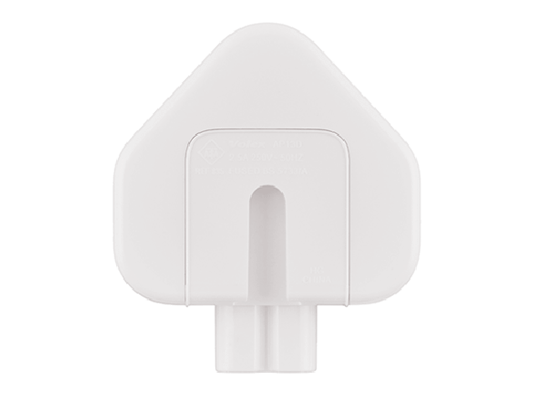
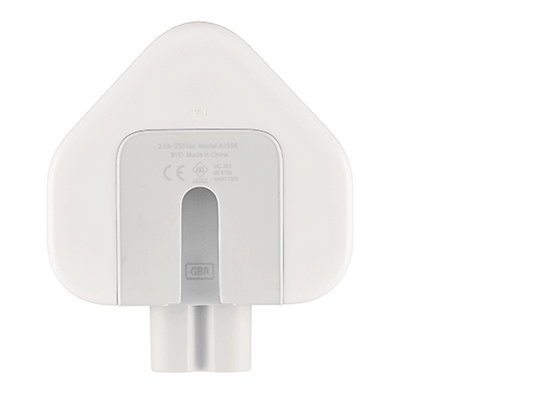
Anything else, issues, problems. News Problems with Apple power adaptor plugs manufactured between 2003 and 2010.
This post re-visits a subject I looked at back in 2017, and developed last year when I looked at how Google Photos could be used for simple editing. The links to these posts are here …
First two posts which set out how I go about learning about photography and the decisions I made on which software to use … Getting started with Digital Photography: Part 1 Getting started with Digital Photography: Part 2
Then three posts about using Google Photos … Getting to grips with Google Photos More Google Photos – some simple image manipulation Sharing an image (or album) from Google Photos
… I haven’t checked that all the links are still “active”, so if you come across any that are not working, don’t despair, just let me know and I’ll sort it!
What this posts addresses is something much more fundamental Tidying-up your photos and getting ready to import/process them
This is not a trivial task; for too many years your photo collection (and mine) has been allowed to grow unchecked and uncared for. The downside of digital photography is that you have no hard copy to sort into boxes, or albums, and no cases to put 35mm slides/transparencies into either!!
Taking a photo has become the end in itself, and because it’s so easy to do and it doesn’t cost much to take multiple pictures of the same scene/person, that’s what you do.
You know all this. I don’t need to tell you, and yet you keep on putting off the evil day when you have to do something about it and get to grips with sorting all those pictures out, labelling (tagging) them and putting them into some form when you can actually find the one you want, or the place/holiday/person you want without scrolling through loads of images whilst the person you want to show the picture(s) to politely (or perhaps not) waits for you to find (not always) the picture(s).
So now’s the time to sort your digital photo collection out. Get some order into them. Get rid of duplicates, and make a new year resolution to not let them get on top of you again. Read this article to see what you might need to do, and make a list of the things you might wish to do.
Let’s assume however that you’re starting from scratch, what would be a good set of practices …
Store all your pictures in one place on your computer – eg Google Photos on a Google Drive – and create a folder structure that helps you find them
Tag them (to describe what/where/who is in them) and title them – img2634.jpg doesn’t tell you much!
Back them up, consider using cloud storage for this as well – eg Google Drive, iCloud, Dropbox, OneDrive etc.
Consider using an automatic way of backing-up the photos to the cloud so that they can be shared as well as preserved – eg Google Backup and Sync
… again you probably know all of that, but just in case!
Here’s an article that suggests a few tools to help you start the clean-up and another one from The Guardian.
So what’s my recommendation? Only one approach of many, but here it is … shoot it down!
If you don’t want to pay out anything to organise your Photos and you don’t have an Apple Mac – let Google do it for you (and this is the solution I’ll describe below).
If you do have a Mac, use the Photos app on your iPhone or iPad and the Photos application on your Mac desktop or MacBook [a couple of provisos for this however based on sharing with non-Apple users, or using in a non-Apple environment].
Create a Google Account, if you haven’t got one already, and get 15Gb of free Google Drive (cloud) storage and unlimited storage if you choose to store the photos in High Quality (rather than Original Quality).
It’s a good idea in any case to have a Google Account as it allows you to create another eMail address – I’m a strong advocate for having more than one eMail address anyway. Go to Google Accounts to setup your Google ID – you can use your existing eMail address if you want to. Then with your account set up you can go to this page. I would suggest you download the Backup and Sync application for your desktop at the same time. Installing the application on your Windows PC, or your Apple Mac, will then create a Google Drive Folder in which you can store information and which then will then be backed-up to your Google Drive “in the cloud”. Voila – you have peace of mind that your precious information has been saved. Any changes you make to the information will be synchronised with the version saved on your cloud storage.
Set Google Photos up as a folder in your Google Drive.
Allow Backup and Sync to copy photos from your phone/tablet to Google Photos (in your Google Drive).
Only Import photos from your camera to your computer into a Google Photos folder using a structure such as [Year]>[Month & Date]
Change the name of your photos in the folder to something a bit more meaningful.
Attending my first meeting of the Cardiff University of the Third Age (U3A) Computer Group, I offered to write some notes to accompany the talk that was given on Data Storage in the Cloud by David Reeves. So here goes …
Computing has moved a long way from the days when all you stored on your computer were words and numbers. Gradually this has been extended to include first pictures, then audio, and then video. With the addition of these media so the requirements for memory to store them increased first by needing an increase in the Random Access Memory (RAM) that the computer had so that you could actually view or listen to the media, and then in the disk storage you needed to hold and recall the images or music at a later date.
This need for additional storage meant first the introduction of floppy disks, then hard disks inside the computer, then external hard disks connected usually to a USB port on your computer and then flash drives which you could carry around with you and then connect to a USB port on your computer.
With the changes in technology, so the amounts of information stored by each device increased. To give you an idea of how much this has changed you might like to look at the table below – which is actually out of date because you can now get both USB Memory Sticks and Hard Drives considerable larger than those quoted here.
If you want to read more about Information Storage including some technologies I’ve not discussed here such as CD/DVDs you could follow this link or this one, but there’s far more information in these articles than you need to understand why it might be a good idea to store information away from your computer – in the cloud.
Before we do that it might be a good idea to raise an issue that storing all this data causes – what happens if the device breaks, gets corrupted in some way, or just simply gets lost! Now, computer professionals have always done back-ups of their stored data (or they should have done), but the home computer user has never really put a value on their data UNTIL they lose it. So backing-up your data (stored information – words, numbers, images, music and videos) is actually an ESSENTIAL part of owning a computer. This article describes the various ways you might consider backing-up your data but at the bottom of the list is Cloud Storage and that’s where I’m going to take you now.
Wouldn’t it be great if every time you saved a picture, word processed document, spreadsheet … whatever, a copy was automatically made and stored away from your computer so whatever might happen to your computer, the most important part of it – the information it stored – was safe. That’s the essential value of Cloud Storage and the most important reason for using it. We’ll turn to the second most important reason – sharing information with others – later.
There are a number of Cloud Storage options you can use for free as long as you keep your storage below a certain limit. You can use as many as you want to and you might consider using different providers for different purposes. For instance I use Google Drive mainly for Photo Storage, Apple’s iCloud for documents, and Dropbox for sharing stuff. [I’ll maybe explain why I do this in another post.] The other main provider is Microsoft with their OneDrive (formerly SkyDrive) offering, I don’t tend to use this much, but the principles for using it are much the same as the others.
So how do you use them? As I said above, the principles for each are much the same. I will use Google as the main example, and provide links to the others as well.
Google Drive. You will need a Google Account. This is a good idea in any case as it allows you to create another eMail account – I’m a strong advocate for having more than one eMail address anyway (see Point 3 in this post). Go to Google Accounts to setup your Google ID – you can use your existing eMail address if you want to. Then with your account set up you can go to this page. I would suggest you download the applications for your desktop as well as setting it up for your browser. Installing the application on your Windows PC, or your Apple Mac, will then create a Folder in which you can store information and which then will then be backed-up to your Google Drive “in the cloud”. Voila – you have peace of mind that your precious information has been saved. Any changes you make to the information will be synchronised with the version saved on your cloud storage.
For Dropbox go to this link and create your account, perhaps using the Google email address you’ve just created above – a lot of services allow you to link to your Google ID and this means you don’t have to remember lots of IDs and Passwords.
If you’re an Apple user (iMac, MacBook, iPhone, iPad, etc) it makes sense to use iCloud. Even if you’re not, you can still add an iCloud Drive to your desktop and access the 5Gb of free storage you’re provided with “in the cloud”.
If you’re a Microsoft (Windows and Office) user it makes sense to use OneDrive. Like iCloud you get 5Gb of free storage from this link. You may also find that you are offered the option of installing OneDrive when you install Microsoft Office (or Office 365).
Finally sharing information with others. I don’t think I can improve on David’s demonstration and on this YouTube video …
I’ve focussed on using a Folder on your desktop/laptop machine to backup or synchronise files to your Cloud Storage. Remember also that David demonstrated how you can Upload a file using your web browser (I would recommend using Google Chrome) from your desktop to your Cloud Storage.






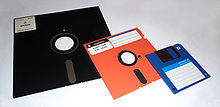
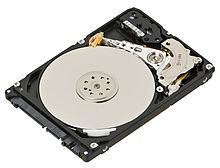 This need for additional storage meant first the introduction of
 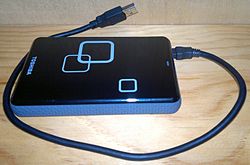 connected usually to a USB port on your computer and then
 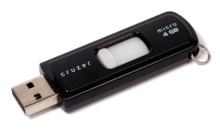 with you and then connect to a USB port on your computer.
 There are a number of Cloud Storage options you can use for free as long as you keep your storage below a certain limit. You can use as many as you want to and you might consider using different providers for different purposes. For instance I use Google Drive mainly for Photo Storage, Apple’s iCloud for documents, and Dropbox for sharing stuff. [I’ll maybe explain why I do this in another post.] The other main provider is Microsoft with their OneDrive (formerly SkyDrive) offering, I don’t tend to use this much, but the principles for using it are much the same as the others.