Keeping safe online

The threats – real and perceived

[First posted 10 September 2020]
[minor changes 21 June 2021]
[Revised 24 May 2023]
[MINor changes 25 January 2025 – links checked]
Luckily, there’s plenty of advice and guidance available – often slanted particularly towards our demographic (ie oldies) …
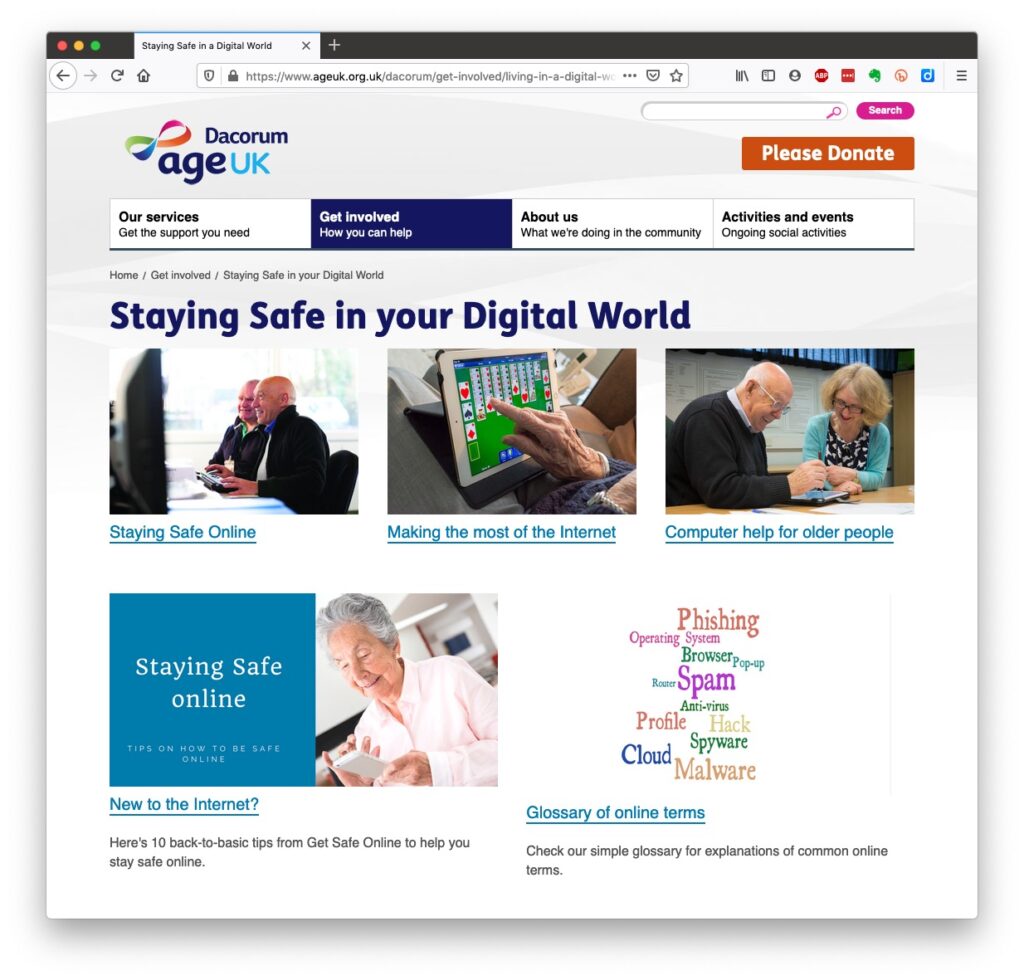
Those two sites are particularly easy to follow and understand, but others are equally informative and targeted. Your bank probably has guidance which it publishes online and which is accessible to everyone, not just their customers …
I’ll return to further information, guidance and references at the end of this post, but first we need to look at a few issues, discuss some terminology that’s widely used and try and tease out what’s really important, and what’s just an inconvenience and then it’s up to you to judge where you find yourself on the scale of …

Terrified -> Apprehensive -> Sensibly Aware -> Relaxed -> Unconcerned

First let’s distinguish the difference between online security and online privacy. These are two different issues which are however linked. Sometimes you have to relinquish some privacy to receive a service – unless you choose to pay for it (and I’ve long been an advocate of paying for services if they do a job that is necessary); exactly how much privacy are you prepared to relinquish? Security on the other hand is an absolute – you should not be prepared to accept less than your very best efforts . We’ll deal with that in the third part of the post.

How do you relinquish your privacy, and how much of a loss of privacy is acceptable?

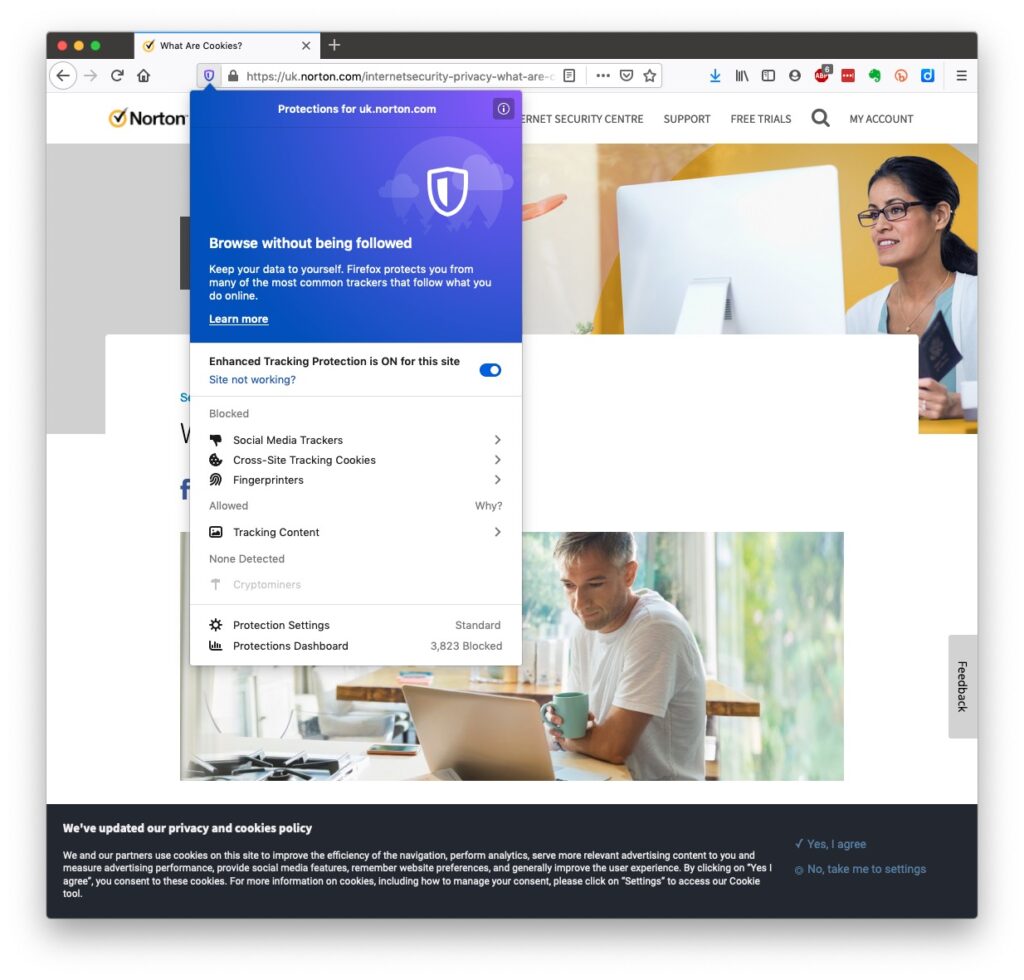
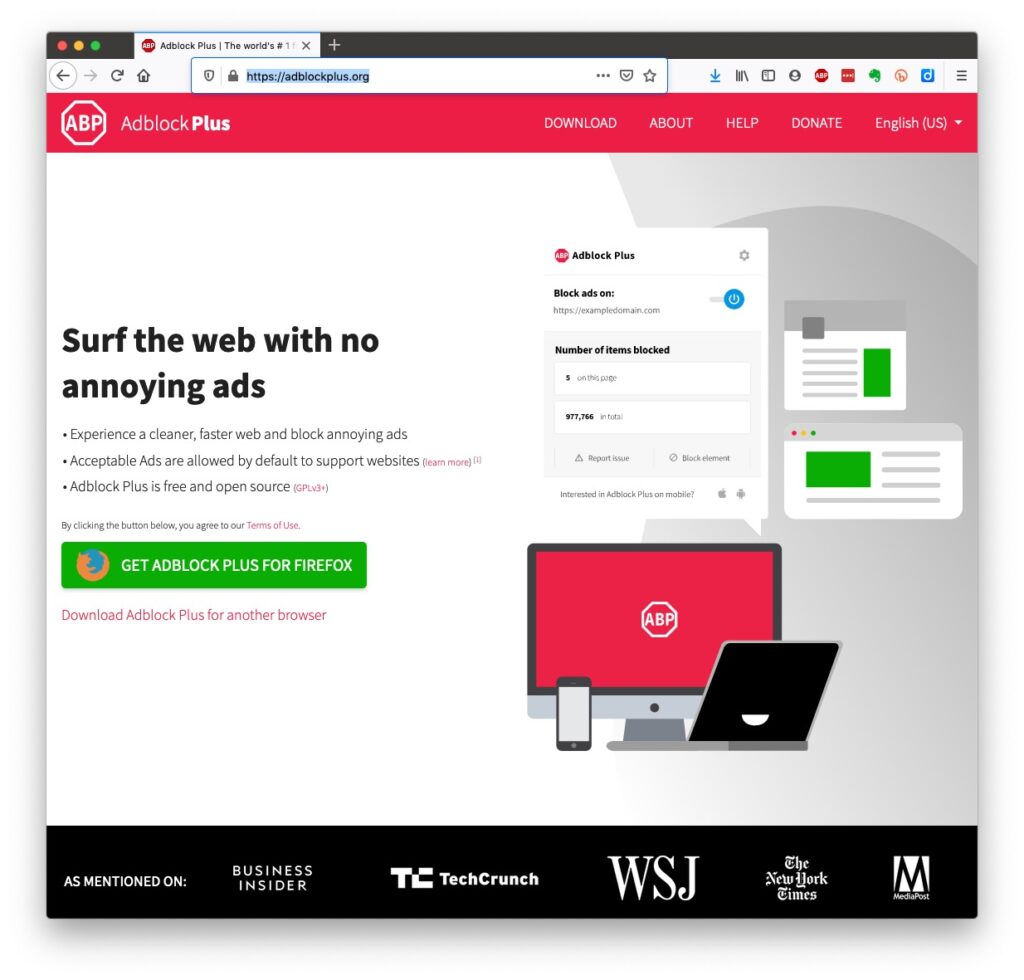
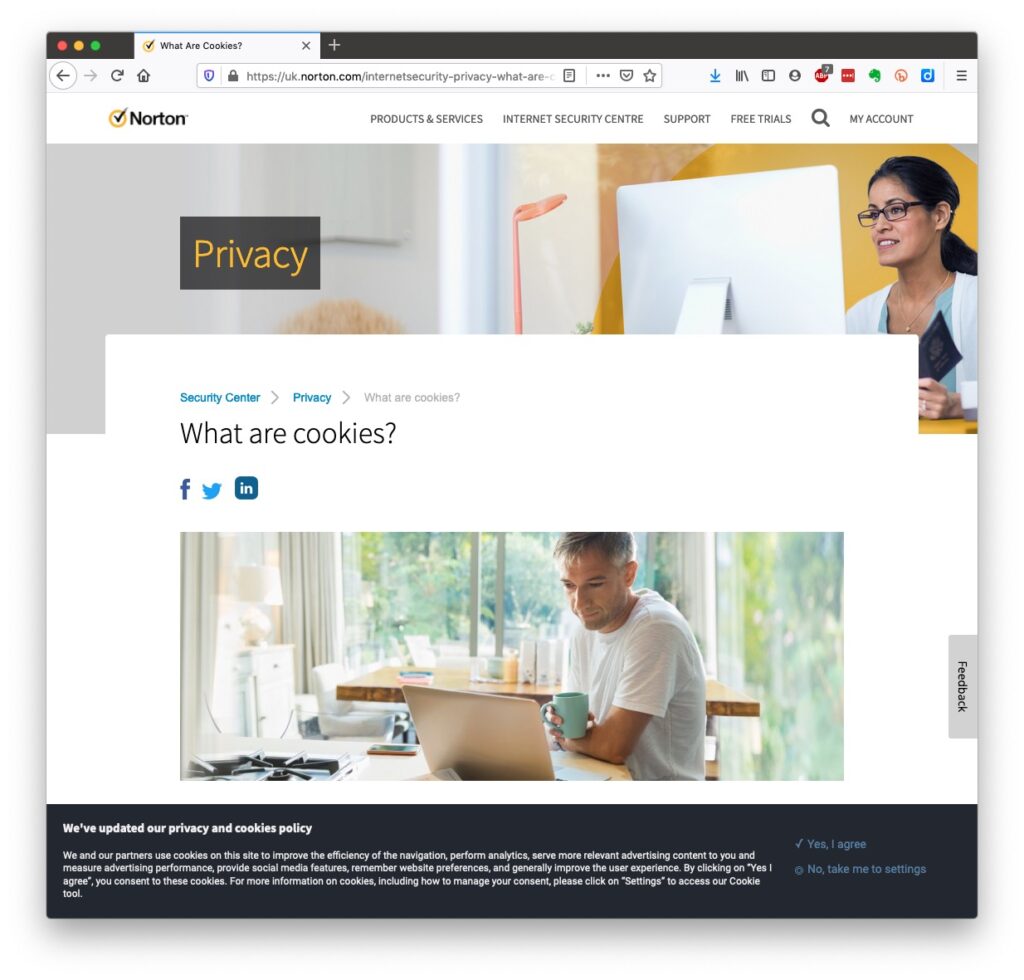
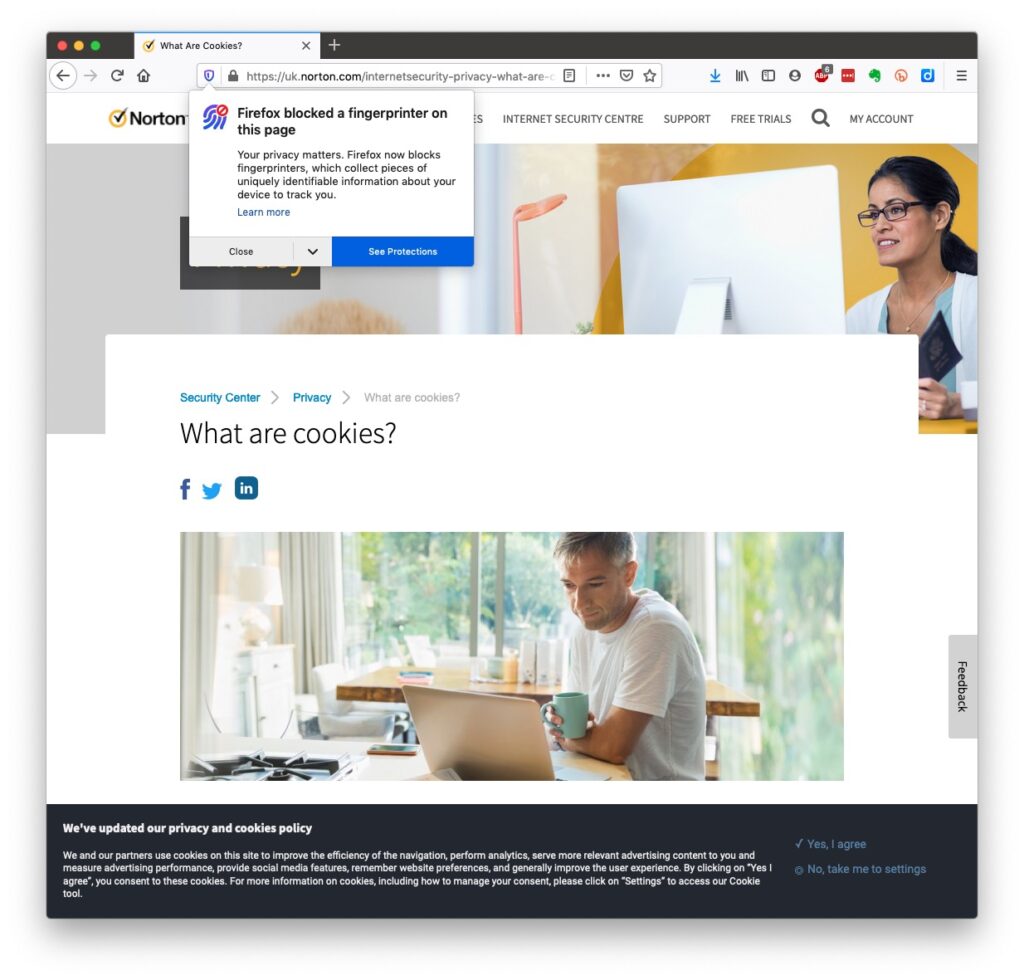
Some services could not be offered without income from adverts, or paid-for advertising – eg Facebook, Twitter and Instagram; and some eg Google and Amazon track and provide information to resellers if you don’t block them from doing so. As an example of how much value Google sees in getting knowledge of what you’re doing and where you’re doing it, they pay Apple up to $20bn annually to remain as the default search engine for any browser that’s running on an Apple device! Sometimes you may click on a link and have been asked whether you wanted to accept cookies – what exactly are they, and what do they do. This article from Norton explains what they do quite well … Essentially, they record what you do on a website so that when you return to it some of the settings are remembered and applied. Cookies do however also have a downside in that some can also act to track your activity once you’ve left the site. For that reason, you should disable in your browser the ability of third-parties to glean information from a cookie, and also to prevent them tracking your activity once you’ve left the site. You can at anytime, clear the cookies from your browser, and indeed on some internet browsers set them up to delete cookies when you leave (close the window) the site. If you use Firefox as your browser it will alert you the first time you go to a site that it is using a Fingerprinting cookie itself. For instance from the Norton site above … … this is a nice feature, and should not be confused with the rather more annoying GDPR pop-ups which almost force you to accept because you can’t be bothered to check the detail that some sites force you to go to in selecting which cookies you want to store. I often just stop using that site rather than read through the options, or alternatively just click “Accept” and hope for the best!! Not exactly the privacy control that was envisaged when the legislation was enacted! Another thing you should consider is whether you want adverts to be shown, or not. You might get a request to enable adverts when you visit a site, the answer you supply will be held in a cookie in the browser – that’s how cookies work. Firefox, Brave and Microsoft Edge, by default, block most, if not all, adverts. These are often annoying and having a browser that blocks adverts, or if you use Chrome – using an ad-blocker like AdBlock Plus often makes for a more “pleasurable browsing experience” by limiting the intrusion you might feel upon your privacy.
Which brings us to browsers and search engines

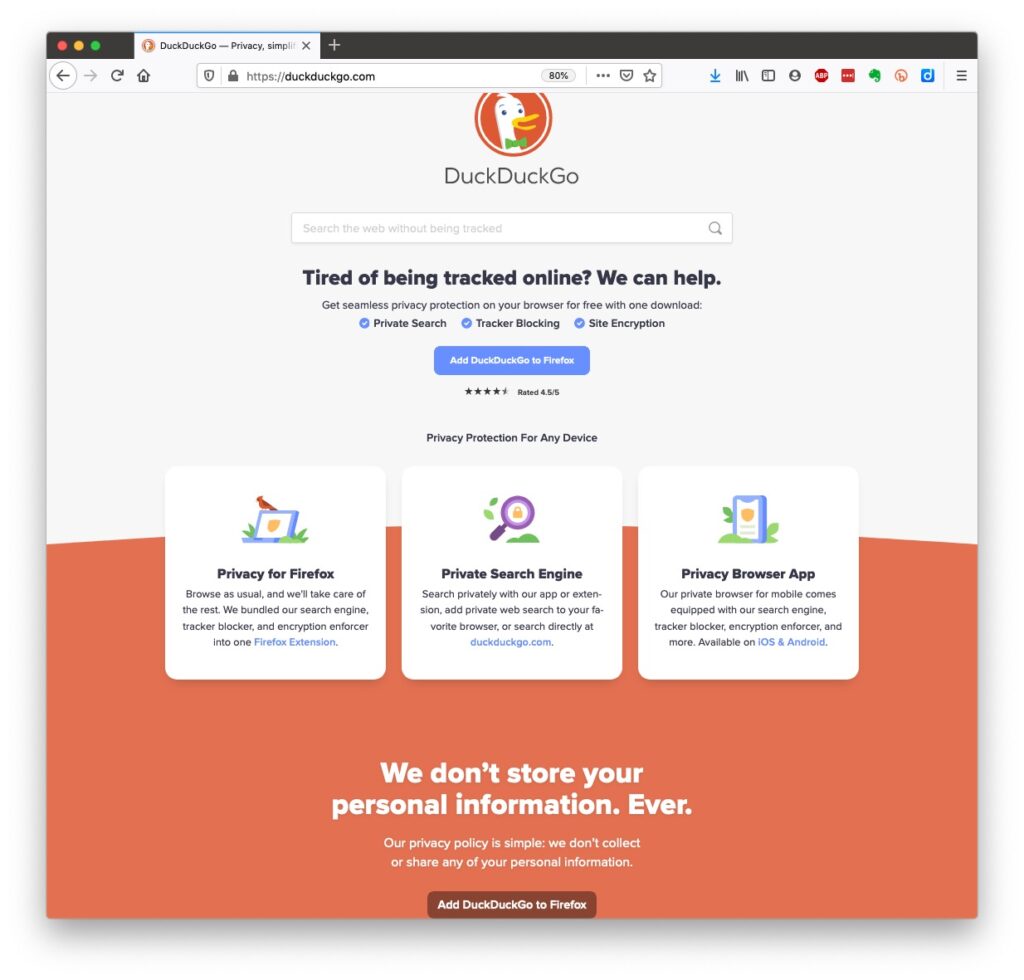
Search engines are not created equal! Whilst Google is often thought to be the same as the internet and is often mistaken to be an internet browser itself, it is in fact just one of a range of possible search engines that you can use to look for information on the internet. It uses a platform called Chromium to display the results of its searches to you through a browser called Chrome. However, other browsers – Microsoft’s Edge, Brave and Opera all use the same underlying Chromium technology – the difference being they don’t track what you’re doing “to present the content that most meets your needs” (Google’s philosophy) and in some cases (eg Brave) they can actually prevent tracking of your browsing history. I use Safari – which on Apple is my default browser choice, but otherwise I would use either Brave or Firefox as my internet browser. So what safe and private search engine could you use as an alternative to Google. I use DuckDuckGo
… but others I could have used might have been Ecosia, Bing, Yahoo or another one you might choose from this article or the list of other articles at the end of it …
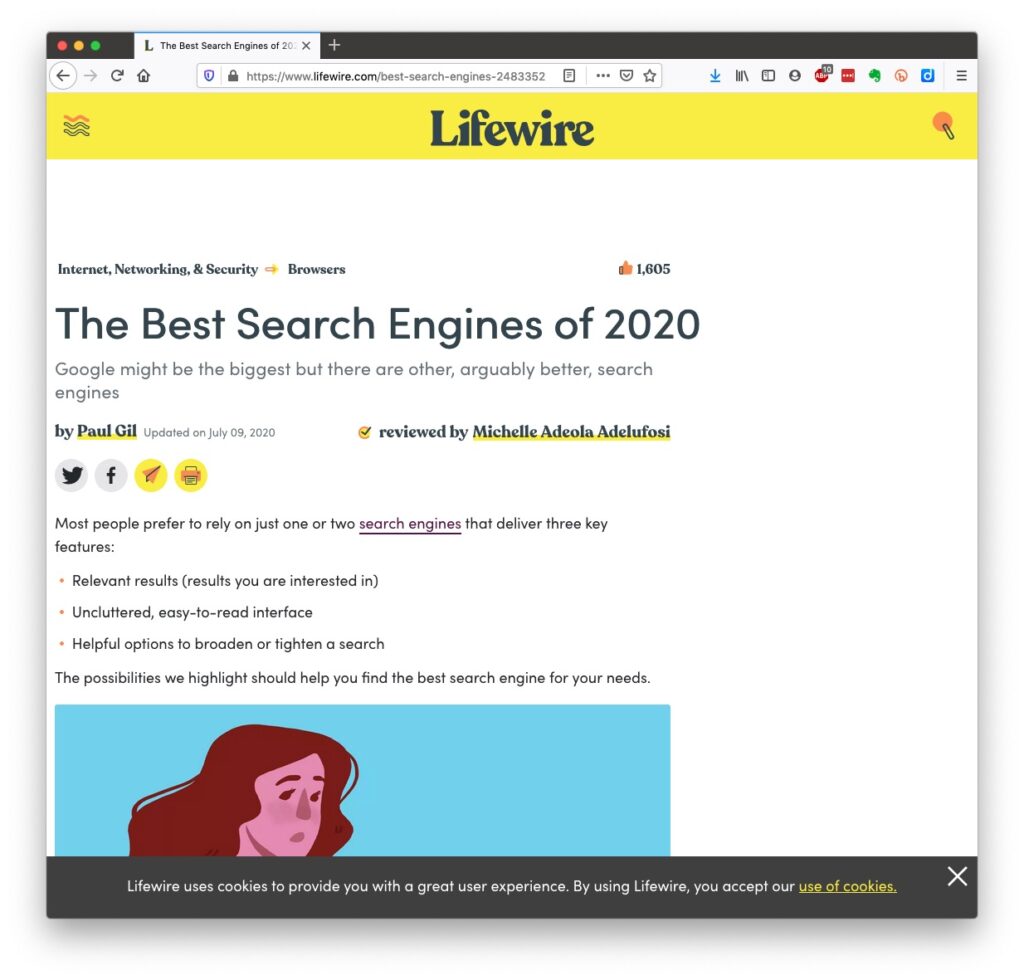
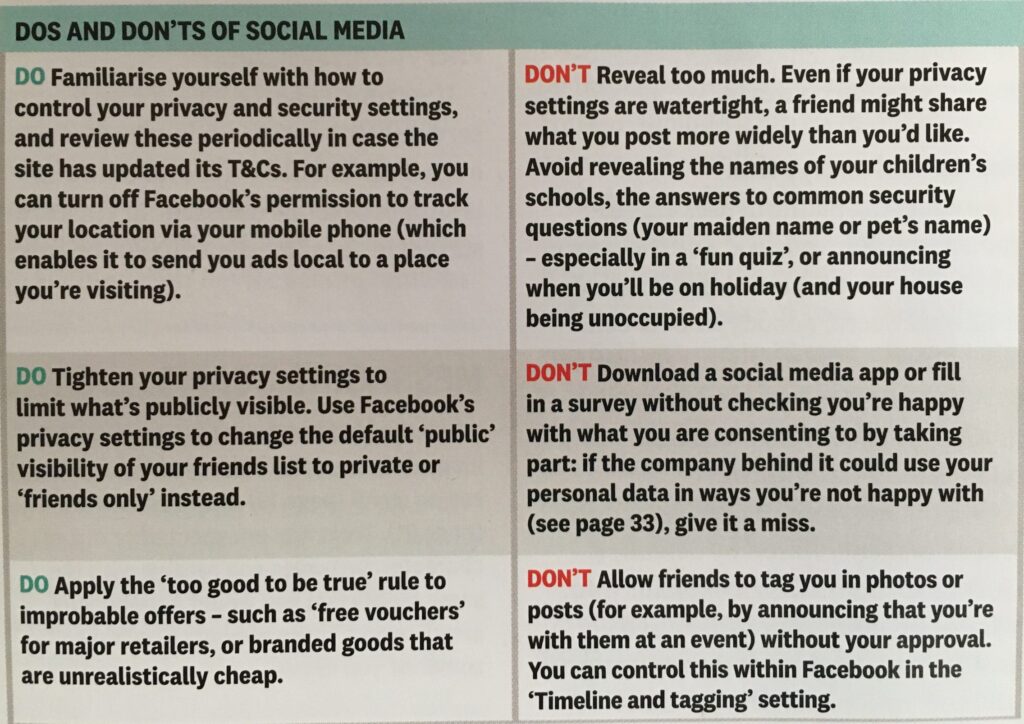
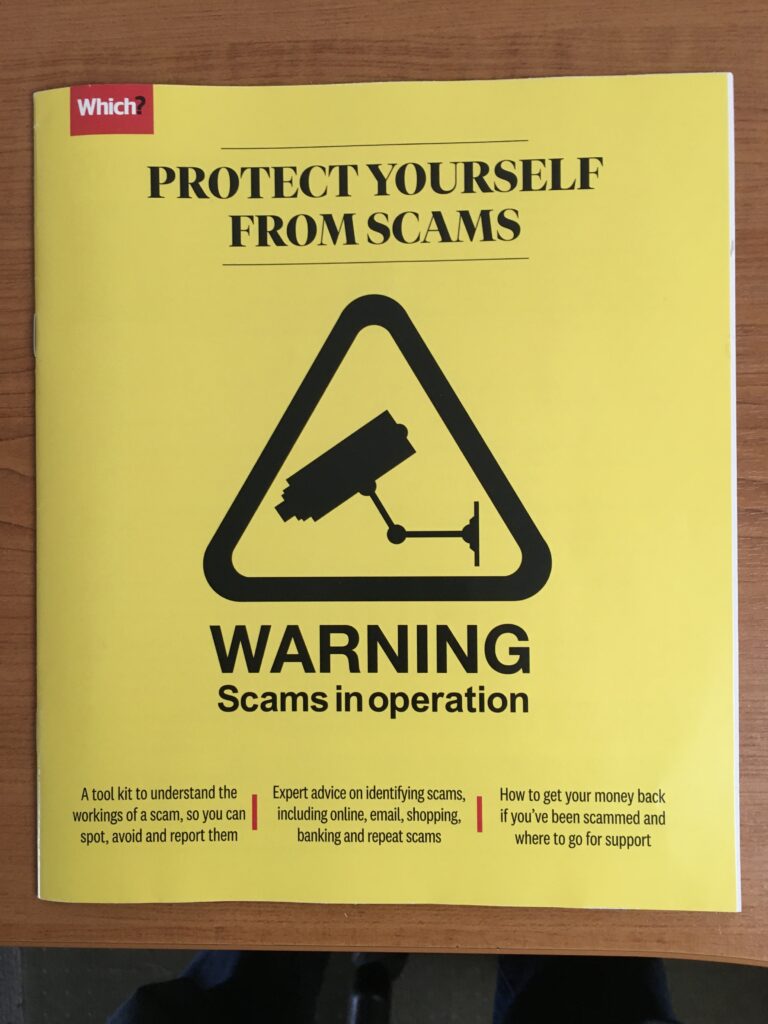
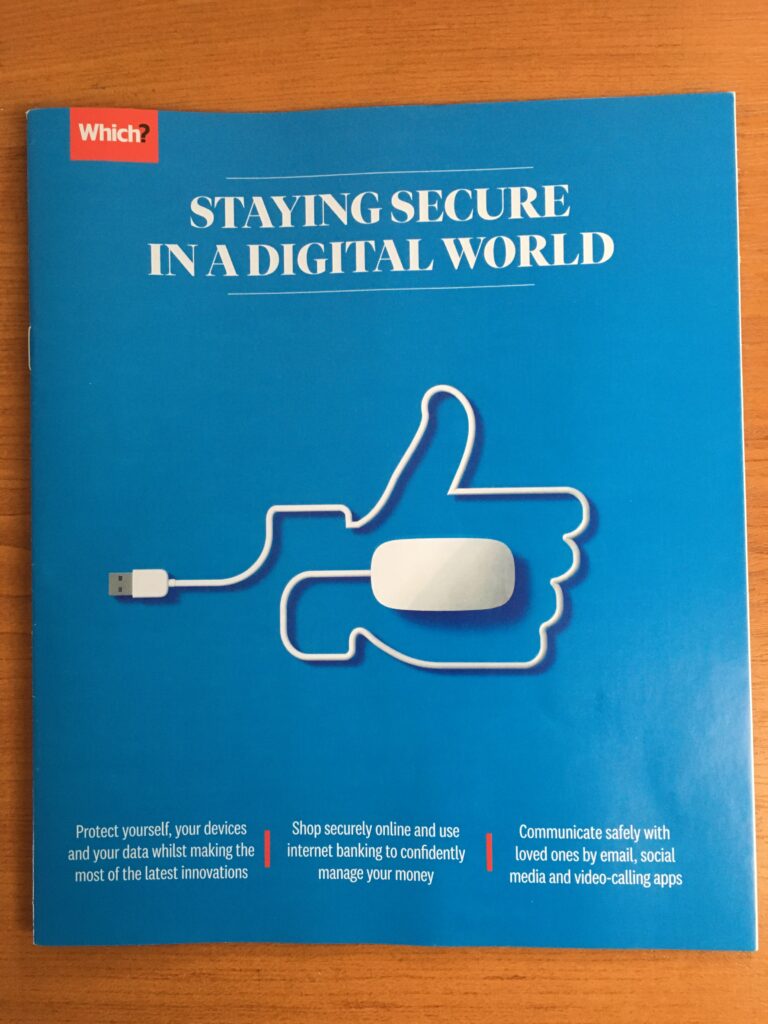
There are many specialist search engines (as explained in the above article) that can give you much better, and more targeted results than a broad-spectrum Google search with the priority of results returned by relevance, not payment received by Google. Finally, no discussion of Privacy can ignore Social Media and Facebook in particular. These applications, if left to their own default settings, are effectively personal information mining engines. They grab what information they can from you, and sell it on to whoever is willing to pay for it; or are indeed the platform for data mining, vis the Cambridge Analytica affair. Recent enforcement of data privacy legislation by the EU on Meta has resulted in them being hit with massive fines for breaches of GDPR law by Facebook, Instagram and WhatsApp. Online retailers are not exempt from this and Amazon for instance has a wonderful record of your browsing history! Are you sure you know what it’s doing with that information? So look at this table taken from a recent Which? supplement – Staying Secure in a Digital World – and just check whether you need to change your settings if you use any Social Media apps …
So that’s Privacy dealt with.

Should you be frightened?

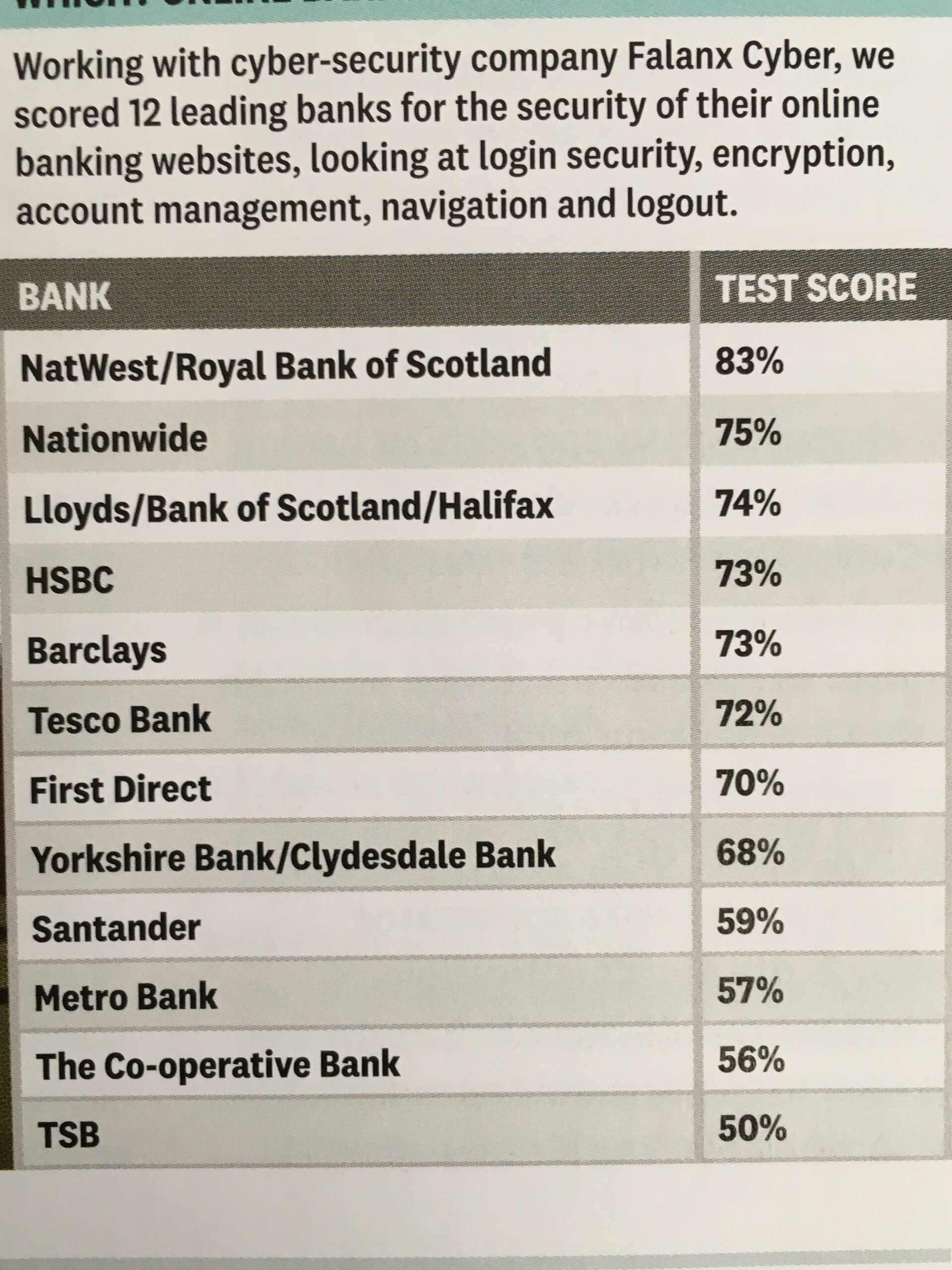
The take away message I want you to have is Frightened – no; cautious – yes! Online banking is very secure – a recent survey in Which? produced the following scores …
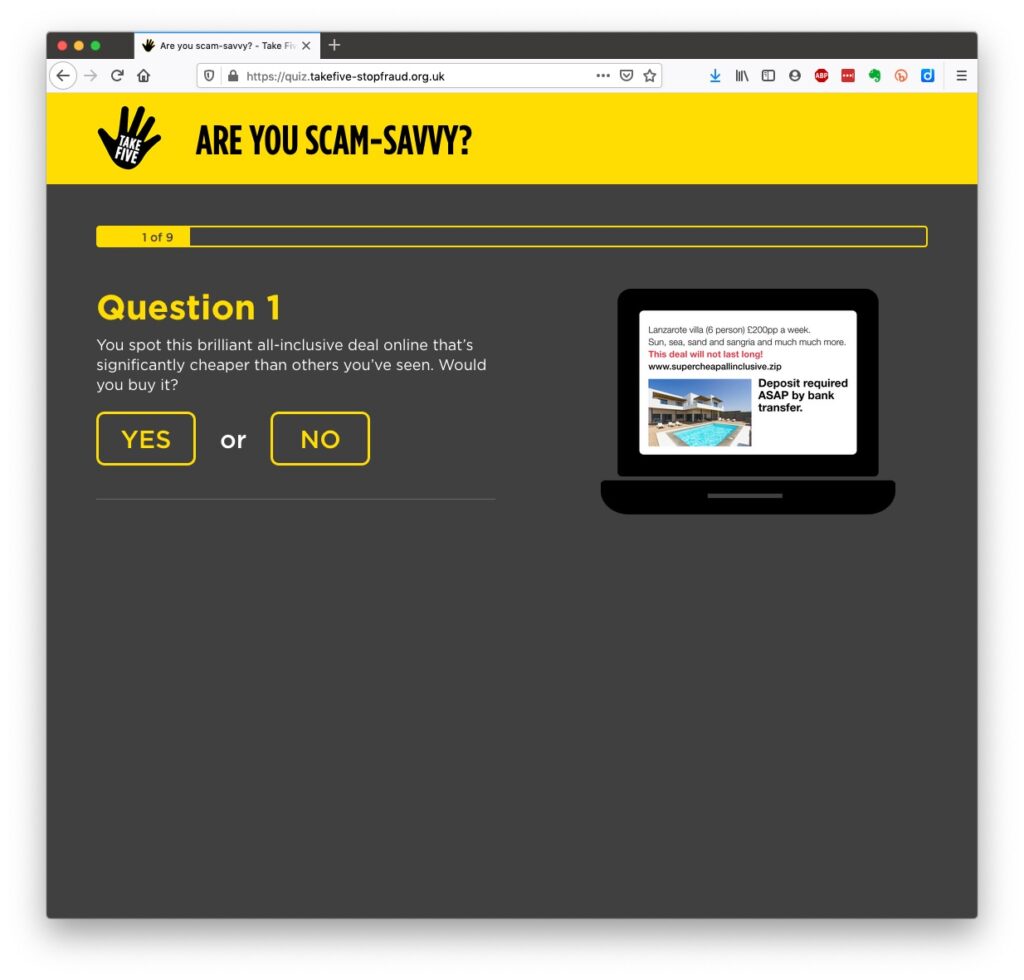
… plus you are protected and most of the banks are increasingly opting to adopt an online and mobile guarantee to refund you where you’ve been the innocent victim of a fraud. Here for instance is Barclay’s “Online and Mobile Banking Guarantee.” They really don’t want to shell out money, so they are trying to educate us to be wise to scams. So let’s take a scam test
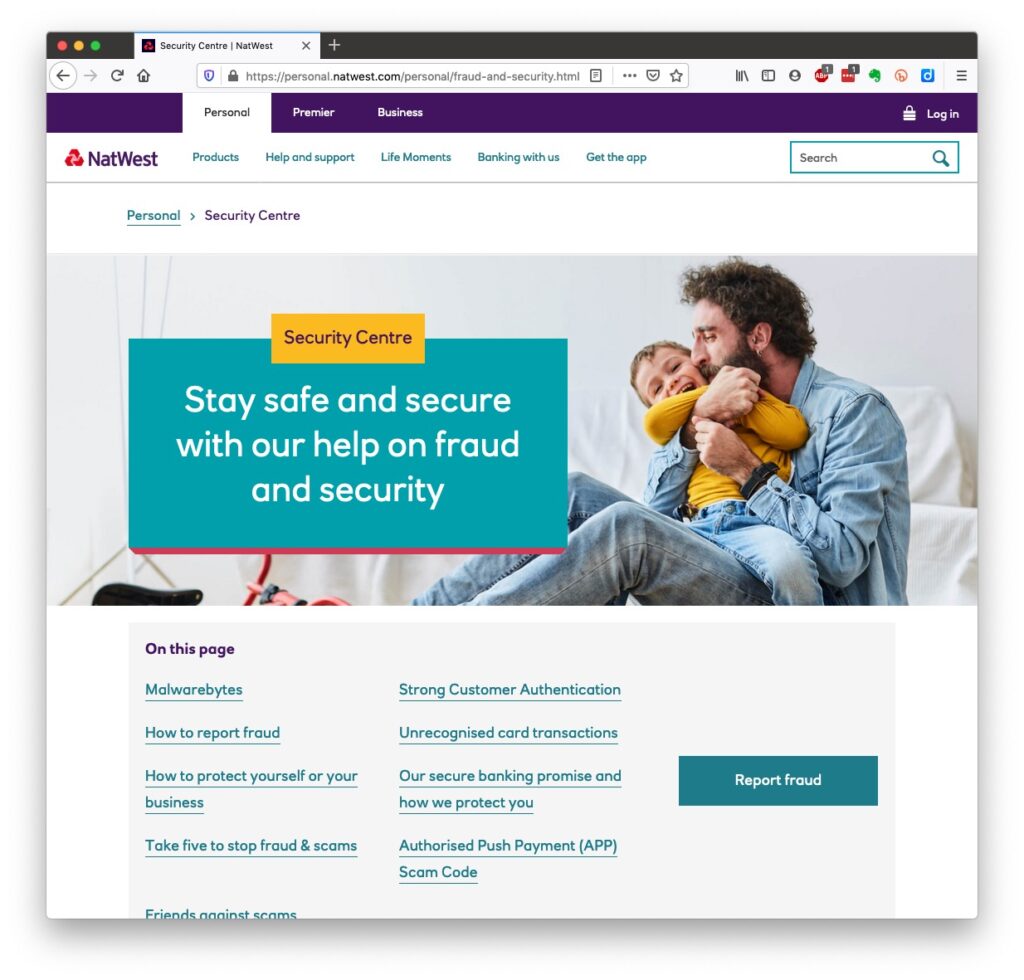
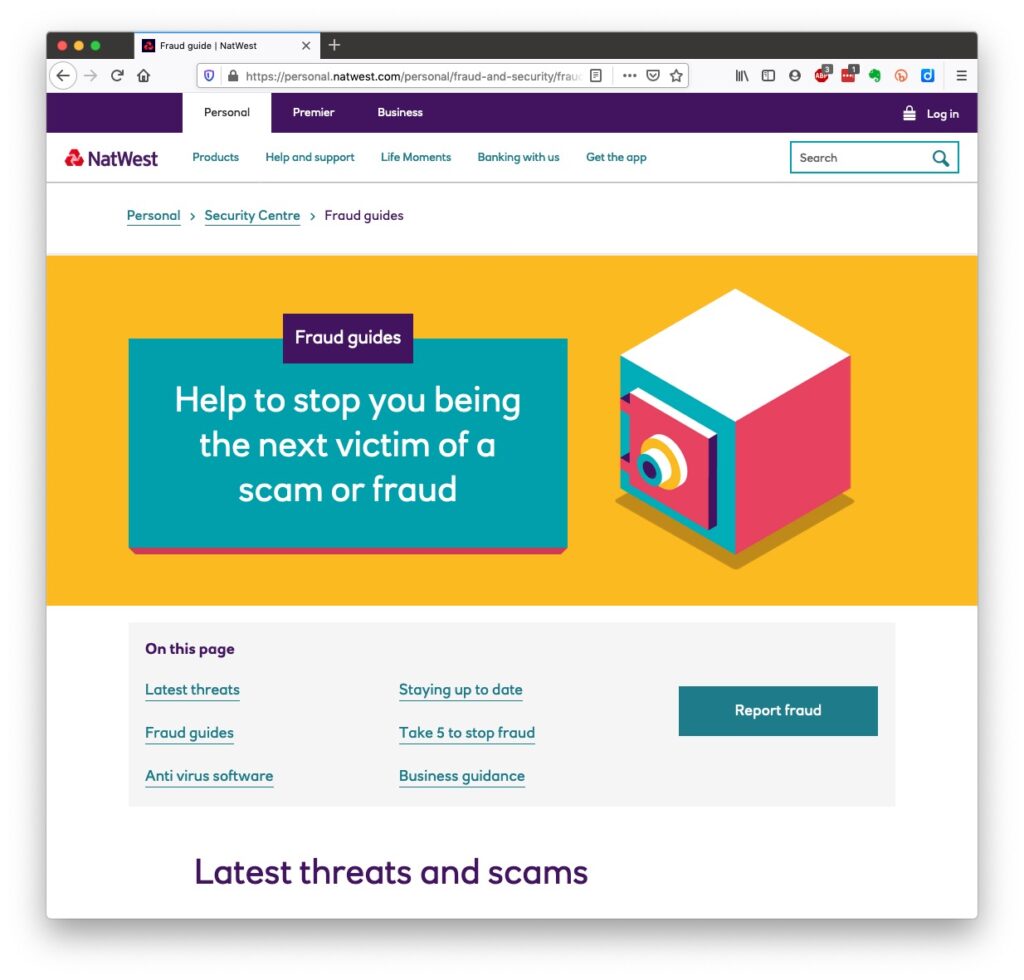
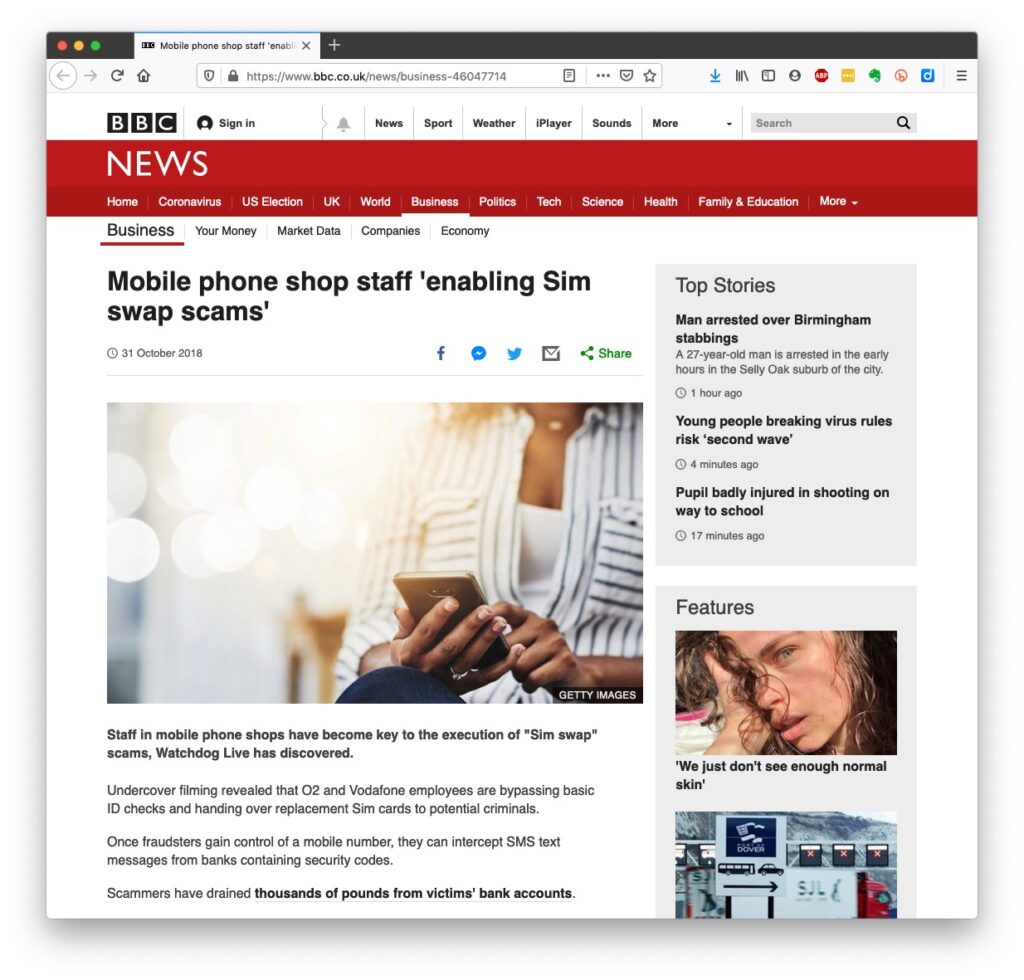
Banks are also often supplying software free (or at reduced cost) for you to install to protect your machine, to protect you from fraud – and of course themselves from having to pay out! I was recently offered a piece of software called Malwarebytes by the NatWest and although I have an Apple Mac computer which are well known to be relatively secure from Viruses, Spyware, Trojans and other malware, I installed it. I was pleased to note that I didn’t have any malware on the machine. Surprisingly you might think … it’s safer to use the mobile app on your phone, or tablet to do online banking and retail purchases than a web browser. This is because the app on the mobile device has to be verified by Google for Android (Google Play Store) or Apple for iOS/iPadOS (Apple Store). Whereas a browser could be infected, or compromised with malware. [That’s something I’ve learnt whilst preparing this post!!!] When you’re out and about and NEED to do an online transaction from your mobile – use cellular rather than WiFi. The latter can be really open to “sniffers”. [I must admit I try to avoid doing online transactions when away from a domestic network.] Alternatively consider buying and installing Virtual Private Network (VPN) software, such as NordNet so that you can use the free public WiFi in a public area. You can find out a whole lot about the range of scams at the NatWest’s Security Centre. However the most scary scam I’ve been made aware of is one that befell a member of my family when they were distracted sufficiently to become the victim of SIM swapping.
I’ve discussed this with you before and you can  read the updated post here. I also covered this issue in another post which involved stealing a phone, to obtain access to your identity and commit fraud, and we covered the even more disturbing theft of a credit card with the complicity of the US Postal service to obtain a SIM in a recent meeting as well.

What should you do to protect yourself?

Some of these pieces of advice are really quite straightforward, but some require some intervention by yourselves.
  • Keep your operating software up to date. This is particularly true if you’re a Windows user, and even more true if you are still running an older version of Windows than Windows 10. If you’re using Windows XP, Windows Vista or even Windows 7 you should seriously consider disconnecting your machine from the internet because even if you’ve got anti-malware software running this is probably not protecting you against the latest threats.
  • Install anti-malware, or anti-virus software, particularly if you’re a Windows user. Don’t pay more than you need to. Windows Defender from Microsoft is Free and for our demographic relatively undemanding and unsophisticated users, more than sufficient. Keep it up-to-date as well! [As I said previously, your bank might be offering free software as well.]
  • Keep the software you use regularly up to date as well. Consider removing any software from your machine that you don’t use – this is because software vulnerabilities are discovered sometimes quite a while after the software was first released. It will also save you disc space!
  • Be cautious over installing extensions into your browser. These are often extremely useful and valuable tools, ie password managers, Dropbox, note taking, Google Back up and Sync, but if you don’t get them from the official sources then you might be importing vulnerabilities, eg spyware and trojans to your system.
  • Very seriously consider logging-out from social media and other retail sites when you’ve finished using them, especially Facebook, you just don’t know what tracking and logging of what you do, even where you are, if you leave yourself logged in on a mobile device.
  • Free software is both a boon and a curse. Only download open source software from a reputable site such as Softpedia, and never try and get proprietary software for free. Read this article about Free download sites if you want to know more.
  • Remember the golden rule 1 – if it seems too good to be true, it probably is, so steer clear!
  • Remember the golden rule 2 – don’t speak to strangers (an oldie but goldie that one); in other words if you don’t know where an email has come from – ignore it; if the website address looks a little strange – do an internet search on the company or organisation to check if the address you’re looking at is a spoof of the proper one.
  • Have more than one email address. Use one as your personal address, then use other ones that you can “throw away”when you need to register to a website, but you’re unlikely ever to go back to it again. Or have an email address (UserID) specifically for online purchases. Splitting things like this reduces the risk of you being the victim of fraud.
  • Seriously consider using an email service that is NOT connected to your Internet Service Provider (ISP). If you decide to change your ISP, and you should review them periodically, then you will have real problems if your email address is linked to their service!
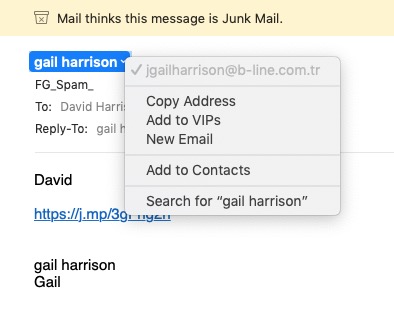
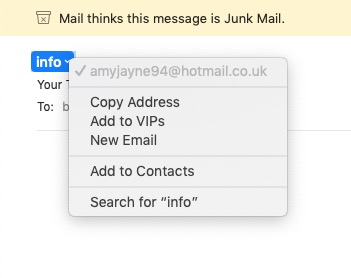
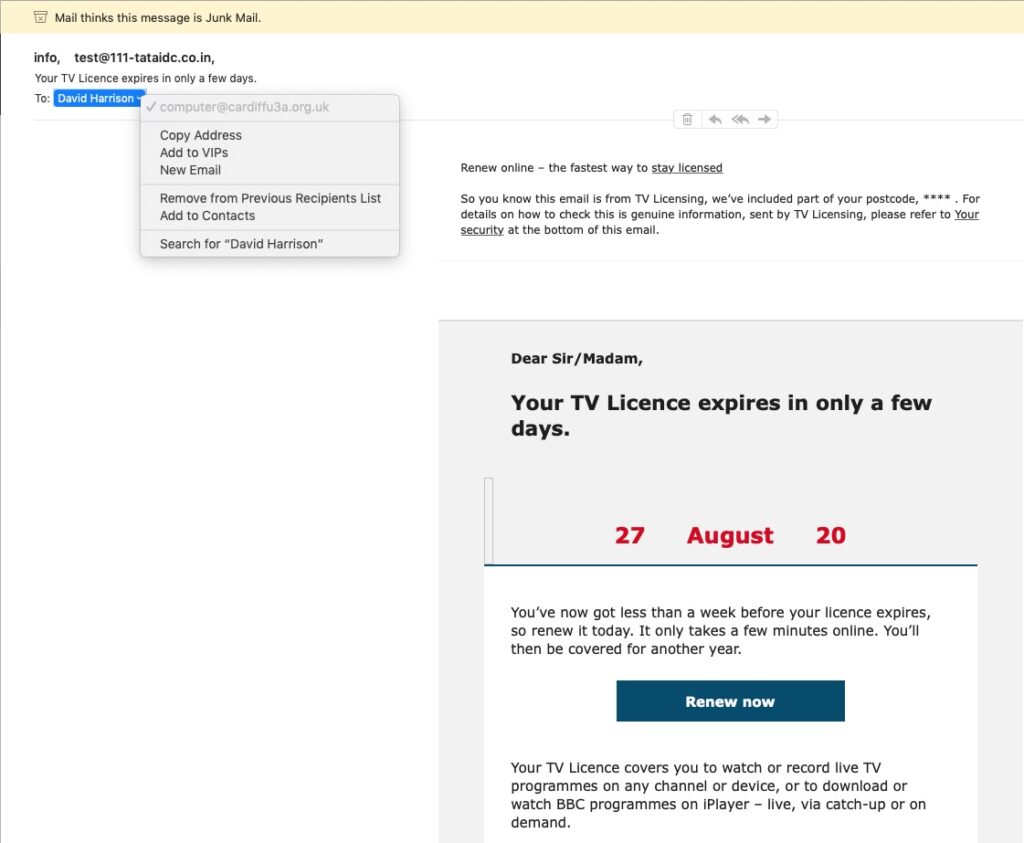
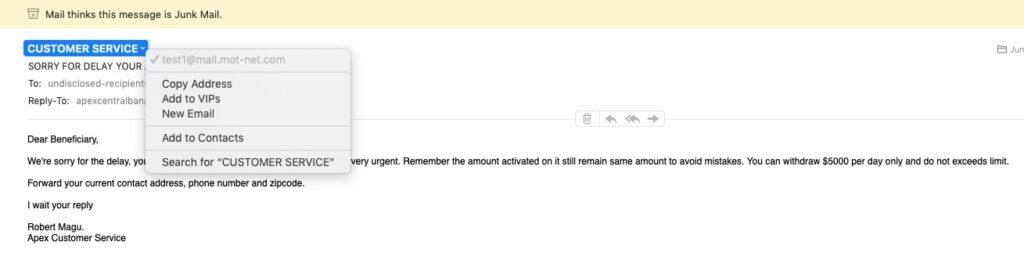
  • You’ve got Spam filters running? Of course you have – but you better check! Probably your ISP, or email provider (eg Gmail, Yahoo, Microsoft Outlook or Hotmail) is filtering out what it thinks is spam, but occasionally some gets through. If that’s the case then you can always look at the real sender of your message. Take a look at the examples below …
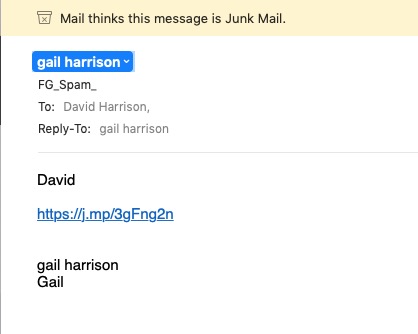
You can also apply filters to divert incoming email into different folders in your email system. That reduces the amount of Junk that you need to review. [I’ve also advocated using the “native” email application for your device rather than rely on the web-based service the email provider has. Thus on a Windows device – use Windows Mail (or Outlook); on a Mac use Mail. You can then easily synchronise your email between devices from multiple email accounts. Tidy!]

So we come to Passwords …

… this is the point at which you need to consider intervention and changing your behaviour! You might also need to do a fair bit of work, but it’s worth it if you want to have a secure internet experience. Let’s just see what using an insecure Password can lay yourself open to. Type in the word Password, or ABC123 from the link above – frightening eh!?
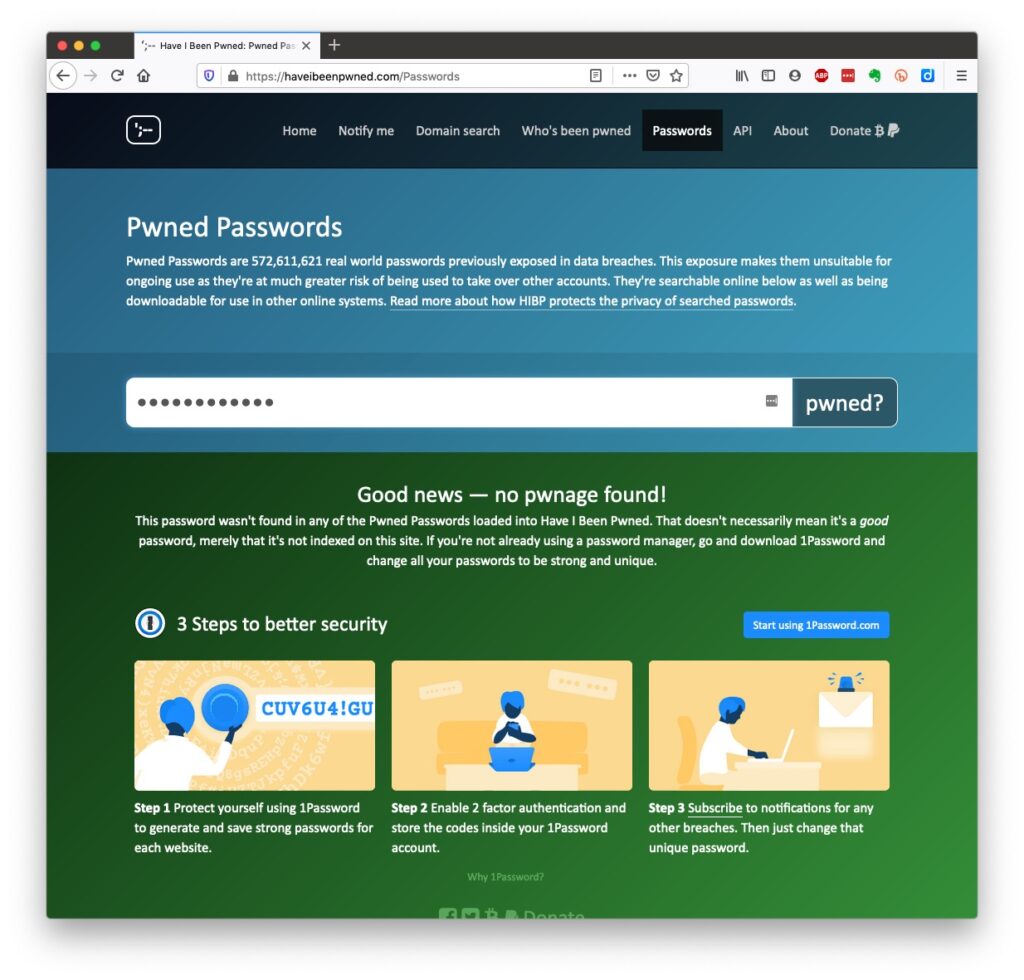
The most common password I use – and I know I shouldn’t reuse the same password, but I am human – has not been discovered on any pwned site. Phew!
What about the combination of your email address with your password – has that been “pwned” (ie stolen through a data breach)? Try typing your email address into the link above.
Oh no! I’ve been pwned … but it was a long time ago and I’ve changed my password many times since then!
Ah! That’s better – my “throwaway” email and passwords are “safe”!
And if you want to see a list of which websites have been breached, it’s alarmingly long! So … use a unique password for everywhere you sign on. There’s lots of tricks to achieve this; some of which I wrote about in a post quite a long time ago …
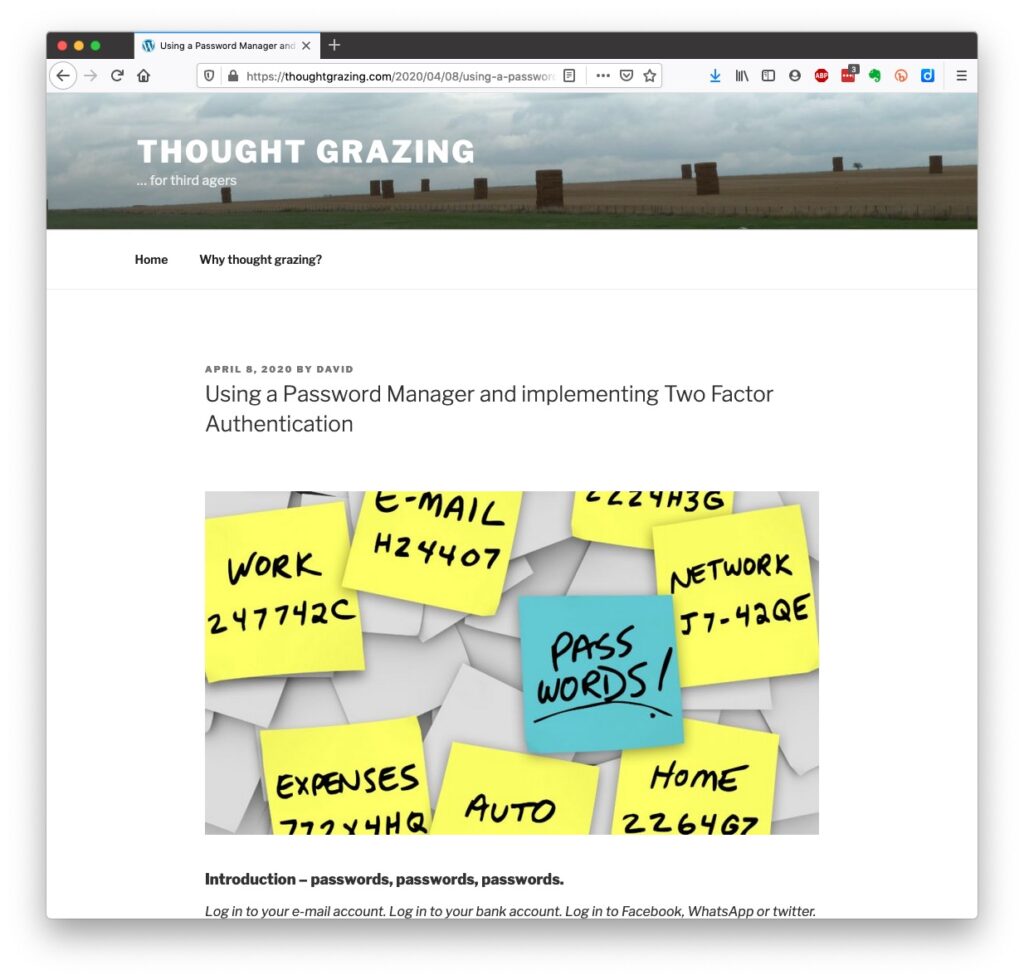
… but the real change of behaviour is to use a Password Manager – again I wrote about this a little while ago and linked it to using Two Factor Authentication, which is also covered in the same post …

Password managers

I still use LastPass, but as a back-up and archive of my old passwords. I now use Keychain as I only have Apple devices (as do most of my family, and so it makes sense to use a system that is linked to the hardware I use. Other common password managers  are Dashlane and 1Password. Please make up your own minds after reading some Reviews and seriously consider using one.
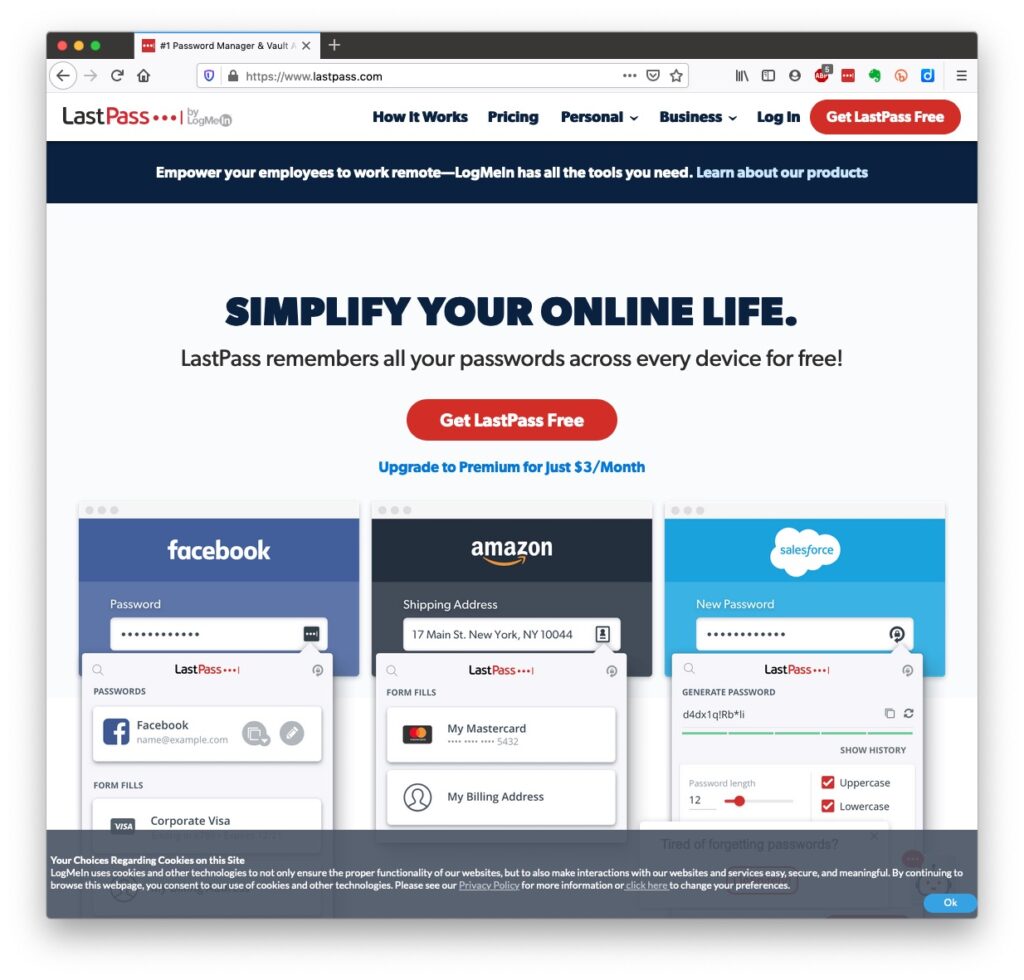
An authoritative article on using Password Managers is provided by the National Cyber Security Research Centre. They also give an opinion on whether you should use the browser offered option to save your passwords.

However … the future is Passkeys

The major tech companies – Microsoft, Google and Apple amongst them, have been working in alliance on a project called FIDO that will mean the combination of UserID and Password can be consigned to the waste basket. This article explains what they are, and what it means for us really well. Although Apple stole a lead, announcing their implementation a year ago, Google has now launched it’s implementation, and this article describes how to set them up on your Google account. Microsoft also allow a password-less way forward, but I’m not clear on how to set it up – not being a M$ user. On Apple – here’s how you set up Passkeys on your iPhone, iPad and Mac. Another reason why I chose to move from LastPass to Keychain. Whilst if you’re a 1Password user, you can combine your legacy use of a Password Manager with Passkeys, and these will also work much better together on your iPhone. Watch out for an announcement shortly! [NB It is possible to move between password managers, ie from LastPass to 1Password.] And that’s about it for this year. We can look forward to much more about Passkeys in the coming 12 months; much more about GDPR and how the UK government’s online security legislation is reviewed (and hopefully revised) before implementation; much more about “big tech” and corporations re-acting to whether they are responsible for content, or are just a platform providing a service, rather than a publisher. Interesting times!

Slides from talk given to Bridgend U3A

Keeping safe online

Slides from talk given to Cardiff U3A

Staying safe online

References
These may not be available in your Public Library, hopefully that isn’t the case.
… but these are available … Which? webpages – Scams & older people I seriously do recommend signing up for the Which? Scam Alert Service – sign up for an email alert – and I seriously recommend you NOT broadcasting other people’s warnings to you about scams; they could be old, they could be inaccurate, they could be scams in themselves. Look on the Age UK webpages – Staying safe in your digital world and specifically How to stay safe online Your bank will undoubtedly have Internet Security webpages. Mine has a Security Centre web presence and particularly they provide a number of Fraud Guides I could give a million references to changing your privacy settings on Social Media, but here are a couple relating to Facebook, perhaps the most challenging service of the lot. First – what Facebook unchallenged will want to get from you. You are able to disable (prevent) all or some of these … Sign up for Facebook – this is not sign-up site, it’s just one to educate you on the privacy you might give up without realising before you sign up (but of course you can run the checklist at any time); then How to change settings on Facebook and finally Securing Facebook: Keep your data safe with these privacy settings.

Notes of Hybrid meeting – 13th October 2022

The meeting opened with a welcome to new members – Ian, Kate, Sue, Fred and Marion Poyner, and to Mike Payne making his first meeting (if my memory serves me well). We had David Hughes, Paul, Renee and Ralph join us on Zoom. John, Jonathan, Jim, Don, Stella and Fred were with us as well. Tony, Marilyn Barrack, Linda, Mike Chapple, Christine, Sianed, Margaret, Jeanette, Seifi and Sally presented their apologies.

I started by explaining that we had been overwhelmed by the interest in the group shown at the “Meet the Groups” meeting the previous Tuesday where 20 members, or prospective u3a members, had expressed an interest in attending group meetings. I felt duty bound to admit 12 members as we had no Waiting List policy in place at that time – this has now been introduced and some of the prospective members of have now been placed on that list. With a membership approaching 40, I felt it was necessary to review how we operated. I thank Pat, Marilyn Guest, Owen Parry and Phil Edwards for stepping down as active members – they do however continue to have the ability to use this website, the Signal group and have access to the Flipboard magazine.

I reiterated that we don’t attempt to resolve members’ hardware issues – other than perhaps problems with printers, or connectivity issues, eg routers. We do recommend using “We will fix your PC” – Neil has done a wonderful job in supporting and helping us by resolving problems for several years now. It might be worth mentioning Cardiff u3a and the Computer Group should you chose to use his services. I also repeated what I’d said to many at the “Meet the Groups” session … namely we are not a training group. We cannot train you how to use Word, Excel, or whatever. We DO however focus on internet issues, applications and anything that is not machine/device dependent. In that way all meetings are usually accessible to all users who have access to a web browser (Chrome, Firefox, Brave, Edge, Safari, Opera, etc.).

We are fortunate in that we have established, quite quickly, a workable hybrid (ie Zoom) meeting format. This is in no small way down to the excellent technical support offered by Craig at Sight Life, and the overall welcome and excellent facilities they are offering us.

I am proposing, and circulated a pro-forma to start the ball rolling, to allocate members to either a 2nd or 4th Thursday preference group, with them being able to attend via Zoom on the alternative Thursday. Hopefully, this will keep the in-person group a manageable size whilst we still struggle with Covid-related issues. Some members who are essential contributors to the group will be able to attend in-person all meetings, if they are able to.

To that end, I gratefully acknowledge the assistance of Sianed who will facilitate the “issues round the table/screen” part of the meeting; Don who has taken on the meeting attendance/subs task; Jonathan who will help me by screening Windows/PC news and issues; Paul (via Zoom currently) who will do the same for Android matters; and Jim – our official photographer and my adviser, proof reader and frequent contributor to the website.

We’ll just need to see how this plays out. Hopefully, in time I will be able to remove restrictions on in-person attendance, but please be supportive of the difficult situation we have put ourselves in, by virtue of meeting a need. Perhaps a second group is the answer, but that would mean finding another facilitator.

Starting the meeting proper, I explained to new members how we usually operated, the way the Thought grazing website operates, the benefits of the Signal group and the existence of the Flipboard magazine that I encourage all members to browse occasionally, and contribute to if they so wish (after creating an account).

I then launched into a description of the theft and fraudulent event that I’d mentioned at the previous meeting and had written up as a blogpost earlier that day. I won’t repeat what I’ve written, I’ll just repeat the warning and the recommended action you should take – don’t keep your credit/debit cards near to your phone, and seriously consider activating a SIM-lock to lock your SIM to your phone – so that it can’t be taken out and put in another phone on which a banking app can be downloaded and possibly a password obtained from your bank. The case in point here was Santander.

The issue of reporting scams to ActionFraud was mentioned, and the action you might wish to take if you receive a phishing phonecall is described here. Otherwise, I recommend you subscribe to the free Which? email scam alert service, and to look at other advice on the Which? website, and the Citizens Advice website.

Turning to members issues …

Fred reported the latest fortunately unbelievable text scam he’d received. I think as group members we’re getting much, much better at identifying these – the parcel that couldn’t be delivered, the transaction that know we couldn’t have made, the offer that seems to be too good to be true, the offer to help with obtaining a refund/grant/subsidy/entitlement which wouldn’t come via a text message. Just stay alert everyone, and remember … if it’s really important, the organisation will contact you again and not usually by text!

Paul reported issues with TalkTalk and their new website. Sue had a similar issue (see below). it is disappointing that he may need to change the settings on his talktalk.net email account to get it to re-direct (as it had done previously) to his gmail account where he aggregates all his emails.

Sue had a similar problem. The old TalkTalk website from which she’d accessed (occasionally) her email had stopped working. She hadn’t received any emails since before July. The solution hopefully, would have been to “upgrade” to the new website, but unfortunately as she’d moved to Sky (??) it was unlikely that she’d be receiving any emails from her talktalk.net email address anymore. This highlights an issue we’ve discussed before. It is advisable to move to an email provider that’s not connected to your Internet Service Provider (ISP). I used Google (and Gmail) for many years and have never used VirginMedia – my current ISP – to provide an email service for me. I migrated all my old BT email messages away from that service to avoid paying an annual charge for retaining the account after I stopped using BTinternet. I now aggregate most of my emails on iCloud – Apple’s service, as it is EXTREMELY unlikely that I’ll ever move away from them, but I retain my Google email accounts … just-in-case. Ian and Sue both used aol and asked whether this was a viable service. It was confirmed that now aol was owned by Verizon, it’s future was probably very secure.

John wondered whether the increase in “promotional” messages he was receiving was connected to his use of his Kindle advice. You can set your communications preferences from Amazon here.

Kate raised an issue of connecting to iCloud to delete “stuff”. I described (and demonstrated) how to login to iCloud.com using your AppleID and password.

Ian asked the question on whether stuff deleted on iCloud was also deleted automatically on a device. I had to admit I wasn’t sure. I’d written a blogpost on the situation with Google Drive (particularly for Google Photos), but had to check-up on the situation with Apple, which I reported back to him here. I told him that I needed to do further tests to satisfy my own curiosity. I can confirm that deleting a file on iCloud Drive from the Files app on an iPhone will delete it from icloud.com and your iCloud drive on MacOS as well – which is what you would expect should happen. He also asked (after the meeting) whether his daughter could change the account name/details on an O2 account, since she was now in a position to pay for it herself. The issue being she would want to keep the phone number. I had to admit that I didn’t know, and the O2 website was less than encouraging for what seemed to be a reasonable use case, so I recommended visiting the O2 shop in St David’s Centre (I believe). I also suggested looking at GiffGaff (operating over the O2 network and owned by the parent company of O2 – Telefónica UK) as a good pay-as-you-go (PAYG) alternative. She might be able to port the number to that network (or any other network) after obtaining a PAC or STAC code.

Here ends nearly the most rapid Notes I’ve ever written up – have to impress the new members.

Immobilise App

Immobilise is a free register of home items. It is available to the police if you are burgled.

Immobilise System set up 2003

  1. Largest free system to register household property.
  2. Used for public and businesses.
  3. Police online checking service used 1000 s of times a day.
  4. Returns property to owners.
  5. Recommended by E-Bay to reduce fraud.
  6. Funded by the sale of marker pens and stickers.
  7. Displayed stickers mean you are less likely to be burgled.

Benefits of Registration.

  1. Immobilise helps police identify the owners of recovered property.
  2. Property updates immediately available to the Police nationally.
  3. Combats the sale of stolen items in the second hand trade.
  4. Simplifies insurance claims and police reports.

Using Paypal instead of Credit Cards

This was a question that was raised during the General Meeting discussions. PayPal has a Buyer Protection and Fraud Protection policy which for small transactions (ie <£100), and for transactions with companies/individuals you regularly do business with, is probably sufficient protection.

For large value items (ie >£100) and up to £30,000 you might prefer to choose using your credit card because of the Section 75 protection you get.

Covid-19 Tracing app

What is Contact Tracing, and how does an app help?

This video from The Guardian is an excellent review of how Contact Tracing works in both a traditional and technology-enable world. You should watch it.

Contact Tracing Infographic

An Infographic that explains how Contact Tracing works

Approaches to creating a Contact Tracing app

Google and Apple have combined to work out a solution that works across iOS/Android devices. Here’s a document that explains how what they have done would work …


But there are Privacy concerns as this BBC article (with video) explains.  Regardless of those concerns the app is being trialled in the Isle of Wight. It’s useful to know the difference between the approach being used by the NHS and the Google-Apple approach, this article explains those differences.

However there are potentially difficulties …

France (how unexpected) have threatened Google-Apple over the fact they won’t work with France’s standalone approach (a similar approach to the UK); and it has been suggested that failure to adopt a common approach could threaten international travel – as “health passports” will be impossible to implement.

Then there are technical difficulties as iOS and Android devices work in different ways (not unsurprisingly) causing success of the Google-Apple approach to be dependent on a very high adoption amongst Android users.

The new NHS contact-tracing app could be used to send malicious alerts causing people to isolate unnecessarily, The Independent has been told. The app, which is being trialled in the Isle of Wight, tells users if someone they have been in close proximity with may be suffering from coronavirus, meaning they could be exposed. But because users can set off the warnings themselves by reporting symptoms – rather than positive Covid-19 test results – it could be used to send out false alerts. Dr Michael Veale, a lecturer in digital rights at University College London, said Britain’s tracing app had no measures in place to stop individuals “maliciously triggering notifications” using its normal functionality.

Then, on the technical front, some notes from Phil Edwards’ friend

On the Apple-Google Indirect approach

“Their approach seems pretty solid. I think they’re basically exposing some features that previously weren’t available to app developers. Both seem pretty determined to limit the potential for it to be exploited by governments; I think they announced yesterday/the day before that any apps using their system can’t also access location data.

Contact tracing is totally doable without central databases. I can see why a government might want to own data themselves, but there are big downsides (especially security when building in such a rush).”

On the NHSx Direct approach

“The implementation of this contact tracing app really hits that sweet spot between ‘Are they incompetent?’ and ‘Do they have ulterior motives?’ I’d advise against installing it but I doubt it’s going to work properly anyway in its current implementation because of various oddities around how Bluetooth LE works. This isn’t a great article but covers some of it.”

A better comment from Hacker News covers it clearer:

“‘Bluetooth LE has four main states: scanning, advertising, peripheral connection, and central connection. In order to exchange the data that the app needs it needs one device in the peripheral connection mode and the other in the central connection mode. This means one device must have previously been advertising and the other scanning. The two important states are advertising and scanning.Android devices can advertise in the background but they can’t scan reliably, they can do this for a short period of time enforced by the Android time limits on apps running in the background and possibly manufacturer specific power savings measures. These limits are not well documented and cause issues on any device using Bluetooth.iOS devices can’t advertise in the background, however they do advertise an Apple specific advertisement which can’t be controlled by the app but can still be connected to. iOS devices also can’t reliably scan in the background however they can scan more reliably for iBeacons (special adverts) [1]Combined this makes it difficult to work well in the background, Android devices can’t reliably connect to any device, iOS devices can’t connect to each other but iOS devices may be able to connect to Android devices.'”

Finally, a potential for Fraud

Plus fraudsters have not been slow to latch-on to the possibility of piggy-backing on the NHS app as this article in The Guardian show (thanks Phil for the link).

Other references:

The NHS Covid-19 website


Identity Theft

This will probably be one of the most challenging posts I’ve ever attempted to write because in all truth, I don’t think we really still know what actually happened to my daughter’s online identity, let alone wholly knowing how it happened, but I’m going to try and explain the sequence of events as an alert to you all, and a reminder to us too!

Some background and a plausible explanation of why they got themselves into the situation they found themselves.

They’d been self-employed for a short while now, working as a freelancer, and had just submitted their first tax returns in that capacity.

They were working from home, with two young children with one under six months old, and both very demanding of their time.

The family is living in another family member’s house whilst they “do up” their new house.

They’re adept at multi-tasking (obviously too adept as it turns out) and is (as many of their age are able to do) capable of nestling their phone between chin and shoulder whilst doing other tasks!

What happened next!

She had a phone call purporting to come from HMRC (we’re presuming this was just a fortuitous coincidence from the fraudster’s point of view – they had no way of knowing the employment status of the family member) – saying that they had a refund owing. As explained above she thought this was quite possibly the case as she had just completed a tax return – again an unhappy coincidence! She was told to click on a link in a text message to complete the process of getting the refund. She had their youngest child on her hip, was preparing a meal and was “distracted”. She filled-in the required information from the link!!!!

Agh! No!

Shortly afterwards (the same day) she presented her credit card at a supermarket and payment was refused. She realised something was wrong. She found she didn’t have access to her online banking. She contacted the bank by phone. The bank “supposedly” froze the account there and then but it was apparent that at least two transfers of money had been made to someone who was a Payee in her account – why? That’s the clever bit of the scam, I’ll explain later!

More payments appeared to have been made … help!!!

How could this be? The account was frozen … wasn’t it?

Get the family involved!

Having a son who’s an IT expert comes in useful, especially if he lives on the other side of the world! He worked through the night (day) in securing as many of her accounts as he could. Changing passwords, which were admittedly rather weak and used more than once (should have listened to Dad) – but he had no idea just how much data had been downloaded, or indeed just how much they had to start with as a result of perhaps a previous “pwned” event.

Having another local son who’s also very practical and logical helps also. He suggested that she contact the payee and tell them about the payment and request it be refunded. What transpired next turns out to be the “clever” part of the scam, although on this occasion it wasn’t conducted very expertly because they attempted multiple payments to the same payee. The payee confirmed that they’d had this payment, wondered what it was and had been a bit puzzled as to why Mr X had contacted them and requested a refund to a bank account because “he’d made a mistake”.

This was obviously NOT the same account as that from which the payment had originated and turned out to be the way the scammers were hoping to transfer funds from the hi-jacked bank account to one of their own! Fortunately, my son’s suggestion alerted the payee and the payee advised their bank NOT to transfer the money.

Phew! How did this all happen when the bank account was supposed to be frozen?

The key to this scam was getting control of my daughter’s mobile phone number. She didn’t realise it immediately, but soon became aware that it had been “stolen” through a scam called SIM swapping. This usually is done by a seemingly distressed person going into a mobile phone shop and pleading for a new SIM with a phone number “because their phone has been stolen” and “it’s absolutely imperative they have their number back immediately as there’s something very important happening right now”.  This is described here.

Why do they want to do this? Because they can transfer calls made to the rightful owner of the phone to their own phone.

Why do they want to do this? Because they can then request the bank account to be unfrozen, and also use their access to the phone number for any number of authorisation features.

And what is more they can lock you out of your phone accounts.

How did they do this in this case? Well GiffGaff is an online service provider and they have stated that they did everything they were supposed to do to authenticate the request for a SIM swap – but it is evident that there are serious weaknesses in their processes. They have stated they are looking at this for the future. Just Google “GiffGaff SIM swap Fraud” to see what is returned – it’s frightening!

So what happened next, and was there a happy ending?

Well, believe it or not, even with a personal visit to the bank and assurances that no more payments would be made, the bank did allow the account to be unfrozen and transfers out of her account were attempted. A second visit to the bank resulted in heartfelt apologies being made and offered over the way their fraud department had handled the problem and a complaint being raised by the branch against their own department on my daughter’s behalf – I don’t know the outcome of that!

Well, there was a happy financial outcome. Thanks to the prompt action and thinking of my local son, the initial transfer was halted. It’s not conclusive whether my daughter could have received compensation (as detailed here) as she was the instigator of the problem through her own mistake (the HMRC phone call). All other attempted transfers were eventually trapped by the bank and refunded to her – so no financial loss.

However …

Much more significant than the potential financial loss was what it did to her confidence. She insisted on getting a new phone, because she wouldn’t accept any advice from any family member (especially me) that there wasn’t anything on her phone that wouldn’t continue to monitor her.

She also lost all confidence in using any online systems – which up until then she’d been very reliant upon.

She also lost a lot of confidence in herself as she realised just how gullible (but extremely unfortunate) she’d been … but the positive side of this, and the main reason for sharing this is that she’ll be much more careful in the future!

Postscript.

We don’t know whether the identity theft side of this will ever be resolved. We all know that a huge amount of information is held on us on the internet. We all know that some websites have had their security breached and identity information stolen. We don’t know what was held by others about my daughter. She had a public profile, they now have the potential to add even more information to their database about her if they had managed to download information from her email (and other) accounts before my son locked them down. We just don’t know.

There was a mysterious book that arrived at her house with a cryptic message in it.

There have been some scamming emails purporting to come from her since this event.

She now uses a different email account.

We just don’t know whether these are connected to the fraud event or are just strange random occurrences … and I suppose we never will know just how much additional information they may have downloaded – emails, photographs, documents, etc. etc. Very frightening.

NatWest Guide to Fraud
Some privacy tips for iPhone users.

Scams, SIMs and security – 27th June 2019

Boot-up
Feedback from the last meeting (John). Any progress with websites from anyone else??
Thought grazing: Jim posted on Google Photos, Google Drive and Backup and Sync. This is Google’s blogpost on the changes they are making and here is the help document explaining what will happen after July 10th.
I posted about using URL shorteners and reminded you how I use Pocket and Flipboard.
The Computer Group for next year. We’ll meet as we meet now, every second and fourth Thursday of the month.
Digital Picture Frames – anyone use them? I’ve had Nix recommended to me. Alternatives – try Foliobook on an iPad, or a screensaver linked to Dropbox on a Desktop PC.
Travel and digital photography.
SMART meters, SMETS2 and Hive. Discussion on optionsswitching suppliers. Hold off for now?
How do Password Managers Work?  Should you use one? Which one should you use?
Anything else, issues, problems.
News
Apple’s WWDC Showcase summary – loads of updates and new hardware. The 8-minute video summary. Apple’s promotional videos from the event. Apple splits iPhone and iPad operating systems by introducing iPadOS – what’s new in both?
What new features will there be in iPadOS? Mouse support for the iPad. Finally, external drive support for the iPad – this is how it will work.
New features for MacOS – Catalina coming in the autumn.
Apple’s iOS 13 will provide some protection against spam phone calls.
New features in iPadOS, iOS and MacOS for photographers. Click here and here too!
Apple finally kills off iTunes!
New features for Dropbox on the Apple platforms.
What Wireless Security are you using, and should you consider changing your router?
Don’t charge your phone/tablet under your pillow at night – and other electrical tips!
Identity Theft
This will probably be one of the most challenging posts I’ve ever attempted to write because in all truth, I don’t think we really still know what actually happened to my daughter’s online identity, let alone wholly knowing how it happened, but I’m going to try and explain the sequence of events as an alert to you all, and a reminder to us too!
Some background and a plausible explanation of why she got herself into the situation she found herself.
She’s been self-employed for a short while now, working as a freelance journalist, and had just submitted her first tax returns in that capacity.
She’s working from home, with two young children with one under six months old and both very demanding of her time.
The family is living in my local son’s house whilst they “do up” their new house.
She’s adept at multi-tasking (obviously too adept as it turns out) and is (as many of her age are able to do) capable of nestling her phone between chin and shoulder whilst doing other tasks!
What happened next!
She had a phone call purporting to come from HMRC – we’re presuming this was just a fortuitous coincidence from the fraudster’s point of view – saying that she had a refund owing. As explained above she thought this was quite possibly the case! She was told to click on a link to complete the process of getting the refund. She had her youngest son on her hip, was preparing a meal and was “distracted”. She filled-in the required information from the link!!!!
Agh! No!
Shortly afterwards (same day) she presented her credit card at a supermarket and payment was refused. She realised something was wrong. She found she didn’t have access to her online banking. She contacted the bank by phone. They “supposedly” froze her account but it was apparent that at least two transfers of money had been made to someone who was a Payee in her account – why? That’s the clever bit of the scam, I’ll explain later!
More payments appeared to have been made … help!!!
How could this be? The account was frozen … wasn’t it?
Get the family involved!
Having a son who’s an IT expert comes in useful, especially if he lives on the other side of the world! He worked through the night (day) in securing as many of her accounts as he could. Changing passwords, which were admittedly rather weak and used more than once (should have listened to Dad) – but they had no idea just how much data had been downloaded, or indeed just how much they had to start with as a result of perhaps a previous “pwned” event.
Having a local son who’s also very practical and logical helps also. He suggested that she contact the payee and tell them about the payment and request it be refunded. What transpired next turns out to be the “clever” part of the scam, although on this occasion it wasn’t conducted very expertly because they attempted multiple payments to the same payee. The payee confirmed that they’d had this payment, wondered what it was and had been a bit puzzled as to why Mr X had contacted them and requested a refund to a bank account because “he’d made a mistake”. This was obviously NOT the same account as that from which the payment had originated and turned out to be the way the scammers were hoping to transfer funds from the hi-jacked bank account to their own! Fortunately, my son’s suggestion alerted the payee and they advised their bank NOT to transfer the money.
Phew! How did this all happen when the bank account was supposed to be frozen?
The key to this scam was getting control of my daughter’s mobile phone number. She didn’t realise it immediately, but soon became aware that it had been “stolen” through a scam called SIM swapping. This usually is done by a distressed person going into a mobile phone shop and pleading for a new SIM with a phone number “because their phone has been stolen” and “it’s absolutely imperative they have their number back immediately as there’s something very important happening right now”.  This is described here.
Why do they want to do this? Because they can transfer calls to the rightful owner of the phone to their own phone.
Why do they want to do this? Because they can then request the bank account to be unfrozen, and also use their access to the phone number for any number of authorisation features.
And what is more they can lock you out of your phone accounts.
How did they do this in this case? Well GiffGaff is an online service provider and they have stated that they did everything they were supposed to do to authenticate the request for a SIM swap – but it is evident that there are serious weaknesses in their processes. They have stated they are looking at this for the future. Just Google “GiffGaff SIM swap Fraud” to see what is returned – it’s frightening!
So what happened next, and was there a happy ending?
Well, believe it or not, even with a personal visit to the bank and assurances that no more payments would be made, the bank did allow the account to be unfrozen and transfers out of her account were attempted. A second visit to the bank resulted in heartfelt apologies over the way their fraud department had handled the problem and a complaint being raised by the branch against their own department on my daughter’s behalf – I don’t know the outcome of that!
Well, there was a happy financial outcome. Thanks to the prompt action and thinking of my local son, the initial transfer was halted. It’s not conclusive whether my daughter could have received compensation (as detailed here) as she was the instigator of the problem through her own mistake (the HMRC phone call). All other attempted transfers were eventually trapped by the bank and refunded to her – so no financial loss.
However …
Much more significant than the potential financial loss was what it did to her confidence. She insisted on getting a new phone, because she wouldn’t accept any advice from any family member (especially me) that there wasn’t anything on her phone that wouldn’t continue to monitor her.
She also lost all confidence in using any online systems – which up until then she’d been very reliant upon.
She also lost a lot of confidence in herself as she realised just how gullible (but extremely unfortunate) she’d been … but the positive side of this, and the main reason for sharing this is that she’ll be much more careful in the future!
Postscript.
We don’t know whether the identity theft side of this will ever be resolved. We all know that a huge amount of information is held on us on the internet. We all know that some websites have had their security breached and identity information stolen. We don’t know what was held by others about my daughter. She was a public figure, a journalist on a national newspaper, they now have the potential to add even more information to their database about her if they managed to download information from her email (and other) accounts before my son locked them down. We just don’t know.
There was a mysterious book that arrived at her house with a cryptic message in it.
There have been some scamming emails purporting to come from her since this event.
We just don’t know whether these are connected to the fraud event or are just strange random occurrences … and I suppose we never will know just how much additional information they may have downloaded – emails, photographs, documents, etc. etc. Very frightening.
NatWest Guide to Fraud
Some privacy tips for iPhone users.


How much do you know about computer fraud?


Recently in a U3A meeting we discussed Computer Fraud. We often do, or so it seems. If it’s not fraud, it’s security online, or scams and what’s done with our data … but more about that later!!!
This short post is just to alert people to a simple, short quiz (or test) that has been produced in conjunction with the UK Government to help people recognise fraudulent activity.
Go to this website, satisfy yourself it’s genuine and is a government backed initiative, and take the test and see how you do. According to the Daily Mail – so it must be true – only 9% of people taking the test were able to accurately recognise all the scams and false messages, that despite a claim that 80% felt that they were able to recognise a fraudulent message.
For further guidance try this link.

Thoughtgrazing, Forums, Buying an iPhone, online Fraud and Google Hangouts – 8th Feb 2018

Thoughtgrazing and Forums
https://thoughtgrazing.org/
https://thoughtgrazing.org/cardiff-u3a-computer-group/community/forums-and-topics/ – not active any more
Buying an iPhone (Marilyn), and a used one at that, contract free
The phone Jenny has is an iPhone SE, I have an iPhone 6s. Both of these (though not the latest models) are still obtainable from Apple, or from the Service Providers. So here are some links for you to chase-up. Unless you plan to hold a lot of photos/videos on your phone, I wouldn’t worry too much on having more than the minimum amount of memory (RAM).
You might consider buying a used model. This is a good article which explains the options. I can’t recommend, because I’ve never done it – https://www.macworld.co.uk/feature/iphone/how-to-buy-second-hand-iphone-3496606/.
However the Service Provider I use, and would seriously recommend using (GiffGaff owned by O2 and using the O2 network) do offer pre-owned phones and I would have no hesitation of thinking about buying from them – https://www.giffgaff.com/mobile-phones/pre-owned.
Can I also pleas stress that you should NOT consider buying a phone on a contract if you can at all possibly afford the up-front cost, as the long-term cost is SO much greater; the same goes for the instalment options. Your best option is a SIM-free purchase – I pay just £7.50 a month for my deal with GiffGaff, and I could quite possibly drop that down to just £5 per month.
So here’s the page for buying a phone from the Apple Store – https://www.apple.com/uk/iphone/ – you’ll see that both of our phones are still current models.
The iPhone SE – https://www.apple.com/uk/iphone-se/ – and The iPhone 6s – https://www.apple.com/uk/shop/buy-iphone/iphone6s
Please feel free to contact me again for further advice/guidance before you make a decision.
I think I may spend some time on this in the Computer Group on Thursday. Always a good topic.
GiffGaff and 3 (PAYG)
https://www.three.co.uk/Store/SIM/Pay_As_You_Go
https://www.giffgaff.com/
https://www.giffgaff.com/mobile-phones/pre-owned/apple
Fraud website from UK Gov
https://takefive-stopfraud.org.uk/
and course from FutureLearn
https://www.futurelearn.com/courses/cyber-security? 
Hangouts (and also Chrome Extensions)
https://hangouts.google.com/