Updated 13th May
Since this article was originally written back on March 31st, some other U3A have started using Zoom, and I thought it sensible to Review this article and see if I should change anything in it. Any changes will be marked in red. However, before I start, a couple of things.
Zoom have recognised that there were defficiencies in their security model and have moved in their new client (version 5) to implement end-to-end encryption – that’s what you get from WhatsApp. After May 30th, all users will be using version 5 because a forced upgrade will occur on any person attempting to join a Zoom meeting after that date. However, you are recommended to upgrade before that day and you can do that from this link.
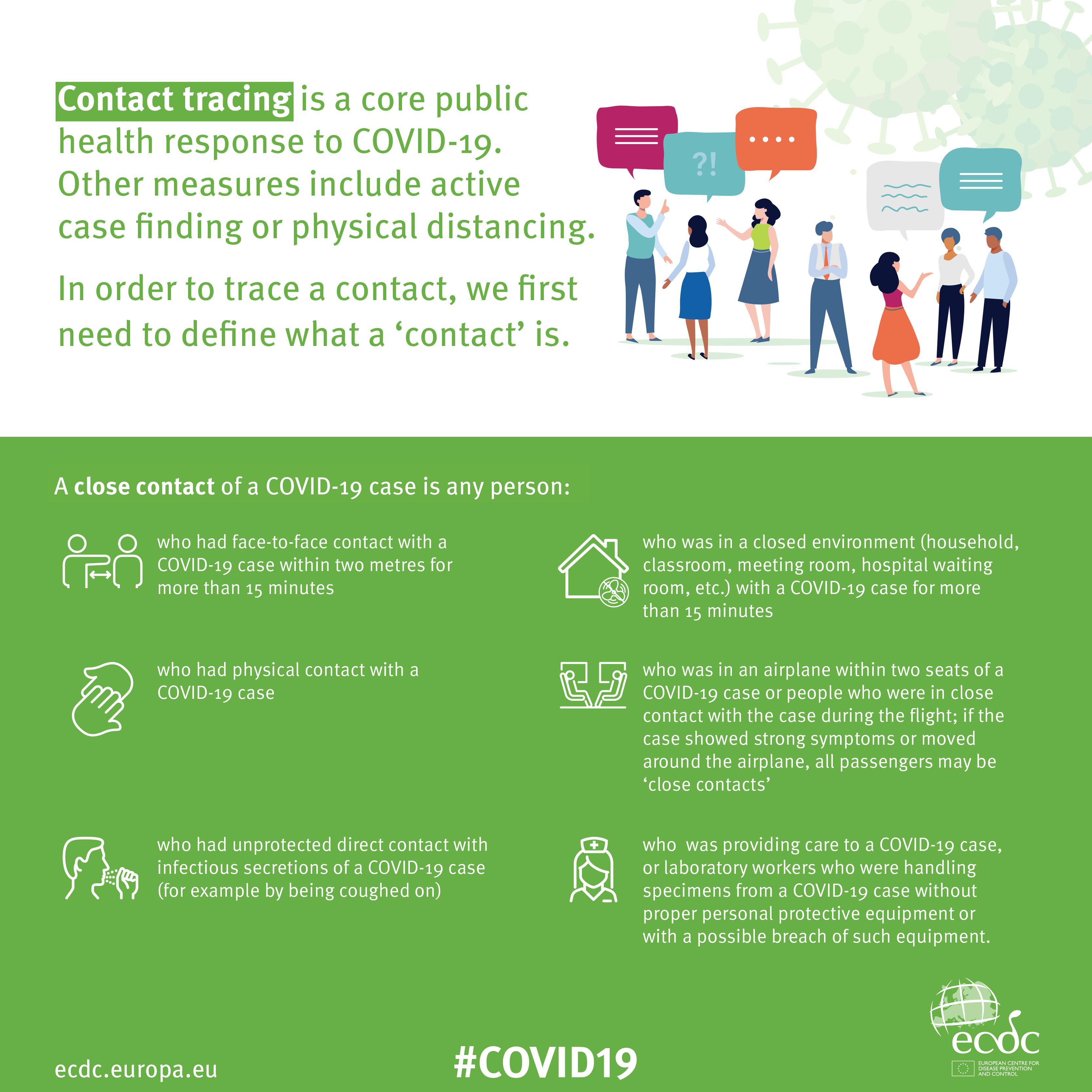
A member has also sent me this really useful Infographic on implementing Zoom which I would recommend reading carefully …
I could stop here, but there’s a few things I differ from the advice in that infographic which will be highlighted below and which I’ve also discussed in another article here.
You might also like to take a look at this article with video that explains the new features on Zoom v.5.
So here’s the original article, as I said published on March 31st …
Since writing this article, just over a week ago – gosh it seems longer than that – more groups have started using Zoom, and it’s also clear that it’s being used very widely by friends, families, communities, etc. It’s also clear that Zoom has responded to some of the criticisms that have been levelled against it and disabled some of the “unintended” consequences of allowing people to Login using their Facebook credentials. That is all good news, so my concerns have been diluted, but I think it’s still wise to “proceed with caution” and to this end I’ve collected together some guidelines which I hope will be of use. First of all – you need to get started by signing-up and installing some software on your device.
Installing Zoom on your Desktop, Tablet or Phone.
Zoom is a multi-platform piece of software – that puts it in a great place to serve the maximum number of people who are all using different equipment. This puts it in the same category as Skype and Google Hangouts.
It’s important to remember that the software was intended for business users, and so some of the language might be slanted in that direction. No matter, what you do need to do, is sign-up to get an account. I would not recommend using your Facebook credentials; I might be tempted to link my Google account to Zoom and use it to Login; but overall, it’s probably better to setup an account directly. I have given advice before to use a “throwaway” email account – one you’ve created which is separate from your main email account for this sort of thing. You can have many Google (gmail) accounts – I probably have 6 or 7!
Once you’ve provided an email address – you’ll be asked to confirm it from an email that will have arrived in your Inbox. Then you’ll be asked to provide normal identity stuff – your name, and then provide a password for your account-you’ll get a screen which provides you with this information. This is what you can do with your account – you don’t need to press Upgrade Now.
It might be a good idea to allow your self the time before your first meeting to look at the three videos which are in your welcome email – they will give you a flavour of what Zoom is all about and how to take part in a video call.
If you’re going to use a Windows PC or an Apple Mac, now would be a good time to have a look at this page and install the app on your desktop or laptop – but if you’re really careful with your privacy, see the cautionary note below about using a desktop or laptop. [I don’t have this fear now, so I would disregard my cautionary note.]
If you’re using a smartphone, or tablet, it would be a good idea to check this page and install the app on your device.
If you’ve done all that and have an idea how it’s going to work – you’re ready to start. I’d suggest having a go with a friend or family member first, to practice and test your understanding. If you’ve got a problem with anything add a comment to this post and someone will try and get back to you with an answer/solution.
So now we come to making things safer for you. As I said before there have been concerns about Zoom’s Privacy policies or procedures, so although they have tightened up these there are a couple of things you should do. [I’ll add some screenshots from my iPad shortly. I didn’t and I won’t be doing this.]
First of all some tips on which device to use and how to use it …
- I’ve said this already, but I’ll repeat it. Don’t sign into Zoom with Facebook. This stops Zoom from collecting your Facebook profile info. Although, if you’re already giving all your private info to Facebook, maybe it doesn’t matter.
- Use a separate device if you need to do anything during the call, if possible, in that way you stop Zoom from tracking any other activity on the device.
- If you’re an Apple user, use an iPad or iPhone instead of your Mac. Zoom’s iOS app is subject to Apple’s App Store rules, which gives an extra degree of security. The Mac version is a direct download from Zoom, so you have no idea what’s inside. The same is probably true for Windows – but I haven’t checked. So it’s generally safer to use a Mobile device rather than a desktop/laptop. [I don’t consider this a problem now. Zoom have increased their security and it’s MUCH MORE convenient to use a laptop/desktop as you can more easily see everyone on the call in a Gallery view – rather than having to scroll across images of people on a smaller screen device.]
Hints and tips on staying safe …
If you do decide to use Zoom, the company offers a few good tips on its blog for staying safe. First, don’t share a meeting link on social media or any public forum, because then anyone who sees it can join. This can lead to “Zoom bombing,” where bad actors crash the party, and drop off a payload of porn and/or other disruptions, before leaving. Something you definitely want to avoid!
Next, if you’re hosting the event, do not use your Personal Meeting ID (PMI) to do it. “Your PMI is basically one continuous meeting,” says Zoom, “and you don’t want randos crashing your personal virtual space after the party’s over.”
I use Scheduled Meetings even for Recurring Meetings, I can then send a Meeting Invite round in Beacon, that users just click on to join. This is much easier than sending out invites to every meeting.
Also, consider making use of the Zoom “Waiting Room,” which is a way to control who can get into your meeting. [This is now the default setting for a meeting.]You can then decide who you want to admit to the call. [This may not be relevant to your calls, but it’s worth bearing in mind if someone you don’t know somehow appears on the call. Next time they won’t because you’ll have implemented the Waiting Room.]
For more information on staying safe, read Zoom’s blog post, as mentioned above.
Zoom changed a couple of their Default settings from today – 5th April. Now when you join a meeting the default setting from the host is to ENABLE a Waiting Room, from which the Host can invite people in.
The second change is to set a Password on Personal Meeting IDs (PMI). It’s not recommended anyway to use PMI as it’s like a permanently open meeting; far better (if you’re the host), as I’ve described above and elsewhere, to create a specific meeting ID which sets a password anyway. Here’s a link that better explains these changes.



 Apologies for the slight delay; if you look on the Notice Board and the