Windows 10 – Major Update

The first thing is, to see if there are any updates available, you go to Settings – Update & Security – Windows Update.

That is worth doing anyway, but I want to tell you about my experience with “Feature update to Windows 10, version 2004”. I started that running yesterday afternoon, and it finally stopped downloading this morning, seventeen hours later. I now have to decide when to install it. I’ll let you know how that goes.

My laptop is seven years old, and I use mobile broadband, so your experience might be different, but still …

Update: The installation took three hours.

Linux on Mac

Not a Spielberg masterpiece but something I knocked up this morning. There is one mistake in it, corrected in the second-half of the video. The Mac requires a 64-bit Linux distro, not a 32-bit one, so the same .iso file I used for the Dell Inspiron was used in trialling Ubuntu 20.0.4 on the 2008 MacBook Pro.

How I built a Ubuntu Linux 20.0.4 system on an iMac and tested it on an old MacBook Pro

I’ve also discovered that Etcher is available for Windows as well – go to pull-down button on this page. It might be worth looking at this as an alternative to Rufus.

The Ubuntu page that is mentioned in the video is here.

Improving home network performance

This short note is written to advise on possible performance improvements you can employ if you feel that your network is “slowing down”. It may be that you just feel files, or pages, are taking longer to download, or display; or it may be that you feel it’s taking “too long” to connect to the remote site from your browser.

The first case can often be resolved by moving your WiFi router, if possible, to a better location. Remember that although WiFi can appear to go through walls and ceilings, the more you expect it to do, the worse will be the signal. So move the WiFi router and perhaps you’ll get a better signal. This is often not possible, so the next thing to consider is to use one of the ethernet ports on the back of the router and connect the computer to the router by ethernet cable, rather than using WiFi. This will always provide better network performance. This may not always be convenient so the last solution is to “extend” your network using either a WiFi extender, or a different approach called Powerline. This article explains the difference between the two and also includes a commentary on ethernet cable as well.

If you opt for Powerline, you will plug a unit into a 13amp socket near to your router and connect it with an ethernet cable to the router, and then on the same electric circuit (ring main) plug in another box which can be just another ethernet socket, or more likely it will have a WiFi capability. Systems from Trendnet, TP-Link, D-Link and others are amongst those you could purchase. Here’s a review of possible systems, most of which can be purchased from Amazon. It is possible to configure these to use the same SSID as your router, but you may have to make do with having a separate network when you connect to these points.

Alternatively, your ISP will often have a solution that will mean that you can use the same SSID for the extended WiFi access points, or you can purchase WiFi extenders (as described above) from Amazon which you can then configure to use the same SSID as your router. So that’s the first case taken care of. What if you just feel that your network is lazy, is there anything you can try to improve performance.

Well first – and perhaps you should have done this first anyway – you should check whether your ISP is delivering something near to the broadband speed it’s contracted to provide. We’ve talked about this before but test your internet speed using something like Speedtest. [As an aside, you can also download the Speednet app for your mobile device and walk round the house testing your signal this way too.] If that’s not the problem, and it just seems to take too long to make connections, then perhaps you should apply some new configurations to your router.

The first thing you can do is to see if you and your neighbours are battling to use the same wireless channels. The common ones used are 1, 6 and 11 as they don’t overlap. However for this reason, sometimes, routers might be “hard-wired” to use one of these channels and so two nearby networks might actually be using the same channel which could then be interfering with each other. Read this article to learn more about this, and then once you’ve tested your network and it looks as though you could be suffering this way, you’ll need to refer to your router manual (or talk to your ISP) to change the channel(s) you use. Why channels? Well because most routers now broadcast signals at two wavelengths – 2.4Ghz and 5Ghz. What’s the difference – read this article.

The other thing you can do is look at how your router is setup with its DNS server. Your ISP will have configured your router to use their DNS servers, but it might be that these are not the best ones for your locality – especially if you’re on a laptop and are moving about a bit! So what is a DNS server, and what does it do, and why might this be important?

A DNS server translates a URL (such as https://thoughtgrazing.org) into a sequence of numbers – an IP address – that instructs the modem that transmits and receives data going and coming from the internet where to go. This whole process is explained in some detail in this article. If you decide to change the DNS settings on your router, or just on a device, you can look at this article which shows you how to do it.

In my case, I’d been disappointed in the performance of my new Netgear Orbi routers which although they seemed to shovel the data around very fast, there was a noticeable lag/delay in achieving connections, and I’d also felt that the router was dropping connections more than it should. So, bearing in mind I have a Virgin Media Superhub that’s only running in modem mode with the Netgear Orbi router behind it, I changed the configuration of the router which was pointing at VirginMedia’s DNS servers to point at Google’s secondary DNS server. I also checked what channels were being used by nearby WiFi networks using the Mac’s Wireless Diagnostics tool described in this article

… which indicated that I should change the 2.4Ghz channel that was being used from 1 to 11, and to set my 5Ghz channel to 161.

I left the DNS server setting on my devices to be ‘automatic’. This makes it much easier to “roam” away from the house with a mobile device. I then ran a test called namebench (from Google) to try and find the best DNS server for my home network, but you don’t need to do this. I would suggest you look at this article and then experiment with Cloudflare, Google, and OpenDNS perhaps in that order until you get a response to your internet request that satisfies you. Leave your ISPs DNS server in the list of servers (the third in the list below) – just-in-case.

Linux

What is it and why might I be interested in it.

Before I start, a little information for you.

I’m typing this on my Acer laptop.

It is a dual-boot system. It has both Windows and Linux Ubuntu installed on it. When I turn it on, it asks me at boot-up, whether I want to use Windows or Ubuntu. I hardly ever use Windows because I find Ubuntu so much better. However, for this, I’m using Windows because I know that most of the afternoon Zoom group use Windows. I’m using Windows this afternoon so I can see how the Windows installation of Linux works.

Windows is horrible.

So far I’ve had five pop-ups and two programs starting without me wanting them to start. Added to that, with Windows, this laptop takes ages to start. 

You don’t get those sort of problems with Linux.

You will also not need anti-virus software as Linux doesn’t appear to get viruses.

Now, you might be interested in taking a look at Linux from a purely academic standpoint; something new to learn during lockdown.

OR … you might have an old computer lying around; one that you’d like to drag back from the grave.

So let’s get started

Linux is an operating system. Windows and MacOS are also operating systems. An operating system is the program that actually makes your computer work.

To proceed, you’ll need to do the following … and it would be best if you did this before next Thursday’s meeting because some of the processes take a bit of time, otherwise you’ll just have to accept being an observer.

  1. Take a look at the computer that you’ll be trying to revive – but remember you can run Linux from the USB drive without making changes to your computer, so it could be any machine. Make sure it has a USB drive. You’ll need an empty USB pen drive doohicky, at least 4Gb in size. Also, the computer that you intend targetting, it would be best to be a 64-bit system. Google your computer’s make and model to find out whether it is 64-bit.

  2. Download the Ubuntu Linux image file. Here’s the link.   https://ubuntu.com/download/desktop

This is for Ubuntu Linux 20.04 LTS. LTS (Long-term support) means that the software will be supported for 5 years. A new version of Ubuntu comes out every April and every two years you have a new LTS release. This page also tells you the minimum requirements that you need on your computer for Ubuntu to run well. Incidentally Ubuntu is a South African enterprise. It is totally free to download, install and use. In fact, everything in the Linux world is totally free. Linux comes in many different flavours e.g. Mint, Red Hat, Fedora … you chose the flavour that best suits your needs. My opinion; they are all very similar. Ubuntu is probably the easiest to get to know and with the best support. It will take a while to download as it is a big file … about one hour in my house but I have Virgin cable.

If you only have a 32-bit system there is another Linux operating system that works well on older 32-bit computers. It is called Bodhi Linux. Download the image file here. https://www.bodhilinux.com/download/   download the legacy version.

You can also download an older versions of Ubuntu Linux for 32-bit systems from here. http://releases.ubuntu.com/16.04.6/

Once Ubuntu has finished downloading, don’t do anything with it. Don’t double click on it or try to get it to run. Just make a note of where you’ve stored it.

  1. Now, you can’t just put the file that you’ve downloaded onto your USB drive. It is just a bit more tricky than that. You’ll need one more piece of software. It will transfer the Ubuntu file you’ve downloaded onto your USB drive and create a bootable disk image. These pages will give you a run down on what to do next on a Windows computer.

You will need a piece of software called Rufus (free, open-source) to create the bootable disk image. Here’s the link to get it.

You should Download AND install Rufus 3.11 1.1Mb onto your machine.

Please note. These pages show you how to prepare a Ubuntu image if you are using a Mac to prepare the Ubuntu disk image. You need a piece of software called balenaEtcher instead of Rufus to do that. You can get it here.

Now, on Thursday afternoon, in order to proceed, you will need the Ubuntu file stored in your computer and have Rufus downloaded and installed. We’ll talk you through the rest of the procedure over Zoom but rest assured, you’ve already done an awful lot.

Please note. All the above assumes you will be working on the target machine; BUT you could prepare the USB pen drive on one machine and then apply it to another. For instance David prepared his Ubuntu installs on a Mac, with the intention of targeting an old Windows machine. It’s just important to know what your target machine is, that it’s 32-bit, or preferably 64-bit.

Things you need to understand.

Once you have Ubuntu on your USB pen drive you can:-

  1. Run Ubuntu on your computer just to see what it is like. This won’t make any changes to your computer. After you’ve taken a look around the system you can just shut down, pull out the USB drive and re-start. All will be just as it was before.
  2. Make a full Ubuntu install. This will completely change your computer to a Ubuntu device. There will be no turning back from this option. However, you will have use of all of the space on the hard-drive.
  3. You can choose a dual-boot installation. This will partition your drive into two sections. You can keep Windows on one section and Install Ubuntu on the other. Although this sounds complicated, it really isn’t … you just need to make a choice on the size of the partitions that you’ll need. If you chose this, every time the computer starts you’ll be asked whether you want to start Windows or Ubuntu.

Other things to consider.

You can get Windows programs to run on a Linux machine but this is a bit of a black art and beyond the scope of this project.

However, Ubuntu comes with quite a few pieces of software pre-installed including Libre Office. This is very similar to Microsoft Office. You should know though that when you create a document in Libre Office, you can choose to save it in Microsoft Office format and a Windows computer will be able to read the document. Similarly Libre Office will open Microsoft Office files seamlessly.

One of the pre-installed programs is called Synaptic. This is a bit like the app store on many mobile phones. You can find oodles of pieces of software within Synaptic, all totally free.

One last thing to consider.

Both myself and David have successfully undertaken these procedures and everything worked just fine. However, please realise that if anything does go wrong then you really should be prepared to take the responsibility yourself. We can’t really be held responsible for the vagaries of a variety of computer systems. However, usually just preparing the Disk Image on the USB stick and trying again is usually quite successful. All I can say is that many people have installed Ubuntu. I’ve just checked the website to find out how many Ubuntu users there are. It was quite refreshing to learn that Canonical; Ubuntu’s parent company do not harvest that sort of data. A rough estimate is that 1-2% of all of the computers in use world wide use some sort of Linux installation.

Addendum. A note on Boot Order for PC-folk and your BIOS

You’ve got your USB install drive; you’ve got a PC; the only “tricky” bit left for you is to change the boot order of your PC. By default the machine will look to boot from an internal hard drive, but it doesn’t have to. You want it to start from your USB drive. So read this to see how to change the boot order.

If there’s no bootable USB drive in your machine it doesn’t matter; the boot sequence just looks for the next drive it could boot from – usually the internal hard drive. That’s why on some BIOS you’ll see the CD/DVD drive as first in the list as that’s where (traditionally) you would have installed/upgraded your Windows from – before the internet! Before that it was the floppy drive (a: or b:) – remember that; and that explains why the late-comer the hard-drive is always labelled c: or later, d: etc.

Of course on the Mac, it’s much easier , you just have to keep the Alt/Opt depressed as you boot-up and then select the boot device 😉

Second Addendum. Having problem with Booting your USB disk?

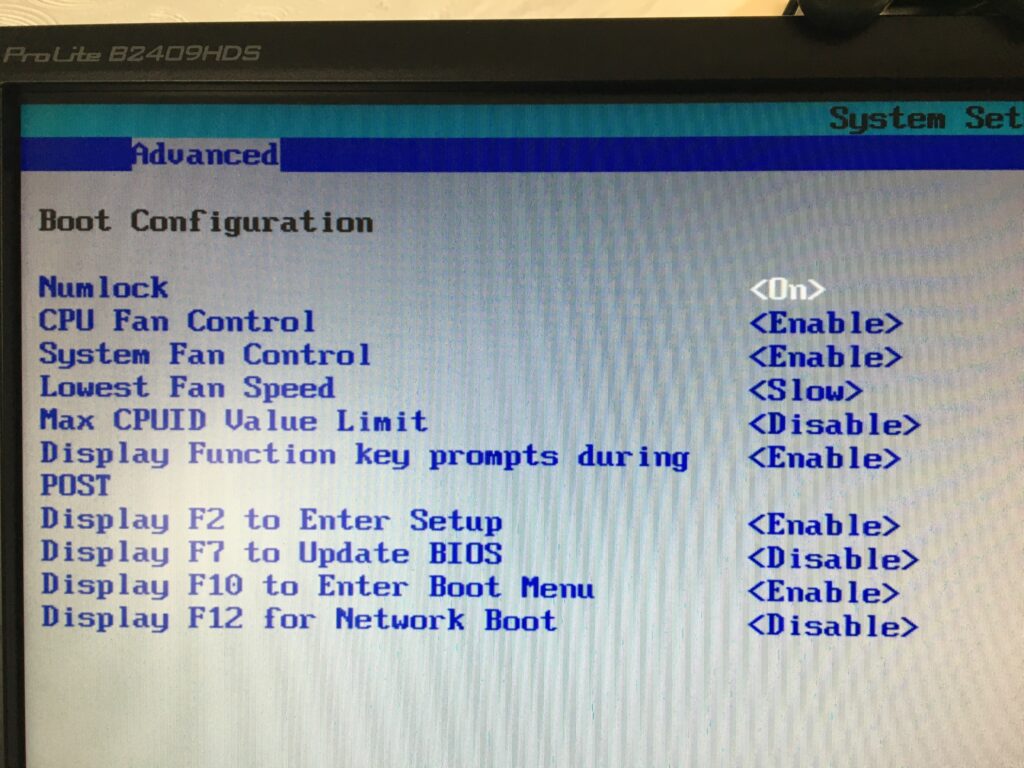
You should look at these settings in your BIOS on a PC. Often the key to press when you want to access BIOS settings is F2.

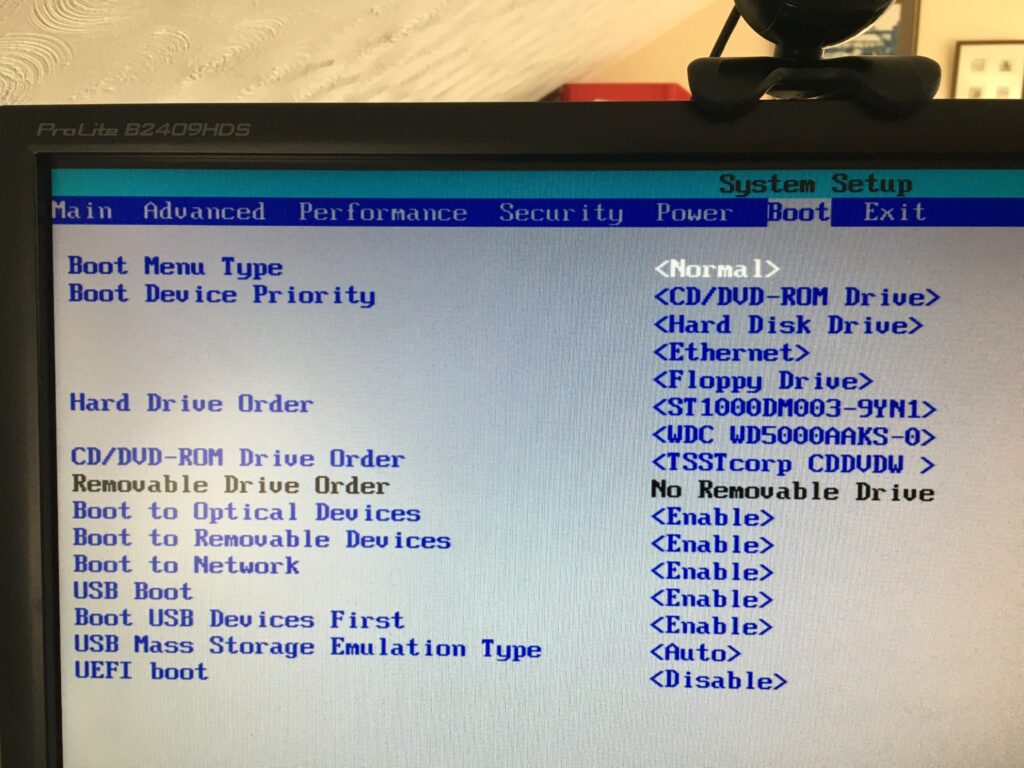
Getting the Boot order correct, and making sure that USB Boot is enabled.

From the BIOS settings menu just make sure that Boot USB Devices First is enabled. If you have the USB Device inserted, it will also appear in this list. You could move it to the top of the list, but of course it will disappear from this list when you take it out – that’s why Boot USB Devices First is important. You could also Disable the Boot to Network option.

Making sure you can Boot from your USB device

From the same F2 BIOS Settings menu you should make sure that F10 is enabled (or whatever key is designated to Enter Boot Menu) and F12 is disabled as you don’t want to boot from the Network at this time. [You can always enable it at a later date, in the unlikely event this ever becomes a requirement.]

Notes from Zoom meeting – 23rd July 2020

Our last official meeting of the year, although please note the special meeting next Thursday when Phil and I will chat about creating a Linux machine on an old desktop or laptop, or just to run alongside your normal Windows, or MacOS from a USB-stick. You will need a 4GB USB-memory stick to fully take part in the session, and we would be grateful if you could let me know you’re wanting to join us as soon as possible so that we can send out some notes to you.

Sianed requested some advice on purchasing a PC for her journalist husband. The group provided a range of advice – a large screen, maybe look at an all-in-one. My advice … just make sure you can upgrade it (RAM, replace hard disk) and look to buy one with an SSD and as much RAM as you can afford up to your budget. Mario mentioned that you can AirPlay your iPad to your TV if you have an Apple TV box – that does work quite well. I’ve got one of the Generation 3 boxes.

Paul told us about his amazing (!) app to control his car provided by Toshiba; we all commented that was fine until it all started going wrong and was there a mechanical equivalent.

David reported on the comings and goings of life on the Esplanade. Alcohol was now an issue and there’ a campaign to make it an alcohol-free zone. He also mentioned the incursion of “mobile ethnic personnel” (using Paul’s terminology) but fortunately they didn’t stay long! The perils of living in Penarth, eh!?

Owen has been learning, and then applying himself, to PHP – a programming language for websites so that he can do some work on the backend of the Cardiff U3A website for creating forms, and other goodies. I suggested this was exciting, he didn’t seem that excited! With Python, that’s two new programming languages he’s had to grapple with since Lockdown .

Don survived an electrocution episode – I don’t think he actually described what happened, but it was something to do with his garage and a lawn mower. He’d had a printer problem which he’d solved by uninstalling the printer driver and re-installing it. That’s not the first time a member has had to do that with Windows recently. He also received advice from Stella on how to control ants (black pepper apparently) and told us about a cheap way to get a replacement key fob re-programmed at the house.

Renee said she’d welcome advice on insurance having used many online sites this week. One mentioned was Quotezone. I mentioned I’d been very happy with the Civil Service Insurance Society which you can use if you’ve had any employment in the Public Sector and have joined the Civil Service Pensioners Alliance, There’s also another group – the Civil Service Members Association (now presenting themselves as Boundless) which do deals including insurance I believe.

Margaret followed on the Insurance theme and mentioned that even though not a caravan owner she’d taken advantage of Caravan Club Insurance to protect their home during a longer than normal absence from home. She also mentioned she’d purchased a Logitech webcam for he PC which she’d installed and was using today. She’d also purchased headphones to improve her Zoom experience. She enquired about live-streaming because her church was considering using this as a means of accommodating parishioners who couldn’t attend socially-distant services. I undertook to look up potential solutions and sent some links on WhatsApp and will repeat these on our Computer Group Forum on this site. Anyone with any other ideas about live streaming please contribute to that Topic on the Forum.

Ted was considering getting a Raspberry Pi as a project but couldn’t think of anything other than a weather station to build. I’m sure an appropriate Google would yield many more ideas, and I know from buying one for my grandson there are books with project ideas in them. Phil showed us his Nature Camera which worked with his Raspberry Pi.

Jim is getting bored with sorting out his Google Photos and Albums but is getting towards the end of the task, labelling, titling and tagging as he goes. The next step is to start deleting photos on his phone. Good luck there. I think we had a session on that at the beginning of the year, didn’t we?

Christine had attended a zoom funeral that morning; had got her new Cello TV working with the Powerline supplied by BT (I think) and was doing something transferring photos from her phone – I’m sorry, my notes don’t help me be more clear!

Fred had found a wine supplier for his forthcoming important anniversary – FineWinesDirect (on Penarth Road); and had implemented WhatsAppWeb since the last meeting.

Stella was in the last week of her saga with BT and had found that tethering her phone to her laptop worked quite well, and better than her broadband. This is good news if she goes down the Network 3 Home Hub solution. We also discussed for David (F&C) the possibilities of a mobile dongle from 3 for a caravan if they decided they had to get away from the “mep’s” and other undesirables frequenting their front garden 🙂 Stella also told us about wetransfer.com as a service to transfer large files from one person to another. The link to the file lasts only 7 days though, but you do get notice that it’s about to expire.

Ann had successfully sorted out her WhatsApp images and videos and had found a new app that she could dictate her thoughts to – KeepNote. It’s an interesting addition to the plethora of note-taking apps. I’ve used EverNote for a long time, but there’s OneNote and Quick Note (both from Microsoft), amongst others.

We then discussed the way the group should run from the beginning of next session. I won’t say any more about this but it was a very useful discussion that helped me frame the email I sent to members after the meeting. We wanted more members to try Zoom and I offered to help anyone who wanted to try and use Zoom with one-to-one sessions. The next meeting will be a Zoom meeting on September 10th.

There was insufficient time to go through the media converter services I’d promised to demonstrate. I’ll write this up as a post on the public Thought grazing site, as I will edit the WordPress notes that are there, and also write up something on Facebook Privacy issues and also enhancing home network performance. That’s quite a bit of summer homework for me. I think I probably have to do something on Backup and Sync (specifically in the context of Google Photos) as my post on this is probably a bit out of date too. No rest for the wicked.

Next year with the Computer Group

I sent a long email to members after our last meeting of the session yesterday and thought it probably a good idea to post it on the website as well for reference, and for comment.


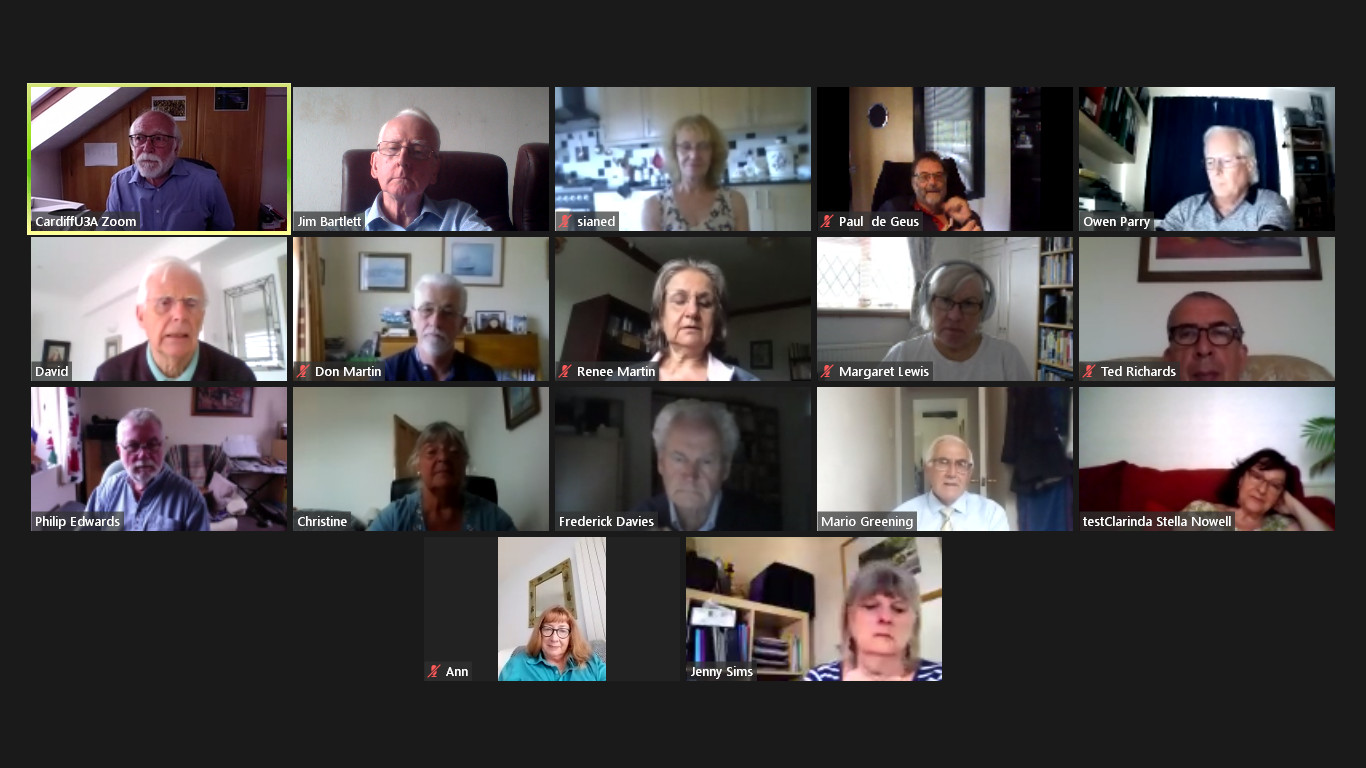
We’ve just finished our last meeting of the year – 17 of us met in our virtual state for a lively and very good natured (that means fun) session. Courtesy of Jim, I’m attaching a screenshot of those of us who took part.

We discussed next year, and how comfortable we felt about meeting in person again, and there was a general consensus that it was just too early to commit now to meeting as a group in September. That’s regretable, but completely understandable and a reasoning that I’m 100% in tune with. Until we can meet as a Group, in the same way as we used to meet, I won’t feel comfortable – especially in the small Meeting Room at URC.

There are other venues we could possibly meet in, and the Committee will be looking at possibilities for the re-start, and we will keep a “watching brief”, but as Phil Edwards said – the acid test will be when a crowd is possible at a Cardiff Blues match. Until then I think all of us have very understandable worries. Add the issue of Public Transport and mask-wearing and  it really doesn’y make sense for us to take unnecessary risks when Zoom has been working so well for so many of us.

Over half the group has met at a meeting at some time since we started. The format of the meeting has been to go “round the screen” with attendees telling us what they’ve been up to, but more importantly the technology-related issues they’ve been facing. This has been very beneficial to all of us, so-much-so that I’ve rarely had to do much presentation. Being able to rely on the Group, or to “think on my feet” to provide solutions – it’s been great fun, and we’ve all learnt a lot I think. The Notes of the Zoom meetings have been written up and are on the Thought grazing website.

So … (and this is the point of this message) I wanted to let you all know that we’ve decided to continue with Zoom meetings for the time being. The first one of the new session being on Thursday 10th September at the usual time. They will then continue fortnightly (rather than 2nd and 4th Thursdays) like it used to be. I would like to encourage members who haven’t joined us on Zoom to consider giving it a go. If anyone would like me to help them setup Zoom ready for next session, please get in touch and we can arrange a one-to-one session to let you get some confidence on how it works. That’s how a few members in the attached screenshot joined Zoom and now they’re very active participants!!!

Zoom is always going to be a poor alternative to face-to-face meetings, but it has worked surprisingly well for those of us that have tried it out, and perhaps if you haven’t, then perhaps you might want consider giving it a go.

However, if you no longer want to receive these emails, and want to leave the Group, I would of course completely understand. Please let me know, or just leave the Group from the Beacon Members page. We would of course miss you and you could always rejoin once the “new normal” has been established! Your access to the Thought grazing website would in any case remain as long as you are a Cardiff U3A member.

Thanks for reading to the bottom of this long email.

Kindest regards. David.

Notes from Zoom meeting – 16th July 2020

So we arrive at the penultimate meeting of the year – just one to go! A few apologies for absence with members being searched out by grandchildren being a very valid reason after so many weeks of separation. So what went on …

Fred asked for guidance on how to get WhatsApp working properly on his phone – we didn’t answer that one, but did suggest there was a way using WhatsAppWeb on a browser that would answer his question. I promised to send him a link – here it is – that would assist in getting WhatsApp working on a desktop/laptop.

Christine reported that her new Cello Tv was having some problems connecting to the Internet and her son had advised purchasing a BT Powerline adapter to provide a stronger single, or indeed hard-wire connction. I’ve used this sort of device in the past and they can get round the problem well. She then enquired … “what is the best 43″ TV at the moment?” This created a lively discussion and ultimately it comes down to what you actually want from your TV. For me it’s the display quality. Smart features can be added-on, but it’s the screen and the menu facility of the set that’s most important. For that reason I’ve chosen to purchase the new Samsung 43″ QLED set – when it comes into Richer Sounds. You may be able to get it elsewhere, but I’ll wait until I can get it from them as they were so helpful in assisting me get to the decision I’ve made. One thing I need to clarify after the meeting though. It’s only OLED screens made by LG that are used by Panasonic, Sony and others, not LED. The competing standard is QLED from Samsung which is probably not as good as OLED but it’s only Samsung that offers a 43″ screen at this improved picture standard. Our existing set is a 10+ year old 32″ LED, we are upgrading to a 43″ QLED. Hope that makes it clear.

Paul related his experiments with stop-start gmail and google calendar and has found a workaround by starting Google Chrome, and then re-starting it. This seems to fix the other problems. This does seem to point to a problem with Google accounts in some way and we talked a little about the Google Dashboard as well. These can be reached at https://myaccount.google.com/ and https://myaccount.google.com/dashboard respectively (when logged in). It would be well worth your time spending a little while on these two pages and perhaps refining some of your settings with Google services as a result. Paul also promised to tell us all in the autumn about his CCTV installation as he edges nearer to making a decision on the system he’s going to deploy.

John indicated that he’d like some guidance on the WordPress system, the differences between .com and .org installations and how to use the Block Editor. I offered to do something for the session next week and try and recommend a good tutorial/book for using the wordpress.com site.

Stella‘s problems with exiting from her BT Broadband contract continue – she’s only got two weeks left and they are sending her messages that would seem to be suggesting she’d lose connection to services such as her photos on iCloud. This is patently not accurate, but for her peace of mind we did suggest that she download her photos onto her laptop and perhaps move them to an external device for safe keeping. She should do that by going to https://icloud.com logging in with her AppleID and Password and then downloading the Photos from the screen that would appear. However one thought did occur to me afterwards. If you have supplied your BT email address to be your AppleID then you need to change that before the end of the month. This goes for any other services that you might have supplied with your BT email address as this will cease to be active shortly after the account is closed. So … check your online services and see if you have used a BTinternet.com email address on any of them and change that to (in your case Stella) your yahoo address. If you close your BT account your email will remain active for 60days and you will have the chance to migrate to BT Premium Mail which is a chargeable service – you will probably be chased to take this up, but it’s advisable to take the opportunity to move to a non-ISP dependent service such as Hotmail, Yahoo or Gmail. You do not have the opportunity of moving the mail messages from BT to another provider. Shame on you BT!!

Stella was also alarmed at having her account details flashed up on the screen which does appear to me at least to be strange thing to do, and she intends raising the matter with OFCOM. To top it all her connection to broadband has got worse and worse and it has taken up to 2 hours on occasion for her to connect to the Internet. Our sympathy is with Stella and we do hope she gets a good resolution from this and finds her Network 3 experience a happier one. [Jim is in the wings to provide assistance on that one.]

Ann wanted advice and guidance as to how to get rid of WhatsApp images and videos on her phone and both Christine and Paul gave advice on both. You can delete them off your phone by going to a specific album in your Photos on your phone, and delete them from WhatsApp by pressing on the image and choosing the Delete option.

David F&C queried the way that Photos were backing-up to Google Photos and we talked about the way that this happened. I mentioned I’d done something about this some time ago, but I fear that the post doesn’t quite hit the mark anymore – it needs re-writing, so here’s a link to Google’s page which is starting-point to learning a little about the wonderful world of Backup and Sync.

My contribution to the meeting was to mention my surprise and pleasure at retrieving monies from a Barclaycard that we only use when on holiday which is where our refund from Singapore Airlines had been sitting since the 28th May! I also mentioned a Facebook advert that enticed a friend to seemingly purchase goods from a well-known high-street name. Just don’t do it. Be very aware! I also talked about improving Network performance i the house and promised to write-up something about that, as I did to share some guidance on using Facebook. I will do both of these on the thoughtgrazing.com site as it may be of more than general interest to a wider circle and I do need to keep some interest in that site as well!

Finally I offered to do a little on transcoding – changing the format of videos, images and audio files – as well as the bit on WordPress, for the last meeting of the year.

Google Photos – Album Archive

This started when I wanted to find out how many images I have in Google Photos, which they don’t tell you. After some digging I discovered my Google Dashboard, which again isn’t easy to find, so here’s the link (to yours of course):
myaccount.google.com/dashboard .
This told me basic information about all my Google apps, including the fact that I have over 200 images in Photos. I was surprised to be told in addition that I have over 600 albums though! Following that link, I discovered that these are stored in my Album Archive.

When my tablet and phone photos are uploaded, they are put into albums according to the day they are taken. That is OK, but it turns out that when I delete old images, the empty album remains. I will now start deleting these empty albums from the Archive, but it seems I have to do it one at a time. I can’t at the moment see a way of selecting a group of them.

I hope that is of interest to someone.

Notes from Zoom meeting – 9th July 2020

Another good turnout with 14 of us on my screen and such a well-behaved group of zoomers. Makes you think that perhaps we ought to be classified as “baby zoomers” doesn’t it? Anyway round the screen we wen, starting with a follow-up from the last meeting.

Owen had investigated the Gmail closing and opening issue and reported that this had been identified as a “problem” by others specific to Chrome. The suggested solution was to uninstall Google Chrome and then re-install it. However another suggestion was that you should look at the extensions you’ve loaded into Chrome. If this is the case it would be interesting to see if the same problem happens with Brave, or Edge, which both use the Chromium code that underlies Chrome. Owen also reported that the same problem had been recorded as being associated with using some Chrome-based apps such as Alexa, or even apps that accessed Windows itself, and being related to security settings in the browser. More work needs to be done before we get a definitive answer. I await the next chapter in the story!

Then we “went round the screen” starting with …

Ted, who pointed us to a post he’d written on using Google Maps – which is an interesting read, as is the other work he’s been doing with the Roath History Group creating a “virtual war memorial” and resurrecting work that he and David H had done in creating Heritage Walks (for a publication/website that appears doomed to never appear). Links to both of these projects – which prove (if proof was ever needed) that Ted has been having a very busy and productive lockdown – are on his Google Maps post. Ted invited us all to review and comment on the content and presentation of both pieces of work, please do so.

Fred has been busy doing DIY and preparing for “a big birthday”, and requested info on the availability of a Spanish wine. Owen was able to come up trumps with a local source from which it might be possible to get the wine. [I’m afraid I didn’t write down either the name of the wine, or the place where it could be purchased.]

Paul enquired about a pop-up that he’d been seeing recently inviting him to take-out a subscription for Acronis True Image. Both Owen and I agreed that this was back-up software. It had probably been packaged with the machine when purchased with a time-limited subscription which had now expired. Since Paul wasn’t using it, it was safe to ignore the invitation!

Stella had decided to go with getting Broadband via the 3 mobile network. From the website she wasn’t sure which offering Home, or Mobile, she should take. From discussion with Jim, it seemed likely that the Home Hub option was the one she should take. [I looked into this after the meeting and wrote to Stella and Jim with that advice. The important factor was to make sure you got a HomeFi (Huawei 535) Plus hub. The service should cost around £20-22 a month for a two-year contract and unlimited data.]

Renée reported on a phone scam relating to a Mastercard purchase she hadn’t made. Sianed told us she’s had a similar experience and reported it to Mastercard. I reported the excellent Mastercard “track and trace” system with stopped my card when I made a transaction on Amazon Australia, sent me a text message asking me to confirm whether the last three transactions had been made by me and to answer “y” or “n” by text, which I did and which then unblocked my card. All this took place within 1 min of the transaction and was done without interfering with the purchase with Amazon. Very impressive! She also had found a way of storingvideos from her gym on Fb, which meant that her problem (as reported on WhatsApp) with Vimeo, had been resolved.

Owen told us about Training he’d received from U3A about holding Virtual Meetings and particularly AGMs using Zoom. He had learnt a lot more about facilities in Zoom from that session and shared some of them with us including having co-hosts of a meeting. Marilyn asked whether it was possible to set up break-out groups (as she was now experiencing in a Welsh course run by the university), and Don added that these were being used by his church after the Sunday service, as well as using a poll during the service itself. We all expressed our grateful thanks to Owen for all he’s been able to do for Cardiff U3A during this difficult period and furthermore expressed the view that we were particularly fortunate to have someone with technical expertise “in charge” at such a challenging time.

Jim continues to weed his photo collection, a repetitive but in the end very valuable and useful task!

Sianed enquired about a problem encountered by her husband who was losing sight of emails which he had then to recover from the Draft folder of his mailer (Hotmail). Several suggestions were offered, including (and the most likely) that he had possibly changed “focus” of the browser by clicking on another window, which then caused automatic saving to draft; but the general advice was that if you were writing a long email you should do it in a text editor (not a word processor) – I use Evernote for instance – and then cut’n’paste the text into the email when you’ve finished, and then do any formatting in the email before sending it.

Don told us he’d been looking at the zoom controls (settings) on his machine after he’d had an alert that Zoom was using 90% of the machine’s CPU. We didn’t think this should be anything to be concerned about as his machine was well above the minimum specification for Zoom and he wasn’t doing anything much in the background. However, the general advice is that if you do find things are “slowing down” then you should look to see if there are processes running in the background, and close them down. Most Zoom problems are related to poor bandwidth, not CPU or RAM problems. He also reported that he’d been amazed to be able to purchase HP compatible cartridges for his printer from IJT for c.£20 as opposed to the £75 quoted from HP. David H reported that he’d been surprised to find Amazon prices beating IJT prices for HP cartridges, so the moral is shop around!

Phil was challenged on why “tattyjacket” as his email address and he revealed the Tatty Jacket (he plays accordion with a Morris Team). He also told us that the episode of The Chase he’d been seen on the week before was recorded more than 4 years ago, and he didn’t do any better the second-time round!!! He also told us about The Pilgrimage Way to Penrhys (and Stella told us the hill at the end was quite steep). [I’ve also written the word pop-up down – but have no idea what that was all about!]

David H, who will now be renamed David the F&C to avoid confusion with my good self, updated us on the saga of his meeting with the VoG Planning/Licensing Committee and the relative victory in stopping the licence for the fish and chip shop on the Esplanade being extended beyond 11:00pm. Now to tackle the odour problem. He also updated us on the Jigsaw website and told us that you can get puzzles of 500 pieces as well.

Finally I told the group that I’d had little time to do anything else but re-work the family website after the late intervention of my Australia-based IT son.

I then kicked off a discussion about this article from The Guardian, that I felt made for uncomfortable reading in terms of the type of society we were heading for.

I’m also including a few more links that I didn’t have time to mention in the meeting

About Internet Society

Consolidation in the Internet Economy

What are the Pros and Cons of Network Neutrality – I include this because of the discussion we had the previous week about less 4K movies on Netskills, and my thought that it might be related to tiering of internet service in the US.

Tim Berners Lee, on 30 years on, what’s next #ForTheWeb? and his idea of A Contract for the Web – we have discussed this at an earlier meeting, but it’s interesting to see the list of companies that have now signed-up for it.

Creating a Google Map

The purpose of this note is mainly a thank you to David and everyone else in the Computer group for furthering my learning over the past couple of years.  It has helped me pick up a lot of news and tips which have helped in day-to-day life. 

One topic we discussed that I have found particularly useful and implemented in a number of places is Google maps and especially ‘my maps’ and ‘your places’.  I have drawn up a number of maps and embedded them into a website etc.

The latest instance where I have used this is to breathe new life into a project U3A had with the Cardiff Story Museum to devise a Heritage Walking Route in the middle of town.  A small group of us spent about three months carrying out the research, being sent on a training course and devising a route and editing the material.  Unfortunately the end product never materialised.  Whether the museum ran out of funding, personnel or enthusiasm we never found out.  We were always told publication was imminent whenever we made enquiries and that was 18 months ago.

In order to salvage something from our efforts I have recently devised a Google map to include the material we researched and wrote.   I have already shared the link with the U3A researchers and would now like to share it with members of this group.  I would like to hear any comments you have on content or style etc so I can may be instigate improvements before making it available to all.

Here is the link: https://www.google.com/maps/d/edit?mid=1XZeLwbexn6Dq2Y_lntbB9UQqkb7C-et0&usp=sharing

The other place I have used a Google map extensively is on the Roath Local History website and in particular on the Roath Virtual War Memorial page.  Again I would appreciate any comments you have.  The page itself is beginning to get very long now and I need to start to thin somehow about putting the information on sub-pages.  https://roathlocalhistorysociety.org/local-history/war-memorials/roath-virtual-war-memorial

Here’s just a reminder of how to devise your own map:

  • Log into your Google account.
  • Click on the nice dots next to your avatar in the top right.
  • Click maps
  • Click on the three lines on the top left of the screen
  • Click Your Places
  • Click maps
  • Click create map