
Thoughtgrazing and Forums
https://thoughtgrazing.org/
https://thoughtgrazing.org/cardiff-u3a-computer-group/community/forums-and-topics/ – not active any more
Buying an iPhone (Marilyn), and a used one at that, contract free
The phone Jenny has is an iPhone SE, I have an iPhone 6s. Both of these (though not the latest models) are still obtainable from Apple, or from the Service Providers. So here are some links for you to chase-up. Unless you plan to hold a lot of photos/videos on your phone, I wouldn’t worry too much on having more than the minimum amount of memory (RAM).
You might consider buying a used model. This is a good article which explains the options. I can’t recommend, because I’ve never done it – https://www.macworld.co.uk/feature/iphone/how-to-buy-second-hand-iphone-3496606/.
However the Service Provider I use, and would seriously recommend using (GiffGaff owned by O2 and using the O2 network) do offer pre-owned phones and I would have no hesitation of thinking about buying from them – https://www.giffgaff.com/mobile-phones/pre-owned.
Can I also pleas stress that you should NOT consider buying a phone on a contract if you can at all possibly afford the up-front cost, as the long-term cost is SO much greater; the same goes for the instalment options. Your best option is a SIM-free purchase – I pay just £7.50 a month for my deal with GiffGaff, and I could quite possibly drop that down to just £5 per month.
So here’s the page for buying a phone from the Apple Store – https://www.apple.com/uk/iphone/ – you’ll see that both of our phones are still current models.
The iPhone SE – https://www.apple.com/uk/iphone-se/ – and The iPhone 6s – https://www.apple.com/uk/shop/buy-iphone/iphone6s
Please feel free to contact me again for further advice/guidance before you make a decision.
I think I may spend some time on this in the Computer Group on Thursday. Always a good topic.
GiffGaff and 3 (PAYG)
https://www.three.co.uk/Store/SIM/Pay_As_You_Go
https://www.giffgaff.com/
https://www.giffgaff.com/mobile-phones/pre-owned/apple
Fraud website from UK Gov
https://takefive-stopfraud.org.uk/
and course from FutureLearn
https://www.futurelearn.com/courses/cyber-security?
Hangouts (and also Chrome Extensions)
https://hangouts.google.com/
Google Photos (homework), the kernel, Spectre and Meltdown 25th Jan 2018
Boot-up
Review Google Photos – Homework???
Issues and problems
clean and speed-up your PC (at a later date, with notes)
Articles eg. How to stop Windows Updates (Flipboard ???)
Jargon
Kernel
Software and/or Hardware (keyboard, camera, etc)
Kernel
CPU – RAM – DEVICES
News
Meltdown and Spectre
Housekeeping
How much communication from me?
Thought grazing
Google+ Community
Flipboard – https://flipboard.com
Evernote
https://evernote.com/
A replacement for iTunes?

This post starts from this paragraph in an earlier post on my personal blog …
“How might I integrate my digital music in a better way than I was currently doing it via the Apple TV, and iTunes on the MacMini? The answer … a Sonos Connect system with RCA output to the Marantz amp connected to the iTunes Media folder and a copy of the iTunes Library hosted on a USB-3 disk connected to an AirPort Extreme router. [The master iTunes Library is shared (using Dropbox) around the other 3 Macs in the house – a brilliant solution to avoid maintaining different iTunes Libraries.] I can now listen to the digital music in all three rooms. Of course, now I have a Sonos Connect, I can stream to other Sonos Play speakers … but that’s for another day, which may actually come sooner rather than later.”
… which formed the subject of my discussion with the Cardiff U3A Digital Group on the 4th January. But I digress … what is the problem with iTunes?
iTunes was introduced shortly after the first iPods as the way/means by which you could store/search for your music on your brand-new revolutionary personal digital music device. And there you have the problem almost defined in a nutshell. It was “enhanced” to add other media to it – video, TV, film, podcasts; and you could synchronise your device to a computer so that the database work could be done on a more friendly device; and with the introduction of the iTunes Store – the focus has switched to selling music and storing it in Apple’s iCloud. But it’s huge problem is that it’s old, and it’s personal – tied and linked to single portable devices. You have more than one device – you have to synchronise them separately unless you rely on playing from iCloud – and the options here are very confusing; you have more than one playlist – you have to copy them to different devices; you want to have all your media in one place – you have to make sure you have your iTunes settings correct otherwise you’ll never know where the media your playing is actually stored.
So the link in the quote above provides an ingenious solution if you want to create a shared iTunes Library when you have more than one device you want to reference a single iTunes Library from. It really does work, and I’ve used this solution for a few words, and until recently I had little trouble from using this method, using my MacMini as the main computer for doing the sync’ing with my iPhone etc. However, after that episode I began to think there must be a better way.
I really didn’t want to use Spotify because that would only serve me music, and in any case most of the music I wanted to listen to, I already had and had transferred from CD to digital.
I researched whether I needed to buy more hardware, decided I didn’t, and opted to install Plex on my MacMini, with the media stored on an external USB-Disk. Doing this meant that I could continue using iTunes as well as the Plex Media Server as it looks at the same disk and media folders. And the advantages?
Well the most remarkable is that after purchasing a Plex Pass (the server itself is free) I can access any of my purchased and stored media – films, videos, music, photographs – from anywhere – wherever I am, on any device I have installed the Plex player app – including my Apple TV. It can operate over wired, WiFi and cell connections (if enabled). Isn’t that amazing? Plex is also moving towards streaming its own, or licenced content and offering a LiveTV service. Please read the Wikipedia article for more information.
It really is very easy to setup!
Getting to grips with Google Photos

It really is rather surprising that given the widespread adoption and use of Google Photos, that I can not find a sensible, easy to read, introductory guide on how to use it. Perhaps it’s because it’s so easy to use? Well, it is – up to a point. That point being how it works alongside Google’s other cloud-based software, ie Google Drive and Backup and Sync, and the now defunct and disconnected Picasaweb – where your photos are still accessible in your Google Archive.
So this note is an attempt to set out what you can do with Google Photos using images obtained on your phone or tablet, or uploaded from your camera’s SD card. It will principally work from the principle that you’ve taken the photos, you want to upload them to your laptop or desktop (PC or Mac) and then want to work on them there using a web browser. That is not an essential workflow, you can do everything on your mobile device – if that’s where the photos are, even down to editing the photos using Google’s Snapseed application for iOS, or Android devices, it’s just the approach I’ve taken here. So if you want to do everything on your iPhone/iPad or Android device you can learn how to use Snapseed on iOS here, I believe the application is nearly the same on Android.
To avoid duplication of effort however, here is an article that you should read first. It covers nearly all the features of the device apps, and the web browser version, and in particular handles some of the editing functions available, but it doesn’t cover the intricacies and peculiarities of the Backup and Sync tool.
So … how do you get photos into Google Photos? This Google article tries to explain how you can use Backup and Sync to do that. How does Google Photos work with Google Drive? This Google article attempts to explain how. Confused, I thought you would be! This is what I’ve done, why I’ve done it and perhaps most importantly how I do it!
Sometimes, it’s best to work backwards from Google’s most recent announcement because in doing that you can be reasonably sure you’ll be moving in the right direction … forwards! Google has separated Photos from Drive and is encouraging users to deal with them separately. It’s a continuation of the separation which started when Photos was spun out of Google+.
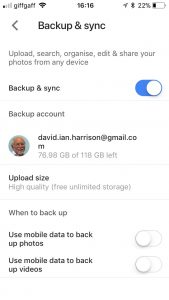 So how do I get my photos into Google Photos? From the iPhone/iPad (or any other smartphone that has the Google Photos app) it’s quite straightforward.
From the menu icon, choose Settings, enable Backup & sync and then make decisions as to the quality of the images, and when they’ll be backed up (uploaded). I have opted to use the High Resolution storage option, and for them only to be uploaded when connected to a WiFi network. The reasons for this are that my main photo software is Lightroom and I have a different method of working with that. What I want to use Google Photos for is essentially sharing albums with family and friends.
 From my desktop/laptop it’s almost as straightforward. I connect the camera by USB cable to the computer, or insert the SD card from the camera into the SD card reader in the computer and I will be prompted with this message …
They should then get uploaded to Google Photos and the images can be seen in my Google Drive as an entry under USB Devices & SD cards, from which I could copy them to a folder on my Google Drive – I don’t recommend you do this.
So there you have it. I’ve disentangled Google Photos from Google Drive; I’ve used Backup and Sync to upload photos to Google Photos and I’m now ready to edit photos, create albums and share images through Google Photos.
Finally … if you were a user of Picasa and Picasaweb, your photos are still accessible. What you can, and cannot do with them is recorded in this Google Help document. You can still download and use the PC or Mac Picasa desktop client for editing your pictures and if you want a simple photo-editing tool to get started with as long as you’re using a 32-bit operating system (ie not Apple’s Catalina or later), it’s a good place to start, but, it is no longer linked to Google Photos (or Picasaweb). However, there is a workaround!
When you save an image that you’ve edited in Picasa, you can save it to a folder that will then be automatically scanned by Backup and Sync and thus uploaded to Google Photos.
[NB Only those who attended my two sessions on Google Photos will actually understand why I included the really uninteresting image at the top of this post – I’ll leave the rest of you to ponder on what could possibly be the reason 🙂 ]
Beware the free upgrade

So … we’re all excited about the advent of iOS 11 for our iPads and iPhones aren’t we? Or we are if our devices can actually take the new operating system. And there’s the first challenge. Apple gives us free upgrades to its operating system software but it comes at a price in terms of the pensioning off of some hardware from ongoing support.
So, if you don’t have any of the hardware on the list below … stop reading this post and go and do something constructive.

So what’s wrong with iOS 11, nothing of course, it looks like a really feature-rich release with lots of goodies to enjoy and reports seem to suggest that it doesn’t slow down your device significantly … except it’s a wholly 64-bit operating system. This means that all applications that you run on the device must be written in code that runs on a 64-bit operating system, and the problem is that quite a few of your applications, even some you really like, may have been written using older 32-bit code. You may even have noticed some alerts coming up on your screen to say “contact the developer” when you’ve been running an application – that’s the reason for the alerts – your app is potentially going “end of life”. So … before you do the automatic upgrade just do these checks.
Goto Settings > General > About and you will see something like this …

… click on Applications, and something like this will be shown …

… read the warning message at the top of your screen carefully. What it is saying is that these apps are written in 32-bit code and will tend to run slower than if they were written in 64-bit code. What is more, they will stop working with iOS 11. Then clicking on any of the apps shown on your iPhone (similar to the ones above on my iPhone), will give you this screen message which effectively says that the app is end-of-life UNLESS the developer provides a 64-bit version.

Now most of these apps on my iPhone I can probably do without but I do know that I ought to approach Cardiff Bus to find out when their 64-bit version of the Timetable and Journey Map is going to be released, as I use that a lot!
I hate iTunes!!!

It’s that time of the year when Apple give us a new version of iOS for the iPhone and iPad, and also sometimes releases a new version of MacOS, the operating system for their laptops and desktops. A few other things creep in such as this “upgrade” – more like a wholesale change – to iTunes which may impact upon your use of your iPhone/iPad.
I’m honestly not sure what difference it will mean to me, or to anyone else, but just alerting you to the fact that if you have automatic updates on for iTunes that things might not be the same as they were. That’s why I don’t allow automatic updates. I want to hear from other people about the impact of an upgrade, and for the software developer to release a couple of “bug fixes” before I do the upgrade manually, in my own time, and hopefully better informed and aware.
In the case of this one, I did the manual upgrade, as I didn’t think it would impact upon me too much and then spent a lot of the rest of the day sorting out my iTunes Library. I know my setup is a little complex – I’ll share that story with you another time – but iTunes must be my most hated piece of software. I just wish they would re-write it from the bottom up and get their database functionally correct and usable.
Getting started with Digital Photography: Part 2

Alternatives to Google Search
 At the last meeting of the Cardiff U3A Computer Group I rather fell flat on my face when comparing the returns provided by three different Search Engines – Google, Bing from Microsoft and DuckDuckGo (a new entrant which is open source) and which doesn’t track, or make available to others, what your browsing/searching history is. In other words it protects your privacy and the search results returned are unbiassed by your previous browsing/searching and it doesn’t return results biassed by what advertisers have paid Google to push themselves up the list!
I have tried using DuckDuckGo in its most basic form for a couple of weeks now with a Safari browser and found it to be reliable, fast and pleasant to use. A rather good article of a week’s trial of using DuckDuckGo in preference to (but alongside) Google can be found here, and I would recommend you read it. Another article which summarises the differences of this search engine to Google can be found here. This page might help you phrase efficient searches using DuckDuckGo. You do have to add it to the browser Chrome, unlike Safari or Firefox where it is provided as an alternative automatically from the Preferences Setting.
Bing is the main competitor to Google Search and is now the search engine used by Yahoo. Essentially, it’s very similar to Google and returns the same sort of results – you might find it useful useful to bookmark this page to help you phrase efficient searches.
So you’re not convinced? That’s OK. At least you ought to know how to construct a good Google search to get the best results. This page from The Guardian is as good as any in giving you sound advice. Essentially it makes the following points:
- Be specific, by putting your search term in parentheses “search term”;
- Exclude stuff you’re not going to be interested in using the – sign, eg -notthis;
- Use OR (|) and AND (+) in a search, and combine them with “search term” and -notthis, as desired to improve the search;
- Use qualifiers such as inurl:”search term”, intext:”search term”, or intitle:”searchterm” to search for “search term” in the uRL, the body of text of an article, or the title of an article; and finally
- Use * (the wildcard character) to extend searches, eg walk* would return walks, walker, walked, etc.
That’s about it. I could go into using Advanced Search (Google) but I think that’s beyond the scope of this post. For me, if I do some of these things I’m sure the quality of my searches will improve.
Munzee, munzee, so good to me

If you want to wow your grandchildren with your knowledge and expertise in using your smartphone, this may be the app for you!
It uses QR codes, those strange square maze-like images that you’re increasingly finding on packaging, books and even television advertising to provide the basis of a treasure-hunt game. Click on the Munzee logo above to get started.
 The idea is that you search for “munzees” in your local area, shown on this map thus
  …
…

If you then want to get really adventurous you can start “hiding” your own munzees and adding to the fun of others.

Anyway, just a bit of fun that I thought I’d share with you to illustrate how QR Codes can be used.
Scan this one and it’ll take you straight to Wikipedia.
What's app doc?
Another U3A Computer Group meeting, another terrible experience with flaky WiFi, much more flaky than any experience any of us might have experienced anywhere else; a second attempt to discuss Facebook – failed because of the aforementioned WiFi problems; a reasonable attempt to get members registered into our Google+ Community and a discussion of WhatsApp – which is what this post is really about.
 WhatsApp is a multi-media Messaging Application, owned now by Facebook (with potentially all that might involve), which allows the sharing of videos, photographs, as well as enabling voice and video calls, document sharing and straight-forward text messaging between mobile devices on WiFi. That’s about it in a nut-shell – if I’ve missed anything out, go to the link above and find out more for yourself. However the purpose of this short post is just to point you to another couple of links.
Members mentioned that there wasn’t a WhatsApp App for the iPad (or other tablets), well here’s a link to how you might be able to run WhatsApp on an iPad as long as you have a Smartphone, and here’s another one from MacWorld which explains the same workaround. Neither of these are truly satisfying, but at least it allows you to use the app from your iPad. If all you want is Chat, there is an App that you could install on an iPad, but I have no experience of using it.
If you want to install WhatsApp on your Windows or Mac device, there appears to be an App to allow you to do it, but again I can’t give you any advice on how good it is. This blogpost from WhatsApp explains where they are with the desktop version(s) of the App.
And that’s about it. I don’t use WhatsApp. Perhaps I should, but other tools I use such as Facetime and iMessage in my Apple ecosystem do the trick well for me, and I do still like Google Hangouts.