Introduction – passwords, passwords, passwords.
Log in to your e-mail account. Log in to your bank account. Log in to Facebook, WhatsApp or twitter. Log in to your Amazon account, or any other retail site. Log in to your photo sharing service. Log in to Thought grazing, or any other membership based organisation eg U3A, Which?
Is it possible to remember the number of applications you use on a regular basis that require a password? How do you keep track of all of all those passwords?
Here are a few tricks you might have tried or considered (with hints about why you may want to steer clear of some of them):
-
- Memorise passwords. This is a great technique if you use your passwords every day, but maybe not for those you only need occasionally. If you don’t use a password regularly, there’s a good chance you could forget it if you rely on your memory alone. In addition, Web browser cookies can remember your login session for days or weeks at a time, meaning you only enter the password manually once in a while even if you use it every day. This could therefore be a weakness and security breach if someone stole your computer. So to login to your computer, or connect to your bank this might be the best approach, but be mindful of the potential security breaches and use for only a limited number of uses. [NB The login credentials to your bank are not saved on your computer, but other sites may well store them in cache or cookies to make it “easier” for you to connect!]
-
- Use the same password everywhere. Memorising a single password for every account does make life simpler. For security reasons, though, this isn’t a great idea, because it makes it easy for a hacker who finds your user name and password for one account to break into your other accounts, too. So what you could do is have a base (root) password that is the same, and then add something you believe you’ll remember to identify the pairing of the password with the site (a variable). Thus making the password unique to that site. So if you wanted to connect to Boots the Chemist you might choose “B00ts&” before your root password. I gave some ideas on choosing a root password in an earlier post.
-
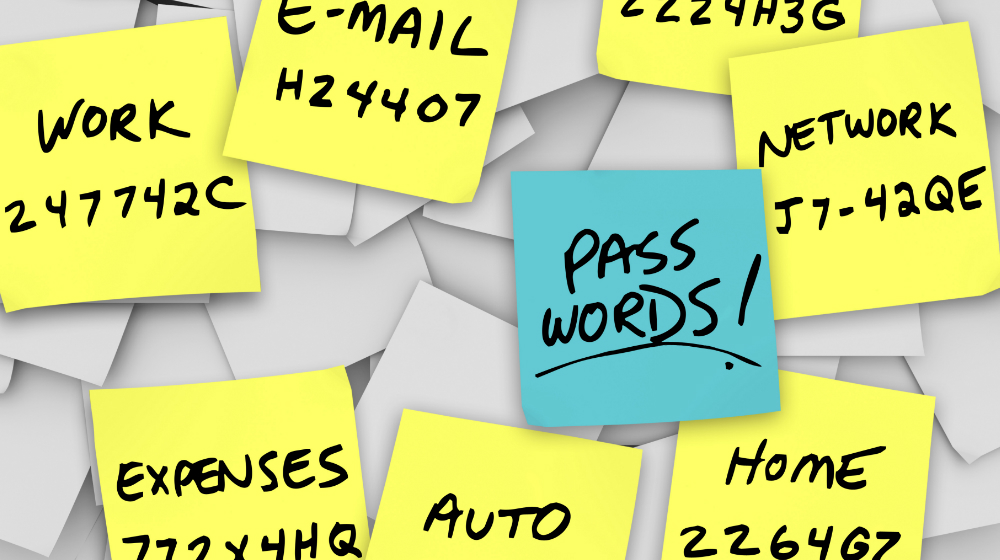
- Write passwords down on paper. This is an ideal solution if you can hide the written information where no one else has access and you can remember where that place is :-). However not only is this a risk if someone finds the list, but a written list or an assortment of scraps of paper could also be lost or damaged, and you’ll need to find and update the list each time you update a password. This is most definitely the most frequently chosen option, and most certainly is the worst option too.
-
- Write passwords into a file on your computer or mobile device. This is less likely to get lost than the paper, but you do risk losing the file if you have hardware failure. In addition, this file is as vulnerable to hackers as other files on your computer. You could encrypt it for an added layer of security, which makes this strategy similar to the next solution. I used this option for a while with the file saved on Dropbox and protected by a Password, so it was safe from loss – but it wasn’t encrypted and most definitely wasn’t very safe – but it was a safer option than the previous method.
-
- Use password management software. Password management software is a utility you can use to save and retrieve all your passwords. This software could be a standalone application on your local computer or a feature within another application (such as your browser) – or both. This option greatly limits hackers’ possible routes to your password data while adding convenient features for organising and retrieving information. This is the strategy that is strongly recommended for everyone and for use on a single computer – it can be FREE.
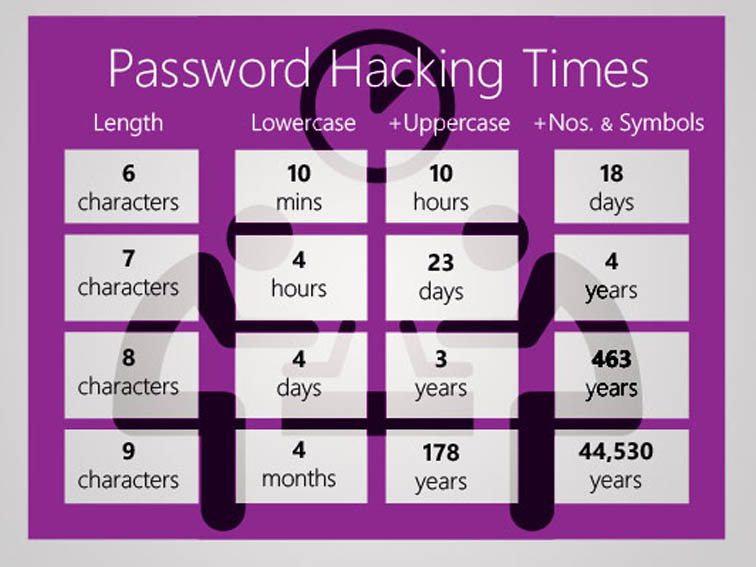
When I sat down to write this piece, I obviously looked around to see whether there was any information I could reference. After I’d done that, it was clear that there was no point in me re-inventing the wheel. So I point you at this excellent introduction to Password Managers and review of the leading Password Managers out there. Read it before you go any further!.
Password managers – how do they work? Are they safe?
So you’ve read the article mentioned above? Yes – then proceed. Otherwise I really do insist you go back and read it.
So now you know there are browser-based password managers, cloud-based password managers and locally-stored password managers. You do know that, don’t you? If not, go back and read this article again!
Are they safe? – you only have to remember ONE password, the master password, and that unlocks your Password Vault. So compared with unsafe, easy to guess passwords, or scraps of paper – they are very safe; and you can’t lose them, forget them, or mislay them. They’re all in one place!
How do they work? – well, I don’t need to tell you much about this because you’ve already read this, haven’t you? Essentially, you can choose to let the Password Manager generate random passwords for every site you need to provide login credentials for, or you can provide the Password Manager with a password when prompted. I tend to do the latter using the “variable + root” approach I discussed before. It’s not that I don’t trust my Password Manager, it’s just that for many of the sites that I use frequently, it’s quicker and easier for me to supply the password because I can remember it!
Which Password Manager you choose to use is down to your situation – you could read this Review of Password Managers – which picks Dashlane and LastPass as best products. Either of these would be good to implement and use but they have different use cases. I use LastPass and pay a small amount annually so that I can use it on more than one device. I also use it because as it’s cloud-based, I can log into my LastPass account from any machine and access my online services. Dashlane lets you make the choice of local machine or cloud-based password storage – but it is not free, whilst Keepass (which is open source and free) works on a single machine, the passwords are stored on that machine – so that might be the option for you. If you only tend to use a laptop or desktop for browsing websites where you need to provide Login credentials, the free version of LastPass or KeePass is more than adequate.
Note: I do not recommend for the reasons explained in the article, that you use the Password Managers contained in your browser.
How do you use your Password Manager?
This is really beyond the scope of this article but elements of usage are covered in the two articles that have been referenced above. You should refer to the documentation for your chosen Password Manager.
What’s all the fuss about Two-factor Authentication then? Do I really need it if I’m using a Password Manager?
Well yes you do! It’s bandit country out there on the Internet. You’ll know that if you’ve been on Have I been pwned? and seen your email address has been captured by a leak, or a hack. So it’s always possible that someone has got at least part of your login credentials, and from that it might be possible for them to request a new password – blocking you from using a service – or they may have even requested a new userid! So that’s where 2FA comes in.
What is it though?
Essentially once you’ve implemented 2FA you’ll be asked for secondary information about yourself (Face-ID, or Touch-ID if you’re using an iPhone) or confirmation that you are the person you’re purporting to be – by asking you to supply a code that is displayed on a smartphone or other device you own, and which is to hand. Thus having your UserID and Password is not sufficient alone to access your account.
If you’ve used Online Banking recently you’ll have noticed they’ve implemented 2FA widely. In fact I believe they’ve been required to by the Banking Regulator. Thus accessing your bank from your device is intrinsically safer now than it used to be.
I’m not going to say much more about 2FA , I’m going to refer you again to a Guide rather than repeat the information myself – and quite possibly make a mistake in doing that. There are a number of sources of reference out there, from Google, Apple, Microsoft but the one that I’m pointing you at is this one which I think explains things well, and also points at how to implement it for a number of popular and well-used platforms and services.
Making life easier with an Authenticator for 2FA
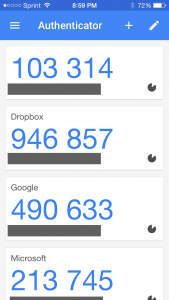
Wouldn’t it be nice – instead of waiting for the site you are trying to access to send you a code to type into the box they’ve provided – if you could just look at your phone and see a code on it that you could then provide and type in?
That’s what an Authenticator does. Perhaps the best known is Google Authenticator – and that’s the one I use on my iPhone, but there are others. You might consider using LastPass Authenticator for instance, I’ve meant to try it out for quite a while, and there’s also Authy, which has significant advantages over Google Authenticator – but it’s perhaps best to get experience using the Google software first.
And that’s it! Thanks for getting to the bottom of this long article. I promise you, if you follow the advice and guidance included in it, and in the referenced articles, your online life will be much safer, more secure and your stress levels will be reduced!

