So once again I’ve been a bit slow with the Notes. Apologies. I’ve been waiting for a couple of things which I’ve now received – thanks Paul, Jim and Fred and I’ve also needed to write a couple of short posts on URL shorteners and taking screenshots – now done. That being done, what else happened?
Margaret had received a book from her son who worked at the Met Office in Exeter and she read from it to illustrate just how much the computing power had increased there over the recent past.
Owen reminded us that the U3A AGM was coming up as a Zoom event.
John reported that he was still coming to terms with his new iPad Pro, and expressed some problems with sync’ing Apple email. I hope we sorted that out, but if not please raise th matter again.
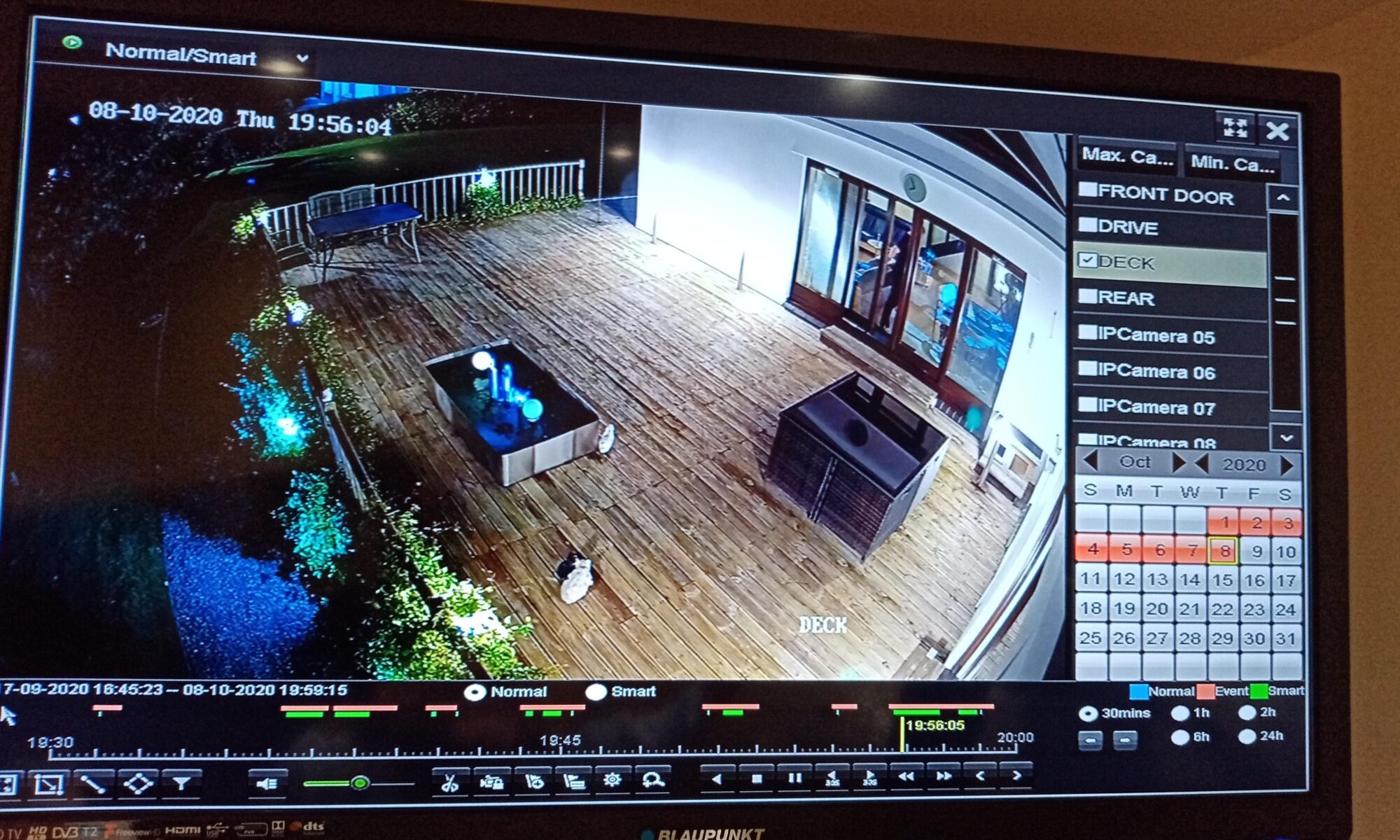
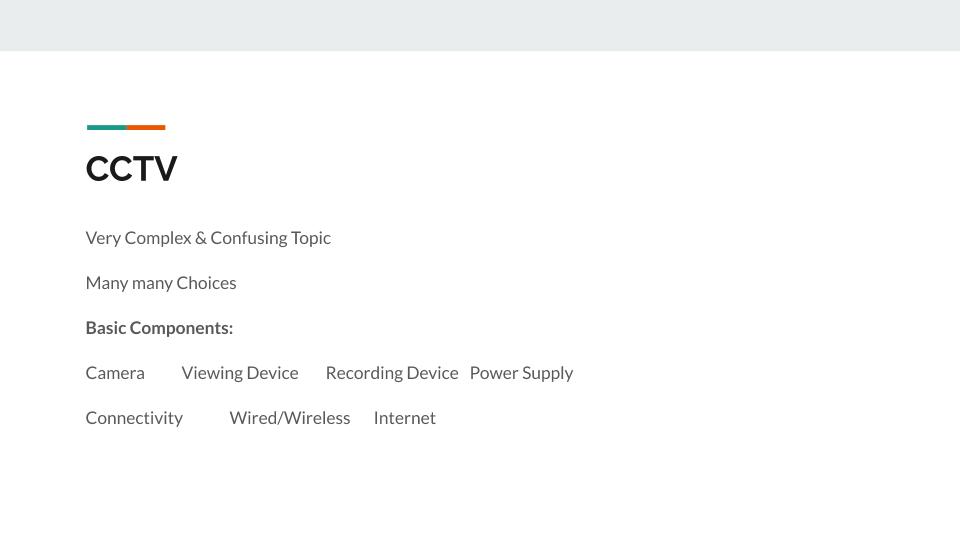
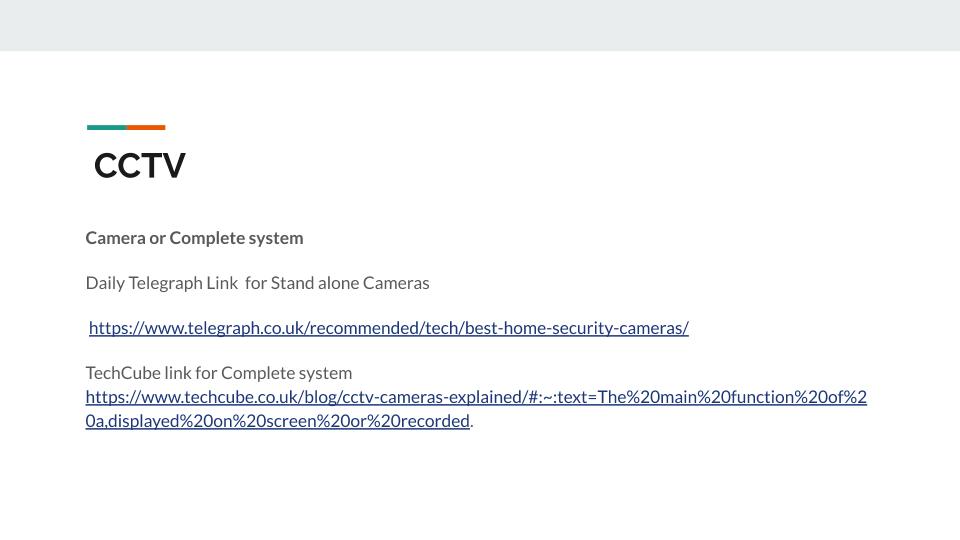
Don was having problems with his Google settings, and I remarked that it would probably be a good subject to look at at a meeting. He also indicated he’d value some advice on a wildlife camera – I obliged with information after the meeting. It was felt that WiFi probably wasn’t the best way to transmit the images, and that if power to the camera was necessary that might restrict positioning.
Jim indicated he was still thinking about replacing his laptop. I gave some advice after the meeting, both to Jim and to the WhatsApp group.
Paul told us about his encounter with PayPal and Pre-approved or Automatic Payments. I attach his notes here …
I did not know these existed until I made a purchase from Google. My PayPal account automatically paid from one of my debit cards without any further selection from myself regarding my preferred funding source etc. So I investigated…
Not obvious you have them, or where they are
Not easy to Find in PayPal Headings, as they are then called “Automatic Payments”
Log in to your Pay Pal account
Go to Settings (Gear Wheel type icon)
Go to Payments
Go to Manage Your Automatic Payments and then Select
Click on Show Active & Show Inactive as nothing may be displayed !
Select item from the list to change or deactivate.
… and you should have removed the Pre-approved or Automatic Payment.
Fred reported back on his conversations with Digital Communities Wales and his minute of discussions is attached below
“ Fred D reported back on the minuted action aimed at establishing the need for support/contact arrangements for isolated/disabled households, amongst others, as highlighted in media /TV reports & whether there could be a role for group members individually or collectively
Following consultation with Jenny Sims the work of Digital Communities Wales was highlighted ;The organisation has received an £800K WAG grant to address Digital Exclusion & the Web-site gives a clear indication of wide ranging all Wales supported projects including involving those as above.
Following discussion it was decided to invite the SE Wales Programme Manger (Matthew Lloyd) to participate in the next (19/11) group Zoom meeting; It was also recognised that this activity could in, due course, be of interest to the main U3a branch & wider network”
In her absence, by email, Jenny reported My good news is that my digital working party’s recommendations have been approved and the National Pensioners Convention will launch a campaign on February 1st to help more older people get online and support those who cannot or do not wish to be online.
Subsequently Fred sent me this message from Cardiff County Council …
Further from my telephone conversation earlier I (Katie Rapell) wanted to clarify some of the initiatives and projects that we are currently running:
Tablet Gifting Scheme – Due to be launched formally in the coming days. Will seek to provide the most vulnerable in our community access to a FREE data enabled tablet which they can keep. Eligibility applies, applications are subject to assessment.
Digital Surgery (Digital Drop in sessions) – one to one digital advice available over the phone or via video call, current turn around response is 2-3 hours. This service is open to anyone and welcomes any digital query. This service used to be face – to -face in hubs, and also offered a repairs service but due to Covid -19 we have had to move online. Typical enquiries involve :
- How to download apps or access information online
- How to enrol in Adult Learning courses online or access council services
- Online benefit or tax applications
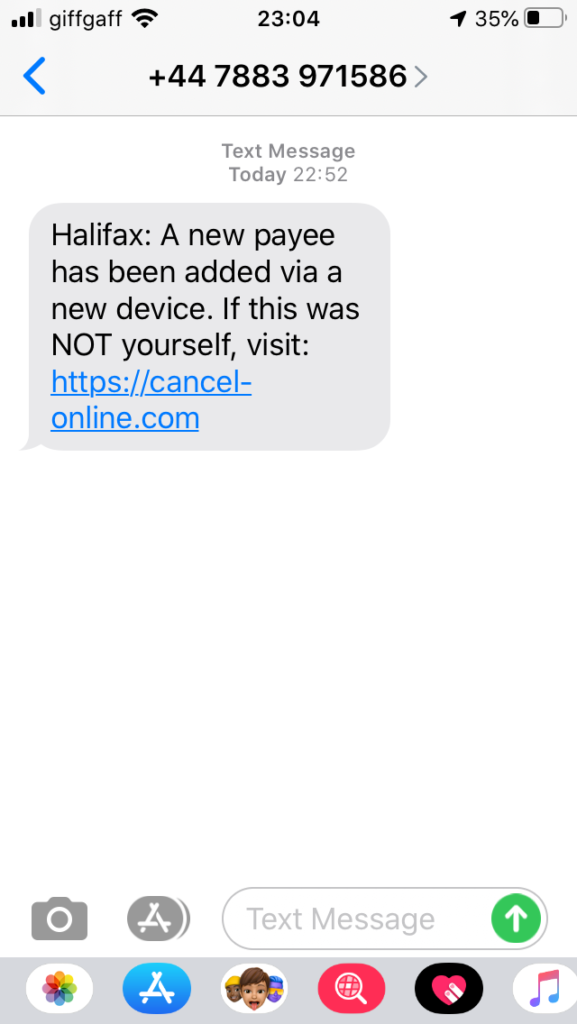
- Scam help service, to identify potential correspondence from fake or scam services and verification of email.
- Installation of broadband advice and signposting
- referral for training or activities
Basic digital skills courses (BT Skills for Tomorrow) – In partnership with BT, We offer a one day basic digital skills course that is delivered through the Learn My Way platform. The course is tailored to personal need and is accredited.
Progressive/ Industry aligned digital skills courses – In response to the growing digital sector, we have been collaborating with local industry to develop progressive digital courses that will complement the technology industry in Cardiff and globally.
More information can be found here: https://www.adultlearningcardiff.co.uk/digital-support/
Thank you so much Fred and Jenny. We look forward to meeting with Matthew and Jenny on Thursday. The Council is due to launch it’s initiative this week through Facebook, twitter and press releases.
Phil gave a live demonstration of how an Amazon Echo Show device could work, and he was confident that it could pass his “granny” test – if he had one!!
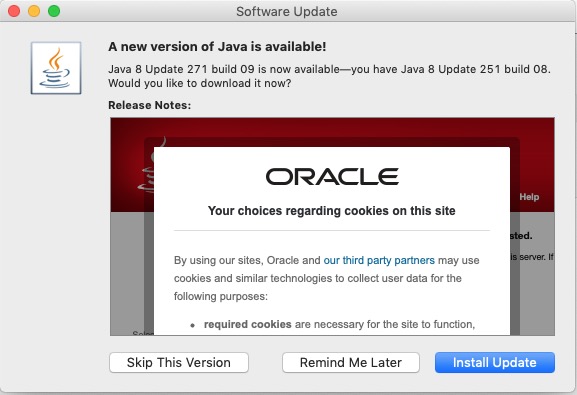
Ann raised an issue she was experiencing with Libre Office and databases. This arose from a WhatsApp conversation where she and Maragret had been very helpful in providing some guidance to a friend of Paul, who was trying to set up a database for slides. I undertook to investigate the problem and was able to confirm that the Java Runtime Environment needed to be installed. I’d done that successfully on my MacOS system.