
I didn’t do any Notes from the Meeting which was a Christmas Quiz hosted by Phil Edwards, but Jim obliged with a photo – sorry for the delay in posting; I’d left it as a draft post. Duh!

… for Cardiff u3a
I didn’t do any Notes from the Meeting which was a Christmas Quiz hosted by Phil Edwards, but Jim obliged with a photo – sorry for the delay in posting; I’d left it as a draft post. Duh!

I think this might have been our largest attendance at a zoom meeting and as usual we had a lively discussion with a lot of good craic.
I kicked off with a quick follow-up from the previous meeting on 19th November, I wondered whether David H’s issues with Linux on his wife’s laptop might be due to missing a setting for US/UK keyboard during install, and Phil supported this view. We agreed to look at this again when we could meet in person. We briefly discussed the session with Digital Communities Wales and confirmed that we’d now wait to see what the Cardiff U3A Exec wanted to do about digital inclusion for our members. Phil noted that Cardiff City Council were now promoting a scheme to provide equipment to those on benefit. We noted a couple of new scams involving HSBC, Amazon and DPD – these had been reported on our WhatsApp group. Thanks. I also gave a quick demonstration on editing in the new WordPress Block editor and pointed to the Help files that might be of assistance too. Finally I drew members attention again to the Flipboard magazine and the link to it that now appears under the Computer Group menu.
We then went “round the screen”.
John was having some issues with his use of Lightroom Classic – I suggested that he brought this up at the next session of the Lightroom Pantry Group. [He did, and we then had a follow-up session]
Renee was experiencing a strange behaviour when using Powerpoint and Zoom (with Screen Sharing) where her cursor (on a Mac) seemed to disappear. I couldn’t think of any reason why this might be. Hopefully, it will resolve itself 🙂
Margaret described a very sorry tale connected to her “smart” hearing aid, an app that couldn’t be upgraded and the inability to pair the aid to her phone. Hopefully there will be a positive outcome but unfortunately this is only too likely to happen as suppliers don’t keep their apps up–to-date with changing technologies. She also advised that she’d managed to resolve her printer problem (from the previous meeting) after she’d found an old cartridge which when fitted had allowed the printer to spring back into life!
Christine described a problem that she was experiencing when using WiFi on her new Lenovo Chromebook. When connected to the same network and sitting near to another machine to play chess there was a lot of interference. I said this happened to me as well and the only solution would probably be to sit further apart – even in different rooms. It will be interesting to see whether this problem can be resolved.
Sianed told us about a C4 series on Amazon and noted that Amazon was increasingly being used as a search engine (rather than Google). I can understand why. Often I do a Google search that then leads me to click on a link to Amazon – why use Google in such a scenario!!!
Jim advised us that he hadn’t yet decided on his new laptop.
David H told us about the saga of the M&S hamper to his grand-daughter which led to it being left on the doorstep of her house fronting the street. When he’d complained he was impressed at the way the company had responded. Good customer service.
Paul was having some difficulty with his Google Contacts. He would report back on his progress. He also told the group that Aldi were now doing Click’n’Collect.
Marilyn was still having problems with her external SSD (MacOS) and was going to back-up the disk and re-format it as APFS as she now felt there was little need to have it formatted as Ex-FAT (for MS-DOS/Windows compatibility).
Stella was having problems with LastPass – I’m afraid my notes/memory on what it was fails me. Sorry. She also had reported a scam from 3 to the authorities.
Marie-Christine reported that the OU Photography course she’d hoped to have followed had to be abandoned due to a hack of the URL for the course. She had been recompensed however.
Mario asked about the nature of WordPress. I gave a brief outline of what it was and why it was not just a blogging platform but a website design and delivery tool in its own right.
Don reported that after the previous meeting in trying to improve performance of his machine, he’d removed unused extensions from his Chrome browser and this had helped. He also described how he’d solved a problem of being unable to do double-sided printing from Word 2007 by emailing the document and then printing from the email. Magic!! He also reported that he’d had excellent customer service recently from Amazon in the matter of a wildlife camera he’d purchased.
Ann gave a big thumbs-up to Paul for his advice on purchasing a kit to copy VCR to DVD. She was glad she’d spent a little more to get a kit with a Help Tutorial guide but reported that the transfer was not quick!! She also advised us that Google Play was no longer available (needs clarification – not sure what this refers to) and that she was still having problems with the Sky Internet Service slowing down.
Finally Mike announced that he was well-satisfied by his upgrade for less cost from TalkTalk – to their Fibre65 plan. It was better and cheaper. Isn’t it a shame that you have to lobby and threaten people to get the service you require, which is not what they’re delivering.
Again, we’d run out of time, so my proposed session on Google settings had to be postponed. I may actually write it up as a blog post instead.
Well … first you need to only download the software from the official links of the provider, eg LastPass, Dashlane or 1Password, or from the app store of your mobile device.
Then be assured that the passwords (if you use these downloads) are not stored on a central server anywhere. They are stored in encrypted form on your device. When you open a different device the password is transferred from one “vault” to another in encrypted form. The service provider just provides the encryption algorithm which it can’t have access to itself. So rest assured as long as you use the “official” downloads they’re very safe.
A good question! I certainly can state that mobile banking is safer from a mobile device than from an internet browser because the latter can be compromised because it’s more open to the internet and issues that you install anti-malware software to protect you.
I would judge that the fact that as all software downloaded onto these devices go through a “shop” maintained and supported by the hardware vendor that they have done checks on the software and the supplier before releasing it through the shop. That’s a very powerful first step and is why I’m a strong supporter of these “shops” and would be distressed if some alternative means of downloading software onto a mobile device was allowed.
However, nothing protects you against yourself and that’s where the hints and tips in the third part of my “Protect yourself online” talk come into play.
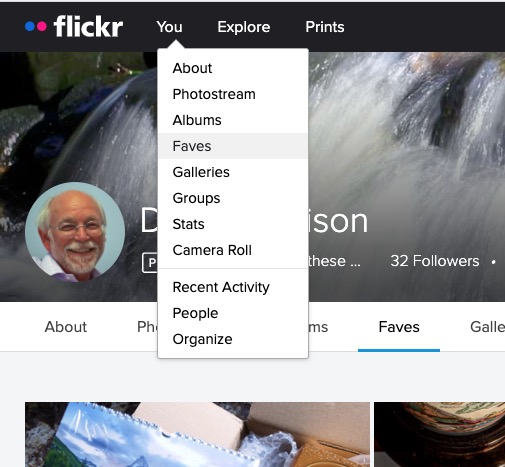
Most of the time people join flickr to showcase their photos, to get faves, and to get comments (hopefully both positive and constructive) to enable them to improve their photography. The photos you upload are shown in your flickr Photostream (or Camera Roll) which you can browse and put into Albums. You can create your own Galleries of your (and other people’s) images; Fave images that appear in your Activity stream (see later) and Follow people whose photos you like.
We’ll start by looking at the default privacy settings you can apply to the images you upload. The Settings page is accessed from your profile tab …
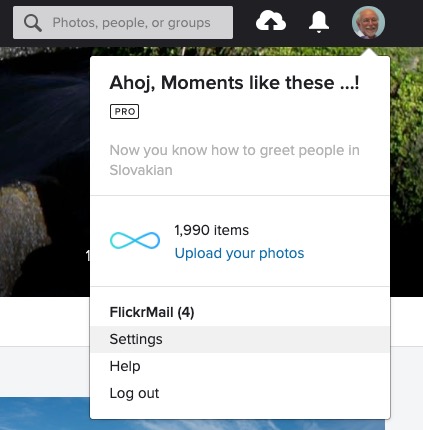
… which gives you access to a page with these headings …

… clicking on Privacy and Permissions brings up this screen – from which you should first look at Defaults for new uploads …


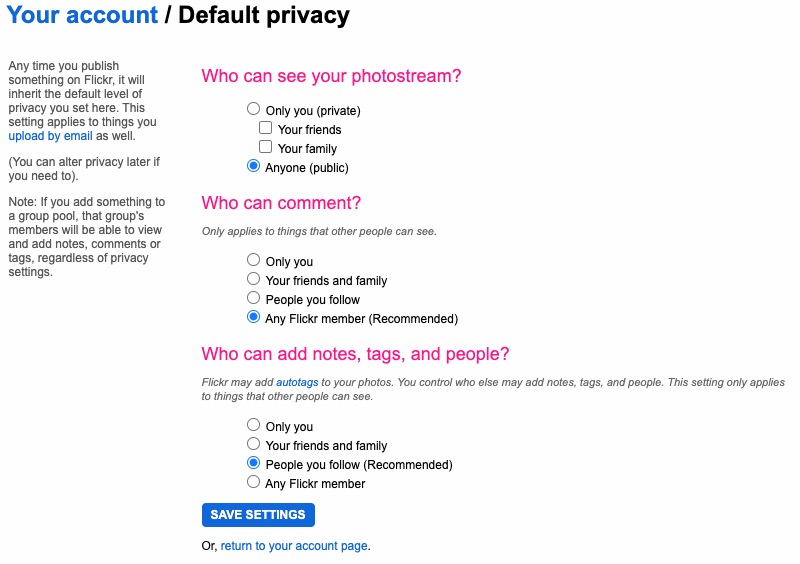
Read carefully the Note: “if you add something to a group pool, that group’s members will be able to view and add notes, comments or tags, regardless of privacy settings.” There’s no privacy within a group. All members of the group can see all members’ photos. If you’ve declared your image to have restricted viewing to Friends, or Family however they will not be visible for public viewing in the group, even though the group page might be visible for public viewing.
After uploading your photos they will (unless you’ve changed the default settings) appear by default in the Activity stream which you can access from the flickr logo …
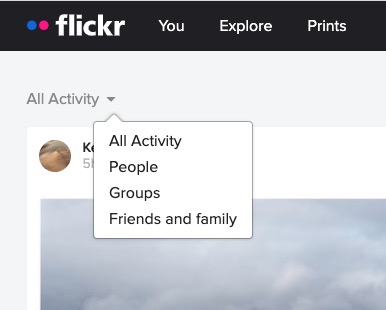
… from which you will also be able to see the images of the people and groups you follow. This is the default view when you open Flickr on a mobile device.
Any photo you fave is then attached to your account so that you can return to view it on a later occasion.
It is also possible – unless you’ve prevented it – for someone to download the photo, or add it to their own Photostream as their own! You might wish to check your settings to prevent that happening.
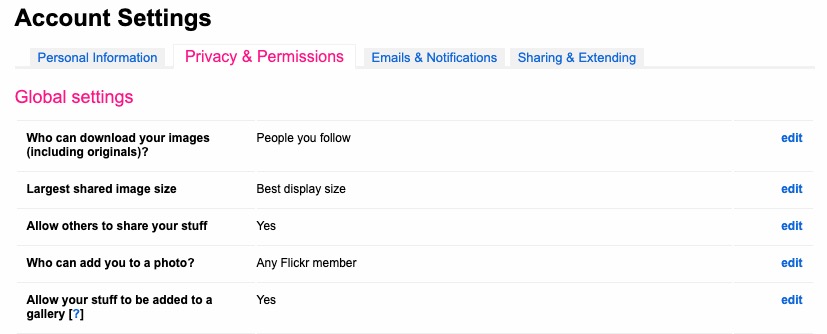
… and …
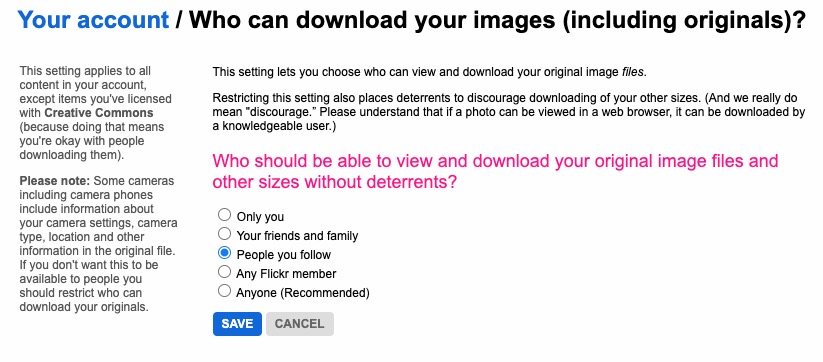
… so it’s important that you know what you’re doing when you follow someone – I certainly wouldn’t recommend the default setting of “Anyone”.
There are occasions however when you might wish to keep your photos completely private, or to share them privately within a Group. The settings in flickr to allow this are not exactly as intuitive as they might be so this post continues by seeking to help understand how you can “hide” your photos from the Public photostream, but to show them within a Group. Let’s start there.
Groups can either be Public, open to invited membership (or upon application to join) and then also to be Private. Note especially carefully the note attached to Invite-Only Group which can be either Public or Private … “Anyone can view an Invite-Only group page …”
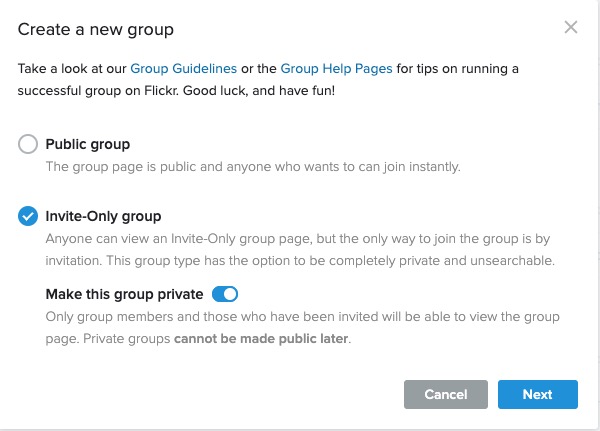
The last case is obviously the most restrictive and in this situation a Group is setup by a Flickr member and they invite either existing Flickr members, or non-members to join the group.
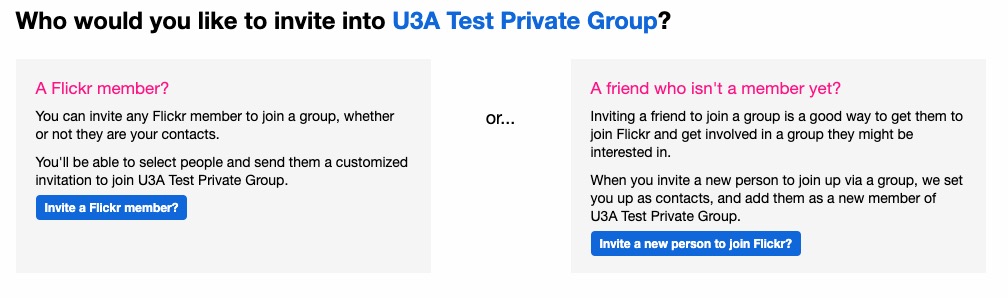
They will be sent an invite to join flickr, and the Group, as a member. You can therefore appreciate that you have to be a flickr member to view Photos which are in a Group. However if they’re not hidden from the Activity Stream by changing the default privacy settings (as above) and if it isn’t a Private group – they’ll still be visible to anyone unless you’ve also changed your search profile …

For the Invite-Only Group which has not been declared Private it is important to note that anyone (even non-Flickr members) can view the group page, so as we shall next, if you want your photos to be completely invisible to the outside world, you’ll have to do something else to make them invisible!!
If you want to keep your photos visible only to members of a Group, you need to specify on the Default privacy settings page either “Your friends”, or “Your family” depending upon the nature of the Group; similarly you should restrict Comments (and Notes, Tags and People) to “Your friends and family”.
However these settings will then apply to every image that you upload and that might be more privacy than you really want, so you are able to choose the level of privacy on an image by image basis after you’ve uploaded them. This is done by looking at the information attached to an image after you’ve clicked on it in your Photostream …
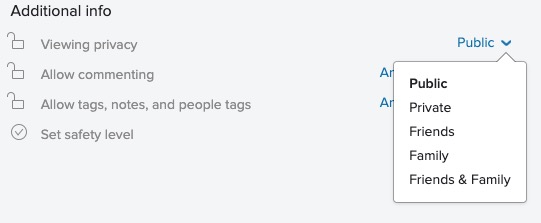
… so, as an alternative, you could leave your Photostream relatively open using settings similar to the ones in the screenshots above and then restrict viewing of individual photos to Friends, or Family, etc. within Groups.
I hope this helps.
Harry Davies’ Pantomimes?
Soon after retiring and joining U3A I was asked to prepare something to show people how to use computers to research their family tree. Well, that really sparked an interest. I started researching my grandfather, George Henry Davies (Harry). He was a colliery farrier from Blaenllechau in the Rhondda Valley. I was two years old when he died. Sadly, I have no memories of him.

As a younger man, he joined the army in 1915. After a very short period in France, he was shipped to Salonika in Greece. These days, not many people remember that any fighting went on there. Harry stayed in Salonika until early 1918.
During 2020 the whole world changed beyond all measure as countries around the globe suffered the effects of the Covid 19 pandemic. For many, including myself, had to endure many months in lockdown with limited opportunity to go out and socialise. My music making with my recorder group, Morris dancers and folk sessions all came to a grinding halt. For many months I simply didn’t feel like playing any music at all. Then a friend introduced me to the idea of making Acapella videos .

Using this system it is possible to create little arrangements with myself playing all of the parts.
Around the same time I learned that the Imperial War Museum had a set of pantomimes from the First World War Salonika front. These pantomimes were performed by a party of traveling ambulance men, the 85th Field Ambulance. With the help of the Salonika Campaign Society, I’ve managed to get scanned images of the three pantomimes, Dick Whittington, Bluebeard, and Aladdin in Macedonia. They provide a strange and unique insight into the lives of soldiers posted to this long-forgotten battlefront.
At the moment, I’m trying to put together some of those Acapella videos, trying to breathe new life into those old tunes. I’m keying in each note of the tunes into Musescore software. This must be a bit like following a knitting pattern stitch by stitch with no idea what the finished item will ever look like. I’ve created some musical videos with the help of Apple iMovie and Acapella :- Pitch Perfect.
Initially, I thought I’d try to learn one or two of the tunes. I couldn’t be certain that my grandfather Harry had ever attended any of these pantomimes but after a short period of study, I feel that he probably did.
The Macedonia front was quite unlike the experience of the Western Front in France. During Summer, it was fiercely hot but Winter brought freezing conditions and snow. For most of the time, the battle lines were fairly static. There was little chance of any entertainment. Only lucky soldiers managed to visit the town of Salonika. Curiously, soldiers developed a strange form of entertainment:- Racing tortoises. Well, that was impossible during Winter as the tortoises would be in hibernation.
Also, it appears that these pantomimes were incredibly popular, frequently out-performing pantomime productions staged at Drury Lane.
Let’s imagine then that grandfather Harry did manage to get a ticket for the pantomime. Imagine him trudging through the snow to a small barn, nicknamed The Kopriva Palace Theatre. We’ll take a seat beside him and enjoy some of the tunes that he would have enjoyed all those years ago.
I’ve finished three videos of songs from Music of Macedonia. You can see them here.
I experienced a strange coincidence when I was looking through the music from Aladdin in Macedonia. Look at the name of the composer. Not my grandfather, G.H. Davies but a strange coincidence, another G.H. Davies.
Farewell from Dick Whittington.

Got my act together this time, and sitting down quickly to write up the notes of the meeting which saw three guests attend – Tony Baines (the Vice-Chairperson of Cardiff U3A), Matthew Lloyd (on his last day as South East Programme Manager for Digital Communities Wales) and Jenny Phillips (their Wales Volunteer Co-ordinator).
We started the meeting as normal by reviewing the Notes from the previous meeting and what had been on WhatsApp. I advised the group that there was now a link to the Thought grazing Flipboard “magazine” under the Computer Group tab on the website; I mentioned that I’d put some links to Which? articles on Black Friday on WhatsApp and would copy them into a Forum on the website asap; I’d written an article for the website on Purchasing a Laptop – copy’n’pasted from Which?; Paul had posted a screenshot of Google many years on, reflecting on how things had changed – Where is the Advanced Search these days???
John had sent me some links in an email re. Surge Pricing which was something I’d not heard of before linked to Smart Meters. I also said I’d check whether there was anything on Which? about this issue. There isn’t. However, it seems to be an issue that emerged in 2018 (mainly in right-wing press, it has to be said) and all has gone quiet since then. There’s an interesting (and perhaps useful) discussion on the Smart Meter roll-out in this article, which also explains what Surge Pricing might mean and involve, as well as discussing where we are with SMETS 1 and SMETS 2 meters.
I also reported in response to Anne’s query at the last meeting that I’d installed the Java Runtime Environment on my iMac and LibreOffic Base (their database) was then able to run.
We noted Phil’s letter in “Age Matters” and Don had been having difficulties in wiping a Hard disk clean. [This was resolved by Don taking the machine to Neil and “donating” it to him on the basis that he’d wipe the disk clean as this was an issue with the version of XP (Home Edition) which was on the machine which didn’t allow a Format.] I also reported that I’d posted articles on URL shortening and Taking Screenshots on the website.
David H thanked Phil in his absence for providing a second Linux USB stick and he’d tried to install it on an old laptop, but the keyboard had failed for some reason. They will return to visit the issue when they can meet in person. [Just a thought – it’s not something as obvious as US vs UK keyboards in the Linux setup???] However, they had received wonderful service from Curry’s who had delivered a new full-size iPad within a couple of days of ordering and he was most impressed at how easy it was to transfer everything from their old iPad Mini to the new machine. Renee confirmed it was a very straightforward and simple operation.
Mike told us that he had been in conversation with TalkTalk re. his poor internet reception and had managed an upgrade to Fibre65 and had reduced his monthly charge from £32 to £42, Threatening to leave is an unfortunate but essential tool in the armoury of the consumer.
Owen encouraged to read the reports and vote on the AGM motions on the Cardiff U3A website.
Jim was still in the process of deciding on a laptop and wanted to get a 15″ one with audio input/output, HDMI and USB. It was suggested that he perhaps looked at: a) a smaller (and cheaper) laptop and using an external screen; b) getting a small desktop – this is what Marilyn had done last year – instead of a laptop if it wasn’t going to be needed outside the home; or even c) get a MacMini and use it with a large TV screen or external monitor. [Guess who suggested the latter, fired-up by the new Apple M1 MacMini launch the previous week.]
Stella informed us that you needed to renew your iPlayer account every two years – I hadn’t realised that – and that she had experienced some fun and games in doing that before she managed to do it from her phone – Voila, she said!
Christine had decided to go for a laptop rather than a tablet, and this now enabled her and her husband to play online games, or quizes (??) separately; she also advised us about disabling Face Recognition in Facebook. [Note to self: I think we ought to have an annual session on Facebook settings as well as the Google account one I committed to last time.]
Don recounted his issues with scrubbing his hard disk (mentioned above); had been writing a report on church matters and had been playing online chess with his grandson.
Renee cheered me up by saying that she’d been reading the meeting notes and had downloaded bit.ly; taken screenshots and was now using Brave and LastPass – makes my ramblings so much more worthwhile when someone follows up on things. Thanks.
Paul had suffered from problems with his BT Home Hub Mesh setup and after not being able to fault resolve over the phone; the engineer (from the North East of England) had arranged the dispatch of replacement units – which were now working well. He also brought us up to speed with his look at Cardiff County Council’s website for Digital Inclusion (referenced in the last set of meeting notes.
This was a good introduction to Fred and Jenny bringing us to speed on what they’d done (mainly referenced in my late set of meeting notes from last time) and which then led into a general discussion on how we would handle our guests who joined the meeting at about 3:00pm. I admitted Tony Baines to the meeting first and he explained his role (mainly concerned with Cardiff U3A strategy) and he described how we could see things in either an out-facing (to non-Cardiff U3A members), or in-facing (exclusively to Cardiff U3A members) – this was a useful distinction to bear in mind as we admitted Matthew and Jenny to the meeting.
I gave a brief introduction about the Group, introduced Tony, and handed the meeting over to Matthew who presented through some slides. These are embedded below. He handed over to Jenny who described her role as helping, facilitating, training Digital Champions within communities and organisations. I believe that was the activity that she felt that DCW could offer to Cardiff U3A were we to identify some Digital Champions who would be working with Digital Companions who themselves would be alongside our members who felt they needed assistance to get online, etc.
In questions they asked us to think how best they might get their message out; we identified the issue of “digital poverty” – the removal of a bus service and the replacement with an app to summons a personal bus on paper seems a good idea, but not if you’re not digitally aware, or confident.
After they left the meeting we had a brief discussion on “what’s next” and asked Tony to consider whether in-facing digital awareness should be part of Cardiff U3A’s strategy for next year; I encouraged members of the Group to feed back to me their thoughts; and whether they could be digital champions, or digital companions. You can do that either through WhatsApp, or by email to me.
How to buy the best laptop
Five crucial questions you need to ask to find the perfect laptop.
With hundreds of models to choose from, you’ll want to a laptop that ticks the boxes and will last the test of time. One of the biggest decisions will be how much you want to spend – what many don’t realise is that if you’re after a good all-rounder for day-to-day tasks, it doesn’t have to be a lot.
We award Best Buys to our top-performing laptops, and our cheapest Best Buys costs less than £500. Plus if you’re willing to compromise you can find good models for as little as £150.
Before you start shopping for a laptop, it will help to know the answers to the following five key questions.
There are three major players when it comes to the software (operating system) your computer runs on. Windows, MacOS, and ChromeOS.
In short: If you need a laptop for light use and note taking, look for Intel Pentium or Intel Core i3 and at least 4GB of Ram for a great experience. Go for Intel Core i5 and i7 and AMD Ryzen 5 and 7 and at least 8GB of Ram if you’re a heavy user. Look for dedicated graphics from Nvidia and AMD if you want to game.
Processing power really matters if you’re planning on using a laptop for photo or video editing, or are otherwise a very heavy user, opening lots of programs and browser tabs.
When looking at laptop processors, you’ll see two main specifications beyond the product name: clock speed (measured in Gigahertz or GHz and number of cores) and Ram. Think of clock speed as the speed limit on a road and the number of cores as the number of lanes. As on a road, depending on traffic conditions – the tasks being done on your computer – a road might see a greater benefit from more lanes or a higher speed limit.
In the simplest way possible, more of both is better, and all of our reviews describe what sort of tasks a laptop is good for.
Think of Ram (Random Access Memory) like a desk and your hard drive like a filing cabinet. You pull files out of the cabinet and it takes a while, but once they’re on your desk, you can reach for them instantly. The same is true of Ram; once you have loaded a file from the hard drive, it’s now in the Ram and can be accessed almost instantaneously.
The bigger the desk you have, the more items you can access more quickly, and the same goes for Ram. Most mid-range laptops come with at least 4GB of Ram, and we’d tend to recommend 8GB for people who are heavy web users or usually have lots of documents and pictures open.
You can manage with less, but you’ll have to rein in your use. If you fill up your Ram, some of the things you’re working on will be moved back to the hard drive, making things feel a lot slower.
Some cheap computers come with 2GB – this is usually fine on a cheap Chromebook, but some Windows 10 laptops will struggle.
When you close a program or file, it is removed from the Ram and makes room for other things to be accessed immediately. This is part of the reason why closing programs you aren’t using can make your computer faster.
In short: Unless you have a very low budget, don’t settle for less than Full HD, no matter the size.
A laptop’s screen is one case where bigger isn’t always better. If you want a longer-lasting battery and a more portable device, you may want to go for an 11, 12 or 13-inch display; most of these will weigh between 1kg and 1.5kg.
The largest you’re likely to see is 15 or 17 inches, with weight increasing to around 2kg to 3kg.
Most machines on the shelves now have a Full-HD 1,920×1,080-pixel resolution display, and high-end models can have even sharper screens with even more pixels up to and beyond 4K Ultra HD. Generally, the higher the resolution, the sharper the picture.
Only cheaper laptops should have a lower screen resolution of 1,366×768. This is fine for most people, but if you like to have lots of items on screen at once you’ll prefer a higher-resolution display.
In short: Go for an SSD unless you really, really need more storage at all times. Storage capacity, measured in the size of the hard disk drive (HDD) in gigabytes (GB) or terabytes (TB, equal to 1,000GB), determines how many things your PC can hold.
Documents, photos, music, movies, programs – they all take up space. Bigger is usually better, although solid-state drives (SSDs) are often more expensive for considerably less space. This is because they load much quicker and are completely silent.
We’re also seeing a lot of cheaper laptops (including Chromebooks) carrying eMMC (embedded Multi-Media Controller) flash storage, which is slower than SSDs and gives you very little storage space.
If you cleared out all the stuff on your computer you don’t actually need, how much space do you think you’d have? How much do you have now? Check ‘My Computer’ if you’re using Windows to gauge how big your next laptop’s storage needs to be.
In short: Manufacturer battery claims aren’t useful unless you’re only comparing models from the same brand. Use our reviews to get the full picture. Manufacturers often make heady claims about how long their laptops’ batteries last. Our tests ignore the manufacturer claims and involve multiple battery rundowns while simulating web browsing and watching videos.
If you’re buying a portable laptop that you intend to use when travelling or on your commute, make sure the battery life is at least six hours based on our reviews. We’ve tested some models that last for more than 10 hours before they need recharging.
But we’ve also found companies claiming 10 hours of battery life on average, while our own tests found 6.3 hours was closer to the mark.
Battery stamina on large, desktop-replacement models won’t be as crucial, as they’ll almost always be near a power socket, but we still mark them down if they run out of juice in under four hours.
It’s often useful to be able to send an image of your screen, or part of your screen to someone. In fact I use this facility all the time when creating these blog posts.
On the Mac, it’s very easy …
Press Cmd-Alt-3 to capture a complete screen
Press Cmd-Alt-4 to draw a window that you want captured
To be guided through the options you can
Press Cmd-Alt-5 and from the Options screen decider where you want to save your Screen shots [I save them to a Dropbox folder so they’re available between my two machines], and also choose the option for the type of screen capture you want, or even to Record a series of actions.
On the iPad/iPhone, it’s straightforward too. You can capture a screen by Pressing the Power Button and the Home Button together [It works best if you press the former just before you press the latter].
To take a screen shot in Windows, I suggest you follow the advice in this post. Or alternatively watch this video …
Jim has sent me this note as well …
“It might be helpful for your notes if I run through my Windows 10 sequence. The relevant key on my laptop is labelled SYSRQ/PRTSC, so I have to press the ALT key at the same time to print the screen. This puts the image onto the clipboard, so I then have to save it somewhere. I usually go to Paint Shop Pro and paste it as a new image. One thing I am investigating is what happens if you have two pages at once on the screen. At the moment I can only print one of the pages, depending on which I click on.“
I’ve annoyed a few people over the years (well – one person at least) by pasting overlong URL’s in blogposts, and on WhatsApp. Ever since Google stopped supporting it’s own URL shortener I’d forgotten to go and look for an alternative to setup as an extension in my browsers (Safari, Chrome, Brave and Firefox) and more importantly to have as an app on my smartphone.
I’d used tiny.url for many years, but that generally meant you had to copy and paste the URL to a page you’d left open on the tiny.url page …

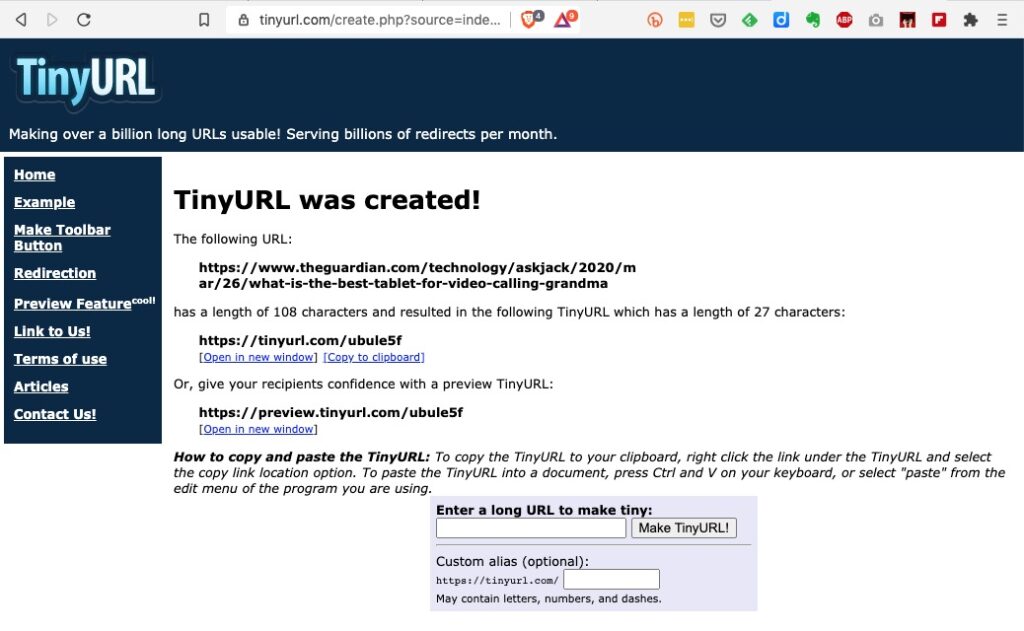
… and then once shortened you could copy the shortened URL to the email, WhatsApp, etc message.
But it would be much nicer if there was an extension which you could just click on from the page in question, and you’d get a shortened URL. That’s where bit.ly come in. It’s available both as an extension for Chrome, Brave and Firefox and as an app for iOS and Android.
To install bit.ly as an extension on Brave, go to Brave > Window > Extensions …

… click on Web Store …

… and type bitly, or bit.ly in the Search Box. Click on the bit.ly box and agree that you want to install it in Brave (or Chrome) …

… agree that you want to add the extension and then you will see it’s been added to your browser extensions …

It’s as straightforward as that. Now any time you want to shorten a URL, all you need to do is click on the bitly icon and (after creating a bit.ly account), the following dialogue box will come up …

… and you can then Copy the shortened URL that’s been created, wherever you want to.