Help! My Phone is Running Out of Memory

Before you give me any advice, let me explain the problem and what I am doing about it. I bought my Galaxy four years ago, and it has 16 GB of internal memory. All was well for a couple of years, and then I decided I needed to get some extra memory, so I bought a micro SD card, also with 16 GB of memory. I started by putting the photos from the phone’s camera on it, and later the ones from WhatsApp. Again all was well for a while, but in the past six months or so I have been having trouble again. The My Files app tells me I am using 15.32 GB of the internal 16 GB.

Every morning I check my phone’s apps for updates, and there is usually at least one. Some of the updates can be large, so some fail to install because of lack of memory. I suspect the apps must now be larger than they were a few years ago. I have tried moving some apps to the SD card, but only a few have allowed that. I have also looked into uninstalling the apps I don’t use, but again many don’t give me that option. I can sometimes uninstall updates, or disable the app, if that helps. I am now reduced to clearing caches. Incidentally I’ve noticed that Signal occasionally downloads a backup file, which is 116 MB. I assume I only need one backup file, so I’ve started deleting old ones.

Having (I hope) read all that, do you have any suggestions?

Browsers and Search Engines – 2022

It’s always worth reviewing which search engine you should use, as it is the browser of choice to “surf the web”. The reasons you might wish to consider which search engine you might wish to use are greater privacy, enhanced security, minimise adverts being displayed, or to get more meaningful pages being displayed, but first we’ll look at the web browser you might want to use.

First things first. If you’re using Internet Explorer you must seriously consider moving to Edge as Microsoft are removing support for Internet Explorer and one day you’ll find it just doesn’t work. If you’re using the initial release of Edge you should also upgrade to the latest version. It’s faster, more stable and uses the same code base (which is the open source Chromium) as some of the other browsers I’ll talk about later.

The next thing to remember is that Google is not a Browser. If you have a Google app on your smart device, it’s just Google’s “convenient” way of getting you to use their search engine and capture lots of useful marketing data from you! Google’s browser is called Chrome, and it uses the same code base as Edge (as mentioned above) – others include Brave, Opera and Vivaldi.

Chrome is by far the most popular browser accounting for more than 80% of the internet browser traffic, it has a wide range of useful extensions, and if you can be bothered to create a Google account and navigate through the preference screens, you can make it reasonably private – but you may wish to install the AdBlock Plus extension – an advert blocker, to stop intrusive adverts appearing on your web pages. [Another way of doing this is to look for Reader View, created for users with visual disability originally, which simplifies the view of a page on your browser screen.

But why use Chrome when you can use another browser which has built-in privacy. I’m talking about Brave. You can deploy many of Chrome’s extensions in Brave and virtually everything you see looks like Chrome, but without tying you to Google. I seriously recommend you look at Brave.

If not Brave, why not Microsoft Edge. The complete re-write of Edge using Chromium and with the support of Microsoft behind it makes this an excellent choice for those who use a lot of Microsoft applications (eg Office 365 which you can run in the browser, just as you can run the Google apps in Chrome) and is growing fast in popularity even if it’s Preferences menus are a bit tricky to work your way through.

If you’re an Apple user, I suggest you look no further than Safari, although all of the others can run on MacOS. It’s optimised for the Apple platform and integrates well with the other apps in the Mac/iPhone/iPad ecosystem.

That leaves two “outliers”. Firefox was one of the first browsers growing out the original work done on Netscape, it’s open source and has a huge and committed user-base. I have nothing to say against it, and nothing much to say for it either. It’s a good solid internet browser.

A couple of references to follow this up then …

The best web browsers for 2022 – ranks them under various categories.

The top ten internet browsers for 2022 – reviews the pluses and minuses of various browsers.

So we turn to Search Engines. You want to find something out on the internet – you just google it, don’t you? Well you can, but there are other choices as well, and this is where privacy concerns might suggest you might want to look at an alternative.

I’ll be upfront. I’ve been using DuckDuckGo (often in combination with Brave) for a couple of years now. I value the fact that my activity on the internet isn’t tracked and the results that are returned are not slanted towards my prior search history, and most importantly my activities are not farmed off to marketing agencies.

There’s nothing wrong with Google Search – it’s the most popular on the internet, but that’s by default rather than choice. The results are presented well, but there is a slant towards promoted results and results based on previous searches. You can change your search preferences a bit, deploy an ad blocker (see above), but why should you haver to!

DuckDuckGo is now presented as an alternative search engine in most, if not all, browsers and exists as an app on smart devices as well. Give a try! It’s my default search engine on my Apple devices.

The only real alternative to Google Search and DuckDuckGo is Microsoft’s Bing. The service has its origins in Microsoft’s previous search engines: MSN SearchWindows Live Search and later Live Search. Bing is now the code base for Yahoo’s search facility as it is for Ecosia – an ethical green alternative. Ecosia importantly doesn’t use any third-party tracking tools, meaning that any search made on the service won’t be seen by any party other than Ecosia. Furthermore, any search made on Ecosia becomes anonymized after one week. In contrast, Google and Bing will hold onto bits of search data (such as the device or date), even after deleting browser history and cookies.

That’s about it, some references then …

The ten best internet search engines of 2022 – a review, like the one above that highlights strengths and weaknesses of the various search engines.

Stolen phone & SIM locking

[Minor changes and an addendum 25th January 2024]

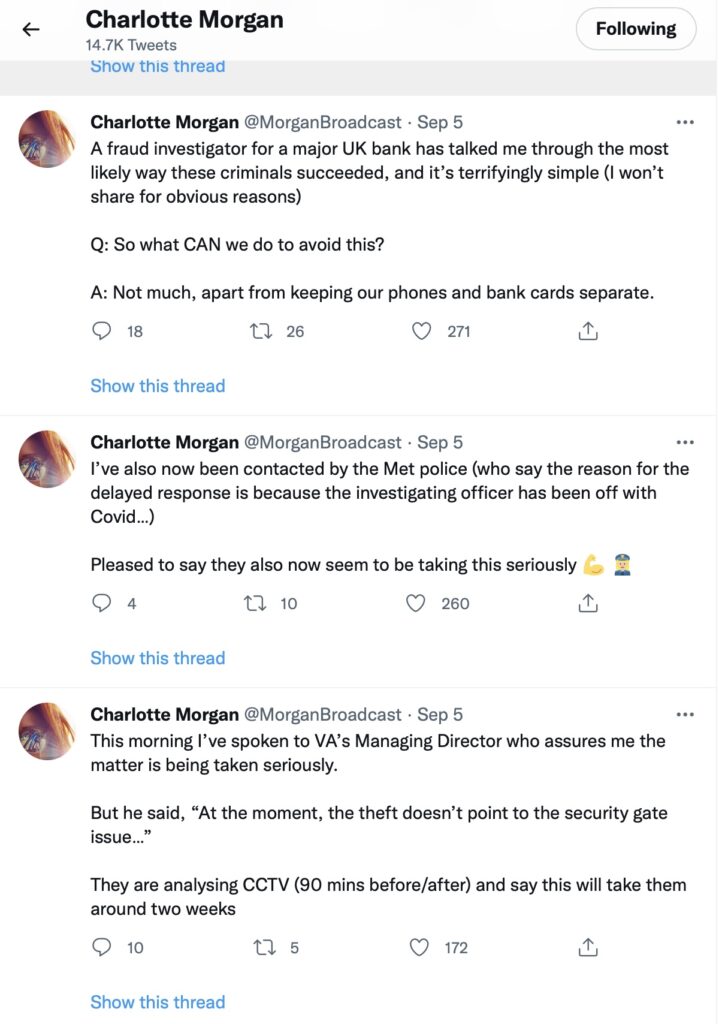
A rather disturbing incident involving a stolen phone and credit cards and the ability of a fraudster/thief being able to reset a user’s password/pass-number for a high-street bank occurred in September involving a journalist called Charlotte Morgan. She described what happened to her (and it transpired others) when her phone and credit cards were stolen from a locker in her local gym.

The incident was covered by the BBC https://bbc.in/3Vm8ylH and https://bbc.in/3CukHMS and also in the papers.

The incident was described by the FT Adviser in two reports – firstly the incident, and then (belatedly) Santander’s response.

Charlotte chose to broadcast her experiences on twitter and got a range of helpful and supportive pieces of advice.

So we start with the first piece of advice – keep your phone and your credit cards separate. Don’t store/keep them in the same place. Maybe, if you follow the advice that follows later you should just keep the credit card details only on your phone and dispense with using plastic. For Apple that involves storing the card information in your Wallet.

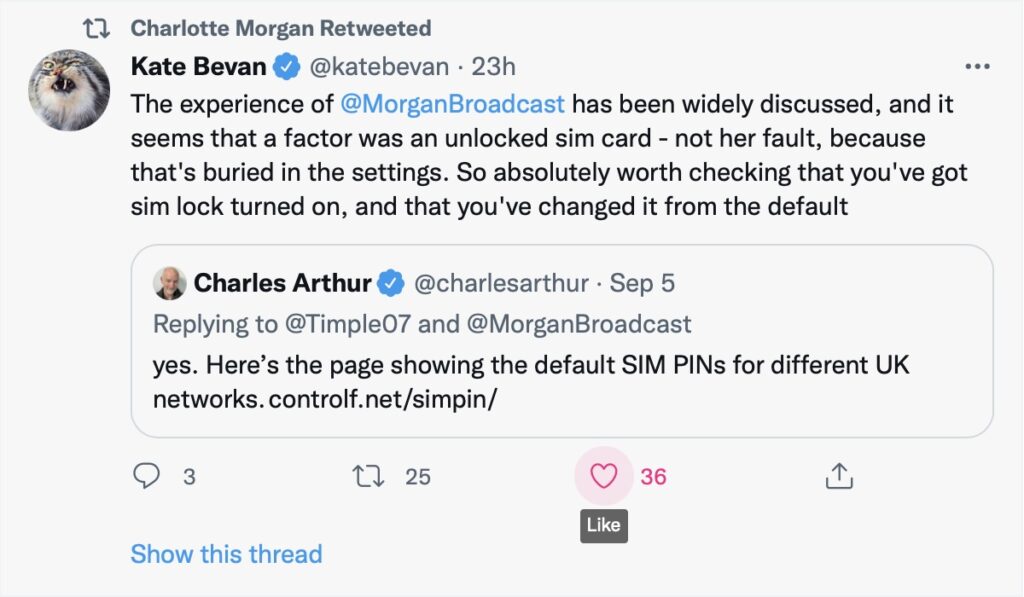
And this is the security loophole that the thief was exploiting. The default setting when you get your new phone, and insert the SIM is to leave the SIM unlocked. This means that the SIM can be taken out of the phone with your network details (and more), and inserted into another phone. Not really what you want, is it? So, lock the SIM to your phone, and by doing that, if the SIM is taken out – it is of no use in another phone. You will need to remember the new PIN you create which you will have to supply when you power-up your phone, or when you change it for a new/replacement. This is obviously an important piece of information to remember!!! There is no way you can recover the SIM PIN yourself if you forget it, you have to contact your carrier and get a new SIM and a PUK.

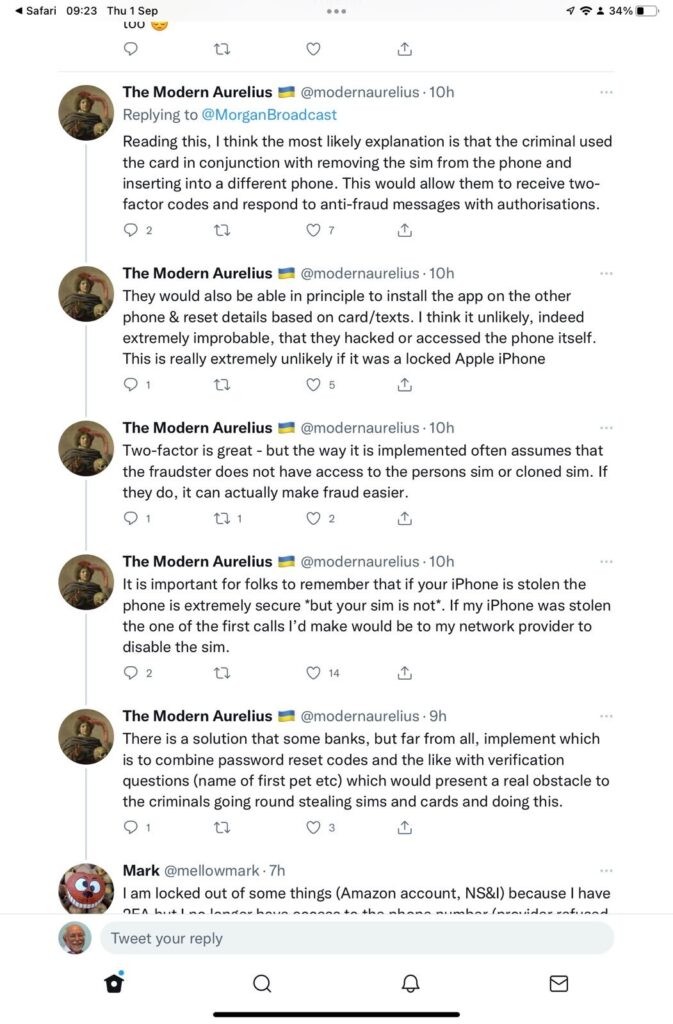
So what actually happened. This thread explains it well …

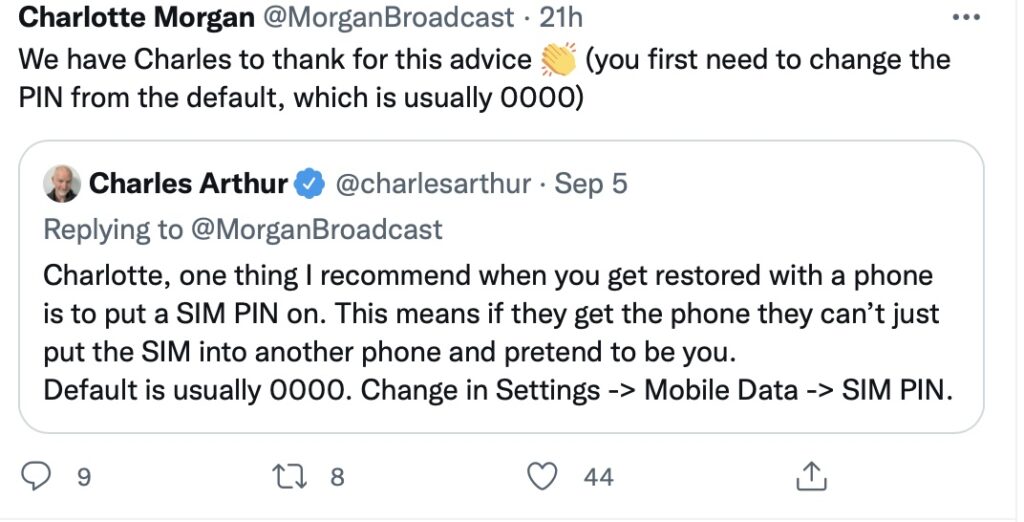
So what do you do? On an iPhone or Android …..

But what are the default SIM PINs that network operators use?

This link will be useful as it lists the default SIM PINs for the major network operators. These are the ones you need to change to your own personally chosen PIN.

It really is quite important. Change your SIM PIN and keep your credit cards separate from your phone.

Addendum: Remember – we had personal experience of SIM swapping and that’s written up in this post entitled “Identity theft”.

Getting photos to the cloud(s) and back

This article is prompted by a combination of a casual enquiry about sending photos from your iPhone to Google Photos (hosted on a Google Drive), and my own discovery that I was backing-up iPhone photos to BOTH iCloud and Google Photos.

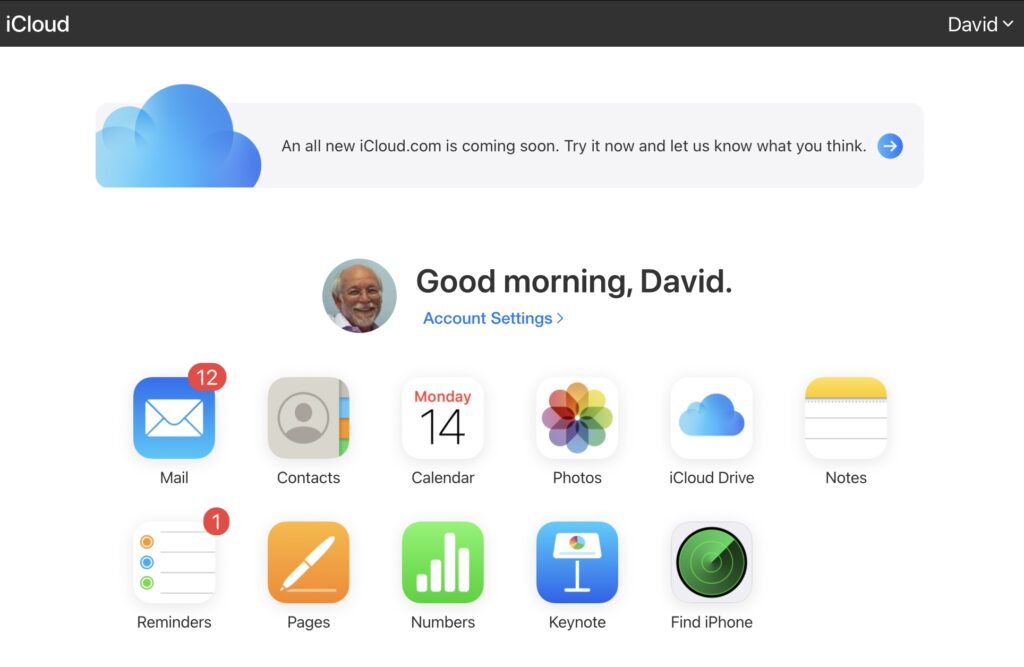
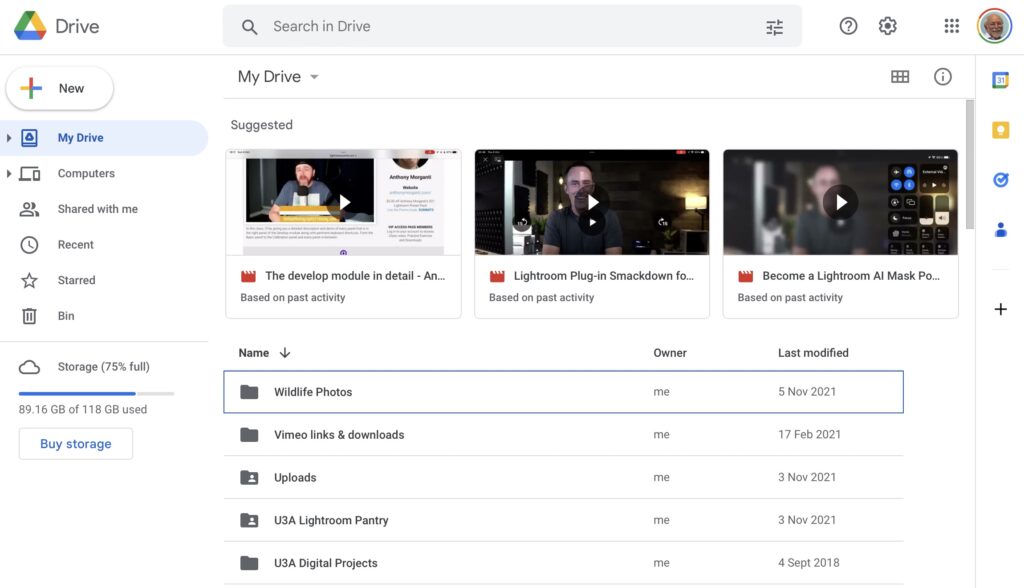
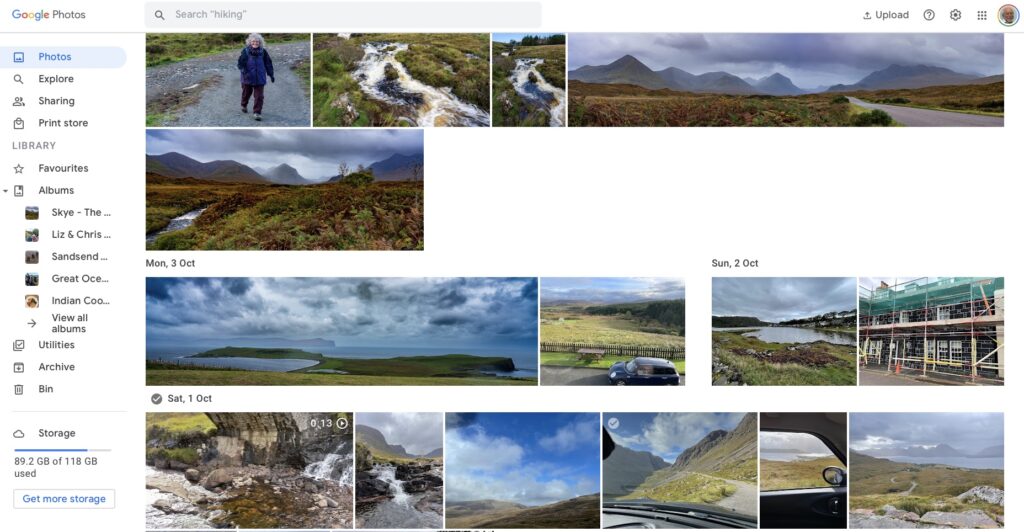
Observation one. Google Photos and iCloud Photos don’t work in quite the same way. Whereas you can access the Photos you may have stored on Apple’s iCloud storage from icloud.com through the iCloud Photos app, you cannot access Google Photos from drive.google.com directly – you have to go to photos.google.com to access them. Google Photos uses up some of your Google Drive storage – you get 15Gb “for free” with a Google account – but it’s a standalone application, in the same way as Google Mail is. It’s an important distinction. Google provides you with applications which make use of their cloud storage, Apple provides cloud storage alongside access to applications which use that storage and which synchronises back to devices.

The iCloud window {Access to all Apple applications and cloud storage}
The Google Drive window {NB No access to Photos, or Mail}
The Google Photos window {separate from Google Drive}

Observation Two. This article concentrates principally on Google and Apple, because they are the two principal players in the Camera and Cloud Storage space. There are other cloud storage solutions on which you can store photos, eg Microsoft’s OneDrive, and Dropbox. I will only refer to these briefly at the end of this article. There are undoubtedly other cloud storage solutions, but I won’t be writing about them.

Observation Three. Anything I write about the link between Camera and Photos on an Android/Google system is second-hand knowledge, and I cannot verify it!

Observation Four – the final one. This article does not seek to cover the general topic of transferring photos from a phone to your computer. This is more than adequately covered in this article. I suggest you read it too.

Not wishing to be dismissive, but just because it’s so straightforward – I’m going to discuss Google Photos first. If you have an Android phone and thereby have a Google account, you automatically have 15Gb of cloud storage and the two are linked, and by default any photos you take on your phone are backed-up to your Google account. This is described well in the Google Support article. A couple of things are worth highlighting however: a) you can switch-off automatic back-up and synchronisation of your photos, in which case all backups would need to be done manually; b) you should carefully choose the “quality” of the photos you back-up – they may not be the same as that of the photo on your device; and c) it would appear that you could backup photos to a different account from your main one, thus adding to the free 15Gb you get with each account. [Alternatively, for £15.99 a year you could get an additional 100Gb of storage from Google. If you aren’t an Apple user this is definitely worth considering.]

It’s not that much more difficult if you want to save photos from your iOS (iPhone or iPad) device to the Google cloud storage. Again the Google Support article describes the process and the options quite well.

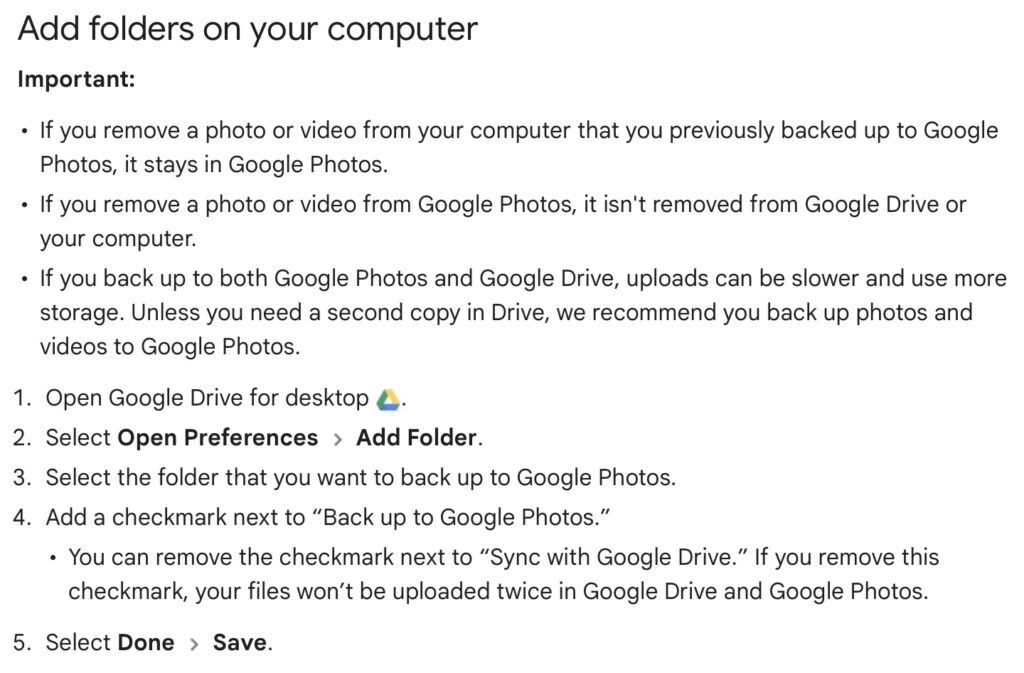
Similarly if you’ve transferred photos to your computer (eg from a camera SD-card), then Google’s got you covered to back-up and sync to their Cloud storage in this article. You should nominate a folder on your computer that Google Drive will monitor for newly added files which will then be backed-up and synced to either Google Drive, or to Google Photos, or both, depending upon the option(s) you’ve chosen.

Note (4) – you might get two copies if you don’t uncheck “Sync with Google Drive”

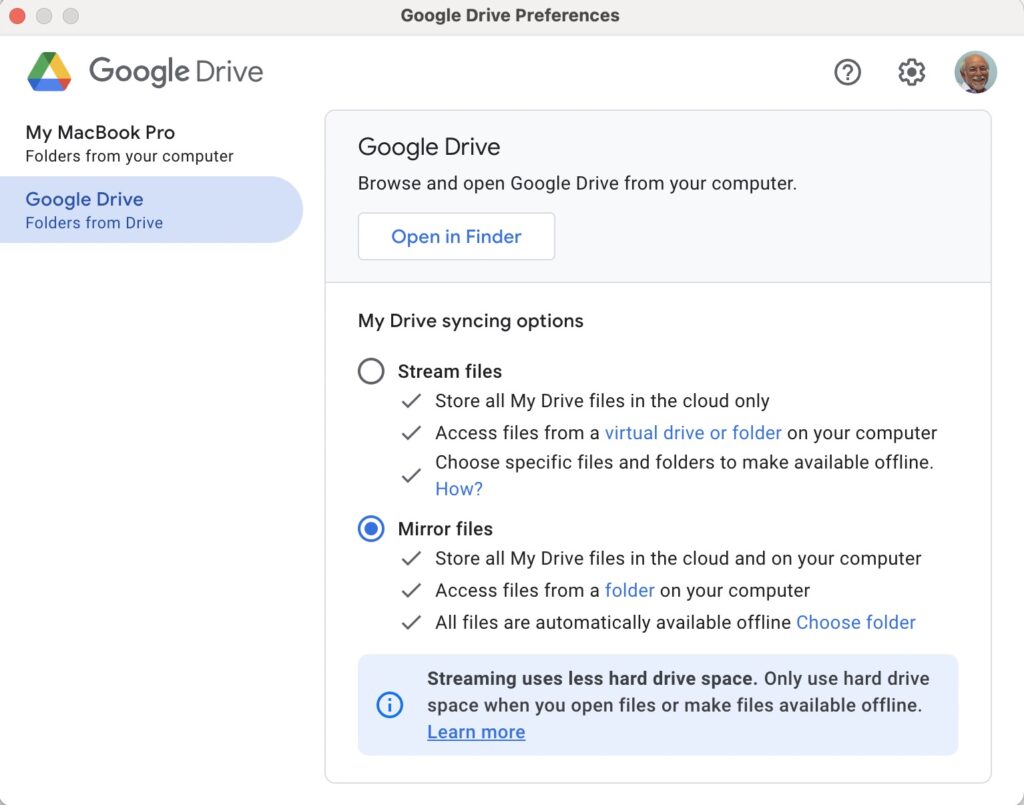
For this to work however, you do need to be sure you’ve a) installed the Google Drive on your computer, and b) you’ve set the preferences the way you want them. In my case, since I’ve increased the amount of Google storage I have, I’ve chosen to Mirror a folder (in itself called Google Drive) – then both the folder on the computer, and the one in the cloud should be exactly the same. A mirror in fact. Anything I add to (or edit on) my local Google Drive will be copied to my Google Drive in the cloud.

So we turn next to the Apple ecosystem. [I should feel more confident here, but as you may have noted that I disclosed at the start of this article that I was doing something extremely stupid and not noticing my idiocy.] Here the support page on Apple Photos and iCloud I think really does a good job of explaining your choices and how to set up backup to their cloud storage. I don’t think I can improve on it. But what if you’ve got Google Photos installed as well on your iOS device? This is where I made my foolish mistake. I enabled Backup and Sync on my iPhone and so I got TWO copies of every photo – one in my Google storage in Google Photos and the other in my iCloud storage. Duh!!!

Disabling the Backup and Sync left me with an image which was shared locally between the Google Photos and Apple Photos apps. How could I get that image (or group of images) onto Google Photos to perhaps share with friends or family?

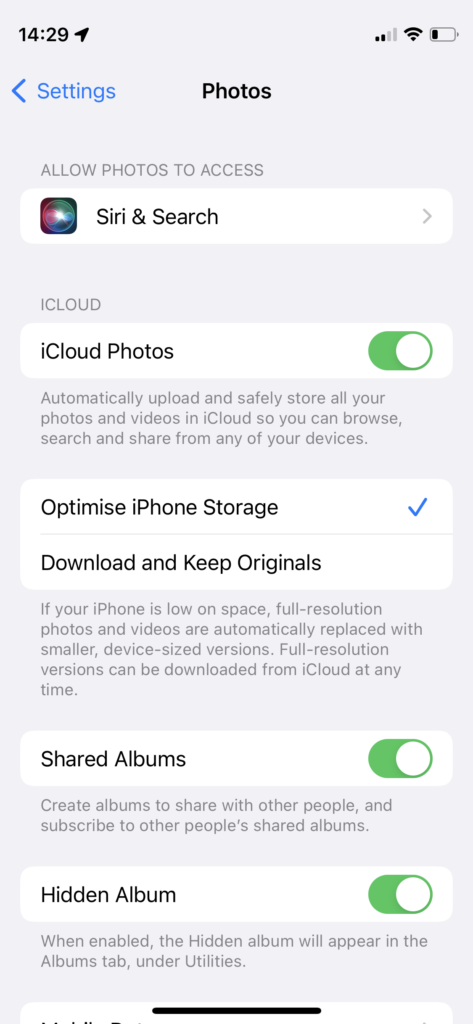
It turns out that there are two reasonably easy ways of doing this. By enabling iCloud Photos on the phone (or tablet) …

Set iCloud Photos to On

… I can then download from iCloud to a folder on my computer which I can then upload to Google Photos from. Really rather simple and not a use case for Google Photos Backup and Sync to be employed.

Alternatively, I could go into the Google Photos app, select the image I want to send to Google Photos in the cloud and Share it by getting a link and then sending myself a message. The act of sharing it copies the image to the cloud, from which I can then add it albums, etc.

Using either of these approaches allows you then to obtain a link for the album which you can then Share to a list of users, or obtain a link for public sharing.

Once you get the photos onto Google Photos the fun starts. It’s not intuitive what happens when you decide you want to delete them either from the cloud, or from your device. In fact it’s downright confusing. I’ve written about this in another place (the public Thought grazing) and life is too short to repeat anything on here that I’ve already written over there, and believe still to be correct. Best of luck!!!

The situation with deleting photos from Apple Photos and iCloud Photos is slightly more straightforward and I’ve written this up already, so won’t repeat it.

It goes without saying that keeping it all in the Apple ecosystem (for me) makes a lot of sense, and with the ability to share albums on the way – it’s not yet as sophisticated as the Google Photo Albums service – I may transition away from Google Photos altogether in time.

If you’re a PC Windows user with an iPhone, then a solution is beginning to appear that enables you to use the Windows Photo application with iCloud. You can install iCloud for Windows on your PC and then you should be able to manage your iPhone photos from your desktop.

For Dropbox users, you can setup an automatic upload of photos to the service. They even give you a bit more free storage if you enable this, or at least they used to!

Notes of Hybrid meeting – 10th November 2022

A well-attended meeting with some first in-person attendees – welcome Lynette, Yvonne, Janet, Ossie and Peter, and welcome also to Kate, Sue and Mo who were experiencing Zoom attendance for the first time. Please excuse me if I’ve forgotten a welcome. Admin was never my strongest point.

So, I started off with introductory remarks which were a pretty close repeat of those from the previous meeting, so I won’t repeat them – look here for them.

I quickly looked at the Notes from the previous meeting and mentioned the issues raised by Ian, John Mitchell and Anne which I’d added as Topics – look here for them. I hope to put more of these replies/answers/responses to members issues in Forums from now on. It’s what I created that area to do.

I also encouraged members to download Signal, create an account and then let me know their mobile telno. so that I could add them to our Computer Group on that platform.

We then turned to News and Jonathan and Paul had added some very interesting articles to the Flipboard magazine which I urge you to take a look at. Anyone can add to the magazine, just click on this link to become a Contributor.

Any problems with getting on Signal, or becoming a Flipboard contributor, please let me know.

Two issues that were raised at the last meeting were the process of getting photos from your phone to your computer, and Google settings. The technology let me down whilst trying to demonstrate the former, so I’m written up both topics as blogposts which will appear as soon as possible.

I indicated that Security and Privacy would be an issue I would cover in the next meeting.

So we turned to members’ issues:

Paul advised us that 192.com kept personal detail about us if we used the service (an online equivalent of Yellow Pages) which we might wish to be removed. [I’m not sure this will worry too many of us as you have to create an account and then pay a minimum of £15.99 for 6 searches.] Paul please correct my unerstanding, if I’ve got this wrong. He also told us that TalkTalk were raising their prices again and he now had to pay for UK calls, which he hadn’t had to before. He finally commented on the articles he’s added to Flipboard and suggested we might be interested in the ones on Privacy – storing cookies on phones (Android???); and the ability to track parcels (currently only in the US).

Jonathan told us about the articles he’d added to Flipboard on Windows 10/11 security and cleaning-up a Windows 11 machine which had improved the performance of his laptop remarkably.

Margaret told us that she’d been experiencing a strange failing with her Tiscali email service in that it appeared that it was not being consistently sent. It’s worth noting that Down Detector is a good place to start if you’re having problems with your Internet Services. I haven’t researched the problem in detail, but searching this site may be helpful. [Tiscali is now part of TalkTalk.]

Yvonne reported that her laptop was running slowly – I didn’t write anything else down here, so can’t add anything. Sorry!

Lynette told us that she’d been disturbed by her machine (Windows 10) not being able to be closed down because it was doing clean-ups. This may be related to an upgrade being done by Microsoft [these are done on Tuesdays] which had not been completed. I always advise not to set upgrades to be done automatically. I definitely am not saying, “don’t do upgrades”, but I am saying “do upgrades when you want them to be done”.

John Mitchell bemoaned the fact that he was being pestered with requests to switch to Edge as the default browser. This is of course a nuisance, and I thought that there was an option when the pop-up was shown to request that it not be shown again. [I could be wrong, here!]

Stella was upset that she didn’t seem to be able to transfer recordings that she’s done off her TV on to her PC, as she’d been able to do previously. Paul reminded us that we’d touched on this before and that recordings from TVs are now tied to that TV, and are not transferrable. [I also mentioned with little confidence that she might try formatting her media as FAT-32.]

Jenny enquired whether any member had experience, and could recommend, any sources for refurbished equipment. I expressed the view that I was very sceptical of the value of refurbished equipment unless it was backed-up by some guarantee/warranty , but others remarked that some public bodies regularly released surplus (or redundant) equipment to the public which might be usable. [I’m not convinced.] She also asked whether she should be concerned about a) the amount of memory that apps take up on a phone, and b) how “secure” they are. My reply was – very little, and that they were increasingly more secure because of biometric security and the transition towards FIDO.

Don mentioned something about internet browsers, but again I haven’t written enough down to remind me what it was [Duh!!]

Janet enquired about when items deleted, actually got deleted. Members responded that this was something that could be set in Preferences/Settings, but that you can go into the Trash Can/Bin and delete individual or groups of files at any time. She also enquired about whether she needed to buy internet security software. The group was supportive of my response that Windows Defender is almost certainly adequate for those in our situation.

Renee reported that VirginMedia were really annoying her with the latest “upgrade” they had done to “improve” her broadband. I told her I (as I always do when upgrades are being offered) was waiting for a while before I upgraded [you need to switch the router/hub off and on] She also shared that she’d encountered a situation with photos disappearing from WhatsApp. I advised that this was a feature that was set by the person sending the photos, and applied to messages as well. Signal also had disappearing messages that you could implement.

Anne bemoaned the fact that Windows 11, that she’d been forced to move to having upgraded her Windows 7 laptop, was not intuitive. I offered the opinion that this was a common issue especially as you get older. We want things to stay the same, and just get on with doing the stuff we know how to do. It is for this reason that I hope to do some sessions on the changes to what you can do on your phones, as I’m well out-of-date in my knowledge here!

iCloud Photos, Photos on Apple Devices and iCloud Drive

Originally posted by David Harrison on the Thought Grazing Forums

The seed for this topic was sown by Ian at our meeting on October 13th 2022. I had to admit that although I had a reasonable idea of what happened with Google Photos, I was unsure what happened with Apple’s cloud offering.

I was reasonable quick in advising (and it’s reported in the notes of the meeting), that as expected …

I can confirm that deleting a file on iCloud Drive from the Files app on an iPhone will delete it from icloud.com and your iCloud drive on MacOS as well – which is what you would expect should happen.”

However, the situation of Photos stored in the Apple Photos app (on iPhone or iPad) and iCloud Photos should also be noted – for completeness.

I’m not going to write anything; just provide three links to follow to clarify …

How to Delete Photos From iPhone but Not iCloud

How to Delete Photos From iCloud (While Keeping Them on Your iPhone)

and

How to recover a deleted photo or video on your iPhone or iPad

If you want to delete a Photo from both device and iCloud Photos. Just ensure Sync is left on and then you can delete the image from either the device or icloud.com

Having confirmed all this, and having more storage space on iCloud, and understanding that sharing Photo Albums is about to come to Apple Photos, and having checked that Sync’ing does seem to be working for iCloud Photos (from my Apple devices), I checked my Google Photos settings settings and switched-off Back up and Sync. I was doing far too many cloud backups!!! Always worth checking. If I want a Photo to be on Google Photos (for sharing for instance), I will now Upload, not rely on syncing.

Notes of Hybrid meeting – 27th October 2022

Just 11 of us in-person, room for more?

The meeting started with a welcome to new members – Anne, Kate and Mo (in-person) and Martin, John, Lynette, Yvonne and Linda (over Zoom, with 5 others). I asked the new members to introduce themselves and tell the group what they hoped to get from their membership of it.

I sought to clarify the arrangements where people had been allocated to groups. I do not want this to be prescriptive. If you know you can’t attend a meeting in-person, just let me know that you’d like to come to the one before your scheduled Thursday, or the one after.

It would seem to me that there is room for at least another 5 members in-person at Sight Life from this meeting, so I’ll be monitoring attendance and perhaps inviting people to move to “the attend all meetings in-person” category. Similarly, if people would like to change their preference for the meeting they would like to attend in-person, just let me know. Finally, if people would like to join the Zoom-only category, please let me know that as well.

We had some difficulties with the audio for the Zoom attendees at this meeting. My apologies. I’ve ordered a table microphone to use at Sight Life and this (hopefully) will solve that problem. I had been using the microphone integral to the camera, and this was apparently not picking-up all that was being said in the room. Kate and Mo wondered whether they might have trouble in using Zoom. I suggested they wait behind at the end of the meeting and I’d talk them through setting-up Zoom and using it. There a couple of useful documents about using Zoom on the Cardiff u3a website, and I’ve added a guide to setting-up meetings on Zoom on this website.

I then repeated a few things I’s said at the previous meeting about how the group is run. I referred to the fact that generally we don’t try and solve hardware/software problems on members computers, but we do recommend and refer members to “We will fix your PC” as an excellent resource and repair one-stop shop. I shared the “Toolkit” handout to a few members who’d not picked it up from their email. I explained and demonstrated how the Thought grazing website works and some of its features, its origins as part of my pre-retirement role at Cardiff University, and the public version – which is where Jenny (with my assistance) had recently posted an article about the switch-off of the analogue PSTN (public switched telephone network). I wondered whether Jenny might review the article to see whether it needed any additions to it?

I also suggested (and strongly recommended) that members join the Signal group we’ve set up to assist in giving support/advice between meetings. You need to download an app to your smartphone, connect your phone number to the Signal account. You can then download an app for your tablet, or desktop/laptop and view messages from these devices as well.

I went on to promote the Thought grazing Flipboard magazine – the place where I and a couple of other members add articles they have come across that they think might be of interest to the group. I also mentioned that anyone could be a contributor to the magazine. They would need to have a Flipboard account (which you don’t need to just read the magazine) and let me know; I can then add them to the list of contributors.

I concluded the introductory remarks by mentioning what I’d found to be the most common misconception for new members. What is an internet browser, and what is a search engine. I’ve written before about this – here, here and here. My most recent post however compares and reviews the various most common browsers and search engines available. I also stressed my preference (wherever possible) to use Open Source software, or to pay a subscription for software (rather than get free software with advertisements, and all the targeting and spam that involves).

I then reviewed the news that caught my eye in the previous two weeks, with links and comments to articles on the Flipboard magazine. Jonathan had posted this article on Windows Security, for instance, whilst Paul had found a nifty desk tidy device that could also charge your phone. I rushed through a number of Apple related articles which have my comments attached to them. This one, on sharing an iCloud Photo Library will be one I certainly want to follow-up, and then there were a few articles on the new Apple devices just announced, and the new versions of MacOS (Ventura), iPadOS and iOS. I cautioned (as I always do) against rapid adoption of an operating system, and referred members to an issue with Malwarebytes (for the latest MacOS release), but celebrated the fact that Dropbox had finally (after a year) released a native application for MacOS M-series machines.

There’s a lot of information in the above, so please get back to me if you want any clarification – preferably on Signal.

I finished my spot by detailing how I’d spent some time trying to subscribe a friend to use an upgrade to Apple’s iCloud system, but had found out – after nearly three months of trying, and having had finally to admit defeat and use Apple’s Support service – that the problem was that payments wouldn’t work because the software on her phone and MacBook was too out-of-date. The security system just wouldn’t allow payments to be made successfully. A very good reason to keep your operating systems up-to-date … even if you don’t rush to upgrade them!!!

Sianed then took over the facilitation of the meeting so that members could raise issues, and for existing members – how had they benefited from membership of the group. She stated that she’d benefited from learning from everybody else

Don described the Computer Group as a life-jacket. He’d taken over responsibility from some computer activity with hsi church and this had forced him to learn. He mentioned the recent scam whereby someone had lost their house through identity theft. This was discovered when it was found a person was trying to sell that property online! Apparently the identity had been stolen through a replacement driving licence that the estate agency had accepted as valid ID. Apparently there is protection from the Land Registry for a £40 fee. He had downloaded and installed Norton Anti-virus for his new machine – mainly for the internet banking security window. It provided him with re-assurance, even though I suggested that Windows Defender was probably as good as anything, and free!

Fred queried the strange URLs he’d recently seen – I explained these were URL-shortners. Often I use bit.ly.

Jenny described her work as a campaigner for Digital Inclusion, and mentioned specifically that she’d just become involved in lobbying for the Social Tariff for broadband more widespread, not something people had to opt in for. I had shared a link after the meeting on Signal, and she would be working on an article soon. She admitted to real problems with too much disorganised email from Gmail. I offered to do a session on Google settings, but in the meantime this page on the website might be a start.

Anne had a new laptop and it was running Windows 11. She was concerned that some of the software, especially that which she used for photography, might not run on the new machine. I responded (after the meeting) with this reply …

I’ve done a bit of searching around. It would appear that Picasa can still be downloaded and at least works with Win 10, so it probably works with Win 11 as well. Can’t confirm that.

Here’s an article that explains the status of Picasa, with a download link in it, which looks OK.

You might instead consider using Google Photos 

… where your earlier photos may already be. Google Photos is an Online Editor - I’ve covered its use a couple of times in the Group and there are posts on the website.

Alternatively you could look at Microsoft’s Photos app

… or an open source alternative such as Gimp …

… hope this helps.

She also asked whether she needed to take out a fresh licence for her Kaspersky Anti-virus software. Apart from the questionable source of the software (Russia), I suggested that this would not be the case, she needed to register her new machine. I also mentioned (as I had above) that Windows Defender was probably as good as any anti-virus software for our type of computer use.

David Hughes described the frustration in not seemingly to be able to switch off his Facebook Portal machine. [No comment – perhaps its spying on him :-)]

John Silk was interested in what I’d said about the iCloud Photo Library and reminisced on how it used to be the practice to just save photos on a USB-disk, or memory stick. How can you do that from your photos app on your phone now. I offered to write something about this workflow.

John Mitchell had a most interesting problem. It appeared that a lot of files (photos) had vanished from the folders they used to be in. The group discussed several possible scenarios where this might have happened. After the meeting I sent this email to John …

I’ve been puzzling over your missing files issue, and found this link

… which seems to suggest that you might have dropped into an issue that is not unique. I wouldn’t recommend trying to solve this one yourself, but I would recommend you taking your machine (esp. if it’s a laptop) to the guy we show hardware problems to; We will fix your PC

Neil is really good and I’m sure he’ll give you good advice. Mention the u3a Computer Group.

… and that was about it. If I’ve forgotten anything, my apologies. Please add to the Comments below the post.

Until the next time when I’ll revisit (again) privacy and security. Cheers.

Two Obscure Problems

The first happened a month or so ago, but I decided it wasn’t worth mentioning in a meeting. I thought I’d include it in this post about the second problem though, which happened a few days ago. The problems were:

WhatsApp, having to link my phone to the laptop every day.

Phone network, loss of internet access.

First, I originally linked the phone to the laptop, by scanning a QR code, and from then on I could read and write WhatsApp messages on my laptop. Then one morning I was asked to link again, and this happened for the next couple of days. I couldn’t work out why. Finally I got a message saying that I could link a maximum of four devices to my phone, and it turned out I had linked the laptop that number of times. The cure then was to unlink them all and start again. I’ve no idea how it all started though, as going through the linking process is not something you can do unintentionally.

Second, I’ve got a pay-as-you-go contract with 3, and as I said, I lost access to the internet that way a few days ago. That meant I couldn’t check my PAYG balance amongst other things. I thought maybe it needed topping up, and managed to do that via my laptop, but it didn’t help. I called in to the 3 shop, and the assistant took my phone and played with it for a while, finally curing the problem. I asked him how, and he said he had gone in and out of ‘flight mode’ for a few seconds. Not something I had thought of trying.

Maybe one of those might help someone in the group one day.

Notes of Hybrid meeting – 13th October 2022

The meeting opened with a welcome to new members – Ian, Kate, Sue, Fred and Marion Poyner, and to Mike Payne making his first meeting (if my memory serves me well). We had David Hughes, Paul, Renee and Ralph join us on Zoom. John, Jonathan, Jim, Don, Stella and Fred were with us as well. Tony, Marilyn Barrack, Linda, Mike Chapple, Christine, Sianed, Margaret, Jeanette, Seifi and Sally presented their apologies.

I started by explaining that we had been overwhelmed by the interest in the group shown at the “Meet the Groups” meeting the previous Tuesday where 20 members, or prospective u3a members, had expressed an interest in attending group meetings. I felt duty bound to admit 12 members as we had no Waiting List policy in place at that time – this has now been introduced and some of the prospective members of have now been placed on that list. With a membership approaching 40, I felt it was necessary to review how we operated. I thank Pat, Marilyn Guest, Owen Parry and Phil Edwards for stepping down as active members – they do however continue to have the ability to use this website, the Signal group and have access to the Flipboard magazine.

I reiterated that we don’t attempt to resolve members’ hardware issues – other than perhaps problems with printers, or connectivity issues, eg routers. We do recommend using “We will fix your PC” – Neil has done a wonderful job in supporting and helping us by resolving problems for several years now. It might be worth mentioning Cardiff u3a and the Computer Group should you chose to use his services. I also repeated what I’d said to many at the “Meet the Groups” session … namely we are not a training group. We cannot train you how to use Word, Excel, or whatever. We DO however focus on internet issues, applications and anything that is not machine/device dependent. In that way all meetings are usually accessible to all users who have access to a web browser (Chrome, Firefox, Brave, Edge, Safari, Opera, etc.).

We are fortunate in that we have established, quite quickly, a workable hybrid (ie Zoom) meeting format. This is in no small way down to the excellent technical support offered by Craig at Sight Life, and the overall welcome and excellent facilities they are offering us.

I am proposing, and circulated a pro-forma to start the ball rolling, to allocate members to either a 2nd or 4th Thursday preference group, with them being able to attend via Zoom on the alternative Thursday. Hopefully, this will keep the in-person group a manageable size whilst we still struggle with Covid-related issues. Some members who are essential contributors to the group will be able to attend in-person all meetings, if they are able to.

To that end, I gratefully acknowledge the assistance of Sianed who will facilitate the “issues round the table/screen” part of the meeting; Don who has taken on the meeting attendance/subs task; Jonathan who will help me by screening Windows/PC news and issues; Paul (via Zoom currently) who will do the same for Android matters; and Jim – our official photographer and my adviser, proof reader and frequent contributor to the website.

We’ll just need to see how this plays out. Hopefully, in time I will be able to remove restrictions on in-person attendance, but please be supportive of the difficult situation we have put ourselves in, by virtue of meeting a need. Perhaps a second group is the answer, but that would mean finding another facilitator.

Starting the meeting proper, I explained to new members how we usually operated, the way the Thought grazing website operates, the benefits of the Signal group and the existence of the Flipboard magazine that I encourage all members to browse occasionally, and contribute to if they so wish (after creating an account).

I then launched into a description of the theft and fraudulent event that I’d mentioned at the previous meeting and had written up as a blogpost earlier that day. I won’t repeat what I’ve written, I’ll just repeat the warning and the recommended action you should take – don’t keep your credit/debit cards near to your phone, and seriously consider activating a SIM-lock to lock your SIM to your phone – so that it can’t be taken out and put in another phone on which a banking app can be downloaded and possibly a password obtained from your bank. The case in point here was Santander.

The issue of reporting scams to ActionFraud was mentioned, and the action you might wish to take if you receive a phishing phonecall is described here. Otherwise, I recommend you subscribe to the free Which? email scam alert service, and to look at other advice on the Which? website, and the Citizens Advice website.

Turning to members issues …

Fred reported the latest fortunately unbelievable text scam he’d received. I think as group members we’re getting much, much better at identifying these – the parcel that couldn’t be delivered, the transaction that know we couldn’t have made, the offer that seems to be too good to be true, the offer to help with obtaining a refund/grant/subsidy/entitlement which wouldn’t come via a text message. Just stay alert everyone, and remember … if it’s really important, the organisation will contact you again and not usually by text!

Paul reported issues with TalkTalk and their new website. Sue had a similar issue (see below). it is disappointing that he may need to change the settings on his talktalk.net email account to get it to re-direct (as it had done previously) to his gmail account where he aggregates all his emails.

Sue had a similar problem. The old TalkTalk website from which she’d accessed (occasionally) her email had stopped working. She hadn’t received any emails since before July. The solution hopefully, would have been to “upgrade” to the new website, but unfortunately as she’d moved to Sky (??) it was unlikely that she’d be receiving any emails from her talktalk.net email address anymore. This highlights an issue we’ve discussed before. It is advisable to move to an email provider that’s not connected to your Internet Service Provider (ISP). I used Google (and Gmail) for many years and have never used VirginMedia – my current ISP – to provide an email service for me. I migrated all my old BT email messages away from that service to avoid paying an annual charge for retaining the account after I stopped using BTinternet. I now aggregate most of my emails on iCloud – Apple’s service, as it is EXTREMELY unlikely that I’ll ever move away from them, but I retain my Google email accounts … just-in-case. Ian and Sue both used aol and asked whether this was a viable service. It was confirmed that now aol was owned by Verizon, it’s future was probably very secure.

John wondered whether the increase in “promotional” messages he was receiving was connected to his use of his Kindle advice. You can set your communications preferences from Amazon here.

Kate raised an issue of connecting to iCloud to delete “stuff”. I described (and demonstrated) how to login to iCloud.com using your AppleID and password.

Ian asked the question on whether stuff deleted on iCloud was also deleted automatically on a device. I had to admit I wasn’t sure. I’d written a blogpost on the situation with Google Drive (particularly for Google Photos), but had to check-up on the situation with Apple, which I reported back to him here. I told him that I needed to do further tests to satisfy my own curiosity. I can confirm that deleting a file on iCloud Drive from the Files app on an iPhone will delete it from icloud.com and your iCloud drive on MacOS as well – which is what you would expect should happen. He also asked (after the meeting) whether his daughter could change the account name/details on an O2 account, since she was now in a position to pay for it herself. The issue being she would want to keep the phone number. I had to admit that I didn’t know, and the O2 website was less than encouraging for what seemed to be a reasonable use case, so I recommended visiting the O2 shop in St David’s Centre (I believe). I also suggested looking at GiffGaff (operating over the O2 network and owned by the parent company of O2 – Telefónica UK) as a good pay-as-you-go (PAYG) alternative. She might be able to port the number to that network (or any other network) after obtaining a PAC or STAC code.

Here ends nearly the most rapid Notes I’ve ever written up – have to impress the new members.

Stolen phone & SIM locking

A rather disturbing incident involving a stolen phone and credit cards and the ability of a fraudster/thief being able to reset a user’s password/pass-number for a high-street bank occurred in September involving a journalist called Charlotte Morgan. She described what happened to her (and it transpired others) when her phone and credit cards were stolen from a locker in her local gym.

The incident was covered by the BBC https://bbc.in/3Vm8ylH and https://bbc.in/3CukHMS and also in the papers.

The incident was described by the FT Adviser in two reports – firstly the incident, and then (belatedly) Santander’s response.

Charlotte chose to broadcast her experiences on twitter and got a range of helpful and supportive pieces of advice.

So we start with the first piece of advice – keep your phone and your credit cards separate. Don’t store/keep them in the same place. Maybe, if you follow the advice that follows later you should just keep the credit card details only on your phone and dispense with using plastic. For Apple that involves storing the card information in your Wallet.

And this is the security loophole that the thief was exploiting. The default setting when you get your new phone, and insert the SIM is to leave the SIM unlocked. This means that the SIM can be taken out of the phone with your network details (and more), and inserted into another phone. Not really what you want, is it? So, lock the SIM to your phone, and by doing that, if the SIM is taken out – it is of no use in another phone. You will need to remember the new PIN you create which you will have to supply when you power-up your phone, or when you change it for a new/replacement. This is obviously an important piece of information to remember!!! There is no way of recovering the SIM PIN if you forget it!!!

So what actually happened. This thread explains it well …

So what do you do? On an iPhone or Android …..

But what are the default SIM PINs that network operators use?

This link will be useful as it lists the default SIM PINs for the major network operators. These are the ones you need to change to your own personally chosen PIN.

It really is quite important. Change your SIM PIN and keep your credit cards separate from your phone.