A piece of software that sits on your device and hides your IP address and user credentials from “snooping” network users. Of particular value when connecting to an unsecured public network (eg a cafe). Normally unnecessary on a home network when connecting to you router, but it obviously can provide additional security and hides your device completely from the internet.
One additional use that they have is that because you can choose the geographical location of the VPN server you wish to connect through, you can logically (or virtually) place yourself in a different country, thus enabling you to appear to be in the UK – when abroad (so that you can watch UK TV); or alternatively appear to be in a different country from home (when assessing alternative cost options for say a holiday).
— Forum Responses —
Thanks for this, I am looking at NordVPN for location shifting.
If I sign up can I use it on 2 Android phones, W10 Computer, and Android Tablet, all on one subscription ?
This was the first of our “discussion-style” meetings and I recorded the following notes.
John S reported that his bus pass had stopped working and it had taken two further re-issues to get a working card. This led to a general discussion about apps and led to the suggestion (later in the meeting) that a session on apps might be “a good idea”. I offered to do a write-up on the Cardiff Bus app. [I haven’t done this because of later actions, namely the Forum “The apps I use …”.]
Renee had followed up her Signal request for suggestions for a new mobile contract by signing-up with Lebara (linked to Vodafone) and was happy with the deal but unhappy that voice-messaging didn’t seem to be offered. I advised that with GiffGaff (my preferred provider) it took some time for the network operator to arrange with the phone supplier the necessary integration and access to voice messaging. I found this link which might be helpful. We also discussed VPNs and I again offered to write something about them. [This I will do as a Topic in the most appropriate Forum.]
Anne was having difficulties in setting-up Amazon Prime. Getting a “No internet connection” message after she had upgraded her VirginMedia Router. Advice from group members was that she probably needed to setup the network connection on the TV again because the IP address of the router was probably different.
John M reported that he was experiencing an annoying break, and then delay in delivery of streamed media. I explained that this was almost certainly due to buffering. The download of a stream starts, then the delivery of the stream to the device is faster than the initial filling of the buffer that holds the content. Once the two are in sync, this delay would be minimised and the stream would be constant – that is download would equal display but would probably be slightly behind a live stream. This can be mitigated by using a cable connction from the router to the TV (or other device) because the download speed over local cable would be faster than relying on WiFi. He also reported some difficulties with enabling his First Direct Bank account with 2FA (his fingerprint). We suggested that he might look at the settings for his device, or the app, just to check that fingerprint recognition had been enabled.
Margaret retold in great detail the sage of changing her old phone to a new phone. The trials and tribulations of different SIM sizes (moving from a 7-year old phone); the barrier of having to provide ID at the shop (the security check to prevent SIM-swapping – which I applauded); the complexities of different USB connections (USB-A to USB-C) for an adapter; and when she’d got through all that the difficulty in understanding the instructions to validate the new sized SIM (they said Turn off, it should have said Power down). Congratulations and applause was showered upon her for the detail in her recounting of events and her success in achieving a successful outcome.
Ian was experiencing the SBOD (Spinning Beachball of Death) on his 7-8 year-old Mac; was this really the end, or could he do something about it? I suggested that the machine was probably nearing the end of its productive life. I had older machines but had been able to upgrade the RAM, the hard disk and the battery. If any of these were a possibility an upgrade might be a good idea and it was a job that a user could do relatively easy as there are videos (specific to machines) on the internet that show you hoe to do it. In the meantime, powering down the machine at least once a week (to flush the cache); running maintenance software such as Clean My Mac; and reducing the number of open windows, and background software, might eek more life out of the machine.
Stella was trying to link her laptop to her TV, but was having difficulties in doing so. I can’t remember (and I have no note) as to what was suggested.
How I get web pages that don’t print into a format where they will:
Use the ‘snipping tool’ in Windows, select and paste it into Word or PowerPoint or something similar, and print.
On a similar vein, if I want to copy some text and the web page is set not to allow copying of text, I use the snipping tool, select and same as a jpeg, then use the OCR reader https://www.newocr.com/ to convert the picture into text and copy into the document I want it to be in.
If you want to edit, even if only in a minor way, the photos on your smart device (phone or tablet, Android or Apple), two offerings from Google should be tried first. If you’re an Android (Google) device user, it’s a no-brainer.
The Google Photos app will be installed on your device when you get it, and all you need to do is install Snapseed from the Google Play store. If you’re an iOS or iPadOS (Apple) device user then there’s a couple of extra steps you need to do before you can get started.
This guide concentrates on Snapseed. I’ve written about Google Photos previously and I’m providing links to them below. I’ll check to see that things haven’t changed materially since I published these posts …
Although Snapseed is intended for use on smart mobile devices, you can install it on either a Windows PC or a Mac, but I have no experience of doing this, so it would be a project you would be taking on ahead of me. So for that reason I’m only looking at the app that you can download either from the Google Play, or Apple App stores.
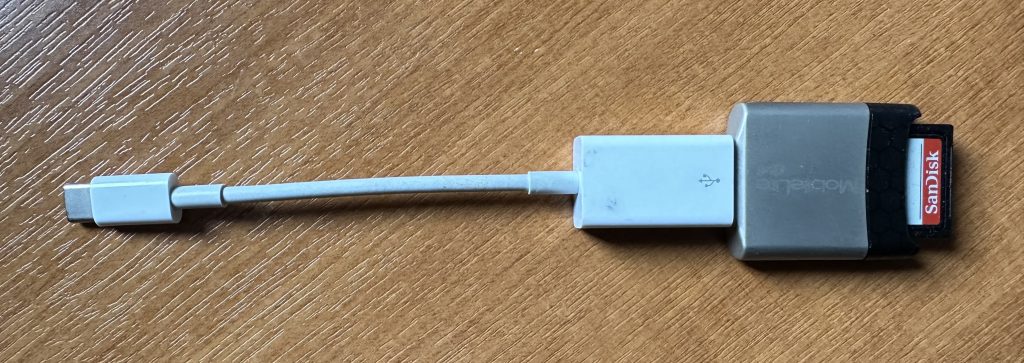
So for camera users (rather than smart phone users), you will first of all need to get the photos onto your device. This could be by a direct cable connection from your camera to your phone, or by transfer using Bluetooth or WiFi, but more likely might be by using a SD-card cable like this one I have for the Apple gear. [It will either have to have a Lightning or a USB-C connector – check first before buying one.]
Apple USB-C to USB-A connector with USB-A SD-Card slot
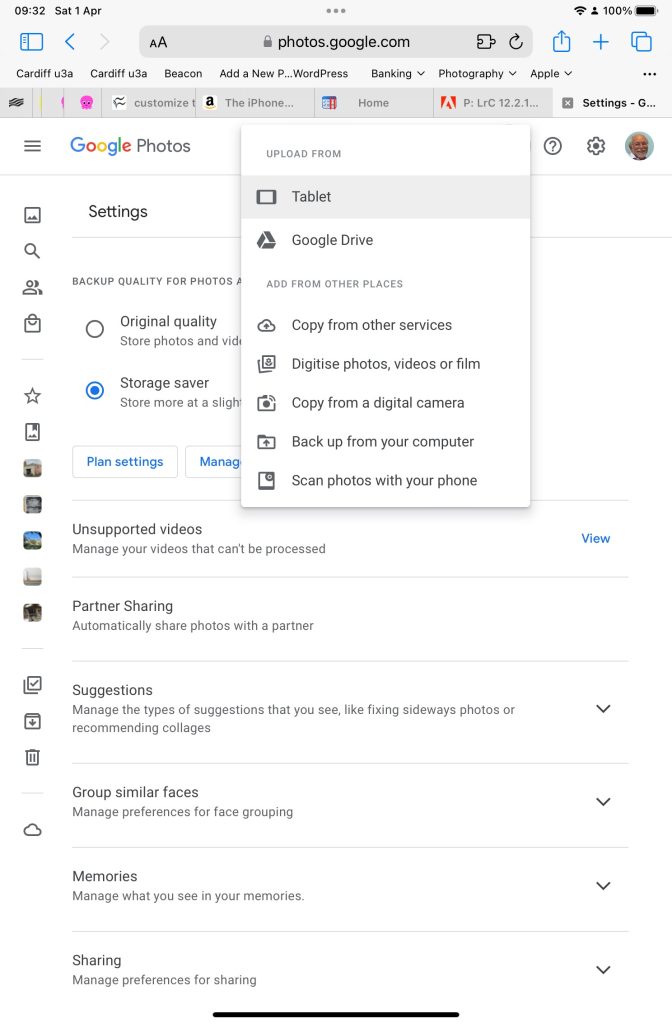
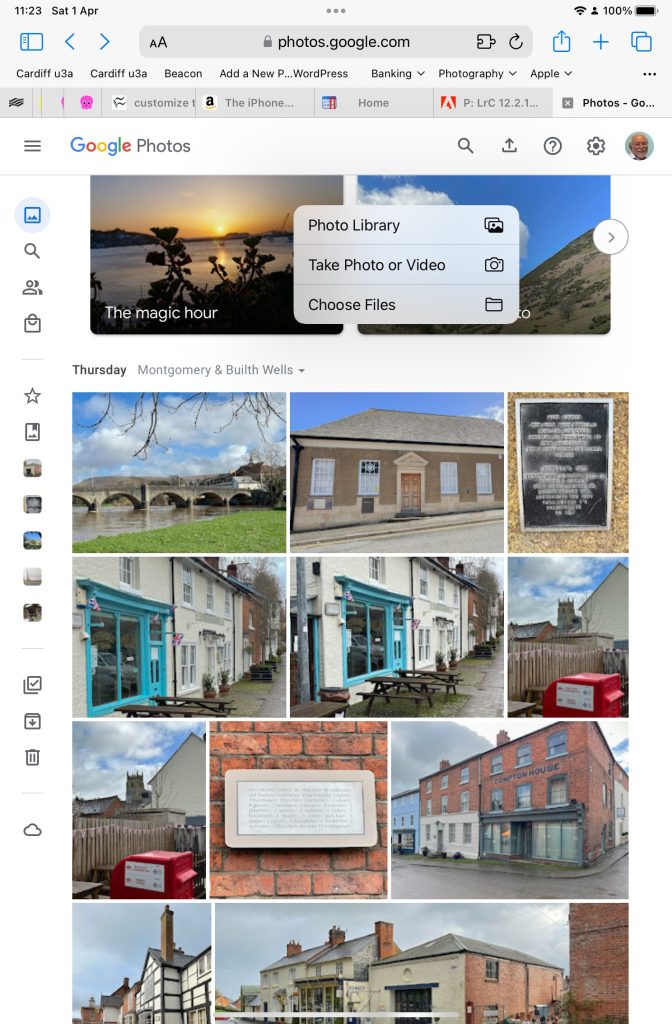
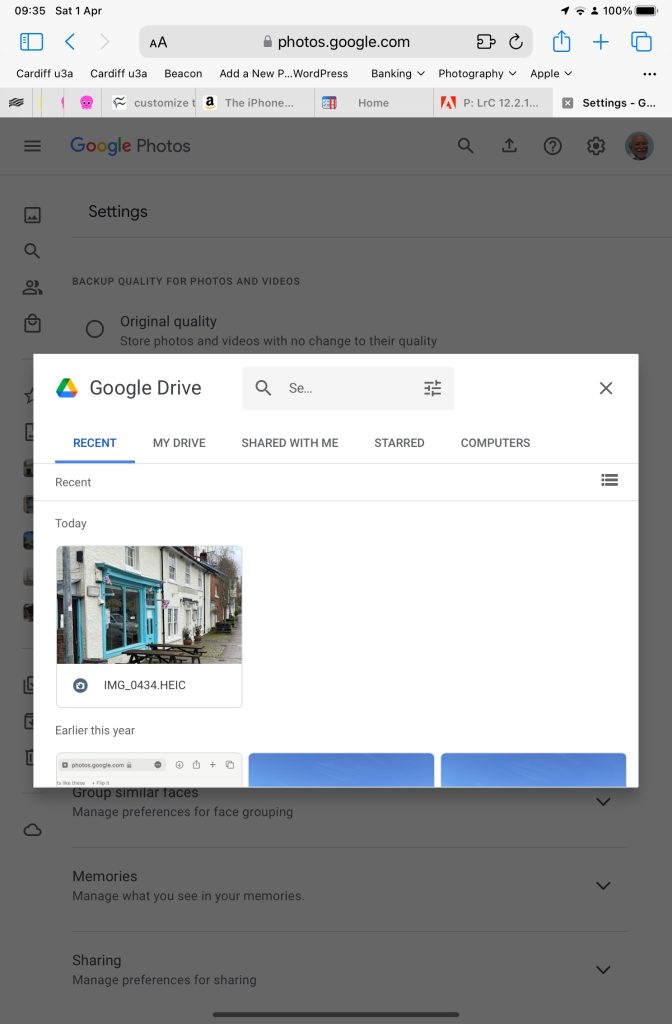
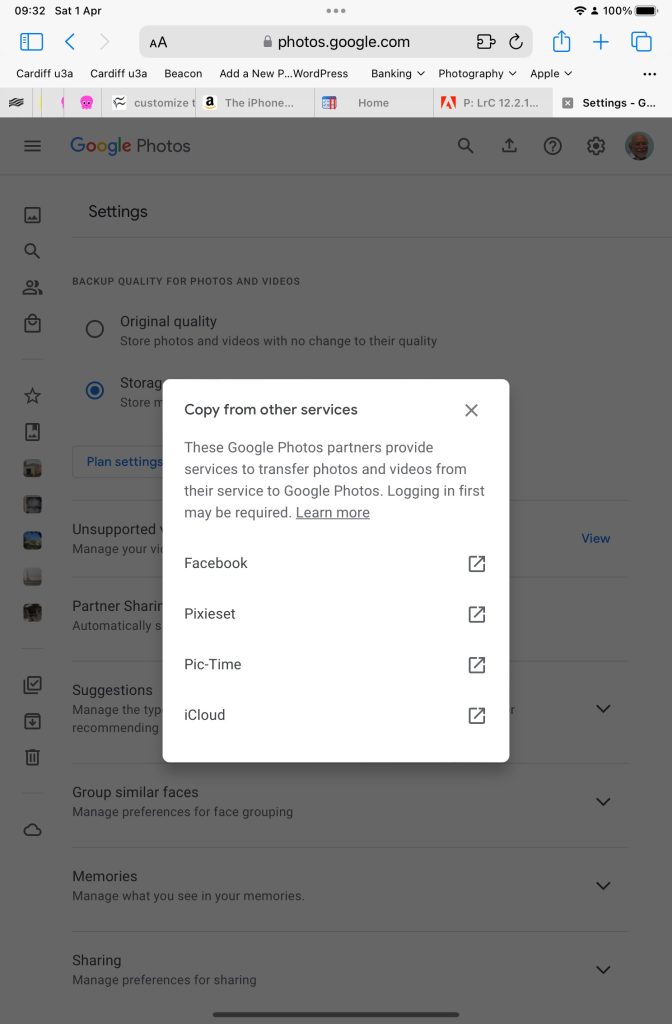
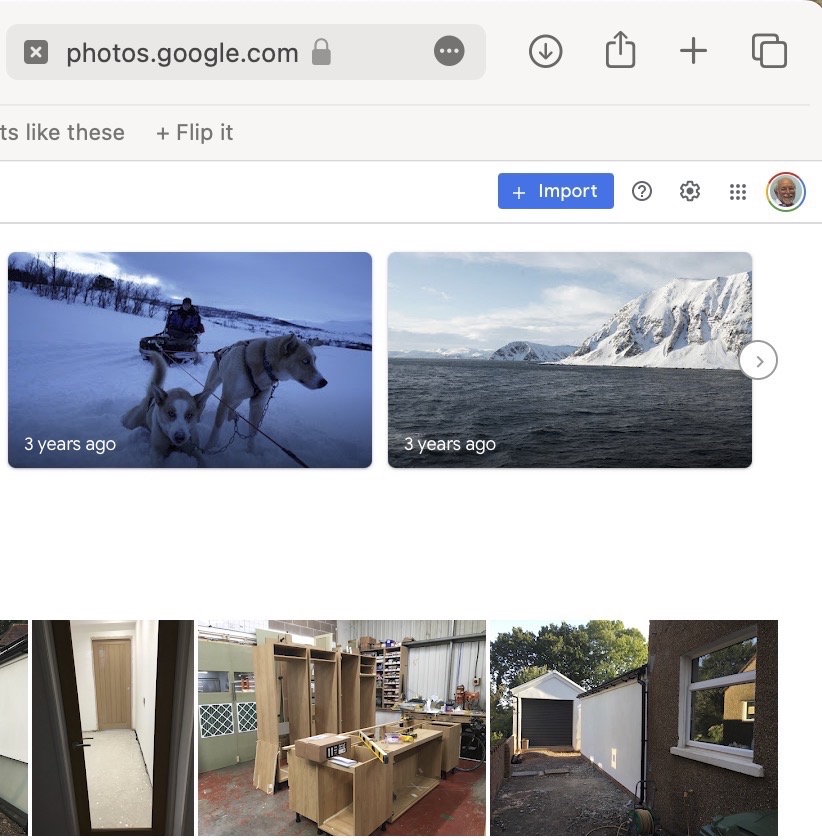
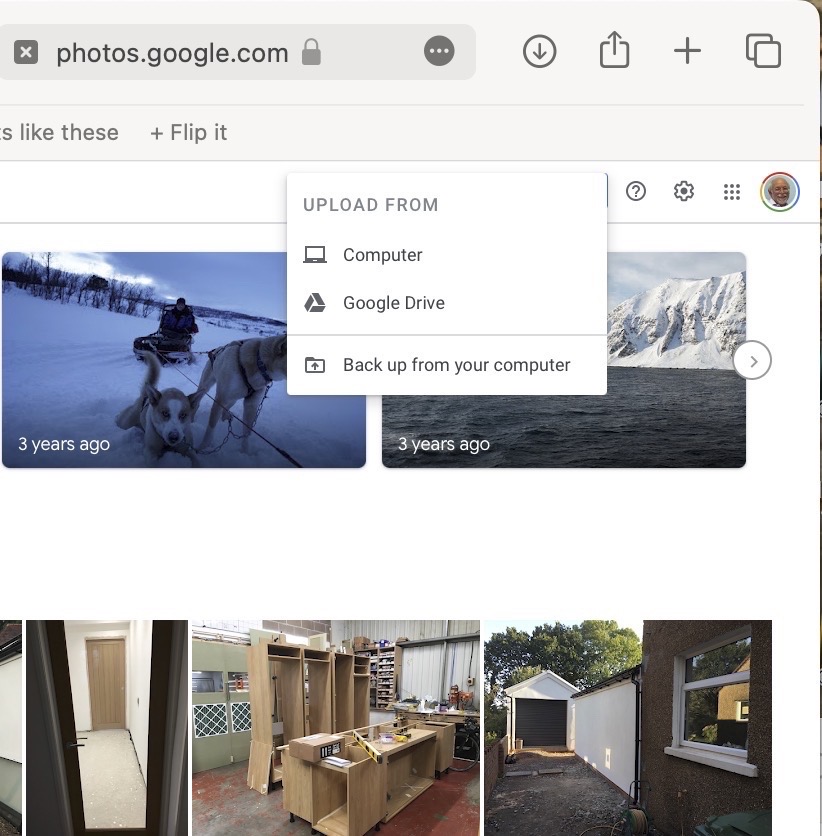
The image(s) thus transferred will be added to your photo library be it Google Photos, or Apple Photos. Another way of adding photos on your computer to your Google Photos would be an Upload to photos.google.com – you will need a Google account to do this. This is how you would do it …
Select Import to Upload images to Google PhotosSelect images from the Computer (or from Google Drive)
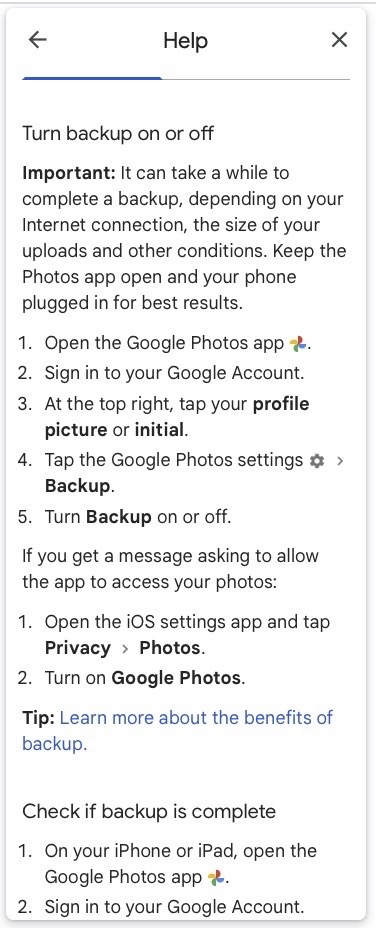
You could decide to use Google Backup to synchronise all your photos from your iPhone (or iPad) to Google Photos as an “easy” way of getting the photos on your Apple device into Google Photos, but this is not necessary to use Snapseed as it can access your Apple Photos directly; so I don’t because I’m already backing-up my photos to iCloud. [I only discovered in November I was also sync’ing to Google Photos, so I stopped doing that then and saved some Google Drive storage, and a whole lot of complications about knowing what was where.] But if you want to synchronise from your Apple Camera to Google, this is how you do it from the Google Photos app on your device …
Instructions on how to synchronise Photos on Apple devices to Google Photos
You should now install the Snapseed app on your device(s) from the Google Play, or Apple App stores, if you haven’t already. If you’re an Apple user you might choose to install the Google Photos app at the same time – although you don’t need it to use Snapseed, but you might just like to compare how it works.
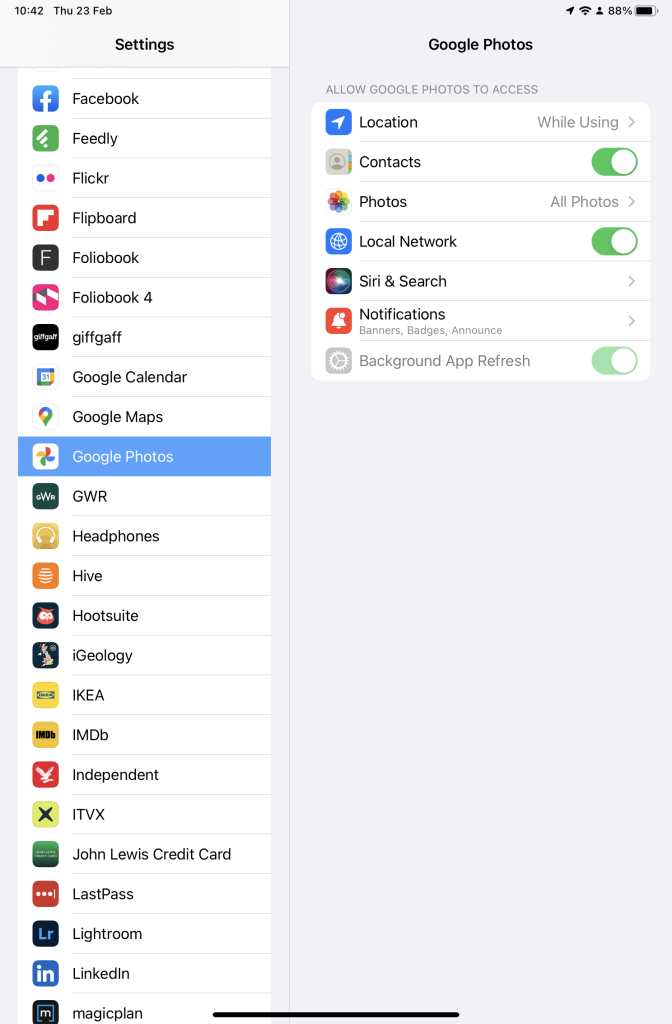
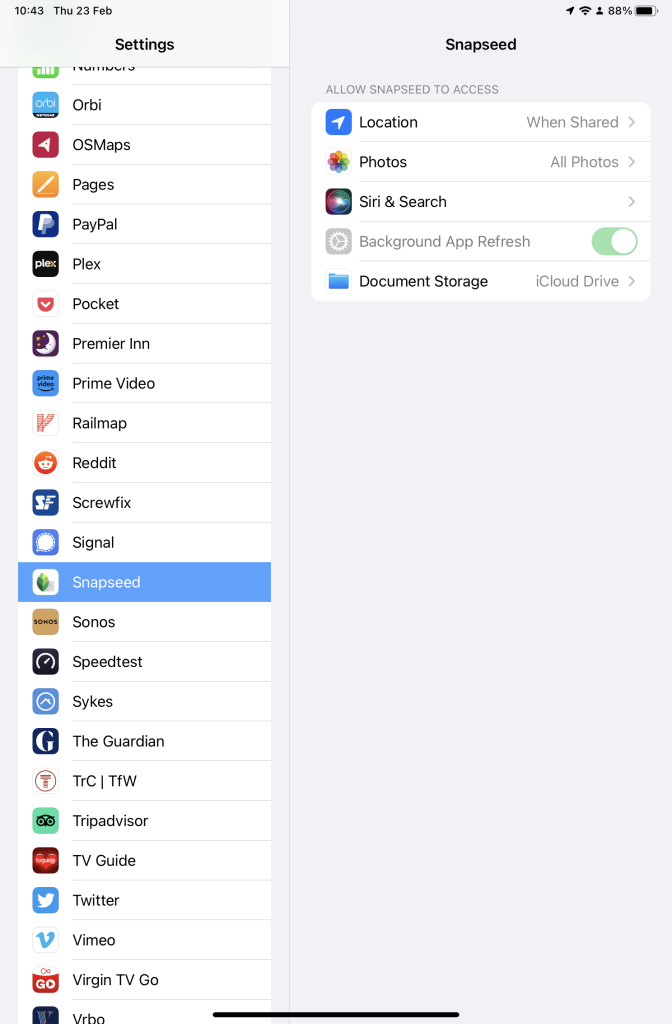
Next up, if you’re an Apple user you need to allow access to your Photo Library to Snapseed (and optionally Google Photos). This will allow both apps (on iOS) to access the Photos in your Camera Roll on your iPhone or iPad.
Setting up Google Photos and Snapseed to be able to look at Apple Photos on device(s)
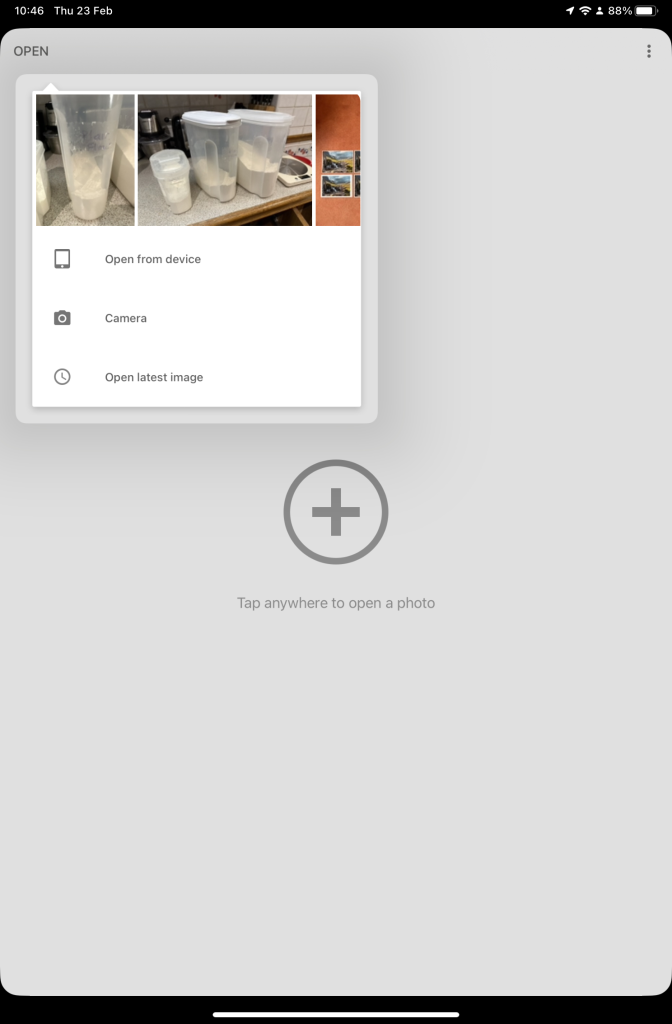
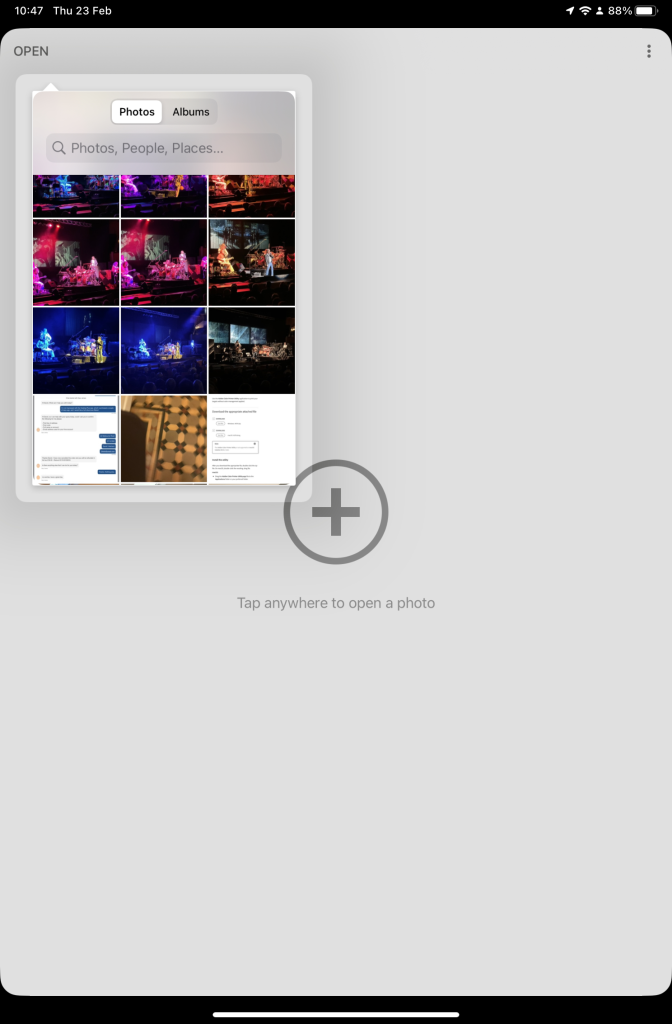
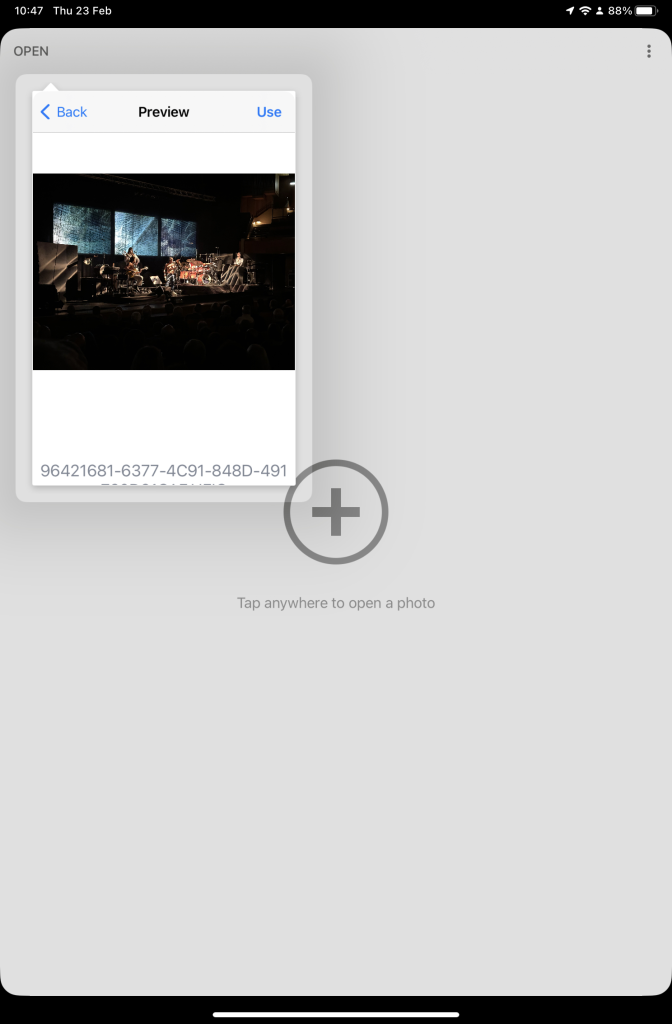
So now your ready to start editing. Open the Snapseed app on your device – you are prompted to Open from device (ie look at the images in your Photo Library), or you can access the camera to take a shot, or Open latest image that you’ve taken. The steps from then on are relatively straightforward and you will have selected the image that you want to Use.
Open Snapseed and look at the photos on your local deviceSelect an image to edit, and click-on Use… and so start editing.
That’s about it. This video (recorded from my screen, hence background noise and rather low audio volume) gives a reasonable introduction on how the Snapseed app works …
A brief (14mins) introduction to editing photos using Snapseed
Here are some links that you might find of interest:
Using your Android camera to take photos; but I believe all Android phones have slightly different camera interfaces, so you’re better off researching that for yourself. [NB If you have come across a really good guide, let me know and I’ll add it to the list here.]
This article was written to accompany a presentation done on 22nd January 2023. All the videos embedded in the post were current at that date. They could be removed from YouTube, or replaced by later ones, at any time.
The presentation built upon one that Paul de Geus did and which is included below. I’m indebted to him for pointing me to the video from RSAweb, which is a really good and short introduction to improving Home WiFi signal, and also including at least one video in the show from PowerCert. They are so good, I’ve used them as the basis of this presentation.
I’ve also written a couple of articles that you might find it useful to refer to …
Also, remember there’s a “Network issues” Forum that has several Topics relating to Home Networking, and if you have discovered a really good bit of technology, or you want help with the kit you’ve got, that would be a great place to look, or contribute to.
First however take a look at Paul’s presentation, of 2019 – yes five years ago, I can’t believe that! You can scroll through the slides using the arrow keys at the bottom of the window and make the text bigger using the +/- keys.
I suppose we should start with perhaps the main problem – a poor WiFi signal – and then work back from that to see whether we can improve our understanding of how networking works and how we can improve our Home Networking experience.
How to improve your WiFi signal at home
A more detailed look at possible quick wins are detailed in this article, and again some of the suggestions it mentions are covered later.
You might be able to improve your home WiFi by following the advice in that video and the article; indeed WiFi Extenders could do the trick (see later), but it’s probably better to understand a little more about the devices you’re using. So we start with Modem and Router. Almost always in new installations combined into one device called a Super Hub, or Smart Hub. Often an Internet Service Provider (ISP) will package that with a streaming TV service which includes the capability of recording TV channels and this will use the Hub to transmit by ethernet, or WiFi, to the TV.
Modem vs Router – What’s the difference?
So we have a device – a modem, that is connected to the internet by either a fibre-optic cable (eg VirginMedia), or DSL copper/fibre connection (eg OpenReach); it will almost always have a router with both WiFi and Ethernet ports included in it. The WiFi will normally offer two bands (wireless frequencies) at 2.4GHz and 5.0GHz. These two bands have different characteristics which are explained in the following video. [NB It’s important to note that Smart Devices mostly seem to prefer to operate on the 2.4Ghz band, so if you’re having difficulty connecting them, it might be prudent to check you have enable that band.]
However another possibility is to install a WiFi Extender. This device, as it suggests) accepts a WiFi signal from your WiFi Router (hub) and extends the signal to a part of the house where the signal is not so strong.
WiFi Extender (Booster) Explained
One of these devices may well suit your purposes and you may well be able to get one that has auto-sync that enables the network name (the Service Set Identifier or SSID) of your router to be used on the WiFi extender, but not always, and you may find yourself with two WiFi networks – one SSID for the router, another SSID for the extender, and you will have to choose your network depending upon the area of the house you are in and seamless roaming between the two will not be possible. Examples of WiFi Extenders (or Boosters) are listed here.
A different approach is to use the electric power circuits in your house to extend an ethernet network from the router (hub) to a power outlet on the same electric circuit. [NB This is the only configuration I’m happy to recommend. If you have more than one ring main, you may find that you don’t get good results when trying to connect between the two.] This technology is called Powerline and you can purchase devices that have both ethernet and WiFi capability. Again, look for ones that have auto-sync that will extend the SSID of the router to provide a single WiFi network. The video below explains how Powerline networking works.
Powerline Ethernet Networking Explained
One of our members (David Hughes) has recently installed this system, a TP-Link AV600 Powerline system which he is happy with. There are a couple of videos on that page which demonstrate how easy these new Powerline systems are to setup.
However, for some people (me included) the houses we live in are not well suited to any kind of WiFi (or ethernet) networking, and so Mesh wireless may be the solution. Interestingly most mesh systems use a dedicated 5GHz channel to let the devices “talk” to each other. In routing terms these are therefore tri-band routers. One example of a Mesh solution is the one offered by Google.
… whilst Renee Martin has recently installed a TP-Link Deco E4 Mesh WiFi system. However, not all mesh systems are alike; some appear to work seamlessly behind your router in Access mode, others like mine require you to switch your hub into modem mode so that the main mesh hub works in Router mode. For the TP-Link system the difference between Access Mode and Router Mode is described here.
Should you be considering a Mesh system here are a some reviews – here, here and here. My system is a Netgear Orbi RBK53 one and I’m including a few screen shots from the app that you use to manage the network to describe what it does.
You have a main hub device, connected to the internet through a modem (my VirginMedia SuperHub – configured to be in modem mode), it then has two satellite hubs, one connected by an ethernet cable to my office, the other using WiFi to the back of the house which provides a WiFi facility to the upstairs, kitchen and garden. [I have tried connecting it using Powerline but there doesn’t appear to be any benefit from doing so.]
The devices connected to the satellite hub in my office at the time I took a screenshot were …
The devices connected to the satellite in the back of the house (when this map was created) were …
There are then a number of devices also connected to the Main Hub with one port being used to connect the ethernet cable to the Orbi in the office, one port connecting to a switch behind the TV (to connect the TV, HiFi etc), one to Powerline (not being used currently), and of course one to the VirginMedia Hub.
Looking at the configuration of the Orbi in the Office, you can see that it has an IP Address which it has obtained from the Main Hub. All IP addresses within the home network will always start 192.168.1.xxx – the individual devices being recognised by unique MAC addresses which are held against the IP address in the hubs.
… so when you look at the router settings on the Main Hub you can see it’s IP address is 192.168.1.1
Looking at the internet port settings of the router you can see that it has an external IP address of 86.29.24.114. This is effectively the IP address of my house. I am extremely lucky that this IP address does not seem to change – a VirginMedia “bug”, or is it because my VirginMedia Superhub is now just a modem?? This then makes it possible for me to host a server on my network, because I have a quasi-static IP address. Normally the external device is dynamically set so that when there is a power outage you may find you have been given a different external IP address.
The other setting that is interesting is the DNS server. Your ISP will have setup your router to point at their server, but these servers will usually be based in the area that it provides service to. So, it is often a good idea to change the defaults to Cloudflare (1.1.1.1), or Google (8.8.4.4, or 8.8.8.8) because their servers are worldwide and so should provide quicker lookup of the directory. [NB what we’re talking about here is the translation of a friendly domain name eg google.com, to a set of four digits.] When your router is given a domain it has to look up it will look first at the the first one in your list; if it’s very busy, it will drop to the second, etc. So My router will look at Cloudflare first, then Google before dropping to VirginMedia.
That’s about it. I haven’t covered a number of topics that you might be interested in, eg
Understanding IP addresses and how they’re constructed
[Revised 17th January 2023 and February 22nd 2024]
Now there’s a question. Once upon a time it was a little easier to answer. You connected your computer with a piece of wire to a socket in the wall and beyond the wall was ??
So perhaps it’s never been easy to answer that question. It’s not magic, it’s not fluffy, it’s actually really complicated technology which works in a relatively simple way to make things relatively easy for us to use it. Let’s start with a few videos …
How does the internet work? – This [updated] BBC Bitesize page (produced for children) is a really good starting point to help you understand how the internet works and introduces some of the terminology (ie protocols, packets) that will be useful to you to understand the other videos.
How the Internet Works in 5 Minutes – the internet is not a fuzzy cloud. The internet is in effect a wire (or a fibre-optic cable), actually buried in the ground or carried as wires between posts. Computers connected directly to the internet are called Servers, while the computers you and I use are clients, because they are not connected directly to the internet, but through an Internet Service Provider. Mobile devices away from the home, connect to the internet using radio-waves to connect to cell-towers with increasing capacity being generated by increasing the frequency modulation of the waves (ie 3G, 4G, 5G and even 6G). Mobile devices in the home or in the office, or in public hot-spot spaces, use WiFi to connect to the internet using two frequencies – 2.4GHz and 6GHz. All of these require Routers to shuttle packets of information across the internet, and transmit e-mail, pictures, and web pages. Although this video is a little dated, it really does explain the process of what happens when you connect to the internet …
A more recent video and the ones that are referenced at the end of the video will get you a long way to understanding the technology that makes up the Internet.
How Does the Internet Actually Work? – this discusses how internet traffic can be labelled to ensure that packets of data can arrive at their destination with the minimum amount of disruption [- but it is a biased view in favour of scheduling]. However for an impartial point of view of Net neutrality, you should probably look at this video produced by Vimeo – strong supporters of Net Neutrality …
Finally a couple of alternative views of the internet. First, Andrew Blum (in a TED Global talk) philosophically examines What is the Internet, really? A journey that started for him when he found out a squirrel had chewed through a cable led to him exploring trans-ocean cables and the very physical nature of the internet – a wire! Then this rather entertaining video …
… takes us from very local internet and cell-phone technology, through an examination of data centres such as the former Western Union office at 60 Hudson in Manhattan, to laying ocean cables and the future with balloons acting as transmitting stations for low-density inhabitation, or remote areas.
You might also be interested in seeing a Google Data Centre, in particular the pieces on security and cooling are interesting. [However, all of this increasing use of the internet comes at a cost to our environment as the advance of Artificial Intelligence and its huge need for energy for increased computing power comes at a cost.]
I started off the meeting with an apology for not doing the notes from our last meeting on the 8th December. I had the beginnings of a cold on that day, and the notes I took were indecipherable by the time I had recovered after Christmas.
I briefly went through the latest News – not that there was much as Jonathan and Paul attested to as well. Their additions to Flipboard and mine can be found here.
I then asked the group to consider using the Forums/Topics area on the website as an addition (not a replacement) to using Signal for issues that might be of interest to reference in the future. I suggested that Signal might best be used for getting quick responses to issues, and then copied to the most appropriate Forum as a Topic later. Or … perhaps just add them as a Topic if no response was immediately required and you just wanted to promote discussion on a Topic. I stated that I’d be reviewing the structure of the Forums and the Topics within them [Update: now completed], and that I would also be looking back at posts on the website that I thought ought to be promoted more for easy reference and access [Update: now done under Blog posts menu item].
I proposed to the group that we might review the way the group was working, and to discontinue doing hybrid zoom meetings which I was finding quite stressful. The group agreed with my proposal which I later circulated as an email …
I am grateful to those of you who attended the meeting yesterday and who accepted my suggestion to re-structure the programme of meetings for the Group.
We will still meet on the Second and Fourth Thursdays of the month at 2:00pm at SightLife, but without a Zoom hybrid component. Doing this was becoming a stressful addition to the meeting that I was finding it hard to work with, so I felt that if the group was going to flourish in the future we had to find a different way of working.
What I came up with, and which was agreed by the members present, was the splitting of the discussion/advice/issues component from the presentational/information component, so that the first will take place on the Second Thursday of the month, and the second will take place on the Fourth Thursday of the month. Doing this will mean that I don't need to prepare stuff for more more than one meeting a month - and I am keen to encourage others to "present" also; and I need not "chair" every discussion-style meeting - concentrating just on taking notes and inputting thoughts, inmformation or even sharing advice!
To support the Zoomers and maybe even extending the online community, a Zoom meeting will take place on the First Thursday of the month. This will essentially be a discussion-style meeting, but it's up to members to take it in any direction they wish. I will host this meeting from the comfort of my own home, with technology I'm more confident with.
Yesterday, I talked about "How the Internet works", and I'll be sharing an updated post on the subject, on the website asap. At our first proper "presentation-style" meeting in a fortnight I will be talking about "Home networking" - updating the various sessions we've had over the past 6 years or so. There should be time for anyone to raise a pressing issue/problem at the end so we're not dispensing with that and we will still do a News and Follow-up bit; we just won't go "round the table/screen" seeking input as we've done in the past two years (plus).
I'm looking for suggestions for other "presentation-style" subjects. I have it in mind to do one on photo-sharing in February, but any other ideas are welcome. Just drop me a line.
Finally, I'll be providing a bit more structure to the website so that the more useful posts are more easily found; and I'm also encouraging members to use the Forums and Topics, and you will see some changes to the Forums provided over the next two weeks. I don't want to replace our use of Signal. It's brilliant for keeping in touch and getting instant answers to problems; but I am keen to capture some of the issues/solutions as Topics so that they can be more easily retrieved. I am also keen to encourage members to start their own Topics and for all members to participate with Comments and Replies.
Apologies for the length of the message. I hope you all understand where I'm coming from. I'm confident that with these changes the group will be invigorated and work even better than it has in the past.
Then after totally confusing some of you in attempting to describe how I’d sorted out my son’s network (changing a router to a bridged connection, and creating a single WiFi network with one SSID is the quick description of what I did), I moved on to showing three short videos which aimed to explain “How the Internet works” …
These three videos I think provide a sound basis for understanding how information gets to you when you send an email, or do a search from your browser, or use an app on your phone to buy something. An earlier article on the public Thought grazing covers the ground too – I aim to update it shortly. This forms the basis for helping us to start looking at our Home networks and how they work, how they perform, and whether there is anything you can do to make them perform better. That’s for the next session – our first presentation-style meeting, on the 26th January.
Vimeo video on Net neutrality which they are supportive of (unlike Google & YouTube)
As the meeting closed Ian asked about Backups on Apple Mac kit. I strongly suggested there was an inbuilt, free, solution offered by Apple called Time Machine which he should investigate with an external hard disk. I offered the opinion that this was much better than cloud backup solutions which were slow and which would slow down other internet activity you might be doing. This is not to say that cloud storage is not important – I use iCloud, Google Drive and have used Dropbox and One Drive in the past – but it should be mainly thought of (imho) as a way of sharing documents (in the widest sense) between systems, between users and for long-term storage (archiving) of important documents.
No photo this time; and my apologies for the delay in publishing the notes. I thought I’d done them and only discovered I hadn’t when preparing for today’s meeting. Duh!
Quite a few apologies Jim, Sianed, Jenny, David Hughes, Sally, Kate and Renee. Some new members too – Rob, Maline and Hok. Welcome. Linda and Peter have decided the group is not for them, but we’re delighted to see Steve and Christine again.
I once again recommended members to take the occasional look at our Flipboard magazine , and to download Signal and take part in our chat between meetings.
On Signal in the past fortnight we’ve had a Google Update issue (Ted); Jim’s phone running out of memory – as yet unresolved; Ian’s disappearing old AOL email messages – resolved by AOL with a cautionary warning (do it within 7 days or it’s lost forever); a plug fro the Brave browser (from me); and discussion on the Windows 11 Photos app (Jim, Jonathan and me).
We had an update on Anne’s problems grappling with Windows 11 on her new laptop – a big change from the experience she was used to with Windows 7. Jonathan is providing assistance. Many thanks. I reported that I still hadn’t updated my iOS to v.16, or my MacOS to v.13 – I’m being very cautious this time and plan to go to v16.2 when it’s released in December and probably v.13.1 about the same time. I had experienced a strange issue with an app on my phone – the Coop shopping app that wasn’t allowing me to add new offers to my card, and yet I could do so through the web browser. I reported this to their help desk – I’m still awaiting a reply, but resolved the problem myself through an inspired guess. I disabled the VPN running on the phone, and it worked. [Message to self – you don’t need a VPN running all the time, really only when you’re away from your home network.]
I briefly mentioned the post I’d written a few years ago about using printer labels for Christmas cards and the added benefit of using the same template on plain paper to record the cards we’d received. I recommended using Avery format labels – the numbering is used by most printer label producers and so you can use their templates on whatever paper you buy.
Martin had a story to tell about his being “forced” into buying a new phone!! Being a mainly desktop user he’d decided to take the plunge and bought a Samsung. He’d found that SmartSwitch had helped a lot and prevented it being a nightmare and been able to use BlueTooth to do the transfer of information from the old phone to the new one. He’d found the SIM to be the wrong size but his telco had swapped the SIM for zero-cost. Currently he was finding that texts were not going out, but they were coming in. It was suggested that this might possibly be due to them being sent as MMS rather than SMS -we await the solution!
Don reported that he’d installed BT’s 100Gb cloud service and it had created three folders that he’d not requested. That’s the way, isn’t it. Just ignore them if you don’t want them, but they may provide automatic syncing back to the desktop.
Sue told us that she was getting fed-up with pop-up adverts, and wondered how she could get rid of them. I advised that this would be handled in the Privacy and Security session.
John Silk was puzzled by the growing number of acronyms. We helped him with what Android was, and updated him in the state of play with other mobile operating systems. These mainly being iOS/iPadOS and Chromecast. Microsoft’s offering hav efallen by the wayside.
Paul had moved from Win10 to Win11 and felt that performance on his machine had greatly improved; this may of course due to “clutter” having been removed in the upgrade.
Jonathan also noted that Win11 on his rebuilt laptop seemed to be running better.
Rob was puzzled by a problem with the display on his Toshiba Satellite Pro. It didn’t appear to be a BIOS problem. We advised that he consult “We will fix your PC” in Llanishen, and suggested that this was the standard advice we gave to new members for hardware problems. Generally these are beyond the scope of the group’s competence.
Ian queried the payment for meetings on Zoom, and in person. I advised that I would be sending out an email in due course but no one appeared to object to the idea of Zoom attendees paying something towards the cost of the meeting to defray costs of the meeting venue. He asked about the destruction of hard disks. He was advised that it’s possible to get data shredder software that makes recover of information from a disk impossible, a bit less drastic than hitting them with a hammer, or dissolving them in acid!
Christine had been having difficulties getting decent sound from a film given her by a friend. Turning the sound up on both the TV and the video-player software had not helped at all. Installing a soundbar had however solved the problem.
Anne was still coming to terms with issues arising from her move to Win11 and had experienced a strange request for subscription to what she thought was free Microsoft Photos software. We took this up outside the meeting.
I then closed by informing users that I was looking at Photo Book printing software and Canvas printing to get the benefit of Black Friday pricing. I use Blurb for photobooks. Jonathan pointed me towards Cewe (used to be available at Jessops, and now from Boots – possibly). I’d also some experience of using YoPhoto and Snapfish. The latter do very competitively priced canvas prints (up to 70% off currently) which I’d taken advantage of. There’s always Google Photos as well. I said I’d do a review, but I didn’t have time to do it in the end.