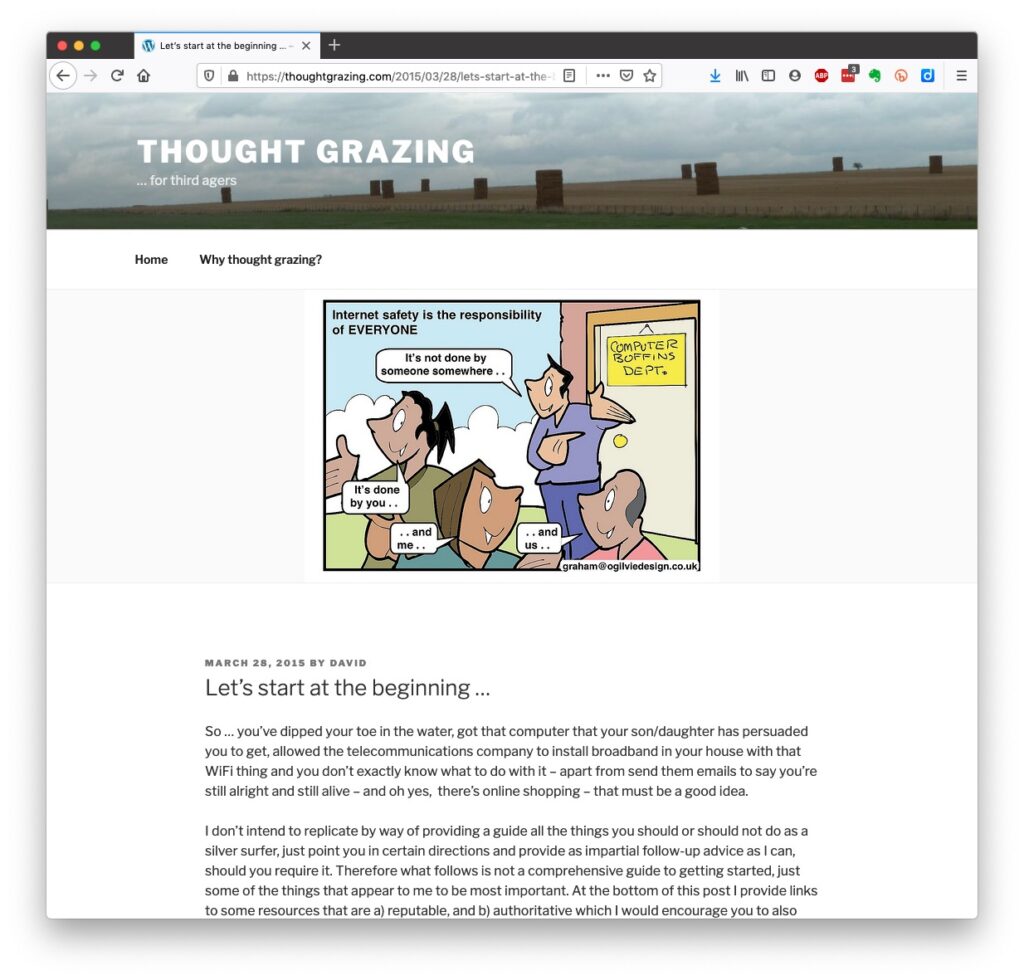
Brief notes this time – apologies. I started the meeting by reviewing recent posts on Flipboard, looking at our Group webpage on the Cardiff u3a website and inviting help in facilitating the General Meeting on June 13th. I re-iterated my encouragement for members to subscribe to the free Which? Scam Newsletter, they also do a free Technology newsletter amongst others that members might also find of interest..
Anne was having problems with her TiVo box and the transfer tio VM360. Unclear instructions from VirginMedia. [Partly resolved by next meeting. Update??]
Tony had been searching for an alternative broadband supplier; he’d got a reduction from BT after price-matching from VirginMedia. He’d also had problems with unzipping files. [Update??] He was also more than a little disappointed at the way HP was blocking the use of compatible cartridges on their printers. A good reason to migrate/consider tank printers??
Ralph was unsure why Google seemed to cease working (or finding sites previously visited). Suggested that a solution might be to clear the browser cache.
Jim suggested that a solution to Stella’s previously reported problem might be to search the whole disk for missing files (TV programmes). He updated the group on what he had recently been doing using Audacity (see previous post). He’d wanted to take output from Video2MP3 music video (on YouTube??) and cut it into segments for easier playback. He’d used Audacity to do this. He was continuing to experiment with his new Pixel phone and was curious as to why some photos were being stored as thumbnails (I don’t know whether I’ve reported that one right??)
Ian was investigating a change in his iMac identity connected to separating work from home use. [Update??]
Luckily, there’s plenty of advice and guidance available – often slanted particularly towards our demographic (ie oldies) …
Those two sites are particularly easy to follow and understand, but others are equally informative and targeted.
Your bank probably has guidance which it publishes online and which is accessible to everyone, not just their customers …
I’ll return to further information, guidance and references at the end of this post, but first we need to look at a few issues, discuss some terminology that’s widely used and try and tease out what’s really important, and what’s just an inconvenience and then it’s up to you to judge where you find yourself on the scale of …
First let’s distinguish the difference between online security and online privacy. These are two different issues which are however linked. Sometimes you have to relinquish some privacy to receive a service – unless you choose to pay for it (and I’ve long been an advocate of paying for services if they do a job that is necessary); exactly how much privacy are you prepared to relinquish?
Security on the other hand is an absolute – you should not be prepared to accept less than your very best efforts . We’ll deal with that in the third part of the post.
How do you relinquish your privacy, and how much of a loss of privacy is acceptable?
Some services could not be offered without income from adverts, or paid-for advertising – eg Facebook, Twitter and Instagram; and some eg Google and Amazon track and provide information to resellers if you don’t block them from doing so. As an example of how much value Google sees in getting knowledge of what you’re doing and where you’re doing it, they pay Apple up to $20bn annually to remain as the default search engine for any browser that’s running on an Apple device!
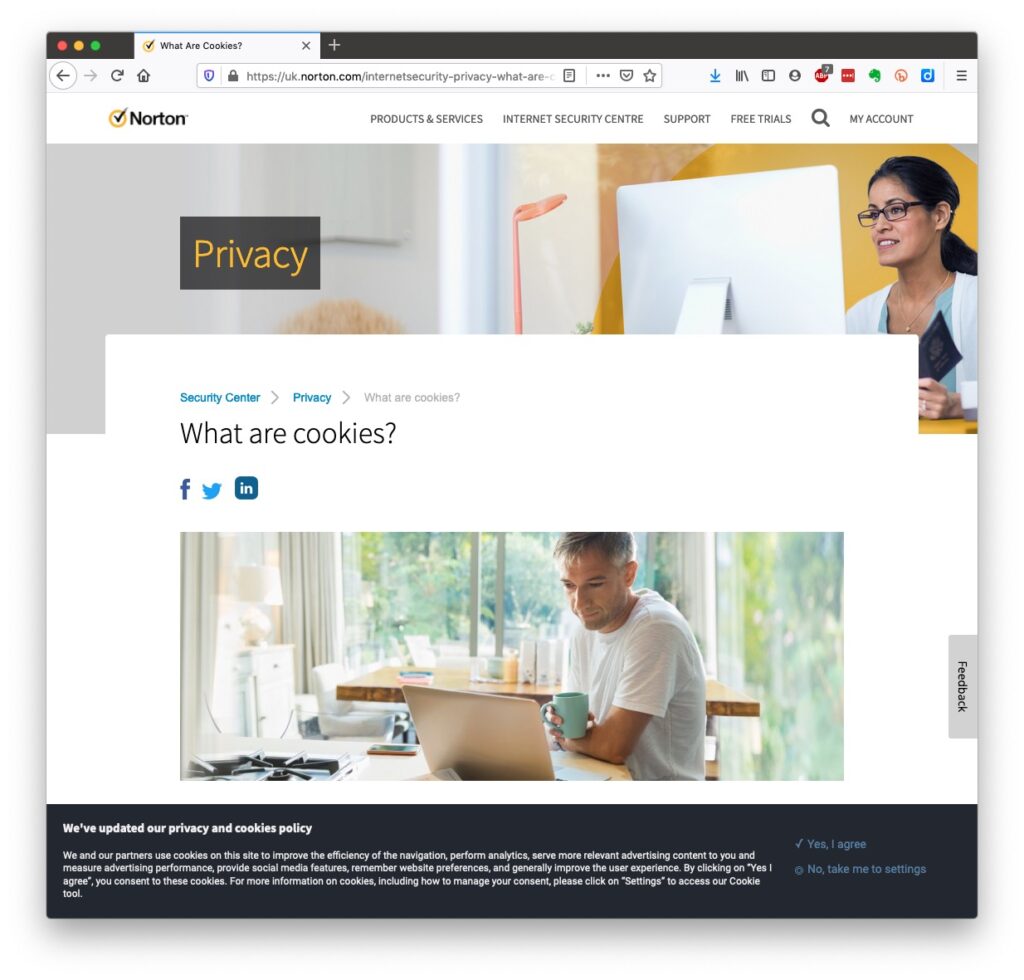
Sometimes you may click on a link and have been asked whether you wanted to accept cookies – what exactly are they, and what do they do. This article from Norton explains what they do quite well …
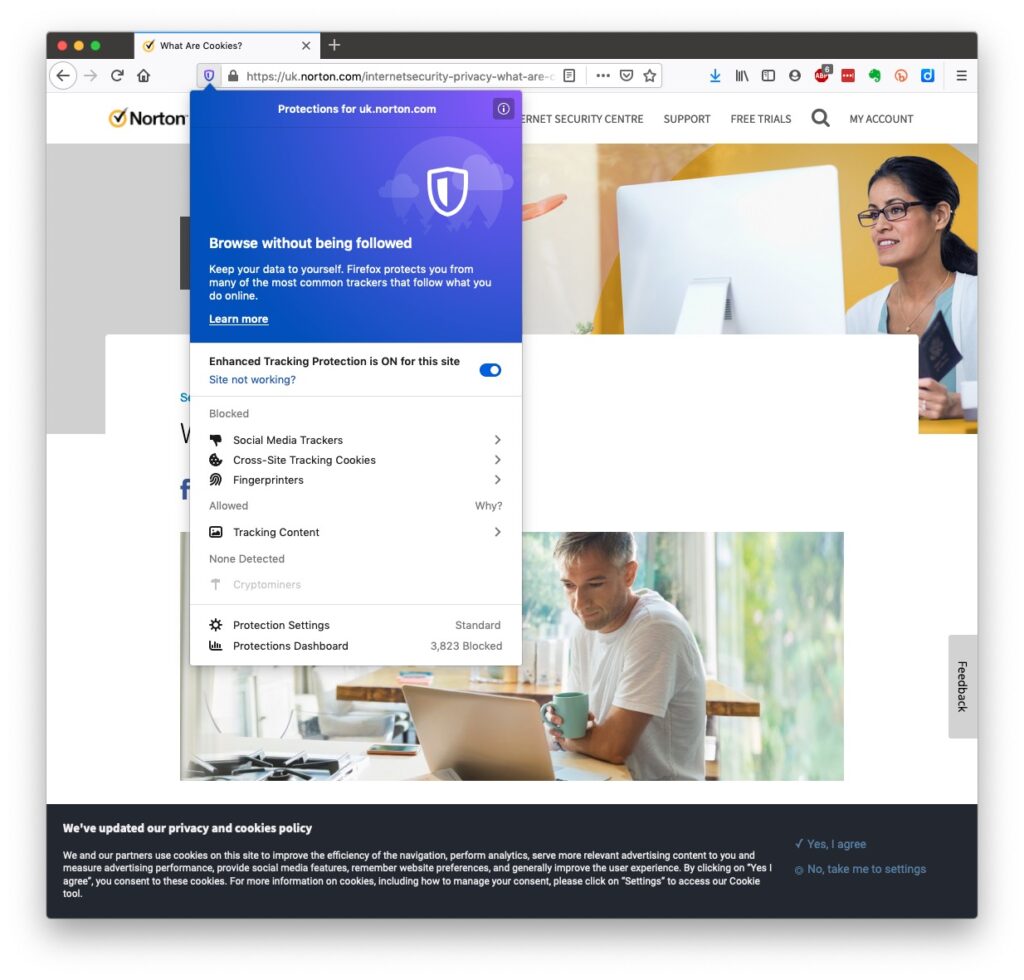
Essentially, they record what you do on a website so that when you return to it some of the settings are remembered and applied. Cookies do however also have a downside in that some can also act to track your activity once you’ve left the site. For that reason, you should disable in your browser the ability of third-parties to glean information from a cookie, and also to prevent them tracking your activity once you’ve left the site. You can at anytime, clear the cookies from your browser, and indeed on some internet browsers set them up to delete cookies when you leave (close the window) the site. If you use Firefox as your browser it will alert you the first time you go to a site that it is using a Fingerprinting cookie itself. For instance from the Norton site above …
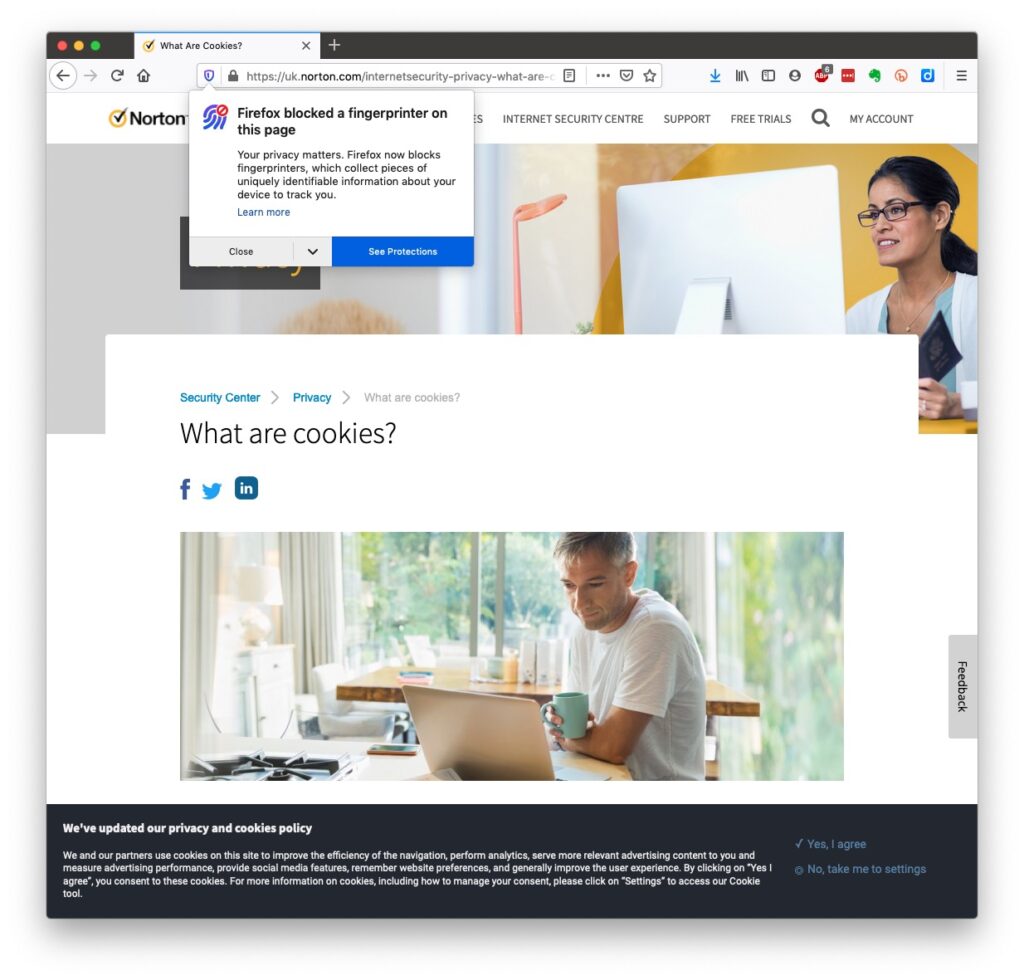
… this is a nice feature, and should not be confused with the rather more annoying GDPR pop-ups which almost force you to accept because you can’t be bothered to check the detail that some sites force you to go to in selecting which cookies you want to store. I often just stop using that site rather than read through the options, or alternatively just click “Accept” and hope for the best!! Not exactly the privacy control that was envisaged when the legislation was enacted!
Another thing you should consider is whether you want adverts to be shown, or not. You might get a request to enable adverts when you visit a site, the answer you supply will be held in a cookie in the browser – that’s how cookies work. Firefox, Brave and Microsoft Edge, by default, block most, if not all, adverts. These are often annoying and having a browser that blocks adverts, or if you use Chrome – using an ad-blocker like AdBlock Plus often makes for a more “pleasurable browsing experience” by limiting the intrusion you might feel upon your privacy.
Which brings us to browsers and search engines
Search engines are not created equal! Whilst Google is often thought to be the same as the internet and is often mistaken to be an internet browser itself, it is in fact just one of a range of possible search engines that you can use to look for information on the internet. It uses a platform called Chromium to display the results of its searches to you through a browser called Chrome. However, other browsers – Microsoft’s Edge, Brave and Opera all use the same underlying Chromium technology – the difference being they don’t track what you’re doing “to present the content that most meets your needs” (Google’s philosophy) and in some cases (eg Brave) they can actually prevent tracking of your browsing history. I use Safari – which on Apple is my default browser choice, but otherwise I would use either Brave or Firefox as my internet browser.
So what safe and private search engine could you use as an alternative to Google. I use DuckDuckGo …
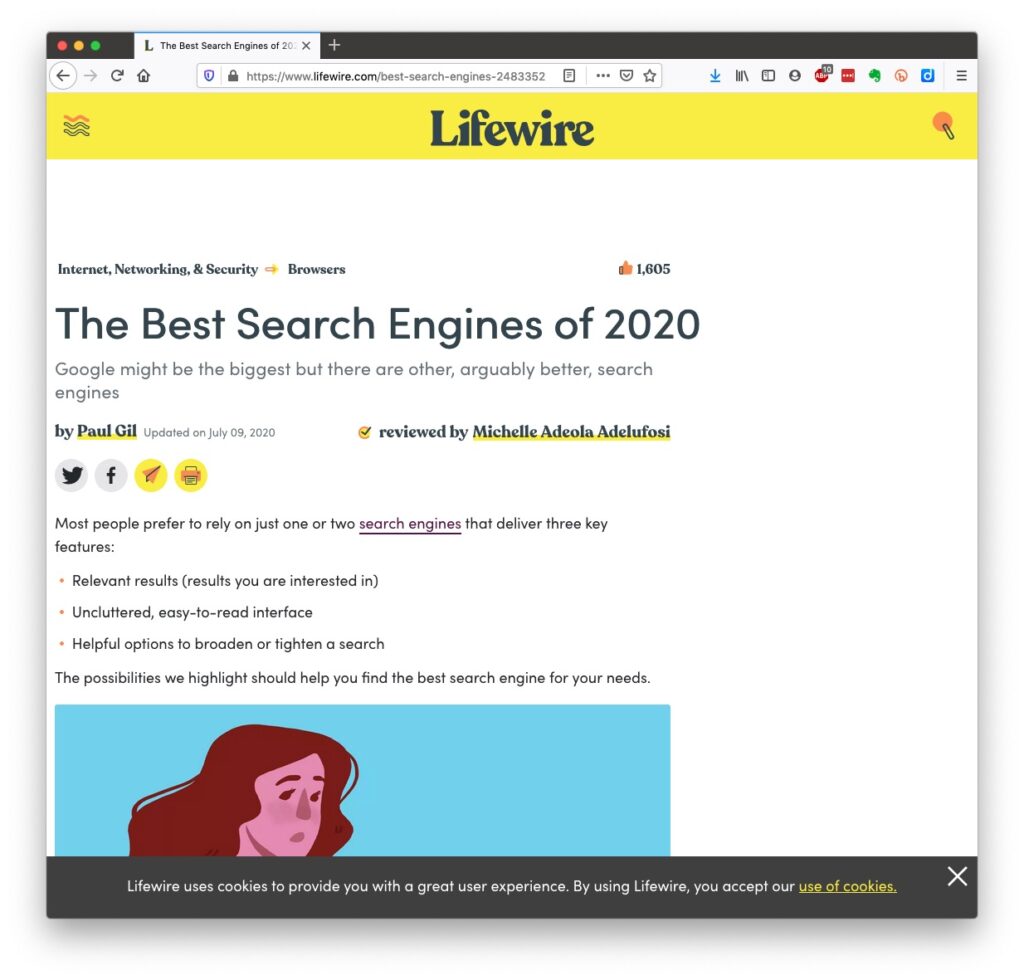
… but others I could have used might have been Ecosia, Bing, Yahoo or another one you might choose from this article or the list of other articles at the end of it …
There are many specialist search engines (as explained in the above article) that can give you much better, and more targeted results than a broad-spectrum Google search with the priority of results returned by relevance, not payment received by Google.
Finally, no discussion of Privacy can ignore Social Media and Facebook in particular. These applications, if left to their own default settings, are effectively personal information mining engines. They grab what information they can from you, and sell it on to whoever is willing to pay for it; or are indeed the platform for data mining, vis the Cambridge Analytica affair.
Recent enforcement of data privacy legislation by the EU on Meta has resulted in them being hit with massive fines for breaches of GDPR law by Facebook, Instagram and WhatsApp.
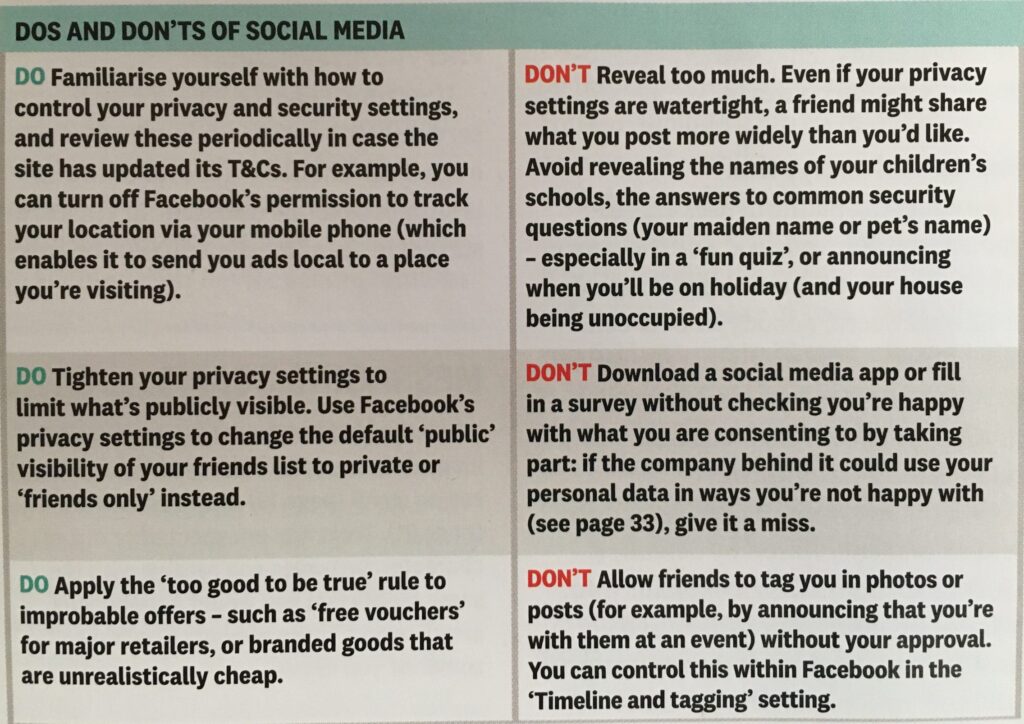
Online retailers are not exempt from this and Amazon for instance has a wonderful record of your browsing history! Are you sure you know what it’s doing with that information? So look at this table taken from a recent Which? supplement – Staying Secure in a Digital World – and just check whether you need to change your settings if you use any Social Media apps …
So that’s Privacy dealt with.
Should you be frightened?
The take away message I want you to have is Frightened – no; cautious – yes!
Online banking is very secure – a recent survey in Which? produced the following scores …
… plus you are protected and most of the banks are increasingly opting to adopt an online and mobile guarantee to refund you where you’ve been the innocent victim of a fraud. Here for instance is Barclay’s “Online and Mobile Banking Guarantee.”
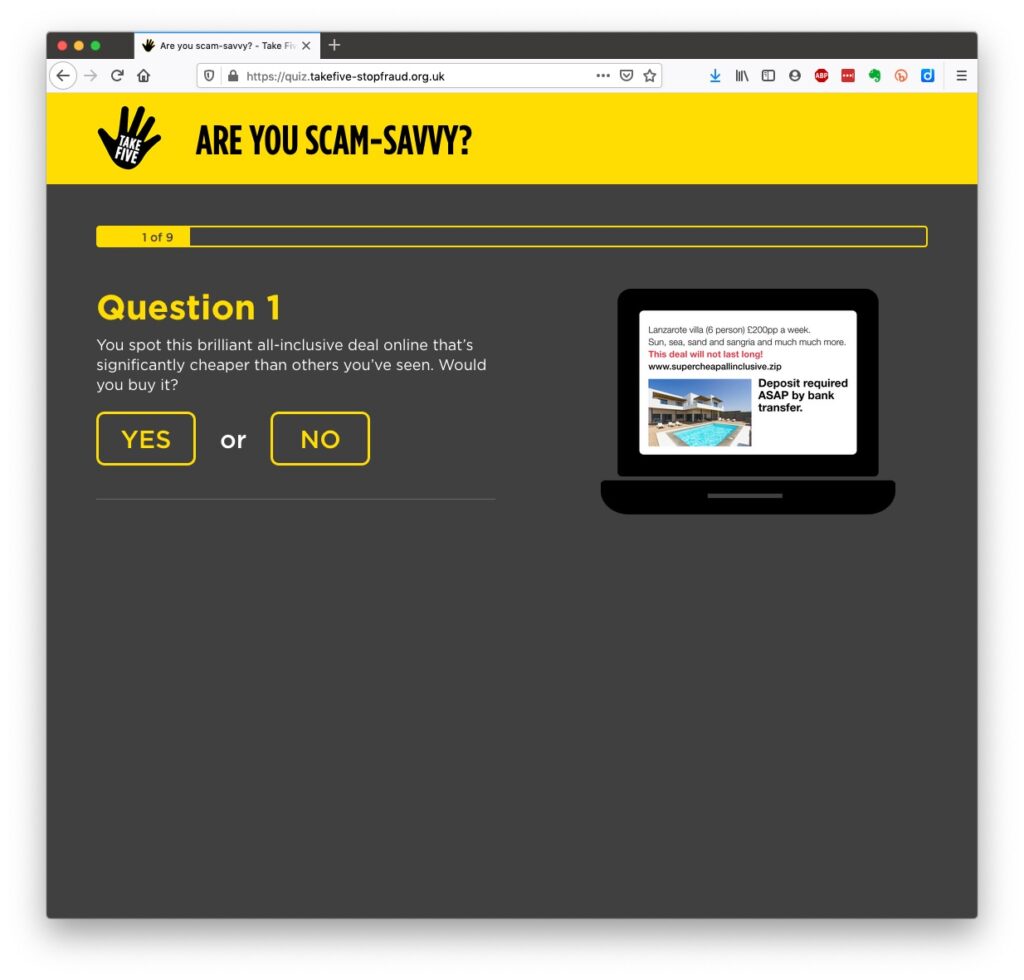
They really don’t want to shell out money, so they are trying to educate us to be wise to scams. So let’s take a scam test …
Banks are also often supplying software free (or at reduced cost) for you to install to protect your machine, to protect you from fraud – and of course themselves from having to pay out! I was recently offered a piece of software called Malwarebytes by the NatWest and although I have an Apple Mac computer which are well known to be relatively secure from Viruses, Spyware, Trojans and other malware, I installed it. I was pleased to note that I didn’t have any malware on the machine.
Surprisingly you might think … it’s safer to use the mobile app on your phone, or tablet to do online banking and retail purchases than a web browser. This is because the app on the mobile device has to be verified by Google for Android (Google Play Store) or Apple for iOS/iPadOS (Apple Store). Whereas a browser could be infected, or compromised with malware. [That’s something I’ve learnt whilst preparing this post!!!]
When you’re out and about and NEED to do an online transaction from your mobile – use cellular rather than WiFi. The latter can be really open to “sniffers”. [I must admit I try to avoid doing online transactions when away from a domestic network.]
Alternatively consider buying and installing Virtual Private Network (VPN) software, such as NordNet so that you can use the free public WiFi in a public area.
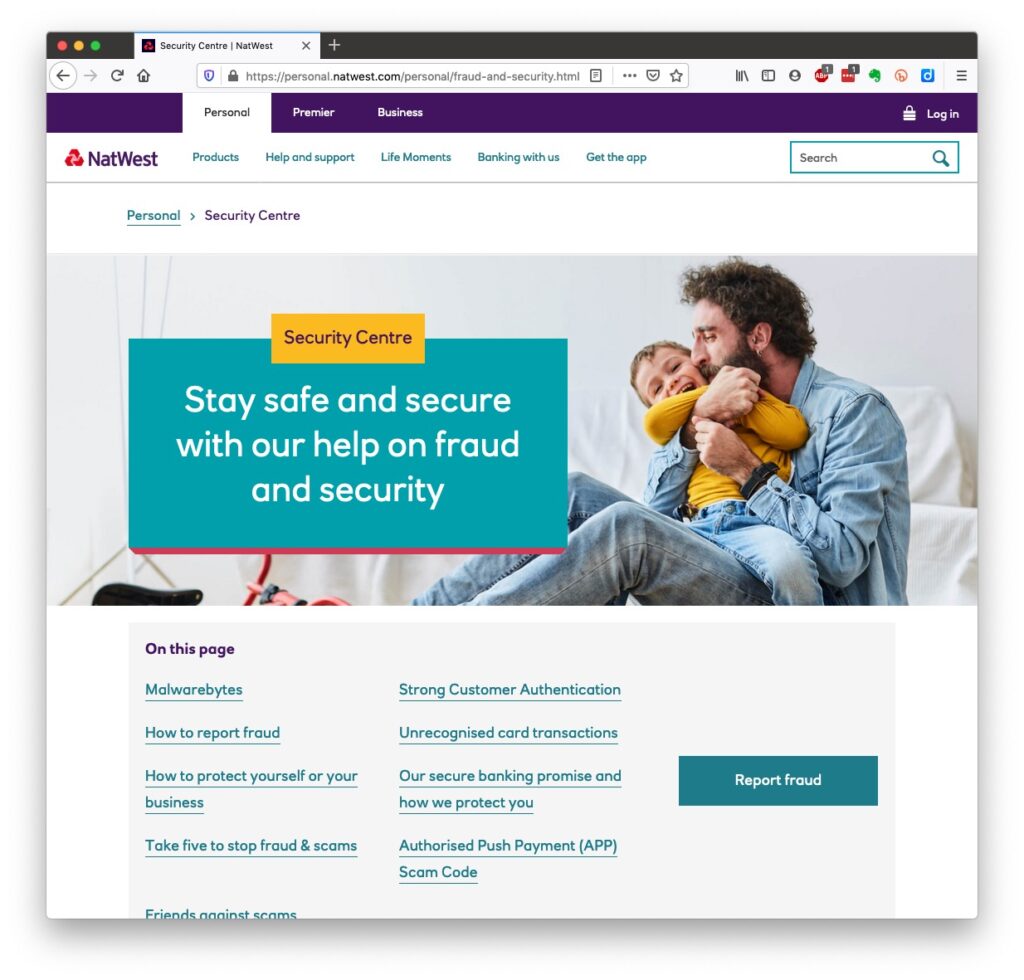
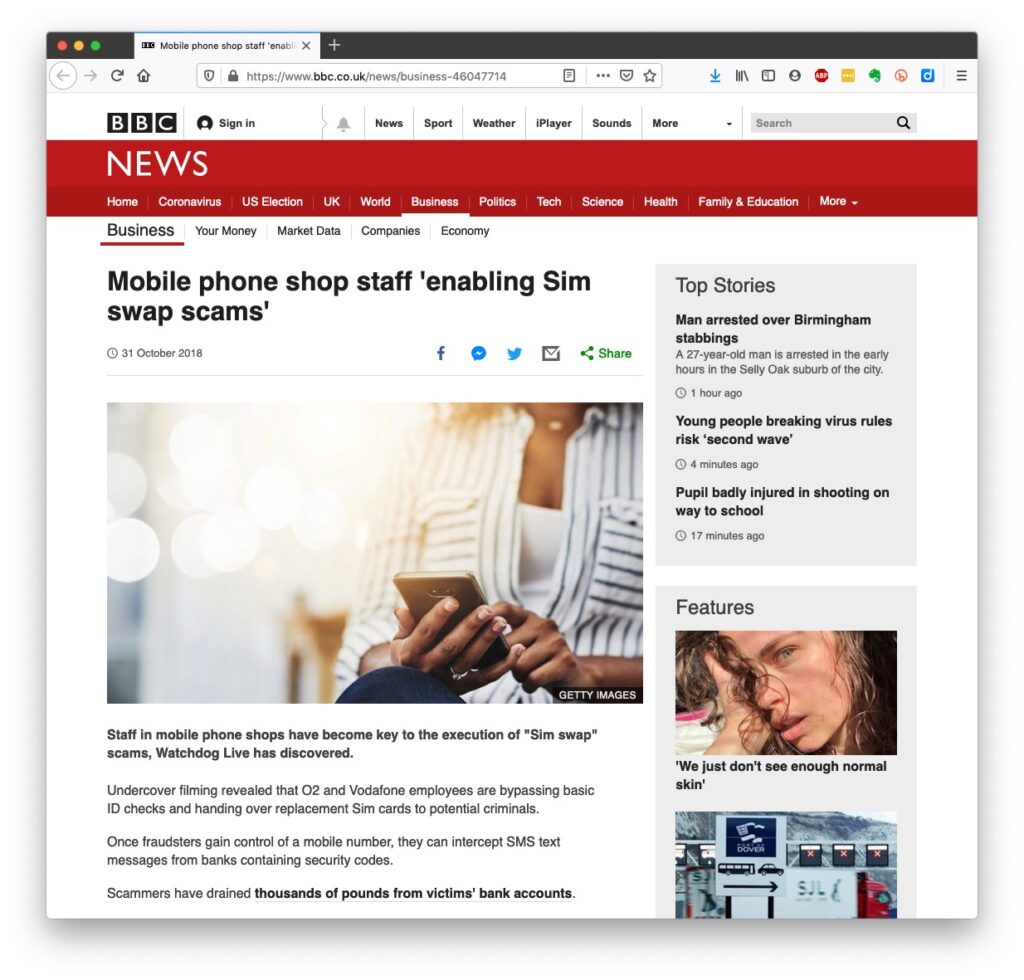
You can find out a whole lot about the range of scams at the NatWest’s Security Centre.
However the most scary scam I’ve been made aware of is one that befell a member of my family when they were distracted sufficiently to become the victim of SIM swapping.
I’ve discussed this with you before and you can read the updated post here.
I also covered this issue in another post which involved stealing a phone, to obtain access to your identity and commit fraud, and we covered the even more disturbing theft of a credit card with the complicity of the US Postal service to obtain a SIM in a recent meeting as well.
What should you do to protect yourself?
Some of these pieces of advice are really quite straightforward, but some require some intervention by yourselves.
Keep your operating software up to date. This is particularly true if you’re a Windows user, and even more true if you are still running an older version of Windows than Windows 10. If you’re using Windows XP, Windows Vista or even Windows 7 you should seriously consider disconnecting your machine from the internet because even if you’ve got anti-malware software running this is probably not protecting you against the latest threats.
Install anti-malware, or anti-virus software, particularly if you’re a Windows user. Don’t pay more than you need to. Windows Defender from Microsoft is Free and for our demographic relatively undemanding and unsophisticated users, more than sufficient. Keep it up-to-date as well! [As I said previously, your bank might be offering free software as well.]
Keep the software you use regularly up to date as well. Consider removing any software from your machine that you don’t use – this is because software vulnerabilities are discovered sometimes quite a while after the software was first released. It will also save you disc space!
Be cautious over installing extensions into your browser. These are often extremely useful and valuable tools, ie password managers, Dropbox, note taking, Google Back up and Sync, but if you don’t get them from the official sources then you might be importing vulnerabilities, eg spyware and trojans to your system.
Very seriously consider logging-out from social media and other retail sites when you’ve finished using them, especially Facebook, you just don’t know what tracking and logging of what you do, even where you are, if you leave yourself logged in on a mobile device.
Free software is both a boon and a curse. Only download open source software from a reputable site such as Softpedia, and never try and get proprietary software for free. Read this article about Free download sites if you want to know more.
Remember the golden rule 1 – if it seems too good to be true, it probably is, so steer clear!
Remember the golden rule 2 – don’t speak to strangers (an oldie but goldie that one); in other words if you don’t know where an email has come from – ignore it; if the website address looks a little strange – do an internet search on the company or organisation to check if the address you’re looking at is a spoof of the proper one.
Have more than one email address. Use one as your personal address, then use other ones that you can “throw away”when you need to register to a website, but you’re unlikely ever to go back to it again. Or have an email address (UserID) specifically for online purchases. Splitting things like this reduces the risk of you being the victim of fraud.
Seriously consider using an email service that is NOT connected to your Internet Service Provider (ISP). If you decide to change your ISP, and you should review them periodically, then you will have real problems if your email address is linked to their service!
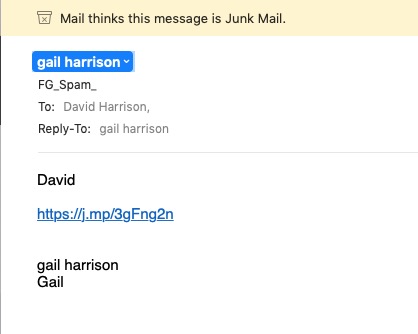
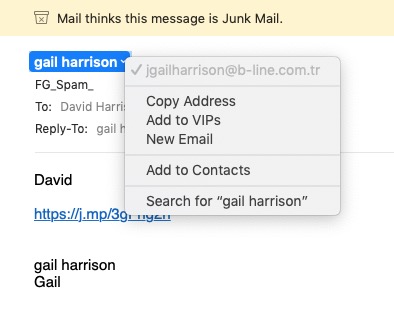
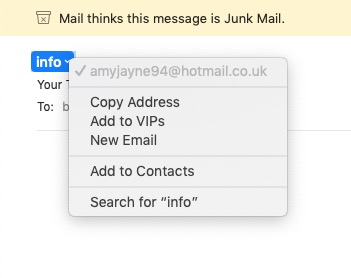
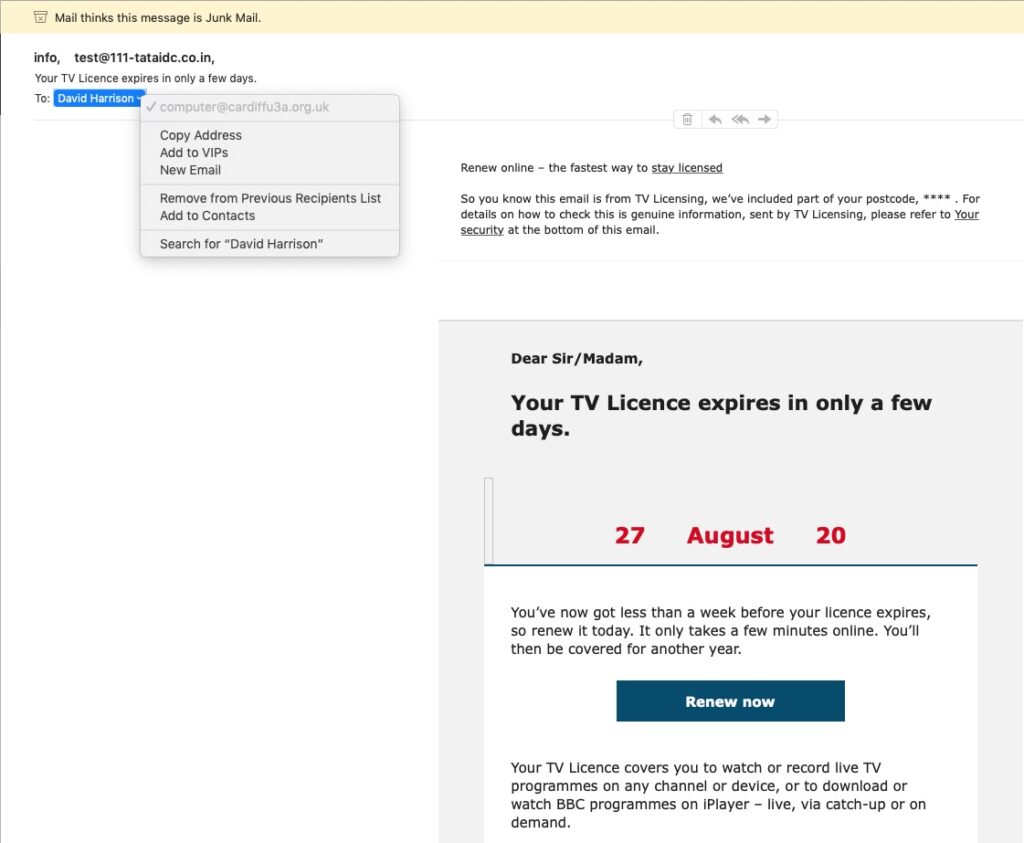
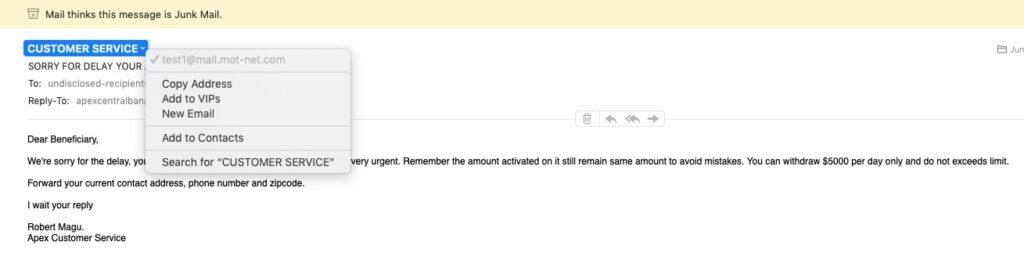
You’ve got Spam filters running? Of course you have – but you better check! Probably your ISP, or email provider (eg Gmail, Yahoo, Microsoft Outlook or Hotmail) is filtering out what it thinks is spam, but occasionally some gets through. If that’s the case then you can always look at the real sender of your message. Take a look at the examples below …
You can also apply filters to divert incoming email into different folders in your email system. That reduces the amount of Junk that you need to review. [I’ve also advocated using the “native” email application for your device rather than rely on the web-based service the email provider has. Thus on a Windows device – use Windows Mail (or Outlook); on a Mac use Mail. You can then easily synchronise your email between devices from multiple email accounts. Tidy!]
So we come to Passwords …
… this is the point at which you need to consider intervention and changing your behaviour! You might also need to do a fair bit of work, but it’s worth it if you want to have a secure internet experience.
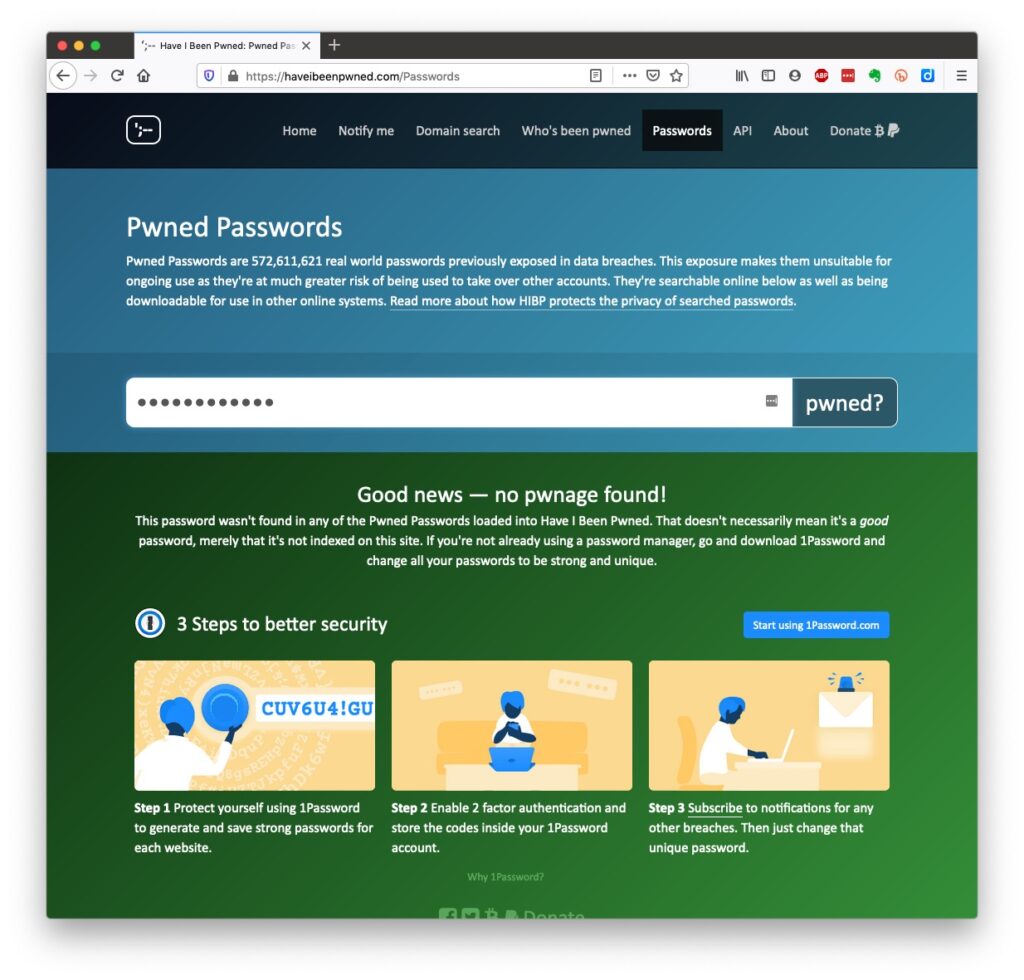
Let’s just see what using an insecure Password can lay yourself open to. Type in the word Password, or ABC123 from the link above – frightening eh!?
The most common password I use – and I know I shouldn’t reuse the same password, but I am human – has not been discovered on any pwned site. Phew!
What about the combination of your email address with your password – has that been “pwned” (ie stolen through a data breach)? Try typing your email address into the link above.
Oh no! I’ve been pwned … but it was a long time ago and I’ve changed my password many times since then!Ah! That’s better – my “throwaway” email and passwords are “safe”!
And if you want to see a list of which websites have been breached, it’s alarmingly long!
So … use a unique password for everywhere you sign on. There’s lots of tricks to achieve this; some of which I wrote about in a post quite a long time ago …
… but the real change of behaviour is to use a Password Manager – again I wrote about this a little while ago and linked it to using Two Factor Authentication, which is also covered in the same post …
Password managers
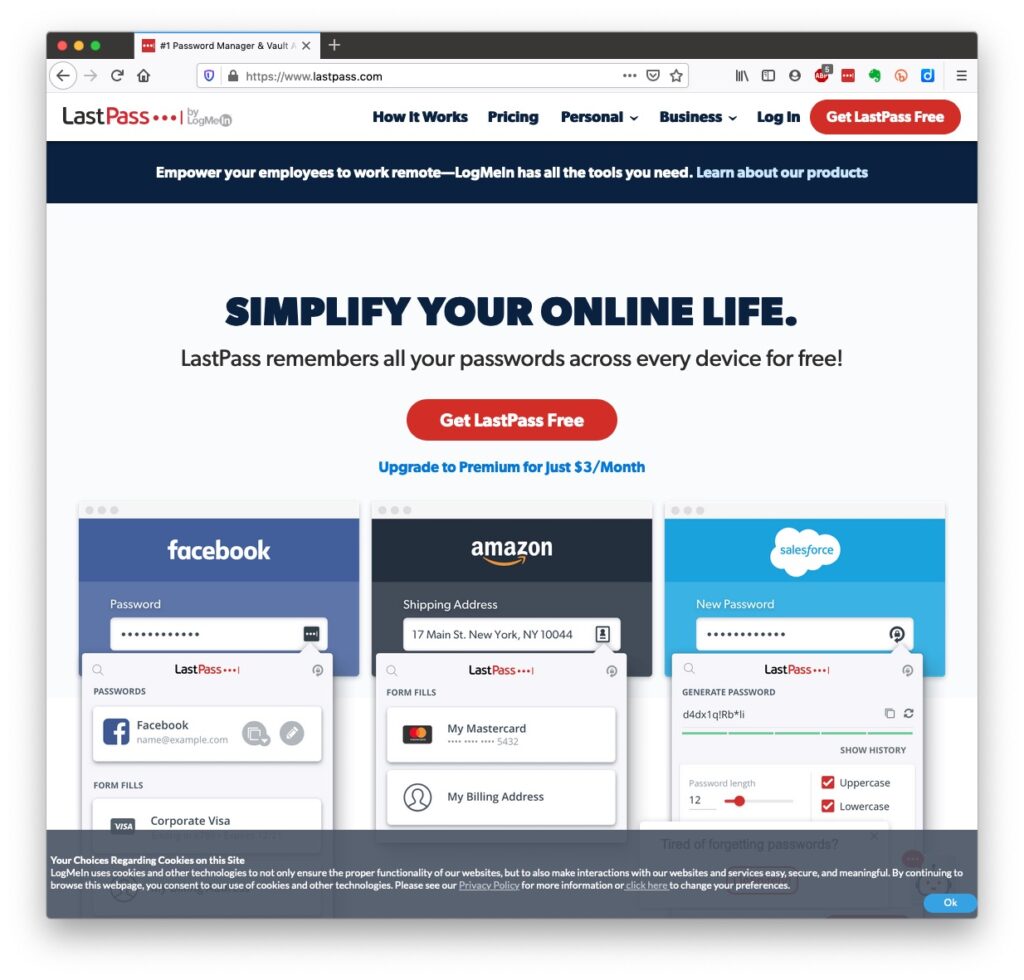
I still use LastPass, but as a back-up and archive of my old passwords. I now use Keychain as I only have Apple devices (as do most of my family, and so it makes sense to use a system that is linked to the hardware I use. Other common password managers are Dashlane and 1Password. Please make up your own minds after reading some Reviews and seriously consider using one.
An authoritative article on using Password Managers is provided by the National Cyber Security Research Centre. They also give an opinion on whether you should use the browser offered option to save your passwords.
However … the future is Passkeys
The major tech companies – Microsoft, Google and Apple amongst them, have been working in alliance on a project called FIDO that will mean the combination of UserID and Password can be consigned to the waste basket. This article explains what they are, and what it means for us really well. Although Apple stole a lead, announcing their implementation a year ago, Google has now launched it’s implementation, and this article describes how to set them up on your Google account. Microsoft also allow a password-less way forward, but I’m not clear on how to set it up – not being a M$ user.
On Apple – here’s how you set up Passkeys on your iPhone, iPad and Mac. Another reason why I chose to move from LastPass to Keychain.
Whilst if you’re a 1Password user, you can combine your legacy use of a Password Manager with Passkeys, and these will also work much better together on your iPhone. Watch out for an announcement shortly!
[NB It is possible to move between password managers, ie from LastPass to 1Password.]
And that’s about it for this year. We can look forward to much more about Passkeys in the coming 12 months; much more about GDPR and how the UK government’s online security legislation is reviewed (and hopefully revised) before implementation; much more about “big tech” and corporations re-acting to whether they are responsible for content, or are just a platform providing a service, rather than a publisher. Interesting times!
These may not be available in your Public Library, hopefully that isn’t the case.
… but these are available … Which? webpages – Scams & older people
I seriously do recommend signing up for the Which? Scam Alert Service – sign up for an email alert – and I seriously recommend you NOT broadcasting other people’s warnings to you about scams; they could be old, they could be inaccurate, they could be scams in themselves.
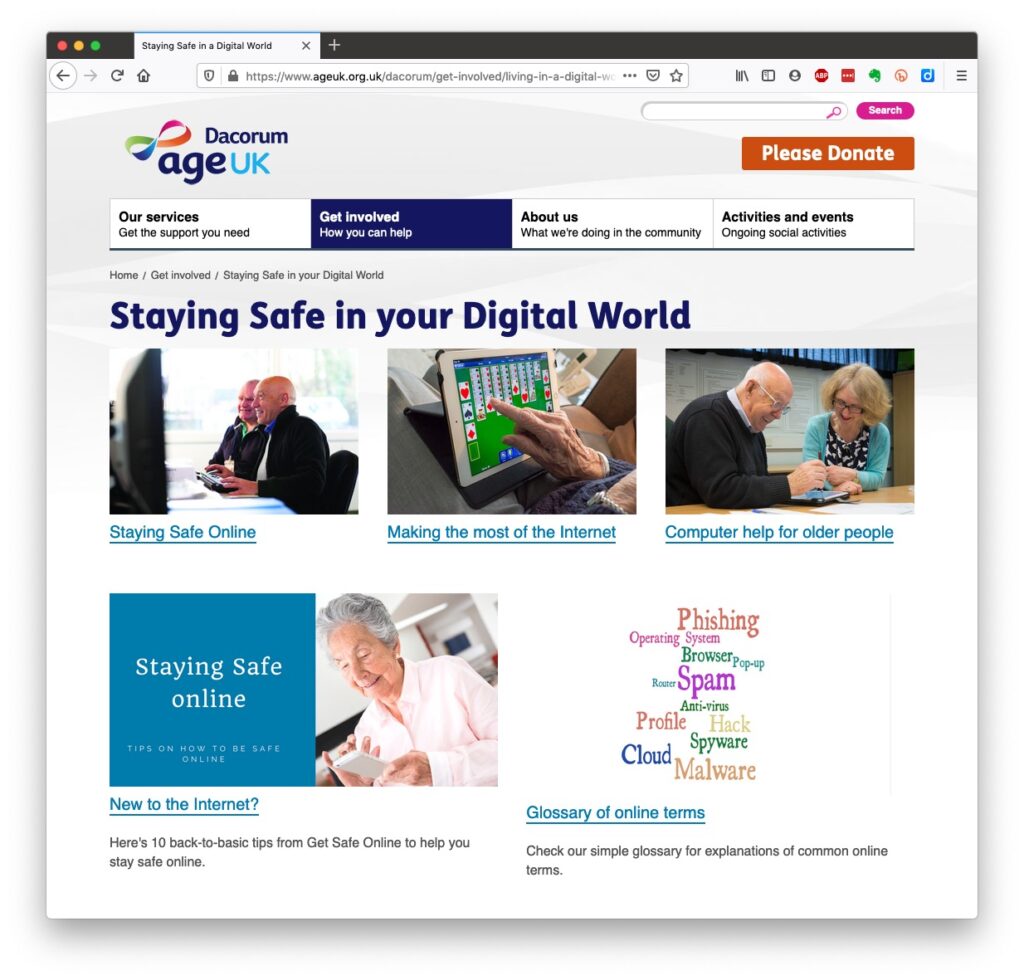
Look on the Age UK webpages – Staying safe in your digital world and specifically How to stay safe online
Your bank will undoubtedly have Internet Security webpages. Mine has a Security Centre web presence and particularly they provide a number of Fraud Guides
I could give a million references to changing your privacy settings on Social Media, but here are a couple relating to Facebook, perhaps the most challenging service of the lot.
First – what Facebook unchallenged will want to get from you. You are able to disable (prevent) all or some of these … Sign up for Facebook – this is not sign-up site, it’s just one to educate you on the privacy you might give up without realising before you sign up (but of course you can run the checklist at any time); then How to change settings on Facebook and finally Securing Facebook: Keep your data safe with these privacy settings.
I’ve written before about how it might be wise to look at subscription services rather than rely on free services and back in October 2020 I wrote a piece about the distinctions between Open Source and “free” software in general. Now it’s time to pick (and update) my winners in a number of categories. They will have to work on multiple platforms as well – PC (Windows), Mac (MacOS and Linux, and hopefully on smartphones and tablets as well. I will stake my reputation on the fact that if you download any of these pieces from the links I provide that it will be safe, and reliable.
Office software – word processing, spreadsheets and slide presentation. Here there are two close contenders but I’ll tip towards the true Open Source offering which is LibreOffice. At one time I used to recommend OpenOffice as an alternative to Microsoft Office, but the better file formats supported in LibreOffice tips the balance in their direction. Here’s a review of LibreOffice – a brilliant piece of Donationware. The runner-up would be the Google suite of applications (Docs, Sheets and Slides), but they’re not truly free … are they? Alternatively, recognising the competition of Google, Microsoft has made Office 365 Online freely available to be used with OneDrive.
Desktop publishing – you might like to look at Scribus; I have no experience of using it but here’s a review.
Media Player – there’s really only one player in this category. It’s VLC Media Player. It runs on really old hardware too, and supports almost every media format – here’s a review.
Photo editor – if you don’t want to shell out on Adobe software (Photoshop and Lightroom) or Paintshop Pro, or others, then again there’s only really one leader in this class. It’s Gimp. Here’s a review. There’s plentiful documentation and videos on using Gimp available on YouTube too. If it looks too complicated for you then Paint.net, or the new Google Photos (yes I know I said it wasn’t truly free) would be worth looking at.
Video editor – one that I’ve begun to “get into” recently has been Shotcut. I can truly say that once you’ve got over the shock of so many panels and options, and have spent a little while reading the good documentation and watching a few YouTube tutorials, that this is a little gem. Here’s a review. If you want to change video formats, then take a look at Handbrake – it’s saved my life a few times; a brilliant piece of software that changes one format of video to another, and also allows you to copy non-copyright protected DVDs to MP4 (for instance).
Audio editor – this is one that Jim’s recently been using and one that I’ve relied on a few times too. It’s Audacity. A clean multi-panelled window that’s reasonably intuitive I felt. If you want to edit audio tracks, change their format, or create a playlist, give it a try. Here’s a review.
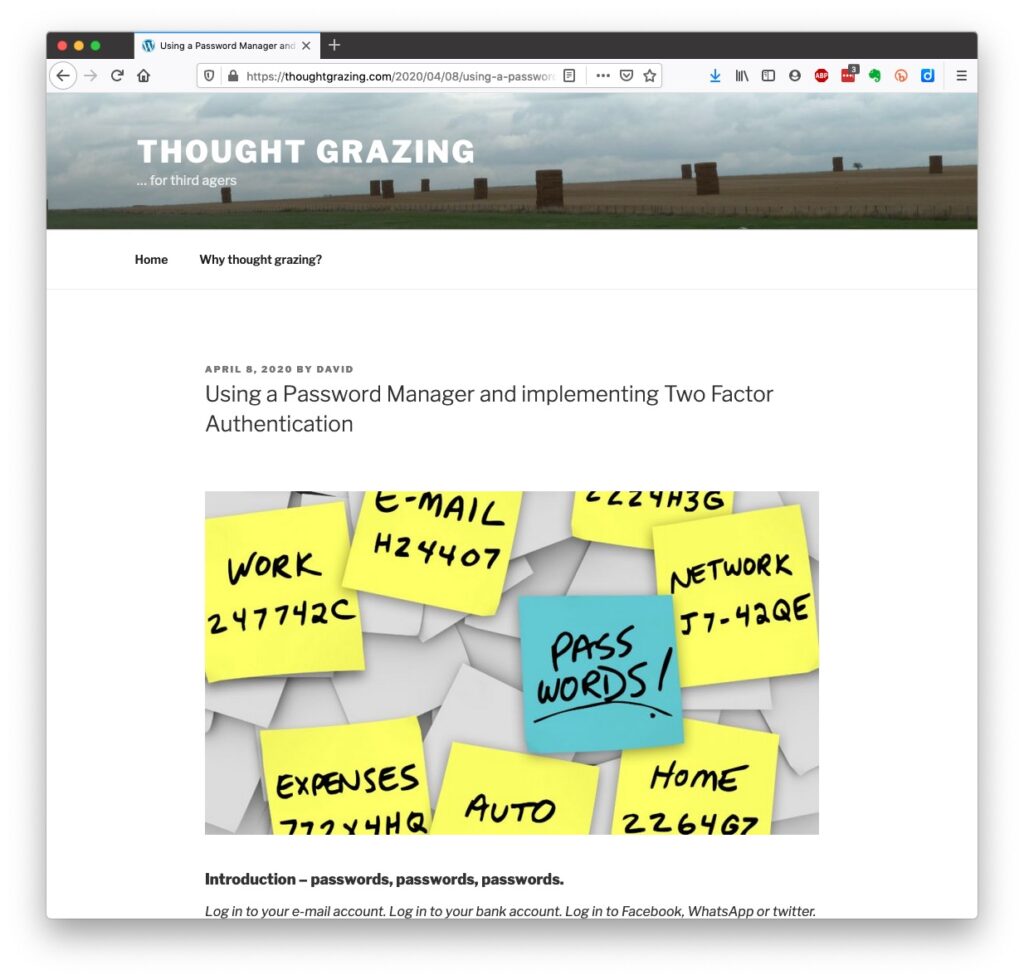
Password Manager – I’ve gone on about the importance to consider using a password manager as a way of allowing you to “remember” different passwords without resorting to yellow stickers, or notebooks. In a crowded field of freeware contenders I go with the one I used to use – LastPass – here’s a review, but you you might easily choose an alternative, eg the freemium 1Password or the open source KeePass. [NB I’m now using Apple’s Keychain as I only have Apple kit. I still have a LastPass as a legacy repository for quick checks, and you can migrate out of LastPass to Keychain, or any other password manager.]
Anti-virus – no real recommendation but the freemium possibility is Avast. If I was a Windows user, I’d rely on Windows Defender. As I’m a Mac user I’ve installed Malwarebytes – supplied by my bank – but it’s never recorded a virus, or any malware. [Fingers crossed.]
Email client – if you’ve got Outlook, use the Microsoft client (or app); if you’ve got a Mac, use the Mail app; if you solely use Gmail, use a Google client (or app); BUT if you want to try something different and Open Source why not look at Thunderbird. It’s from the Mozilla Foundation (where the Firefox browser comes from) and it’s multi-platform and multi-email system supporting. Here’s a review of it. [Health warning: I have used it in the past, but not using it now as I am so immersed in the Apple ecosystem, but if I wasn’t, I’d be seriously looking at using it.]
Group Messaging – it used to be WhatsApp, but now it’s Signal which is Open Source, and Donationware. I give a small monthly donation to support.
Web browsers – both a difficult and easy one. It has to be either Firefox, or Brave in my book. I can’t distinguish between them. I like them both, but I suppose I still just tip towards Brave because it’s more like Chrome (unsurprisingly).
Search engines – again, for me, a relatively easy one to pick; it’s DuckDuckGo. Don’t just Google It – DuckDuckGo It. It should be available as a choice on “all good browsers”. If it’s not – change your browser, or add it to the list offered by your browser.
Web-design, blogging and the rest – for me, no competition – it’s WordPress. You’ll need to shell-out to buy a domain (eg thoughtgrazing.org), but after that you can use wordpress.com to commit your thoughts to the internet. WordPress will offer to host your website for an annual fee, but the use of the software is free. If you want to take it further you can find a hosting company, move your domain there (or purchase it there) and install wordpress.org and have access to the vast number of plugins that are available to tailor your website to just the way you want it. Many of these plugins are free, or are made available as freemium software.
Miscellaneous
an AdBlocker – go for the freemium AdBlock Plus (look out for similar sounding ones, and avoid them).
Note-taking – it used to be EverNote for me, but now I’m recommending either Microsoft’s OneNote coupled with OneDrive (if you’re a Windows user) and the greatly improved Apple Notes (if you’re a Mac/iOS user).
RSS Reader to scrape and archive content from websites I follow – it’s Feedly. I subscribe to their premium service.
Bookmarking – I used to use diigo, but now find that with the improved functionality in browsers and the integration with the cloud that it’s best to use your browser capability.
For offline reading I find Pocket a wonderful resource which I subscribe to as a premium service as I do Flipboard, from which I curate magazines which you can share – and I do!. [NB I’ve updated a post I wrote back in 2018 which describes the workflow I follow EVERY morning to do this – aren’t I boring!!]
Mapping – OpenStreetMap is a great piece of software that I haven’t used in an active sense, but I must investigate! [As an aside, take a look at Open Canal Map, not software but a community initiative that uses other publicly available maps to build upon.]
Google Earth Pro – the often forgotten global visualisation software, available from your browser, or in an app.
Video-conferencing – it used to be Skype, now it’s the freemium Zoom.
Online communities – a replacement for the sadly “sunsetted” Google+ could be Discord. This has achieved some notoriety in recent weeks, but it is also used for more than gaming and sharing secrets.
Media-server – you don’t need to rely on Apple TV, Netflix, Britbox or whatever. You can setup your own media-server with the freemium Plex server, and add your videos, music and images to your own server which you can access anywhere in the world, or just use their Plex player to view their streaming service.
I could go on and on, but that’s enough for the moment. Have fun!
I am a creature of routine. I used to listen to Today on Radio 4 when I got up in the morning; now because I can’t stand the egos being pushed into my ears, I have a much more peaceful and indeed useful start to the day – after I’ve scanned The Guardian and Independent (online subscriptions) and BBC News (online) websites, and checked my email and other social media such as Signal, Discord and Twitter (and possibly in the future Mastodon), I look to see what else is going on in “my world” – my internet of interests.
I’ll start at the beginning and describe what I do to curate my interests, my daily internet workflow. The jumping-off point is to check my RSS Feeds using Feedly. What is an RSS Feed I hear some of you say? Well it’s a signal from a website that new content has been posted on a website. So if there are a number of sites that you are interested in, you can get an alert with an extract of content sent to you by what is called a RSS Feed, which you can then pick-up and read in full using a RSS Reader.
Now the favoured Reader for a long-time was Reader (from Google) – but as is their wont, Google “sunsetted” it. That is they killed it off. Fortunately a really good alternative came to the rescue in Feedly. Every time I come across a website I want to follow, I add it to my Feedly and, as long as a RSS Feed can be setup for the site, I place it in a category for the feed (eg photography, or IT) so that my stream of reading is organised to some level. I could stop there, after all I’ve got the link to the webpage, it’s stored in a category and I can go back and read it anytime I’m online.
However, what if I just want to scan quickly the content, and go back to it later, or what if I want to read it online? That’s where Pocket comes in. If I see an article in Feedly that I want to read later, or even archive, I add it to my Pocket, giving it some tags to help me find it later. I do both of these tasks on a smartphone, or tablet, it’s much easier than using a desktop/laptop as there are good apps which work together for both Feedly and Pocket. Once in Pocket, the article, stripped of everything that is irrelevant, can be read offline – once it’s sync’d the content from the web to your device – or alternatively you can click on a button to read the original article online.
But then occasionally, I come across some content that I want to share more widely – to the Thought grazing community for instance; and for this I use Flipboard which is a really easy way of creating an online magazine; made up of articles (perhaps with comments added) which you found interesting. From my Pocket app, I just click on the Share button and select <Share via …> and chose Flipboard.
On Flipboard I’ve created a couple of “magazines”, so I chose which one I want to “publish” the article to, and perhaps write a comment about the article; and then Post it. That’s all there is to it, but what do you need to do to replicate my workflow and produce something like this …
Curating the web Step 1 – create a Feedly account, and download the app if you’re going to use a smartphone, or tablet Step 2 – select websites you want to get an RSS feed from [see above, or read What is an RSS feed?]Step 3 – check periodically to see what has “popped-up” in your feed reader.
Saving for another day, or for off-line reading (bookmarking+) Step 1 – create a Pocket account, and download the app if you’re going to use a smartphone, or tablet Step 2 – save to Pocket from your browser (perhaps using a browser extension), or from a sharing icon in Feedly Step 3 – tag your articles, and read at your leisure, or when you want to
Creating a magazine to share with others Step 1 – create a Flipboard account, and download the app if you’re going to use a smartphone, or tablet Step 2 – create a Magazine within your Flipboard account, and decide whether to make it Private or Public Step 3 – add articles to your magazine from your Pocket app (as described above) , or from your web browser Good luck!
A short post to highlight an issue that I wasn’t aware of, and now have to be very wary of. Indeed Ian’s comment about whether you need the Google Photos app installed on your iPhone is prescient – you most probably don’t if you’re backing-up photos to your iCloud account. And if you’re backing-up photos to a google account (as described in the earlier post), there are different ways of doing it which means you quite possibly don’t need the Google Photos app on your phone.
Remember, you can always look at the photos stored in the Google cloud from photos.google.com on your Apple phone or tablet – you don’t need the app installed.
So here goes … another learning point. I’ll type it in capitals so that you don’t miss it!
IF YOU DELETE PHOTOS FROM THE GOOGLE PHOTOS APP ON YOUR IPHONE OR IPAD AND IGNORE THE WARNING – THEY WILL BE DELETED FROM ICLOUD AS WELL.
There, I’ve said it. I didn’t realise it, and always shied away from deleting photos in Google Photos because I didn’t really understand what the warning meant. But now I do and obviously that’s not something I want to do, so how do I go about removing photos from the app, and/or from the Google cloud. Read on!
Scary, eh?! Take care when deleting photos from your iPhone
What I’ve researched is well summarised in the following article …
If you want to delete photos from Google Photos – do it on the Google Photos website, not in the app on your iPhone or iPad. If you have synchronisation active, they will then be deleted from the app on your device as well.
If you want to quickly delete all photos from your Google Photos app, just delete the app having first ensured that you’ve switched off Backup and Sync, because if you don’t, when you re-install the app, they will be synchronised back to your iPhone/iPad.
If you don’t need the Google Photos app, uninstall the app, no photos will be deleted from your phone, they will still be in your Camera Roll and will have been stored on iCloud, nothing will be deleted from the Google Photos website either, so you will have to do that deletion from photos.google.com – see Case 1 above.
An unlikely scenario, but one to be aware of – If you turn off iCloud before deleting photos from Google Photos on iPhone, then the photo will be removed from your device and Google Photos. It will stay on iCloud. However, if you enable iCloud again on the same phone, the photo will be removed from it too.
And even more unlikely, but probably unexpected and a potential surprise – Disabling Backup and sync will not have any effect on your iCloud photos as it is just a setting to enable or disable backup service on Google Photos. If you disable it and then delete photos from the Google Photos app on your device, they will be removed from the device as you are technically deleting the device copy on your iPhone/iPad. And once it is deleted, the iCloud copy gets deleted automatically.
Remember. Google Photos in the cloud, and iCloud Photos do NOT work the same way. Apple aims to synchronise all images across all devices with “the master” being held in the cloud. The Google Photos app is just a portal looking into the images on the device, and synchronising (if chosen) those images with ones stored on photos.google.com.
I hope that makes it all perfectly clear 🙂 🙂 🙂
In summary, do not delete photos in Google Photos directly from your iPhone if you have both apps on the device. Use the Google Photos website to remove photos. It is suggested that you should delete a few photos initially. Then, check them in iCloud after some time. If the photos are still there, you can go ahead and delete them in bulk.
Apologies: Sue, Jeanne, Mike, Jenny, Renee, Fred, Yvonne – apologies from me if I’ve forgotten anyone.
I gave an update on Paul – having visited him recently. We all hope that he, and David Hughes might be able to rejoin us in person sometime soon. [We did have a Zoom meeting on the 20th April at which Fred and Renee joined Paul, David and me.]
News: I quickly ran through the recent items I’d highlighted in the Flipboard magazine. These mainly being comments from WhatsApp about the changes to data territory and how they (like Signal) would be forced to exit the UK if the proposed legislation were to go ahead – of course we’d all get VPNs then, wouldn’t we?! Also an item from Jonathan on Windows 11 settings you might chose to change, and a variety of posts from Appleand about OpenAI (ChatGPT and DALL-E). We then also looked at a couple of items that had first appeared in the Signal group – the scamming of a journalist in the US’ credit card – unusual in that involved theft of the card within the US postal service and then working back towards the SIM swap; also the rather scare-mongering advice from Australia about a WiFi scanning device called a “pineapple” which omits to mention that deploying a VPN is a sufficient defence against possible intrusion; and finally the item on voice-cloning which was a bit frightening really. Again however, unless we’ve left a huge amount of our spoken voice on the internet, we should not be too alarmed – but it is amazing what technology can now do. I’ve put details of these on the Forums for you to refer to. We also discussed the reverse phone lookup sites that allow you to see whether a phone call from a number is likely to be a threat, or not – Who called me? and (confusingly, but different) Who called me.
I then quickly referred to the ChatGPT session we’d had previously and again there was a fair amount of comment, and also mentioned that I’d written an article on Google Photos which had been sparked by the group and my realisation that I didn’t fully understand some aspects of the synchronisation process and the difference between iCloud and Google’s cloud storage approaches. [As an update, I’ve subsequently realised there’s more for me to assimilate still, and I’m working on another post on deletion of photos from Google Photos and Apple photos – hopefully that’ll appear very shortly.]
I forgot to mention in the meeting that with the closing-down of the public Thought grazing site, I was now copying (with appropriate edits) some of the posts from this site to Just thoughts – my personal website.
Members raised the following issues (others not mentioned, did not have specific issues):
Jim commented that he’d been trying to get to the bottom of how short videos (called “hot shots” I believe) which enable you (on the Android) to select the best image from a short clip, do not appear to be retained in the cloud after an edit. [Subsequent to the meeting Jim did some more investigation and this, reported on Signal, has been transcribed into a Forum.]
Ian noted that the credit cxard replacement process {ref. US scam above} has changed and the verification process is now much better. It did mean that for some non-IT-savvy older folk, it might now involve a visit to the bank to complete the process.
John continues his learning pathway on Google Photos and using his iPhone. The discussion that followed led me to the realisation that I probably don’t need Google Photos (as an app) on my iPhone, and this in turn led me to consider writing another post (see above).
Ralph reported that he’d been experiencing messages from his ISP (through his WiFi connection) that he wasn’t online – when he most definitely was, or should have been. This quickly rectified itself in a few moments. I ventured the thought that this was the ISP disconnecting the router (employing dynamic IP-addressing) to either save allocation of scarce Cat4 IP-addresses, or alternatively to save bandwidth being allocated for polling the router to see if it was awake, and connected, or not. One way to test both would be to examine the IP-address being allocated to the router, and see if it was changing. With my VM ISP I appear to have a static IP-address – which is great. It never changes. This would allow me to run a server across the internet as the DNS would never change.
Stella had been alarmed by a message that appeared in her email that she felt was trying to make her download something that she hadn’t requested, and didn’t feel she needed. We went over the standard things that one should investigate in situations like this – looking at the URL, seeing if it’s https:// (SSL), and calling back independently from the message. All things we’ll cover again in the forthcoming Security session.
Anne had climbed out of another black hole (her words, not mine) having had a series of problems with a printer, buying a replacement, finding that the printer drivers were probably corrupted, and finding also that she quite probably hadn’t needed a new printer at all. The advice from PC World (imho) had not been good. The standard approach when you have a printer problem is to re-install the printer drivers – NOT install McAffee AV protection and say she had a virus problem!!!
This post is a sequel to the article (see link below) that I wrote in November, and reflects a little more of what I’ve learnt about the crazy world of how Apple Photos and Google Photos interact (or work) with each other. I’m pretty sure it won’t be the last.
This one starts from an observation I made this morning that some recent photos I’d taken with my iPhone and which were in my Photos Library also seemed to have been added to Google Photos on my iPhone (but not my iPad) as well. From the outset let me assure you that this is the normal behaviour. You have to set Google Photos to see all the photos in your local Photos Library {Settings > Google Photos > Allow Google Photos to Access – All Photos} otherwise it can’t work. What you are seeing in Google Photos is the app getting a view of what’s in your Camera Roll on the iPhone/iPad – you haven’t added anything at this stage to the Google Photos app, and more importantly, nothing has been uploaded to Google Photos at photos.google.com.
What I did see however additionally in Google Photos were some edits of recent photos that I’d done in Lightroom which I’d exported to my desktop, and then uploaded to photos.google.com. They could be identified by the little cloud icon on the picture.
It got me to thinking; what is the best way of sending photos from the iPhone/iPad to Google Photos – if I don’t want to sync everything using Google Backup (which as I explained in the previous post, I most certainly don’t want to do as they’ve already been backed up to iCloud). Am I doing it the best way?
Method 1
As above. Share (export) the photo from the iPhone/iPad to a chosen folder in the Files app or Google Drive, and then upload from that folder to Google Photos from photos.google.com (see also Method 3).
Upload from iPhone/iPad Camera Roll to a variety of services
Method 2
This is by far the easiest, and simplest way (and believe it or not I didn’t know you could do this). Open the Google Photos app on the iPhone, select a photo and then select the Upload (cloud) icon …
… the photo will be backed up to Google Photos (and photos.google.com); you will also note (see above) that once you’ve done that the Upload (cloud) icon is removed from the screen. In the Google Photos app, the photo will now have a cloud icon. Simple, eh!
Method 3
You can do the process in reverse. Go to photos.google.com and select Upload. You will be offered a variety of options …
An upload to photos.google.com from the Safari browser on my iPad
Choose (in this case) Tablet – as I was using my iPad to get the screenshots and you will get this dialogue …
Choose Google Drive and you will get this dialogue …
Choosing an image you’ve uploaded to Google Drive
Choose Copy from other services and you will get these options …
From which you can see (something else that I’ve learnt), that you can copy from iCloud – where all my iPhone photos are backed-up – to Google Photos. Duh!!!
What a wonderful (and complicated) world Google Photos is, and think – this was just prompted by me seeing photos in the Google Photos app I knew I hadn’t “uploaded” to Google Photos. Rest assured, they’re just views into the Apple Photos Library, not copies!!!
It all started (for me at least) with this powerful poem sent to me by my son – who lives in Australia …
Do not go gentle into that good land,
Australia, wild and free,
Where golden sun sets on red sands,
And the ocean's voice speaks to me.
Rage, rage against the dying light,
Of the day, and the endless night,
Where the stars shine bright like fireflies,
And the kookaburra's laugh takes flight.
Do not go gentle into that good land,
Where the heat beats down like a drum,
Where the droughts are long and the wildfires grand,
And the rains come in a monsoon.
But do not despair, for in this land,
There is beauty in every plight,
The eucalyptus stands tall and grand,
And the kangaroo bounds with might.
Do not go gentle into that good land,
Australia, wild and free,
Where the spirit of the land is strong,
And the people, a part of its destiny.
Wow, I thought. I never knew he had it in him (being IT-geekish like me). It sounds like it could have been written by Dylan Thomas. He then let on …
“I asked ChatGPT to write a poem in the style of Dylan Thomas about Australia :)”.
That was on January 24th. It opened my eyes to something that was sweeping the internet and which had obviously been developing for many months, if not years. Of course I’d known about the concept of artificial intelligence, but had always imagined it in the context of driverless cars; sensors in rooms (or of any variety); clever games that you might play against, etc. etc. But here was something that seemed – on the surface at least – to have a sentient presence. Something that could think, interpret what you were saying (or writing) and return a result that – on the surface at least – made sense.
He then followed up his magnum opus with this …
Verse 1:
The world spins round, the money flows
The rich get richer, the poor get woes
We're told that we need more and more
To keep up with the Joneses, we're a corporate whore
Chorus:
Materialism, capitalism,
A never-ending cycle of greed and madness
We're slaves to the system, we're just cogs in the wheel
Materialism, capitalism, it's not real
Verse 2:
We're told that happiness comes with a price
We buy and we buy, but it's never enough
We're in a rat race, we're running on a treadmill
We're chasing the dream, but it's just a mirage
Chorus:
Materialism, capitalism,
A never-ending cycle of greed and madness
We're slaves to the system, we're just cogs in the wheel
Materialism, capitalism, it's not real
Bridge:
We're drowning in consumerism, we're losing our souls
We're sacrificing our humanity for shiny gold
We're living in a world of illusion, a world of lies
We're sacrificing our future for temporary highs
Outro:
Materialism, capitalism,
A never-ending cycle of greed and madness
We're slaves to the system, we're just cogs in the wheel
Materialism, capitalism, it's not real.
Double wow!! I knew this time it wasn’t him doing the thinking, but what was the question that the tool he was using had been asked, and what was the song based on? Any guesses?
He replied …
“The song by the way? I asked for a song about materialism and capitalism in the style of Pink Floyd.”
“How do you do that?” … I of course asked …
import socket
# Target IP address
ip = "192.168.1.1"
# Open a text file for writing the results
with open("port_scan_results.txt", "w") as f:
# Scan for open TCP ports
for port in range(1, 65535):
sock = socket.socket(socket.AF_INET, socket.SOCK_STREAM)
sock.settimeout(5)
result = sock.connect_ex((ip, port))
if result == 0:
f.write("TCP Port {}: Open\n".format(port))
sock.close()
# Scan for open UDP ports
for port in range(1, 65535):
sock = socket.socket(socket.AF_INET, socket.SOCK_DGRAM)
sock.settimeout(5)
result = sock.connect_ex((ip, port))
if result == 0:
f.write("UDP Port {}: Open\n".format(port))
sock.close()
“There you go. This is a port scanner application.” was his reply. [Please don’t ask me to explain what this is, and how to do it. As I said, he’s an IT person, and far more experienced, qualified and up-to-date than me!!]
To add insult to injury my daughter then added (this was on Signal by the way in our Family chat group) … “Do you not use ChatGPT yet dad ? I could spot the author of that poem a mile off …”
I realised then it was time for me to wake-up! I conclude this detailing of our early morning convo (see, I know the lingo) with this … informing me of not just ChatGPT but OpenAI – the platform it’s based upon.
The journey starts here
I jump forward now to our meeting on 23rd February when I must have mentioned something about ChatGPT. I was delighted that Ian sent me this link to a site that aims to provide you with an itinerary for you to use when visiting a place you don’t know – it’s called Roam Around. Take the time to play with it.
In between, I’d started my journey of discovery, helped a lot by the plethora of articles that had begun to emerge since the New Year.
Microsoft were building OpenAI into their search engine Bing; Google were following suit with their equivalent – Bard. [Where do they get the idea for these names from? Then again where did they get the name Google from?] Here’s a set of links to articles that I read during this time …
February 2nd – How 5G and AI will work together – a techie article illustrating how the explosion of machine learning, with highly advanced technology will benefit us all in the future. I recommend a quick scan through this article to show how the two technologies working together will improve the performance of a lot of our existing systems.
For further links that may not appear in the list of references above, please pop-over to Thought grazing on Flipboard to see articles – some of the recent ones are about ChatGPT, OpenAI that I’ve curated there.
And so to demonstrations
The starting point has to be ChatGPT, and to use it to ask questions that will get hopefully meaningful answers, or to craft lovely poetry, songs etc. you need to create an account with OpenAI – the company that has created ChatGPT and other AI-like applications. So click on this link, and create an account from the Signup button. After you’ve provided an email address and Password, you will need to go to your email to Verify that email address and then you’re invited to provide some personal information, including a mobile phone number, to which a verification 2FA code will be sent to. Once you’ve done that you will be presented with some information screens …
… and you’re good to go …
… so give it a go.
We then tried out Roam Around for which you don’t need an account. It appears to not provide completely up-to-date information, but it’s an interesting application …
Finally, using the account we’d already setup with OpenAI, we tried DALL-E, using first the request to create an image of Cardiff Bay at sunrise …
… a surrealistic set of images which were only surpassed when we added the text “with Donald Duck present”. I leave other possibilities t to your imagination …
I also was able to use Bing in Microsoft Edge – the featured image at the top of this article shows this – to create similar images. Unlike Google/Bard; the Preview for Bing with OpenAI seems to be more readily available. You may need to download the most recent version of Edge though, and it most probably helps if you’ve got an existing Microsoft account (which I did have).
Swinging in to early action after yesterday, I started the meeting with updates and news.
I asked if there were any questions follow-up to the Snapseed / Google Photos session and post – there are links in this to earlier posts on Google Photos and it’s my intention to check and update these (if necessary) as soon as possible. Ian raised an issue at this point about whether you can use Snapseed without the photos being on Google Photos. I hope I clarified that Snapseed is really only a smart device app, that it was possible to load it onto Windows and MacOS, but I wasn’t advocating it. If you’ve got an Android device, you will be editing an image already in Google Photos on your device – it may as well be sync’d to photos.google.com as well (I can’t check that). If you’ve got an iOS/iPadOS device you can load an image from the Apple Photos app (iOS) into Snapseed and then after edits – Export to Google Drive. The same is true for iPadOS. You can then from photos.google.com on your laptop/desktop Import photos from Google Drive into Google Photos which will then be viewable in the app on your device..
On a separate question Ian asked whether Google Photos and Apple Photos have duplicate images on an iPhone. I was pretty sure (and have just checked) that if you go into the Google Photos app and go to delete images, that the ones that will be deleted will be ones that are on iCloud (ie they are in Apple Photos). Google Photos on iOS only stores cached images from Google cloud storage. What is more if you look at Google Photos on your iOS AND iPadOS device (if you have both, and they have identical backup settings for Google Photos), the contents of Google Photos will be different, whilst those for Apple Photos will be the same. Thus I can say conclusively that they are not duplicated. The amount of storage used by Google Photos on your iOS/iPadOS device can be limited as is shown in these screenshots …
[NB I don’t advocate this as a method of deleting images from Apple iCloud storage]
… the images that will appear in the Google Photos app will be the ones in Apple Photos on your device. They will not be in Google cloud storage unless you a) have chosen to manually upload them (see above), or b) have switched-on back-up and sync – which for Apple users I don’t recommend as you’ll then have two copies of the image on both Google cloud storage and iCloud. I hope this clarifies things, you might also find this link of interest.
I then talked about the re-structuring of Forums and Topics on the website and showed where I’d put “The apps I use …”. I invited members to add apps they were interested in under the most appropriate Topic or Category within a Topic. I added that I would move contributions around if necessary, so no one should feel intimidated about adding their favourite app (or URL). I highlighted the recent Topic on VPNs in the Network issues > Internet security Forum.
Using the opportunity to discover further the resources on the website, I showed the Guides menu page, and displayed the PDF documents available on the page from BDM Publications. These are to be thought of as “try before you buy” only and I would refer you to the new publisher – Papercut Publications – to see the complete range of paper-based guides that you can buy.
Then I quickly ran through the latest additions to our Flipboard magazine, curated by Jonathan, Paul and myself. I highlighted the growth in interest in AI and ChatGPT in particular and indicated that I was going to use this as the basis for the next meeting, with the use of Passkeys and 2FA being handled in the following presentation-style meeting on 27th April. I did dwell upon the graphical representation of Pink Floyd’s most frequently paid songs, and that sparked some lively discussion.
Finally, in my “introduction” I requested members to look at the page for the Computer Group on the Cardiff U3A website and make suggestions as to changes and additions that could be made – Jim suggested adding some of the photos that he’d taken, which I’ll certainly take on board. I also reminded members of the deadline for reduced membership subscription (March 28th). This created quite a lot of discussion about the payment method and the interface with PayPal. Ted requested that anyone having difficulties could help the Committee by taking screen shots. I referred members to this page that Jim had posted on how to take screen prints. We also quickly looked at the notes from the last meeting and were pleased to record that Anne had resolved her problem with VirginMedia whereby Prime Video was not linking to her Panasonic TV – pressing Yes, when it should be No, is not intuitive, is it?
Matters raised by members followed.
John S commented that he was encountering more and more bad website design – we concurred with that; he was also having problem with streaming services fro Sky. This I felt (unlike the advice I’d given to John M at the previous meeting about buffering) was due to contention for shared bandwidth from the ISP. All you can do is to take repeated Speedtest readings (preferably from a laptop connected by ethernet cable to the router) at different times of the day to see just how much the speed falls from the contracted level they should be attempting to deliver. It will be rare that they can reliably offer what is declared to be a maximum, all the time, but the counterpoint is that they should be close to delivering that speed in non-peak times. It’s a matter for the ISP to resolve; not one to be passed onto OpenReach to raise a query.
Kate was delighted to be able to report that she’d done a seamless transfer of everything from an old iPhone to a new one. A good news story which I can support from my recent migration as well. Very easy and painless.
Don reported a strange problem with his printer which seemed not to be working from a cable (ethernet) connection after Win11 upgrade but which was working from WiFi (and his phone). I suggested that upgrading the Printer Driver might be a solution, but it’s difficult to diagnose remotely.
Ted requested (as mentioned above) that anyone having PayPal/U3A/subscription issues should try and take a screenshot and send it to him (or me, to send on to him).
John M asked what was incognito mode in a browser and how to get out of it. I said that was a very good question and would research and report back in the Forums.
Ralph had had a problem loading Google weather, but had solved it by stopping the download which had appeared to freeze (sic), and then re-starting it. I said I’d often experienced a similar occurrence when downloading from “live sites” – sites that were constantly changing, ones getting information from databases – and I usually just closed the Tab and then re-opened a new tab. This would clear the cache and start from scratch.
Anne was continuing her journey of discovery with Win11 (a not too pleasurable experience it would appear) and questioned where mail identified as Junk was going to, as it didn’t appear to be moving out of her Inbox. Jim felt this was probably a mail client issue, rather than Win11, but no one was able to definitively come up with an answer.
And with that rather unsatisfactory answer the meeting closed.