Apologies from Christine, Jo & Paul, Jeanne & Mick, Kate, Jen, Jonathan, David Hughes, Tony and Sianed.
We welcome Iain King to his first meeting.
Thanks to Phil for his presentation on his visit to Bletchley Park.
I then went through a variety of “interesting” items that I’d put up on Flipboard, highlighting the ones on Meta introducing a possible subscription model to avoid sanctions from the EU on data sharing; an article from Which? on printer ink; useful things you can do with a smart plug; and how to keep your iPhone safe from thieves.
Before we adjourned to The Gatekeeper for a Christmas drink, we had a quick run round the room for issues.
Anne still hadn’t found a solution to her McAfee in Spanish language problem.
Phil enquired how many members had a screen protector on their phones, and whether they had been installed in-store, or not. Quite a few members had and they reported that they worked well.
Sheila requested a reminder on how SIM Locks worked and were set up. I’ll add a Topic to the Hardware and Software Forum.
Jenny reported that she was shortly leaving Cardiff to return to London, but was having email problems that we talked through with her.
Iain enquired whether he (as a Windows 10) should upgrade to Windows 11, or not. I said that it was a very personal decision, that might be guided by how old his PC was. As Microsoft are still supporting that version of Windows it was not as pressing as earlier versions.
Yvonne had an iPhone 8 – I think she was enquiring whether it should now be replaced. Well … if you can afford it, yes; otherwise if it’s still doing all you require then, no. But gradually some apps will stop being supported and you’ll need to consider replacing it.
On the Computer Group Zoom call today, Mario advised that his Sony Vaio machine was running slow when connected to the Internet and using Firefox.
The immediate suggestion was to clear the browser cache (Internet History and Cookies) but then it became apparent it was running Windows Vista as well.
Should Mario upgrade his laptop to Windows 10? That depends on the spec. of the machine – let us know Mario and perhaps we can give some advice.
Should the machine be upgraded to Linux rather than Windows 10. It might as well be because there’s no similarity between Vista and Windows 10, so there’s a learning curve anyway and Linux will run much quicker on an older machine AND the default browser on Ubuntu Linux is Firefox anyway.
So here’s a topic which anyone can comment upon and give advice and experience. For me, I think the Linux route is worth exploring. I’ve just “upgraded” an old Dell Inspiron laptop running Vista to Linux and it runs much faster than it did using Vista and it would never have taken Windows 10!
The first thing is, to see if there are any updates available, you go to Settings – Update & Security – Windows Update.
That is worth doing anyway, but I want to tell you about my experience with “Feature update to Windows 10, version 2004”. I started that running yesterday afternoon, and it finally stopped downloading this morning, seventeen hours later. I now have to decide when to install it. I’ll let you know how that goes.
My laptop is seven years old, and I use mobile broadband, so your experience might be different, but still …
I tried to log in to my Windows 10 laptop with a password as usual yesterday, but Microsoft insisted I had to choose a PIN instead. While I resented that at the time, it does in fact speed things up.
Update: Whatever happened when I was asked to choose a PIN, I do now have the option to go back to using a password, should I so wish.
Boot-up Is anyone having any difficulties in connecting to the Thought grazing website? Does anyone want to join the WhatsApp Group but is unsure how to do it? [Note for self … I need to add member to Contacts on my phone, then I can see them in WhatsApp to add them as a member of the Group. Easy when you know how … duh!]
Incidentally Paul has written a post detailing how you can add WhatsApp to a Tablet. Any other ideas? Visits. We agreed visits to the Barclays ‘Maker Space’ which Mario will arrange for us after Chrtistmas, and also a visit to the new BBC Centre after Easter.
Fred has offered to contact Brains and their new brewery at Cardiff Gate for a visit before Christmas. Any update? News and other issues raised Renee asked about opening compressed files in emails on an iPhone. We got some way to solving that one, but agreed to take it onboard as a conversation on the WhatsApp Group. I must confess to having forgotten about this – apologies.
I’ve switched-off Office 2011 already as my default app on my Mac for opening Microsoft Office files, it’s now the Apple programs that open these for me, but you could chose Open Office, Libre Office or Google Docs – they are all compatible with the .docx, and .xlsx file formats. I covered how to change the default apps to open a document for MacOS last time, here (taken from this link) are the instructions for doing the same in Windows 10 …
You may need to deal with different types of files on daily use. Windows 10 uses certain program to open certain types of files by default. For example, a text file with .txt extension will always open in a Notepad app. It works fine in general scenario for quickly accessing the file content. However, it will be annoying to open HTML file in Edge when you want to open it in Google Chrome installed on your PC. Good thing is that you can choose the default program to open a file type in Windows. In addition, you can also setup default applications like browsers for general use and select the different programs on need basis.
To skip to the place where you can assign a file extension to an application – scroll down to Point 4. Also note (as in Point 7) that Windows allows you to do things in more than one way – choose whichever one you feel comfortable with. Finally Point 9 allows you to change the default app to open the file by right-clicking on the filename – much the same way as I described for the Mac.
1. Setup Default Apps in Windows 10
Windows 10 offers a dedicated setting to setup default apps to open different files. Press “Win + I” shortcut keys and open Windows Settings app and click on the “Apps” option.
Windows App Settings
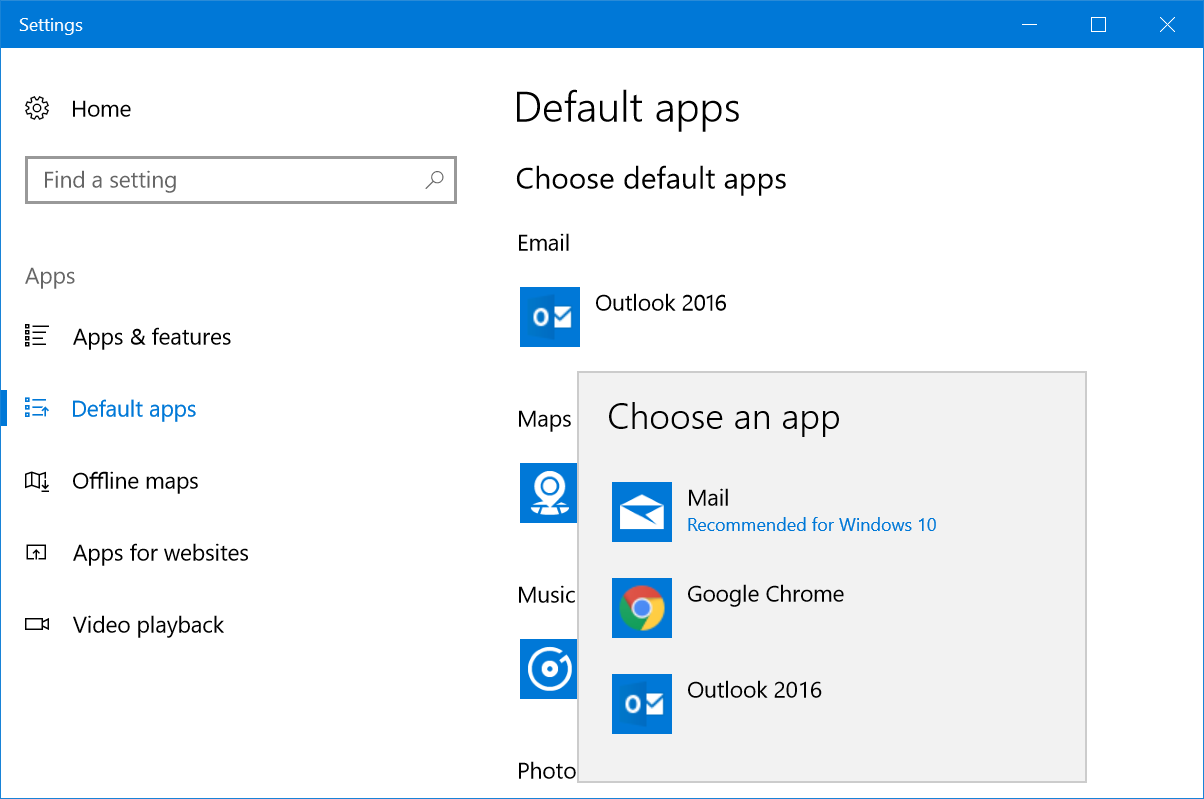
Select “Default apps” from the left sidebar. You will see a list of default apps assigned to open email, music, photos and web browser.
Windows Default Apps Settings
Click on any of the app to change the default settings. For example, you will see that Outlook 2016 has been set here as a default email client, however Windows 10 recommends using the Mail app. You can change the default Email client from Outlook 2016 to the Mail app. Click on Outlook 2016 and a popup will show all available email apps on your computer.
Change Default Email App
Select Mail app from the list and the default Email app will change immediately. However, should you want to change the web browser to Chrome or Firefox, Windows will push will push you to confirm the switch.
2. Additional Default Apps Settings
Scroll down the settings page to view additional options:
Reset
Assign app for file types
Setup apps for protocols
Set defaults by app
Resetting and Other Default Apps Settings
3. Resetting Default Apps to Recommended Apps
Windows 10 recommends apps like Mail for opening emails. If you have changed the default app settings, click on “Reset” button. This will help you to reset back the recommended apps as your default apps.
4. Choose Apps for File Types
Scroll down to the bottom of “Default apps” settings screen and click on the link on “Choose default apps by file type”. You will see a huge list of file extensions and the application you can use to open each file type. For example, the default app to open .pdf file is Microsoft Edge. However, you can click on it and change to Adobe Acrobat Reader.
Choose Apps for File Types
You will see a “Choose a default” option when there are no default apps available. This is a useful option to check and assign apps or install required apps to open a file type. So that each time you do not need to select or search the app.
5. Choose Default Apps by Protocol
Windows use many protocols to open specific files. For example, it uses the popular HTTP or HTTPS whenever you access a HTML webpages. It uses MailTo protocol for opening email messages. So, click on “Choose default apps by protocol” link if you want to set up default apps according to individual protocols. You can assign a new app when there are no default apps setup or change the existing app by clicking on it and choosing a new one.
Setup Apps Based on Protocols
6. Set Defaults by App
Windows 10 also allows you to set defaults for any installed apps on your computer. This feature is useful when you have multiple apps installed on your PC which can open same file types. Simple example is Firefox or Chrome which open HTML pages similar to Edge. Click on the “Set defaults by app” link and choose the app from the list. You will see a “Manage” button and click on it.
Set Defaults by Apps
On the next screen, you can assign the app to open supported file types.
File Types Supported by App
7. Accessing Default Apps from Control Panel
The problem with Windows operating system is that you can the same settings in different ways. Being said that, you could also access “Default apps” settings from Control Panel.
Paste this path on the address bar “Control Panel\Programs\Default Programs” and hit enter key.
You will see the “Default Programs” settings open from Control Panel like below.
Click on one of the following links to go the “Default apps” settings as explained above.
Set your default programs
Associate a file type or protocol with a program
Set program access and computer defaults
Default Programs Settings from Control Panel
8. Choosing Default App When Opening File
It is difficult to setup the default programs in advance when you do not have a specific file on your PC. For example, someone can send you a YAML file in email and Windows 10 will not have any default apps associated to open .yaml files.
When you have a file with no associated apps, Windows 10 will show the file with plain white file icon. Double click on the file and choose “Try an app on this PC”.
Double Click to Choose App
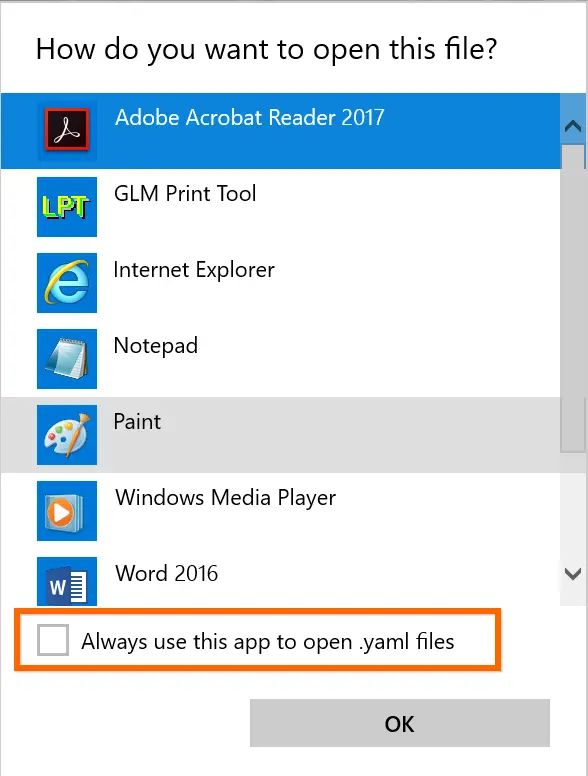
You will see list of apps that can help to open the file. Choose an app and click “OK” to open the file.
If you always want to open the file type with the selected app, then check the option “Always use this option to open .xxxx files”. Now that Windows will change, the file icon with the selected app icon file and always open the file with the selected apps. In this way, you can setup default apps when you received an unknown file type.
Set Default Apps
9. Change Default Apps
Finally, you may have another scenario wrongly assigned a default app to a file type. Do not worry! Right click on the file and you will see different content menu depending on the file type.
Click on “Open with…” option.
Select “More apps”.
Choose the app you want to change.
You can use different app for one time or check “Always use this app… option to change the default app.
Change Default App
On certain apps, the “Open with” menu will also show additional sub-menu items like below.
Sub Menu for Open With Option
Choose one of the available apps to open the file for one time with that app.
Select “Search the Store” to open Windows Store and search relevant apps to open the file.
Click “Choose another app” and choose another app that is not showing in the list. You can use the app for one time and set it as a default app.
Conclusion
Many times, you will receive unknown files from your family or friends and you cannot open in Windows 10 default apps. Now you know how to setup default apps, change them and search in Windows Store for relevant apps. Good luck!
Opening a Compressed File on a Smartphone
Renee asked about opening compressed files on her iPhone. I found this article which seems quite comprehensive. It would appear that a general purpose way of doing things is first to “share” the file to the Files application which is present on iOS after v.7. You can then do much more with the file once you’ve moved it out of the email application. A similar post for Android is to be found from this link. Email messages going to Spam Folder which are legitimate
This is a problematic issue. Generally there may be a number of levels of Spam intervention, and it’s not easy always to detect where the incorrect marking is going on.
Here is a lengthy article that explains how email is marked as Junk, and how to prevent it happening (so-called Whitelisting) for a number of eMail providers …
When emails arrive from <insert email address here> they may periodically be placed in your junk or spam folder by your email software. The information below describes how to stop this from happening. The first step is usually to add <insert email address here> to your email contact list (so they know you know us). Why you may be having email problems
The volume of Spam/Junk Mail/Bulk Mail nowadays has caused ALL email providers to now “filter” your emails on their mail server before they deliver them to you.
Unfortunately these filters tend to be very aggressive and are far from fool-proof. It’s very common for email filters to mistake legitimate email for junk, so emails you wanted to receive don’t get delivered to you. How your email providers filtering system works
When someone sends you an email, first it arrives at your email providers mail server (eg btinternet.com, yahoo.com, hotmail.com, gmail.com, msn.com, etc) where their system filters it by scanning it and checking it for spam.
If the email looks legitimate, they then deliver it to your inbox.
But, if their filter suspects that the email might be junk, it places it in a separate “junk” folder where you can go in later and review it to decide for yourself if you want to receive it or not.
Below are listed instructions on how to whitelist(allow emails) for the most popular types of email programs. For email programs that run on your PC as well (i.e. Outlook Express or Microsoft Outlook), please see your programs help files for adding <insert email address here> to your address book. Whitelist Instructions (alphabetically) BTInternet BT Internet is now operated by Yahoo Mail – you can go to this link to discover more if you still have your email service from BT supplied by Yahoo and follow the link “Marking emails as Spam or Not Spam”. If your service is supplied by their “new” email service – BT Mail – use this link. Follow the Safe Senders link on this page. Gmail For Gmail, I would suggest you look at this link. Hotmail:
Click the Options link, on the main menu tabs, then Safe List. Type: <insert email address here>in your Safe List. If you see a message that should not be in your Junk Mail folder, click ‘This is not Junk Mail’ to avoid having e-mail from the same source sent to the Junk Mail folder in the future. Apple iCloud
Manage junk mail using the online iCloud service. Click here for guidance
Mozilla Thunderbird
Initially, the automatic junk mail detection for incoming messages might not be very accurate and you should check your Junk folder to see whether e-mail has been mistakenly detected as junk. To prevent this from happening in the future, you need to mark e-mail as not junk. Do this by right-clicking on the e-mail and choose “Mark -< As Not Junk”. Outlook 2003
If the Junk E-Mail Filter accidentally catches mail from <insert email address here>, you can simply add the From address, <insert email address here>, to the Safe Senders list, and no future e-mail from this address will be inspected by the filter.
Yahoo! Mail (also BTInternet)
Yahoo mail filters work on the Yahoo server so your emails are filtered by YahooBEFORE they arrive at your computers email program. So, if you’ve looked inside the spam folder on your computer and the email is not there, it is most probably sitting in your other spam folder on the Yahoo server:
Open your Yahoo mailbox (http://www.mail.yahoo.com) or BTYahoo mailbox (http://www.bt.yahoo.com).
Click Mail Options.
Click Filters.
Click Add Filter.
In the top row, labelled ‘From header:’ make sure Contains is selected in the pull-down menu. Click in the text box next to that pull-down menu, then enter the address: <insert email address here>
At the bottom, where it says “Move the Message To:” select Inbox from the pull-down menu. Click the Add Filter button again.
If Alert has been filtered to your “bulk” folder, simply open the message and click on the “This is not Spam” link next to the “From” field.
Other providers:
If an obvious option is not available, try moving the message to your ‘inbox’ or forwarding the message to yourself.
If subsequent messages continues to be filtered, call or e-mail your ISP’s technical support and ask how you can be sure to receive all e-mails from <insert email address here>.
If you use a Web mail system or email application not listed above, the instructions for whitelisting our address will depend on the specific email program you are using.
If you access the help files, instruction manual or customer support, there should be instructions on how to do this.
In most cases, just by adding our From address, <insert email address here>, to your address book, safe list, white list or contact list will be sufficient.
Otherwise, the most likely course of action to provide a solution if all else fails is to select one of the emails from <insert email address here> and click on the Not Spam or Not Junk button, if available.
For more information about your mail application, please visit the help section that is associated with your mail application.
Here are some relevant links: An easy guide covering the same ground as above. Virginmeda Email spam settings
If you’re with TalkTalk – there may be a bit of an issue!! Sky’s email is provided by Yahoo! So follow the advice above and mark email as “Not Spam” – hopefully it will learn!
Generally, I recommend using Gmail and ignore the ISP’s email – it’s much easier to switch supplier. If you don’t want to use Gmail, then use Apple’s email or Microsoft’s email – you know they won’t disappear and will be reliable. Mailtrack (for Gmail) to get Reply Receipts
You can get Mailtrack for Gmail (to work in Chrome/Brave) or as an Android app. There isn’t an iOS version currently. After you’ve installed Mailtrack you will get a screen like this when you open Gmail after connecting Mailtrack to a Google Account …
… you can then compose a message …
… and you have the choice of being notified, or not, about the reception of the message. Opening the Sent Folder, you will see this …
… which shows one green tick against the message – it’s been sent, but not read. In the recipient’s Inbox you might see something like this …
… the message hasn’t been opened yet. Once I’ve opened it, the message appears at the bottom of the email that the Sender has been notified of read receipt …
… and returning to the sender’s email Sent Box you can see that the message now has two green ticks indicating read as well as sent …
… I hope this helps. I haven’t found anything similar for the iPhone/iOS but I understand Mailtrack may be working on it.
Gear Guide Has anyone bought, or obtained anything recently they’d like to tell us about?It doesn’t have to be a computer, laptop, tablet or phone – just something that’s digital, ie used a computer processor in some way? Apps Galore
That slot in the meeting where members are encouraged to share their experience (and possibly excitement) at a new app they’ve started using for their smartphone, tablet, laptop or desktop machine. What’s IT all about?
Not this week Making your browser work for you
But first … LastPass. A password manager is an application that stores URLs that you ask it to together with the user credentials that you supplied the website with when you registered with it. There are a number of password managers – here’s one review of the best of them and here’s another one. I’ve been using LastPass for a number of years now, and I don’t propose to change! So, I’ll be focussing on showing you how I use it. [Dashlane does come out as a possible alternative though.] Although there are Free (or trial) versions of most of these, if you want to use the same system on more than one machine, or have a version that works on your smartphone/tablet as well then you’ll probably have to pay something to use it. Against this expense you MUST match the convenience of never having to write your user credentials (UserID and Password) down in a book, stick it on a Post-IT note on your computer or a scrap of paper that you never can find again! And that it is secure. How does it work … An introduction to LastPass Setting up a Family Vault A complete list of LastPass Training Videos Setting up LastPass as a Browser Extension
… so Extensions – making life easier?!? Available for Chrome (Brave), Firefox, Safari and Microsoft Edge. I’ll try and show you how they work, how to install them. The ones I like and use are listed below …
LastPass
Evernote – clips content from a webpage so that I view it offline, annotate it and Bookmark it for future reference. You could also use OneNote in the same way.
Pocket – again a Bookmark application that stores the content of a webpage online and then syncs it to your device for offline reading.
AdBlock Plus – blocks ads, allows you to Whitelist certain sites
Zoom – to change the size of the fonts on the webpage
Bitly – shortens a URL, also Tiny URL
Welcome & Boot-up Introductions What do you want / expect from the Group?
Please tick your attendance, pay £1.50 and agree that you want to join the “Thought grazing” website I run where the notes of the meeting are posted, and that you are interested in joining a WhatsApp Group.
For those who’ve expressed an interest in “Thought grazing” and establishing a WhatsApp Group, I’ll send out an email following the meeting with UserIds and Initial Passwords for new members. [You can change your password if you want to – I’ll write a post that explains how you can do that.] The Password for Password Protected pages on the website is the same as everyone’s initial UserId Password, namely – Ca3rdyddU3A
Does anyone have any difficulties in connecting to the Thought grazing website?
Does anyone want to join the WhatsApp Group but is unsure how to do it? I think it best to gloss over the chaos that followed – we’ll get there; here’s how to add members to the Group so that I don’t forget … add member to Contacts on my phone, then I can see them in WhatsApp to add them as a member of the Group. Easy when you know how … duh!
Incidentally Paul has written a post detailing how you can add WhatsApp to a Tablet.
Do we all know the difference between Google and an Internet Browser? – Don’t be shy. This is perhaps the most important thing to be sure about before we go any further. Two links to look at – Just google it … and the notes from the first meeting last year. What’s happening to Digital Projects? Well the first one has been announced, it’s a re-run of a Digital Photography course using Adobe Lightroom and it’s announced in the latest Newsletter on the new Cardiff U3A website.
Which brings me to our webpage on the new website, the Photography Group has already added information to their page.
What do you think should be on it?
Should we have a number of pages?
Any ideas for an image to head the page?
Helping others in Cardiff U3A with Computing/IT issues …
a WhatsApp Help & Advice Group? We agreed to do this and I’ll write to the Committee for them to consider.
[Update: The committee is going to consider this at their meeting in October. Further update: We decided to withdraw our offer until we felt more confident in using a Group for ourselves!]]
opening-up Thought grazing to non-Group members? We agreed not to do this
Visits. We agreed visits to the Barclays ‘Maker Space’ which Mario will arrange for us, see details below … In addition, as part of our community commitment, we have also opened a new office in Cardiff designed to help businesses grow and start up in Cardiff. Great for budding Entrepreneurs (which statistics show can be high in the over 50s) and inventors. Part of the Eagle Lab office hosts a “Maker Space” that houses laser cutting, vinyl printing, 3D printing, electronics equipment including soldering etc. It has a distinctly digital feel too with a really switched on Engineer running the lab. We can host groups there and would be happy to chat with your Digital Projects group and your Science groups coordinators, to discuss with them what is available there and whether they would like to bring members along to take a look at the facilities, or host a meeting there. Please feel free to ask them to contact me and I can discuss what they need, what we have, what we can do to support your members.
… in the approach to Easter, and also a visit to the new BBC Centre after Easter.
I’ll approach Cardiff Uni about the possibility of a visit maybe before Christmas, and Fred suggested a visit to Brains new brewery site as an alternative. [Update: Unfortunately I was unsuccessful in getting a useful visit to the Computer Centre of Cardiff University; I have another idea, but Fred has offered to contact Brains and their new brewery at Cardiff Gate for a visit before Christmas.] Finally, I posted an article about the forthcoming MacOS Upgrade to Catalina – which is a 64-bit operating system – and what it might mean for Mac desktop/laptop users. This has prompted me to consider this as a topic (not Mac specific) for later in this meeting. There are several links in that article that you may wish to follow, and which are not listed below, if you’re a Mac user. Other issues raised: Gill asked whether it was possible to print from an iPhone to a printer. Members were able to say … yes, if the printer supports AirPrint. I presume there’s an Android equivalent? Renee asked about opening compressed files in emails on an iPhone. We got some way to solving that one, but agreed to take it onboard as a conversation on the WhatsApp Group. If I’ve forgotten anything, please let me know. Gear Guide
Has anyone bought, or obtained anything recently they’d like to tell us about? It doesn’t have to be a computer, laptop, tablet or phone – just something that’s digital, ie used a computer processor in some way? Apps Galore
That slot in the meeting where members are encouraged to share their experience (and possibly excitement) at a new app they’ve started using for their smartphone, tablet, laptop or desktop machine. Renee mentioned that she’d found DuoLingua a very interesting application for helping her learn a language just recently – others had used it as well. What’s IT all about?
The next upgrade to MacOS – Apple’s operating system for its desktops and laptops (not iPads and iPhones) is 64-bit. Any software that is not compliant, that is it’s not written to meet the specification of 64-bit, will not run on your machine once the operating system has been upgraded. What does this mean though? Do Windows users face a similar issue, now or in the future?
I’m going to use this article as the basis for the explanation, using Windows as the operating system in question. But first, does everyone know what an Operating System is?
It has to be said upfront that Microsoft has been extremely “kind” to its users, offering backward compatibility even back to MS-DOS (a 16-bit operating system) for a long time so that you can even now still run old DOS programs using a 16-bit emulator for Windows 10. However, Microsoft has also confused its users ever since Windows XP by providing two versions of its operating system, one for 32-bit and one for 64-bit. If you had a previous version of Windows – XP, 7, or 8 – which had the 32-bit operating system installed on your machine, you are more than likely to have got the 32-bit version of Windows 10 installed on it when you did the free upgrade. But you can upgrade to the 64-bit version if your hardware will allow it. And there’s the rub, not all hardware will allow 64-bit processing and that’s why the MacOS upgrade is both helpful and annoying.
It’s helpful in that it sets a new benchmark for all software developers. They’ve known since December 2018 that this change was coming, and it’s not particularly challenging for Mac users as machines back to 2012 (including therefore my MacBook Pro) will be able to make the switch.
But why the change? Well as the first article spells out the biggest advantage of using a 64-bit processor is that it can address a much larger amount of RAM (Random Access Memory) and so therefore machines with more than 4Gb of RAM will benefit from faster processing if the applications are written to the 64-bit code base. Also more programs will be able to held in RAM, enabling faster switching between applications. Graphics intensive applications with the dependance on a large amount of memory space will also work faster. So there are huge benefits.
So should you as a Windows user upgrade to 64-bit Windows 10? That depends upon what you use your computer for. If you decide to stick with 32-bit be aware that Microsoft will one day dump 32-bit in the same way they “dumped” DOS, but the community of users is so massive that undoubtedly a 32-bit emulator will be written, by someone! But, you may choose to make the switch, if your hardware can take it, before you’re forced to jump; and in the meantime be aware that you’ll undoubtedly and progressively experience a slowing down of your software as more of them become 64-bit, and if you try and run a large number of them concurrently (at the same time) in different windows.
Some more links for you to ponder … How to switch from 32-bit to 64-bit Windows 10 FAQs from Microsoft on 32-bit and 64-bit computing 32-bit app compatibility for Macs with current Mojave operating system Incidentally, my MacBook Pro is still running High Sierra, the operating system before the latest one – Mojave. I intend to upgrade it to Mojave and then leave it at that operating system so that I can run some 32-bit applications such as Office 2011 and Adobe Lightroom 6 (and earlier) for a while longer. It is a seven-year old machine … it’s doing very well with the upgrades it’s had to it’s hardware – solid state disk, RAM increased, replacement battery – it’s not ready for the scrapyard yet, and it’ll be more difficult to upgrade to Mojave soon, once Catalina has been released. My machine’s running slow!
Quite co-incidentally I’ve been approached by a U3A Group Facilitator who’s having problems with the performance of their machine.
This led me to do a search of Google for good articles that might be of help and value. We’ve looked at this before, of course for Windows, and I’m adding a couple of links below which might be of interest and assistance.
I use MacPaw‘s CleanMyMac 3 on my MacBook Pro, and I will probably upgrade to CleanMyMac X for both desktop and laptop before I do any upgrades to Catalina. Here’s a blogpost on how you can improve performance on your Mac.
Here’s an article that makes suggestions on how to clean-up both PCs and Macs.
So … to the Windows PC. Here are a couple of links: Some quick ways of speeding-up Windows 7, 8 and 10 PCs. Tips to improve performance with a Windows 10 PC – from Microsoft
Set of links from an earlier Thought grazing post on Windows 10 maintenance Easy-peasy photo-editing … believe me!
You’ve taken a photo, or been sent it in an email, but you just feel that you could make it just a little bit better. Don’t despair, there’s an easy way of editing a digital photo in just a few steps if you have a Google Photos account, and if you don’t – here’s how to get one and how to get started with organising your photos.
Some thoughts. Most smartphones take images of 12mp or perhaps a little more. You can print a decent 15 x 10 inch picture from an image of that size Google allows you to upload images without any compression up to 16mp – happy days!
So on to a demonstration … some simple edits to enhance an image.
For more guidance on Google Photos, the use of Backup and Sync and much more, you might like to visit (or re-visit) this Thought grazing page.
This update apparently was because I’m using an old version of Windows 10 (?!), which won’t be supported after November (?! again). Once again I had a hint one was on the way, because a few times last week I lost control of the cursor, presumably as the update was being downloaded. It was finally installed this morning, taking about an hour.
On another matter, a member of the Photography Group had some trouble logging in to some sites, and finally took her laptop in to the shop she bought it from. It turns out she was still using Internet Explorer as her browser, which is now past its ‘use by’ date. She is now using Firefox, (but as we know, other browsers are available). Does that help anybody?
Just to say that I couldn’t go into town for lunch yesterday, because my laptop insisted on installing two updates when I tried to shut it down. Each one took about an hour, and since then there have been a couple of smaller ones.
I had a clue that something was up when I was prevented from finishing an email for about twenty minutes, presumably due to an update downloading. Something for you to watch out for.
Looking at Windows Update in ‘settings’, I see that there are some more, which I can install when I am ready. That won’t be for a couple of days though, when a new data download month begins for me.
Boot-up
Any progress with websites?? Here’s the Guide I promised to help you set up a blog using WordPress.com. I’m now thinking that it might be a lot easier to get you started using Blogger, and then for you to transfer information across to WordPress if you wanted to, at a later stage.
I showed you last time how to install LibreOffice, an open-source Microsoft Office compatible replacement, but my son said why don’t you just use Google apps, which of course I do – I was just unsure of whether they worked off-line. They do working in partnership with Google Drive which you get with your Google account and which gives you 15Gb of cloud storage. Go here to find how to use an “offline” version of the Google apps with Google Drive.
John has offered to lead the session on 13th June. Many thanks – what are you doing?
My ideas for the Computer Group/Digital Projects are still fermenting. It looks as though I’ve got a helper for the winter months as Phil Edwards has offered to lead some sessions, Paul has also offered, is there anyone else who’d like to meet-up to discuss how we can best do this. Given there are offers of helpers, I’m looking to keep the Computer Group running as it is, on alternate Thursdays (2nd and 4th of the month) and finding another time for the Digital Projects – possibly a Tuesday afternoon? Support for General Meeting 9th July, Chris Higley: Maps of Wales and Maps of War. Thanks for the five members who’ve offered to help – we could still do with more; you’ll have seen the guidance sheet hopefully of what’s involved – not much really. I really have to respond to the Committee tomorrow, so please let me know today if you can assist. Many thanks.
Anything else, issues, problems. News Things that might be slowing-down your Home WiFi Samsung brings Apple TV to some of their 2018 and 2019 SMART TVs meaning no need for an Apple TV(2) box, and you then have access to all your iTunes content, plus access to Apple’s streaming service when it’s launched. Google Assistant and Sonos working together – Paul may be dealing with this one later, as well he might be referencing this link on making your Smart Home more accessible. Checking a website link to see if it’s pukka. How to spot a phishing email. Switching-off auto-correct in your iPad/iPhone. Windows 10 settings and Google Assistant
I will run through this page with you, run being the operative word for as you know I’m not a Windows user – so help welcomed … Guide to Windows 10 settings. Google Assistant – over to Paul. What is it ? A Speech Interfaced artificial intelligence-powered virtual assistant mainly available on mobile and smart home devices.
Here’s Google’s introduction to what Assistant can do for you.
It can also recognise commands: Next, Pause, Stop ?
Read aloud Text and Email messages
Listen and send Text and Email messages -but NOT edit them, it just deletes and lets you start again
Open an App
Check your Appointments, Flights, Travel
Create a shopping list …
Translate …
Listen to music …
Show my Pictures …
Navigate to …
And MUCH MUCH More ……. Where is it ?
On a Smart phone, Smart Speaker, and other Smart Devices
I shall concentrate on the Smart Phone Application today using Android phone, but it’s also available on the iPhone and this link shows how it can be installed on an iOS device. However it’s functionality on an iPhone/iPad may not be as extensive as on an Android device because of the restrictions Apple places on links to third-party apps. I’ve tried to find a more recent article than this one, but it shows what can be done on an iPhone/iPad. Perhaps if you’re an Apple user you might prefer to look at what Siri can offer instead? How do I find it?
Usually Hold Down on the Home Screen Button (Demo) Basic tips
A quite comprehensive guide to what Google Assistant can do (using an Android phone) is available on this video; you probably don’t want to watch it all in one session, but can come back to it as your confidence in using the app increases Other things it can do …… Useful or useless, have fun!
Here’s a comprehensive set of tips on things that Google Assistant can do, and if you want to see a whole range of things that Google Assistant can do (again using an Android phone as the platform) then be sure to watch this short video which although it has some “mindless” suggestions for its use, also has some useful ideas as well.
Finally, if you’d like to see a Review Article (admittedly from Macworld) that compares the various speech activation systems including Cortana and Alexa as well, take a look at this.