I’ve posted articles on using Google Photos a few times. Of course with the passage of time, features, and interfaces, change, so it is always useful to just review “what’s occurring”, and see whether there’s anything that needs correcting, or adding to. I will try and go back and edit the posts listed below to reflect changes that I’m aware of.
First and foremost it’s important to note that I don’t tend to use Google Photos for anything other than sharing photos with family and friends, so my use of the editing features is a bit limited. I am however a strong advocate of using Snapseed (available from both the Google Play, and Apple App Store) as a photo editor, but as it works best with the Google Photos app, it’s necessary to install Google Photos as well. [Snapseed is not available as a native desktop app on Windows or MacOS; it’s only available on mobile devices (Android and iOS/iPadOS).] So the first link that’s important to be aware of is this one …
Google Photos and Apple revisited – if you’re an Android user you can skip this article and move to the next paragraph – all your photos taken with your camera will be safely housed in the Google Photos app!!! If you’re an Apple user it’s important to understand how synchronisation works with Google Photos and the Photos app on iOS. If you’re not careful you can either end up with duplicate photos on both platforms, or worse still deleting photos from a device thinking that there’s a copy “in the cloud”.
The next bit of housekeeping is to understand what happens if you want to delete a photo from Google Photos – it’s not entirely straightforward (but it is easier than in the Apple world!!!). This article I wrote – “How do you delete photos from Google Photos?” – attempts to help you delete what you want to delete from your device, or from Google Photos on the web. This is particularly a problem if you’re an Apple user with a Camera Roll, rather than an Android user with Google Photos – so you’d be advised to read it.
So we finally get to editing our photos and using Snapseed. This article – “Snapseed and Google Photos” – is a good overview and will take you quite a way down the road of installing Snapseed, it covers the basics of how to get photos from a camera (rather than a smart phone) into Google Photos, and some basic editing of a photo. There are also links in the article to earlier posts on using Google Photos as well as a video on “getting started” and some additional references that I found useful.
The new stuff!
How To Use Google Photos: The Ultimate Beginner’s Guide [2023] – if you want to just stick with what’s possible for you to do in Google Photos this is just about as good a guide as you’ll get. It goes through all the features of the app, but doesn’t cover editing photos in any detail. If you want a video that covers the same ground, you might like to watch this[I’d like to remind you of the point I made about his reference to Backup and Sync if you’re an Apple user – my earlier comments apply!!! He has decided to use both iCloud and Google Photos on the web for two backups.]. Google’s help guide to editing photos is provided here.
So we turn to Snapseed – here’s a beginner’s video on how to use Snapseed for editing, you should also refer to the article quoted in the earlier post – Complete Guide To Using Snapseed To Edit Your iPhone Photos – from which I also recorded the video from my computer screen, but it’s obviously better using the link from the article. Also please note that although iPhone is mentioned in the title, it’s 100% applicable to Android phones as well. Finally you might probably want to look at this – SNAPSEED: ULTIMATE USER GUIDE + TIPS (2024 UPDATE) – if I’ve convinced you that Snapseed is the “goto” app for photo editing on your smart device.
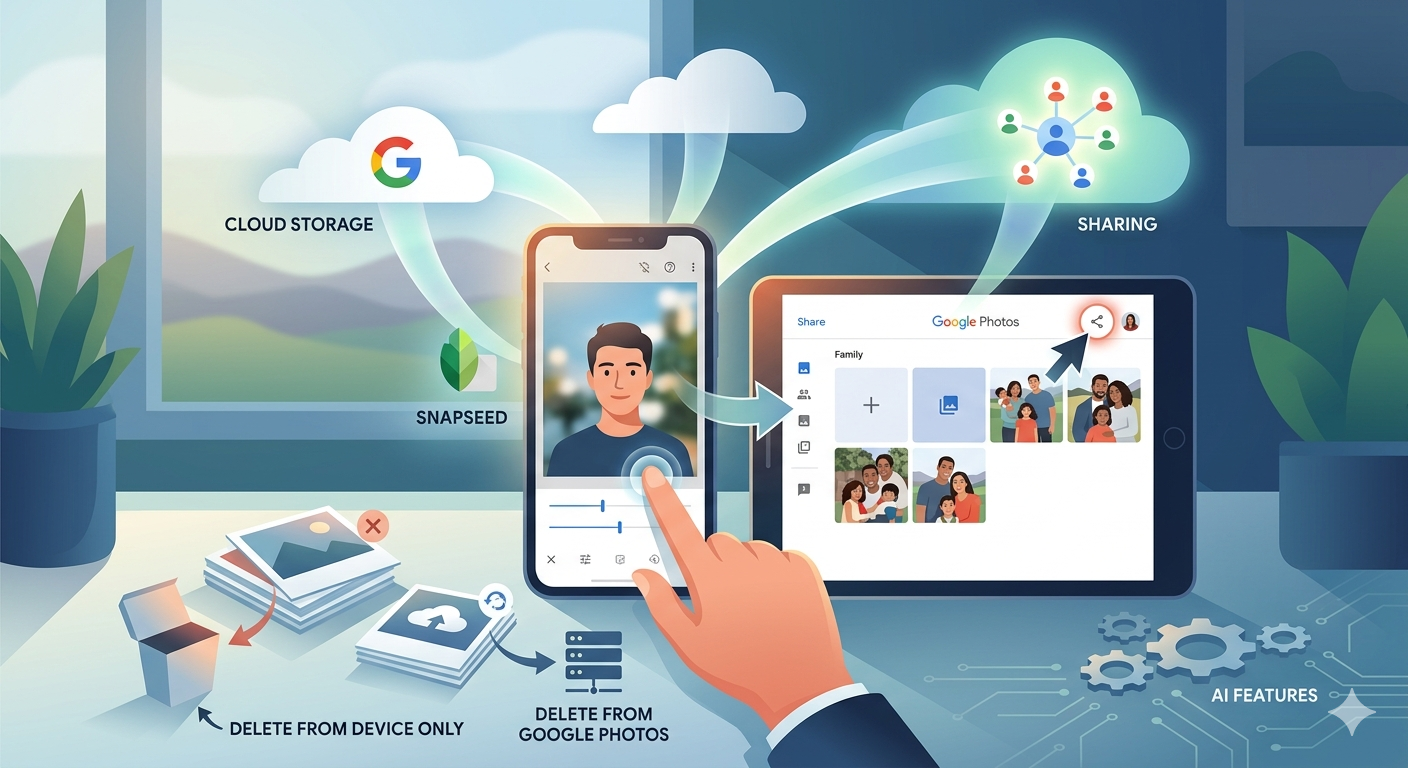
Google is always updating its apps, and this is particularly true now that we have AI. So a recent update introduces the possibility of background blur – which can make a portrait of a person stand out more, by weakening the effect of the background. Google writes about its new AI features here, and here,
Finally … this article has been all about using Google Photos, which might have let you think that Apple’s Photos app is not so good. In a forthcoming post, I will be examining how Apple Intelligence (available in the autumn) will quite possibly revolutionise Apple’s photo applications, and will for some, if not all, Apple users mean they might be less likely to use Google Photos going forwards. They’ve already moved to allow the sharing of albums stored in iCloud to anyone via a link. That’s progress!!!
Swinging in to early action after yesterday, I started the meeting with updates and news.
I asked if there were any questions follow-up to the Snapseed / Google Photos session and post – there are links in this to earlier posts on Google Photos and it’s my intention to check and update these (if necessary) as soon as possible. Ian raised an issue at this point about whether you can use Snapseed without the photos being on Google Photos. I hope I clarified that Snapseed is really only a smart device app, that it was possible to load it onto Windows and MacOS, but I wasn’t advocating it. If you’ve got an Android device, you will be editing an image already in Google Photos on your device – it may as well be sync’d to photos.google.com as well (I can’t check that). If you’ve got an iOS/iPadOS device you can load an image from the Apple Photos app (iOS) into Snapseed and then after edits – Export to Google Drive. The same is true for iPadOS. You can then from photos.google.com on your laptop/desktop Import photos from Google Drive into Google Photos which will then be viewable in the app on your device..
On a separate question Ian asked whether Google Photos and Apple Photos have duplicate images on an iPhone. I was pretty sure (and have just checked) that if you go into the Google Photos app and go to delete images, that the ones that will be deleted will be ones that are on iCloud (ie they are in Apple Photos). Google Photos on iOS only stores cached images from Google cloud storage. What is more if you look at Google Photos on your iOS AND iPadOS device (if you have both, and they have identical backup settings for Google Photos), the contents of Google Photos will be different, whilst those for Apple Photos will be the same. Thus I can say conclusively that they are not duplicated. The amount of storage used by Google Photos on your iOS/iPadOS device can be limited as is shown in these screenshots …
[NB I don’t advocate this as a method of deleting images from Apple iCloud storage]
… the images that will appear in the Google Photos app will be the ones in Apple Photos on your device. They will not be in Google cloud storage unless you a) have chosen to manually upload them (see above), or b) have switched-on back-up and sync – which for Apple users I don’t recommend as you’ll then have two copies of the image on both Google cloud storage and iCloud. I hope this clarifies things, you might also find this link of interest.
I then talked about the re-structuring of Forums and Topics on the website and showed where I’d put “The apps I use …”. I invited members to add apps they were interested in under the most appropriate Topic or Category within a Topic. I added that I would move contributions around if necessary, so no one should feel intimidated about adding their favourite app (or URL). I highlighted the recent Topic on VPNs in the Network issues > Internet security Forum.
Using the opportunity to discover further the resources on the website, I showed the Guides menu page, and displayed the PDF documents available on the page from BDM Publications. These are to be thought of as “try before you buy” only and I would refer you to the new publisher – Papercut Publications – to see the complete range of paper-based guides that you can buy.
Then I quickly ran through the latest additions to our Flipboard magazine, curated by Jonathan, Paul and myself. I highlighted the growth in interest in AI and ChatGPT in particular and indicated that I was going to use this as the basis for the next meeting, with the use of Passkeys and 2FA being handled in the following presentation-style meeting on 27th April. I did dwell upon the graphical representation of Pink Floyd’s most frequently paid songs, and that sparked some lively discussion.
Finally, in my “introduction” I requested members to look at the page for the Computer Group on the Cardiff U3A website and make suggestions as to changes and additions that could be made – Jim suggested adding some of the photos that he’d taken, which I’ll certainly take on board. I also reminded members of the deadline for reduced membership subscription (March 28th). This created quite a lot of discussion about the payment method and the interface with PayPal. Ted requested that anyone having difficulties could help the Committee by taking screen shots. I referred members to this page that Jim had posted on how to take screen prints. We also quickly looked at the notes from the last meeting and were pleased to record that Anne had resolved her problem with VirginMedia whereby Prime Video was not linking to her Panasonic TV – pressing Yes, when it should be No, is not intuitive, is it?
Matters raised by members followed.
John S commented that he was encountering more and more bad website design – we concurred with that; he was also having problem with streaming services fro Sky. This I felt (unlike the advice I’d given to John M at the previous meeting about buffering) was due to contention for shared bandwidth from the ISP. All you can do is to take repeated Speedtest readings (preferably from a laptop connected by ethernet cable to the router) at different times of the day to see just how much the speed falls from the contracted level they should be attempting to deliver. It will be rare that they can reliably offer what is declared to be a maximum, all the time, but the counterpoint is that they should be close to delivering that speed in non-peak times. It’s a matter for the ISP to resolve; not one to be passed onto OpenReach to raise a query.
Kate was delighted to be able to report that she’d done a seamless transfer of everything from an old iPhone to a new one. A good news story which I can support from my recent migration as well. Very easy and painless.
Don reported a strange problem with his printer which seemed not to be working from a cable (ethernet) connection after Win11 upgrade but which was working from WiFi (and his phone). I suggested that upgrading the Printer Driver might be a solution, but it’s difficult to diagnose remotely.
Ted requested (as mentioned above) that anyone having PayPal/U3A/subscription issues should try and take a screenshot and send it to him (or me, to send on to him).
John M asked what was incognito mode in a browser and how to get out of it. I said that was a very good question and would research and report back in the Forums.
Ralph had had a problem loading Google weather, but had solved it by stopping the download which had appeared to freeze (sic), and then re-starting it. I said I’d often experienced a similar occurrence when downloading from “live sites” – sites that were constantly changing, ones getting information from databases – and I usually just closed the Tab and then re-opened a new tab. This would clear the cache and start from scratch.
Anne was continuing her journey of discovery with Win11 (a not too pleasurable experience it would appear) and questioned where mail identified as Junk was going to, as it didn’t appear to be moving out of her Inbox. Jim felt this was probably a mail client issue, rather than Win11, but no one was able to definitively come up with an answer.
And with that rather unsatisfactory answer the meeting closed.
If you want to edit, even if only in a minor way, the photos on your smart device (phone or tablet, Android or Apple), two offerings from Google should be tried first. If you’re an Android (Google) device user, it’s a no-brainer.
The Google Photos app will be installed on your device when you get it, and all you need to do is install Snapseed from the Google Play store. If you’re an iOS or iPadOS (Apple) device user then there’s a couple of extra steps you need to do before you can get started.
This guide concentrates on Snapseed. I’ve written about Google Photos previously and I’m providing links to them below. I’ll check to see that things haven’t changed materially since I published these posts …
Although Snapseed is intended for use on smart mobile devices, you can install it on either a Windows PC or a Mac, but I have no experience of doing this, so it would be a project you would be taking on ahead of me. So for that reason I’m only looking at the app that you can download either from the Google Play, or Apple App stores.
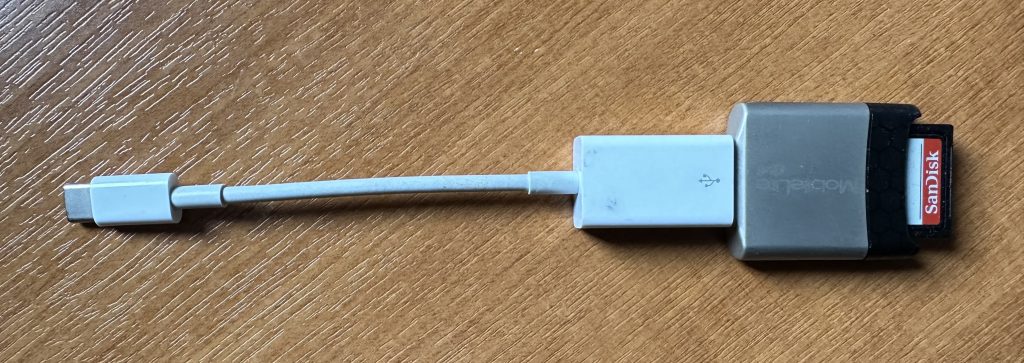
So for camera users (rather than smart phone users), you will first of all need to get the photos onto your device. This could be by a direct cable connection from your camera to your phone, or by transfer using Bluetooth or WiFi, but more likely might be by using a SD-card cable like this one I have for the Apple gear. [It will either have to have a Lightning or a USB-C connector – check first before buying one.]
Apple USB-C to USB-A connector with USB-A SD-Card slot
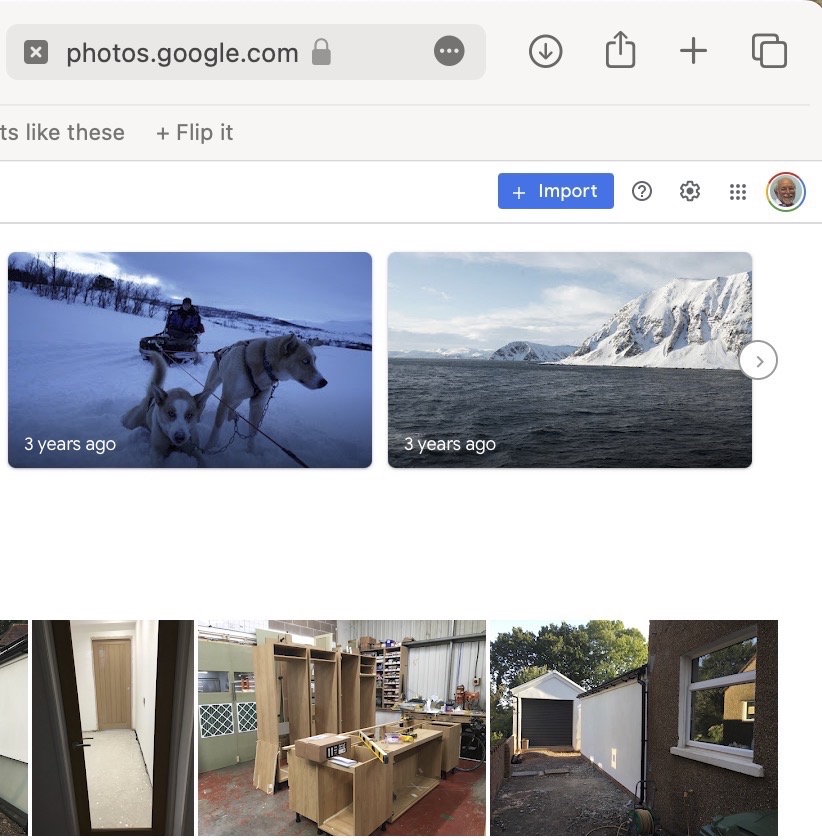
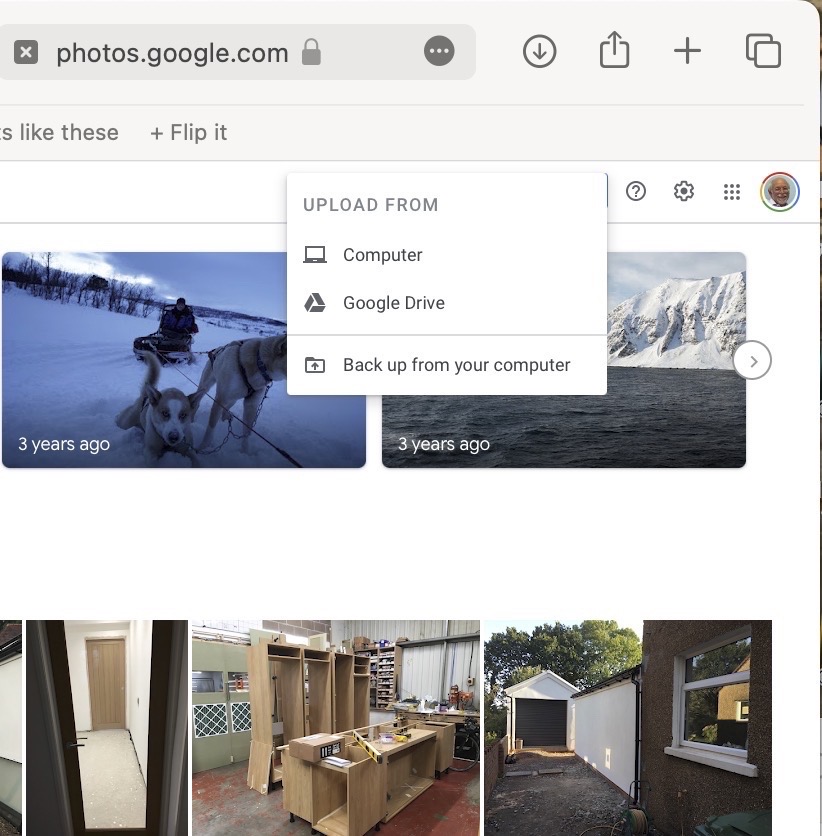
The image(s) thus transferred will be added to your photo library be it Google Photos, or Apple Photos. Another way of adding photos on your computer to your Google Photos would be an Upload to photos.google.com – you will need a Google account to do this. This is how you would do it …
Select Import to Upload images to Google PhotosSelect images from the Computer (or from Google Drive)
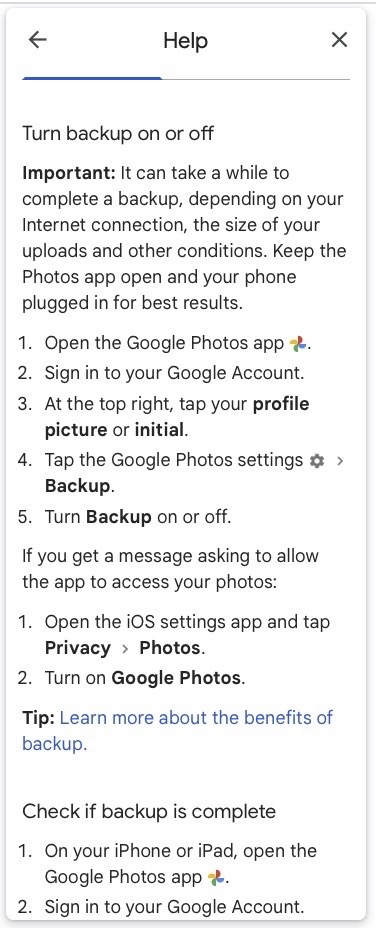
You could decide to use Google Backup to synchronise all your photos from your iPhone (or iPad) to Google Photos as an “easy” way of getting the photos on your Apple device into Google Photos, but this is not necessary to use Snapseed as it can access your Apple Photos directly; so I don’t because I’m already backing-up my photos to iCloud. [I only discovered in November I was also sync’ing to Google Photos, so I stopped doing that then and saved some Google Drive storage, and a whole lot of complications about knowing what was where.] But if you want to synchronise from your Apple Camera to Google, this is how you do it from the Google Photos app on your device …
Instructions on how to synchronise Photos on Apple devices to Google Photos
You should now install the Snapseed app on your device(s) from the Google Play, or Apple App stores, if you haven’t already. If you’re an Apple user you might choose to install the Google Photos app at the same time – although you don’t need it to use Snapseed, but you might just like to compare how it works.
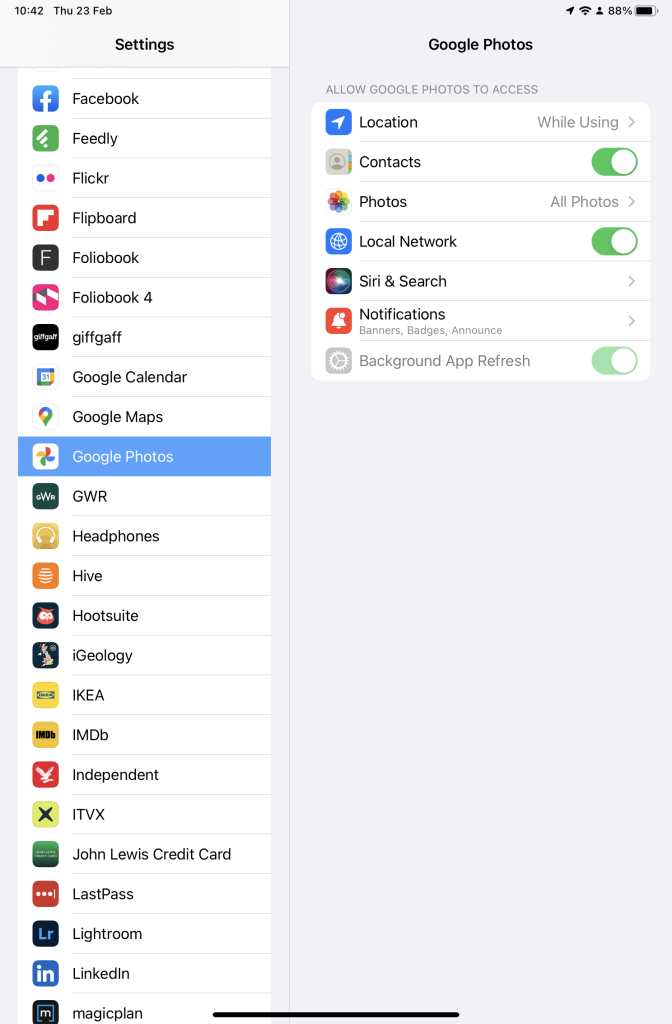
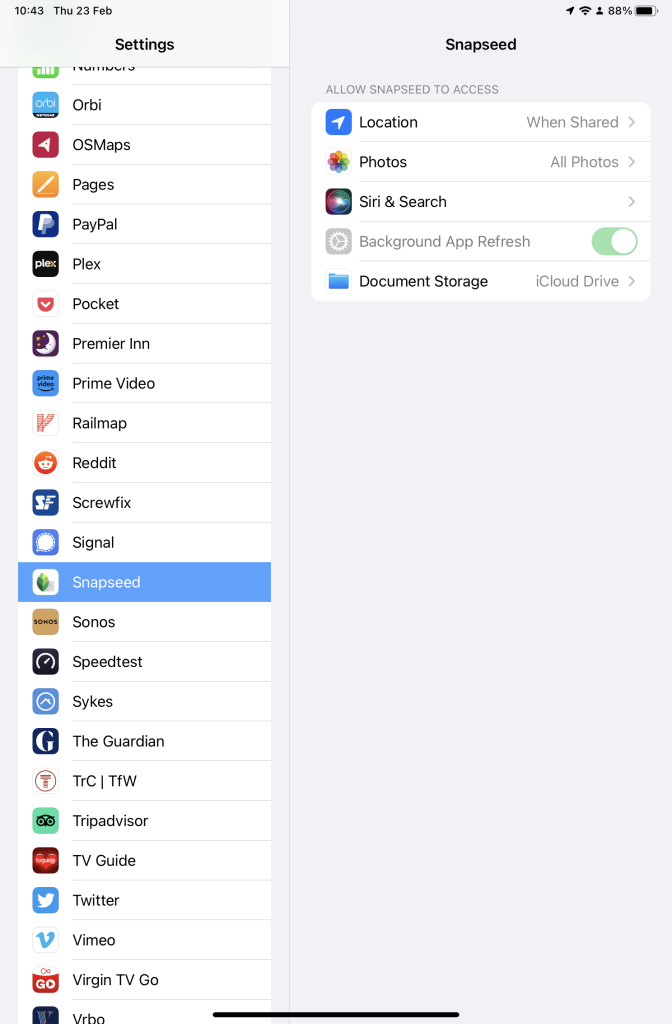
Next up, if you’re an Apple user you need to allow access to your Photo Library to Snapseed (and optionally Google Photos). This will allow both apps (on iOS) to access the Photos in your Camera Roll on your iPhone or iPad.
Setting up Google Photos and Snapseed to be able to look at Apple Photos on device(s)
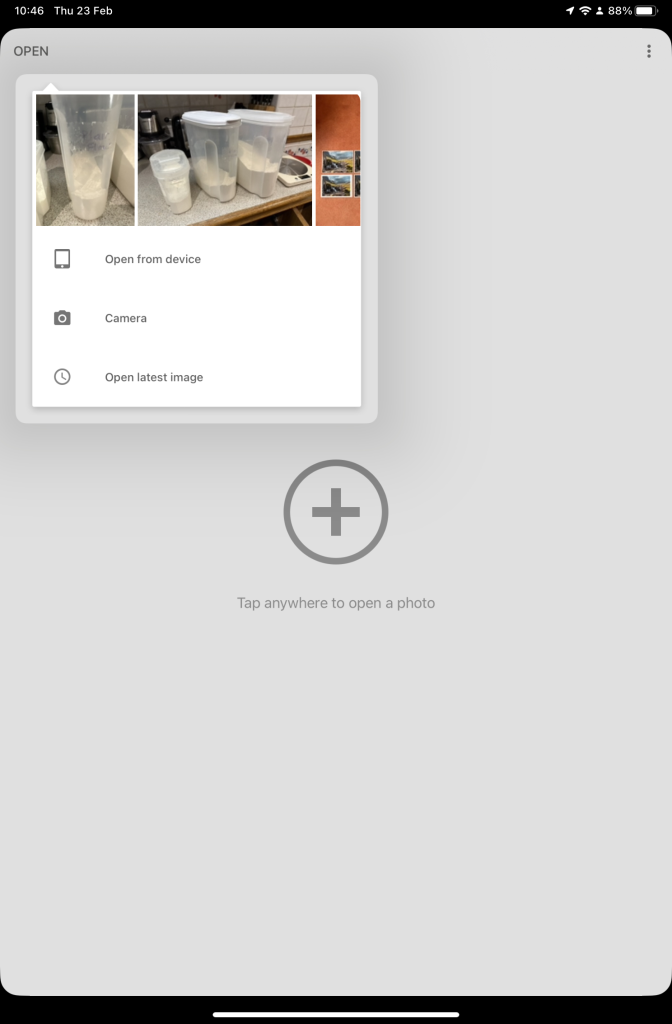
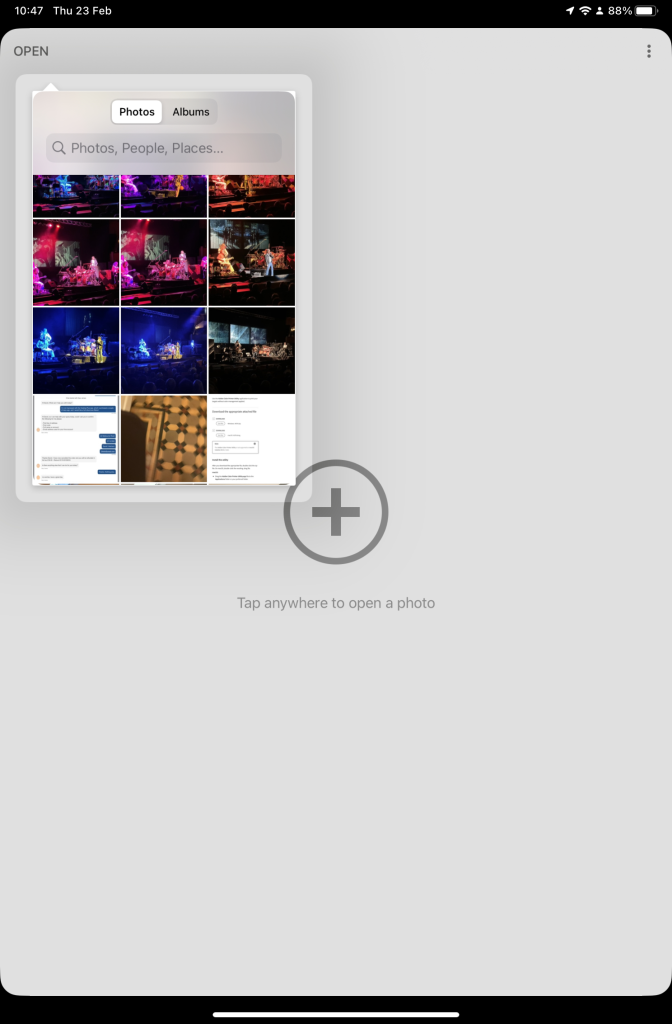
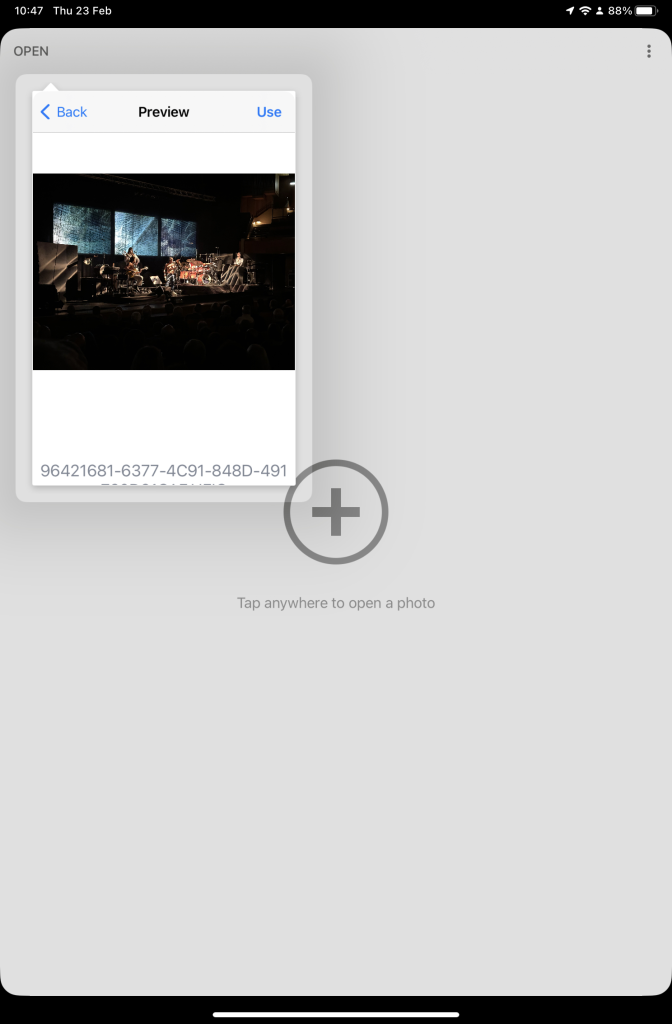
So now your ready to start editing. Open the Snapseed app on your device – you are prompted to Open from device (ie look at the images in your Photo Library), or you can access the camera to take a shot, or Open latest image that you’ve taken. The steps from then on are relatively straightforward and you will have selected the image that you want to Use.
Open Snapseed and look at the photos on your local deviceSelect an image to edit, and click-on Use… and so start editing.
That’s about it. This video (recorded from my screen, hence background noise and rather low audio volume) gives a reasonable introduction on how the Snapseed app works …
A brief (14mins) introduction to editing photos using Snapseed
Here are some links that you might find of interest:
Using your Android camera to take photos; but I believe all Android phones have slightly different camera interfaces, so you’re better off researching that for yourself. [NB If you have come across a really good guide, let me know and I’ll add it to the list here.]
Boot-up
Any follow-up on our Tidying-up Photos session last time?
Phishing quiz – https://www.makeuseof.com/tag/google-quiz-help-spot-phishing-emails/ – any feedback? [Ted was concerned about providing his details at the start of the Quiz. His fears were understandable, but unnecessary – read the Comment beneath this post, from me.]
Jim’s keyboard experience
My iMac adventure [Update: Not only did I get a free drive, but a free screen AND a replacement case which had a dent in it – possibly caused by Apple they admitted/offered/suggested.]
Any other member issues? News
Facebook Messenger, WhatsApp and Instagram to possibly share same messaging infrastucture – BBC report, Cult of Mac article. Have yourself a digital calling card, or alternatively create an online presence; for instance – this is me. Keyless cars at risk of theft. [Sianed advised us that VW are apparently the worst and uses a lined purse for her keys, the same as the one she puts her contactless cards in.] Protect your browsing history with a VPN. [We’ll come back to look at VPNs another day.] Facebook in-house developers blocked by Apple, and Google too! Google+ closing down in April. [Don raised this issue. If you’ve got a Google+ account then it will cease to work after April 1st. Google allow you to “Takeaway” your data – I gave a link to this in the previous notes – I believe you can’t do the same with your Facebook information.] Google launches apps to help the hard of hearing (volunteers?). [Thanks Ted, Martin and Jim for offering to look at this, which is only (I know see) available for Android devices, so you might not be able to do the testing. Apologies if this applies.] How to Back-up your iCloud Photo Library.
Google’s contribution to Internet Safety Week, including Protecting your data wherever you go on the web. Mesh WiFi router firm bought by Amazon. [Thanks Paul for volunteering to research Mesh WiFi systems for us for the next meeting.] Samsung’s first TV with Apple’s Airplay 2 now on sale (US only?). Digital Image Editing using Gimp
Gimp stands for GNU Image Manipulation Program and was written originally for the operating system GNU but has been ported to many other platforms including Windows and MacOS; GNU stands for GNU’s Not Unix; it’s open source software; it’s free and it can be trusted.
You can download Gimp for your computer from this link. User documentation is available from this link, and some tutorials are available here.
So first of all you need to Install Gimp.
For today, I’m just going to concentrate on a couple of areas
A simple introduction to Gimp, including changing the size of an image, and cropping an image. Using curves to improve the quality of the colour in an image However, I can’t recommend using Gimp. It’s a techies toy, not really a usable photo-editing tool. So what do I suggest for free photo-editing?
For tablet/smartphone users it has to be Snapseed (from Google) which is available for both Android and iOS platforms. A tutorial on what you can do it with Snapseed is provided here. You could also try Adobe Photoshop Express.
For Windows there’s Adobe Photoshop Express, or you could try Microsoft Photos.
For Mac users you really only have their Photos app as Photoshop Express is not available for MacOS, so it’s Gimp or maybe Fotor which you can get from the Apple Appstore – but I don’t have any experience of using it. I don’t think I can recommend using Picasa any longer.
If you want to do your photo-editing online, then apart from Google Photos and editing your photos stored in iCloud (for Mac users), you should look at Pixlr, which has a whole range of free and chargeable offerings that run from your browser and in particular Pixlr X which doesn’t require Flash, looks really good and easy to use, and is probably better investing time and effort in than trying Adobe Photoexpress Online, which is a bit clunky and requires Adobe Flash Player to be installed.