Getting photos to the cloud(s) and back

This article is prompted by a combination of a casual enquiry about sending photos from your iPhone to Google Photos (hosted on a Google Drive), and my own discovery that I was backing-up iPhone photos to BOTH iCloud and Google Photos.

Observation one. Google Photos and iCloud Photos don’t work in quite the same way. Whereas you can access the Photos you may have stored on Apple’s iCloud storage from icloud.com through the iCloud Photos app, you cannot access Google Photos from drive.google.com directly – you have to go to photos.google.com to access them. Google Photos uses up some of your Google Drive storage – you get 15Gb “for free” with a Google account – but it’s a standalone application, in the same way as Google Mail is. It’s an important distinction. Google provides you with applications which make use of their cloud storage, Apple provides cloud storage alongside access to applications which use that storage and which synchronises back to devices.
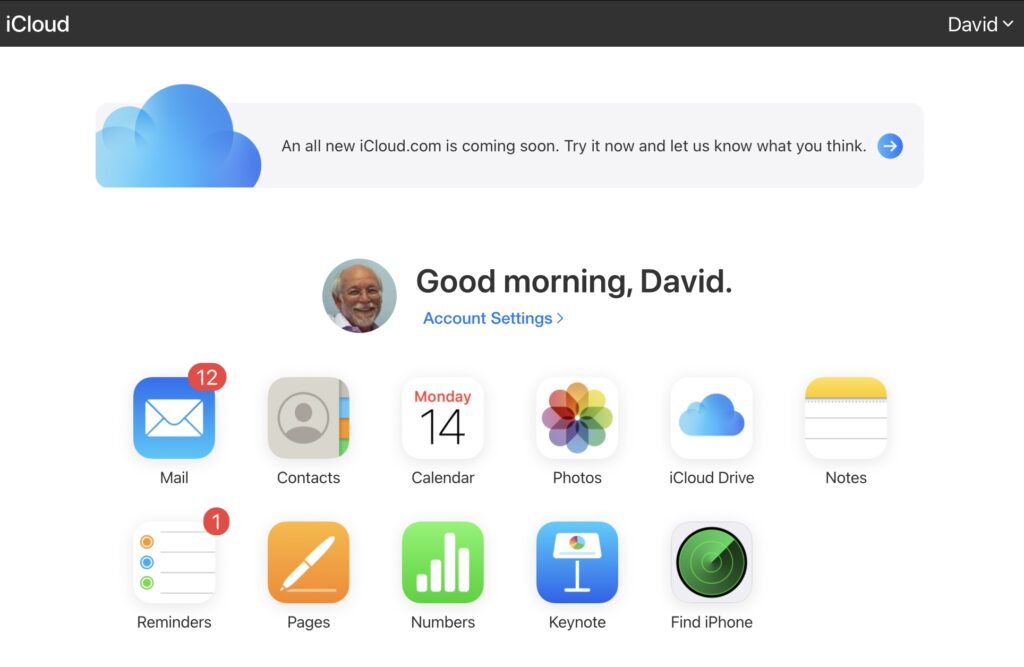
The iCloud window {Access to all Apple applications and cloud storage}
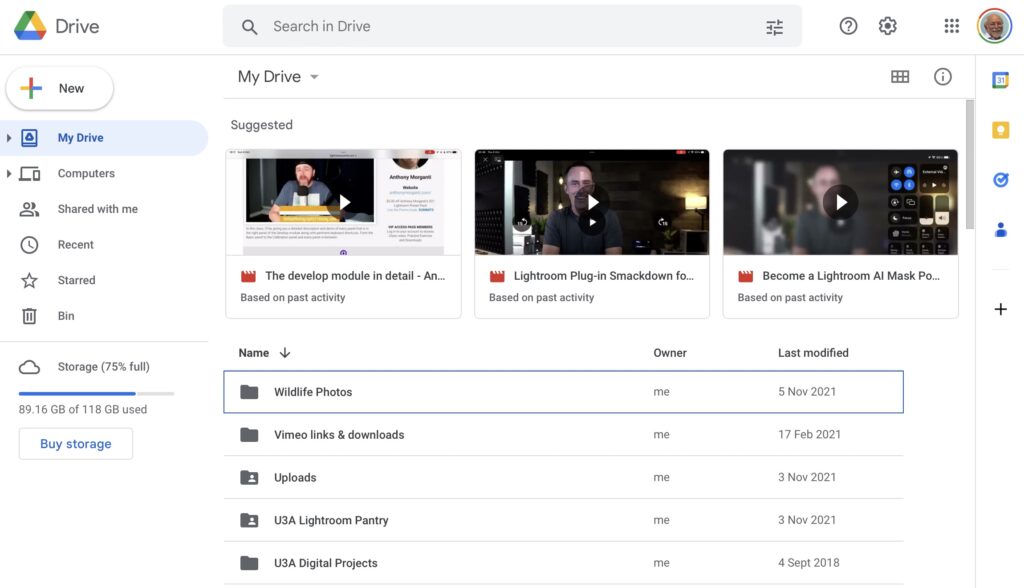
The Google Drive window {NB No access to Photos, or Mail}
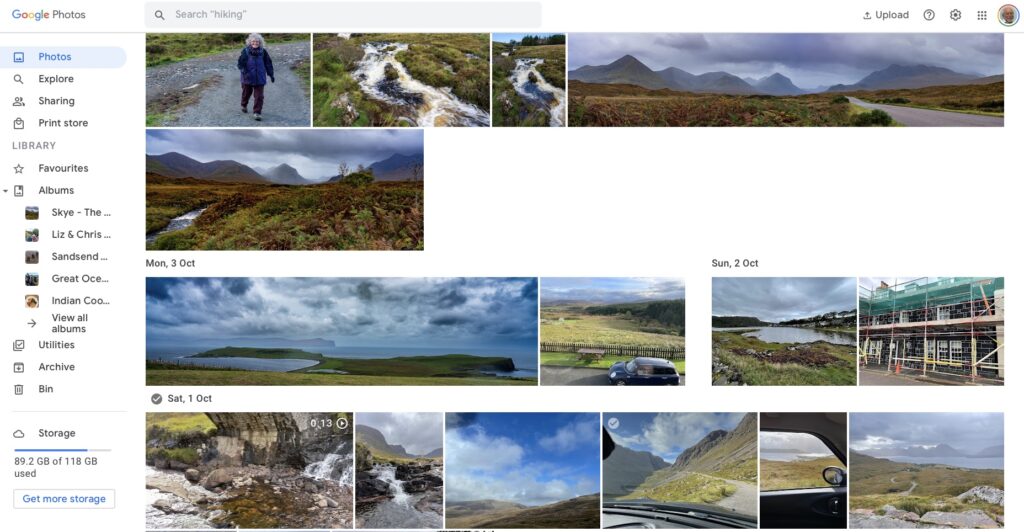
The Google Photos window {separate from Google Drive}

Observation Two. This article concentrates principally on Google and Apple, because they are the two principal players in the Camera and Cloud Storage space. There are other cloud storage solutions on which you can store photos, eg Microsoft’s OneDrive, and Dropbox. I will only refer to these briefly at the end of this article. There are undoubtedly other cloud storage solutions, but I won’t be writing about them.

Observation Three. Anything I write about the link between Camera and Photos on an Android/Google system is second-hand knowledge, and I cannot verify it!

Observation Four – the final one. This article does not seek to cover the general topic of transferring photos from a phone to your computer. This is more than adequately covered in this article. I suggest you read it too.

Not wishing to be dismissive, but just because it’s so straightforward – I’m going to discuss Google Photos first. If you have an Android phone and thereby have a Google account, you automatically have 15Gb of cloud storage and the two are linked, and by default any photos you take on your phone are backed-up to your Google account. This is described well in the Google Support article. A couple of things are worth highlighting however: a) you can switch-off automatic back-up and synchronisation of your photos, in which case all backups would need to be done manually; b) you should carefully choose the “quality” of the photos you back-up – they may not be the same as that of the photo on your device; and c) it would appear that you could backup photos to a different account from your main one, thus adding to the free 15Gb you get with each account. [Alternatively, for £15.99 a year you could get an additional 100Gb of storage from Google. If you aren’t an Apple user this is definitely worth considering.]

It’s not that much more difficult if you want to save photos from your iOS (iPhone or iPad) device to the Google cloud storage. Again the Google Support article describes the process and the options quite well.

Similarly if you’ve transferred photos to your computer (eg from a camera SD-card), then Google’s got you covered to back-up and sync to their Cloud storage in this article. You should nominate a folder on your computer that Google Drive will monitor for newly added files which will then be backed-up and synced to either Google Drive, or to Google Photos, or both, depending upon the option(s) you’ve chosen.
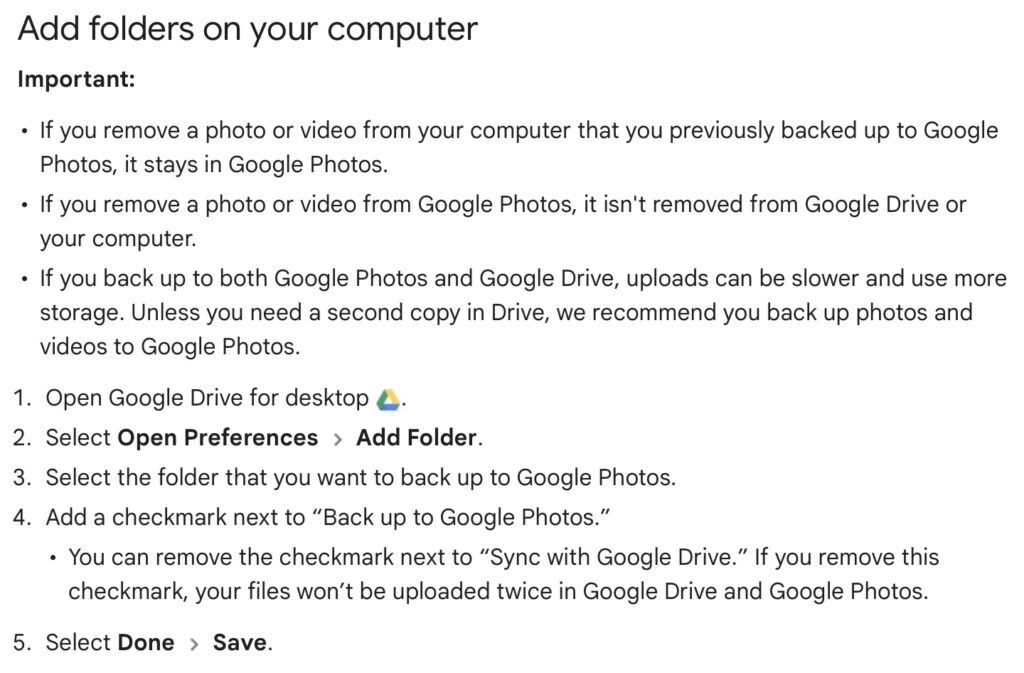
Note (4) – you might get two copies if you don’t uncheck “Sync with Google Drive”

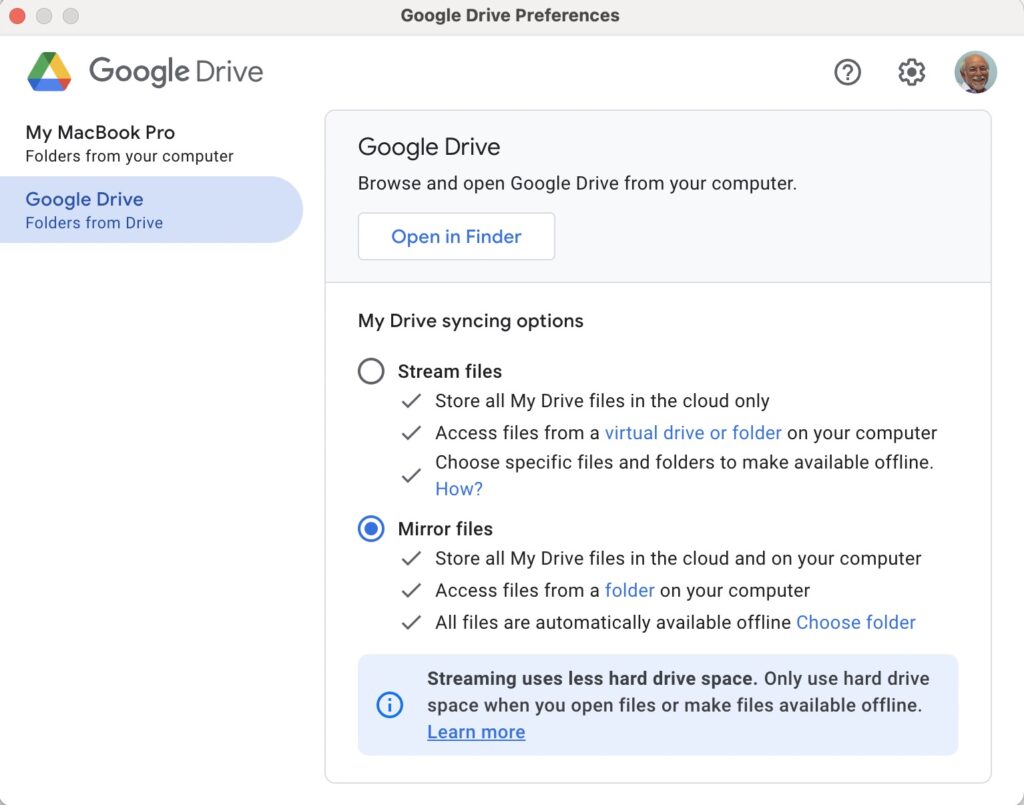
For this to work however, you do need to be sure you’ve a) installed the Google Drive on your computer, and b) you’ve set the preferences the way you want them. In my case, since I’ve increased the amount of Google storage I have, I’ve chosen to Mirror a folder (in itself called Google Drive) – then both the folder on the computer, and the one in the cloud should be exactly the same. A mirror in fact. Anything I add to (or edit on) my local Google Drive will be copied to my Google Drive in the cloud.
So we turn next to the Apple ecosystem. [I should feel more confident here, but as you may have noted that I disclosed at the start of this article that I was doing something extremely stupid and not noticing my idiocy.] Here the support page on Apple Photos and iCloud I think really does a good job of explaining your choices and how to set up backup to their cloud storage. I don’t think I can improve on it. But what if you’ve got Google Photos installed as well on your iOS device? This is where I made my foolish mistake. I enabled Backup and Sync on my iPhone and so I got TWO copies of every photo – one in my Google storage in Google Photos and the other in my iCloud storage. Duh!!!

Disabling the Backup and Sync left me with an image which was shared locally between the Google Photos and Apple Photos apps. How could I get that image (or group of images) onto Google Photos to perhaps share with friends or family?

It turns out that there are two reasonably easy ways of doing this. By enabling iCloud Photos on the phone (or tablet) …
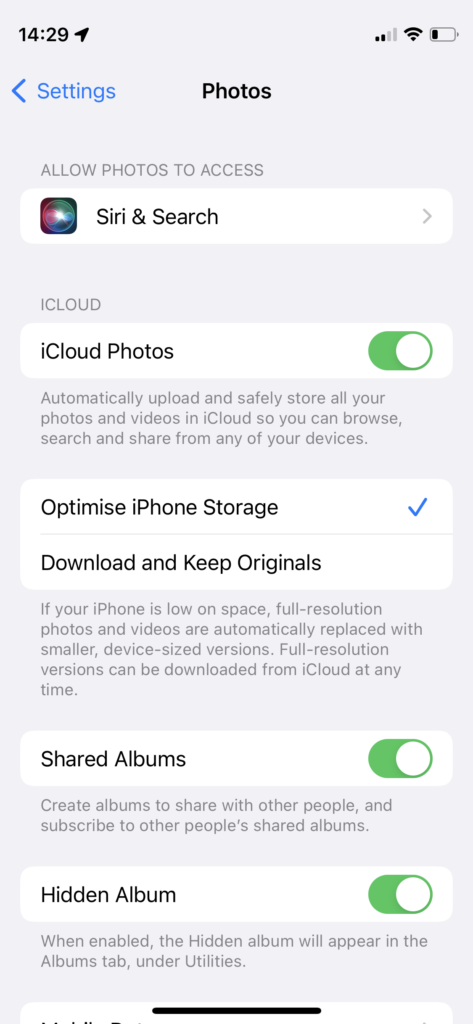
Set iCloud Photos to On

… I can then download from iCloud to a folder on my computer which I can then upload to Google Photos from. Really rather simple and not a use case for Google Photos Backup and Sync to be employed.

Alternatively, I could go into the Google Photos app, select the image I want to send to Google Photos in the cloud and Share it by getting a link and then sending myself a message. The act of sharing it copies the image to the cloud, from which I can then add it albums, etc.

Using either of these approaches allows you then to obtain a link for the album which you can then Share to a list of users, or obtain a link for public sharing.

Once you get the photos onto Google Photos the fun starts. It’s not intuitive what happens when you decide you want to delete them either from the cloud, or from your device. In fact it’s downright confusing. I’ve written about this in another place (the public Thought grazing) and life is too short to repeat anything on here that I’ve already written over there, and believe still to be correct. Best of luck!!!

The situation with deleting photos from Apple Photos and iCloud Photos is slightly more straightforward and I’ve written this up already, so won’t repeat it.

It goes without saying that keeping it all in the Apple ecosystem (for me) makes a lot of sense, and with the ability to share albums on the way – it’s not yet as sophisticated as the Google Photo Albums service – I may transition away from Google Photos altogether in time.

If you’re a PC Windows user with an iPhone, then a solution is beginning to appear that enables you to use the Windows Photo application with iCloud. You can install iCloud for Windows on your PC and then you should be able to manage your iPhone photos from your desktop.

For Dropbox users, you can setup an automatic upload of photos to the service. They even give you a bit more free storage if you enable this, or at least they used to!

Notes of Zoom meeting – 23rd June 2022

First off can I thank Sianed for taking over the meeting for the “round the screen” session which enabled me to take notes and have the fun of “lifting my hand” to speak.

There was not much to report back on from the previous meeting. I mentioned that I’d come to a determination that all media and messages in WhatsApp (and Signal) was held on the phone that was registered to WhatsApp (or Signal); the images on the desktop (and the iPad for Signal) were synced to the phone. This it was agreed could cause some phones to easily run out of memory.

As far as News was concerned there were just a couple of items that I’d already added to the Flipboard magazine – one on moving chat histories from an Android phone to an iPhone, and another about new features that were to be added to Apple’s Homekit (for developers), which we might find some use of in our use of Smart devices in the future. [NB We need to give this area much more attention and look at the Smart home more.]

I then thanked everyone who’d replied to the survey about a future venue for our face-to-face meetings. Not unexpectedly, nothing came out as a definite area of agreement for everyone, but some things did come through – no preference for room layout; a desire for a bit of social distancing (and good ventilation) from a couple of members; and no real need for catering. Taking these into consideration, it appeared to me that if we could return to URC that would be a good solution – probably using the Upper Room (rather than Meeting Room 1). I suggested that the meeting after next we should meet at URC and try the venue out – so that’s where we’ll meet on 21st July, our last meeting of the year. [Subsequently, I’ve re-visited URC, have been impressed that they have a new projector system for the Upper Room and I’m now working with them (Bob) to perhaps enhance the WiFi system which they badly want to improve themselves. Watch this space!

We then had a very short break and Sianed took over!

Paul returned to the issue he’d been having with Resources and Chrome; in discussion with Ted it became apparent that there was a need for a comprehensive article on where videos were stored in WhatsApp and I undertook to write such a post. [Following the meeting I did post a few links on Signal, which might be useful in the meantime.]

David reported that his screen sharing from his iPad to the TV was now working well for his Bridge-playing Tutorials [a link to this is on Signal – thanks David].

Ralph thanked Paul for the advice he’d given on driving licence renewal.

Steve recommended investigating the use of iCloud – it’s not very expensive to get 50Gb of cloud storage – if you’re an Apple user.

Christine reported that after a bit of a quiet period, the scams had started again and she’d had ones from Amazon and Paypal [I would recommend everyone consider subscribing to the Which Scam Alert Service] and perhaps one from Welsh Water, but there was some discussion over whether this was the Priority Registration Service – which is worth joining in case there’s a disruption in water supply, or indeed joining the similar registers for our utilities. [We’ve done this.]

Fred had gone to the recent General meeting (Roald Dahl) and learnt a few things, and had also renewed his driving licence following Paul’s advice.

Jim was still not sure about where WhatsApp/Signal stored images etc. and reserved the right to comment later, following my investigations.

Renee reported that the online portal for registering a change in marital status was a nightmare. No further comment – we suspected that very few (if any) of us were likely to be needing to use that portal 🙂

Ann had got into a pickle with downloading photos to her Google account that had then filled up her allotted storage and mail had stopped working. I sent a few links (on Signal) to help her work this one out but again promised to wrire n article on that as soon as possible.

I had nothing to report – I’d been too busy in the garden!

I then gave a brief review on the internet browser and search engine markets, the links I used are on Flipboard, but I will try and write an article about this too.

Just like me, Sianed didn’t report on anything – something I too often forgot to do.

That’s about it. A couple of articles for me to write which I’ll try and do as soon as I can.

Our next meeting will be on July 7th which will be an outdoor social meeting at The Castle Coffee bar, where we met before. Pleas try and come along if you can.

Finally, you’ll remember that I left the WhatsApp group and left Jim as the Admin. I asked him last week whether there had been any relevant activity on it. He reported that there had not. Therefore we agreed that he should close it, and that he’ll do shortly. Anyone not using Signal, I strongly encourage you to download the app and start using it. Let me know and I’ll add you to the Computer Group group on Signal.

Google Photos and Google Drive, and the Apps I can't do without – July 11th 2019

Boot-up
A couple of postings from Jim and me on Thought grazing, including Jim’s annoyance at having a Windows 10 upgrade foisted on him.
Google Photos and Google Drive
Jim posted on Thought grazing last month about the proposed changes to the way that Google Photos, Google Drive and Backup and Sync  were going to work together. This is Google’s blogpost on the changes they are making and here is the help document explaining what will happen after July 10th, I suspect many of you will also have received this email …

Simplifying how Google Photos & Google Drive work together
You are getting this email because you sync items between Google Photos and Google Drive.
Over the next few weeks, we are making some changes to help simplify how Google Photos and Google Drive work together. We are making these changes based on the feedback that we’ve heard that the connection between these services is hard to understand.
Your photos and videos will no longer automatically sync between Google Photos and Google Drive.
You will still be able to upload to both services using the Backup and Sync app on your computer.
We’re also adding a new “Upload from Drive” feature that lets you copy photos and videos to Google Photos.
Your existing photos and videos are still in Google Photos and Google Drive.
You can read our Help Centre article or learn more about these changes in our blog post.

Add photos and videos from Google Drive to Google Photos
So … it’s really important to understand what Backup and Sync is doing, and this is determined from the Preferences screen.


Also from Backup and Sync you have links to your local Google Drive, your Google Drive on the web and Google Photos on the web …

… the interface is slightly different on Windows, but the first button will bring up something like this …

… the second button (from the web) will bring up something like this …

… and the third button (again from the web) will reveal something like this …

Now I wanted to test the Upload from Google Drive (which you should be able to do from the Upload button on the top-right of the screen), but it’s not yet operational  – and it’s the 11th July! However, I see now that I can drag and drop images which is new, although the imported image is not easy to find unless you add it to an album at the time of import!
On my iPhone, the Google Photos app settings look like this …

… and then the Settings screen looks like this …

… with everything I’m uploading (Backup and Sync) NOT counting towards my storage limit as I’ve chosen the “High Quality” (15Mp) option. Then on my Google Drive app, the open screen looks like this …

… and if I open the Google Photos folder that I had at one time been syncing with Google Drive, it looks like this …

… with the warning that they are no longer connected. If I then look at Google Drive settings …

… the Photos setting being like this …

… and the Backup settings being like this …

… you can see the Backups are clearly defined. As it happens I don’t Backup from my iPhone as I sync everything to my Desktop and that’s where my Backups of Google Drive, Contacts, Calendar are done.
So I think the separation of automatic sync’ing between the two could be a distinct advantage. You just need to make sure you set up your Backup and Sync options, or preferences the way you want it to work for each of Google Drive and Google Photos.
PS: How to do screen shots from an iPhone – hold the Power button down and press the Home button and then release the Power button. The image will transfer to your Photos Library, and if you’ve got Google Photos linked to your Photos Library, it will appear there as well, and then be Sync’d up to your Google Photos on the web, from where you can Download them to your desktop to insert them in a document – like this one!
Anything else, issues, problems.
Next and last meeting: Sound
News
Google Maps may be getting public transport information.
New warning over automated phone call scams.
BT to offer Free Telephone Number to Report Nuisance Calls – 0800 150 150 – it’s a scam!!!
Reasons to Install a Password Manager
How to find out if your Facebook account has been hacked.
George Felton has passed away.
The Apps I can’t do without
Working smarter?
eMail – use a client and link it to the service; that way you can archive mail and contacts locally rather than leave it on a server which is useful if you change provider; you can also read your mail offline. I also recommend using Google (Gmail) – they have no restrictions on the number of accounts you have. Each one you open – you get 15Mb of cloud storage on Google Drive too.
Calendar – I’d be lost without my Google Calendar. Everything goes into it and it’s held in an account which my wife and I share. So everything that either of us puts in, appears in the others Calendar and we then use the Calendar client on our devices. I’m also beginning to use Reminders on my iPhone as I quite like the nagging it does on the lock screen, so that I don’t forget to do something!
Contacts – we do the same with Contacts; the same Google Account holds all our contacts. We don’t store number on our phones, we just sync them down to the client application on our devices.
Cloud storage
You name it, I’ve tried it and/or am using it. In practice my preferred method of working separates things I may wish to share – which I put on Google Drive, or Dropbox – and those things I want to access from more than one device – which I put on iCloud. I tried OneDrive, but it’s just too “windoesy”.
Browser?
I think I’ve tried them all and I change about a bit. Currently my preferred one is Safari because all my kit is Apple, but Brave is a really strong contender to replace Chrome (it’s the same “under the hood”). I’m now exclusively using DuckDuckGo as my search engine of choice on all but Chrome.
Text 
I hate to admit it but I’ve got to like texting and also using WhatsApp – rumoured to be about to arrive on the iPad soon! The important thing about using communication tools is to use the most appropriate one in its correct context.
For example

  1. You require an answer to a question, or you want to make arrangements with someone – use eMail; it provides a better message trail  and usually there is no urgency, so asynchronous communication is best.
  2. You want to let someone know what time you’re arriving – unless it’s urgent and you need to arrange a meeting in which case use a phone – use text.
  3. You want to discuss something but it’s not time critical – use WhatsApp.
  4. You want to discuss something and it is time critical – use the phone!

Note taking
I’ve mentioned it so many times before, it must be boring but Evernote is just great for recording almost everything and for saving/archiving almost anything.
Maps
I still prefer Google Maps, but Apple’s Maps are getting better and now that our cars have got Apple’s CarPlay, I may be tempted to move. [I can also use Google Maps through CarPlay, I believe.] I also have a subscription to OS Maps – as they’re the best [I’ve an annual subscription which allows me to print maps off as well].
Photography
I prefer Google Photos to Apple’s Photo app, because Google works better with Apple, than Apple works with Google. I also love the new Flickr and have taken out a Pro account to enable me to store more photos there.
Password Manager and Security
I truly don’t know how I could manage without LastPass. With so many online accounts it would be impossible to remember all the sign-on credentials, so it’s a life-saver! I’m also increasingly using two-factor authentication for a lot of sites, and Google’s Authenticator is a useful app that helps there as it means you don’t have to wait for a 6-digit number to be texted to you.
Newsreader
Apart from the subscription apps that I’ve got to read national newspapers, and the BBC app – which I’m not so impressed with these days – and Wales Online – which I dip into regularly; I use Feedly which aggregates new posts from all the websites I’m interested using a protocol called RSS (Really simple syndication) so that several times during the day I look to see what’s going on in the areas I’m interested in – Photography, Technology and West Ham!! It’s a great way of keeping in touch with things. I’m hoping to do more with this and linking them to my Flipboard magazines going forward.
The Weather
Ever since the Beeb ditched the Met Office I’ve preferred the Met Office app – you know where the data is coming from and it’s proved very accurate over the past couple of years, even when abroad as it links to the national meteorological services of counties around the world if it can!
Cardiff Bus and Cardiff Gov
Two apps that are invaluable – the latter also sends me reminders of what kind of bin collection I should expect.
And there’s of course many more, but I was trying to answer the question – “The apps I can’t do without”. What are yours?

Google Photos

Towards the end of his talk on WordPress last week, John had a few words about Google Photos.  I said that in my experience with my Android devices, they automatically synced with Google Photos in the Cloud.  That is to say that if I take a shot with my phone it is automatically uploaded to Photos, and then downloaded to my tablet.  And it’s the same from tablet to phone obviously.  So I can view the images when I’m offline.  This facility is already installed when you buy an Android device.  However I said I wasn’t sure what happened with my Windows laptop.
It turns out that you have to download the ‘Backup and Sync’ app, which I had actually done.  However it seems I should also have created a ‘Google Photos’ folder in my Google Drive folder, which I hadn’t done.  I have now, but not all the older photos have been downloaded, for some reason.  The other problem I had was that I couldn’t see the icon for the app, to check the settings, because it was in the ‘hidden icons’ section of my task bar (at the bottom of the screen).
The plot will thicken next month though, when Drive will no longer automatically sync with Photos, they will be separate apps.  I’m not totally clear about how this affects backups, except that if you want a photo in Drive to be backed up in Photos, you will have to do it manually, and presumably vice versa.
Maybe someone else can clarify the situation better than I have.

Getting started with Digital Photography (revisited) – Organising your pictures

This post re-visits a subject I looked at back in 2017, and developed last year when I looked at how Google Photos could be used for simple editing. The links to these posts are here …
First two posts which set out how I go about learning about photography and the decisions I made on which software to use …
Getting started with Digital Photography: Part 1
Getting started with Digital Photography: Part 2
Then three posts about using Google Photos …
Getting to grips with Google Photos
More Google Photos – some simple image manipulation
Sharing an image (or album) from Google Photos
… I haven’t checked that all the links are still “active”, so if you come across any that are not working, don’t despair, just let me know and I’ll sort it!
What this posts addresses is something much more fundamental
Tidying-up your photos and getting ready to import/process them
This is not a trivial task; for too many years your photo collection (and mine) has been allowed to grow unchecked and uncared for. The downside of digital photography is that you have no hard copy to sort into boxes, or albums, and no cases to put 35mm slides/transparencies into either!!
Taking a photo has become the end in itself, and because it’s so easy to do and it doesn’t cost much to take multiple pictures of the same scene/person, that’s what you do.
You know all this. I don’t need to tell you, and yet you keep on putting off the evil day when you have to do something about it and get to grips with sorting all those pictures out, labelling (tagging) them and putting them into some form when you can actually find the one you want, or the place/holiday/person you want without scrolling through loads of images whilst the person you want to show the picture(s) to politely (or perhaps not) waits for you to find (not always) the picture(s).
So now’s the time to sort your digital photo collection out. Get some order into them. Get rid of duplicates, and make a new year resolution to not let them get on top of you again. Read this article to see what you might need to do, and make a list of the things you might wish to do.
Let’s assume however that you’re starting from scratch, what would be a good set of practices …

  1.  Store all your pictures in one place on your computer – eg Google Photos on a Google Drive – and create a folder structure that helps you find them
  2. Tag them (to describe what/where/who is in them) and title them – img2634.jpg doesn’t tell you much!
  3. Back them up, consider using cloud storage for this as well – eg Google Drive, iCloud, Dropbox, OneDrive etc.
  4. Consider using an automatic way of backing-up the photos to the cloud so that they can be shared as well as preserved – eg Google Backup and Sync

… again you probably know all of that, but just in case!
Here’s an article that suggests a few tools to help you start the clean-up and another one from The Guardian.
So what’s my recommendation? Only one approach of many, but here it is … shoot it down!

  1. If you don’t want to pay out anything to organise your Photos and you don’t have an Apple Mac – let Google do it for you (and this is the solution I’ll describe below).
  2. If you do have a Mac, use the Photos app on your iPhone or iPad and the Photos application on your Mac desktop or MacBook [a couple of provisos for this however based on sharing with non-Apple users, or using in a non-Apple environment].
  3. Create a Google Account, if you haven’t got one already, and get 15Gb of free Google Drive (cloud) storage and unlimited storage if you choose to store the photos in High Quality (rather than Original Quality)
    It’s a good idea in any case to have a Google Account as it allows you to create another eMail address – I’m a strong advocate for having more than one eMail address anyway. Go to Google Accounts to setup your Google ID – you can use your existing eMail address if you want to. Then with your account set up you can go to this page. I would suggest you download the Backup and Sync application for your desktop at the same time. Installing the application on your Windows PC, or your Apple Mac, will then create a Google Drive Folder in which you can store information and which then will then be backed-up to your Google Drive “in the cloud”. Voila – you have peace of mind that your precious information has been saved. Any changes you make to the information will be synchronised with the version saved on your cloud storage.
  4. Set Google Photos up as a folder in your Google Drive.
  5. Allow Backup and Sync to copy photos from your phone/tablet to Google Photos (in your Google Drive).
  6. Only Import photos from your camera to your computer into a Google Photos folder using a structure such as [Year]>[Month & Date]
  7. Change the name of your photos in the folder to something a bit more meaningful.
  8. Get ready for some processing and sharing.