
Ian recently had problems with his phone in which he lost his past Signal conversations. Renee had a similar problem last year as I recall. For those changing their phone and not wanting to lose their Signal conversations, this might be a useful link – https://screenrant.com/signal-transfer-conversations-new-iphone-android/
Snapseed and Google Photos

If you want to edit, even if only in a minor way, the photos on your smart device (phone or tablet, Android or Apple), two offerings from Google should be tried first. If you’re an Android (Google) device user, it’s a no-brainer.
The Google Photos app will be installed on your device when you get it, and all you need to do is install Snapseed from the Google Play store. If you’re an iOS or iPadOS (Apple) device user then there’s a couple of extra steps you need to do before you can get started.
This guide concentrates on Snapseed. I’ve written about Google Photos previously and I’m providing links to them below. I’ll check to see that things haven’t changed materially since I published these posts …
Getting to grips with Google Photos – needs some updating and revising, and links need to be checked.
More Google Photos – some simple image manipulation – basically sound, but I need to check to see if there are any additional tools added.
Sharing an image (or album) from Google Photos – should be just about up-to-date.
How do you delete photos from Google Photos? – more recent so I’m assuming that it’s good-to-go, but I’ll check of course.
Although Snapseed is intended for use on smart mobile devices, you can install it on either a Windows PC or a Mac, but I have no experience of doing this, so it would be a project you would be taking on ahead of me. So for that reason I’m only looking at the app that you can download either from the Google Play, or Apple App stores.
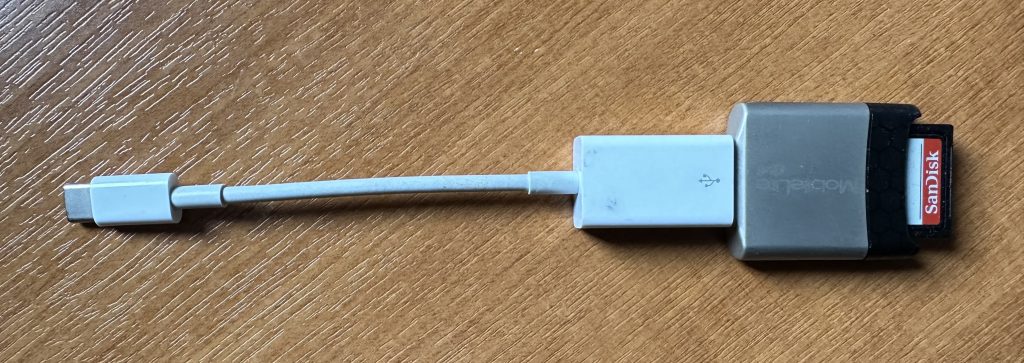
So for camera users (rather than smart phone users), you will first of all need to get the photos onto your device. This could be by a direct cable connection from your camera to your phone, or by transfer using Bluetooth or WiFi, but more likely might be by using a SD-card cable like this one I have for the Apple gear. [It will either have to have a Lightning or a USB-C connector – check first before buying one.]
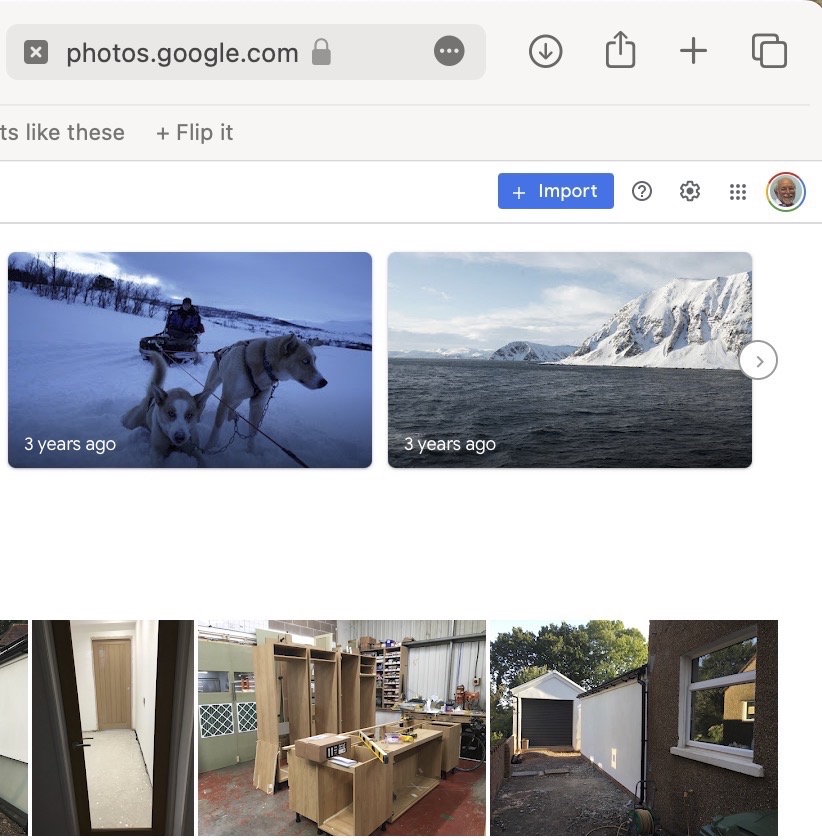
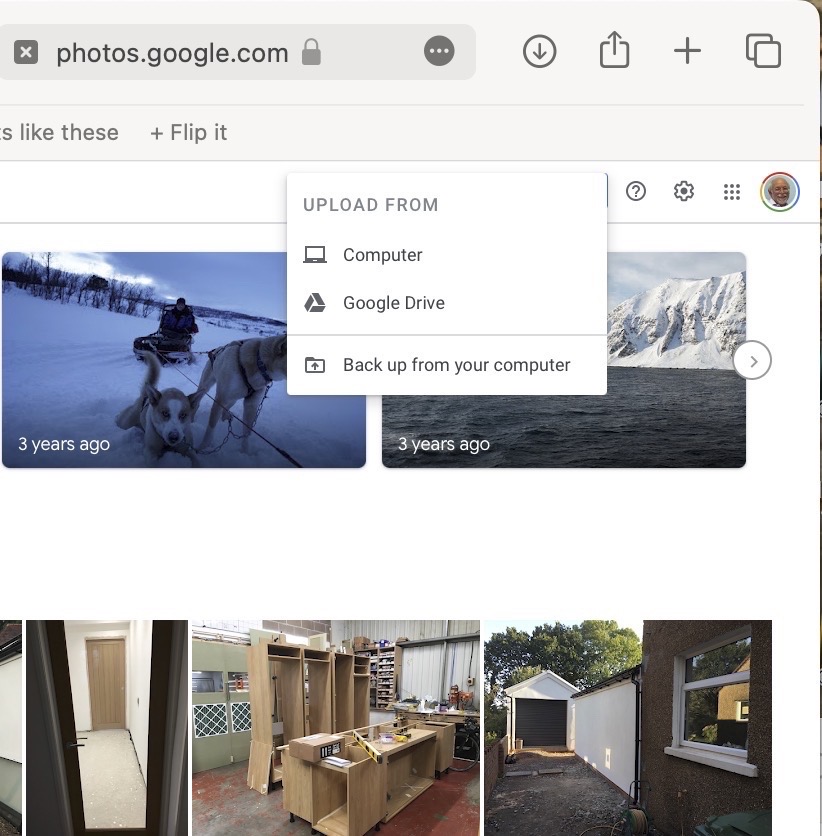
The image(s) thus transferred will be added to your photo library be it Google Photos, or Apple Photos. Another way of adding photos on your computer to your Google Photos would be an Upload to photos.google.com – you will need a Google account to do this. This is how you would do it …
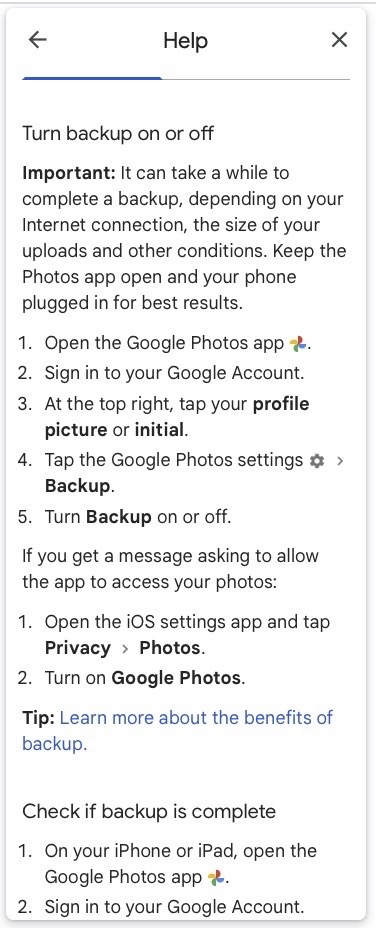
You could decide to use Google Backup to synchronise all your photos from your iPhone (or iPad) to Google Photos as an “easy” way of getting the photos on your Apple device into Google Photos, but this is not necessary to use Snapseed as it can access your Apple Photos directly; so I don’t because I’m already backing-up my photos to iCloud. [I only discovered in November I was also sync’ing to Google Photos, so I stopped doing that then and saved some Google Drive storage, and a whole lot of complications about knowing what was where.] But if you want to synchronise from your Apple Camera to Google, this is how you do it from the Google Photos app on your device …
You should now install the Snapseed app on your device(s) from the Google Play, or Apple App stores, if you haven’t already. If you’re an Apple user you might choose to install the Google Photos app at the same time – although you don’t need it to use Snapseed, but you might just like to compare how it works.
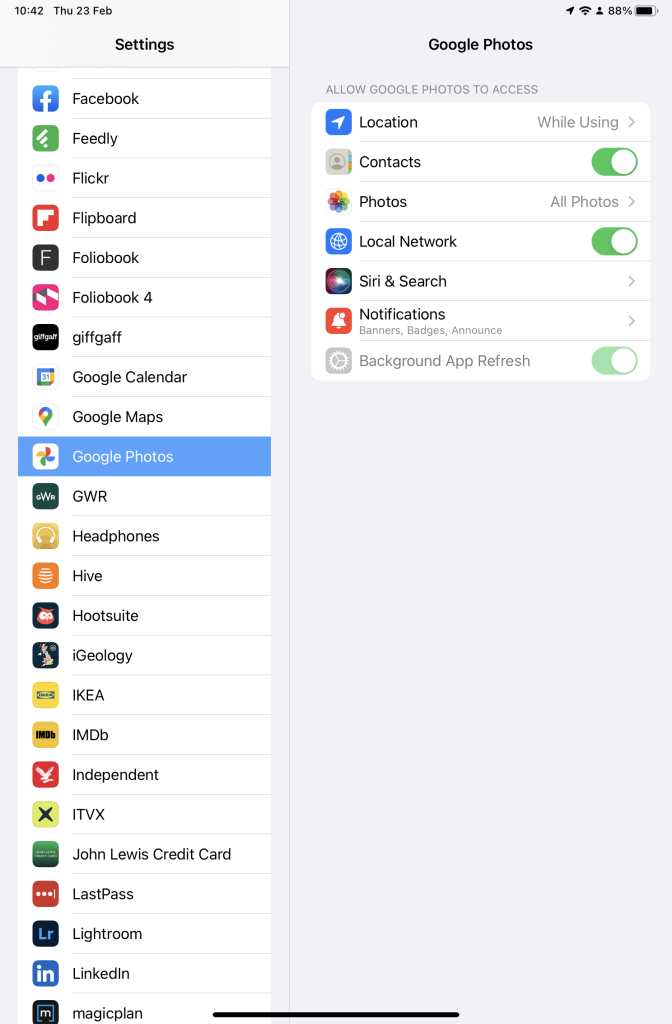
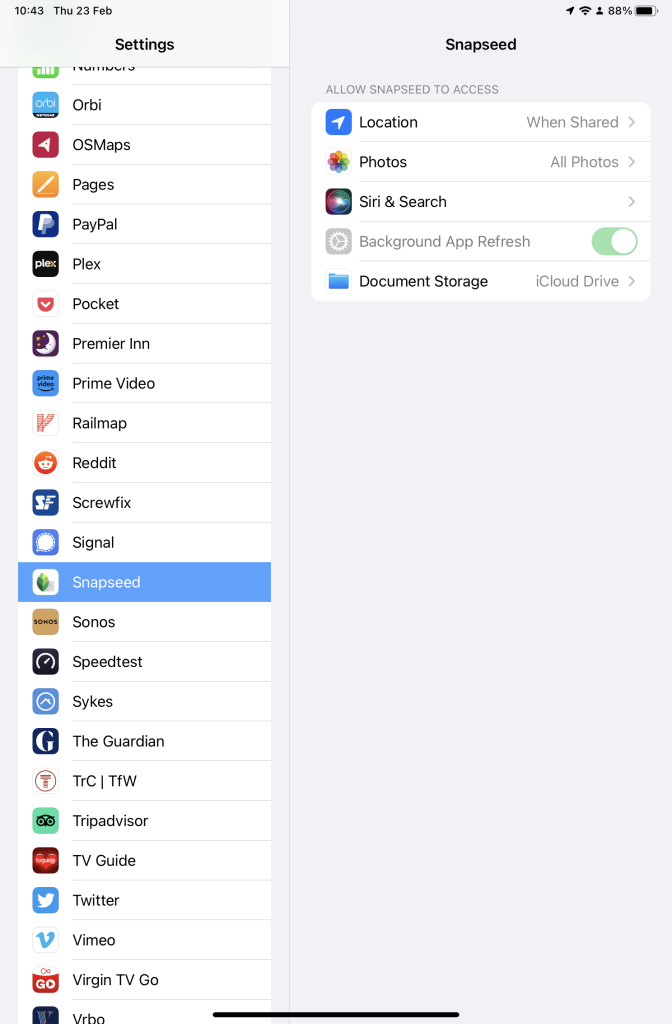
Next up, if you’re an Apple user you need to allow access to your Photo Library to Snapseed (and optionally Google Photos). This will allow both apps (on iOS) to access the Photos in your Camera Roll on your iPhone or iPad.
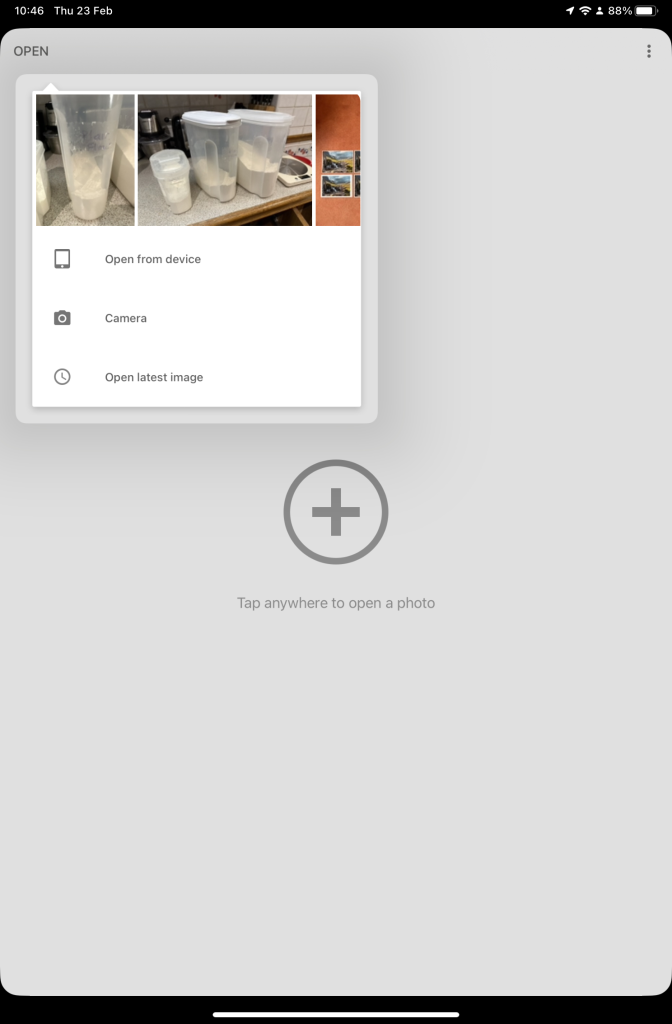
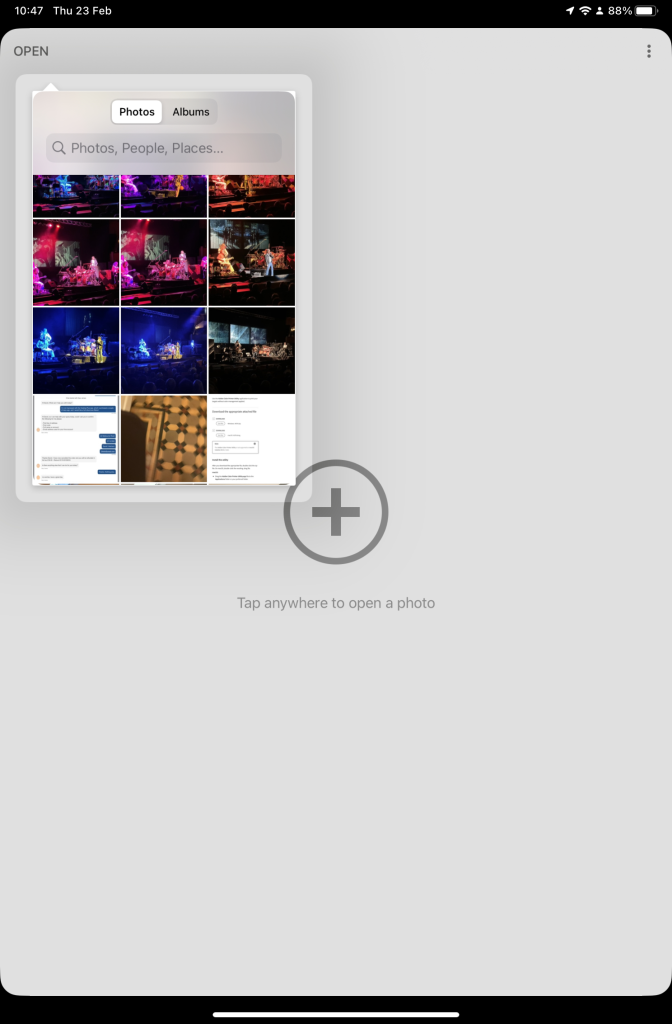
So now your ready to start editing. Open the Snapseed app on your device – you are prompted to Open from device (ie look at the images in your Photo Library), or you can access the camera to take a shot, or Open latest image that you’ve taken. The steps from then on are relatively straightforward and you will have selected the image that you want to Use.
That’s about it. This video (recorded from my screen, hence background noise and rather low audio volume) gives a reasonable introduction on how the Snapseed app works …
Here are some links that you might find of interest:
Complete Guide To Using Snapseed To Edit Your iPhone Photos
How to Edit Photos in Snapseed
Using your Android camera to take photos; but I believe all Android phones have slightly different camera interfaces, so you’re better off researching that for yourself. [NB If you have come across a really good guide, let me know and I’ll add it to the list here.]
How to Use the Camera on an Android Phone: The Basics Explained
Then for the iPhone …
How to use iPhone Camera: A guide for beginners and pros
A Beginners Guide To Incredible iPhone Photography
How To Use The iPhone Camera App To Take Incredible Photos
I hope that helps. Please advise if you come across something that doesn’t quite work for you, it might be my notes!!!
Notes of Hybrid meeting – 24th November 2022
No photo this time; and my apologies for the delay in publishing the notes. I thought I’d done them and only discovered I hadn’t when preparing for today’s meeting. Duh!
Quite a few apologies Jim, Sianed, Jenny, David Hughes, Sally, Kate and Renee. Some new members too – Rob, Maline and Hok. Welcome. Linda and Peter have decided the group is not for them, but we’re delighted to see Steve and Christine again.
I once again recommended members to take the occasional look at our Flipboard magazine , and to download Signal and take part in our chat between meetings.
On Signal in the past fortnight we’ve had a Google Update issue (Ted); Jim’s phone running out of memory – as yet unresolved; Ian’s disappearing old AOL email messages – resolved by AOL with a cautionary warning (do it within 7 days or it’s lost forever); a plug fro the Brave browser (from me); and discussion on the Windows 11 Photos app (Jim, Jonathan and me).
We had an update on Anne’s problems grappling with Windows 11 on her new laptop – a big change from the experience she was used to with Windows 7. Jonathan is providing assistance. Many thanks. I reported that I still hadn’t updated my iOS to v.16, or my MacOS to v.13 – I’m being very cautious this time and plan to go to v16.2 when it’s released in December and probably v.13.1 about the same time. I had experienced a strange issue with an app on my phone – the Coop shopping app that wasn’t allowing me to add new offers to my card, and yet I could do so through the web browser. I reported this to their help desk – I’m still awaiting a reply, but resolved the problem myself through an inspired guess. I disabled the VPN running on the phone, and it worked. [Message to self – you don’t need a VPN running all the time, really only when you’re away from your home network.]
I briefly mentioned the post I’d written a few years ago about using printer labels for Christmas cards and the added benefit of using the same template on plain paper to record the cards we’d received. I recommended using Avery format labels – the numbering is used by most printer label producers and so you can use their templates on whatever paper you buy.
Martin had a story to tell about his being “forced” into buying a new phone!! Being a mainly desktop user he’d decided to take the plunge and bought a Samsung. He’d found that SmartSwitch had helped a lot and prevented it being a nightmare and been able to use BlueTooth to do the transfer of information from the old phone to the new one. He’d found the SIM to be the wrong size but his telco had swapped the SIM for zero-cost. Currently he was finding that texts were not going out, but they were coming in. It was suggested that this might possibly be due to them being sent as MMS rather than SMS -we await the solution!
Don reported that he’d installed BT’s 100Gb cloud service and it had created three folders that he’d not requested. That’s the way, isn’t it. Just ignore them if you don’t want them, but they may provide automatic syncing back to the desktop.
Sue told us that she was getting fed-up with pop-up adverts, and wondered how she could get rid of them. I advised that this would be handled in the Privacy and Security session.
John Silk was puzzled by the growing number of acronyms. We helped him with what Android was, and updated him in the state of play with other mobile operating systems. These mainly being iOS/iPadOS and Chromecast. Microsoft’s offering hav efallen by the wayside.
Paul had moved from Win10 to Win11 and felt that performance on his machine had greatly improved; this may of course due to “clutter” having been removed in the upgrade.
Jonathan also noted that Win11 on his rebuilt laptop seemed to be running better.
Rob was puzzled by a problem with the display on his Toshiba Satellite Pro. It didn’t appear to be a BIOS problem. We advised that he consult “We will fix your PC” in Llanishen, and suggested that this was the standard advice we gave to new members for hardware problems. Generally these are beyond the scope of the group’s competence.
Ian queried the payment for meetings on Zoom, and in person. I advised that I would be sending out an email in due course but no one appeared to object to the idea of Zoom attendees paying something towards the cost of the meeting to defray costs of the meeting venue. He asked about the destruction of hard disks. He was advised that it’s possible to get data shredder software that makes recover of information from a disk impossible, a bit less drastic than hitting them with a hammer, or dissolving them in acid!
Stella told us about a “fun app” on the family history site – My Heritage that would change a photo to a historical figure.
Christine had been having difficulties getting decent sound from a film given her by a friend. Turning the sound up on both the TV and the video-player software had not helped at all. Installing a soundbar had however solved the problem.
Anne was still coming to terms with issues arising from her move to Win11 and had experienced a strange request for subscription to what she thought was free Microsoft Photos software. We took this up outside the meeting.
I then closed by informing users that I was looking at Photo Book printing software and Canvas printing to get the benefit of Black Friday pricing. I use Blurb for photobooks. Jonathan pointed me towards Cewe (used to be available at Jessops, and now from Boots – possibly). I’d also some experience of using YoPhoto and Snapfish. The latter do very competitively priced canvas prints (up to 70% off currently) which I’d taken advantage of. There’s always Google Photos as well. I said I’d do a review, but I didn’t have time to do it in the end.
Android 12 Issues
I recently had this message from the Royal Television Society, which David thought was worth passing on:-
We have become aware that there are issues with the latest Android 12 version that is affecting the RTS app along with many others.
The most common issues are that the App will not transfer to a new phone or will not download from the PlayStore.
It appears that Android 12 has elements of incompatibility with a number of app development platforms including the one RTS uses.
We are very sorry about the inconvenience and frustration this is causing.
We have been informed it is not possible to de-bug the App in the platform to avoid the incompatibilities, the solution being for Google to patch Android 12 to negate the issues.
A search has shown the range of issues arising.
With possible fixes suggested but not with 100% success.
Step 1: Clear the cache & data of the Play Store
This gives the app a fresh start and can help fix issues.
- Open your device’s Settings app Settings.
- Tap Apps & notifications and then See all apps.
- Scroll down and tap Google Play Store Google Play.
- Tap Storage and then Clear Cache.
- Next, tap Clear data.
- Re-open the Play Store & try your download again.
Step 2: Restart your device
If you still can’t download after you clear the cache & data of the Play Store, restart your device.
- Press and hold the Power button until the menu pops up.
- Tap Power off or Restart if that is an option.
- If needed, press and hold the Power button until your device turns on again.
Regrettably we will need to wait for an update to Android 12 but we will contact you again as soon as we have news of a patch to Android 12 and that the RTS App is working on that operating system.
How do you delete photos from Google Photos?
Seems a pretty easy question to ask. Should be a relatively easy question to answer. Wrong! It’s a minefield of complication and you can quite easily find yourself deleting images from places you don’t want them to be deleted from. In this article I’m not going to even attempt to enter the minefield but after this easy one …
How do you delete photos from Google Photos on the web but not from the Camera Roll on your iOS (iPhone/iPad) device …
Google Photos will only delete photos from your Camera Roll if you grant it permission to do so. If you delete from https://photos.google.com/ and then go to your phone app you will have an assistant card asking for permission to “Remove it from this device” If you dismiss the card the photo will remain in the Camera Roll.
… I’m just going to refer you to these three articles …
First the generic article that covers all eventualities and takes into account the place of Backup and Sync in the process for the Android world …
How to delete Photos from Google Photos but Not from Phone
… note the important piece of text in this article …
“While keeping a file on Google Photos and deleting it from a device is easy, it’s not simple to do so the other way round. When you delete a synced photo from the Google Photos app, it gets wiped from your phone and the cloud storage.”
… so take care and read what follows in that article.
For the iOS (iPhone/iPad) world …
How to Delete photos from iPhone but Not from Google Photos
… so heaven help you if you’ve got both Android and iOS devices; the process is not the same for both!
Lastly, and to fully understand what’s going on, it’s important to perhaps try to understand how Google Photos actually works. You can do this by reading this article …
What happens when you Delete photos from Google Photos.
… if that hasn’t made you feel suicidal, can I just wish you the best of luck. Perhaps buying a new phone, or taking out a Google One subscription is the only answer.
Could that be the reason why it’s so complicated to delete a Photo from Google Photos?
====
You might also find these articles from Google useful. Firstly an introduction to Backup and Sync and how it works with photos and videos (hint, it doesn’t actually do any sync’ing) …
… then, a guide to help you work out what size of image/video you might want to backup and sync (or upload) to Google Photos on the web …
Choose the upload size of your photos and videos
… you perhaps need to refer to this post to see why this might be important.
Welcome to the Computer Group – 12th September 2019
Welcome
Introductions
What do you want / expect from the Group?
Please tick your attendance, pay £1.50 and agree that you want to join the “Thought grazing” website I run where the notes of the meeting are posted, and that you are interested in joining a WhatsApp Group.
For those who’ve expressed an interest in “Thought grazing” and establishing a WhatsApp Group, I’ll send out an email following the meeting with UserIds and Initial Passwords for new members. [You can change your password if you want to – I’ll write a post that explains how you can do that.] The Password for Password Protected pages on the website is the same as everyone’s initial UserId Password, namely – Ca3rdyddU3A
Do we all know the difference between Google and an Internet Browser? – Don’t be shy. This is perhaps the most important thing to be sure about before we go any further. Two links to look at – Just google it … and the notes from the first meeting last year.
What’s happening to Digital Projects?
Helping others in Cardiff U3A with Computing/IT issues …
- a WhatsApp Help & Advice Group? We agreed to do this and I’ll write to the Committee for them to consider.
- opening-up Thought grazing to non-Group members? We agreed not to do this
Visits. We agreed visits to the Barclays ‘Maker Space’ which Mario will arrange for us, see details below …
In addition, as part of our community commitment, we have also opened a new office in Cardiff designed to help businesses grow and start up in Cardiff. Great for budding Entrepreneurs (which statistics show can be high in the over 50s) and inventors. Part of the Eagle Lab office hosts a “Maker Space” that houses laser cutting, vinyl printing, 3D printing, electronics equipment including soldering etc. It has a distinctly digital feel too with a really switched on Engineer running the lab. We can host groups there and would be happy to chat with your Digital Projects group and your Science groups coordinators, to discuss with them what is available there and whether they would like to bring members along to take a look at the facilities, or host a meeting there. Please feel free to ask them to contact me and I can discuss what they need, what we have, what we can do to support your members.
… in the approach to Easter, and also a visit to the new BBC Centre after Easter. I’ll approach Cardiff Uni about the possibility of a visit maybe before Christmas, and Fred suggested a visit to Brains new brewery site as an alternative.
Boot-up
There will be no News section this year – I’m moving it to Flipboard, unless there’s a really big news story when we’ll take it as part of Boot-up.
Only “really” big news (tongue-in-cheek) is of course the Apple Autumn event streamed across the world last Tuesday afternoon. Available on YouTube and from Special Apple Events (if you’ve got an Apple TV).
Update your Bus Pass – Transport for Wales have taken over the issuing of concessionary bus passes for all of Wales from the Local Authorities. Your current bus pass will not be valid after December 31st 2019.
Gear Guide
Members are encouraged to talk about a new piece of computing/digital technology, or software that they’ve purchased or recently started using.
Paul’s gear experience this summer …
Our Windows 7 Medion Laptop in Holland slowly died after over 10 years, it was originally running Vista.
I looked at what we (Dolly) actually used it for …
- Emails
- Google Photos
- Banking
- Bit of Surfing
- Some Games
I concluded that we could use a Chromebook for all this, apart from 2 Windows specific Games.
I purchased an ACER 15.6″ Chromebook for €260 (it runs Chrome Operating System (Nougat 7.11) and with the saving from not getting a Windows 10 Lap Top , I bought a Lenovo 10″ tablet (TBX104F) for €120 (16GB / 2GB, it runs Android Oreo 8.1).
The Chromebook set up was really easy, you follow the on-screen instructions, and connect to your WiFi. It did an Update when started for the first time, then, if you already have an active Google Account and were using a Chrome Browser, you enter your details and it loads up and mimics what you had before. It works with Google Drive (or Cloud ?) and is easy to use for all the Google apps in the Google suite.
The Android Tablet was also simple, again you follow the on screen instructions & once logged in to your Google Account, it asks if you’d like to Clone your nearby Android device; hence it loads all the Apps you have on your phone. Dolly loves the Tablet, and is sorry she resisted my efforts to get her one for years!!
We came back to the UK and have now bought a SIM-free HONOR 8A phone for £120 from CarPhone Warehouse, although they are easily available elsewhere.
HONOR is part of Hauwei , but any current phones will continue to be supported with Google products (thus there should be no problem with the current Import Restrictions placed upon Huawei. This device runs Android 9.0 and is a DUAL-SIM device so we can install a UK and a Dutch Sim and she can use a single phone. [She is waiting for me to go over and install the Dutch Sim.] Set up on the phone was again easy. I logged into her Google account, and it mimicked all the apps she already had. I resisted the offer to sign up to Hauwai app “for a better experience”. 🙂
The HONOR also has some nice features … take a photo, and answer a call by just touching the Finger Print Sensor, on the back.
Currently all is working well.
Marilyn approached me for advice on which Mac to buy. She had a Windows laptop which was slowly dying. I advised her the most important thing when buying new gear was to write down very clearly what it was that you wanted to do with the gear, and where you wanted to do it. The upshot of that debate with herself was that she got an iMac desktop instead with faster internal Solid State Hard disk, an external hard disk for her photographs, and a bigger (and better screen) to watch YouTube photography videos on … and a re-organised flat!!!!
Apps Galore
That slot in the meeting where members are encouraged to share their experience (and possibly excitement) at a new app they’ve started using for their smartphone, tablet, laptop or desktop machine.
What’s IT all about?
An opportunity to occasionally go into a little more detail about how something works – eg how the internet works, how does a website work, how does email work, etc etc
Thought grazing, Flipboard and WhatsApp
Demonstration of using Thought grazing – there is a Guide, but I know you’d all like a demonstration.
Using Flipboard – for the best experience, register, follow Thought grazing and install it on your smartphone or tablet. You can add content yourself as well.
Creating a WhatsApp Group … for the Group. If you’ve ticked-the box on the sheet I’ve circulated, I’ll send you an invite to join the Group. You’ll need a mobile phone number to participate (I believe), and have installed the App on your phone. You can then also use if from your laptop/desktop (if your phone is to hand). Currently, it’s not available on a tablet (I believe).
[Update: Paul has written a post detailing how you can add WhatsApp to a Tablet.]
Android System Update
What a week! I was getting to the end of the extra data allowance I bought after the Windows update, when I noticed Android was doing an update to my phone. I managed to interrupt it, hopefully before the allowance had been used up completely. I’ve now been able to let it finish.
It might be something for some of the group to keep an eye out for.
Android Keyboards
A couple of meetings ago I mentioned that a Facebook friend of mine had commented that it was odd that most people still used a QWERTY keyboard on their touch-screens, when others are available. The story being that that keyboard layout was deliberately designed to slow typists down, so that the metal letters of old-fashioned typewriters didn’t stick together.
It’s not quite the same thing, but I had a reason to type a dollar sign with my tablet last Monday, only to find that it wasn’t available on the keyboard. Yesterday I worked out how to access a US keyboard with it, without downloading an app. However it wasn’t intuitive.
My Nexus 7 came with the Gboard keyboard already installed. Going to Settings – Language & input – Gboard – Languages, gave me the opportunity to add a keyboard from a large list, which included nine versions of English. What wasn’t explained, and as I’ve said wasn’t intuitive, is that to switch from one keyboard to another I have to hold down the space bar, and then pick one of the options I’ve added.
To go back to my original point, another option is a Dvorak keyboard layout:-
“Dvorak proponents claim the layout requires less finger motion and reduces errors compared to the standard QWERTY keyboard arrangement. It is claimed that the reduction in finger distance traveled permits faster typing while also reducing repetitive strain injuries, although that claim is controversial.” (Wikipedia)
Worth a try?
ICE – that’s In Case of Emergency

Recent discussion in U3A has been on what role a Group Convenor should have in case of emergency. It’s a difficult one, I haven’t fully resolved in my mind what responsibility I should have – I think it’s one that’s worth discussing. Should I, can I request that information be lodged with me? Should the group member provide it to a membership record on a database system that the Convenor can access? Or, should – and this is the purpose of this post – the individual take the responsibility upon themselves. This can be done by either carrying a card – this one is used by The Ramblers – there are many providers of this sort of card, eg ICEcard, or should we use the facilities on our Smartphones which allow access without unlocking the phone from the Home screen.