My first encounter with computers

I used SPSS a statistics package at university but all that involved was writing coding sheets and receiving back printouts of analyses so not what I’d call real computing at all.

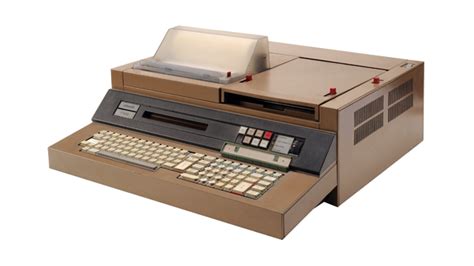
That came later in 1978 when I was working as a research assistant at Sheffield Poly as was. I was developing a reading test for school leavers and not only had data to analyse but also wanted to see if I could set up a computerised question banking system from which different tests could be extracted.
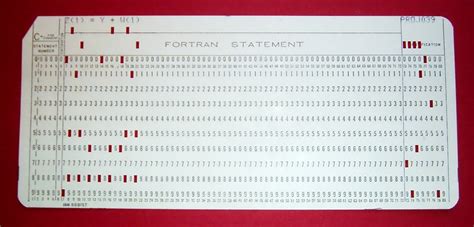
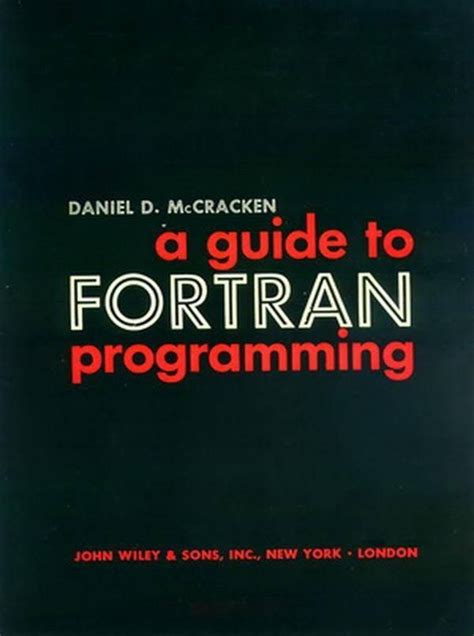
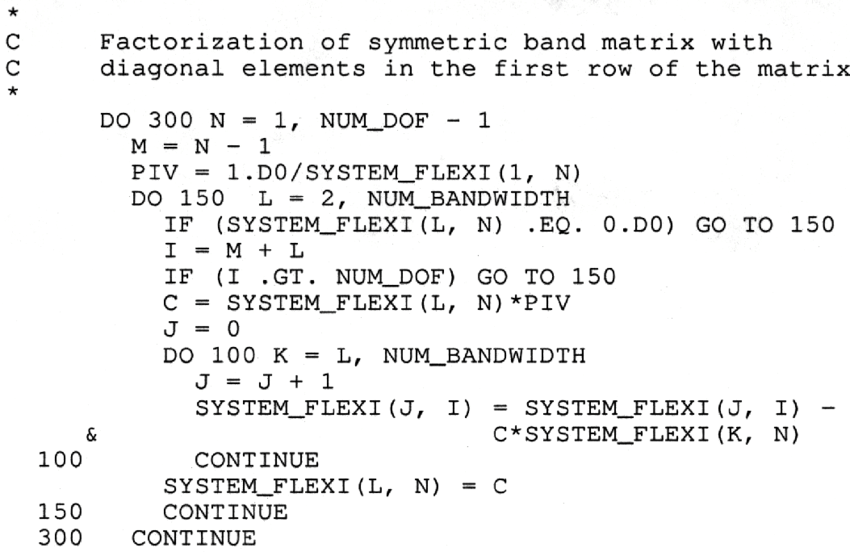
The Computer Services dept were very helpful, listened carefully and then told me to go to the library, get out McCraken’s book on Fortran and do it myself. I taught myself Fortran and got on with it.

I’m still programming – the calendars that appear on the U3A website for each group are derived from Beacon and added into Google Calendar using the Python programming language.

Owen Parry, June 2020

My first encounter with computers

As an undergraduate I’d never encountered computers so a new world opened up when I went to America as a postgrad in 1965. In my first term in the Geography Department at Northwestern University – in a northern suburb of Chicago – my supervisor decided that I should do a computing course in the Civil Engineering Department. He obviously didn’t realise that it was intended for postgrads who already had a ‘hard science’ degree.  The course concentrated on teaching postgrads to write programmes in machine language – Compass – for a CDC 3400 mainframe computer (not an IBM machine in sight). I’d never heard of Fortran before so didn’t know that I was writing something that Fortran compiled into a form – in this case Compass – which the computer could use.

My first test: writing a program to find the maximum value of a set of numbers.  However, reading in the numbers and printing out the results had to be done using Fortran, so I learned things ‘in the right order’ – the computer would ‘understand’ me straightaway. Although the other postgrads had already learned to use Fortran  they then had ‘to progress’ to Compass.

I bought an excellent teach yourself book on Fortran and was introduced to the world of ‘READ’, ‘DIMENSION’, ‘DO’ loop  and ‘GO TO’ statements! Just as important, Margaret, the wife of one of the other Geography postgrads from Grimsby, was a computer whizz kid.

Like most postgrads at the time I had to prepare my own punched cards, a tedious process as you could enter up to 80 characters per card. And one typing error meant redoing the whole card. The Campus Computing Centre was a 10-minute walk away. I’d hand the deck of cards in and hope they were all in the right order and that there wasn’t a single typing error. Otherwise, when collecting results several hours later or the next day I just found a terse message – ‘input error 23 ’ or pure gobbledegook because I’d got the order of symbols wrong – as Margaret put it – the machine is trying ‘to obey your data’. Still, it was very satisfying to find that my programme (eventually) worked and gave the right answer. It seems amazing to me now what results you got from a mainframe machine with a memory capacity of just 196 kilobytes – about 20% of a Megabyte.

After that, I never looked back, progressing to working with two American postgrads to write a programme simulating average queue lengths of traffic at a busy crossroads. It particularly makes me nostalgic to remember working with these two other guys – incredibly friendly from the outset, almost as if they’d known you all their lives, full of ‘get up and go’, not worried about seeming over-enthusiastic. Not at all like the much more reserved British – not better, but very different.

The first computer Cathy and I had at home was a Tandon 286 desktop with a 20Mb hard disc – not a bad storage size for the time and, of course, ‘IBM compatible’. I think it cost around £1000.00 which was pretty expensive for the time – bought from a dealership in Slough – but worth every penny because we were’t supplied with computers at work until many years later. At least the computer techies in the Geography Department were very helpful if anything went wrong – I think they liked my enthusiasm.

John Silk, June 2020

My first encounter with computers

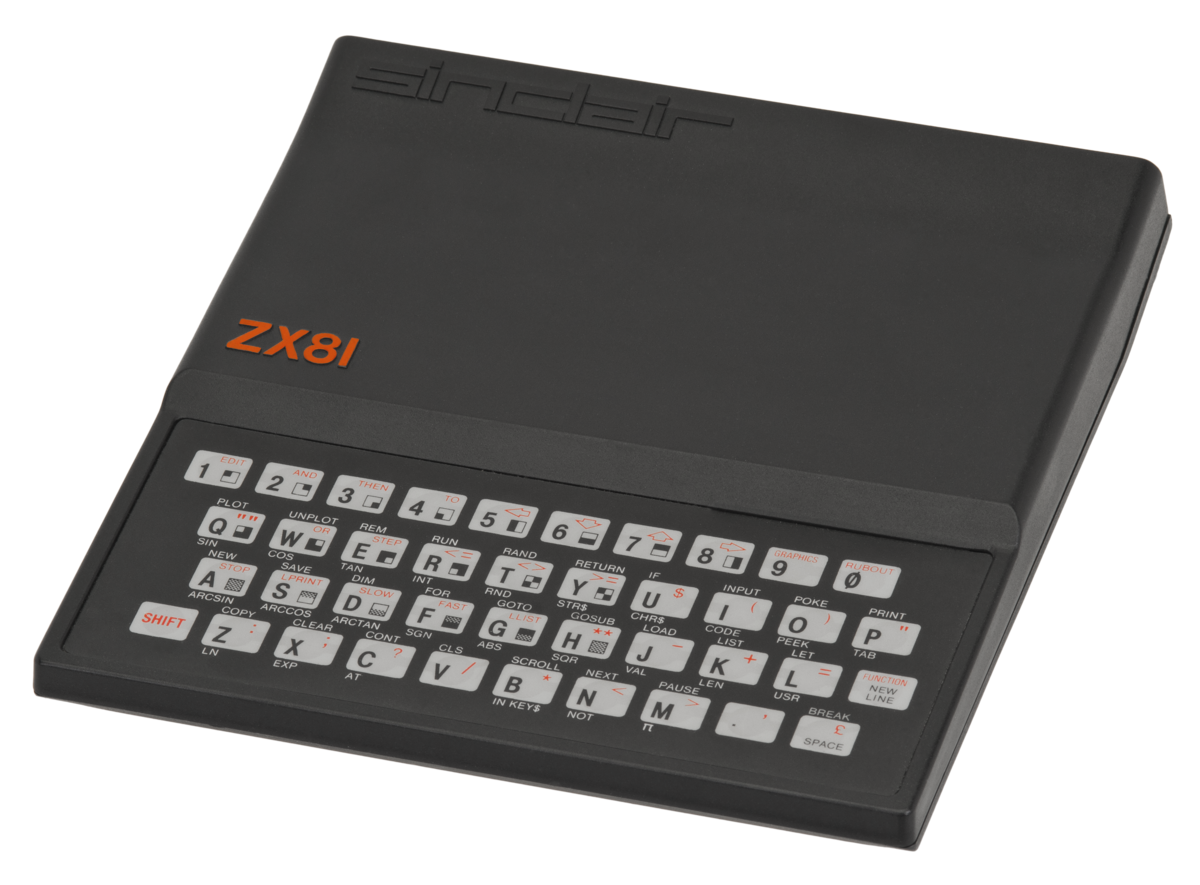
Sinclair ZX81

My children were introduced to computing before I was. My daughter now 56 reminded me that she had one of these in 1982.

I don’t believe I was ever aware of it.!


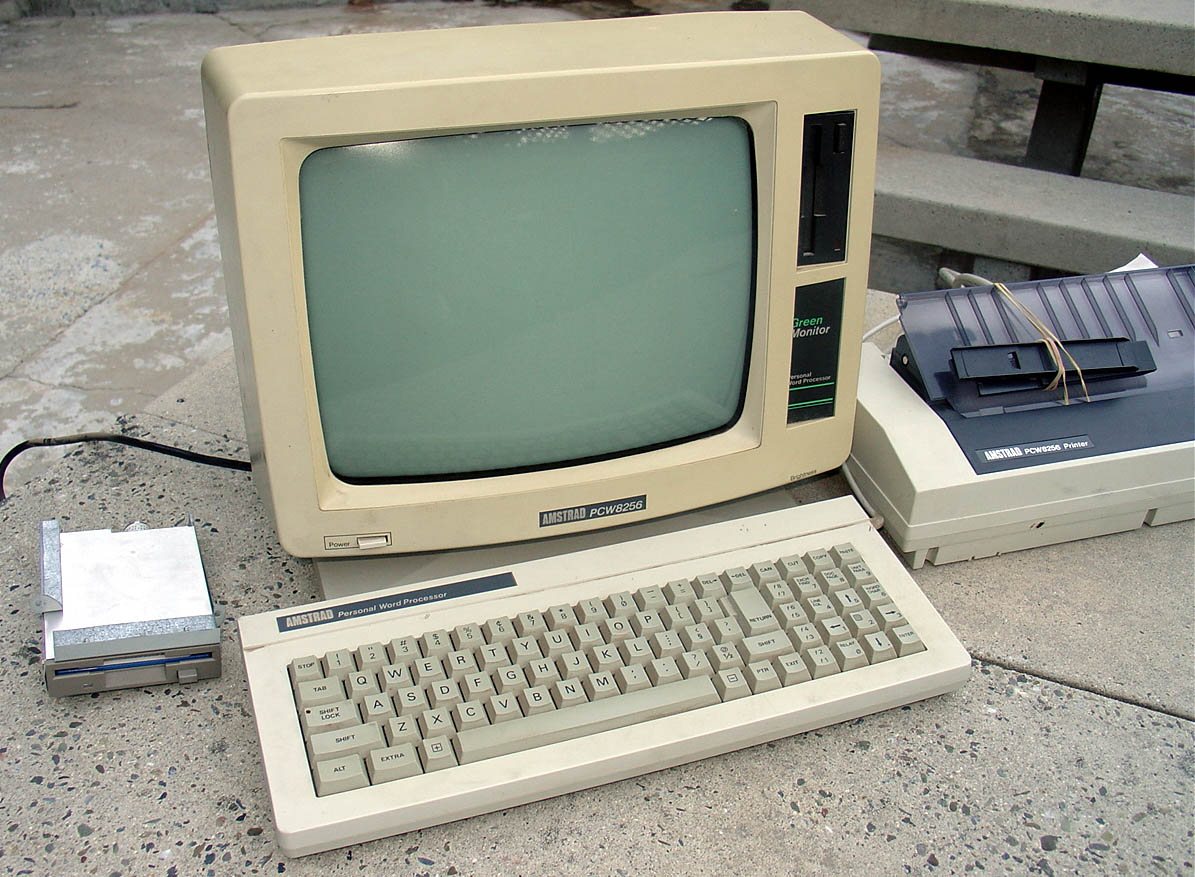
Amstrad PCW8256

My introduction to computers occurred in 1983 when I was sent to Bahrain to open an office for a project which I thought was for two weeks, but lasted for nearly five years.

I ran a small two person office, just myself and a secretary, with occasional short visits by support staff from our Cardiff office.

One of the engineers I worked with asked if I could look after his pc while he returned to the UK, for a month. The A/C in his villa would be turned off while he was away, and as my office had A/C he would like me to look after it until he returned. Bahrain temperatures in the summer are well over 100C

I had no knowledge of computing, and was using traditional drawing board, tee square, set square scale rulers, typewriter, tracing paper, paper fax machine and telephone to run our office.

So it sat on my desk for a month with only the occasional prod from me. The engineer colleague left no instructions how to use it !

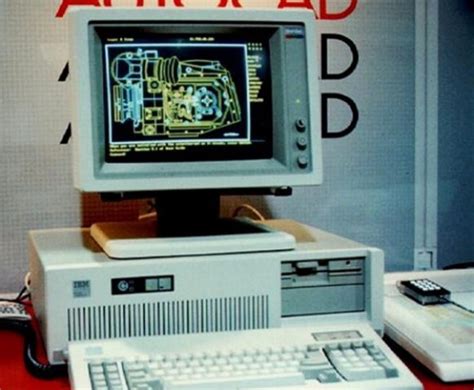
Like the first station running AutoCAD

In 1985 I was designing and building a headquarters for the Bahrain Oil Company, and when visiting their offices became aware of CAD (computer aided drafting) for the first time. 

The organization being partly American had put individual pc’s on each engineers desk and were running the earliest versions of AutoCAD.

I could see that this was going to be the future and the end of traditional hand drafting.

So for the next year I used the opportunity in my spare time to work with one of their engineers to learn how to use a pc and AutoCAD.

First Home Workstation

In 1988 I was back in Cardiff, and given the task of spreading the gospel of computers and CAD into our UK offices.

This gradually led me away from designing buildings, and instead developing systems, training architects and technicians in CAD, quality control and teaching my reluctant partners and staff to use computers and related software from CAD, word-processing, spreadsheets, and  project financial management systems

To keep ahead of those I was teaching, I realised I needed a workstation at home. It was built by our then IT equipment supplier.

And cost me in 1988 over £5K, much to my wife’s horror.

In later years, I persuaded my office to fund the inevitable upgrades in software and hardware.

At the time I hung up my boots in 2016, we were running seven UK offices all linked to a central network with my former computer technician now a full time computer manager.

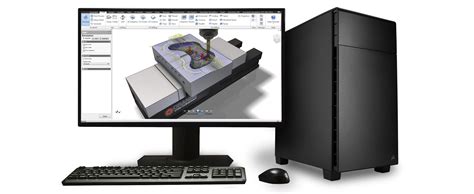
2D CAD has now become 3D. BIM. REVIT and all sorts of clever software to create architecture.


But enthusing one day about the advantages of computers and CAD over hand drafting, a friend and fellow consulting engineer reminded me that he always admired my skill as an architect to pick up a 2B pencil and make a quick sketch of an idea, or detail.

Don’t give up drawing was his message, and I confess that the architects I admire most are those that can draw well.  It is too easy to use a computer to create technically correct architectural dross!

David Hughes, June 2020

My first encounter with computers

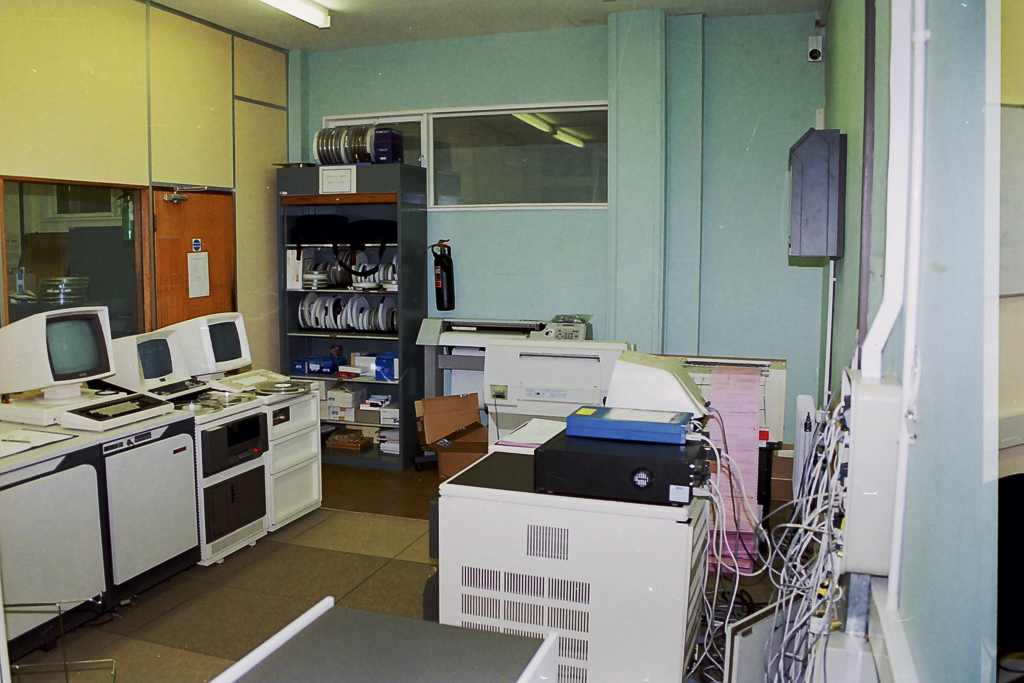
My first encounter, in the very early 70s at U.C.Swansea, Applied Science / Mechanical Engineering,  was an ICL (maybe 1900E ? or was that a Car ?).

It would run  FORTRAN and SORFOR (Southampton Fortran) using Punch cards. I also vaguely remember there being ALGOL and POP2.

I wrote my programs,  punched the cards and then submitted them to the Computer Department twice weekly, before waiting excitedly and often disappointedly for the results – very often a syntax error… try again.

You needed to get the Program correct so it would run properly, before you could actually submit the Data for your Calculations.
The output came on a large wide roll of paper that you had to tear the holed edges off, and fold correctly.

In my final year we could use a MOP (Multi Online Programming Terminal) that eliminated the cards, and you could book time to sit in a small room with the MOP and enter your own data, a very noisy experience I seem to remember. I did a programme for Stress analysis of a live Back axle for a car/ light van.

Paul de Gues, June 2020

My first encounter with computers

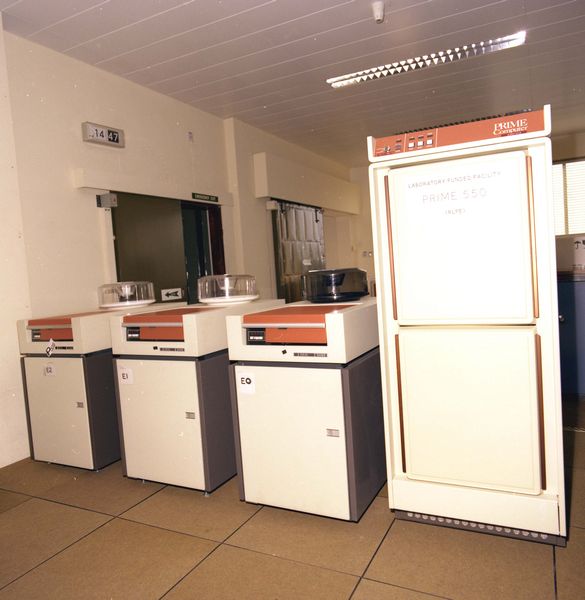
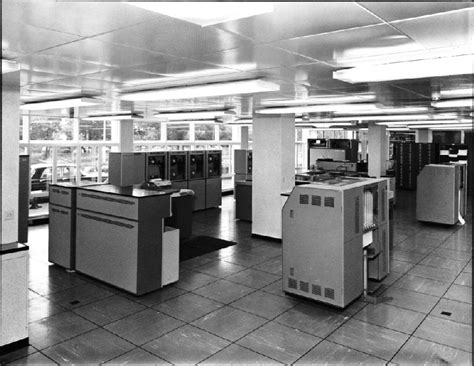
My first encounter with computers was in 1975. I was then working as a highways engineer for Mid Glamorgan County Council. My team had an ICL mainframe computer which was housed in a very large room in County Hall, some 10 minutes’ walk away from our offices in Greyfriars Road. Our terminals in the office had no screens, so we had to send someone to fetch our print-outs from County Hall twice a day. This created a mountain of paper, and much of it was wasted because of simple errors. In those days we had no bespoke computer packages, we had to write our own software, and if we had a comma in the wrong place or a digit in the wrong column we had to start all over again. The first programming language I learnt was Fortran.

One of our routine tasks was to collect traffic flow data from the entire highways network in the County. This was done by sensors on the road, such as pneumatic road tubes, or piezoelectric sensors or magnetic loops embedded in the road which transmitted the data to roadside cabinets. Every few weeks one of our team had to go and collect the punched tapes from the cabinets and bring them to the office to be analysed. The data obtained included traffic flows by hour, day, direction of flow, type of vehicle etc. This enabled us to design new roads using traffic flow projections some 30 years into the future. 

This is just one example of programming developed in those early days of computing in the field of highways and transportation.

Renée Martin, June 2020

Notes from Zoom Meeting – 4th June 2020

Sit still, adjust your hair, mute your microphone …

As well as a once round the participants opportunity for members to say what they’d been “up to” in a computing sense the past week, I asked them in the light of Margaret and Lizbeth’s moving posts on WhatsApp (see below) today to give examples of “a good use of technology”.

Mike chipped in immediately to say – Zoom Meetings; so I had to admit that yes, it was a very good use of technology and it has the unforeseen benefit in getting more members participating in the meeting. So much so that I’m wondering whether ALL meetings of the Group should now be held using Zoom. [Don’t worry, I’m not!]

John then added that Zoom as a one-to-one instructional assistant had proved to be very useful to him as he and I worked out a problem he was having with some software. This is indeed true and I can see that once the Covid-19 crisis is over we can all examine whether we can help solve each others problems with one-to-one Zoom calls.

Sianed told us about virtual tours of properties up for sale, and Mike told us his last home was sold solely through a virtual tour, no home visit was undertaken by the purchaser. I thought this remarkable!

I can’t remember who it was who said Wildlife Cameras (it might have been Jim) and yes, for us the purchase of such a camera has been very interesting, to say the least.

Don came-up with an idea for a device to alert a household to the fact that a gas ring had been left on. In our house that would have saved a couple of saucepans over the years, especially those boiling eggs!

Marilyn told us she’d been looking at triptychs and using the software Photoscape – another project for a rainy day, me thinks!

Renee told us about meeting-up through Facebook/Messenger with an old school friend she’d not seen since she was 15 and what joy that now communicating with WhatsApp had brought to them. I related how I’d used Fb to track down a friend for a re-unuion that all my friends had lost contact with using Fb. Yes, Facebook is good for some things!

Stella was interested in finding out whether she could connect her Bluetooth headphones to her TV and to her laptop. We pointed her to the work that Jim had done for Marilyn in setting that up for her TV. This then morphed into a discussion on whether using a 4G router in a house (as Jim has done) was a good alternative to a wired broadband connection. I think this needs more research, but it could be a horses for courses thing as much as a cost issue.

David raised the problem of transferring large files that couldn’t be sent by email. Two solutions were offered (or three if you count sending the file on a small USB-stick by post). One was to use cloud storage as an intermediary, sharing a link to the file with the recipient in an email. This would work with Google Drive, One Drive, and Dropbox et al. The second option was to use a file-transferring service such as WeTransfer. For both situations, perhaps you also should consider zipping (compressing) the file as well. This can often be done by right-clicking on the file and saving the compressed (zip, or other format) file to send.

Then we had a comfort break, and when that was over a large number had excused themselves as they had limited interest in video-editing which I went through using the post I’d written, ending with another one of my knee-shaking live demos which this time, I even recorded!

This left the remaining 5 members with a lot of questions which I attempted to answer, one of which (from Don) was about using non-copyright music in videos. Ann answered this question with a reference to this website – Freeplay Music.

Next time it’s “My first encounter with computing“. Even if you don’t want to join the Zoom Meeting, I’d love for as many of you as can to record their memories, either in a post, or in the Topic I’ve just created, or by sending me an email.


Margaret & Lizbeth’s WhatsApp thread. Margaret wrote …

I have had a different computer experience this afternoon although am not sure I would recommend it. But I report it for “technical interest”, if you can call it that.

By invitation we attended a funeral transmitted from Cardiff to geographically distant family who are not allowed to travel here at this time and any friends such as ourselves who cared to ‘tune in’. It was done by webcam by a company doing this with entry to the service at a given time with ID and password that the family or its contact gives you.

It was good that someones full life did not just drift away when more meaningful methods are not permitted but it was so sad to see just the next of kin and his household, outnumbered by the necessary staff. The tribute, music, homily and commital were all as one might expect but experienced virtually in a physically empty situation.

In this case the deceased was elderly, in poor health for some time and like so many had succumbed to covidn19 in a home. I am sure that in his long and productive life he could never have dreamt of a televised end!

Lizbeth replied …

I was the celebrant at a similar ceremony a while ago. Very difficult for all concerned. But there will be another ceremony in the autumn when we can properly celebrate that life.

This is certainly a time when technology serves us well.

I replied …

A lovely couple of messages. I’m sure you’re right. Your friend would not have expected such a ceremony, but it’s good that you’ll all meet to celebrate their lives when life gets back to “normal”. We had a different experience recently which was rather lovely in a strange sort of way. The husband of my son’s next-door neighbours, who we’ve got to know quite well, passed away from cancer and though it was a sudden ending to his life, his neighbours and friends lined the streets of the route to the crematorium and clapped the passing of his hearse. His son said his father would have been tickled pink to think he’d been treated as royalty.

We also had the opportunity of attending our late dear uncle’s ceremony whilst we were on the other side of the world. Not the same, but we were pleased to be able to hear my sister deliver my words of tribute to him. Then again, whilst Jenny actually flew to Australia to be with our son when he became an Australian citizen, I was able to watch the proceedings from Cardiff and actually talk to the mayor who was the officiate.

Yes technology can be a wonderful aid to life as we know it, and as we hope it will be.

It was this conversation that gave me the idea of asking members “What’s a good use of Technology?”


Video-editing for Dummies

… and I am talking about myself here!

If I wanted to do video-editing and wasn’t doing “this U3A stuff”, I’d use Apple’s iMovie which is a “really nice and easy lemon squeezy” way of producing videos, but I can’t because for the Group it has to be cross-platform, and it has to be FREE!

I have suggested using YouTube for simple editing and indeed with the new YouTube Studio that may be your best solution – especially if you’re intending to share the video on YouTube through your Google Account; Google provides some Help & Assistance on how to do some basic video-editing and provides a useful help page with a short video on how to do video-editing using YouTube Studio, and there’s a load of other YouTube videos on the subject as you might expect.

However, not all of you have Google/YouTube accounts, and not all of you would want to “edit in the cloud”, so we need to find another solution that ticks all the boxes.

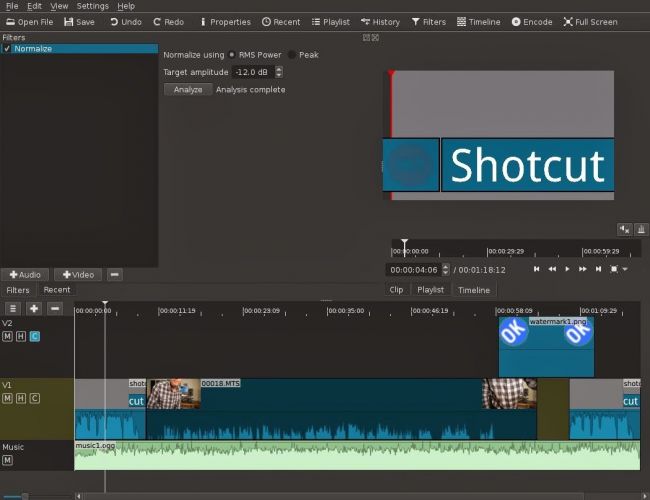
The one I found that does just that, and which also has a substantial amount of Help and Support documentation and video tutorials is Shotcut.

It’s a bit daunting when you first start it up; so many controls, icons, sliders, windows, options – but don’t let that put you off. Just try the basics to get started and then go back to learn more as you need it.

Here’s a link to a “Getting started …” video, and here’s one to a “manual” which tells you more about video-editing and using Shotcut. If you want to print something out to have beside you as you learn how to navigate the interface, you might find this short (3-page) guide useful.

Having created your video masterpiece you’ll want to save it in a format that is playable on most online services and applications – choose MPEG4 from the Export option – and then decide what you want to do with it. You can of course upload it to Google Photos – there’s no size limitation on videos you upload apart from the 15Gb per week that you get against your free storage limit – which is 15Gb!!!! You could use YouTube of course (see above) – but the quality of the video may be downgraded as you upload it; but I’d recommend you also look at Vimeo as it’s a more privacy-orientated platform for sharing videos and has a better-quality of video playback too. You can do quite a bit with a free subscription, but if you’re into video-production in  big way it might be worthwhile paying  £72 for an annual subscription. Alternatively, you could decide to host your own videos, on your own website – but that’s for another day!

… and that’s about it – except for the dreaded live-demo!

Recorded from Zoom, my first attempt. Not all the panes were showing, so I’m afraid the Timeline pane is not to be seen – it’s at the bottom of the screen. I’ll need to see if I can record the whole screen – not just the Window.

[PS: I’ve now found out how to share the Desktop, rather than just a Window, so there’s no stopping me now. Next time, next time …]


Upgrading the RAM on your Laptop PC

This is all you need

The only tool you need is a Posidrive #0 screwdriver for this laptop, I bought a set of six small screwdrivers made by Black & Decker some time ago; if you’re going to do more of this sort of thing, you might need to buy a more sophisticated toolset. I also attached an earth strap – just to show you how to the job properly – but to be perfectly honest I don’t usually bother.

But I’m jumping ahead. You first have to find out what upgrades you can do to your PC. I recommend using Crucial as the supplier of both RAM and hard disk upgrades. When you land on the site, you will see a screen something like this – it will change as new products are introduced …

… you click on Select Computer (you can download a tool to scan your computer, but that shouldn’t be necessary as all the information you need is usually on the bottom of the laptop) and supply the information required about your computer …

… and the following information should come up.

I’ve selected the Upgrade I want, but I’m also offered different DRAM memory choices, as well as SDD hard disk upgrades …

… from this I get the Part No. and then see if I can purchase it cheaper on Amazon – for old memory I usually can …

… so that’s saved £10. Now we turn to the removal of the old 1Gb DRAM module and the insertion of the new 2Gb module. Turn the laptop so that it’s back is facing upwards …

… take your screwdriver and unscrew the screws which are holding the back panel in place.

On this model the screws don’t totally come away from the panel which is great as there’s less likelihood of losing any of them. Unscrew them all, and slide the panel off …

… the DRAM is right in front of you on the left-hand side of this picture. All laptops have different layouts, but the DRAM modules are very easy to pick out! Next comes the first tricky bit (not really). You need to prise the two clips holding the module in place on either side of it. Here’s me prising one clip away …

… you have to do them together of course, but as I don’t have three hands … the module will pop out and swing upwards so that you can easily remove it, which you should do and place it on an electrically inert surface – just in case you have to put it back! You then get your new module and slip it into the space vacated by the old one at an angle. [My apologies – I should have taken a picture of this.] Most problems occur at this point as it can be tricky to insert the new module in firmly enough. You then gently push it down so that the clips re-engage with the module.

Nearly finished now. The new DRAM module is in place and you just have to replace the back panel, tighten the screws and hope that the new memory will be recognised when you boot-up the computer. You may be advised that the Memory Configuration has changed when you re-boot, just ignore this the first time you attempt to re-boot your computer. Check the memory has been recognised from the Windows System Panel …

… and you’re good to go. Any problems, first try and check the module has been inserted firmly and far enough into the slot, and then if necessary run the System Configurator when asked to when you boot up. I’ve never had to do the latter, I have had to unscrew the panel and re-insert the memory module though.

And that’s it. It took me about 10mins, but I have done it before. Still 30mins tops will see you with more memory in your old laptop and hopefully improved performance.

Notes from Zoom Meeting – 14th May 2020

Not much to report, but we had a good chat – eighteen members attended (according to Jim) – thanks for the photo.

I encouraged members to take a look at the Flipboard magazine where I’m trying harder than I had been to curate articles that I think might be of interest to you all. There’s a link on the Blog (Home) page of this website, but here’s a link as well. One of the links I mentioned was this one on an AR app which I invited members to investigate and feed back to me what they thought of it!

I raised the fact that Google Meet was now available and invited anyone who had a Gmail account to take part in a test with me. I haven’t followed that up yet! It’s a direct competitor to Zoom and has been brought out of the Business suite that Google has because of the success of Zoom’s free offering which gives 40mins of video-calling.

We also briefly discussed Google Lens which is certainly available on Android, but I wasn’t sure whether it worked on iOS/iPadOS – it is as part of Google Search and Google Photos, but not as a standalone app. It also works with the Google Assistant on Android as well. Shame! Google Assistant is available on iOS/iPadOS though.

I mentioned that I’d been asked about Jamkazam as an alternative to Zoom by the convenor of the Recorder Group. It’s probably very difficult to make sure the latency of all the participants are kept in sync, but it might be a bit of fun. I suspect some expensive equipment might be needed to make it work successfully. I also suggested that Phil (as a member of the Group) might offer his technical expertise!

I advertised the Which? Scam Service and encouraged members to have a look at it. I started a new Topic in the Computing and all things Digital which I’ll retitle Scams and keep an update on ones that I come across.

I gave a demonstration of my new personal family website which I’ve been working on through early May and explained some of the design issues in building a private members-only website which incorporated a social-media element for closed family chats incorporating threads (which WhatsApp doesn’t) and embedded images (which again WhatsApp has difficulties with).

Ted expressed his pleasure with his new Huawei Honor 8A smartphone and explained he now had to work-out linking Spotify to it, as well as transmitting to his Chromecast machine and integrating with his HiFi. Several members had suggestions and I think that’s a good idea for a topic in the Computing and all things digital forum.

Postscript: This website, and all the others I have hosted with TSOHost went down for approximately 4hours on Friday – that wasn’t the reason why I didn’t get round to writing-up the notes until this morning though! I’m a bit disappointed they haven’t published a reason why they had “network issues”. Yes, I know they happen, but when they do the educated user would like to know what happened, and moreover what they’re doing to mitigate the problem in the future. I don’t depend on my livelihood for income from my websites, but others do. They (we/I) deserve better.

This was our attendance the previous week …

… again – thanks to Jim.


Covid-19 Tracing app

What is Contact Tracing, and how does an app help?

This video from The Guardian is an excellent review of how Contact Tracing works in both a traditional and technology-enable world. You should watch it.

Contact Tracing Infographic

An Infographic that explains how Contact Tracing works

Approaches to creating a Contact Tracing app

Google and Apple have combined to work out a solution that works across iOS/Android devices. Here’s a document that explains how what they have done would work …

Overview_of_COVID-19_Contact_Tracing_Using_BLE


But there are Privacy concerns as this BBC article (with video) explains.  Regardless of those concerns the app is being trialled in the Isle of Wight. It’s useful to know the difference between the approach being used by the NHS and the Google-Apple approach, this article explains those differences.

However there are potentially difficulties …

France (how unexpected) have threatened Google-Apple over the fact they won’t work with France’s standalone approach (a similar approach to the UK); and it has been suggested that failure to adopt a common approach could threaten international travel – as “health passports” will be impossible to implement.

Then there are technical difficulties as iOS and Android devices work in different ways (not unsurprisingly) causing success of the Google-Apple approach to be dependent on a very high adoption amongst Android users.

The new NHS contact-tracing app could be used to send malicious alerts causing people to isolate unnecessarily, The Independent has been told. The app, which is being trialled in the Isle of Wight, tells users if someone they have been in close proximity with may be suffering from coronavirus, meaning they could be exposed. But because users can set off the warnings themselves by reporting symptoms – rather than positive Covid-19 test results – it could be used to send out false alerts. Dr Michael Veale, a lecturer in digital rights at University College London, said Britain’s tracing app had no measures in place to stop individuals “maliciously triggering notifications” using its normal functionality.

Then, on the technical front, some notes from Phil Edwards’ friend

On the Apple-Google Indirect approach

“Their approach seems pretty solid. I think they’re basically exposing some features that previously weren’t available to app developers. Both seem pretty determined to limit the potential for it to be exploited by governments; I think they announced yesterday/the day before that any apps using their system can’t also access location data.

Contact tracing is totally doable without central databases. I can see why a government might want to own data themselves, but there are big downsides (especially security when building in such a rush).”

On the NHSx Direct approach

“The implementation of this contact tracing app really hits that sweet spot between ‘Are they incompetent?’ and ‘Do they have ulterior motives?’ I’d advise against installing it but I doubt it’s going to work properly anyway in its current implementation because of various oddities around how Bluetooth LE works. This isn’t a great article but covers some of it.”

A better comment from Hacker News covers it clearer:

“‘Bluetooth LE has four main states: scanning, advertising, peripheral connection, and central connection. In order to exchange the data that the app needs it needs one device in the peripheral connection mode and the other in the central connection mode. This means one device must have previously been advertising and the other scanning. The two important states are advertising and scanning.Android devices can advertise in the background but they can’t scan reliably, they can do this for a short period of time enforced by the Android time limits on apps running in the background and possibly manufacturer specific power savings measures. These limits are not well documented and cause issues on any device using Bluetooth.iOS devices can’t advertise in the background, however they do advertise an Apple specific advertisement which can’t be controlled by the app but can still be connected to. iOS devices also can’t reliably scan in the background however they can scan more reliably for iBeacons (special adverts) [1]Combined this makes it difficult to work well in the background, Android devices can’t reliably connect to any device, iOS devices can’t connect to each other but iOS devices may be able to connect to Android devices.'”

Finally, a potential for Fraud

Plus fraudsters have not been slow to latch-on to the possibility of piggy-backing on the NHS app as this article in The Guardian show (thanks Phil for the link).

Other references:

The NHS Covid-19 website