
Equipment Required: Tablet, £1 Pay As You Go SIM card, Spare Mobile phone.
You probably have a Whats App account associated with your phone.
You may have a tablet and wish to use Whats App on that tablet. This method gives you a second Whats App account – separate from your original one, – Don`t confuse the two !
1 Obtain a £1 PAYG SIM card from any store
2 Insert the SIM card into the spare phone, there is no need to make any calls, or send texts & hence no requirement to “Top Up” the SIM card
3 Record this phone number and leave the phone turned on
4 On Your Tablet, Download Whats App from Google Play or Apple Store,Select a name you wish to be known as on this Tablet account (different from your normal Whats App account on your normal phone)
5 When the App requests the Tablet to provide a VERIFICATION phone number, enter the Phone Number of your PAYG SIM card from step 3
6 Whats App will send a verification Text to the phone, Confirm the Text if required
7 You are now up and running and can Whats App to and from the Tablet, you can now switch off and forget about the spare phone as it is no longer required.
Enjoy…..
Paul
Welcome to the Computer Group – 12th September 2019
Welcome
Introductions
What do you want / expect from the Group?
Please tick your attendance, pay £1.50 and agree that you want to join the “Thought grazing” website I run where the notes of the meeting are posted, and that you are interested in joining a WhatsApp Group.
For those who’ve expressed an interest in “Thought grazing” and establishing a WhatsApp Group, I’ll send out an email following the meeting with UserIds and Initial Passwords for new members. [You can change your password if you want to – I’ll write a post that explains how you can do that.] The Password for Password Protected pages on the website is the same as everyone’s initial UserId Password, namely – Ca3rdyddU3A
Do we all know the difference between Google and an Internet Browser? – Don’t be shy. This is perhaps the most important thing to be sure about before we go any further. Two links to look at – Just google it … and the notes from the first meeting last year.
What’s happening to Digital Projects?
Helping others in Cardiff U3A with Computing/IT issues …
- a WhatsApp Help & Advice Group? We agreed to do this and I’ll write to the Committee for them to consider.
- opening-up Thought grazing to non-Group members? We agreed not to do this
Visits. We agreed visits to the Barclays ‘Maker Space’ which Mario will arrange for us, see details below …
In addition, as part of our community commitment, we have also opened a new office in Cardiff designed to help businesses grow and start up in Cardiff. Great for budding Entrepreneurs (which statistics show can be high in the over 50s) and inventors. Part of the Eagle Lab office hosts a “Maker Space” that houses laser cutting, vinyl printing, 3D printing, electronics equipment including soldering etc. It has a distinctly digital feel too with a really switched on Engineer running the lab. We can host groups there and would be happy to chat with your Digital Projects group and your Science groups coordinators, to discuss with them what is available there and whether they would like to bring members along to take a look at the facilities, or host a meeting there. Please feel free to ask them to contact me and I can discuss what they need, what we have, what we can do to support your members.
… in the approach to Easter, and also a visit to the new BBC Centre after Easter. I’ll approach Cardiff Uni about the possibility of a visit maybe before Christmas, and Fred suggested a visit to Brains new brewery site as an alternative.
Boot-up
There will be no News section this year – I’m moving it to Flipboard, unless there’s a really big news story when we’ll take it as part of Boot-up.
Only “really” big news (tongue-in-cheek) is of course the Apple Autumn event streamed across the world last Tuesday afternoon. Available on YouTube and from Special Apple Events (if you’ve got an Apple TV).
Update your Bus Pass – Transport for Wales have taken over the issuing of concessionary bus passes for all of Wales from the Local Authorities. Your current bus pass will not be valid after December 31st 2019.
Gear Guide
Members are encouraged to talk about a new piece of computing/digital technology, or software that they’ve purchased or recently started using.
Paul’s gear experience this summer …
Our Windows 7 Medion Laptop in Holland slowly died after over 10 years, it was originally running Vista.
I looked at what we (Dolly) actually used it for …
- Emails
- Google Photos
- Banking
- Bit of Surfing
- Some Games
I concluded that we could use a Chromebook for all this, apart from 2 Windows specific Games.
I purchased an ACER 15.6″ Chromebook for €260 (it runs Chrome Operating System (Nougat 7.11) and with the saving from not getting a Windows 10 Lap Top , I bought a Lenovo 10″ tablet (TBX104F) for €120 (16GB / 2GB, it runs Android Oreo 8.1).
The Chromebook set up was really easy, you follow the on-screen instructions, and connect to your WiFi. It did an Update when started for the first time, then, if you already have an active Google Account and were using a Chrome Browser, you enter your details and it loads up and mimics what you had before. It works with Google Drive (or Cloud ?) and is easy to use for all the Google apps in the Google suite.
The Android Tablet was also simple, again you follow the on screen instructions & once logged in to your Google Account, it asks if you’d like to Clone your nearby Android device; hence it loads all the Apps you have on your phone. Dolly loves the Tablet, and is sorry she resisted my efforts to get her one for years!!
We came back to the UK and have now bought a SIM-free HONOR 8A phone for £120 from CarPhone Warehouse, although they are easily available elsewhere.
HONOR is part of Hauwei , but any current phones will continue to be supported with Google products (thus there should be no problem with the current Import Restrictions placed upon Huawei. This device runs Android 9.0 and is a DUAL-SIM device so we can install a UK and a Dutch Sim and she can use a single phone. [She is waiting for me to go over and install the Dutch Sim.] Set up on the phone was again easy. I logged into her Google account, and it mimicked all the apps she already had. I resisted the offer to sign up to Hauwai app “for a better experience”. 🙂
The HONOR also has some nice features … take a photo, and answer a call by just touching the Finger Print Sensor, on the back.
Currently all is working well.
Marilyn approached me for advice on which Mac to buy. She had a Windows laptop which was slowly dying. I advised her the most important thing when buying new gear was to write down very clearly what it was that you wanted to do with the gear, and where you wanted to do it. The upshot of that debate with herself was that she got an iMac desktop instead with faster internal Solid State Hard disk, an external hard disk for her photographs, and a bigger (and better screen) to watch YouTube photography videos on … and a re-organised flat!!!!
Apps Galore
That slot in the meeting where members are encouraged to share their experience (and possibly excitement) at a new app they’ve started using for their smartphone, tablet, laptop or desktop machine.
What’s IT all about?
An opportunity to occasionally go into a little more detail about how something works – eg how the internet works, how does a website work, how does email work, etc etc
Thought grazing, Flipboard and WhatsApp
Demonstration of using Thought grazing – there is a Guide, but I know you’d all like a demonstration.
Using Flipboard – for the best experience, register, follow Thought grazing and install it on your smartphone or tablet. You can add content yourself as well.
Creating a WhatsApp Group … for the Group. If you’ve ticked-the box on the sheet I’ve circulated, I’ll send you an invite to join the Group. You’ll need a mobile phone number to participate (I believe), and have installed the App on your phone. You can then also use if from your laptop/desktop (if your phone is to hand). Currently, it’s not available on a tablet (I believe).
[Update: Paul has written a post detailing how you can add WhatsApp to a Tablet.]
WhatsApp location finder.
If you want to share your location with a friend eg if your delayed on a train – WhatsApp may come in useful.
- Open individual chat or group chat, in text box, tap the paper clip icon. Tap Location in the box that pops up, (ensure you’ve already allowed whatsApp access to your location)
- On next screen a google map of your exact position appears, and below this a list of nearby locations as well as the option to share live location.
- Tap Share Live Location & choose how long to share your location (can be between 15 min -1 hour & 8 hours)
- You can also add comment here eg train running late.
- Tap the Send arrow, you’ll then see your location on the app map & an option to Stop Sharing – which can be used any time
Android System Update
What a week! I was getting to the end of the extra data allowance I bought after the Windows update, when I noticed Android was doing an update to my phone. I managed to interrupt it, hopefully before the allowance had been used up completely. I’ve now been able to let it finish.
It might be something for some of the group to keep an eye out for.
Another Windows 10 Update / Internet Explorer
This update apparently was because I’m using an old version of Windows 10 (?!), which won’t be supported after November (?! again). Once again I had a hint one was on the way, because a few times last week I lost control of the cursor, presumably as the update was being downloaded. It was finally installed this morning, taking about an hour.
On another matter, a member of the Photography Group had some trouble logging in to some sites, and finally took her laptop in to the shop she bought it from. It turns out she was still using Internet Explorer as her browser, which is now past its ‘use by’ date. She is now using Firefox, (but as we know, other browsers are available). Does that help anybody?
Sound session – 25th July 2019
Boot-up
Renee has asked a question about PDF converters. I’ve attempted to answer part of the question, but have not come up with any answer yet on electronic signatures – any thoughts, anyone? A former colleague has suggested that OpenOffice might provide the solution that Renee requires. I haven’t had the time to test that idea, but if it works – it might mean that this software is a better choice than LibreOffice which we looked at earlier in the year but you’d have to forego the ability to read AND write in Office formats (.docx and .xlsx), I believe.
The other thing I wanted to raise with you was how I was going to decide whether to use Apple Music (rather than Spotify, Google Music, Amazon Music, or whatever). I really haven’t had the time to give it a serious tryout but I can see that there’s some music available that I haven’t seen anywhere else – compilations of live music for an artist, for example – which looks very interesting. So I’ll subscribe for a while, see how the breakup of iTunes this autumn works out and then make a decision about whether £9.99 a month is a worthwhile subscription cost.
There was no interest from my family – I could have added them at an additional cost of £5pm – they’re all Spotify users. I guess that’s the issue. If you’re a user of another service and have set up Playlists, or whatever, and know the interface – why would you change? Me … I’m very slow into digital music. I’ve always wanted to hold the CD, and before that the vinyl/cassette, but as I have no interest in the latter anymore, perhaps it’s also time to ditch the former too!
Whatever I decide to do, I must remember to back-up my iTunes Library and iTunes Media Folder before I do anything – and that includes cancelling my iTunes Match subscription, which I’ve not been totally sure what it gives me, but which I know now is unnecessary if I have Apple Music.
Anything else anyone?
News
Continuing our paranoia theme of the year – ways in which to find out if accounts are linked to your email or phone.
How to avoid fake ads disguised as fake download links.
An unexpected upgrade for old iPhones.
Sound
So this part of the session is a bit of a “digital project”, but one where I have very little expertise, so I’m hoping (praying) for some help from Jim and anyone else who knows something about this area!
The challenge was thrown down by Renee. To paraphrase what she said: “How do I get music off old analog devices” (ie cassette recorders and record decks). I knew I had a a device to help in that – it was just a challenge to find it, to see if it would still work and more importantly whether it would work with current hardware PCs and Macs.
I’m delighted to say I found it (in the same box as my record deck); it appeared to be still working; which was then confirmed when I connected it to both a PC and my Mac running the latest versions of Windows 10, and MacOS (Mojave). So as long as I didn’t want to use the software provided by Creative – which I didn’t – all was ready to go.
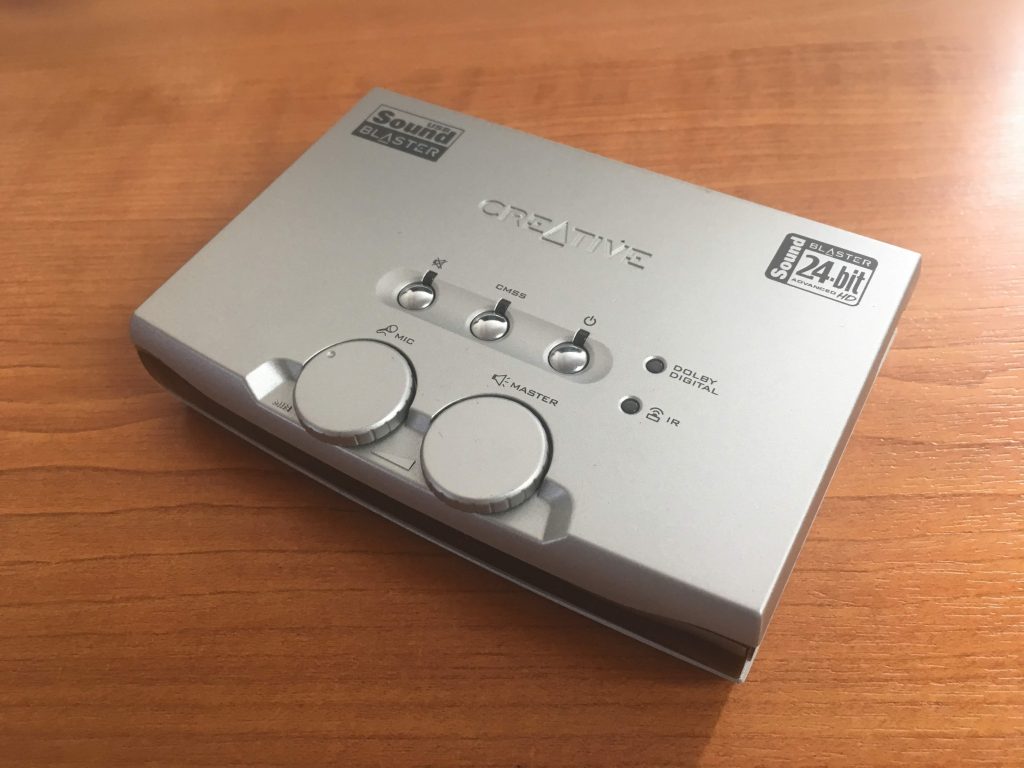
Here’s the Creative SoundBlaster Audigy NX-2 external sound card – to be found in every home … NOT, just in a geeks home, like mine!
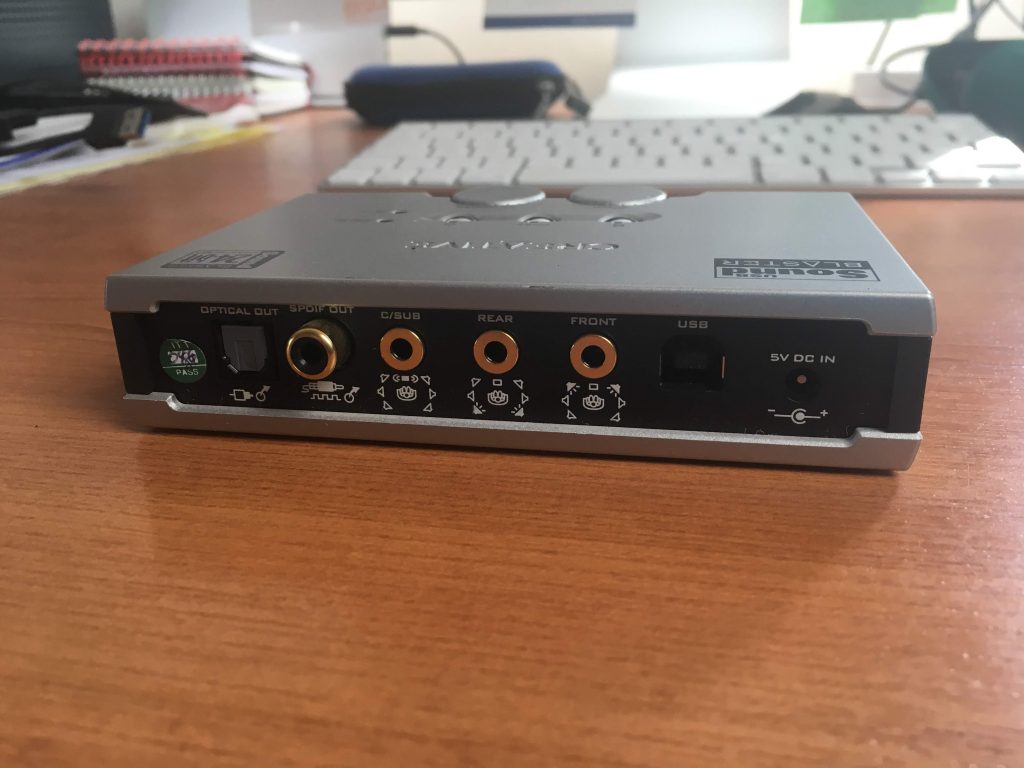
On the back you have a number of ports and the power connection, but most importantly the USB port.
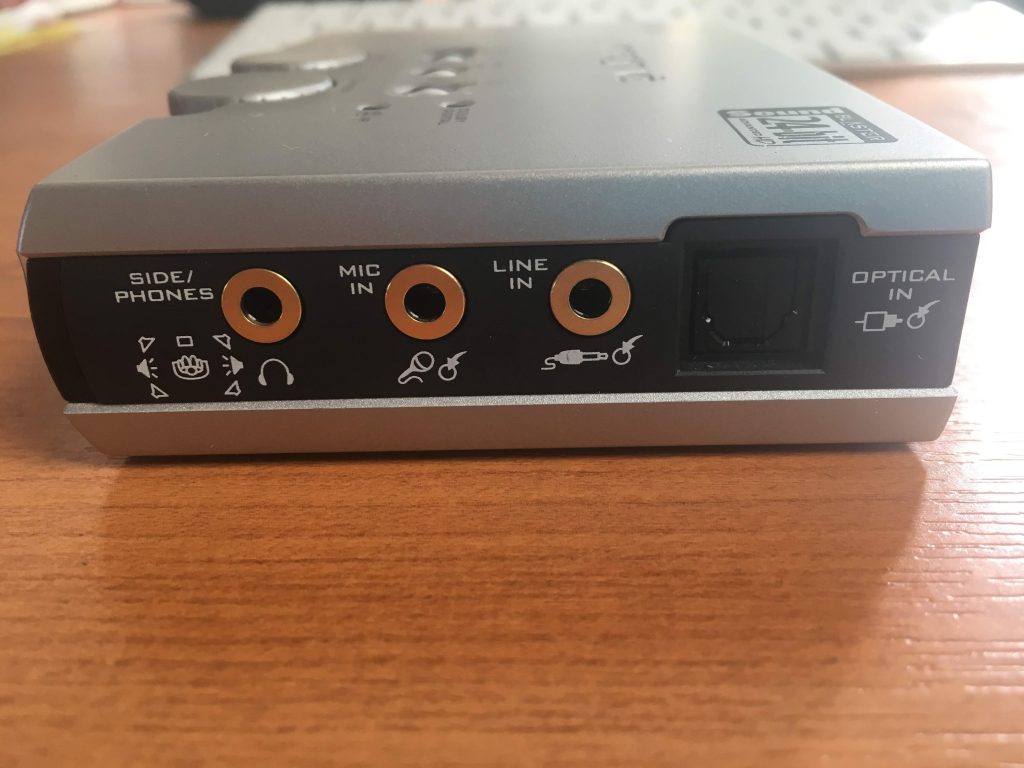
 On the side you have the port I’m going to use for input (Line In) – but you can see also a port for Mic In.
 So having connected the power cable, and the USB cable to the SoundBlaster and the computer, it’s now time to connect the sound source cables. For that you’ll need either a cable like this …
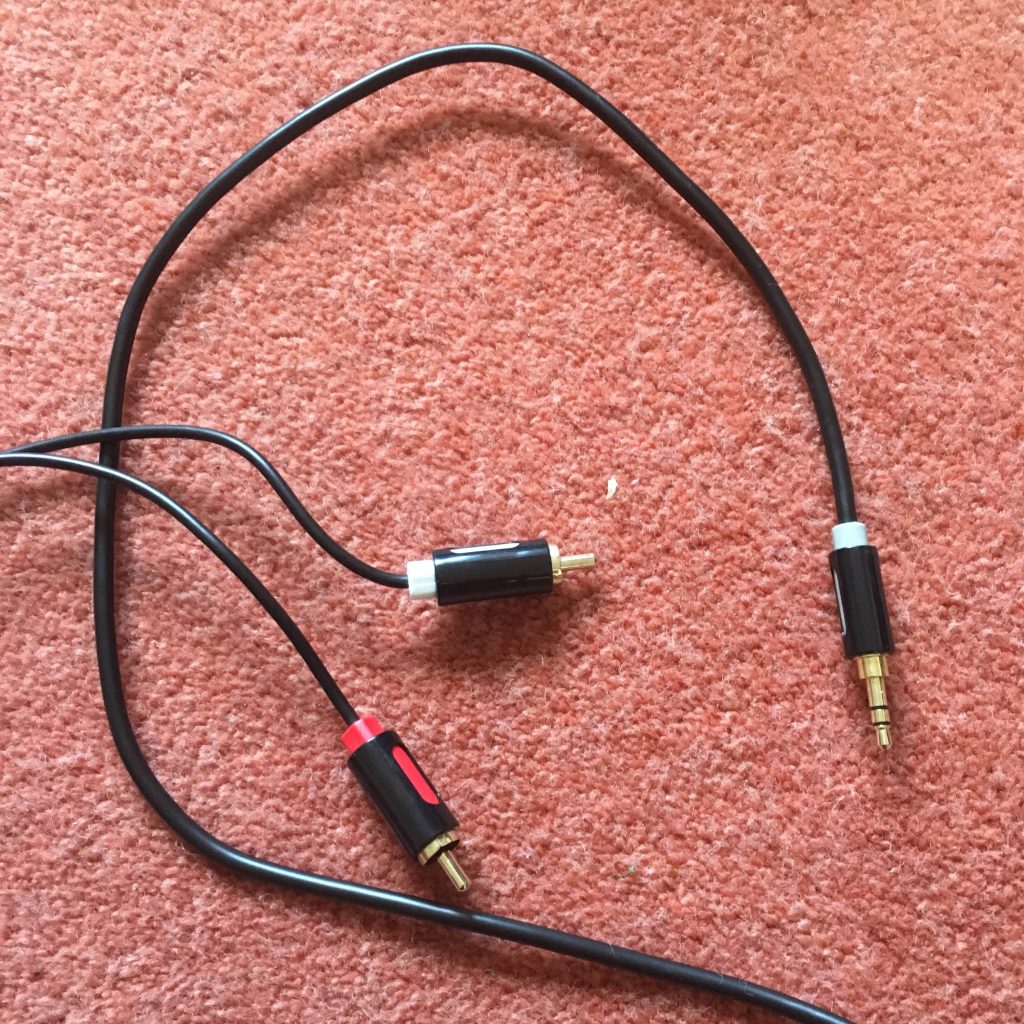

… or have a splitter to join two red and white hifi cables to the Line In …
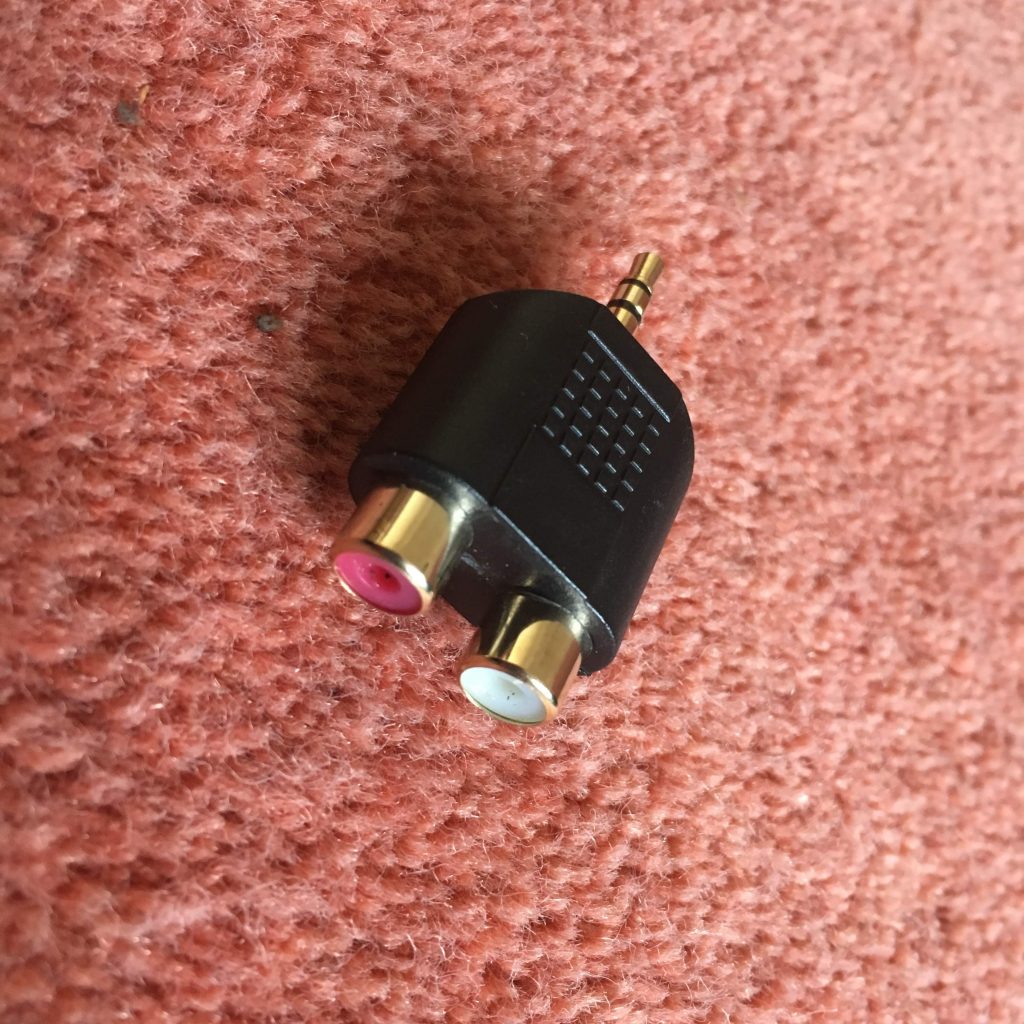

… or in my case for testing only, a cable like this …
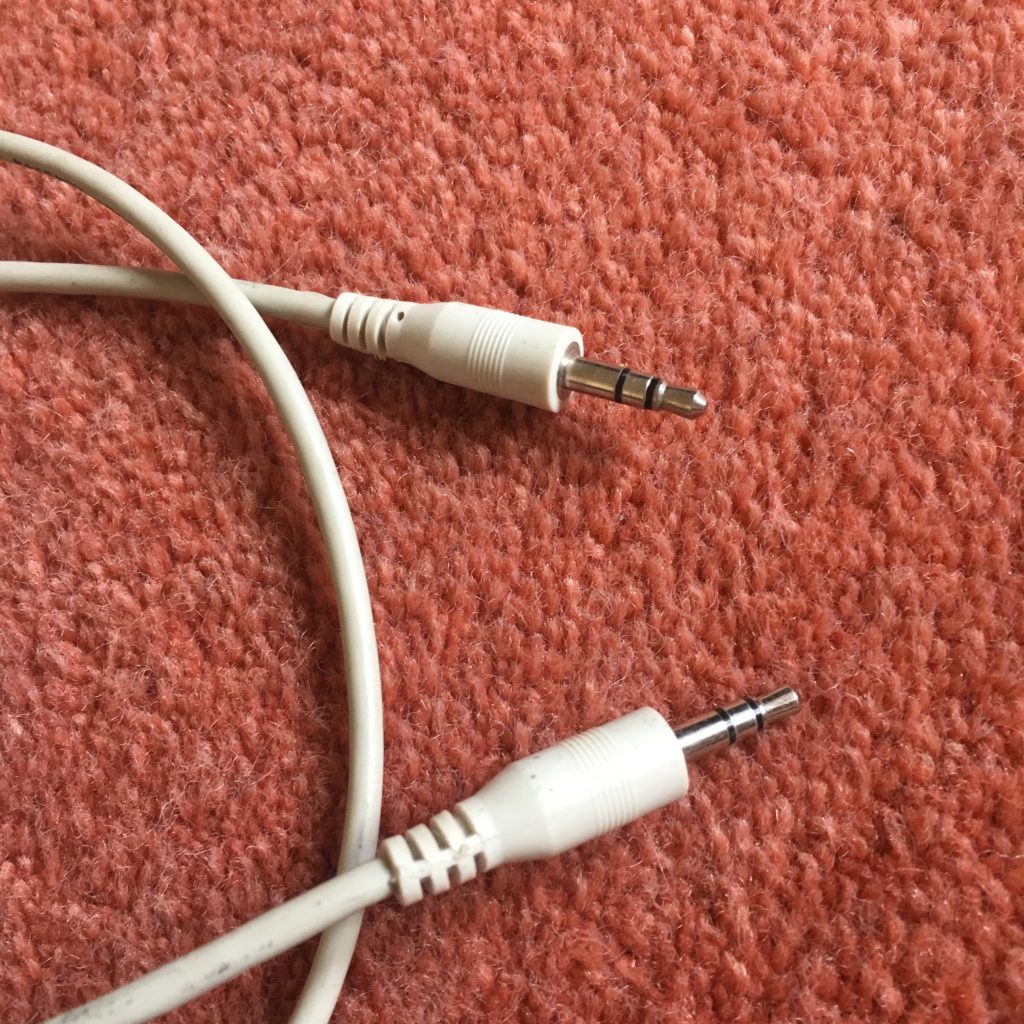

… so that I can connect my iPhone to it! Yes, I know that’s totally pointless as the music on that device is already digital BUT I wasn’t going to lug a cassette deck in today, let alone a record deck! I haven’t tested output from a headphones socket into Line In which would use a similar cable. I can’t see any reason why that wouldn’t work as well. [NB This won’t work with more recent Apple devices than the iPhone 6s which I had at this time, as Apple have discontinued the headphone jack on their devices.]
You might also be able to connect another music device – keyboards or whatever using this method.
There is one caveat if you’re using the red and white cable connectors. You may well (certainly in the case of a record deck) need to take the feed from an amplified source as the sound output is unlikely to be sufficient for the software on the computer to pick-up. So you may need to take the feed from your hifi amplifier rather than the decks. Which neatly leads us to the software we’re going to use. Which is called Audacity …
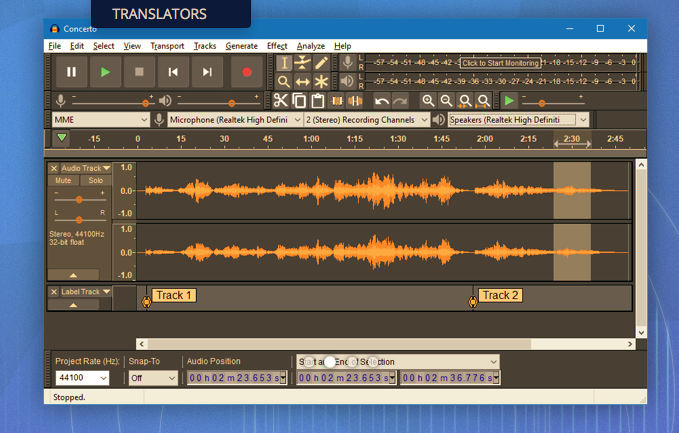
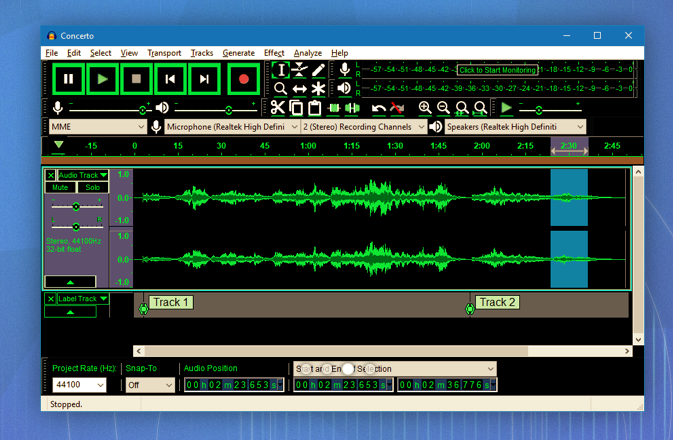
and which can be downloaded from this link. Make sure you choose the right format – Windows or Mac. Below are a couple of screen shots of the software in action, but now (drum roll), I’m going to try another live demo, which I have absolutely no confidence of achieving success, whatsoever!
However, hopefully, Jim will have helped me a bit and it’s not been a complete disaster and it’s good to know that the software is well documented here.
I’ve got a printout of the instructions on how the SoundBlaster card works, and I can make them available if anyone wants to borrow the device and cables.
PDF / WORD converter
Does anyone know a free reliable Pdf to Word converter?
I am also looking for software for electronic signatures.
Thanks.
Google Photos and Google Drive, and the Apps I can't do without – July 11th 2019
Boot-up
A couple of postings from Jim and me on Thought grazing, including Jim’s annoyance at having a Windows 10 upgrade foisted on him.
Google Photos and Google Drive
Jim posted on Thought grazing last month about the proposed changes to the way that Google Photos, Google Drive and Backup and Sync were going to work together. This is Google’s blogpost on the changes they are making and here is the help document explaining what will happen after July 10th, I suspect many of you will also have received this email …
| Simplifying how Google Photos & Google Drive work together | ||||||||
| You are getting this email because you sync items between Google Photos and Google Drive. | ||||||||
| Over the next few weeks, we are making some changes to help simplify how Google Photos and Google Drive work together. We are making these changes based on the feedback that we’ve heard that the connection between these services is hard to understand. | ||||||||
|
||||||||
| You can read our Help Centre article or learn more about these changes in our blog post. |
Add photos and videos from Google Drive to Google Photos
So … it’s really important to understand what Backup and Sync is doing, and this is determined from the Preferences screen.


Also from Backup and Sync you have links to your local Google Drive, your Google Drive on the web and Google Photos on the web …

… the interface is slightly different on Windows, but the first button will bring up something like this …

… the second button (from the web) will bring up something like this …

… and the third button (again from the web) will reveal something like this …

Now I wanted to test the Upload from Google Drive (which you should be able to do from the Upload button on the top-right of the screen), but it’s not yet operational – and it’s the 11th July! However, I see now that I can drag and drop images which is new, although the imported image is not easy to find unless you add it to an album at the time of import!
On my iPhone, the Google Photos app settings look like this …

… and then the Settings screen looks like this …

… with everything I’m uploading (Backup and Sync) NOT counting towards my storage limit as I’ve chosen the “High Quality” (15Mp) option. Then on my Google Drive app, the open screen looks like this …

… and if I open the Google Photos folder that I had at one time been syncing with Google Drive, it looks like this …

… with the warning that they are no longer connected. If I then look at Google Drive settings …

… the Photos setting being like this …

… and the Backup settings being like this …

… you can see the Backups are clearly defined. As it happens I don’t Backup from my iPhone as I sync everything to my Desktop and that’s where my Backups of Google Drive, Contacts, Calendar are done.
So I think the separation of automatic sync’ing between the two could be a distinct advantage. You just need to make sure you set up your Backup and Sync options, or preferences the way you want it to work for each of Google Drive and Google Photos.
PS: How to do screen shots from an iPhone – hold the Power button down and press the Home button and then release the Power button. The image will transfer to your Photos Library, and if you’ve got Google Photos linked to your Photos Library, it will appear there as well, and then be Sync’d up to your Google Photos on the web, from where you can Download them to your desktop to insert them in a document – like this one!
Anything else, issues, problems.
Next and last meeting: Sound
News
Google Maps may be getting public transport information.
New warning over automated phone call scams.
BT to offer Free Telephone Number to Report Nuisance Calls – 0800 150 150 – it’s a scam!!!
Reasons to Install a Password Manager
How to find out if your Facebook account has been hacked.
George Felton has passed away.
The Apps I can’t do without
Working smarter?
eMail – use a client and link it to the service; that way you can archive mail and contacts locally rather than leave it on a server which is useful if you change provider; you can also read your mail offline. I also recommend using Google (Gmail) – they have no restrictions on the number of accounts you have. Each one you open – you get 15Mb of cloud storage on Google Drive too.
Calendar – I’d be lost without my Google Calendar. Everything goes into it and it’s held in an account which my wife and I share. So everything that either of us puts in, appears in the others Calendar and we then use the Calendar client on our devices. I’m also beginning to use Reminders on my iPhone as I quite like the nagging it does on the lock screen, so that I don’t forget to do something!
Contacts – we do the same with Contacts; the same Google Account holds all our contacts. We don’t store number on our phones, we just sync them down to the client application on our devices.
Cloud storage
You name it, I’ve tried it and/or am using it. In practice my preferred method of working separates things I may wish to share – which I put on Google Drive, or Dropbox – and those things I want to access from more than one device – which I put on iCloud. I tried OneDrive, but it’s just too “windoesy”.
Browser?
I think I’ve tried them all and I change about a bit. Currently my preferred one is Safari because all my kit is Apple, but Brave is a really strong contender to replace Chrome (it’s the same “under the hood”). I’m now exclusively using DuckDuckGo as my search engine of choice on all but Chrome.
Text
I hate to admit it but I’ve got to like texting and also using WhatsApp – rumoured to be about to arrive on the iPad soon! The important thing about using communication tools is to use the most appropriate one in its correct context.
For example
- You require an answer to a question, or you want to make arrangements with someone – use eMail; it provides a better message trail and usually there is no urgency, so asynchronous communication is best.
- You want to let someone know what time you’re arriving – unless it’s urgent and you need to arrange a meeting in which case use a phone – use text.
- You want to discuss something but it’s not time critical – use WhatsApp.
- You want to discuss something and it is time critical – use the phone!
Note taking
I’ve mentioned it so many times before, it must be boring but Evernote is just great for recording almost everything and for saving/archiving almost anything.
Maps
I still prefer Google Maps, but Apple’s Maps are getting better and now that our cars have got Apple’s CarPlay, I may be tempted to move. [I can also use Google Maps through CarPlay, I believe.] I also have a subscription to OS Maps – as they’re the best [I’ve an annual subscription which allows me to print maps off as well].
Photography
I prefer Google Photos to Apple’s Photo app, because Google works better with Apple, than Apple works with Google. I also love the new Flickr and have taken out a Pro account to enable me to store more photos there.
Password Manager and Security
I truly don’t know how I could manage without LastPass. With so many online accounts it would be impossible to remember all the sign-on credentials, so it’s a life-saver! I’m also increasingly using two-factor authentication for a lot of sites, and Google’s Authenticator is a useful app that helps there as it means you don’t have to wait for a 6-digit number to be texted to you.
Newsreader
Apart from the subscription apps that I’ve got to read national newspapers, and the BBC app – which I’m not so impressed with these days – and Wales Online – which I dip into regularly; I use Feedly which aggregates new posts from all the websites I’m interested using a protocol called RSS (Really simple syndication) so that several times during the day I look to see what’s going on in the areas I’m interested in – Photography, Technology and West Ham!! It’s a great way of keeping in touch with things. I’m hoping to do more with this and linking them to my Flipboard magazines going forward.
The Weather
Ever since the Beeb ditched the Met Office I’ve preferred the Met Office app – you know where the data is coming from and it’s proved very accurate over the past couple of years, even when abroad as it links to the national meteorological services of counties around the world if it can!
Cardiff Bus and Cardiff Gov
Two apps that are invaluable – the latter also sends me reminders of what kind of bin collection I should expect.
And there’s of course many more, but I was trying to answer the question – “The apps I can’t do without”. What are yours?
Windows 10 Updates
Just to say that I couldn’t go into town for lunch yesterday, because my laptop insisted on installing two updates when I tried to shut it down. Each one took about an hour, and since then there have been a couple of smaller ones.
I had a clue that something was up when I was prevented from finishing an email for about twenty minutes, presumably due to an update downloading. Something for you to watch out for.
Looking at Windows Update in ‘settings’, I see that there are some more, which I can install when I am ready. That won’t be for a couple of days though, when a new data download month begins for me.
URL shortening and bookmark managers.
Jim has pulled me up about my use of long rambling URLs in emails I send him – I confess, it was laziness. I could (and should) have installed Bitly – which is a URL shortener which can be installed as an extension in my browser. I needed to create a Bitly account but having done that it works across my various browsers and also on my iPhone (Android app here). I have done that now – perhaps you’d like to look at it.
Another extension you might want to consider is a development of the bookmark managers (ie diigo, and the now retired Delicious) which allows you to save links to websites to re-visit later, and also read offline. The one I use is Pocket, it’s how I construct the News item for the meetings. I just save pages between meetings and then before a meeting I review them, and cut’n’paste links to this site, and sometimes (when I remember) also to the Flipboard site.