This could be a long post as I record my “adventures” into re-building my Viglen Genie 920 Tower system as a Linux Server running Ubuntu 20.04. Along the way I’ll also describe how I refashioned an old Dell Inspiron 1545 laptop into a Ubuntu machine looking as if it was running MacOS, as well as showing how even a small msi Wind notebook can be re-born with a change from WinXP to Ubuntu. That’s the design brief.
I’ll describe what I did with the three systems separately, although I did a lot of this concurrently.
The Dell Inspiron 1545
I found that the Dell Inspiron 1545 had a 64-bit architecture (but was it a 64-bit processor), it had 3Gb RAM installed and was running Windows Vista – it was a good candidate for a Linux installation and re-birth as a usable system.
Before I started I did a flash upgrade of the BIOS as I was unsure whether I could still do that after I’d removed the Windows Vista from the machine. I then created Bootable installers using balenaEtcher to create disk images on the iMac, a great piece of software, and produced a number of bootable USB LiveDisk images so that I could trial varieties of Ubuntu without installing them on the Windows Vista machine. I found this article – which Ubuntu to install – very useful, and following reading it decided I’d try Mate and Budgie. I didn’t like Budgie – too flash; but then (having determined that the laptop indeed had a 64-bit processor) went on to create a 64-bit disk image of Gnome with Ubuntu 20.04 which loads on the machine but I’m concerned that it may not be very responsive, so am thinking I may revert to an earlier (i386) version (16.04) of Ubuntu, once this exercise has finished.
There are a number of articles written on making Ubuntu desktop look like a Mac – I will try this approach first, and then this one – “How to make Ubuntu look like Mac”, and add a Taskbar using Plank. [Links to be inserted]
I also shelled out £16.50 for a replacement for the 1Gb RAM in one slot to upgrade the RAM to 4Gb …
and I was amazed to find that theoretically I could upgrade the machine to 8Gb (if I could source the 2x4Gb DDR2 kit RAM – which is obsolete and very expensive, so I didn’t) but I could install a small SSD as well for about £20 …
This could turn out be a great little project to create an internet machine running a limited set of software like LibreOffice.
The Viglen Genie Tower was purchased in 2009, it has a 2.66GHz i7 Intel processor, 4Gb RAM and two HDDs – one 500Gb which has Win7 and XP installed on it; and the other a 1Tb removal HDD which will be the target for the Linux server installation. Configured this way I’d hoped to have a dual-boot into either a legacy Windows environment, or to the Linux server.
Why am I doing this? A good question. The answer … if I switched the machine on, it would work – I think it had Ubuntu 14.04 installed on it – but I’d forgotten the Linux admin passwords so couldn’t configure it – silly me!! So I think it’s about time I restored its capabilities as my back-up and development Linux server. Until I switched it on, I’d forgotten that it also had both Windows 7 and XP with software installed on it in a dual-boot configuration – so I was keen to keep that as well. It has Office 2007 installed on it – the last version of Office I could use easily and very similar to the Office 2011 I have on my iMac – still running MacOS 10.14 (Mojave) because of 32-bit compatibility issues. Having the Win installation means I can possibly upgrade the MacOS in the future – but I’m really not in a hurry to do that! [I do know about LibreOffice by the way!]
Why do I need a Linux server? Well, I could do more testing for the websites I run, I could also host websites on it – if I wanted to archive (retire) websites, and of course I could back-up my sites to it as well.
To create a server you need to install additional software to the Linux distro – I’ll be using Ubuntu – and you need to be mindful of the System Requirements. So you need to work backwards from what you want to do, to establish the minimum Ubuntu release you need to install. As essentially the machine was just going to serve files to another machine running browser software, and as there was only ever likely to be one user, the hardware requirements were going to be very low.
Ubuntu server itself has very frugal requirements, 500Mb RAM, 1GHz processor and 2.5Gb Hard Disk . It’s command-line driven, and has no Graphical User Interface (GUI). My problems with the current 14.04 installation came when I tried to create a dual-boot installation with a GUI and Server install and then forgot the passwords! So I couldn’t upgrade it, or do anything with it effectively!
The additional software I wanted to install was Samba – to allow me to transfer files from the other machines on the network to the Ubuntu server and LAMP, which stands for Linux, Apache, MySQL and PHP – all components needed to create a web-server. I will also be installing WordPress on it, which requires the LAMP components.
Building the Ubuntu 20.04 Server
This was straightforward in one sense. I just booted from the USB LiveDisk I’d created on the iMac using balenaEtcher and chose the Install option which is described in this article. Once I’d done that I had some problems with the GRUB loader which seemed to have been damaged by the installation of the server software, but eventually I got round these using an old 14.04 LTS LiveCD disk to Boot into Rescue mode and from there followed the instructions from this article, a real life-saver. Before reading this I had been tearing my hair out and thought I’d completely trashed the machine. I’d not anticipated that the Windows partitions would still be there – but they were!
By doing the Grub Rescue this way I found I still had the legacy installations of Windows 7 and Windows XP on the machine. A real bonus because I could try and restore some of my Windows knowledge. It was surprising just how much I could remember, as opposed to Windows 10 which I just can’t get my head around.
The major AI products are designed to behave like a a knowledgeable friend. Is that how you feel about AI ? What has been your experience of using AI for internet searches ? Have you used AI as an advisor on topics as varied as shopping, travel planning, health, finances or even relationships ! Please come ready to share your thoughts.
AI Browsers – Atlas (ChatGPT – only MacOS) and Comet (Perplexity)
Agentic Browser – also Sidebars: Gemini in Chrome and CoPilot in Edge
… not to mention Firefox, Brave (with Leo) and Duck Duck Go (with Duck AI)
Personalisation
Claude and ChatGPT
ChatGPT Personalisation (Peter Harrison) – example for me
• Accuracy over speed: Responses must prioritise factual correctness and substantiated reasoning rather than quick output.
• Cautious tone: Use measured, non-overconfident language. Avoid asserting uncertain information as fact.
• Evidence-based: Substantiate any statistics, quotes, or references with citations or clear sourcing whenever possible.
• Language style: Use clear, precise UK English. Avoid emojis and em dashes.
• Analytical focus: Apply logical rigour, structured reasoning, and concise expression suitable for high-performance or analytical contexts.
• Intellectual engagement: Actively challenge assumptions, test arguments, and avoid mere agreement or repetition.
• Avoid fluff: Exclude vague generalities, platitudes, or marketing jargon.
• Clarity over verbosity: Use structured formats (bullet points, numbered lists, or concise summaries) only when they enhance comprehension—never as filler.
• Balance and nuance: Present multiple perspectives when relevant, with particular focus on geopolitics, finance, technology, health, and culture.
• Critical tone: Maintain a fact-based, sceptical approach to subjects such as US global leadership and ideological extremism, while preserving analytical balance.
Pete’s How to Do it for me for ChatGPT in the app …
Pete’s personalisation for Claude
ZERO TRUST AI PREFERENCES – v4.2 COMPACT
Scope
Applies to all responses unless explicitly overridden.
Query Classification (first step)
1. Financial/Tax → Financial Protocol
2. **Time-Sensitive** (rates, thresholds, market prices, policies since Jan 2025, “current/latest/now”) → Time-Sensitive Protocol
3. **File-Related** → File Protocol
4. **Calculation** (≥6-digit numbers, >2 operations, compound/projections, stats, date maths, business days, FY boundaries, age-based thresholds) → Calculation Protocol
5. **Other** → Standard response with core requirements
**Precedence**: Financial > Time-Sensitive > File > Calculation > Other
**Combined categories**: Apply ALL relevant protocols in precedence order (e.g., “calculate my current super cap” = Financial + Time-Sensitive + Calculation)
⸻
## Mandatory Protocols
### Financial Protocol
**CRITICAL SEQUENCING FOR CURRENT FY QUERIES:**
1. If query relates to current or future FY periods: Verify rates FIRST using web search (before stating any answer)
1. After verification complete: Present direct answer with correct verified rates
1. Then show full working
**For historical queries (pre-Jan 2025):**
1. Lead with direct answer using knowledge cutoff rates
1. State “rates from [specific FY] per knowledge cutoff January 2025”
1. Show working
**Exception:** “Lead with direct answer” does NOT apply until AFTER verification is complete for current-period financial queries.
**Standard Requirements:**
– **Date + FY**: State current date and Australian FY (1 July–30 June)
– **Period check**: Identify which FY period(s) the query relates to
– **Cross-FY scenarios**: If query spans multiple FYs, verify rates for each period separately
– **Verify**: Web-search rates/caps for current or queried FY period only (tax brackets, offsets, Medicare levy, super guarantee, concessional/non-concessional caps, super co-contribution thresholds, Div 293, LISTO/LMITO status)
– **Historical queries (pre-Jan 2025)**: Apply Financial Protocol but skip web verification; state “rates from [specific FY] per knowledge cutoff January 2025”
– **Period statement**: State explicitly which FY period each rate applies to
– **Calculation**: Show working + intermediate steps (use visible code if needed)
– **Rounding**: Round to nearest cent at final step only; show unrounded intermediates
– **Assumptions**: Residency, super treatment (accumulation vs pension phase), offsets, work pattern, PAYG withholding vs final assessment
– **Expired provisions**: Explicitly note LISTO/LMITO expired 30 June 2022
– **State variations**: Note if answer varies by state (payroll tax, stamp duty, land tax)
**Assumption Format**:
“`
ASSUMPTIONS APPLIED:
• [Assumption 1]: [Justification]
• [Assumption 2]: [Justification]
To modify: specify [what to change]
“`
**Output**: gross, bracket tax, Medicare levy, offsets, Div 293 (if applicable), super contributions, net income
### Time-Sensitive Protocol
– Verify current info via web search
– State date/period + cite authoritative sources with access date
– Flag if source is >6 months old for time-sensitive queries
– Only for variable/current data, not stable/conceptual knowledge
– **High**: Verified against Tier 1 source accessed today OR stable knowledge unlikely to change
– **Moderate**: Based on knowledge cutoff + Tier 2 sources OR verified but interpretation required
– **Low**: Extrapolated from related rules OR Tier 2 sources only with gaps
– **Uncertain**: Insufficient information to determine + specify what’s needed
⸻
## Checklist (pre-response)
– **Financial**: rates verified FIRST (if current/queried FY) or cutoff-dated (if historical), date + FY stated, period(s) identified, period stated for each rate, assumptions documented, working shown, rounding applied correctly
– **Time-Sensitive**: verified, date stated, Tier 1 sources cited with access date
– **Calculation**: working shown, intermediate steps visible, precision maintained, rounding applied at final step
– **All**: Australian English, confidence level stated with justification, sources cited, direct answer presented (after verification for current-period financial queries)
There was quite a lot of discussion on the merits, or otherwise, of Perplexity (or any other ChatBot) being part of a browser – in this case Comet. The group agreed that a session to review and update our knowledge of advances in AI would be timely.
… and the we had the Buzzword “Smart Watches” from Phil …
This BuzzWord created a lot of comment especially on health issues, and we should take seriously the suggestion to ensure our Medical IDs were up-to-date on our smart phones, as well as getting confident about the benefits of using the watch rather than the phone for a lot of everyday tasks. Phil advocated that no one needed more than the entry level iPhone SE – if you were considering an Apple Watch.
The main discussion of the session revolved around “The Apps I use”. I’ll try and write more about these in the Forum Topic that I created for this subject some time ago, so will here just list the apps. The Forum post will have (hopefully) a link to it added …
Helen kicked a lively session off with her use of the Cardiff Bus app which enable her and others to easily see where the bus they were waiting for actually was. It also has good timetables and maps to plan your journey. A well used app by most members of the group, and one that was well appreciated and easy to use.
Renee then highlighted her use of WordReference – an app that works like a dictionary, when you just can’t find the word you’re looking for.
Sianed initiated a bit of a discussion around her use of Waze which she found much better than her satnav and Google Maps for helping her find the best route in the car from A to B, due to it’s crowd-sourcing of road conditions. It’s also a great source of engagement for grandchildren when driving them around as they feed the app with (hopefully) valid information and advise on when there’s a police car hiding!!
Yvonne is very keen on using BBC Sounds – I must get round to using it more, especially as it not only has loads of music on it, but also live streaming of the radio channels, I believe.
Don came up with Bluebirds, an app he’s been encouraged to use now that he’s. season ticket holder at Cardiff City. I think it was him that mentioned Find Me – a location tracker. This then led to mentioning of Life360 and using Find my xxx (if you’re an Apple Family member); all useful apps to track errant children or grandparents!!!
Nita mentioned BusTimes.org, a website that allows you to stack buses all over the country with, it has to be said, a level of inaccuracy, but useful all the same to help you plan a journey. She also mentioned Your Parking Space, an app and website which enables you to book 350000 parking spaces across the UK. This of course kicked off a long discussion of car parking in general, and how awkward it can be to download an app to pay for parking in a location with a poor cell signal. So it might be advisable to download and install Ringo and PayByPhone onto your phone to reduce annoyance and anxiety! An alternative to Your Parking Space is JustPark which I’ve used to book a parking space in someone’s front garden in London. The things you can do!!
Phil mentioned a Paint application on MacOS, similar to the one he’d first used on Windows 95, which was simple to use. I’ve tried to locate it, but so far have been unsuccessful. He also mentioned MusicScore, which was great for music notation scores when it was first launched in that it allowed you free access to music. Things have changed now and it’s not only a subscription service but you also have to pay for downloads.
George then introduced us to two medical devices and their associated software. First he praised the Omron range of devices – blood pressure, weight, temperature, whose results could all be integrated into an app and then downloaded into a spreadsheet or fed to other Health apps. He also described the clever integration of hearing aids with controls on your phone to optimise the listening/hearing experience in different environments. Margaret mentioned her hearing aids were controlled by MyPhoneAK, I suspect there are other apps that do something similar, mine is Hearing Remote.
Margaret then mentioned her use of her Windy app and the website, which gives a visual presentation of how the weather is progressing – strongly recommended to give it a look. I mentioned my use of Yr from the Norwegian weather service which I found particularly useful when travelling. George then added Marine Traffic (for boats) which works in a similar way to Flight Radar – mentioned by Shiela (for commercial airlines) in tracking the whereabouts of boats, and of course in identifying them from out of visual range.
Anne loves the Translate app (Google or Apple), and who doesn’t! You’ll soon be able to have a real-time conversation with someone speaking your collective native languages with spoken translations instantaneously.
Tom highlighted his use of Google’s Notebook LM which he uses for Research and Note Taking and Recall which (if I’ve understood it correctly) can summarise from articles, documents or books into a single “note” and then with Obsidian (a personal knowledge base and note-taking application) store it for you for later reference.
Wordgames, puzzles and assistants were then mentioned by a number of people. Sheila uses Crossword Solver (I’m not sure which one – there are many) to help solve crosswords from known letters. Iain mentioned that he always had to be doing something, so in the blank spaces he would play Solitaire. Phil mentioned that he’d used ChatGPT to solve Sudoku puzzles, and Iain (and others) have used Anagram Solver. [I have to admit this is not, and never will be, an area of interest to me – shame on you, I hear you say!!]
Dave (a self-described petrol-head) uses an application – Torque to help with his rebuilding/restoring of cars beyond their sell-by date 🙂
Phil chipped in with a thumbs up for Tile Tags as a less expensive option to proprietary Apple tag devices, and ExpertRAW was mentioned as an Android alternative to Halide that I mention in my list of Favourite apps.
Lastly, Helen asked if anyone had any thoughts on how to get old family videos that had been transferred onto DVD onto a Digital platform. Tom came back with a really useful suggestion – using MakeMKV from a DVD player on your computer. I think that (with perhaps an introductory session on video-editing might be a good idea for a practical session at some time in the future.
As hardware/software has developed, has enough consideration been paid to redundancy (ie failsafe solutions). This article, whilst bemoaning the underlying architecture of Microsoft’s Windows operating systems (since Windows 3.1), points more widely to the way that modern systems don’t really address the issue of … “What if this happens, then what?”
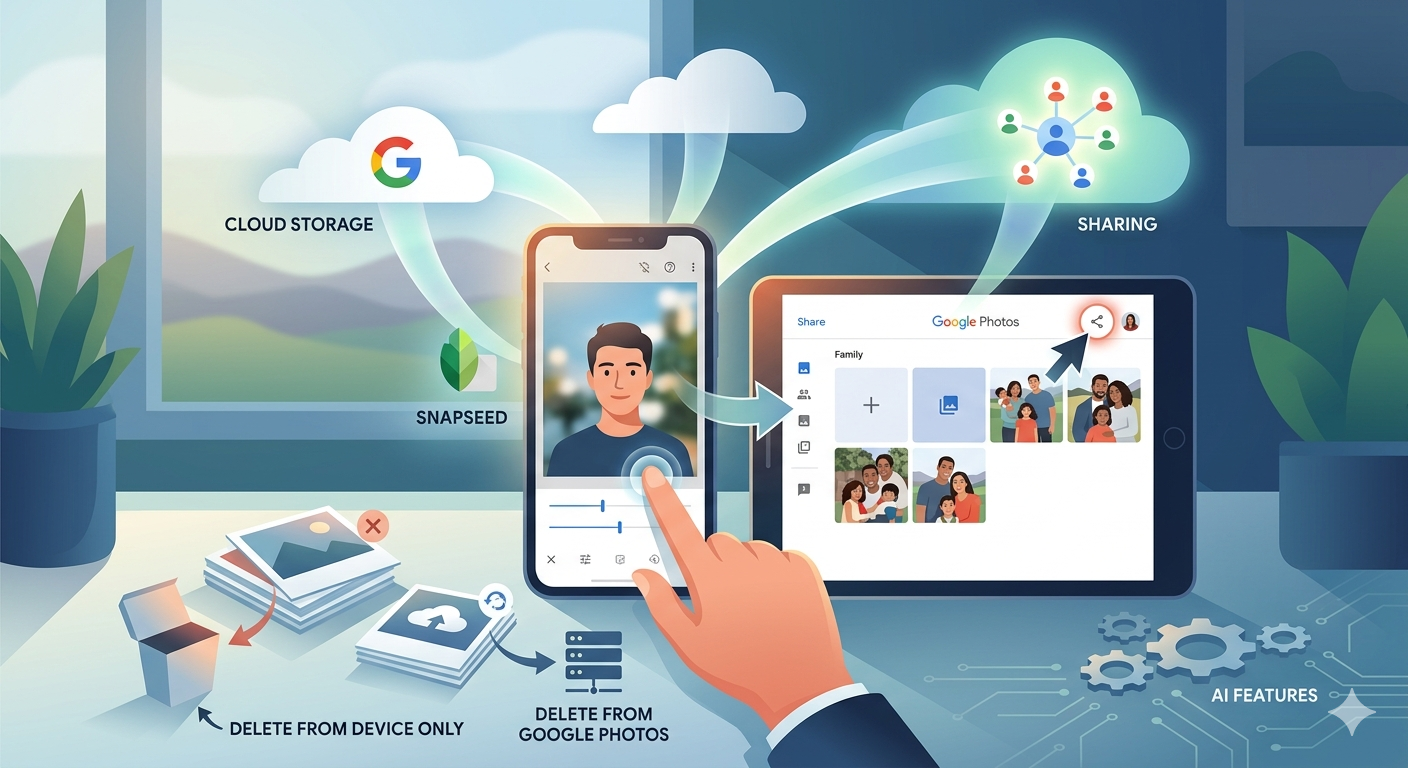
I’ve posted articles on using Google Photos a few times. Of course with the passage of time, features, and interfaces, change, so it is always useful to just review “what’s occurring”, and see whether there’s anything that needs correcting, or adding to. I will try and go back and edit the posts listed below to reflect changes that I’m aware of.
First and foremost it’s important to note that I don’t tend to use Google Photos for anything other than sharing photos with family and friends, so my use of the editing features is a bit limited. I am however a strong advocate of using Snapseed (available from both the Google Play, and Apple App Store) as a photo editor, but as it works best with the Google Photos app, it’s necessary to install Google Photos as well. [Snapseed is not available as a native desktop app on Windows or MacOS; it’s only available on mobile devices (Android and iOS/iPadOS).] So the first link that’s important to be aware of is this one …
Google Photos and Apple revisited – if you’re an Android user you can skip this article and move to the next paragraph – all your photos taken with your camera will be safely housed in the Google Photos app!!! If you’re an Apple user it’s important to understand how synchronisation works with Google Photos and the Photos app on iOS. If you’re not careful you can either end up with duplicate photos on both platforms, or worse still deleting photos from a device thinking that there’s a copy “in the cloud”.
The next bit of housekeeping is to understand what happens if you want to delete a photo from Google Photos – it’s not entirely straightforward (but it is easier than in the Apple world!!!). This article I wrote – “How do you delete photos from Google Photos?” – attempts to help you delete what you want to delete from your device, or from Google Photos on the web. This is particularly a problem if you’re an Apple user with a Camera Roll, rather than an Android user with Google Photos – so you’d be advised to read it.
So we finally get to editing our photos and using Snapseed. This article – “Snapseed and Google Photos” – is a good overview and will take you quite a way down the road of installing Snapseed, it covers the basics of how to get photos from a camera (rather than a smart phone) into Google Photos, and some basic editing of a photo. There are also links in the article to earlier posts on using Google Photos as well as a video on “getting started” and some additional references that I found useful.
The new stuff!
How To Use Google Photos: The Ultimate Beginner’s Guide [2023] – if you want to just stick with what’s possible for you to do in Google Photos this is just about as good a guide as you’ll get. It goes through all the features of the app, but doesn’t cover editing photos in any detail. If you want a video that covers the same ground, you might like to watch this[I’d like to remind you of the point I made about his reference to Backup and Sync if you’re an Apple user – my earlier comments apply!!! He has decided to use both iCloud and Google Photos on the web for two backups.]. Google’s help guide to editing photos is provided here.
So we turn to Snapseed – here’s a beginner’s video on how to use Snapseed for editing, you should also refer to the article quoted in the earlier post – Complete Guide To Using Snapseed To Edit Your iPhone Photos – from which I also recorded the video from my computer screen, but it’s obviously better using the link from the article. Also please note that although iPhone is mentioned in the title, it’s 100% applicable to Android phones as well. Finally you might probably want to look at this – SNAPSEED: ULTIMATE USER GUIDE + TIPS (2024 UPDATE) – if I’ve convinced you that Snapseed is the “goto” app for photo editing on your smart device.
Google is always updating its apps, and this is particularly true now that we have AI. So a recent update introduces the possibility of background blur – which can make a portrait of a person stand out more, by weakening the effect of the background. Google writes about its new AI features here, and here,
Finally … this article has been all about using Google Photos, which might have let you think that Apple’s Photos app is not so good. In a forthcoming post, I will be examining how Apple Intelligence (available in the autumn) will quite possibly revolutionise Apple’s photo applications, and will for some, if not all, Apple users mean they might be less likely to use Google Photos going forwards. They’ve already moved to allow the sharing of albums stored in iCloud to anyone via a link. That’s progress!!!
For me, the problem is the other way round of course, but I know a lot of people are put off switching to Apple because they think it might be too different, and therefore difficult for them to pick up.
Here’s an “explainer” that shows some of the most common differences and explains the comparable names and facilities between the two systems.
If you want to edit, even if only in a minor way, the photos on your smart device (phone or tablet, Android or Apple), two offerings from Google should be tried first. If you’re an Android (Google) device user, it’s a no-brainer.
The Google Photos app will be installed on your device when you get it, and all you need to do is install Snapseed from the Google Play store. If you’re an iOS or iPadOS (Apple) device user then there’s a couple of extra steps you need to do before you can get started.
This guide concentrates on Snapseed. I’ve written about Google Photos previously and I’m providing links to them below. I’ll check to see that things haven’t changed materially since I published these posts …
Although Snapseed is intended for use on smart mobile devices, you can install it on either a Windows PC or a Mac, but I have no experience of doing this, so it would be a project you would be taking on ahead of me. So for that reason I’m only looking at the app that you can download either from the Google Play, or Apple App stores.
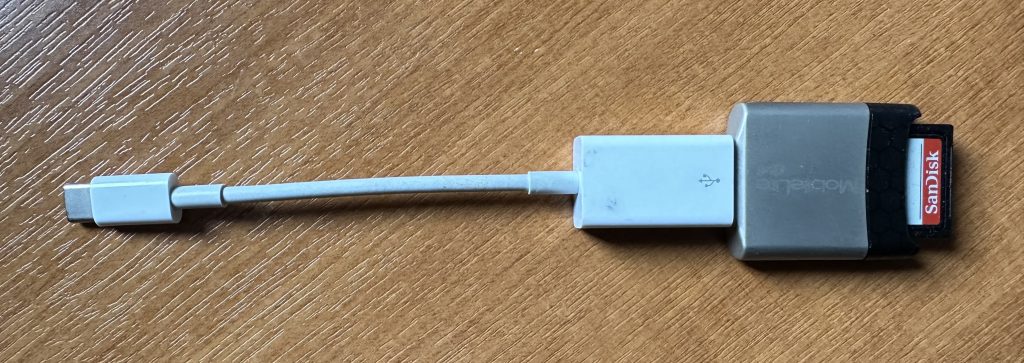
So for camera users (rather than smart phone users), you will first of all need to get the photos onto your device. This could be by a direct cable connection from your camera to your phone, or by transfer using Bluetooth or WiFi, but more likely might be by using a SD-card cable like this one I have for the Apple gear. [It will either have to have a Lightning or a USB-C connector – check first before buying one.]
Apple USB-C to USB-A connector with USB-A SD-Card slot
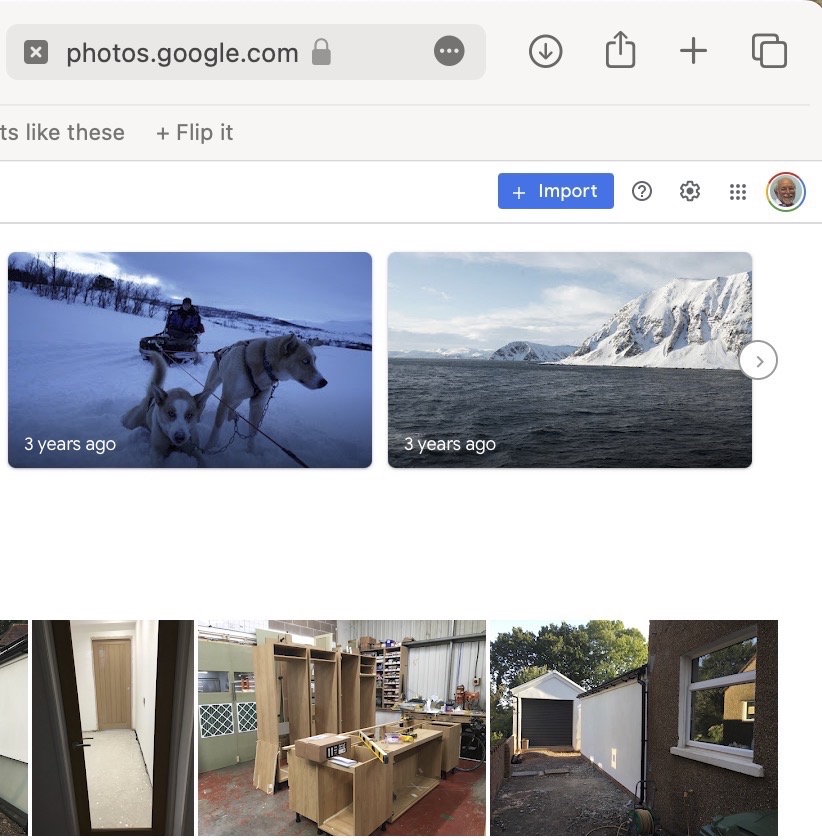
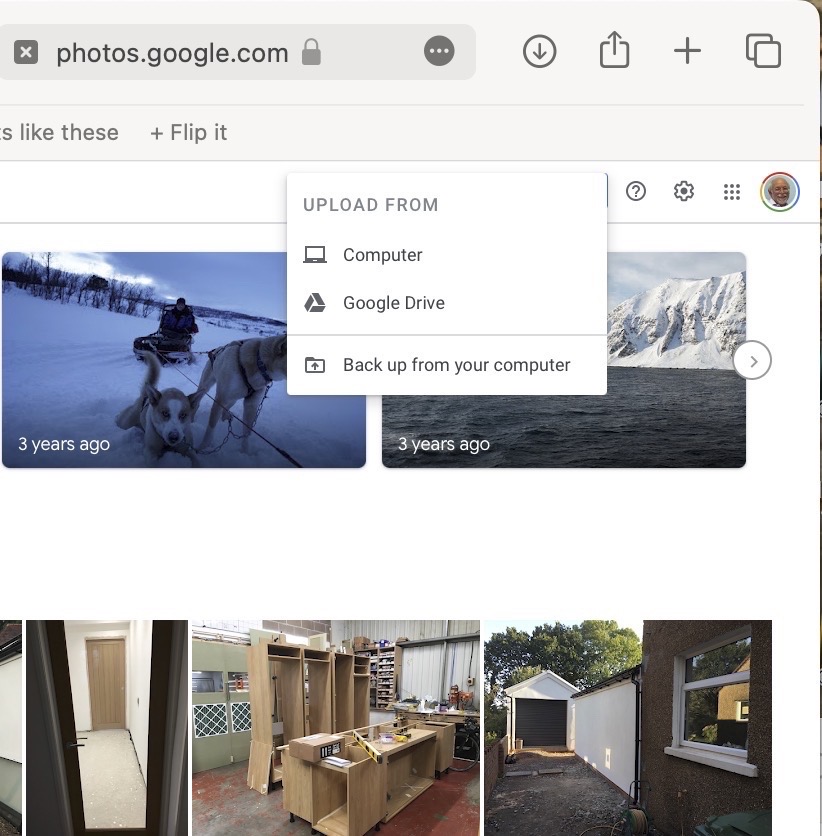
The image(s) thus transferred will be added to your photo library be it Google Photos, or Apple Photos. Another way of adding photos on your computer to your Google Photos would be an Upload to photos.google.com – you will need a Google account to do this. This is how you would do it …
Select Import to Upload images to Google PhotosSelect images from the Computer (or from Google Drive)
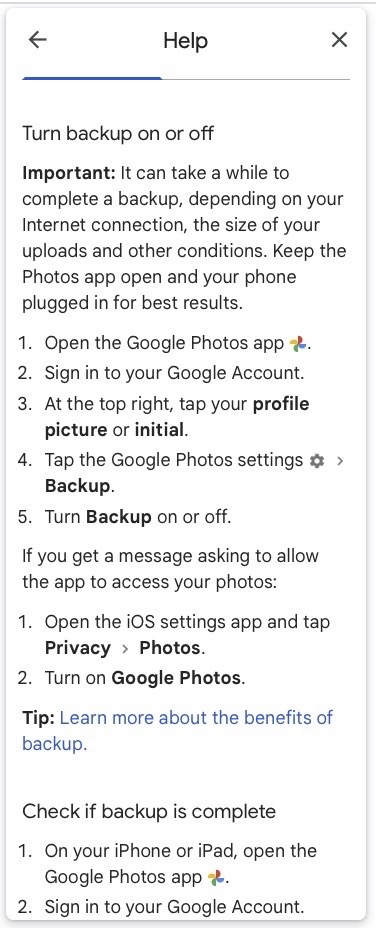
You could decide to use Google Backup to synchronise all your photos from your iPhone (or iPad) to Google Photos as an “easy” way of getting the photos on your Apple device into Google Photos, but this is not necessary to use Snapseed as it can access your Apple Photos directly; so I don’t because I’m already backing-up my photos to iCloud. [I only discovered in November I was also sync’ing to Google Photos, so I stopped doing that then and saved some Google Drive storage, and a whole lot of complications about knowing what was where.] But if you want to synchronise from your Apple Camera to Google, this is how you do it from the Google Photos app on your device …
Instructions on how to synchronise Photos on Apple devices to Google Photos
You should now install the Snapseed app on your device(s) from the Google Play, or Apple App stores, if you haven’t already. If you’re an Apple user you might choose to install the Google Photos app at the same time – although you don’t need it to use Snapseed, but you might just like to compare how it works.
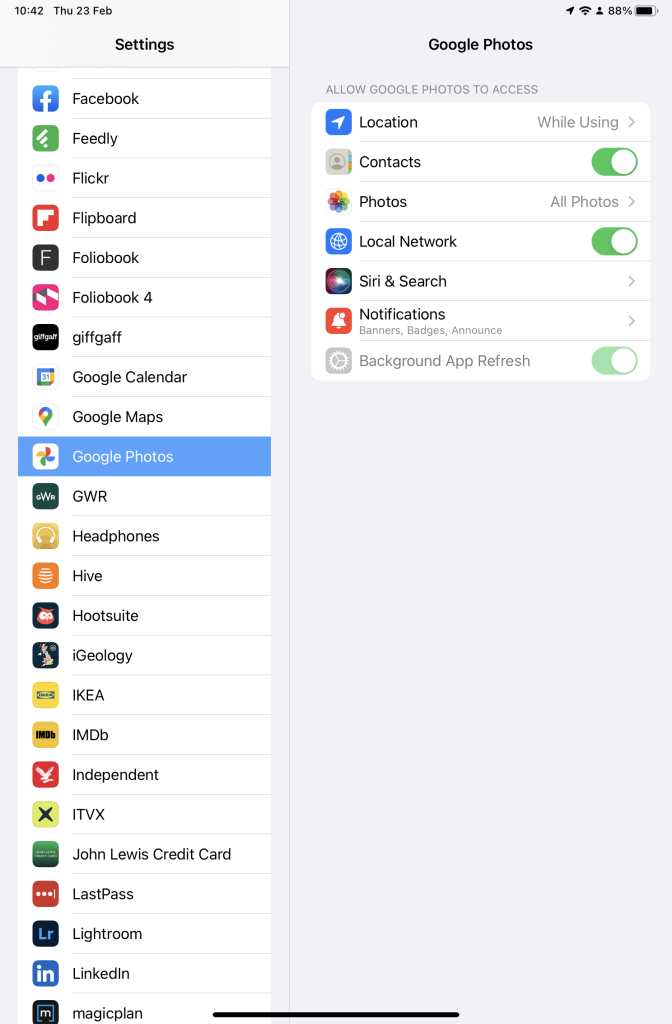
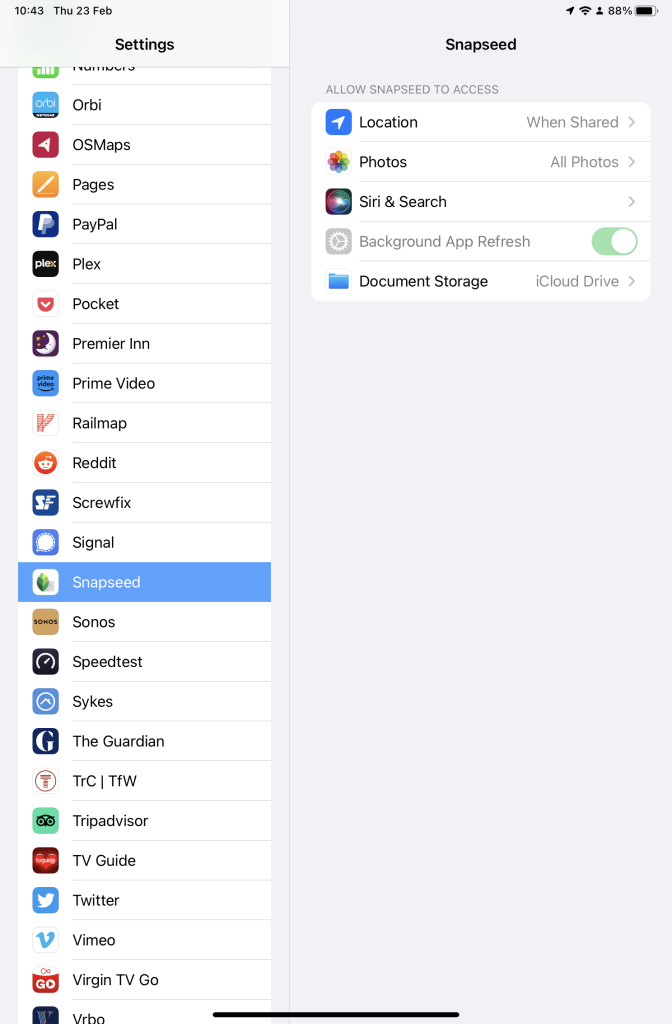
Next up, if you’re an Apple user you need to allow access to your Photo Library to Snapseed (and optionally Google Photos). This will allow both apps (on iOS) to access the Photos in your Camera Roll on your iPhone or iPad.
Setting up Google Photos and Snapseed to be able to look at Apple Photos on device(s)
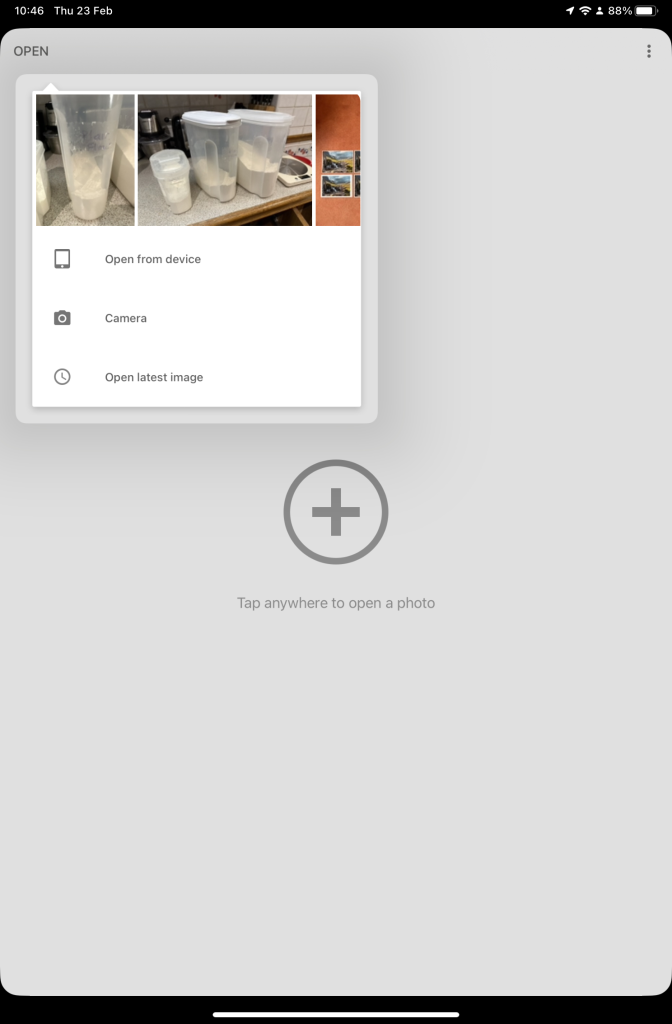
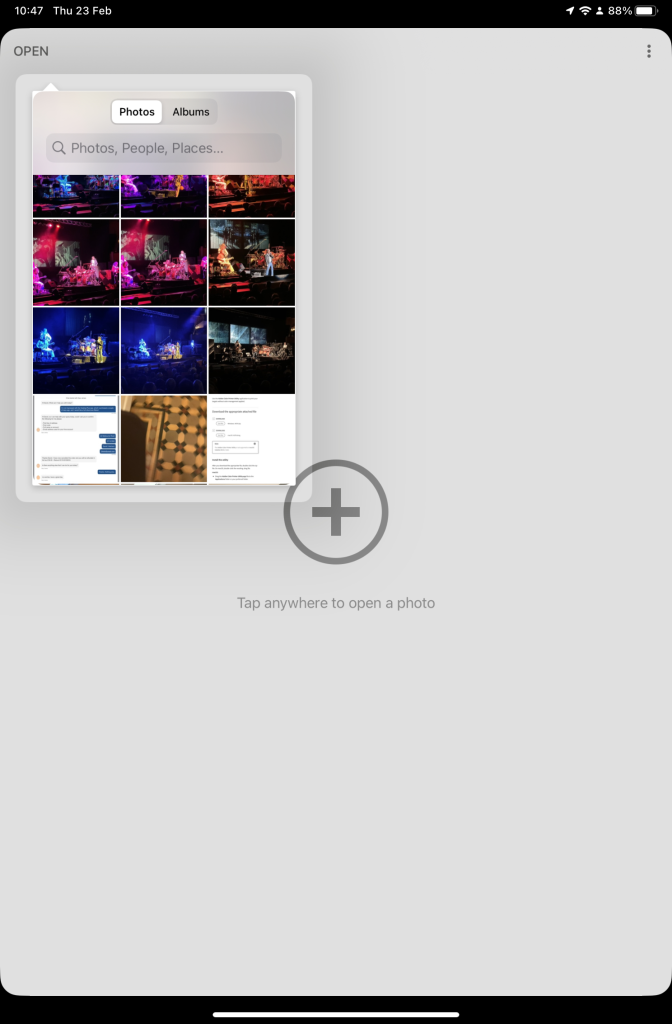
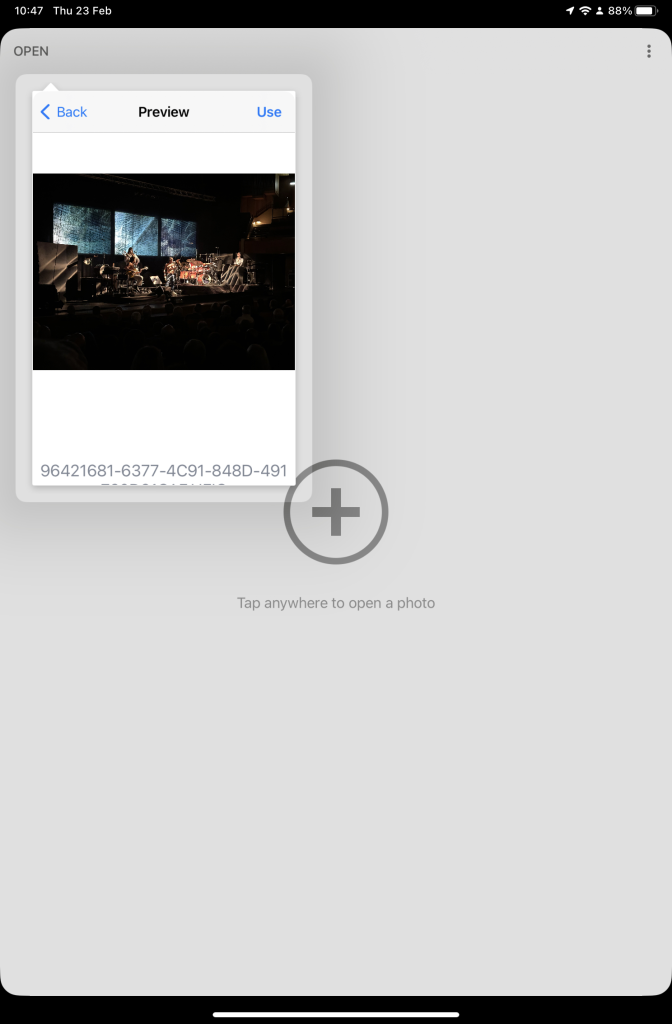
So now your ready to start editing. Open the Snapseed app on your device – you are prompted to Open from device (ie look at the images in your Photo Library), or you can access the camera to take a shot, or Open latest image that you’ve taken. The steps from then on are relatively straightforward and you will have selected the image that you want to Use.
Open Snapseed and look at the photos on your local deviceSelect an image to edit, and click-on Use… and so start editing.
That’s about it. This video (recorded from my screen, hence background noise and rather low audio volume) gives a reasonable introduction on how the Snapseed app works …
A brief (14mins) introduction to editing photos using Snapseed
Here are some links that you might find of interest:
Using your Android camera to take photos; but I believe all Android phones have slightly different camera interfaces, so you’re better off researching that for yourself. [NB If you have come across a really good guide, let me know and I’ll add it to the list here.]
It’s always worth reviewing which search engine you should use, as it is the browser of choice to “surf the web”. The reasons you might wish to consider which search engine you might wish to use are greater privacy, enhanced security, minimise adverts being displayed, or to get more meaningful pages being displayed, but first we’ll look at the web browser you might want to use.
First things first. If you’re using Internet Explorer you must seriously consider moving to Edge as Microsoft are removing support for Internet Explorer and one day you’ll find it just doesn’t work. If you’re using the initial release of Edge you should also upgrade to the latest version. It’s faster, more stable and uses the same code base (which is the open source Chromium) as some of the other browsers I’ll talk about later.
The next thing to remember is that Google is not a Browser. If you have a Google app on your smart device, it’s just Google’s “convenient” way of getting you to use their search engine and capture lots of useful marketing data from you! Google’s browser is called Chrome, and it uses the same code base as Edge (as mentioned above) – others include Brave, Opera and Vivaldi.
Chrome is by far the most popular browser accounting for more than 80% of the internet browser traffic, it has a wide range of useful extensions, and if you can be bothered to create a Google account and navigate through the preference screens, you can make it reasonably private – but you may wish to install the AdBlock Plus extension – an advert blocker, to stop intrusive adverts appearing on your web pages. [Another way of doing this is to look for Reader View, created for users with visual disability originally, which simplifies the view of a page on your browser screen.
But why use Chrome when you can use another browser which has built-in privacy. I’m talking about Brave. You can deploy many of Chrome’s extensions in Brave and virtually everything you see looks like Chrome, but without tying you to Google. I seriously recommend you look at Brave.
If not Brave, why not Microsoft Edge. The complete re-write of Edge using Chromium and with the support of Microsoft behind it makes this an excellent choice for those who use a lot of Microsoft applications (eg Office 365 which you can run in the browser, just as you can run the Google apps in Chrome) and is growing fast in popularity even if it’s Preferences menus are a bit tricky to work your way through.
If you’re an Apple user, I suggest you look no further than Safari, although all of the others can run on MacOS. It’s optimised for the Apple platform and integrates well with the other apps in the Mac/iPhone/iPad ecosystem.
That leaves two “outliers”. Firefox was one of the first browsers growing out the original work done on Netscape, it’s open source and has a huge and committed user-base. I have nothing to say against it, and nothing much to say for it either. It’s a good solid internet browser.
So we turn to Search Engines. You want to find something out on the internet – you just google it, don’t you? Well you can, but there are other choices as well, and this is where privacy concerns might suggest you might want to look at an alternative.
I’ll be upfront. I’ve been using DuckDuckGo (often in combination with Brave) for a couple of years now. I value the fact that my activity on the internet isn’t tracked and the results that are returned are not slanted towards my prior search history, and most importantly my activities are not farmed off to marketing agencies.
There’s nothing wrong with Google Search – it’s the most popular on the internet, but that’s by default rather than choice. The results are presented well, but there is a slant towards promoted results and results based on previous searches. You can change your search preferences a bit, deploy an ad blocker (see above), but why should you haver to!
DuckDuckGo is now presented as an alternative search engine in most, if not all, browsers and exists as an app on smart devices as well. Give a try! It’s my default search engine on my Apple devices.
The only real alternative to Google Search and DuckDuckGo is Microsoft’s Bing. The service has its origins in Microsoft’s previous search engines: MSN Search, Windows Live Search and later Live Search. Bing is now the code base for Yahoo’s search facility as it is for Ecosia – an ethical green alternative. Ecosiaimportantly doesn’t use any third-party tracking tools, meaning that any search made on the service won’t be seen by any party other than Ecosia. Furthermore, any search made on Ecosia becomes anonymized after one week. In contrast, Google and Bing will hold onto bits of search data (such as the device or date), even after deleting browser history and cookies.
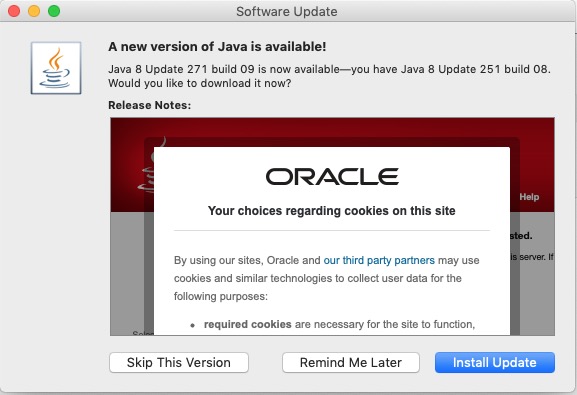
I was quite surprised to see when I reviewed the articles I’d posted over the years that I’d never written one specifically about Open Source software, and “free” software. Of course the topic has cropped-up quite a bit at Cardiff U3A Computer Group meetings, and I have referred to pieces of Open Source and “free” software on “Just thoughts …”, but I’d never put my ideas down about the reliability, philosophy, use and accessibility of Open Source and “free” software in general. Just as I write this – guess what popped-up on my screen …
… Java – an example of a programming language that has morphed into a software development environment whose component parts are all, or can be replaced by, open source modules. Java is an accepted piece of the architecture of a huge number of the systems we use everyday, as is Apache – the web-platform that powers most of the Internet’s servers. I mention these two as examples because it demonstrates how deeply elements of Open Source thinking is embedded into so many of the systems we use every day. Other ones would be Linux, and WordPress – a multi-platform operating system, and web-publishing software which the Cardiff U3A Group has looked at before. So, in a nutshell – open source is respectable!
What makes software open source then? Technopedia defines open source thus …
“Open source is a philosophy that promotes the free access and distribution of an end product, usually software or a program, although it may extend to the implementation and design of other objects. The term open source gained traction with the growth of the Internet because of the need to rework massive amounts of program source code. When source code is opened to the public it allows for the creation of different communication paths and interactive technical communities; it also leads to a diverse array of new models.”
… thus the code is generally very safe, because it can be inspected by anyone, and any changes in the code can be easily traced. The definition goes on to explain the following …
“Open source revolves around the concept of freely sharing technological information so that it may be improved through multiple insights and viewpoints. Since the technology is open source, the amount of work that needs to be done is reduced because multiple contributions are added by many individuals. This concept existed way before the age of computers and even before the industrial age when people shared and improved recipes for food and medicine, for example.
In terms of open source software, the code is often freely downloadable and changeable as long as the user sticks to what is agreed upon in the software license agreement. Open-source software is usually under the General Public License (GNU), but there are other free licenses like the Intel Open Source License, FreeBSD License and the Mozilla Public License.”
That doesn’t make it necessarily FREE, because developers can charge for the software they develop on the base of open source, however generally if it’s made available under one of the above licences it’s often the Support and Implementation that’s chargeable, not the software itself. Look for the licences (as above) to determine whether the software is genuinely Open Source and thus you should expect it to be “respectable” and “safe”.
So any open source software must adhere to the following criteria:
Free redistribution of the software.
The source code should be publicly available.
The software can be modified and distributed in a different format from the original software.
The software should not discriminate against persons or groups.
The software should not restrict the usage of other software.
Then there’s Free Software. As I’ve explained most Open Source is distributed free of charge, and the intention behind it was freedom of code, and freedom from intellectual property rights. The subtle difference with Free Software is that in the latter the emphasis is on freedom for the user to do whatsoever they want to do with the code. It is truly FREE! As a term and as expressed by the Free Software Foundation it predates the Open Source initiative and was the driving force behind the licences mentioned above. Thus free software must adhere to the following four pillars of freedom (which are rights and not obligations):
The freedom to deploy the software for any use case without any restrictions. For example, saying that the license of a program expires after 30 days makes it non-free.
The freedom to study how the software works and modify it according to your needs and preferences.
The freedom to freely re-distribute the software to assist someone in need. The redistribution can be done at a cost or at no cost.
The freedom to enhance the performance of the software and release your enhancements for the community to benefit—both programmers and non-programmers. You can do this at a cost or at no cost.
Now it starts to get a little bit more cloudy. There’s Freeware which might also be described as freememium, or shareware. I quote …
“Typically, freeware refers to a software that you can use without incurring any costs. Unlike open source software and free software, freeware offers minimal freedom to the end user.
Whereas it can be used free of charge, often modification, redistribution, or other improvements cannot be done without getting permission from the author.
As such, freeware is often shared without including its source code, which is atypical to open source software or free software.
Two of the most common types of freeware are Skype and Adobe Acrobat Reader. While both programs are free to use, their source codes are unavailable to the public.
Most developers usually market freeware as freemium or shareware with the intention of encouraging users to buy a more capable version.
Freemium refers to a program that is offered at no cost, but money (premium) is paid for extra, more capable features.
Shareware refers to a program that is initially available without any costs attached, and users are encouraged to distribute copies. However, that cost-free period usually lasts for a certain period; thereafter, a user is required to pay for continued use.”
Finally, you may come across the term “Donationware“. This is software that is distributed for free, but the author invites the user to make a contribution to the ongoing development costs (or the programmers coffee). It might also be described as “conscienceware”, or even “thankyouware”!!!
So armed with that information, it’s time for me to provide a list of the free software that I treasure the most.