Photobooks

Photobooks are becoming popular to keep a limited number of holiday / family photos

in a book form. They are better than arranging individual photos in an album. Besides

many people would prefer this format rather than seeing them on a computer or I-pad.

The main websites / apps are Bonusprint and Vista but other alternatives are available.

The books are composed on the website or app from digital photos from your computer,

S.D card or flash drive.

Prices are from £17 upwards, depending on gloss or matt finish, size, quantity and

whether the book is hard or soft cover. Hardback is the standard type. You pay online and

the books are delivered.

Google Photos

Barbara asked a question about Google Photos, and I’ve re-visited the articles that I wrote a couple of years back, updated them to be relevant (I hope) – but I can’t be certain all the screen shots are the same as the present Google Photos on the web – and present them here for you to look at; if you’re interested.

First an article on “Getting to grips with Google Photos“, which basically tells you how to get your photos into Google Photos so that you can edit them online using the editor that’s available in Google Photos on the web. It might also be useful to bear in mind the article I wrote today on “How to delete photos from Google Photos“to get an understanding of how Google Photos actually works.

Then an article on “Simple Image Manipulation“, which introduces you to the online Google Photos Editor.

Finally an article on “Sharing an image (or album) from Google Photos“.

I hope these are of use and of interest.

How do you delete photos from Google Photos?

Seems a pretty easy question to ask. Should be a relatively easy question to answer. Wrong! It’s a minefield of complication and you can quite easily find yourself deleting images from places you don’t want them to be deleted from. In this article I’m not going to even attempt to enter the minefield but after this easy one …

How do you delete photos from Google Photos on the web but not from the Camera Roll on your iOS (iPhone/iPad) device …

Google Photos will only delete photos from your Camera Roll if you grant it permission to do so.  If you delete from https://photos.google.com/ and then go to your phone app you will have an assistant card asking for permission to “Remove it from this device”  If you dismiss the card the photo will remain in the Camera Roll.

… I’m just going to refer you to these three articles …

First the generic article that covers all eventualities and takes into account the place of  Backup and Sync in the process for the Android world

How to delete Photos from Google Photos but Not from Phone

note the important piece of text in this article …

“While keeping a file on Google Photos and deleting it from a device is easy, it’s not simple to do so the other way round. When you delete a synced photo from the Google Photos app, it gets wiped from your phone and the cloud storage.”

… so take care and read what follows in that article.

For the iOS (iPhone/iPad) world

How to Delete photos from iPhone but Not from Google Photos

… so heaven help you if you’ve got both Android and iOS devices; the process is not the same for both!

Lastly, and to fully understand what’s going on, it’s important to perhaps try to understand how Google Photos actually works. You can do this by reading this article …

What happens when you Delete photos from Google Photos.

… if that hasn’t made you feel suicidal, can I just wish you the best of luck. Perhaps buying a new phone, or taking out a Google One subscription is the only answer.

Could that be the reason why it’s so complicated to delete a Photo from Google Photos?

====

You might also find these articles from Google useful. Firstly an introduction to Backup and Sync and how it works with photos and videos (hint, it doesn’t actually do any sync’ing) …

Back up photos and videos

… then, a guide to help you work out what size of image/video you might want to backup and sync (or upload) to Google Photos on the web …

Choose the upload size of your photos and videos

… you perhaps need to refer to this post to see why this might be important.


You, groups, flickr and privacy

Most of the time people join flickr to showcase their photos, to get faves, and to get comments (hopefully both positive and constructive) to enable them to improve their photography. The photos you upload are shown in your flickr Photostream (or Camera Roll) which you can browse and put into Albums. You can create your own Galleries of your (and other people’s) images; Fave images that appear in your Activity stream (see later) and Follow people whose photos you like.

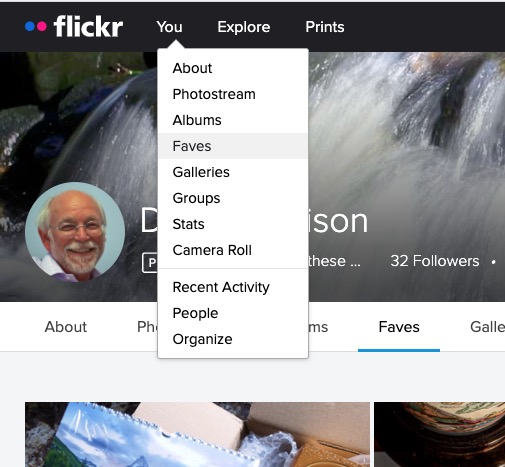
We’ll start by looking at the default privacy settings you can apply to the images you upload. The Settings page is accessed from your profile tab …
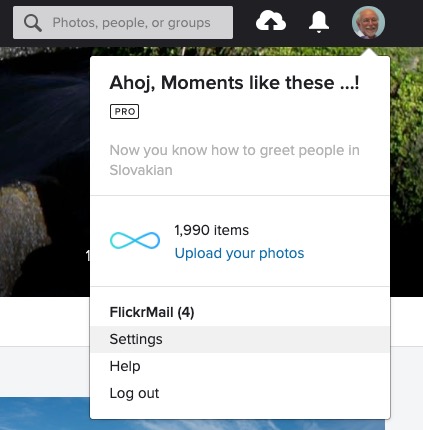
… which gives you access to a page with these headings …

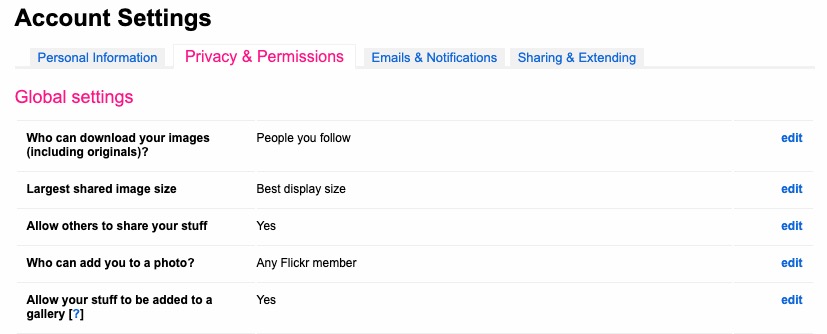
… clicking on Privacy and Permissions brings up this screen – from which you should first look at Defaults for new uploads

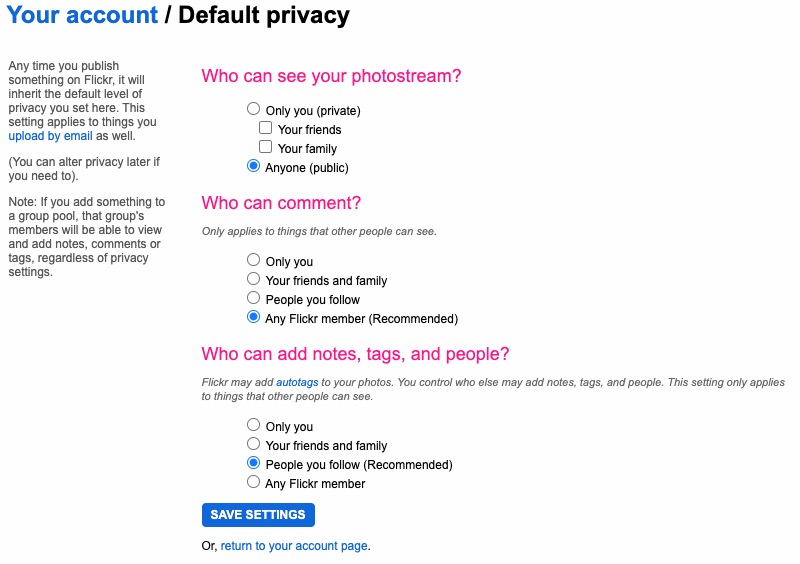
Read carefully the Note: “if you add something to a group pool, that group’s members will be able to view and add notes, comments or tags, regardless of privacy settings.” There’s no privacy within a group. All members of the group can see all members’ photos. If you’ve declared your image to have restricted viewing to Friends, or Family however they will not be visible for public viewing in the group, even though the group page might be visible for public viewing.

After uploading your photos they will (unless you’ve changed the default settings) appear by default in the Activity stream which you can access from the flickr logo …
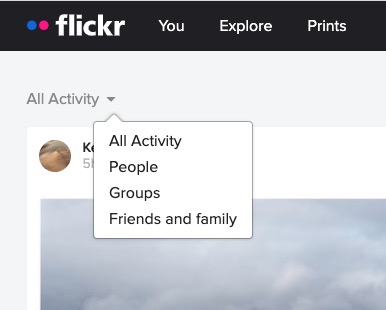
… from which you will also be able to see the images of the people and groups you follow. This is the default view when you open Flickr on a mobile device.

Any photo you fave is then attached to your account so that you can return to view it on a later occasion.
It is also possible – unless you’ve prevented it – for someone to download the photo, or add it to their own Photostream as their own! You might wish to check your settings to prevent that happening.
… and …
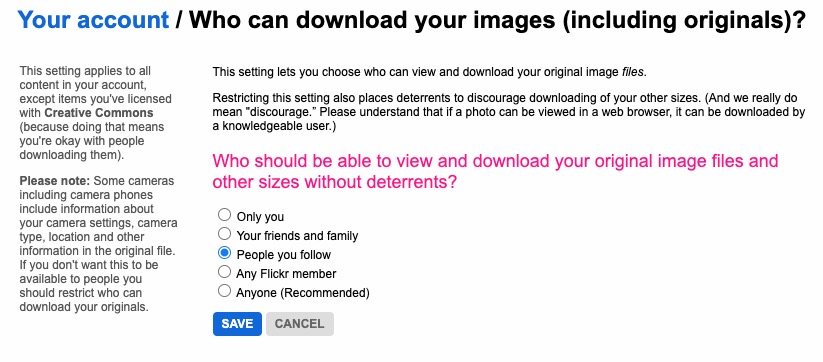
… so it’s important that you know what you’re doing when you follow someone – I certainly wouldn’t recommend the default setting of “Anyone”.

There are occasions however when you might wish to keep your photos completely private, or to share them privately within a Group. The settings in flickr to allow this are not exactly as intuitive as they might be so this post continues by seeking to help understand how you can “hide” your photos from the Public photostream, but to show them within a Group. Let’s start there.

Groups can either be Public, open to invited membership (or upon application to join) and then also to be Private. Note especially carefully the note attached to Invite-Only Group which can be either Public or Private … “Anyone can view an Invite-Only group page …”
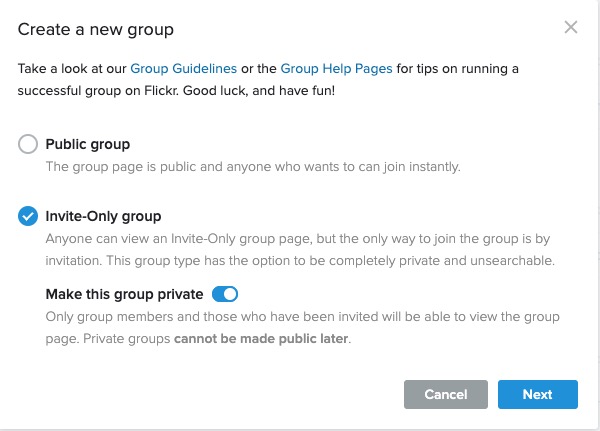
The last case is obviously the most restrictive and in this situation a Group is setup by a Flickr member and they invite either existing Flickr members, or non-members to join the group.

They will be sent an invite to join flickr, and the Group, as a member. You can therefore appreciate that you have to be a flickr member to view Photos which are in a Group. However if they’re not hidden from the Activity Stream by changing the default privacy settings (as above) and if it isn’t a Private group – they’ll still be visible to anyone unless you’ve also changed your search profile …

For the Invite-Only Group which has not been declared Private it is important to note that anyone (even non-Flickr members) can view the group page, so as we shall next, if you want your photos to be completely invisible to the outside world, you’ll have to do something else to make them invisible!!

If you want to keep your photos visible only to members of a Group, you need to specify on the Default privacy settings page either “Your friends”, or “Your family” depending upon the nature of the Group; similarly you should restrict Comments (and Notes, Tags and People) to “Your friends and family”.

However these settings will then apply to every image that you upload and that might be more privacy than you really want, so you are able to choose the level of privacy on an image by image basis after you’ve uploaded them. This is done by looking at the information attached to an image after you’ve clicked on it in your Photostream …
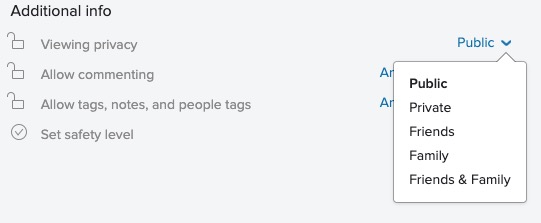
… so, as an alternative, you could leave your Photostream relatively open using settings similar to the ones in the screenshots above and then restrict viewing of individual photos to Friends, or Family, etc. within Groups.

I hope this helps.

What I did on my holidays … 64-bit and photo-editing – 26th September 2019

Welcome & Boot-up
Introductions
What do you want / expect from the Group?
Please tick your attendance, pay £1.50 and agree that you want to join the “Thought grazing” website I run where the notes of the meeting are posted, and that you are interested in joining a WhatsApp Group.

For those who’ve expressed an interest in “Thought grazing” and establishing a WhatsApp Group, I’ll send out an email following the meeting with UserIds and Initial Passwords for new members. [You can change your password if you want to – I’ll write a post that explains how you can do that.] The Password for Password Protected pages on the website is the same as everyone’s initial UserId Password, namely – Ca3rdyddU3A
Does anyone have any difficulties in connecting to the Thought grazing website?
Does anyone want to join the WhatsApp Group but is unsure how to do it?
I think it best to gloss over the chaos that followed – we’ll get there; here’s how to add members to the Group so that I don’t forget … add member to Contacts on my phone, then I can see them in WhatsApp to add them as a member of the Group. Easy when you know how … duh!
Incidentally Paul has written a post detailing how you can add WhatsApp to a Tablet.
Do we all know the difference between Google and an Internet Browser?  – Don’t be shy. This is perhaps the most important thing to be sure about before we go any further. Two links to look at – Just google it … and the notes from the first meeting last year.
What’s happening to Digital Projects? Well the first one has been announced, it’s a re-run of a Digital Photography course using Adobe Lightroom and it’s announced in the latest Newsletter on the new Cardiff U3A website.
Which brings me to our webpage on the new website, the Photography Group has already added information to their page.

  • What do you think should be on it?
  • Should we have a number of pages?
  • Any ideas for an image to head the page?

Helping others in Cardiff U3A with Computing/IT issues …

  • a WhatsApp Help & Advice Group? We agreed to do this and I’ll write to the Committee for them to consider.
  • [Update: The committee is going to consider this at their meeting in October. Further update: We decided to withdraw our offer until we felt more confident in using a Group for ourselves!]]
  • opening-up Thought grazing to non-Group members? We agreed not to do this

Visits. We agreed visits to the Barclays ‘Maker Space’ which Mario will arrange for us, see details below …
In addition, as part of our community commitment,  we have also opened a new office in Cardiff designed to help businesses grow and start up in Cardiff. Great for budding Entrepreneurs (which statistics show can be high in the over 50s)  and inventors. Part of the Eagle Lab office hosts  a “Maker Space” that houses laser cutting, vinyl printing, 3D printing, electronics equipment including soldering etc. It has a distinctly digital feel too with a really switched on Engineer running the lab. We can host groups there and would be happy to chat with your Digital Projects group and your Science groups coordinators, to discuss with them what is available there and whether they would like to bring members along to take a look at the facilities, or host a meeting there. Please feel free to ask them to contact me and I can discuss what they need, what we have, what we can do to support your members.
… in the approach to Easter, and also a visit to the new BBC Centre after Easter.
I’ll approach Cardiff Uni about the possibility of a visit maybe before Christmas, and Fred suggested a visit to Brains new brewery site as an alternative.
[Update: Unfortunately I was unsuccessful in getting a useful visit to the Computer Centre of Cardiff University; I have another idea, but Fred has offered to contact Brains and their new brewery at Cardiff Gate for a visit before Christmas.]
Finally, I posted an article about the forthcoming MacOS Upgrade to Catalina – which is a 64-bit operating system – and what it might mean for Mac desktop/laptop users. This has prompted me to consider this as a topic (not Mac specific) for later in this meeting. There are several links in that article that you may wish to follow, and which are not listed below, if you’re a Mac user.
Other issues raised:
Gill asked whether it was possible to print from an iPhone to a printer. Members were able to say … yes, if the printer supports AirPrint. I presume there’s an Android equivalent?
Renee asked about opening compressed files in emails on an iPhone. We got some way to solving that one, but agreed to take it onboard as a conversation on the WhatsApp Group.
If I’ve forgotten anything, please let me know.
Gear Guide
Has anyone bought, or obtained anything recently they’d like to tell us about? It doesn’t have to be a computer, laptop, tablet or phone – just something that’s digital, ie used a computer processor in some way?
Apps Galore
That slot in the meeting where members are encouraged to share their experience (and possibly excitement) at a new app they’ve started using for their smartphone, tablet, laptop or desktop machine.
Renee mentioned that she’d found DuoLingua a very interesting application for helping her learn a language just recently – others had used it as well.
What’s IT all about?
The next upgrade to MacOS – Apple’s operating system for its desktops and laptops (not iPads and iPhones) is 64-bit. Any software that is not compliant, that is it’s not written to meet the specification of 64-bit, will not run on your machine once the operating system has been upgraded. What does this mean though? Do Windows users face a similar issue, now or in the future?
I’m going to use this article as the basis for the explanation, using Windows as the operating system in question. But first, does everyone know what an Operating System is?
It has to be said upfront that Microsoft has been extremely “kind” to its users, offering backward compatibility even back to MS-DOS (a 16-bit operating system) for a long time so that you can even now still run old DOS programs using a 16-bit emulator for Windows 10. However, Microsoft has also confused its users ever since Windows XP by providing two versions of its operating system, one for 32-bit and one for 64-bit. If you had a previous version of Windows – XP, 7, or 8 – which had the 32-bit operating system installed on your machine, you are more than likely to have got the 32-bit version of Windows 10 installed on it when you did the free upgrade. But you can upgrade to the 64-bit version if your hardware will allow it. And there’s the rub, not all hardware will allow 64-bit processing and that’s why the MacOS upgrade is both helpful and annoying.
It’s helpful in that it sets a new benchmark for all software developers. They’ve known since December 2018 that this change was coming, and it’s not particularly challenging for Mac users as machines back to 2012 (including therefore my MacBook Pro) will be able to make the switch.
But why the change? Well as the first article spells out the biggest advantage of using a 64-bit processor is that it can address a much larger amount of RAM (Random Access Memory) and so therefore machines with more than 4Gb of RAM will benefit from faster processing if the applications are written to the 64-bit code base. Also more programs will be able to held in RAM, enabling faster switching between applications. Graphics intensive applications with the dependance on a large amount of memory space will also work faster. So there are huge benefits.
So should you as a Windows user upgrade to 64-bit Windows 10? That depends upon what you use your computer for. If you decide to stick with 32-bit be aware that Microsoft will one day dump 32-bit in the same way they “dumped” DOS, but the community of users is so massive that undoubtedly a 32-bit emulator will be written, by someone! But, you may choose to make the switch, if your hardware can take it, before you’re forced to jump; and in the meantime be aware that you’ll undoubtedly and progressively experience a slowing down of your software as more of them become 64-bit, and if you try and run a large number of them concurrently (at the same time) in different windows.
Some more links for you to ponder …
How to switch from 32-bit to 64-bit Windows 10
FAQs from Microsoft on 32-bit and 64-bit computing
32-bit app compatibility for Macs with current Mojave operating system
Incidentally, my MacBook Pro is still running High Sierra, the operating system before the latest one – Mojave. I intend to upgrade it to Mojave and then leave it at that operating system so that I can run some 32-bit applications such as Office 2011 and Adobe Lightroom 6 (and earlier) for a while longer. It is a seven-year old machine … it’s doing very well with the upgrades it’s had to it’s hardware – solid state disk, RAM increased, replacement battery – it’s not ready for the scrapyard yet, and it’ll be more difficult to upgrade to Mojave soon, once Catalina has been released.
My machine’s running slow!
Quite co-incidentally I’ve been approached by a U3A Group Facilitator who’s having problems with the performance of their machine.
This led me to do a search of Google for good articles that might be of help and value. We’ve looked at this before, of course for Windows, and I’m adding a couple of links below which might be of interest and assistance.
I use MacPaw‘s CleanMyMac 3 on my MacBook Pro, and I will probably upgrade to CleanMyMac X for both desktop and laptop before I do any upgrades to Catalina. Here’s a blogpost on how you can improve performance on your Mac.
Here’s an article that makes suggestions on how to clean-up both PCs and Macs.
So … to the Windows PC. Here are a couple of links:
Some quick ways of speeding-up Windows 7, 8 and 10 PCs.
Tips to improve performance with a Windows 10 PC – from Microsoft
Set of links from an earlier Thought grazing post on Windows 10 maintenance
Easy-peasy photo-editing … believe me!
You’ve taken a photo, or been sent it in an email, but you just feel that you could make it just a little bit better. Don’t despair, there’s an easy way of editing a digital photo in just a few steps if you have a Google Photos account, and if you don’t – here’s how to get one and how to get started with organising your photos.
Some thoughts. Most smartphones take images of 12mp or perhaps a little more. You can print a decent 15 x 10 inch picture from an image of that size

Google allows you to upload images without any compression up to 16mp – happy days!
So on to a demonstration … some simple edits to enhance an image.

For more guidance on Google Photos, the use of Backup and Sync and much more, you might like to visit (or re-visit) this Thought grazing page.


Google Photos

Towards the end of his talk on WordPress last week, John had a few words about Google Photos.  I said that in my experience with my Android devices, they automatically synced with Google Photos in the Cloud.  That is to say that if I take a shot with my phone it is automatically uploaded to Photos, and then downloaded to my tablet.  And it’s the same from tablet to phone obviously.  So I can view the images when I’m offline.  This facility is already installed when you buy an Android device.  However I said I wasn’t sure what happened with my Windows laptop.
It turns out that you have to download the ‘Backup and Sync’ app, which I had actually done.  However it seems I should also have created a ‘Google Photos’ folder in my Google Drive folder, which I hadn’t done.  I have now, but not all the older photos have been downloaded, for some reason.  The other problem I had was that I couldn’t see the icon for the app, to check the settings, because it was in the ‘hidden icons’ section of my task bar (at the bottom of the screen).
The plot will thicken next month though, when Drive will no longer automatically sync with Photos, they will be separate apps.  I’m not totally clear about how this affects backups, except that if you want a photo in Drive to be backed up in Photos, you will have to do it manually, and presumably vice versa.
Maybe someone else can clarify the situation better than I have.

Digital image editing – Feb 14th 2019

Boot-up
Any follow-up on our Tidying-up Photos session last time?
Phishing quiz – https://www.makeuseof.com/tag/google-quiz-help-spot-phishing-emails/ – any feedback? [Ted was concerned about providing his details at the start of the Quiz. His fears were understandable, but unnecessary – read the Comment beneath this post, from me.]
Jim’s keyboard experience
My iMac adventure [Update: Not only did I get a free drive, but a free screen AND a replacement case which had a dent in it – possibly caused by Apple they admitted/offered/suggested.]
Any other member issues?
News
Facebook Messenger, WhatsApp and Instagram to possibly share same messaging infrastucture – BBC report, Cult of Mac article.
Have yourself a digital calling card, or alternatively create an online presence; for instance – this is me.
Keyless cars at risk of theft. [Sianed advised us that VW are apparently the worst and uses a lined purse for her keys, the same as the one she puts her contactless cards in.]
Protect your browsing history with a VPN. [We’ll come back to look at VPNs another day.]
Facebook in-house developers blocked by Apple, and Google too!
Google+ closing down in April. [Don raised this issue. If you’ve got a Google+ account then it will cease to work after April 1st. Google allow you to “Takeaway” your data – I gave a link to this in the previous notes – I believe you can’t do the same with your Facebook information.]
Google launches apps to help the hard of hearing (volunteers?). [Thanks Ted, Martin and Jim for offering to look at this, which is only (I know see) available for Android devices, so you might not be able to do the testing. Apologies if this applies.]
How to Back-up your iCloud Photo Library.
Google’s contribution to Internet Safety Week, including Protecting your data wherever you go on the web.
Mesh WiFi router firm bought by Amazon. [Thanks Paul for volunteering to research Mesh WiFi systems for us for the next meeting.]
Samsung’s first TV with Apple’s Airplay 2 now on sale (US only?).
Digital Image Editing using Gimp
Gimp stands for GNU Image Manipulation Program and was written originally for the operating system GNU but has been ported to many other platforms including Windows and MacOS; GNU stands for GNU’s Not Unix; it’s open source software; it’s free and it can be trusted.
You can download Gimp for your computer from this link. User documentation is available from this link, and some tutorials are available here.
So first of all you need to Install Gimp.
For today, I’m just going to concentrate on a couple of areas
A simple introduction to Gimp, including changing the size of an image, and cropping an image.
Using curves to improve the quality of the colour in an image
However, I can’t recommend using Gimp. It’s a techies toy, not really a usable photo-editing tool. So what do I suggest for free photo-editing?
For tablet/smartphone users it has to be Snapseed (from Google) which is available for both Android and iOS platforms. A tutorial on what you can do it with Snapseed is provided here. You could also try Adobe Photoshop Express.
For Windows there’s Adobe Photoshop Express, or you could try Microsoft Photos.
For Mac users you really only have their Photos app as Photoshop Express is not available for MacOS, so it’s Gimp or maybe Fotor which you can get from the Apple Appstore – but I don’t have any experience of using it. I don’t think I can recommend using Picasa any longer.
If you want to do your photo-editing online, then apart from Google Photos and editing your photos stored in iCloud (for Mac users), you should look at Pixlr, which has a whole range of free and chargeable offerings that run from your browser and in particular Pixlr X which doesn’t require Flash, looks really good and easy to use, and is probably better investing time and effort in than trying Adobe Photoexpress Online, which is a bit clunky and requires Adobe Flash Player to be installed.


Getting started with digital photography: Part 3

Finally, and for another day, a few resources I use and can recommend …
DSLR Tips – http://www.dslrtips.com/ and Camera Labs – http://www.cameralabs.com/ – really good for tips, equipment reviews and UK-based too.
DxOMark – http://www.dxomark.com/ – rather technical reviews of equipment and cameras but interesting to look at when you’re considering which lens to buy.
The Photographers’ Ephemeris – http://photoephemeris.com/ – I really ought to use this site, it’s a miscellany of information that advises you on sunrise/sunset at locations, etc etc – so that you can do some planning before you go to a location.
… and the following books …
The Digital Photography Book (parts 1-5), Scott Kelby, Peachpit Press