Google Photos and Apple revisited

This post is a sequel to the article (see link below) that I wrote in November, and reflects a little more of what I’ve learnt about the crazy world of how Apple Photos and Google Photos interact (or work) with each other. I’m pretty sure it won’t be the last.

This one starts from an observation I made this morning that some recent photos I’d taken with my iPhone and which were in my Photos Library also seemed to have been added to Google Photos on my iPhone (but not my iPad) as well. From the outset let me assure you that this is the normal behaviour. You have to set Google Photos to see all the photos in your local Photos Library {Settings > Google Photos > Allow Google Photos to Access – All Photos} otherwise it can’t work. What you are seeing in Google Photos is the app getting a view of what’s in your Camera Roll on the iPhone/iPad – you haven’t added anything at this stage to the Google Photos app, and more importantly, nothing has been uploaded to Google Photos at photos.google.com.

What I did see however additionally in Google Photos were some edits of recent photos that I’d done in Lightroom which I’d exported to my desktop, and then uploaded to photos.google.com. They could be identified by the little cloud icon on the picture.
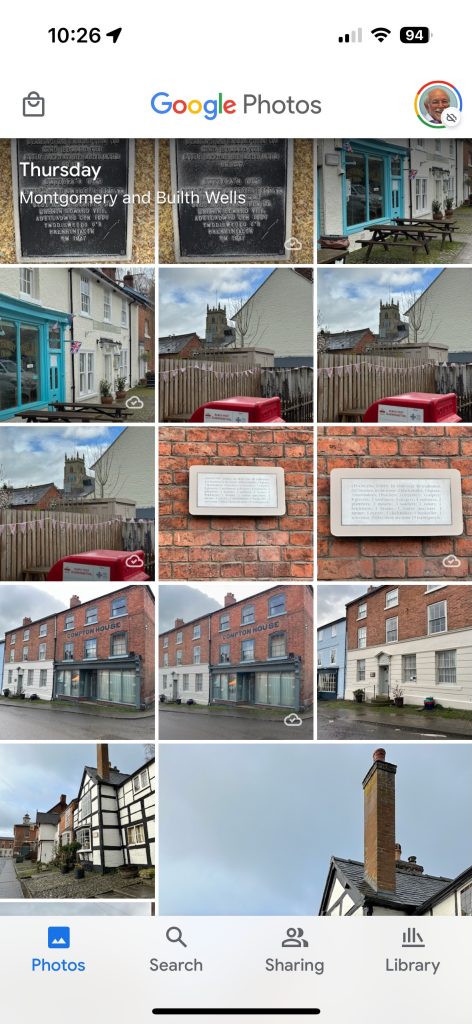
It got me to thinking; what is the best way of sending photos from the iPhone/iPad to Google Photos – if I don’t want to sync everything using Google Backup (which as I explained in the previous post, I most certainly don’t want to do as they’ve already been backed up to iCloud). Am I doing it the best way?

Method 1

As above. Share (export) the photo from the iPhone/iPad to a chosen folder in the Files app or Google Drive, and then upload from that folder to Google Photos from photos.google.com (see also Method 3).
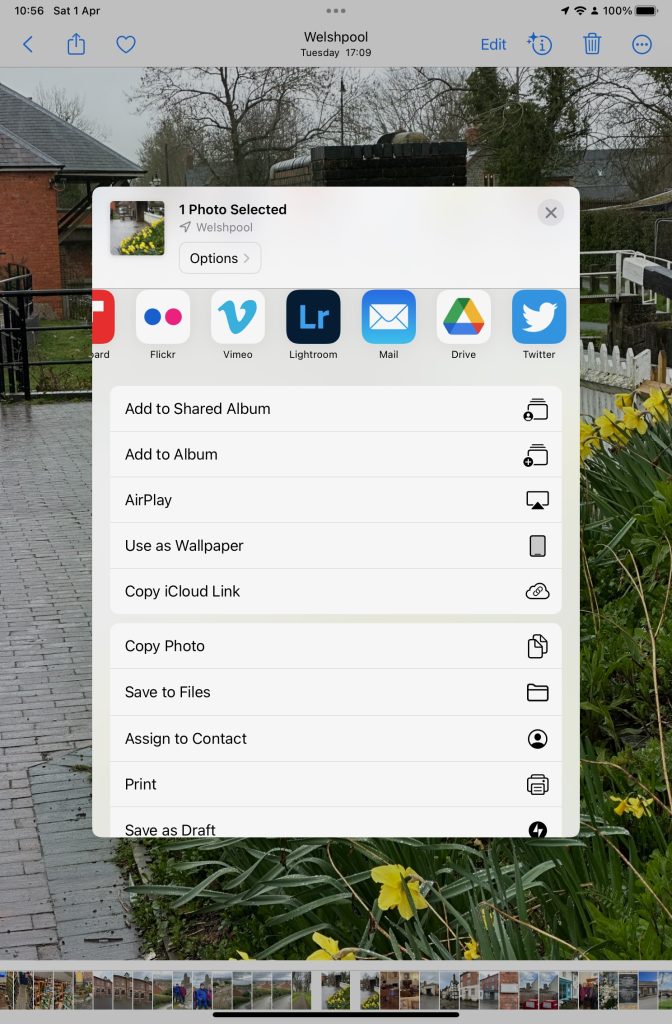
Upload from iPhone/iPad Camera Roll to a variety of services

Method 2

This is by far the easiest, and simplest way (and believe it or not I didn’t know you could do this). Open the Google Photos app on the iPhone, select a photo and then select the Upload (cloud) icon …
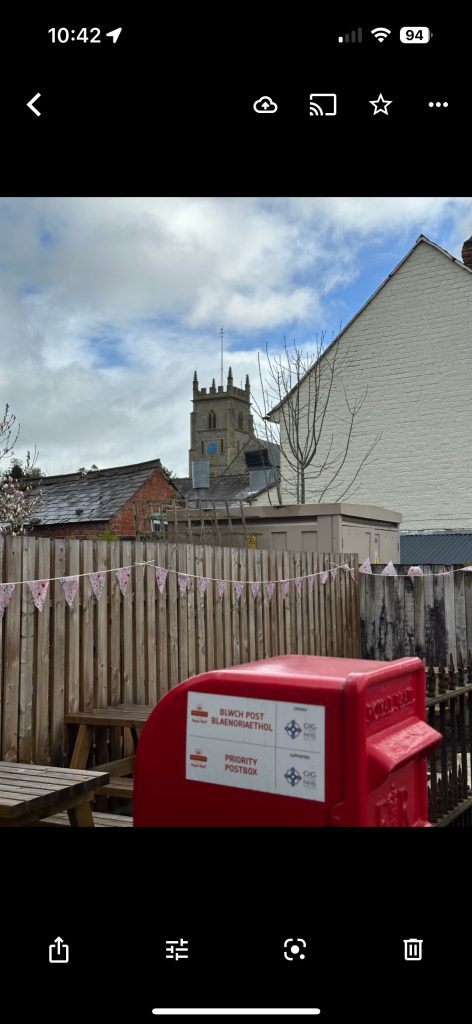
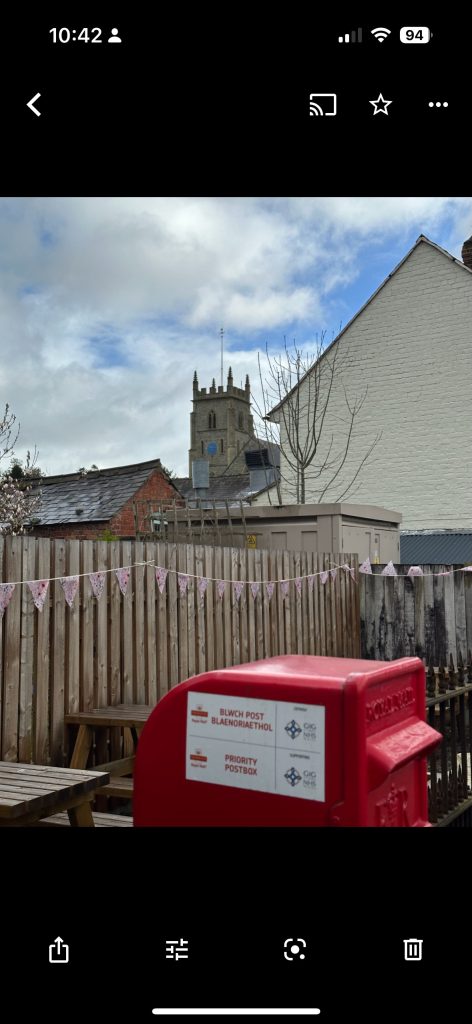
… the photo will be backed up to Google Photos (and photos.google.com); you will also note (see above) that once you’ve done that the Upload (cloud) icon is removed from the screen. In the Google Photos app, the photo will now have a cloud icon. Simple, eh!

Method 3

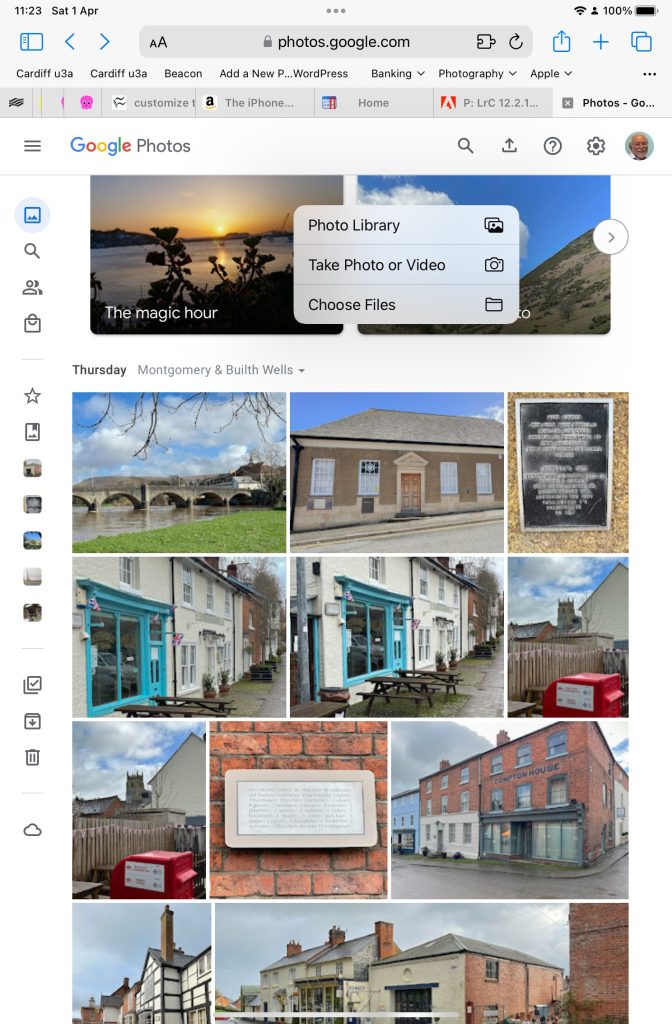
You can do the process in reverse. Go to photos.google.com and select Upload. You will be offered a variety of options …
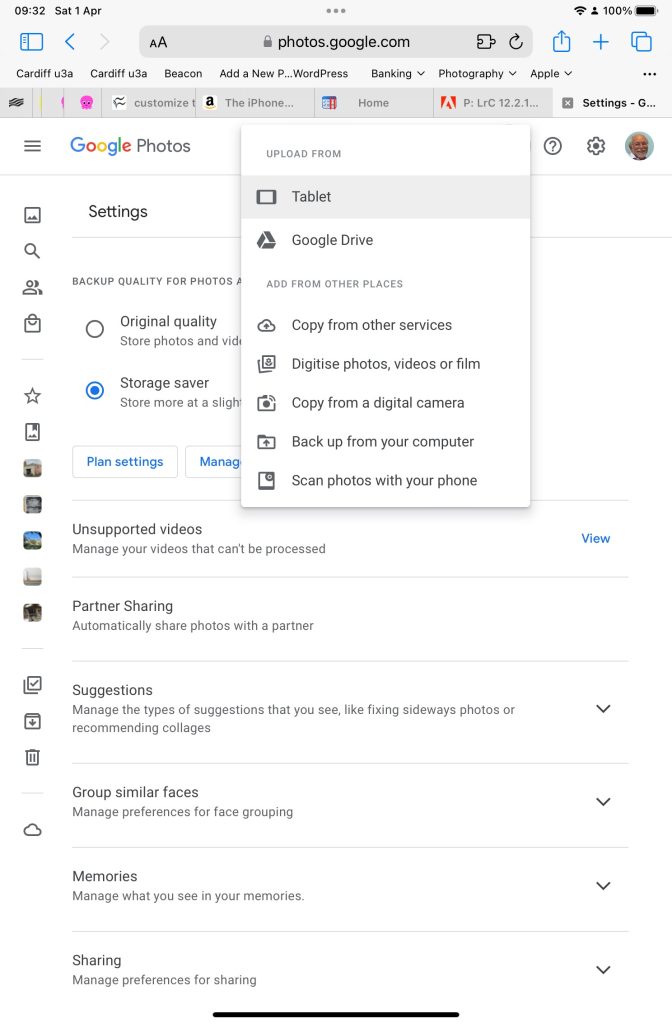
An upload to photos.google.com from the Safari browser on my iPad

Choose (in this case) Tablet – as I was using my iPad to get the screenshots and you will get this dialogue …
Choose Google Drive and you will get this dialogue …
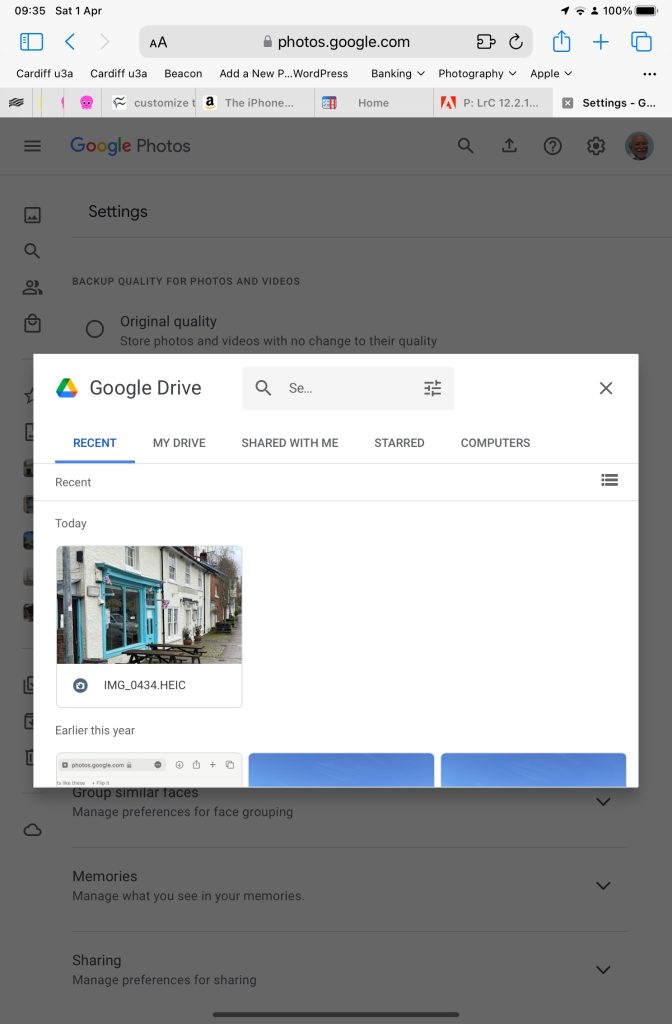
Choosing an image you’ve uploaded to Google Drive

Choose Copy from other services and you will get these options …
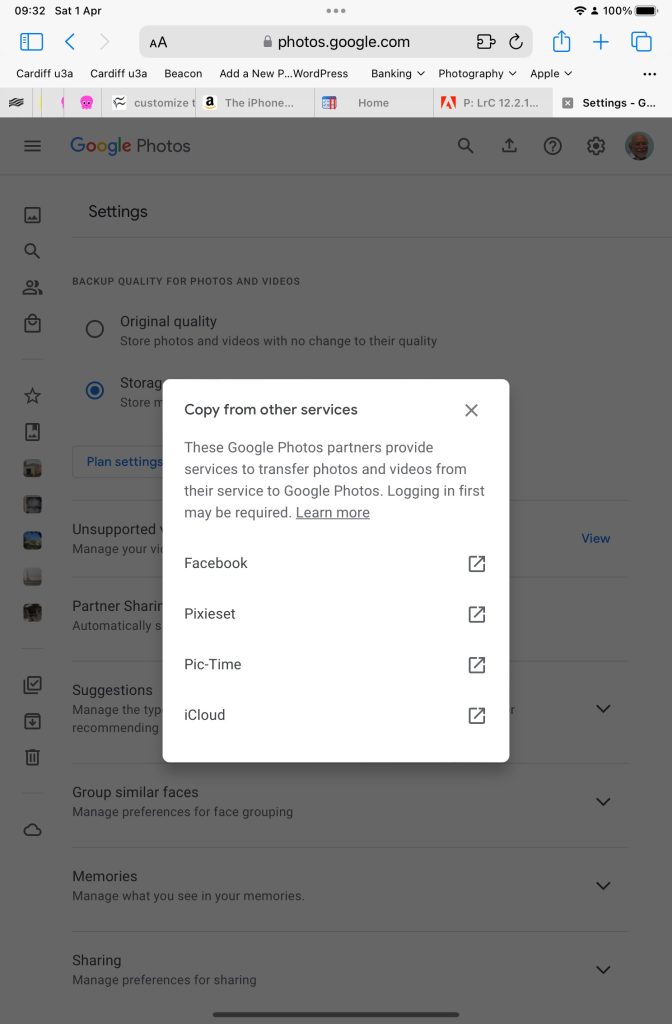
From which you can see (something else that I’ve learnt), that you can copy from iCloud – where all my iPhone photos are backed-up – to Google Photos. Duh!!!

What a wonderful (and complicated) world Google Photos is, and think – this was just prompted by me seeing photos in the Google Photos app I knew I hadn’t “uploaded” to Google Photos. Rest assured, they’re just views into the Apple Photos Library, not copies!!!

PS This isn’t an April Fool!!
Virtual Private Networks (VPNs)

A piece of software that sits on your device and hides your IP address and user credentials from “snooping” network users. Of particular value when connecting to an unsecured public network (eg a cafe). Normally unnecessary on a home network when connecting to you router, but it obviously can provide additional security and hides your device completely from the internet.

Here is a link that explains how they work, and another one from the provider I use (NordVPN).

One additional use that they have is that because you can choose the geographical location of the VPN server you wish to connect through, you can logically (or virtually) place yourself in a different country, thus enabling you to appear to be in the UK – when abroad (so that you can watch UK TV); or alternatively appear to be in a different country from home (when assessing alternative cost options for say a holiday).

— Forum Responses —

Thanks for this, I am looking at NordVPN for location shifting.

If I sign up can I use it on 2 Android phones, W10 Computer, and Android Tablet, all on one subscription ?

Paul de Geus March 18, 2023 9:33 am

Browsers and Search Engines – 2022

It’s always worth reviewing which search engine you should use, as it is the browser of choice to “surf the web”. The reasons you might wish to consider which search engine you might wish to use are greater privacy, enhanced security, minimise adverts being displayed, or to get more meaningful pages being displayed, but first we’ll look at the web browser you might want to use.

First things first. If you’re using Internet Explorer you must seriously consider moving to Edge as Microsoft are removing support for Internet Explorer and one day you’ll find it just doesn’t work. If you’re using the initial release of Edge you should also upgrade to the latest version. It’s faster, more stable and uses the same code base (which is the open source Chromium) as some of the other browsers I’ll talk about later.

The next thing to remember is that Google is not a Browser. If you have a Google app on your smart device, it’s just Google’s “convenient” way of getting you to use their search engine and capture lots of useful marketing data from you! Google’s browser is called Chrome, and it uses the same code base as Edge (as mentioned above) – others include Brave, Opera and Vivaldi.

Chrome is by far the most popular browser accounting for more than 80% of the internet browser traffic, it has a wide range of useful extensions, and if you can be bothered to create a Google account and navigate through the preference screens, you can make it reasonably private – but you may wish to install the AdBlock Plus extension – an advert blocker, to stop intrusive adverts appearing on your web pages. [Another way of doing this is to look for Reader View, created for users with visual disability originally, which simplifies the view of a page on your browser screen.

But why use Chrome when you can use another browser which has built-in privacy. I’m talking about Brave. You can deploy many of Chrome’s extensions in Brave and virtually everything you see looks like Chrome, but without tying you to Google. I seriously recommend you look at Brave.

If not Brave, why not Microsoft Edge. The complete re-write of Edge using Chromium and with the support of Microsoft behind it makes this an excellent choice for those who use a lot of Microsoft applications (eg Office 365 which you can run in the browser, just as you can run the Google apps in Chrome) and is growing fast in popularity even if it’s Preferences menus are a bit tricky to work your way through.

If you’re an Apple user, I suggest you look no further than Safari, although all of the others can run on MacOS. It’s optimised for the Apple platform and integrates well with the other apps in the Mac/iPhone/iPad ecosystem.

That leaves two “outliers”. Firefox was one of the first browsers growing out the original work done on Netscape, it’s open source and has a huge and committed user-base. I have nothing to say against it, and nothing much to say for it either. It’s a good solid internet browser.

A couple of references to follow this up then …

The best web browsers for 2022 – ranks them under various categories.

The top ten internet browsers for 2022 – reviews the pluses and minuses of various browsers.

So we turn to Search Engines. You want to find something out on the internet – you just google it, don’t you? Well you can, but there are other choices as well, and this is where privacy concerns might suggest you might want to look at an alternative.

I’ll be upfront. I’ve been using DuckDuckGo (often in combination with Brave) for a couple of years now. I value the fact that my activity on the internet isn’t tracked and the results that are returned are not slanted towards my prior search history, and most importantly my activities are not farmed off to marketing agencies.

There’s nothing wrong with Google Search – it’s the most popular on the internet, but that’s by default rather than choice. The results are presented well, but there is a slant towards promoted results and results based on previous searches. You can change your search preferences a bit, deploy an ad blocker (see above), but why should you haver to!

DuckDuckGo is now presented as an alternative search engine in most, if not all, browsers and exists as an app on smart devices as well. Give a try! It’s my default search engine on my Apple devices.

The only real alternative to Google Search and DuckDuckGo is Microsoft’s Bing. The service has its origins in Microsoft’s previous search engines: MSN SearchWindows Live Search and later Live Search. Bing is now the code base for Yahoo’s search facility as it is for Ecosia – an ethical green alternative. Ecosia importantly doesn’t use any third-party tracking tools, meaning that any search made on the service won’t be seen by any party other than Ecosia. Furthermore, any search made on Ecosia becomes anonymized after one week. In contrast, Google and Bing will hold onto bits of search data (such as the device or date), even after deleting browser history and cookies.

That’s about it, some references then …

The ten best internet search engines of 2022 – a review, like the one above that highlights strengths and weaknesses of the various search engines.

Stolen phone & SIM locking

[Minor changes and an addendum 25th January 2024]

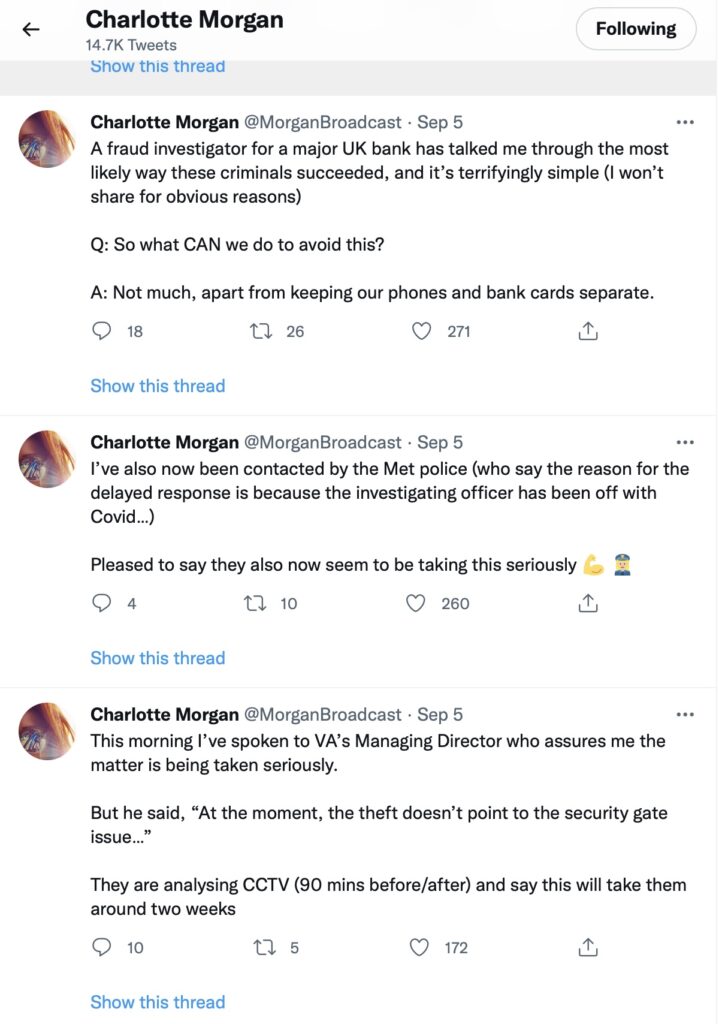
A rather disturbing incident involving a stolen phone and credit cards and the ability of a fraudster/thief being able to reset a user’s password/pass-number for a high-street bank occurred in September involving a journalist called Charlotte Morgan. She described what happened to her (and it transpired others) when her phone and credit cards were stolen from a locker in her local gym.

The incident was covered by the BBC https://bbc.in/3Vm8ylH and https://bbc.in/3CukHMS and also in the papers.

The incident was described by the FT Adviser in two reports – firstly the incident, and then (belatedly) Santander’s response.

Charlotte chose to broadcast her experiences on twitter and got a range of helpful and supportive pieces of advice.

So we start with the first piece of advice – keep your phone and your credit cards separate. Don’t store/keep them in the same place. Maybe, if you follow the advice that follows later you should just keep the credit card details only on your phone and dispense with using plastic. For Apple that involves storing the card information in your Wallet.

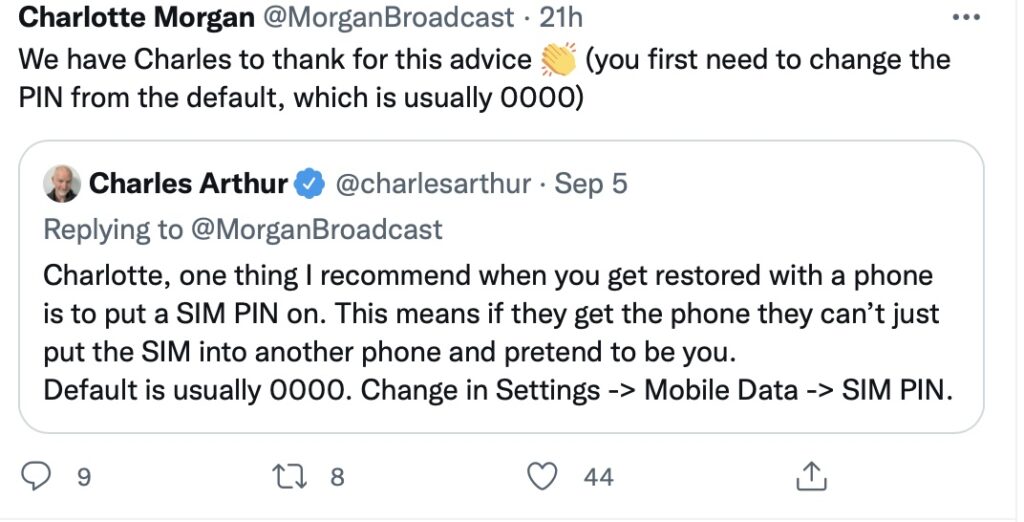
And this is the security loophole that the thief was exploiting. The default setting when you get your new phone, and insert the SIM is to leave the SIM unlocked. This means that the SIM can be taken out of the phone with your network details (and more), and inserted into another phone. Not really what you want, is it? So, lock the SIM to your phone, and by doing that, if the SIM is taken out – it is of no use in another phone. You will need to remember the new PIN you create which you will have to supply when you power-up your phone, or when you change it for a new/replacement. This is obviously an important piece of information to remember!!! There is no way you can recover the SIM PIN yourself if you forget it, you have to contact your carrier and get a new SIM and a PUK.

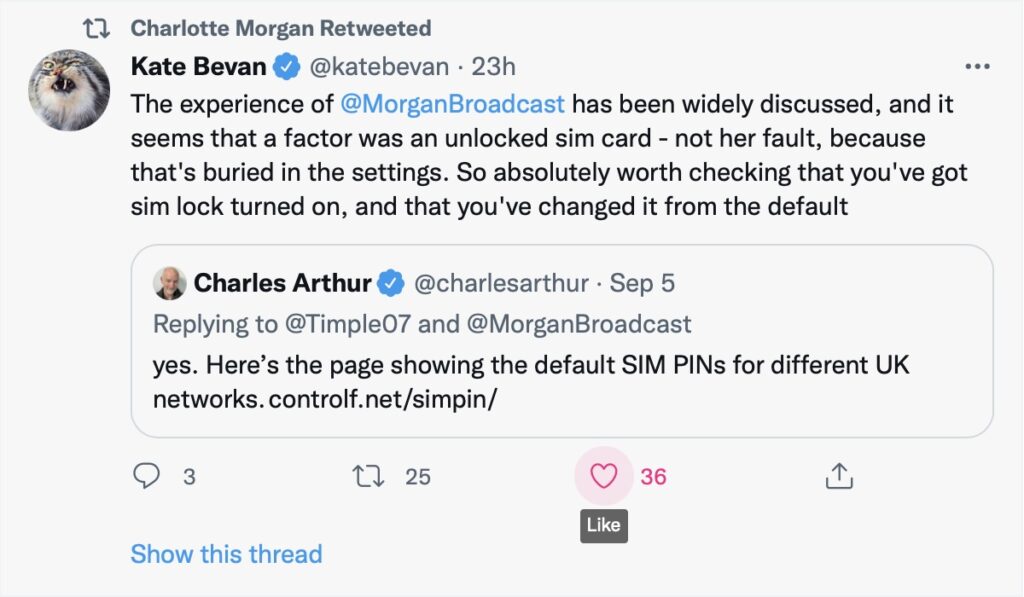
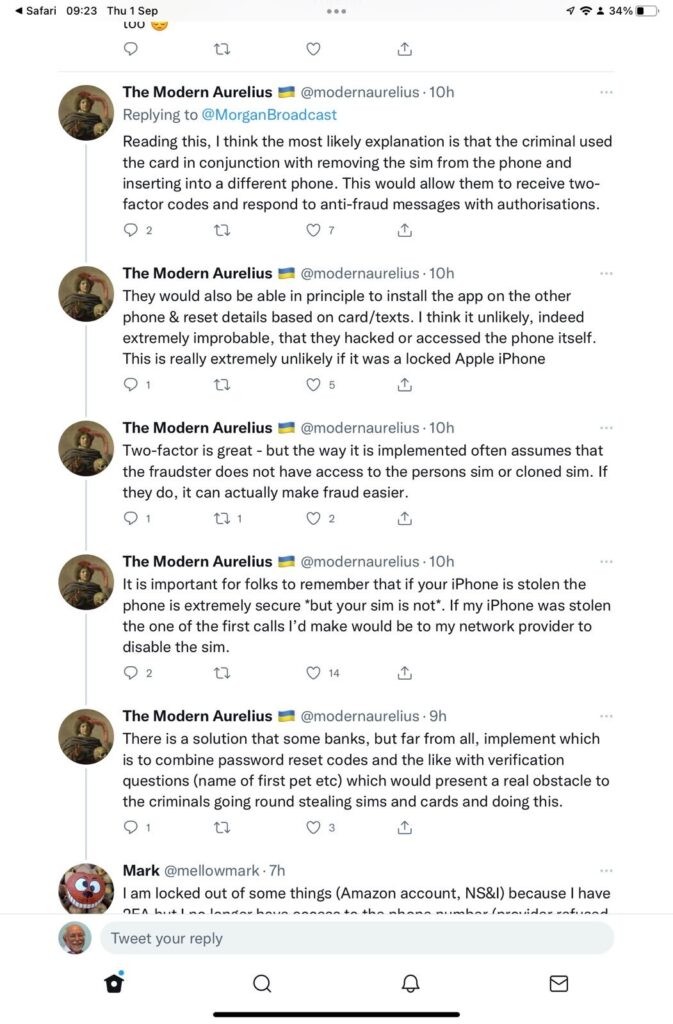
So what actually happened. This thread explains it well …

So what do you do? On an iPhone or Android …..

But what are the default SIM PINs that network operators use?

This link will be useful as it lists the default SIM PINs for the major network operators. These are the ones you need to change to your own personally chosen PIN.

It really is quite important. Change your SIM PIN and keep your credit cards separate from your phone.

Addendum: Remember – we had personal experience of SIM swapping and that’s written up in this post entitled “Identity theft”.

Browsers and Search Engines – 2022

It’s always worth reviewing which search engine you should use, as it is the browser of choice to “surf the web”. The reasons you might wish to consider which search engine you might wish to use are greater privacy, enhanced security, minimise adverts being displayed, or to get more meaningful pages being displayed, but first we’ll look at the web browser you might want to use.

First things first. If you’re using Internet Explorer you must seriously consider moving to Edge as Microsoft are removing support for Internet Explorer and one day you’ll find it just doesn’t work. If you’re using the initial release of Edge you should also upgrade to the latest version. It’s faster, more stable and uses the same code base (which is the open source Chromium) as some of the other browsers I’ll talk about later.

The next thing to remember is that Google is not a Browser. If you have a Google app on your smart device, it’s just Google’s “convenient” way of getting you to use their search engine and capture lots of useful marketing data from you! Google’s browser is called Chrome, and it uses the same code base as Edge (as mentioned above) – others include Brave, Opera and Vivaldi.

Chrome is by far the most popular browser accounting for more than 80% of the internet browser traffic, it has a wide range of useful extensions, and if you can be bothered to create a Google account and navigate through the preference screens, you can make it reasonably private – but you may wish to install the AdBlock Plus extension – an advert blocker, to stop intrusive adverts appearing on your web pages. [Another way of doing this is to look for Reader View, created for users with visual disability originally, which simplifies the view of a page on your browser screen.

But why use Chrome when you can use another browser which has built-in privacy. I’m talking about Brave. You can deploy many of Chrome’s extensions in Brave and virtually everything you see looks like Chrome, but without tying you to Google. I seriously recommend you look at Brave.

If not Brave, why not Microsoft Edge. The complete re-write of Edge using Chromium and with the support of Microsoft behind it makes this an excellent choice for those who use a lot of Microsoft applications (eg Office 365 which you can run in the browser, just as you can run the Google apps in Chrome) and is growing fast in popularity even if it’s Preferences menus are a bit tricky to work your way through.

If you’re an Apple user, I suggest you look no further than Safari, although all of the others can run on MacOS. It’s optimised for the Apple platform and integrates well with the other apps in the Mac/iPhone/iPad ecosystem.

That leaves two “outliers”. Firefox was one of the first browsers growing out the original work done on Netscape, it’s open source and has a huge and committed user-base. I have nothing to say against it, and nothing much to say for it either. It’s a good solid internet browser.

A couple of references to follow this up then …

The best web browsers for 2022 – ranks them under various categories.

The top ten internet browsers for 2022 – reviews the pluses and minuses of various browsers.

So we turn to Search Engines. You want to find something out on the internet – you just google it, don’t you? Well you can, but there are other choices as well, and this is where privacy concerns might suggest you might want to look at an alternative.

I’ll be upfront. I’ve been using DuckDuckGo (often in combination with Brave) for a couple of years now. I value the fact that my activity on the internet isn’t tracked and the results that are returned are not slanted towards my prior search history, and most importantly my activities are not farmed off to marketing agencies.

There’s nothing wrong with Google Search – it’s the most popular on the internet, but that’s by default rather than choice. The results are presented well, but there is a slant towards promoted results and results based on previous searches. You can change your search preferences a bit, deploy an ad blocker (see above), but why should you haver to!

DuckDuckGo is now presented as an alternative search engine in most, if not all, browsers and exists as an app on smart devices as well. Give a try! It’s my default search engine on my Apple devices.

The only real alternative to Google Search and DuckDuckGo is Microsoft’s Bing. The service has its origins in Microsoft’s previous search engines: MSN SearchWindows Live Search and later Live Search. Bing is now the code base for Yahoo’s search facility as it is for Ecosia – an ethical green alternative. Ecosia importantly doesn’t use any third-party tracking tools, meaning that any search made on the service won’t be seen by any party other than Ecosia. Furthermore, any search made on Ecosia becomes anonymized after one week. In contrast, Google and Bing will hold onto bits of search data (such as the device or date), even after deleting browser history and cookies.

That’s about it, some references then …

The ten best internet search engines of 2022 – a review, like the one above that highlights strengths and weaknesses of the various search engines.

Where’s my media?

A short (I hope) note on where media (and text messages) are stored on WhatsApp and Signal, how to backup and restore messages, and how to “get rid” of them – mainly to save space on your phone. I’m going to rely on the links referred to in the post, rather than repeat their contents, so click on the relevant ones.

First, some important points to remember.

  • The primary device for both apps is the device that your phone number was registered with. Any other device that you access messages from the service are synchronised with the primary device (usually a phone). It follows from this that you should always think of both WhatsApp and Signal as mobile apps, not tablet or desktop applications.
  • If you lose your phone, or change your phone without backing it up in the app first, you will lose your message store, and all the media attached to messages. They will not be accessible from your tablet, or desktop, applications because the link for synchronisation will be broken.
  • This is because … NO MESSAGES OR MEDIA ARE STORED ON A SERVER – really, you must believe me!
  • All media that’s downloaded in WhatsApp will be (by default) saved to your Gallery (Android) or Camera Roll [Photos app] (iOS). This is not the case for Signal (see below).

For Android devices, if you want to switch this off, you should read this article. Media files are automatically saved in your WhatsApp/Media/folder. If you have Internal Storage, the WhatsApp folder is located in your Internal Storage. If you do not have internal storage, the folder will be on your SD Card or External SD Card.

For iOS devices, in the same vein, this article may be helpful if you don’t want WhatsApp to store media to your Camera Roll [Photos app].

  • It follows from the above that if you delete media inside WhatsApp and you haven’t changed the default settings, the media should still be in the Gallery, or Camera Roll of your device. [NB I haven’t checked this out because I no longer use WhatsApp.]

If you want to backup your WhatsApp message store, you can refer to this article to find out how to do it for Android and iOS devices, and for PCs (for downloaded media only).

The situation with iOS for Signal is different from that with Android when it comes to Downloading images. Signal does not save media to your Gallery or Camera Roll [Photos app]. If you want to manage the auto download of media to the app, you should read this article first which covers the situation well for Android users, but will need to have a look at this article to see how to switch-off automatic downloads into the app for iOS users. I’m not going to recommend this as a way forward for iOS. Stick to the default and only store the downloaded media in the app.

If you want to Backup or Restore your Signal message store, you are advised to carefully read this article which applies to Android and iOS devices.

Now some notes on deletion of media.

  • It follows from the note above on media saved outside the app that if you delete in the app, the media will still be in the Gallery or Camera Roll. If you delete in the Gallery, the media should still be in the app.
  • Deletion of a message from a Chat will delete the media attached to it, but will not delete the chat, or the media, from any recipients of any message you’ve sent – unless you’ve put an “automatic delete after”setting on the message (Signal only, I believe).
  • Thus, following from above, if a chat recipient replies to a message you’ve deleted, you may see a thumbnail of the media attached to the original message, in the reply.

For iOS users, to delete media from within WhatsApp chats you should read this article. For Android users, this article should help you.

For iOS and Android users, to delete media from within Signal chats you should read this article, save any media you want, select the items for deletion and press the trash icon.

Finally, and I hope you’ve got this far, I think this link summarises the situation really well for our preferred solution – Signal. Media is stored in the app, you have the option manually to save selected images to Gallery or Camera Roll [Photos app], thus saving on storage space and gaining additional security along the way too.

Phew! That’s taken a good deal longer than I expected it would.

Non Digital Photographs

Most people now use digital photographs on our phones/tablets/laptops. But If you still like to have some printed (at a reasonable price) there are apps available which you can download onto your smart phone. – “FreePrints” (also a similar deal with the PhotoBox app and the Snapfish app)

They work by downloading the app and set up a free account with them – the app is free from the Google Play Store on an Android phone or the App Store on an iPhone.

You can choose up to 45 (or 50, depending on the app) standard-sized photos to print each month.  The prints themselves are free you just pay for the postage.  The FreePrints app postage is roughly between £1.49 and £3.99 depending on the number of prints ordered in a month.    Exact postage costs will vary a bit from app to app.

There’s no subscription, so there is no need to order every month.  The small downside is, that if your free photo allowance for one month is not used, you can’t carry it over to the next month. These apps are useful if you like to order a small number of prints regularly, rather than a load in one go.  

If you’ve saved up a big batch of photos to get printed all at once, maybe stored on your computer or a service like Google Photos, it may be worth looking at deals on websites like Snapfish, Photobox or Boots Photos (there are others too).  They’ll often have free photo deals for new customers, or give you free postage if you spend over a certain amount with them.  They usually charge around 10p per print.

Both the apps and these websites are also handy for other photo products to put on your wall – poster-sized prints, canvases, mugs, T-shirts, calendars. Prices vary quite a bit between the different websites.

Switch-off of analogue PSTN

This article will record the progress of the planned switch-off of the analogue PSTN (public switched telephone network) by 2025, and its implications to all of our generation, as Openreach moves to implement a fully digital service. The issue was brought to the attention of the Cardiff u3a Computer Group by Jenny Sims, a group member, who has a number of roles including being Chair of the National Pensioners Convention (NPC) Digital Working party and an NPC Executive Member.

It’s an article that will change over the next few months and years, so please look back for updates and further information as we become aware of issues, problems and hopefully solutions.

What implications might this have for older people?

  • Digital services are not universally good across rural areas
  • There will need to be a solution to the issue of digital services requiring power – what happens if there’s a break in power supply, this has been highlighted recently after the storms brought down power lines in Scotland and NE England
  • Cell telephony doesn’t provide a 100% coverage as a backup to digital services

What implications might this have for people with certain disabilities?

  • It’s been reported to us that certain people with visual problems have been experiencing difficulties in the Salisbury pilot area with the withdrawal of the 1471 service, with call-back not working, and with needing to install a new phone number

A video showing the opportunities and issues for Telecare

Here’s a link to the Progress Openreach has reported by January 2022. Much of this is very technical, so some of the following information might be more readable.

Here’s a briefing from BT on the project; and an update on what’s happening in Wales forwarded to Jenny in her role sitting on the National Pensioners Convention. Which? have also published a briefing on the subject which I encourage you all to look at. 

Some additional references

Switchover from analogue to digital telephony: UK consumer and micro-business reactions

The UK’s PSTN network will switch off in 2025 – BT Business

Internet revamp for the humble landline – BBC News

OpenReach PSTN Switchover – a technical presentation

Jenny has also written the article below, which will hopefully appear in the latest Cardiff u3a magazine …

====

Ring, ring: Ready for the big ‘phone switchover?

Only three years until 2025 when all telephone providers will do the big “switchover” moving landline customers from the country’s traditional telephone network to digital technologies and analogue services are finally shut down. 

Though BT published a timescale back in 2019, many older people’s organisations have expressed concern that the public have not been given enough information about the Public Switched Telephone Network (PSTN) moving to Voice Over Internet Protocol (VoIP), what it really means and how it could adversely affect older and vulnerable people.

Among them is the National Pensioners Convention (NPC), which represents 1.5 million members in Wales, England and Northern Ireland. 

Among the big questions is what happens if there’s a break in power supplies and people need to access emergency services – because the new system will run off broadband – and handsets will have to be plugged into an electricity socket.

Providers say solutions will be found – which will include the provision of emergency battery-powered backups for phones and routers.

This scenario became a reality last November when Storm Arwen hit the UK, causing widespread power outages and left 9,000 homes without power for more than a week.

Jan Shortt, NPC General Secretary did interviews with Talk Radio and other stations, and heard from affected listeners.

She said: “They raised the issue of not being able to charge mobile phones and other devices and therefore not able to summon help. It is clear that the majority of the population had not heard of the digital switch.”

In January Ofcom held an online public meeting to give an update on the “switchover” rollout throughout the UK and provide an opportunity to ask questions.

Jeff Richards, an NPC Wales executive member and a retired Swansea BT engineer, attended. He said: “Unfortunately they did not answer any questions that I raised regarding vulnerable customers nor anything on power supply. I felt that my questions were merely swatted away.”

BT have agreed to meet the NPC to address their concerns – which include, who will pay for the battery packs (some around £160) – the customer or provider?

Virgin Media has already promised that vulnerable customers with “accessibility needs or don’t have a mobile phone” will be given an emergency backup line at no extra cost.

Unsurprisingly, customers in various areas have reported teething problems as the system is being rolled out. For example, people in the Salisbury pilot area with visual problems have experienced difficulties with the withdrawal of the 1471 service and the need to get new phone numbers. 

Hopefully, in the three years left of the rollout, teething problems will have been sorted. But be prepared: only an estimated 1.5million out of 29million landlines have so far been converted – and one day those old phones will stop ringing!

For further information:

Jenny Sims is a Cardiff U3A Computer Group Member, Chair, NPC’s Digital Working Party and an NPC Wales Executive Member

Well I never – Gmail Archive

I’ve been “playing around” with my email accounts. I’ve decided to use my Apple iCloud account more as it makes a lot of sense as I organise emails by moving messages from Inbox/Sent mail into Mailbox folders setup on my iCloud – shared between my Apple devices.

It’s not difficult to forward messages from my Gmail account, just go into Gmail on a desktop/laptop (you can’t do this from the Gmail app on your mobile device) select Settings (the Gear wheel) and then Select All Settings, and then Forwarding and POP/IMAP …

… you can then set up a rule such as the one above.

You have a number of options of what you can do with the copy in your Gmail Inbox – as you won’t now be reading it from that spot – and I’ve chosen to Archive the copy …

But where is the archive?

The answer is that you have to scroll down to More on the left-hand side of the screen and select All Mail – and that’s where all the mail you’ve ever received resides.

Simples!

In Case of Emergency (ICE)

I promised to find and bring back to prominence a post I’d written a couple of years back. It was this one …

ICE – that’s In Case of Emergency

… Ann mentioned an app that the Emergency Services like you to have installed on their phones which is called what3words as it enables them to pinpoint quite accurately where you’re contacting them from. You might like to consider installing it on your phone as well as following the advice contained in the link at the bottom of the post I wrote …

How to add Emergency info to your Phone’s Lock Screen

The Virgin media link I showed at the meeting (and which is also on Flipboard) is here.