Again, this is a difficult decision on which Forum to post, but I settled on this one. You should read and consider whether the security issues it raises concerns you, or not, and take appropriate action …
Always good to get a review of the latest scams, and to put your mind at rest too. I intend to write another post for the Cardiff u3a website soon, and this article will be useful background …
This article from Norton is as good as any at summarising what you should do by way of maintenance – regular tasks that will make your machine run smoother, and possibly faster.
Backups
There are built-in options supplied for both Windows and MacOS – there’s no real reason to look beyond these. This table (for Windows 10) shows the different methods you might consider. I’ve also included this article that might help you understand what your need to do. However, with Windows (it’s never straightforward) you have another option File History, which maybe a better option, as it focuses on saving files to an external hard disk.
For the Mac, I wouldn’t bother going further than TimeMachine. You’ve heard me rave on about the Mac, but it’s true. You may do things differently on a Mac, but they’re just easier.
The most important thing is to do Backups, and do them regularly. My TimeMachine does an incremental backup every hour to an external hard disk. So the most I can lose should the machine crash, is the last 59 minutes. Some items will be excluded from this backup (eg photos) as they are backed-up automatically to iCloud when I import them on to my machine.
Windows 10 and 11 Maintenance
Let’s start by looking at this short video. You’ll want to go back and watch it more than once. Although it is aimed at Windows 10, I think all the utilities mentioned are available from Windows 11 too.
If you prefer reading to watching, and you’re a Windows 11 user, you will possibly find this article useful. If you don’t trust yourself to do the maintenance regularly, then Windows 10 users might find this article useful as it tells you how to schedule automatic maintenance and what it will do, but if you prefer your instruction to be visual you could watch this video instead, or as well.
If it’s just a speed-up you want from your Windows 11 system, you could work your way through the list in this article, but I’d be tempted to do the more comprehensive list of tasks mentioned in the videos above.
MacOs Housekeeping
Here it’s more housekeeping than maintenance, there are some things you can do to improve performance on your Mac, regular maintenance (as mentioned above) is not really required. This article aims to make your machine run better and faster – I’ll have to read it!!
The software I use on my Mac is CleanMyMac X – this article describes what you should do to automatically do some decluttering, which is probably a good thing and which I run once in a while; it obviously recommends that you use CleanMyMac to do it. Quelle surprise!
Operating system updates and upgrades
These are usually well announced by Microsoft and Apple. Generally, if the update is described as a Security Update, you should do it immediately; if it’s described as a bug-fix, or a point release with new features, I would counsel waiting a while … perhaps a couple of weeks, before installing it. Of course you can leave your operating system to do these automatically, so check your settings (as described in the videos) and select the time that your updates will be done.
More substantial upgrades are less frequent and my advice is to wait a while before installing these as it’s always challenging to go back to a previous release, and sometimes the upgrade will affect the running of one of your applications. All serious software developers will apply to get advance access to operating system upgrades to test their software on the new platform; but even with this access some bugs may not appear until the operating system is “out-in-the-wild”.
Internet history, cache and cookie cleaning
These were covered in the earlier videos but you should probably do these quite regularly anyway. You might have noticed that cookies weren’t “cleaned-out”. That’s probably because the majority of them will be re-installed the next time you go to a website, and cleaning them will also mean you have to re-enter information again. Generally, with good anti-virus software these days, cookie cleaning is not essential, as the malware threat has been reduced before they’re added to the browser.
Anti-virus and malware checking
For the Mac I have MalwareBytes (supplied by my bank). For the PC/Windows you know that I recommend Widows Defender, as it’s more than adequate for the “ordinary” user who’s not surfing the dark web! It’s evident that Microsoft have upped their game in this area and you can also deploy other tools to protect your machine. Take a look!
Hardware upgrades – memory, batteries
You might wonder whether you’re up to upgrading memory or batteries on your laptop or desktop, but actually this is a relatively easy job. You can use components from Crucial for memory and hard disk upgrades, and they describe how to do it for specific machines, or you can search for compatible components on the internet. Search for the instructions on how to fit for the specific DIY task. You’ll feel a sense of pride when you’ve completed the task too! A triumph for “person kind” over the machine
A really good upgrade is to replace an old Hard Disk Drive (HDD) with a Solid State Drive (SSD). The performance enhancement you will experience will be noticeable. You can always deploy the old HDD as an external disk and maybe use it for your backups when you place it in an appropriate caddy.
If you’ve not got the courage to do it yourself, you can always ask We will fix your PC to do it for you.
Cleaning screens and keyboards
Often overlooked, your screen and keyboard can always do with a clean, and you’ll be surprised at the difference it makes – to your mood if nothing else. I recently purchased this kit from Amazon to clean screens, keyboards and TV.
Application housekeeping
Another often overlooked consideration. You should look at whether your software should be upgraded. If it was purchased through an AppStore then you should be able to find out if there’s an upgrade available – you may have to purchase it, but often the upgrade will be free. Often the software provider – if you’ve registered your ownership – will inform/advise you of an upgrade to a new version, or release. Generally bug-fixes are not chargeable, but you may have to pay for feature-enhancements.
Please be aware that it’s impossible to expect that a software developer will keep their software compatible with every release of operating system software, so if advised that this is the case you should seriously consider an Upgrade, or finding a replacement if the software passes “out-of-support”.
You should also look to see whether (as was mentioned in the videos) you actually need the software anymore. At best it might just be taking up disk space you might need, at worst (as it becomes more outdated) it might provide a “backdoor” for malware to enter your system and upset your life!
Some applications (as was mentioned in the videos) also have local data caches and backups (genealogy database software is notorious for this). As you exit your session you are prompted to save a backup – the question is … how many backups do you actually need!!
All-in-one solutions
For the PC/Windows you could look at CCleaner (free version) – I love this quote from the article “Macs don’t need standard cleaning” but I do have MacPaw’s CleanMyMac X on my machine, and I bought it! However if you’re a Windows user there’s a lot to be said to doing the cleanup manually following the suggestions mentioned in the videos, I have shown.
Not strictly maintenance but something to bear in mind and perhaps make a regular task, is maintaining your “everyday” applications.
Do you need to keep all your eMails? It may be possible to Archive them outside the Mail application – thus making it run faster and more efficiently. You can also if you’re using a local mail client (recommended) occasionally rebuild, or optimise, the email storage. It’s just a database and it will run more efficiently if it doesn’t have a lot of redundant links to deleted messages, and the like, contained in it. You may be surprised at the large number of files (especially photos) that are stored in your email. Perhaps you should save them to a Photos app, or at least download them to a folder on your machine – they’d be more accessible there.
It’s surprising how many Contacts are duplicated, or how details and lists can get out-of-date. Always a good idea to review them and merge duplicates, edit changes and delete no longer needed entries.
Calendars are less needing of maintenance. If the day has passed, so what; it’s more important to know the forthcoming events are accurate and up-to-date. However recurring entries should be reviewed occasionally.
Again, like the above, it’s more important to keep Reminders up-to-date, and if you decide to use that utility, to stick to it. It’s an application that you shouldn’t use occasionally, you should commit to using it, and then be able to rely on it. As I demonstrated recently you can talk to it – as of course you can with a lot of utilities and applications.
Notes can become a bit of a dustbin, and I suppose you should be allowed to have somewhere you just dump stuff. However, they do have a very useful role in planning, and charting progress of a project, or a trip – especially when you can show completion with a bullet-point format. The functionality is always improving and now you can store website addresses, photos, maps, music and more in a note and then share it with someone else so that they can collaborate with you on the topic. It’s just a bit embarrassing when you look back at what you’ve “noted” and realise it never actually “turned-out-like-that”.
Finally Photos. Probably the biggest hard disk grabber of all. You need to plan a strategy for what you want to keep, the application you want to use to access them, or share them, and then – if at all possible – stick to your plan! Not always easy, but for your sanity, probably essential. The first task is to work out your duplicates. This is where DupeGuru comes in. Apiece of open source software that has proven to be a life-saver to me, and a tool that has allowed me to recover a lot of disk space. It works well with phoitos, but can also be used to find duplicates of other file types as well.
Here’s a video that explains what a Virtual Private Network does. I use NordVPN, but I must remember to switch it off when in the house as it’s quite unnecessary behind my router. It is useful when travelling however, and some might say essential when cruising.
The second half is a bit techie and can be skipped if all you want to do is understand what it does and how it can be used.
Ian recently had problems with his phone in which he lost his past Signal conversations. Renee had a similar problem last year as I recall. For those changing their phone and not wanting to lose their Signal conversations, this might be a useful link – https://screenrant.com/signal-transfer-conversations-new-iphone-android/
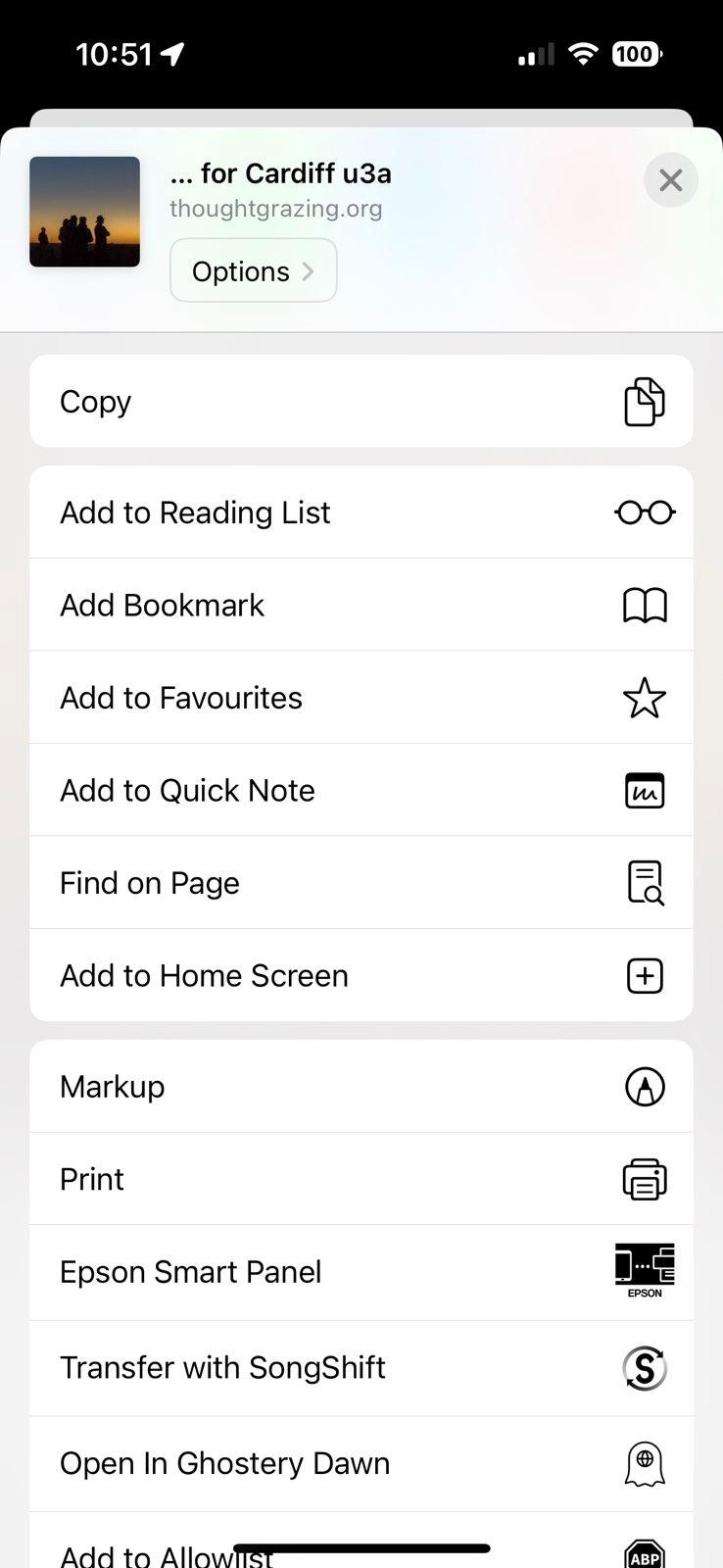
Did you know … you can create a shortcut to Thought grazing on an iPhone (probably similar on an Android phone) by pressing the Share button when you’re on a page you want to have a quick link to; and then selecting Add to Home Screen and possibly editing the suggested name; then moving it to where you can easily find it on your phone Home screen. You can setup any number of shortcuts this way to any website you frequently use.
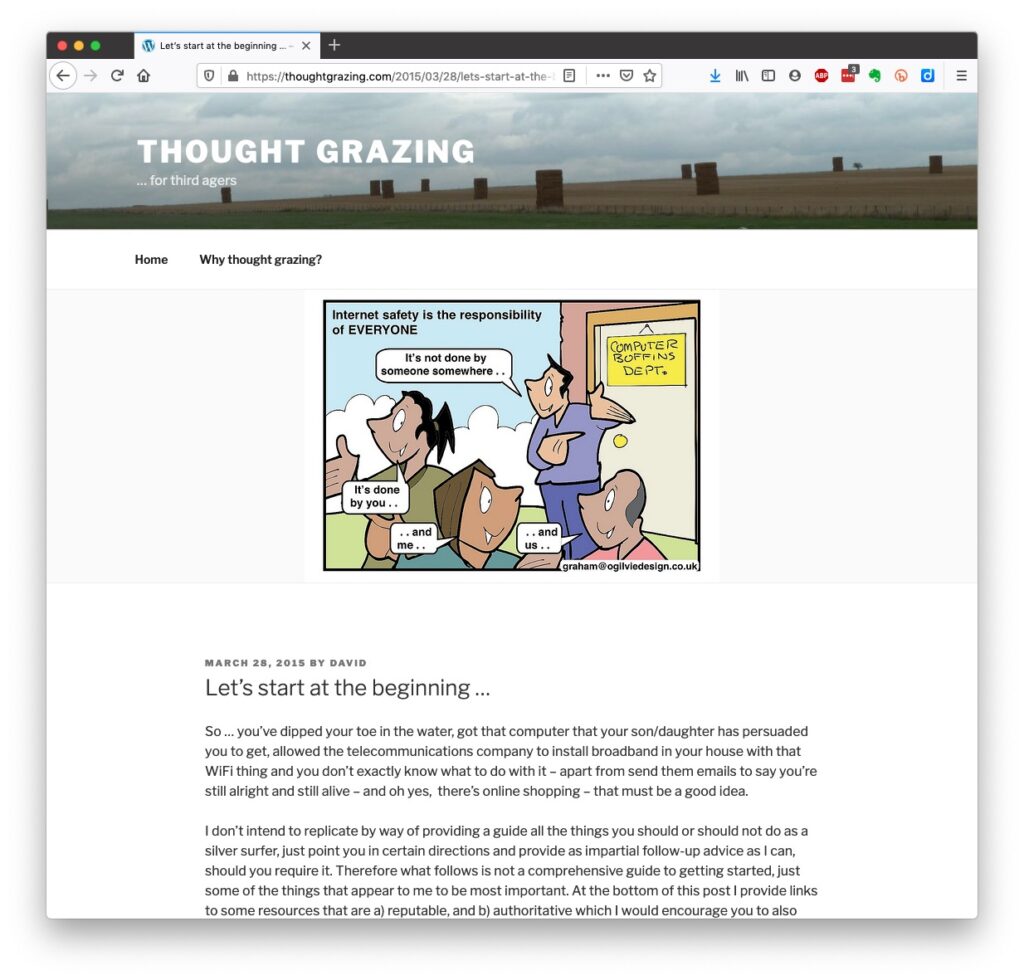
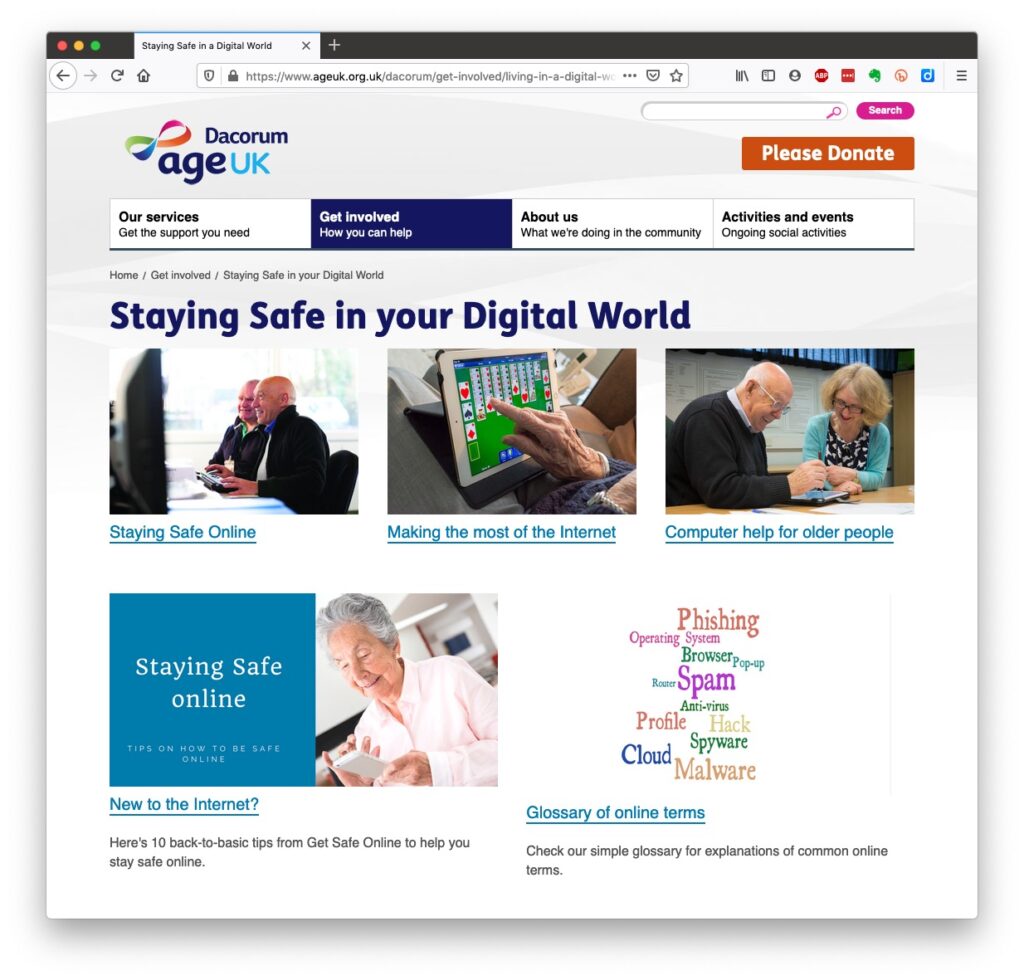
Luckily, there’s plenty of advice and guidance available – often slanted particularly towards our demographic (ie oldies) …
Those two sites are particularly easy to follow and understand, but others are equally informative and targeted.
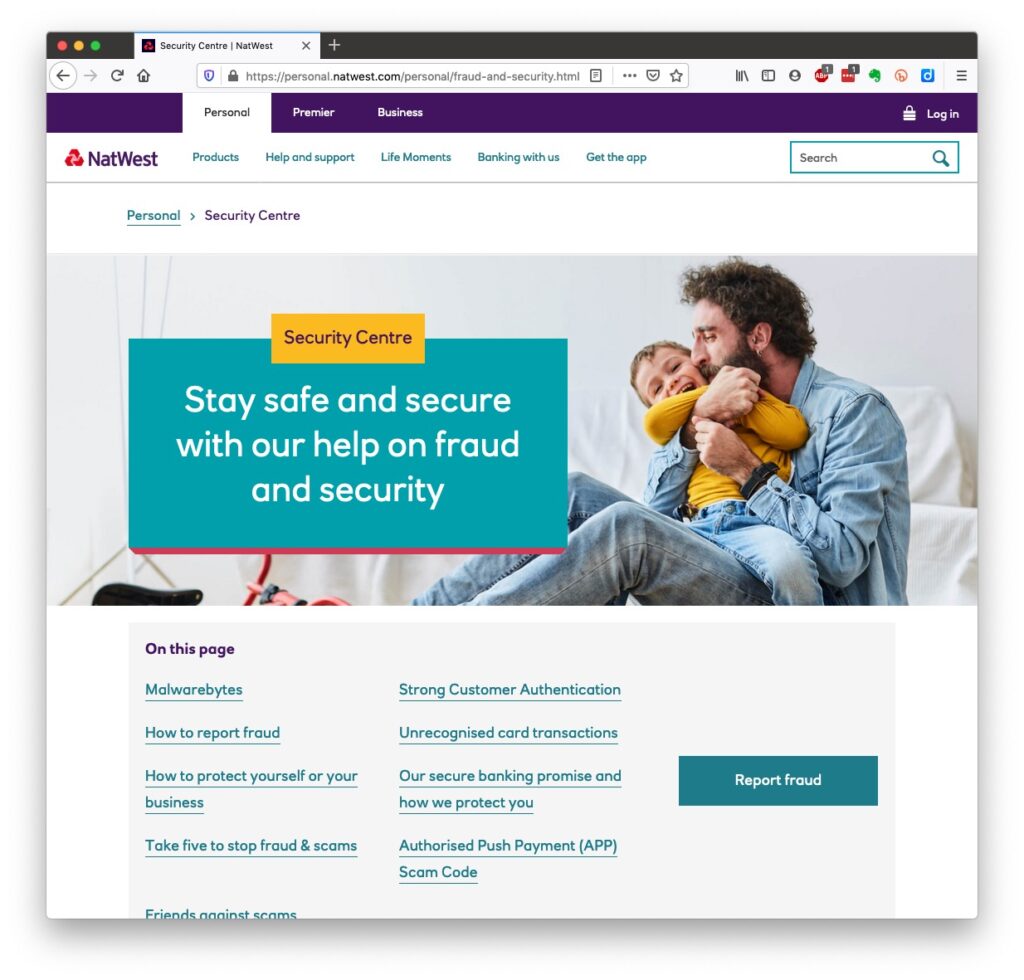
Your bank probably has guidance which it publishes online and which is accessible to everyone, not just their customers …
I’ll return to further information, guidance and references at the end of this post, but first we need to look at a few issues, discuss some terminology that’s widely used and try and tease out what’s really important, and what’s just an inconvenience and then it’s up to you to judge where you find yourself on the scale of …
First let’s distinguish the difference between online security and online privacy. These are two different issues which are however linked. Sometimes you have to relinquish some privacy to receive a service – unless you choose to pay for it (and I’ve long been an advocate of paying for services if they do a job that is necessary); exactly how much privacy are you prepared to relinquish?
Security on the other hand is an absolute – you should not be prepared to accept less than your very best efforts . We’ll deal with that in the third part of the post.
How do you relinquish your privacy, and how much of a loss of privacy is acceptable?
Some services could not be offered without income from adverts, or paid-for advertising – eg Facebook, Twitter and Instagram; and some eg Google and Amazon track and provide information to resellers if you don’t block them from doing so. As an example of how much value Google sees in getting knowledge of what you’re doing and where you’re doing it, they pay Apple up to $20bn annually to remain as the default search engine for any browser that’s running on an Apple device!
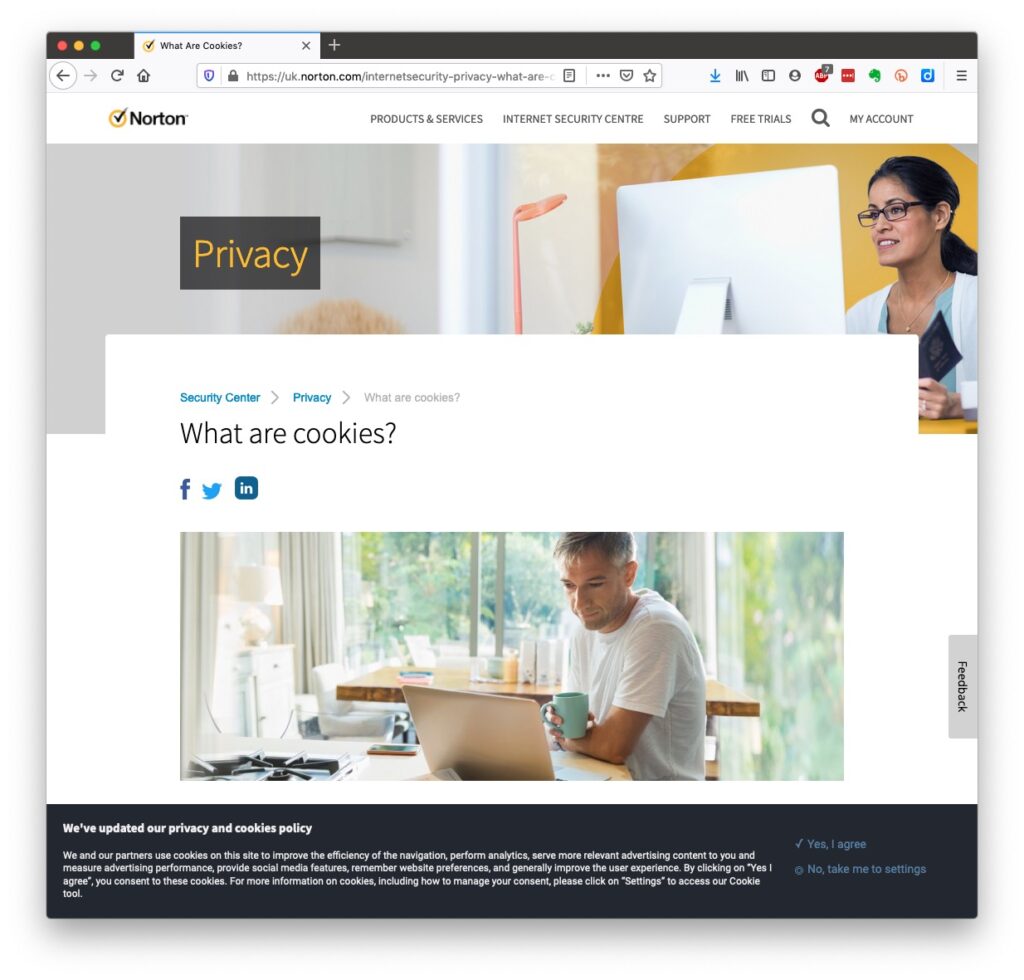
Sometimes you may click on a link and have been asked whether you wanted to accept cookies – what exactly are they, and what do they do. This article from Norton explains what they do quite well …
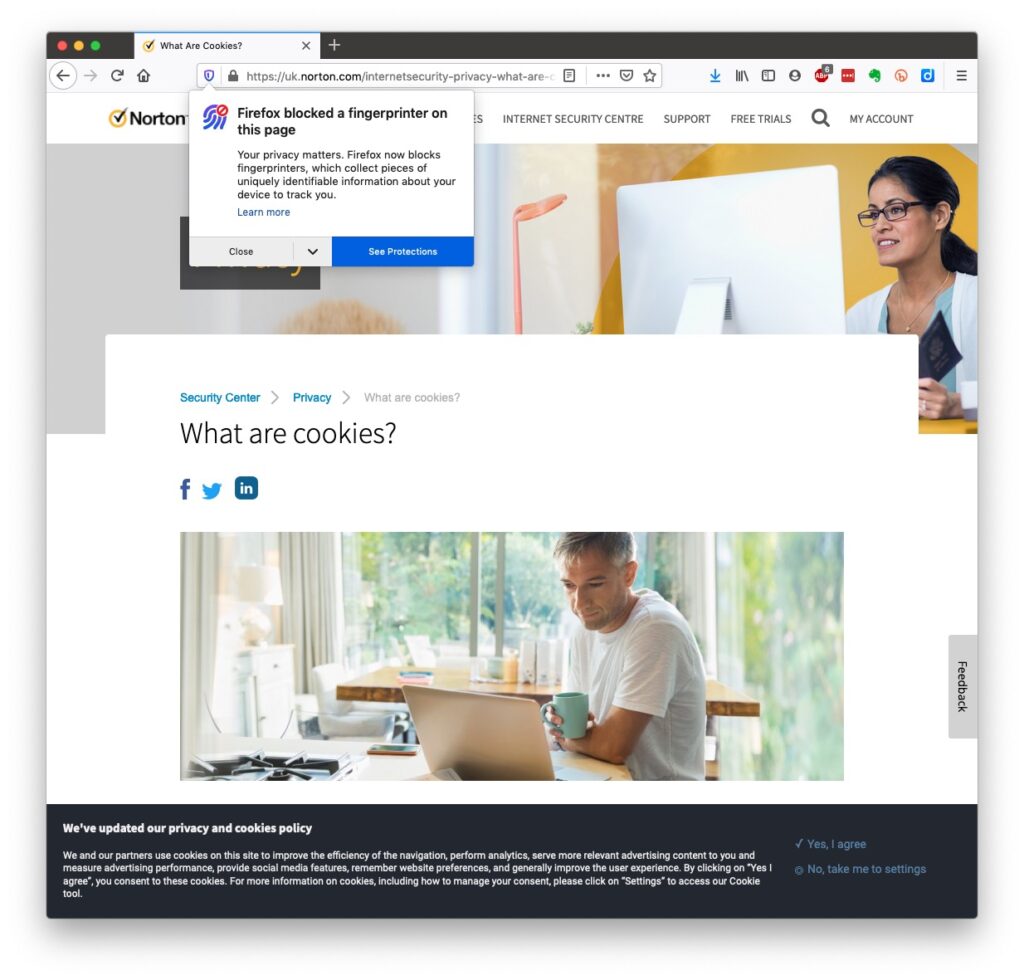
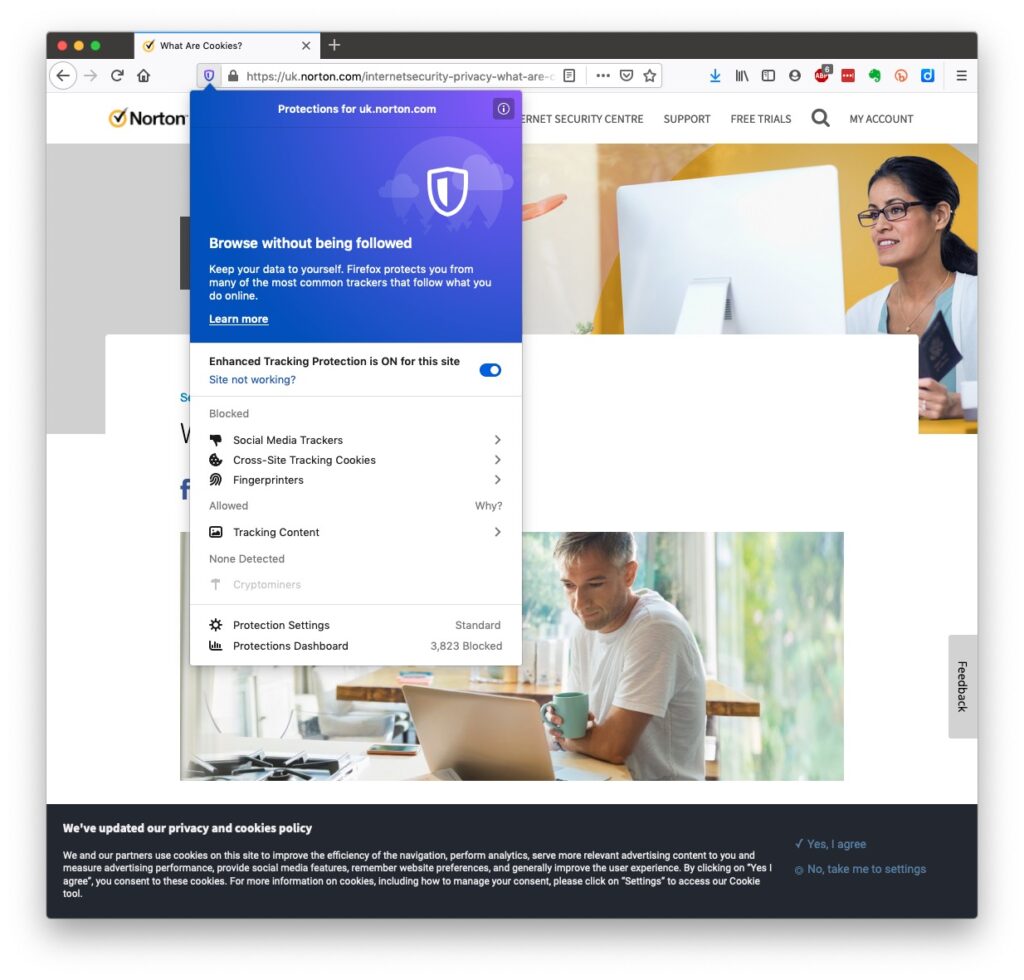
Essentially, they record what you do on a website so that when you return to it some of the settings are remembered and applied. Cookies do however also have a downside in that some can also act to track your activity once you’ve left the site. For that reason, you should disable in your browser the ability of third-parties to glean information from a cookie, and also to prevent them tracking your activity once you’ve left the site. You can at anytime, clear the cookies from your browser, and indeed on some internet browsers set them up to delete cookies when you leave (close the window) the site. If you use Firefox as your browser it will alert you the first time you go to a site that it is using a Fingerprinting cookie itself. For instance from the Norton site above …
… this is a nice feature, and should not be confused with the rather more annoying GDPR pop-ups which almost force you to accept because you can’t be bothered to check the detail that some sites force you to go to in selecting which cookies you want to store. I often just stop using that site rather than read through the options, or alternatively just click “Accept” and hope for the best!! Not exactly the privacy control that was envisaged when the legislation was enacted!
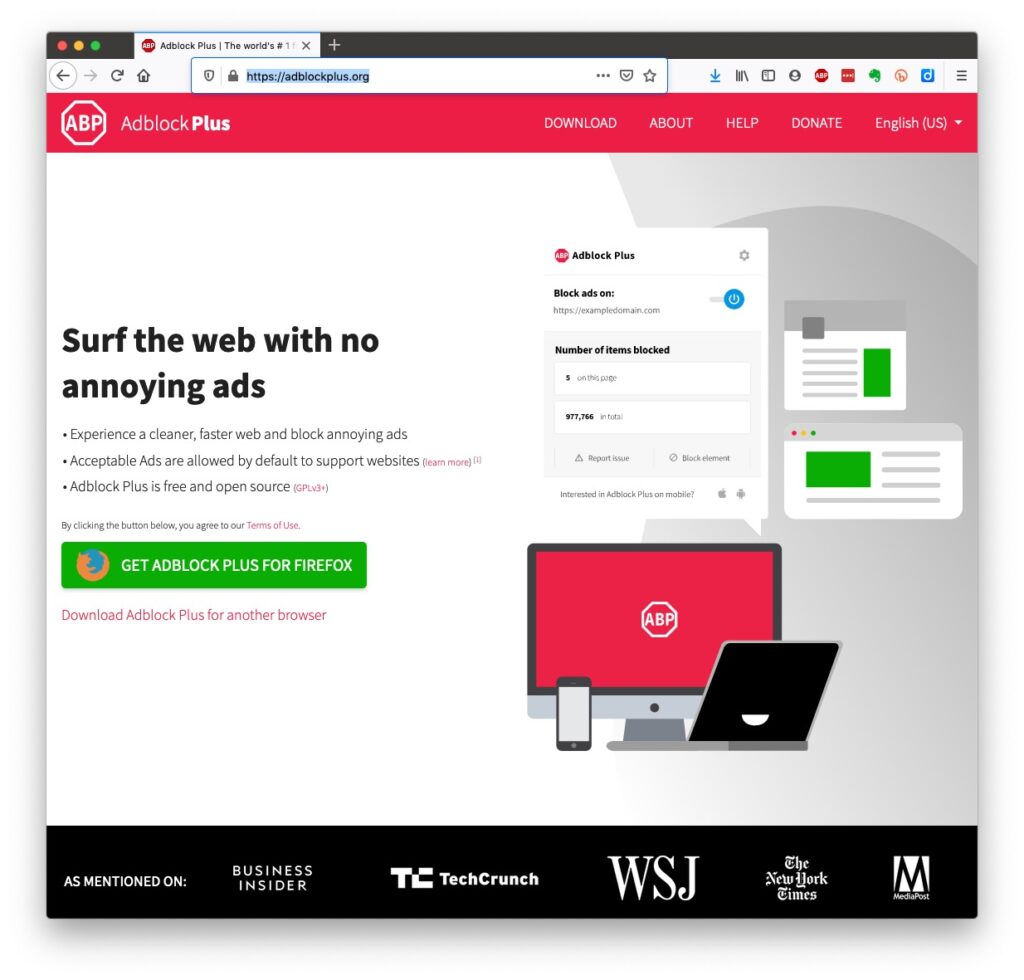
Another thing you should consider is whether you want adverts to be shown, or not. You might get a request to enable adverts when you visit a site, the answer you supply will be held in a cookie in the browser – that’s how cookies work. Firefox, Brave and Microsoft Edge, by default, block most, if not all, adverts. These are often annoying and having a browser that blocks adverts, or if you use Chrome – using an ad-blocker like AdBlock Plus often makes for a more “pleasurable browsing experience” by limiting the intrusion you might feel upon your privacy.
Which brings us to browsers and search engines
Search engines are not created equal! Whilst Google is often thought to be the same as the internet and is often mistaken to be an internet browser itself, it is in fact just one of a range of possible search engines that you can use to look for information on the internet. It uses a platform called Chromium to display the results of its searches to you through a browser called Chrome. However, other browsers – Microsoft’s Edge, Brave and Opera all use the same underlying Chromium technology – the difference being they don’t track what you’re doing “to present the content that most meets your needs” (Google’s philosophy) and in some cases (eg Brave) they can actually prevent tracking of your browsing history. I use Safari – which on Apple is my default browser choice, but otherwise I would use either Brave or Firefox as my internet browser.
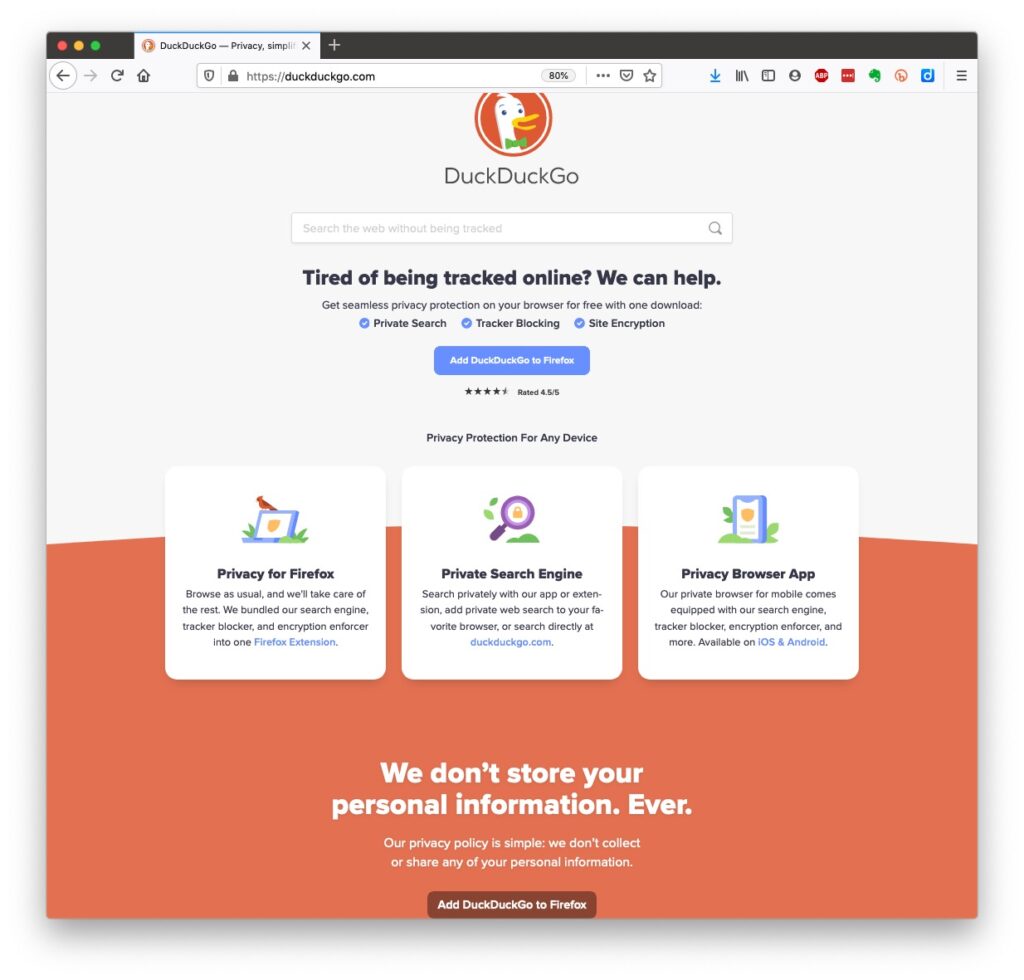
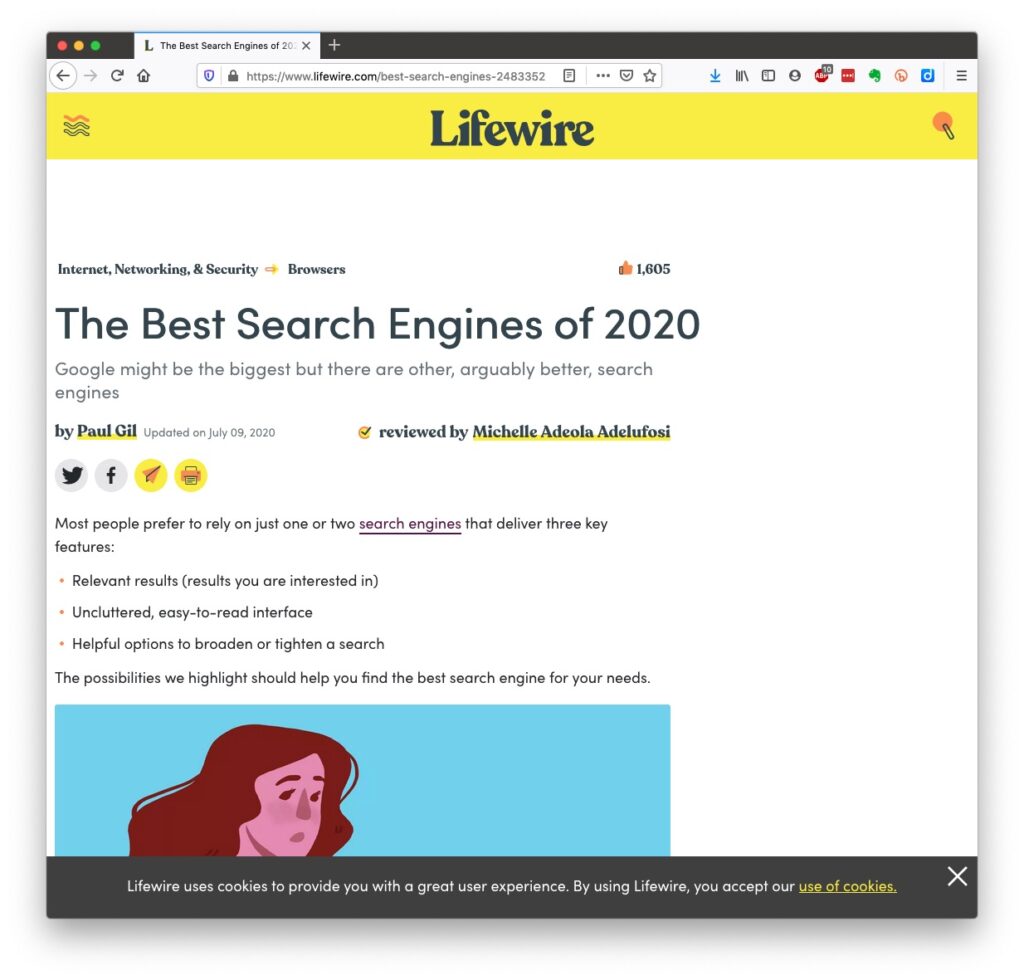
So what safe and private search engine could you use as an alternative to Google. I use DuckDuckGo …
… but others I could have used might have been Ecosia, Bing, Yahoo or another one you might choose from this article or the list of other articles at the end of it …
There are many specialist search engines (as explained in the above article) that can give you much better, and more targeted results than a broad-spectrum Google search with the priority of results returned by relevance, not payment received by Google.
Finally, no discussion of Privacy can ignore Social Media and Facebook in particular. These applications, if left to their own default settings, are effectively personal information mining engines. They grab what information they can from you, and sell it on to whoever is willing to pay for it; or are indeed the platform for data mining, vis the Cambridge Analytica affair.
Recent enforcement of data privacy legislation by the EU on Meta has resulted in them being hit with massive fines for breaches of GDPR law by Facebook, Instagram and WhatsApp.
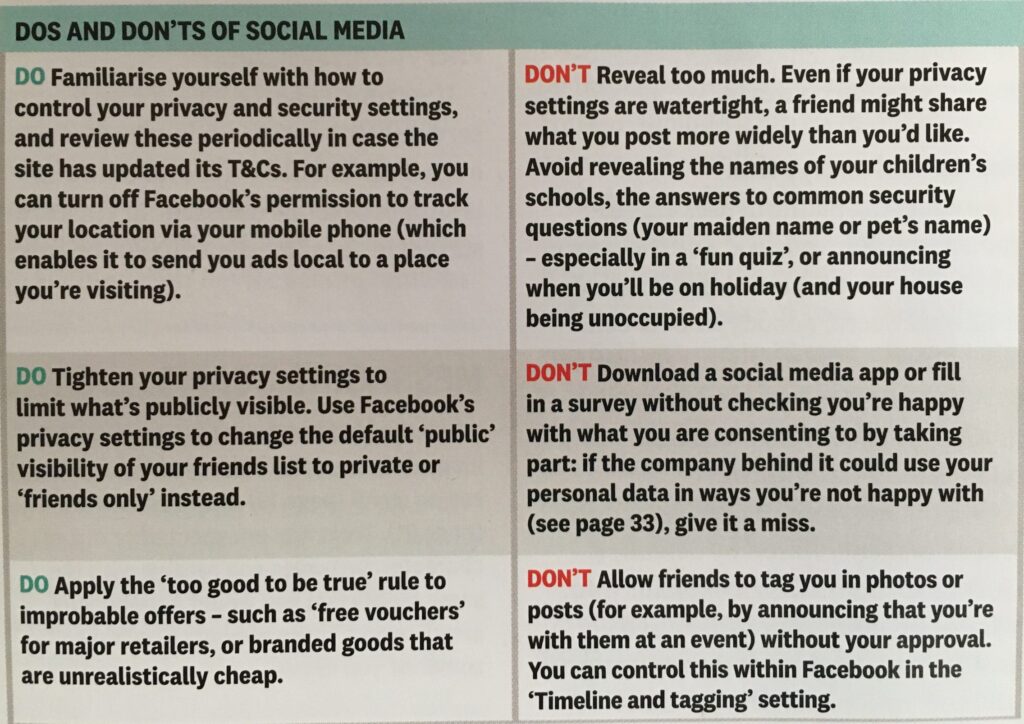
Online retailers are not exempt from this and Amazon for instance has a wonderful record of your browsing history! Are you sure you know what it’s doing with that information? So look at this table taken from a recent Which? supplement – Staying Secure in a Digital World – and just check whether you need to change your settings if you use any Social Media apps …
So that’s Privacy dealt with.
Should you be frightened?
The take away message I want you to have is Frightened – no; cautious – yes!
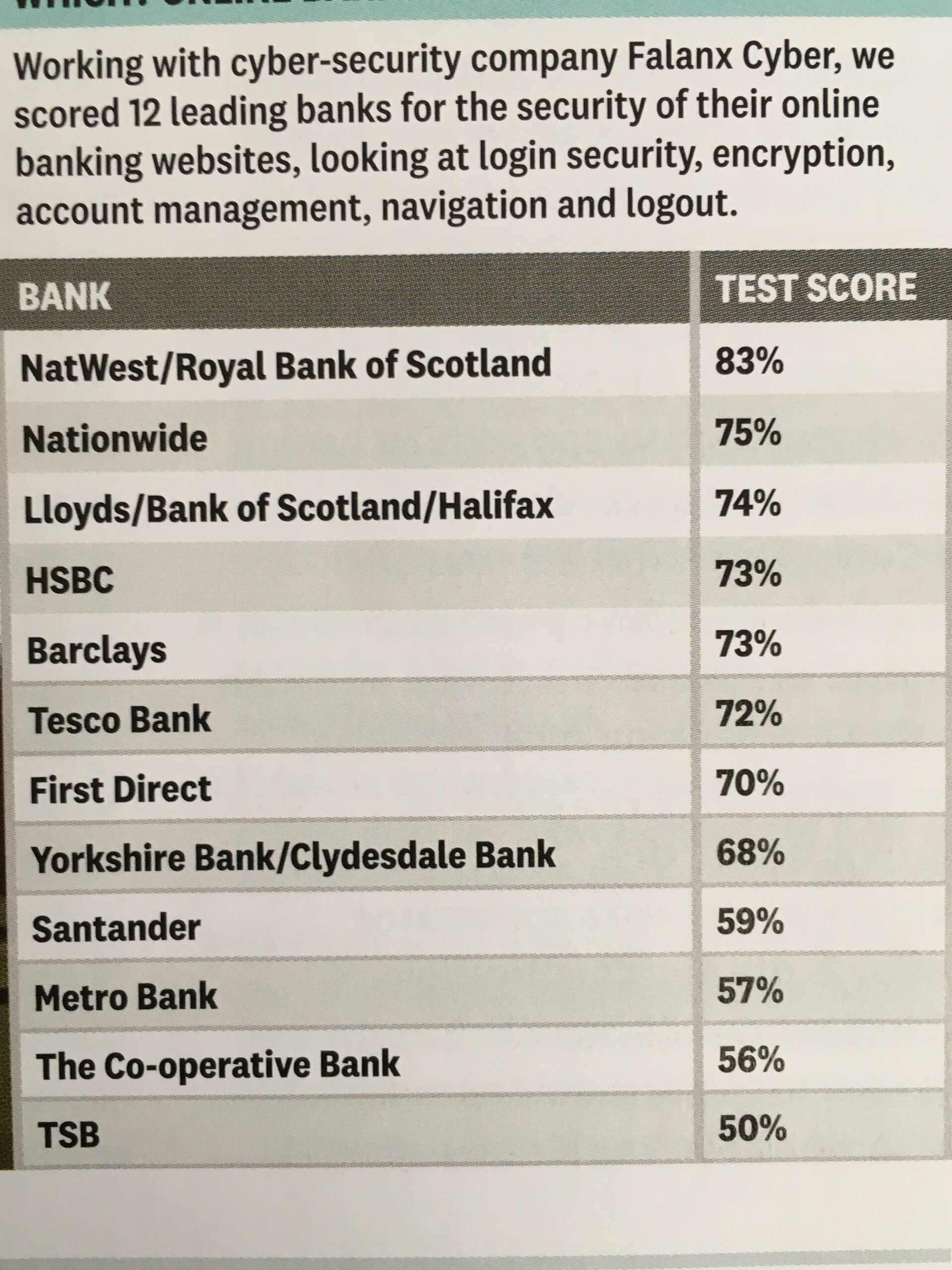
Online banking is very secure – a recent survey in Which? produced the following scores …
… plus you are protected and most of the banks are increasingly opting to adopt an online and mobile guarantee to refund you where you’ve been the innocent victim of a fraud. Here for instance is Barclay’s “Online and Mobile Banking Guarantee.”
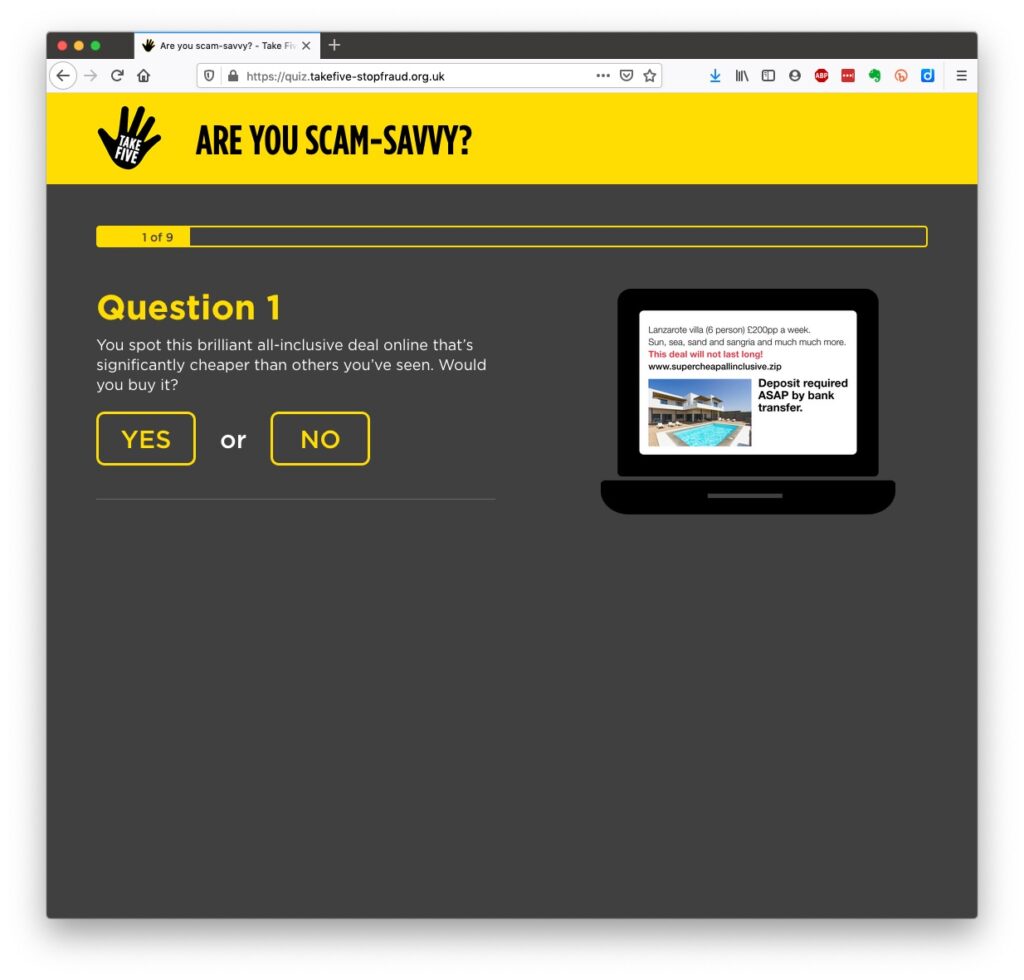
They really don’t want to shell out money, so they are trying to educate us to be wise to scams. So let’s take a scam test …
Banks are also often supplying software free (or at reduced cost) for you to install to protect your machine, to protect you from fraud – and of course themselves from having to pay out! I was recently offered a piece of software called Malwarebytes by the NatWest and although I have an Apple Mac computer which are well known to be relatively secure from Viruses, Spyware, Trojans and other malware, I installed it. I was pleased to note that I didn’t have any malware on the machine.
Surprisingly you might think … it’s safer to use the mobile app on your phone, or tablet to do online banking and retail purchases than a web browser. This is because the app on the mobile device has to be verified by Google for Android (Google Play Store) or Apple for iOS/iPadOS (Apple Store). Whereas a browser could be infected, or compromised with malware. [That’s something I’ve learnt whilst preparing this post!!!]
When you’re out and about and NEED to do an online transaction from your mobile – use cellular rather than WiFi. The latter can be really open to “sniffers”. [I must admit I try to avoid doing online transactions when away from a domestic network.]
Alternatively consider buying and installing Virtual Private Network (VPN) software, such as NordNet so that you can use the free public WiFi in a public area.
You can find out a whole lot about the range of scams at the NatWest’s Security Centre.
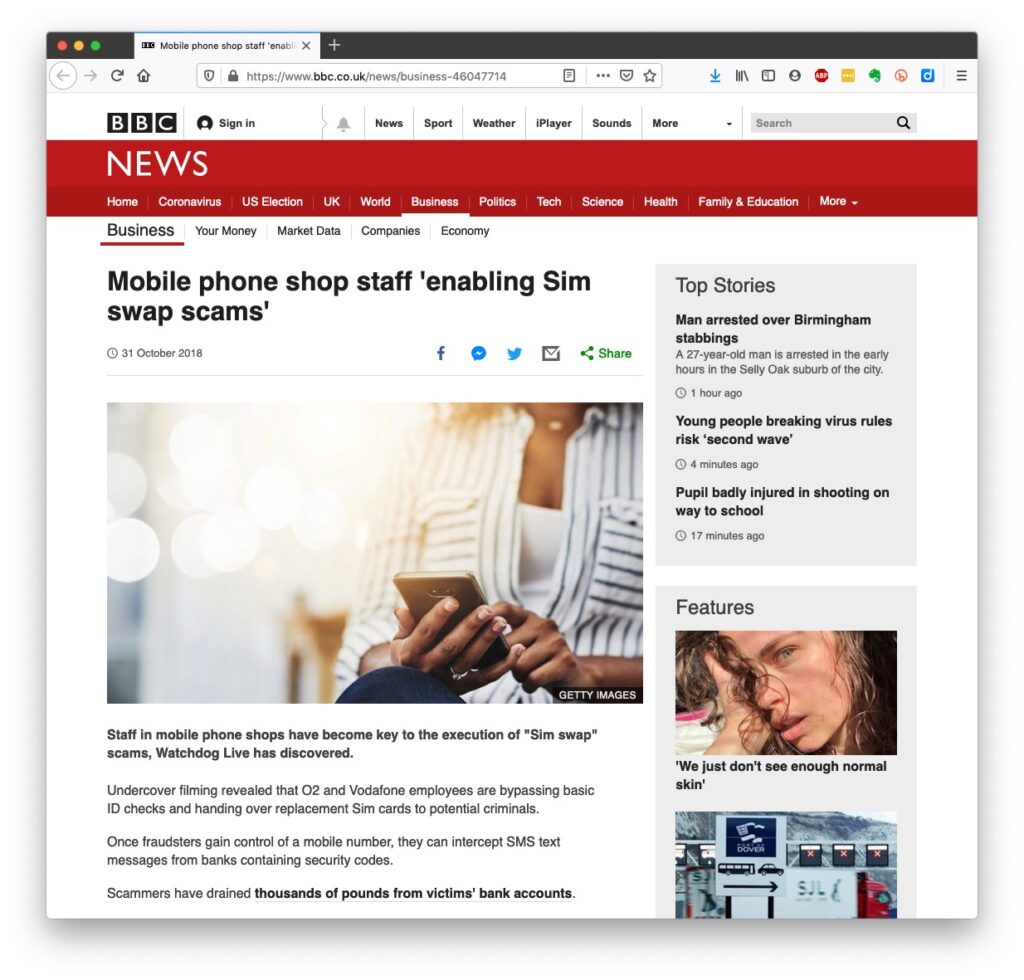
However the most scary scam I’ve been made aware of is one that befell a member of my family when they were distracted sufficiently to become the victim of SIM swapping.
I’ve discussed this with you before and you can read the updated post here.
I also covered this issue in another post which involved stealing a phone, to obtain access to your identity and commit fraud, and we covered the even more disturbing theft of a credit card with the complicity of the US Postal service to obtain a SIM in a recent meeting as well.
What should you do to protect yourself?
Some of these pieces of advice are really quite straightforward, but some require some intervention by yourselves.
Keep your operating software up to date. This is particularly true if you’re a Windows user, and even more true if you are still running an older version of Windows than Windows 10. If you’re using Windows XP, Windows Vista or even Windows 7 you should seriously consider disconnecting your machine from the internet because even if you’ve got anti-malware software running this is probably not protecting you against the latest threats.
Install anti-malware, or anti-virus software, particularly if you’re a Windows user. Don’t pay more than you need to. Windows Defender from Microsoft is Free and for our demographic relatively undemanding and unsophisticated users, more than sufficient. Keep it up-to-date as well! [As I said previously, your bank might be offering free software as well.]
Keep the software you use regularly up to date as well. Consider removing any software from your machine that you don’t use – this is because software vulnerabilities are discovered sometimes quite a while after the software was first released. It will also save you disc space!
Be cautious over installing extensions into your browser. These are often extremely useful and valuable tools, ie password managers, Dropbox, note taking, Google Back up and Sync, but if you don’t get them from the official sources then you might be importing vulnerabilities, eg spyware and trojans to your system.
Very seriously consider logging-out from social media and other retail sites when you’ve finished using them, especially Facebook, you just don’t know what tracking and logging of what you do, even where you are, if you leave yourself logged in on a mobile device.
Free software is both a boon and a curse. Only download open source software from a reputable site such as Softpedia, and never try and get proprietary software for free. Read this article about Free download sites if you want to know more.
Remember the golden rule 1 – if it seems too good to be true, it probably is, so steer clear!
Remember the golden rule 2 – don’t speak to strangers (an oldie but goldie that one); in other words if you don’t know where an email has come from – ignore it; if the website address looks a little strange – do an internet search on the company or organisation to check if the address you’re looking at is a spoof of the proper one.
Have more than one email address. Use one as your personal address, then use other ones that you can “throw away”when you need to register to a website, but you’re unlikely ever to go back to it again. Or have an email address (UserID) specifically for online purchases. Splitting things like this reduces the risk of you being the victim of fraud.
Seriously consider using an email service that is NOT connected to your Internet Service Provider (ISP). If you decide to change your ISP, and you should review them periodically, then you will have real problems if your email address is linked to their service!
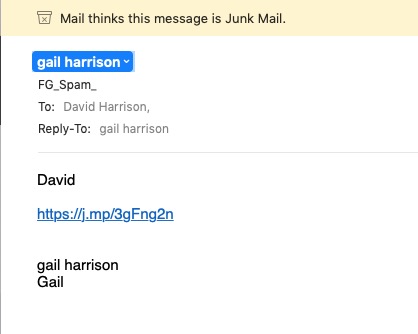
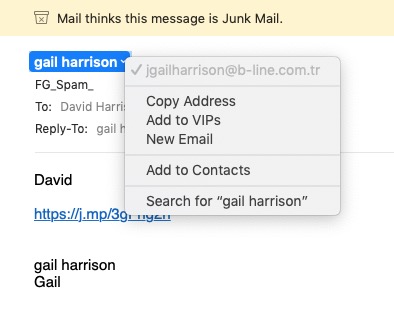
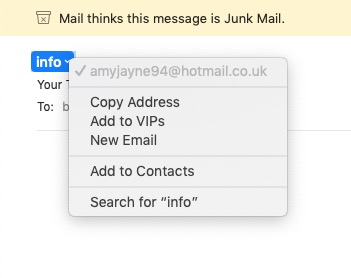
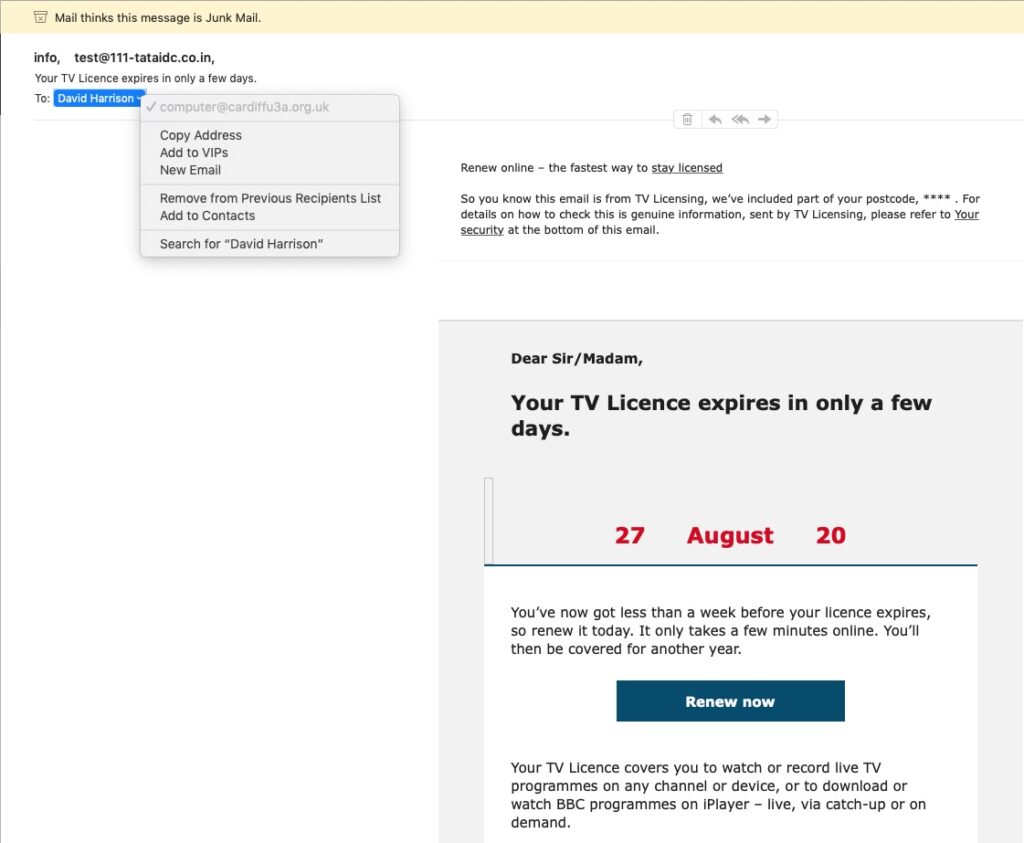
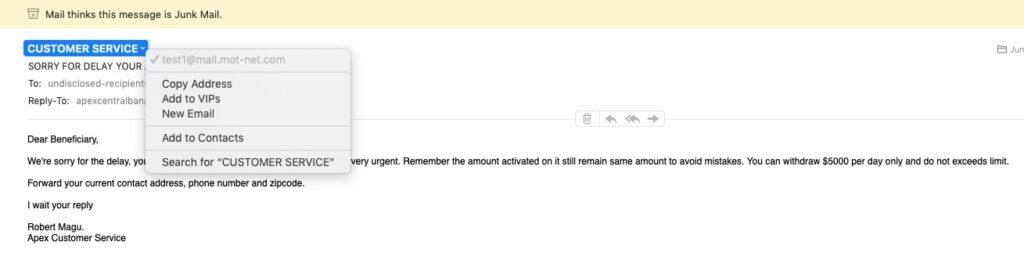
You’ve got Spam filters running? Of course you have – but you better check! Probably your ISP, or email provider (eg Gmail, Yahoo, Microsoft Outlook or Hotmail) is filtering out what it thinks is spam, but occasionally some gets through. If that’s the case then you can always look at the real sender of your message. Take a look at the examples below …
You can also apply filters to divert incoming email into different folders in your email system. That reduces the amount of Junk that you need to review. [I’ve also advocated using the “native” email application for your device rather than rely on the web-based service the email provider has. Thus on a Windows device – use Windows Mail (or Outlook); on a Mac use Mail. You can then easily synchronise your email between devices from multiple email accounts. Tidy!]
So we come to Passwords …
… this is the point at which you need to consider intervention and changing your behaviour! You might also need to do a fair bit of work, but it’s worth it if you want to have a secure internet experience.
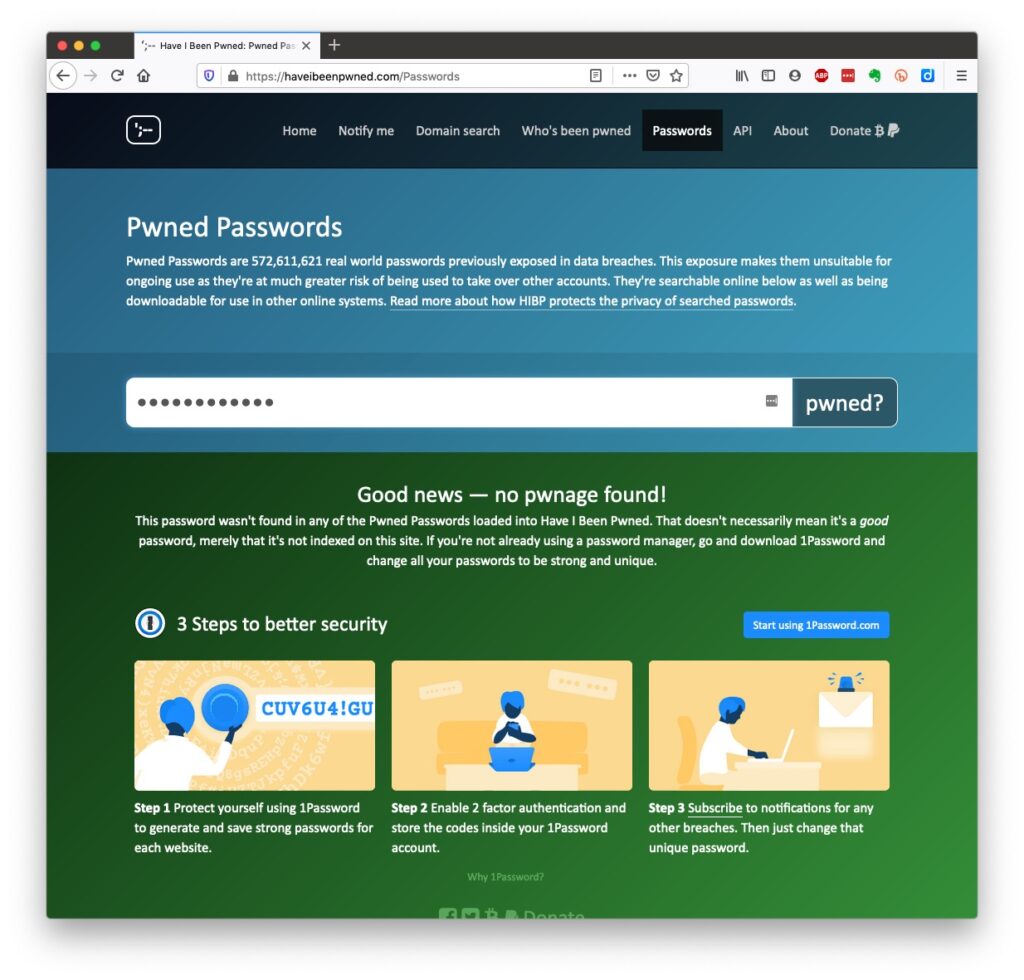
Let’s just see what using an insecure Password can lay yourself open to. Type in the word Password, or ABC123 from the link above – frightening eh!?
The most common password I use – and I know I shouldn’t reuse the same password, but I am human – has not been discovered on any pwned site. Phew!
What about the combination of your email address with your password – has that been “pwned” (ie stolen through a data breach)? Try typing your email address into the link above.
Oh no! I’ve been pwned … but it was a long time ago and I’ve changed my password many times since then!Ah! That’s better – my “throwaway” email and passwords are “safe”!
And if you want to see a list of which websites have been breached, it’s alarmingly long!
So … use a unique password for everywhere you sign on. There’s lots of tricks to achieve this; some of which I wrote about in a post quite a long time ago …
… but the real change of behaviour is to use a Password Manager – again I wrote about this a little while ago and linked it to using Two Factor Authentication, which is also covered in the same post …
Password managers
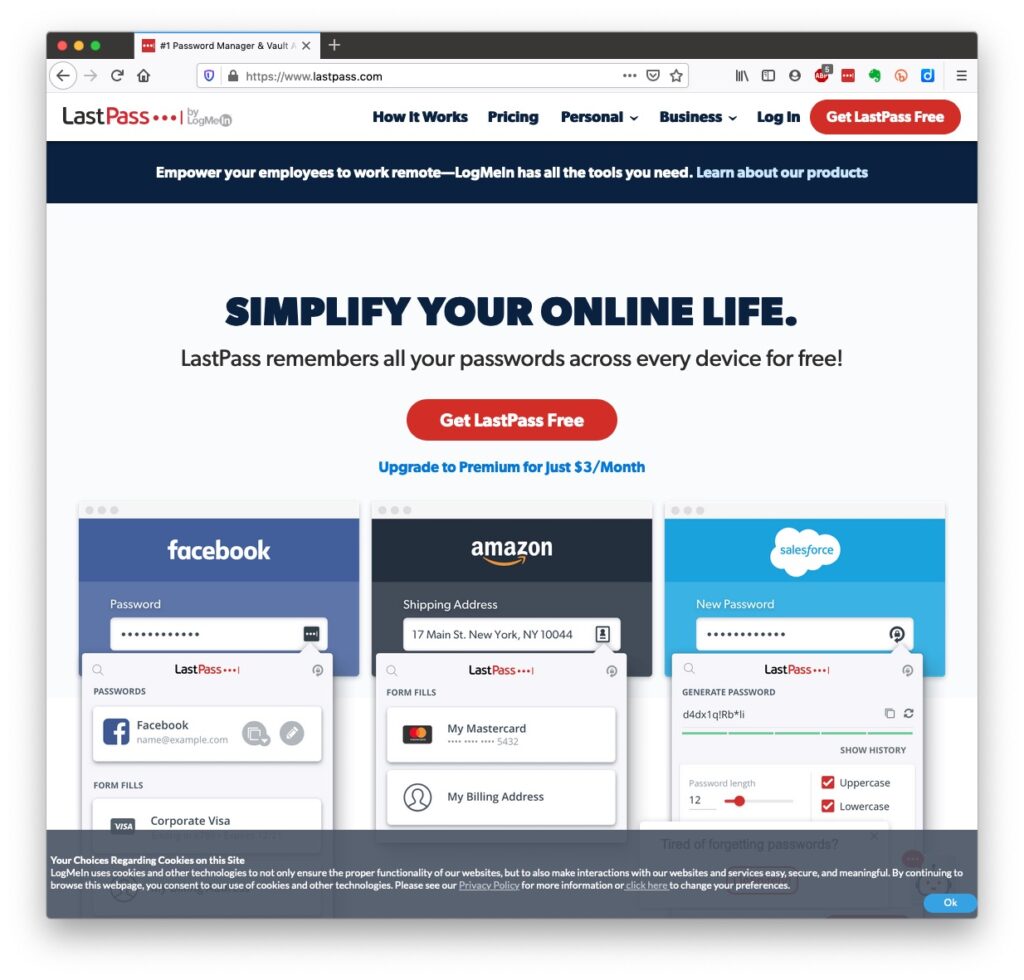
I still use LastPass, but as a back-up and archive of my old passwords. I now use Keychain as I only have Apple devices (as do most of my family, and so it makes sense to use a system that is linked to the hardware I use. Other common password managers are Dashlane and 1Password. Please make up your own minds after reading some Reviews and seriously consider using one.
An authoritative article on using Password Managers is provided by the National Cyber Security Research Centre. They also give an opinion on whether you should use the browser offered option to save your passwords.
However … the future is Passkeys
The major tech companies – Microsoft, Google and Apple amongst them, have been working in alliance on a project called FIDO that will mean the combination of UserID and Password can be consigned to the waste basket. This article explains what they are, and what it means for us really well. Although Apple stole a lead, announcing their implementation a year ago, Google has now launched it’s implementation, and this article describes how to set them up on your Google account. Microsoft also allow a password-less way forward, but I’m not clear on how to set it up – not being a M$ user.
On Apple – here’s how you set up Passkeys on your iPhone, iPad and Mac. Another reason why I chose to move from LastPass to Keychain.
Whilst if you’re a 1Password user, you can combine your legacy use of a Password Manager with Passkeys, and these will also work much better together on your iPhone. Watch out for an announcement shortly!
[NB It is possible to move between password managers, ie from LastPass to 1Password.]
And that’s about it for this year. We can look forward to much more about Passkeys in the coming 12 months; much more about GDPR and how the UK government’s online security legislation is reviewed (and hopefully revised) before implementation; much more about “big tech” and corporations re-acting to whether they are responsible for content, or are just a platform providing a service, rather than a publisher. Interesting times!
These may not be available in your Public Library, hopefully that isn’t the case.
… but these are available … Which? webpages – Scams & older people
I seriously do recommend signing up for the Which? Scam Alert Service – sign up for an email alert – and I seriously recommend you NOT broadcasting other people’s warnings to you about scams; they could be old, they could be inaccurate, they could be scams in themselves.
Look on the Age UK webpages – Staying safe in your digital world and specifically How to stay safe online
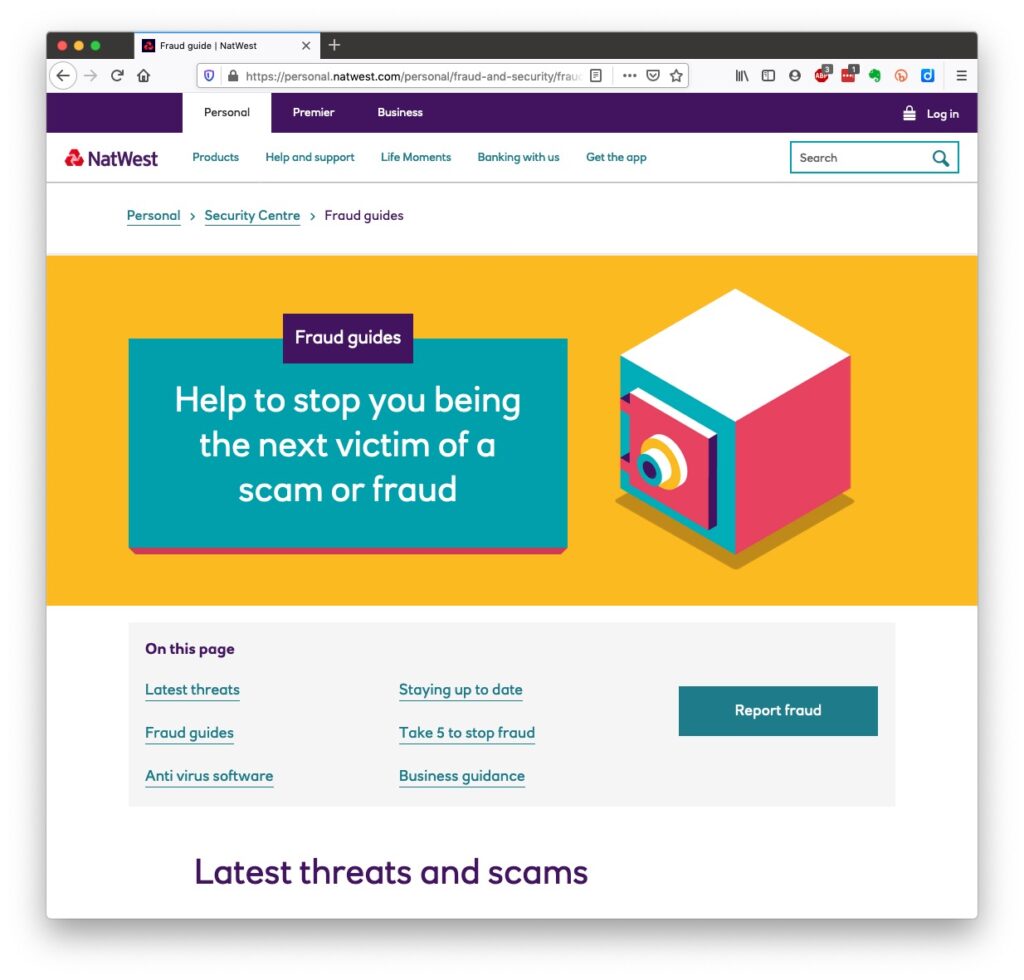
Your bank will undoubtedly have Internet Security webpages. Mine has a Security Centre web presence and particularly they provide a number of Fraud Guides
I could give a million references to changing your privacy settings on Social Media, but here are a couple relating to Facebook, perhaps the most challenging service of the lot.
First – what Facebook unchallenged will want to get from you. You are able to disable (prevent) all or some of these … Sign up for Facebook – this is not sign-up site, it’s just one to educate you on the privacy you might give up without realising before you sign up (but of course you can run the checklist at any time); then How to change settings on Facebook and finally Securing Facebook: Keep your data safe with these privacy settings.
I’ve written before about how it might be wise to look at subscription services rather than rely on free services and back in October 2020 I wrote a piece about the distinctions between Open Source and “free” software in general. Now it’s time to pick (and update) my winners in a number of categories. They will have to work on multiple platforms as well – PC (Windows), Mac (MacOS and Linux, and hopefully on smartphones and tablets as well. I will stake my reputation on the fact that if you download any of these pieces from the links I provide that it will be safe, and reliable.
Office software – word processing, spreadsheets and slide presentation. Here there are two close contenders but I’ll tip towards the true Open Source offering which is LibreOffice. At one time I used to recommend OpenOffice as an alternative to Microsoft Office, but the better file formats supported in LibreOffice tips the balance in their direction. Here’s a review of LibreOffice – a brilliant piece of Donationware. The runner-up would be the Google suite of applications (Docs, Sheets and Slides), but they’re not truly free … are they? Alternatively, recognising the competition of Google, Microsoft has made Office 365 Online freely available to be used with OneDrive.
Desktop publishing – you might like to look at Scribus; I have no experience of using it but here’s a review.
Media Player – there’s really only one player in this category. It’s VLC Media Player. It runs on really old hardware too, and supports almost every media format – here’s a review.
Photo editor – if you don’t want to shell out on Adobe software (Photoshop and Lightroom) or Paintshop Pro, or others, then again there’s only really one leader in this class. It’s Gimp. Here’s a review. There’s plentiful documentation and videos on using Gimp available on YouTube too. If it looks too complicated for you then Paint.net, or the new Google Photos (yes I know I said it wasn’t truly free) would be worth looking at.
Video editor – one that I’ve begun to “get into” recently has been Shotcut. I can truly say that once you’ve got over the shock of so many panels and options, and have spent a little while reading the good documentation and watching a few YouTube tutorials, that this is a little gem. Here’s a review. If you want to change video formats, then take a look at Handbrake – it’s saved my life a few times; a brilliant piece of software that changes one format of video to another, and also allows you to copy non-copyright protected DVDs to MP4 (for instance).
Audio editor – this is one that Jim’s recently been using and one that I’ve relied on a few times too. It’s Audacity. A clean multi-panelled window that’s reasonably intuitive I felt. If you want to edit audio tracks, change their format, or create a playlist, give it a try. Here’s a review.
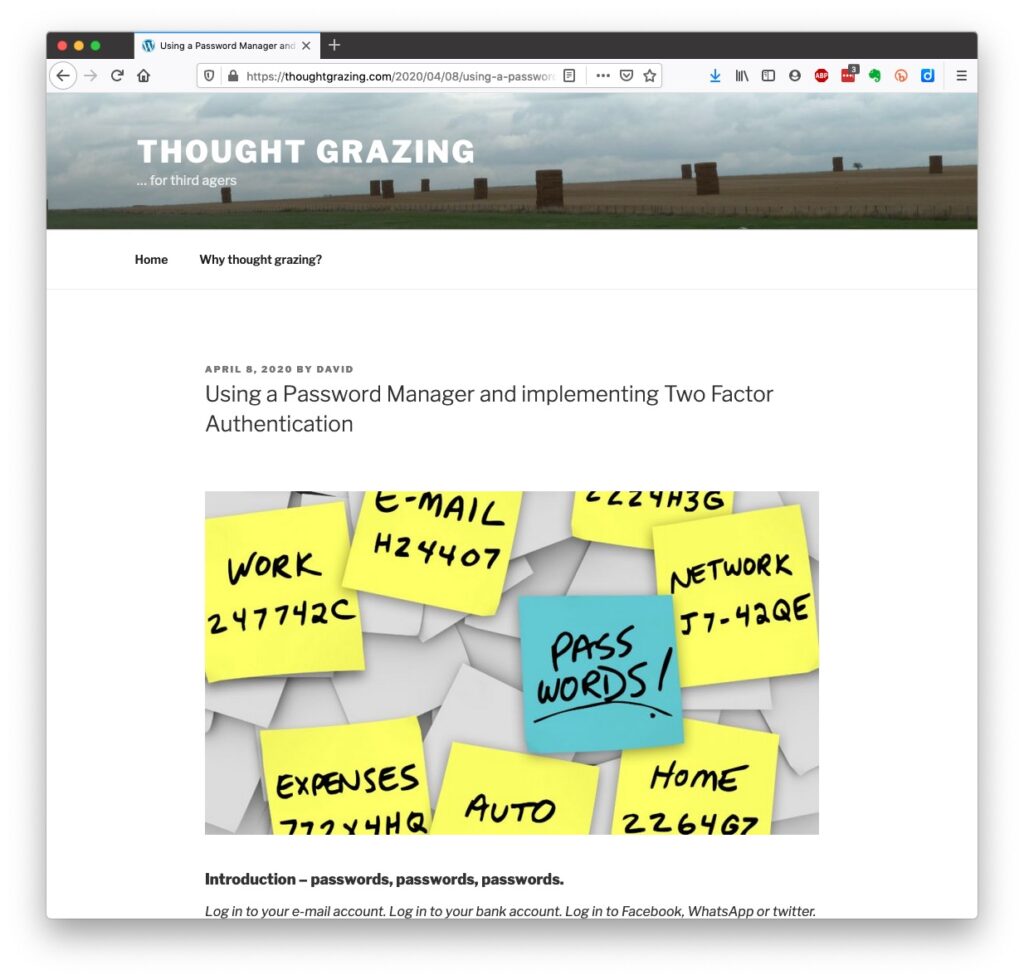
Password Manager – I’ve gone on about the importance to consider using a password manager as a way of allowing you to “remember” different passwords without resorting to yellow stickers, or notebooks. In a crowded field of freeware contenders I go with the one I used to use – LastPass – here’s a review, but you you might easily choose an alternative, eg the freemium 1Password or the open source KeePass. [NB I’m now using Apple’s Keychain as I only have Apple kit. I still have a LastPass as a legacy repository for quick checks, and you can migrate out of LastPass to Keychain, or any other password manager.]
Anti-virus – no real recommendation but the freemium possibility is Avast. If I was a Windows user, I’d rely on Windows Defender. As I’m a Mac user I’ve installed Malwarebytes – supplied by my bank – but it’s never recorded a virus, or any malware. [Fingers crossed.]
Email client – if you’ve got Outlook, use the Microsoft client (or app); if you’ve got a Mac, use the Mail app; if you solely use Gmail, use a Google client (or app); BUT if you want to try something different and Open Source why not look at Thunderbird. It’s from the Mozilla Foundation (where the Firefox browser comes from) and it’s multi-platform and multi-email system supporting. Here’s a review of it. [Health warning: I have used it in the past, but not using it now as I am so immersed in the Apple ecosystem, but if I wasn’t, I’d be seriously looking at using it.]
Group Messaging – it used to be WhatsApp, but now it’s Signal which is Open Source, and Donationware. I give a small monthly donation to support.
Web browsers – both a difficult and easy one. It has to be either Firefox, or Brave in my book. I can’t distinguish between them. I like them both, but I suppose I still just tip towards Brave because it’s more like Chrome (unsurprisingly).
Search engines – again, for me, a relatively easy one to pick; it’s DuckDuckGo. Don’t just Google It – DuckDuckGo It. It should be available as a choice on “all good browsers”. If it’s not – change your browser, or add it to the list offered by your browser.
Web-design, blogging and the rest – for me, no competition – it’s WordPress. You’ll need to shell-out to buy a domain (eg thoughtgrazing.org), but after that you can use wordpress.com to commit your thoughts to the internet. WordPress will offer to host your website for an annual fee, but the use of the software is free. If you want to take it further you can find a hosting company, move your domain there (or purchase it there) and install wordpress.org and have access to the vast number of plugins that are available to tailor your website to just the way you want it. Many of these plugins are free, or are made available as freemium software.
Miscellaneous
an AdBlocker – go for the freemium AdBlock Plus (look out for similar sounding ones, and avoid them).
Note-taking – it used to be EverNote for me, but now I’m recommending either Microsoft’s OneNote coupled with OneDrive (if you’re a Windows user) and the greatly improved Apple Notes (if you’re a Mac/iOS user).
RSS Reader to scrape and archive content from websites I follow – it’s Feedly. I subscribe to their premium service.
Bookmarking – I used to use diigo, but now find that with the improved functionality in browsers and the integration with the cloud that it’s best to use your browser capability.
For offline reading I find Pocket a wonderful resource which I subscribe to as a premium service as I do Flipboard, from which I curate magazines which you can share – and I do!. [NB I’ve updated a post I wrote back in 2018 which describes the workflow I follow EVERY morning to do this – aren’t I boring!!]
Mapping – OpenStreetMap is a great piece of software that I haven’t used in an active sense, but I must investigate! [As an aside, take a look at Open Canal Map, not software but a community initiative that uses other publicly available maps to build upon.]
Google Earth Pro – the often forgotten global visualisation software, available from your browser, or in an app.
Video-conferencing – it used to be Skype, now it’s the freemium Zoom.
Online communities – a replacement for the sadly “sunsetted” Google+ could be Discord. This has achieved some notoriety in recent weeks, but it is also used for more than gaming and sharing secrets.
Media-server – you don’t need to rely on Apple TV, Netflix, Britbox or whatever. You can setup your own media-server with the freemium Plex server, and add your videos, music and images to your own server which you can access anywhere in the world, or just use their Plex player to view their streaming service.
I could go on and on, but that’s enough for the moment. Have fun!
I am a creature of routine. I used to listen to Today on Radio 4 when I got up in the morning; now because I can’t stand the egos being pushed into my ears, I have a much more peaceful and indeed useful start to the day – after I’ve scanned The Guardian and Independent (online subscriptions) and BBC News (online) websites, and checked my email and other social media such as Signal, Discord and Twitter (and possibly in the future Mastodon), I look to see what else is going on in “my world” – my internet of interests.
I’ll start at the beginning and describe what I do to curate my interests, my daily internet workflow. The jumping-off point is to check my RSS Feeds using Feedly. What is an RSS Feed I hear some of you say? Well it’s a signal from a website that new content has been posted on a website. So if there are a number of sites that you are interested in, you can get an alert with an extract of content sent to you by what is called a RSS Feed, which you can then pick-up and read in full using a RSS Reader.
Now the favoured Reader for a long-time was Reader (from Google) – but as is their wont, Google “sunsetted” it. That is they killed it off. Fortunately a really good alternative came to the rescue in Feedly. Every time I come across a website I want to follow, I add it to my Feedly and, as long as a RSS Feed can be setup for the site, I place it in a category for the feed (eg photography, or IT) so that my stream of reading is organised to some level. I could stop there, after all I’ve got the link to the webpage, it’s stored in a category and I can go back and read it anytime I’m online.
However, what if I just want to scan quickly the content, and go back to it later, or what if I want to read it online? That’s where Pocket comes in. If I see an article in Feedly that I want to read later, or even archive, I add it to my Pocket, giving it some tags to help me find it later. I do both of these tasks on a smartphone, or tablet, it’s much easier than using a desktop/laptop as there are good apps which work together for both Feedly and Pocket. Once in Pocket, the article, stripped of everything that is irrelevant, can be read offline – once it’s sync’d the content from the web to your device – or alternatively you can click on a button to read the original article online.
But then occasionally, I come across some content that I want to share more widely – to the Thought grazing community for instance; and for this I use Flipboard which is a really easy way of creating an online magazine; made up of articles (perhaps with comments added) which you found interesting. From my Pocket app, I just click on the Share button and select <Share via …> and chose Flipboard.
On Flipboard I’ve created a couple of “magazines”, so I chose which one I want to “publish” the article to, and perhaps write a comment about the article; and then Post it. That’s all there is to it, but what do you need to do to replicate my workflow and produce something like this …
Curating the web Step 1 – create a Feedly account, and download the app if you’re going to use a smartphone, or tablet Step 2 – select websites you want to get an RSS feed from [see above, or read What is an RSS feed?]Step 3 – check periodically to see what has “popped-up” in your feed reader.
Saving for another day, or for off-line reading (bookmarking+) Step 1 – create a Pocket account, and download the app if you’re going to use a smartphone, or tablet Step 2 – save to Pocket from your browser (perhaps using a browser extension), or from a sharing icon in Feedly Step 3 – tag your articles, and read at your leisure, or when you want to
Creating a magazine to share with others Step 1 – create a Flipboard account, and download the app if you’re going to use a smartphone, or tablet Step 2 – create a Magazine within your Flipboard account, and decide whether to make it Private or Public Step 3 – add articles to your magazine from your Pocket app (as described above) , or from your web browser Good luck!






 Essentially, they record what you do on a website so that when you return to it some of the settings are remembered and applied. Cookies do however also have a downside in that some can also act to track your activity once you’ve left the site. For that reason, you should disable in your browser the ability of third-parties to glean information from a cookie, and also to prevent them tracking your activity once you’ve left the site. You can at anytime, clear the cookies from your browser, and indeed on some internet browsers set them up to delete cookies when you leave (close the window) the site. If you use Firefox as your browser it will alert you the first time you go to a site that it is using a Fingerprinting cookie itself. For instance from the Norton site above …