I’ve posted articles on using Google Photos a few times. Of course with the passage of time, features, and interfaces, change, so it is always useful to just review “what’s occurring”, and see whether there’s anything that needs correcting, or adding to. I will try and go back and edit the posts listed below to reflect changes that I’m aware of.
First and foremost it’s important to note that I don’t tend to use Google Photos for anything other than sharing photos with family and friends, so my use of the editing features is a bit limited. I am however a strong advocate of using Snapseed (available from both the Google Play, and Apple App Store) as a photo editor, but as it works best with the Google Photos app, it’s necessary to install Google Photos as well. [Snapseed is not available as a native desktop app on Windows or MacOS; it’s only available on mobile devices (Android and iOS/iPadOS).] So the first link that’s important to be aware of is this one …
Google Photos and Apple revisited – if you’re an Android user you can skip this article and move to the next paragraph – all your photos taken with your camera will be safely housed in the Google Photos app!!! If you’re an Apple user it’s important to understand how synchronisation works with Google Photos and the Photos app on iOS. If you’re not careful you can either end up with duplicate photos on both platforms, or worse still deleting photos from a device thinking that there’s a copy “in the cloud”.
The next bit of housekeeping is to understand what happens if you want to delete a photo from Google Photos – it’s not entirely straightforward (but it is easier than in the Apple world!!!). This article I wrote – “How do you delete photos from Google Photos?” – attempts to help you delete what you want to delete from your device, or from Google Photos on the web. This is particularly a problem if you’re an Apple user with a Camera Roll, rather than an Android user with Google Photos – so you’d be advised to read it.
So we finally get to editing our photos and using Snapseed. This article – “Snapseed and Google Photos” – is a good overview and will take you quite a way down the road of installing Snapseed, it covers the basics of how to get photos from a camera (rather than a smart phone) into Google Photos, and some basic editing of a photo. There are also links in the article to earlier posts on using Google Photos as well as a video on “getting started” and some additional references that I found useful.
The new stuff!
How To Use Google Photos: The Ultimate Beginner’s Guide [2023] – if you want to just stick with what’s possible for you to do in Google Photos this is just about as good a guide as you’ll get. It goes through all the features of the app, but doesn’t cover editing photos in any detail. If you want a video that covers the same ground, you might like to watch this[I’d like to remind you of the point I made about his reference to Backup and Sync if you’re an Apple user – my earlier comments apply!!! He has decided to use both iCloud and Google Photos on the web for two backups.]. Google’s help guide to editing photos is provided here.
So we turn to Snapseed – here’s a beginner’s video on how to use Snapseed for editing, you should also refer to the article quoted in the earlier post – Complete Guide To Using Snapseed To Edit Your iPhone Photos – from which I also recorded the video from my computer screen, but it’s obviously better using the link from the article. Also please note that although iPhone is mentioned in the title, it’s 100% applicable to Android phones as well. Finally you might probably want to look at this – SNAPSEED: ULTIMATE USER GUIDE + TIPS (2024 UPDATE) – if I’ve convinced you that Snapseed is the “goto” app for photo editing on your smart device.
Google is always updating its apps, and this is particularly true now that we have AI. So a recent update introduces the possibility of background blur – which can make a portrait of a person stand out more, by weakening the effect of the background. Google writes about its new AI features here, and here,
Finally … this article has been all about using Google Photos, which might have let you think that Apple’s Photos app is not so good. In a forthcoming post, I will be examining how Apple Intelligence (available in the autumn) will quite possibly revolutionise Apple’s photo applications, and will for some, if not all, Apple users mean they might be less likely to use Google Photos going forwards. They’ve already moved to allow the sharing of albums stored in iCloud to anyone via a link. That’s progress!!!
A short post to highlight an issue that I wasn’t aware of, and now have to be very wary of. Indeed Ian’s comment about whether you need the Google Photos app installed on your iPhone is prescient – you most probably don’t if you’re backing-up photos to your iCloud account. And if you’re backing-up photos to a google account (as described in the earlier post), there are different ways of doing it which means you quite possibly don’t need the Google Photos app on your phone.
Remember, you can always look at the photos stored in the Google cloud from photos.google.com on your Apple phone or tablet – you don’t need the app installed.
So here goes … another learning point. I’ll type it in capitals so that you don’t miss it!
IF YOU DELETE PHOTOS FROM THE GOOGLE PHOTOS APP ON YOUR IPHONE OR IPAD AND IGNORE THE WARNING – THEY WILL BE DELETED FROM ICLOUD AS WELL.
There, I’ve said it. I didn’t realise it, and always shied away from deleting photos in Google Photos because I didn’t really understand what the warning meant. But now I do and obviously that’s not something I want to do, so how do I go about removing photos from the app, and/or from the Google cloud. Read on!
Scary, eh?! Take care when deleting photos from your iPhone
What I’ve researched is well summarised in the following article …
If you want to delete photos from Google Photos – do it on the Google Photos website, not in the app on your iPhone or iPad. If you have synchronisation active, they will then be deleted from the app on your device as well.
If you want to quickly delete all photos from your Google Photos app, just delete the app having first ensured that you’ve switched off Backup and Sync, because if you don’t, when you re-install the app, they will be synchronised back to your iPhone/iPad.
If you don’t need the Google Photos app, uninstall the app, no photos will be deleted from your phone, they will still be in your Camera Roll and will have been stored on iCloud, nothing will be deleted from the Google Photos website either, so you will have to do that deletion from photos.google.com – see Case 1 above.
An unlikely scenario, but one to be aware of – If you turn off iCloud before deleting photos from Google Photos on iPhone, then the photo will be removed from your device and Google Photos. It will stay on iCloud. However, if you enable iCloud again on the same phone, the photo will be removed from it too.
And even more unlikely, but probably unexpected and a potential surprise – Disabling Backup and sync will not have any effect on your iCloud photos as it is just a setting to enable or disable backup service on Google Photos. If you disable it and then delete photos from the Google Photos app on your device, they will be removed from the device as you are technically deleting the device copy on your iPhone/iPad. And once it is deleted, the iCloud copy gets deleted automatically.
Remember. Google Photos in the cloud, and iCloud Photos do NOT work the same way. Apple aims to synchronise all images across all devices with “the master” being held in the cloud. The Google Photos app is just a portal looking into the images on the device, and synchronising (if chosen) those images with ones stored on photos.google.com.
I hope that makes it all perfectly clear 🙂 🙂 🙂
In summary, do not delete photos in Google Photos directly from your iPhone if you have both apps on the device. Use the Google Photos website to remove photos. It is suggested that you should delete a few photos initially. Then, check them in iCloud after some time. If the photos are still there, you can go ahead and delete them in bulk.
This post is a sequel to the article (see link below) that I wrote in November, and reflects a little more of what I’ve learnt about the crazy world of how Apple Photos and Google Photos interact (or work) with each other. I’m pretty sure it won’t be the last.
This one starts from an observation I made this morning that some recent photos I’d taken with my iPhone and which were in my Photos Library also seemed to have been added to Google Photos on my iPhone (but not my iPad) as well. From the outset let me assure you that this is the normal behaviour. You have to set Google Photos to see all the photos in your local Photos Library {Settings > Google Photos > Allow Google Photos to Access – All Photos} otherwise it can’t work. What you are seeing in Google Photos is the app getting a view of what’s in your Camera Roll on the iPhone/iPad – you haven’t added anything at this stage to the Google Photos app, and more importantly, nothing has been uploaded to Google Photos at photos.google.com.
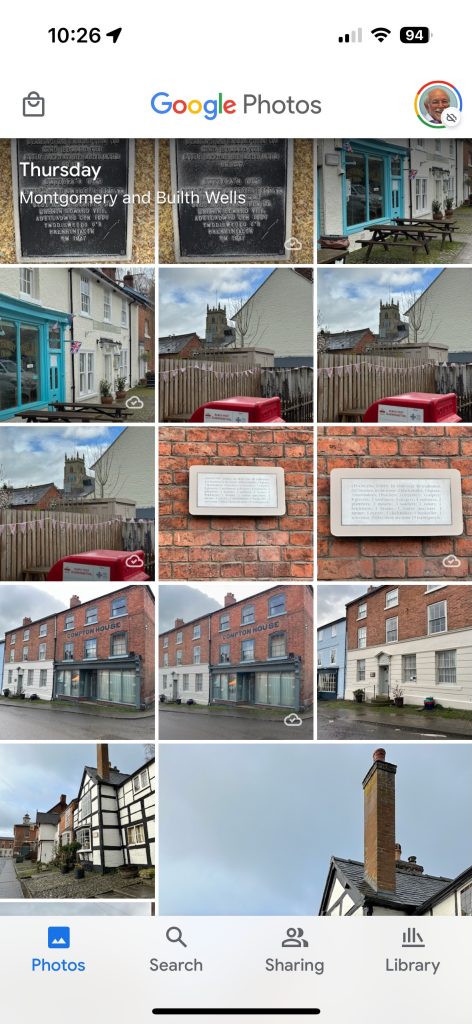
What I did see however additionally in Google Photos were some edits of recent photos that I’d done in Lightroom which I’d exported to my desktop, and then uploaded to photos.google.com. They could be identified by the little cloud icon on the picture.
It got me to thinking; what is the best way of sending photos from the iPhone/iPad to Google Photos – if I don’t want to sync everything using Google Backup (which as I explained in the previous post, I most certainly don’t want to do as they’ve already been backed up to iCloud). Am I doing it the best way?
Method 1
As above. Share (export) the photo from the iPhone/iPad to a chosen folder in the Files app or Google Drive, and then upload from that folder to Google Photos from photos.google.com (see also Method 3).
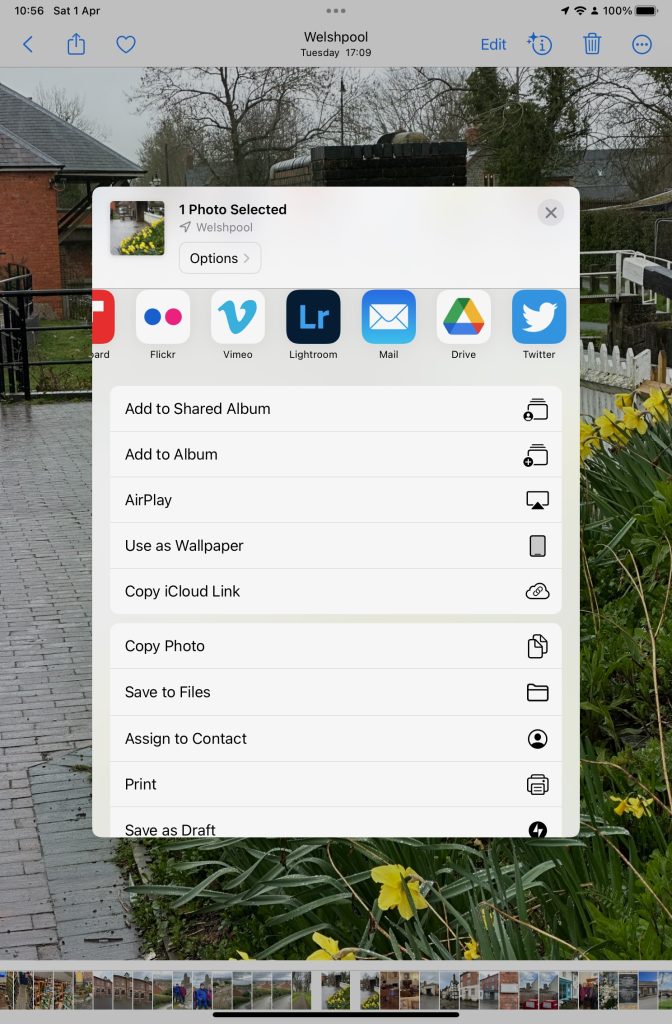
Upload from iPhone/iPad Camera Roll to a variety of services
Method 2
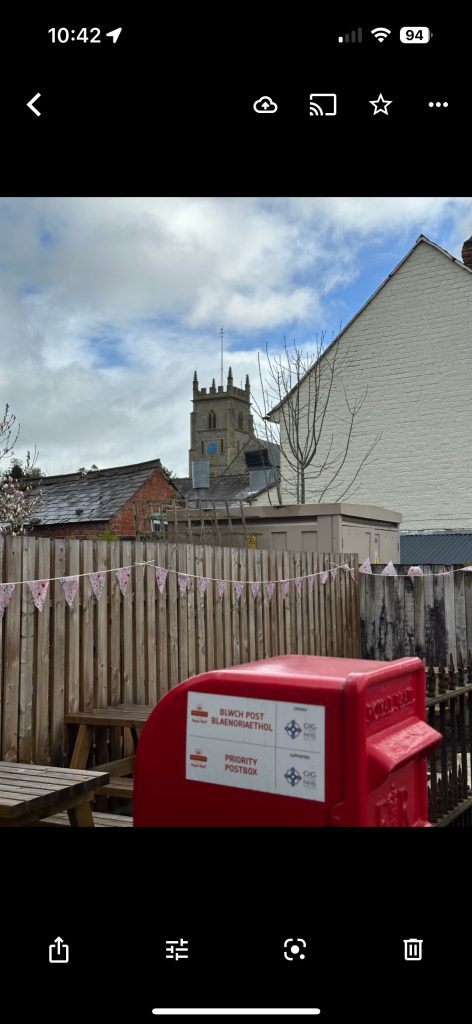
This is by far the easiest, and simplest way (and believe it or not I didn’t know you could do this). Open the Google Photos app on the iPhone, select a photo and then select the Upload (cloud) icon …
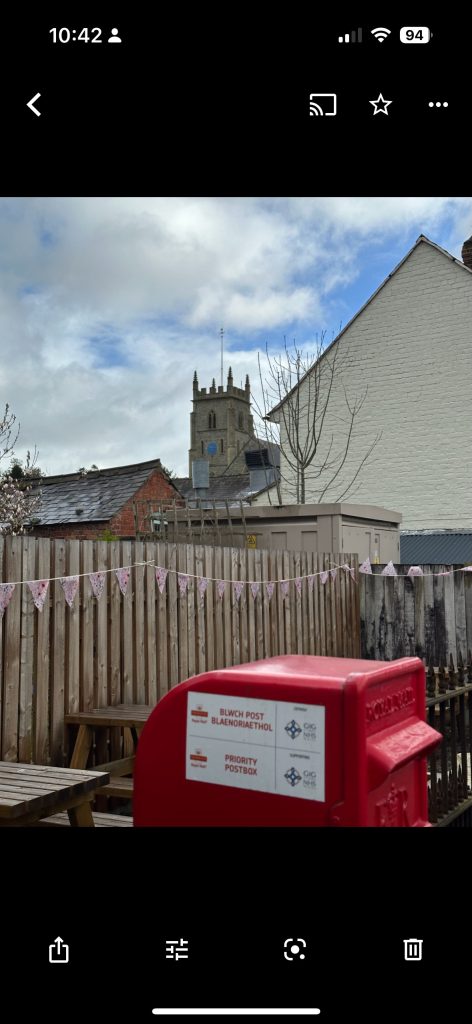
… the photo will be backed up to Google Photos (and photos.google.com); you will also note (see above) that once you’ve done that the Upload (cloud) icon is removed from the screen. In the Google Photos app, the photo will now have a cloud icon. Simple, eh!
Method 3
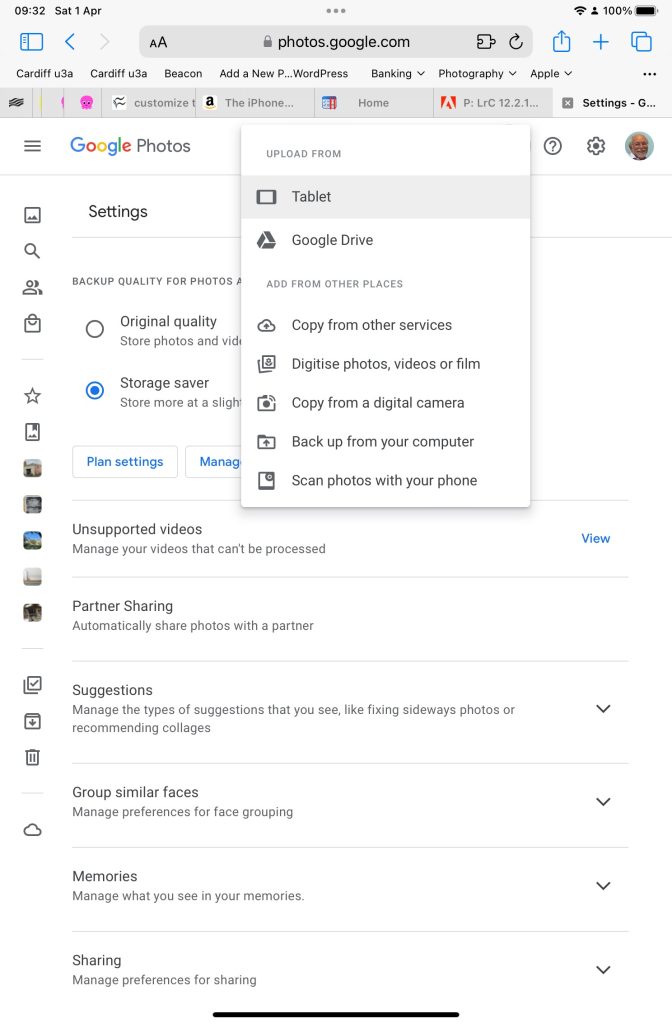
You can do the process in reverse. Go to photos.google.com and select Upload. You will be offered a variety of options …
An upload to photos.google.com from the Safari browser on my iPad
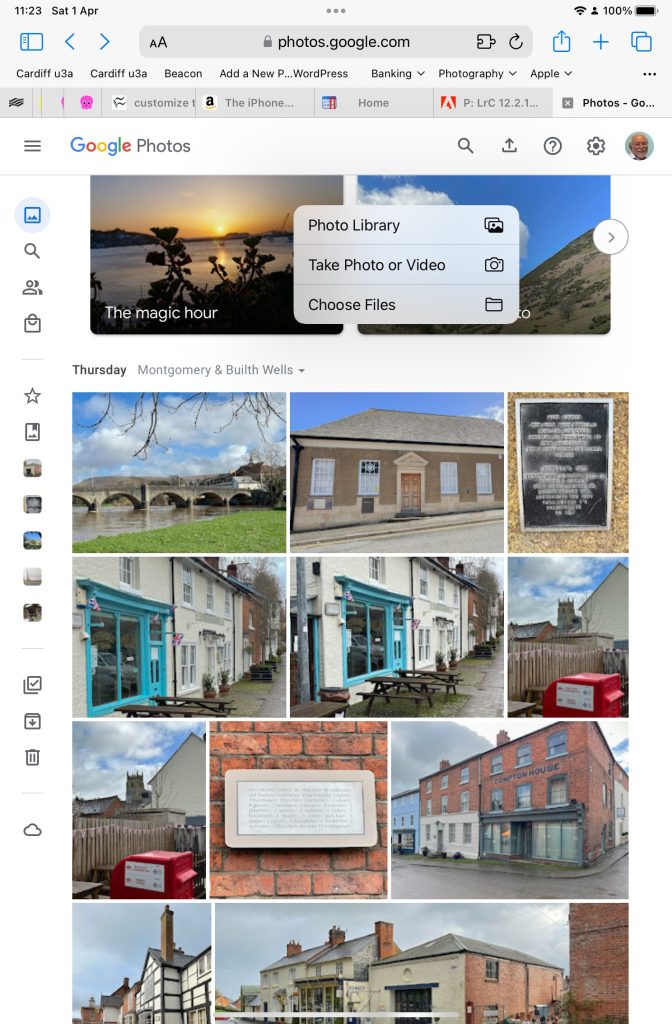
Choose (in this case) Tablet – as I was using my iPad to get the screenshots and you will get this dialogue …
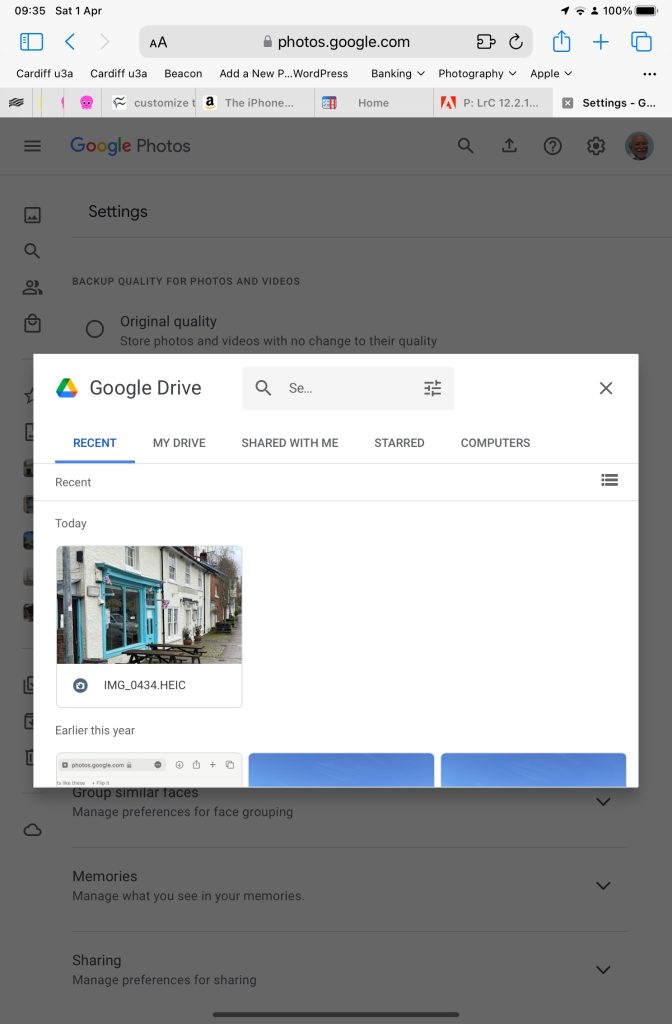
Choose Google Drive and you will get this dialogue …
Choosing an image you’ve uploaded to Google Drive
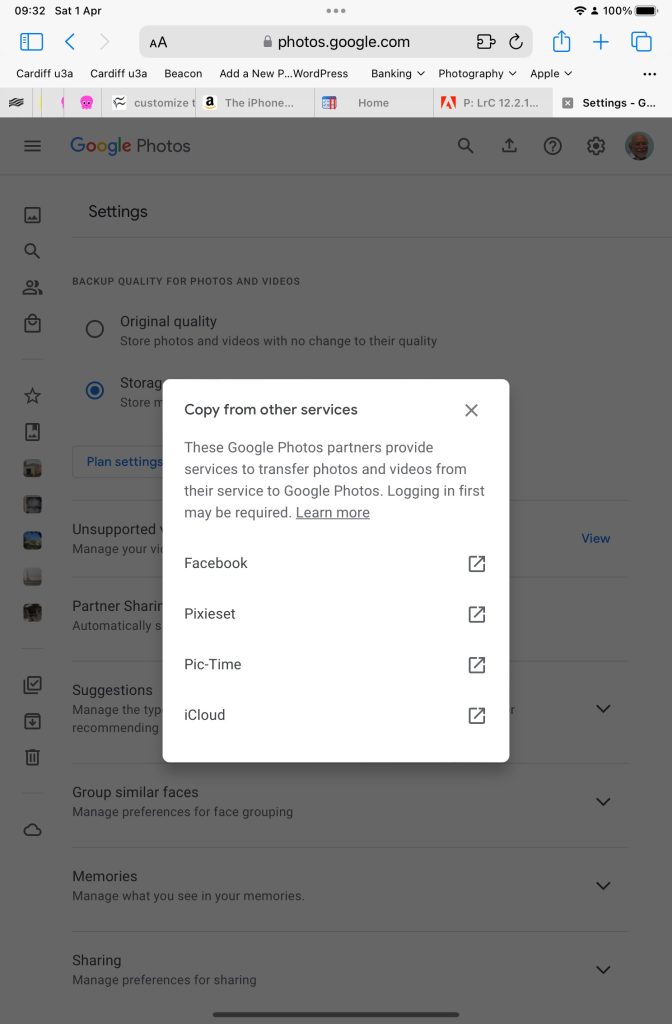
Choose Copy from other services and you will get these options …
From which you can see (something else that I’ve learnt), that you can copy from iCloud – where all my iPhone photos are backed-up – to Google Photos. Duh!!!
What a wonderful (and complicated) world Google Photos is, and think – this was just prompted by me seeing photos in the Google Photos app I knew I hadn’t “uploaded” to Google Photos. Rest assured, they’re just views into the Apple Photos Library, not copies!!!
If you want to edit, even if only in a minor way, the photos on your smart device (phone or tablet, Android or Apple), two offerings from Google should be tried first. If you’re an Android (Google) device user, it’s a no-brainer.
The Google Photos app will be installed on your device when you get it, and all you need to do is install Snapseed from the Google Play store. If you’re an iOS or iPadOS (Apple) device user then there’s a couple of extra steps you need to do before you can get started.
This guide concentrates on Snapseed. I’ve written about Google Photos previously and I’m providing links to them below. I’ll check to see that things haven’t changed materially since I published these posts …
Although Snapseed is intended for use on smart mobile devices, you can install it on either a Windows PC or a Mac, but I have no experience of doing this, so it would be a project you would be taking on ahead of me. So for that reason I’m only looking at the app that you can download either from the Google Play, or Apple App stores.
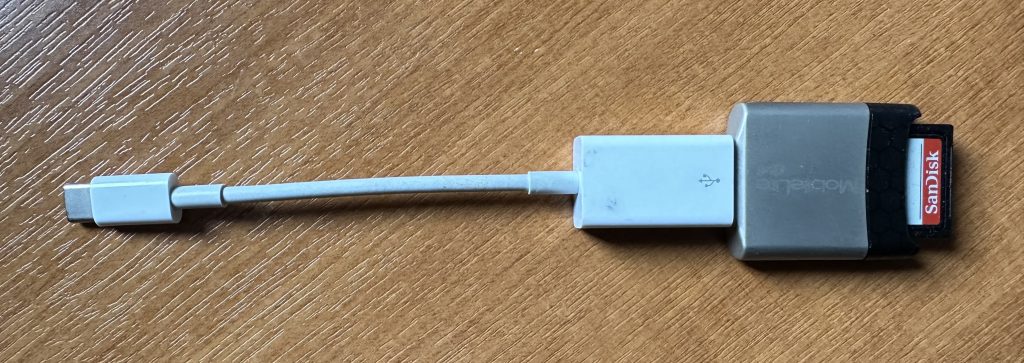
So for camera users (rather than smart phone users), you will first of all need to get the photos onto your device. This could be by a direct cable connection from your camera to your phone, or by transfer using Bluetooth or WiFi, but more likely might be by using a SD-card cable like this one I have for the Apple gear. [It will either have to have a Lightning or a USB-C connector – check first before buying one.]
Apple USB-C to USB-A connector with USB-A SD-Card slot
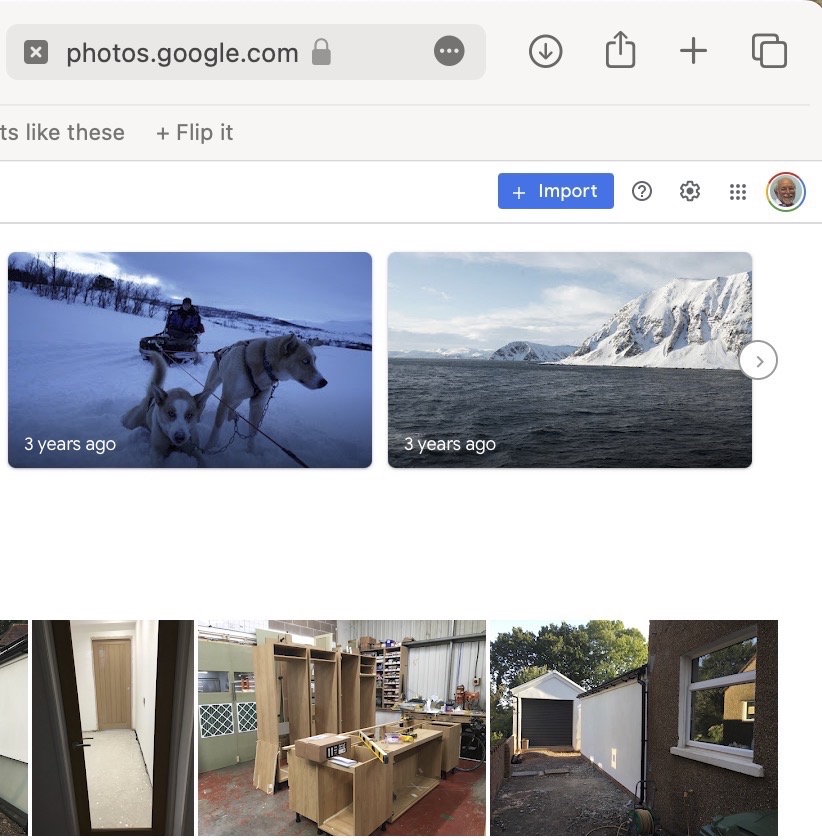
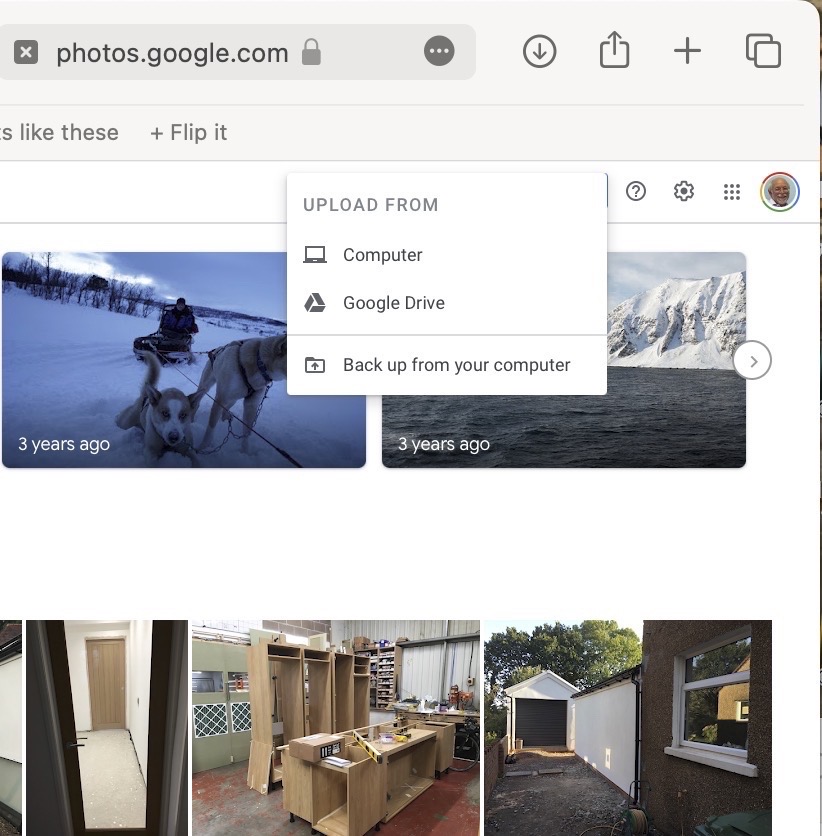
The image(s) thus transferred will be added to your photo library be it Google Photos, or Apple Photos. Another way of adding photos on your computer to your Google Photos would be an Upload to photos.google.com – you will need a Google account to do this. This is how you would do it …
Select Import to Upload images to Google PhotosSelect images from the Computer (or from Google Drive)
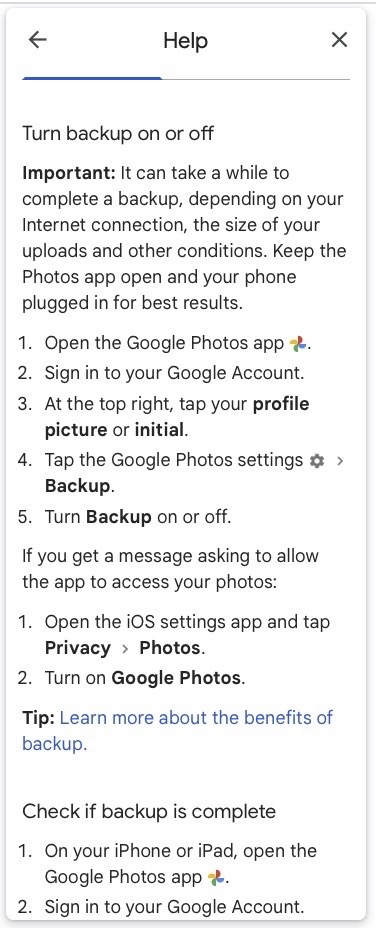
You could decide to use Google Backup to synchronise all your photos from your iPhone (or iPad) to Google Photos as an “easy” way of getting the photos on your Apple device into Google Photos, but this is not necessary to use Snapseed as it can access your Apple Photos directly; so I don’t because I’m already backing-up my photos to iCloud. [I only discovered in November I was also sync’ing to Google Photos, so I stopped doing that then and saved some Google Drive storage, and a whole lot of complications about knowing what was where.] But if you want to synchronise from your Apple Camera to Google, this is how you do it from the Google Photos app on your device …
Instructions on how to synchronise Photos on Apple devices to Google Photos
You should now install the Snapseed app on your device(s) from the Google Play, or Apple App stores, if you haven’t already. If you’re an Apple user you might choose to install the Google Photos app at the same time – although you don’t need it to use Snapseed, but you might just like to compare how it works.
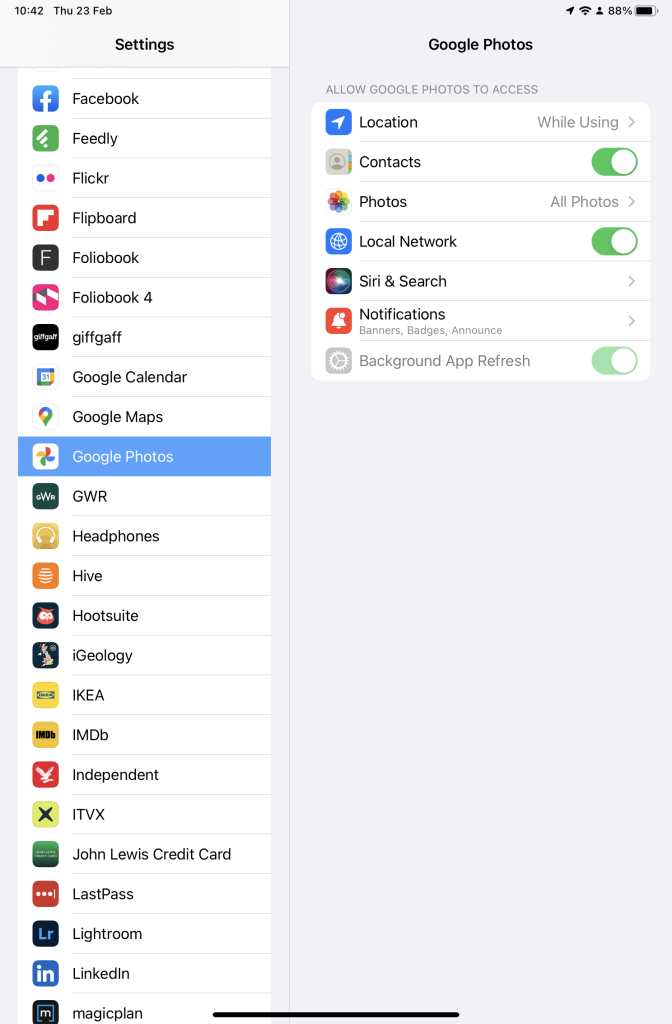
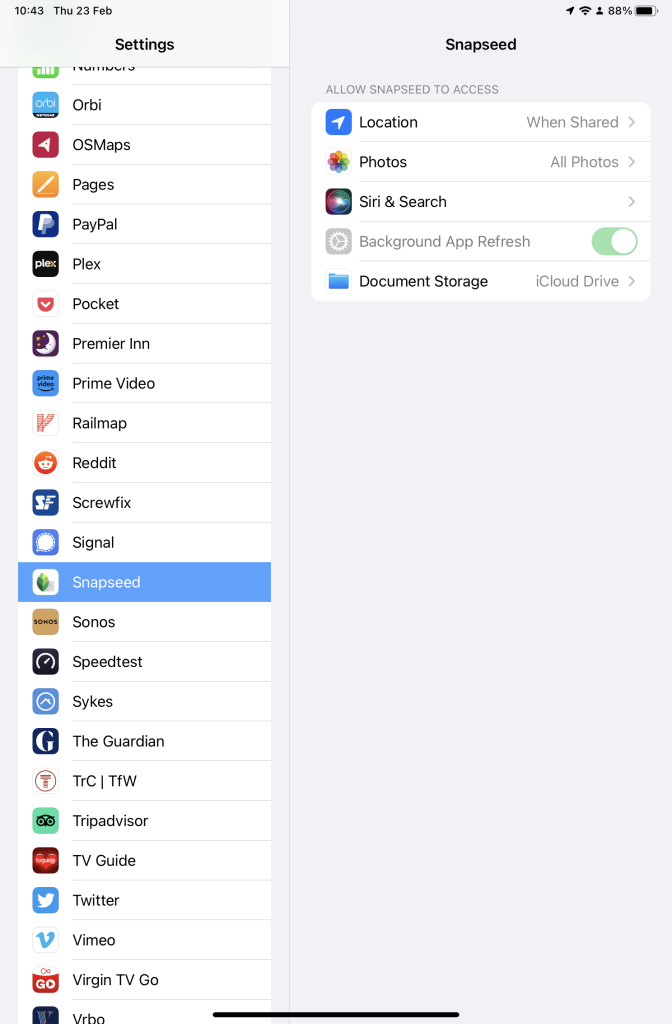
Next up, if you’re an Apple user you need to allow access to your Photo Library to Snapseed (and optionally Google Photos). This will allow both apps (on iOS) to access the Photos in your Camera Roll on your iPhone or iPad.
Setting up Google Photos and Snapseed to be able to look at Apple Photos on device(s)
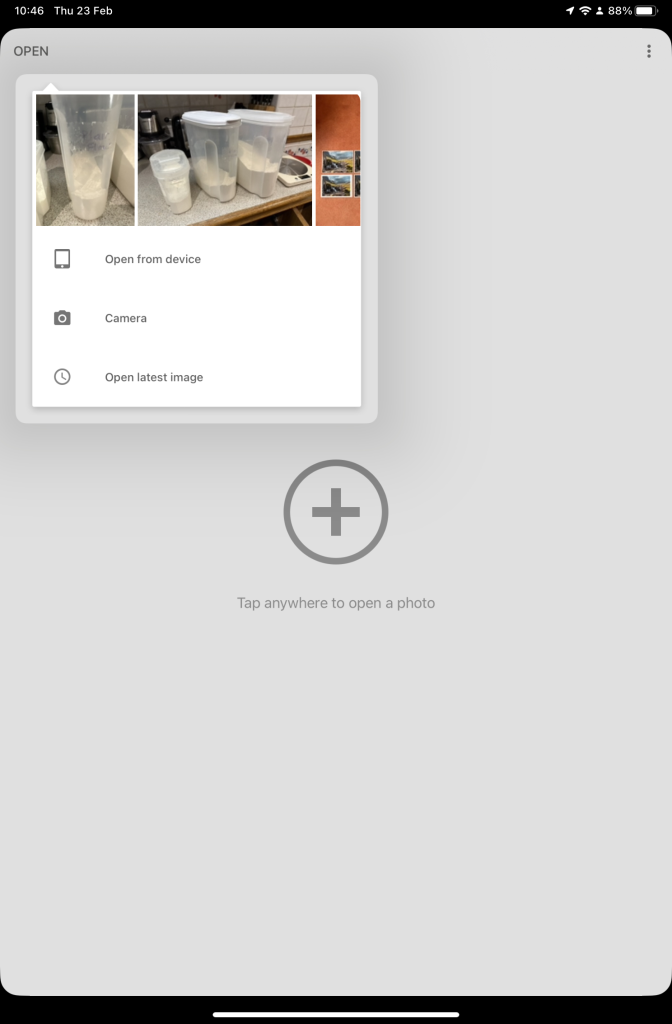
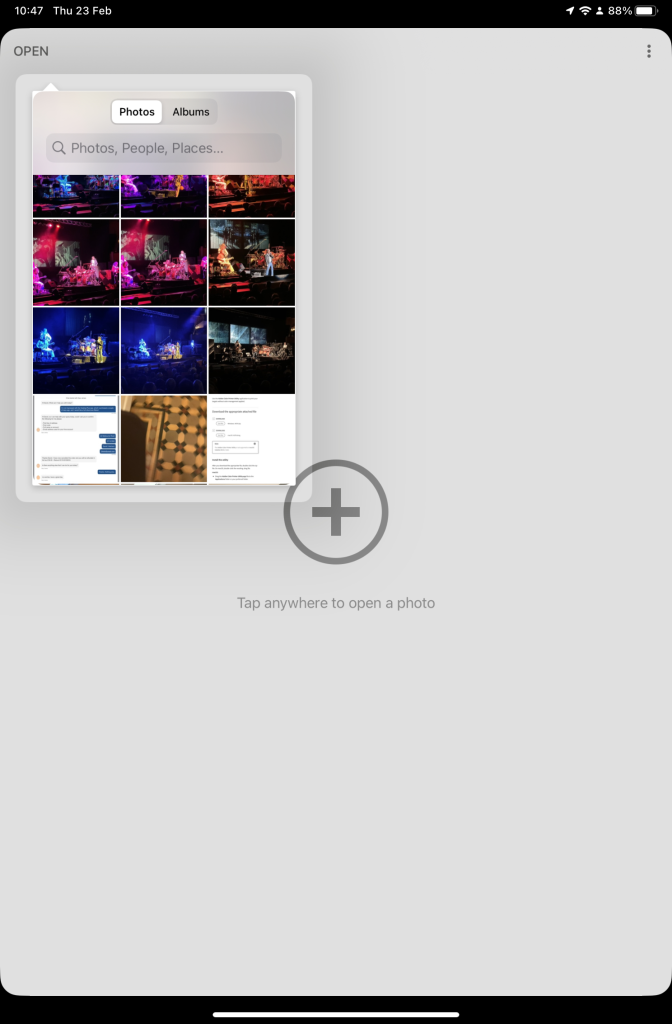
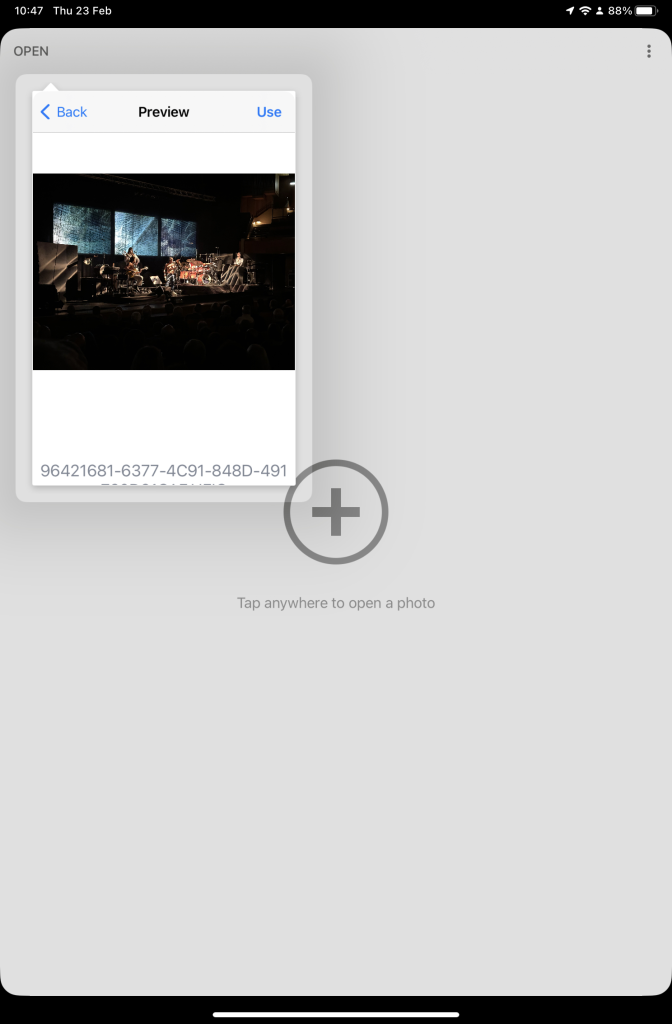
So now your ready to start editing. Open the Snapseed app on your device – you are prompted to Open from device (ie look at the images in your Photo Library), or you can access the camera to take a shot, or Open latest image that you’ve taken. The steps from then on are relatively straightforward and you will have selected the image that you want to Use.
Open Snapseed and look at the photos on your local deviceSelect an image to edit, and click-on Use… and so start editing.
That’s about it. This video (recorded from my screen, hence background noise and rather low audio volume) gives a reasonable introduction on how the Snapseed app works …
A brief (14mins) introduction to editing photos using Snapseed
Here are some links that you might find of interest:
Using your Android camera to take photos; but I believe all Android phones have slightly different camera interfaces, so you’re better off researching that for yourself. [NB If you have come across a really good guide, let me know and I’ll add it to the list here.]
This article is prompted by a combination of a casual enquiry about sending photos from your iPhone to Google Photos (hosted on a Google Drive), and my own discovery that I was backing-up iPhone photos to BOTH iCloud and Google Photos.
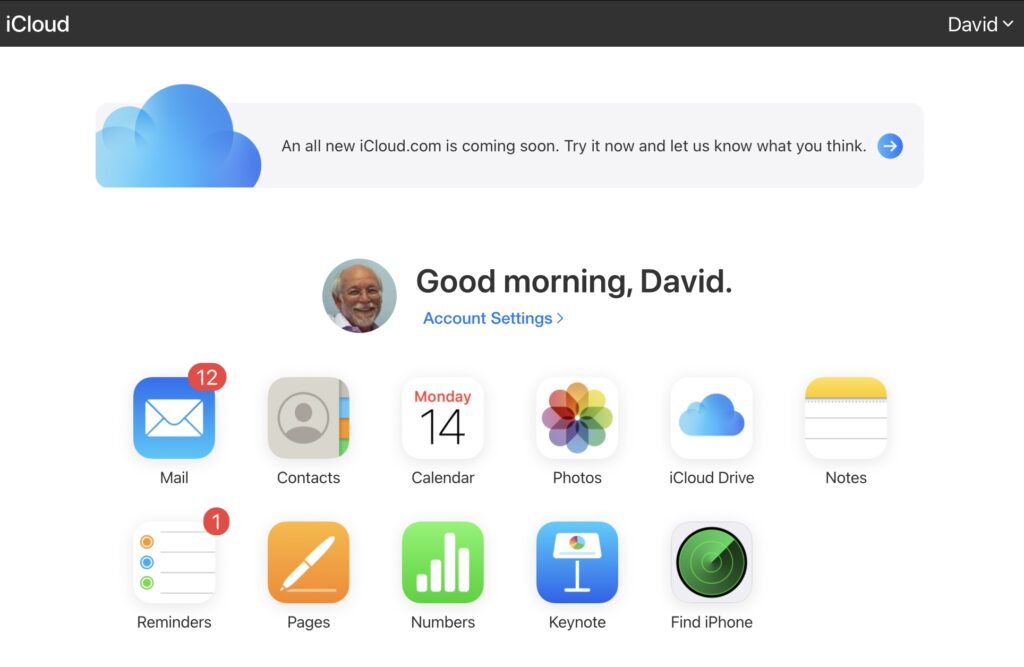
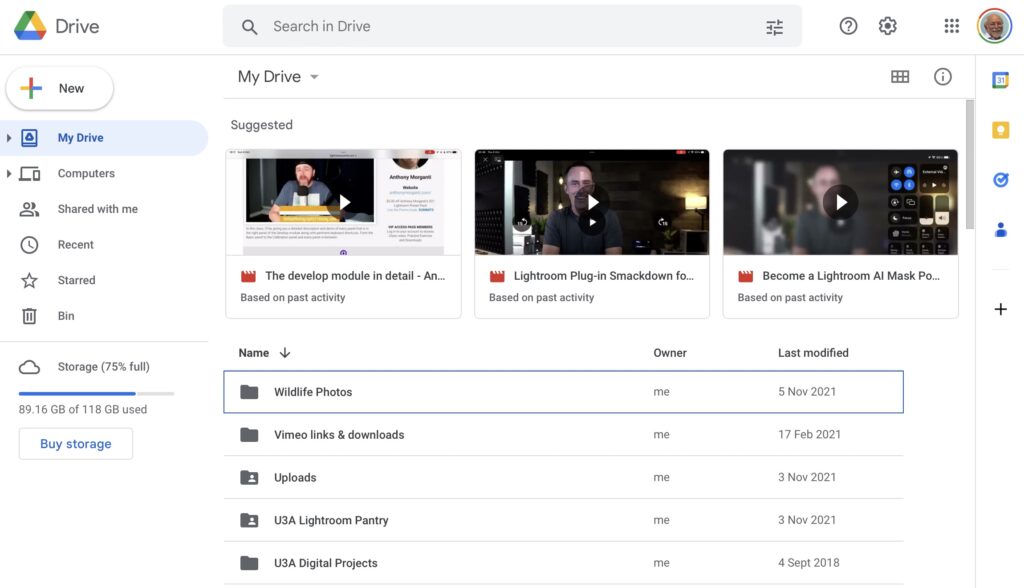
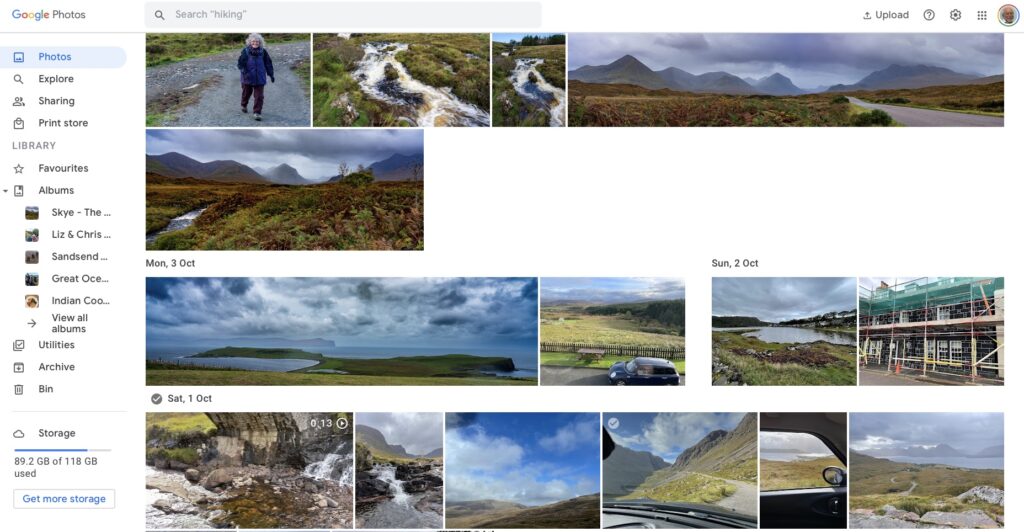
Observation one. Google Photos and iCloud Photos don’t work in quite the same way. Whereas you can access the Photos you may have stored on Apple’s iCloud storage from icloud.com through the iCloud Photos app, you cannot access Google Photos from drive.google.com directly – you have to go to photos.google.com to access them. Google Photos uses up some of your Google Drive storage – you get 15Gb “for free” with a Google account – but it’s a standalone application, in the same way as Google Mail is. It’s an important distinction. Google provides you with applications which make use of their cloud storage, Apple provides cloud storage alongside access to applications which use that storage and which synchronises back to devices.
The iCloud window {Access to all Apple applications and cloud storage}
The Google Drive window {NB No access to Photos, or Mail}
The Google Photos window {separate from Google Drive}
Observation Two. This article concentrates principally on Google and Apple, because they are the two principal players in the Camera and Cloud Storage space. There are other cloud storage solutions on which you can store photos, eg Microsoft’s OneDrive, and Dropbox. I will only refer to these briefly at the end of this article. There are undoubtedly other cloud storage solutions, but I won’t be writing about them.
Observation Three. Anything I write about the link between Camera and Photos on an Android/Google system is second-hand knowledge, and I cannot verify it!
Observation Four – the final one. This article does not seek to cover the general topic of transferring photos from a phone to your computer. This is more than adequately covered in this article. I suggest you read it too.
Not wishing to be dismissive, but just because it’s so straightforward – I’m going to discuss Google Photos first. If you have an Android phone and thereby have a Google account, you automatically have 15Gb of cloud storage and the two are linked, and by default any photos you take on your phone are backed-up to your Google account. This is described well in the Google Support article. A couple of things are worth highlighting however: a) you can switch-off automatic back-up and synchronisation of your photos, in which case all backups would need to be done manually; b) you should carefully choose the “quality” of the photos you back-up – they may not be the same as that of the photo on your device; and c) it would appear that you could backup photos to a different account from your main one, thus adding to the free 15Gb you get with each account. [Alternatively, for £15.99 a year you could get an additional 100Gb of storage from Google. If you aren’t an Apple user this is definitely worth considering.]
It’s not that much more difficult if you want to save photos from your iOS (iPhone or iPad) device to the Google cloud storage. Again the Google Support article describes the process and the options quite well.
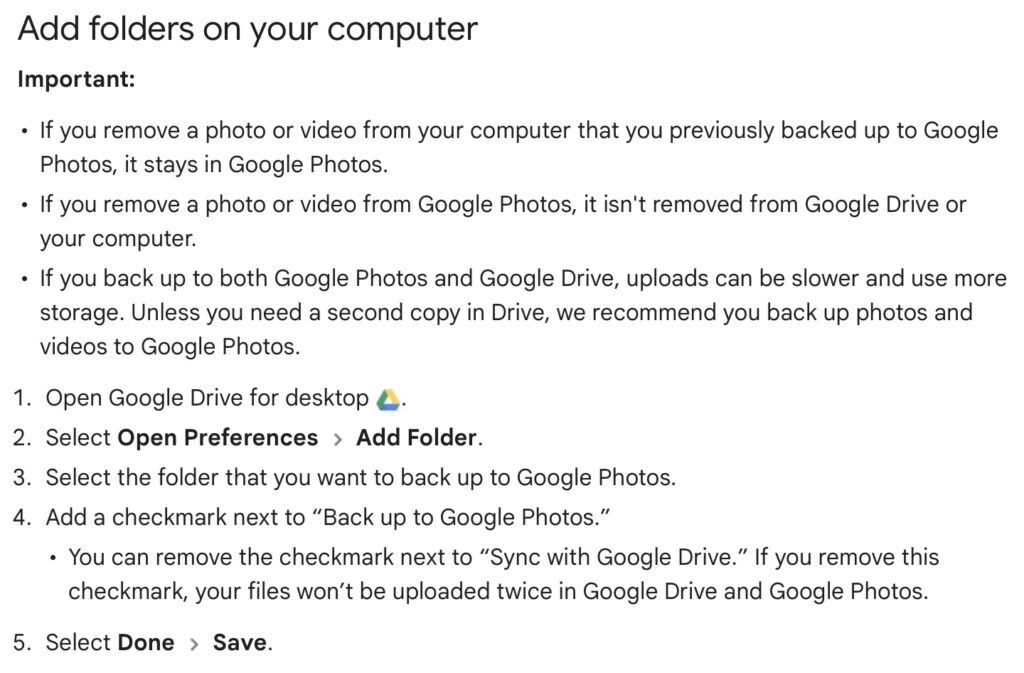
Similarly if you’ve transferred photos to your computer (eg from a camera SD-card), then Google’s got you covered to back-up and sync to their Cloud storage in this article. You should nominate a folder on your computer that Google Drive will monitor for newly added files which will then be backed-up and synced to either Google Drive, or to Google Photos, or both, depending upon the option(s) you’ve chosen.
Note (4) – you might get two copies if you don’t uncheck “Sync with Google Drive”
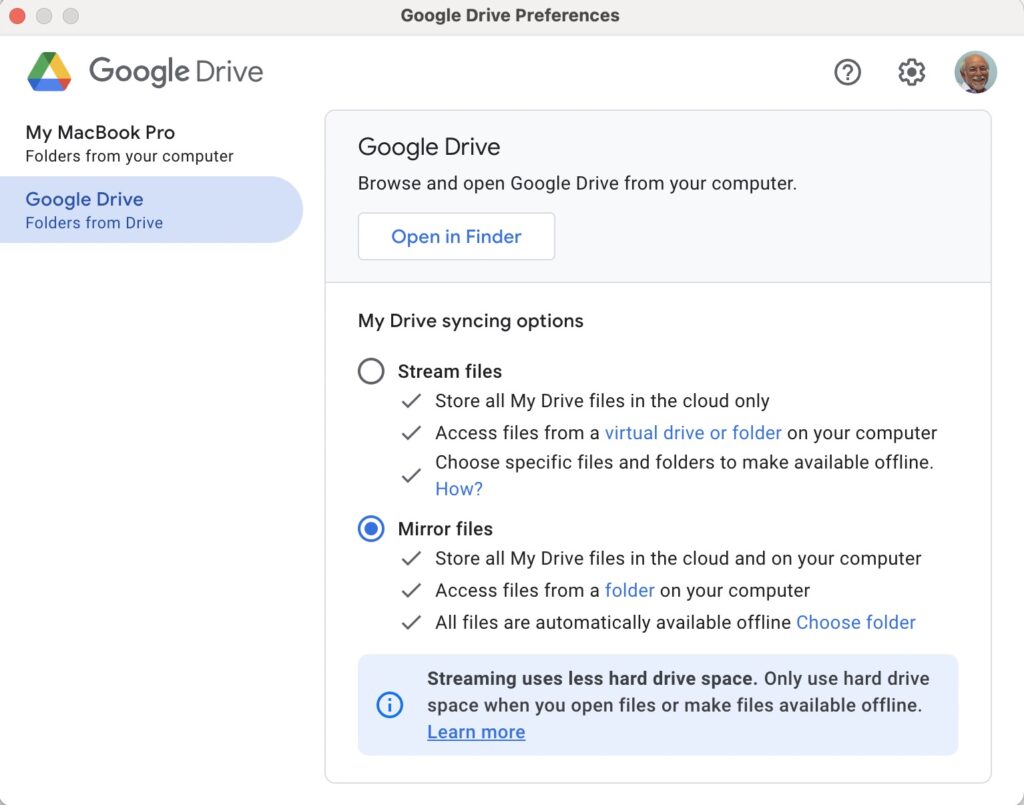
For this to work however, you do need to be sure you’ve a) installed the Google Drive on your computer, and b) you’ve set the preferences the way you want them. In my case, since I’ve increased the amount of Google storage I have, I’ve chosen to Mirror a folder (in itself called Google Drive) – then both the folder on the computer, and the one in the cloud should be exactly the same. A mirror in fact. Anything I add to (or edit on) my local Google Drive will be copied to my Google Drive in the cloud.
So we turn next to the Apple ecosystem. [I should feel more confident here, but as you may have noted that I disclosed at the start of this article that I was doing something extremely stupid and not noticing my idiocy.] Here the support page on Apple Photos and iCloud I think really does a good job of explaining your choices and how to set up backup to their cloud storage. I don’t think I can improve on it. But what if you’ve got Google Photos installed as well on your iOS device? This is where I made my foolish mistake. I enabled Backup and Sync on my iPhone and so I got TWO copies of every photo – one in my Google storage in Google Photos and the other in my iCloud storage. Duh!!!
Disabling the Backup and Sync left me with an image which was shared locally between the Google Photos and Apple Photos apps. How could I get that image (or group of images) onto Google Photos to perhaps share with friends or family?
It turns out that there are two reasonably easy ways of doing this. By enabling iCloud Photos on the phone (or tablet) …
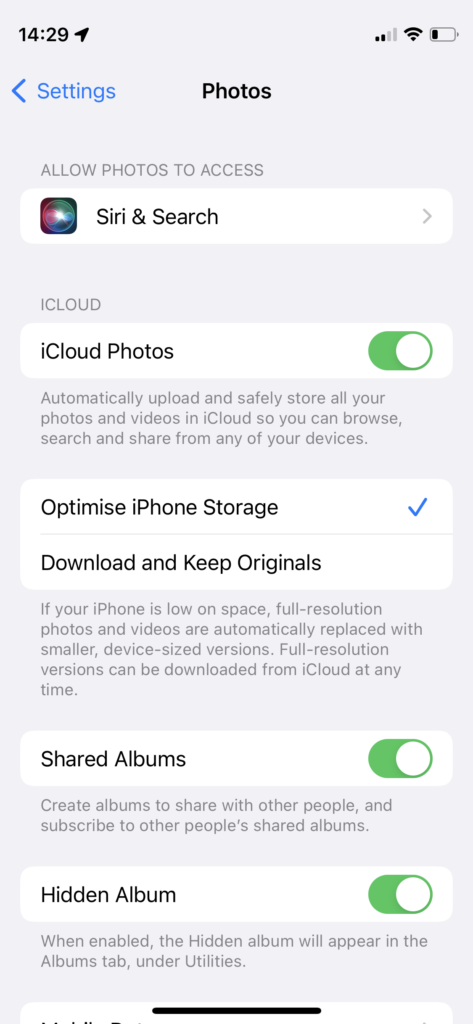
Set iCloud Photos to On
… I can then download from iCloud to a folder on my computer which I can then upload to Google Photos from. Really rather simple and not a use case for Google Photos Backup and Sync to be employed.
Alternatively, I could go into the Google Photos app, select the image I want to send to Google Photos in the cloud and Share it by getting a link and then sending myself a message. The act of sharing it copies the image to the cloud, from which I can then add it albums, etc.
Using either of these approaches allows you then to obtain a link for the album which you can then Share to a list of users, or obtain a link for public sharing.
Once you get the photos onto Google Photos the fun starts. It’s not intuitive what happens when you decide you want to delete them either from the cloud, or from your device. In fact it’s downright confusing. I’ve written about this in another place (the public Thought grazing) and life is too short to repeat anything on here that I’ve already written over there, and believe still to be correct. Best of luck!!!
The situation with deleting photos from Apple Photos and iCloud Photos is slightly more straightforward and I’ve written this up already, so won’t repeat it.
It goes without saying that keeping it all in the Apple ecosystem (for me) makes a lot of sense, and with the ability to share albums on the way – it’s not yet as sophisticated as the Google Photo Albums service – I may transition away from Google Photos altogether in time.
For Dropbox users, you can setup an automatic upload of photos to the service. They even give you a bit more free storage if you enable this, or at least they used to!
Thanks Jim for the screenshot; I’m glad it’s just your internet connection that’s unstable! We had apologies from Mike, Jenny, Jonathan and Margaret. I’d forgotten to send out the calling notice until David Hughes reminded me – my apologies if that caused problems for anyone wanting to join. I caused problems for myself by trying to run the session from my laptop as I wanted to be near the front door to receive a parcel, but that caused a different set of self-inflicted problems as I started up the wrong Zoom session – The History Group to be precise – and wondered why no one was joining the meeting. Duh! Still, it caused some merriment at my expense and the meeting continued in a very light-hearted manner.
As suggested at the last meeting, I started with a description of what Google Drive for Desktop replacing Back up and Sync means for users of Google Drive on Desktops or Laptops. It has very little impact upon the use of Google Photos on Mobile devices which still has a Backup and Sync option. The slides from the presentation are available here to download as a Powerpoint presentation to play offline – with active links; or to read/download as a clickable PDF file.
We then reviewed the notes from the last meeting. We noted that the issue of Margaret‘s Modem/external drives/computer being switched-off would need to be followed-up at the next meeting. We were pleased to see that Jonathan had been able to get away on holiday to Cornwall, despite his Covid-scare reported at the last meeting. We were even more pleased (and impressed) to hear that he’d solved his McAfee Popup situation – something I’d managed to add to the last meeting’s notes. Steve had looked at the link to change YouTube videos to MP3’s but hadn’t tried it yet. Ann had solved her Printer and SkyQ Modem issue with acknowledged assistance from Owen – she offered to write what she did up as a Comment to these notes.
I suggested I leave the review of news (Flipboard) to the end of the meeting.
Sianed had been troubled by a popup when accessing Gmail that she was being asked whether she wanted to grant access by Google to her accounts. I was of the opinion that this was normal Windows security (now) and that she could probably switch off the prompting from with in Windows (somewhere).
This “problem” enabled me to raise the issue that I felt I was not doing the best for the group in not being able to answer Windows “issues”, or attempt to “solve” Windows “problems”. During the meetings Owen and Paul were doing a sterling job of trying to provide answers, but I felt it would be useful if someone in the Group could take the “Windows brief”. After a brief discussion, I sort of persuaded Paul to take on that role. Many thanks.
Jim reported that he was continuing with his work in adding to the metadata stored with his digital photos. Some of it was recorded in the EXIF data of the photo, but some was not – being camera specific. He offered (and I accepted gladly) the offer for him to write-up what he’d discovered. I added that a similar situation occurred in the world of Adobe Lightroom in merging of EXIF data, and also shared a tip to always take one photo with your smartphone (which stored location data) alongside any photos taken with a digital camera – if you wanted to add location information to your picture in your photo editing software.
Ann described her solution to the printer problem mentioned above and offered to write it up. Many thanks.
Ted had also had a printer problem, to the extent he’d nearly bought a new printer! However, after a bit of research, he found that the problem – blocked printer heads – could be resolved by purchasing a kit costing less than £10 which he intended to apply. It was also suggested that putting the cartridge heads in a saucer of water can resolve the problem as well. I can’t verify whether this is a foolproof, or damage-less solution.
Christine was able to announce that she’d moved the VM Extender to another power outlet the previous day and they’d had perfect reception. Let’s just hope this continues and the problem of poor WiFi reception is behind them. She also had noticed that one of the Icons that had been visible from her Windows Start Icon – that for People (her Contacts) – had disappeared. A solution was proffered (forgive me if I’ve got this wrong): Right-click on the bar on the screen; choose the option to show People on the Taskbar.
Paul was having “fun” with a new dash-cam which used different cable connections – a rather common problem unfortunately with digital devices. We noted that the EU was trying to standardise on USB-C. We also noted that the lack of printed manuals with new devices was not as good for the planet as might be imagined because we had to print them quite often. It was therefore good for the supplier in terms of cost-reduction.
Steve reported that following the last meeting he’d been able to remove the McAffee pop-up reminder; we advised him that he could quite safely use the Windows Defender software rather than pay £4 extra to TalkTalk for McAffee.
Don (with new devices at home recently) would quite like a session on Connecting Devices to the Network. He recently used his phone to take snaps of meter readings as they had fallen foul of the companies going bust. He also described what appeared to be a rather strange scenario (at first hearing) where he was being asked whether he wanted to register a Direct Debit payment for PAYG for the London Exclusion Zone for his car. After some discussion we came to the conclusion it was a valid offer [Ann reported something similar after an experience of entering the Birmingham Zone – and suggested that going on the .gov.uk website might explain more.] It appeared that this would be a personal decision to make. Setup an account, or just remember to pay if you DID happen to enter a zone.
Renee asked for any information on alarm systems as her COD Security system had recently requested a large hike in costs. Paul suggested approaching O’Brien Systems (Swansea); other suggestions were Sonic Alarms and Cardiff Alarms. She asked whether it was OK to upgrade her MacOS and iOS systems now. I suggested waiting for iOS 15.1, but that point releases of MacOS were generally safe to upgrade, and Safari upgrades should always be done. Following the meeting I sent a message to the Signal Group about a new “feature” for MacOS which should possibly be installed when offered – Mac Device Support.
Stella requested advice and information about different disk formats. I explained the origins of NTFS, and why exFAT was better in many ways as it could be used for disks attached to either Macs or PCS. Paul mentioned that FAT32 was another format that was relevant in the Windows world, but there was a fundamental problem with what Stella was hoping to achieve. A disk formatted for use specifically when connected to a TV could not be read on a PC, and vice versa. This was a protection mechanism on the TV to prevent copyright infringement.
David Hughes told us he’d had great pleasure watching his niece play her harp from the college where she was playing but wondered whether there was anyway he could have watched it on the TV. We thought that either Google’s Chromecast, or Apple’s AirPlay might do the trick if his Smart TV supported either of these. Here’s a link for Android devices and here’s how to show an iOS screen on a TV. He also asked about the connection of a sound-bar to his new TV. I stated that for decent sound he would have to use a cable connection – usually HDMI – and not rely on a wireless solution. Others suggested that there might be a Setting to change the “environment” of what he was watching, ie Music, Drama, News, etc which might improve the quality of the sound. He also praised the route information provided by his Maps on his iPad which indicated the best way to get to M&S, now that his local store was closing.
Owen updated us on Beacon issues including the fact that Chrome currently doesn’t work, but Firefox does. He described how a hybrid (in person + zoom) meeting had gone, but that the sound quality on his laptop was probably not good enough – perhaps using external powered speakers (£20-£40) connected to the earphone jack would be necessary; I have some connected to both the TV in the kitchen (from Logitek) and to my iMac (from Creative). Much better sound quality than the internal speakers of both.
To end the meeting, which had now extended to nearly 2 hours – partly due to my trials and tribulations at the beginning – I went briefly through the items I had added to the Flipboard magazine. I highlighted the features that were in the new iOS 15 release (again, I caution on upgrading until 15.1 is released); an important security upgrade for older iPhones; changes in the way people will be able to switch Broadband suppliers; the changes proposed by the EU to standardise on one kind of phone/tablet/device charger (USB-C form); and the release of an app from the Met Office and Exeter University that might be able to predict (using AI) whether it’s going to rain in the next 90mins!
I’ve noted (apart from Don’s suggestion to look at connecting devices to a network) the following topics I may look at in the future – Virtual Private Networks; and ways of using Google Contacts and Google Calendar with native Microsoft/Apple applications.
I’ll also raise the signposting of this website on the Cardiff U3A site (thanks to Steve for alerting me to this) and send an email message to the Group also advising them of the way to access it – just in case they’d forgotten.
I asked members to consider reporting – using this page – any scams they’d encountered to the Which? Scam Alerts Service – which I encourage you all to subscribe to.
I’m grateful for Owen offering to host the next meeting whilst I take the last of our “autumn breaks” in sunny Aberystwyth – well hopefully it will be sunny.
Seems a pretty easy question to ask. Should be a relatively easy question to answer. Wrong! It’s a minefield of complication and you can quite easily find yourself deleting images from places you don’t want them to be deleted from. In this article I’m not going to even attempt to enter the minefield but after this easy one …
How do you delete photos from Google Photos on the web but not from the Camera Roll on your iOS (iPhone/iPad) device …
Google Photos will only delete photos from your Camera Roll if you grant it permission to do so. If you delete from https://photos.google.com/ and then go to your phone app you will have an assistant card asking for permission to “Remove it from this device” If you dismiss the card the photo will remain in the Camera Roll.
… I’m just going to refer you to these three articles …
First the generic article that covers all eventualities and takes into account the place of Backup and Sync in the process for the Android world …
… note the important piece of text in this article …
“While keeping a file on Google Photos and deleting it from a device is easy, it’s not simple to do so the other way round. When you delete a synced photo from the Google Photos app, it gets wiped from your phone and the cloud storage.”
… so take care and read what follows in that article.
… so heaven help you if you’ve got both Android and iOS devices; the process is not the same for both!
Lastly, and to fully understand what’s going on, it’s important to perhaps try to understand how Google Photos actually works. You can do this by reading this article …
… if that hasn’t made you feel suicidal, can I just wish you the best of luck. Perhaps buying a new phone, or taking out a Google One subscription is the only answer.
Could that be the reason why it’s so complicated to delete a Photo from Google Photos?
====
You might also find these articles from Google useful. Firstly an introduction to Backup and Sync and how it works with photos and videos (hint, it doesn’t actually do any sync’ing) …
It’s not long ago that Google was described as “the evil empire” because of its perceived intent on hoovering up all the data it could about us in the endeavour to “provide the best search experience for its users”. Baloney of course – they just wanted to drive the monetisation of their platform as far as they thought they could get away with, and by now you shouldn’t pay too much attention to the search results that appear at the top of a Google search – they’ve almost always been “paid-for”.
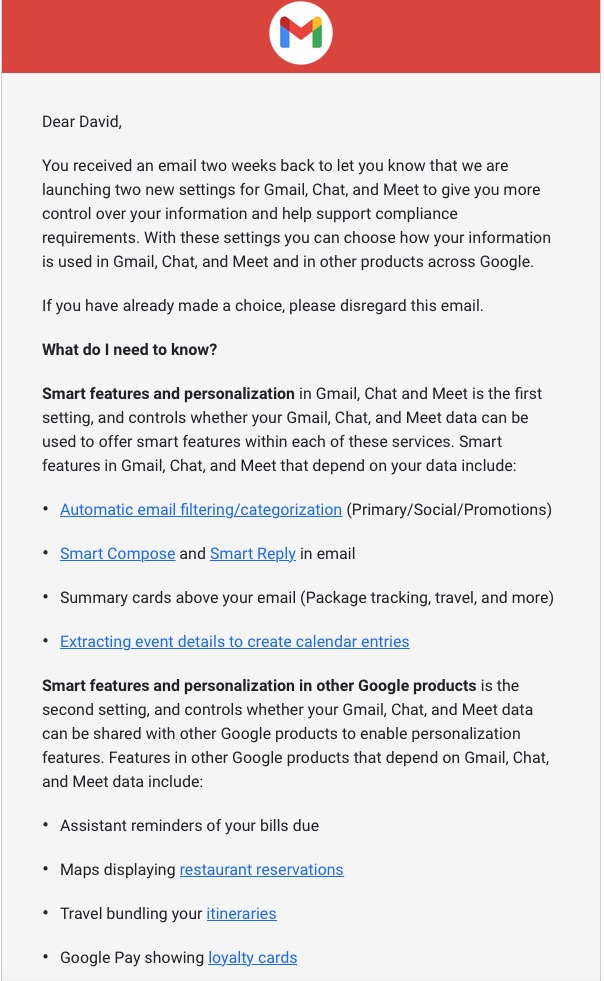
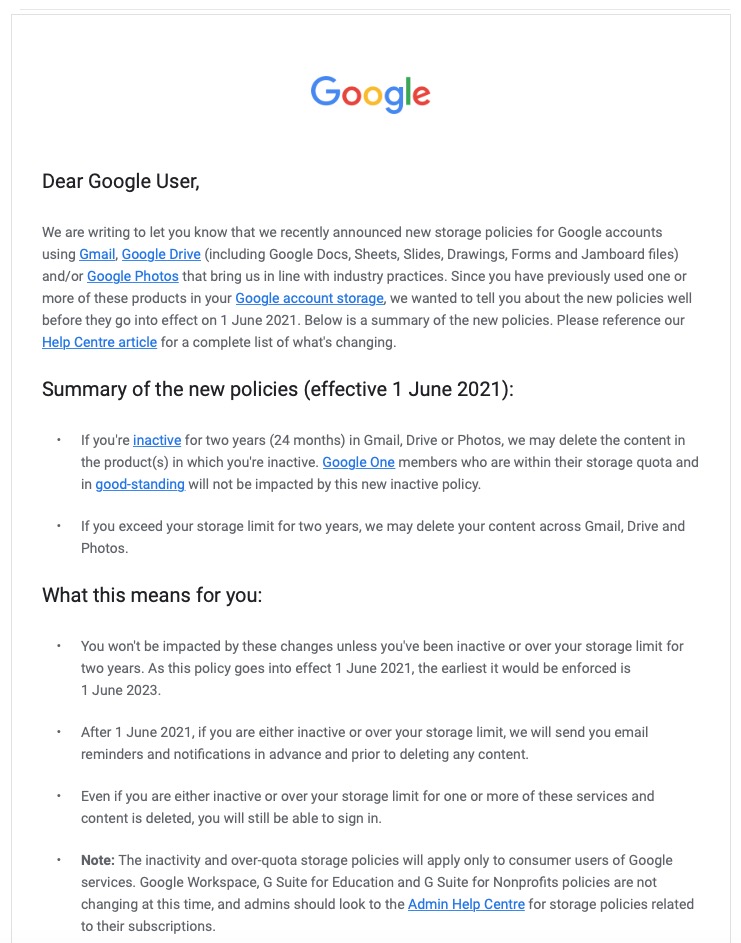
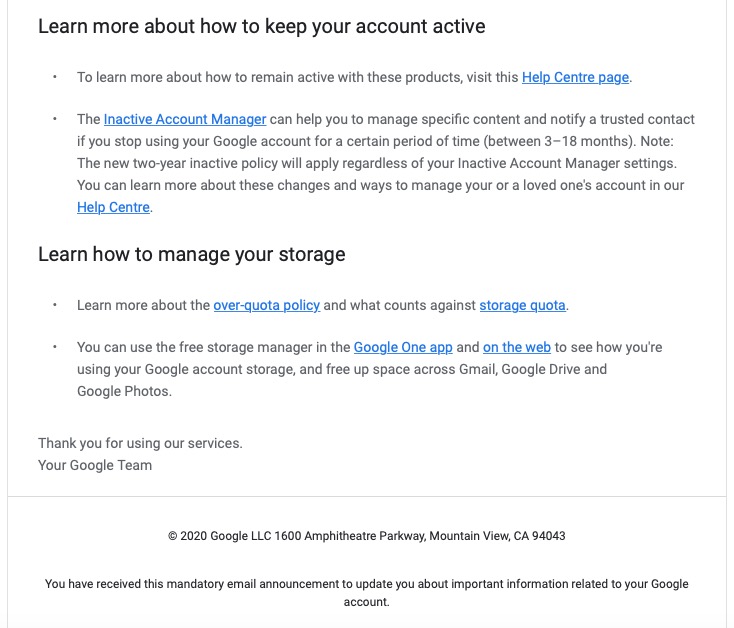
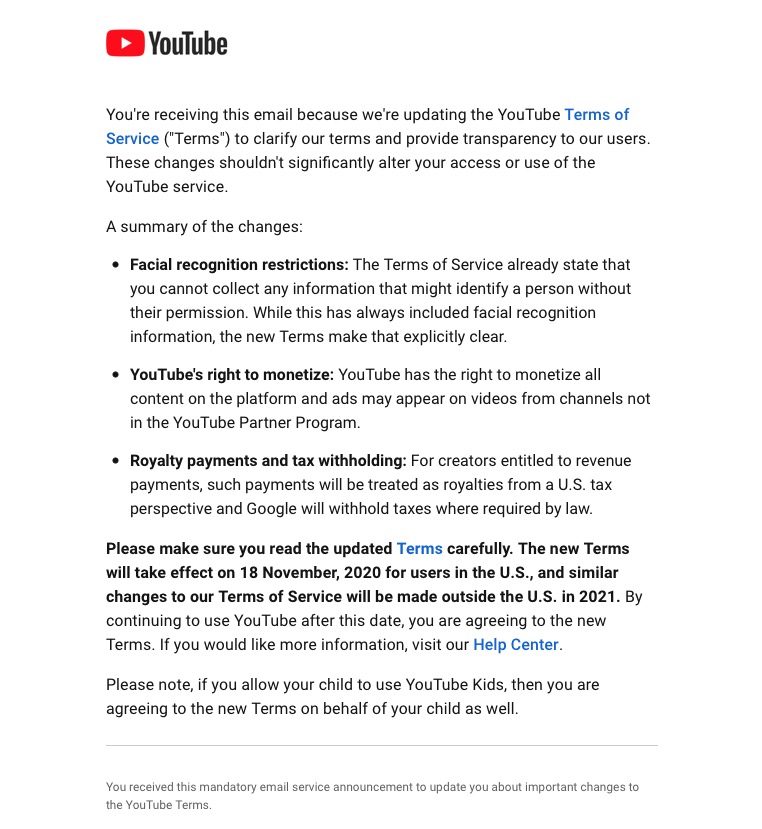
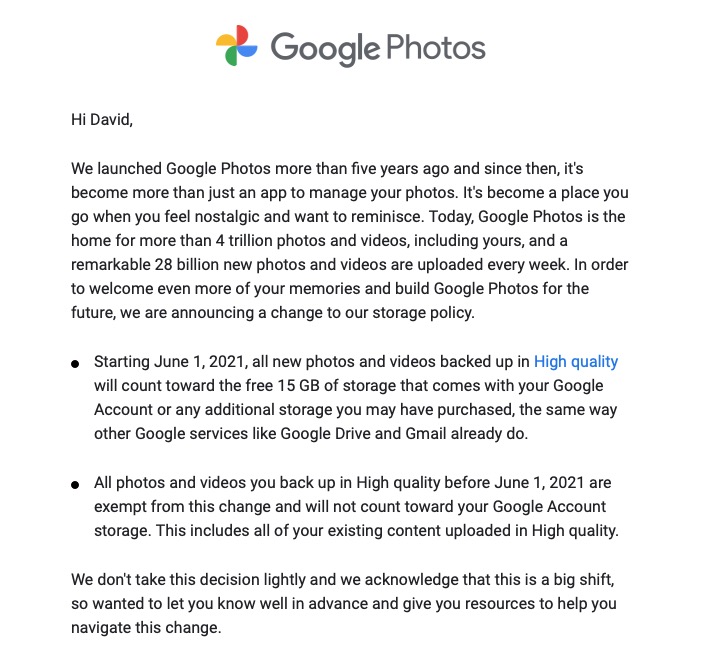
However, out of bad publicity they learned a lesson. When changing terms and conditions of use, or service, its best to explain clearly, and in advance, what they want, and expect, to do, and invite comment. That was most certainly missing from Facebook’s recent debacle with WhatsApp. So to show how it perhaps should be done, I’me including some recent screen shots from Google over the past few months …
A very recent change to Google services that is being proposed and communicated to users in an email. This was the first email sent …
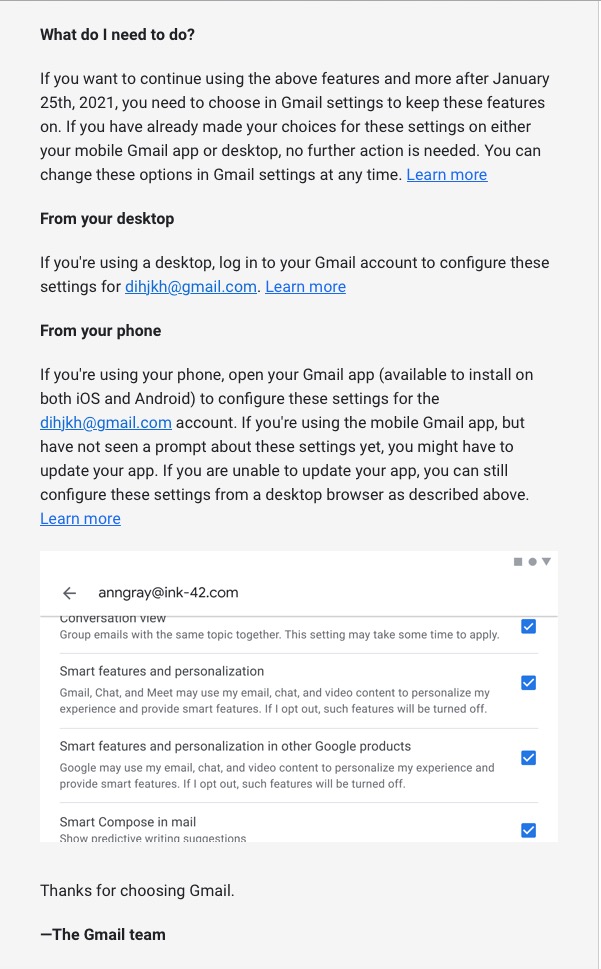
… which was followed up with this one, which prompted me to do something about it!!!
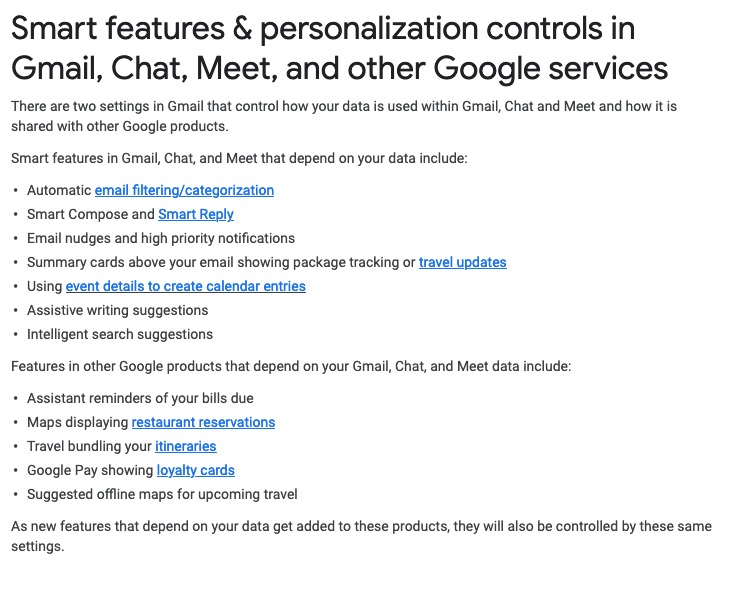
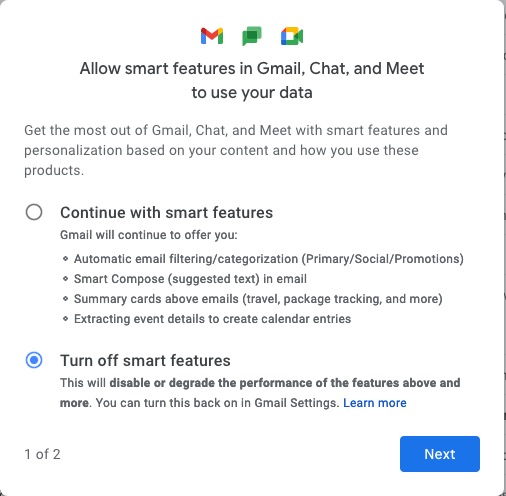
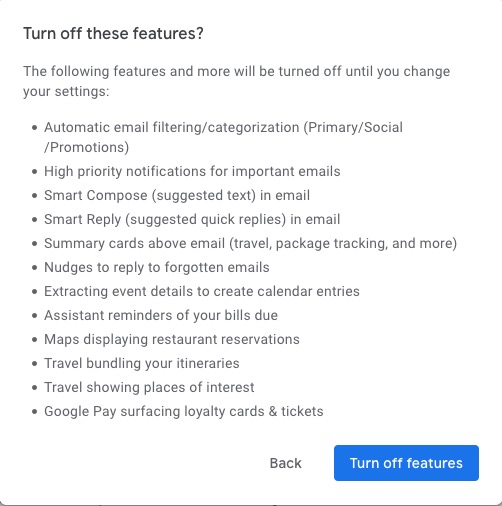
Once into the application, you receive a screen like this one …
I’ve now switched off these personalisations, but what I was doing was very clearly explained.
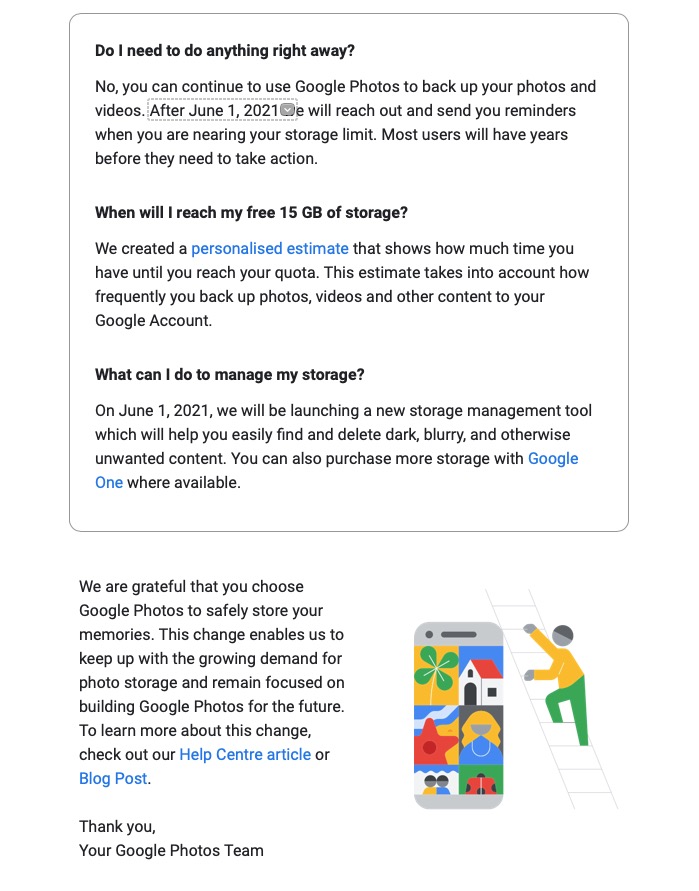
Then there is this advance warning of changes to the storage policy that covers your Drive and Photos accounts. [I must do something about this as I have a number of Google accounts knocking about.]
A clear explanation of changes to YouTube – not ones I like, but there’s no attempt to hide what they intend to do, and it provides a hint that they will apply to us later this year when Google leave Ireland for the US.
Changes to the Google Photos policy which is causing some distress, but is explained clearly and gives you a lot of time to work out how to use the service after June 1st 2021.
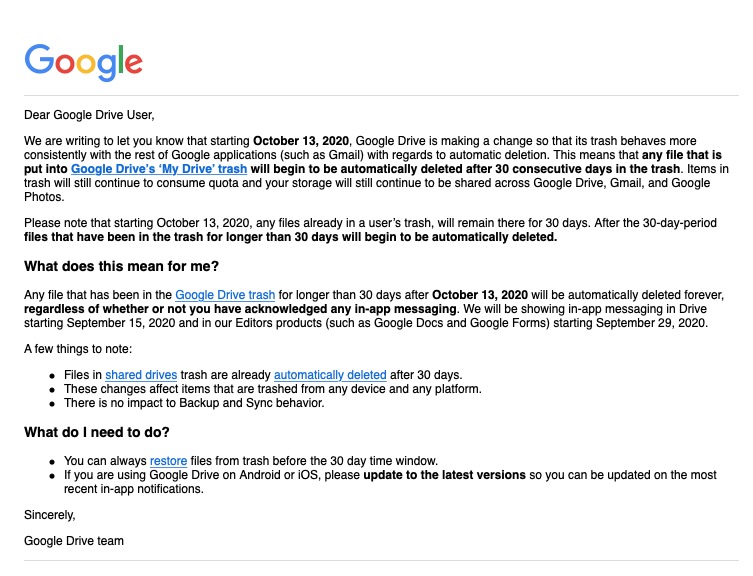
Early notice of the intended changes to Google Drive, and how files will be deleted.
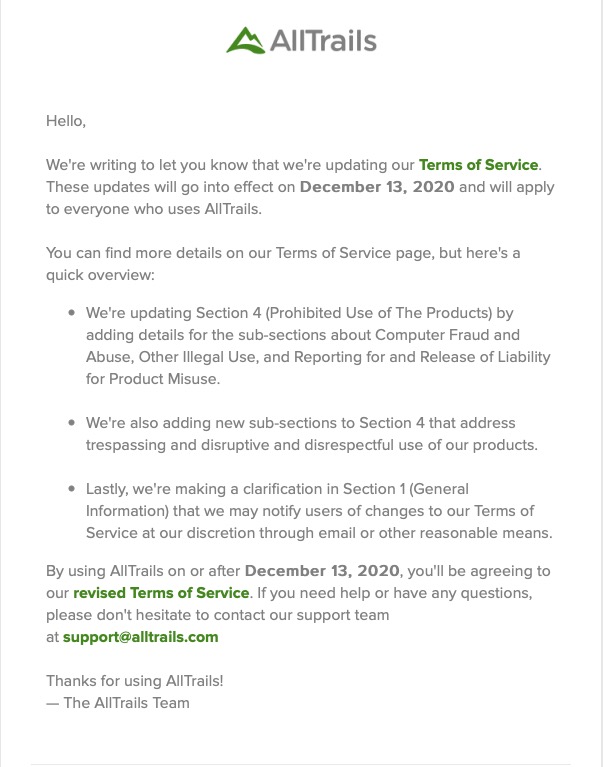
Finally, another company explains clearly how and why it’s changing it’s Terms and Conditions – not something WhatsApp did. Shame on them!
Not much to report, but we had a good chat – eighteen members attended (according to Jim) – thanks for the photo.
I encouraged members to take a look at the Flipboard magazine where I’m trying harder than I had been to curate articles that I think might be of interest to you all. There’s a link on the Blog (Home) page of this website, but here’s a link as well. One of the links I mentioned was this one on an AR app which I invited members to investigate and feed back to me what they thought of it!
I raised the fact that Google Meet was now available and invited anyone who had a Gmail account to take part in a test with me. I haven’t followed that up yet! It’s a direct competitor to Zoom and has been brought out of the Business suite that Google has because of the success of Zoom’s free offering which gives 40mins of video-calling.
We also briefly discussed Google Lens which is certainly available on Android, but I wasn’t sure whether it worked on iOS/iPadOS – it is as part of Google Search and Google Photos, but not as a standalone app. It also works with the Google Assistant on Android as well. Shame! Google Assistant is available on iOS/iPadOS though.
I mentioned that I’d been asked about Jamkazam as an alternative to Zoom by the convenor of the Recorder Group. It’s probably very difficult to make sure the latency of all the participants are kept in sync, but it might be a bit of fun. I suspect some expensive equipment might be needed to make it work successfully. I also suggested that Phil (as a member of the Group) might offer his technical expertise!
I advertised the Which? Scam Service and encouraged members to have a look at it. I started a new Topic in the Computing and all things Digital which I’ll retitle Scams and keep an update on ones that I come across.
I gave a demonstration of my new personal family website which I’ve been working on through early May and explained some of the design issues in building a private members-only website which incorporated a social-media element for closed family chats incorporating threads (which WhatsApp doesn’t) and embedded images (which again WhatsApp has difficulties with).
Ted expressed his pleasure with his new Huawei Honor 8A smartphone and explained he now had to work-out linking Spotify to it, as well as transmitting to his Chromecast machine and integrating with his HiFi. Several members had suggestions and I think that’s a good idea for a topic in the Computing and all things digital forum.
Postscript: This website, and all the others I have hosted with TSOHost went down for approximately 4hours on Friday – that wasn’t the reason why I didn’t get round to writing-up the notes until this morning though! I’m a bit disappointed they haven’t published a reason why they had “network issues”. Yes, I know they happen, but when they do the educated user would like to know what happened, and moreover what they’re doing to mitigate the problem in the future. I don’t depend on my livelihood for income from my websites, but others do. They (we/I) deserve better.
What is Contact Tracing, and how does an app help?
This video from The Guardian is an excellent review of how Contact Tracing works in both a traditional and technology-enable world. You should watch it.
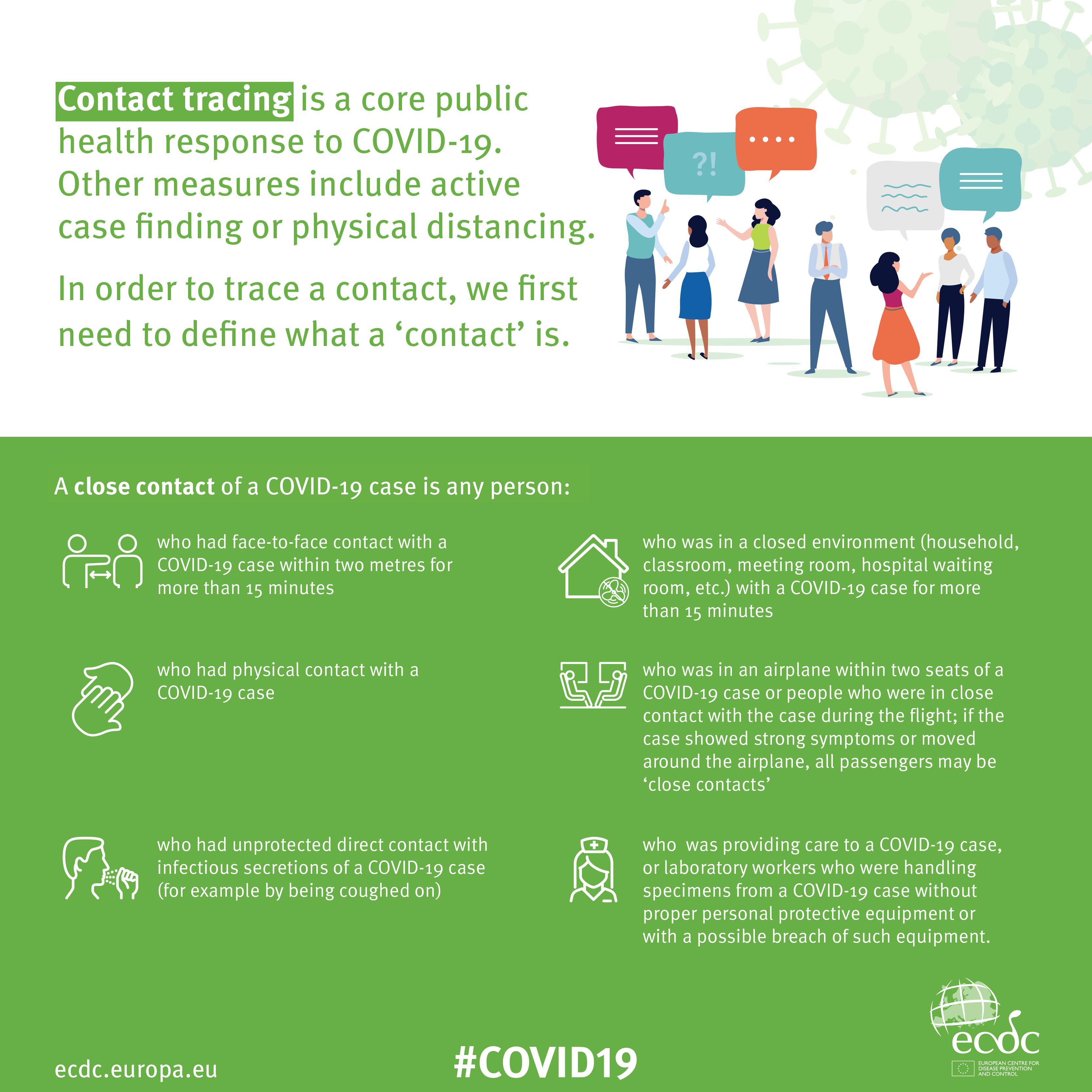
An Infographic that explains how Contact Tracing works
Approaches to creating a Contact Tracing app
Google and Apple have combined to work out a solution that works across iOS/Android devices. Here’s a document that explains how what they have done would work …
France (how unexpected) have threatened Google-Apple over the fact they won’t work with France’s standalone approach (a similar approach to the UK); and it has been suggested that failure to adopt a common approach could threaten international travel – as “health passports” will be impossible to implement.
The new NHS contact-tracing app could be used to send malicious alerts causing people to isolate unnecessarily, The Independent has been told. The app, which is being trialled in the Isle of Wight, tells users if someone they have been in close proximity with may be suffering from coronavirus, meaning they could be exposed. But because users can set off the warnings themselves by reporting symptoms – rather than positive Covid-19 test results – it could be used to send out false alerts. Dr Michael Veale, a lecturer in digital rights at University College London, said Britain’s tracing app had no measures in place to stop individuals “maliciously triggering notifications” using its normal functionality.
Then, on the technical front, some notes from Phil Edwards’ friend
On the Apple-Google Indirect approach
“Their approach seems pretty solid. I think they’re basically exposing some features that previously weren’t available to app developers. Both seem pretty determined to limit the potential for it to be exploited by governments; I think they announced yesterday/the day before that any apps using their system can’t also access location data.
Contact tracing is totally doable without central databases. I can see why a government might want to own data themselves, but there are big downsides (especially security when building in such a rush).”
On the NHSx Direct approach
“The implementation of this contact tracing app really hits that sweet spot between ‘Are they incompetent?’ and ‘Do they have ulterior motives?’ I’d advise against installing it but I doubt it’s going to work properly anyway in its current implementation because of various oddities around how Bluetooth LE works. This isn’t a great article but covers some of it.”
A better comment from Hacker News covers it clearer:
“‘Bluetooth LE has four main states: scanning, advertising, peripheral connection, and central connection. In order to exchange the data that the app needs it needs one device in the peripheral connection mode and the other in the central connection mode. This means one device must have previously been advertising and the other scanning. The two important states are advertising and scanning.Android devices can advertise in the background but they can’t scan reliably, they can do this for a short period of time enforced by the Android time limits on apps running in the background and possibly manufacturer specific power savings measures. These limits are not well documented and cause issues on any device using Bluetooth.iOS devices can’t advertise in the background, however they do advertise an Apple specific advertisement which can’t be controlled by the app but can still be connected to. iOS devices also can’t reliably scan in the background however they can scan more reliably for iBeacons (special adverts) [1]Combined this makes it difficult to work well in the background, Android devices can’t reliably connect to any device, iOS devices can’t connect to each other but iOS devices may be able to connect to Android devices.'”
Finally, a potential for Fraud
Plus fraudsters have not been slow to latch-on to the possibility of piggy-backing on the NHS app as this article in The Guardian show (thanks Phil for the link).