Bookmarking & browsers

At the meeting yesterday someone, I believe it could have been John, asked how you could move bookmarks from one browser to another. It’s a good question, and I’ll try and answer it below, but perhaps an alternative answer is even better and that’s what this post will also address. But first, exporting and importing bookmarks for the common browsers.

However Microsoft has been changing it’s browsers quite a bit over the past couple of years. Internet Explorer was phased out for a bespoke re-write which was called Edge; this in turn was then completely re-engineered to use the same Chromium platform as Google Chrome, Brave and others, which was called NEW Edge. Confusing eh!?

Internet Explorerread this article [Internet Explorer 11 was the default browser for Windows 10, but you may find that it’s been replaced in one of its automatic upgrades by Edge]. For all older versions of Internet Explorer including ones for versions of Windows older than Windows 10 – you might like to look at this article.

Edge – if you’ve got the NEW Edge browser rather than the old legacy EDGE version (which should still be on your machine, as should Internet Explorer 11, if you’re running Windows 10) – this is probably the easiest way of exporting your bookmarks/favourites from a Microsoft browser. Alternatively you should look to see how you can run Internet Explorer if you’ve got the OLD Edge installed on Windows 10. Then you could use the notes above for Exporting from Internet Explorer. Alternatively upgrade either of them to NEW Edge and use the first link in this paragraph to export your Favourites. Simples!

Note: Exported Microsoft Favourites (Bookmarks) are stored as .htm (HTML) files.

If you’re using Brave this article explains how you can Import and Export Bookmarks.

There must be a better way, and there is! You could use a third-party application such as Evernote, which can not only store Bookmarks, but also whole articles through the installation of a Browser Extension which allows you to “clip” content to a “note” in your Evernote datastore held in the cloud. Evernote has long been a favourite piece of software of mine and I pay an annual subscription to get an extended service from it, but there is a really good free version which you can use to trial it and see if you like it. The screen shot shows that you can save the whole article, or just part of it. [One great feature is that it only saves the article, not the additional content, sidebars, panels, etc which often hold ads.]

Alternatively, you could use a Bookmark Manager such as diigo. Again this sits as an extension in your Browser and every time you want to save the link to a website, you click on the diigo extension, and perhaps add some tags to help you find the site at a later date …

… and after pressing Save Bookmark, it saves the page with a brief excerpt …

Finally there’s Pocket which combines bookmarking with a facility for offline reading of webpages. This used to be a great feature when trains didn’t have good WiFi and you could catch-up on your reading, but it’s still a very useful way of storing web content for reading away from the Internet and it’s the way I store all articles that I come across that I’m going to use in Computer Group meetings. Again, you can install a browser extension for all the major browsers that makes it very easy just to click on a webpage and it’s immediately saved and synchronised to any device that has Pocket running on it.

Looking at the bar in the browser above (Brave) you can see icons for LastPass, Pocket, Feedly, diigo, Evernote, AdBlock Plus, GoFullPage (full page screen shot), Push to Kindle, and Flipboard plus the extension to open the Extensions Library. Of course the screen shots for an Android or iOS device would be different; these are just taken from a browser running on a desktop or laptop.

Extensions are really neat, BUT only install ones from the Extensions Library of your Browser. Generally Chrome Extensions will work in Brave. That’s probably a topic for another post at some later date.

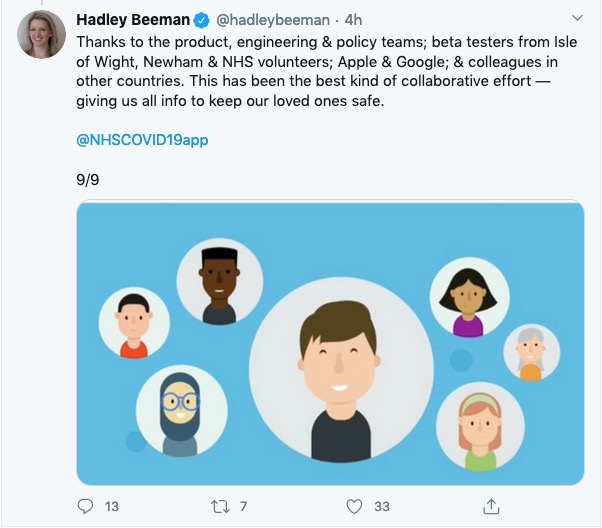
Covid-19 NHS Tracing App

I will add more detail later, but just wanted to create this for the meeting later today.

The long-awaited app is launched today (24th September).

It’s a really positive step forward I feel, even though there’s the inevitable doom and gloom merchants already slating it.

What is really a sad state of affairs (and here I stray into political waters – dangerous, I know) is that the Track and Trace (outside Wales, where we have tried to do things much more locally and involved local Public Health experts from an early stage much more) is that it does appear to be putting the cart before the horse. The app should have been in place before they allowed the pubs/hospitality outlets to be opened. It should have been made mandatory. You shouldn’t have been able to enter unless you scanned yourself in (or failing that supplied a verifiable name and address. Mini-rant over!

So it’s available on iOS devices from the iPhone 6s onwards, and Android devices from 2017 (Android 6) onwards. You download it from the appropriate app store.

This is how it works …

I’ll get back on to this following the meeting. Please post Comments, or ask Questions below, or raise a Topic in the Covid-19 Forum.

How does it work? This article from Wired UK provides a comprehensive explanation.

The BBC’s explanation of how it works (as an infographic).

Screenshots from installing the app on my iPhone 6s

The app is highlighted on the App store (at least for Apple) today …

… download and install, and start the app …

You will be asked a couple of questions, including an age enquiry …

… and then a Privacy section, which is actually very good and worth reading. The developers have done all they can to make you aware of what the app does, and how it protects your privacy.

So if you click on the Privacy link you will be taken to the UK Government website that gives you more information, after first informing you that it uses cookies …

You might like to click through to the Welsh pages to find out more about Local restrictions …

… then you need to supply the first part of your postcode. The developers have acknowledged there’s a weakness in the app currently in that if you move your location, you can’t change it in the app. They are working on a workaround/fix/upgrade. This would apply if you were to go on holiday somewhere else, or if you were a student moving away from your home.

Having done that you’re into the app, it starts scanning and you’re on your part of the Covid-19 Tracing community.

You can see that north Cardiff is at a Medium risk level (as I believe the whole of Cardiff is) …

… and then you have access to the other features of the app, as shown below …

A recent article about the NHS app which addresses possible Security and privacy concerns.

I wondered about creating a QR code for our house

This is how you can do it

… and this is what it looks like …

Can my phone track my movements? Should I not allow this to happen?

A matter of personal choice.

If you’re using maps or navigation on your phone, it is pretty important to allow your phone to know where you are!!

If you don’t want adverts from a coffee chain, perhaps it’s a good idea to disable location services before you go into a cafe!

Or, if you don’t want anyone to know where you are (???) again perhaps a good idea to disable location services.

You can do this in quite a granular fashion, so you can switch off for the device, for the application on the device, or only when using the application on the device. That’s why it’s quite important to close down an application when you don’t need it, or aren’t using it, because it will continue tracking you after you think you’ve stopped using it!

Of course with the Covid-19 tracing capability Google and Apple have jointly worked upon, this relies on an element of location services to be working, but that’s to determine proximity of individuals and as I understand it, location is not stored on any central server.

Is Libre Office compatible with Microsoft Office?

Yes, to a very high sense it is totally compatible. Only at the most advanced usage with advanced use of macros might there be a problem.

The same is true of OpenOffice but Libre Office has one advantage over OpenOffice in that it can both read and write .docx files – the default format for Microsoft Office. Open Office can only read .docx, but writes out in a slightly different format.

As I recall, LibreOffice can also read .PDF files. We covered this in a Computer Group meeting and without checking I can’t remember that for a fact off the top of my head.

Using Paypal instead of Credit Cards

This was a question that was raised during the General Meeting discussions. PayPal has a Buyer Protection and Fraud Protection policy which for small transactions (ie <£100), and for transactions with companies/individuals you regularly do business with, is probably sufficient protection.

For large value items (ie >£100) and up to £30,000 you might prefer to choose using your credit card because of the Section 75 protection you get.

My new bit of gear – an Amazon Echo Show 8

It has to be said that I am a bit of a gadget geek. I was actually quite an early adopter of the Amazon Echo voice activated assistant. I bought a pair of them a couple of years ago and have since added some lights to my smart home. All in all, I’ve been delighted with the system although to be honest, I’ve sometimes felt that I wasn’t getting the experience quite right. Maybe I was missing something.

About six months into The Great Lockdown I noticed that Amazon had a special offer on the Amazon Echo Show 8; just £69.99 (it is now £89.99 so keep an eye on the price). It really is sinfully easy to click on the “Buy Now” button. Here’s what I’ve discovered.

First of all, I believe that you can only get the full value of the Echo experience if you are an Amazon Prime subscriber. I’ll tell you more about that later.

The Amazon Echo is a bit like a voice activated tablet screen. You can set it up to :-

  • Show a continuous slideshow of your photographs, cycling through your snaps at random.
  • Play your music. You can ask Alexa for a particular album, artist or genre of music. You can also get her to play your favourite radio station. You can control the volume with your voice.
  • Show recipes, with video and audio hints as you go along. Similarly, it can show exercise routines.
  • Show Youtube videos, Iplayer and news channels.
  • Show Amazon Prime movies.
  • Make phone and video calls.
  • Play a range of games and quizzes.

AND, it does all of this through voice control. It really is just like having your own personal assistant or butler even. You simply use voice commands like, “Alexa, phone Betty”, or “Alexa, send a text to Betty,” or “Alexa, play songs by Val Doonican.”

Setting up the device might be a bit tricky. You will need an Amazon account and you will probably need The Alexa app running on a phone or tablet. If you were setting it up for somebody with limited technical skills, you could use a friend’s phone or tablet. There is a video here to show you how to do this.

Now, since The Great Lockdown started, I’ve become a big fan of Slow Movies, It’s hard to explain this concept. Basically, it could be video taken of a view, or of a scenic route. Nothing happens but for me, they provide me with a link back to The Before Time. Alexa Show will show movies from the Prime catalogue. Besides a huge choice of regular movies and T.V.shows, there are plenty of Slow Movies available. Try one of my favourites, “Morning Jazz at the Coffee Shop,” takes me back to enjoying a cappuccino at Coffee #1 in Whitchurch.

Now, the Amazon Echo Show comes in three sizes; just like Goldilocks’ bears. The 5 inch would look great on your bedside cabinet. I have the 8 inch in my kitchen. There is a 10 inch model that would probably look great in your living room.

It really is a bit like having one of those Swiss Army knives, the ones that do everything. Besides being a digital photo frame, it plays music or radio, shows movies, acts as a clock and calendar, provides weather forecasts, does sums, tells you spellings,  gives you a cheery Good Morning greeting, acts as a timer or reminder turns lights on or off….I really could go on and on.

Now, as I said earlier, you probably won’t get much out of the device unless you have Amazon Prime subscription. Basically, for £79 per year, you get free next day (or fast ) delivery on many of the Amazon products. I’ve ordered something at 10 p.m. on a Saturday and it was delivered at 10 a.m. the next day. You also get access to a huge catalogue of music and videos. You might have to pay extra for some of the newly released videos but believe me, there is plenty of choice for free. It provides unlimited storage space for your photographs. You upload photographs to your storage area. You can then choose the ones that you would like to see on your Echo Show. Find out more about Prime here.

Those who know me, know that I really am a bit of a sucker when it comes to new gadgets. Believe me though, this one does something that most of my other gadgets fail to do quickly, easily and with minimum hassle. This one regularly makes me smile.

Improving home network performance

This short note is written to advise on possible performance improvements you can employ if you feel that your network is “slowing down”. It may be that you just feel files, or pages, are taking longer to download, or display; or it may be that you feel it’s taking “too long” to connect to the remote site from your browser.

The first case can often be resolved by moving your WiFi router, if possible, to a better location. Remember that although WiFi can appear to go through walls and ceilings, the more you expect it to do, the worse will be the signal. So move the WiFi router and perhaps you’ll get a better signal. This is often not possible, so the next thing to consider is to use one of the ethernet ports on the back of the router and connect the computer to the router by ethernet cable, rather than using WiFi. This will always provide better network performance. This may not always be convenient so the last solution is to “extend” your network using either a WiFi extender, or a different approach called Powerline. This article explains the difference between the two and also includes a commentary on ethernet cable as well.

If you opt for Powerline, you will plug a unit into a 13amp socket near to your router and connect it with an ethernet cable to the router, and then on the same electric circuit (ring main) plug in another box which can be just another ethernet socket, or more likely it will have a WiFi capability. Systems from Trendnet, TP-Link, D-Link and others are amongst those you could purchase. Here’s a review of possible systems, most of which can be purchased from Amazon. It is possible to configure these to use the same SSID as your router, but you may have to make do with having a separate network when you connect to these points.

Alternatively, your ISP will often have a solution that will mean that you can use the same SSID for the extended WiFi access points, or you can purchase WiFi extenders (as described above) from Amazon which you can then configure to use the same SSID as your router. So that’s the first case taken care of. What if you just feel that your network is lazy, is there anything you can try to improve performance.

Well first – and perhaps you should have done this first anyway – you should check whether your ISP is delivering something near to the broadband speed it’s contracted to provide. We’ve talked about this before but test your internet speed using something like Speedtest. [As an aside, you can also download the Speednet app for your mobile device and walk round the house testing your signal this way too.] If that’s not the problem, and it just seems to take too long to make connections, then perhaps you should apply some new configurations to your router.

The first thing you can do is to see if you and your neighbours are battling to use the same wireless channels. The common ones used are 1, 6 and 11 as they don’t overlap. However for this reason, sometimes, routers might be “hard-wired” to use one of these channels and so two nearby networks might actually be using the same channel which could then be interfering with each other. Read this article to learn more about this, and then once you’ve tested your network and it looks as though you could be suffering this way, you’ll need to refer to your router manual (or talk to your ISP) to change the channel(s) you use. Why channels? Well because most routers now broadcast signals at two wavelengths – 2.4Ghz and 5Ghz. What’s the difference – read this article.

The other thing you can do is look at how your router is setup with its DNS server. Your ISP will have configured your router to use their DNS servers, but it might be that these are not the best ones for your locality – especially if you’re on a laptop and are moving about a bit! So what is a DNS server, and what does it do, and why might this be important?

A DNS server translates a URL (such as https://thoughtgrazing.org) into a sequence of numbers – an IP address – that instructs the modem that transmits and receives data going and coming from the internet where to go. This whole process is explained in some detail in this article. If you decide to change the DNS settings on your router, or just on a device, you can look at this article which shows you how to do it.

In my case, I’d been disappointed in the performance of my new Netgear Orbi routers which although they seemed to shovel the data around very fast, there was a noticeable lag/delay in achieving connections, and I’d also felt that the router was dropping connections more than it should. So, bearing in mind I have a Virgin Media Superhub that’s only running in modem mode with the Netgear Orbi router behind it, I changed the configuration of the router which was pointing at VirginMedia’s DNS servers to point at Google’s secondary DNS server. I also checked what channels were being used by nearby WiFi networks using the Mac’s Wireless Diagnostics tool described in this article

… which indicated that I should change the 2.4Ghz channel that was being used from 1 to 11, and to set my 5Ghz channel to 161.

I left the DNS server setting on my devices to be ‘automatic’. This makes it much easier to “roam” away from the house with a mobile device. I then ran a test called namebench (from Google) to try and find the best DNS server for my home network, but you don’t need to do this. I would suggest you look at this article and then experiment with Cloudflare, Google, and OpenDNS perhaps in that order until you get a response to your internet request that satisfies you. Leave your ISPs DNS server in the list of servers (the third in the list below) – just-in-case.

Demo of Gutenberg Block Editor

Watch this video from YouTube – amazing driving!

Below is an embedded link from Flickr …

Flowers-20200524-10247.jpg

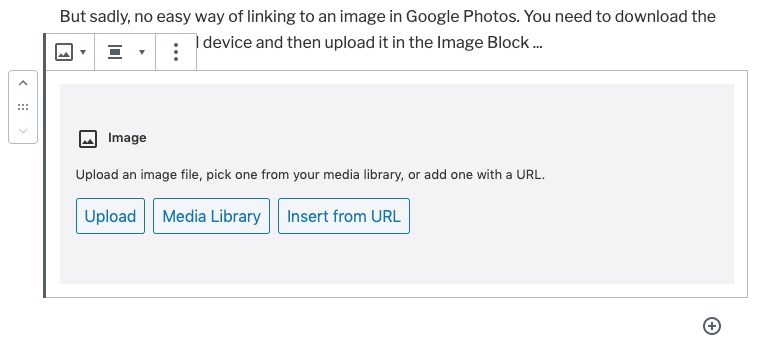
But sadly, no easy way of linking to an image in Google Photos. You need to download the image to your local device and then upload it in the Image Block …

There are more links and videos which you can read, and look at, from links in the Help menu item – How to write an article.

Notes from Zoom meeting – 18th June 2020

I’ve learnt my lesson from last week and am writing up the notes immediately. First a set of topical points/issues, and then a report on “What we do with our computers”.

Paul reported that he’d been experiencing Gmail opening, closing and then re-opening when using a browser on Windows? Is this a Windows thing, a browser thing (Chrome), or what? Owen was also experiencing it (but Renee on a Mac using a browser wasn’t). Owen undertook to investigate. Paul also asked whether anyone knew whether there was any advantage in responding to the request to Archive when prompted from Photos, or Mail on Google. I promised to look into this.

Renée reported that her Zoom meeting (one including participants from Italy) had been a great success. She wondered whether being “upgraded” to be given more time, when she thought she was only going to get 40mins was a standard thing. Group members seemed to think that maybe this only happened on a first call, others seemed to think if there was less than 3 participants the “upgrade” was standard; others thought the “upgrade” to more than 40mins could happen at any time – perhaps this is a factor of what the demand at any time might be?

Owen commented that some Zoom meeting hosts had implemented Mute participants on entry when it was a talk (History Group). I discovered that I could Mute All at any time – if I wanted. We’re all learning about this new technology!

Stella was still investigating a dongle, or method for connecting her TV to headphones using BlueTooth. We talked around the issue, resolved that if the BT version was higher than the device version, it should work; but then decided that actually what Stella required was a device similar to the one that Paul/Jim had researched for Marilyn – Paul suggested this one back in October (the Search facility in WhatsApp actually works!!!). I wrote then “I did a bit of googling on the bus on the way home, and all I would (probably stating the obvious) say is that what you should be looking for is a device that attaches a Bluetooth TRANSMITTER (or one that handles both Transmitter and Receiver states) to the Headphone Jack” and I sent this link to Marilyn in addition to the one Paul had sent.” In the meeting Phil suggested that Stella also look at this page.

Phil told us about a website he’d created for a Music application. You can see it, and try it out from this link. He also told us about the book he’d just finished – Teething Troubles – and which was available in eBook and print (from Amazon). More information about it is to be found here. He also invited us to use the quiz he’d prepared for his family, which is available on his website here with the answers here. He also thought you might like to see this from twitter.

Ann told us about her need for an Office application as she had misplaced her licence key for MS Office. She’d looked at Google Docs and OpenOffice but because she thought the documents were always stored in the cloud (they aren’t) she’d taken out a subscription to Office 365. I suggested that she looked at LibreOffice –  a successor to OpenOffice, and one that works better with PDF and .docx files (imho); it has the following components – Writer (word processing), Calc (spreadsheets), Impress (presentations), Draw (vector graphics and flowcharts), Base (databases), and Math (formula editing) all of which (to the best of my knowledge) are compatible with Microsoft’s packages.

Don told us about the positive experience he’d had using software from Wesley Media to attend an ex-colleagues funeral. When working on a tablet he was able to pinch the image to feel more intimately connected to the ceremony; something he couldn’t do on his laptop. He also reported that he’d tried using Brave, but had been a bit disarmed by the security controls which also incidentally prevented the software just mentioned from running on anything other than Chrome. I reported that this was quite normal and that some pieces of software are written just to run on particular browsers. Although Brave uses the same engine as Chrome (called Chromium) developers write code for specific browsers and so I often found I needed to use Chrome after I’d also tried it first on Safari (for the Mac). I also reported that I’d read some good reviews on Firefox recently, and this one too, and this might be an alternative to Brave if the security controls were too restrictive.

Christine reminded me that she was still researching a TV replacement and looking at 4K. The advice remains the same, it has to be a large display to make 4K useful and worthwhile. Also the quality of the display is related directly to the price you pay. Whether a less-costly option, such as Cello, is worth looking into – I wouldn’t like to say [Amazon]. My criteria would be as little SMART as possible (use a secondary streaming device, eg NowTV or Roku, or Amazon Fire, or Google Chromecast); as many HDMI ports as possible; optical output for sound (if you want to connect to a soundbar, AV system or HiFi) and the correct display size for the room – not in that order!! She also enquired whether anyone had used Jitsi Meet for video-calls. I said I hadn’t but I thought sticking with something I knew, Zoom, would suit me for the time being. I did say I would look into it though, as I would look into Cello.

We then had a general discussion about what applications we used on our computers.

Jim used some photo-editing software (Paintshop Pro, and ImageGlass – which was looking promising). He was a Fb user and used Flickr a lot as well.

David H valued the computer for access to online newspapers and apart from the Office applications he also used it for shopping and banking. He was a born again LastPass user!

Christine used her computer for general organisation – meetings, searches etc as well as buying/selling on Gumtree/eBay, printing labels and genealogy.

Don also used his computer for genealogy and printing (including labels) as well as the office apps and banking.

Ann (aside from her iPhone/iPad) used the computer for backing-up photos and music, ripping CDs, and doing office apps (eg accountancy). She particularly enjoyed watching the video content from the Hay Festival on her laptop.

Phil has an involvement in his websites, and uses Fb and twitter – which he said was valuable in times of crisis – I’m sure he has a keen and acute Fake News detector employed!He does online banking. We talked about the risks of online banking because Ann wouldn’t do it. With the recent enhancements to the web browser access to banking, it was probable that there was little difference in safety between mobile apps and the web browser access method.

Stella enjoyed music and DVDs on her machine as well as buying and selling. She also liked to be able to read foreign (Italian) newspapers which kept her in touch with events there.

Marilyn used her machine for photo-editing and had an Adobe Creative Cloud subscription. She watched quite a lot of YouTube videos to further her knowledge of photography, and followed a Welsh duo-lingo course online.

Sianed used her computer for banking, duo-lingo French and some proof-reading of documents sent to he by her children.

Owen was rarely far away from his computer with the U3A website, Beacon administration, Zoom administration and Writers Group internet presence to manage … but he did find time for Fb and banking!

Renée had discovered Zoom to be a pleasurable experience with friends and bookclubs. She loved the fact that you could attend conferences and take part in webinars without having to travel to London! She was also enjoying being taught IT by her grandchildren – Giffy. Another online banking user.

Paul did most of the above but enjoyed using the internet for researching prospective purchases. He also told us about a Dutch news aggregation site – DutchNews.nl which looks rather interesting.

And me … websites, photography, banking everyday (takes seconds and I remember the credentials to login because I do it all the time), researching (RSS reader – Feedly), bookmarking research (Pocket), publishing (Flipboard), music (iTunes -> Apple Music), etc etc.