Home networks – some notes

I’ve written and talked about this subject on a number of occasions. I’ll bring these together in one place, before delving into the specifics of router configuration which prompted the subject for the meeting on Feb 4th, 2021.

For many of us home networking means WiFi, and the first article I wrote was on the subject of “Flaky WiFi” on October 11th, 2016. Members of the group had commented on their WiFi connection appearing to drop and in this article I tried to explain how all the bits and pieces hung together and how you could test your network to see it was working the way your Internet Service Provider (ISP) was proclaiming it should be!

Then, later on (January 26th, 2017), we discussed “Broadband speeds, WiFi routers (their type and security), and extenders or boosters” and as the title suggests we focussed on networking in the house and how it is provided by Internet Service Providers, such as VirginMedia, BT, Sky or TalkTalk.

I described “How the Internet works” in this post on June 29th, 2017, with links to a few videos and policy documents which hopefully explain the topic better than I could. Not much has changed since then; IPv6 is still to appear in the domestic market, so we still use IPv4 for internet addressing.

Finally, on July 27th, 2020, I wrote about “Improving home network performance” which is really what I’m going to revisit in this post.

So … what do you need to take a look at?

On your router:

If you’re using an integrated modem/router – often called a hub, typing in the IP address 192.168.1.1 will bring up a screen something similar to this …

… mine is different because I’ve disabled the router functionality so that I can use my own router – a Netgear Orbi Mesh Network – so to just access the modem part of MY hub I use the IP address 192.168.100.1. You can see from the above that only the Modem is active.

So for most users with an integrated modem/router, the first thing you need to be able to do is to access your Router’s Admin Dashboard. This article explains how to do it using the cmd prompt in Windows, but it is probable that your hub/router has an application you can start to do this, or that you can access it from a browser window. For most you would just enter the IP address 192.168.1.1 and supply the UserID admin and the password that I’ve created – the default is quite commonly ‘password’, so you ought to change that!!!

The above screen is for my mesh network, but non-mesh would be similar. Clicking on Internet will give you the ability to change some of the settings for your connection.

Of these the most useful to change is the Domain Name Server (DNS) – these are the servers that translate a URL (eg thoughtgrazing.org) into an IP address. I’ve chosen to replace the default DNS supplied for my VirginMedia (ie 194.168.4.100) Hub (I’ve disabled the router functionality on the SuperHub so that it only acts as a modem) for two servers run by Google (1.1.1.1 and 8.8.4.4). The reason I’ve done this is that these servers are replicated around the internet and will almost certainly be closer to my router than VirginMedia which I think the closest one is in Bristol.

All the other settings can probably be left as they are. The next option is where you configure the name of your network and the channels you’re going to use.

If you don’t like the name supplied to your network by your ISP, you can change the SSID. I did to make it a little more meaningful. You should then consider changing the 2.4Ghz Channel. If you can set the channel to Auto – you should do so because generally the router will then find the best channel for your network. If that’s not possible and you have found your WiFi to be “flaky” due to you and your neighbour using the same Channel(s), try setting the channel manually to one that’s not being used. The article I mentioned before describes how you can find the best Channels for a Mac, and this one identifies a Windows Tool that does the same thing – there’s a Download link at the bottom of that documentation. Here’s an article that describes all the possibilities.

Generally 2.4GHz has a wider range of signal but lesser bandwidth (throughput), and 5Ghz the opposite – shorter distance, but higher bandwidth. On my system my 2.4GHz channel gives me 400Mbps and the 5Ghz channel 866.7Mbps.

You’ll want to look at your Security Options and make sure that you choose the best for the devices that you’re going to connect to your router. Generally, for a home network, WPA2-PSK [AES] should be sufficient.

This article from the Apple website provides a very thorough and detailed examination of what settings you should deploy for your router, and why. Worth a read, even if you’re not an Apple Fanboy!

On your device …

Make sure the security settings match that you’ve just set on your router; remember the SSID and Password you’ve created, and re-connect to your network.

And that’s about it … I hope. Questions??
The right way to change Ts&Cs – Google learnt it’s lesson

It’s not long ago that Google was described as “the evil empire” because of its perceived intent on hoovering up all the data it could about us in the endeavour to “provide the best search experience for its users”. Baloney of course – they just wanted to drive the monetisation of their platform as far as they thought they could get away with, and by now you shouldn’t pay too much attention to the search results that appear at the top of a Google search – they’ve almost always been “paid-for”.

However, out of bad publicity they learned a lesson. When changing terms and conditions of use, or service, its best to explain clearly, and in advance, what they want, and expect, to do, and invite comment. That was most certainly missing from Facebook’s recent debacle with WhatsApp. So to show how it perhaps should be done, I’me including some recent screen shots from Google over the past few months …

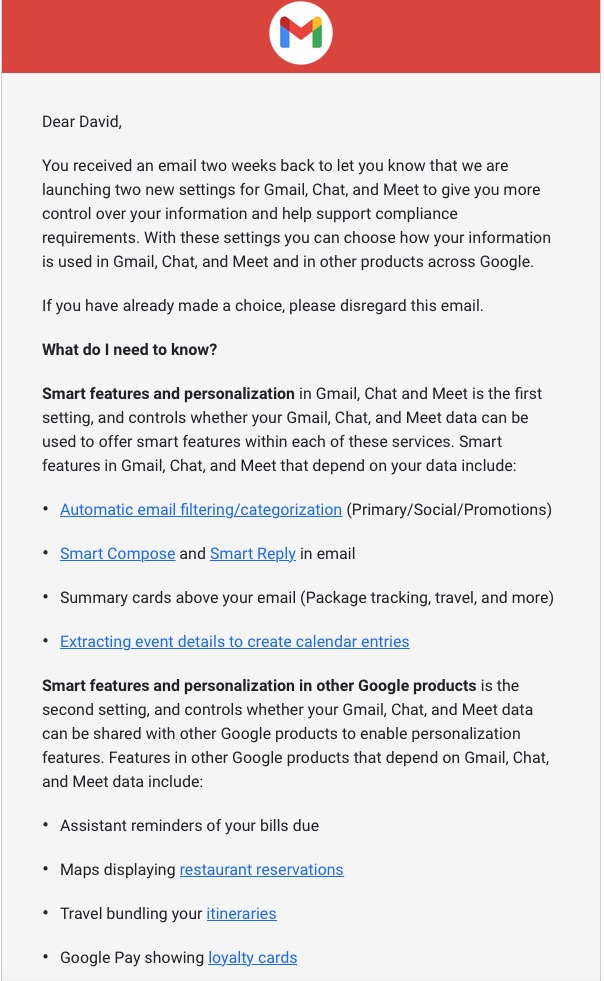
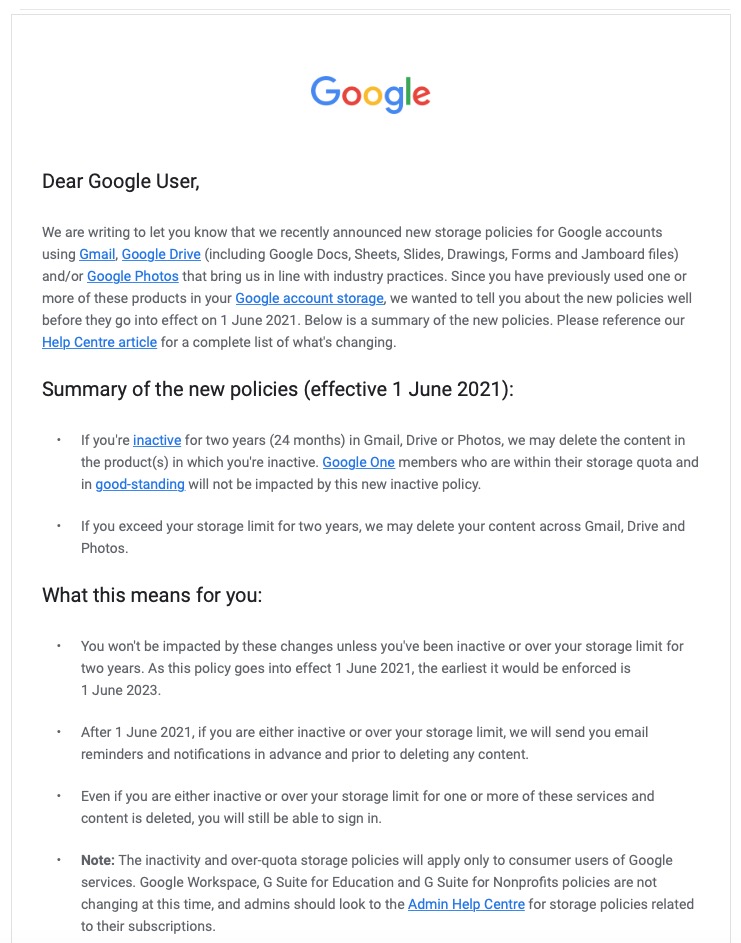
A very recent change to Google services that is being proposed and communicated to users in an email. This was the first email sent …

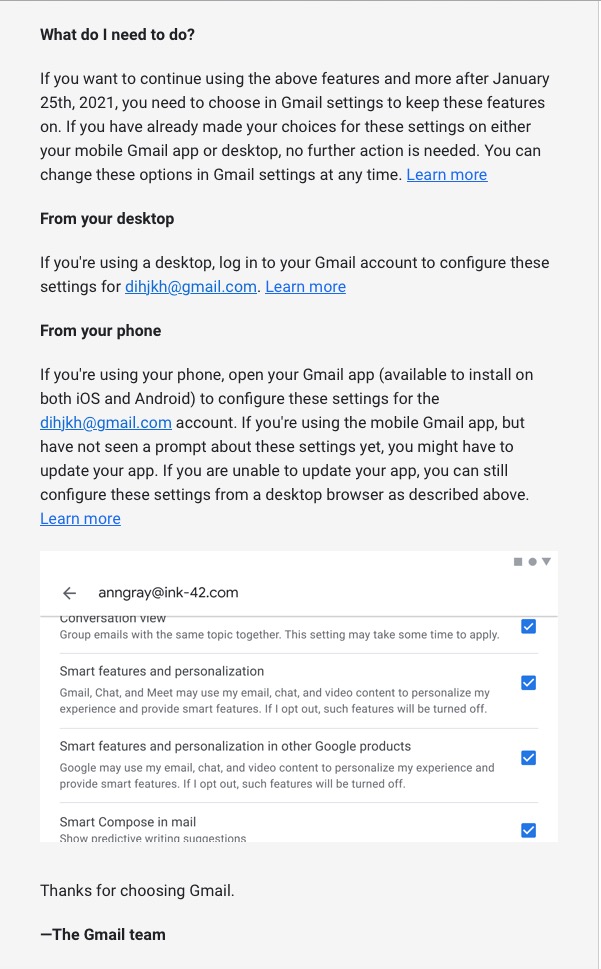
… which was followed up with this one, which prompted me to do something about it!!!

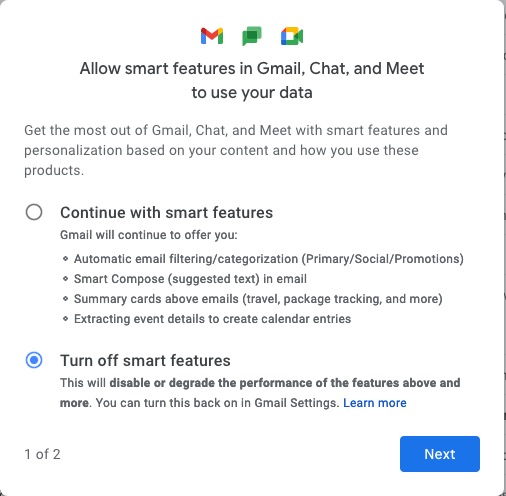
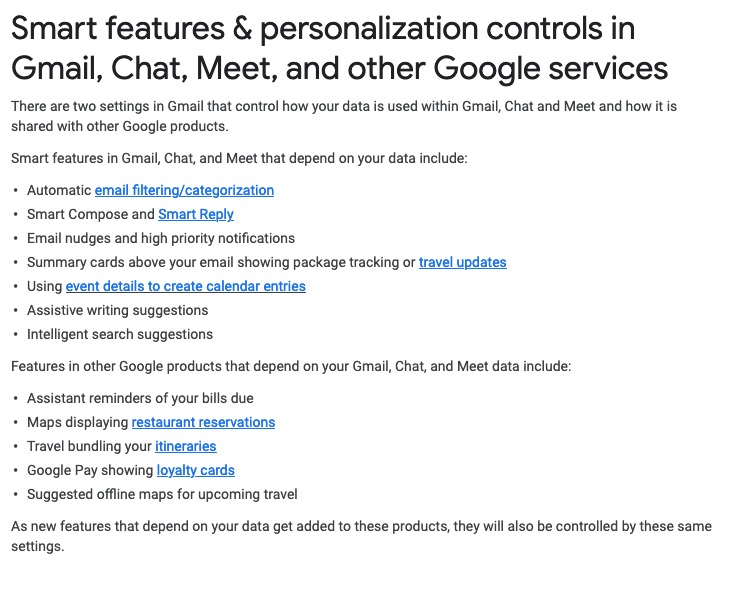
Once into the application, you receive a screen like this one …

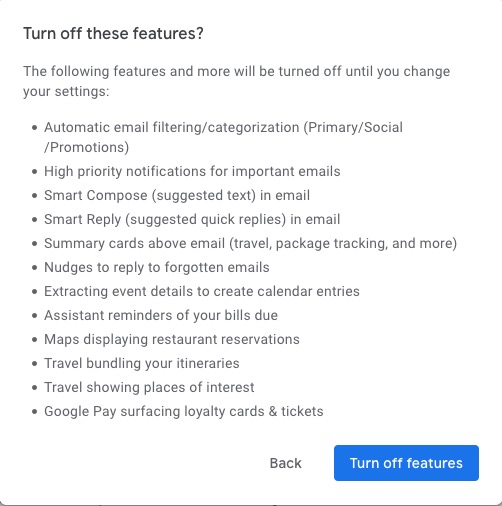
I’ve now switched off these personalisations, but what I was doing was very clearly explained.

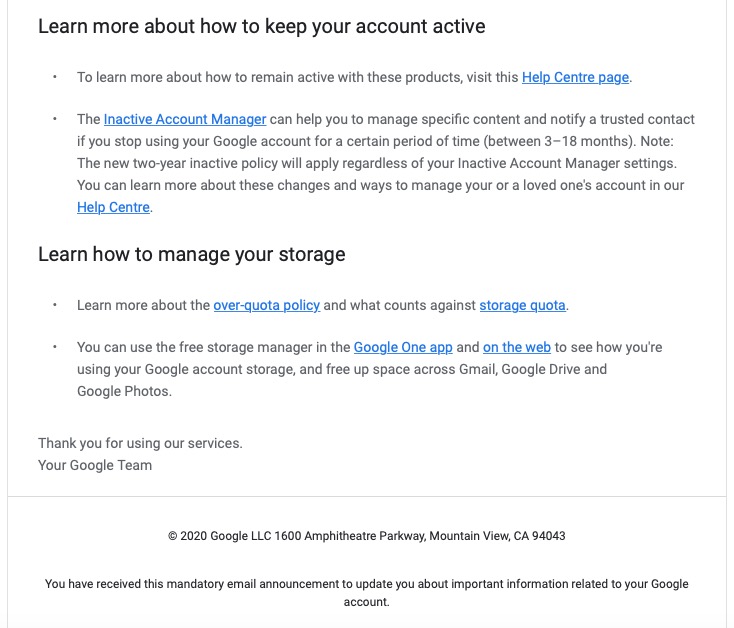
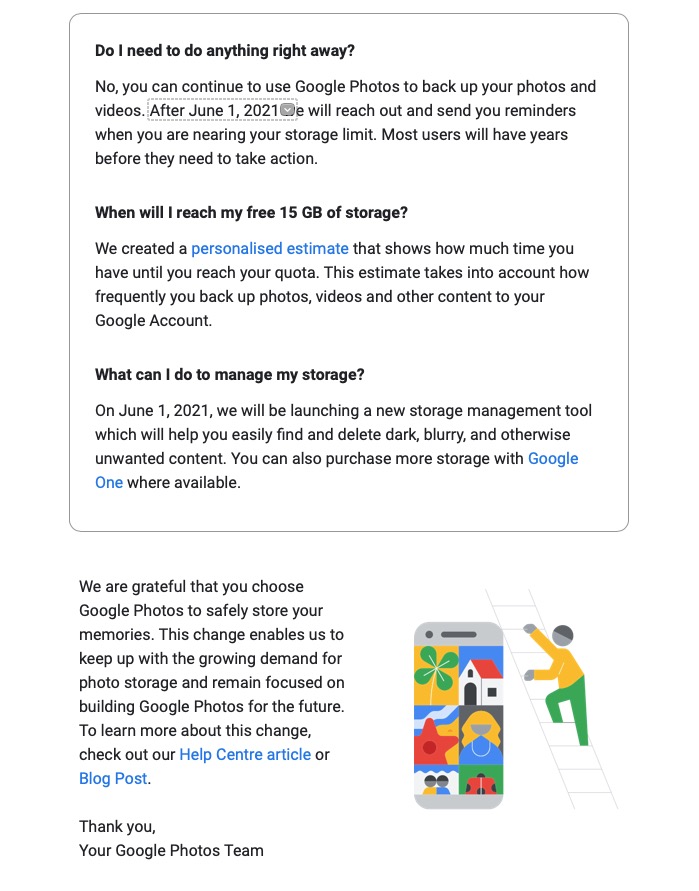
Then there is this advance warning of changes to the storage policy that covers your Drive and Photos accounts. [I must do something about this as I have a number of Google accounts knocking about.]

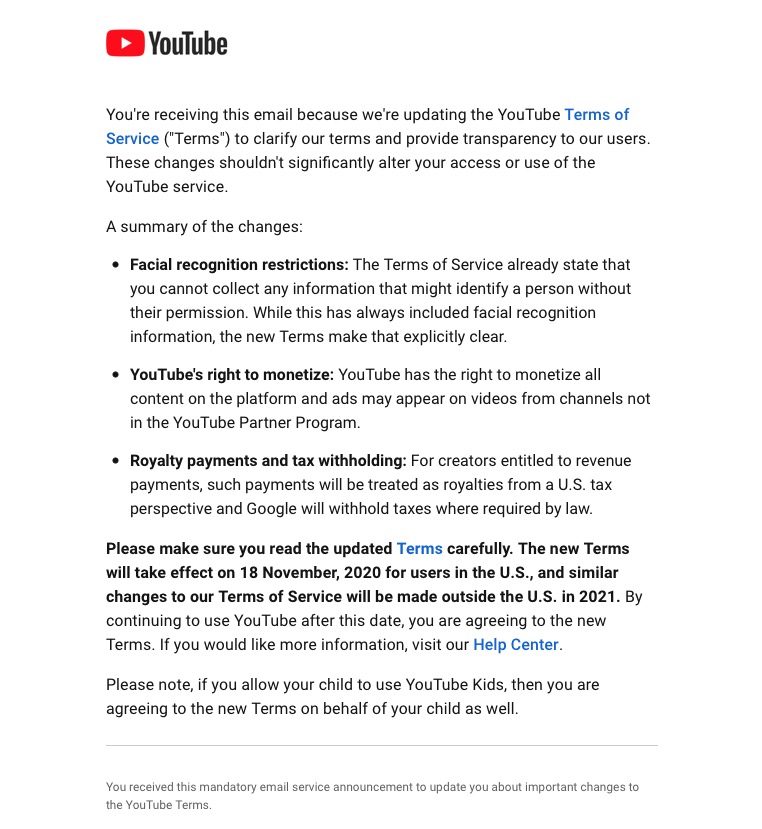
A clear explanation of changes to YouTube – not ones I like, but there’s no attempt to hide what they intend to do, and it provides a hint that they will apply to us later this year when Google leave Ireland for the US.

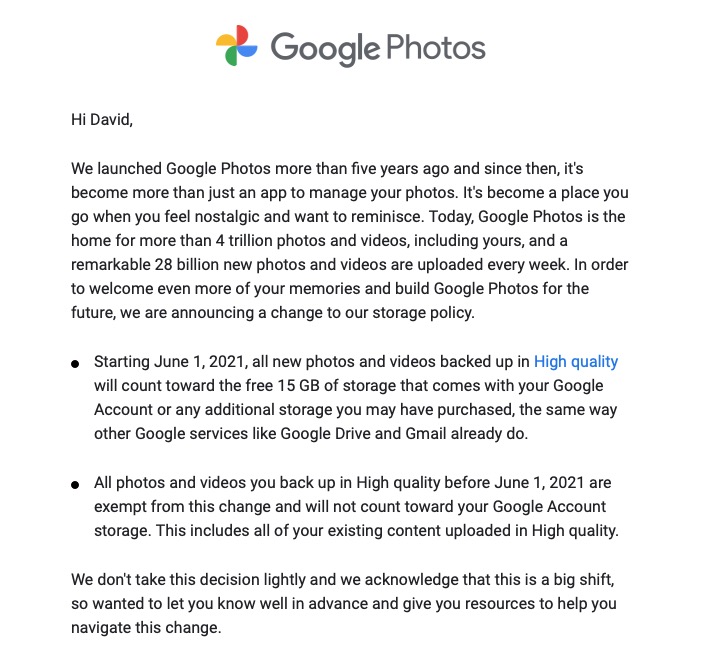
Changes to the Google Photos policy which is causing some distress, but is explained clearly and gives you a lot of time to work out how to use the service after June 1st 2021.

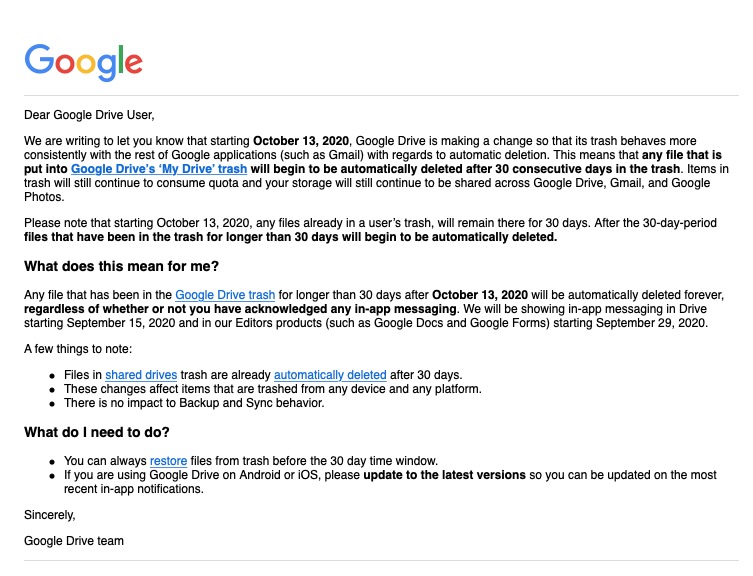
Early notice of the intended changes to Google Drive, and how files will be deleted.

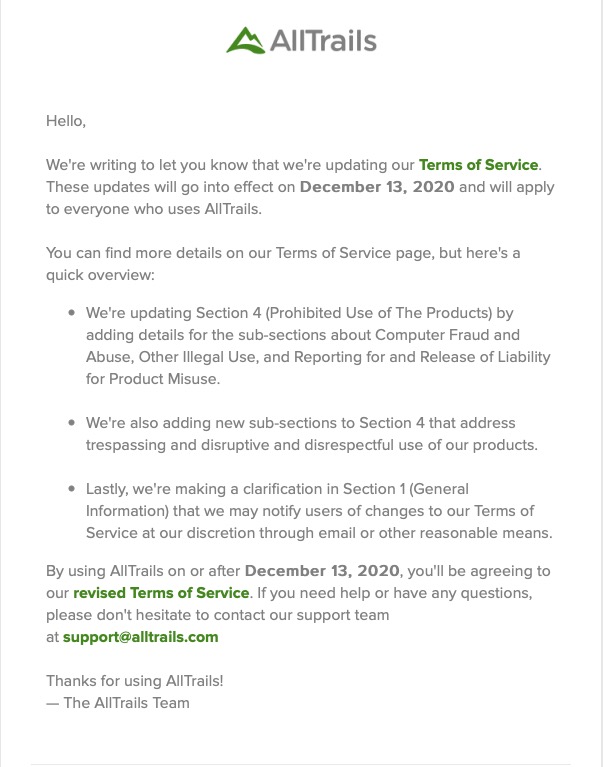
Finally, another company explains clearly how and why it’s changing it’s Terms and Conditions – not something WhatsApp did. Shame on them!

Moving to Signal [Updated – Jan 16th]

I hope you’ve managed to read the recent blog posts I’ve written earlier. One sets out my concerns about the Facebook ecosystem, the other on the changes to the WhatsApp Terms and Conditions of Service. I won’t go over the points I make in those posts. I do urge you to look at them however.

I’ve reflected on what might be the best way forward for me, and for us. I accept that for us in the short-term we could accept the new Ts&Cs and wait and see what transpires as we are still, apparently, in the European Region – but for how long! And once we’ve accepted those Ts&Cs what does it mean long-term, after our data is repatriated to the the US from Ireland.

But … we’ve been here before.

The demise of Google+ was a great shame and disappointment to me and I think the group as well. We’d just started to use it in some degree and when Google closed it down in April 2019, I started this private website, with the forums following last year, as the least worst immediately available alternative. We added the WhatsApp group for more instant communication in September 2019. However there is so much that WhatsApp doesn’t have, that we used to have in Google+ – threaded discussions, communities and close links to Google Photos to name but three.

This blog, with its Forums and Topics, addresses a lot of the shortcomings of WhatsApp but its’ main failing is its lack of notifications. I’ve tried to find ways round this limitation – using IFTTT, or installing the WordPress app to provide notifications – but neither of these are truly acceptable. So I cannot suggest we ditch WhatsApp and move to exclusively using this website.

I’ve reviewed the alternatives and have come to the conclusion that moving to using Signal would be the least painful transition if we were to make a move away from WhatsApp for instant messaging. The alternative in my opinion would have been an app called Telegram which has many virtues, but these are outweighed (again imho) by some of the people who have accounts on it – the Presidents of Brazil and Turkey to name but two!

The user interface of Signal is very similar to WhatsApp, so the learning curve should be relatively easy. The functionality is basically the same. The encryption method (end-to-end) is actually the same one that is used by WhatsApp – they adopted it because the code written by Signal’s developers is open-source – and indeed the founder of Signal was one of the founders of WhatsApp.

What makes Signal a really attractive proposition is that it is a publicly funded Foundation. As such, it cannot be taken over by another company, so this could be the last move we have to make. Furthermore, it is open-source which means that the software is supported by its users and its developers, in the same way as this platform (WordPress) is.

So I feel comfortable about making this move. I’m recommending to you that we move to use Signal instead of WhatsApp for instant messaging, but would encourage you also to look at the Forums and Topics on this site to use as a resource for problem-solving. The move is, and must be, a personal decision however.

I won’t abandon WhatsApp just yet, as some people I know won’t move immediately, so I’ll need to accept the Ts&Cs, but I will be on a clear path to move away and encourage others to move as well. To this end, I most certainly will not be “active” on WhatsApp, but just lurk in the same way as I use Facebook, Facebook Messenger and Instagram currently, and if this Group wants to continue using WhatsApp, it would seem sensible to seek someone to take over the administration of that WhatsApp group rather than me.

I will be setting up a U3A Computer Group on Signal later today that you are very welcome to join. I will post a link to the current WhatsApp members to enable them, or any other Group members, to join if they so wish, after they’ve first downloaded the app from this link and created an account – which is surprisingly easy. Once you’ve done that and allowed access to your Contacts – which will pick up others in your Contacts who are Signal users – you’ll probably see me. Please feel free to drop me a message to ask any questions about using Signal, and I suggest you also look at this useful article that explains how Signal works. I will be writing another article on a public blog later today which follows on from the earlier articles mentioned at the top of this article but will go into more detail of my reasons for moving away from WhatsApp.

In the course of time, probably at the time that Facebook data is moved from Ireland to the US, I will almost certainly cancel my accounts connected to Facebook Inc. That will be a hard decision to take as I will lose connections to many long-term friends who I dip in occasionally to see what they’re up to, and I will miss the annual “Happy Birthday” messages from many of them. Still the time is approaching when I should make that move.

Update

Further to this post yesterday it appears WhatsApp have realised they have not communicated the reasons for their proposed changes well enough citing “misinformation”, I would say poor communication. So read this …

https://blog.whatsapp.com/giving-more-time-for-our-recent-update

… you all have more time to make your own personal decisions. I would still advise not AGREEing just yet, you may not be able to change your mind! I will reflect and report back later. Meanwhile Signal is struggling under the pressure of a huge influx of new users – teething problems one hopes.

The new WhatsApp Terms and Conditions of Use [Clarification – Jan 21st]

Let’s start with this passage from the article in The Register referred to below where the founder of WhatsApp talks about his reasons for creating WhatsApp …

“When WhatsApp was acquired by Facebook in 2014, it promised netizens that its instant-messaging app would not collect names, addresses, internet searches, or location data. CEO Jan Koum wrote in a blog post: Above all else, I want to make sure you understand how deeply I value the principle of private communication. For me, this is very personal. I was born in Ukraine, and grew up in the USSR during the 1980s

One of my strongest memories from that time is a phrase I’d frequently hear when my mother was talking on the phone: ‘This is not a phone conversation; I’ll tell you in person.’ The fact that we couldn’t speak freely without the fear that our communications would be monitored by KGB is in part why we moved to the United States when I was a teenager.

Two years later, however, that vow was eroded by, well, capitalism, and WhatsApp revealed it would be “coordinating more with Facebook,” and gave people the opportunity to opt out of any data sharing. This time around, there is no opt-out for the sharing of data with Facebook and its tentacles. Koum left in 2018.”

So this all started 4 years ago, when WhatsApp announced a change to their Terms and Conditions (Ts&Cs) – the first change in many years, and the first since being taken over by Facebook. It was possible to opt out of this change which was announced as only to “improve the experience of Facebook users” (that’s kind of them – do I believe that?).

I don’t know whether I chose to opt out, I suspect I did, but I have no way of knowing!!! Whatever … I only had 30-days to opt out then, and I can’t go back and opt-out now.

I was alerted to the current impending change on February 8th, which is a take it, or leave it choice by this article in a well respected techie (UK-based) blog – The Register. It’s subsequently been updated, and may be updated again I suspect as more information is squeezed out of Facebook.

You may remember in a Group meeting before Christmas I referred to the repatriation of UK-data to the US as a consequence of Brexit. So far Facebook and Google (and there could be more) have announced their attention to do just that, and others will undoubtedly follow. Free from Europe, our government has said we will follow GDPR (it had very little option), but the US tech companies see the wisdom of not having a European base for their (our) data and are hopeful of less stringent Federal privacy restrictions under a new Democratic Party controlled Senate committed to introducing legislation.

Once out of the European protection, we in Britain could in the course of time, and after the repatriation of Facebook data to California (read the article above), be deemed not to be part of the European area and so the protection offered by WhatsApp/Facebook suggested in this article in “The i“, would cease to apply. So the short-term acceptance of these Ts&Cs thinking they don’t apply to us, might be scuppered should the data-hosting move to the US. [I think it’s clear to me that those in the EU will continue to be offered an opt-out – the market is too large for them to enforce a retrospective acceptance, but we in the UK …. !!!]

[Clarification] I should have made it clear that it is not the data that’s being repatriated as this could be held on many servers all around the world, but it is the legal ownership of our accounts that is being repatriated. The US Tech Corps have been “troubled” by the number of Anti-Trust, and Anti-Competitive legal cases that have been brought against them in the EU just recently. Being found guilty can subject those companies to very high levels of fines. In addition the tax haven which was Ireland has been challenged which provides another impetus to move their (that is Facebook and Google) offices back to the US. So far Twitter and Apple have stood alone as companies that have decided to stay in Ireland, whilst Amazon is based in Luxembourg. So it’s not just Privacy that is a driver to repatriate our accounts.]

No certainties, just doubts and that’s where mistrust comes in.

As of today, I’m at a loss to know what to advise. I’m hopeful of further clarification in the days to come, but I’ll leave acceptance of the new Ts&Cs to the last few days before February 8th.

[NB. I’m posting both these articles on the Public Thought grazing site as well.]

Please Comment below, or in the Topic on the Privacy and the Internet Forum.

Why do I dislike Facebook (Fb)? [Addendum – Jan 21st]

I was challenged with this question last Thursday when I told my family about the intended changes to the WhatsApp Terms and Conditions of Use. I didn’t reply to my IT-savvy son until this morning when I was first asked to agree to these new Ts&Cs. This is what I wrote …

“It starts with trust, and then you work away from that. It’s what a company does with information and whether you can then trust them to handle it properly. Google+ was a closed system that you opened up; Fb is an open system that even though it has Privacy Controls – which you need a degree to work out how to set them – essentially allows them to do anything with what appears on their platform.

You take a photo – you don’t retain copyright, you assign that right to them when you publish to the platform. You have to struggle to find a way to opt out of adverts (understandably – that’s how they make their money) – you are conned into thinking that in allowing them, you will get a better experience.

For whom? For you – no, they’re just an annoyance to me, but for others they just drive people to buy stuff they might not want/need. For them – yes, that’s how they drive income and more.

So it’s the more that’s more interesting and insidious because what they do with that information leads to targeting people with posts, hence my reference to Brexit and Trump. [I had said in my brief first reply – Cambridge Analytica, Brext and Trump.] The algorithms behind the scenes work the data and susceptible people get targeted with posts as well, not just adverts. I could go on, but as I said – it’s all about Trust, and Fb as a company is one that I just don’t trust. [Addendum: Fb would say that it’s not them that uses the data; but we now have plentiful evidence that Fb Service Users have found ways of manipulating the data they have access to as Fb Business Users.]

Getting data from WhatsApp was something they committed at take-over they wouldn’t do. Now they are starting to do just that. Next step targeted adverts on a platform which is advert free; then “posts from others you might be interested in” – not the encrypted ones, but ones from Public Figures. Then “oh! dear” we have to drop encryption because of new privacy laws in the US. [Aside: is it a coincidence that Google, Twitter and Fb appear to be more privacy focussed since the Republicans lost control of the Senate and they just might want to be on the right side of the argument that’s going to come in the US in the next four years ].

So I always logout of Fb to stop them tracking me; I suspect that WhatsApp will have a mechanism that prevents a user from being disconnected so Fb with these new Ts&Cs will be tracking as well as getting the other personal info from users. [However, see the addendum below which has caused me to change my views on that.]

Please feel free to comment either on the post, or in the Topic I’ve created to discuss the subject in the Privacy and the Internet Forum.

Addendum: After posting this article, a former colleague provided a link to a page on Facebook’s website. That article is included in the many posts to Flipboard I’ve added in the past three weeks. However, it’s worth looking at, particularly as it affects the advice I’ve given many times to Logout of your Fb account. It would appear that Fb’s reach is wider than I thought, and so I can only now recommend that you logout. Some salient passages from the article …

When does Facebook get data about people from other websites and apps?
Many websites and apps use Facebook services to make their content and ads more engaging and relevant. These services include:

Social plugins, such as our Like and Share buttons, which make other sites more social and help you share content on Facebook;

Facebook Loginwhich lets you use your Facebook account to log into another website or app;

Facebook Analytics, which helps websites and apps better understand how people use their services; and

Facebook ads and measurement toolswhich enable websites and apps to show ads from Facebook advertisers, to run their own ads on Facebook or elsewhere, and to understand the effectiveness of their ads.

When you visit a site or app that uses our services, we receive information even if you’re logged out or don’t have a Facebook account. This is because other apps and sites don’t know who is using Facebook.

I’ve added the emboldening to the last paragraph. So it means that if you do any of the above things on a site that uses Fb Services (ie pays to advertise on the Fb platform) personal information will be transferred to Fb.

Finally, if you’re just a bit more curious about Facebook’s Data Policy, take a read of this and be just a little gobsmacked at what’s going on behind the scenes and just consider it might be worthwhile reviewing your security settings. In particular look at the last section which explains how your information will be shared and especially look at the last part where they describe what they do with third-party partners (eg Cambridge Analytica ???).

Facebook have attempted to respond to the uproar about privacy with the announcement, and release of a Clear History Tool – and you should take a look at this page which explains What off-Facebook Activity means and describes how Fb’s third-party partners and business service providers may be interacting with Fb, and you.

Now you might realise why I dislike Facebook – they’ve lost my trust, and it’s just too much effort to make sure I’ve closed all the doors to protecting the personal information they hold on me.

How do I know that a Password manager is not just a phishing site?

Well … first you need to only download the software from the official links of the provider, eg LastPass, Dashlane or 1Password, or from the app store of your mobile device.

Then be assured that the passwords (if you use these downloads) are not stored on a central server anywhere. They are stored in encrypted form on your device. When you open a different device the password is transferred from one “vault” to another in encrypted form. The service provider just provides the encryption algorithm which it can’t have access to itself. So rest assured as long as you use the “official” downloads they’re very safe.

How safe are iPads and other tablets without additional software protection?

A good question! I certainly can state that mobile banking is safer from a mobile device than from an internet browser because the latter can be compromised because it’s more open to the internet and issues that you install anti-malware software to protect you.

I would judge that the fact that as all software downloaded onto these devices go through a “shop” maintained and supported by the hardware vendor that they have done checks on the software and the supplier before releasing it through the shop. That’s a very powerful first step and is why I’m a strong supporter of these “shops” and would be distressed if some alternative means of downloading software onto a mobile device was allowed.

However, nothing protects you against yourself and that’s where the hints and tips in the third part of my “Protect yourself online” talk come into play.

So you want a new laptop? [from Which?]

How to buy the best laptop

Five crucial questions you need to ask to find the perfect laptop.

With hundreds of models to choose from, you’ll want to a laptop that ticks the boxes and will last the test of time. One of the biggest decisions will be how much you want to spend – what many don’t realise is that if you’re after a good all-rounder for day-to-day tasks, it doesn’t have to be a lot.

We award Best Buys to our top-performing laptops, and our cheapest Best Buys costs less than £500. Plus if you’re willing to compromise you can find good models for as little as £150.

Top five questions to ask before buying a laptop

Before you start shopping for a laptop, it will help to know the answers to the following five key questions.

1. How much should I spend on a laptop?

  • Less than £200 – Intel Celeron or Atom processors, 2GB of Ram and 32GB of storage. Won’t be particularly fast, but fine for note taking and browsing the internet.
  • Less than £400 – Intel Pentium, Core i3, AMD Ryzen 3 and 4GB Ram. Fast enough for web browsing and research work. Aim for a Full HD screen and an SSD if you can.
  • Less than £600 – Intel Core i5, i7, AMD Ryzen 5, 7 and 8GB of Ram. Should be ideal for photo editing and some light video work. Look for a thin and light design, a Full HD screen and an SSD.
  • Less than £800 – As above, but in increasingly high-end designs. Look for great battery life on premium ultrabooks.
  • More than £800 – Some stunning designs, great screens and good speakers. High-end laptops will suit more intensive tasks, such as video editing or playing games. You can buy Apple MacBooks from £950 and above.

2. Operating system – what type of laptop do I need?

There are three major players when it comes to the software (operating system) your computer runs on. Windows, MacOS, and ChromeOS.

Buy a Windows 10 laptop if…

  • You prefer the familiarity of Windows
  • Have specialist software you can’t live without
  • Want a big variety of laptops to choose from

Buy a MacBook if…

  • You have a budget of at least £950
  • Value longevity and build quality
  • Use other Apple products, or are happy to learn a new operating system

Buy a Chromebook if…

  • You’re on a budget
  • Value simplicity
  • Don’t mind working in web-based applications

3. How powerful does my laptop need to be?

In short: If you need a laptop for light use and note taking, look for Intel Pentium or Intel Core i3 and at least 4GB of Ram for a great experience. Go for Intel Core i5 and i7 and AMD Ryzen 5 and 7 and at least 8GB of Ram if you’re a heavy user. Look for dedicated graphics from Nvidia and AMD if you want to game.

Processing power really matters if you’re planning on using a laptop for photo or video editing, or are otherwise a very heavy user, opening lots of programs and browser tabs.

When looking at laptop processors, you’ll see two main specifications beyond the product name: clock speed (measured in Gigahertz or GHz and number of cores) and Ram. Think of clock speed as the speed limit on a road and the number of cores as the number of lanes. As on a road, depending on traffic conditions – the tasks being done on your computer – a road might see a greater benefit from more lanes or a higher speed limit.

In the simplest way possible, more of both is better, and all of our reviews describe what sort of tasks a laptop is good for.

Think of Ram (Random Access Memory) like a desk and your hard drive like a filing cabinet. You pull files out of the cabinet and it takes a while, but once they’re on your desk, you can reach for them instantly. The same is true of Ram; once you have loaded a file from the hard drive, it’s now in the Ram and can be accessed almost instantaneously.

The bigger the desk you have, the more items you can access more quickly, and the same goes for Ram. Most mid-range laptops come with at least 4GB of Ram, and we’d tend to recommend 8GB for people who are heavy web users or usually have lots of documents and pictures open.

You can manage with less, but you’ll have to rein in your use. If you fill up your Ram, some of the things you’re working on will be moved back to the hard drive, making things feel a lot slower.

Some cheap computers come with 2GB – this is usually fine on a cheap Chromebook, but some Windows 10 laptops will struggle.

When you close a program or file, it is removed from the Ram and makes room for other things to be accessed immediately. This is part of the reason why closing programs you aren’t using can make your computer faster.

4. Screen – what size and resolution of laptop display do I need? 

In short: Unless you have a very low budget, don’t settle for less than Full HD, no matter the size.

image072.jpg

A laptop’s screen is one case where bigger isn’t always better. If you want a longer-lasting battery and a more portable device, you may want to go for an 11, 12 or 13-inch display; most of these will weigh between 1kg and 1.5kg.

The largest you’re likely to see is 15 or 17 inches, with weight increasing to around 2kg to 3kg.

Most machines on the shelves now have a Full-HD 1,920×1,080-pixel resolution display, and high-end models can have even sharper screens with even more pixels up to and beyond 4K Ultra HD. Generally, the higher the resolution, the sharper the picture.

Only cheaper laptops should have a lower screen resolution of 1,366×768. This is fine for most people, but if you like to have lots of items on screen at once you’ll prefer a higher-resolution display.

5. How much laptop storage do I really need?

In short: Go for an SSD unless you really, really need more storage at all times. Storage capacity, measured in the size of the hard disk drive (HDD) in gigabytes (GB) or terabytes (TB, equal to 1,000GB), determines how many things your PC can hold.

Documents, photos, music, movies, programs – they all take up space. Bigger is usually better, although solid-state drives (SSDs) are often more expensive for considerably less space. This is because they load much quicker and are completely silent.

We’re also seeing a lot of cheaper laptops (including Chromebooks) carrying eMMC (embedded Multi-Media Controller) flash storage, which is slower than SSDs and gives you very little storage space.

If you cleared out all the stuff on your computer you don’t actually need, how much space do you think you’d have? How much do you have now? Check ‘My Computer’ if you’re using Windows to gauge how big your next laptop’s storage needs to be.

Laptop battery life: manufacturer claims vs reality

In short: Manufacturer battery claims aren’t useful unless you’re only comparing models from the same brand. Use our reviews to get the full picture. Manufacturers often make heady claims about how long their laptops’ batteries last. Our tests ignore the manufacturer claims and involve multiple battery rundowns while simulating web browsing and watching videos.

If you’re buying a portable laptop that you intend to use when travelling or on your commute, make sure the battery life is at least six hours based on our reviews. We’ve tested some models that last for more than 10 hours before they need recharging.

But we’ve also found companies claiming 10 hours of battery life on average, while our own tests found 6.3 hours was closer to the mark.

Battery stamina on large, desktop-replacement models won’t be as crucial, as they’ll almost always be near a power socket, but we still mark them down if they run out of juice in under four hours.

Screenshots on Windows and Macs

It’s often useful to be able to send an image of your screen, or part of your screen to someone. In fact I use this facility all the time when creating these blog posts.

On the Mac, it’s very easy …

Press Cmd-Alt-3 to capture a complete screen

Press Cmd-Alt-4 to draw a window that you want captured

To be guided through the options you can

Press Cmd-Alt-5 and from the Options screen decider where you want to save your Screen shots [I save them to a Dropbox folder so they’re available between my two machines], and also choose the option for the type of screen capture you want, or even to Record a series of actions.

On the iPad/iPhone, it’s straightforward too. You can capture a screen by Pressing the Power Button and the Home Button together [It works best if you press the former just before you press the latter].

To take a screen shot in Windows, I suggest you follow the advice in this post. Or alternatively watch this video …

Jim has sent me this note as well …

It might be helpful for your notes if I run through my Windows 10 sequence. The relevant key on my laptop is labelled SYSRQ/PRTSC, so I have to press the ALT key at the same time to print the screen. This puts the image onto the clipboard, so I then have to save it somewhere. I usually go to Paint Shop Pro and paste it as a new image. One thing I am investigating is what happens if you have two pages at once on the screen. At the moment I can only print one of the pages, depending on which I click on.

URL Shorteners

I’ve annoyed a few people over the years (well – one person at least) by pasting overlong URL’s in blogposts, and on WhatsApp. Ever since Google stopped supporting it’s own URL shortener I’d forgotten to go and look for an alternative to setup as an extension in my browsers (Safari, Chrome, Brave and Firefox) and more importantly to have as an app on my smartphone.

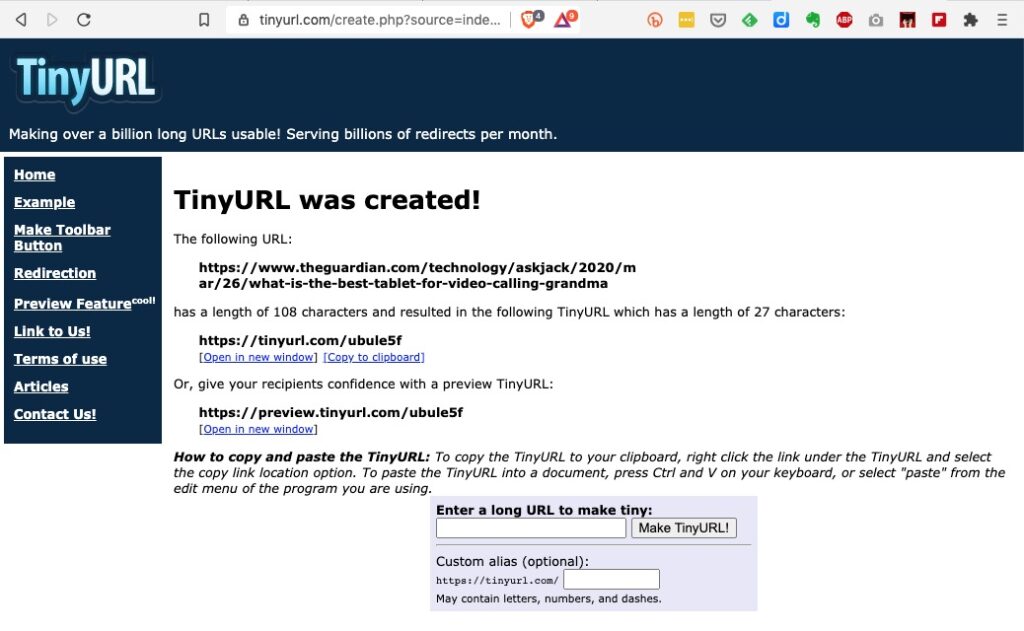
I’d used tiny.url for many years, but that generally meant you had to copy and paste the URL to a page you’d left open on the tiny.url page …

… and then once shortened you could copy the shortened URL to the email, WhatsApp, etc message.

But it would be much nicer if there was an extension which you could just click on from the page in question, and you’d get a shortened URL. That’s where bit.ly come in. It’s available both as an extension for Chrome, Brave and Firefox and as an app for iOS and Android.

To install bit.ly as an extension on Brave, go to Brave > Window > Extensions …

… click on Web Store …

… and type bitly, or bit.ly in the Search Box. Click on the bit.ly box and agree that you want to install it in Brave (or Chrome) …

… agree that you want to add the extension and then you will see it’s been added to your browser extensions …

It’s as straightforward as that. Now any time you want to shorten a URL, all you need to do is click on the bitly icon and (after creating a bit.ly account), the following dialogue box will come up …

… and you can then Copy the shortened URL that’s been created, wherever you want to.