Well I never – Gmail Archive

I’ve been “playing around” with my email accounts. I’ve decided to use my Apple iCloud account more as it makes a lot of sense as I organise emails by moving messages from Inbox/Sent mail into Mailbox folders setup on my iCloud – shared between my Apple devices.

It’s not difficult to forward messages from my Gmail account, just go into Gmail on a desktop/laptop (you can’t do this from the Gmail app on your mobile device) select Settings (the Gear wheel) and then Select All Settings, and then Forwarding and POP/IMAP …

… you can then set up a rule such as the one above.

You have a number of options of what you can do with the copy in your Gmail Inbox – as you won’t now be reading it from that spot – and I’ve chosen to Archive the copy …

But where is the archive?

The answer is that you have to scroll down to More on the left-hand side of the screen and select All Mail – and that’s where all the mail you’ve ever received resides.

Simples!

In Case of Emergency (ICE)

I promised to find and bring back to prominence a post I’d written a couple of years back. It was this one …

ICE – that’s In Case of Emergency

… Ann mentioned an app that the Emergency Services like you to have installed on their phones which is called what3words as it enables them to pinpoint quite accurately where you’re contacting them from. You might like to consider installing it on your phone as well as following the advice contained in the link at the bottom of the post I wrote …

How to add Emergency info to your Phone’s Lock Screen

The Virgin media link I showed at the meeting (and which is also on Flipboard) is here.

WhatsApp, my position

I thought I ought to write a very brief post to outline my position on WhatsApp now that the deadline for accepting their Terms and Conditiond os Use (Ts & Cs) is fast approaching. You almost certainly, if you hadn’t accepted them earlier, will have begun to receive reminders to accept them or have your rights to use the app withdrawn. They are quite within their rights to enforce acceptance, you/we have no rights in this matter. It is a free app which we have free access to use under the Ts & Cs that Facebook choose to offer the app to us for use.

As explained in an earlier post, my immediate worries and concerns have been mitigated for the moment – and I most certainly will not want to conduct transactions with businesses through WhatsApp – so I will decline that option, and I will accept the new Ts & Cs next time I open the app. For how long my acceptance will be relevant will depend upon Facebook. Should they procede to withdraw their data centre from Ireland, to remove legislative scrutiny from the EU – which we currently, and fortuitously, gain benefit from as part of Facebook’s “European Region” – then I almost certainly will cancel my membership of all Facebook services, including Messenger and Instagram as well. I just can’t trust Facebook Inc. That’s for another day, and for the moment I will just try and ensure my Facebook app privacy settings are to my liking!!

On-Line Reading.

From the presentation used on April 29th, 2019. Philip Edwards.

You can find a .pdf version of the presentation here.

Just a quick word of warning. I originally wrote this article on my old laptop. I wiped that machine without taking one last look to see whether there was anything of value stored on its drive. Lesson learned. That’s why I’m writing this out again.

You probably know this, but just in case you don’t, if you love reading, there is a wealth of reading material available on-line which can be read on a desk-top, lap-top, tablet or mobile phone. This is what you do.

Ebooks and Audiobooks from Cardiff Library.

This is not straightforward, but once you have the system up and running, everything works like a dream.

  1. You need a library membership card. Make a note of your membership number.
  2. You also need to ask the library to issue you with a PIN number.
  3. On your tablet or phone, download the Borrowbox app. This will be in the App Store for iPads and in the Google Play Store for Android devices.
  4. Open the app and login, providing your account number and PIN number. You’ll only have to do this once.
  5. You can then borrow eBooks and Audio Books for free. You can also reserve real books for collection. You can keep the borrowed eBook or Audio Book for up to three weeks. If you forget to return it, your tablet will do that automatically.

Magazines

This is a very similar procedure. You need the same account number and PIN number, but a different application.

It used to be that you needed the RB Digital app but it appears that things have changed. You now need an app called Libby (from April 30th.) RB Digital app goes offline on April 30th.

It is being replaced by a new app called Libby.

It is already available and very easy to use.

It also appears to be able to find ebooks as well as magazines:- a one-stop shop.

The home page is simply a joy:- far more inviting than either Borrowbox or RB Digital.What if you want to buy reading material?

Things you should know.

Kindle ebooks will play on Kindle devices, on any type of tablet or mobile phone.

You can also read Kindle content on a desktop or laptop by using the Kindle Reader application.

Is it possible to buy and read Kindle content without purchasing a device?

Things you should know.

As far as I know, Apple ebooks will only play on Apple devices.

Well, actually it might be possible but it doesn’t look easy.Another thing you should know.

Audio books are available for Kindle, P.C.s, laptops and non-Apple devices.

You have to buy a subscription for £7.99 per month but then have access to their whole library.

Another thing you should know. Apple audio books are available individually.

Just one more thing you should know. You usually have to pay for Kindle classic novels. Apple classic novels are free.

Google Photos

Barbara asked a question about Google Photos, and I’ve re-visited the articles that I wrote a couple of years back, updated them to be relevant (I hope) – but I can’t be certain all the screen shots are the same as the present Google Photos on the web – and present them here for you to look at; if you’re interested.

First an article on “Getting to grips with Google Photos“, which basically tells you how to get your photos into Google Photos so that you can edit them online using the editor that’s available in Google Photos on the web. It might also be useful to bear in mind the article I wrote today on “How to delete photos from Google Photos“to get an understanding of how Google Photos actually works.

Then an article on “Simple Image Manipulation“, which introduces you to the online Google Photos Editor.

Finally an article on “Sharing an image (or album) from Google Photos“.

I hope these are of use and of interest.

How do you delete photos from Google Photos?

Seems a pretty easy question to ask. Should be a relatively easy question to answer. Wrong! It’s a minefield of complication and you can quite easily find yourself deleting images from places you don’t want them to be deleted from. In this article I’m not going to even attempt to enter the minefield but after this easy one …

How do you delete photos from Google Photos on the web but not from the Camera Roll on your iOS (iPhone/iPad) device …

Google Photos will only delete photos from your Camera Roll if you grant it permission to do so.  If you delete from https://photos.google.com/ and then go to your phone app you will have an assistant card asking for permission to “Remove it from this device”  If you dismiss the card the photo will remain in the Camera Roll.

… I’m just going to refer you to these three articles …

First the generic article that covers all eventualities and takes into account the place of  Backup and Sync in the process for the Android world

How to delete Photos from Google Photos but Not from Phone

note the important piece of text in this article …

“While keeping a file on Google Photos and deleting it from a device is easy, it’s not simple to do so the other way round. When you delete a synced photo from the Google Photos app, it gets wiped from your phone and the cloud storage.”

… so take care and read what follows in that article.

For the iOS (iPhone/iPad) world

How to Delete photos from iPhone but Not from Google Photos

… so heaven help you if you’ve got both Android and iOS devices; the process is not the same for both!

Lastly, and to fully understand what’s going on, it’s important to perhaps try to understand how Google Photos actually works. You can do this by reading this article …

What happens when you Delete photos from Google Photos.

… if that hasn’t made you feel suicidal, can I just wish you the best of luck. Perhaps buying a new phone, or taking out a Google One subscription is the only answer.

Could that be the reason why it’s so complicated to delete a Photo from Google Photos?

====

You might also find these articles from Google useful. Firstly an introduction to Backup and Sync and how it works with photos and videos (hint, it doesn’t actually do any sync’ing) …

Back up photos and videos

… then, a guide to help you work out what size of image/video you might want to backup and sync (or upload) to Google Photos on the web …

Choose the upload size of your photos and videos

… you perhaps need to refer to this post to see why this might be important.


Changes to Google Storage

If you’ve got a Google account – you use Google Photos, Google Drive (and the Google Docs suite) or Gmail – you’ll probably have received an email telling you about the changes that Google are making to the way it calculates how much of the 15Gb of storage the company allocates to you has been used. They have also spelled out clearly when they will delete content that has been inactive for more than two years.

This post relies heavily (almost verbatim) on information already available on Google’s Help Pages – which should always be taken as the main source for information.

Currently each Google Account includes 15 GB of free storage quota, which is shared across Gmail, Google Drive, and Google Photos. You can add to your storage quota by purchasing a Google One membership (where available). To learn more about your quota, see what items count towards your storage.

Prior to June 1, 2001

The following items count against your storage quota

  • Original quality photos and videos backed up to Google Photos
  • Gmail messages and attachments, including your Spam and Trash folders
  • Most files in Google Drive, including PDFs, images, and videos

If you go over your storage quota

  • You can no longer upload new files or images to Google Drive
  • You can’t back up Original quality photos and videos to Google Photos
  • Your ability to send and receive email in Gmail may be impacted
  • You can still sign into and access your Google Account

After June 1, 2001

The following additional items will count against your storage quota:

  • High quality and Express quality photos and videos backed up to Google Photos after June 1, 2021. Learn more about this change.
  • Files created or edited in collaborative content creation apps like Google Docs, Sheets, Slides, Drawings, Forms and Jamboard.
    • Only files created or edited after June 1, 2021 will count against your quota.
    • Files uploaded or last edited before June 1, 2021 will not count against your quota.

And this is how your usage impacts your data

If you do not use Gmail, Google Drive (including Google Docs, Sheets, Slides, Drawings, Forms or Jamboard) or Google Photos for 2 years, your content within the inactive product(s) may be deleted (after reasonable advance notice).

If you go over your storage quota

  • You can’t upload new files or images to Google Drive.
  • You can’t back up any photos and videos to Google Photos.
  • Your ability to send and receive email in Gmail can also be impacted.
  • You can’t create new files in collaborative content creation apps like Google Docs, Sheets, Slides, Drawings, Forms and Jamboard. And until you reduce your storage usage, neither you nor anyone else can edit or copy your affected files.
  • You can still sign into and access your Google Account.

When you have been over your storage quota for 2 years, your content in Gmail, Google Drive (including Google Docs, Sheets, Slides, Drawings, Forms and Jamboard files) and Google Photos may be deleted.

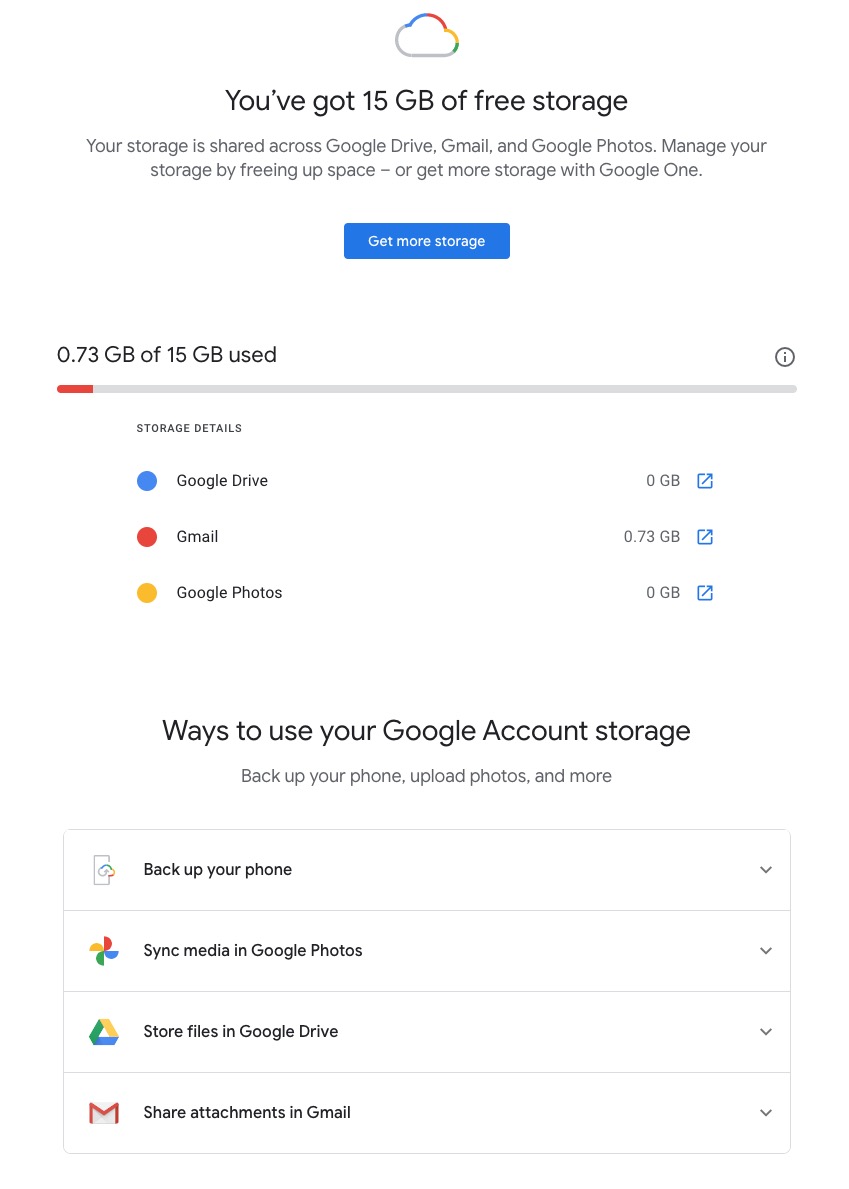
So it’s time to do a stock take of what Google Storage you’re using. You’ll see something like this if you’ve got an active Google account …

Seeing how you may be using your Google Storage, with June 1st approaching might seem pretty frightening to you, so you might need some help to know what you should do, and whether purchasing a Google One plan might be right for you …

What happens when you’re over quota

When you’re over quota, it means you’re using more storage space than you have available. If you’ve been over quota for 2 years or longer, and you have not freed up or purchased more space to get back under quota, all of your content may be removed from Gmail, Drive and Photos. But before that happens, we will:

  • Give you notice using email and notifications within the Google products. We will contact you at least three months before content is eligible for deletion.
  • Give you the opportunity to avoid deletion (by paying for additional storage or removing files)
  • Give you the opportunity to download your content from our services. Learn more about how to download your Google data.

How to go back under quota

We provide access to storage management tools that help you identify ways to free up storage space at https://one.google.com/storage. Another option to free up space is to download your files to your personal device and then delete them from your cloud storage.

However …

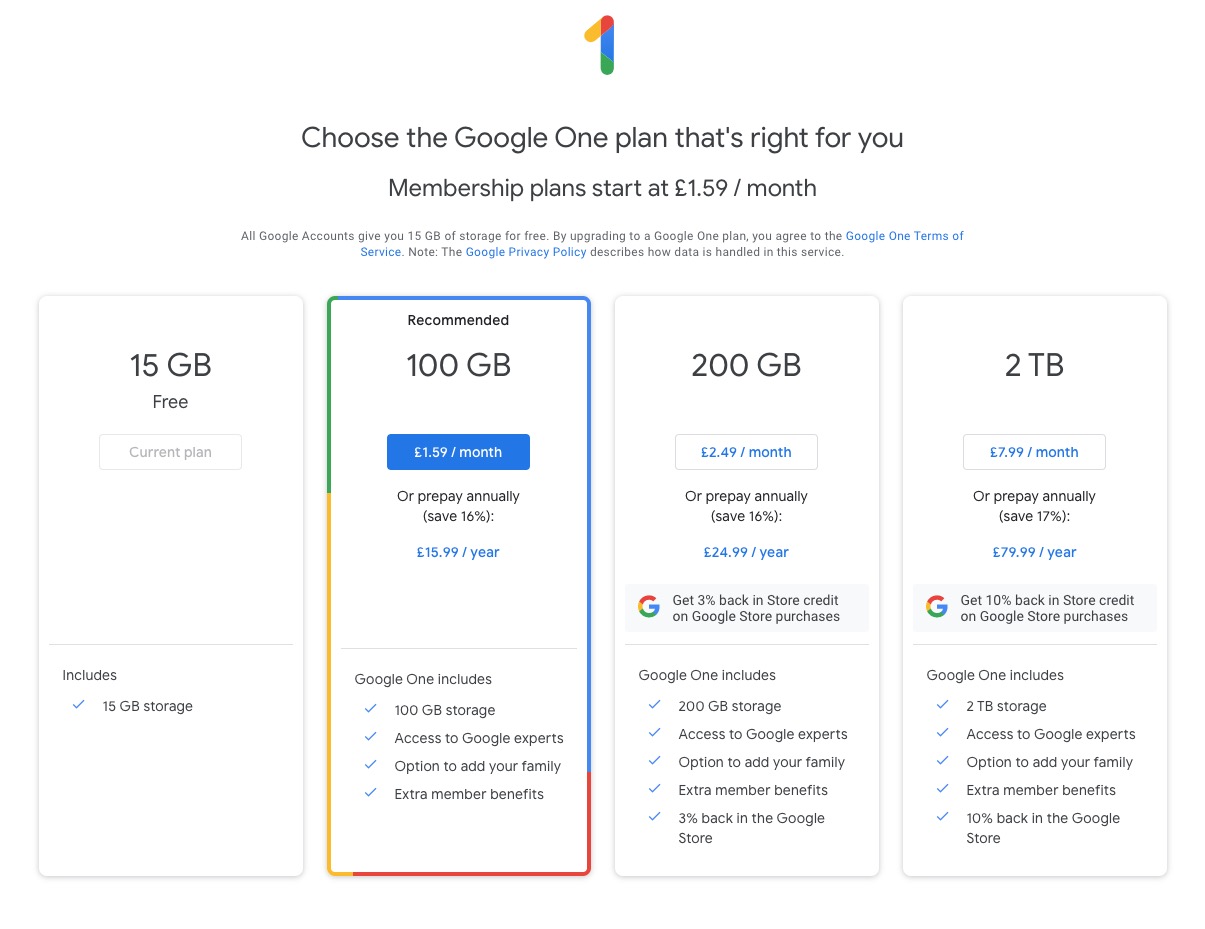
If you want more storage space for Gmail, Drive, and Photos, you can upgrade to a larger storage plan with Google One.  You can click on the link “Get more storage” from the page that you should have arrived at above, and you’ll be offered the opportunity of purchasing a Google One Storage Plan …

But what happens when you’re inactive?

When you have been inactive in Gmail, Google Drive (including Google Docs, Sheets, Slides, Drawings, Forms, Jamboard or Sites files) or Google Photos for 2 years, all of your content may be removed from that product. But before that happens, we will:

  • Give you notice using email and notifications within the Google products. We will contact you at least three months before content is eligible for deletion.
  • Give you the opportunity to avoid deletion (by becoming active in the product)
  • Give you the opportunity to download your content from our services. Learn more about how to download your Google data.

If you’re a Google One member with no outstanding payment or quota issues, you are considered active.

Important: As an example, if you’re inactive for 2 years in Photos, but still active in Drive and Gmail, only your Google Photos content will be deleted. Content in Gmail and Google Drive (including Google Docs, Sheets, Slides, Drawings, Forms and Jamboard files) will not be deleted if you are active in those products.

How to stay active in these products

The simplest way to keep your data active is to periodically visit Gmail, Google Photos, and Google Drive (and/or collaborative content creation apps like Google Docs, Sheets, Slides, Drawings, Forms, Jamboard and Sites) on the web or through a Google app. Make sure you’re signed in and connected to the internet.

Please note that you may have multiple accounts set up on your device. Activity is considered by account, not by device. Make sure you’re using the services for all accounts on which you wish to remain active.

The article from Google concludes with some FAQ which you might like to refer to, including one answer on how to preserve content from a loved one if they pass away and the use of their Inactive Account Manager.

In another article, I will attempt to answer the vexed question of how to delete photos from Google Photos in your storage plan, your computer and your device the way that you want them to be deleted, ie not deleting them all, just deleting them from the place you want them deleted!!!!

Lastly, here’s a link to how to delete files (and reduce the count against your quota) from Google Drive.

Home networks – some notes

I’ve written and talked about this subject on a number of occasions. I’ll bring these together in one place, before delving into the specifics of router configuration which prompted the subject for the meeting on Feb 4th, 2021.

For many of us home networking means WiFi, and the first article I wrote was on the subject of “Flaky WiFi” on October 11th, 2016. Members of the group had commented on their WiFi connection appearing to drop and in this article I tried to explain how all the bits and pieces hung together and how you could test your network to see it was working the way your Internet Service Provider (ISP) was proclaiming it should be!

Then, later on (January 26th, 2017), we discussed “Broadband speeds, WiFi routers (their type and security), and extenders or boosters” and as the title suggests we focussed on networking in the house and how it is provided by Internet Service Providers, such as VirginMedia, BT, Sky or TalkTalk.

I described “How the Internet works” in this post on June 29th, 2017, with links to a few videos and policy documents which hopefully explain the topic better than I could. Not much has changed since then; IPv6 is still to appear in the domestic market, so we still use IPv4 for internet addressing.

Finally, on July 27th, 2020, I wrote about “Improving home network performance” which is really what I’m going to revisit in this post.

So … what do you need to take a look at?

On your router:

If you’re using an integrated modem/router – often called a hub, typing in the IP address 192.168.1.1 will bring up a screen something similar to this …

… mine is different because I’ve disabled the router functionality so that I can use my own router – a Netgear Orbi Mesh Network – so to just access the modem part of MY hub I use the IP address 192.168.100.1. You can see from the above that only the Modem is active.

So for most users with an integrated modem/router, the first thing you need to be able to do is to access your Router’s Admin Dashboard. This article explains how to do it using the cmd prompt in Windows, but it is probable that your hub/router has an application you can start to do this, or that you can access it from a browser window. For most you would just enter the IP address 192.168.1.1 and supply the UserID admin and the password that I’ve created – the default is quite commonly ‘password’, so you ought to change that!!!

The above screen is for my mesh network, but non-mesh would be similar. Clicking on Internet will give you the ability to change some of the settings for your connection.

Of these the most useful to change is the Domain Name Server (DNS) – these are the servers that translate a URL (eg thoughtgrazing.org) into an IP address. I’ve chosen to replace the default DNS supplied for my VirginMedia (ie 194.168.4.100) Hub (I’ve disabled the router functionality on the SuperHub so that it only acts as a modem) for two servers run by Google (1.1.1.1 and 8.8.4.4). The reason I’ve done this is that these servers are replicated around the internet and will almost certainly be closer to my router than VirginMedia which I think the closest one is in Bristol.

All the other settings can probably be left as they are. The next option is where you configure the name of your network and the channels you’re going to use.

If you don’t like the name supplied to your network by your ISP, you can change the SSID. I did to make it a little more meaningful. You should then consider changing the 2.4Ghz Channel. If you can set the channel to Auto – you should do so because generally the router will then find the best channel for your network. If that’s not possible and you have found your WiFi to be “flaky” due to you and your neighbour using the same Channel(s), try setting the channel manually to one that’s not being used. The article I mentioned before describes how you can find the best Channels for a Mac, and this one identifies a Windows Tool that does the same thing – there’s a Download link at the bottom of that documentation. Here’s an article that describes all the possibilities.

Generally 2.4GHz has a wider range of signal but lesser bandwidth (throughput), and 5Ghz the opposite – shorter distance, but higher bandwidth. On my system my 2.4GHz channel gives me 400Mbps and the 5Ghz channel 866.7Mbps.

You’ll want to look at your Security Options and make sure that you choose the best for the devices that you’re going to connect to your router. Generally, for a home network, WPA2-PSK [AES] should be sufficient.

This article from the Apple website provides a very thorough and detailed examination of what settings you should deploy for your router, and why. Worth a read, even if you’re not an Apple Fanboy!

On your device …

Make sure the security settings match that you’ve just set on your router; remember the SSID and Password you’ve created, and re-connect to your network.

And that’s about it … I hope. Questions??

The right way to change Ts&Cs – Google learnt it’s lesson

It’s not long ago that Google was described as “the evil empire” because of its perceived intent on hoovering up all the data it could about us in the endeavour to “provide the best search experience for its users”. Baloney of course – they just wanted to drive the monetisation of their platform as far as they thought they could get away with, and by now you shouldn’t pay too much attention to the search results that appear at the top of a Google search – they’ve almost always been “paid-for”.

However, out of bad publicity they learned a lesson. When changing terms and conditions of use, or service, its best to explain clearly, and in advance, what they want, and expect, to do, and invite comment. That was most certainly missing from Facebook’s recent debacle with WhatsApp. So to show how it perhaps should be done, I’me including some recent screen shots from Google over the past few months …

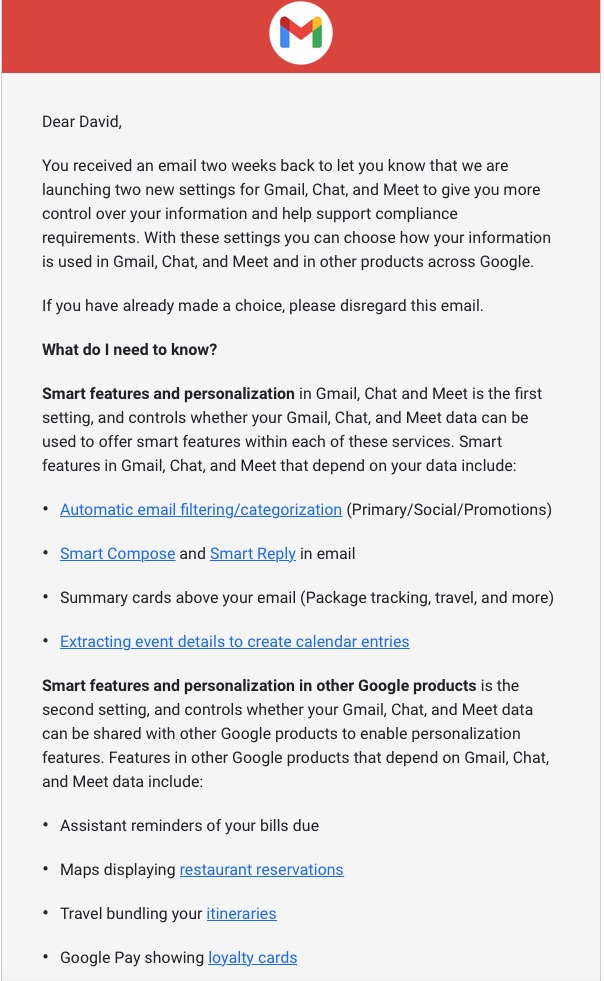
A very recent change to Google services that is being proposed and communicated to users in an email. This was the first email sent …

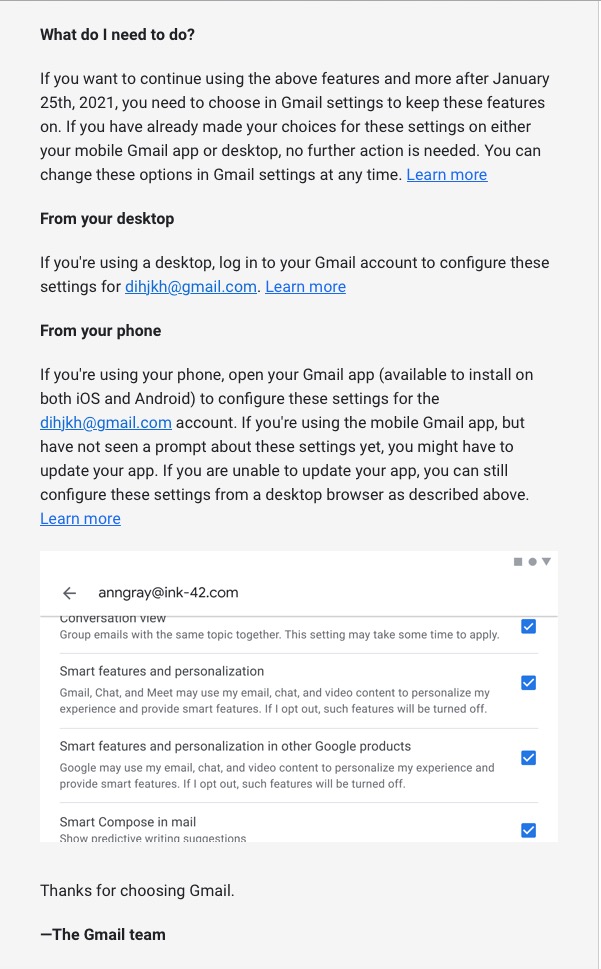
… which was followed up with this one, which prompted me to do something about it!!!

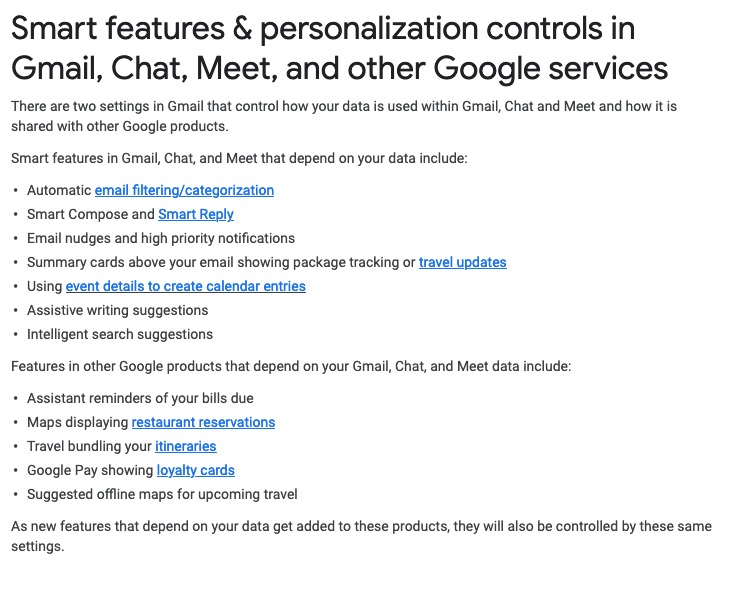
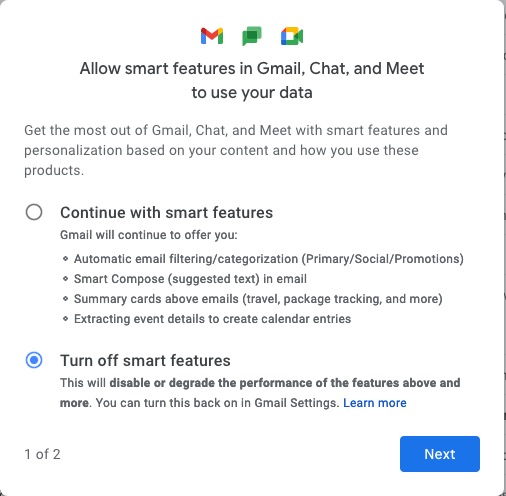
Once into the application, you receive a screen like this one …

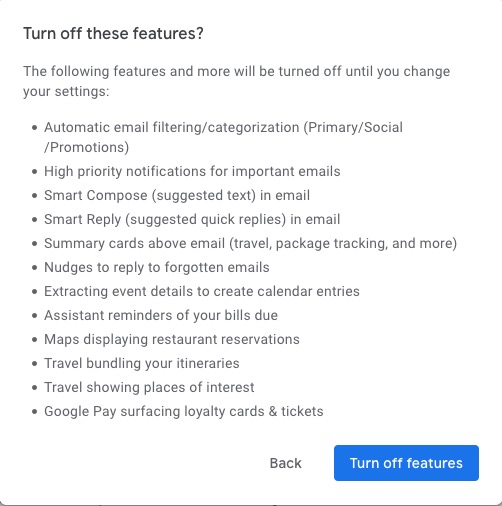
I’ve now switched off these personalisations, but what I was doing was very clearly explained.

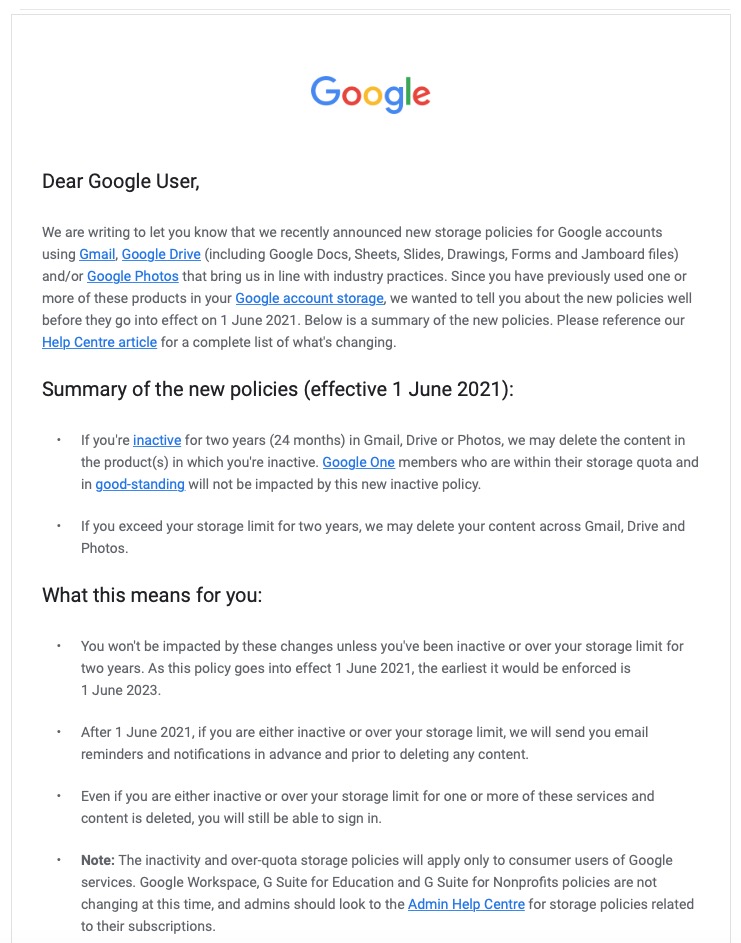
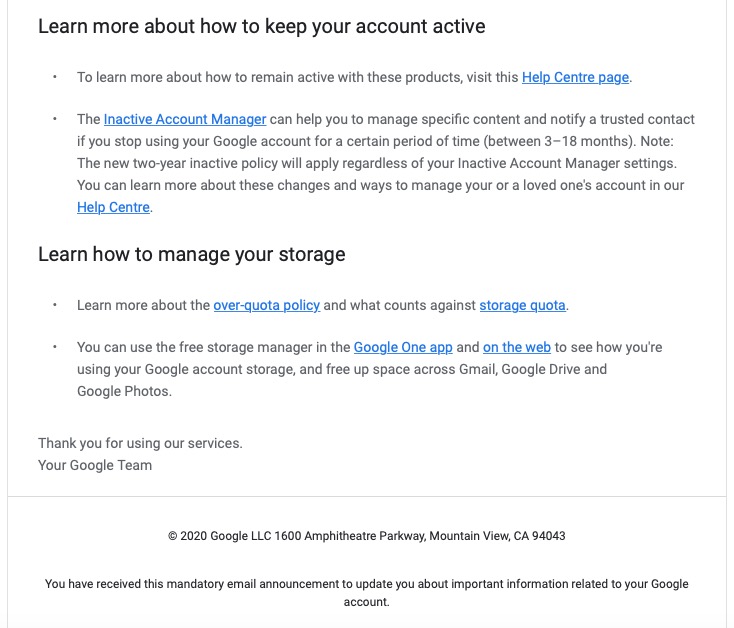
Then there is this advance warning of changes to the storage policy that covers your Drive and Photos accounts. [I must do something about this as I have a number of Google accounts knocking about.]

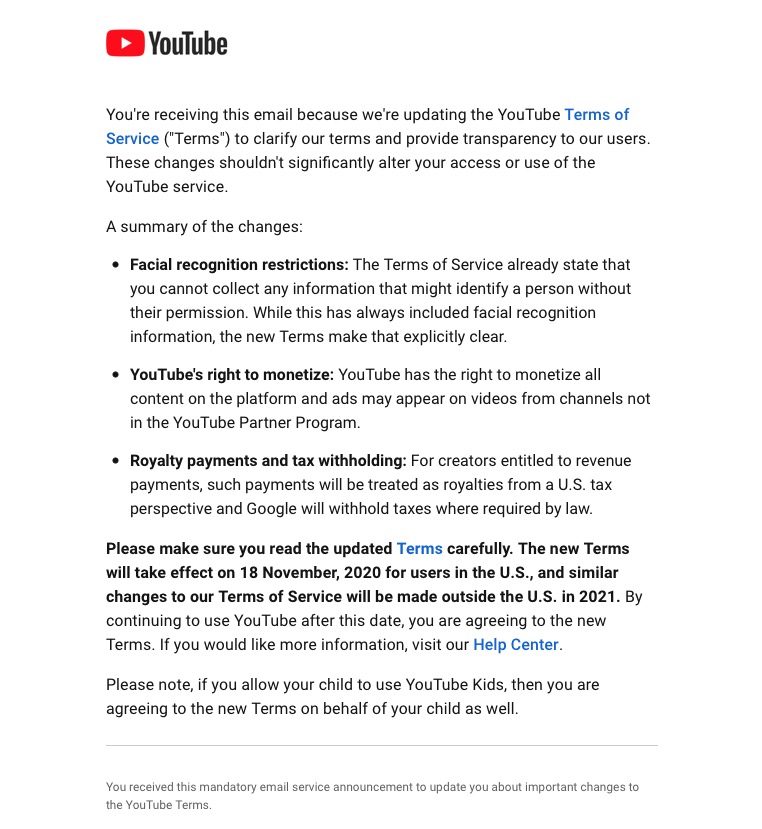
A clear explanation of changes to YouTube – not ones I like, but there’s no attempt to hide what they intend to do, and it provides a hint that they will apply to us later this year when Google leave Ireland for the US.

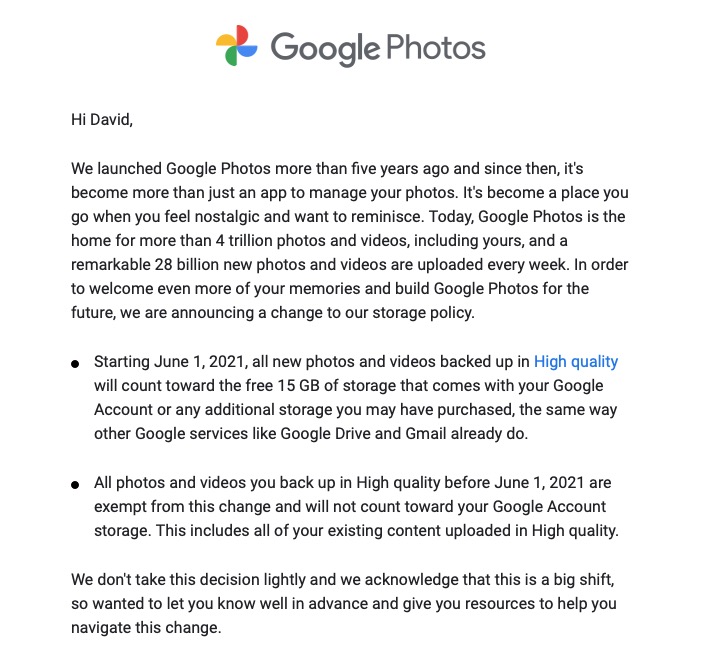
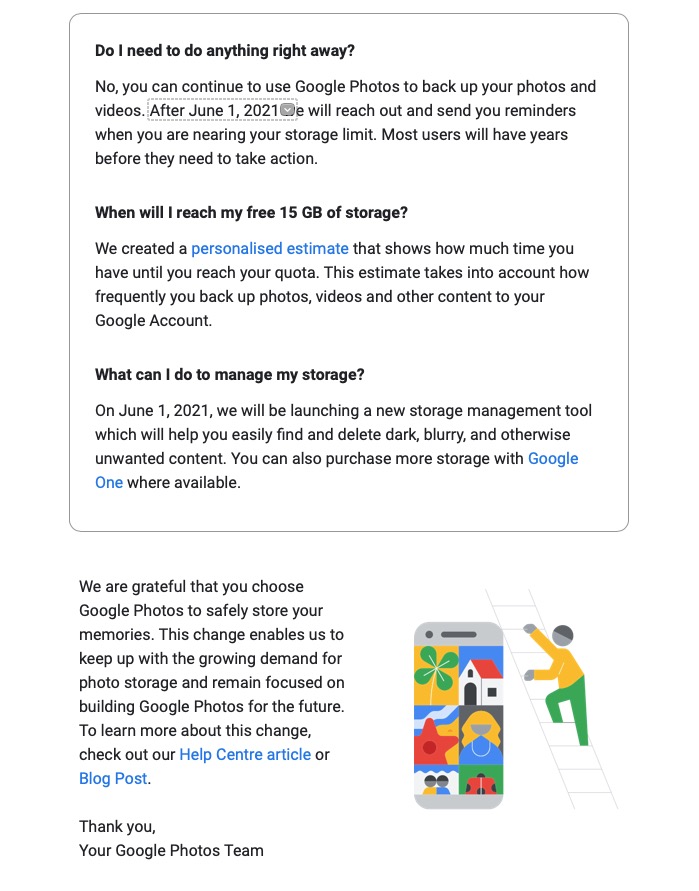
Changes to the Google Photos policy which is causing some distress, but is explained clearly and gives you a lot of time to work out how to use the service after June 1st 2021.

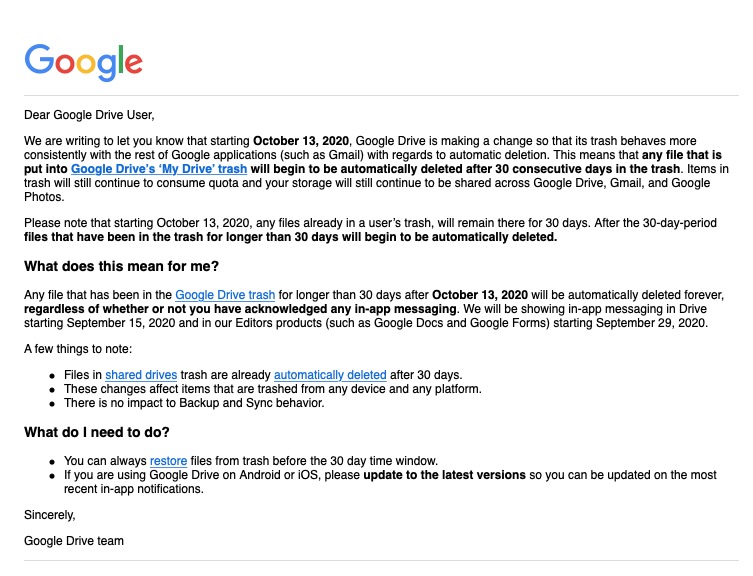
Early notice of the intended changes to Google Drive, and how files will be deleted.

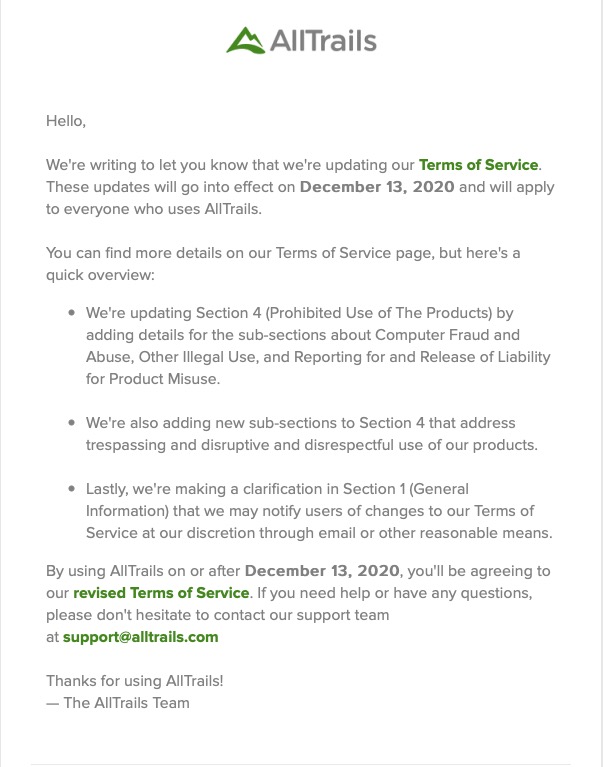
Finally, another company explains clearly how and why it’s changing it’s Terms and Conditions – not something WhatsApp did. Shame on them!

Moving to Signal [Updated – Jan 16th]

I hope you’ve managed to read the recent blog posts I’ve written earlier. One sets out my concerns about the Facebook ecosystem, the other on the changes to the WhatsApp Terms and Conditions of Service. I won’t go over the points I make in those posts. I do urge you to look at them however.

I’ve reflected on what might be the best way forward for me, and for us. I accept that for us in the short-term we could accept the new Ts&Cs and wait and see what transpires as we are still, apparently, in the European Region – but for how long! And once we’ve accepted those Ts&Cs what does it mean long-term, after our data is repatriated to the the US from Ireland.

But … we’ve been here before.

The demise of Google+ was a great shame and disappointment to me and I think the group as well. We’d just started to use it in some degree and when Google closed it down in April 2019, I started this private website, with the forums following last year, as the least worst immediately available alternative. We added the WhatsApp group for more instant communication in September 2019. However there is so much that WhatsApp doesn’t have, that we used to have in Google+ – threaded discussions, communities and close links to Google Photos to name but three.

This blog, with its Forums and Topics, addresses a lot of the shortcomings of WhatsApp but its’ main failing is its lack of notifications. I’ve tried to find ways round this limitation – using IFTTT, or installing the WordPress app to provide notifications – but neither of these are truly acceptable. So I cannot suggest we ditch WhatsApp and move to exclusively using this website.

I’ve reviewed the alternatives and have come to the conclusion that moving to using Signal would be the least painful transition if we were to make a move away from WhatsApp for instant messaging. The alternative in my opinion would have been an app called Telegram which has many virtues, but these are outweighed (again imho) by some of the people who have accounts on it – the Presidents of Brazil and Turkey to name but two!

The user interface of Signal is very similar to WhatsApp, so the learning curve should be relatively easy. The functionality is basically the same. The encryption method (end-to-end) is actually the same one that is used by WhatsApp – they adopted it because the code written by Signal’s developers is open-source – and indeed the founder of Signal was one of the founders of WhatsApp.

What makes Signal a really attractive proposition is that it is a publicly funded Foundation. As such, it cannot be taken over by another company, so this could be the last move we have to make. Furthermore, it is open-source which means that the software is supported by its users and its developers, in the same way as this platform (WordPress) is.

So I feel comfortable about making this move. I’m recommending to you that we move to use Signal instead of WhatsApp for instant messaging, but would encourage you also to look at the Forums and Topics on this site to use as a resource for problem-solving. The move is, and must be, a personal decision however.

I won’t abandon WhatsApp just yet, as some people I know won’t move immediately, so I’ll need to accept the Ts&Cs, but I will be on a clear path to move away and encourage others to move as well. To this end, I most certainly will not be “active” on WhatsApp, but just lurk in the same way as I use Facebook, Facebook Messenger and Instagram currently, and if this Group wants to continue using WhatsApp, it would seem sensible to seek someone to take over the administration of that WhatsApp group rather than me.

I will be setting up a U3A Computer Group on Signal later today that you are very welcome to join. I will post a link to the current WhatsApp members to enable them, or any other Group members, to join if they so wish, after they’ve first downloaded the app from this link and created an account – which is surprisingly easy. Once you’ve done that and allowed access to your Contacts – which will pick up others in your Contacts who are Signal users – you’ll probably see me. Please feel free to drop me a message to ask any questions about using Signal, and I suggest you also look at this useful article that explains how Signal works. I will be writing another article on a public blog later today which follows on from the earlier articles mentioned at the top of this article but will go into more detail of my reasons for moving away from WhatsApp.

In the course of time, probably at the time that Facebook data is moved from Ireland to the US, I will almost certainly cancel my accounts connected to Facebook Inc. That will be a hard decision to take as I will lose connections to many long-term friends who I dip in occasionally to see what they’re up to, and I will miss the annual “Happy Birthday” messages from many of them. Still the time is approaching when I should make that move.

Update

Further to this post yesterday it appears WhatsApp have realised they have not communicated the reasons for their proposed changes well enough citing “misinformation”, I would say poor communication. So read this …

https://blog.whatsapp.com/giving-more-time-for-our-recent-update

… you all have more time to make your own personal decisions. I would still advise not AGREEing just yet, you may not be able to change your mind! I will reflect and report back later. Meanwhile Signal is struggling under the pressure of a huge influx of new users – teething problems one hopes.