My first encounter with computers

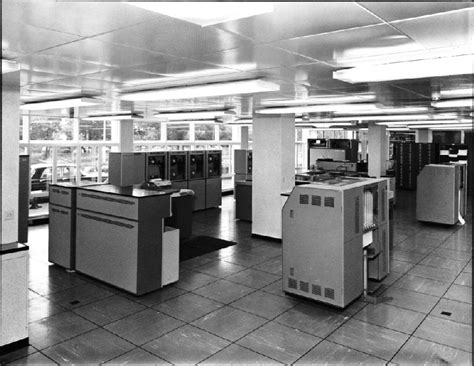
For me it would be being introduced to an ICL 4130 (formerly an Elliot Computing 4130) mainframe and the use of punch card decks. I was instructed on how to program the computer using the computer language Algol-60 and I had to write the code on sheets that were then punched by punch card operators. Somewhere, I have a booklet which describes the machine … somewhere!

Anyway, by the time I’d got started on my computing life the 4130 was getting a bit long in the tooth and the form for Universities in those days (remember everything was centrally funded by the Universities Grant and Research Grant Committees of the Education Department then) was to get a visit from the Computer Board – a group of the wise and worldly (it must have been, I went on to serve on its successor body much later on – the Joint Information Systems Committee) who would adjudicate whether an institution needed a new computer or, if it was between its regular visits, whether the Computer Centre needed new peripherals such as disk drives, printers or plotters. As a research student (at UCW Aberystwyth) I, along with my other researchers were fully prepped to be able to say the right thing just in case one of these visiting folk asked a question. What fun! The preparation must have paid off because we got a new machine.

The ICL 4130 was replaced by an ICL 1900 series machine running George 3 – a proper operating system [I think a second machine was purchased later on and they were linked so that one could handle batch punch card jobs and the other handled teletype terminals and possibly output]. Of course this was the time when Computer Operators were needed and they ran jobs (including back-ups) overnight and had to be in attendance to change magnetic tapes, and handle printed output – a lot of which was created by me!

I was teaching myself multi-variate statistics, mainly based on linear and multiple regression models, but also principal components and factor analysis and using standard programs which I modified in part to my research subject because I needed mapped output, on a line-printer! The main program I worked with however was written (in Fortran IV) by David Wishart from St Andrews for Cluster Analysis, so I learnt to program in Fortran and this soon replaced Algol-60 as my preferred programming language. This program and its adaptation to spatial analysis (in which I followed the work of a fellow researcher called Stan Openshaw who was using the technique in human geography to group together similar grid cells from maps) was to take up a huge part of the next 10 years of my life as I worked hard to avoid actually going out to do any field work on my research topic “Contemporary Erosion in mid-Wales”. Most of my jobs were by now being run by remote job entry at the Manchester Regional Computing Centre as the size of my data set was too large to run in the UCW Aberystwyth Computer Centre.

It was an exciting time to be a geographer and books and monographs were being published on quantitative geography amongst which were ones in the Institute of British Geographers CATMOG series, still in my possession, by a certain John Silk. A lovely coincidence that brings John and myself together and allows us to reminisce on the early 1970’s and “the quantitative revolution” as it was called by some!

Through the 1970’s I returned every summer holiday to Aber, and camped at the top of Penglais Hill to get time on the mainframe. In between these visits I would sit at a teletype at Doncaster College of Education, where I was now a Lecturer in Physical Geography, and submit jobs to the IBM 360 mainframe at what was then Sheffield Polytechnic. It had to be said that by 1978-9 my main interest (apart from the family that was now arriving on the scene) was in computing, not geography, and so when a friend asked me to put my knowledge to work in programming some engineering design problems, I accepted the challenge, set up my own consultancy (with my HoD’s approval) and started programming an Olivetti P6060 desktop computer using Basic. Having it at home to do the work allowed my eldest daughter (44 yesterday) to have a go at programming …

So now the link to geography had begun to be broken. This was severed by Shirley Williams decision in 1978 to close the Teacher Training part of the College where I worked. I bravely, one of my colleagues thought foolishly given that we had by now three young children, decided to opt for voluntary redundancy on the basis of being given a year’s fully-paid retraining. I went to Bradford University and did a one-year MSc in Computer Science giving me letters after my name to go with my 10+ years programming experience. Here I was introduced to the DEC PDP-11/60 mini-computer – a lovely machine running Unix, which was a lovely operating system which I continue to use in it’s Linux incarnation, to this day. I wrote my thesis on building a disk operating system (Modus) for a PDP-8 using a high-level structured programming language (Wirth’s Modula) on the PDP-11. I could now program in Algol-60, Basic, Fortran iV, Fortran 66, Cobol, PDP Assembler, Pascal and Modula.

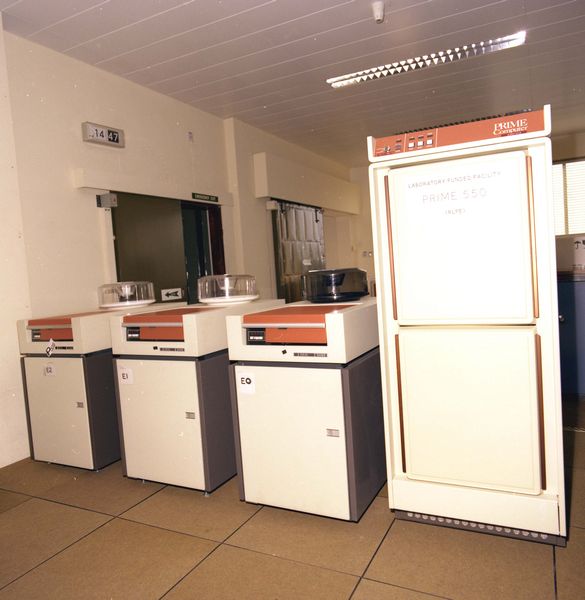
It was the latter language (the first concurrent programming language and the precursor of first Modula-2 and then Ada) that enabled me to get a job as a Systems Programmer / Computer Lecturer at South Glamorgan Institute of HE at Llandaff. I was returning to Cardiff and HE. Not a very bold move and “only for 4 years max” (which is what I said to Jenny). That was not to be! At SGIHE/CIHE/UWIC I oversaw the introduction of a mini-computer service based initially on a Prime 550, then Prime 750 and so on, initially writing the systems programs for its operating system – Primos in Fortran, PL/P and SP/L, and then becoming Head of the Computer Centre where I dabbled in producing the first website for the institute, which has since been a continuing interest for me.

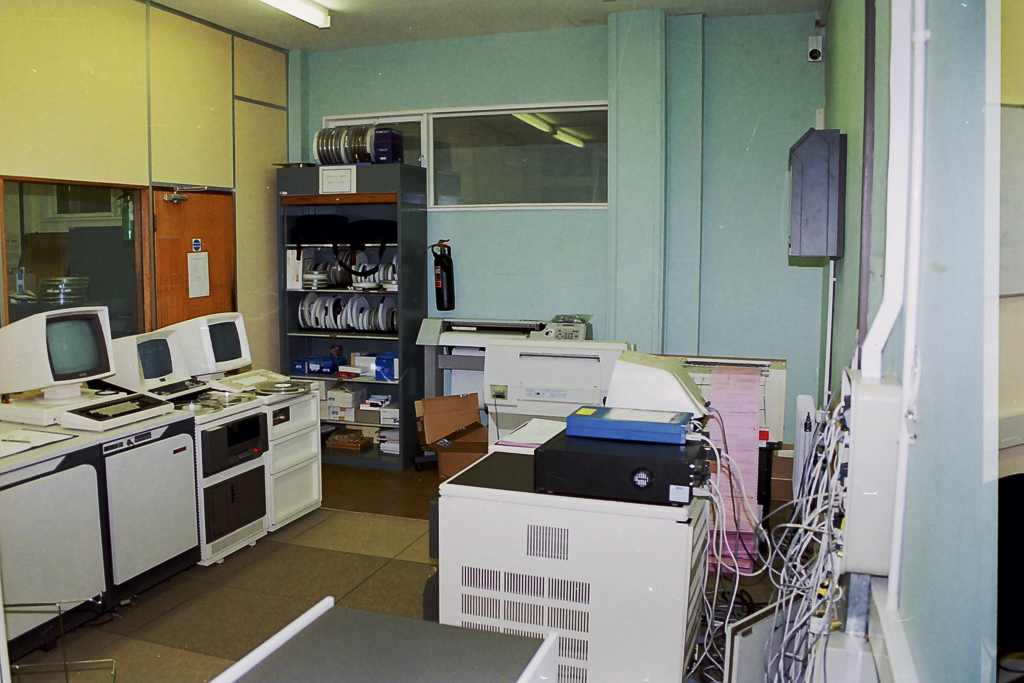
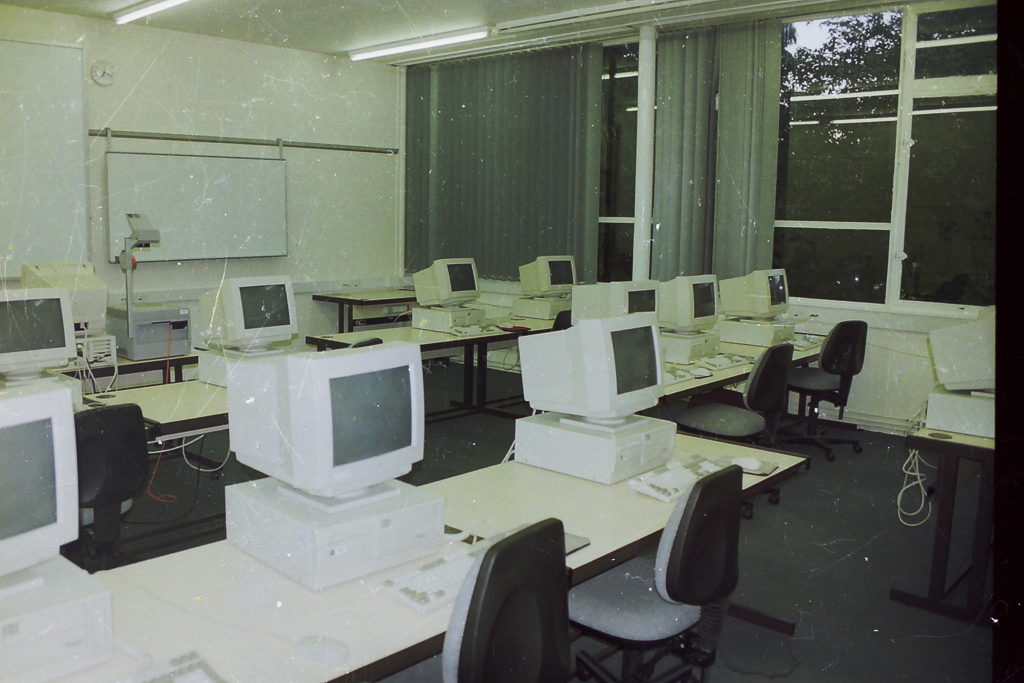
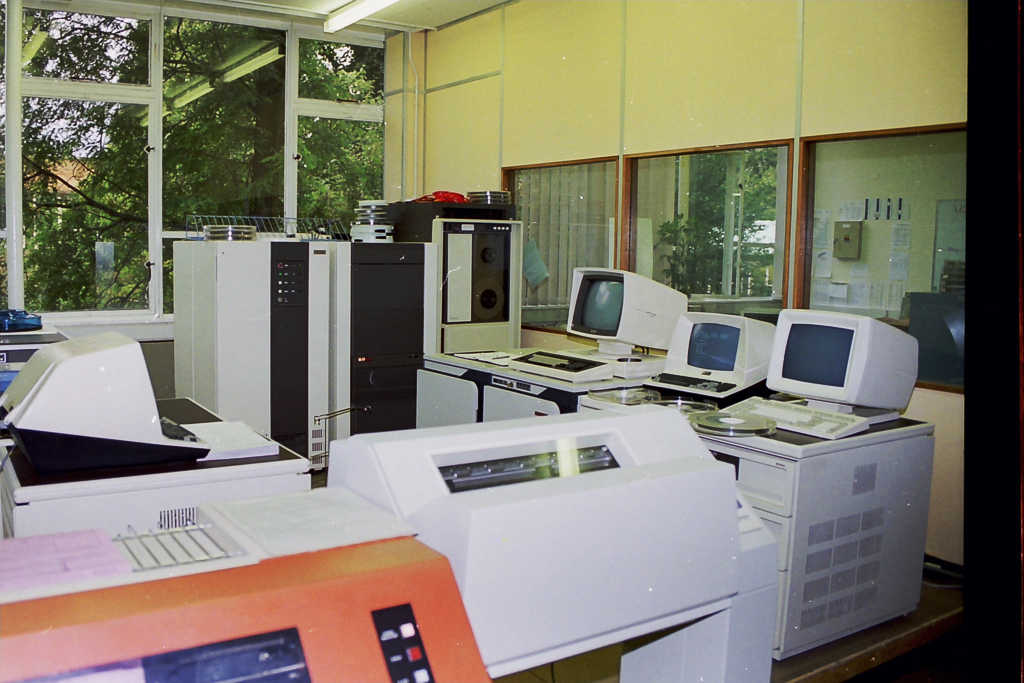
Here are a few pictures of the Computer Centre at UWIC taken before I left for UWCM at UHW (The Heath) …

The Operator’s Consoles for each system are on the left, the tape rack for the day’s tape back-ups are in the background, a terminal room with micro-computers was alongside the Computer Centre …

The original Line printer (orange) was till in service, the Prime 750 is in the background …

I’d become a manager, and the rest is another story, which I’ll record another day!

At home we’d purchased one of the first BBC-B Computers – the first of a long series of domestic computers which again is another story, which I’ll record another day!

David Harrison, June 2020


Notes from Zoom Meeting – 4th June 2020

Sit still, adjust your hair, mute your microphone …

As well as a once round the participants opportunity for members to say what they’d been “up to” in a computing sense the past week, I asked them in the light of Margaret and Lizbeth’s moving posts on WhatsApp (see below) today to give examples of “a good use of technology”.

Mike chipped in immediately to say – Zoom Meetings; so I had to admit that yes, it was a very good use of technology and it has the unforeseen benefit in getting more members participating in the meeting. So much so that I’m wondering whether ALL meetings of the Group should now be held using Zoom. [Don’t worry, I’m not!]

John then added that Zoom as a one-to-one instructional assistant had proved to be very useful to him as he and I worked out a problem he was having with some software. This is indeed true and I can see that once the Covid-19 crisis is over we can all examine whether we can help solve each others problems with one-to-one Zoom calls.

Sianed told us about virtual tours of properties up for sale, and Mike told us his last home was sold solely through a virtual tour, no home visit was undertaken by the purchaser. I thought this remarkable!

I can’t remember who it was who said Wildlife Cameras (it might have been Jim) and yes, for us the purchase of such a camera has been very interesting, to say the least.

Don came-up with an idea for a device to alert a household to the fact that a gas ring had been left on. In our house that would have saved a couple of saucepans over the years, especially those boiling eggs!

Marilyn told us she’d been looking at triptychs and using the software Photoscape – another project for a rainy day, me thinks!

Renee told us about meeting-up through Facebook/Messenger with an old school friend she’d not seen since she was 15 and what joy that now communicating with WhatsApp had brought to them. I related how I’d used Fb to track down a friend for a re-unuion that all my friends had lost contact with using Fb. Yes, Facebook is good for some things!

Stella was interested in finding out whether she could connect her Bluetooth headphones to her TV and to her laptop. We pointed her to the work that Jim had done for Marilyn in setting that up for her TV. This then morphed into a discussion on whether using a 4G router in a house (as Jim has done) was a good alternative to a wired broadband connection. I think this needs more research, but it could be a horses for courses thing as much as a cost issue.

David raised the problem of transferring large files that couldn’t be sent by email. Two solutions were offered (or three if you count sending the file on a small USB-stick by post). One was to use cloud storage as an intermediary, sharing a link to the file with the recipient in an email. This would work with Google Drive, One Drive, and Dropbox et al. The second option was to use a file-transferring service such as WeTransfer. For both situations, perhaps you also should consider zipping (compressing) the file as well. This can often be done by right-clicking on the file and saving the compressed (zip, or other format) file to send.

Then we had a comfort break, and when that was over a large number had excused themselves as they had limited interest in video-editing which I went through using the post I’d written, ending with another one of my knee-shaking live demos which this time, I even recorded!

This left the remaining 5 members with a lot of questions which I attempted to answer, one of which (from Don) was about using non-copyright music in videos. Ann answered this question with a reference to this website – Freeplay Music.

Next time it’s “My first encounter with computing“. Even if you don’t want to join the Zoom Meeting, I’d love for as many of you as can to record their memories, either in a post, or in the Topic I’ve just created, or by sending me an email.


Margaret & Lizbeth’s WhatsApp thread. Margaret wrote …

I have had a different computer experience this afternoon although am not sure I would recommend it. But I report it for “technical interest”, if you can call it that.

By invitation we attended a funeral transmitted from Cardiff to geographically distant family who are not allowed to travel here at this time and any friends such as ourselves who cared to ‘tune in’. It was done by webcam by a company doing this with entry to the service at a given time with ID and password that the family or its contact gives you.

It was good that someones full life did not just drift away when more meaningful methods are not permitted but it was so sad to see just the next of kin and his household, outnumbered by the necessary staff. The tribute, music, homily and commital were all as one might expect but experienced virtually in a physically empty situation.

In this case the deceased was elderly, in poor health for some time and like so many had succumbed to covidn19 in a home. I am sure that in his long and productive life he could never have dreamt of a televised end!

Lizbeth replied …

I was the celebrant at a similar ceremony a while ago. Very difficult for all concerned. But there will be another ceremony in the autumn when we can properly celebrate that life.

This is certainly a time when technology serves us well.

I replied …

A lovely couple of messages. I’m sure you’re right. Your friend would not have expected such a ceremony, but it’s good that you’ll all meet to celebrate their lives when life gets back to “normal”. We had a different experience recently which was rather lovely in a strange sort of way. The husband of my son’s next-door neighbours, who we’ve got to know quite well, passed away from cancer and though it was a sudden ending to his life, his neighbours and friends lined the streets of the route to the crematorium and clapped the passing of his hearse. His son said his father would have been tickled pink to think he’d been treated as royalty.

We also had the opportunity of attending our late dear uncle’s ceremony whilst we were on the other side of the world. Not the same, but we were pleased to be able to hear my sister deliver my words of tribute to him. Then again, whilst Jenny actually flew to Australia to be with our son when he became an Australian citizen, I was able to watch the proceedings from Cardiff and actually talk to the mayor who was the officiate.

Yes technology can be a wonderful aid to life as we know it, and as we hope it will be.

It was this conversation that gave me the idea of asking members “What’s a good use of Technology?”



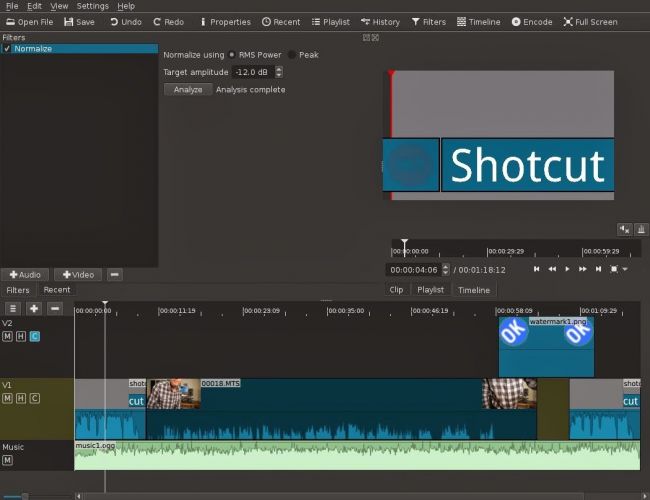
Video-editing for Dummies

… and I am talking about myself here!

If I wanted to do video-editing and wasn’t doing “this U3A stuff”, I’d use Apple’s iMovie which is a “really nice and easy lemon squeezy” way of producing videos, but I can’t because for the Group it has to be cross-platform, and it has to be FREE!

I have suggested using YouTube for simple editing and indeed with the new YouTube Studio that may be your best solution – especially if you’re intending to share the video on YouTube through your Google Account; Google provides some Help & Assistance on how to do some basic video-editing and provides a useful help page with a short video on how to do video-editing using YouTube Studio, and there’s a load of other YouTube videos on the subject as you might expect.

However, not all of you have Google/YouTube accounts, and not all of you would want to “edit in the cloud”, so we need to find another solution that ticks all the boxes.

The one I found that does just that, and which also has a substantial amount of Help and Support documentation and video tutorials is Shotcut.

It’s a bit daunting when you first start it up; so many controls, icons, sliders, windows, options – but don’t let that put you off. Just try the basics to get started and then go back to learn more as you need it.

Here’s a link to a “Getting started …” video, and here’s one to a “manual” which tells you more about video-editing and using Shotcut. If you want to print something out to have beside you as you learn how to navigate the interface, you might find this short (3-page) guide useful.

Having created your video masterpiece you’ll want to save it in a format that is playable on most online services and applications – choose MPEG4 from the Export option – and then decide what you want to do with it. You can of course upload it to Google Photos – there’s no size limitation on videos you upload apart from the 15Gb per week that you get against your free storage limit – which is 15Gb!!!! You could use YouTube of course (see above) – but the quality of the video may be downgraded as you upload it; but I’d recommend you also look at Vimeo as it’s a more privacy-orientated platform for sharing videos and has a better-quality of video playback too. You can do quite a bit with a free subscription, but if you’re into video-production in  big way it might be worthwhile paying  £72 for an annual subscription. Alternatively, you could decide to host your own videos, on your own website – but that’s for another day!

… and that’s about it – except for the dreaded live-demo!

Recorded from Zoom, my first attempt. Not all the panes were showing, so I’m afraid the Timeline pane is not to be seen – it’s at the bottom of the screen. I’ll need to see if I can record the whole screen – not just the Window.

[PS: I’ve now found out how to share the Desktop, rather than just a Window, so there’s no stopping me now. Next time, next time …]


Cleaning-up your PC or Mac???

Try dupeGuru – it’s very good at finding direct matches of files on your machine even when they have different names. It also provides a matching score so that if it’s not exactly sure that it’s found a match it will score it and you can then make a decision after inspection. Otherwise you can delete or move it to an archive folder – just in case!

Upgrading the RAM on your Laptop PC

This is all you need

The only tool you need is a Posidrive #0 screwdriver for this laptop, I bought a set of six small screwdrivers made by Black & Decker some time ago; if you’re going to do more of this sort of thing, you might need to buy a more sophisticated toolset. I also attached an earth strap – just to show you how to the job properly – but to be perfectly honest I don’t usually bother.

But I’m jumping ahead. You first have to find out what upgrades you can do to your PC. I recommend using Crucial as the supplier of both RAM and hard disk upgrades. When you land on the site, you will see a screen something like this – it will change as new products are introduced …

… you click on Select Computer (you can download a tool to scan your computer, but that shouldn’t be necessary as all the information you need is usually on the bottom of the laptop) and supply the information required about your computer …

… and the following information should come up.

I’ve selected the Upgrade I want, but I’m also offered different DRAM memory choices, as well as SDD hard disk upgrades …

… from this I get the Part No. and then see if I can purchase it cheaper on Amazon – for old memory I usually can …

… so that’s saved £10. Now we turn to the removal of the old 1Gb DRAM module and the insertion of the new 2Gb module. Turn the laptop so that it’s back is facing upwards …

… take your screwdriver and unscrew the screws which are holding the back panel in place.

On this model the screws don’t totally come away from the panel which is great as there’s less likelihood of losing any of them. Unscrew them all, and slide the panel off …

… the DRAM is right in front of you on the left-hand side of this picture. All laptops have different layouts, but the DRAM modules are very easy to pick out! Next comes the first tricky bit (not really). You need to prise the two clips holding the module in place on either side of it. Here’s me prising one clip away …

… you have to do them together of course, but as I don’t have three hands … the module will pop out and swing upwards so that you can easily remove it, which you should do and place it on an electrically inert surface – just in case you have to put it back! You then get your new module and slip it into the space vacated by the old one at an angle. [My apologies – I should have taken a picture of this.] Most problems occur at this point as it can be tricky to insert the new module in firmly enough. You then gently push it down so that the clips re-engage with the module.

Nearly finished now. The new DRAM module is in place and you just have to replace the back panel, tighten the screws and hope that the new memory will be recognised when you boot-up the computer. You may be advised that the Memory Configuration has changed when you re-boot, just ignore this the first time you attempt to re-boot your computer. Check the memory has been recognised from the Windows System Panel …

… and you’re good to go. Any problems, first try and check the module has been inserted firmly and far enough into the slot, and then if necessary run the System Configurator when asked to when you boot up. I’ve never had to do the latter, I have had to unscrew the panel and re-insert the memory module though.

And that’s it. It took me about 10mins, but I have done it before. Still 30mins tops will see you with more memory in your old laptop and hopefully improved performance.

Notes from Zoom Meeting – 14th May 2020

Not much to report, but we had a good chat – eighteen members attended (according to Jim) – thanks for the photo.

I encouraged members to take a look at the Flipboard magazine where I’m trying harder than I had been to curate articles that I think might be of interest to you all. There’s a link on the Blog (Home) page of this website, but here’s a link as well. One of the links I mentioned was this one on an AR app which I invited members to investigate and feed back to me what they thought of it!

I raised the fact that Google Meet was now available and invited anyone who had a Gmail account to take part in a test with me. I haven’t followed that up yet! It’s a direct competitor to Zoom and has been brought out of the Business suite that Google has because of the success of Zoom’s free offering which gives 40mins of video-calling.

We also briefly discussed Google Lens which is certainly available on Android, but I wasn’t sure whether it worked on iOS/iPadOS – it is as part of Google Search and Google Photos, but not as a standalone app. It also works with the Google Assistant on Android as well. Shame! Google Assistant is available on iOS/iPadOS though.

I mentioned that I’d been asked about Jamkazam as an alternative to Zoom by the convenor of the Recorder Group. It’s probably very difficult to make sure the latency of all the participants are kept in sync, but it might be a bit of fun. I suspect some expensive equipment might be needed to make it work successfully. I also suggested that Phil (as a member of the Group) might offer his technical expertise!

I advertised the Which? Scam Service and encouraged members to have a look at it. I started a new Topic in the Computing and all things Digital which I’ll retitle Scams and keep an update on ones that I come across.

I gave a demonstration of my new personal family website which I’ve been working on through early May and explained some of the design issues in building a private members-only website which incorporated a social-media element for closed family chats incorporating threads (which WhatsApp doesn’t) and embedded images (which again WhatsApp has difficulties with).

Ted expressed his pleasure with his new Huawei Honor 8A smartphone and explained he now had to work-out linking Spotify to it, as well as transmitting to his Chromecast machine and integrating with his HiFi. Several members had suggestions and I think that’s a good idea for a topic in the Computing and all things digital forum.

Postscript: This website, and all the others I have hosted with TSOHost went down for approximately 4hours on Friday – that wasn’t the reason why I didn’t get round to writing-up the notes until this morning though! I’m a bit disappointed they haven’t published a reason why they had “network issues”. Yes, I know they happen, but when they do the educated user would like to know what happened, and moreover what they’re doing to mitigate the problem in the future. I don’t depend on my livelihood for income from my websites, but others do. They (we/I) deserve better.

This was our attendance the previous week …

… again – thanks to Jim.


Scams

You might want to consider signing up for the Which! Scam Service, I have …

There are necessary steps we can all make to protect ourselves from fraud. But as they become more sophisticated, it can be difficult to know what’s genuine. We’re here to act as a source of trusted advice for those times when you’re just not sure.

From email scams and copycat websites to nuisance calls and tax rebate scams, our guides help you to spot a scam or get money back.

— Forum Responses —

Here’s a nasty one, which on the surface looks OK – just remember that if you’re using Facebook Messenger, you shouldn’t need to login to Facebook again, and vice versa.

Passwords harvested by fraudster (from Which? Scam Watch)

remember also my advise, if you do use Fb, or FB Messenger please Logout – I know it’s a pain but there’s a distinct chance that if you don’t Fb will record all your internet comings and goings and you’ll get loads on unsolicited emails, etc.

David Harrison May 29, 2020 6:26 pm

Covid-19 Tracing app

What is Contact Tracing, and how does an app help?

This video from The Guardian is an excellent review of how Contact Tracing works in both a traditional and technology-enable world. You should watch it.

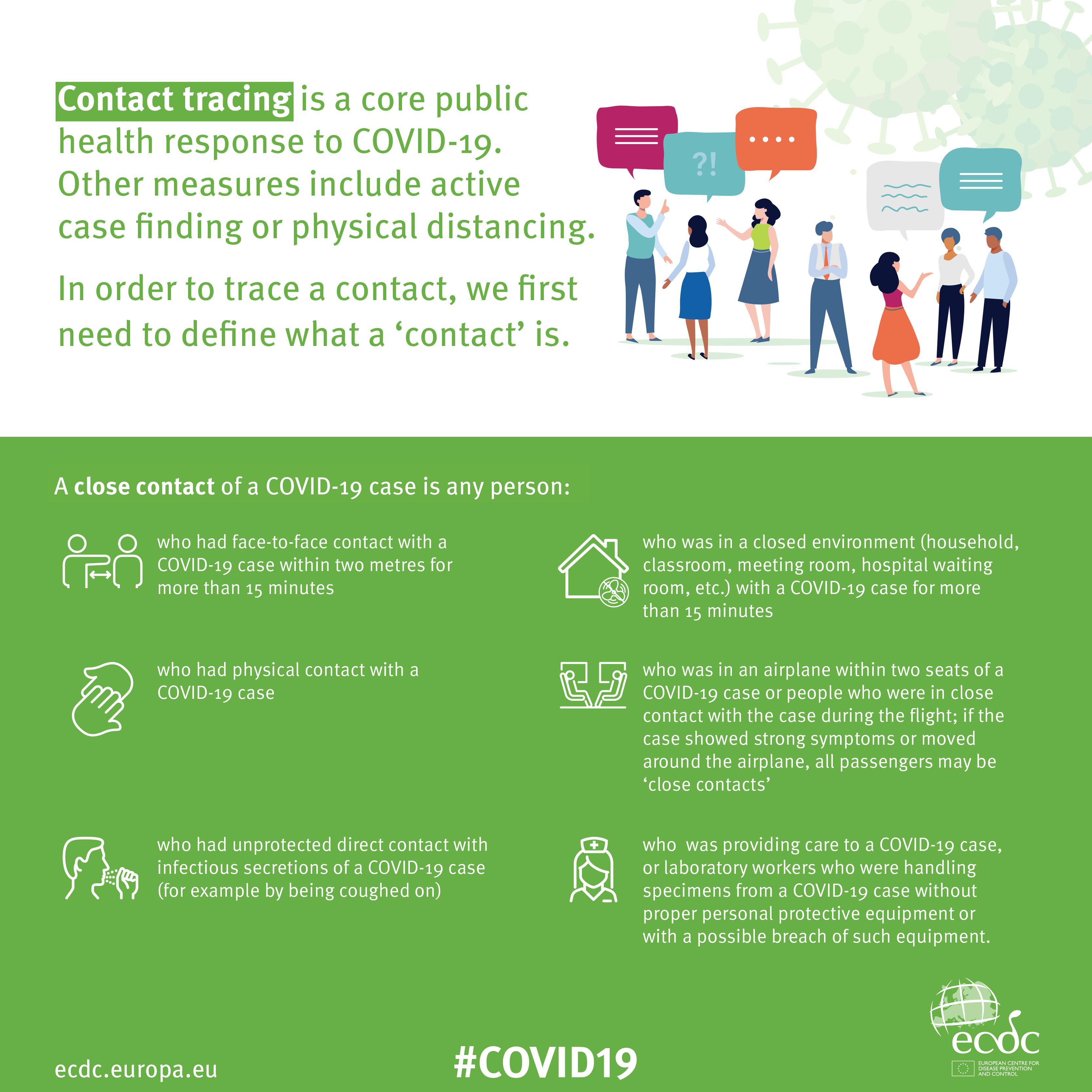
Contact Tracing Infographic

An Infographic that explains how Contact Tracing works

Approaches to creating a Contact Tracing app

Google and Apple have combined to work out a solution that works across iOS/Android devices. Here’s a document that explains how what they have done would work …


But there are Privacy concerns as this BBC article (with video) explains.  Regardless of those concerns the app is being trialled in the Isle of Wight. It’s useful to know the difference between the approach being used by the NHS and the Google-Apple approach, this article explains those differences.

However there are potentially difficulties …

France (how unexpected) have threatened Google-Apple over the fact they won’t work with France’s standalone approach (a similar approach to the UK); and it has been suggested that failure to adopt a common approach could threaten international travel – as “health passports” will be impossible to implement.

Then there are technical difficulties as iOS and Android devices work in different ways (not unsurprisingly) causing success of the Google-Apple approach to be dependent on a very high adoption amongst Android users.

The new NHS contact-tracing app could be used to send malicious alerts causing people to isolate unnecessarily, The Independent has been told. The app, which is being trialled in the Isle of Wight, tells users if someone they have been in close proximity with may be suffering from coronavirus, meaning they could be exposed. But because users can set off the warnings themselves by reporting symptoms – rather than positive Covid-19 test results – it could be used to send out false alerts. Dr Michael Veale, a lecturer in digital rights at University College London, said Britain’s tracing app had no measures in place to stop individuals “maliciously triggering notifications” using its normal functionality.

Then, on the technical front, some notes from Phil Edwards’ friend

On the Apple-Google Indirect approach

“Their approach seems pretty solid. I think they’re basically exposing some features that previously weren’t available to app developers. Both seem pretty determined to limit the potential for it to be exploited by governments; I think they announced yesterday/the day before that any apps using their system can’t also access location data.

Contact tracing is totally doable without central databases. I can see why a government might want to own data themselves, but there are big downsides (especially security when building in such a rush).”

On the NHSx Direct approach

“The implementation of this contact tracing app really hits that sweet spot between ‘Are they incompetent?’ and ‘Do they have ulterior motives?’ I’d advise against installing it but I doubt it’s going to work properly anyway in its current implementation because of various oddities around how Bluetooth LE works. This isn’t a great article but covers some of it.”

A better comment from Hacker News covers it clearer:

“‘Bluetooth LE has four main states: scanning, advertising, peripheral connection, and central connection. In order to exchange the data that the app needs it needs one device in the peripheral connection mode and the other in the central connection mode. This means one device must have previously been advertising and the other scanning. The two important states are advertising and scanning.Android devices can advertise in the background but they can’t scan reliably, they can do this for a short period of time enforced by the Android time limits on apps running in the background and possibly manufacturer specific power savings measures. These limits are not well documented and cause issues on any device using Bluetooth.iOS devices can’t advertise in the background, however they do advertise an Apple specific advertisement which can’t be controlled by the app but can still be connected to. iOS devices also can’t reliably scan in the background however they can scan more reliably for iBeacons (special adverts) [1]Combined this makes it difficult to work well in the background, Android devices can’t reliably connect to any device, iOS devices can’t connect to each other but iOS devices may be able to connect to Android devices.'”

Finally, a potential for Fraud

Plus fraudsters have not been slow to latch-on to the possibility of piggy-backing on the NHS app as this article in The Guardian show (thanks Phil for the link).

Other references:

The NHS Covid-19 website


Using Zoom safely

Updated 13th May

Since this article was originally written back on March 31st, some other U3A have started using Zoom, and I thought it sensible to Review this article and see if I should change anything in it. Any changes will be marked in red. However, before I start, a couple of things.

Zoom have recognised that there were defficiencies in their security model and have moved in their new client (version 5) to implement end-to-end encryption – that’s what you get from WhatsApp. After May 30th, all users will be using version 5 because a forced upgrade will occur on any person attempting to join a Zoom meeting after that date. However, you are recommended to upgrade before that day and you can do that from this link.

A member has also sent me this really useful Infographic on implementing Zoom which I would recommend reading carefully …


I could stop here, but there’s a few things I differ from the advice in that infographic which will be highlighted below and which I’ve also discussed in another article here.

You might also like to take a look at this article with video that explains the new features on Zoom v.5.

So here’s the original article, as I said published on March 31st …

Since writing this article, just over a week ago – gosh it seems longer than that – more groups have started using Zoom, and it’s also clear that it’s being used very widely by friends, families, communities, etc. It’s also clear that Zoom has responded to some of the criticisms that have been levelled against it and disabled some of the “unintended” consequences of allowing people to Login using their Facebook credentials. That is all good news, so my concerns have been diluted, but I think it’s still wise to “proceed with caution” and to this end I’ve collected together some guidelines which I hope will be of use. First of all – you need to get started by signing-up and installing some software on your device.

Installing Zoom on your Desktop, Tablet or Phone.

Zoom is a multi-platform piece of software – that puts it in a great place to serve the maximum number of people who are all using different equipment. This puts it in the same category as Skype and Google Hangouts.
It’s important to remember that the software was intended for business users, and so some of the language might be slanted in that direction. No matter, what you do need to do, is sign-up to get an account. I would not recommend using your Facebook credentials; I might be tempted to link my Google account to Zoom and use it to Login; but overall, it’s probably better to setup an account directly. I have given advice before to use a “throwaway” email account – one you’ve created which is separate from your main email account for this sort of thing. You can have many Google (gmail) accounts – I probably have 6 or 7!
Once you’ve provided an email address – you’ll be asked to confirm it from an email that will have arrived in your Inbox. Then you’ll be asked to provide normal identity stuff – your name, and then provide a password for your account-you’ll  get a screen which provides you with this information. This is what you can do with your account – you don’t need to press Upgrade Now.

It might be a good idea to allow your self the time before your first meeting to look at the three videos which are in your welcome email – they will give you a flavour of what Zoom is all about and how to take part in a video call.
If you’re going to use a Windows PC or an Apple Mac, now would be a good time to have a look at this page and install the app on your desktop or laptop – but if you’re really careful with your privacy, see the cautionary note below about using a desktop or laptop. [I don’t have this fear now, so I would disregard my cautionary note.]

If you’re using a smartphone, or tablet, it would be a good idea to check this page and install the app on your device.

If you’ve done all that and have an idea how it’s going to work – you’re ready to start. I’d suggest having a go with a friend or family member first, to practice and test your understanding. If you’ve got a problem with anything add a comment to this post and someone will try and get back to you with an answer/solution.

So now we come to making things safer for you. As I said before there have been concerns about Zoom’s Privacy policies or procedures, so although they have tightened up these there are a couple of things you should do. [I’ll add some screenshots from my iPad shortly. I didn’t and I won’t be doing this.]

First of all some tips on which device to use and how to use it …

  • I’ve said this already, but I’ll repeat it. Don’t sign into Zoom with Facebook. This stops Zoom from collecting your Facebook profile info. Although, if you’re already giving all your private info to Facebook, maybe it doesn’t matter.
  • Use a separate device if you need to do anything during the call, if possible, in that way you stop Zoom from tracking any other activity on the device.
  • If you’re an Apple user, use an iPad or iPhone instead of your Mac. Zoom’s iOS app is subject to Apple’s App Store rules, which gives an extra degree of security. The Mac version is a direct download from Zoom, so you have no idea what’s inside. The same is probably true for Windows – but I haven’t checked. So it’s generally safer to use a Mobile device rather than a desktop/laptop. [I don’t consider this a problem now. Zoom have increased their security and it’s MUCH MORE convenient to use a laptop/desktop as you can more easily see everyone on the call in a Gallery view – rather than having to scroll across images of people on a smaller screen device.]

Hints and tips on staying safe …

If you do decide to use Zoom, the company offers a few good tips on its blog for staying safe. First, don’t share a meeting link on social media or any public forum, because then anyone who sees it can join. This can lead to “Zoom bombing,” where bad actors crash the party, and drop off a payload of porn and/or other disruptions, before leaving. Something you definitely want to avoid!

Next, if you’re hosting the event, do not use your Personal Meeting ID (PMI) to do it. “Your PMI is basically one continuous meeting,” says Zoom, “and you don’t want randos crashing your personal virtual space after the party’s over.”

I use Scheduled Meetings even for Recurring Meetings, I can then send a Meeting Invite round in Beacon, that users just click on to join. This is much easier than sending out invites to every meeting.

Also, consider making use of the Zoom “Waiting Room,” which is a way to control who can get into your meeting. [This is now the default setting for a meeting.]You can then decide who you want to admit to the call. [This may not be relevant to your calls, but it’s worth bearing in mind if someone you don’t know somehow appears on the call. Next time they won’t because you’ll have implemented the Waiting Room.]

For more information on staying safe, read Zoom’s blog post, as mentioned above.

Zoom changed a couple of their Default settings from today – 5th April. Now when you join a meeting the default setting from the host is to ENABLE a Waiting Room, from which the Host can invite people in.

The second change is to set a Password on Personal Meeting IDs (PMI). It’s not recommended anyway to use PMI as it’s like a permanently open meeting; far better (if you’re the host), as I’ve described above and elsewhere, to create a specific meeting ID which sets a password anyway. Here’s a link that better explains these changes.

Notes from Zoom Meeting – 30th April 2020

Apologies for the slight delay; if you look on the Notice Board and the Guides Menu bar, you can see I haven’t been idle. All the guides are offered unread; I can’t recommend them as I haven’t looked at them yet, but I have used BDM publications on a few occasions in the past and they produce the “manuals” that you often see in WH Smith & Sons, and in their Motorway Service outlets. Pictorial and easy to read is how I’d describe them.

A good attendance again, up to 15 at one time – I was willing two more people to join to force the Gallery view to extend on to a fifth line; maybe next time.

A Review of items from the last meeting:

David H was happy to report that his issue with shielding and deliveries from Supermarkets was now resolved and that Tesco had offered to provide the service to them without the paperwork (as I understand it). Paul on the other hand described the trials and tribulations in getting Asda to amend their online order.

I reported back that I’d been unable to help Ann with her Nest problem, we’d given some suggestions to Margaret on WhatsApp about her router/printer problem, and to Christine (in the last notes) about her Digital TV antenna query. Jenny was going to follow-up her hardware issues with Neil next week.

Today’s issues:

Owen gave us the good news that U3A had purchased a subscription for Zoom and that he was maintaining a diary for any group wanting to use it. I requested that our weekly meetings be put in the diary.

Renee had received her new iPhone SE (review from The Guardian here) but was having problems with her internet connection – someone will have to help me, I’ve forgotten what the problem was!! Duh!

John was experiencing a number of problems with his MacBook Air  with files being greyed out (presumably in Finder). He was going to do more research of the problem and get back to us. Perhaps Creating a Topic in the Computing Forum might be a good idea John? He was also disturbed that in setting up email for his wife on the computer that her email was now in the same system as his, whereas before it wasn’t. I suggested that this was almost certainly due to the necessity of them both needing to have separate Login IDs and accounts on the machine.

David H asked a question of Paul about the Honor phones, to which Paul replied it was wise to investigate whether they had the Google suite of programs available to them as Trump had barred the US from installing them – same for Huawei phones as well. If you bought an 8A (?) this would not be a problem as this model pre-dated the ban. These phones are available from Argos and Carphone Warehouse.

Jim showed us his new external DVD/CD Drive to replace one that had failed in his Laptop. [I forgot to write the model down – can you remind me] He also enquired whether anyone could help him preview photos on his Windows Laptop (outside his photo-editing software). The order in which the pictures occurred seemed to appear in different orders and so it was difficult to review to delete duplicates etc. Owen suggested that he might look at Irfanview. Someone else suggested that there were specific programs to sort out duplicates – indeed we dealt with that in an earlier meeting – dupeguru was used.

Marilyn asked whether it was safe now to upgrade to Catalina on her Mac. I agreed to check and for her, and did, and as she had no Legacy Software installed, it was now perfectly safe to upgrade.

Jenny gave an account of her work for the National Pensioners Convention (?) and asked members whether any of us had experience of providing training for older people. Some of us shared our rather jaundiced experience. We wish her good luck!

Christine alerted us to the fact that Ancestry was now available online through the Cardiff Library Service – but you had to have a current Library account, with a PIN to access it. I received an email alerting me to the fact that Kew was making a lot of its digital records available online during the Covid-19 lockdown – here’s a link to that. You need to have registered with them. Could be an opportunity for genealogy work?

Don gave a very positive account of his experience in using a TP-Link mesh network device to extend his WiFi network in his house. He also alerted us to a service available for Which? to sign-up for a Scams Newsletter. I told the group that I’d purchased another Trendnet WiFi extender device for outdoor use.

Ann thanked us for our advice to clean her Home button on her iPad with an alcohol-based solution to improve the performance of the button. She also enquired on whether anyone had experience of using any video-editing software. I thought I had some notes somewhere on the subject – maybe done for a Digital Group session, but I can’t find them currently. I did find however that I installed (and used) Shotcut and had also (but not purchased) Wondershare Filmora – these are cross-platform programs which work n both PC & Mac. I also mentioned that I thought you could do some basic editing in YouTube, and then download the finished work back to the home machine and delete the uploaded video(s). This feature of Windows 10 might be of use too. I can see that it might be an interesting idea to try a special Zoom meeting on video-editing – especially since I have to do some myself at the current time.

My notes:

Google (and Microsoft in recent adverts) is responding to the rise in the use of Zoom to extend the use of Google Meet (formerly just for business use) to everyone who has a gmail address. The problem with both of these is that you need to have a Google (or Microsoft) account to make use of the service. Zoom is service and platform independent as it’s web/cloud based.

Zoom has responded to security concerns and this article and video might be worth looking at. Those of us in the Apple camp might find this article interesting for group calls.

Google and Apple combine to provide indirect method of doing contact tracing, but UK government decides to go alone with another NHS IT project. [Watch this site for details if and when it appears – there are also pages on other NHSx Covid IT services.]

I mentioned that I’d found an app to help me tune my guitar (Fender Tune), and that I’d also purchased (£4.99) an app called SongShift to copy Playlists from Spotify to Apple Music (and many other services as well) and back again. It works very well!

Finally, we looked at Phil’s experiences of plumbing in a new dish washer, but more interesting than that was his work in installing Ubuntu Linux on an old laptop. Here’s an article that explains the key differences between Windows and Linux. Something that I’d been meaning to do for some time now and had always intended as a Digital Project. Quite a few members were interested in this as the subject of a Zoom Digital Project and Phil and I will be putting our heads together to try and set this up. Watch this space.