Home Networking

This article was written to accompany a presentation done on 22nd January 2023. All the videos embedded in the post were current at that date. They could be removed from YouTube, or replaced by later ones, at any time.

The presentation built upon one that Paul de Geus did and which is included below. I’m indebted to him for pointing me to the video from RSAweb, which is a really good and short introduction to improving Home WiFi signal, and also including at least one video in the show from PowerCert. They are so good, I’ve used them as the basis of this presentation.

I’ve also written a couple of articles that you might find it useful to refer to …

Improving home network performance“, and

Home networks – some notes

Also, remember there’s a “Network issues” Forum that has several Topics relating to Home Networking, and if you have discovered a really good bit of technology, or you want help with the kit you’ve got, that would be a great place to look, or contribute to.

First however take a look at Paul’s presentation, of 2019 – yes five years ago, I can’t believe that! You can scroll through the slides using the arrow keys at the bottom of the window and make the text bigger using the +/- keys.

U3A-Cardiff_-Computer-Group

I suppose we should start with perhaps the main problem – a poor WiFi signal – and then work back from that to see whether we can improve our understanding of how networking works and how we can improve our Home Networking experience.

How to improve your WiFi signal at home

A more detailed look at possible quick wins are detailed in this article, and again some of the suggestions it mentions are covered later.

You might be able to improve your home WiFi by following the advice in that video and the article; indeed WiFi Extenders could do the trick (see later), but it’s probably better to understand a little more about the devices you’re using. So we start with Modem and Router. Almost always in new installations combined into one device called a Super Hub, or Smart Hub. Often an Internet Service Provider (ISP) will package that with a streaming TV service which includes the capability of recording TV channels and this will use the Hub to transmit by ethernet, or WiFi, to the TV.

Modem vs Router – What’s the difference?

So we have a device – a modem, that is connected to the internet by either a fibre-optic cable (eg VirginMedia), or DSL copper/fibre connection (eg OpenReach); it will almost always have a router with both WiFi and Ethernet ports included in it. The WiFi will normally offer two bands (wireless frequencies) at 2.4GHz and 5.0GHz. These two bands have different characteristics which are explained in the following video. [NB It’s important to note that Smart Devices mostly seem to prefer to operate on the 2.4Ghz band, so if you’re having difficulty connecting them, it might be prudent to check you have enable that band.]

2.4GHz vs 5GHz WiFi: What’s the difference?

Older WiFi devices will tend to use the 2.4GHz frequency and newer ones the 5GHz frequency. If you were experiencing poor WiFi on the 2.4GHz frequency it used to be recommended that you checked the channels that were being used in the neighbourhood and for you to change to a different one, usually 1 or 11 – the default is often 6. This is easily done by logging into your router (hub) and configuring a default channel.

However another possibility is to install a WiFi Extender. This device, as it suggests) accepts a WiFi signal from your WiFi Router (hub) and extends the signal to a part of the house where the signal is not so strong.

WiFi Extender (Booster) Explained

One of these devices may well suit your purposes and you may well be able to get one that has auto-sync that enables the network name (the Service Set Identifier or SSID) of your router to be used on the WiFi extender, but not always, and you may find yourself with two WiFi networks – one SSID for the router, another SSID for the extender, and you will have to choose your network depending upon the area of the house you are in and seamless roaming between the two will not be possible. Examples of WiFi Extenders (or Boosters) are listed here.

A different approach is to use the electric power circuits in your house to extend an ethernet network from the router (hub) to a power outlet on the same electric circuit. [NB This is the only configuration I’m happy to recommend. If you have more than one ring main, you may find that you don’t get good results when trying to connect between the two.] This technology is called Powerline and you can purchase devices that have both ethernet and WiFi capability. Again, look for ones that have auto-sync that will extend the SSID of the router to provide a single WiFi network. The video below explains how Powerline networking works.

Powerline Ethernet Networking Explained

One of our members (David Hughes) has recently installed this system, a TP-Link AV600 Powerline system which he is happy with. There are a couple of videos on that page which demonstrate how easy these new Powerline systems are to setup.

However, for some people (me included) the houses we live in are not well suited to any kind of WiFi (or ethernet) networking, and so Mesh wireless may be the solution. Interestingly most mesh systems use a dedicated 5GHz channel to let the devices “talk” to each other. In routing terms these are therefore tri-band routers. One example of a Mesh solution is the one offered by Google.

Mesh WiFi Explained

A popular Mesh solution is the one offered by BT

How to set up your Complete Wi-fi Disc

… whilst Renee Martin has recently installed a TP-Link Deco E4 Mesh WiFi system. However, not all mesh systems are alike; some appear to work seamlessly behind your router in Access mode, others like mine require you to switch your hub into modem mode so that the main mesh hub works in Router mode. For the TP-Link system the difference between Access Mode and Router Mode is described here.

Should you be considering a Mesh system here are a some reviews – here, here and here. My system is a Netgear Orbi RBK53 one and I’m including a few screen shots from the app that you use to manage the network to describe what it does.

You have a main hub device, connected to the internet through a modem (my VirginMedia SuperHub – configured to be in modem mode), it then has two satellite hubs, one connected by an ethernet cable to my office, the other using WiFi to the back of the house which provides a WiFi facility to the upstairs, kitchen and garden. [I have tried connecting it using Powerline but there doesn’t appear to be any benefit from doing so.]

The devices connected to the satellite hub in my office at the time I took a screenshot were …

The devices connected to the satellite in the back of the house (when this map was created) were …

There are then a number of devices also connected to the Main Hub with one port being used to connect the ethernet cable to the Orbi in the office, one port connecting to a switch behind the TV (to connect the TV, HiFi etc), one to Powerline (not being used currently), and of course one to the VirginMedia Hub.

Looking at the configuration of the Orbi in the Office, you can see that it has an IP Address which it has obtained from the Main Hub. All IP addresses within the home network will always start 192.168.1.xxx – the individual devices being recognised by unique MAC addresses which are held against the IP address in the hubs.

… so when you look at the router settings on the Main Hub you can see it’s IP address is 192.168.1.1

Looking at the internet port settings of the router you can see that it has an external IP address of 86.29.24.114. This is effectively the IP address of my house. I am extremely lucky that this IP address does not seem to change – a VirginMedia “bug”, or is it because my VirginMedia Superhub is now just a modem?? This then makes it possible for me to host a server on my network, because I have a quasi-static IP address. Normally the external device is dynamically set so that when there is a power outage you may find you have been given a different external IP address.

The other setting that is interesting is the DNS server. Your ISP will have setup your router to point at their server, but these servers will usually be based in the area that it provides service to. So, it is often a good idea to change the defaults to Cloudflare (1.1.1.1), or Google (8.8.4.4, or 8.8.8.8) because their servers are worldwide and so should provide quicker lookup of the directory. [NB what we’re talking about here is the translation of a friendly domain name eg google.com, to a set of four digits.] When your router is given a domain it has to look up it will look first at the the first one in your list; if it’s very busy, it will drop to the second, etc. So My router will look at Cloudflare first, then Google before dropping to VirginMedia.

That’s about it. I haven’t covered a number of topics that you might be interested in, eg

Understanding IP addresses and how they’re constructed
How a DNS Server (Domain Name System) works.
What is a Firewall?
VPN (Virtual Private Network) Explained

A few more refs. that you probably don’t need to know anything about:
Subnet mask explained
DHCP Explained – Dynamic Host Configuration Protocol
WiFi (Wireless) Password Security – WEP, WPA, WPA2, WPA3, WPS Explained

How does the Internet work?

[Revised 17th January 2023 and February 22nd 2024]

Now there’s a question. Once upon a time it was a little easier to answer. You connected your computer with a piece of wire to a socket in the wall and beyond the wall was ??

So perhaps it’s never been easy to answer that question. It’s not magic, it’s not fluffy, it’s actually really complicated technology which works in a relatively simple way to make things relatively easy for us to use it. Let’s start with a few videos …

How does the internet work? – This [updated] BBC Bitesize page (produced for children) is a really good starting point to help you understand how the internet works and introduces some of the terminology (ie protocols, packets) that will be useful to you to understand the other videos.

How the Internet Works in 5 Minutes – the internet is not a fuzzy cloud. The internet is in effect a wire (or a fibre-optic cable), actually buried in the ground or carried as wires between posts. Computers connected directly to the internet are called Servers, while the computers you and I use are clients, because they are not connected directly to the internet, but through an Internet Service Provider. Mobile devices away from the home, connect to the internet using radio-waves to connect to cell-towers with increasing capacity being generated by increasing the frequency modulation of the waves (ie 3G, 4G, 5G and even 6G). Mobile devices in the home or in the office, or in public hot-spot spaces, use WiFi to connect to the internet using two frequencies – 2.4GHz and 6GHz. All of these require Routers to shuttle packets of information across the internet, and transmit e-mail, pictures, and web pages. Although this video is a little dated, it really does explain the process of what happens when you connect to the internet …

A more recent video and the ones that are referenced at the end of the video will get you a long way to understanding the technology that makes up the Internet.

How Does the Internet Actually Work? – this discusses how internet traffic can be labelled to ensure that packets of data can arrive at their destination with the minimum amount of disruption [- but it is a biased view in favour of scheduling]. However for an impartial point of view of Net neutrality, you should probably look at this video produced by Vimeo – strong supporters of Net Neutrality …

… and the policy documents from the Internet Society and Electronic Frontier Federation.

Finally a couple of alternative views of the internet. First, Andrew Blum (in a TED Global talk) philosophically examines What is the Internet, really? A journey that started for him when he found out a squirrel had chewed through a cable led to him exploring trans-ocean cables and the very physical nature of the internet – a wire! Then this rather entertaining video …

… takes us from very local internet and cell-phone technology, through an examination of data centres such as the former Western Union office at 60 Hudson in Manhattan, to laying ocean cables and the future with balloons acting as transmitting stations for low-density inhabitation, or remote areas.

You might also be interested in seeing a Google Data Centre, in particular the pieces on security and cooling are interesting. [However, all of this increasing use of the internet comes at a cost to our environment as the advance of Artificial Intelligence and its huge need for energy for increased computing power comes at a cost.]

Notes from Zoom meeting – 3rd March 2022

Not one, but two images from our last Zoom meeting which took place 4 weeks ago – can you believe it. This must be a record for the delay in preparing notes, but we have had a social meeting at the Castle in between, and I have had a few other things on which I know you’d excuse me for – if I was to list them!!!

So let’s go backwards, first, so-to-speak. It was great to see a few of you in the cafe at The Castle, and especially good to see Ralph, who I do hope manages to join us on Zoom from now on. The staff in the cafe were very obliging allowing us to move inside when rain threatened, and even helped us move a couple of tables so that we were all in the same place. So, a successful meeting, and one we’ll repeat … promise!

Now we’ll go forwards, next, so-to-speak. I won’t be around to facilitate the next meeting due on April 14th as we’re having a family holiday in the Forest of Dean that week, but I think that Owen has agreed to cover that one. However, looking further ahead it’s looking increasingly likely that we’re going to jet off to Australia in late April – just because we can (now Covid rules have been relaxed) and because our son over there has said come now because who knows what will happen later in the year. So although we were (and still are) planning to go in November for Christmas, we’re going to do a quick dash for a couple of weeks to see our family over there who we haven’t seen since May 2018 – that’s a long time. So although we haven’t booked our flights yet it looks increasingly likely that I won’t be able to facilitate a meeting possibly on April 28th, definitely May 12th and then May 26th (when we will have returned, but are committed to a trip to the North East for a family homecoming). So we/you need to discuss what we should do about meetings. After that, no plans that clash with Group dates until the end of July – and I hope to keep it that way.

Finally let’s go back, properly to March 3rd and our Zoom meeting on that date.

Owen reported that the work on the new WordPress site for Cardiff u3a was progressing, and I offered advice, or assistance, if required.

Don had bought a dual USB-A wall-charger for £20 (you can never have enough of them, but it’s the missing pesky cables that get me). He had found a solution to a problem he had with sharing with his iPad on YouTube – always the first port of call I find.

Margaret told us about the latest NHS scam; advised us that she’d come across some free WordPress webinars and tips; had discovered a voice-to-text facility/app called “otter”. She also told us that she found that you could turn on live captions in many applications from the device settings. Ted asked whether you could capture text from live-capture; he advised us that he’d found that when the volume was switched on the only capture recorded was from the device, not the stream.

Ted had now got fibre broadband from BT – initial results were looking favourable.

Steve was still evaluating password managers, but thought that he might plump for an open source offering – Bitwarden. It will be interesting to see his decision – as he has done quite a lot of investigation. He also told us that Immobilise (a database linked to an app to record household possessions, etc) was also used by Neighbourhood Watch and the Police.

Renee commented on WiFi extenders. She’d had good experience of using them. We then had a discussion of the merits of Proprietary WiFi Booster systems vs. Extenders vs Mesh vs Powerline. All have their place and merits.

John had been having iPhone problems. Hopefully he’d got some way to resolving some of the problems, especially with email, and receiving it on his new phone. We did advise he to go back to JLP for assistance in getting things set up the way he wanted them.

Christine told us about a Facebook scam that had nearly trapped her, but she’d exited quickly without any apparent harm.

Ann had been having problems with opening Gmail accounts. She’d also cause to speak to Sky customer service, they were unable to help as she was out of contract. She’d been suffering a poor signal on WiFi, had deployed a WiFi analyser and had then found she needed to configure the Router as she had found that using the 2.4Ghz bandwidth was better for greater distances, and the 5Ghz was better for shorter distance and gave greater throughput. [We probably could do a revision session on Routers; always a good topic and sensible to re-visit.]

Fred commented upon a NHS notification – that’s all my notes tell me, so apologies for lack of detail!

Paul told us about a saga he’d had recently with Virgin Money and an ISA account that they’d moved to another provider that he then couldn’t access. The problem seems to have something to do with Vodafone(???) [Renee had experienced the same] – the Ombudsman had taken a year to reply. [Don had also had a problem but had managed to get £50 compensation as a complainant.] The problem seems to be connected to some building societies not being in the “transfer scheme”.

David told us about his new internet bandwidth speeds obtained from Sky Superfast 35 – I smiled at the download/upload speeds of 23Mbps / 9Mbps and 30Mbps / 9Mbps but they are certainly better that the 11Mbps / 1Mbps he’d been experiencing before. He is now going to check the cost matches up to performance. He updated us on the question of EV charging points – a survey is going to be done 4th April. Christine suggested that he should make sure that FastCharge was being provided.

Did I say anything? No idea – it was probably not worth recording anyway. However Jim has posted an article on his EXIF data project which I encourage you to go and read.

Home networks – some notes

I’ve written and talked about this subject on a number of occasions. I’ll bring these together in one place, before delving into the specifics of router configuration which prompted the subject for the meeting on Feb 4th, 2021.

For many of us home networking means WiFi, and the first article I wrote was on the subject of “Flaky WiFi” on October 11th, 2016. Members of the group had commented on their WiFi connection appearing to drop and in this article I tried to explain how all the bits and pieces hung together and how you could test your network to see it was working the way your Internet Service Provider (ISP) was proclaiming it should be!

Then, later on (January 26th, 2017), we discussed “Broadband speeds, WiFi routers (their type and security), and extenders or boosters” and as the title suggests we focussed on networking in the house and how it is provided by Internet Service Providers, such as VirginMedia, BT, Sky or TalkTalk.

I described “How the Internet works” in this post on June 29th, 2017, with links to a few videos and policy documents which hopefully explain the topic better than I could. Not much has changed since then; IPv6 is still to appear in the domestic market, so we still use IPv4 for internet addressing.

Finally, on July 27th, 2020, I wrote about “Improving home network performance” which is really what I’m going to revisit in this post.

So … what do you need to take a look at?

On your router:

If you’re using an integrated modem/router – often called a hub, typing in the IP address 192.168.1.1 will bring up a screen something similar to this …

… mine is different because I’ve disabled the router functionality so that I can use my own router – a Netgear Orbi Mesh Network – so to just access the modem part of MY hub I use the IP address 192.168.100.1. You can see from the above that only the Modem is active.

So for most users with an integrated modem/router, the first thing you need to be able to do is to access your Router’s Admin Dashboard. This article explains how to do it using the cmd prompt in Windows, but it is probable that your hub/router has an application you can start to do this, or that you can access it from a browser window. For most you would just enter the IP address 192.168.1.1 and supply the UserID admin and the password that I’ve created – the default is quite commonly ‘password’, so you ought to change that!!!

The above screen is for my mesh network, but non-mesh would be similar. Clicking on Internet will give you the ability to change some of the settings for your connection.

Of these the most useful to change is the Domain Name Server (DNS) – these are the servers that translate a URL (eg thoughtgrazing.org) into an IP address. I’ve chosen to replace the default DNS supplied for my VirginMedia (ie 194.168.4.100) Hub (I’ve disabled the router functionality on the SuperHub so that it only acts as a modem) for two servers run by Google (1.1.1.1 and 8.8.4.4). The reason I’ve done this is that these servers are replicated around the internet and will almost certainly be closer to my router than VirginMedia which I think the closest one is in Bristol.

All the other settings can probably be left as they are. The next option is where you configure the name of your network and the channels you’re going to use.

If you don’t like the name supplied to your network by your ISP, you can change the SSID. I did to make it a little more meaningful. You should then consider changing the 2.4Ghz Channel. If you can set the channel to Auto – you should do so because generally the router will then find the best channel for your network. If that’s not possible and you have found your WiFi to be “flaky” due to you and your neighbour using the same Channel(s), try setting the channel manually to one that’s not being used. The article I mentioned before describes how you can find the best Channels for a Mac, and this one identifies a Windows Tool that does the same thing – there’s a Download link at the bottom of that documentation. Here’s an article that describes all the possibilities.

Generally 2.4GHz has a wider range of signal but lesser bandwidth (throughput), and 5Ghz the opposite – shorter distance, but higher bandwidth. On my system my 2.4GHz channel gives me 400Mbps and the 5Ghz channel 866.7Mbps.

You’ll want to look at your Security Options and make sure that you choose the best for the devices that you’re going to connect to your router. Generally, for a home network, WPA2-PSK [AES] should be sufficient.

This article from the Apple website provides a very thorough and detailed examination of what settings you should deploy for your router, and why. Worth a read, even if you’re not an Apple Fanboy!

On your device …

Make sure the security settings match that you’ve just set on your router; remember the SSID and Password you’ve created, and re-connect to your network.

And that’s about it … I hope. Questions??

All things Google (and more) – 13th February 2020

Boot-up

Visit to Barclays Eagle Labs – now arranged for the next meeting – 27th February. Here’s some more detail about what they’re all about.

As part of Barclay’s community commitment,  we have also opened a new office in Cardiff designed to help businesses grow and start up in Cardiff. Great for budding Entrepreneurs (which statistics show can be high in the over 50s)  and inventors. Part of the Eagle Lab office hosts  a “Maker Space’ that houses laser cutting, vinyl printing, 3D printing, electronics equipment including soldering etc. It has a distinctly digital feel too with a really switched on Engineer running the lab. I will contact them to discuss what is actually available there and suggest things you might be interested in.

I have  13 confirmed attendees. I’ll contact Ashley Croome (the switched on Engineer) with details of who’s coming and discuss whether we need to split into two groups, or just stay at one. After the Science Group visit he advised me … “For group sizes, with the science group we had about 10-15 per group and that seemed to work really well as it wasn’t so overcrowded that people didn’t get a chance to ask questions, and try things like the VR we have set up here.”
The venue for the visit is:
Barclays Eagle Lab, 1st Floor Brunel House, 2 Fitzalan Road, Cardiff, CF24 0EB

Next meeting after Eagle Labs is on 12th March, then Paul will lead on 26th March and 23 April. I’m assuming there will not be a meeting on 9th April because of Easter. I’ll be back after that … for a while at least 🙂

Whats Up with WhatsApp – an interesting discussion about how you can “trick” an Android tablet into believing it’s a phone (without a SIM) between Margaret, Jim, Paul and myself. I’m not sure I’m completely the wiser, but it revolves around a solution for an Android tablet that Paul had already described (which works for him) and is also described in this post and on an iPad this post describes how to do it. If you want to see the WhatsApp log of the chatter and confusion, look here.
Undo Send function in Gmail (from desktop, not mobile) setup in Gmail Settings > General, selectable from 0 -30 secs, so not as long as I thought.
Clearing Off-Facebook Activity and a video to help you.
The death of Adobe Flash – Apple puts the boot in.
We had a question about Exporting email from Tiscali (TalkTalk) from Ann, who was concerned she might lose her old emails. It looks like the most useful way of doing it is to setup POP3 Forwarding of an Email account into Gmail – in Gmail > Settings (gear wheel) in the browser …

… get the correct settings for your server, as in …

and as long as you’ve selected Enable POP for all mail (even mail that’s been downloaded) and as long as your email provider supports POP3, your email should be downloaded from that server and into Gmail.

Gear Guide

Has anyone bought, or obtained anything recently they’d like to tell us about? It doesn’t have to be a computer, laptop, tablet or phone – just something that’s digital, ie used a computer processor in some way?
Here’s a provocative thought … what applications do you use that depend largely upon the use of a peripheral? Are you using the best application for that hardware? Perhaps you don’t have any choice, but if you do perhaps you should choose the most appropriate application for the hardware.
Jim updated us on his broadband upgrade using his new Router liked to a SIM-card (have I got that right, Jim?). He’s also purchased a dongle to watch live Freeview TV. This is not connected to the broadband, but it might cause his battery to lose power a bit more rapidly than it did before.

Apps Galore

That slot in the meeting where members are encouraged to share their experience (and possibly excitement) at a new app they’ve started using for their smartphone, tablet, laptop or desktop machine.
OpenStreetMap – creating maps for collaborators – a couple of examples – Canals and Railways, Land use and Buildings, but what about creating a shared Google Map ?

What’s IT all about?

That occasional slot in the meeting when we might do a bit of explanation of terms used in Computing, or in the use of digital devices.
Mesh Networks – which ones are members using:
Paul – BT solution
Don – Deco M4, with TP-Link AC1200
WiFi Reception – interesting fact … the range of the WiFi Router decreases as the signal frequency increases. However, the inverse also holds true, namely the closer you are to your WiFi router the greater the bandwidth you have as signal frequency increases. Therefore in a big house, maybe you need to employ 2.4Ghz; in a compact house it’s a good choice to use 5Ghz and maybe even employ a router that supports tri-band – which might give the best of both worlds!

The main topic

I use Google apps on my desktop and mobile devices – and I’m an Apple fanboy! However, it’s just come to my notice that a couple of Google developments have passed me by, which have caused me to think about whether I might be better to use more Google apps on my Apple mobile devices, rather than the native Apple apps
I rely on Gmail and Calendar. I have done for years. It’s a family joke – “if it’s not in the Google Calendar – it’s not happening”. I have been caught out  few times. I also use (and will continue to use) Google Maps extensively for mapping, the Apple version is not quite there yet, but it’s improving!
I have used Google Hangouts and Paul and I have tried to get that working – but it’s impractical to even try and demonstrate it at this location 🙁
We have looked at Google Assistant, as a way of interfacing with the virtual world, but I haven’t embraced it – probably because I still rely on the native Apple mobile apps and Siri is the way into these; but, it would have to be said, probably not as well as Google (or Amazon – Alexa).
But now I’ve become aware of Tasks, which you can access from Gmail, and  Calendar and if only it interfaced completely with Google Assistant – I think I’d be making the switch to using more Google apps on my Apple devices, but, and there’s always a but … why does Google makes things so difficult! Just remember there’s Google Keep (for notes) and Google Reminders (for reminders); and … you always have to remember Google have the nasty habit of dropping things just after you’ve got used to using them – Reader, Picasa and Google+ to name but three! Let’s have a look!


What's app doc?

Another U3A Computer Group meeting, another terrible experience with flaky WiFi, much more flaky than any experience any of us might have experienced anywhere else; a second attempt to discuss Facebook – failed because of the aforementioned WiFi problems; a reasonable attempt to get members registered into our Google+ Community and a discussion of WhatsApp – which is what this post is really about.
WhatsApp is a multi-media Messaging Application, owned now by Facebook (with potentially all that might involve), which allows the sharing of videos, photographs, as well as enabling voice and video calls, document sharing and straight-forward text messaging between mobile devices on WiFi. That’s about it in a nut-shell – if I’ve missed anything out, go to the link above and find out more for yourself. However the purpose of this short post is just to point you to another couple of links.
Members mentioned that there wasn’t a WhatsApp App for the iPad (or other tablets), well here’s a link to how you might be able to run WhatsApp on an iPad as long as you have a Smartphone, and here’s another one from MacWorld which explains the same workaround. Neither of these are truly satisfying, but at least it allows you to use the app from your iPad. If all you want is Chat, there is an App that you could install on an iPad, but I have no experience of using it.
If you want to install WhatsApp on your Windows or Mac device, there appears to be an App to allow you to do it, but again I can’t give you any advice on how good it is. This blogpost from WhatsApp explains where they are with the desktop version(s) of the App.
And that’s about it. I don’t use WhatsApp. Perhaps I should, but other tools I use such as Facetime and iMessage in my Apple ecosystem do the trick well for me, and I do still like Google Hangouts.

Flaky WiFi, or what?

Have you ever experienced a dramatic fall in the internet performance of your computer, phone or tablet when your device is connected to the WiFi network in your house? You have? You may be suffering from “flaky wifi” – I hadn’t heard the term before, but it’s for real! Just Google it and you’ll see it does exist; but what is it, and how do you rectify the problem? It might be intermittent, or might be permanent. Can you solve the problem? Yes you can.

First some background information – you can skip this if you want.

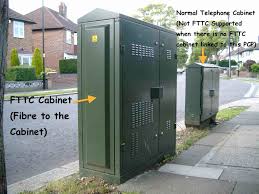
Let’s look at how the broadband (the fibre-broadband-cabinternet) enters your house. If you’re lucky you will have a fibre-optic connection which would give you the fastest speed and performance but the fibre only runs from the Exchange to a Street cabinet. From the cabinet to your house the connection will be by copper. You can bt_-fttcrecognise whether you have fibre in your area by looking at the BT street cabinets. If they’re like the one on the left – you have. If they’re smaller like the one on the right of this picture and don’t have vents in them (necessary for cooling) – then you won’t … yet! Inside the cabinet it is still likely that there will be a tidy arrangement inside-cabof cables and patch leads – not at all like the old telephone street cabinets which usually are rather untidy. So the picture to the left is a couple of rather proud BT engineers looking at a new fibre cabinet. So whether you have copper or fibre to the cabinet, the connection to the broadband in your house will be by copper. This is the same for the cable operators like Virgin Media as well.
 
Your broadband provider (your Internet Service Provider, or ISP) will have given you a device that presents the internet into your house. This could be done in a number of ways, but for this discussion I will call the device a hub. The hub incorporates two components – a modem which pulls the signal from the street cabinet and pushes a signal back, which in turn is connected to a router which handles the distribution of the signal to your various devices in the house. Sometimes these are two separate devices, in the case we’re considering they are one and the same. Your router will probably itself have two components – an aerial for sending and receiving a WiFi signal and a number of ethernet ports to allow you to directly connect a device by an ethernet cable to the router.

homecomputernetwork_diagram[This is always faster and more reliable than using a WiFi connection – but more about that later.] In the diagram to the right the WiFi is being delivered from a separate Wireless Access Point. This is not the normal way of providing Home WiFi nowadays, but before the introduction of “the hub” – it was.


What’s this got to do with “flaky WiFi” I hear you say … we’re getting there, but if you want to fully understand how the internet works you would benefit from an explanation of another piece of wizardry – the Internet Protocol, or IP address. You can skip this bit too if you like.

Every device connected to the internet has an IP address, some are Public, some are Private. Almost certainly all the IP addresses in your house, behind the router will have Private IP addresses. Your ISP will dynamically allocate an IP Address to your router when it sees it’s switched-on, ready for connection. This will be from a store of addresses it has and will look something like this – 86.10.6.1 – this is effectively the equivalent of the telephone number for your house. As the number of Public IP addresses is limited, your router will then allocate an IP address to each device from a Private range and these will look something like this – 10.0.1.2. It is the job of the router to map the devices from the Private range of IP addresses to the Public IP address space of the Internet.

So you can see I hope that the Router is a really important piece of equipment as it handles all the transfers of information to and from the internet using IP addresses. If you’re using wired ethernet connections that’s really all you need to know (there’s loads more but not for this post) and as long as your hub is working and has the correct lights shining all should be well. However we have the wireless network to consider, don’t we? So now we come to “flaky WiFi”. At last, I hear you say!!
Your wireless router (or hub) broadcasts signals to devices on different channels (like TV channels). Usually when you switch it on it will configure itself to use the best available one. However, if another network nearby (say next door) is using the same channel there will be interference between the two causing the signal to be interrupted, the information to be resent, the performance to drop. This is the most common reason why you will get “flaky WiFi”. Other reasons may be that you are too far away from the wireless router to get a good signal, you’re moving about, the walls are too thick, the router is not located in the best position to cover the whole house, the wireless card in your computer is damaged in some way (or is just too old to get good performance), or your software is not configured correctly.
I can’t deal with all of these but here are a few links that you may wish to follow up these …
For the Mac user – Lost WiFi: How to fix WiFi connection problems.

A reasonably readable piece – How to troubleshoot wireless router problems.
A more complex but good explanation – How to troubleshoot a flaky internet connection.

 
… for now I’ll just go through a couple of situations.
1) If the signal as shown on your device gets stronger the nearer you get to the router, your problem is likely to be the siting of the router. You need to move it closer to where you wish to use the device, or consider a wired connection instead. This might sound daunting, running cables and the like, but you can buy a pair of Powerline plugs and connect the router to the device using your internal mains electric circuit. Alternatively, you could extend your network, again using Powerline technology to provide a Wireless Access Point near to where you want use your laptop, phone or tablet. [Note: There are other manufacturers and suppliers of this technology other than Trendnet and Amazon, try Maplins, this is just the kit I use.]
2) If the WiFi is definitely “flaky”, it’s intermittent, or undependable, you’re most likely to need to change the channel. You may be able to do this yourself using the management software provided for your hub, but you may also find it better to contact your ISP, explain your problem, say that you believe you may need to change the channel and they’ll talk you through doing just that. [They may indeed be able to change it remotely.]
That’s it. I knew about channels before writing this, but not the term “flaky WiFi”. I’ve learnt something new!
screen-shot-2016-10-11-at-17-28-54PS If you want to know just well your device, and/or network is performing why not use Speedtest, it’s available for mobile devices like phones and tablets as well from the App Store or Android Store. Here’s a screenshot of a test I just did on a wired connection in my house using Virgin Media as my ISP. It’s quite addictive.