Not a Spielberg masterpiece but something I knocked up this morning. There is one mistake in it, corrected in the second-half of the video. The Mac requires a 64-bit Linux distro, not a 32-bit one, so the same .iso file I used for the Dell Inspiron was used in trialling Ubuntu 20.0.4 on the 2008 MacBook Pro.
How I built a Ubuntu Linux 20.0.4 system on an iMac and tested it on an old MacBook Pro
I’ve also discovered that Etcher is available for Windows as well – go to pull-down button on this page. It might be worth looking at this as an alternative to Rufus.
It is a dual-boot system. It has both Windows and Linux Ubuntu installed on it. When I turn it on, it asks me at boot-up, whether I want to use Windows or Ubuntu. I hardly ever use Windows because I find Ubuntu so much better. However, for this, I’m using Windows because I know that most of the afternoon Zoom group use Windows. I’m using Windows this afternoon so I can see how the Windows installation of Linux works.
Windows is horrible.
So far I’ve had five pop-ups and two programs starting without me wanting them to start. Added to that, with Windows, this laptop takes ages to start.
You don’t get those sort of problems with Linux.
You will also not need anti-virus software as Linux doesn’t appear to get viruses.
Now, you might be interested in taking a look at Linux from a purely academic standpoint; something new to learn during lockdown.
OR … you might have an old computer lying around; one that you’d like to drag back from the grave.
So let’s get started
Linux is an operating system. Windows and MacOS are also operating systems. An operating system is the program that actually makes your computer work.
To proceed, you’ll need to do the following … and it would be best if you did this before next Thursday’s meeting because some of the processes take a bit of time, otherwise you’ll just have to accept being an observer.
Take a look at the computer that you’ll be trying to revive – but remember you can run Linux from the USB drive without making changes to your computer, so it could be any machine. Make sure it has a USB drive. You’ll need an empty USB pen drive doohicky, at least 4Gb in size. Also, the computer that you intend targetting, it would be best to be a 64-bit system. Google your computer’s make and model to find out whether it is 64-bit.
This is for Ubuntu Linux 20.04 LTS. LTS (Long-term support) means that the software will be supported for 5 years. A new version of Ubuntu comes out every April and every two years you have a new LTS release. This page also tells you the minimum requirements that you need on your computer for Ubuntu to run well. Incidentally Ubuntu is a South African enterprise. It is totally free to download, install and use. In fact, everything in the Linux world is totally free. Linux comes in many different flavours e.g. Mint, Red Hat, Fedora … you chose the flavour that best suits your needs. My opinion; they are all very similar. Ubuntu is probably the easiest to get to know and with the best support. It will take a while to download as it is a big file … about one hour in my house but I have Virgin cable.
If you only have a 32-bit system there is another Linux operating system that works well on older 32-bit computers. It is called Bodhi Linux. Download the image file here. https://www.bodhilinux.com/download/ download the legacy version.
Once Ubuntu has finished downloading, don’t do anything with it. Don’t double click on it or try to get it to run. Just make a note of where you’ve stored it.
Now, you can’t just put the file that you’ve downloaded onto your USB drive. It is just a bit more tricky than that. You’ll need one more piece of software. It will transfer the Ubuntu file you’ve downloaded onto your USB drive and create a bootable disk image. These pages will give you a run down on what to do next on a Windows computer.
You will need a piece of software called Rufus (free, open-source) to create the bootable disk image. Here’s the link to get it.
You should Download AND install Rufus 3.11 1.1Mb onto your machine.
Now, on Thursday afternoon, in order to proceed, you will need the Ubuntu file stored in your computer and have Rufus downloaded and installed. We’ll talk you through the rest of the procedure over Zoom but rest assured, you’ve already done an awful lot.
Please note. All the above assumes you will be working on the target machine; BUT you could prepare the USB pen drive on one machine and then apply it to another. For instance David prepared his Ubuntu installs on a Mac, with the intention of targeting an old Windows machine. It’s just important to know what your target machine is, that it’s 32-bit, or preferably 64-bit.
Things you need to understand.
Once you have Ubuntu on your USB pen drive you can:-
Run Ubuntu on your computer just to see what it is like. This won’t make any changes to your computer. After you’ve taken a look around the system you can just shut down, pull out the USB drive and re-start. All will be just as it was before.
Make a full Ubuntu install. This will completely change your computer to a Ubuntu device. There will be no turning back from this option. However, you will have use of all of the space on the hard-drive.
You can choose a dual-boot installation. This will partition your drive into two sections. You can keep Windows on one section and Install Ubuntu on the other. Although this sounds complicated, it really isn’t … you just need to make a choice on the size of the partitions that you’ll need. If you chose this, every time the computer starts you’ll be asked whether you want to start Windows or Ubuntu.
Other things to consider.
You can get Windows programs to run on a Linux machine but this is a bit of a black art and beyond the scope of this project.
However, Ubuntu comes with quite a few pieces of software pre-installed including Libre Office. This is very similar to Microsoft Office. You should know though that when you create a document in Libre Office, you can choose to save it in Microsoft Office format and a Windows computer will be able to read the document. Similarly Libre Office will open Microsoft Office files seamlessly.
One of the pre-installed programs is called Synaptic. This is a bit like the app store on many mobile phones. You can find oodles of pieces of software within Synaptic, all totally free.
One last thing to consider.
Both myself and David have successfully undertaken these procedures and everything worked just fine. However, please realise that if anything does go wrong then you really should be prepared to take the responsibility yourself. We can’t really be held responsible for the vagaries of a variety of computer systems. However, usually just preparing the Disk Image on the USB stick and trying again is usually quite successful. All I can say is that many people have installed Ubuntu. I’ve just checked the website to find out how many Ubuntu users there are. It was quite refreshing to learn that Canonical; Ubuntu’s parent company do not harvest that sort of data. A rough estimate is that 1-2% of all of the computers in use world wide use some sort of Linux installation.
Addendum. A note on Boot Order for PC-folk and your BIOS
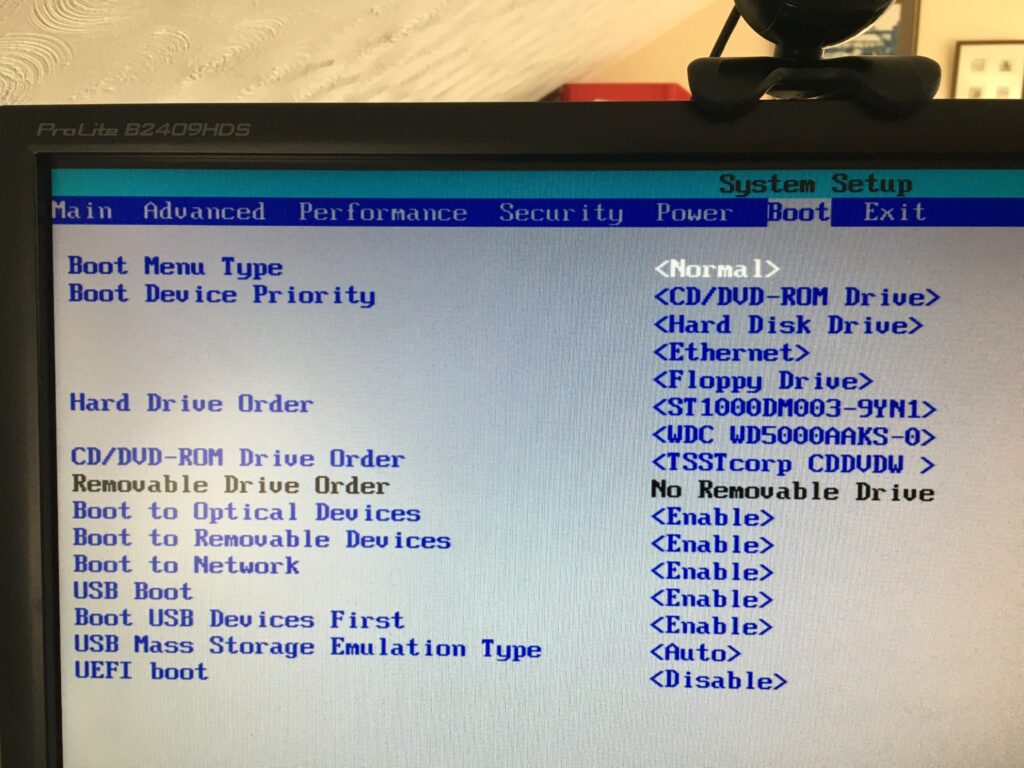
You’ve got your USB install drive; you’ve got a PC; the only “tricky” bit left for you is to change the boot order of your PC. By default the machine will look to boot from an internal hard drive, but it doesn’t have to. You want it to start from your USB drive. So read this to see how to change the boot order.
If there’s no bootable USB drive in your machine it doesn’t matter; the boot sequence just looks for the next drive it could boot from – usually the internal hard drive. That’s why on some BIOS you’ll see the CD/DVD drive as first in the list as that’s where (traditionally) you would have installed/upgraded your Windows from – before the internet! Before that it was the floppy drive (a: or b:) – remember that; and that explains why the late-comer the hard-drive is always labelled c: or later, d: etc.
Of course on the Mac, it’s much easier , you just have to keep the Alt/Opt depressed as you boot-up and then select the boot device 😉
Second Addendum. Having problem with Booting your USB disk?
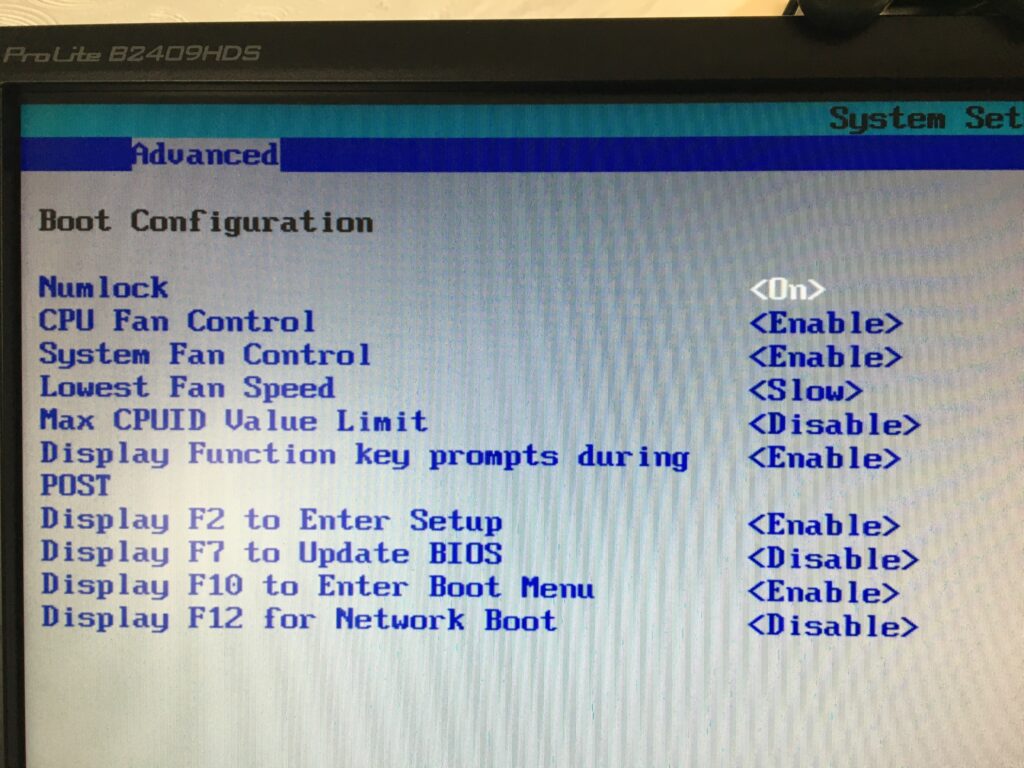
You should look at these settings in your BIOS on a PC. Often the key to press when you want to access BIOS settings is F2.
Getting the Boot order correct, and making sure that USB Boot is enabled.
From the BIOS settings menu just make sure that Boot USB Devices First is enabled. If you have the USB Device inserted, it will also appear in this list. You could move it to the top of the list, but of course it will disappear from this list when you take it out – that’s why Boot USB Devices First is important. You could also Disable the Boot to Network option.
Making sure you can Boot from your USB device
From the same F2 BIOS Settings menu you should make sure that F10 is enabled (or whatever key is designated to Enter Boot Menu) and F12 is disabled as you don’t want to boot from the Network at this time. [You can always enable it at a later date, in the unlikely event this ever becomes a requirement.]
Apologies for the slight delay; if you look on the Notice Board and the Guides Menu bar, you can see I haven’t been idle. All the guides are offered unread; I can’t recommend them as I haven’t looked at them yet, but I have used BDM publications on a few occasions in the past and they produce the “manuals” that you often see in WH Smith & Sons, and in their Motorway Service outlets. Pictorial and easy to read is how I’d describe them.
A good attendance again, up to 15 at one time – I was willing two more people to join to force the Gallery view to extend on to a fifth line; maybe next time.
A Review of items from the last meeting:
David H was happy to report that his issue with shielding and deliveries from Supermarkets was now resolved and that Tesco had offered to provide the service to them without the paperwork (as I understand it). Paul on the other hand described the trials and tribulations in getting Asda to amend their online order.
I reported back that I’d been unable to help Ann with her Nest problem, we’d given some suggestions to Margaret on WhatsApp about her router/printer problem, and to Christine (in the last notes) about her Digital TV antenna query. Jenny was going to follow-up her hardware issues with Neil next week.
Today’s issues:
Owen gave us the good news that U3A had purchased a subscription for Zoom and that he was maintaining a diary for any group wanting to use it. I requested that our weekly meetings be put in the diary.
Renee had received her new iPhone SE (review from The Guardian here) but was having problems with her internet connection – someone will have to help me, I’ve forgotten what the problem was!! Duh!
John was experiencing a number of problems with his MacBook Air with files being greyed out (presumably in Finder). He was going to do more research of the problem and get back to us. Perhaps Creating a Topic in the Computing Forum might be a good idea John? He was also disturbed that in setting up email for his wife on the computer that her email was now in the same system as his, whereas before it wasn’t. I suggested that this was almost certainly due to the necessity of them both needing to have separate Login IDs and accounts on the machine.
David H asked a question of Paul about the Honor phones, to which Paul replied it was wise to investigate whether they had the Google suite of programs available to them as Trump had barred the US from installing them – same for Huawei phones as well. If you bought an 8A (?) this would not be a problem as this model pre-dated the ban. These phones are available from Argos and Carphone Warehouse.
Jim showed us his new external DVD/CD Drive to replace one that had failed in his Laptop. [I forgot to write the model down – can you remind me] He also enquired whether anyone could help him preview photos on his Windows Laptop (outside his photo-editing software). The order in which the pictures occurred seemed to appear in different orders and so it was difficult to review to delete duplicates etc. Owen suggested that he might look at Irfanview. Someone else suggested that there were specific programs to sort out duplicates – indeed we dealt with that in an earlier meeting – dupeguru was used.
Marilyn asked whether it was safe now to upgrade to Catalina on her Mac. I agreed to check and for her, and did, and as she had no Legacy Software installed, it was now perfectly safe to upgrade.
Jenny gave an account of her work for the National Pensioners Convention (?) and asked members whether any of us had experience of providing training for older people. Some of us shared our rather jaundiced experience. We wish her good luck!
Christine alerted us to the fact that Ancestry was now available online through the Cardiff Library Service – but you had to have a current Library account, with a PIN to access it. I received an email alerting me to the fact that Kew was making a lot of its digital records available online during the Covid-19 lockdown – here’s a link to that. You need to have registered with them. Could be an opportunity for genealogy work?
Don gave a very positive account of his experience in using a TP-Link mesh network device to extend his WiFi network in his house. He also alerted us to a service available for Which? to sign-up for a Scams Newsletter. I told the group that I’d purchased another Trendnet WiFi extender device for outdoor use.
Ann thanked us for our advice to clean her Home button on her iPad with an alcohol-based solution to improve the performance of the button. She also enquired on whether anyone had experience of using any video-editing software. I thought I had some notes somewhere on the subject – maybe done for a Digital Group session, but I can’t find them currently. I did find however that I installed (and used) Shotcut and had also (but not purchased) Wondershare Filmora – these are cross-platform programs which work n both PC & Mac. I also mentioned that I thought you could do some basic editing in YouTube, and then download the finished work back to the home machine and delete the uploaded video(s). This feature of Windows 10 might be of use too. I can see that it might be an interesting idea to try a special Zoom meeting on video-editing – especially since I have to do some myself at the current time.
My notes:
Google (and Microsoft in recent adverts) is responding to the rise in the use of Zoom to extend the use of Google Meet (formerly just for business use) to everyone who has a gmail address. The problem with both of these is that you need to have a Google (or Microsoft) account to make use of the service. Zoom is service and platform independent as it’s web/cloud based.
Google and Apple combine to provide indirect method of doing contact tracing, but UK government decides to go alone with another NHS IT project. [Watch this site for details if and when it appears – there are also pages on other NHSx Covid IT services.]
I mentioned that I’d found an app to help me tune my guitar (Fender Tune), and that I’d also purchased (£4.99) an app called SongShift to copy Playlists from Spotify to Apple Music (and many other services as well) and back again. It works very well!
Finally, we looked at Phil’s experiences of plumbing in a new dish washer, but more interesting than that was his work in installing Ubuntu Linux on an old laptop. Here’s an article that explains the key differences between Windows and Linux. Something that I’d been meaning to do for some time now and had always intended as a Digital Project. Quite a few members were interested in this as the subject of a Zoom Digital Project and Phil and I will be putting our heads together to try and set this up. Watch this space.