
As hardware/software has developed, has enough consideration been paid to redundancy (ie failsafe solutions). This article, whilst bemoaning the underlying architecture of Microsoft’s Windows operating systems (since Windows 3.1), points more widely to the way that modern systems don’t really address the issue of … “What if this happens, then what?”
Autumn cleaning – maintenance


First, an overview
This article from Norton is as good as any at summarising what you should do by way of maintenance – regular tasks that will make your machine run smoother, and possibly faster.
Backups
There are built-in options supplied for both Windows and MacOS – there’s no real reason to look beyond these. This table (for Windows 10) shows the different methods you might consider. I’ve also included this article that might help you understand what your need to do. However, with Windows (it’s never straightforward) you have another option File History, which maybe a better option, as it focuses on saving files to an external hard disk.
For the Mac, I wouldn’t bother going further than TimeMachine. You’ve heard me rave on about the Mac, but it’s true. You may do things differently on a Mac, but they’re just easier.
The most important thing is to do Backups, and do them regularly. My TimeMachine does an incremental backup every hour to an external hard disk. So the most I can lose should the machine crash, is the last 59 minutes. Some items will be excluded from this backup (eg photos) as they are backed-up automatically to iCloud when I import them on to my machine.
Windows 10 and 11 Maintenance
Let’s start by looking at this short video. You’ll want to go back and watch it more than once. Although it is aimed at Windows 10, I think all the utilities mentioned are available from Windows 11 too.
If you prefer reading to watching, and you’re a Windows 11 user, you will possibly find this article useful. If you don’t trust yourself to do the maintenance regularly, then Windows 10 users might find this article useful as it tells you how to schedule automatic maintenance and what it will do, but if you prefer your instruction to be visual you could watch this video instead, or as well.
If it’s just a speed-up you want from your Windows 11 system, you could work your way through the list in this article, but I’d be tempted to do the more comprehensive list of tasks mentioned in the videos above.
MacOs Housekeeping
Here it’s more housekeeping than maintenance, there are some things you can do to improve performance on your Mac, regular maintenance (as mentioned above) is not really required. This article aims to make your machine run better and faster – I’ll have to read it!!
The software I use on my Mac is CleanMyMac X – this article describes what you should do to automatically do some decluttering, which is probably a good thing and which I run once in a while; it obviously recommends that you use CleanMyMac to do it. Quelle surprise!
Operating system updates and upgrades
These are usually well announced by Microsoft and Apple. Generally, if the update is described as a Security Update, you should do it immediately; if it’s described as a bug-fix, or a point release with new features, I would counsel waiting a while … perhaps a couple of weeks, before installing it. Of course you can leave your operating system to do these automatically, so check your settings (as described in the videos) and select the time that your updates will be done.
More substantial upgrades are less frequent and my advice is to wait a while before installing these as it’s always challenging to go back to a previous release, and sometimes the upgrade will affect the running of one of your applications. All serious software developers will apply to get advance access to operating system upgrades to test their software on the new platform; but even with this access some bugs may not appear until the operating system is “out-in-the-wild”.
Internet history, cache and cookie cleaning
These were covered in the earlier videos but you should probably do these quite regularly anyway. You might have noticed that cookies weren’t “cleaned-out”. That’s probably because the majority of them will be re-installed the next time you go to a website, and cleaning them will also mean you have to re-enter information again. Generally, with good anti-virus software these days, cookie cleaning is not essential, as the malware threat has been reduced before they’re added to the browser.
Anti-virus and malware checking
For the Mac I have MalwareBytes (supplied by my bank). For the PC/Windows you know that I recommend Widows Defender, as it’s more than adequate for the “ordinary” user who’s not surfing the dark web! It’s evident that Microsoft have upped their game in this area and you can also deploy other tools to protect your machine. Take a look!
Hardware upgrades – memory, batteries
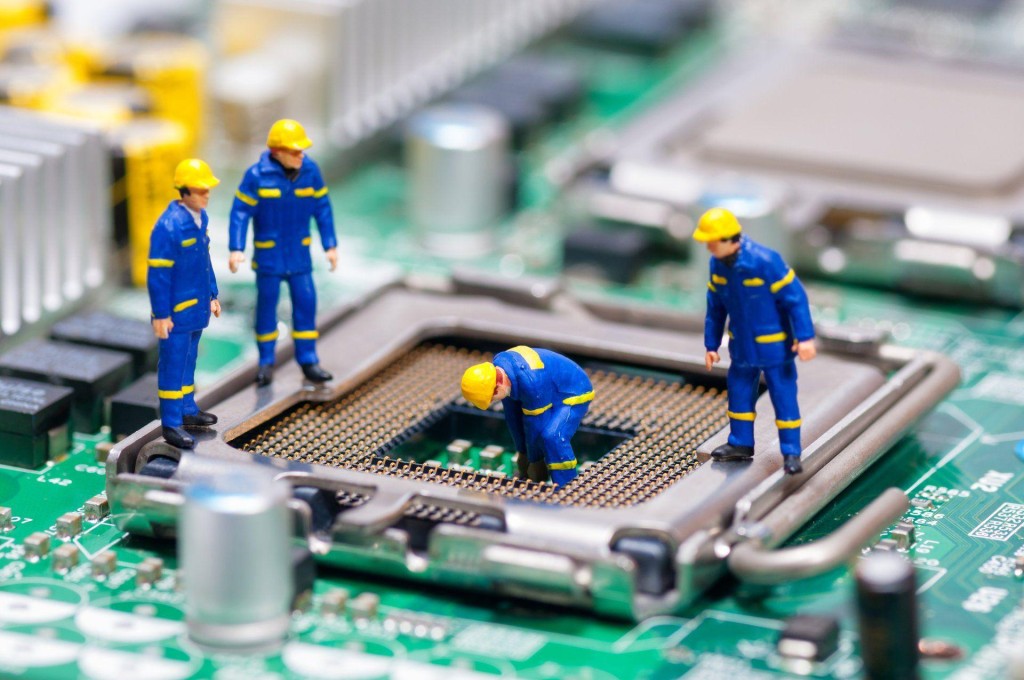
You might wonder whether you’re up to upgrading memory or batteries on your laptop or desktop, but actually this is a relatively easy job. You can use components from Crucial for memory and hard disk upgrades, and they describe how to do it for specific machines, or you can search for compatible components on the internet. Search for the instructions on how to fit for the specific DIY task. You’ll feel a sense of pride when you’ve completed the task too! A triumph for “person kind” over the machine
A really good upgrade is to replace an old Hard Disk Drive (HDD) with a Solid State Drive (SSD). The performance enhancement you will experience will be noticeable. You can always deploy the old HDD as an external disk and maybe use it for your backups when you place it in an appropriate caddy.
If you’ve not got the courage to do it yourself, you can always ask We will fix your PC to do it for you.

Cleaning screens and keyboards
Often overlooked, your screen and keyboard can always do with a clean, and you’ll be surprised at the difference it makes – to your mood if nothing else. I recently purchased this kit from Amazon to clean screens, keyboards and TV.
Application housekeeping
Another often overlooked consideration. You should look at whether your software should be upgraded. If it was purchased through an AppStore then you should be able to find out if there’s an upgrade available – you may have to purchase it, but often the upgrade will be free. Often the software provider – if you’ve registered your ownership – will inform/advise you of an upgrade to a new version, or release. Generally bug-fixes are not chargeable, but you may have to pay for feature-enhancements.
Please be aware that it’s impossible to expect that a software developer will keep their software compatible with every release of operating system software, so if advised that this is the case you should seriously consider an Upgrade, or finding a replacement if the software passes “out-of-support”.
You should also look to see whether (as was mentioned in the videos) you actually need the software anymore. At best it might just be taking up disk space you might need, at worst (as it becomes more outdated) it might provide a “backdoor” for malware to enter your system and upset your life!
Some applications (as was mentioned in the videos) also have local data caches and backups (genealogy database software is notorious for this). As you exit your session you are prompted to save a backup – the question is … how many backups do you actually need!!
All-in-one solutions
For the PC/Windows you could look at CCleaner (free version) – I love this quote from the article “Macs don’t need standard cleaning” but I do have MacPaw’s CleanMyMac X on my machine, and I bought it! However if you’re a Windows user there’s a lot to be said to doing the cleanup manually following the suggestions mentioned in the videos, I have shown.
Miscellaneous – eMail, Contacts, Calendars, Reminders, Notes, Photos
Not strictly maintenance but something to bear in mind and perhaps make a regular task, is maintaining your “everyday” applications.
Do you need to keep all your eMails? It may be possible to Archive them outside the Mail application – thus making it run faster and more efficiently. You can also if you’re using a local mail client (recommended) occasionally rebuild, or optimise, the email storage. It’s just a database and it will run more efficiently if it doesn’t have a lot of redundant links to deleted messages, and the like, contained in it. You may be surprised at the large number of files (especially photos) that are stored in your email. Perhaps you should save them to a Photos app, or at least download them to a folder on your machine – they’d be more accessible there.
It’s surprising how many Contacts are duplicated, or how details and lists can get out-of-date. Always a good idea to review them and merge duplicates, edit changes and delete no longer needed entries.
Calendars are less needing of maintenance. If the day has passed, so what; it’s more important to know the forthcoming events are accurate and up-to-date. However recurring entries should be reviewed occasionally.
Again, like the above, it’s more important to keep Reminders up-to-date, and if you decide to use that utility, to stick to it. It’s an application that you shouldn’t use occasionally, you should commit to using it, and then be able to rely on it. As I demonstrated recently you can talk to it – as of course you can with a lot of utilities and applications.
Notes can become a bit of a dustbin, and I suppose you should be allowed to have somewhere you just dump stuff. However, they do have a very useful role in planning, and charting progress of a project, or a trip – especially when you can show completion with a bullet-point format. The functionality is always improving and now you can store website addresses, photos, maps, music and more in a note and then share it with someone else so that they can collaborate with you on the topic. It’s just a bit embarrassing when you look back at what you’ve “noted” and realise it never actually “turned-out-like-that”.
Finally Photos. Probably the biggest hard disk grabber of all. You need to plan a strategy for what you want to keep, the application you want to use to access them, or share them, and then – if at all possible – stick to your plan! Not always easy, but for your sanity, probably essential. The first task is to work out your duplicates. This is where DupeGuru comes in. Apiece of open source software that has proven to be a life-saver to me, and a tool that has allowed me to recover a lot of disk space. It works well with phoitos, but can also be used to find duplicates of other file types as well.
… and there’s probably more – over to you!!!
More reading
PC Maintenance Software: 6 Best to Use in 2023
Best free PC optimizer of 2023
Should I use Russian anti-malware software – Kasperski?
Well … a lot of people do, and even government and other public bodies do, I believe, and it’s supposed to be very good and used to be recommended by Which?
But I don’t!
Starting to Trace your Family Tree (meeting notes from 10th Oct 2018)
Start by writing down what you already know of your family history.
Gather together any birth, death and marriage certificates your already have for the family.
Talk to other family members about their knowledge of the family.
Take copies of any certificates or family pictures they may have.
Then you are ready to start using online resources to help expand that knowledge.
Most important sources of information:
- Births, death & marriages cartificates
- Census information 1841 – 1911
Useful Websites
- Ancestry.com – subscription site / free at library
- Find My Past – subscription site / free at library
- General Register Office – Free – needs registration
- https://www.gro.gov.uk/gro/
- Births up 100 yrs ago, deaths up to 50 yrs ago
- Can order certificates via this site
- FreeBMD – Free
- https://www.freebmd.org.uk up to 1983
- Family Search – registration
- https://www.familysearch.org/
Accessing ‘Find My Past’ and ‘Ancestry’ in Cardiff Libraries
- You will need your library number and a library PIN number.
- Log into one of the computers in the library – note you may have to reserve a computer at busy times. At other times you will be able to walk in and start using one.
- Double-Click on iBistro Library
- Double-click on e-Reference
- Double-click on either Ancestry or Find My Past
Recording your Family Tree
As you build up your family tree you will start to want to record all the information you have. There are various ways of doing this:
The various websites (subscription and free) now enable you to record your family tree e.g. Ancestry.com. You can sometimes choose to share that information with others but sometimes it is the default setting to share the information so take care. Some sites automatically make information on living members confidential, others do not.
Many people purchase a bit of family history software to record their family tree. I personally use Family Historian.
I also sketch out my family tree in Excel.
Getting started with Digital Photography: Part 1

A new venture for Thought grazing …
This article starts from the assumption that you already have a digital camera, or smartphone, and doesn’t pretend to give advice on how to proceed to purchase one except to say that I would strongly recommend buying from a camera shop for the after-sales service you would get. In buying a digital camera you’re buying into a system – Canon, Nikon, Sony, Fuji, Panasonic etc. – it can be a painful (and expensive) decision to change later, so it’s worth talking to someone who can talk about their experiences, or who can match your needs to what is available.
This article starts from the assumption that you already have a digital camera, or smartphone, and doesn’t pretend to give advice on how to proceed to purchase one except to say that I would strongly recommend buying from a camera shop for the after-sales service you would get. In buying a digital camera you’re buying into a system – Canon, Nikon, Sony, Fuji, Panasonic etc. – it can be a painful (and expensive) decision to change later, so it’s worth talking to someone who can talk about their experiences, or who can match your needs to what is available.
So therefore this article focusses on the software and in later posts – the processing of images using software.
Photography is a hobby that cries out to share its results (images) with other people and so therefore it’s best to work back from answering the question – what are you going to do with the images? By answering that question, the rest of the toolkit and the workflow you adopt is easier to answer. Typical workflows might be …
I just want to take a photo and print it.
I want to take a photo and possibly share it on Facebook, Instagram.
I want to take photos and make them into photobooks.
I want to take photos and post them to a website.
… of course it could be all of the above. One thing tends to unite them however, you need a place in the cloud to store your photos, from which you can then share them. If at all possible you should adopt a platform t
hat provides the maximum flexibility to allow you to do all of the above, and more, so that you don’t need to keep changing your systems as you develop your hobby. I’ve written about my workflow here.
So apart from the local USB disk-storage I use (with its backups, of course) to store and post-process my images, I use Google Photos as my main way of sharing photos in albums eg Orchids from Changi Airport, linked to the free storage (as long as you don’t store images at high resolution) you get on Google Drive. I do have other cloud storage/sharing platforms, but this is the one I use for photographs. I do also have a flickr account to share images – and I use it occasionally, as I do Instagram. As you develop your interest in photography, you may wish to have a more professional platform (I have used 500px), or the sharing platform that may be provided by your preferred software supplier (eg Adobe).
If you’re starting-out (or don’t want to spend any money) then you can use the editing software available within Google Photos, or if on a phone, or tablet, use Google’s Snapseed apps. You can still get Picasa for Windows
and the Mac, which is software Google bought and supported for a while, but it is probably better to bite the bullet and use their Photos app in a browser, as it integrates well with Drive and Google+.
Then of course you might (like me) be an Apple user, and could of course use their Photos app and iCloud, but at the moment the editing facilities offered in the app are not (in my humble opinion) as good as Google’s. You can sync your smartphone “camera roll” to Google Photos automatically which is nice.
Other free photo-editing options are available. I will however after reviewing the other possibilities, only mention and discuss Google Photos on this blog.
 If you’re a bit more sure that you want to invest in digital photography then there’s no better (imho) software than Adobe Lightroom. I’m not going into a whole set of reasons why you should invest in Lightroom rather than Photoshop Elements, or Apple’s Photo app, Paintshop, or even full-blown Photoshop. However for me these are the main benefits …
Photography is a hobby that cries out to share its results (images) with other people and so therefore it’s best to work back from answering the question – what are you going to do with the images? By answering that question, the rest of the toolkit and the workflow you adopt is easier to answer. Typical workflows might be …
I just want to take a photo and print it.
I want to take a photo and possibly share it on Facebook, Instagram.
I want to take photos and make them into photobooks.
I want to take photos and post them to a website.
… of course it could be all of the above. One thing tends to unite them however, you need a place in the cloud to store your photos, from which you can then share them. If at all possible you should adopt a platform t
hat provides the maximum flexibility to allow you to do all of the above, and more, so that you don’t need to keep changing your systems as you develop your hobby. I’ve written about my workflow here.
So apart from the local USB disk-storage I use (with its backups, of course) to store and post-process my images, I use Google Photos as my main way of sharing photos in albums eg Orchids from Changi Airport, linked to the free storage (as long as you don’t store images at high resolution) you get on Google Drive. I do have other cloud storage/sharing platforms, but this is the one I use for photographs. I do also have a flickr account to share images – and I use it occasionally, as I do Instagram. As you develop your interest in photography, you may wish to have a more professional platform (I have used 500px), or the sharing platform that may be provided by your preferred software supplier (eg Adobe).
If you’re starting-out (or don’t want to spend any money) then you can use the editing software available within Google Photos, or if on a phone, or tablet, use Google’s Snapseed apps. You can still get Picasa for Windows
and the Mac, which is software Google bought and supported for a while, but it is probably better to bite the bullet and use their Photos app in a browser, as it integrates well with Drive and Google+.
Then of course you might (like me) be an Apple user, and could of course use their Photos app and iCloud, but at the moment the editing facilities offered in the app are not (in my humble opinion) as good as Google’s. You can sync your smartphone “camera roll” to Google Photos automatically which is nice.
Other free photo-editing options are available. I will however after reviewing the other possibilities, only mention and discuss Google Photos on this blog.
If you’re a bit more sure that you want to invest in digital photography then there’s no better (imho) software than Adobe Lightroom. I’m not going into a whole set of reasons why you should invest in Lightroom rather than Photoshop Elements, or Apple’s Photo app, Paintshop, or even full-blown Photoshop. However for me these are the main benefits …
- It doesn’t matter where your images are stored; you don’t have to import them into a database, but you can choose to import new images into a single location of your choice which is unconnected to the software.
- It employs a catalogue which references where the images are stored. You can have multiple catalogues referencing the same set of images.
- All changes (edits) to the images are stored in the catalogue.
- The original images are left untouched. This is called non-destructive editing.
- You can go backwards and forwards through your edits, and can even create multiple virtual copies that allow you multiple versions of the same image, but only one actual (original) image.
- You can store your images in Collections which equate to virtual albums unconnected to the actual folders the actual images are stored in.
- You are supplied with a huge range of Plugins to allow you easy publishing to social media sites (eg flickr, Instagram, Dropbox), in addition to publishing to photobook websites (eg Blurb) and print sites (eg Smugmug).
- You can apply presets to your images at import, developing or export so that the same look and feel can be achieved.
- It integrates well with a whole range of other software such as WordPress (for blogging).
… I just feel that (for me at least) Lightroom is the best at the moment and it integrates with Adobe’s other software. It also now has a mobile version that allows editing on your iPad (or iPhone) if you subscribe to their Photography Creative Cloud Plan. This costs c.£9 a month and gives me both Lightroom and Photoshop, storage space in the cloud, and more besides, plus all the upgrades.
If you decide to go down the Lightroom route then here are a couple of resources you might wish to reference …
Laura Shoe’s Lightroom – http://laurashoe.com/
Lightroom Killer Tips – http://lightroomkillertips.com/
Adobe Training – http://tv.adobe.com/product/lightroom/ and https://helpx.adobe.com/lightroom/tutorials.html
… and for Lightroom tuition, you’ll do well to beat …
Scott Kelby’s Lightroom books for digital photographers, New Riders
Adobe Training – http://tv.adobe.com/product/lightroom/ and https://helpx.adobe.com/lightroom/tutorials.html
… and for Lightroom tuition, you’ll do well to beat …
Scott Kelby’s Lightroom books for digital photographers, New Riders