I’m loading this onto the website before the meeting so that you can download the PDFs and have them available to help you with what is a quite information intense subject.
The Presentation is quite a large document, so perhaps best to download and save, or just view online here which you can view in full-screen by clicking on the icon to enlarge in the bottom right-hand corner of the presentation box below …
… and a couple of other notes. This one details why/how you should continue to use a Password Manager for those sites that haven’t implemented Passkeys as well as storing Passkeys …
And so we turn to passwords and online security. I’ve dealt with this at some length previously in a post entitled “Keeping safe online” which I last updated in May 2023, and although much of it is still relevant and most, if not all, of the links are still working, I thought to write something from scratch, rather than do another edit/revision.
I’m going to skip to the content at the end of the article referred to above and pick-up the theme of Passwords, Passkeys and Two-Factor Authentication (TFA).
First-of-all – you want a fright? Try typing your favourite password(s) – you do have more than one, don’t you? – into this website.
Secondly, check to see just how vulnerable your email address might be, using …
Screenshot
… go to haveibeenpwned? – and if you want to know what pwned means, and how to pronounce it, look here. If a service you use is in this list, you seriously should change your password!
Another approach is to use a tool that looks at your “digital footprint” to examine where you might be exposed. Such a tool is this one from Malwarebytes.
So that’s got your attention, right? You really need to deploy/use a Password Manager to hold your passwords – preferably one that is usable/consistent across all your devices. Two such products are 1Password and Dashlane. Both of which get very good reviews.
The alternative to using a Password Manager application is to use the password security offered by your browser. In Apple’s case this is iCloud Keychain – which stores the passwords – with its associated Passwords app; in Google’s case this is Google Password Manager. Both of these now offer support from one ecosystem to the other – so multi-platform users can choose one or the other. Microsoft also offer a Password Manager using the Edge browser, but its features are possibly not as well developed as those of Apple or Google, nor of dedicated password manager applications such as 1Password or Dashlane which score best with users who have a mixture of Microsoft, Apple and Google devices and applications.
And now we have Passkeys. When assessing whether you want to move to a Password Manager, you MUST check that the chosen one supports Passkeys as defined in the FIDO Alliance …
… and the key to its success and inter-operability is its integration with biometric signatures. So Passkeys are the platform for increased and improved internet security and should be welcomed with open arms – for Apple, for Google and for Microsoft.
If a Passkey can’t be employed on your favourite website, or even if they are, you may be asked to use 2FA (two-factor authentication). Using this means that when you’ve typed in your username and password you’ll be challenged to provide a code from a mobile phone, an authenticator app such as Google Authenticator, or go to another app (particularly if its a Google app), and do that extra second step (hence 2FA) to authenticate you are who you are.
We’re entering the passwordless world. It’s long overdue!
Finally, some other links to help you navigate the digital security world.
Best antivirus: Which? Best Buys and expert buying advice – a review for both PCs and Macs of anti-virus software – of course you could just be relying and using Windows Defender (for Windows) or nothing at all (if on a Mac), both of which are acceptable decisions, which then leads into …
A really useful security enhancement to your phone is to implement a SIM lock which ensures that only the pairing of your phone with your SIM can be used together. Thus meaning that a SIM taken out of your phone cannot be used in another phone to receive confirmation text messages in financial scams.
Towards the bottom of the post the procedures to be followed are described. You just need to remember the PIN you’ve given to the SIM to lock it, as without that it will be IMPOSSIBLE to reconnect your phone to your SIM and your phone number.
Again, this is a difficult decision on which Forum to post, but I settled on this one. You should read and consider whether the security issues it raises concerns you, or not, and take appropriate action …
Here’s a video that explains what a Virtual Private Network does. I use NordVPN, but I must remember to switch it off when in the house as it’s quite unnecessary behind my router. It is useful when travelling however, and some might say essential when cruising.
The second half is a bit techie and can be skipped if all you want to do is understand what it does and how it can be used.
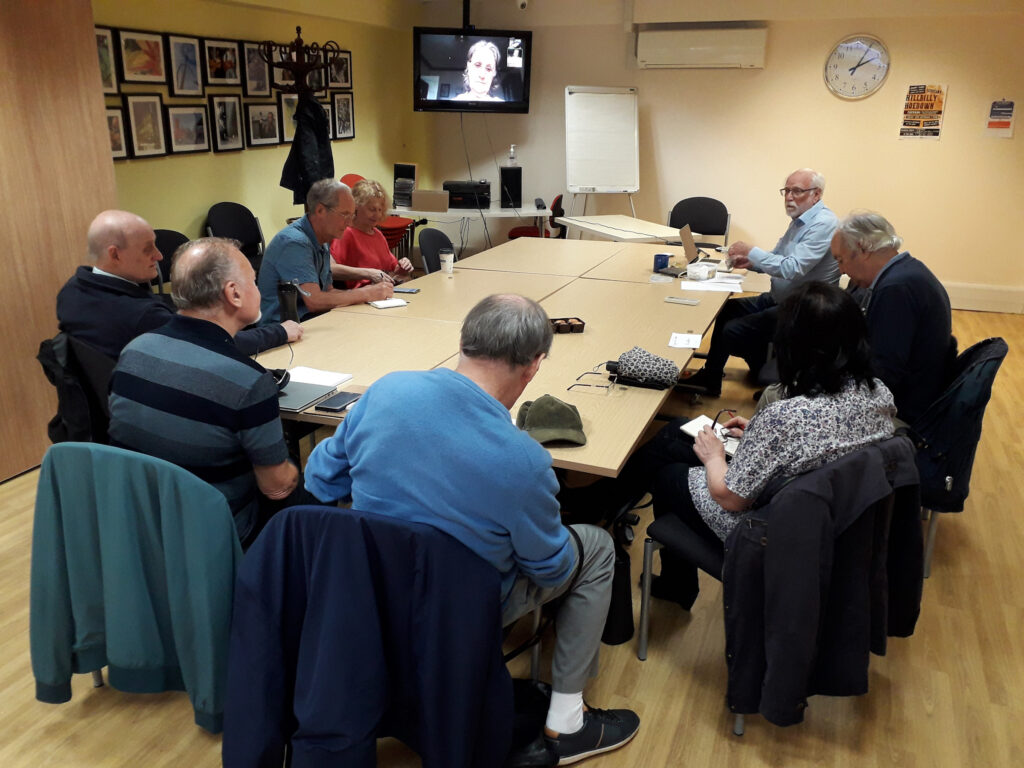
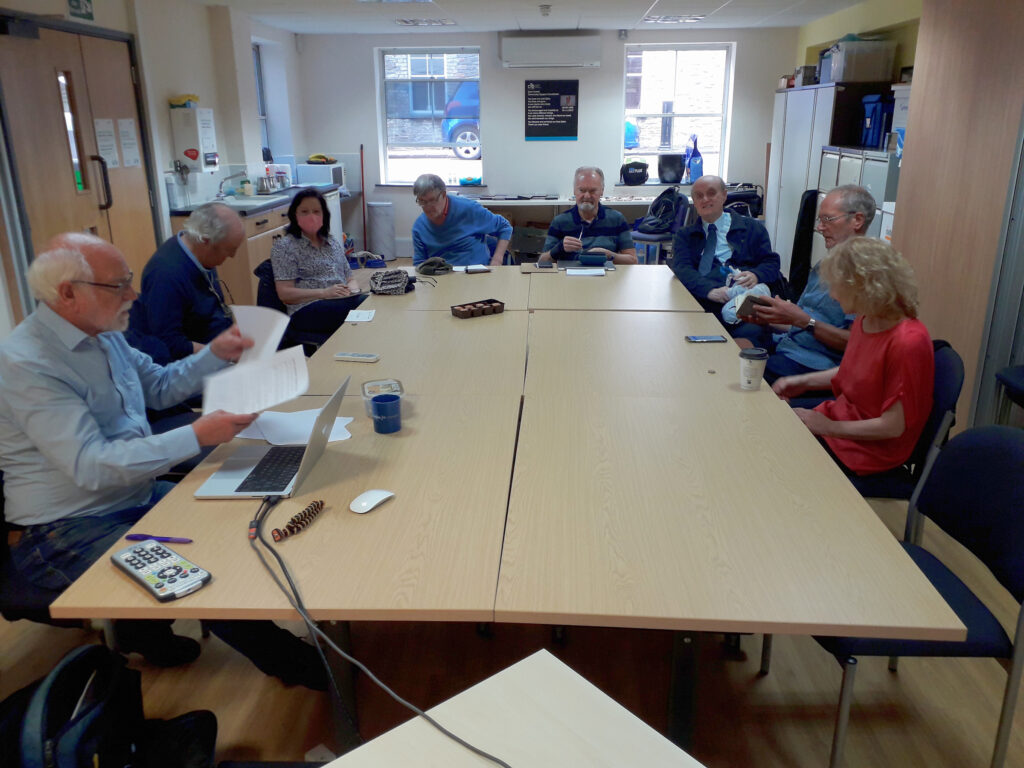
Back (almost) to normality. Thanks Jim for the two shots that show how we set up the room for the meeting, with quite a lot of room unused, both towards the windows, and behind the people sat at the tables.
We welcomed Tony Baines to his first meeting and noted the “virtual” presence of David Hughes, Renee, Jenny and latterly Fred. Paul would also have been with us on Zoom but for Dolly breaking her arm and being in A&E – we wished her well. Apologies were received from Mike Payne, Mike Chapple, Sally Semlow, Margaret Lewis, Ann, Christine and Don.
I started the meeting by describing the trials and tribulations of trying to get URC to install 4G Mobile WiFi which would if it had been installed, meant that we might well have stayed in the Upper Room. However I pointed to the tea and coffee offered to us at Sight Life as an additional bonus to the good WiFi we would now be take advantage of. This will be our home until Christmas at least and we look to having a full room after the “Meet the Groups” event on October 11th. I asked if anyone would be willing to assist on the Computer Group desk and after the meeting John, Jonathan and Sianed volunteered. Thanks.
I suggested that we did the “issues and updates” first because I had such a lot of “news” – all posted on Flipboard since our last meeting. I also noted that it was a bit Apple-centric (as usual, some might say) and wondered whether any member might like to offer a different and wider perspective. Jonathan volunteered to take a look at Microsoft/Windows news. I committed to helping setting up a workflow to help him. So … what were the “issues and updates”?
Jonathan had a real issue with his laptop (having dropped it). He was using his wife’s for the moment and Neil is currently trying to source a replacement screen for him. He expects it to cost £180 which just about makes it an economic proposition for a four-year old laptop. In addition he’d been having difficulties (prior to the accident) with Lightroom and I had been trying to assist him with that. Otherwise his grandson was providing tuition device _ something I think we can all say “yep! That sounds about it.”
Ralph had done quite a large hardware swap out and was now concentrating on getting more out of his new phone. I commented, and others agreed, that there were a lot of features on the iPhone I was not making use of, and didn’t know how to use. I suggested that we might have an in depth session on using iOS and Android mobiles as soon as possible. Ralph commented that we used to expect a standardised interface, but that it now allowed so much more personalisation. That’s great for those who are open to change, but perhaps that’s not so readily possible for those of us third agers! Sianed made a comment about Siri not recognising her voice. We offered the possibly light-hearted suggestion that she tried speaking in Welsh. We await the report back!
Tony had (at the beginning of the meeting) given us a brief insight to his use of IT and then presented us with a problem of Word maximising on his screen (when he didn’t want it to). We all offered solutions, but in the end he found the solution himself!! He also re-enforced the suggestion to learn more about what he could do with his phone. Noted! He then described a problem he was having with the VPN installed as part of his MacAfee security suite. He asked whether it was needed. That led to a discussion on the use of VPNs, whether they were necessary or not. I expressed the view that even though I’d purchased a copy of the NordNet VPN, I was of the opinion it wasn’t really necessary for our type of use. It obviously was of value to have installed on your mobile device(s), but not really on your desktop. Even then, if you didn’t do more than web browsing and email when out’n’about, it probably wasn’t needed. It was however commented that one value of a VPN was to “spoof” your location by choosing a VPN server in a different country. You can then, for instance, view iPlayer and UK-TV when in Australia! We then had a discussion on how to uninstall MacAfee (or Norton, or Kasperski security suites) as they all seemed to leave “stuff” behind after the uninstall. I followed this up with some suggestions to members on what to do in emails. [We possibly need to cover this in a meeting as well.] Finally Tony raised an issue on the use of organising his Gmail. Members suggested a number of options, including labelling. I offered the suggestion that archiving everything and starting from scratch using Folders might be the best idea.
John had a “flash new iPhone” that he was coming to grips with. He also expressed his views on Edge, he didn’t like it. We reminded him that there were plenty of alternatives, and for Tony’s benefit I mentioned that I’d done a review of browsers and search engines at the end of the last session.
Stella had installed Windows 11 and all was well so far. She told us about Lebara (a Vodafone 4G service) currently available for 1p per month for a number of months and then £4.99 – sounds a good 3Gb SIM-only deal!
Steve had also had an IT-refresh including a new iPhone 11, and noted that Chrome was quick. [Yes it can be, but it slows down if you don’t clear your cache out.] He’d invested in more iCloud storage (50Gb) – a good choice (imho). He’d got Bitwarden, and Nordstream as a VPN and wondered whether to use it (see comments above).
Jim had a problem with his new 1Tb external SSD in that it was losing EXIF data from photos. He’d taken the advice to re-format his drive as NTFS and the problem had gone. Sorted!! He’d also had a curious problem of a laptop draining power when a USB disk had been left connected to it. The only reason for this I could suggest was that the disk was “polling” to see if the laptop was switched on.
Renee had negotiated a new contract with VirginMedia and had saved some money (so had I just recently).
Jenny reported that her iCloud storage had filled-up, but she had been able to increase it with the help of her daughter. She enquired how safe it was to use a mobile device in a cafe. I said completely as long as you didn’t do anything that you wouldn’t sensibly do, ie financial transactions, or anything involving sharing personal information. I also expressed the view that it was unlikely that any of us would be “targets” of anyone wanting to get our information. So generally speaking – relax!
Sianed reminded us that the paper £20 and £50 notes were soon to be taken out of circulation, and the non-barcoded stamps would be not able to be used after January.
I reviewed a couple of things that I had reported to the group on Signal over the summer and then went through the items that I’d put up on Flipboard. I encourage members to go and have a look at what’s been happening, particularly with the new Apple devices. I did however discuss the recent scam/fraud reported on Twitter involving Santander and a journalist. I promised to write a specific blog post on the issue, but in the short-term I suggested that members did not keep their credit/debit cards in the same wallet as their iPhone (and probably Android phone for that matter), and secondly that they investigate and implement locking their SIM to their phone. This would mean that a SIM taken out of your phone with your information on it, could not be used on another phone.
I’ve written and talked about this subject on a number of occasions. I’ll bring these together in one place, before delving into the specifics of router configuration which prompted the subject for the meeting on Feb 4th, 2021.
For many of us home networking means WiFi, and the first article I wrote was on the subject of “Flaky WiFi” on October 11th, 2016. Members of the group had commented on their WiFi connection appearing to drop and in this article I tried to explain how all the bits and pieces hung together and how you could test your network to see it was working the way your Internet Service Provider (ISP) was proclaiming it should be!
I described “How the Internet works” in this post on June 29th, 2017, with links to a few videos and policy documents which hopefully explain the topic better than I could. Not much has changed since then; IPv6 is still to appear in the domestic market, so we still use IPv4 for internet addressing.
If you’re using an integrated modem/router – often called a hub, typing in the IP address 192.168.1.1 will bring up a screen something similar to this …
… mine is different because I’ve disabled the router functionality so that I can use my own router – a Netgear Orbi Mesh Network – so to just access the modem part of MY hub I use the IP address 192.168.100.1. You can see from the above that only the Modem is active.
So for most users with an integrated modem/router, the first thing you need to be able to do is to access your Router’s Admin Dashboard. This article explains how to do it using the cmd prompt in Windows, but it is probable that your hub/router has an application you can start to do this, or that you can access it from a browser window. For most you would just enter the IP address 192.168.1.1 and supply the UserID admin and the password that I’ve created – the default is quite commonly ‘password’, so you ought to change that!!!
The above screen is for my mesh network, but non-mesh would be similar. Clicking on Internet will give you the ability to change some of the settings for your connection.
Of these the most useful to change is the Domain Name Server (DNS) – these are the servers that translate a URL (eg thoughtgrazing.org) into an IP address. I’ve chosen to replace the default DNS supplied for my VirginMedia (ie 194.168.4.100) Hub (I’ve disabled the router functionality on the SuperHub so that it only acts as a modem) for two servers run by Google (1.1.1.1 and 8.8.4.4). The reason I’ve done this is that these servers are replicated around the internet and will almost certainly be closer to my router than VirginMedia which I think the closest one is in Bristol.
All the other settings can probably be left as they are. The next option is where you configure the name of your network and the channels you’re going to use.
If you don’t like the name supplied to your network by your ISP, you can change the SSID. I did to make it a little more meaningful. You should then consider changing the 2.4Ghz Channel. If you can set the channel to Auto – you should do so because generally the router will then find the best channel for your network. If that’s not possible and you have found your WiFi to be “flaky” due to you and your neighbour using the same Channel(s), try setting the channel manually to one that’s not being used. The article I mentioned before describes how you can find the best Channels for a Mac, and this one identifies a Windows Tool that does the same thing – there’s a Download link at the bottom of that documentation. Here’s an article that describes all the possibilities.
Generally 2.4GHz has a wider range of signal but lesser bandwidth (throughput), and 5Ghz the opposite – shorter distance, but higher bandwidth. On my system my 2.4GHz channel gives me 400Mbps and the 5Ghz channel 866.7Mbps.
You’ll want to look at your Security Options and make sure that you choose the best for the devices that you’re going to connect to your router. Generally, for a home network, WPA2-PSK [AES] should be sufficient.
This article from the Apple website provides a very thorough and detailed examination of what settings you should deploy for your router, and why. Worth a read, even if you’re not an Apple Fanboy!
On your device …
Make sure the security settings match that you’ve just set on your router; remember the SSID and Password you’ve created, and re-connect to your network.
Well … first you need to only download the software from the official links of the provider, eg LastPass, Dashlane or 1Password, or from the app store of your mobile device.
Then be assured that the passwords (if you use these downloads) are not stored on a central server anywhere. They are stored in encrypted form on your device. When you open a different device the password is transferred from one “vault” to another in encrypted form. The service provider just provides the encryption algorithm which it can’t have access to itself. So rest assured as long as you use the “official” downloads they’re very safe.
This was a question that was raised during the General Meeting discussions. PayPal has a Buyer Protection and Fraud Protection policy which for small transactions (ie <£100), and for transactions with companies/individuals you regularly do business with, is probably sufficient protection.
For large value items (ie >£100) and up to £30,000 you might prefer to choose using your credit card because of the Section 75 protection you get.