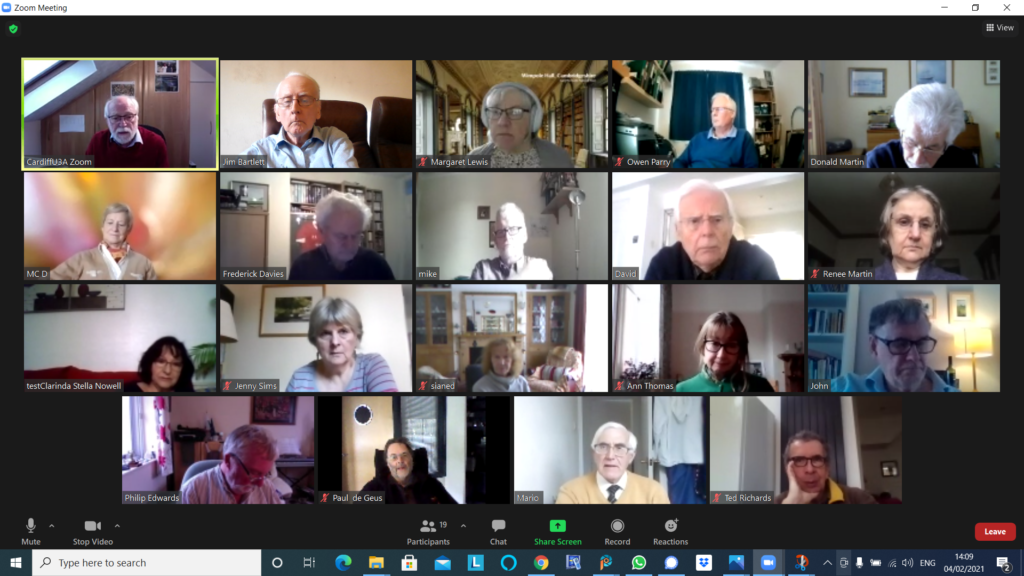
In case you are wondering how I take a picture of our Zoom meetings, the answer depends on which operating system you are using. (I am using Windows 10.)
David has supplied these instructions for Apple users:
To do a screenshot of an iOS or iPadOS device, press the power-off button and then the Home button.
With a Windows computer, the simple answer involves the ‘PrtSc’ key, near the right hand end of the top row of the keypad. You might have to press the Alt key or the Fn key, on the bottom row, at the same time. You will have to experiment. A message might pop up, saying the screen shot has been saved somewhere. If that doesn’t happen, the image might have been saved to the clipboard, in which case you will have to choose somewhere to paste it.
The less simple Windows answer involves the Snip and Sketch program, which you access by pressing the Windows key + Shift + S. This gives you the opportunity to crop the picture on the screen, so you only save the area you want.
For Android tablets and phones, press the power and volume-down buttons at the same time. I couldn’t get that to work with my phone though. I did have success by holding the power and ‘home’ buttons together. The screen flashed to show the shot had been taken. The picture went to Google Photos and to the Gallery.
A large attendance yesterday, touching nineteen as shown above. We started with this – The Blue Ball – it’s mesmerising; the digital equivalent of those steel balls that swung on a cradle on execs desks in the seventies, remember them?
I mentioned the emojipedia which I referenced in the last notes and offered to help anyone who wanted to get onto Signal at the end of the meeting. Then it was “round the screen” to find out what members had been up to, or were having difficulties, or issues, with.
Margaret reported on two scams, one from Lloyds Bank (spelt Lloyd) and an “internet interruption” call/text which on traceback (which David H had done having received the same one) appeared to come from Caerphilly! On a more productive note she had been able to transfer a lot of treasured photos from her old laptop – which she’d been unable to upgrade to Windows 10 unfortunately (for a number of reasons, lapsed time, lack of memory) – to their desktop. I mentioned that Linux was still a possibility to revive the old laptop, we could look at that agin when we were all together in person. She also told us about a very pleasant experience attending virtually the Destinations Travel event, and informed us about the Stanfords Travel Writer Festival and the videos from the event which finished yesterday will be online from that site.
Owen reported that following the last meeting, he’d replaced his Powerline Adaptors with new ones and was now getting much improved wired connection speed for his study.
Don had been decorating for the past three weeks, that is when he wasn’t standing in the garden at a safe distance from the lead gas pipe he’d fractured in a wall, thinking it was redundant!
Jim had got himself into “trouble” with Flickr for displaying a photo of some aubergines – this caused much mirth. He reported to me today that Flickr had apologised for slapping an “unsafe” rating on the picture, and it was now visible to everyone. He had also upgraded (on his new laptop) his copies of Audacity (audio editing) and PaintShop Pro (photo editing).
Marie-Christine reported she was having a problem with her version of Lightroom and Windows. I offered to raise the matter on the Lightroom Queen Forum if she told me hat version of Lightroom, and the precise version of Windows she was having problems with.
Fred reported that a switch to Signal was not getting any traction with his friends, and that he’d had an instance of PayPal phishing to contend with.
David H added to Margaret’s description of the “internet will crash” scam. Someone asked where you should report such scams. The preferred method would appear to your ISP, in this case Sky, but Marie-Christine reminded us of Action Fraud (0300 123 2040) – is it a scam in itself? No it’s run by the police. Other tricks are to type the phone number of a caller into a browser and you’ll get an indication from Who Called Me? or Should I answer? Of course for an email you should look carefully at the email header address and type the domain into a browser to see if it’s genuine. David also asked whether it was possible to use WiFi for making telephone calls as the O2 signal in his apartment was so bad. The answer appears to be to activate WiFi calling for Android or iOS. David also reported that he was still not having any joy with his Times subscription on his iPad although it was working on his wife’s machine. I suggested that perhaps the subscription was limited to a fixed number of devices, and that perhaps deleting it from both machines and then re-installing it in order of preferences might solves the problem. Just a thought. Finally, he mentioned the possibility of adding people to a Netflix account and that his daughter had added them to her account and he was paying her £3 a month in gratitude – this being the cost of the extended subscription. It was pointed out that there was a similar option for Spotify, and the launch of Apple One scheme just recently was very similar. [NB The Spotify Family requires address verification; I’m not sure how this works but all members have to have “the same address” – work that one out yourself.]
Mike had nothing to report.
Renee reported some alarm issues ; problems with her satellite TV which required a factory reset eventually as the Italian channels had changed polarity (??) and just re-tuning didn’t solve the problem.
Stella had nothing to report.
John told us about the problems that have dogged them since he lost a bank card and the issues of not knowing whether a request to change details for a direct debit (because it use the former 16-digit number) was a scam or not. Just a nuisance. He wondered whether there were more scams at large currently because of Covid. Not sure. He reported with some delight success in transferring a SIM from an old phone to a new iPhone XR. There were some problems initially (with O2) but these were now resolved and he was getting the service he wanted at the reduced price of the service on the old phone. My standard advice is never to buy a phone on a plan, but to always save up for “the next one” when you purchase outright a new one. Also look at the plans that are available for SIM-only, or Pay as you Go. Measure up what you can get against the ones offered by GiffGaff (running on the O2 network and owned by them), which is my personal recommendation.
Paul had nothing to report, having been too sore to think of anything else but finding a comfortable place to sit since his accidental encounter with his loft.
Phil told us about a Facebook page – Strange things found in walls, including a safe and a gothic arch. He also told us about his experience (relating to Jim’s Flickr episode) of the poor performance of content-filtering for schools internet when he was working.
Ted told us about Just Watch – a really useful website that tells you which streaming service you should look on to find films, etc. He also mentioned how useful he was finding the Snipping Tool in Windows to cut-out an element from an image. I was able to say that the Screenshot Utility in MacOS did the same thing, but there were also short-key sequences for the Mac that did the same thing.
Sianed relayed the sad story of the Smart TV that had lost its smart functionality. For many of us that’s a cause for celebration as the smart functionality decreases with the age of a set as manufacturers don’t keep their apps up-to-date. So now she is in the happy position of using possibly an Amazon Firestick, a Google Chromecast (although Paul doesn’t rate it as there appears to a lot of US-content), a Now TV dongle, a Roku device or an Apple TV. Here’s a recent review of all of the ones available in the UK.
Finally Jenny described the National Pensioners Convention (Wales) event that she was participating in on Tuesday (9th February). You are encouraged to sign-up and take part in the webinar – I’ve circulated details by email earlier. She particularly noted the work of the Good Things Foundation and the Carnegie Trust in supporting digital inclusion activity and projects. She recommended looking at the former’s website.
I concluded the meeting with a gallop through home networking and router configuration which is all written up in this article which builds upon earlier ones.
It’s often useful to be able to send an image of your screen, or part of your screen to someone. In fact I use this facility all the time when creating these blog posts.
On the Mac, it’s very easy …
Press Cmd-Alt-3 to capture a complete screen
Press Cmd-Alt-4 to draw a window that you want captured
To be guided through the options you can
Press Cmd-Alt-5 and from the Options screen decider where you want to save your Screen shots [I save them to a Dropbox folder so they’re available between my two machines], and also choose the option for the type of screen capture you want, or even to Record a series of actions.
On the iPad/iPhone, it’s straightforward too. You can capture a screen by Pressing the Power Button and the Home Button together [It works best if you press the former just before you press the latter].
“It might be helpful for your notes if I run through my Windows 10 sequence. The relevant key on my laptop is labelled SYSRQ/PRTSC, so I have to press the ALT key at the same time to print the screen. This puts the image onto the clipboard, so I then have to save it somewhere. I usually go to Paint Shop Pro and paste it as a new image. One thing I am investigating is what happens if you have two pages at once on the screen. At the moment I can only print one of the pages, depending on which I click on.“