So you’re an unhappy victim of a scam, apart from resolving the problem which was covered in the earlier post, what else should you do, and are there any other scams you should be aware of. Let’s look at the latter first.
Scams are not restricted to your computer, they can be “served” to you by phone or by text as well. [They can also be enacted face-to-face with vulnerable people.] The advice is constant and clear …
Don’t give your details to anyone you don’t know – if in doubt say you’ll ring them back
Don’t click on links in text messages (and emails of course) from people/organisations you can’t verify
Don’t immediately answer a call from an unknown number, or a number withheld, if it’s a genuine call the person at the other end will speak; if they don’t, the connection will be dropped.
Then there’s a UK website “Stop scams” – where you can report a scam by ringing the number 159. It works in exacgtly the same way as 101 (for the police) and 111 (for the NHS).
I would also suggest sharing details of the scam with Which? using their Scam Sharer Tool
By doing this – if you subscribe to their free newsletter – you will help others, and you, become aware of the scams that are current at that time. Here’s an example of what you’ll see delivered to your Inbox.
A couple of useful tools to check the veracity of a caller …
Who called me – a service that returns details of the likelihood, or otherwise, of the caller being a scammer …
It was indeed pleasing to be able to report that the member resolved the problem and it didn’t re-occur – as far as I know – but pop-up scams are a concern and this short post just gives some illustration of what the issue is, plus some advice on how to resolve the problem if you find your machine has been “taken over”.
I like this US video from the FTC (Federal Trade Commission) which explains the issue really well …
Perhaps the most common scam is the Tech Support Scam – which is what the Windows Defender one mentioned above was. The objective of the scammer is to get complete control of your computer by persuading the user they have a problem which can be resolved by you letting them “repair” the problem remotely – so please let them have your userid and password. Quite the opposite of course – the result will be either you’re locked out of your computer whilst the scammer harvests your personal details (bank accounts, etc), or they are going to implant malware so that they can record what you’re doing online, or use your computer as a relay (an intermediary) for other attacks on other services. Not a happy place to be then!
So read this article carefully. It describes in far greater depth and detail what these scams are and how you can remove pop-ups.
A more extensive article which explains how to reduce and remove malware from a Windows PC is provided here.
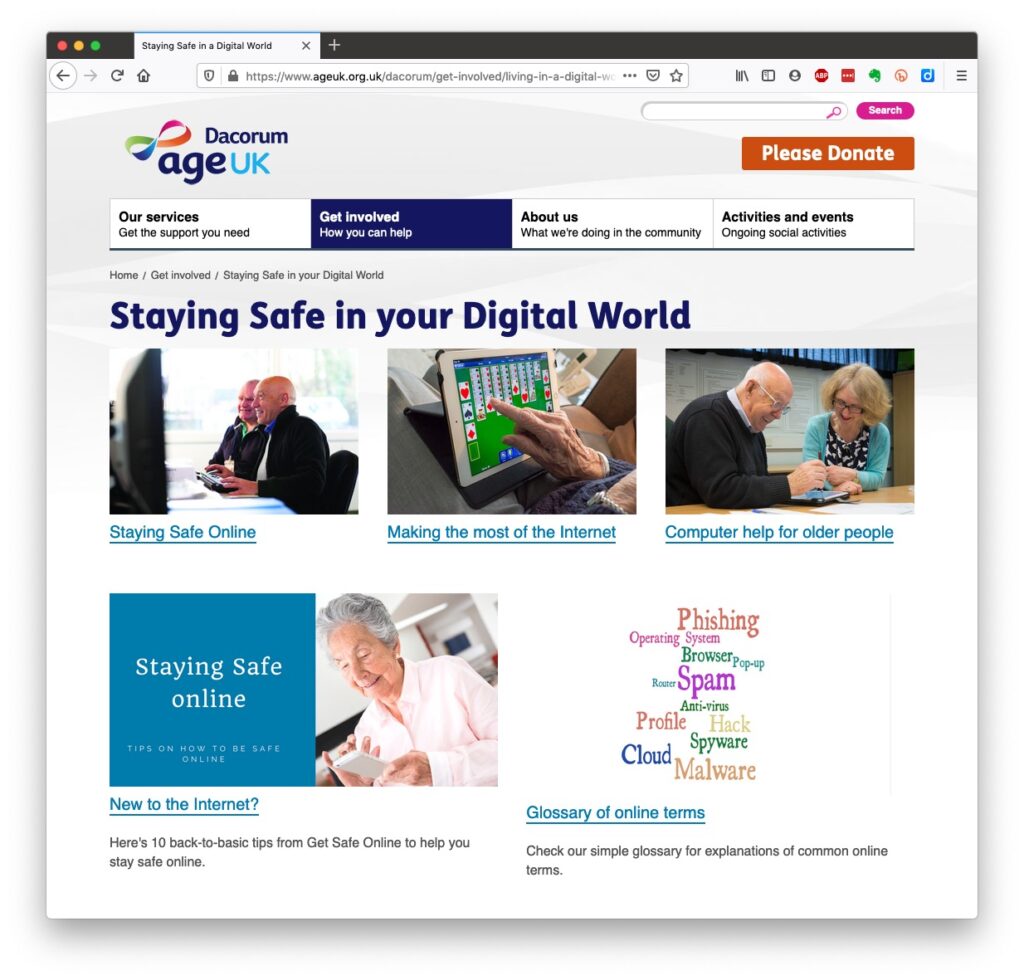
Luckily, there’s plenty of advice and guidance available – often slanted particularly towards our demographic (ie oldies) …
Those two sites are particularly easy to follow and understand, but others are equally informative and targeted.
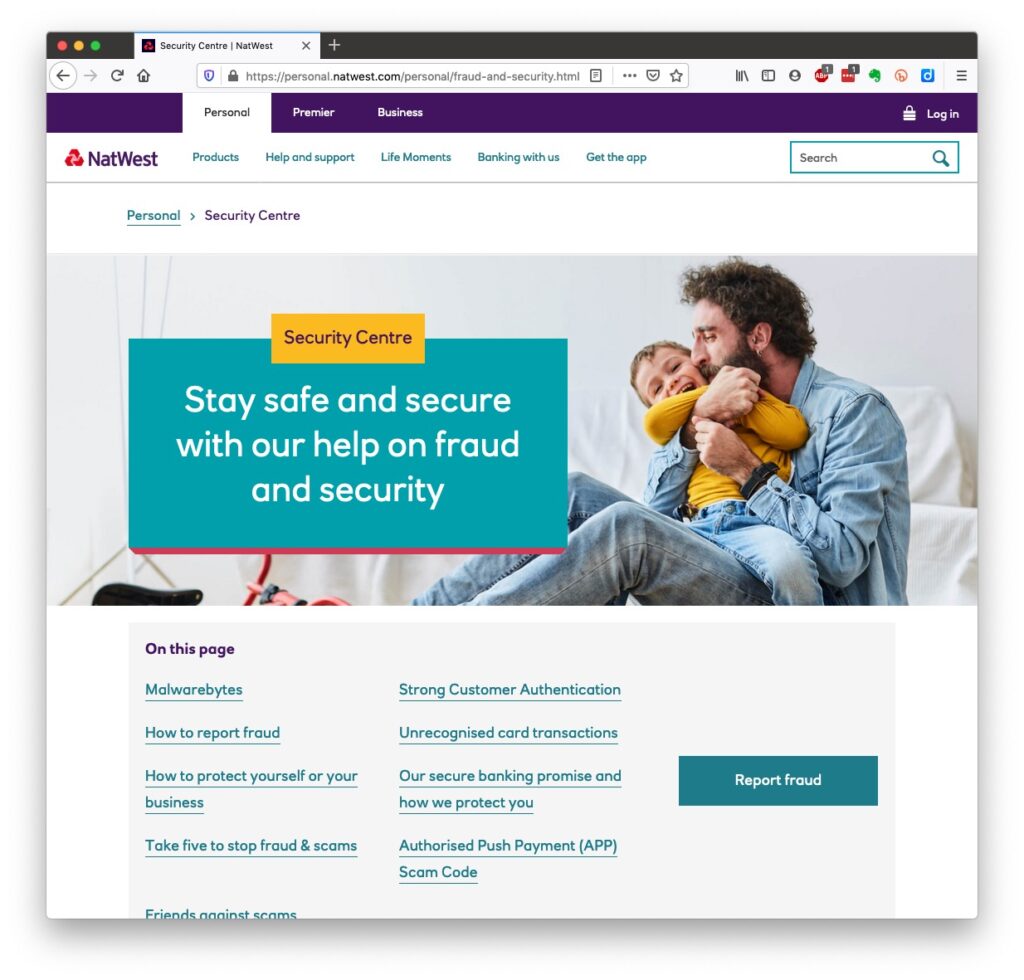
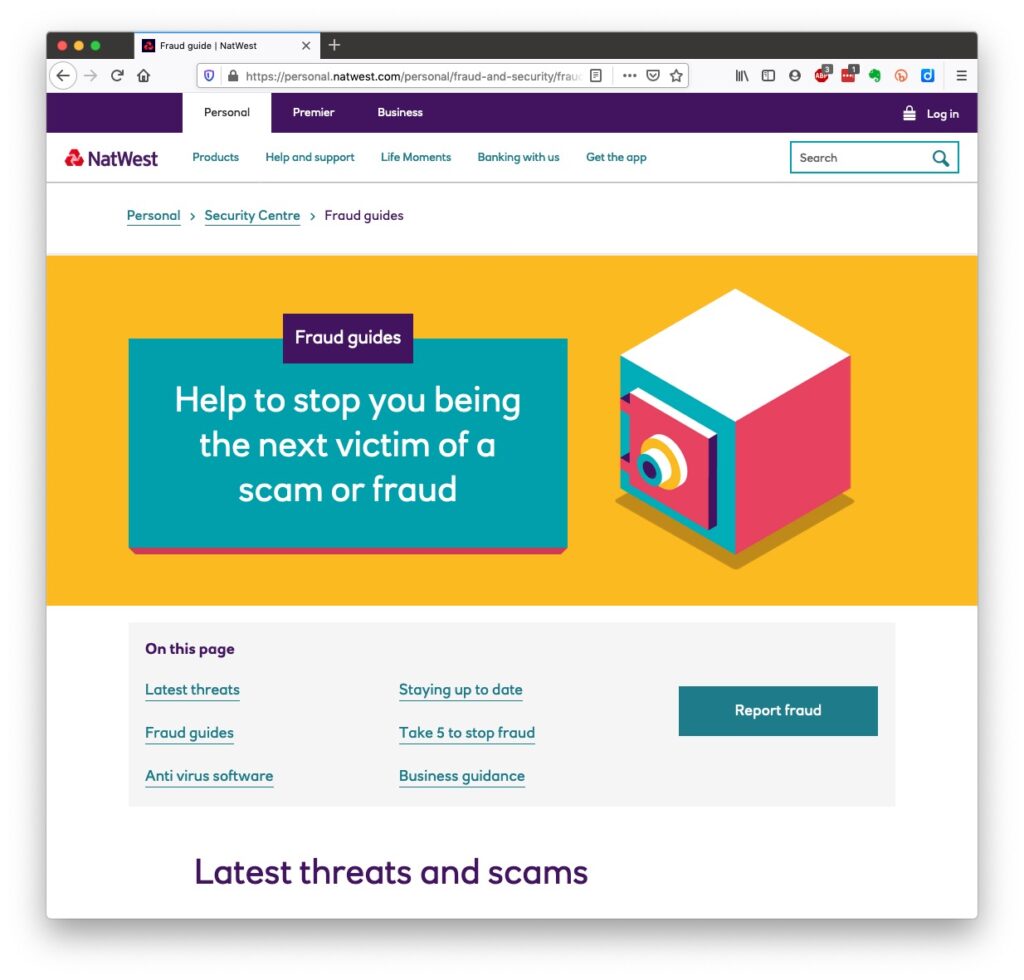
Your bank probably has guidance which it publishes online and which is accessible to everyone, not just their customers …
I’ll return to further information, guidance and references at the end of this post, but first we need to look at a few issues, discuss some terminology that’s widely used and try and tease out what’s really important, and what’s just an inconvenience and then it’s up to you to judge where you find yourself on the scale of …
First let’s distinguish the difference between online security and online privacy. These are two different issues which are however linked. Sometimes you have to relinquish some privacy to receive a service – unless you choose to pay for it (and I’ve long been an advocate of paying for services if they do a job that is necessary); exactly how much privacy are you prepared to relinquish?
Security on the other hand is an absolute – you should not be prepared to accept less than your very best efforts . We’ll deal with that in the third part of the post.
How do you relinquish your privacy, and how much of a loss of privacy is acceptable?
Some services could not be offered without income from adverts, or paid-for advertising – eg Facebook, Twitter and Instagram; and some eg Google and Amazon track and provide information to resellers if you don’t block them from doing so. As an example of how much value Google sees in getting knowledge of what you’re doing and where you’re doing it, they pay Apple up to $20bn annually to remain as the default search engine for any browser that’s running on an Apple device!
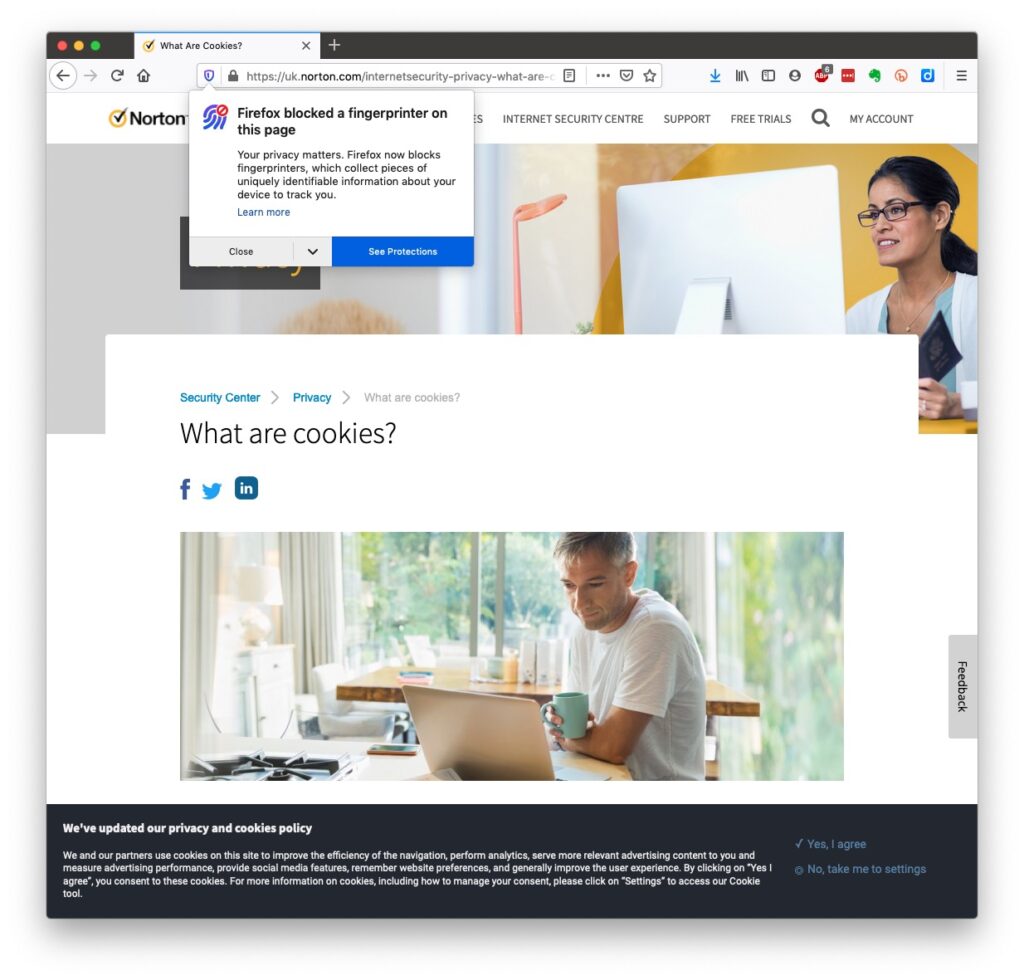
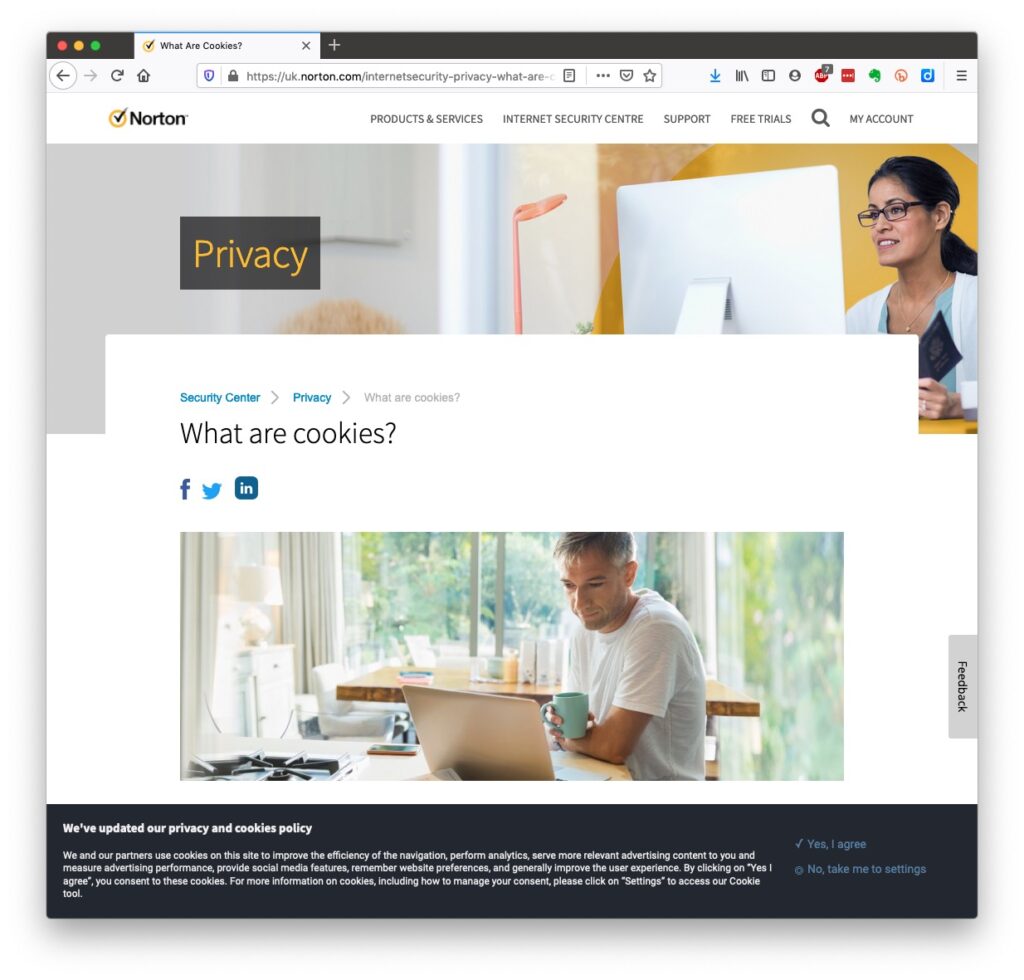
Sometimes you may click on a link and have been asked whether you wanted to accept cookies – what exactly are they, and what do they do. This article from Norton explains what they do quite well …
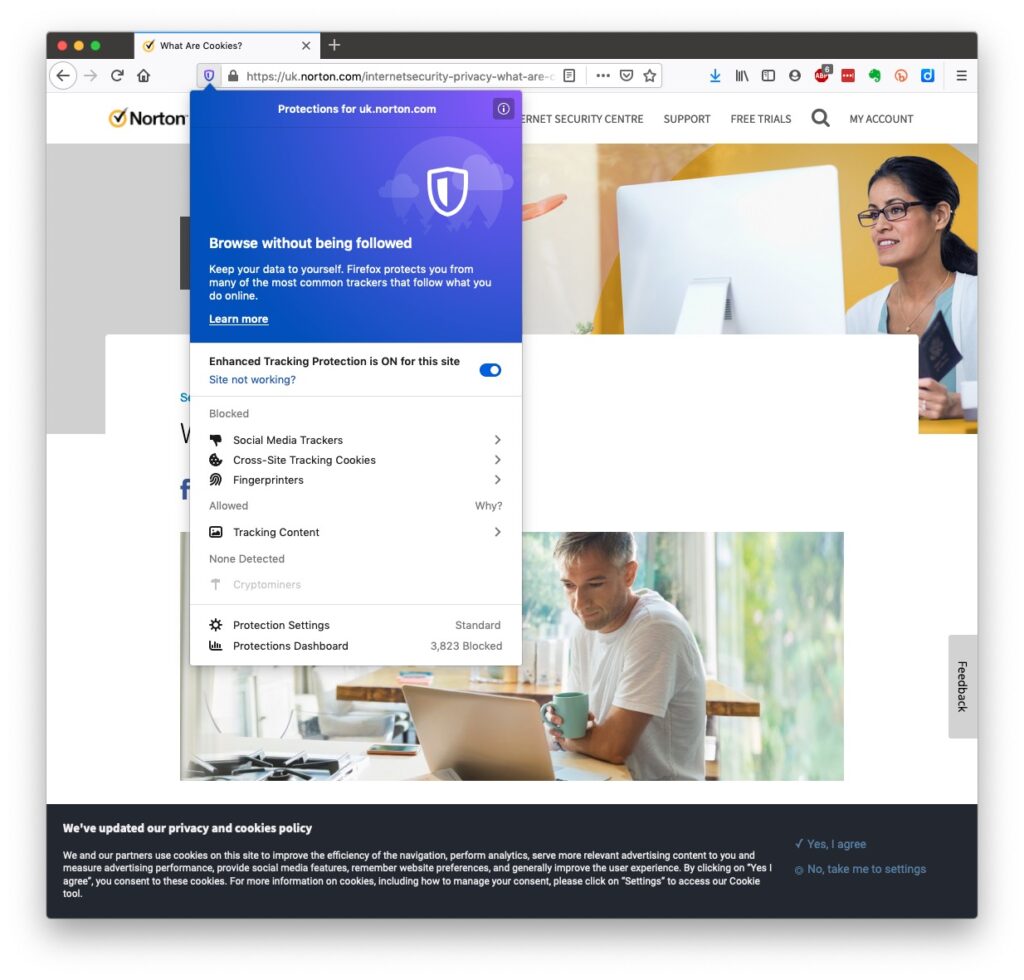
Essentially, they record what you do on a website so that when you return to it some of the settings are remembered and applied. Cookies do however also have a downside in that some can also act to track your activity once you’ve left the site. For that reason, you should disable in your browser the ability of third-parties to glean information from a cookie, and also to prevent them tracking your activity once you’ve left the site. You can at anytime, clear the cookies from your browser, and indeed on some internet browsers set them up to delete cookies when you leave (close the window) the site. If you use Firefox as your browser it will alert you the first time you go to a site that it is using a Fingerprinting cookie itself. For instance from the Norton site above …
… this is a nice feature, and should not be confused with the rather more annoying GDPR pop-ups which almost force you to accept because you can’t be bothered to check the detail that some sites force you to go to in selecting which cookies you want to store. I often just stop using that site rather than read through the options, or alternatively just click “Accept” and hope for the best!! Not exactly the privacy control that was envisaged when the legislation was enacted!
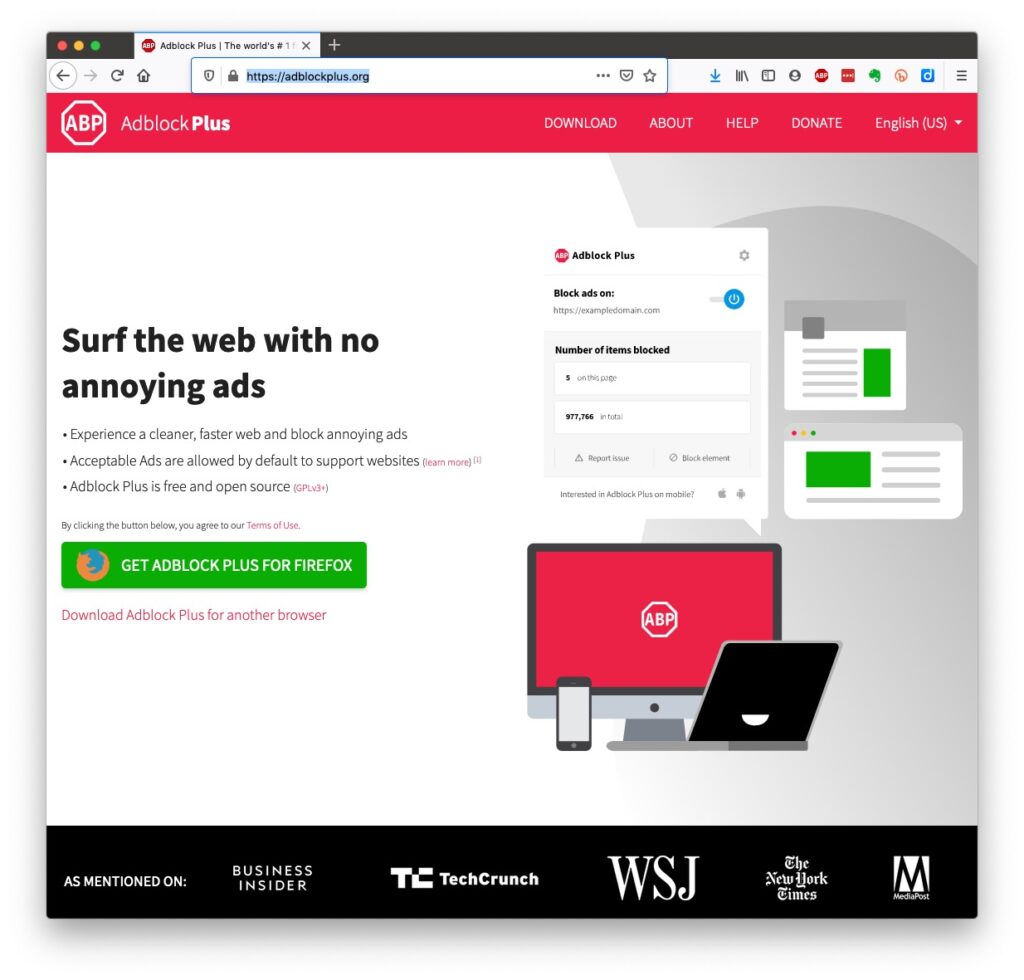
Another thing you should consider is whether you want adverts to be shown, or not. You might get a request to enable adverts when you visit a site, the answer you supply will be held in a cookie in the browser – that’s how cookies work. Firefox, Brave and Microsoft Edge, by default, block most, if not all, adverts. These are often annoying and having a browser that blocks adverts, or if you use Chrome – using an ad-blocker like AdBlock Plus often makes for a more “pleasurable browsing experience” by limiting the intrusion you might feel upon your privacy.
Which brings us to browsers and search engines
Search engines are not created equal! Whilst Google is often thought to be the same as the internet and is often mistaken to be an internet browser itself, it is in fact just one of a range of possible search engines that you can use to look for information on the internet. It uses a platform called Chromium to display the results of its searches to you through a browser called Chrome. However, other browsers – Microsoft’s Edge, Brave and Opera all use the same underlying Chromium technology – the difference being they don’t track what you’re doing “to present the content that most meets your needs” (Google’s philosophy) and in some cases (eg Brave) they can actually prevent tracking of your browsing history. I use Safari – which on Apple is my default browser choice, but otherwise I would use either Brave or Firefox as my internet browser.
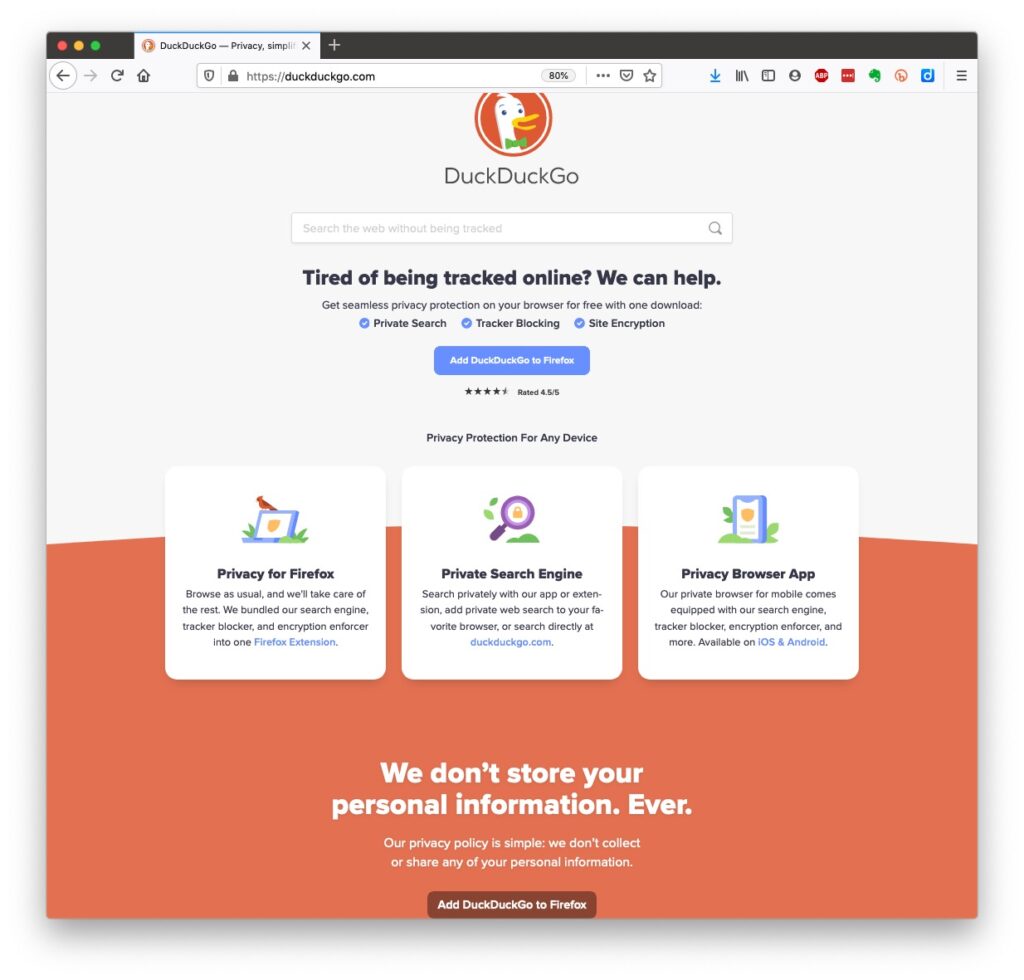
So what safe and private search engine could you use as an alternative to Google. I use DuckDuckGo …
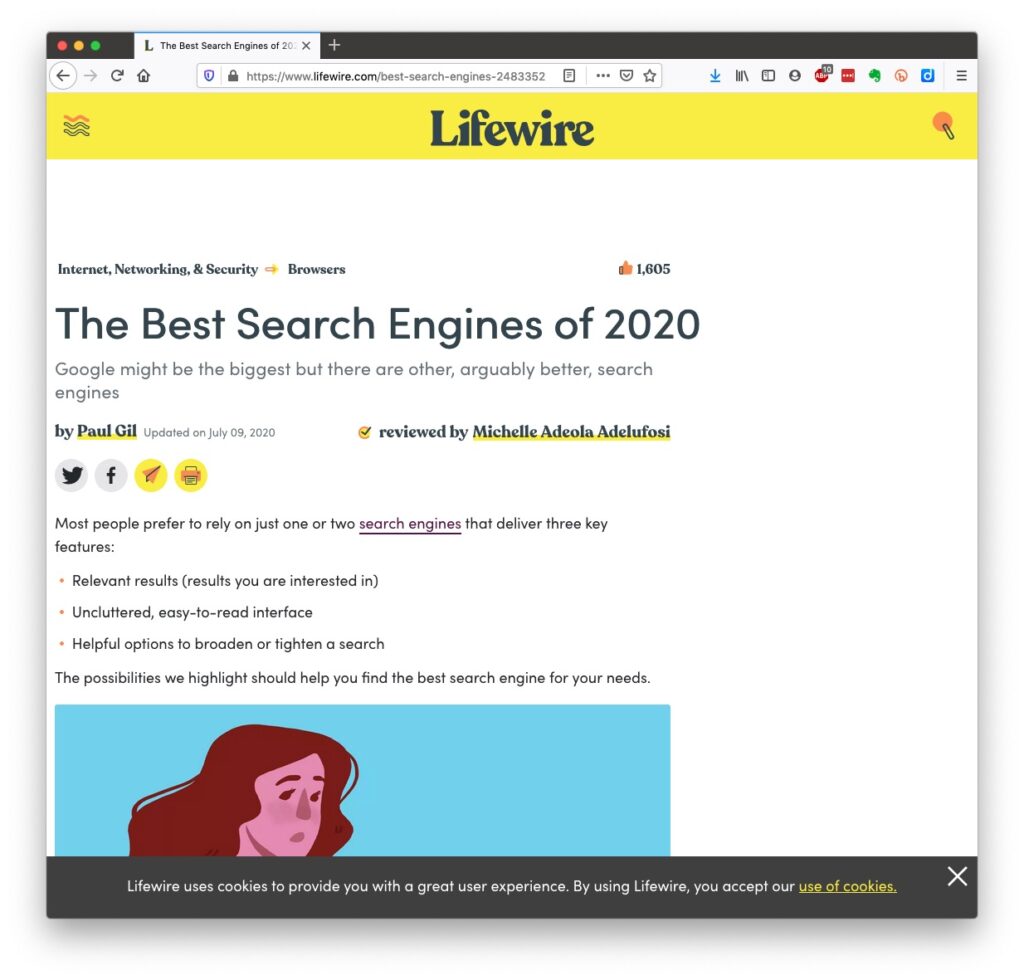
… but others I could have used might have been Ecosia, Bing, Yahoo or another one you might choose from this article or the list of other articles at the end of it …
There are many specialist search engines (as explained in the above article) that can give you much better, and more targeted results than a broad-spectrum Google search with the priority of results returned by relevance, not payment received by Google.
Finally, no discussion of Privacy can ignore Social Media and Facebook in particular. These applications, if left to their own default settings, are effectively personal information mining engines. They grab what information they can from you, and sell it on to whoever is willing to pay for it; or are indeed the platform for data mining, vis the Cambridge Analytica affair.
Recent enforcement of data privacy legislation by the EU on Meta has resulted in them being hit with massive fines for breaches of GDPR law by Facebook, Instagram and WhatsApp.
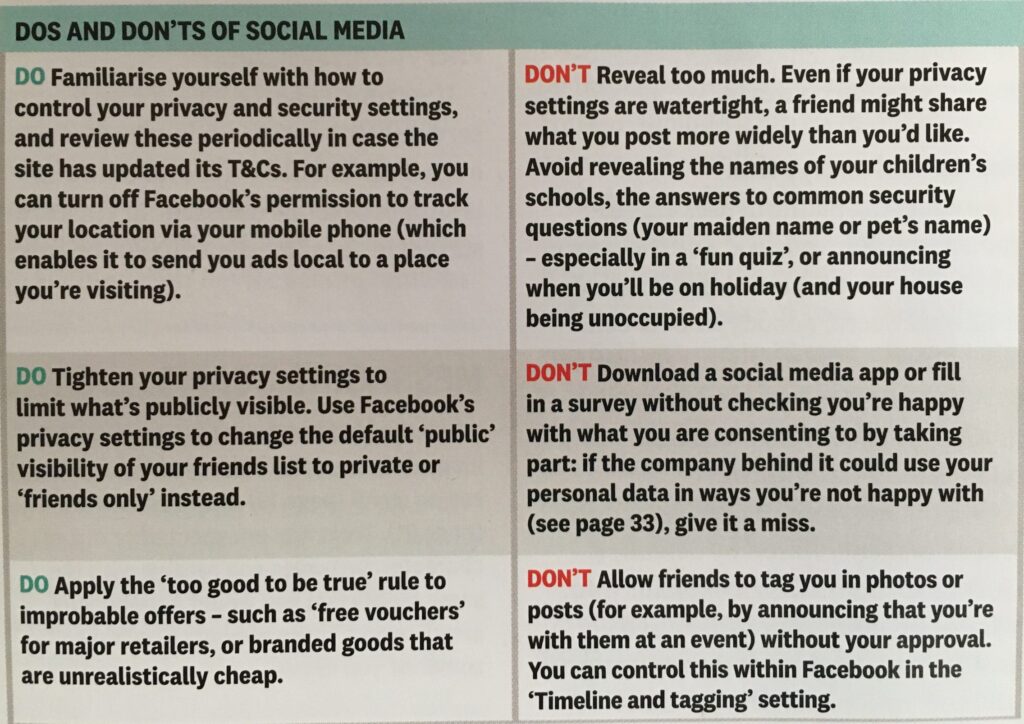
Online retailers are not exempt from this and Amazon for instance has a wonderful record of your browsing history! Are you sure you know what it’s doing with that information? So look at this table taken from a recent Which? supplement – Staying Secure in a Digital World – and just check whether you need to change your settings if you use any Social Media apps …
So that’s Privacy dealt with.
Should you be frightened?
The take away message I want you to have is Frightened – no; cautious – yes!
Online banking is very secure – a recent survey in Which? produced the following scores …
… plus you are protected and most of the banks are increasingly opting to adopt an online and mobile guarantee to refund you where you’ve been the innocent victim of a fraud. Here for instance is Barclay’s “Online and Mobile Banking Guarantee.”
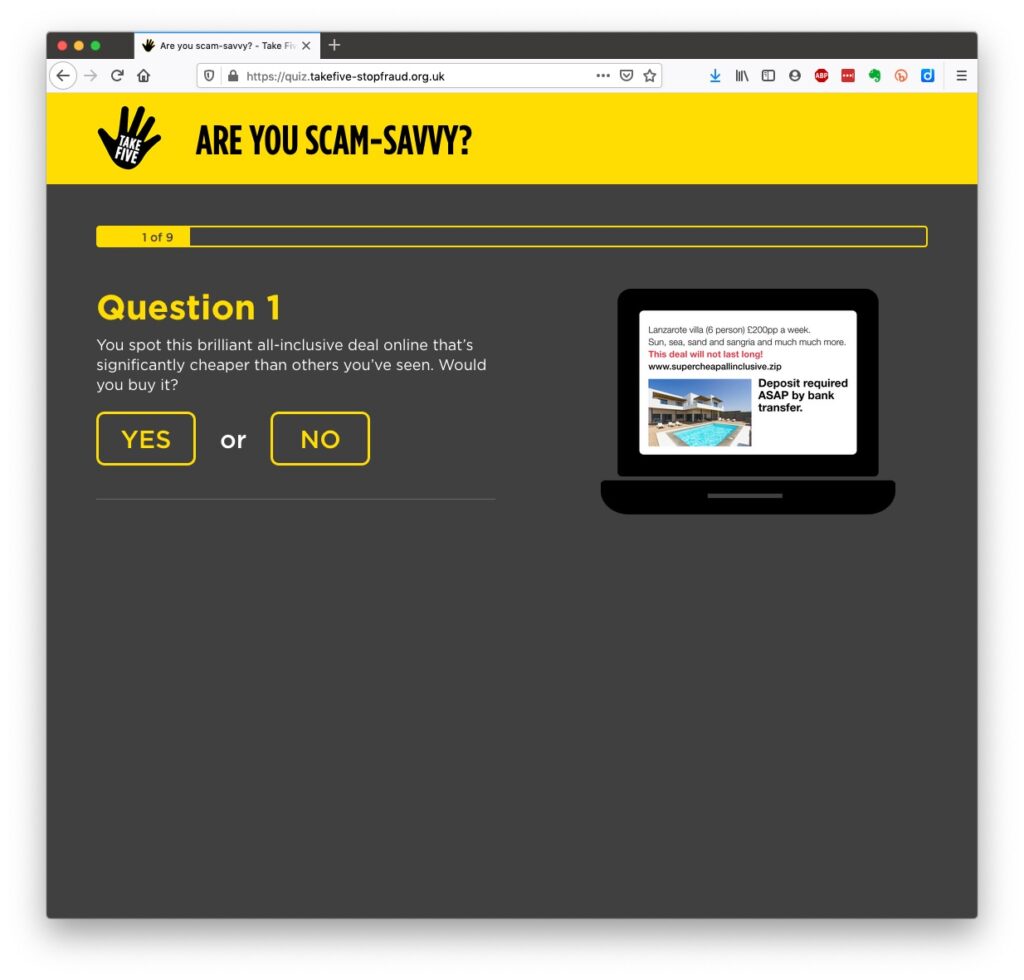
They really don’t want to shell out money, so they are trying to educate us to be wise to scams. So let’s take a scam test …
Banks are also often supplying software free (or at reduced cost) for you to install to protect your machine, to protect you from fraud – and of course themselves from having to pay out! I was recently offered a piece of software called Malwarebytes by the NatWest and although I have an Apple Mac computer which are well known to be relatively secure from Viruses, Spyware, Trojans and other malware, I installed it. I was pleased to note that I didn’t have any malware on the machine.
Surprisingly you might think … it’s safer to use the mobile app on your phone, or tablet to do online banking and retail purchases than a web browser. This is because the app on the mobile device has to be verified by Google for Android (Google Play Store) or Apple for iOS/iPadOS (Apple Store). Whereas a browser could be infected, or compromised with malware. [That’s something I’ve learnt whilst preparing this post!!!]
When you’re out and about and NEED to do an online transaction from your mobile – use cellular rather than WiFi. The latter can be really open to “sniffers”. [I must admit I try to avoid doing online transactions when away from a domestic network.]
Alternatively consider buying and installing Virtual Private Network (VPN) software, such as NordNet so that you can use the free public WiFi in a public area.
You can find out a whole lot about the range of scams at the NatWest’s Security Centre.
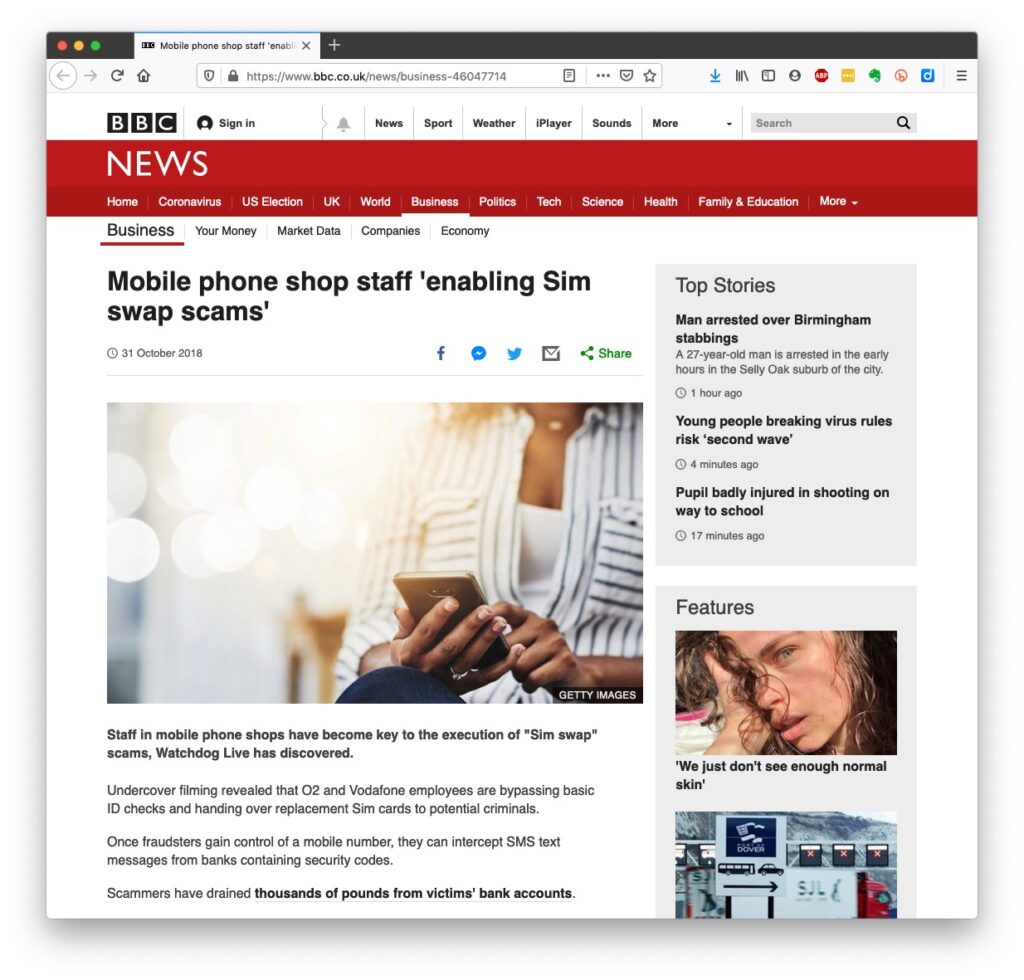
However the most scary scam I’ve been made aware of is one that befell a member of my family when they were distracted sufficiently to become the victim of SIM swapping.
I’ve discussed this with you before and you can read the updated post here.
I also covered this issue in another post which involved stealing a phone, to obtain access to your identity and commit fraud, and we covered the even more disturbing theft of a credit card with the complicity of the US Postal service to obtain a SIM in a recent meeting as well.
What should you do to protect yourself?
Some of these pieces of advice are really quite straightforward, but some require some intervention by yourselves.
Keep your operating software up to date. This is particularly true if you’re a Windows user, and even more true if you are still running an older version of Windows than Windows 10. If you’re using Windows XP, Windows Vista or even Windows 7 you should seriously consider disconnecting your machine from the internet because even if you’ve got anti-malware software running this is probably not protecting you against the latest threats.
Install anti-malware, or anti-virus software, particularly if you’re a Windows user. Don’t pay more than you need to. Windows Defender from Microsoft is Free and for our demographic relatively undemanding and unsophisticated users, more than sufficient. Keep it up-to-date as well! [As I said previously, your bank might be offering free software as well.]
Keep the software you use regularly up to date as well. Consider removing any software from your machine that you don’t use – this is because software vulnerabilities are discovered sometimes quite a while after the software was first released. It will also save you disc space!
Be cautious over installing extensions into your browser. These are often extremely useful and valuable tools, ie password managers, Dropbox, note taking, Google Back up and Sync, but if you don’t get them from the official sources then you might be importing vulnerabilities, eg spyware and trojans to your system.
Very seriously consider logging-out from social media and other retail sites when you’ve finished using them, especially Facebook, you just don’t know what tracking and logging of what you do, even where you are, if you leave yourself logged in on a mobile device.
Free software is both a boon and a curse. Only download open source software from a reputable site such as Softpedia, and never try and get proprietary software for free. Read this article about Free download sites if you want to know more.
Remember the golden rule 1 – if it seems too good to be true, it probably is, so steer clear!
Remember the golden rule 2 – don’t speak to strangers (an oldie but goldie that one); in other words if you don’t know where an email has come from – ignore it; if the website address looks a little strange – do an internet search on the company or organisation to check if the address you’re looking at is a spoof of the proper one.
Have more than one email address. Use one as your personal address, then use other ones that you can “throw away”when you need to register to a website, but you’re unlikely ever to go back to it again. Or have an email address (UserID) specifically for online purchases. Splitting things like this reduces the risk of you being the victim of fraud.
Seriously consider using an email service that is NOT connected to your Internet Service Provider (ISP). If you decide to change your ISP, and you should review them periodically, then you will have real problems if your email address is linked to their service!
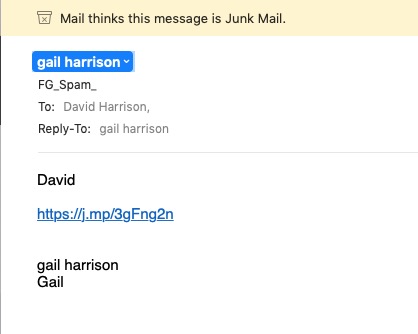
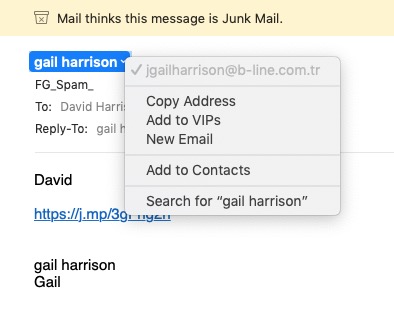
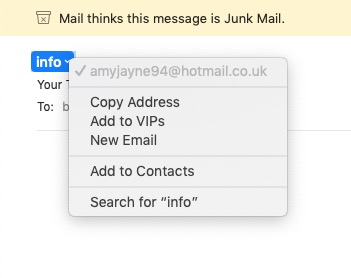
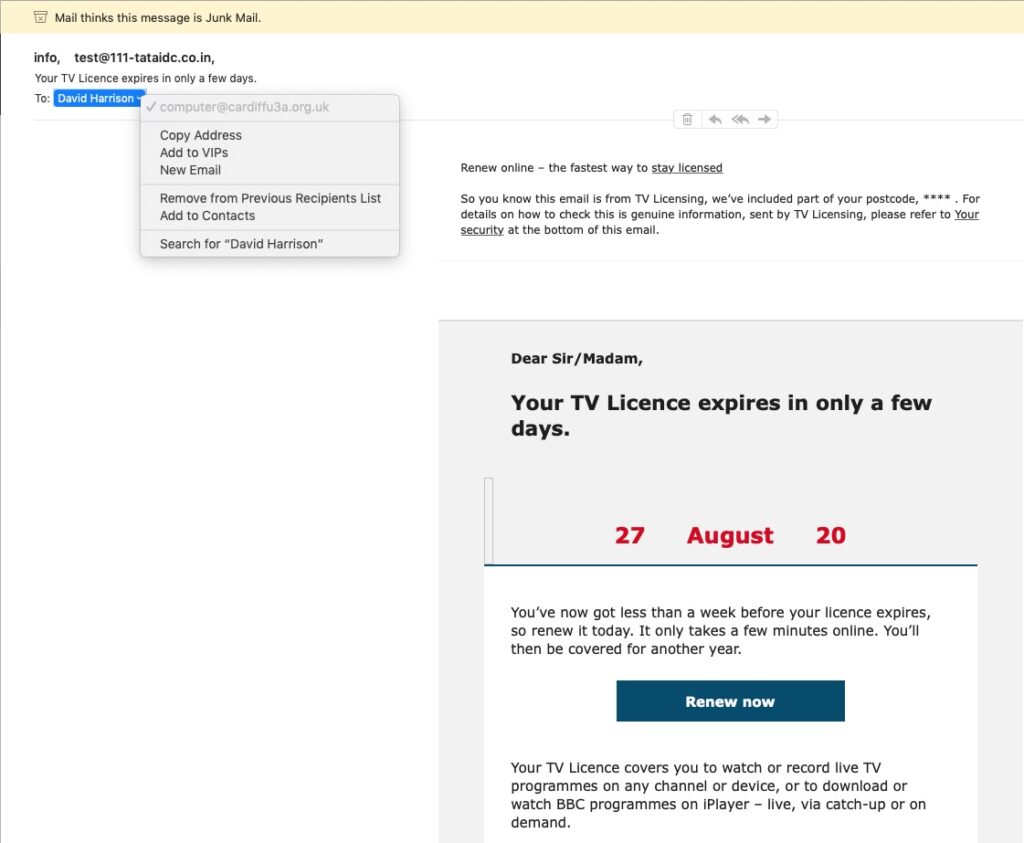
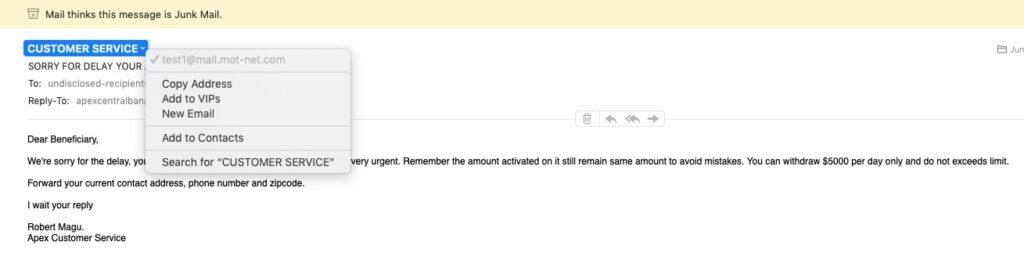
You’ve got Spam filters running? Of course you have – but you better check! Probably your ISP, or email provider (eg Gmail, Yahoo, Microsoft Outlook or Hotmail) is filtering out what it thinks is spam, but occasionally some gets through. If that’s the case then you can always look at the real sender of your message. Take a look at the examples below …
You can also apply filters to divert incoming email into different folders in your email system. That reduces the amount of Junk that you need to review. [I’ve also advocated using the “native” email application for your device rather than rely on the web-based service the email provider has. Thus on a Windows device – use Windows Mail (or Outlook); on a Mac use Mail. You can then easily synchronise your email between devices from multiple email accounts. Tidy!]
So we come to Passwords …
… this is the point at which you need to consider intervention and changing your behaviour! You might also need to do a fair bit of work, but it’s worth it if you want to have a secure internet experience.
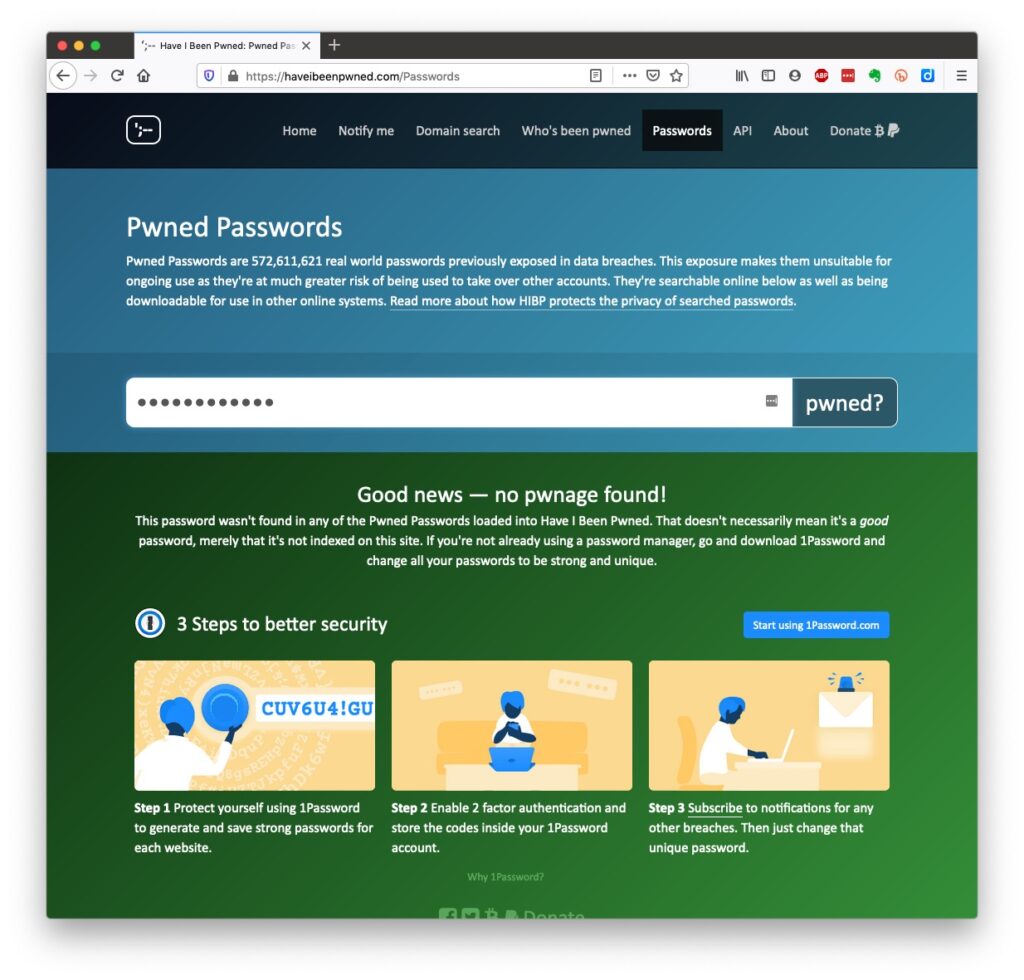
Let’s just see what using an insecure Password can lay yourself open to. Type in the word Password, or ABC123 from the link above – frightening eh!?
The most common password I use – and I know I shouldn’t reuse the same password, but I am human – has not been discovered on any pwned site. Phew!
What about the combination of your email address with your password – has that been “pwned” (ie stolen through a data breach)? Try typing your email address into the link above.
Oh no! I’ve been pwned … but it was a long time ago and I’ve changed my password many times since then!Ah! That’s better – my “throwaway” email and passwords are “safe”!
And if you want to see a list of which websites have been breached, it’s alarmingly long!
So … use a unique password for everywhere you sign on. There’s lots of tricks to achieve this; some of which I wrote about in a post quite a long time ago …
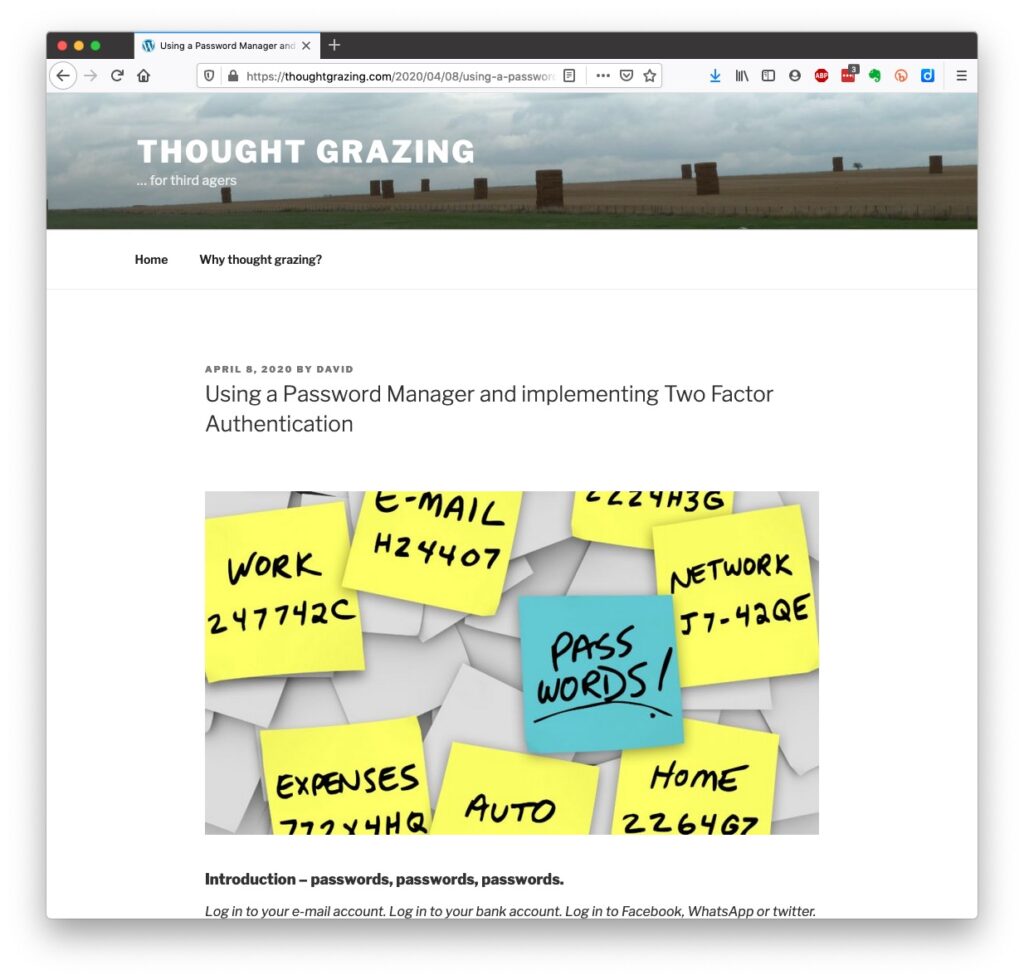
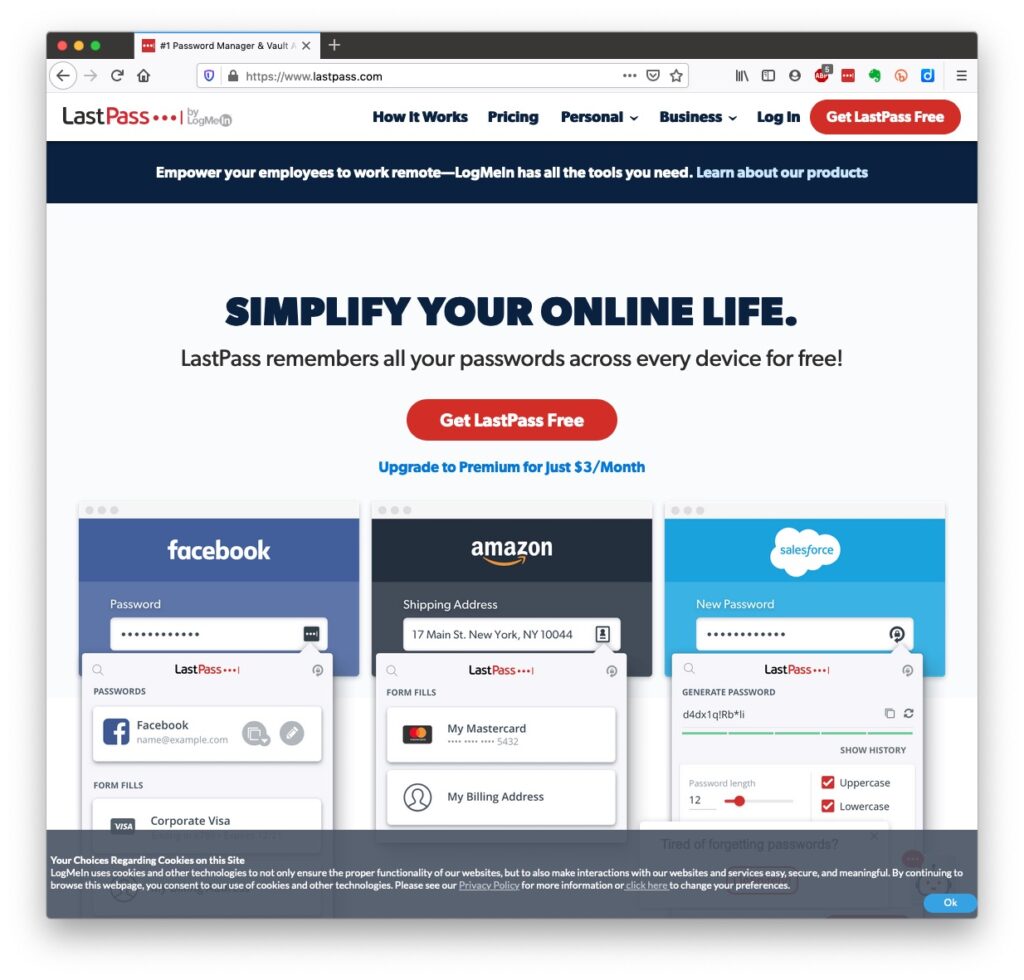
… but the real change of behaviour is to use a Password Manager – again I wrote about this a little while ago and linked it to using Two Factor Authentication, which is also covered in the same post …
Password managers
I still use LastPass, but as a back-up and archive of my old passwords. I now use Keychain as I only have Apple devices (as do most of my family, and so it makes sense to use a system that is linked to the hardware I use. Other common password managers are Dashlane and 1Password. Please make up your own minds after reading some Reviews and seriously consider using one.
An authoritative article on using Password Managers is provided by the National Cyber Security Research Centre. They also give an opinion on whether you should use the browser offered option to save your passwords.
However … the future is Passkeys
The major tech companies – Microsoft, Google and Apple amongst them, have been working in alliance on a project called FIDO that will mean the combination of UserID and Password can be consigned to the waste basket. This article explains what they are, and what it means for us really well. Although Apple stole a lead, announcing their implementation a year ago, Google has now launched it’s implementation, and this article describes how to set them up on your Google account. Microsoft also allow a password-less way forward, but I’m not clear on how to set it up – not being a M$ user.
On Apple – here’s how you set up Passkeys on your iPhone, iPad and Mac. Another reason why I chose to move from LastPass to Keychain.
Whilst if you’re a 1Password user, you can combine your legacy use of a Password Manager with Passkeys, and these will also work much better together on your iPhone. Watch out for an announcement shortly!
[NB It is possible to move between password managers, ie from LastPass to 1Password.]
And that’s about it for this year. We can look forward to much more about Passkeys in the coming 12 months; much more about GDPR and how the UK government’s online security legislation is reviewed (and hopefully revised) before implementation; much more about “big tech” and corporations re-acting to whether they are responsible for content, or are just a platform providing a service, rather than a publisher. Interesting times!
These may not be available in your Public Library, hopefully that isn’t the case.
… but these are available … Which? webpages – Scams & older people
I seriously do recommend signing up for the Which? Scam Alert Service – sign up for an email alert – and I seriously recommend you NOT broadcasting other people’s warnings to you about scams; they could be old, they could be inaccurate, they could be scams in themselves.
Look on the Age UK webpages – Staying safe in your digital world and specifically How to stay safe online
Your bank will undoubtedly have Internet Security webpages. Mine has a Security Centre web presence and particularly they provide a number of Fraud Guides
I could give a million references to changing your privacy settings on Social Media, but here are a couple relating to Facebook, perhaps the most challenging service of the lot.
First – what Facebook unchallenged will want to get from you. You are able to disable (prevent) all or some of these … Sign up for Facebook – this is not sign-up site, it’s just one to educate you on the privacy you might give up without realising before you sign up (but of course you can run the checklist at any time); then How to change settings on Facebook and finally Securing Facebook: Keep your data safe with these privacy settings.
The meeting opened with a welcome to new members – Ian, Kate, Sue, Fred and Marion Poyner, and to Mike Payne making his first meeting (if my memory serves me well). We had David Hughes, Paul, Renee and Ralph join us on Zoom. John, Jonathan, Jim, Don, Stella and Fred were with us as well. Tony, Marilyn Barrack, Linda, Mike Chapple, Christine, Sianed, Margaret, Jeanette, Seifi and Sally presented their apologies.
I started by explaining that we had been overwhelmed by the interest in the group shown at the “Meet the Groups” meeting the previous Tuesday where 20 members, or prospective u3a members, had expressed an interest in attending group meetings. I felt duty bound to admit 12 members as we had no Waiting List policy in place at that time – this has now been introduced and some of the prospective members of have now been placed on that list. With a membership approaching 40, I felt it was necessary to review how we operated. I thank Pat, Marilyn Guest, Owen Parry and Phil Edwards for stepping down as active members – they do however continue to have the ability to use this website, the Signal group and have access to the Flipboard magazine.
I reiterated that we don’t attempt to resolve members’ hardware issues – other than perhaps problems with printers, or connectivity issues, eg routers. We do recommend using “We will fix your PC” – Neil has done a wonderful job in supporting and helping us by resolving problems for several years now. It might be worth mentioning Cardiff u3a and the Computer Group should you chose to use his services. I also repeated what I’d said to many at the “Meet the Groups” session … namely we are not a training group. We cannot train you how to use Word, Excel, or whatever. We DO however focus on internet issues, applications and anything that is not machine/device dependent. In that way all meetings are usually accessible to all users who have access to a web browser (Chrome, Firefox, Brave, Edge, Safari, Opera, etc.).
We are fortunate in that we have established, quite quickly, a workable hybrid (ie Zoom) meeting format. This is in no small way down to the excellent technical support offered by Craig at Sight Life, and the overall welcome and excellent facilities they are offering us.
I am proposing, and circulated a pro-forma to start the ball rolling, to allocate members to either a 2nd or 4th Thursday preference group, with them being able to attend via Zoom on the alternative Thursday. Hopefully, this will keep the in-person group a manageable size whilst we still struggle with Covid-related issues. Some members who are essential contributors to the group will be able to attend in-person all meetings, if they are able to.
To that end, I gratefully acknowledge the assistance of Sianed who will facilitate the “issues round the table/screen” part of the meeting; Don who has taken on the meeting attendance/subs task; Jonathan who will help me by screening Windows/PC news and issues; Paul (via Zoom currently) who will do the same for Android matters; and Jim – our official photographer and my adviser, proof reader and frequent contributor to the website.
We’ll just need to see how this plays out. Hopefully, in time I will be able to remove restrictions on in-person attendance, but please be supportive of the difficult situation we have put ourselves in, by virtue of meeting a need. Perhaps a second group is the answer, but that would mean finding another facilitator.
Starting the meeting proper, I explained to new members how we usually operated, the way the Thought grazing website operates, the benefits of the Signal group and the existence of the Flipboard magazine that I encourage all members to browse occasionally, and contribute to if they so wish (after creating an account).
I then launched into a description of the theft and fraudulent event that I’d mentioned at the previous meeting and had written up as a blogpost earlier that day. I won’t repeat what I’ve written, I’ll just repeat the warning and the recommended action you should take – don’t keep your credit/debit cards near to your phone, and seriously consider activating a SIM-lock to lock your SIM to your phone – so that it can’t be taken out and put in another phone on which a banking app can be downloaded and possibly a password obtained from your bank. The case in point here was Santander.
Fred reported the latest fortunately unbelievable text scam he’d received. I think as group members we’re getting much, much better at identifying these – the parcel that couldn’t be delivered, the transaction that know we couldn’t have made, the offer that seems to be too good to be true, the offer to help with obtaining a refund/grant/subsidy/entitlement which wouldn’t come via a text message. Just stay alert everyone, and remember … if it’s really important, the organisation will contact you again and not usually by text!
Paul reported issues with TalkTalk and their new website. Sue had a similar issue (see below). it is disappointing that he may need to change the settings on his talktalk.net email account to get it to re-direct (as it had done previously) to his gmail account where he aggregates all his emails.
Sue had a similar problem. The old TalkTalk website from which she’d accessed (occasionally) her email had stopped working. She hadn’t received any emails since before July. The solution hopefully, would have been to “upgrade” to the new website, but unfortunately as she’d moved to Sky (??) it was unlikely that she’d be receiving any emails from her talktalk.net email address anymore. This highlights an issue we’ve discussed before. It is advisable to move to an email provider that’s not connected to your Internet Service Provider (ISP). I used Google (and Gmail) for many years and have never used VirginMedia – my current ISP – to provide an email service for me. I migrated all my old BT email messages away from that service to avoid paying an annual charge for retaining the account after I stopped using BTinternet. I now aggregate most of my emails on iCloud – Apple’s service, as it is EXTREMELY unlikely that I’ll ever move away from them, but I retain my Google email accounts … just-in-case. Ian and Sue both used aol and asked whether this was a viable service. It was confirmed that now aol was owned by Verizon, it’s future was probably very secure.
John wondered whether the increase in “promotional” messages he was receiving was connected to his use of his Kindle advice. You can set your communications preferences from Amazon here.
Kate raised an issue of connecting to iCloud to delete “stuff”. I described (and demonstrated) how to login to iCloud.com using your AppleID and password.
Ian asked the question on whether stuff deleted on iCloud was also deleted automatically on a device. I had to admit I wasn’t sure. I’d written a blogpost on the situation with Google Drive (particularly for Google Photos), but had to check-up on the situation with Apple, which I reported back to him here. I told him that I needed to do further tests to satisfy my own curiosity. I can confirm that deleting a file on iCloud Drive from the Files app on an iPhone will delete it from icloud.com and your iCloud drive on MacOS as well – which is what you would expect should happen. He also asked (after the meeting) whether his daughter could change the account name/details on an O2 account, since she was now in a position to pay for it herself. The issue being she would want to keep the phone number. I had to admit that I didn’t know, and the O2 website was less than encouraging for what seemed to be a reasonable use case, so I recommended visiting the O2 shop in St David’s Centre (I believe). I also suggested looking at GiffGaff (operating over the O2 network and owned by the parent company of O2 – Telefónica UK) as a good pay-as-you-go (PAYG) alternative. She might be able to port the number to that network (or any other network) after obtaining a PAC or STAC code.
Here ends nearly the most rapid Notes I’ve ever written up – have to impress the new members.
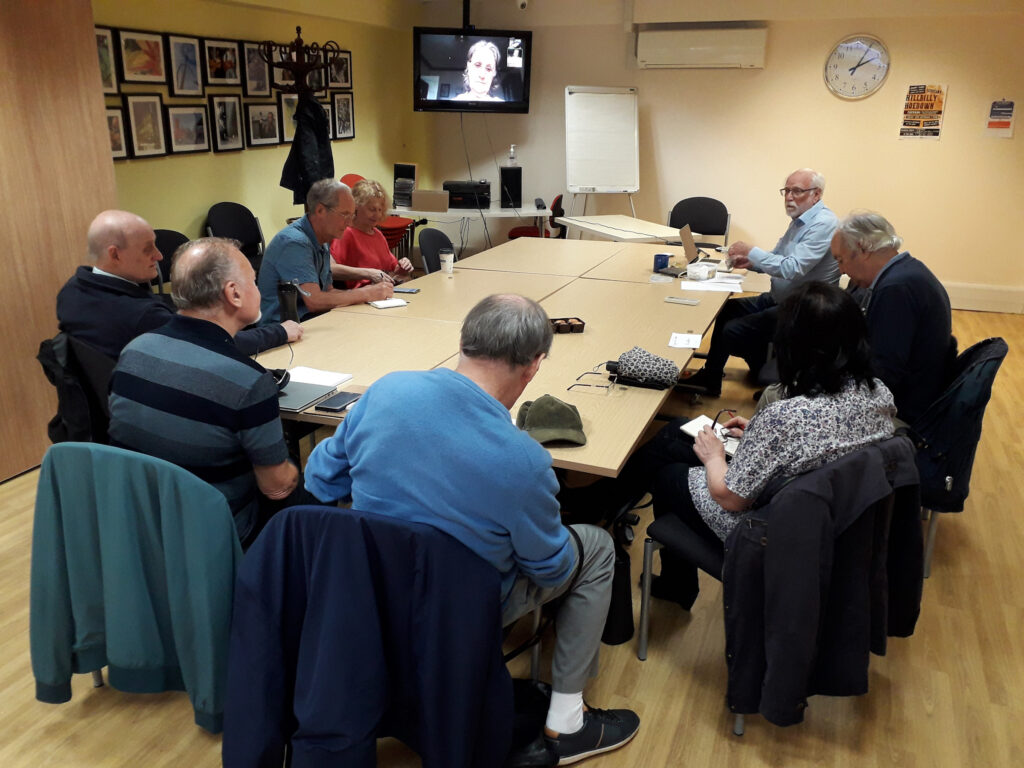
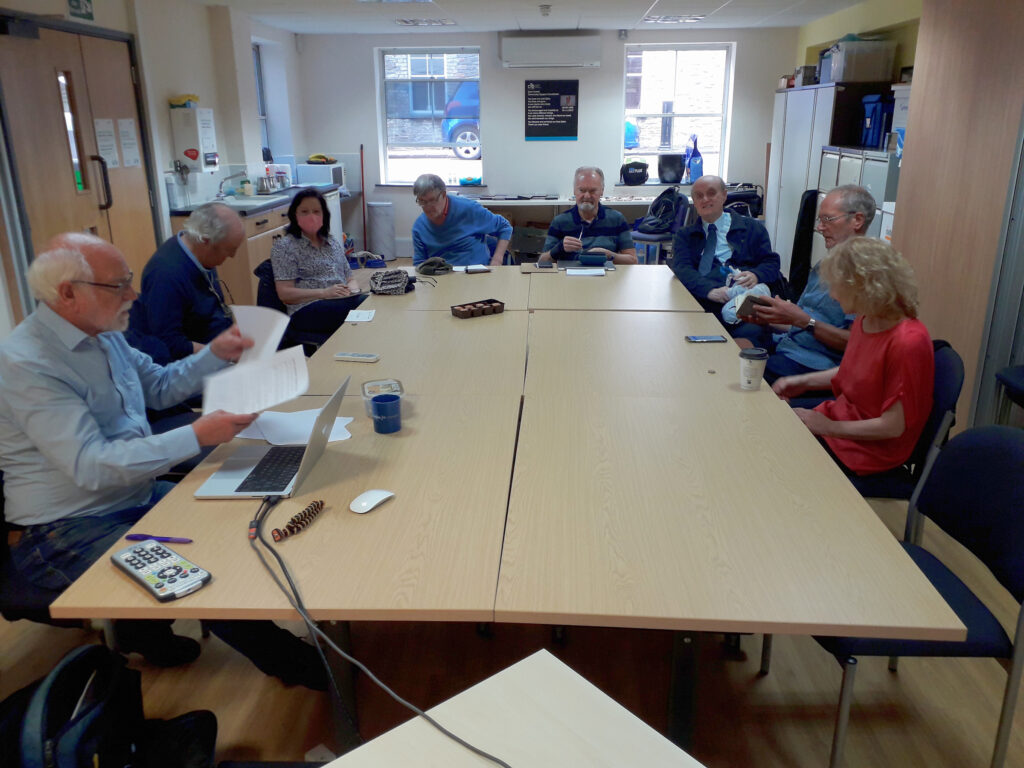
Back (almost) to normality. Thanks Jim for the two shots that show how we set up the room for the meeting, with quite a lot of room unused, both towards the windows, and behind the people sat at the tables.
We welcomed Tony Baines to his first meeting and noted the “virtual” presence of David Hughes, Renee, Jenny and latterly Fred. Paul would also have been with us on Zoom but for Dolly breaking her arm and being in A&E – we wished her well. Apologies were received from Mike Payne, Mike Chapple, Sally Semlow, Margaret Lewis, Ann, Christine and Don.
I started the meeting by describing the trials and tribulations of trying to get URC to install 4G Mobile WiFi which would if it had been installed, meant that we might well have stayed in the Upper Room. However I pointed to the tea and coffee offered to us at Sight Life as an additional bonus to the good WiFi we would now be take advantage of. This will be our home until Christmas at least and we look to having a full room after the “Meet the Groups” event on October 11th. I asked if anyone would be willing to assist on the Computer Group desk and after the meeting John, Jonathan and Sianed volunteered. Thanks.
I suggested that we did the “issues and updates” first because I had such a lot of “news” – all posted on Flipboard since our last meeting. I also noted that it was a bit Apple-centric (as usual, some might say) and wondered whether any member might like to offer a different and wider perspective. Jonathan volunteered to take a look at Microsoft/Windows news. I committed to helping setting up a workflow to help him. So … what were the “issues and updates”?
Jonathan had a real issue with his laptop (having dropped it). He was using his wife’s for the moment and Neil is currently trying to source a replacement screen for him. He expects it to cost £180 which just about makes it an economic proposition for a four-year old laptop. In addition he’d been having difficulties (prior to the accident) with Lightroom and I had been trying to assist him with that. Otherwise his grandson was providing tuition device _ something I think we can all say “yep! That sounds about it.”
Ralph had done quite a large hardware swap out and was now concentrating on getting more out of his new phone. I commented, and others agreed, that there were a lot of features on the iPhone I was not making use of, and didn’t know how to use. I suggested that we might have an in depth session on using iOS and Android mobiles as soon as possible. Ralph commented that we used to expect a standardised interface, but that it now allowed so much more personalisation. That’s great for those who are open to change, but perhaps that’s not so readily possible for those of us third agers! Sianed made a comment about Siri not recognising her voice. We offered the possibly light-hearted suggestion that she tried speaking in Welsh. We await the report back!
Tony had (at the beginning of the meeting) given us a brief insight to his use of IT and then presented us with a problem of Word maximising on his screen (when he didn’t want it to). We all offered solutions, but in the end he found the solution himself!! He also re-enforced the suggestion to learn more about what he could do with his phone. Noted! He then described a problem he was having with the VPN installed as part of his MacAfee security suite. He asked whether it was needed. That led to a discussion on the use of VPNs, whether they were necessary or not. I expressed the view that even though I’d purchased a copy of the NordNet VPN, I was of the opinion it wasn’t really necessary for our type of use. It obviously was of value to have installed on your mobile device(s), but not really on your desktop. Even then, if you didn’t do more than web browsing and email when out’n’about, it probably wasn’t needed. It was however commented that one value of a VPN was to “spoof” your location by choosing a VPN server in a different country. You can then, for instance, view iPlayer and UK-TV when in Australia! We then had a discussion on how to uninstall MacAfee (or Norton, or Kasperski security suites) as they all seemed to leave “stuff” behind after the uninstall. I followed this up with some suggestions to members on what to do in emails. [We possibly need to cover this in a meeting as well.] Finally Tony raised an issue on the use of organising his Gmail. Members suggested a number of options, including labelling. I offered the suggestion that archiving everything and starting from scratch using Folders might be the best idea.
John had a “flash new iPhone” that he was coming to grips with. He also expressed his views on Edge, he didn’t like it. We reminded him that there were plenty of alternatives, and for Tony’s benefit I mentioned that I’d done a review of browsers and search engines at the end of the last session.
Stella had installed Windows 11 and all was well so far. She told us about Lebara (a Vodafone 4G service) currently available for 1p per month for a number of months and then £4.99 – sounds a good 3Gb SIM-only deal!
Steve had also had an IT-refresh including a new iPhone 11, and noted that Chrome was quick. [Yes it can be, but it slows down if you don’t clear your cache out.] He’d invested in more iCloud storage (50Gb) – a good choice (imho). He’d got Bitwarden, and Nordstream as a VPN and wondered whether to use it (see comments above).
Jim had a problem with his new 1Tb external SSD in that it was losing EXIF data from photos. He’d taken the advice to re-format his drive as NTFS and the problem had gone. Sorted!! He’d also had a curious problem of a laptop draining power when a USB disk had been left connected to it. The only reason for this I could suggest was that the disk was “polling” to see if the laptop was switched on.
Renee had negotiated a new contract with VirginMedia and had saved some money (so had I just recently).
Jenny reported that her iCloud storage had filled-up, but she had been able to increase it with the help of her daughter. She enquired how safe it was to use a mobile device in a cafe. I said completely as long as you didn’t do anything that you wouldn’t sensibly do, ie financial transactions, or anything involving sharing personal information. I also expressed the view that it was unlikely that any of us would be “targets” of anyone wanting to get our information. So generally speaking – relax!
Sianed reminded us that the paper £20 and £50 notes were soon to be taken out of circulation, and the non-barcoded stamps would be not able to be used after January.
I reviewed a couple of things that I had reported to the group on Signal over the summer and then went through the items that I’d put up on Flipboard. I encourage members to go and have a look at what’s been happening, particularly with the new Apple devices. I did however discuss the recent scam/fraud reported on Twitter involving Santander and a journalist. I promised to write a specific blog post on the issue, but in the short-term I suggested that members did not keep their credit/debit cards in the same wallet as their iPhone (and probably Android phone for that matter), and secondly that they investigate and implement locking their SIM to their phone. This would mean that a SIM taken out of your phone with your information on it, could not be used on another phone.
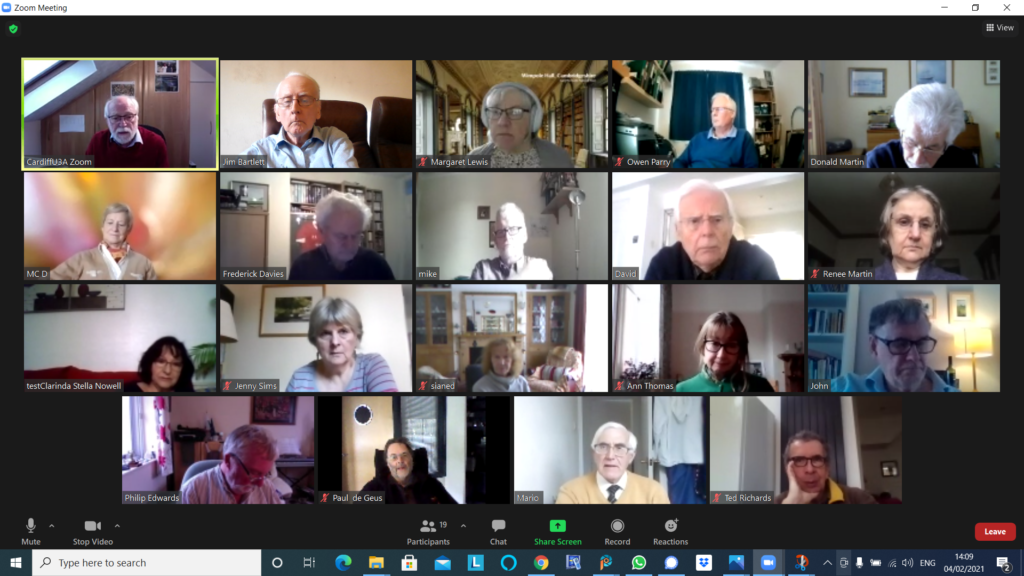
A large attendance yesterday, touching nineteen as shown above. We started with this – The Blue Ball – it’s mesmerising; the digital equivalent of those steel balls that swung on a cradle on execs desks in the seventies, remember them?
I mentioned the emojipedia which I referenced in the last notes and offered to help anyone who wanted to get onto Signal at the end of the meeting. Then it was “round the screen” to find out what members had been up to, or were having difficulties, or issues, with.
Margaret reported on two scams, one from Lloyds Bank (spelt Lloyd) and an “internet interruption” call/text which on traceback (which David H had done having received the same one) appeared to come from Caerphilly! On a more productive note she had been able to transfer a lot of treasured photos from her old laptop – which she’d been unable to upgrade to Windows 10 unfortunately (for a number of reasons, lapsed time, lack of memory) – to their desktop. I mentioned that Linux was still a possibility to revive the old laptop, we could look at that agin when we were all together in person. She also told us about a very pleasant experience attending virtually the Destinations Travel event, and informed us about the Stanfords Travel Writer Festival and the videos from the event which finished yesterday will be online from that site.
Owen reported that following the last meeting, he’d replaced his Powerline Adaptors with new ones and was now getting much improved wired connection speed for his study.
Don had been decorating for the past three weeks, that is when he wasn’t standing in the garden at a safe distance from the lead gas pipe he’d fractured in a wall, thinking it was redundant!
Jim had got himself into “trouble” with Flickr for displaying a photo of some aubergines – this caused much mirth. He reported to me today that Flickr had apologised for slapping an “unsafe” rating on the picture, and it was now visible to everyone. He had also upgraded (on his new laptop) his copies of Audacity (audio editing) and PaintShop Pro (photo editing).
Marie-Christine reported she was having a problem with her version of Lightroom and Windows. I offered to raise the matter on the Lightroom Queen Forum if she told me hat version of Lightroom, and the precise version of Windows she was having problems with.
Fred reported that a switch to Signal was not getting any traction with his friends, and that he’d had an instance of PayPal phishing to contend with.
David H added to Margaret’s description of the “internet will crash” scam. Someone asked where you should report such scams. The preferred method would appear to your ISP, in this case Sky, but Marie-Christine reminded us of Action Fraud (0300 123 2040) – is it a scam in itself? No it’s run by the police. Other tricks are to type the phone number of a caller into a browser and you’ll get an indication from Who Called Me? or Should I answer? Of course for an email you should look carefully at the email header address and type the domain into a browser to see if it’s genuine. David also asked whether it was possible to use WiFi for making telephone calls as the O2 signal in his apartment was so bad. The answer appears to be to activate WiFi calling for Android or iOS. David also reported that he was still not having any joy with his Times subscription on his iPad although it was working on his wife’s machine. I suggested that perhaps the subscription was limited to a fixed number of devices, and that perhaps deleting it from both machines and then re-installing it in order of preferences might solves the problem. Just a thought. Finally, he mentioned the possibility of adding people to a Netflix account and that his daughter had added them to her account and he was paying her £3 a month in gratitude – this being the cost of the extended subscription. It was pointed out that there was a similar option for Spotify, and the launch of Apple One scheme just recently was very similar. [NB The Spotify Family requires address verification; I’m not sure how this works but all members have to have “the same address” – work that one out yourself.]
Mike had nothing to report.
Renee reported some alarm issues ; problems with her satellite TV which required a factory reset eventually as the Italian channels had changed polarity (??) and just re-tuning didn’t solve the problem.
Stella had nothing to report.
John told us about the problems that have dogged them since he lost a bank card and the issues of not knowing whether a request to change details for a direct debit (because it use the former 16-digit number) was a scam or not. Just a nuisance. He wondered whether there were more scams at large currently because of Covid. Not sure. He reported with some delight success in transferring a SIM from an old phone to a new iPhone XR. There were some problems initially (with O2) but these were now resolved and he was getting the service he wanted at the reduced price of the service on the old phone. My standard advice is never to buy a phone on a plan, but to always save up for “the next one” when you purchase outright a new one. Also look at the plans that are available for SIM-only, or Pay as you Go. Measure up what you can get against the ones offered by GiffGaff (running on the O2 network and owned by them), which is my personal recommendation.
Paul had nothing to report, having been too sore to think of anything else but finding a comfortable place to sit since his accidental encounter with his loft.
Phil told us about a Facebook page – Strange things found in walls, including a safe and a gothic arch. He also told us about his experience (relating to Jim’s Flickr episode) of the poor performance of content-filtering for schools internet when he was working.
Ted told us about Just Watch – a really useful website that tells you which streaming service you should look on to find films, etc. He also mentioned how useful he was finding the Snipping Tool in Windows to cut-out an element from an image. I was able to say that the Screenshot Utility in MacOS did the same thing, but there were also short-key sequences for the Mac that did the same thing.
Sianed relayed the sad story of the Smart TV that had lost its smart functionality. For many of us that’s a cause for celebration as the smart functionality decreases with the age of a set as manufacturers don’t keep their apps up-to-date. So now she is in the happy position of using possibly an Amazon Firestick, a Google Chromecast (although Paul doesn’t rate it as there appears to a lot of US-content), a Now TV dongle, a Roku device or an Apple TV. Here’s a recent review of all of the ones available in the UK.
Finally Jenny described the National Pensioners Convention (Wales) event that she was participating in on Tuesday (9th February). You are encouraged to sign-up and take part in the webinar – I’ve circulated details by email earlier. She particularly noted the work of the Good Things Foundation and the Carnegie Trust in supporting digital inclusion activity and projects. She recommended looking at the former’s website.
I concluded the meeting with a gallop through home networking and router configuration which is all written up in this article which builds upon earlier ones.
You might want to consider signing up for the Which! Scam Service, I have …
There are necessary steps we can all make to protect ourselves from fraud. But as they become more sophisticated, it can be difficult to know what’s genuine. We’re here to act as a source of trusted advice for those times when you’re just not sure.
Here’s a nasty one, which on the surface looks OK – just remember that if you’re using Facebook Messenger, you shouldn’t need to login to Facebook again, and vice versa.
remember also my advise, if you do use Fb, or FB Messenger please Logout – I know it’s a pain but there’s a distinct chance that if you don’t Fb will record all your internet comings and goings and you’ll get loads on unsolicited emails, etc.
We’ve discussed this a couple of times now this term, so I was interested in seeing it pop-up on the BBC website. Here’s the link to a short video … www.bbc.co.uk/news/stories-46323625
I’ll be looking at password managers next time, but in case you can’t make it, I’ll write-up a post as well. I use LastPass, but there are others. I also pay a small amount for it so that it can be used on more than one device.
Recently in a U3A meeting we discussed Computer Fraud. We often do, or so it seems. If it’s not fraud, it’s security online, or scams and what’s done with our data … but more about that later!!!
This short post is just to alert people to a simple, short quiz (or test) that has been produced in conjunction with the UK Government to help people recognise fraudulent activity.
Go to this website, satisfy yourself it’s genuine and is a government backed initiative, and take the test and see how you do. According to the Daily Mail – so it must be true – only 9% of people taking the test were able to accurately recognise all the scams and false messages, that despite a claim that 80% felt that they were able to recognise a fraudulent message.
For further guidance try this link.



 Essentially, they record what you do on a website so that when you return to it some of the settings are remembered and applied. Cookies do however also have a downside in that some can also act to track your activity once you’ve left the site. For that reason, you should disable in your browser the ability of third-parties to glean information from a cookie, and also to prevent them tracking your activity once you’ve left the site. You can at anytime, clear the cookies from your browser, and indeed on some internet browsers set them up to delete cookies when you leave (close the window) the site. If you use Firefox as your browser it will alert you the first time you go to a site that it is using a Fingerprinting cookie itself. For instance from the Norton site above …