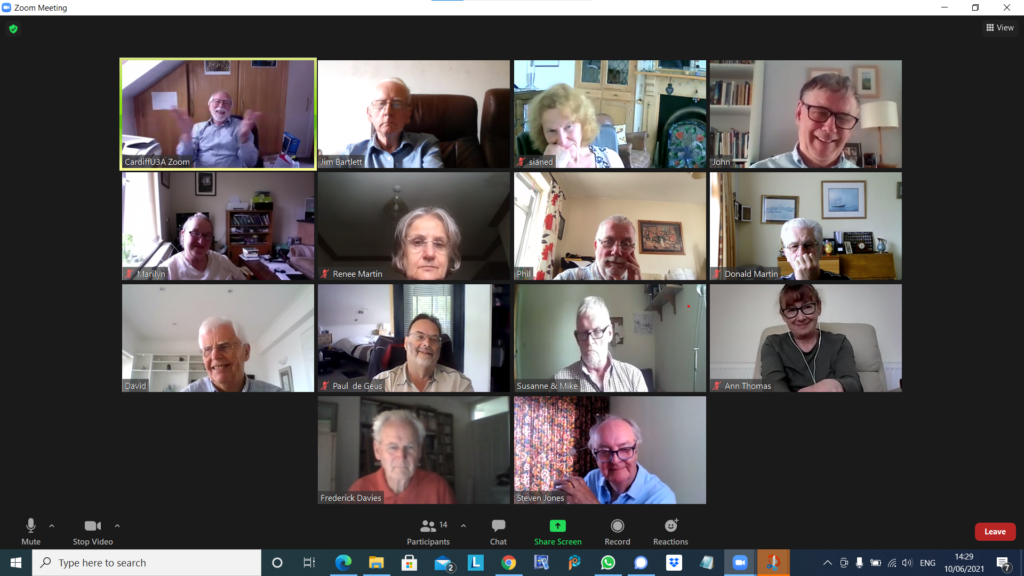
All looking very serious – and I wasn’t disinterested … honest!
In addition to the serious looking faces above, Barbara joined us for a short while until Geoff switched-off the ring main!! We had apologies from Jonathan, Sianed and Christine. We welcomed back Stella who had been suffering from the after effects of her Covid jabs.
We also agreed to experiment with a voice-to-text transliteration system to assist folk who were finding it difficult to follow the audio in Zoom meetings.
I started the meeting by explaining the changes to the website, and doing a quick demo. [I further made some more changes the following day – I note that some of the Help screens, now need new images. They’ll have to wait …] I also was pleased to report that I’d sorted Fred’s Signal installation out, and had finally managed to reply to Phil’s Signal message on using Thought grazing. I offered to help anyone having difficulties with either the website, or Signal, to get in touch.
I then highlighted a few items that I’d added to Flipboard – a lot of them connected to Privacy, which seems a very live issue currently. Apple, after it’s developer’s conference is certainly focussing on privacy, including traps of pixel trackers, it’s intentions to move away from passwords and the addition of FaceID and/or TouchID to Google’s Authenticator – increasing the security of this means of connecting to websites. The EU appears to be going after the way multi-nationals (Google, Microsoft, Apple, twitter and Facebook) export data – an issue I’ve been mentioning for a while – watch this space! The UK’s Competition & Market Authority are also going after Google because of its use of cookies to track users, and usage, in Chrome. Google says, don’t worry we’re going to stop using cookies, and we’re going to give the industry an open-source alternative – FLoC; but it doesn’t appear that anyone else wants to follow. The US Congress is also looking at introducing anti-trust legislation and this is causing the multi-nationals to be a little bit more than concerned and they are lobbying hard against it. Here’s Apple’s plea to Nancy Pelosi. Apple take Privacy very seriously and they have released this white paper which you might care to read.
Mike was delighted with his new speakers which had improved his music listening (from the computer) as well as the quality of his Zoom calls.
Owen reported that he could not recommend the cookie-completion software he’d mentioned four weeks previously. In a test of at least 100 websites, he’d found that it had only worked with 7 sites and in some cases had stopped the websites working. Back to the drawing board! He also reported that the Committee was contemplating a reservation system for when we return to face-to-face meetings to cope with any constraints in numbers and/or social distancing in certain venues. I indicated that I was not too happy with such a proposal. It may not come to pass, however Owen has been charged (or volunteered) to see if the current systems can be tweaked to facilitate this. Zoom has now introduced ‘Live Transcript’, an automated subtitling system. It is by no means 100% perfect, but it should enable those who find it hard to follow in Zoom meetings an enhanced opportunity to hear and see what is spoken. Further information is to be found here. We then discussed how best we might extend the Group to those not participating via Zoom, and I agreed to try to see if any members wanted to join the Signal group.
David H mused on the death of John McAffee (as did Jim later); he reported that the barn was being converted as per his CAD drawings; that he had solved a Samsung phone problem with the radical solution of turning it off, and then switching it back on again; and enquired as to whether anyone had advice on purchasing a new TV. There was a lot of discussion; Steve commended 4K; Ann mentioned the Which? tool to assess size of TV vs size of room, viewing angle and distance from the screen; I asserted that most reviews appeared to favour LG’s OLED technology over Samsung’s QLED technology; we all agreed it was important to assess what we wanted, before we made a decision.
Paul was having problems with rapid battery drain on his Android phone; unfortunately no one had a concrete answer to the problem other than ditching unwanted, unused apps; enquiring whether an update had recently taken place, and again (radical thinking) – switch it off, and back on again!!! Here’s a link that might be useful too.
Don had bought a new Dell G3 system from JLP and it had arrived very quickly. It was so fast, it was like driving an Audi after the Vauxhall he’d had previously (no disrespect intended). He enquired about installing the security package from BT – I suggested to wait awhile before doing that – to try using Windows Defender first. He was going to investigate how to transfer his data from the old laptop. Neil (We will fix your PC) would do it for £30, or put the old hard disk in a caddy for £20. He also enquired about how to get his Gmail onto the new machine – I suggested using Windows native email client and offered to speak to him offline and provide some assistance [which I’ve done].
Phil drew attention to something he’d written about Podcasts which he and many of us use and like and commended CyberClean as a product to clean keyboards. Following the meeting he added another Topic to the Genealogy Forum on one of his ancestors which I recommend you read as a great multi-media experience.
Steve had brought his Sony HX90 camera to show Ann, and she was delighted that after visiting the Camera Centre, she’d plumped for a Sony HX99 for her carry around take pictures of birds camera. A great choice! That or the Panasonic TZ200 would have been my shortlist. He also commended BBC Sounds for Podcasts – good recommendation, thanks! He also enquired whether we thought showing a YouTube video on Zoom infringed copyright – we thought not.
Renee was wanting to look at Tasks in Google but couldn’t find it; we suggested it was included in one of the other members of the Google Office Suite – maybe Calendar. Hopefully this link will help – you access it from either Mail or Calendar.
Finally Ann just told her of her experience (very good) of visiting Camera Centre to purchase her camera which she expected to pickup after the meeting. She was buying a refurbished (but guaranteed unused) model at a discount. All the best – I suggested that she might like to consider joining the afternoon Photography group.
Apologies (yet again), I seem to have a spurt in getting the notes out quickly, followed by a delay so that they become almost useless – except as a historic record – by getting them out “just in time”!!!
Anyway thanks to Jim for the photo above, one of the best and shows we manage to have a bit of fun! Apologies from Jonathan, Margaret, Barbara, Christine and Owen – who were unable to join us.
I’m pleased to be able to report that Fred and I finally managed to hook-up and have a chat about connecting to Signal, and I did manage to reply to Phil about his message on sending a post to this site. So, it’s not been a complete lack of activity. The other thing has been the stylistic changes to the website that I mentioned at the meeting. These have now moved on again, and I’ll talk about that this afternoon, coupled with a demo of accessing the website, as it’s apparent a couple of you have not managed to login.
So what did we discuss. I went through a number of links which I’ve put on Flipboard – I’ll highlight some of them. The cookie pop-up problem brought to our attention by Owen – which we’ll return to this afternoon as well.
The sharing of patient data by NHS England caused some discussion – it appears now that this does not effect us in Wales – they’ve put off the implementation date now to September 1st. This led on to a discussion on Patient Records in general and the workings of the Patient Information System in Wales – perhaps not working as well as it should with many disparate GP systems not working closely with any centralised system. Also noted that you are entitled to get a printout of your Patient Record, but the practice is also entitled to ask you for an administrative charge in providing it. Then we diverged into discussing Lateral Flow Tests, and I described how I’d been able to receive the test kits within 24hours from a website. It’s unlclear whether we (in Wales) are able to upload the results due to our NHS numbers not being in the same format as the English ones – and the same problem arises with the vaccination passports now being launched in England as an app. In wales there will be a website you can register your vaccination history, etc.
Ann asked about Two factor Authentication, and how it worked – especially with the banks. I explained that the addition of a metric such as FaceID or TouchID (both Apple trademarks) the banks were ensuring much better that the person using their apps were the actual customers. The organisation trusts the device provider to ensure that the person is who they are through their personal credentials – face or fingerprint. If working on a browser they will challenge you to provide a code they send to the registered device they have for you. This is obviously not as secure – remember my SIM swap scam episode of 2019. The other way that the organisation you’re connecting to can ensure it’s you they’re providing access to is by using an Authenticator app, that sends a code to your phone that you then type into the box in your browser. Hence two-factor – the code (or Identity features) on a device different from the browser.
Sianed advised us of the Census scam that had been going the rounds.
John told us about an interesting photography programme he’d been watching – the Great British Photography Challenge – now available on iPlayer.
Renee advised us that the NHS app discussed on the TV was not available in Wales.
Phil had a Victor Meldrew moment and lamented the lack of telephone numbers on websites that made it almost impossible to connect to a person to discuss an issue. Fred suggested keeping a list of CEOs to address complaints to. Someone else suggested using the Companies House website – a good idea!! Someone then recounted the recent case where a worldwide undercover operation had revealed criminals.
Jim wondered whether everyone was having as many Signal updates as he was, and on all devices – we are, and all is OK!!!
David H was pleased to announce that his CAD system was now working and enquired about whether there were any recommendations about property contents only insurance. I’ve also noted that there was discussion on harvesting data from browser searches, and a comment “Zoom and the Arts” – but I have no idea what either of these referred to!!!
Paul had some issues with Google accounts (again I can’t remember what these were); and advised that he had tried out Reader View (as discussed at the previous meeting).
Mike was having problems with the volume on his equipment and I hope the advice we provided has helped in some way.
Steve said he’d setup ICE and enquired about the website What 3 Words to provide exact locations. We experimented!!!
It’s not long ago that Google was described as “the evil empire” because of its perceived intent on hoovering up all the data it could about us in the endeavour to “provide the best search experience for its users”. Baloney of course – they just wanted to drive the monetisation of their platform as far as they thought they could get away with, and by now you shouldn’t pay too much attention to the search results that appear at the top of a Google search – they’ve almost always been “paid-for”.
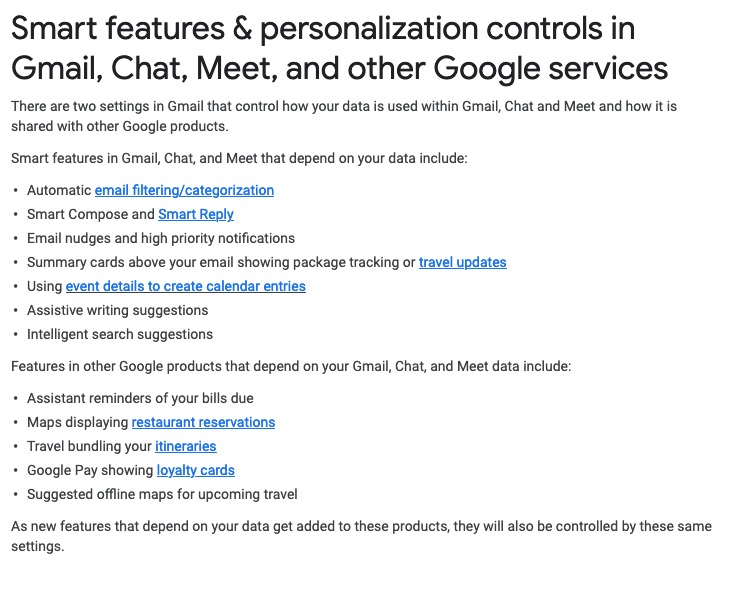
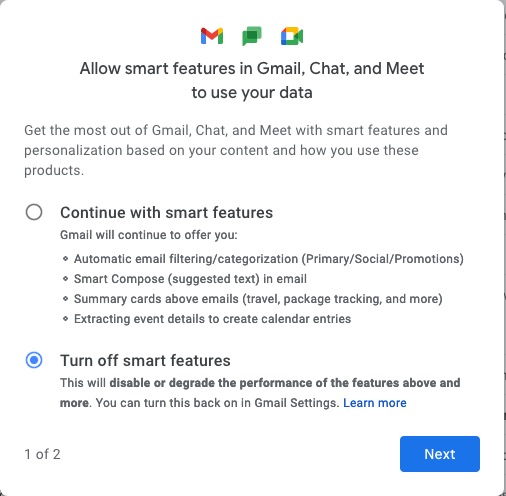
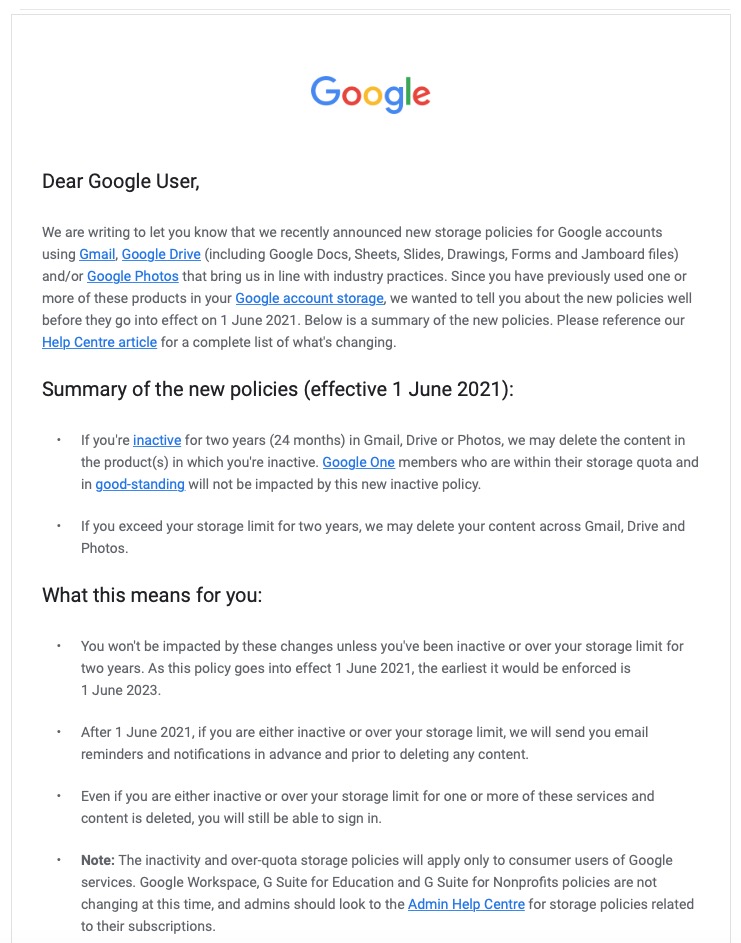
However, out of bad publicity they learned a lesson. When changing terms and conditions of use, or service, its best to explain clearly, and in advance, what they want, and expect, to do, and invite comment. That was most certainly missing from Facebook’s recent debacle with WhatsApp. So to show how it perhaps should be done, I’me including some recent screen shots from Google over the past few months …
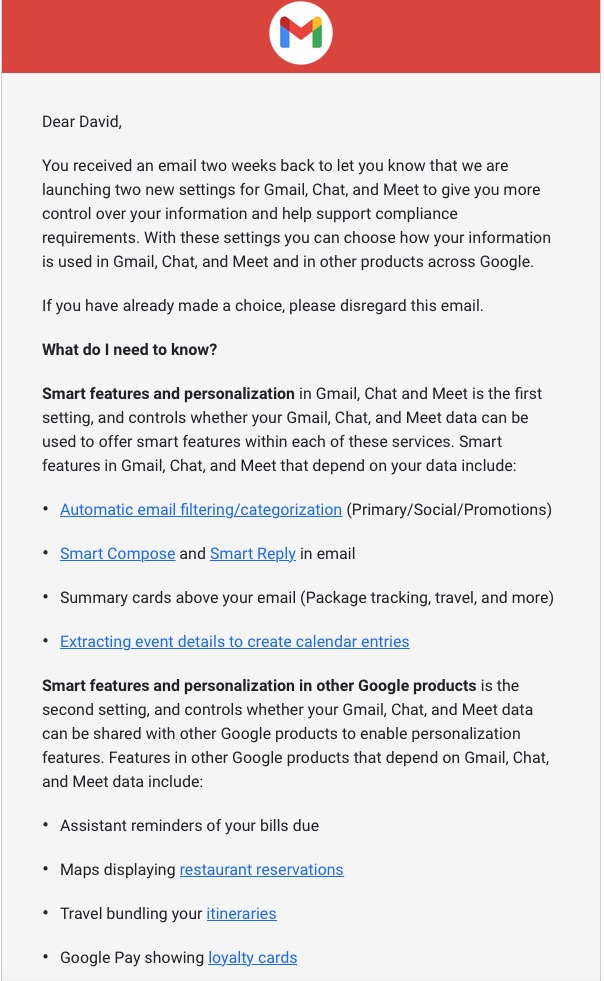
A very recent change to Google services that is being proposed and communicated to users in an email. This was the first email sent …
… which was followed up with this one, which prompted me to do something about it!!!
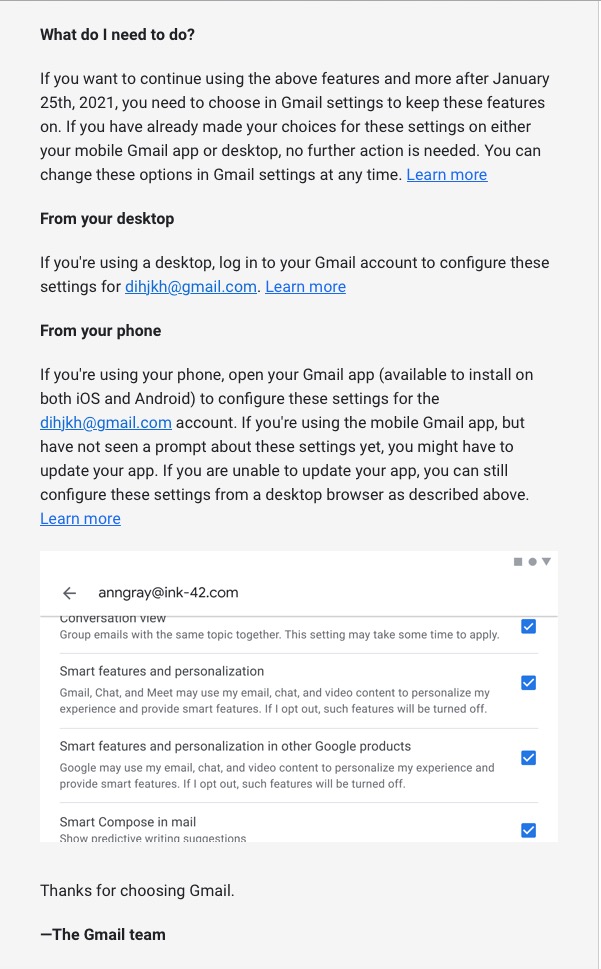
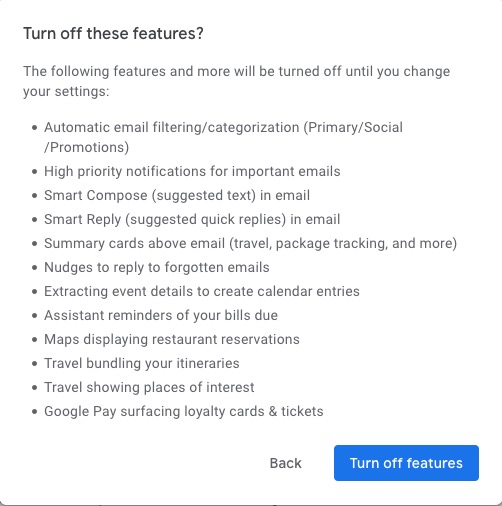
Once into the application, you receive a screen like this one …
I’ve now switched off these personalisations, but what I was doing was very clearly explained.
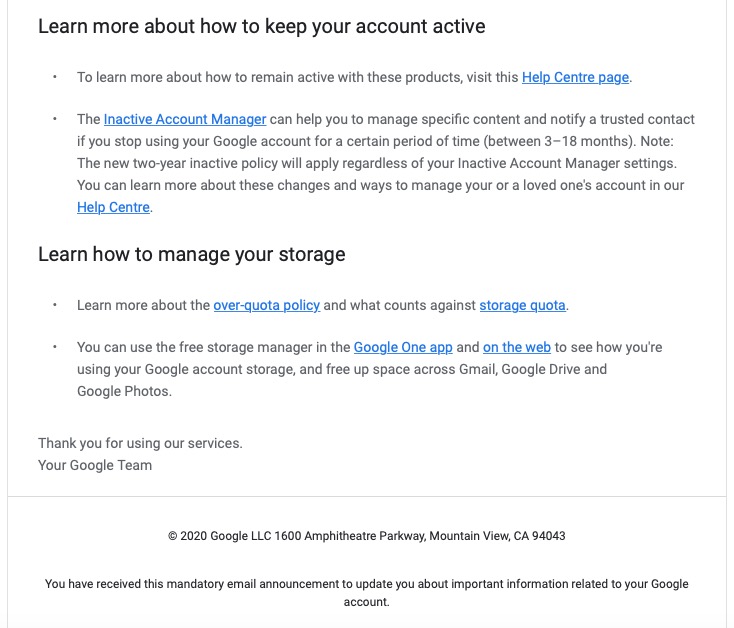
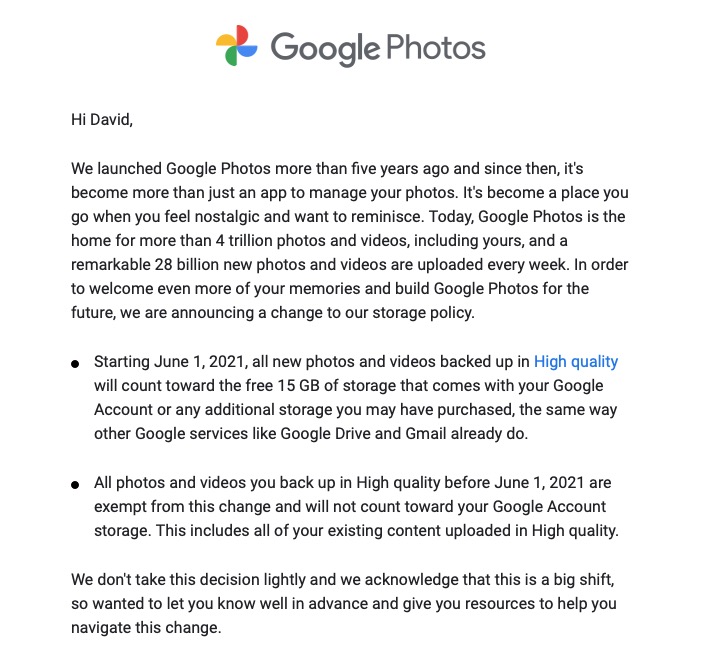
Then there is this advance warning of changes to the storage policy that covers your Drive and Photos accounts. [I must do something about this as I have a number of Google accounts knocking about.]
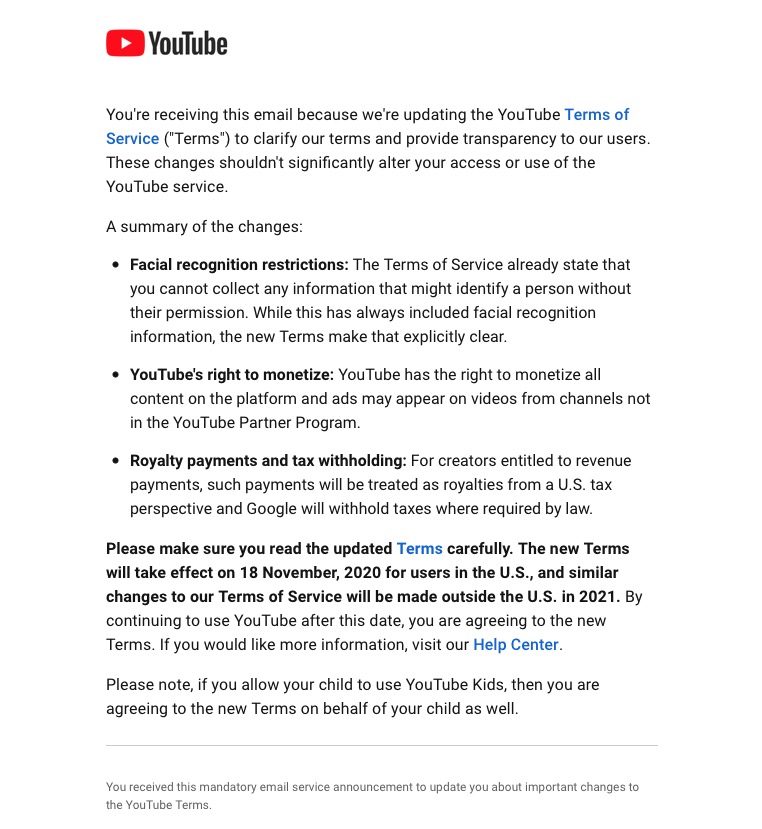
A clear explanation of changes to YouTube – not ones I like, but there’s no attempt to hide what they intend to do, and it provides a hint that they will apply to us later this year when Google leave Ireland for the US.
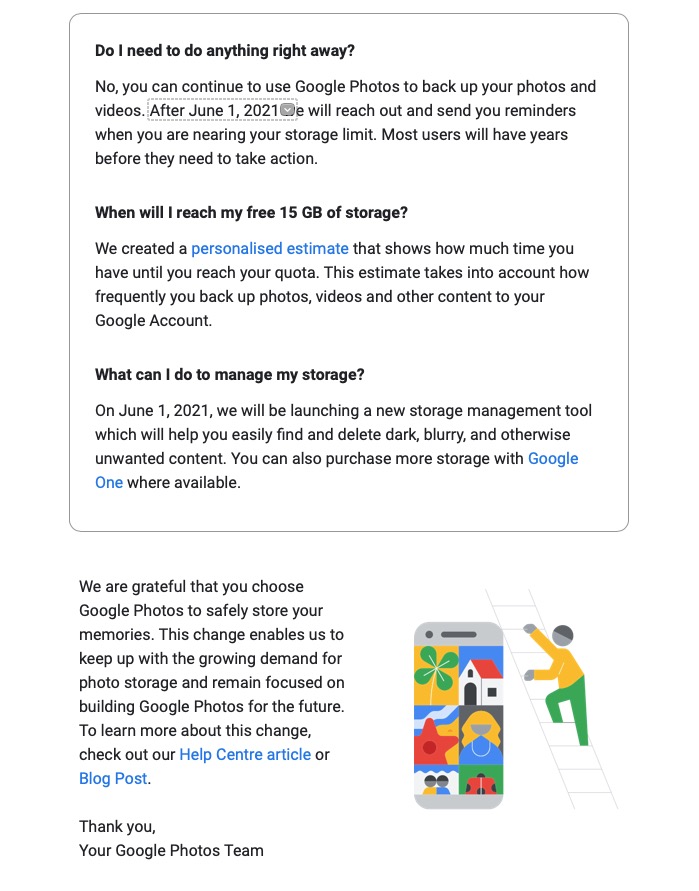
Changes to the Google Photos policy which is causing some distress, but is explained clearly and gives you a lot of time to work out how to use the service after June 1st 2021.
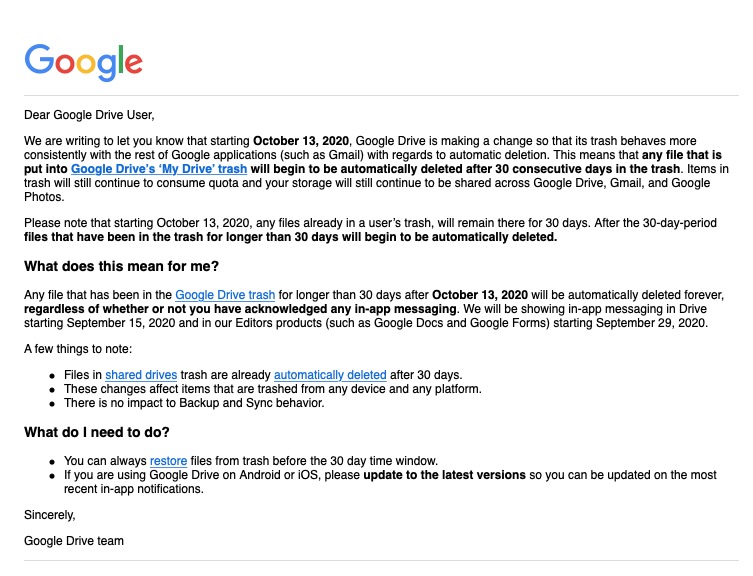
Early notice of the intended changes to Google Drive, and how files will be deleted.
Finally, another company explains clearly how and why it’s changing it’s Terms and Conditions – not something WhatsApp did. Shame on them!
“When WhatsApp was acquired by Facebook in 2014, it promised netizens that its instant-messaging app would not collect names, addresses, internet searches, or location data. CEO Jan Koum wrote in a blog post: “Above all else, I want to make sure you understand how deeply I value the principle of private communication. For me, this is very personal. I was born in Ukraine, and grew up in the USSR during the 1980s
One of my strongest memories from that time is a phrase I’d frequently hear when my mother was talking on the phone: ‘This is not a phone conversation; I’ll tell you in person.’ The fact that we couldn’t speak freely without the fear that our communications would be monitored by KGB is in part why we moved to the United States when I was a teenager.”
Two years later, however, that vow was eroded by, well, capitalism, and WhatsApp revealed it would be “coordinating more with Facebook,” and gave people the opportunity to opt out of any data sharing. This time around, there is no opt-out for the sharing of data with Facebook and its tentacles. Koum left in 2018.”
So this all started 4 years ago, when WhatsApp announced a change to their Terms and Conditions (Ts&Cs) – the first change in many years, and the first since being taken over by Facebook. It was possible to opt out of this change which was announced as only to “improve the experience of Facebook users” (that’s kind of them – do I believe that?).
I don’t know whether I chose to opt out, I suspect I did, but I have no way of knowing!!! Whatever … I only had 30-days to opt out then, and I can’t go back and opt-out now.
I was alerted to the current impending change on February 8th, which is a take it, or leave it choice by this article in a well respected techie (UK-based) blog – The Register. It’s subsequently been updated, and may be updated again I suspect as more information is squeezed out of Facebook.
Before Christmas in a meeting of the Cardiff U3A Computer Group, I referred to the repatriation of UK-data to the US as a consequence of Brexit. So far Facebook and Google (and there could be more) have announced their attention to do just that, and others will undoubtedly follow. Free from Europe, our government has said we will follow GDPR (it had very little option), but the US tech companies see the wisdom of not having a European base for their (our) data and are hopeful of less stringent Federal privacy restrictions under a new Democratic Party controlled Senate committed to introducing legislation.
Once out of the European protection, we in Britain could in the course of time, and after the repatriation of Facebook data to California (read the article above), be deemed not to be part of the European area and so the protection offered by WhatsApp/Facebook suggested in this article in “The i“, would cease to apply. So the short-term acceptance of these Ts&Cs thinking they don’t apply to us, might be scuppered should the data-hosting move to the US.
As of today, I’m at a loss to know what to advise or do. I’m hopeful of further clarification in the days to come, but I’ll leave acceptance of the new Ts&Cs to the last few days before February 8th.
“When WhatsApp was acquired by Facebook in 2014, it promised netizens that its instant-messaging app would not collect names, addresses, internet searches, or location data. CEO Jan Koum wrote in a blog post: “Above all else, I want to make sure you understand how deeply I value the principle of private communication. For me, this is very personal. I was born in Ukraine, and grew up in the USSR during the 1980s
One of my strongest memories from that time is a phrase I’d frequently hear when my mother was talking on the phone: ‘This is not a phone conversation; I’ll tell you in person.’ The fact that we couldn’t speak freely without the fear that our communications would be monitored by KGB is in part why we moved to the United States when I was a teenager.”
Two years later, however, that vow was eroded by, well, capitalism, and WhatsApp revealed it would be “coordinating more with Facebook,” and gave people the opportunity to opt out of any data sharing. This time around, there is no opt-out for the sharing of data with Facebook and its tentacles. Koum left in 2018.”
So this all started 4 years ago, when WhatsApp announced a change to their Terms and Conditions (Ts&Cs) – the first change in many years, and the first since being taken over by Facebook. It was possible to opt out of this change which was announced as only to “improve the experience of Facebook users” (that’s kind of them – do I believe that?).
I don’t know whether I chose to opt out, I suspect I did, but I have no way of knowing!!! Whatever … I only had 30-days to opt out then, and I can’t go back and opt-out now.
I was alerted to the current impending change on February 8th, which is a take it, or leave it choice by this article in a well respected techie (UK-based) blog – The Register. It’s subsequently been updated, and may be updated again I suspect as more information is squeezed out of Facebook.
You may remember in a Group meeting before Christmas I referred to the repatriation of UK-data to the US as a consequence of Brexit. So far Facebook and Google (and there could be more) have announced their attention to do just that, and others will undoubtedly follow. Free from Europe, our government has said we will follow GDPR (it had very little option), but the US tech companies see the wisdom of not having a European base for their (our) data and are hopeful of less stringent Federal privacy restrictions under a new Democratic Party controlled Senate committed to introducing legislation.
Once out of the European protection, we in Britain could in the course of time, and after the repatriation of Facebook data to California (read the article above), be deemed not to be part of the European area and so the protection offered by WhatsApp/Facebook suggested in this article in “The i“, would cease to apply. So the short-term acceptance of these Ts&Cs thinking they don’t apply to us, might be scuppered should the data-hosting move to the US. [I think it’s clear to me that those in the EU will continue to be offered an opt-out – the market is too large for them to enforce a retrospective acceptance, but we in the UK …. !!!]
[Clarification] I should have made it clear that it is not the data that’s being repatriated as this could be held on many servers all around the world, but it is the legal ownership of our accounts that is being repatriated. The US Tech Corps have been “troubled” by the number of Anti-Trust, and Anti-Competitive legal cases that have been brought against them in the EU just recently. Being found guilty can subject those companies to very high levels of fines. In addition the tax haven which was Ireland has been challenged which provides another impetus to move their (that is Facebook and Google) offices back to the US. So far Twitter and Apple have stood alone as companies that have decided to stay in Ireland, whilst Amazon is based in Luxembourg. So it’s not just Privacy that is a driver to repatriate our accounts.]
No certainties, just doubts and that’s where mistrust comes in.
As of today, I’m at a loss to know what to advise. I’m hopeful of further clarification in the days to come, but I’ll leave acceptance of the new Ts&Cs to the last few days before February 8th.
[NB. I’m posting both these articles on the Public Thought grazing site as well.]
I was challenged with this question last Thursday when I told my family about the intended changes to the WhatsApp Terms and Conditions of Use. I didn’t reply to my IT-savvy son until this morning when I was first asked to agree to these new Ts&Cs. This is what I wrote …
“It starts with trust, and then you work away from that. It’s what a company does with information and whether you can then trust them to handle it properly. Google+ was a closed system that you opened up; Fb is an open system that even though it has Privacy Controls – which you need a degree to work out how to set them – essentially allows them to do anything with what appears on their platform.
You take a photo – you don’t retain copyright, you assign that right to them when you publish to the platform. You have to struggle to find a way to opt out of adverts (understandably – that’s how they make their money) – you are conned into thinking that in allowing them, you will get a better experience.
For whom? For you – no, they’re just an annoyance to me, but for others they just drive people to buy stuff they might not want/need. For them – yes, that’s how they drive income and more.
So it’s the more that’s more interesting and insidious because what they do with that information leads to targeting people with posts, hence my reference to Brexit and Trump. [I had said in my brief first reply – Cambridge Analytica, Brext and Trump.] The algorithms behind the scenes work the data and susceptible people get targeted with posts as well, not just adverts. I could go on, but as I said – it’s all about Trust, and Fb as a company is one that I just don’t trust. [Addendum: Fb would say that it’s not them that uses the data; but we now have plentiful evidence that Fb Service Users have found ways of manipulating the data they have access to as Fb Business Users.]
Getting data from WhatsApp was something they committed at take-over they wouldn’t do. Now they are starting to do just that. Next step targeted adverts on a platform which is advert free; then “posts from others you might be interested in” – not the encrypted ones, but ones from Public Figures. Then “oh! dear” we have to drop encryption because of new privacy laws in the US. [Aside: is it a coincidence that Google, Twitter and Fb appear to be more privacy focussed since the Republicans lost control of the Senate and they just might want to be on the right side of the argument that’s going to come in the US in the next four years ].
So I always logout of Fb to stop them tracking me; I suspect that WhatsApp will have a mechanism that prevents a user from being disconnected so Fb with these new Ts&Cs will be tracking as well as getting the other personal info from users. [However, see the addendum below which has caused me to change my views on that.]
Addendum: After posting this article, a former colleague provided a link to a page on Facebook’s website. That article is included in the many posts to Flipboard I’ve added in the past three weeks. However, it’s worth looking at, particularly as it affects the advice I’ve given many times to Logout of your Fb account. It would appear that Fb’s reach is wider than I thought, and so I can only now recommend that you logout. Some salient passages from the article …
When does Facebook get data about people from other websites and apps? Many websites and apps use Facebook services to make their content and ads more engaging and relevant. These services include:
Social plugins, such as our Like and Share buttons, which make other sites more social and help you share content on Facebook;
Facebook Login, which lets you use your Facebook account to log into another website or app;
Facebook Analytics, which helps websites and apps better understand how people use their services; and
Facebook ads and measurement tools, which enable websites and apps to show ads from Facebook advertisers, to run their own ads on Facebook or elsewhere, and to understand the effectiveness of their ads.
When you visit a site or app that uses our services, we receive information even if you’re logged out or don’t have a Facebook account. This is because other apps and sites don’t know who is using Facebook.
I’ve added the emboldening to the last paragraph. So it means that if you do any of the above things on a site that uses Fb Services (ie pays to advertise on the Fb platform) personal information will be transferred to Fb.
Finally, if you’re just a bit more curious about Facebook’s Data Policy, take a read of this and be just a little gobsmacked at what’s going on behind the scenes and just consider it might be worthwhile reviewing your security settings. In particular look at the last section which explains how your information will be shared and especially look at the last part where they describe what they do with third-party partners (eg Cambridge Analytica ???).
Facebook have attempted to respond to the uproar about privacy with the announcement, and release of a Clear History Tool – and you should take a look at this page which explains What off-Facebook Activity means and describes how Fb’s third-party partners and business service providers may be interacting with Fb, and you.
Now you might realise why I dislike Facebook – they’ve lost my trust, and it’s just too much effort to make sure I’ve closed all the doors to protecting the personal information they hold on me.
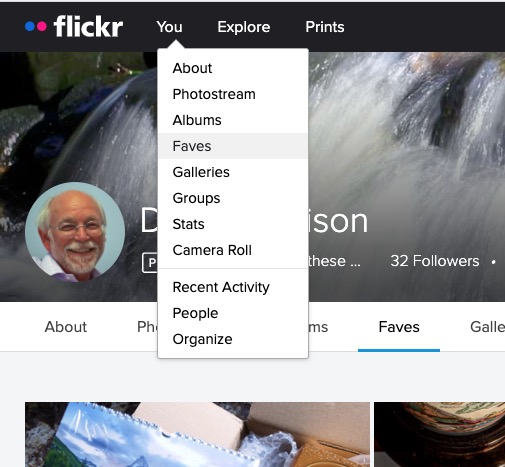
Most of the time people join flickr to showcase their photos, to get faves, and to get comments (hopefully both positive and constructive) to enable them to improve their photography. The photos you upload are shown in your flickr Photostream (or Camera Roll) which you can browse and put into Albums. You can create your own Galleries of your (and other people’s) images; Fave images that appear in your Activity stream (see later) and Follow people whose photos you like.
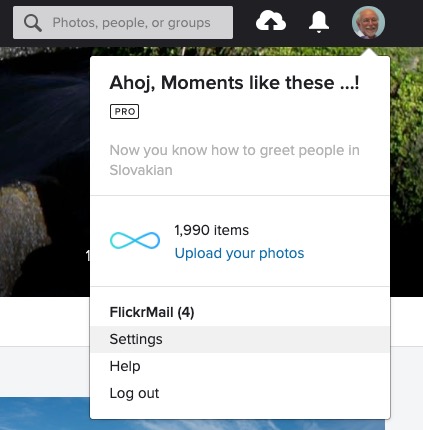
We’ll start by looking at the default privacy settings you can apply to the images you upload. The Settings page is accessed from your profile tab …
… which gives you access to a page with these headings …
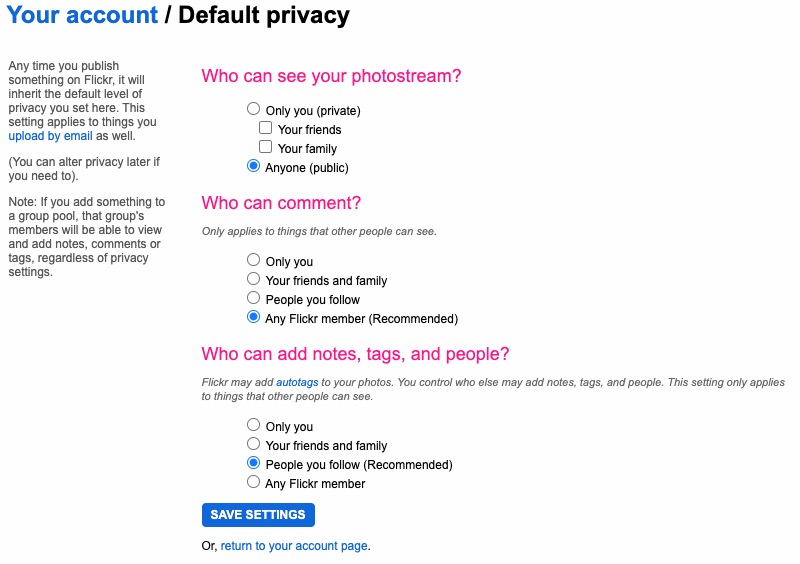
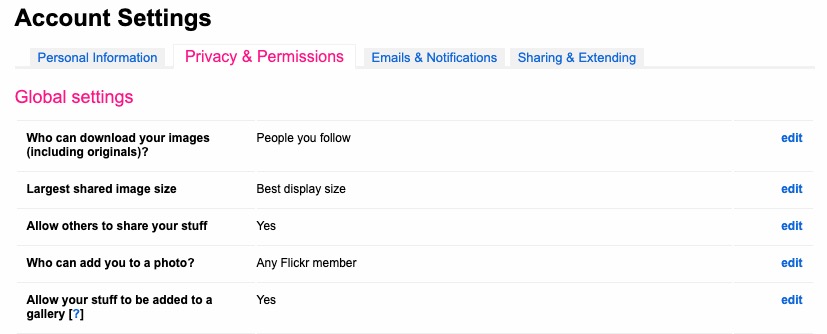
… clicking on Privacy and Permissions brings up this screen – from which you should first look at Defaults for new uploads …
Read carefully the Note: “if you add something to a group pool, that group’s members will be able to view and add notes, comments or tags, regardless of privacy settings.” There’s no privacy within a group. All members of the group can see all members’ photos. If you’ve declared your image to have restricted viewing to Friends, or Family however they will not be visible for public viewing in the group, even though the group page might be visible for public viewing.
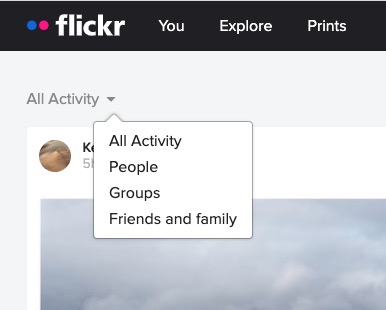
After uploading your photos they will (unless you’ve changed the default settings) appear by default in the Activity stream which you can access from the flickr logo …
… from which you will also be able to see the images of the people and groups you follow. This is the default view when you open Flickr on a mobile device.
Any photo you fave is then attached to your account so that you can return to view it on a later occasion.
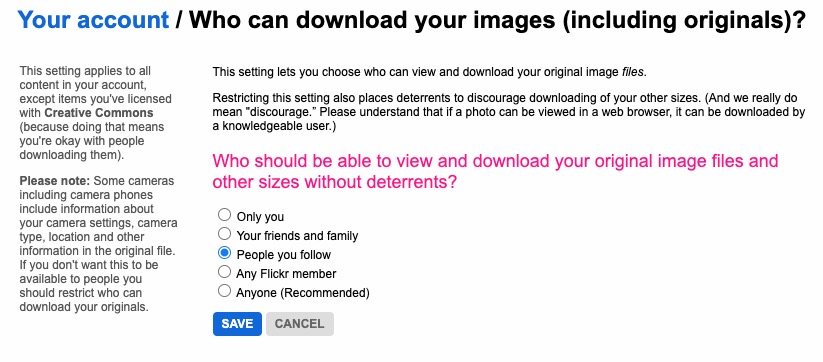
It is also possible – unless you’ve prevented it – for someone to download the photo, or add it to their own Photostream as their own! You might wish to check your settings to prevent that happening.
… and …
… so it’s important that you know what you’re doing when you follow someone – I certainly wouldn’t recommend the default setting of “Anyone”.
There are occasions however when you might wish to keep your photos completely private, or to share them privately within a Group. The settings in flickr to allow this are not exactly as intuitive as they might be so this post continues by seeking to help understand how you can “hide” your photos from the Public photostream, but to show them within a Group. Let’s start there.
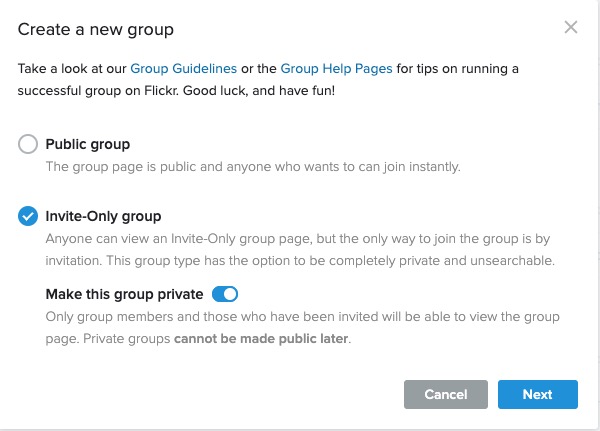
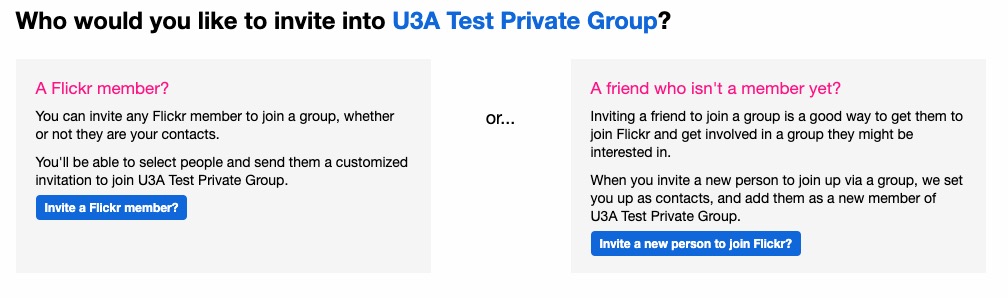
Groups can either be Public, open to invited membership (or upon application to join) and then also to be Private. Note especially carefully the note attached to Invite-Only Group which can be either Public or Private … “Anyone can view an Invite-Only group page …”
The last case is obviously the most restrictive and in this situation a Group is setup by a Flickr member and they invite either existing Flickr members, or non-members to join the group.
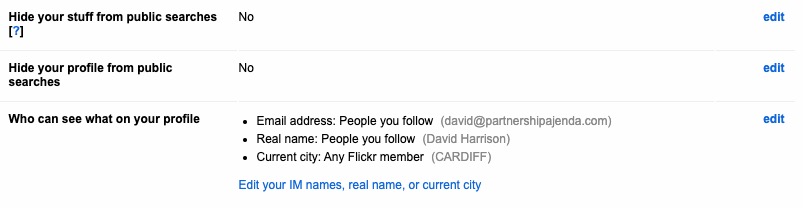
They will be sent an invite to join flickr, and the Group, as a member. You can therefore appreciate that you have to be a flickr member to view Photos which are in a Group. However if they’re not hidden from the Activity Stream by changing the default privacy settings (as above) and if it isn’t a Private group – they’ll still be visible to anyone unless you’ve also changed your search profile …
For the Invite-Only Group which has not been declared Private it is important to note that anyone (even non-Flickr members) can view the group page, so as we shall next, if you want your photos to be completely invisible to the outside world, you’ll have to do something else to make them invisible!!
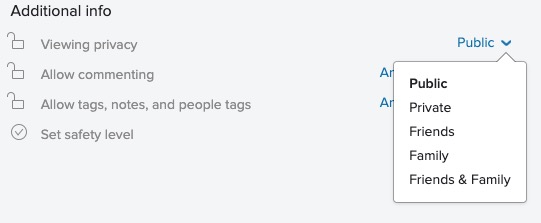
If you want to keep your photos visible only to members of a Group, you need to specify on the Default privacy settings page either “Your friends”, or “Your family” depending upon the nature of the Group; similarly you should restrict Comments (and Notes, Tags and People) to “Your friends and family”.
However these settings will then apply to every image that you upload and that might be more privacy than you really want, so you are able to choose the level of privacy on an image by image basis after you’ve uploaded them. This is done by looking at the information attached to an image after you’ve clicked on it in your Photostream …
… so, as an alternative, you could leave your Photostream relatively open using settings similar to the ones in the screenshots above and then restrict viewing of individual photos to Friends, or Family, etc. within Groups.
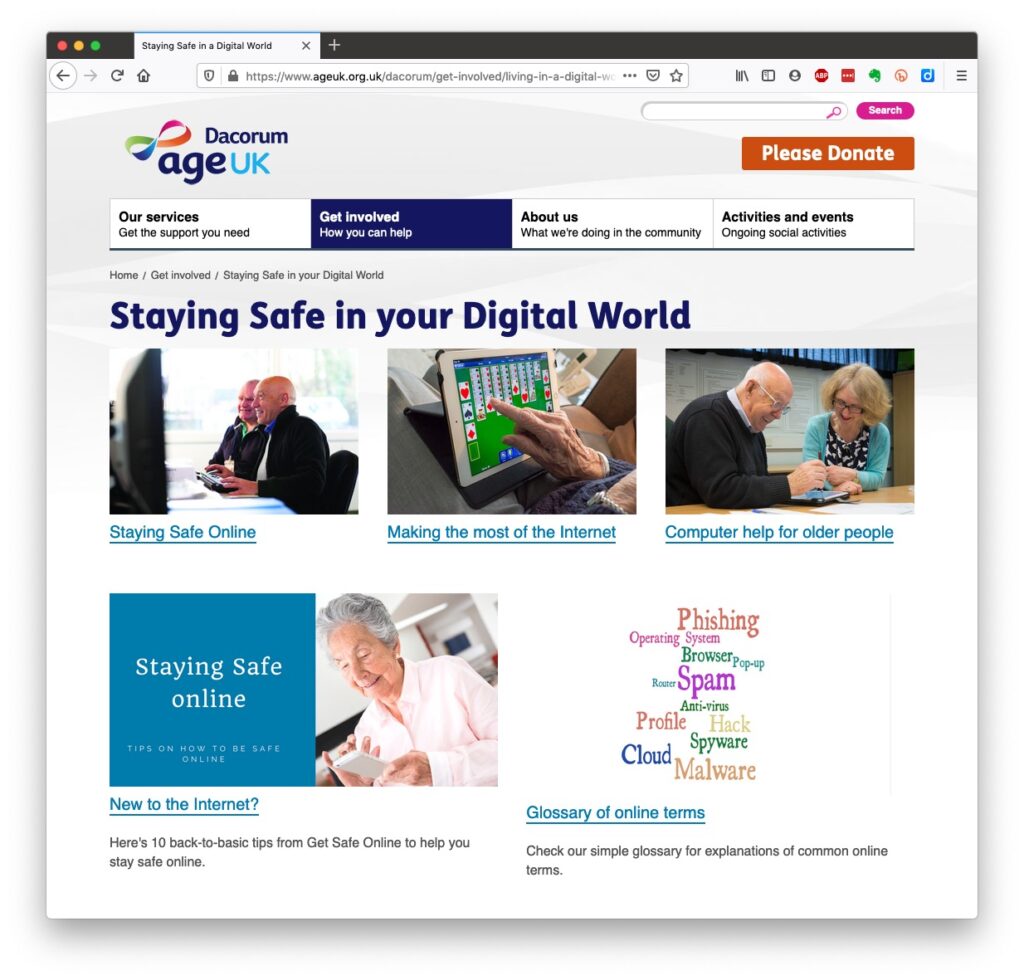
Luckily, there’s plenty of advice and guidance available – often slanted particularly towards our demographic (ie oldies) …
Those two sites are particularly easy to follow and understand, but others are equally informative and targeted.
Your bank probably has guidance which it publishes online and which is accessible to everyone, not just their customers …
I’ll return to further information, guidance and references at the end of the talk, but first we need to look at a few issues, discuss some terminology that’s widely used and try and tease out what’s really important, and what’s just an inconvenience and then it’s up to you to judge where you find yourself on the scale of …
First let’s distinguish the difference between online security and online privacy. These are two different issues which are however linked. Sometimes you have to relinquish some privacy to receive a service – unless you choose to pay for it (and I’ve long been an advocate of paying for services if they do a job that is necessary); exactly how much privacy are you prepared to relinquish?
Security on the other hand is an absolute – you should not be prepared to accept less than your very best efforts . We’ll deal with that in the third part of the talk.
How do you relinquish your privacy, and how much of a loss of privacy is acceptable?
Some services could not be offered without income from adverts, or paid-for advertising – eg Facebook, twitter and instagram; and some eg Google and Amazon track and provide information to resellers if you don’t block them from doing so. As an example of how much value Google sees in getting knowledge of what you’re doing and where you’re doing it, they paid Apple $8bn recently to remain as the default search engine for any browser that’s running on an Apple device!
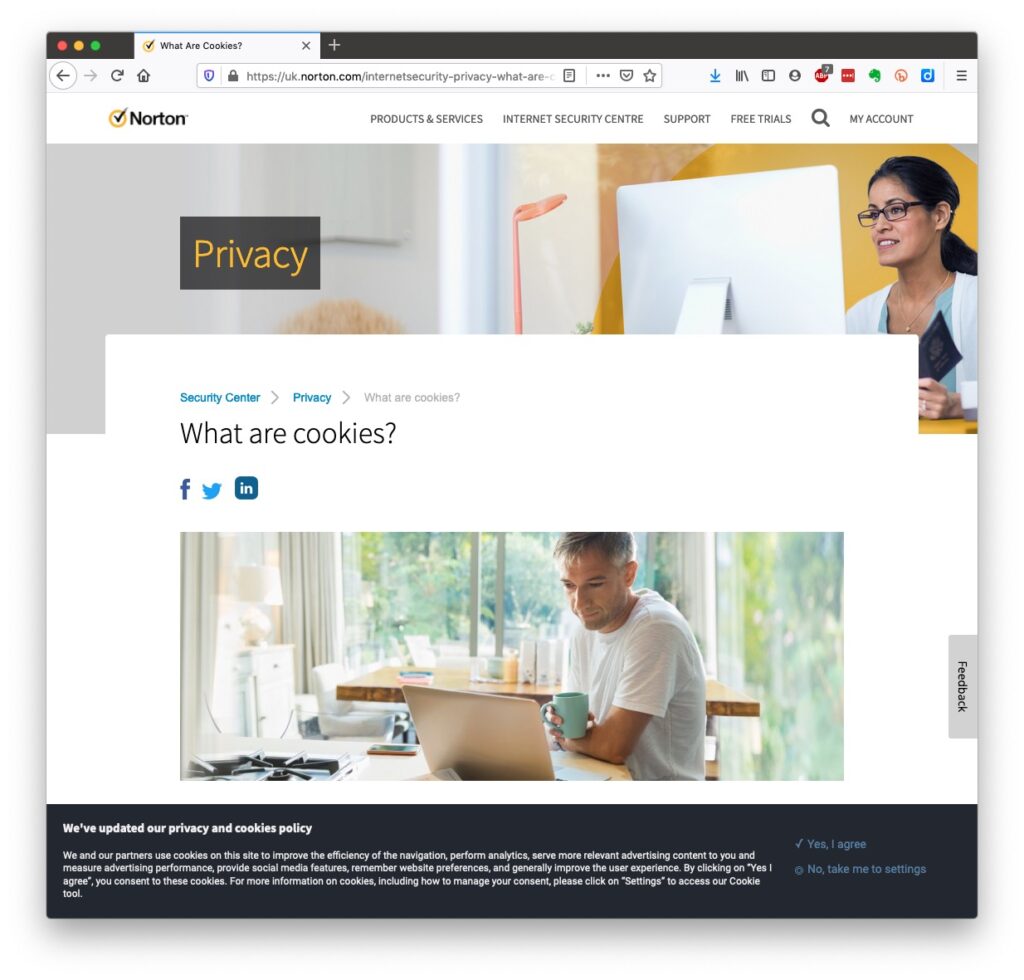
Incidentally, if you clicked on that link you’d have been asked whether you wanted to accept cookies – what exactly are they, and what do they do …
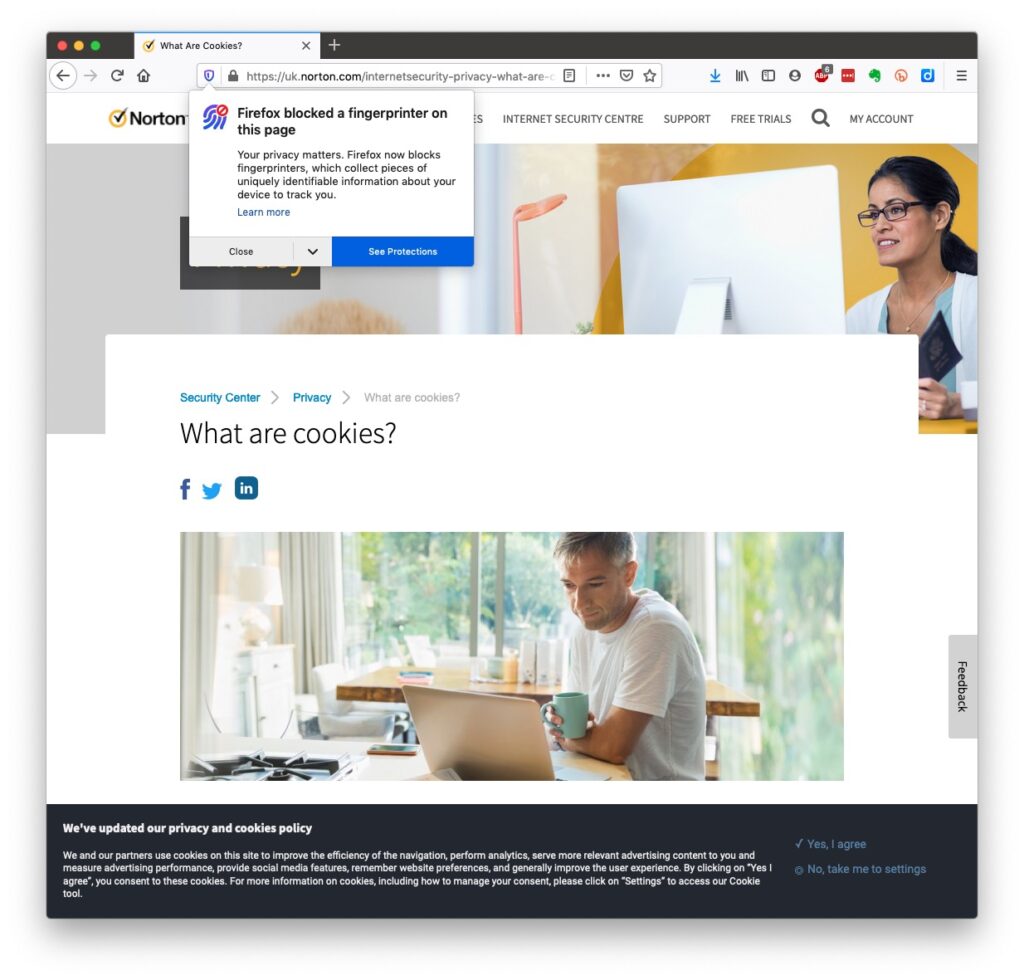
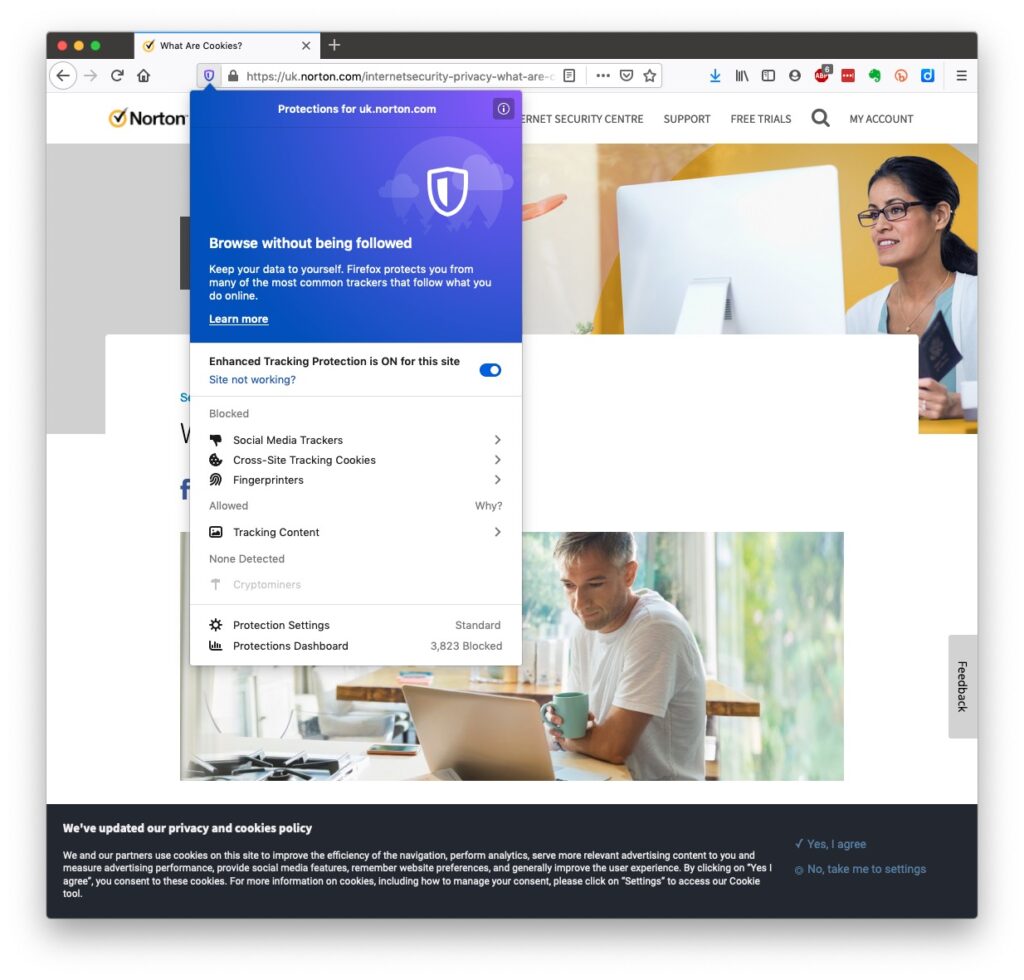
This article from Norton explains what they do quite well. Essentially, they record what you do on a website so that when you return some of the settings are remembered and applied. They do however also have a downside in that some can also act to track your activity once you’ve left the site. For that reason, you should disable in your browser the ability of third-parties to glean information from a cookie, and also to prevent them tracking your activity once you’ve left the site. You can at anytime, clear the cookies from your browser, and indeed on some internet browsers set them up to delete cookies when you leave (close the window) the site. You might also have noticed that my browser – Firefox – alerted me to the fact that Norton was using a Fingerprinting cookie itself …
… we’ll leave that for another day!
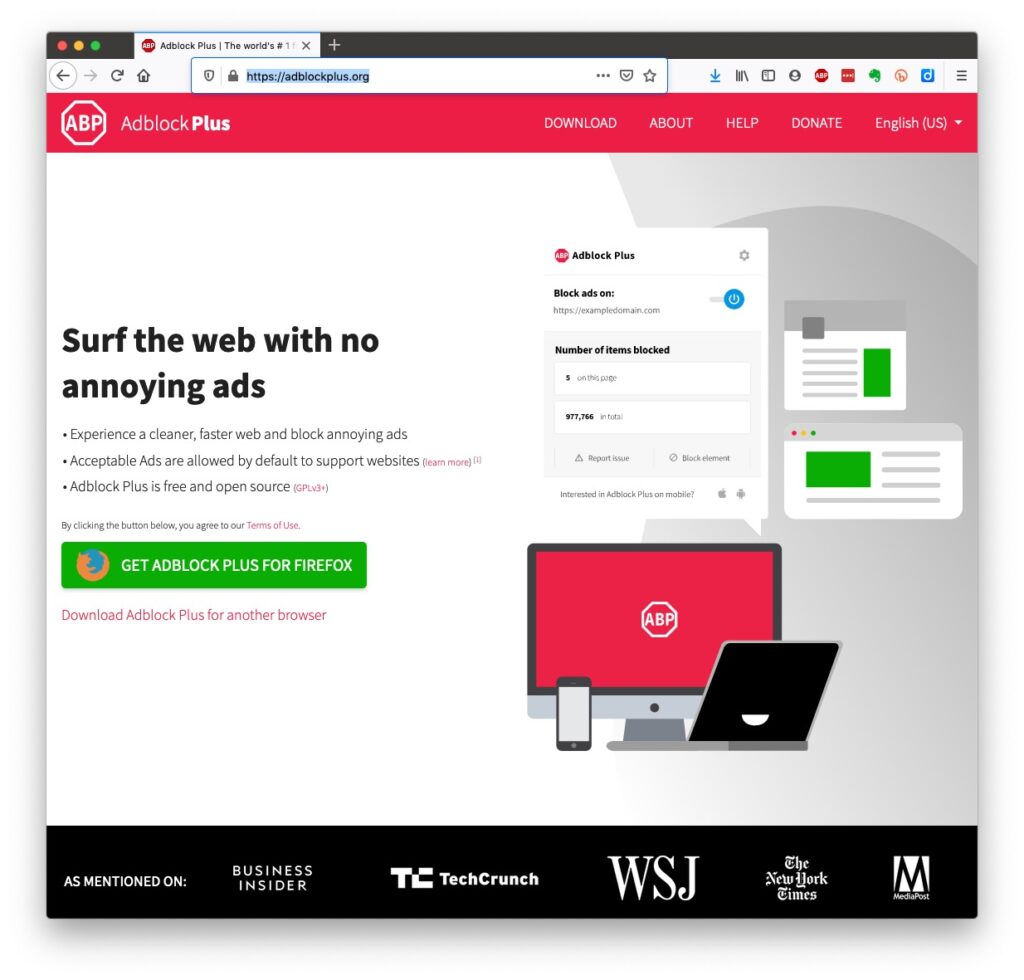
Another thing you might have observed when I opened the link in my Firefox browser was that the site requested that I enabled adverts to be shown. That is because Firefox, like Brave and Microsoft Edge, by default switches adverts off. These are often annoying and having a browser that blocks adverts, or if you use Chrome – using an ad-blocker like AdBlock Plus often makes for a more “pleasurable browsing experience” by limiting the intrusion you might feel upon your privacy.
Which brings us to browsers and search engines
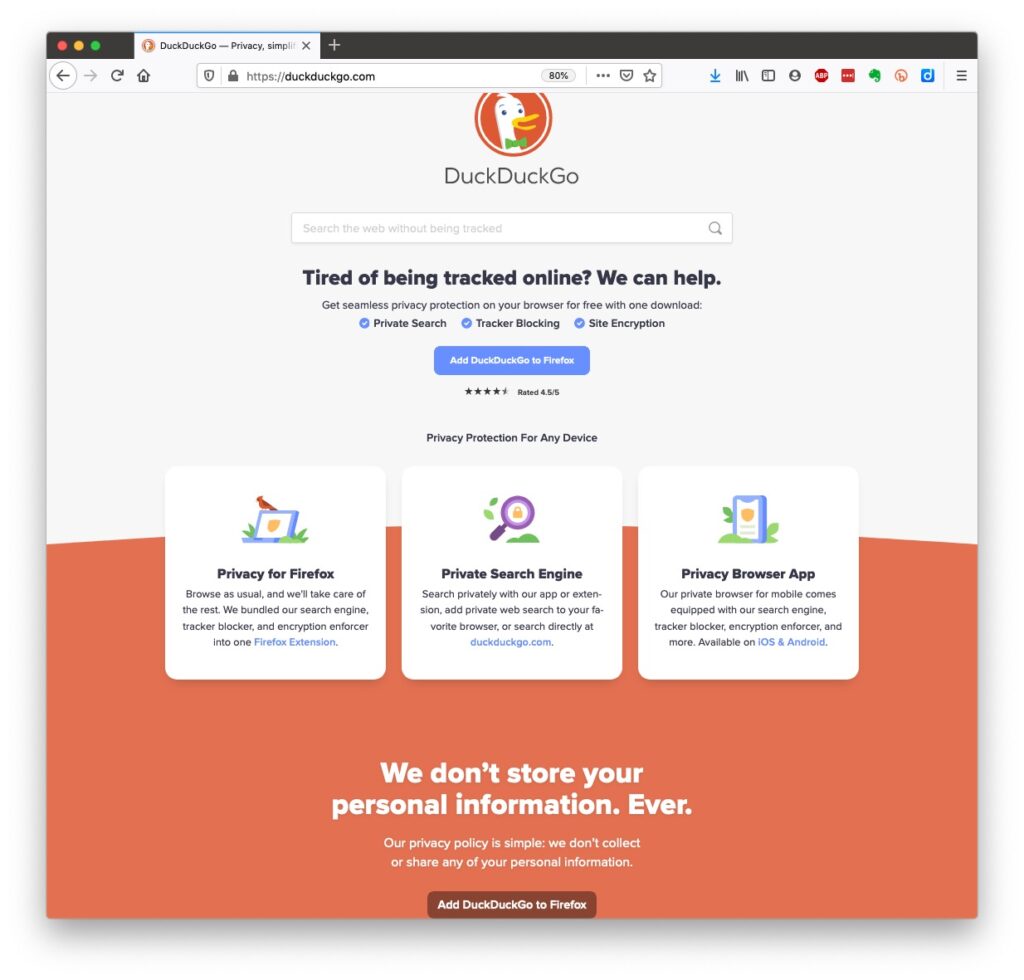
Search engines are not created equal! Whilst Google is often thought to be the same as the internet and is often mistaken by U3A members to be an internet browser, it is in fact just one of a range of possible search engines that you can use to look for information on the internet. It uses a platform called Chromium to display the results of its searches to you through a browser called Chrome. However, other browsers – Microsoft’s new Edge, Brave and Opera all use the same underlying Chromium technology – the difference being they don’t track what you’re doing “to present the content that most meets your needs” (Google’s philosophy) and in some cases (eg Brave) they can actually prevent tracking of your browsing history. For the reasons given above, I use Apple’s Safari, or either Brave or Firefox as my internet browser.
So what safe and private search engine could you use as an alternative to Google. I use DuckDuckGo …
… but others I could have used might have been Bing, Yahoo or another one included in this article or in the list of articles at the foot of the post …
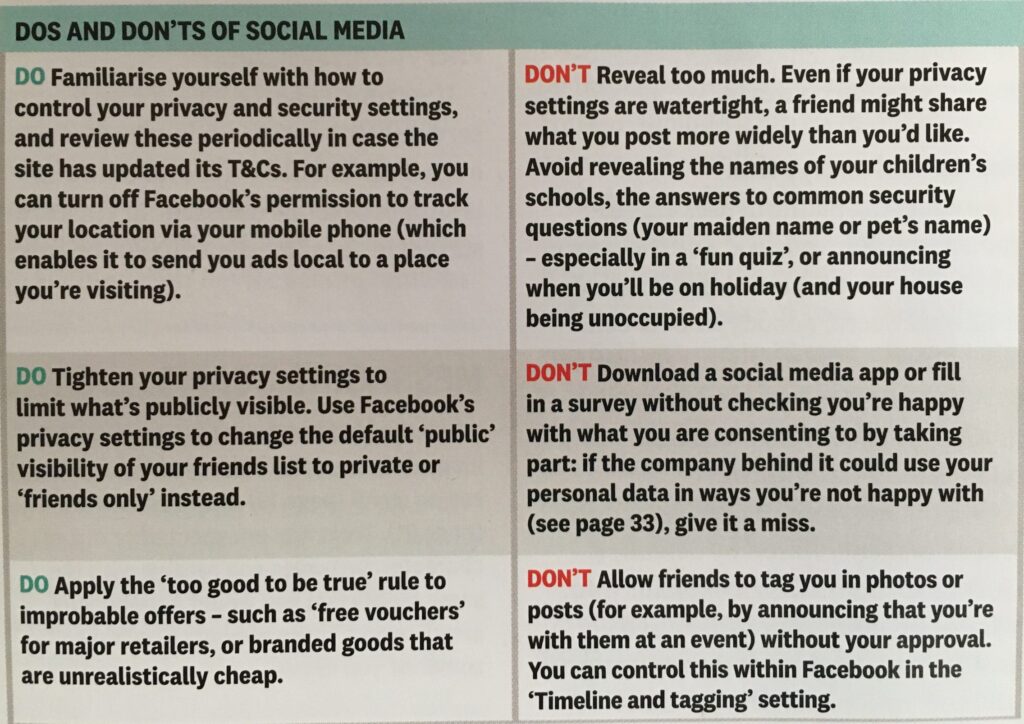
Finally, no discussion of Privacy can ignore Social Media and Facebook in particular. These applications if left to their own default settings are effectively personal information mining engines. They grab what information they can from you, and sell it on to whoever is willing to pay for it, or are indeed the platform for data mining, vis the Cambridge Analytica affair. Online retailers are not exempt from this and Amazon for instance has a wonderful record of your browsing history and who knows what they do with it! So look at this table taken from the recent Which? Publication – Staying Secure in a Digital World – and just check whether you need to change your settings, if you use any Social Media apps …
So that’s Privacy dealt with.
Should you be frightened?
The take away message I want you to have is Frightened – no; cautious – yes!
Online banking is very secure – a recent survey in Which? produced the following scores …
… plus you are protected and most of the banks are increasingly opting to adopt an online and mobile guarantee to refund you where you’ve been the innocent victim of a fraud. Here for instance is Barclay’s “Online and Mobile Banking Guarantee.”
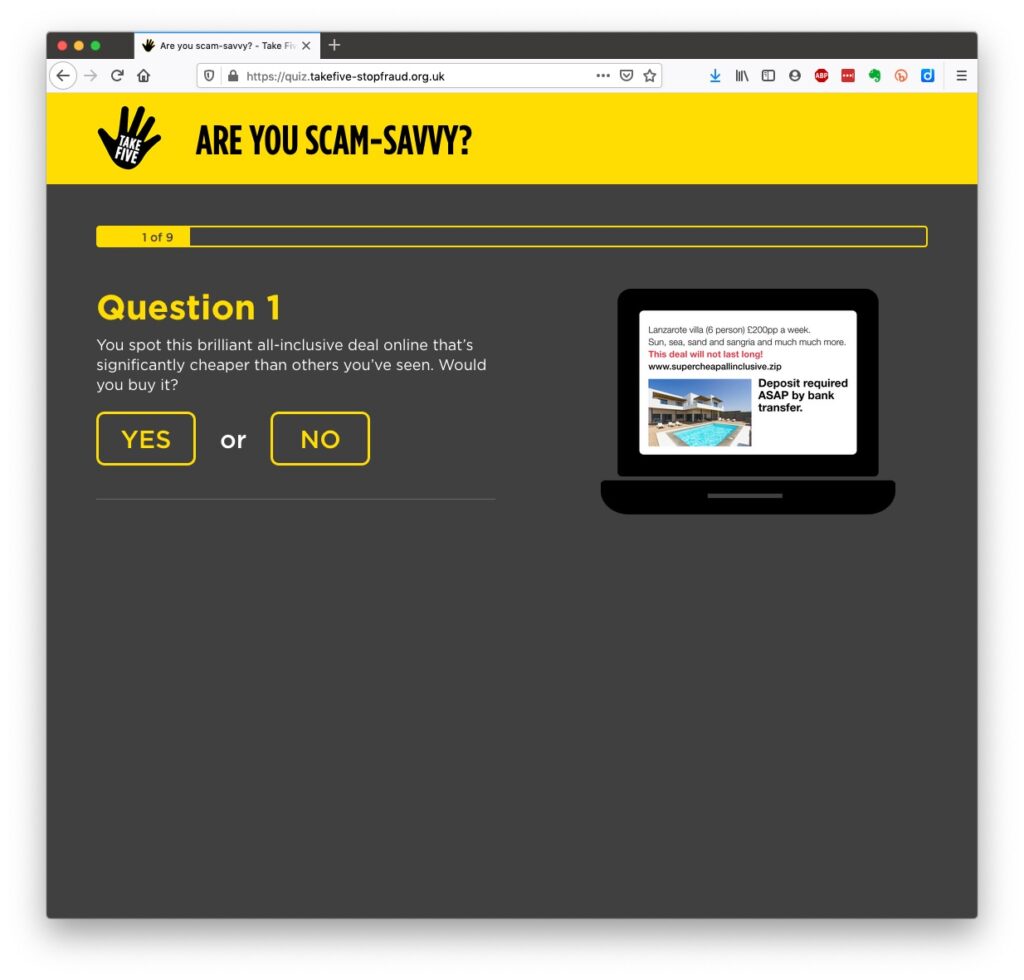
They really don’t want to shell out money, so are trying to educate us to be wise to scams. So let’s take a scam test …
Banks are also often supplying software free (or at reduced cost) for you to install to protect your machine, to protect you from fraud – and of course themselves from having to pay out! I was recently offered a piece of software called Malwarebytes by the NatWest and although I have an Apple Mac computer which are well known to be relatively secure from Viruses, Spyware, Trojans and other malware, I installed it. I was pleased to note that I didn’t have any malware on the machine. We’ll return to this later!
Surprisingly you might think … it’s safer to use the mobile app on your phone, or tablet to do online banking and retail purchases than a web browser. This is because the app on the mobile device has to be verified by Google for Android (Google Play Store) or Apple for iOS/iPadOS (Apple Store). Whereas a browser could be infected, or compromised with malware. That’s something I’ve learnt from preparing this talk!!!
What is more with the advent of Two-factor Authentication (2FA) which makes use of a personal device associated with you, your phone which you’ve protected with your fingerprint, or facial image), is even more secure.
When you’re out and about and NEED to do an online transaction from your mobile – use cellular rather than WiFi. The latter can be really open to “sniffers”. [I must admit I try to avoid doing online transactions when away from a domestic network.] Alternatively use a Virtual Private Network (VPN) to connect through the Public WiFi “Hotspot”.
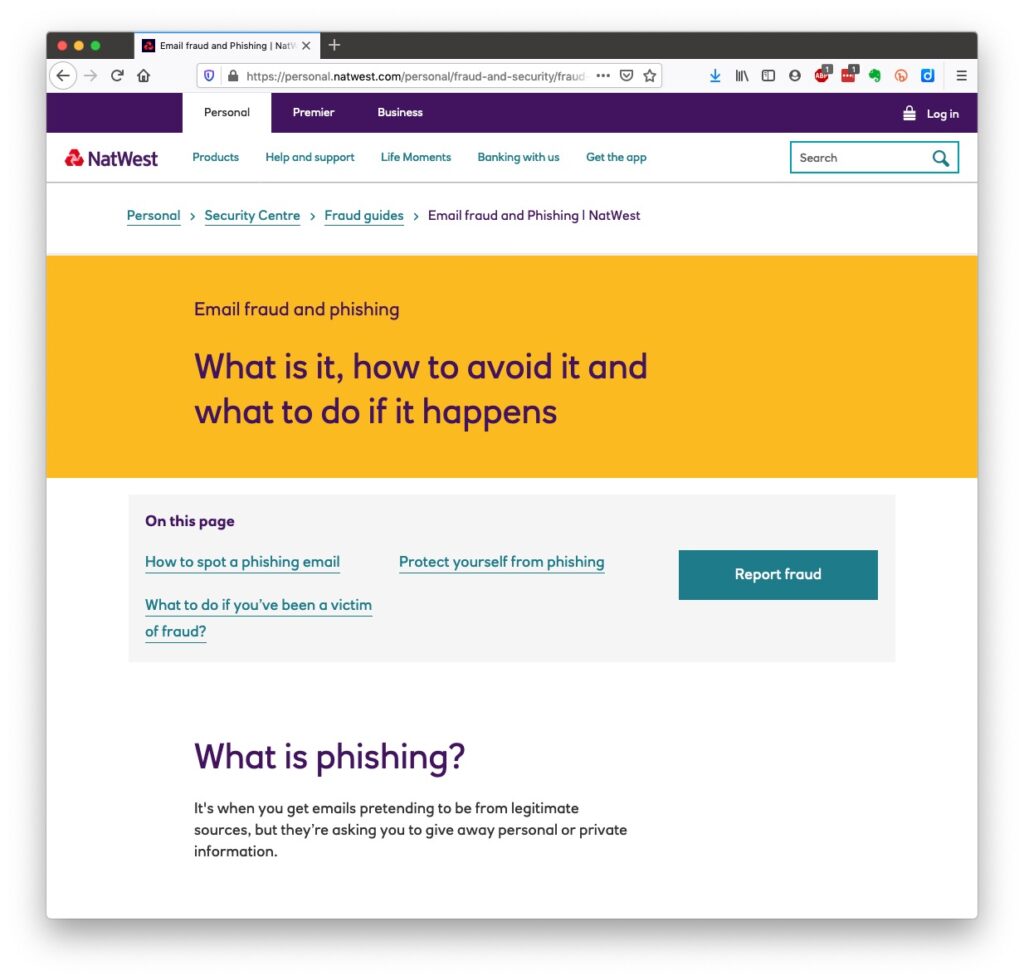
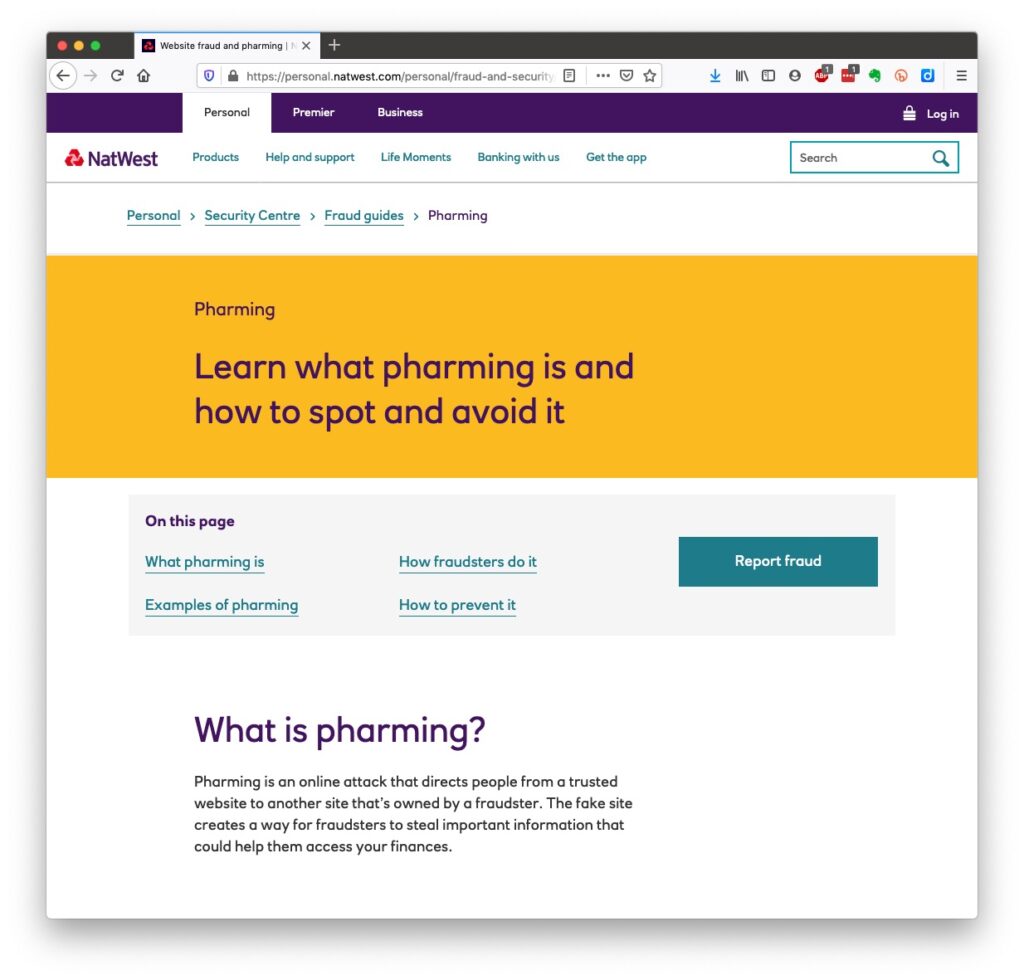
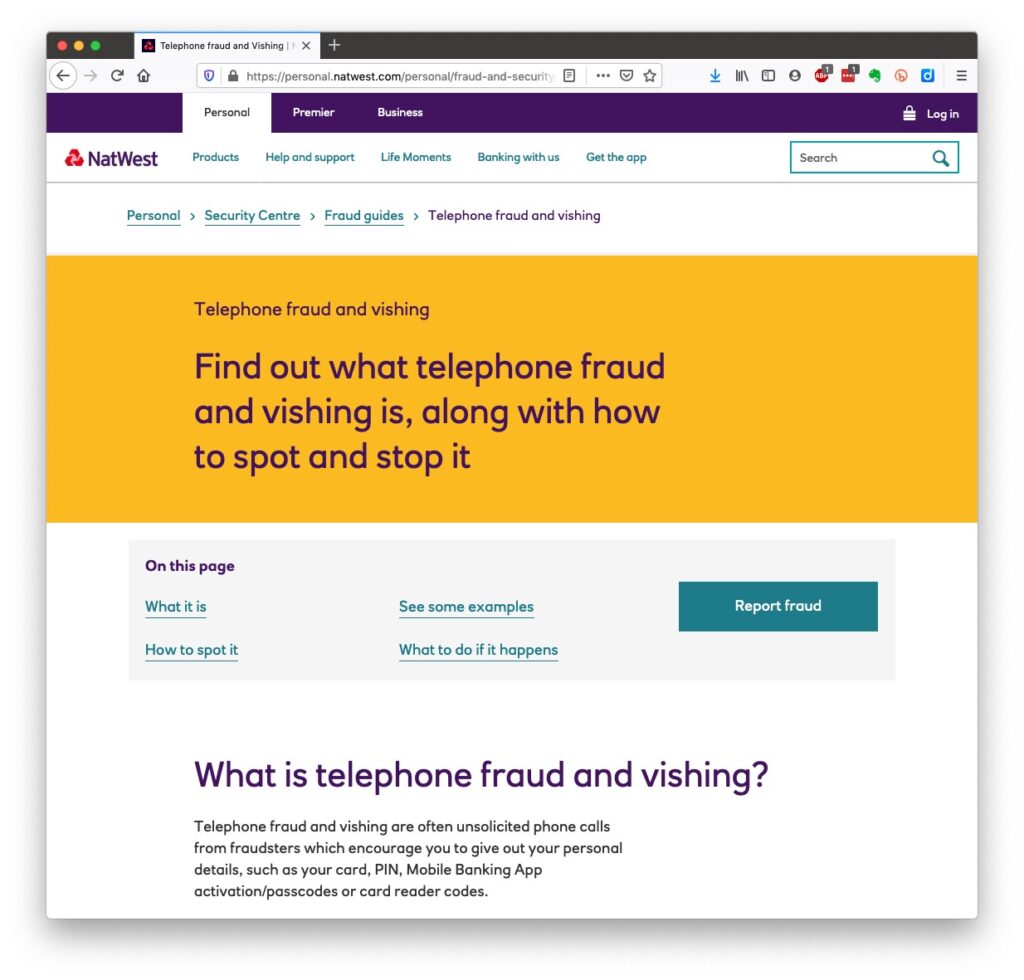
So we come to phishing and pharming, vishing and smishing – I kid you not! We’ll leave aside spear phishing because we’re not important enough for that! [Please excuse me not going into details on any of these. You can follow the links for further information.]
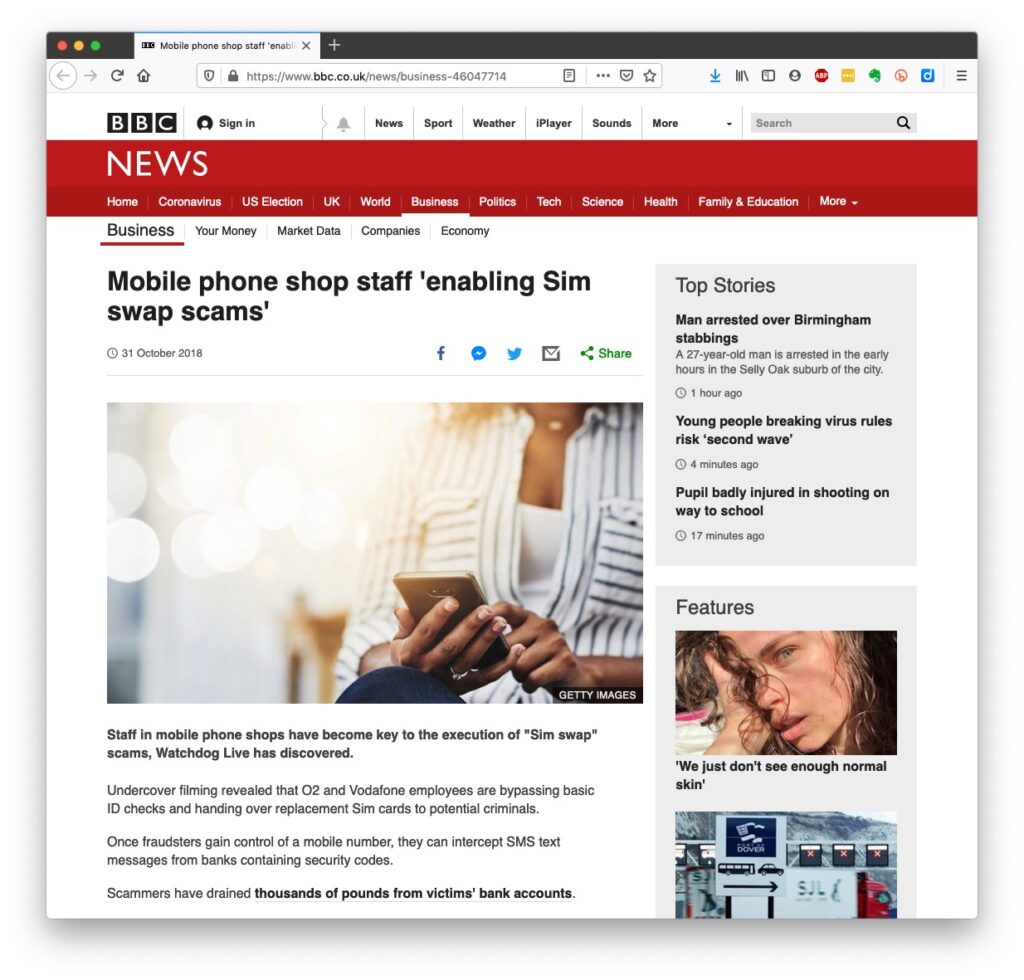
However the most scary scam I’ve been made aware of is one that befell a member of my family when they were distracted sufficiently to become the victim of SIM swapping.
Bruce Springsteen shouts out at his legendary concerts “Is there anyone alive out there?” I hope there are still many of you alive out there with me, because we now arrive at perhaps the most important part of the talk.
What should you do to protect yourself?
Some of these are really quite straightforward, some require some intervention by yourselves.
Keep your operating software up to date. This is particularly true if you’re a Windows user, and even more true if you are still running an older version of Windows than Windows 10. If you’re using Windows XP, Windows Vista or even Windows 7 you should seriously consider disconnecting your machine from the internet.
Install anti-malware, or anti-virus software if you’re a Windows user. Don’t pay more than you need to. Windows Defender from Microsoft is Free and for us relatively undemanding users more than sufficient. Keep it up-to-date as well! [As I said previously, your bank might be offering free software as well.]
Keep the software you use regularly up to date as well. Consider removing any software from your machine you don’t use – this is because software vulnerabilities are discovered sometimes quite a while after the software was first released.
Be cautious over installing extensions into your browser. These are often extremely useful and valuable tools, ie password managers, Dropbox, note taking, Google Back up and Sync, but if you don’t get them from the official sources then you might be importing vulnerabilities, eg spyware and trojans to your system.
Very seriously consider logging-out from social media and other retail sites when you’ve finished using them, especially Facebook, you just don’t know what tracking and logging of what you do, even where you are, if you’re logged in on a mobile device.
Free software is both a boon and a curse. Only download open source software from a reputable site such as Softpedia, and never try and get proprietary software for free. Read this article about Free download sites if you want to know more.
Remember the golden rule 1 – if it seems too good to be true, it probably is, so steer clear!
Remember the golden rule 2 – don’t speak to strangers (an oldie but goldie one, that); in other words if you don’t know where an email has come from – ignore it; if the website address looks a little strange – do an internet search on the company or organisation to check if the address you’re looking at is a spoof of the proper one.
Have more than one email address. Use one as your personal address, other ones you can use to “throw away”when you need to register to a website, but you’re unlikely ever to go back to it again. Or have an email address (UserID) specifically for online purchases. Splitting things like this reduces the risk of you being the victim of fraud.
Seriously consider using an email service that is NOT connected to your Internet Service Provider (ISP) – if you decide to change your ISP, and you should review them periodically, then you will have real problems if your email address is linked to their service!
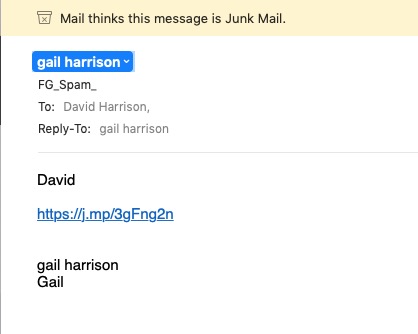
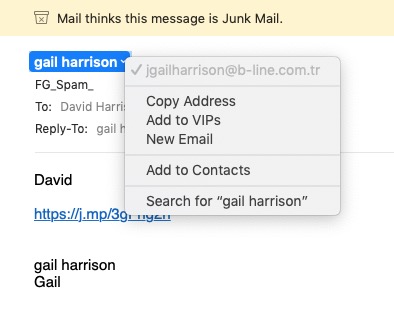
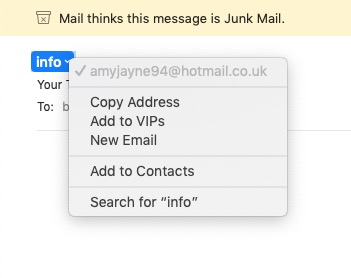
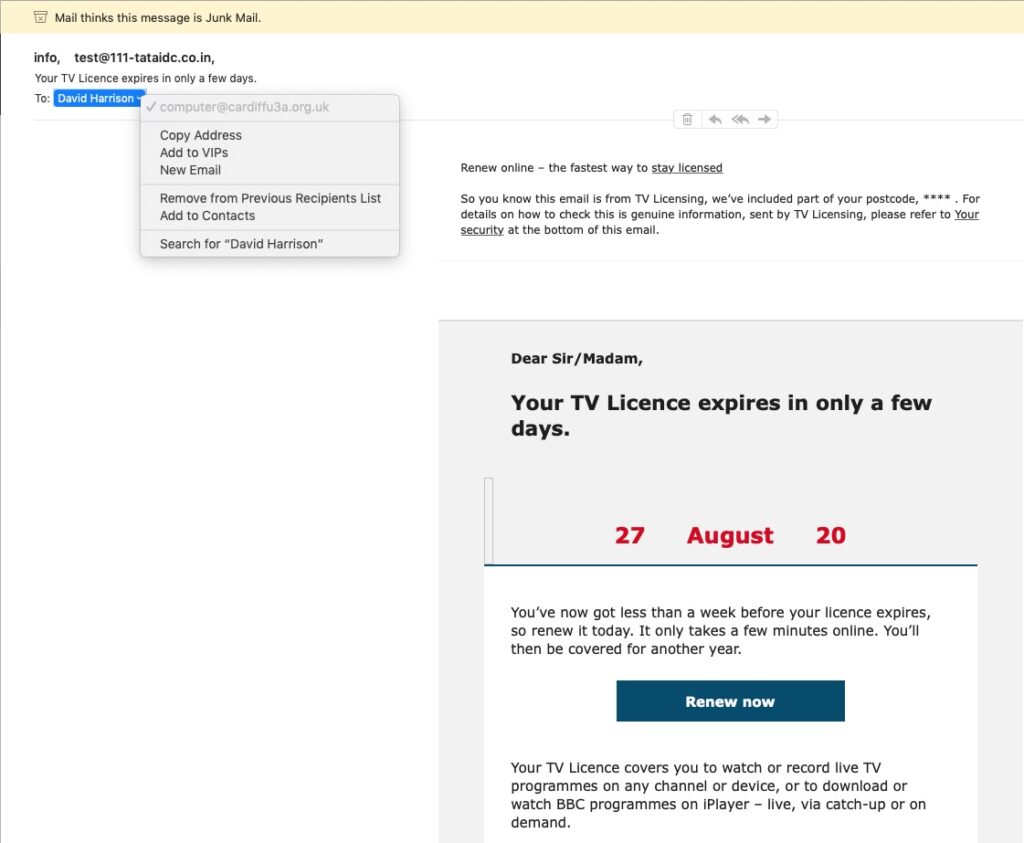
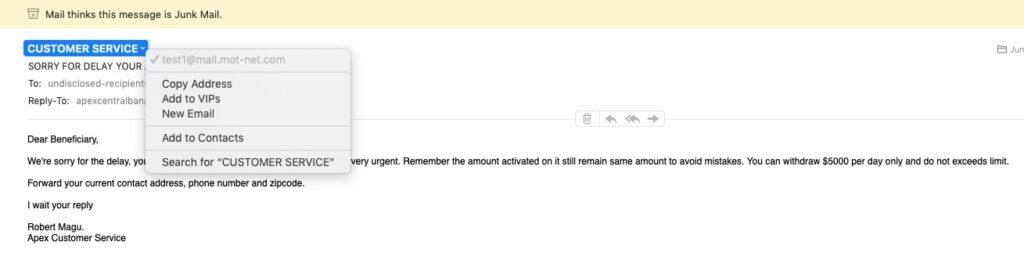
You’ve got Spam filters running? Of course you have – but you better check! Probably your ISP, or email provider (eg Gmail, Yahoo, Microsoft Outlook or Hotmail) is filtering out what it thinks is spam, but occasionally some gets through. If that’s the case then you can always look at the real sender of your message.
You can also apply filters to divert incoming email into different folders in your email system. That reduces the amount of Junk that you need to review. [I’ve also advocated using the “native” email application for your device rather than rely on the web-based service the email provider has. Thus on a Windows device – use Windows Mail (or Outlook); on a Mac use Mail. You can then easily synchronise your email between devices from multiple email accounts. Tidy!]
So we come to Passwords …
… this is the point at which you need to consider intervention and changing your behaviour! You might also need to do a fair bit of work, but it’s worth it if you want to have a secure internet experience.
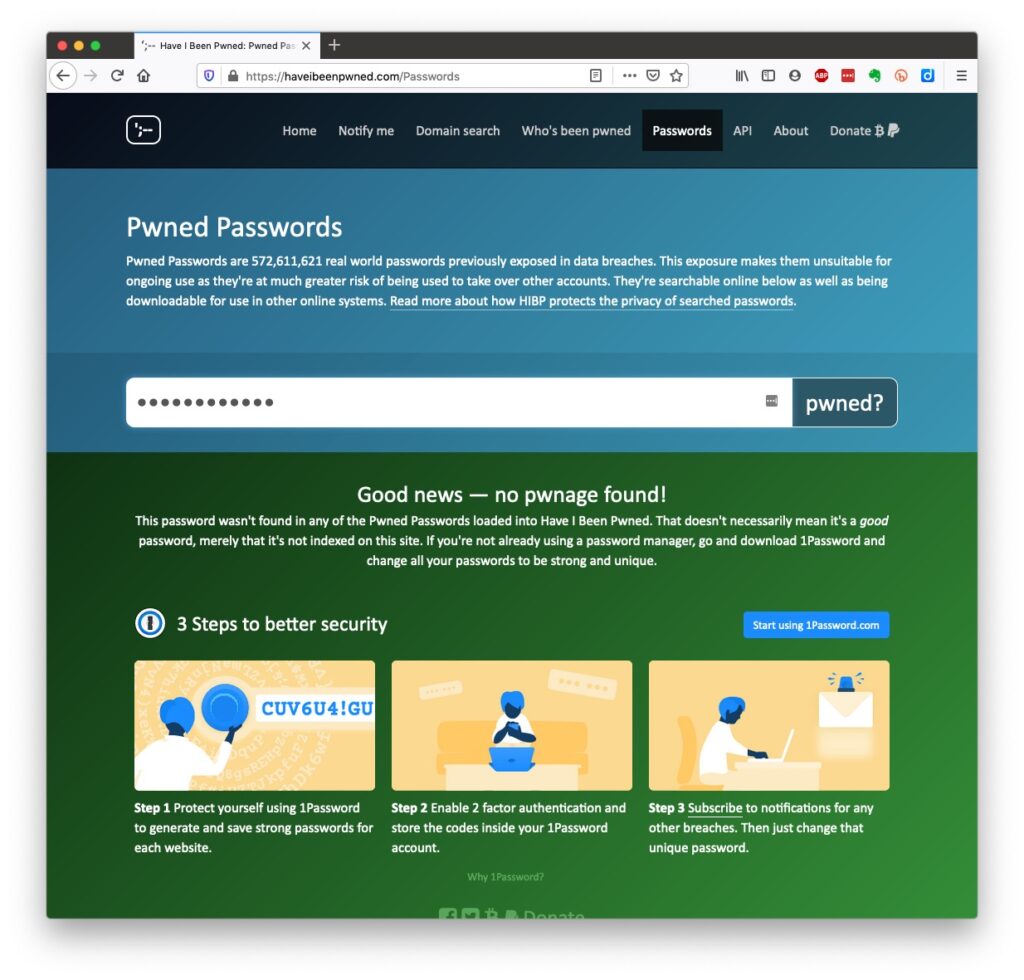
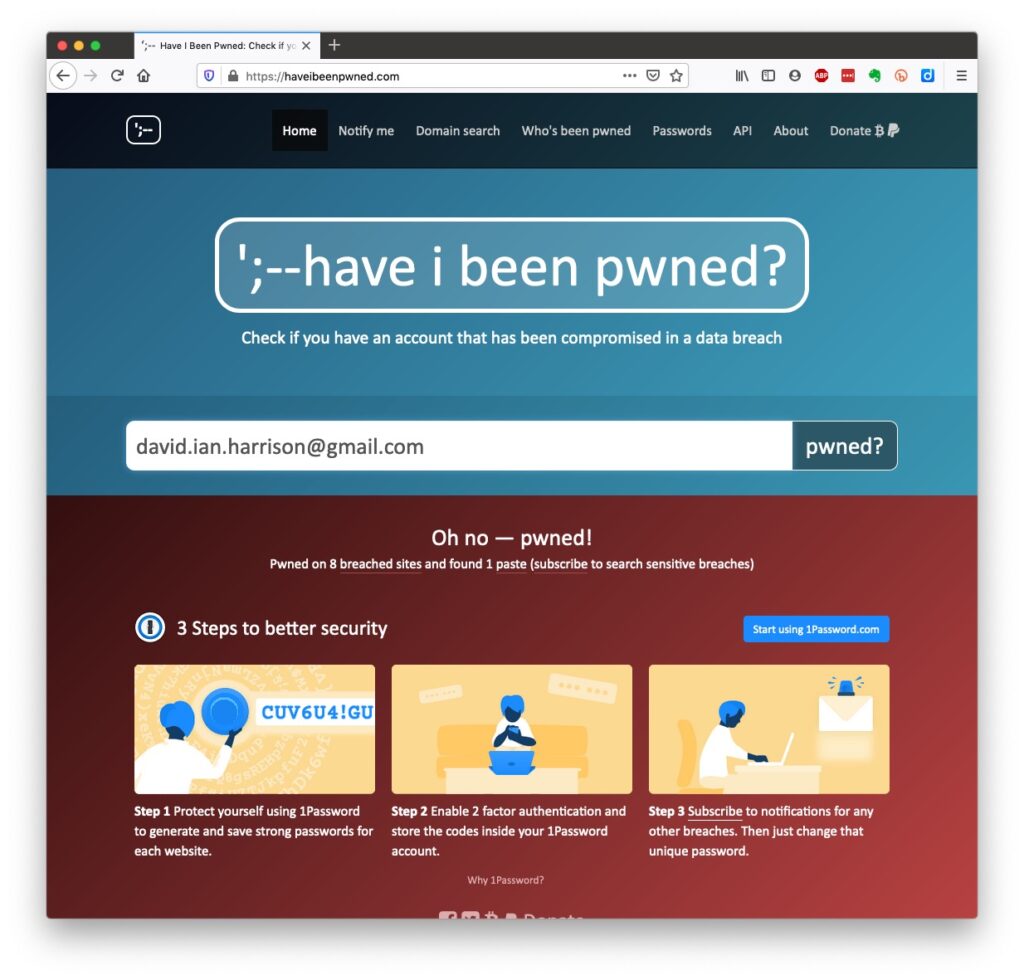
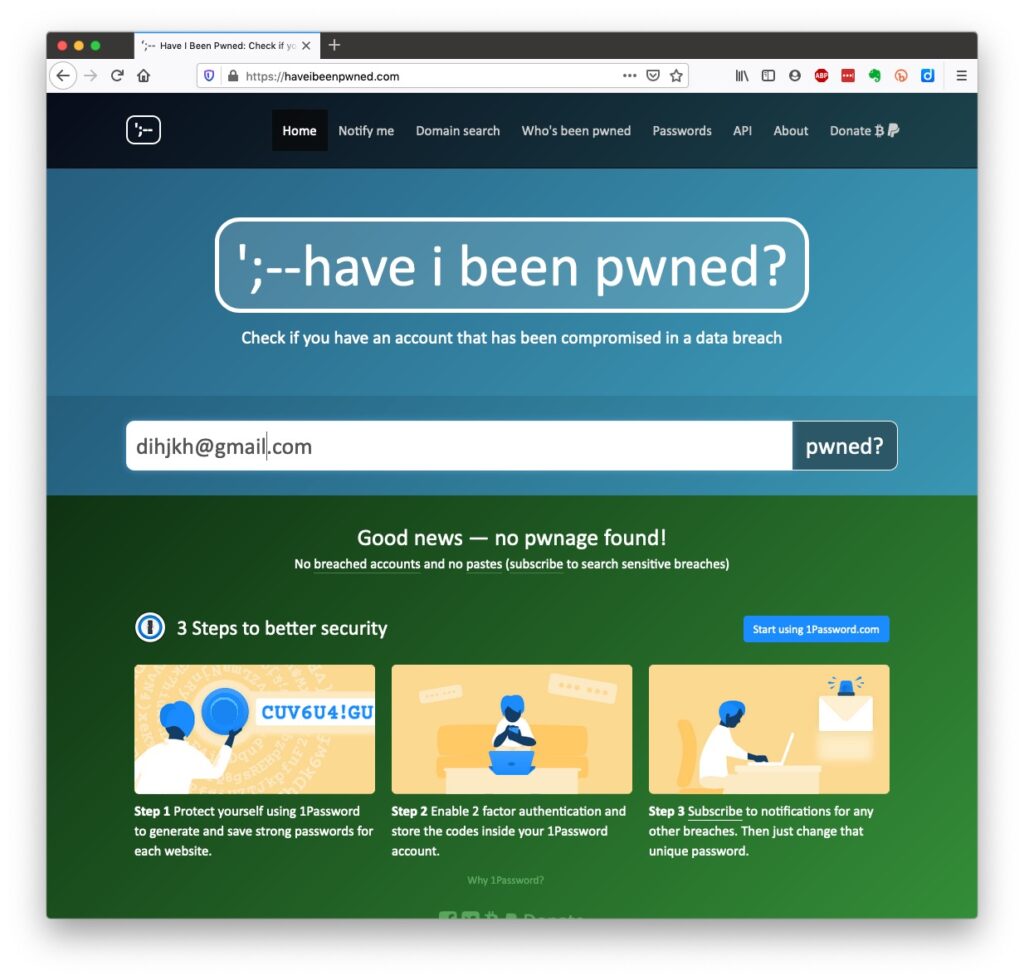
Oh no! I’ve been pwned … but it was a long time ago and I’ve changed my password many times since then!Ah! That’s better – my “throwaway” email and passwords are “safe”!
So … use a unique password for everywhere you sign on. There’s lots of tricks to achieve this; some of which I wrote about in a post quite a long time ago …
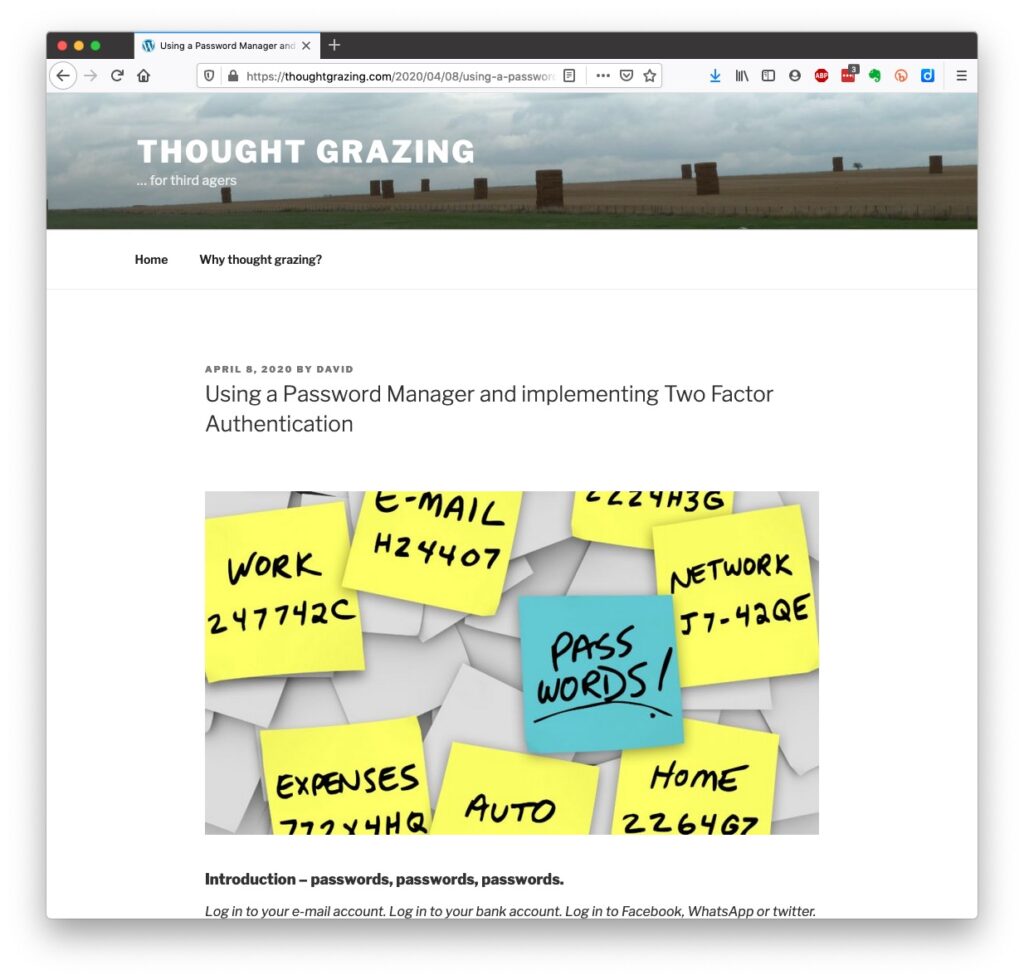
… but the real change of behaviour is to use a Password Manager – again I wrote about this a little while ago and linked it to using Two Factor Authentication, which I described earlier.
Password managers
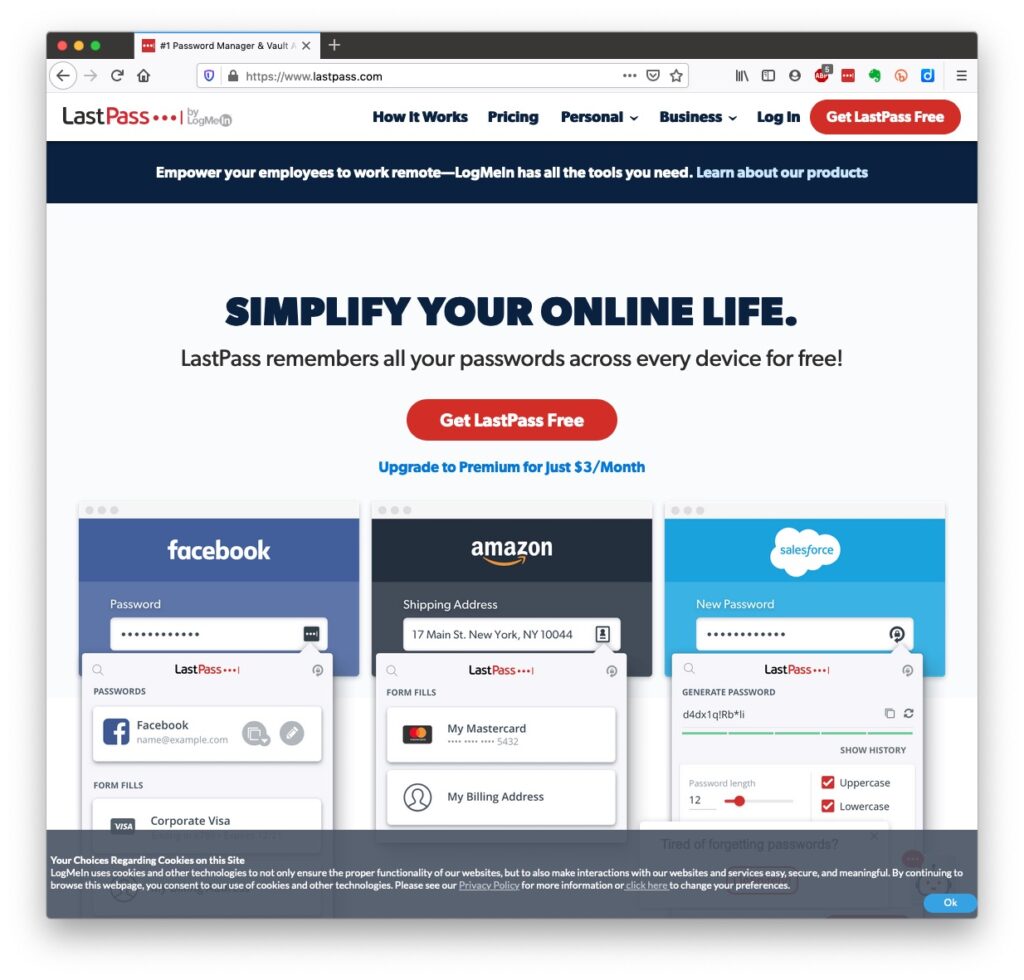
I used to use LastPass and I believe there’s nothing wrong with it – despite the security scares last year, but other common ones are Dashlane and 1Password. Please make up your own minds after reading some Reviews and seriously consider using one.
However the biggest change in Online Security which started last year with Apple’s announcement of the launch of its’ implementation of FIDO is Passkeys.
The Video and the Slides from the talk given to the Cardiff u3a General Meeting
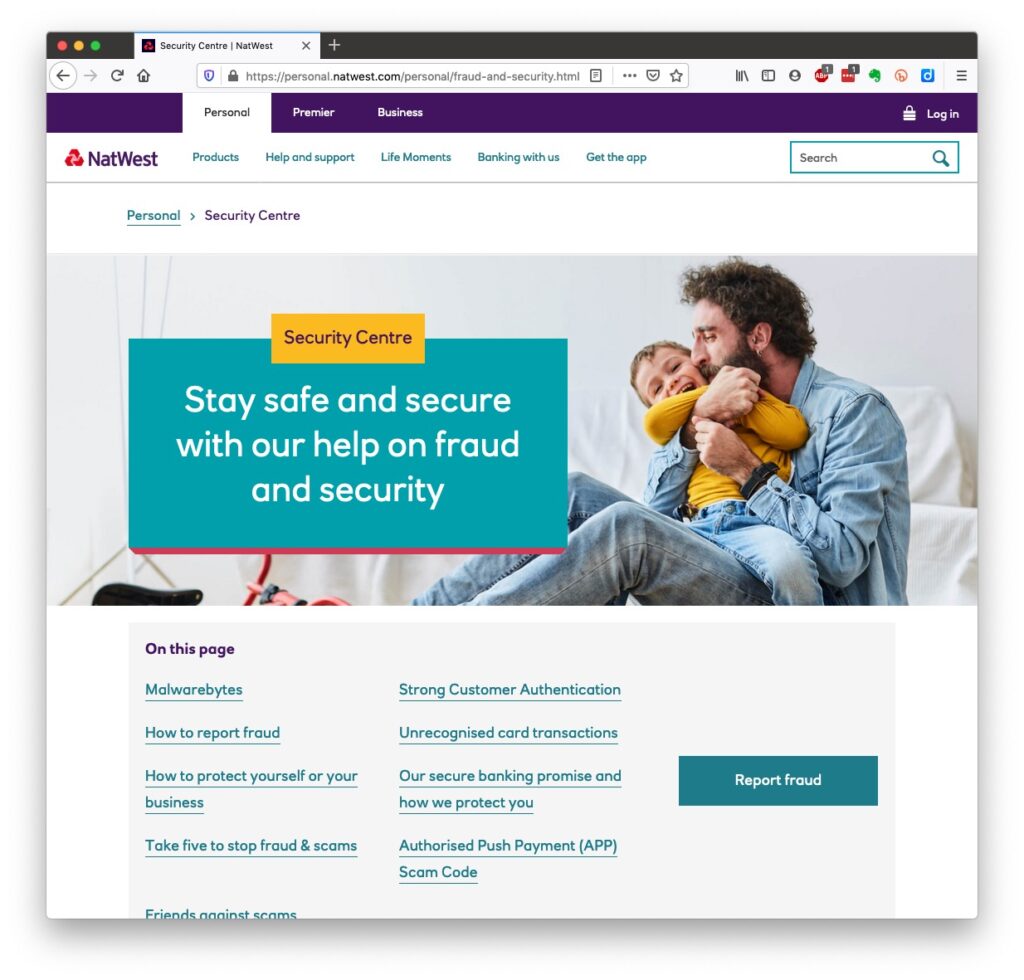
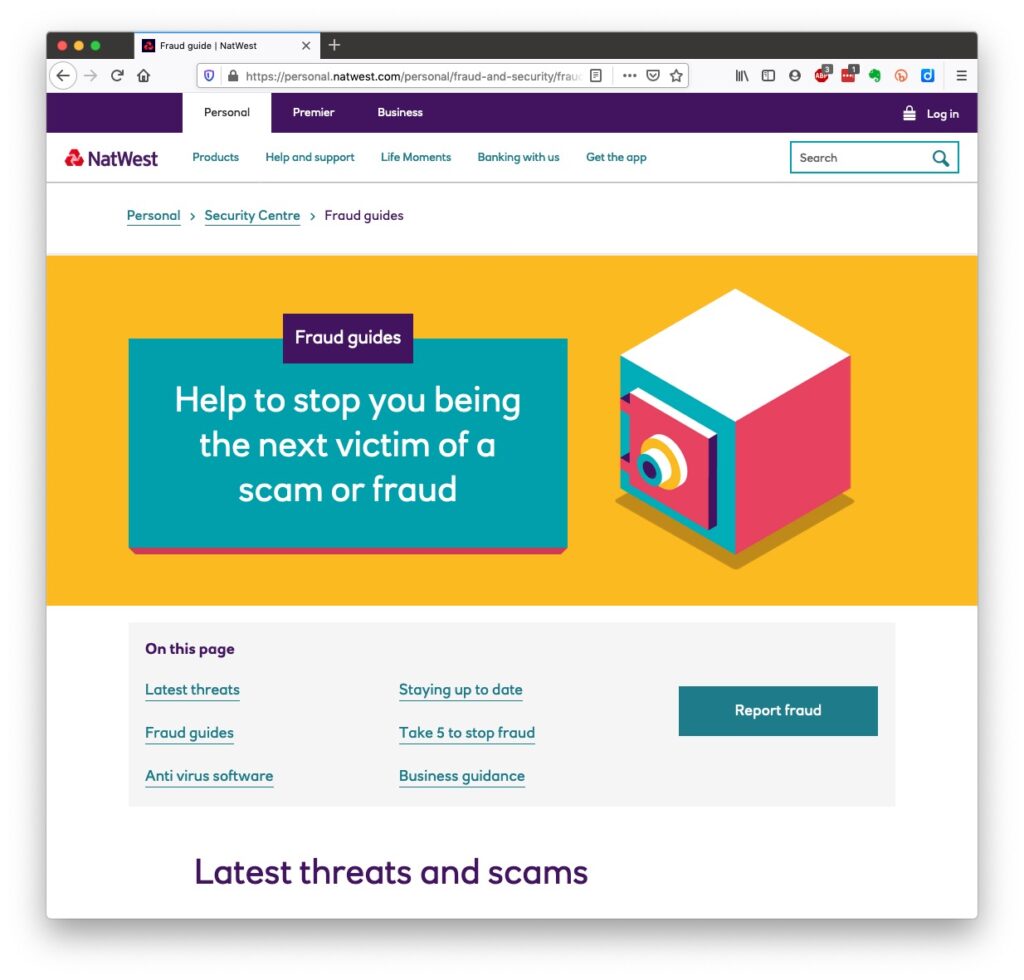
Your bank, eg NatWest – mine has a Security Centre web presence and particularly they provide a number of Fraud Guides
I could give a million references to changing your privacy settings on Social Media, but here are a couple relating to Facebook, perhaps the most challenging service of the lot.
Since this article was originally written back on March 31st, some other U3A have started using Zoom, and I thought it sensible to Review this article and see if I should change anything in it. Any changes will be marked in red. However, before I start, a couple of things.
Zoom have recognised that there were defficiencies in their security model and have moved in their new client (version 5) to implement end-to-end encryption – that’s what you get from WhatsApp. After May 30th, all users will be using version 5 because a forced upgrade will occur on any person attempting to join a Zoom meeting after that date. However, you are recommended to upgrade before that day and you can do that from this link.
A member has also sent me this really useful Infographic on implementing Zoom which I would recommend reading carefully …
I could stop here, but there’s a few things I differ from the advice in that infographic which will be highlighted below and which I’ve also discussed in another article here.
You might also like to take a look at this article with video that explains the new features on Zoom v.5.
So here’s the original article, as I said published on March 31st …
Since writing this article, just over a week ago – gosh it seems longer than that – more groups have started using Zoom, and it’s also clear that it’s being used very widely by friends, families, communities, etc. It’s also clear that Zoom has responded to some of the criticisms that have been levelled against it and disabled some of the “unintended” consequences of allowing people to Login using their Facebook credentials. That is all good news, so my concerns have been diluted, but I think it’s still wise to “proceed with caution” and to this end I’ve collected together some guidelines which I hope will be of use. First of all – you need to get started by signing-up and installing some software on your device.
Installing Zoom on your Desktop, Tablet or Phone.
Zoom is a multi-platform piece of software – that puts it in a great place to serve the maximum number of people who are all using different equipment. This puts it in the same category as Skype and Google Hangouts.
It’s important to remember that the software was intended for business users, and so some of the language might be slanted in that direction. No matter, what you do need to do, is sign-up to get an account. I would not recommend using your Facebook credentials; I might be tempted to link my Google account to Zoom and use it to Login; but overall, it’s probably better to setup an account directly. I have given advice before to use a “throwaway” email account – one you’ve created which is separate from your main email account for this sort of thing. You can have many Google (gmail) accounts – I probably have 6 or 7!
Once you’ve provided an email address – you’ll be asked to confirm it from an email that will have arrived in your Inbox. Then you’ll be asked to provide normal identity stuff – your name, and then provide a password for your account-you’ll get a screen which provides you with this information. This is what you can do with your account – you don’t need to press Upgrade Now.
It might be a good idea to allow your self the time before your first meeting to look at the three videos which are in your welcome email – they will give you a flavour of what Zoom is all about and how to take part in a video call.
If you’re going to use a Windows PC or an Apple Mac, now would be a good time to have a look at this page and install the app on your desktop or laptop – but if you’re really careful with your privacy, see the cautionary note below about using a desktop or laptop. [I don’t have this fear now, so I would disregard my cautionary note.]
If you’re using a smartphone, or tablet, it would be a good idea to check this page and install the app on your device.
If you’ve done all that and have an idea how it’s going to work – you’re ready to start. I’d suggest having a go with a friend or family member first, to practice and test your understanding. If you’ve got a problem with anything add a comment to this post and someone will try and get back to you with an answer/solution.
So now we come to making things safer for you. As I said before there have been concerns about Zoom’s Privacy policies or procedures, so although they have tightened up these there are a couple of things you should do. [I’ll add some screenshots from my iPad shortly. I didn’t and I won’t be doing this.]
First of all some tips on which device to use and how to use it …
I’ve said this already, but I’ll repeat it. Don’t sign into Zoom with Facebook. This stops Zoom from collecting your Facebook profile info. Although, if you’re already giving all your private info to Facebook, maybe it doesn’t matter.
Use a separate device if you need to do anything during the call, if possible, in that way you stop Zoom from tracking any other activity on the device.
If you’re an Apple user, use an iPad or iPhone instead of your Mac. Zoom’s iOS app is subject to Apple’s App Store rules, which gives an extra degree of security. The Mac version is a direct download from Zoom, so you have no idea what’s inside. The same is probably true for Windows – but I haven’t checked. So it’s generally safer to use a Mobile device rather than a desktop/laptop. [I don’t consider this a problem now. Zoom have increased their security and it’s MUCH MORE convenient to use a laptop/desktop as you can more easily see everyone on the call in a Gallery view – rather than having to scroll across images of people on a smaller screen device.]
Hints and tips on staying safe …
If you do decide to use Zoom, the company offers a few good tips on its blog for staying safe. First, don’t share a meeting link on social media or any public forum, because then anyone who sees it can join. This can lead to “Zoom bombing,” where bad actors crash the party, and drop off a payload of porn and/or other disruptions, before leaving. Something you definitely want to avoid!
Next, if you’re hosting the event, do not use your Personal Meeting ID (PMI) to do it. “Your PMI is basically one continuous meeting,” says Zoom, “and you don’t want randos crashing your personal virtual space after the party’s over.”
I use Scheduled Meetings even for Recurring Meetings, I can then send a Meeting Invite round in Beacon, that users just click on to join. This is much easier than sending out invites to every meeting.
Also, consider making use of the Zoom “Waiting Room,” which is a way to control who can get into your meeting. [This is now the default setting for a meeting.]You can then decide who you want to admit to the call. [This may not be relevant to your calls, but it’s worth bearing in mind if someone you don’t know somehow appears on the call. Next time they won’t because you’ll have implemented the Waiting Room.]
For more information on staying safe, read Zoom’s blog post, as mentioned above.
Zoom changed a couple of their Default settings from today – 5th April. Now when you join a meeting the default setting from the host is to ENABLE a Waiting Room, from which the Host can invite people in.
The second change is to set a Password on Personal Meeting IDs (PMI). It’s not recommended anyway to use PMI as it’s like a permanently open meeting; far better (if you’re the host), as I’ve described above and elsewhere, to create a specific meeting ID which sets a password anyway. Here’s a link that better explains these changes.
Apple and Samsung fined for slowing-down older smartphones Deleting your search history if you use Google Fake review factories on Facebook How to spot a fake five-star review on Amazon Creating a magazine using Feedly, Pocket and Flipboard
Public article will follow – “Creating a Lightroom magazine” Curating the web
Step 1 – create a Feedly account
Step 2 – select websites you want to get an RSS feed from [What is an RSS feed?]
Step 3 – check periodically to see what has “popped-up” in your feed reader.
[NB You can also download an app for your phone or tablet for Feedly] Saving for another day, or for off-line reading (bookmarking+)
Step 1 – create a Pocket account
Step 2 – save to Pocket from your browser (perhaps using a browser extension), or from a feedly sharing icon
Step 3 – tag your articles, and read at your leisure, or when you want to
[NB You can also download an app for your phone or tablet for Pocket] Creating a magazine to share with others
Step 1 – create a Flipboard account
Step 2 – create a Magazine, and decide whether to make it Private or Public
Step 3 – add articles to your magazine from Pocket, or from your web browser
[NB You can also download an app for your phone or tablet for Flipboard]