Home Networking

This article was written to accompany a presentation done on 22nd January 2023. All the videos embedded in the post were current at that date. They could be removed from YouTube, or replaced by later ones, at any time.

The presentation built upon one that Paul de Geus did and which is included below. I’m indebted to him for pointing me to the video from RSAweb, which is a really good and short introduction to improving Home WiFi signal, and also including at least one video in the show from PowerCert. They are so good, I’ve used them as the basis of this presentation.

I’ve also written a couple of articles that you might find it useful to refer to …

Improving home network performance“, and

Home networks – some notes

Also, remember there’s a “Network issues” Forum that has several Topics relating to Home Networking, and if you have discovered a really good bit of technology, or you want help with the kit you’ve got, that would be a great place to look, or contribute to.

First however take a look at Paul’s presentation, of 2019 – yes five years ago, I can’t believe that! You can scroll through the slides using the arrow keys at the bottom of the window and make the text bigger using the +/- keys.

I suppose we should start with perhaps the main problem – a poor WiFi signal – and then work back from that to see whether we can improve our understanding of how networking works and how we can improve our Home Networking experience.

How to improve your WiFi signal at home

A more detailed look at possible quick wins are detailed in this article, and again some of the suggestions it mentions are covered later.

You might be able to improve your home WiFi by following the advice in that video and the article; indeed WiFi Extenders could do the trick (see later), but it’s probably better to understand a little more about the devices you’re using. So we start with Modem and Router. Almost always in new installations combined into one device called a Super Hub, or Smart Hub. Often an Internet Service Provider (ISP) will package that with a streaming TV service which includes the capability of recording TV channels and this will use the Hub to transmit by ethernet, or WiFi, to the TV.

Modem vs Router – What’s the difference?

So we have a device – a modem, that is connected to the internet by either a fibre-optic cable (eg VirginMedia), or DSL copper/fibre connection (eg OpenReach); it will almost always have a router with both WiFi and Ethernet ports included in it. The WiFi will normally offer two bands (wireless frequencies) at 2.4GHz and 5.0GHz. These two bands have different characteristics which are explained in the following video. [NB It’s important to note that Smart Devices mostly seem to prefer to operate on the 2.4Ghz band, so if you’re having difficulty connecting them, it might be prudent to check you have enable that band.]

2.4GHz vs 5GHz WiFi: What’s the difference?

Older WiFi devices will tend to use the 2.4GHz frequency and newer ones the 5GHz frequency. If you were experiencing poor WiFi on the 2.4GHz frequency it used to be recommended that you checked the channels that were being used in the neighbourhood and for you to change to a different one, usually 1 or 11 – the default is often 6. This is easily done by logging into your router (hub) and configuring a default channel.

However another possibility is to install a WiFi Extender. This device, as it suggests) accepts a WiFi signal from your WiFi Router (hub) and extends the signal to a part of the house where the signal is not so strong.

WiFi Extender (Booster) Explained

One of these devices may well suit your purposes and you may well be able to get one that has auto-sync that enables the network name (the Service Set Identifier or SSID) of your router to be used on the WiFi extender, but not always, and you may find yourself with two WiFi networks – one SSID for the router, another SSID for the extender, and you will have to choose your network depending upon the area of the house you are in and seamless roaming between the two will not be possible. Examples of WiFi Extenders (or Boosters) are listed here.

A different approach is to use the electric power circuits in your house to extend an ethernet network from the router (hub) to a power outlet on the same electric circuit. [NB This is the only configuration I’m happy to recommend. If you have more than one ring main, you may find that you don’t get good results when trying to connect between the two.] This technology is called Powerline and you can purchase devices that have both ethernet and WiFi capability. Again, look for ones that have auto-sync that will extend the SSID of the router to provide a single WiFi network. The video below explains how Powerline networking works.

Powerline Ethernet Networking Explained

One of our members (David Hughes) has recently installed this system, a TP-Link AV600 Powerline system which he is happy with. There are a couple of videos on that page which demonstrate how easy these new Powerline systems are to setup.

However, for some people (me included) the houses we live in are not well suited to any kind of WiFi (or ethernet) networking, and so Mesh wireless may be the solution. Interestingly most mesh systems use a dedicated 5GHz channel to let the devices “talk” to each other. In routing terms these are therefore tri-band routers. One example of a Mesh solution is the one offered by Google.

Mesh WiFi Explained

A popular Mesh solution is the one offered by BT

How to set up your Complete Wi-fi Disc

… whilst Renee Martin has recently installed a TP-Link Deco E4 Mesh WiFi system. However, not all mesh systems are alike; some appear to work seamlessly behind your router in Access mode, others like mine require you to switch your hub into modem mode so that the main mesh hub works in Router mode. For the TP-Link system the difference between Access Mode and Router Mode is described here.

Should you be considering a Mesh system here are a some reviews – here, here and here. My system is a Netgear Orbi RBK53 one and I’m including a few screen shots from the app that you use to manage the network to describe what it does.

You have a main hub device, connected to the internet through a modem (my VirginMedia SuperHub – configured to be in modem mode), it then has two satellite hubs, one connected by an ethernet cable to my office, the other using WiFi to the back of the house which provides a WiFi facility to the upstairs, kitchen and garden. [I have tried connecting it using Powerline but there doesn’t appear to be any benefit from doing so.]

The devices connected to the satellite hub in my office at the time I took a screenshot were …

The devices connected to the satellite in the back of the house (when this map was created) were …

There are then a number of devices also connected to the Main Hub with one port being used to connect the ethernet cable to the Orbi in the office, one port connecting to a switch behind the TV (to connect the TV, HiFi etc), one to Powerline (not being used currently), and of course one to the VirginMedia Hub.

Looking at the configuration of the Orbi in the Office, you can see that it has an IP Address which it has obtained from the Main Hub. All IP addresses within the home network will always start 192.168.1.xxx – the individual devices being recognised by unique MAC addresses which are held against the IP address in the hubs.

… so when you look at the router settings on the Main Hub you can see it’s IP address is 192.168.1.1

Looking at the internet port settings of the router you can see that it has an external IP address of 86.29.24.114. This is effectively the IP address of my house. I am extremely lucky that this IP address does not seem to change – a VirginMedia “bug”, or is it because my VirginMedia Superhub is now just a modem?? This then makes it possible for me to host a server on my network, because I have a quasi-static IP address. Normally the external device is dynamically set so that when there is a power outage you may find you have been given a different external IP address.

The other setting that is interesting is the DNS server. Your ISP will have setup your router to point at their server, but these servers will usually be based in the area that it provides service to. So, it is often a good idea to change the defaults to Cloudflare (1.1.1.1), or Google (8.8.4.4, or 8.8.8.8) because their servers are worldwide and so should provide quicker lookup of the directory. [NB what we’re talking about here is the translation of a friendly domain name eg google.com, to a set of four digits.] When your router is given a domain it has to look up it will look first at the the first one in your list; if it’s very busy, it will drop to the second, etc. So My router will look at Cloudflare first, then Google before dropping to VirginMedia.

That’s about it. I haven’t covered a number of topics that you might be interested in, eg

Understanding IP addresses and how they’re constructed
How a DNS Server (Domain Name System) works.
What is a Firewall?
VPN (Virtual Private Network) Explained

A few more refs. that you probably don’t need to know anything about:
Subnet mask explained
DHCP Explained – Dynamic Host Configuration Protocol
WiFi (Wireless) Password Security – WEP, WPA, WPA2, WPA3, WPS Explained

Improving home network performance

This short note is written to advise on possible performance improvements you can employ if you feel that your network is “slowing down”. It may be that you just feel files, or pages, are taking longer to download, or display; or it may be that you feel it’s taking “too long” to connect to the remote site from your browser.

The first case can often be resolved by moving your WiFi router, if possible, to a better location. Remember that although WiFi can appear to go through walls and ceilings, the more you expect it to do, the worse will be the signal. So move the WiFi router and perhaps you’ll get a better signal. This is often not possible, so the next thing to consider is to use one of the ethernet ports on the back of the router and connect the computer to the router by ethernet cable, rather than using WiFi. This will always provide better network performance. This may not always be convenient so the last solution is to “extend” your network using either a WiFi extender, or a different approach called Powerline. This article explains the difference between the two and also includes a commentary on ethernet cable as well.

If you opt for Powerline, you will plug a unit into a 13amp socket near to your router and connect it with an ethernet cable to the router, and then on the same electric circuit (ring main) plug in another box which can be just another ethernet socket, or more likely it will have a WiFi capability. Systems from Trendnet, TP-Link, D-Link and others are amongst those you could purchase. Here’s a review of possible systems, most of which can be purchased from Amazon. It is possible to configure these to use the same SSID as your router, but you may have to make do with having a separate network when you connect to these points.

Alternatively, your ISP will often have a solution that will mean that you can use the same SSID for the extended WiFi access points, or you can purchase WiFi extenders (as described above) from Amazon which you can then configure to use the same SSID as your router. So that’s the first case taken care of. What if you just feel that your network is lazy, is there anything you can try to improve performance.

Well first – and perhaps you should have done this first anyway – you should check whether your ISP is delivering something near to the broadband speed it’s contracted to provide. We’ve talked about this before but test your internet speed using something like Speedtest. [As an aside, you can also download the Speednet app for your mobile device and walk round the house testing your signal this way too.] If that’s not the problem, and it just seems to take too long to make connections, then perhaps you should apply some new configurations to your router.

The first thing you can do is to see if you and your neighbours are battling to use the same wireless channels. The common ones used are 1, 6 and 11 as they don’t overlap. However for this reason, sometimes, routers might be “hard-wired” to use one of these channels and so two nearby networks might actually be using the same channel which could then be interfering with each other. Read this article to learn more about this, and then once you’ve tested your network and it looks as though you could be suffering this way, you’ll need to refer to your router manual (or talk to your ISP) to change the channel(s) you use. Why channels? Well because most routers now broadcast signals at two wavelengths – 2.4Ghz and 5Ghz. What’s the difference – read this article.

The other thing you can do is look at how your router is setup with its DNS server. Your ISP will have configured your router to use their DNS servers, but it might be that these are not the best ones for your locality – especially if you’re on a laptop and are moving about a bit! So what is a DNS server, and what does it do, and why might this be important?

A DNS server translates a URL (such as https://thoughtgrazing.org) into a sequence of numbers – an IP address – that instructs the modem that transmits and receives data going and coming from the internet where to go. This whole process is explained in some detail in this article. If you decide to change the DNS settings on your router, or just on a device, you can look at this article which shows you how to do it.

In my case, I’d been disappointed in the performance of my new Netgear Orbi routers which although they seemed to shovel the data around very fast, there was a noticeable lag/delay in achieving connections, and I’d also felt that the router was dropping connections more than it should. So, bearing in mind I have a Virgin Media Superhub that’s only running in modem mode with the Netgear Orbi router behind it, I changed the configuration of the router which was pointing at VirginMedia’s DNS servers to point at Google’s secondary DNS server. I also checked what channels were being used by nearby WiFi networks using the Mac’s Wireless Diagnostics tool described in this article

… which indicated that I should change the 2.4Ghz channel that was being used from 1 to 11, and to set my 5Ghz channel to 161.

I left the DNS server setting on my devices to be ‘automatic’. This makes it much easier to “roam” away from the house with a mobile device. I then ran a test called namebench (from Google) to try and find the best DNS server for my home network, but you don’t need to do this. I would suggest you look at this article and then experiment with Cloudflare, Google, and OpenDNS perhaps in that order until you get a response to your internet request that satisfies you. Leave your ISPs DNS server in the list of servers (the third in the list below) – just-in-case.

Flaky WiFi, or what?

Have you ever experienced a dramatic fall in the internet performance of your computer, phone or tablet when your device is connected to the WiFi network in your house? You have? You may be suffering from “flaky wifi” – I hadn’t heard the term before, but it’s for real! Just Google it and you’ll see it does exist; but what is it, and how do you rectify the problem? It might be intermittent, or might be permanent. Can you solve the problem? Yes you can.

First some background information – you can skip this if you want.

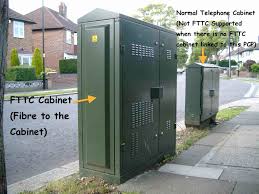
Let’s look at how the broadband (the fibre-broadband-cabinternet) enters your house. If you’re lucky you will have a fibre-optic connection which would give you the fastest speed and performance but the fibre only runs from the Exchange to a Street cabinet. From the cabinet to your house the connection will be by copper. You can bt_-fttcrecognise whether you have fibre in your area by looking at the BT street cabinets. If they’re like the one on the left – you have. If they’re smaller like the one on the right of this picture and don’t have vents in them (necessary for cooling) – then you won’t … yet! Inside the cabinet it is still likely that there will be a tidy arrangement inside-cabof cables and patch leads – not at all like the old telephone street cabinets which usually are rather untidy. So the picture to the left is a couple of rather proud BT engineers looking at a new fibre cabinet. So whether you have copper or fibre to the cabinet, the connection to the broadband in your house will be by copper. This is the same for the cable operators like Virgin Media as well.
 
Your broadband provider (your Internet Service Provider, or ISP) will have given you a device that presents the internet into your house. This could be done in a number of ways, but for this discussion I will call the device a hub. The hub incorporates two components – a modem which pulls the signal from the street cabinet and pushes a signal back, which in turn is connected to a router which handles the distribution of the signal to your various devices in the house. Sometimes these are two separate devices, in the case we’re considering they are one and the same. Your router will probably itself have two components – an aerial for sending and receiving a WiFi signal and a number of ethernet ports to allow you to directly connect a device by an ethernet cable to the router.

homecomputernetwork_diagram[This is always faster and more reliable than using a WiFi connection – but more about that later.] In the diagram to the right the WiFi is being delivered from a separate Wireless Access Point. This is not the normal way of providing Home WiFi nowadays, but before the introduction of “the hub” – it was.


What’s this got to do with “flaky WiFi” I hear you say … we’re getting there, but if you want to fully understand how the internet works you would benefit from an explanation of another piece of wizardry – the Internet Protocol, or IP address. You can skip this bit too if you like.

Every device connected to the internet has an IP address, some are Public, some are Private. Almost certainly all the IP addresses in your house, behind the router will have Private IP addresses. Your ISP will dynamically allocate an IP Address to your router when it sees it’s switched-on, ready for connection. This will be from a store of addresses it has and will look something like this – 86.10.6.1 – this is effectively the equivalent of the telephone number for your house. As the number of Public IP addresses is limited, your router will then allocate an IP address to each device from a Private range and these will look something like this – 10.0.1.2. It is the job of the router to map the devices from the Private range of IP addresses to the Public IP address space of the Internet.

So you can see I hope that the Router is a really important piece of equipment as it handles all the transfers of information to and from the internet using IP addresses. If you’re using wired ethernet connections that’s really all you need to know (there’s loads more but not for this post) and as long as your hub is working and has the correct lights shining all should be well. However we have the wireless network to consider, don’t we? So now we come to “flaky WiFi”. At last, I hear you say!!
Your wireless router (or hub) broadcasts signals to devices on different channels (like TV channels). Usually when you switch it on it will configure itself to use the best available one. However, if another network nearby (say next door) is using the same channel there will be interference between the two causing the signal to be interrupted, the information to be resent, the performance to drop. This is the most common reason why you will get “flaky WiFi”. Other reasons may be that you are too far away from the wireless router to get a good signal, you’re moving about, the walls are too thick, the router is not located in the best position to cover the whole house, the wireless card in your computer is damaged in some way (or is just too old to get good performance), or your software is not configured correctly.
I can’t deal with all of these but here are a few links that you may wish to follow up these …
For the Mac user – Lost WiFi: How to fix WiFi connection problems.

A reasonably readable piece – How to troubleshoot wireless router problems.
A more complex but good explanation – How to troubleshoot a flaky internet connection.

 
… for now I’ll just go through a couple of situations.
1) If the signal as shown on your device gets stronger the nearer you get to the router, your problem is likely to be the siting of the router. You need to move it closer to where you wish to use the device, or consider a wired connection instead. This might sound daunting, running cables and the like, but you can buy a pair of Powerline plugs and connect the router to the device using your internal mains electric circuit. Alternatively, you could extend your network, again using Powerline technology to provide a Wireless Access Point near to where you want use your laptop, phone or tablet. [Note: There are other manufacturers and suppliers of this technology other than Trendnet and Amazon, try Maplins, this is just the kit I use.]
2) If the WiFi is definitely “flaky”, it’s intermittent, or undependable, you’re most likely to need to change the channel. You may be able to do this yourself using the management software provided for your hub, but you may also find it better to contact your ISP, explain your problem, say that you believe you may need to change the channel and they’ll talk you through doing just that. [They may indeed be able to change it remotely.]
That’s it. I knew about channels before writing this, but not the term “flaky WiFi”. I’ve learnt something new!
screen-shot-2016-10-11-at-17-28-54PS If you want to know just well your device, and/or network is performing why not use Speedtest, it’s available for mobile devices like phones and tablets as well from the App Store or Android Store. Here’s a screenshot of a test I just did on a wired connection in my house using Virgin Media as my ISP. It’s quite addictive.