Prevention and protection from Scams

And so we turn to passwords and online security. I’ve dealt with this at some length previously in a post entitled “Keeping safe online” which I last updated in May 2023, and although much of it is still relevant and most, if not all, of the links are still working, I thought to write something from scratch, rather than do another edit/revision.

I’m going to skip to the content at the end of the article referred to above and pick-up the theme of Passwords, Passkeys and Two-Factor Authentication (TFA).

First-of-all – you want a fright? Try typing your favourite password(s) – you do have more than one, don’t you? – into this website.

Secondly, check to see just how vulnerable your email address might be, using …

Screenshot

… go to haveibeenpwned? – and if you want to know what pwned means, and how to pronounce it, look here. If a service you use is in this list, you seriously should change your password!

Another approach is to use a tool that looks at your “digital footprint” to examine where you might be exposed. Such a tool is this one from Malwarebytes.

So that’s got your attention, right? You really need to deploy/use a Password Manager to hold your passwords – preferably one that is usable/consistent across all your devices. Two such products are 1Password and Dashlane. Both of which get very good reviews.

The alternative to using a Password Manager application is to use the password security offered by your browser. In Apple’s case this is iCloud Keychain – which stores the passwords – with its associated Passwords app; in Google’s case this is Google Password Manager. Both of these now offer support from one ecosystem to the other – so multi-platform users can choose one or the other. Microsoft also offer a Password Manager using the Edge browser, but its features are possibly not as well developed as those of Apple or Google, nor of dedicated password manager applications such as 1Password or Dashlane which score best with users who have a mixture of Microsoft, Apple and Google devices and applications.

And now we have Passkeys. When assessing whether you want to move to a Password Manager, you MUST check that the chosen one supports Passkeys as defined in the FIDO Alliance …

… and the key to its success and inter-operability is its integration with biometric signatures. So Passkeys are the platform for increased and improved internet security and should be welcomed with open arms – for Apple, for Google and for Microsoft.

If a Passkey can’t be employed on your favourite website, or even if they are, you may be asked to use 2FA (two-factor authentication). Using this means that when you’ve typed in your username and password you’ll be challenged to provide a code from a mobile phone, an authenticator app such as Google Authenticator, or go to another app (particularly if its a Google app), and do that extra second step (hence 2FA) to authenticate you are who you are.

We’re entering the passwordless world. It’s long overdue!

Finally, some other links to help you navigate the digital security world.

7 phone apps you need to secure right away – if you value your privacy – this could have formed the basis of an article in itself. It’s important to just check you’re doing the best you can to secure your favourite apps.

Best antivirus: Which? Best Buys and expert buying advice – a review for both PCs and Macs of anti-virus software – of course you could just be relying and using Windows Defender (for Windows) or nothing at all (if on a Mac), both of which are acceptable decisions, which then leads into …

Everything you need to know about cybersecurity basics – an inventory of terms, some with links to free tests, and the option to purchase tools. The definitions of terms are good.

Online learning events from the u3a – especially a recurring event “Staying Safe Online – A u3a Presentation with Q&A”

Notes from Zoom meeting – 6th January 2022

We start a new year much in the same way as we ended the old one. I invited members to volunteer any digital gifts they’d received. Somewhat surprisingly there weren’t many. David Hughes had given his wife a smart watch so that they could monitor things like heart rates and blood pressure; Sianed had been promised an iPad and we discussed possible options – I was looking at doing the same with a present from my Jenny; Paul had bought some replacement Dect phones and wondered whether they would work when the PSTN switched to digital (more later); Jenny had got an Apple Watch and I “appointed” her as our specialist/expert moving forward; Steve had got a Chromebook and was looking to get the most out of it whilst concerned about what we’d discussed last time in respect of the possible problems with ongoing support of the operating system and finally Christine was looking at the possibility of a webcam as another possible solution to her ongoing bridge game issues. I had been given a Wacom Intuos tablet but hadn’t started using it.

We turned to issues.

Ann had other pressing issues as a lath and plaster ceiling had collapsed; Fred shared an amusing story dating from when he was working in London relating to a ceiling collapse as well.

Christine was looking at possibly trying to return her Lenovo laptop and she was advised where she could find the AEU date.

Don had started storing passwords in his Google Chrome browser. We expressed some reservations about doing that, our strong preference is for using a password manager, but for the Apple fraternity there might be a possibility of using Keychain.

Sianed mentioned that she’d started using an ecologically friendly/green search engine – ecosia. I said I would be interested in looking at it.

Ted had started a migration from his personal blogspot (Google) website to one based on using WordPress. I offered advice and assistance if required. I also told members that Phil had recently migrated this website – for the clog team his wife organised – to Google sites.

David H reported that after guidance from a friend he’d been advised of a system that allowed multiple calls to come into the same landline. I was surprised and had never heard of such a possibility. It would be interesting to find out more about such a system.

Renee had wanted to extract messages from her iPhone to make them a document. I promised to investigate a solution I’d used for my Jenny. This I found to be called iMazing.

We then had a brief discussion on the withdrawal of the PSTN service by the telcos by 2025. Jenny and I were going to write something for the Magazine on it, and were also to provide Tony Baines with a briefing to take to Region. Paul told us about the problems a cousin (in the Salisbury area where the initial trials were being carried out) who was blind had experienced with 1471 not working any more; he’d had to change his number and there didn’t appear to a call-back facility which he’d relied upon before.

Jenny then told us she’d received a note of briefings on good use of Zoom, and I offered to put a link to them on this website. You’ll see it here.

The meeting finished with a demonstration of the 1921 Census to be found on Find my past. I suggested that all members might offer to demonstrate a website they found useful. At the next meeting I would show the photo sharing site Flickr and how it works..

Notes from Zoom Meeting – 23rd April 2020

I thought it might be a good idea (correct me if I’m wrong) if in addition to any posts that might be generated from the meeting – which I was delighted to see 14 members attended – that I wrote a couple of notes about it.

Covid-19: The main topic of conversation was the difficulty in getting deliveries arranged for shielded people. David H related how his wife had only just (after 6 weeks) received a letter to tell her that she should be considered to be vulnerable and thus shielded – we have other members who are also in that category. Anyway, the problem is getting in touch with a Supermarket to get you on the list for priority deliveries. In Wales that’s compounded by the fact that the letter does not contain a NHS number (as I understand it) and yet the supermarkets require that information. Duh!

It would appear in England that those in the vulnerable category are getting free drops of food – even if they don’t want, or need them and it’s impossible to opt out easily. [We have a friend that’s arranged to take them to the local food bank.] It also appears that the supermarkets are responding off the peg so-to-speak and are approaching customers to offer deliveries even if they’re not regular customers and they would prefer their regular supermarket to reach out to them. Again duh!

This is an unfortunate set of circumstances. On the positive side the number of click’n’collect slots from our local Sainsbury’s seem to have increased – even if the alternatives picked off the shelves for us, are not what we would have wanted – how do you interpret a request for an oatcake into a ginger biscuit????

I’ll put this into the Covid-19 Topic – so please comment there and update my understanding – if I’ve got it wrong!

[Update eConsult]: I forgot this when I wrote up the notes at first. Just a quick note for you to see if your GP Surgery’s website has a link to eConsult on it – as well as My Health Online which you can sign-up for to get repeat prescriptions and book appointments … sometimes! Anyway eConsult gets you to fill-in a form that explains your symptoms as best you can, and asks if you have a preferred doctor from the practice who you’d like to ring you back. My experience was that I got a call back within a couple of hours. Really much better for non-serious consultations that you think can be handled without a face-to-face session. I can see that things will never be the same again. I can see that I’ll be asking my doctor to “zoom” me after I’ve first filled in an eConsult referral. Interesting times!

Screen capture on Windows: Apparently there is piece of software called Snipping Tool in Windows that does the trick, here’s an article that shows a number of ways of solving that issue. On the Mac, you can use a combination of key strokes to Copy screens, or sections of screens to the Clipboard, from which you can Paste the contents to a program. Here’s an article that shows you how to do this on a Mac. On an iPhone you can capture your screen and take a picture that goes to your Camera Roll in this way, and can create a screen recording like this, on Android you take a screen shot this way.

Digital HDS Antenna: Well, it appears Christine that the Dragons Den might well have been taken in by this product sometimes called TV Fix, but also DigitalHDS and TV Brite. The reviews are not good. Let’s pass on …

Sharing Notes between iPhones: Yes you can do that Don, and yes it might be useful for creating shared shopping lists – always useful at a time like this – but my recommendation would be to use Evernote which means you’re not restricted to just a Mac, you can use it on a Windows and also from the web, and share notes that way as work on them collaboratively. Evernote has replaced a word processor for most of my notes taking and writing. Gets 5* from me, and I pay for it too now!!

Have I been pwned?: Another use case for this very handy website that tells you whether your email address has been hacked is a check on your password – just click on this link and supply your “favourite” password to see if it’s out in the wild!

Problems with Nest and Google accounts: An issue we couldn’t really provide an answer to. In fact, I had difficulty understanding (not Margaret’s fault, I’m just not familiar with the product). Paul suggested that maybe trying to use a different email account with the device might allow you to get admin rights back. I really don’t understand this, so I suggest that Margaret might put it up as a Topic in our Forum – perhaps someone outside the Group might be able to help?

[Update We will fix your PC]: Forgot this in the first write-up of the notes. I’ve put a “plug” for Neil in the Computer etc. Forum.

Creating a Zoom meeting: I promised to produce a quick video showing how you can Schedule a meeting as a host, rather than just be on the receiving end. Here’s the video.

New website: I demonstrated the features of the new website using the Screen Sharing facility in Zoom. In feedback to this it was suggested that perhaps there ought to be a facility to add a Photograph to a Profile – I promised to look into this. If you have a WordPress account, this gets picked up automatically, but it should be possible to optionally add a Profile picture. I also pointed at the way of creating a Movie using Quicktime Player (goto Method 2) on the Mac. I’m sorry, but I can’t find an equivalent, easy way of doing it on Windows – it must exist!

Finally, by way of light relief, here’s a video I had thought of showing with you at the end of the call. The Project Manager’s nightmare. Enjoy …


Using a Password Manager and implementing Two Factor Authentication

Introduction – passwords, passwords, passwords.

Log in to your e-mail account. Log in to your bank account. Log in to Facebook, WhatsApp or twitter. Log in to your Amazon account, or any other retail site. Log in to your photo sharing service. Log in to Thought grazing, or any other membership based organisation eg U3A, Which?
Is it possible to remember the number of applications you use on a regular basis that require a password? How do you keep track of all of all those passwords?

Here are a few tricks you might have tried or considered (with hints about why you may want to steer clear of some of them):

    • Memorise passwords. This is a great technique if you use your passwords every day, but maybe not for those you only need occasionally. If you don’t use a password regularly, there’s a good chance you could forget it if you rely on your memory alone. In addition, Web browser cookies can remember your login session for days or weeks at a time, meaning you only enter the password manually once in a while even if you use it every day. This could therefore be a weakness and security breach if someone stole your computer. So to login to your computer, or connect to your bank this might be the best approach, but be mindful of the potential security breaches and use for only a limited number of uses. [NB The login credentials to your bank are not saved on your computer, but other sites may well store them in cache or cookies to make it “easier” for you to connect!]
    • Use the same password everywhere. Memorising a single password for every account does make life simpler. For security reasons, though, this isn’t a great idea, because it makes it easy for a hacker who finds your user name and password for one account to break into your other accounts, too. So what you could do is have a base (root) password that is the same, and then add something you believe you’ll remember to identify the pairing of the password with the site (a variable). Thus making the password unique to that site. So if you wanted to connect to Boots the Chemist you might choose “B00ts&” before your root password. I gave some ideas on choosing a root password in an earlier post.
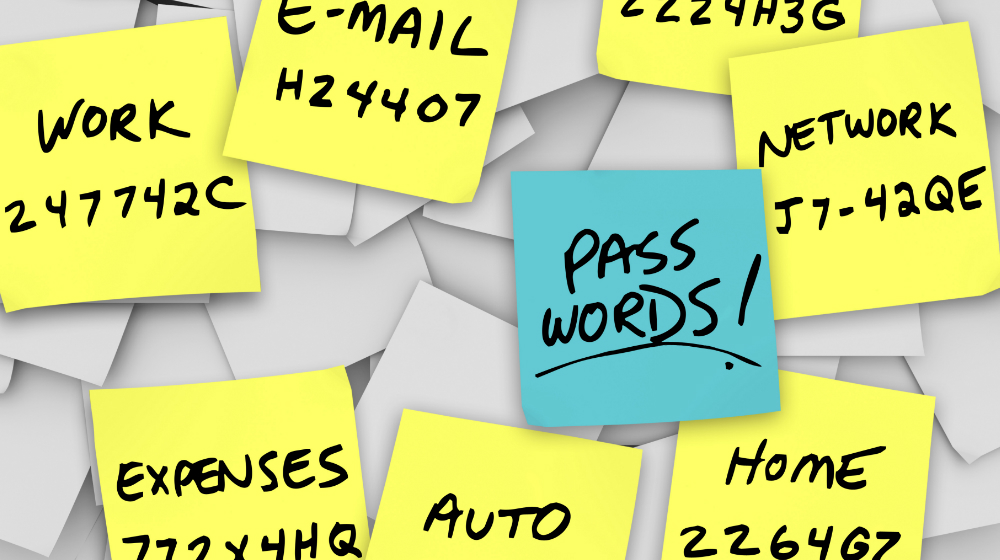
    • Write passwords down on paper. This is an ideal solution if you can hide the written information where no one else has access and you can remember where that place is :-). However not only is this a risk if someone finds the list, but a written list or an assortment of scraps of paper could also be lost or damaged, and you’ll need to find and update the list each time you update a password. This is most definitely the most frequently chosen option, and most certainly is the worst option too.
    • Write passwords into a file on your computer or mobile device. This is less likely to get lost than the paper, but you do risk losing the file if you have hardware failure. In addition, this file is as vulnerable to hackers as other files on your computer. You could encrypt it for an added layer of security, which makes this strategy similar to the next solution. I used this option for a while with the file saved on Dropbox and protected by a Password, so it was safe from loss – but it wasn’t encrypted and most definitely wasn’t very safe – but it was a safer option than the previous method.
    • Use password management software. Password management software is a utility you can use to save and retrieve all your passwords. This software could be a standalone application on your local computer or a feature within another application (such as your browser) – or both. This option greatly limits hackers’ possible routes to your password data while adding convenient features for organising and retrieving information. This is the strategy that is strongly recommended for everyone and for use on a single computer – it can be FREE.
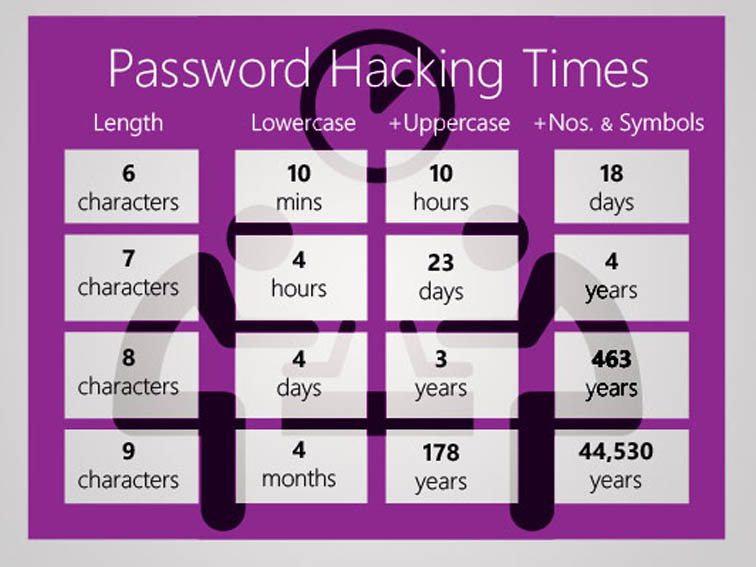
When I sat down to write this piece, I obviously looked around to see whether there was any information I could reference. After I’d done that, it was clear that there was no point in me re-inventing the wheel. So I point you at this excellent introduction to Password Managers and review of the leading Password Managers out there. Read it before you go any further!.

Password managers – how do they work? Are they safe?

So you’ve read the article mentioned above? Yes – then proceed. Otherwise I really do insist you go back and read it.

So now you know there are browser-based password managers, cloud-based password managers and locally-stored password managers. You do know that, don’t you? If not, go back and read this article again!

Are they safe? – you only have to remember ONE password, the master password, and that unlocks your Password Vault. So compared with unsafe, easy to guess passwords, or scraps of paper – they are very safe; and you can’t lose them, forget them, or mislay them. They’re all in one place!

How do they work? – well, I don’t need to tell you much about this because you’ve already read this, haven’t you? Essentially, you can choose to let the Password Manager generate random passwords for every site you need to provide login credentials for, or you can provide the Password Manager with a password when prompted. I tend to do the latter using the “variable + root” approach I discussed before. It’s not that I don’t trust my Password Manager, it’s just that for many of the sites that I use frequently, it’s quicker and easier for me to supply the password because I can remember it!

Which Password Manager you choose to use is down to your situation – you could read this Review of Password Managers – which picks Dashlane and LastPass as best products. Either of these would be good to implement and use but they have different use cases. I use LastPass and pay a small amount annually so that I can use it on more than one device. I also use it because as it’s cloud-based, I can log into my LastPass account from any machine and access my online services. Dashlane lets you make the choice of local machine or cloud-based password storage – but it is not free, whilst Keepass (which is open source and free) works on a single machine, the passwords are stored on that machine – so that might be the option for you. If you only tend to use a laptop or desktop for browsing websites where you need to provide Login credentials, the free version of LastPass or KeePass is more than adequate.

Note: I do not recommend for the reasons explained in the article, that you use the Password Managers contained in your browser.

How do you use your Password Manager?

This is really beyond the scope of this article but elements of usage are covered in the two articles that have been referenced above. You should refer to the documentation for your chosen Password Manager.

What’s all the fuss about Two-factor Authentication then? Do I really need it if I’m using a Password Manager?

Well yes you do! It’s bandit country out there on the Internet. You’ll know  that if you’ve been on Have I been pwned? and seen your email address has been captured by a leak, or a hack. So it’s always possible that someone has got at least part of your login credentials, and from that it might be possible for them to request a new password – blocking you from using a service – or they may have even requested a new userid!  So that’s where 2FA comes in.

What is it though?

Essentially once you’ve implemented 2FA you’ll be asked for secondary information about yourself (Face-ID, or Touch-ID if you’re using an iPhone) or confirmation that you are the person you’re purporting to be – by asking you to supply a code that is displayed on a smartphone or other device you own, and which is to hand. Thus having your UserID and Password is not sufficient alone to access your account.

If you’ve used Online Banking recently you’ll have noticed they’ve implemented 2FA widely. In fact I believe they’ve been required to by the Banking Regulator. Thus accessing your bank from your device is intrinsically safer now than it used to be.

I’m not going to say much more about 2FA , I’m going to refer you again to a Guide rather than repeat the information myself – and quite possibly make a mistake in doing that. There are a number of sources of reference out there, from Google, Apple, Microsoft but the one that I’m pointing you at is this one which I think explains things well, and also points at how to implement it for a number of popular and well-used platforms and services.

Making life easier with an Authenticator for 2FA
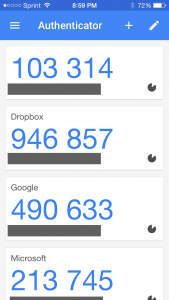
Wouldn’t it be nice – instead of waiting for the site you are trying to access to send you a code to type into the box they’ve provided – if you could just look at your phone and see a code on it that you could then provide and type in?

That’s what an Authenticator does. Perhaps the best known is Google Authenticator – and that’s the one I use on my iPhone, but there are others. You might consider using LastPass Authenticator for instance, I’ve meant to try it out for quite a while, and there’s also Authy, which has significant advantages over Google Authenticator – but it’s perhaps best to get experience using the Google software first.

And that’s it! Thanks for getting to the bottom of this long article. I promise you, if you follow the advice and guidance included in it, and in the referenced articles, your online life will be much safer, more secure and your stress levels will be reduced!

Sextortion, Have I been pwned and Password Managers

We’ve discussed this a couple of times now this term, so I was interested in seeing it pop-up on the BBC website. Here’s the link to a short video …
www.bbc.co.uk/news/stories-46323625
I’ll be looking at password managers next time, but in case you can’t make it, I’ll write-up a post as well. I use LastPass, but there are others. I also pay a small amount for it so that it can be used on more than one device.

Let's start at the beginning …

So … you’ve dipped your toe in the water, got that computer that your son/daughter has persuaded you to get, allowed the telecommunications company to install broadband in your house with that WiFi thing and you don’t exactly know what to do with it – apart from send them emails to say you’re still alright and still alive – and oh yes,  there’s online shopping – that must be a good idea.

I don’t intend to replicate by way of providing a guide all the things you should or should not do as a silver surfer, just point you in certain directions and provide as impartial follow-up advice as I can, should you require it. Therefore what follows is not a comprehensive guide to getting started, just some of the things that appear to me to be most important. At the bottom of this post I provide links to some resources that are a) reputable, and b) authoritative which I would encourage you to also look at.

So we start with Internet Security and Safety Online. Yes, I know it’s not exciting, and yes … it’s a bit scarey as well. I’m not trying to put you off before you even start but it is important to get the basics of security and safety right, at the beginning, because habits picked-up when you start something have a habit of providing a good basis for ongoing practice. Now … didn’t my mother say something similar to that many, many years ago!

The basics are very simple actually and can be summarised in one sentence. Don’t do anything online that you wouldn’t be prepared to do with a stranger you’ve met for the first time in the street, or in a shop. In practice of course it’s a little bit more complex and so a few guidelines follow.

1) Everything falls apart if you don’t have a strong password to anything you do online. Your password is like the key to your front door. You wouldn’t give that to a stranger, or make it easy to find under the doormat, so why put so little value on your password? Furthermore, why use one key to unlock all the doors in your house (online information). Make it a bit more difficult for the burgler (hacker) by using different keys (passwords). But creating and more importantly remembering lots of passwords is a bit of a pain and so my suggestion for a password is to think of a phrase that means something to you and then create the password from it using a combination of letters, numbers and “odd” characters and then add a couple of letters to that to distinguish the site you’re accessing with that password from any others you might use.

So, an example. The phrase … “Cardiff won the Cup once in 1927”, and the site … say “Amazon”. For this I might construct a password like this – “Amzn_Cwtc01n27”. Replacing the vowels o and i with 0 and 1, and changing “nineteen” (as you would say the year) to “n”. Using a technique like this would make your password both unique and very difficult to guess … as long as you didn’t give it to anyone else.

By the way, I wouldn’t recommend basing a phrase on a hobby, or anything connected to you – so the example above would not be a great idea for a Cardiff City fan!

I’ll return to this theme a little later on when I post about Password Managers, a really useful tool to assist the “little grey cells” that have difficulty remembering passwords.

2) Don’t give away information you don’t really think the person asking for it really needs to know! I remember being really shocked when a colleague once told me that he had for years been providing incorrect information when shops required a post code, telephone number or address. However when you think about it, they usually only want it for marketing purposes and once they have it … do you have ownership of it anymore? Can you be sure they haven’t sold it on? Of course, it’s much better to just refuse to provide the information in the first place and I’m really not advocating dumping unwanted communications on some poor imaginary soul in Thornhill – but … ??? Similarly your date of birth is perhaps the single most important piece of personal information that you hold. Don’t give that away easily.

3) Have more than one email account. Keep one private for friends and family. Use the other(s) when asked for online. At the very least this will reduce the amount of spam (unwanted messages) you receive; at best this may stop your online identity being stolen (someone posing as you) and your email being hacked (broken into). Some email providers (certainly Yahoo! and Google) allow you easily to setup disposable email addresses on your account. [Psst – researching this has been useful for me too! I didn’t know how to do this with gmail until I wrote this post.]

4) Be very careful in the links you follow. Phishing is a very disturbing and distressing presence on the internet. You’re drawn into clicking on a link on a webpage and from there … the consequences are many. Be realistic … do you have an unknown relative in Georgia? Should you be sending online gifts to Africa  – how do they know your email address anyway (see 3 above)? Is it likely that the Revenue, Insurance Company, Bank would approach you online offering to give you money. Be very aware. Be very careful!

As I said before, this is really only a gloss over the subject. Boring it may be, but essential it most certainly is. The following links are generally authoritative, mainly UK-focussed and worth more than a glance.

Advice from elsewhere:
The Guardian – Eight ways to protect your privacy online
McAfee (Internet Security specialists) – 10 tips to stay safe online
Get the facts” from the Metropolitan Police
Get Safe Online – a very authoritative and useful UK organisation
Age UK has some useful advice too for Internet Security and
Microsoft have a couple of useful pages on What you need to know about your information the Internet, and how to Protect your Privacy on the Internet.

[Some of these links may not work anymore due to the age of the post!!!]