Notes from Zoom meeting – 17th February 2022

No photo of attendees this time as Jim presented his apologies as he was attending a re-scheduled and re-arranged Poetry and Prose group. I will need to find a “deputy” for those meetings he can’t attend, or alternatively Owen perhaps could prompt me to take a shot myself 🙂 I also had apologies from Ted and John who were not able to make the meeting.

We started with a quick review of the last meeting. Renee had downloaded Trello, and was going to look at using it, as was Jenny – who hadn’t yet had time to download it. Thanks Steve for the presentation again. I’m looking for more offers but during the meeting Stella told us about MapQuest which certainly is worth a look. I believe I’ve got it on my phone, but I also have Strava, PlotaRoute and Walkmeter, for walking – none of which I use to much I’m afraid to say.

I mentioned that I’d seen an item on the Welsh News on the “disappearance of copper from Ceredigion” – a reference to the PSTN switch-off and move to digital. I also mentioned that I’d move the post under Jenny‘s authorship to the public Thought grazing site where I will try and keep news up-to-date as the project proceeds. I also referred to Jenny‘s article in the Magazine (Page 81 she tells us).

Then we had a reference to Sianed‘s article on Printing Digital Photographs – which I found very interesting and which left me wondering how and why they do it for free! Finally I welcomed Jim‘s amplification as a Comment under the Notes on what he’d described at the last meeting in reference to deleting items from trash on external hard disks. I asked everyone to look at my notes and correct them in a similar way. Thanks.

I then reviewed a more interesting set of News which I’d sent to the Flipboard Magazine. I encourage you all to take a look occasionally.

We then went round my screen – I’m just picking up those that contributed in this part of the meeting.

David Hughes told us about his travails in negotiating anew contract with Sky, which ended with an upgrade to his Broadband speed from early March without an increase in cost. S0mething others (including me) commented on with VirginMedia and TalkTalk as well. He then told us about an interesting issue/problem the residents of his apartment block were facing – how to get EV charging points in shared landlord-owned buildings. He referenced this website which provided some guidance, and he’d been in touch with someone from Pontyclun who had some knowledge of installing EV-points in similar situations. Someone mentioned that there might be a WiFi solution that linked back to your apartment. Definitely a case of “watch-this-space”. He then finished with a mention of his grand-daughter’s website that worked perfectly on his phone and web browser, but not his iPad. After a bit of scrabbling about, I advised that he need to tell her to investigate Responsive web design technologies – this is often a feature of themes in WordPress for instance.

Owen advised us that his wife was recovering well after the shock of a hospital admittance at the time of the previous meeting. He had progressed with his investigations of using WordPress for the Cardiff u3a website, was re-visiting his knowledge/use of PHP as a programming language and had come across a piece of software called LocalWP that allowed website developers to build a fully-blown WordPress website on a local machine without need for hosting. I offered when he wanted to trial a hosted site that I could provide a sub-domain on my hosted account for testing purposes. This environment might be of interest to Ted and Philip as well as me. I saw the possibility of archiving all my sites onto a machine for posterity!!!! [Or at least my family’s attention]

Paul had been “hit” by a scam suggesting he invest in Anti-virus software – that didn’t go too far!!! He then advised us that within the browser-version of Gmail, you could click on the three dots above a message and Report it as a Scam. This could be very useful to members. In similar vein (but later) Don told us he’d used the Print function under the “three dots” to print an email out, rather than get a screenshot with sidebars added.

Steve updated us on his “negotiations” with TalkTalk which had also led to the cancellation of his NowTV. He had also spent sometime looking at LastPass.

Stella was beaming!!! She’d purchased a replacement 2-in-1 machine from eBay but it had come without being cleaned-off and she found out she would need to re-set it back to Factory Settings. This she had done successfully and she thanked members of the group for giving here the confidence to attempt it herself. She then did the same thing to an older machine. It took longer but she was impressed at how easy it had been to do the task just by watching a YouTube video. Well done Stella.

Renee had a conundrum which hadn’t been resolved by Apple. The number of photos on her phone and laptop didn’t coincide. This was disturbing because sjhe wanted to move the photos off her phone and through the laptop to an external hard disk. I said I’d had a similar experience recently but couldn’t for the life of me remember what I’d done to resolve the problem – but I had. I said I’d try to get the little grey cells working a bit better and let her know if they came back with anything of any use!!!

Don told us he’d been reading a Customer Satisfaction report from Which? on Broadband suppliers. He noted that some of our members would not be that impressed by some of the suppliers (no names, no pack drill). He’d also come across a definition of phishing and had been amazed by the different flavours and terms used.

Christine had also been talking to their broadband supplier (VirginMedia) and had been advised to change their mobile contract (part of the package) to O2 – which were partners of VM to get a better deal – you can’t make up these stories can you! She had also pulled-out of a Lloyds Bank scam when it asked her for the “number on the back of the card” – no, that’s not right!!!!

Ann reported that she’d solved the camera on her Lenovo not working. She inadvertently must have toggled the F8 key on the machine which is a “privacy feature” to switch-off the camera. Glad that one’s been resolved.

Fred reported that he’d been puzzled by a GreenCard Travel email that would appear to be a scam. Something to look out for now that we were all perhaps looking to start driving abroad again.

We then had a discussion on the LastPass video which Sianed thought had been quite good. Several questions were asked and I attempted to answer them as best I could. Some of these I answered subsequently (mainly on subscription costs) on Signal. I refer everyone to their website which has a quite good set of FAQs.

Lastly we went round the screen again to find out if anyone had used, or discovered, useful speech-to-text applications. Owen reported that he’d discovered the wonders of CarPlay on their new car. Messages went from the iPhone to appear as text on the screen of what we used to call the SatNav – but it’s far more now. Paul told us he used the microphone in Text, WhatsApp and Signal (and Notes and Word, etc) to prepare messages, which were surprisingly accurate. I tried to do a demonstration, but failed – I must do some revision on how you can switch to share an iPhone screen over Zoom. That was not the case for Sianed. She found the speech-to-text failed miserable with a Welsh accent. Ann agreed. I suggested they try speaking in Welsh as there might well be a more accurate result. It will be interesting to see. Steve on the other hand was more interested in text-to-speech and he’d been looking at Speechify, but it was costly. I investigated other options and sent a message to Signal. Renee had tackled Siri – she’d meant to do that for some time and found it acceptable, and did arithmetic well!! She also advised Steve to have a look at text-to-speech on Safari – one for me to check out as well. That plus Reader View is making Safari my browser of choice at the moment. Finally, Don had been trying out talking to Google (using the Google Assistant) – we must have another go at this really useful tool again.

Notes from Zoom meeting – 4th March 2021

Nineteen of us for our Zoom meeting yesterday. Yes! I’ve managed to get the notes done quicker this time.

I introduced the meeting, welcomed Barbara to her first meeting, did a demonstration on how the website worked and encourages members to take part either by writing a post, like Sianed last week, or to use the Forums and Topics. I showed how you could change some personal information under the Profile tab and highlighted the Noticeboard where changes to the site are recorded; the information available under Help and the Guides that are viewable.

I then went on to run through the “latest news” that I had curated in the Flipboard magazine, mainly focussing on Facebook’s problems in Australia and Microsoft’s attempts to get Bing as a preferred search engine over Google. The best experience of Flipboard is on a tablet, so I’d recommend looking on your app store to see if you can install it on your tablet (or smartphone).

Round the screen, not the one above which is a screenshot kindly taken by Jim, but the one I had in front of me …

Mike reported he’d solved his Mouse problem by using a Mouse Mat. Who’d have thought such a simple solution would work. Once he told us, many of us remembered stories of mice not working properly without a mouse mat and as Mike’s table was shiny, it was likely that this has contributed to the battery usage. His keyboard, which I’d previously reported as being a problem too, is working fine as well.

Marie-Christine had nothing to report.

Owen reported that the Beacon Members Portal was playing-up for some members and he’d had to do a fair bit of user-support since renewal of membership started. Of the 780 members the branch had, over 600 had renewed so far.

David H updated us on his Times subscription problem with Safari, Firefox and Chrome, but announced that it was now working with Brave. A really strange one – could it be something to do with the way browsers handled pop-ups. I don’t know. David is going to try Edge next to see if that works! He also reported that M&S Bank was closing – Owen provided this link to assist David find an alternative.

Margaret reported that she’d tried to install LibreOffice on her Android tablet with no success. Owen came to the rescue again with a reference to Collabora for Android and iOS which enables Libra Office to run on those platforms. Refer to your relevant App Store for downloads and installs. She also told us about “the scam that wasn’t” – eBay have enacted their plan to move away from Paypal so an email to that effect wasn’t a scam. On another note a scam to try and phish personal information from a hacked contact list by saying someone was seriously injured in an accident – with links to follow-up – was just as low as you can get! Margaret also told us about an issue with women’s pensions which is highlighted in this BBC News post.

Barbara told us about a disk drive problem she was having with her MacBook. The advice was to get in touch with John Lewis first, because that’s where she got it from, before going to the Apple Store. A phone-call now might be a good idea, to prepare the ground for the enquiry, for when we can visit the shops.

John enquired as to whether the group had a view on whether anti-trust legislation on an international scale might now be more feasible given the number of bad instances of fake news and scams during the Covid pandemic. I certainly felt that something was more likely to happen in the US now and referred to a couple of articles I’d posted to the Flipboard magazine recently on what the new US President’s agenda might include.

Jim had nothing to report. He had finished a video however that I’d be able to watch. I hope he doesn’t mind but here it is …

[He’s added a Comment about the purpose of making the video in a Comment below this post.]

Don told us about some work he’d done as a consequence of looking on the Money Saving Expert (MSE) website in respect of a Power of Attorney application he’d made online. He’d found the process to reclaim quite easy and had recovered £46 (I think). He also reported that following Sianed’s experience he’d purchased a Firestick and got the BT App and YouTube running on it. He had a Gmail project ahead of him as a consequence of his wife’s account having been compromised.

Paul showed us a magnetic USB cable that held together. Awesome! Must have one – I’m afraid I can’t find the website.

Fred advised that he had downloaded Signal and would be installing/joining shortly. He and the rest of his Close in Cregiau were having TalkTalk problems – actually BT OpenReach problems – and after many minutes trying to contact them reported that once he’d found an 0800 number, it was much quicker to contact them than the published 0333 number. There were bow OpenReach vans aplenty in the Close. This gave rise to a discussion on complaining and Barbara was of the opinion that using twitter was the best method of getting something done – she could be right!

Ann asked a question about JPEG files. I was able to state categorically that a native JPEG file was not a bad image. It had just had some information removed from it through a compression algorithm in the camera. Usually this was to remove detail from highlights and shadows. Left at that you would probably not notice any problem. If the camera allowed you to decrease the amount of compression then there would probably be no difference at all. If you edited an image, as long as you saved at 0% compression (100% quality) then there would be no decrease in the quality of the image.

Steve asked a question about Signal and whether it was an issue of privacy alone. I referred him to this blog post. I had also sent an email to the Group about my decision to move away from WhatsApp to Signal.

Stella asked how she could delete an app from her iPhone. I showed her in a practical demonstration. Press down on the app, wait until you see the icon wiggle and the ‘x’ appear. Press the ‘x’ and it will be removed. You can then press on the Home button to stop the app “wiggling”.

Christine announced success with her WiFi problem but she couldn’t be certain how she’d solved it. Barbara suggested that as a VM customer he might qualify for free Wifi extenders and encouraged her to follow that one up.

Renee said that VM appeared to be slow today, I suggested that she (and others) might like to look at their ISP’s status page.

For VM this would be – https://www.virginmedia.com/help/service-status

You would get taken to something like this …

You can also use this website to detect service outages – https://www.downdetector.co.uk – which links to many popular services.

Phil was just so excited by his new M1 MacBook Air that he had very little to say apart from some comment about Bing, the Rhondda and someone singing. It had been a long afternoon.

Finally Sianed introduced her post on LastPass. Anyone using LastPass, or thinking of using this password manager – which I recommend incidentally – should look at this blog post too, and if there are more than one user of the service in a family, you might consider taking out a Families membership which cover up to 6 people and an unlimited number of devices.

Notes from Zoom meeting – 18th February 2021

I’m afraid the what had become the norm, delayed posting of notes has returned, so apologies for the late publication of these notes.

We welcomed a new member – Steve Jones – and I notice that there are a couple of new members hoping to join us for our next meeting too. So you’ll all have to be on your best behaviour!

I quickly followed up some issues from the previous meeting. Marie-Christine’s problem with Lightroom and Windows I’d dealt with in an email exchange but it might be that a bug-fix update to Lightroom was necessary to get a proper resolution. Jenny was not present at the meeting but Fred reported back on the National Pensioners Convention launch event on Tuesday 9th February. David Hughes had been challenged with his phone switching away from WiFi for calls and pushing his 4G calls bill up – we had advised on settings for WiFi calling and this now appeared to be working fine. Renee reported that her problems with alarm services and TV satellite were now fixed. Sianed was pleased to be able to report that she’d followed up our advice on howe to get her TV SMART once again by purchasing one of the many devices we’d suggested.

I quickly ran through some of the more interesting “news” items I’d posted on the Flipboard magazine.

I also quickly ran through the Thought grazing website, membership options (if people left the group, or if they were non-members but members of Cardiff U3A). I talked briefly about WordPress editing, commenting on posts and encouraged people to use the Bulleting Boards (Forums and Topics).

We seemed to spend a lot of time talking about COVID-19 and Jabs at this meeting – I wonder why. To that end, there were less than normal problems, issues, challenges and questions to discuss.

Marilyn had bitten the bullet and upgraded her iMac to BigSur. All was fine with her Lightroom Classic installation.

Owen gave further information on the Pixel issue mentioned in a Flipboard post and suggested we might like to consider using Pixel Block as a way to prevent information about us to be sent back to marketing departments of shops such as Sainsbury.

Stella was very unhappy about the WiFi service in her house and wondered about signal boosters. As she was using a 4G internet service to her router we felt that the problem should be reported to her ISP – Three – before any additional kit was purchased.

David Hughes reported on his interesting adventure into the world of online paying-in of cheques which was both instructive and interesting. His other query related to shared access to the apartments in his community at Penarth. Several solutions were offered. Whilst the popular option of a Keysafe got a lot of support, the possible insurance aspect of this must be taken into account. An alternative suggested by Fred were using a MasterSuite from Tunstall key set (all locks would have to be changed). Fred suggested contacting the Local Authority as they might have a preferred supplier.

Steve had a strange problem which seemed to involve phonecalls re-booting his WiFi. I’m not sure we really got the bottom of that one.

Jim was using Animatica to create slideshows of images with music coming from audacity. I look forward to watching the outcome of this project.

Paul had been looking at his Google file storage with the intended changes to the way Google was going to charge for what had previously been free high-resolution (ie not original quality) images. As with most of us the world of Backup’n’sync is a bit of mystery too!

Christine was still suffering problems with her WiFi when trying to play online bridge. The devices seem to freeze after 1hr 10mins when using Zoom – and yes it’s a paid-for account! Would Powerline Adapters help? She also commented upon Facebook ownership of Content – I disagreed with her son’s interpretation.

Don Roadblocks – games???? He reported that a grandson was happy to download animation software and create a Lego film in about 3hrs. Incredible!

Mike was having problems with his Bluetooth mouse and keyboard dying. We suggested buying a pair that would share the same USB port on his computer.

Ann was examining the cost of her phone contract and weighing up options. EE against Skynet; 4G vs. Broadband. We await her conclusions.

Me – I’d been mainly working on cataloguing videos and changing them to .MP4 format and archiving them onto the family website.

Last pass

There is to  be a change to the free version of LastPass service.    At present, you  can use LastPass on as many devices as you like absolutely free. That’s changing on the 16th March.

You’ll have to choose whether you want to use LastPass on computers or mobile devices   You won’t be able to use it on both unless you pay for the premium version.

If you use it on both computers and mobile devices at the moment, choose which one to keep.  The first time you sign in to LastPass on or after the 16th, it’ll record which device you do it on.  That will become your free device type – so if you sign in first on your computer, you won’t be able to use the app any more (and vice versa).

To keep access to both, you need to sign up for the premium version. If you upgrade before the 16th March, a full year costs £22 or £30 after.

Using a Password Manager and implementing Two Factor Authentication

Introduction – passwords, passwords, passwords.

Log in to your e-mail account. Log in to your bank account. Log in to Facebook, WhatsApp or twitter. Log in to your Amazon account, or any other retail site. Log in to your photo sharing service. Log in to Thought grazing, or any other membership based organisation eg U3A, Which?
Is it possible to remember the number of applications you use on a regular basis that require a password? How do you keep track of all of all those passwords?

Here are a few tricks you might have tried or considered (with hints about why you may want to steer clear of some of them):

    • Memorise passwords. This is a great technique if you use your passwords every day, but maybe not for those you only need occasionally. If you don’t use a password regularly, there’s a good chance you could forget it if you rely on your memory alone. In addition, Web browser cookies can remember your login session for days or weeks at a time, meaning you only enter the password manually once in a while even if you use it every day. This could therefore be a weakness and security breach if someone stole your computer. So to login to your computer, or connect to your bank this might be the best approach, but be mindful of the potential security breaches and use for only a limited number of uses. [NB The login credentials to your bank are not saved on your computer, but other sites may well store them in cache or cookies to make it “easier” for you to connect!]
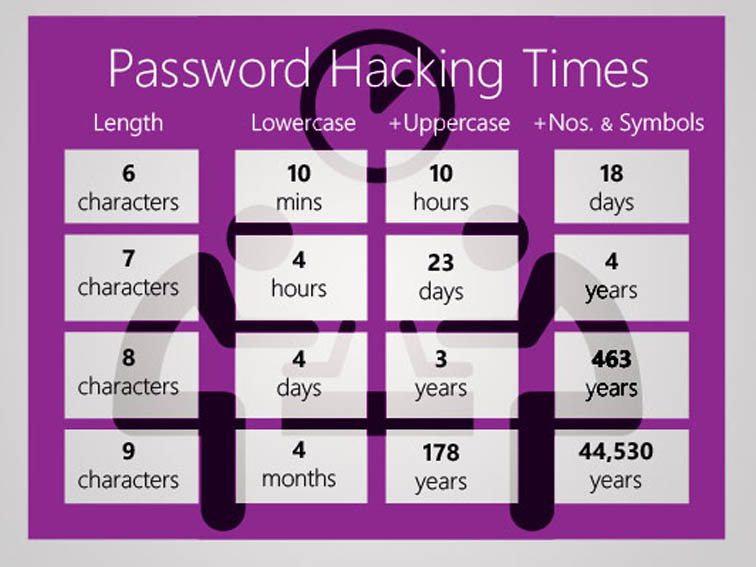
    • Use the same password everywhere. Memorising a single password for every account does make life simpler. For security reasons, though, this isn’t a great idea, because it makes it easy for a hacker who finds your user name and password for one account to break into your other accounts, too. So what you could do is have a base (root) password that is the same, and then add something you believe you’ll remember to identify the pairing of the password with the site (a variable). Thus making the password unique to that site. So if you wanted to connect to Boots the Chemist you might choose “B00ts&” before your root password. I gave some ideas on choosing a root password in an earlier post.
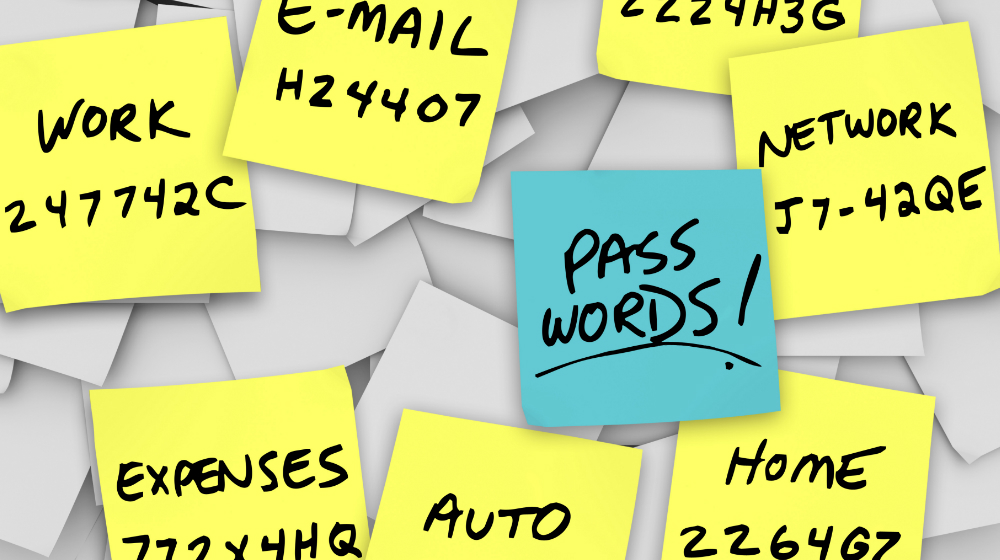
    • Write passwords down on paper. This is an ideal solution if you can hide the written information where no one else has access and you can remember where that place is :-). However not only is this a risk if someone finds the list, but a written list or an assortment of scraps of paper could also be lost or damaged, and you’ll need to find and update the list each time you update a password. This is most definitely the most frequently chosen option, and most certainly is the worst option too.
    • Write passwords into a file on your computer or mobile device. This is less likely to get lost than the paper, but you do risk losing the file if you have hardware failure. In addition, this file is as vulnerable to hackers as other files on your computer. You could encrypt it for an added layer of security, which makes this strategy similar to the next solution. I used this option for a while with the file saved on Dropbox and protected by a Password, so it was safe from loss – but it wasn’t encrypted and most definitely wasn’t very safe – but it was a safer option than the previous method.
    • Use password management software. Password management software is a utility you can use to save and retrieve all your passwords. This software could be a standalone application on your local computer or a feature within another application (such as your browser) – or both. This option greatly limits hackers’ possible routes to your password data while adding convenient features for organising and retrieving information. This is the strategy that is strongly recommended for everyone and for use on a single computer – it can be FREE.

When I sat down to write this piece, I obviously looked around to see whether there was any information I could reference. After I’d done that, it was clear that there was no point in me re-inventing the wheel. So I point you at this excellent introduction to Password Managers and review of the leading Password Managers out there. Read it before you go any further!.

Password managers – how do they work? Are they safe?

So you’ve read the article mentioned above? Yes – then proceed. Otherwise I really do insist you go back and read it.

So now you know there are browser-based password managers, cloud-based password managers and locally-stored password managers. You do know that, don’t you? If not, go back and read this article again!

Are they safe? – you only have to remember ONE password, the master password, and that unlocks your Password Vault. So compared with unsafe, easy to guess passwords, or scraps of paper – they are very safe; and you can’t lose them, forget them, or mislay them. They’re all in one place!

How do they work? – well, I don’t need to tell you much about this because you’ve already read this, haven’t you? Essentially, you can choose to let the Password Manager generate random passwords for every site you need to provide login credentials for, or you can provide the Password Manager with a password when prompted. I tend to do the latter using the “variable + root” approach I discussed before. It’s not that I don’t trust my Password Manager, it’s just that for many of the sites that I use frequently, it’s quicker and easier for me to supply the password because I can remember it!

Which Password Manager you choose to use is down to your situation – you could read this Review of Password Managers – which picks Dashlane and LastPass as best products. Either of these would be good to implement and use but they have different use cases. I use LastPass and pay a small amount annually so that I can use it on more than one device. I also use it because as it’s cloud-based, I can log into my LastPass account from any machine and access my online services. Dashlane lets you make the choice of local machine or cloud-based password storage – but it is not free, whilst Keepass (which is open source and free) works on a single machine, the passwords are stored on that machine – so that might be the option for you. If you only tend to use a laptop or desktop for browsing websites where you need to provide Login credentials, the free version of LastPass or KeePass is more than adequate.

Note: I do not recommend for the reasons explained in the article, that you use the Password Managers contained in your browser.

How do you use your Password Manager?

This is really beyond the scope of this article but elements of usage are covered in the two articles that have been referenced above. You should refer to the documentation for your chosen Password Manager.

What’s all the fuss about Two-factor Authentication then? Do I really need it if I’m using a Password Manager?

Well yes you do! It’s bandit country out there on the Internet. You’ll know  that if you’ve been on Have I been pwned? and seen your email address has been captured by a leak, or a hack. So it’s always possible that someone has got at least part of your login credentials, and from that it might be possible for them to request a new password – blocking you from using a service – or they may have even requested a new userid!  So that’s where 2FA comes in.

What is it though?

Essentially once you’ve implemented 2FA you’ll be asked for secondary information about yourself (Face-ID, or Touch-ID if you’re using an iPhone) or confirmation that you are the person you’re purporting to be – by asking you to supply a code that is displayed on a smartphone or other device you own, and which is to hand. Thus having your UserID and Password is not sufficient alone to access your account.

If you’ve used Online Banking recently you’ll have noticed they’ve implemented 2FA widely. In fact I believe they’ve been required to by the Banking Regulator. Thus accessing your bank from your device is intrinsically safer now than it used to be.

I’m not going to say much more about 2FA , I’m going to refer you again to a Guide rather than repeat the information myself – and quite possibly make a mistake in doing that. There are a number of sources of reference out there, from Google, Apple, Microsoft but the one that I’m pointing you at is this one which I think explains things well, and also points at how to implement it for a number of popular and well-used platforms and services.

Making life easier with an Authenticator for 2FA

Wouldn’t it be nice – instead of waiting for the site you are trying to access to send you a code to type into the box they’ve provided – if you could just look at your phone and see a code on it that you could then provide and type in?

That’s what an Authenticator does. Perhaps the best known is Google Authenticator – and that’s the one I use on my iPhone, but there are others. You might consider using LastPass Authenticator for instance, I’ve meant to try it out for quite a while, and there’s also Authy, which has significant advantages over Google Authenticator – but it’s perhaps best to get experience using the Google software first.

And that’s it! Thanks for getting to the bottom of this long article. I promise you, if you follow the advice and guidance included in it, and in the referenced articles, your online life will be much safer, more secure and your stress levels will be reduced!

Making your browser work for you – 24th October 2019

Boot-up
Is anyone having any difficulties in connecting to the Thought grazing website?
Does anyone want to join the WhatsApp Group but is unsure how to do it?
[Note for self … I need to add member to Contacts on my phone, then I can see them in WhatsApp to add them as a member of the Group. Easy when you know how … duh!]
Incidentally Paul has written a post detailing how you can add WhatsApp to a Tablet.
Any other ideas?
Visits. We agreed visits to the Barclays ‘Maker Space’ which Mario will arrange for us after Chrtistmas, and also a visit to the new BBC Centre after Easter.
Fred has offered to contact Brains and their new brewery at Cardiff Gate for a visit before Christmas. Any update?
News and other issues raised
Renee asked about opening compressed files in emails on an iPhone. We got some way to solving that one, but agreed to take it onboard as a conversation on the WhatsApp Group. I must confess to having forgotten about this – apologies.
I’ve switched-off Office 2011 already as my default app on my Mac for opening Microsoft Office files, it’s now the Apple programs that open these for me, but you could chose Open Office, Libre Office or Google Docs – they are all compatible with the .docx, and .xlsx file formats. I covered how to change the default apps to open a document for MacOS last time, here (taken from this link) are the instructions for doing the same in Windows 10 …

You may need to deal with different types of files on daily use. Windows 10 uses certain program to open certain types of files by default. For example, a text file with .txt extension will always open in a Notepad app. It works fine in general scenario for quickly accessing the file content. However, it will be annoying to open HTML file in Edge when you want to open it in Google Chrome installed on your PC. Good thing is that you can choose the default program to open a file type in Windows. In addition, you can also setup default applications like browsers for general use and select the different programs on need basis.
To skip to the place where you can assign a file extension to an application – scroll down to Point 4. Also note (as in Point 7) that Windows allows you to do things in more than one way – choose whichever one you feel comfortable with. Finally Point 9 allows you to change the default app to open the file by right-clicking on the filename – much the same way as I described for the Mac.

1. Setup Default Apps in Windows 10

Windows 10 offers a dedicated setting to setup default apps to open different files. Press “Win + I” shortcut keys and open Windows Settings app and click on the “Apps” option.

Windows App Settings

Select “Default apps” from the left sidebar. You will see a list of default apps assigned to open email, music, photos and web browser.

Windows Default Apps Settings

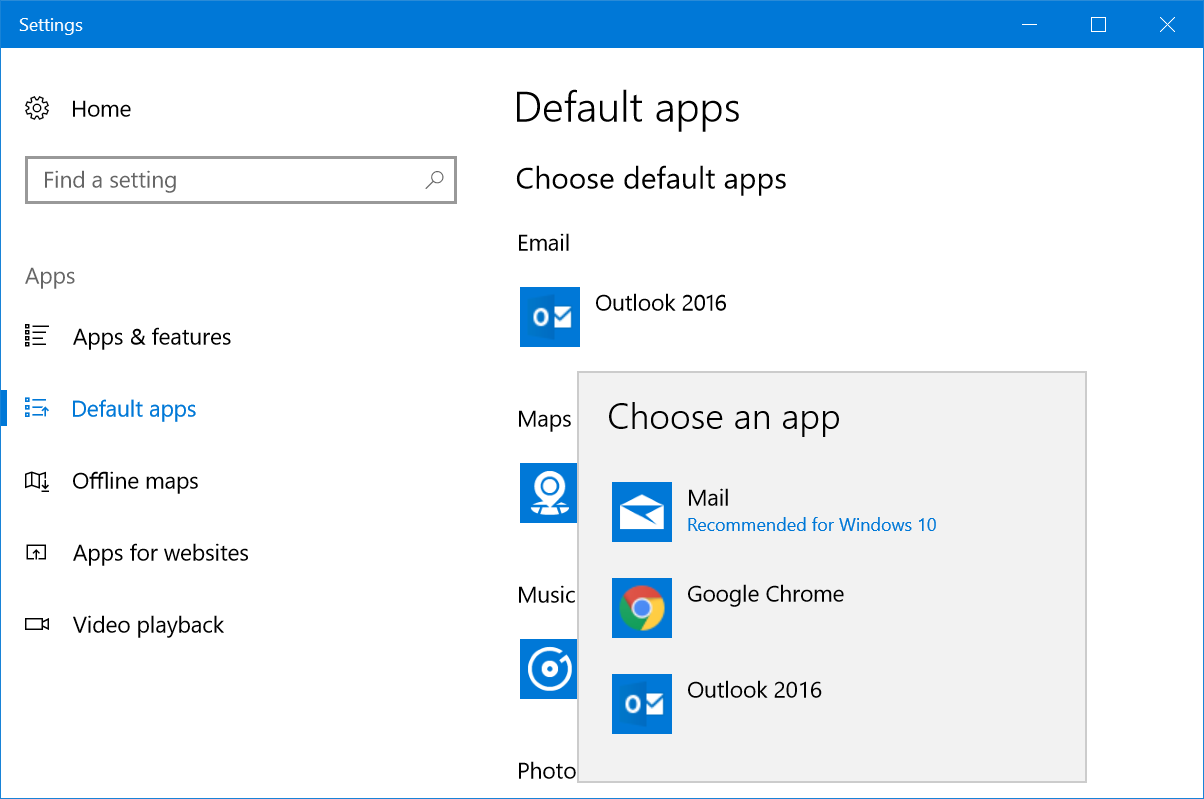
Click on any of the app to change the default settings. For example, you will see that Outlook 2016 has been set here as a default email client, however Windows 10 recommends using the Mail app. You can change the default Email client from Outlook 2016 to the Mail app. Click on Outlook 2016 and a popup will show all available email apps on your computer.

Change Default Email App

Select Mail app from the list and the default Email app will change immediately. However, should you want to change the web browser to Chrome or Firefox, Windows will push will push you to confirm the switch.

2. Additional Default Apps Settings

Scroll down the settings page to view additional options:

  • Reset
  • Assign app for file types
  • Setup apps for protocols
  • Set defaults by app
Resetting and Other Default Apps Settings

3. Resetting Default Apps to Recommended Apps

Windows 10 recommends apps like Mail for opening emails. If you have changed the default app settings, click on “Reset” button. This will help you to reset back the recommended apps as your default apps.

4. Choose Apps for File Types

Scroll down to the bottom of “Default apps” settings screen and click on the link on “Choose default apps by file type”. You will see a huge list of file extensions and the application you can use to open each file type. For example, the default app to open .pdf file is Microsoft Edge. However, you can click on it and change to Adobe Acrobat Reader.

Choose Apps for File Types

You will see a “Choose a default” option when there are no default apps available. This is a useful option to check and assign apps or install required apps to open a file type. So that each time you do not need to select or search the app.


5. Choose Default Apps by Protocol

Windows use many protocols to open specific files. For example, it uses the popular HTTP or HTTPS whenever you access a HTML webpages. It uses MailTo protocol for opening email messages. So, click on “Choose default apps by protocol” link if you want to set up default apps according to individual protocols. You can assign a new app when there are no default apps setup or change the existing app by clicking on it and choosing a new one.

Setup Apps Based on Protocols

6. Set Defaults by App

Windows 10 also allows you to set defaults for any installed apps on your computer. This feature is useful when you have multiple apps installed on your PC which can open same file types. Simple example is Firefox or Chrome which open HTML pages similar to Edge. Click on the “Set defaults by app” link and choose the app from the list. You will see a “Manage” button and click on it.

Set Defaults by Apps

On the next screen, you can assign the app to open supported file types.

File Types Supported by App

7. Accessing Default Apps from Control Panel

The problem with Windows operating system is that you can the same settings in different ways. Being said that, you could also access “Default apps” settings from Control Panel.

  • Press “Win + E” keys to open File Explorer.
  • Paste this path on the address bar “Control Panel\Programs\Default Programs” and hit enter key.
  • You will see the “Default Programs” settings open from Control Panel like below.
  • Click on one of the following links to go the “Default apps” settings as explained above.
    • Set your default programs
    • Associate a file type or protocol with a program
    • Set program access and computer defaults
Default Programs Settings from Control Panel

8. Choosing Default App When Opening File

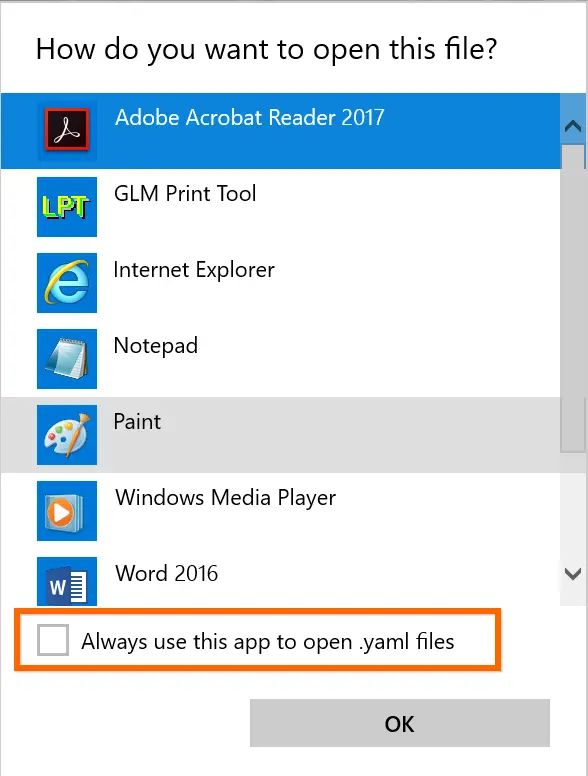
It is difficult to setup the default programs in advance when you do not have a specific file on your PC. For example, someone can send you a YAML file in email and Windows 10 will not have any default apps associated to open .yaml files.
When you have a file with no associated apps, Windows 10 will show the file with plain white file icon. Double click on the file and choose “Try an app on this PC”.

Double Click to Choose App

You will see list of apps that can help to open the file. Choose an app and click “OK” to open the file.
If you always want to open the file type with the selected app, then check the option “Always use this option to open .xxxx files”. Now that Windows will change, the file icon with the selected app icon file and always open the file with the selected apps. In this way, you can setup default apps when you received an unknown file type.

Set Default Apps
Set Default Apps

9. Change Default Apps

Finally, you may have another scenario wrongly assigned a default app to a file type. Do not worry! Right click on the file and you will see different content menu depending on the file type.

  • Click on “Open with…” option.
  • Select “More apps”.
  • Choose the app you want to change.
  • You can use different app for one time or check “Always use this app… option to change the default app.
Change Default App
Change Default App

On certain apps, the “Open with” menu will also show additional sub-menu items like below.

Sub Menu for Open With Option
  • Choose one of the available apps to open the file for one time with that app.
  • Select “Search the Store” to open Windows Store and search relevant apps to open the file.
  • Click “Choose another app” and choose another app that is not showing in the list. You can use the app for one time and set it as a default app.

Conclusion

Many times, you will receive unknown files from your family or friends and you cannot open in Windows 10 default apps. Now you know how to setup default apps, change them and search in Windows Store for relevant apps. Good luck!

Opening a Compressed File on a Smartphone
Renee asked about opening compressed files on her iPhone. I found this article which seems quite comprehensive. It would appear that a general purpose way of doing things is first to “share” the file to the Files application which is present on iOS after v.7. You can then do much more with the file once you’ve moved it out of the email application. A similar post for Android is to be found from this link.
Email messages going to Spam Folder which are legitimate
This is a problematic issue. Generally there may be a number of levels of Spam intervention, and it’s not easy always to detect where the incorrect marking is going on.
Here is a lengthy article that explains how email is marked as Junk, and how to prevent it happening (so-called Whitelisting) for a number of eMail providers …
When emails arrive from <insert email address here> they may periodically be placed in your junk or spam folder by your email software. The information below describes how to stop this from happening.  The first step is usually to add <insert email address here> to your email contact list (so they know you know us).
Why you may be having email problems
The volume of Spam/Junk Mail/Bulk Mail nowadays has caused ALL email providers to now “filter” your emails on their mail server before they deliver them to you.
Unfortunately these filters tend to be very aggressive and are far from fool-proof. It’s very common for email filters to mistake legitimate email for junk, so emails you wanted to receive don’t get delivered to you.
How your email providers filtering system works
When someone sends you an email, first it arrives at your email providers mail server (eg btinternet.com, yahoo.com, hotmail.com, gmail.com, msn.com, etc) where their system filters it by scanning it and checking it for spam.
If the email looks legitimate, they then deliver it to your inbox.
But, if their filter suspects that the email might be junk, it places it in a separate “junk” folder where you can go in later and review it to decide for yourself if you want to receive it or not.
Below are listed instructions on how to whitelist (allow emails) for the most popular types of email programs. For email programs that run on your PC as well (i.e. Outlook Express or Microsoft Outlook), please see your programs help files for adding <insert email address here> to your address book.
Whitelist Instructions (alphabetically)
BTInternet
BT Internet is now operated by Yahoo Mail – you can go to this link to discover more if you still have your email service from BT supplied by Yahoo and follow the link “Marking emails as Spam or Not Spam”. If your service is supplied by their “new” email service – BT Mail – use this link. Follow the Safe Senders link on this page.
Gmail
For Gmail, I would suggest you look at this link.
Hotmail:
Click the Options link, on the main menu tabs, then Safe List. Type: <insert email address here> in your Safe List. If you see a message that should not be in your Junk Mail folder, click ‘This is not Junk Mail’ to avoid having e-mail from the same source sent to the Junk Mail folder in the future.
Apple iCloud 
Manage junk mail using the online iCloud service.  Click here for guidance

Mozilla Thunderbird

Initially, the automatic junk mail detection for incoming messages might not be very accurate and you should check your Junk folder to see whether e-mail has been mistakenly detected as junk. To prevent this from happening in the future, you need to mark e-mail as not junk. Do this by right-clicking on the e-mail and choose “Mark -< As Not Junk”.
Outlook 2003
If the Junk E-Mail Filter accidentally catches mail from <insert email address here>, you can simply add the From address, <insert email address here>, to the Safe Senders list, and no future e-mail from this address will be inspected by the filter.

Yahoo! Mail (also BTInternet)

Yahoo mail filters work on the Yahoo server so your emails are filtered by Yahoo BEFORE they arrive at your computers email program. So, if you’ve looked inside the spam folder on your computer and the email is not there, it is most probably sitting in your other spam folder on the Yahoo server:
Open your Yahoo mailbox (http://www.mail.yahoo.com) or BTYahoo mailbox (http://www.bt.yahoo.com).
Click Mail Options.
Click Filters.
Click Add Filter.
In the top row, labelled ‘From header:’ make sure Contains is selected in the pull-down menu. Click in the text box next to that pull-down menu, then enter the address: <insert email address here>
At the bottom, where it says “Move the Message To:” select Inbox from the pull-down menu. Click the Add Filter button again.
If Alert has been filtered to your “bulk” folder, simply open the message and click on the “This is not Spam” link next to the “From” field.

Other providers:

If an obvious option is not available, try moving the message to your ‘inbox’ or forwarding the message to yourself.
If subsequent messages continues to be filtered, call or e-mail your ISP’s technical support and ask how you can be sure to receive all e-mails from <insert email address here>.
If you use a Web mail system or email application not listed above, the instructions for whitelisting our address will depend on the specific email program you are using.
If you access the help files, instruction manual or customer support, there should be instructions on how to do this.
In most cases, just by adding our From address, <insert email address here>, to your address book, safe list, white list or contact list will be sufficient.
Otherwise, the most likely course of action to provide a solution if all else fails is to select one of the emails from <insert email address here>  and click on the Not Spam or Not Junk button, if available.
For more information about your mail application, please visit the help section that is associated with your mail application.
Here are some relevant links:
An easy guide covering the same ground as above.
Virginmeda Email spam settings
If you’re with TalkTalk – there may be a bit of an issue!!
Sky’s email is provided by Yahoo! So follow the advice above and mark email as “Not Spam” – hopefully it will learn!
Generally, I recommend using Gmail and ignore the ISP’s email – it’s much easier to switch supplier. If you don’t want to use Gmail, then use Apple’s email or Microsoft’s email – you know they won’t disappear and will be reliable.
Mailtrack (for Gmail) to get Reply Receipts
You can get Mailtrack for Gmail (to work in Chrome/Brave) or as an Android app. There isn’t an iOS version currently. After you’ve installed Mailtrack you will get a screen like this when you open Gmail after connecting Mailtrack to a Google Account …

… you can then compose a message …

… and you have the choice of being notified, or not, about the reception of the message. Opening the Sent Folder, you will see this …

… which shows one green tick against the message – it’s been sent, but not read. In the recipient’s Inbox you might see something like this …

… the message hasn’t been opened yet. Once I’ve opened it, the message appears at the bottom of the email that the Sender has been notified of read receipt …

… and returning to the sender’s email Sent Box you can see that the message now has two green ticks indicating read as well as sent …

… I hope this helps. I haven’t found anything similar for the iPhone/iOS but I understand Mailtrack may be working on it.

Gear Guide
Has anyone bought, or obtained anything recently they’d like to tell us about? It doesn’t have to be a computer, laptop, tablet or phone – just something that’s digital, ie used a computer processor in some way?
Apps Galore
That slot in the meeting where members are encouraged to share their experience (and possibly excitement) at a new app they’ve started using for their smartphone, tablet, laptop or desktop machine.
What’s IT all about?
Not this week
Making your browser work for you
But first … LastPass. A password manager is an application that stores URLs that you ask it to together with the user credentials that you supplied the website with when you registered with it. There are a number of password managers – here’s one review of the best of them and here’s another one. I’ve been using LastPass for a number of years now, and I don’t propose to change! So, I’ll be focussing on showing you how I use it. [Dashlane does come out as a possible alternative though.] Although there are Free (or trial) versions of most of these, if you want to use the same system on more than one machine, or have a version that works on your smartphone/tablet as well then you’ll probably have to pay something to use it. Against this expense you MUST match the convenience of never having to write your user credentials (UserID and Password) down in a book, stick it on a Post-IT note on your computer or a scrap of paper that you never can find again! And that it is secure. How does it work …
An introduction to LastPass
Setting up a Family Vault
A complete list of LastPass Training Videos
Setting up LastPass as a Browser Extension
… so Extensions – making life easier?!? Available for Chrome (Brave), Firefox, Safari and Microsoft Edge. I’ll try and show you how they work, how to install them. The ones I like and use are listed below …
LastPass
Evernote – clips content from a webpage so that I view it offline, annotate it and Bookmark it for future reference. You could also use OneNote in the same way.
Pocket – again a Bookmark application that stores the content of a webpage online and then syncs it to your device for offline reading.
AdBlock Plus – blocks ads, allows you to Whitelist certain sites
Zoom – to change the size of the fonts on the webpage
Bitly – shortens a URL, also Tiny URL


Organising and tidying-up – Part 1 – 6 Dec 2018

Boot-up
We had a lively discussion at which members raised issues connected to their network falling-out; possible reasons why this might be – for example clashing with a neighbour’s network; solid walls in old houses – but felt that this sounded like a hardware, or CONFIGURATION problem that only the ISP (Internet Service Provider) could fix with an engineer’s visit.
I mentioned my problems with upgrading an iMac and how I decided – having looked at the work involved – that I should take it to Neil’s workshop … We will fix your PC. [Update: I’ve just spoken to him and he’s explained the risk in doing the job and that of course that risk needs to be passed on to me, so I’m going to have to think about it!]
We also through the meeting talked about browsers and search engines. I referred you to the post I wrote a few weeks back – “Just Google it …” – I’ve also researched a couple of sources for a good definition of what a browser does, this is the best I could come up with …
“Short for web browser, a browser is a software application used to locate, retrieve and display content on the World Wide Web, including webpages, images, video and other files. As a client/server model, the browser is the client run on a computer or mobile device that contacts the Web server and requests information. The web server sends the information back to the browser which displays the results on the Internet-enabled device that supports a browser.
Today’s browsers are fully-functional software suites that can interpret and display HTML Web pagesapplicationsJavaScriptAJAX and other content hosted on web servers – this makes a browser a platform for running web-applications (like your banking application) in its own right. This means that some websites stipulate which browser you must use to access their services. Many browsers offer plug-ins which extend the capabilities of the software so it can display multimedia information (including sound and video), or the browser can be used to perform tasks such as videoconferencing, to design web pages or add anti-phishing filters and other security features to the browser. When used like this it is a fully fledged application environment in much the same way as Microsoft Office, or Adobe Photoshop is.
“The three most popular desktop browsers, according to Net Marketshare, are Chrome, followed by Microsoft Internet ExplorerFirefox and Edge.  Other major browsers include Apple Safari and Opera. While most commonly used to access information on the web (or internet), a browser can also be used to access information hosted on Web servers in private networks or intranet.”
I hope that helps. You’ll notice that the word Google isn’t mentioned at all!! However Google does provide us with Chrome. As we discussed (and as I demonstrated) you can decide which search engine to use – this could be Google, or Bing, or Yahoo, or DuckDuckGo – which I am currently using. You decide this in the Settings of your browser.
We also looked briefly at these three posts on the website
Sextortion (Private site)
Subscription services (Public)
Creating an online magazine (Public)
News
Quora gets hacked
… and so does the Marriott
Google Fi brings WiFi to the masses
A change in direction for tumblr
Google’s Wing delivery drones to be tested in Finland
BT begins to take Huawei kit out of it’s forthcoming 5G network
and finally … the trials and tribulations of Facebook continue
Password managers
How do they work – I will just be describing how LastPass works, but others will be similar …
“LastPass is a browser extension that generates, stores, and fills in passwords. It makes practicing good security a little easier, by letting you generate unique, random, very long passwords for each website you go to. If one website is compromised, attackers only have access to your account on that one website, and only until you change the password.
“On the backend, the security of your LastPass vault hinges on the “master password”. When you create your LastPass account, the vault is encrypted with the master password. The master password, thus, is the key to the vault, which is protected by mathematics. For a decent password, it would take longer than the age of the universe to crack your password and enter your vault. On top of this, LastPass artificially makes logging in take *much* more time (on the order of a few seconds, but this adds up to billions of years for a brute force attack) and thus more difficult to attack.
“LastPass never sees the “raw” contents of your vault. When you log in, your master password is scrambled through a one-way hash function, and sent to LastPass. LastPass compares this with the hash they have on file, and if everything checks out, they send your encrypted vault to your computer. Your computer then decrypts your vault using the master password, and stores it for the duration of your session.
“In the unlikely event that LastPass is compromised, or LastPass receives a government request for your information, all LastPass has is your hashed master password, and an encrypted vault. These are both absolutely worthless without the master password itself. The only way around this is to try every possible password to see if it matches the hashed version. This is why resetting your LastPass master password also empties your vault.”
[Source: Quora but see also Guide to getting started with LastPass]
You can increase your security by using two-factor authentication linked to your master password, but if you feel your master password is strong enough that should probably be sufficient.
What do you need to do?
Two approaches – from the browser, or by downloading an application and then installing browser extensions (see article above). The first way is probably the easiest, watch this!
What’s the choice?
Well obviously LastPass, but here is a review of other password managers as well.
Live Demonstration!!! 
We didn’t have enough time to get round to looking at email – clients and accounts, so I’ve transferred the content I’ve prepared over to a new post for the first meeting in the new year.