A short post to highlight an issue that I wasn’t aware of, and now have to be very wary of. Indeed Ian’s comment about whether you need the Google Photos app installed on your iPhone is prescient – you most probably don’t if you’re backing-up photos to your iCloud account. And if you’re backing-up photos to a google account (as described in the earlier post), there are different ways of doing it which means you quite possibly don’t need the Google Photos app on your phone.
Remember, you can always look at the photos stored in the Google cloud from photos.google.com on your Apple phone or tablet – you don’t need the app installed.
So here goes … another learning point. I’ll type it in capitals so that you don’t miss it!
IF YOU DELETE PHOTOS FROM THE GOOGLE PHOTOS APP ON YOUR IPHONE OR IPAD AND IGNORE THE WARNING – THEY WILL BE DELETED FROM ICLOUD AS WELL.
There, I’ve said it. I didn’t realise it, and always shied away from deleting photos in Google Photos because I didn’t really understand what the warning meant. But now I do and obviously that’s not something I want to do, so how do I go about removing photos from the app, and/or from the Google cloud. Read on!
Scary, eh?! Take care when deleting photos from your iPhone
What I’ve researched is well summarised in the following article …
If you want to delete photos from Google Photos – do it on the Google Photos website, not in the app on your iPhone or iPad. If you have synchronisation active, they will then be deleted from the app on your device as well.
If you want to quickly delete all photos from your Google Photos app, just delete the app having first ensured that you’ve switched off Backup and Sync, because if you don’t, when you re-install the app, they will be synchronised back to your iPhone/iPad.
If you don’t need the Google Photos app, uninstall the app, no photos will be deleted from your phone, they will still be in your Camera Roll and will have been stored on iCloud, nothing will be deleted from the Google Photos website either, so you will have to do that deletion from photos.google.com – see Case 1 above.
An unlikely scenario, but one to be aware of – If you turn off iCloud before deleting photos from Google Photos on iPhone, then the photo will be removed from your device and Google Photos. It will stay on iCloud. However, if you enable iCloud again on the same phone, the photo will be removed from it too.
And even more unlikely, but probably unexpected and a potential surprise – Disabling Backup and sync will not have any effect on your iCloud photos as it is just a setting to enable or disable backup service on Google Photos. If you disable it and then delete photos from the Google Photos app on your device, they will be removed from the device as you are technically deleting the device copy on your iPhone/iPad. And once it is deleted, the iCloud copy gets deleted automatically.
Remember. Google Photos in the cloud, and iCloud Photos do NOT work the same way. Apple aims to synchronise all images across all devices with “the master” being held in the cloud. The Google Photos app is just a portal looking into the images on the device, and synchronising (if chosen) those images with ones stored on photos.google.com.
I hope that makes it all perfectly clear 🙂 🙂 🙂
In summary, do not delete photos in Google Photos directly from your iPhone if you have both apps on the device. Use the Google Photos website to remove photos. It is suggested that you should delete a few photos initially. Then, check them in iCloud after some time. If the photos are still there, you can go ahead and delete them in bulk.
This post is a sequel to the article (see link below) that I wrote in November, and reflects a little more of what I’ve learnt about the crazy world of how Apple Photos and Google Photos interact (or work) with each other. I’m pretty sure it won’t be the last.
This one starts from an observation I made this morning that some recent photos I’d taken with my iPhone and which were in my Photos Library also seemed to have been added to Google Photos on my iPhone (but not my iPad) as well. From the outset let me assure you that this is the normal behaviour. You have to set Google Photos to see all the photos in your local Photos Library {Settings > Google Photos > Allow Google Photos to Access – All Photos} otherwise it can’t work. What you are seeing in Google Photos is the app getting a view of what’s in your Camera Roll on the iPhone/iPad – you haven’t added anything at this stage to the Google Photos app, and more importantly, nothing has been uploaded to Google Photos at photos.google.com.
What I did see however additionally in Google Photos were some edits of recent photos that I’d done in Lightroom which I’d exported to my desktop, and then uploaded to photos.google.com. They could be identified by the little cloud icon on the picture.
It got me to thinking; what is the best way of sending photos from the iPhone/iPad to Google Photos – if I don’t want to sync everything using Google Backup (which as I explained in the previous post, I most certainly don’t want to do as they’ve already been backed up to iCloud). Am I doing it the best way?
Method 1
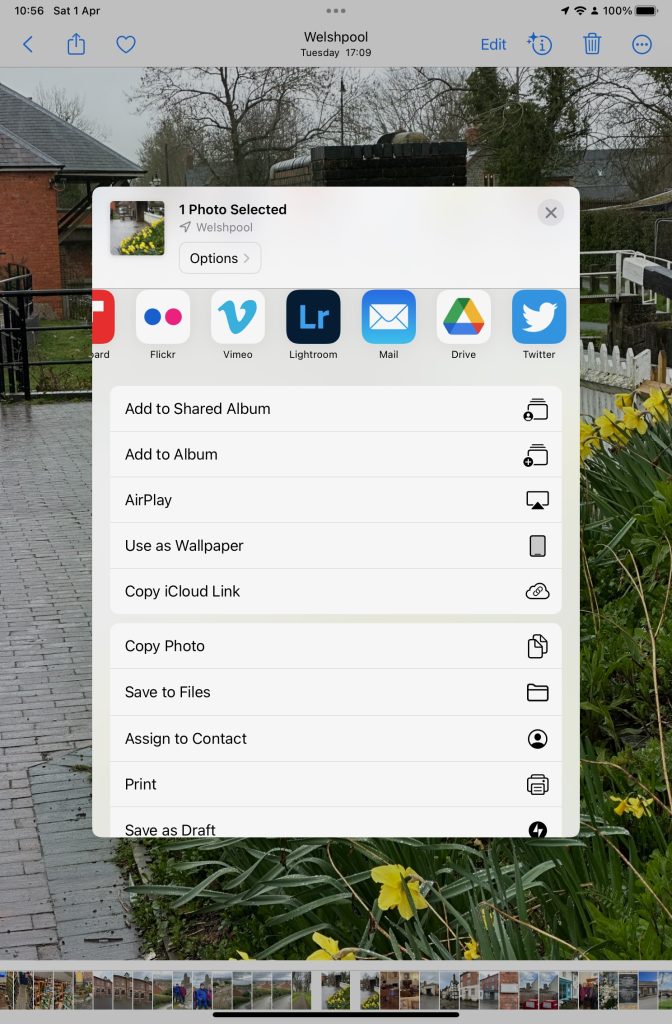
As above. Share (export) the photo from the iPhone/iPad to a chosen folder in the Files app or Google Drive, and then upload from that folder to Google Photos from photos.google.com (see also Method 3).
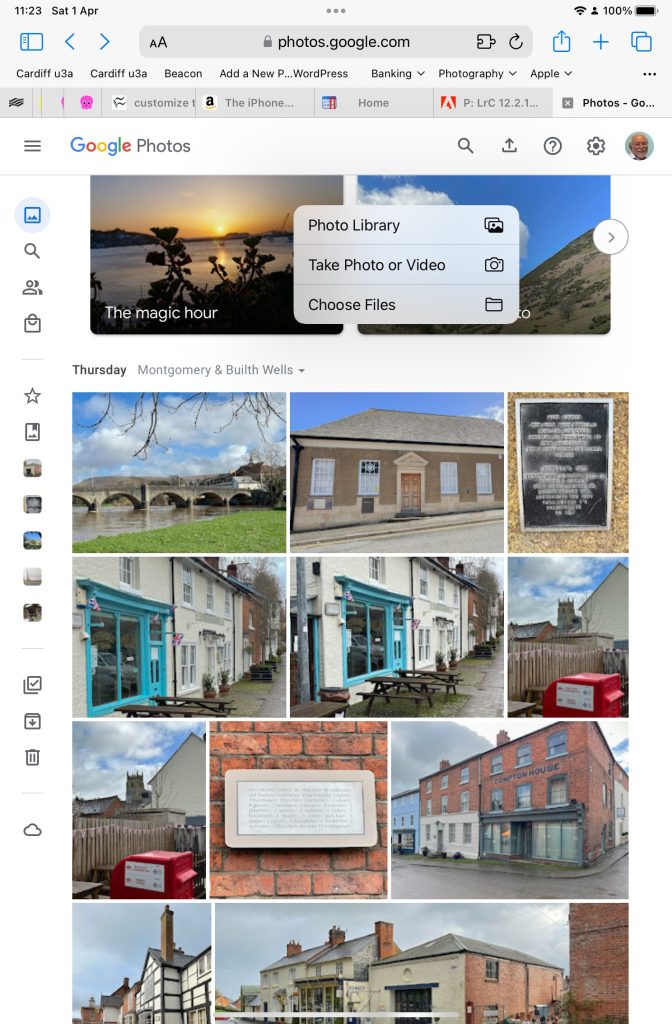
Upload from iPhone/iPad Camera Roll to a variety of services
Method 2
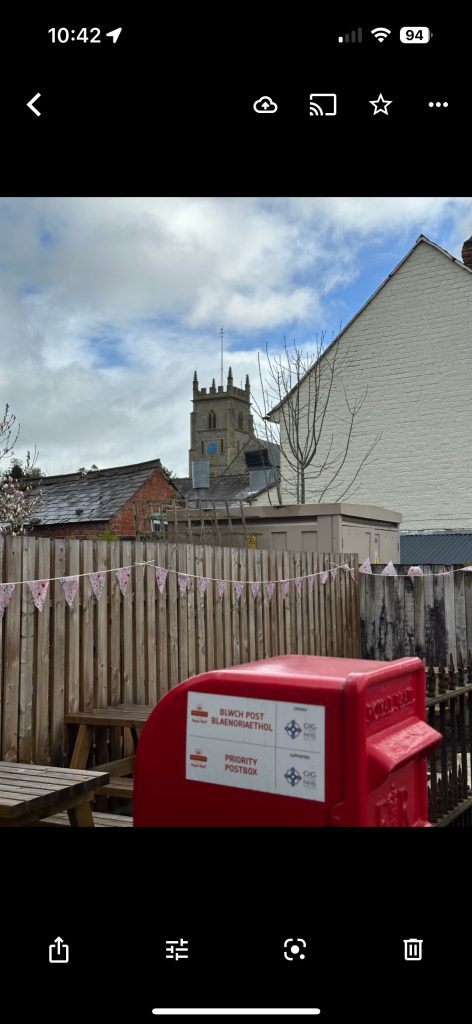
This is by far the easiest, and simplest way (and believe it or not I didn’t know you could do this). Open the Google Photos app on the iPhone, select a photo and then select the Upload (cloud) icon …
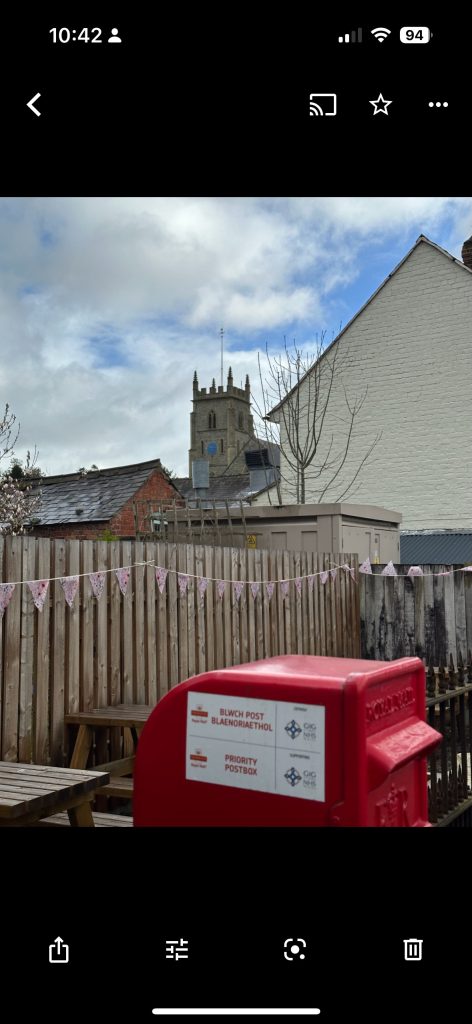
… the photo will be backed up to Google Photos (and photos.google.com); you will also note (see above) that once you’ve done that the Upload (cloud) icon is removed from the screen. In the Google Photos app, the photo will now have a cloud icon. Simple, eh!
Method 3
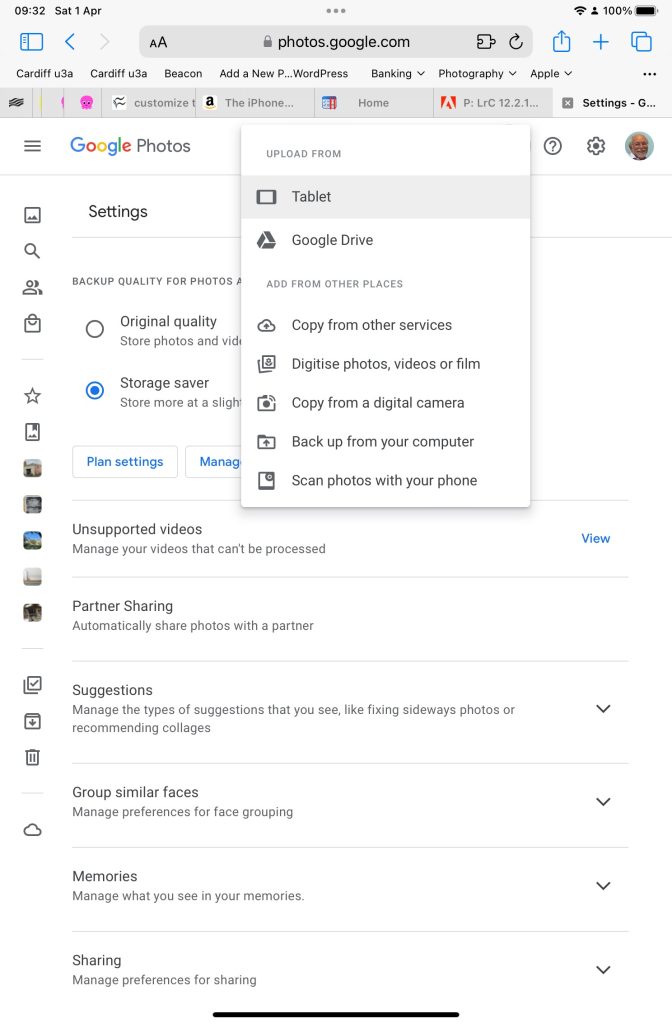
You can do the process in reverse. Go to photos.google.com and select Upload. You will be offered a variety of options …
An upload to photos.google.com from the Safari browser on my iPad
Choose (in this case) Tablet – as I was using my iPad to get the screenshots and you will get this dialogue …
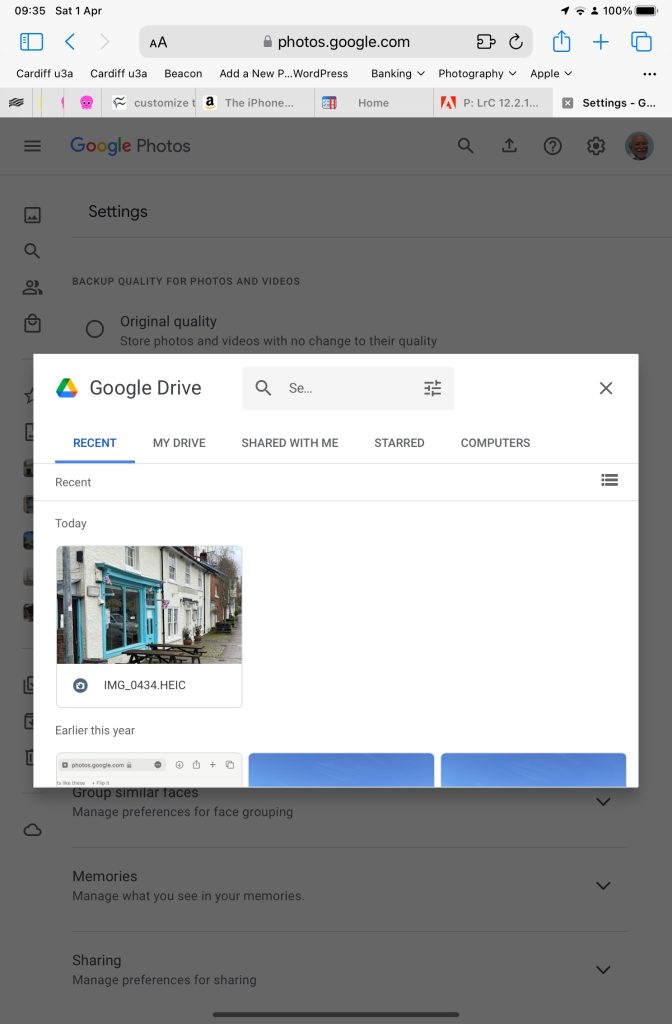
Choose Google Drive and you will get this dialogue …
Choosing an image you’ve uploaded to Google Drive
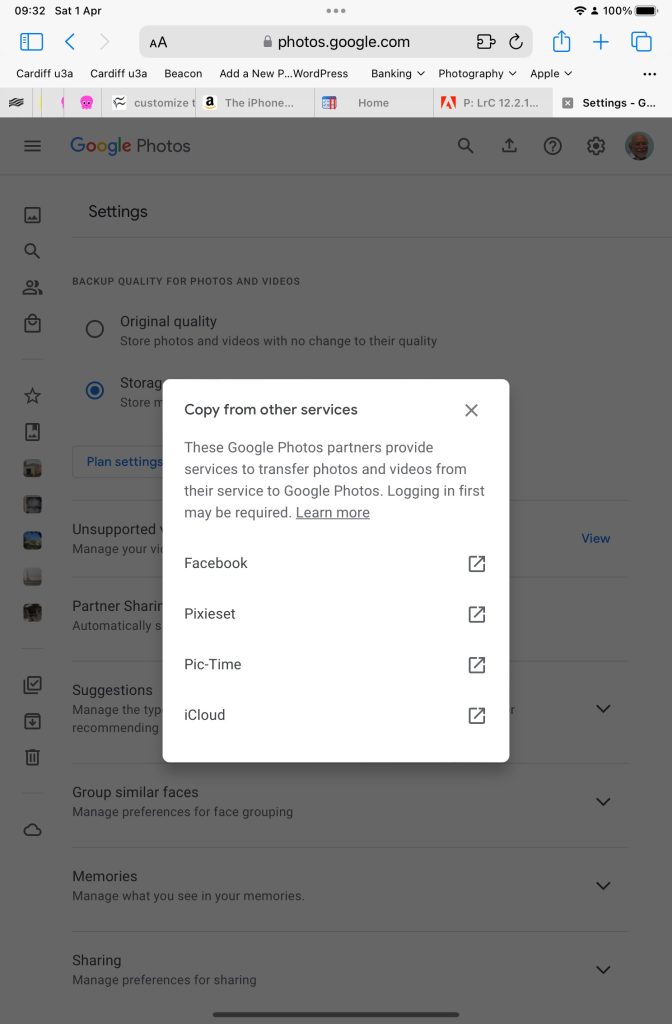
Choose Copy from other services and you will get these options …
From which you can see (something else that I’ve learnt), that you can copy from iCloud – where all my iPhone photos are backed-up – to Google Photos. Duh!!!
What a wonderful (and complicated) world Google Photos is, and think – this was just prompted by me seeing photos in the Google Photos app I knew I hadn’t “uploaded” to Google Photos. Rest assured, they’re just views into the Apple Photos Library, not copies!!!
The meeting started with a welcome to new members – Anne, Kate and Mo (in-person) and Martin, John, Lynette, Yvonne and Linda (over Zoom, with 5 others). I asked the new members to introduce themselves and tell the group what they hoped to get from their membership of it.
I sought to clarify the arrangements where people had been allocated to groups. I do not want this to be prescriptive. If you know you can’t attend a meeting in-person, just let me know that you’d like to come to the one before your scheduled Thursday, or the one after.
It would seem to me that there is room for at least another 5 members in-person at Sight Life from this meeting, so I’ll be monitoring attendance and perhaps inviting people to move to “the attend all meetings in-person” category. Similarly, if people would like to change their preference for the meeting they would like to attend in-person, just let me know. Finally, if people would like to join the Zoom-only category, please let me know that as well.
We had some difficulties with the audio for the Zoom attendees at this meeting. My apologies. I’ve ordered a table microphone to use at Sight Life and this (hopefully) will solve that problem. I had been using the microphone integral to the camera, and this was apparently not picking-up all that was being said in the room. Kate and Mo wondered whether they might have trouble in using Zoom. I suggested they wait behind at the end of the meeting and I’d talk them through setting-up Zoom and using it. There a couple of useful documents about using Zoom on the Cardiff u3a website, and I’ve added a guide to setting-up meetings on Zoom on this website.
I then repeated a few things I’s said at the previous meeting about how the group is run. I referred to the fact that generally we don’t try and solve hardware/software problems on members computers, but we do recommend and refer members to “We will fix your PC” as an excellent resource and repair one-stop shop. I shared the “Toolkit” handout to a few members who’d not picked it up from their email. I explained and demonstrated how the Thought grazing website works and some of its features, its origins as part of my pre-retirement role at Cardiff University, and the public version – which is where Jenny (with my assistance) had recently posted an article about the switch-off of the analogue PSTN (public switched telephone network). I wondered whether Jenny might review the article to see whether it needed any additions to it?
I also suggested (and strongly recommended) that members join the Signal group we’ve set up to assist in giving support/advice between meetings. You need to download an app to your smartphone, connect your phone number to the Signal account. You can then download an app for your tablet, or desktop/laptop and view messages from these devices as well.
I went on to promote the Thought grazing Flipboard magazine – the place where I and a couple of other members add articles they have come across that they think might be of interest to the group. I also mentioned that anyone could be a contributor to the magazine. They would need to have a Flipboard account (which you don’t need to just read the magazine) and let me know; I can then add them to the list of contributors.
I concluded the introductory remarks by mentioning what I’d found to be the most common misconception for new members. What is an internet browser, and what is a search engine. I’ve written before about this – here, here and here. My most recent post however compares and reviews the various most common browsers and search engines available. I also stressed my preference (wherever possible) to use Open Source software, or to pay a subscription for software (rather than get free software with advertisements, and all the targeting and spam that involves).
I then reviewed the news that caught my eye in the previous two weeks, with links and comments to articles on the Flipboard magazine. Jonathan had posted this article on Windows Security, for instance, whilst Paul had found a nifty desk tidy device that could also charge your phone. I rushed through a number of Apple related articles which have my comments attached to them. This one, on sharing an iCloud Photo Library will be one I certainly want to follow-up, and then there were a few articles on the new Apple devices just announced, and the new versions of MacOS (Ventura), iPadOS and iOS. I cautioned (as I always do) against rapid adoption of an operating system, and referred members to an issue with Malwarebytes (for the latest MacOS release), but celebrated the fact that Dropbox had finally (after a year) released a native application for MacOS M-series machines.
There’s a lot of information in the above, so please get back to me if you want any clarification – preferably on Signal.
I finished my spot by detailing how I’d spent some time trying to subscribe a friend to use an upgrade to Apple’s iCloud system, but had found out – after nearly three months of trying, and having had finally to admit defeat and use Apple’s Support service – that the problem was that payments wouldn’t work because the software on her phone and MacBook was too out-of-date. The security system just wouldn’t allow payments to be made successfully. A very good reason to keep your operating systems up-to-date … even if you don’t rush to upgrade them!!!
Sianed then took over the facilitation of the meeting so that members could raise issues, and for existing members – how had they benefited from membership of the group. She stated that she’d benefited from learning from everybody else
Don described the Computer Group as a life-jacket. He’d taken over responsibility from some computer activity with hsi church and this had forced him to learn. He mentioned the recent scam whereby someone had lost their house through identity theft. This was discovered when it was found a person was trying to sell that property online! Apparently the identity had been stolen through a replacement driving licence that the estate agency had accepted as valid ID. Apparently there is protection from the Land Registry for a £40 fee. He had downloaded and installed Norton Anti-virus for his new machine – mainly for the internet banking security window. It provided him with re-assurance, even though I suggested that Windows Defender was probably as good as anything, and free!
Fred queried the strange URLs he’d recently seen – I explained these were URL-shortners. Often I use bit.ly.
Jenny described her work as a campaigner for Digital Inclusion, and mentioned specifically that she’d just become involved in lobbying for the Social Tariff for broadband more widespread, not something people had to opt in for. I had shared a link after the meeting on Signal, and she would be working on an article soon. She admitted to real problems with too much disorganised email from Gmail. I offered to do a session on Google settings, but in the meantime this page on the website might be a start.
Anne had a new laptop and it was running Windows 11. She was concerned that some of the software, especially that which she used for photography, might not run on the new machine. I responded (after the meeting) with this reply …
I’ve done a bit of searching around. It would appear that Picasa can still be downloaded and at least works with Win 10, so it probably works with Win 11 as well. Can’t confirm that.

Here’s an article that explains the status of Picasa, with a download link in it, which looks OK.

You might instead consider using Google Photos

… where your earlier photos may already be. Google Photos is an Online Editor - I’ve covered its use a couple of times in the Group and there are posts on the website.

Alternatively you could look at Microsoft’s Photos app

… or an open source alternative such as Gimp …

… hope this helps.
She also asked whether she needed to take out a fresh licence for her Kaspersky Anti-virus software. Apart from the questionable source of the software (Russia), I suggested that this would not be the case, she needed to register her new machine. I also mentioned (as I had above) that Windows Defender was probably as good as any anti-virus software for our type of computer use.
David Hughes described the frustration in not seemingly to be able to switch off his Facebook Portal machine. [No comment – perhaps its spying on him :-)]
John Silk was interested in what I’d said about the iCloud Photo Library and reminisced on how it used to be the practice to just save photos on a USB-disk, or memory stick. How can you do that from your photos app on your phone now. I offered to write something about this workflow.
John Mitchell had a most interesting problem. It appeared that a lot of files (photos) had vanished from the folders they used to be in. The group discussed several possible scenarios where this might have happened. After the meeting I sent this email to John …
I’ve been puzzling over your missing files issue, and found this link

… which seems to suggest that you might have dropped into an issue that is not unique. I wouldn’t recommend trying to solve this one yourself, but I would recommend you taking your machine (esp. if it’s a laptop) to the guy we show hardware problems to; We will fix your PC

Neil is really good and I’m sure he’ll give you good advice. Mention the u3a Computer Group.
… and that was about it. If I’ve forgotten anything, my apologies. Please add to the Comments below the post.
Until the next time when I’ll revisit (again) privacy and security. Cheers.
First off can I thank Sianed for taking over the meeting for the “round the screen” session which enabled me to take notes and have the fun of “lifting my hand” to speak.
There was not much to report back on from the previous meeting. I mentioned that I’d come to a determination that all media and messages in WhatsApp (and Signal) was held on the phone that was registered to WhatsApp (or Signal); the images on the desktop (and the iPad for Signal) were synced to the phone. This it was agreed could cause some phones to easily run out of memory.
As far as News was concerned there were just a couple of items that I’d already added to the Flipboard magazine – one on moving chat histories from an Android phone to an iPhone, and another about new features that were to be added to Apple’s Homekit (for developers), which we might find some use of in our use of Smart devices in the future. [NB We need to give this area much more attention and look at the Smart home more.]
I then thanked everyone who’d replied to the survey about a future venue for our face-to-face meetings. Not unexpectedly, nothing came out as a definite area of agreement for everyone, but some things did come through – no preference for room layout; a desire for a bit of social distancing (and good ventilation) from a couple of members; and no real need for catering. Taking these into consideration, it appeared to me that if we could return to URC that would be a good solution – probably using the Upper Room (rather than Meeting Room 1). I suggested that the meeting after next we should meet at URC and try the venue out – so that’s where we’ll meet on 21st July, our last meeting of the year. [Subsequently, I’ve re-visited URC, have been impressed that they have a new projector system for the Upper Room and I’m now working with them (Bob) to perhaps enhance the WiFi system which they badly want to improve themselves. Watch this space!
We then had a very short break and Sianed took over!
Paul returned to the issue he’d been having with Resources and Chrome; in discussion with Ted it became apparent that there was a need for a comprehensive article on where videos were stored in WhatsApp and I undertook to write such a post. [Following the meeting I did post a few links on Signal, which might be useful in the meantime.]
David reported that his screen sharing from his iPad to the TV was now working well for his Bridge-playing Tutorials [a link to this is on Signal – thanks David].
Ralph thanked Paul for the advice he’d given on driving licence renewal.
Steve recommended investigating the use of iCloud – it’s not very expensive to get 50Gb of cloud storage – if you’re an Apple user.
Christine reported that after a bit of a quiet period, the scams had started again and she’d had ones from Amazon and Paypal [I would recommend everyone consider subscribing to the Which Scam Alert Service] and perhaps one from Welsh Water, but there was some discussion over whether this was the Priority Registration Service – which is worth joining in case there’s a disruption in water supply, or indeed joining the similar registers for our utilities. [We’ve done this.]
Fred had gone to the recent General meeting (Roald Dahl) and learnt a few things, and had also renewed his driving licence following Paul’s advice.
Jim was still not sure about where WhatsApp/Signal stored images etc. and reserved the right to comment later, following my investigations.
Renee reported that the online portal for registering a change in marital status was a nightmare. No further comment – we suspected that very few (if any) of us were likely to be needing to use that portal 🙂
Ann had got into a pickle with downloading photos to her Google account that had then filled up her allotted storage and mail had stopped working. I sent a few links (on Signal) to help her work this one out but again promised to wrire n article on that as soon as possible.
I had nothing to report – I’d been too busy in the garden!
I then gave a brief review on the internet browser and search engine markets, the links I used are on Flipboard, but I will try and write an article about this too.
Just like me, Sianed didn’t report on anything – something I too often forgot to do.
That’s about it. A couple of articles for me to write which I’ll try and do as soon as I can.
Our next meeting will be on July 7th which will be an outdoor social meeting at The Castle Coffee bar, where we met before. Pleas try and come along if you can.
Finally, you’ll remember that I left the WhatsApp group and left Jim as the Admin. I asked him last week whether there had been any relevant activity on it. He reported that there had not. Therefore we agreed that he should close it, and that he’ll do shortly. Anyone not using Signal, I strongly encourage you to download the app and start using it. Let me know and I’ll add you to the Computer Group group on Signal.
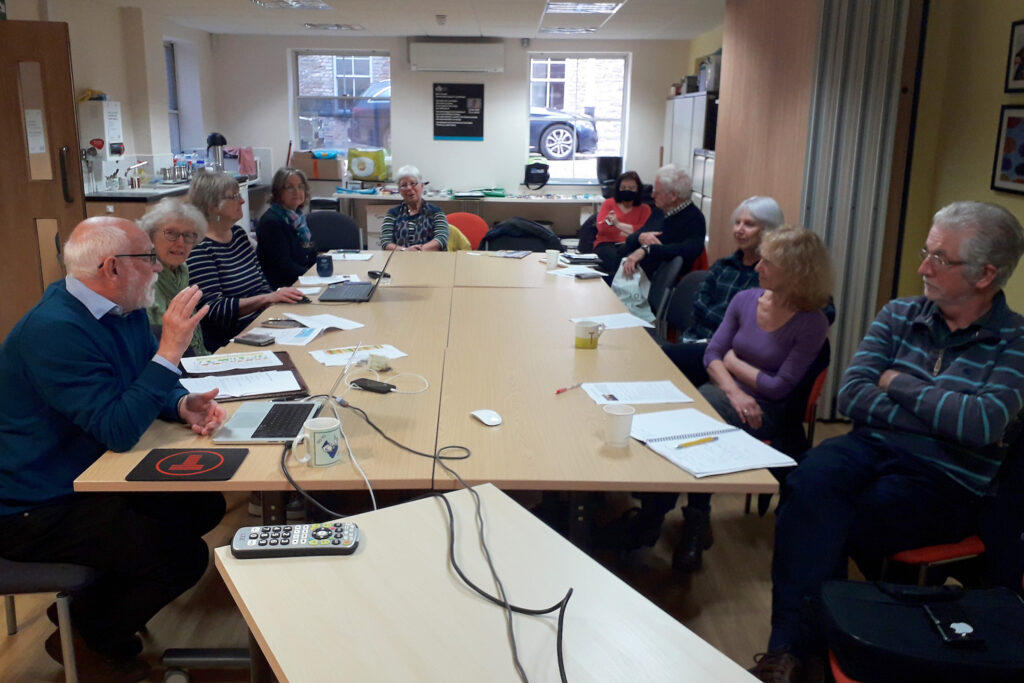
Attending my first meeting of the Cardiff University of the Third Age (U3A) Computer Group, I offered to write some notes to accompany the talk that was given on Data Storage in the Cloud by David Reeves. So here goes …
Computing has moved a long way from the days when all you stored on your computer were words and numbers. Gradually this has been extended to include first pictures, then audio, and then video. With the addition of these media so the requirements for memory to store them increased first by needing an increase in the Random Access Memory (RAM) that the computer had so that you could actually view or listen to the media, and then in the disk storage you needed to hold and recall the images or music at a later date.
This need for additional storage meant first the introduction of floppy disks, then hard disks inside the computer, then external hard disks connected usually to a USB port on your computer and then flash drives which you could carry around with you and then connect to a USB port on your computer.
With the changes in technology, so the amounts of information stored by each device increased. To give you an idea of how much this has changed you might like to look at the table below – which is actually out of date because you can now get both USB Memory Sticks and Hard Drives considerable larger than those quoted here.
If you want to read more about Information Storage including some technologies I’ve not discussed here such as CD/DVDs you could follow this link or this one, but there’s far more information in these articles than you need to understand why it might be a good idea to store information away from your computer – in the cloud.
Before we do that it might be a good idea to raise an issue that storing all this data causes – what happens if the device breaks, gets corrupted in some way, or just simply gets lost! Now, computer professionals have always done back-ups of their stored data (or they should have done), but the home computer user has never really put a value on their data UNTIL they lose it. So backing-up your data (stored information – words, numbers, images, music and videos) is actually an ESSENTIAL part of owning a computer. This article describes the various ways you might consider backing-up your data but at the bottom of the list is Cloud Storage and that’s where I’m going to take you now.
Wouldn’t it be great if every time you saved a picture, word processed document, spreadsheet … whatever, a copy was automatically made and stored away from your computer so whatever might happen to your computer, the most important part of it – the information it stored – was safe. That’s the essential value of Cloud Storage and the most important reason for using it. We’ll turn to the second most important reason – sharing information with others – later.
There are a number of Cloud Storage options you can use for free as long as you keep your storage below a certain limit. You can use as many as you want to and you might consider using different providers for different purposes. For instance I use Google Drive mainly for Photo Storage, Apple’s iCloud for documents, and Dropbox for sharing stuff. [I’ll maybe explain why I do this in another post.] The other main provider is Microsoft with their OneDrive (formerly SkyDrive) offering, I don’t tend to use this much, but the principles for using it are much the same as the others.
So how do you use them? As I said above, the principles for each are much the same. I will use Google as the main example, and provide links to the others as well.
Google Drive. You will need a Google Account. This is a good idea in any case as it allows you to create another eMail account – I’m a strong advocate for having more than one eMail address anyway (see Point 3 in this post). Go to Google Accounts to setup your Google ID – you can use your existing eMail address if you want to. Then with your account set up you can go to this page. I would suggest you download the applications for your desktop as well as setting it up for your browser. Installing the application on your Windows PC, or your Apple Mac, will then create a Folder in which you can store information and which then will then be backed-up to your Google Drive “in the cloud”. Voila – you have peace of mind that your precious information has been saved. Any changes you make to the information will be synchronised with the version saved on your cloud storage.
For Dropbox go to this link and create your account, perhaps using the Google email address you’ve just created above – a lot of services allow you to link to your Google ID and this means you don’t have to remember lots of IDs and Passwords.
If you’re an Apple user (iMac, MacBook, iPhone, iPad, etc) it makes sense to use iCloud. Even if you’re not, you can still add an iCloud Drive to your desktop and access the 5Gb of free storage you’re provided with “in the cloud”.
If you’re a Microsoft (Windows and Office) user it makes sense to use OneDrive. Like iCloud you get 5Gb of free storage from this link. You may also find that you are offered the option of installing OneDrive when you install Microsoft Office (or Office 365).
Finally sharing information with others. I don’t think I can improve on David’s demonstration and on this YouTube video …
I’ve focussed on using a Folder on your desktop/laptop machine to backup or synchronise files to your Cloud Storage. Remember also that David demonstrated how you can Upload a file using your web browser (I would recommend using Google Chrome) from your desktop to your Cloud Storage.





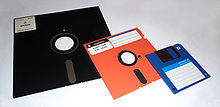
 This need for additional storage meant first the introduction of
 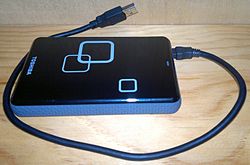 connected usually to a USB port on your computer and then
  with you and then connect to a USB port on your computer.
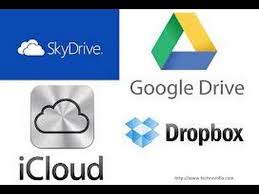 There are a number of Cloud Storage options you can use for free as long as you keep your storage below a certain limit. You can use as many as you want to and you might consider using different providers for different purposes. For instance I use Google Drive mainly for Photo Storage, Apple’s iCloud for documents, and Dropbox for sharing stuff. [I’ll maybe explain why I do this in another post.] The other main provider is Microsoft with their OneDrive (formerly SkyDrive) offering, I don’t tend to use this much, but the principles for using it are much the same as the others.