Screenshots on Windows and Macs

It’s often useful to be able to send an image of your screen, or part of your screen to someone. In fact I use this facility all the time when creating these blog posts.

On the Mac, it’s very easy …

Press Cmd-Alt-3 to capture a complete screen

Press Cmd-Alt-4 to draw a window that you want captured

To be guided through the options you can

Press Cmd-Alt-5 and from the Options screen decider where you want to save your Screen shots [I save them to a Dropbox folder so they’re available between my two machines], and also choose the option for the type of screen capture you want, or even to Record a series of actions.

On the iPad/iPhone, it’s straightforward too. You can capture a screen by Pressing the Power Button and the Home Button together [It works best if you press the former just before you press the latter].

To take a screen shot in Windows, I suggest you follow the advice in this post. Or alternatively watch this video …

Jim has sent me this note as well …

It might be helpful for your notes if I run through my Windows 10 sequence. The relevant key on my laptop is labelled SYSRQ/PRTSC, so I have to press the ALT key at the same time to print the screen. This puts the image onto the clipboard, so I then have to save it somewhere. I usually go to Paint Shop Pro and paste it as a new image. One thing I am investigating is what happens if you have two pages at once on the screen. At the moment I can only print one of the pages, depending on which I click on.

URL Shorteners

I’ve annoyed a few people over the years (well – one person at least) by pasting overlong URL’s in blogposts, and on WhatsApp. Ever since Google stopped supporting it’s own URL shortener I’d forgotten to go and look for an alternative to setup as an extension in my browsers (Safari, Chrome, Brave and Firefox) and more importantly to have as an app on my smartphone.

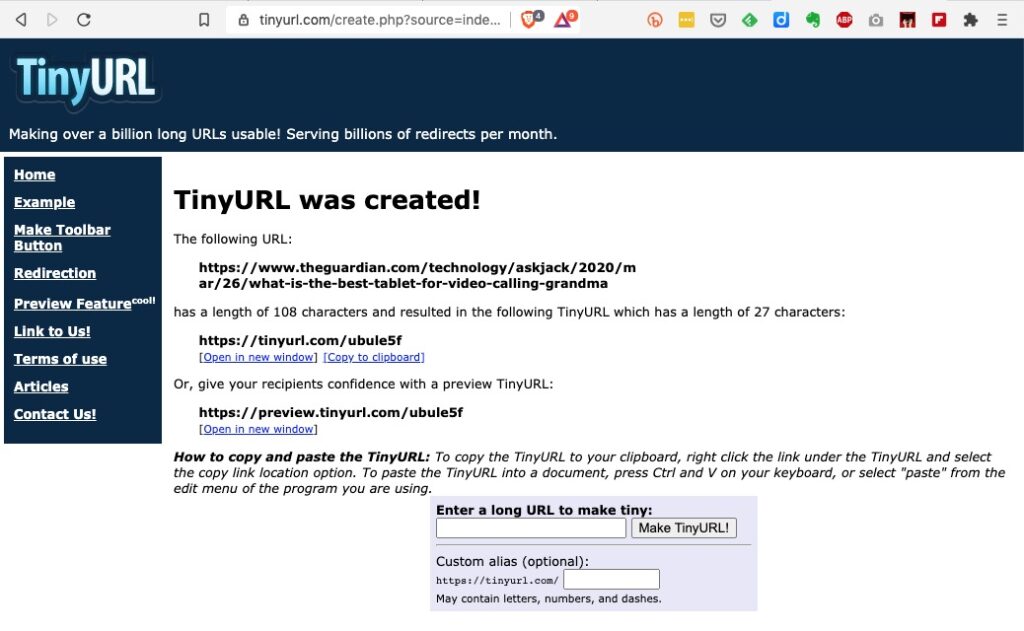
I’d used tiny.url for many years, but that generally meant you had to copy and paste the URL to a page you’d left open on the tiny.url page …

… and then once shortened you could copy the shortened URL to the email, WhatsApp, etc message.

But it would be much nicer if there was an extension which you could just click on from the page in question, and you’d get a shortened URL. That’s where bit.ly come in. It’s available both as an extension for Chrome, Brave and Firefox and as an app for iOS and Android.

To install bit.ly as an extension on Brave, go to Brave > Window > Extensions …

… click on Web Store …

… and type bitly, or bit.ly in the Search Box. Click on the bit.ly box and agree that you want to install it in Brave (or Chrome) …

… agree that you want to add the extension and then you will see it’s been added to your browser extensions …

It’s as straightforward as that. Now any time you want to shorten a URL, all you need to do is click on the bitly icon and (after creating a bit.ly account), the following dialogue box will come up …

… and you can then Copy the shortened URL that’s been created, wherever you want to.

Problems with Two-factor authentication on a Mac during a recent upgrade

John raised the problem he’d had with implementing Two-factor authentication on his Mac during a recent upgrade (to High Sierra, I think). Now Two-factor authentication is generally a good thing when you’re talking about access to cloud based services, eg OneDrive, eMail, Google Drive, iCloud – but it seems a bit OTT when you’re talking about an operating system as protection to prevent access to services running on the hardware. But Apple doesn’t make this clear.

When I was doing my High Sierra and iOS upgrades the other day I was prompted to ask whether I wanted to implement Two-factor authentication, but was also advised that some of my devices wouldn’t support it and I would lose access to services if I chose to implement it. That was enough to warn me off, so I didn’t. John was not scared off – possibly because he didn’t get the warning that I got – and has had to make a trip to the Apple Store to try and get it sorted.

Two-factor authentication is a “good idea”, don’t get me wrong, but Apple’s implementation is a bit clunky it would appear.

https://www.macworld.com/article/3130566/security/the-apple-two-step-my-disastrous-attempt-to-use-apple-s-two-factor-authentication.html

Protecting a USB stick

The subject of protecting a USB stick came up – I’d forgotten to provide the solution! As I suggested, in an earlier post, the answer is to create a Folder on the USB stick and protect the folder, not the stick.

Two articles here I think provide the solution. The first one proposes encrypting the contents and is probably the easiest, you must remember the encryption key though!!

A number of other alternatives are also provided in the second article …

http://www.makeuseof.com/tag/password-protect-folder-windows/

… for me. I’d prefer to put stuff I’m worried about on a USB Disk (not a stick) and use the security software provided by the drive manufacturer, eg Western Digital.

http://www.tomshardware.co.uk/faq/id-3114794/password-protect-folder-windows.html

Spams and scams

In the meeting yesterday the quite common topic of spams and scams came up, as did the enquiry “Can I find out whether one of online accounts could have been compromised” – these are the ones that you should consider changing your password, if you haven’t already.

Martin Lewis’ website – Money Saving Expert provides a comprehensive guide to all things scam, and includes a link to the “Have I been Pwned” website which tells from your email (account) address whether there are any websites you subscribe to which have been hacked. Try it … hopefully you’ll get a null result!! If you don’t, don’t panic. Look at the date of the compromise. It could be that you’ve already changed the Password.

https://haveibeenpwned.com/

The second article is from Which? Always a good resource to check, even its “free” pages …

http://www.which.co.uk/consumer-rights/l/internet-scams?gclid=Cj0KCQjwvabPBRD5ARIsAIwFXBkjRe6ivtypKkT59hf_S5LAGat1qxrZgu8YVaxOVVExq_WFZtDErwQaAnnEEALw_wcB

Finally, Martin Lewis mentions the use of a Password Manager to remember your passwords and even to generate secure passwords – I don’t use that facility with LastPass – the password manager I use, rather preferring to use the “template” approach I describes a couple of weeks back.

https://www.moneysavingexpert.com/shopping/stop-scams

Here's one for the Mac users, but it's not a problem unique to Mac users.

Fed-up with selecting the wrong contact from you address book? Time for some tidy-up. This article also shows how you can sort out duplicates held on your iOS (iPhone/iPad) device by using iCloud, Apple’s cloud storage, where you can hold your contacts, so that means that if you’re an iOS/PC user you should be able to clean your iPhone contacts as well.

https://9to5mac.com/2017/02/09/how-to-remove-merge-duplicate-contacts-macos-ios/amp/