
Creating a Google Map

The purpose of this note is mainly a thank you to David and everyone else in the Computer group for furthering my learning over the past couple of years.  It has helped me pick up a lot of news and tips which have helped in day-to-day life. 

One topic we discussed that I have found particularly useful and implemented in a number of places is Google maps and especially ‘my maps’ and ‘your places’.  I have drawn up a number of maps and embedded them into a website etc.

The latest instance where I have used this is to breathe new life into a project U3A had with the Cardiff Story Museum to devise a Heritage Walking Route in the middle of town.  A small group of us spent about three months carrying out the research, being sent on a training course and devising a route and editing the material.  Unfortunately the end product never materialised.  Whether the museum ran out of funding, personnel or enthusiasm we never found out.  We were always told publication was imminent whenever we made enquiries and that was 18 months ago.
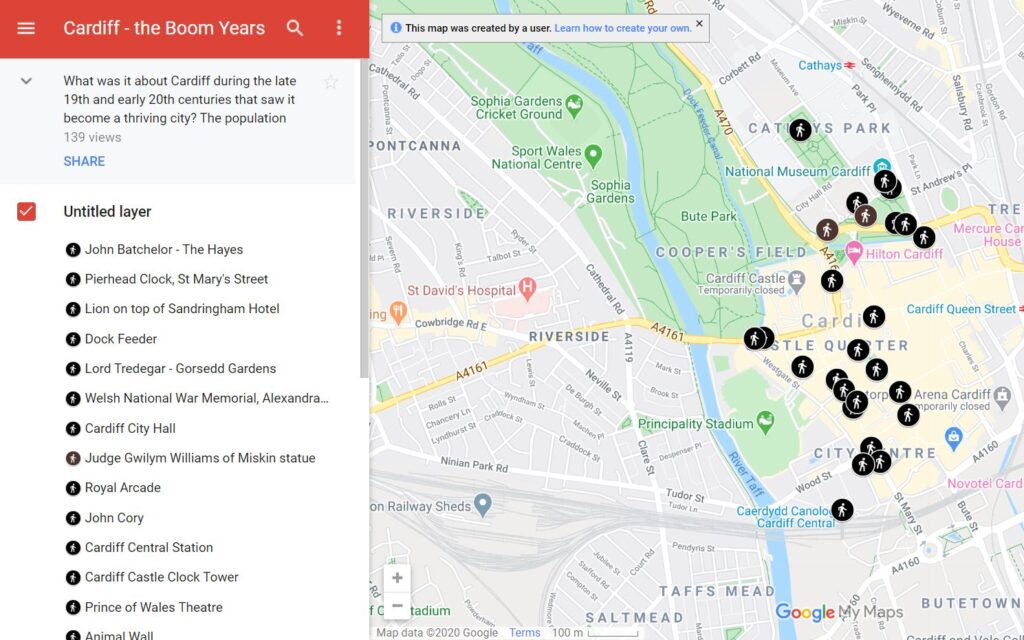
In order to salvage something from our efforts I have recently devised a Google map to include the material we researched and wrote.   I have already shared the link with the U3A researchers and would now like to share it with members of this group.  I would like to hear any comments you have on content or style etc so I can may be instigate improvements before making it available to all.

Here is the link: https://www.google.com/maps/d/edit?mid=1XZeLwbexn6Dq2Y_lntbB9UQqkb7C-et0&usp=sharing

The other place I have used a Google map extensively is on the Roath Local History website and in particular on the Roath Virtual War Memorial page.  Again I would appreciate any comments you have.  The page itself is beginning to get very long now and I need to start to thin somehow about putting the information on sub-pages.  https://roathlocalhistorysociety.org/local-history/war-memorials/roath-virtual-war-memorial

Here’s just a reminder of how to devise your own map:

  • Log into your Google account.
  • Click on the nice dots next to your avatar in the top right.
  • Click maps
  • Click on the three lines on the top left of the screen
  • Click Your Places
  • Click maps
  • Click create map

Mapping, Google and geocaching and meeting notes – 10th May 2018

Ocado
Quick hints:

  • Getting short cuts for documents on your Desktop – Go into File Explorer, find the document you want to create a Shortcut for, single click on that document, right click, select Create Shortcut.
  • Format painter in Word. It’s the paintbrush in the home menu. Highlight the area of text that shows the format you want to copy. click on format painter. Highlight the area of text you want to copy the format to.
  • Bullets – highlight the text that you would like to add bullets for. Click on the bullets in the Home menu – about half way along in the top row.
  • Disabling touch pad – on a Lenovo machine press F6. Only works for that session.

News:

  • Windows 10 update
  • Google launches
  • Broadband speeds

Google maps

  • Getting coordinates – go into Google Maps. click on where you want to get the coords for. Rich click. Go down to What’s here? A box will appear at the bottom that includes the coordinates. These coords are often not in the format you want for your SatNav so have to be converted. A good website for doing coordinates conversion is: http://www.nearby.org.uk/coord.cgi
  • https://www.google.com/mymaps – this website appears to allow you to plan routes, whereas the https://www.google.co.uk/maps/ site does not
  • Saves to Google Drive – the route you plan seems to save to Google drive.
  • Saving as KML file – this seems to be the only format you can save a route in and not the ‘.gpx’ format that is often used. There is probably a way to convert KML file to a GPX file somewhere.

GPS
Geocaching

Meeting notes – 26th April 2018

Here are some notes from this meeting facilitated by Paul …
We looked at three items today:
TPS > joining, Reporting  < Make a Complaint > and its effectiveness; some discussion on Nuisance communication, including Emails & PayPal Spoofs > report to Spoof@paypal.com
We looked at Google Maps,  Locations, How to get Directions, add intermediate destinations, cross the channel to France….
Owen, David, Don, Ted  and Jim collectively discussed my problem, and Jim came up with a solution to Bookmark the page & Route in Chrome.
Some discussion about downloading the routes to a Mobile from John Thorn (Alan Neave’s Brother in Law)
Ted (& Jim) introduced us to Street View History, that can go back 10 years for any location on GMaps by clicking the top Left dropdown box when in street view.
Ted will follow on with more interesting interfaces with Google Maps in two weeks.
We looked at Google Calendar and how it integrates across most platforms pretty easily.
Some discussion on Email services > Outlook , Mail, Windows Live Mail.