Soon after retiring and joining U3A I was asked to prepare something to show people how to use computers to research their family tree. Well, that really sparked an interest. I started researching my grandfather, George Henry Davies (Harry). He was a colliery farrier from Blaenllechau in the Rhondda Valley. I was two years old when he died. Sadly, I have no memories of him.
As a younger man, he joined the army in 1915. After a very short period in France, he was shipped to Salonika in Greece. These days, not many people remember that any fighting went on there. Harry stayed in Salonika until early 1918.
During 2020 the whole world changed beyond all measure as countries around the globe suffered the effects of the Covid 19 pandemic. For many, including myself, had to endure many months in lockdown with limited opportunity to go out and socialise. My music making with my recorder group, Morris dancers and folk sessions all came to a grinding halt. For many months I simply didn’t feel like playing any music at all. Then a friend introduced me to the idea of making Acapella videos .
Using this system it is possible to create little arrangements with myself playing all of the parts.
Around the same time I learned that the Imperial War Museum had a set of pantomimes from the First World War Salonika front. These pantomimes were performed by a party of traveling ambulance men, the 85th Field Ambulance. With the help of the Salonika Campaign Society, I’ve managed to get scanned images of the three pantomimes, Dick Whittington, Bluebeard, and Aladdin in Macedonia. They provide a strange and unique insight into the lives of soldiers posted to this long-forgotten battlefront.
At the moment, I’m trying to put together some of those Acapella videos, trying to breathe new life into those old tunes. I’m keying in each note of the tunes into Musescore software. This must be a bit like following a knitting pattern stitch by stitch with no idea what the finished item will ever look like. I’ve created some musical videos with the help of Apple iMovie and Acapella :- Pitch Perfect.
Initially, I thought I’d try to learn one or two of the tunes. I couldn’t be certain that my grandfather Harry had ever attended any of these pantomimes but after a short period of study, I feel that he probably did.
The Macedonia front was quite unlike the experience of the Western Front in France. During Summer, it was fiercely hot but Winter brought freezing conditions and snow. For most of the time, the battle lines were fairly static. There was little chance of any entertainment. Only lucky soldiers managed to visit the town of Salonika. Curiously, soldiers developed a strange form of entertainment:- Racing tortoises. Well, that was impossible during Winter as the tortoises would be in hibernation.
Also, it appears that these pantomimes were incredibly popular, frequently out-performing pantomime productions staged at Drury Lane.
Let’s imagine then that grandfather Harry did manage to get a ticket for the pantomime. Imagine him trudging through the snow to a small barn, nicknamed The Kopriva Palace Theatre. We’ll take a seat beside him and enjoy some of the tunes that he would have enjoyed all those years ago.
I’ve finished three videos of songs from Music of Macedonia. You can see them here.
I experienced a strange coincidence when I was looking through the music from Aladdin in Macedonia. Look at the name of the composer. Not my grandfather, G.H. Davies but a strange coincidence, another G.H. Davies.
Not a Spielberg masterpiece but something I knocked up this morning. There is one mistake in it, corrected in the second-half of the video. The Mac requires a 64-bit Linux distro, not a 32-bit one, so the same .iso file I used for the Dell Inspiron was used in trialling Ubuntu 20.0.4 on the 2008 MacBook Pro.
How I built a Ubuntu Linux 20.0.4 system on an iMac and tested it on an old MacBook Pro
I’ve also discovered that Etcher is available for Windows as well – go to pull-down button on this page. It might be worth looking at this as an alternative to Rufus.
It is a dual-boot system. It has both Windows and Linux Ubuntu installed on it. When I turn it on, it asks me at boot-up, whether I want to use Windows or Ubuntu. I hardly ever use Windows because I find Ubuntu so much better. However, for this, I’m using Windows because I know that most of the afternoon Zoom group use Windows. I’m using Windows this afternoon so I can see how the Windows installation of Linux works.
Windows is horrible.
So far I’ve had five pop-ups and two programs starting without me wanting them to start. Added to that, with Windows, this laptop takes ages to start.
You don’t get those sort of problems with Linux.
You will also not need anti-virus software as Linux doesn’t appear to get viruses.
Now, you might be interested in taking a look at Linux from a purely academic standpoint; something new to learn during lockdown.
OR … you might have an old computer lying around; one that you’d like to drag back from the grave.
So let’s get started
Linux is an operating system. Windows and MacOS are also operating systems. An operating system is the program that actually makes your computer work.
To proceed, you’ll need to do the following … and it would be best if you did this before next Thursday’s meeting because some of the processes take a bit of time, otherwise you’ll just have to accept being an observer.
Take a look at the computer that you’ll be trying to revive – but remember you can run Linux from the USB drive without making changes to your computer, so it could be any machine. Make sure it has a USB drive. You’ll need an empty USB pen drive doohicky, at least 4Gb in size. Also, the computer that you intend targetting, it would be best to be a 64-bit system. Google your computer’s make and model to find out whether it is 64-bit.
This is for Ubuntu Linux 20.04 LTS. LTS (Long-term support) means that the software will be supported for 5 years. A new version of Ubuntu comes out every April and every two years you have a new LTS release. This page also tells you the minimum requirements that you need on your computer for Ubuntu to run well. Incidentally Ubuntu is a South African enterprise. It is totally free to download, install and use. In fact, everything in the Linux world is totally free. Linux comes in many different flavours e.g. Mint, Red Hat, Fedora … you chose the flavour that best suits your needs. My opinion; they are all very similar. Ubuntu is probably the easiest to get to know and with the best support. It will take a while to download as it is a big file … about one hour in my house but I have Virgin cable.
If you only have a 32-bit system there is another Linux operating system that works well on older 32-bit computers. It is called Bodhi Linux. Download the image file here. https://www.bodhilinux.com/download/ download the legacy version.
Once Ubuntu has finished downloading, don’t do anything with it. Don’t double click on it or try to get it to run. Just make a note of where you’ve stored it.
Now, you can’t just put the file that you’ve downloaded onto your USB drive. It is just a bit more tricky than that. You’ll need one more piece of software. It will transfer the Ubuntu file you’ve downloaded onto your USB drive and create a bootable disk image. These pages will give you a run down on what to do next on a Windows computer.
You will need a piece of software called Rufus (free, open-source) to create the bootable disk image. Here’s the link to get it.
You should Download AND install Rufus 3.11 1.1Mb onto your machine.
Now, on Thursday afternoon, in order to proceed, you will need the Ubuntu file stored in your computer and have Rufus downloaded and installed. We’ll talk you through the rest of the procedure over Zoom but rest assured, you’ve already done an awful lot.
Please note. All the above assumes you will be working on the target machine; BUT you could prepare the USB pen drive on one machine and then apply it to another. For instance David prepared his Ubuntu installs on a Mac, with the intention of targeting an old Windows machine. It’s just important to know what your target machine is, that it’s 32-bit, or preferably 64-bit.
Things you need to understand.
Once you have Ubuntu on your USB pen drive you can:-
Run Ubuntu on your computer just to see what it is like. This won’t make any changes to your computer. After you’ve taken a look around the system you can just shut down, pull out the USB drive and re-start. All will be just as it was before.
Make a full Ubuntu install. This will completely change your computer to a Ubuntu device. There will be no turning back from this option. However, you will have use of all of the space on the hard-drive.
You can choose a dual-boot installation. This will partition your drive into two sections. You can keep Windows on one section and Install Ubuntu on the other. Although this sounds complicated, it really isn’t … you just need to make a choice on the size of the partitions that you’ll need. If you chose this, every time the computer starts you’ll be asked whether you want to start Windows or Ubuntu.
Other things to consider.
You can get Windows programs to run on a Linux machine but this is a bit of a black art and beyond the scope of this project.
However, Ubuntu comes with quite a few pieces of software pre-installed including Libre Office. This is very similar to Microsoft Office. You should know though that when you create a document in Libre Office, you can choose to save it in Microsoft Office format and a Windows computer will be able to read the document. Similarly Libre Office will open Microsoft Office files seamlessly.
One of the pre-installed programs is called Synaptic. This is a bit like the app store on many mobile phones. You can find oodles of pieces of software within Synaptic, all totally free.
One last thing to consider.
Both myself and David have successfully undertaken these procedures and everything worked just fine. However, please realise that if anything does go wrong then you really should be prepared to take the responsibility yourself. We can’t really be held responsible for the vagaries of a variety of computer systems. However, usually just preparing the Disk Image on the USB stick and trying again is usually quite successful. All I can say is that many people have installed Ubuntu. I’ve just checked the website to find out how many Ubuntu users there are. It was quite refreshing to learn that Canonical; Ubuntu’s parent company do not harvest that sort of data. A rough estimate is that 1-2% of all of the computers in use world wide use some sort of Linux installation.
Addendum. A note on Boot Order for PC-folk and your BIOS
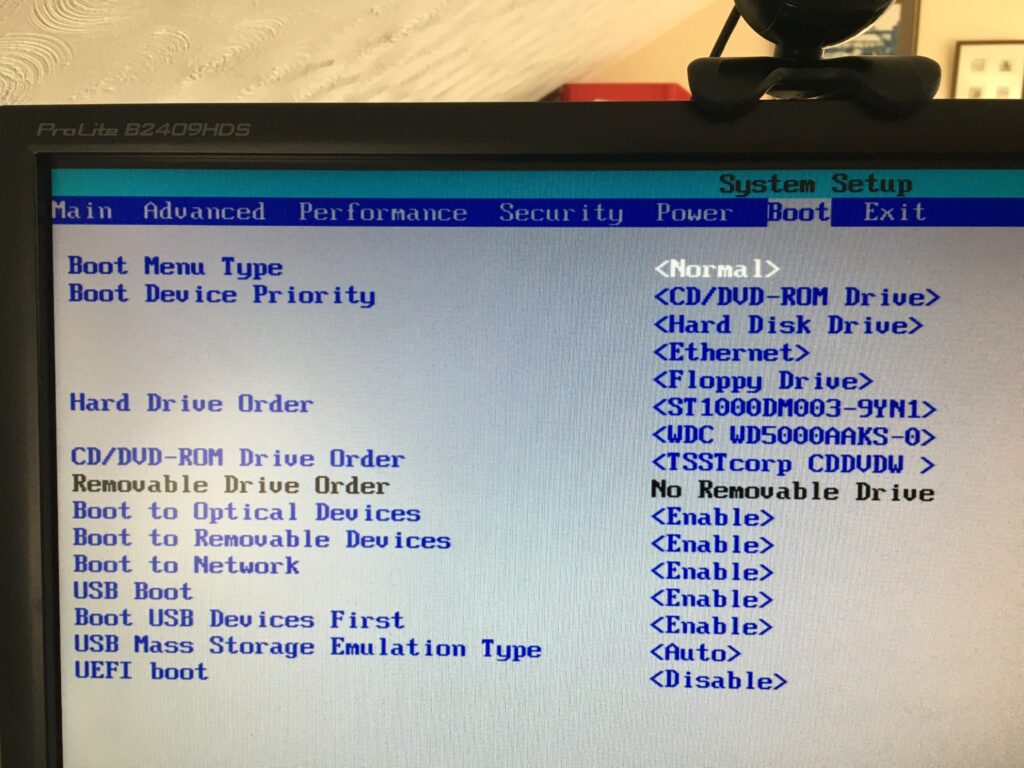
You’ve got your USB install drive; you’ve got a PC; the only “tricky” bit left for you is to change the boot order of your PC. By default the machine will look to boot from an internal hard drive, but it doesn’t have to. You want it to start from your USB drive. So read this to see how to change the boot order.
If there’s no bootable USB drive in your machine it doesn’t matter; the boot sequence just looks for the next drive it could boot from – usually the internal hard drive. That’s why on some BIOS you’ll see the CD/DVD drive as first in the list as that’s where (traditionally) you would have installed/upgraded your Windows from – before the internet! Before that it was the floppy drive (a: or b:) – remember that; and that explains why the late-comer the hard-drive is always labelled c: or later, d: etc.
Of course on the Mac, it’s much easier , you just have to keep the Alt/Opt depressed as you boot-up and then select the boot device 😉
Second Addendum. Having problem with Booting your USB disk?
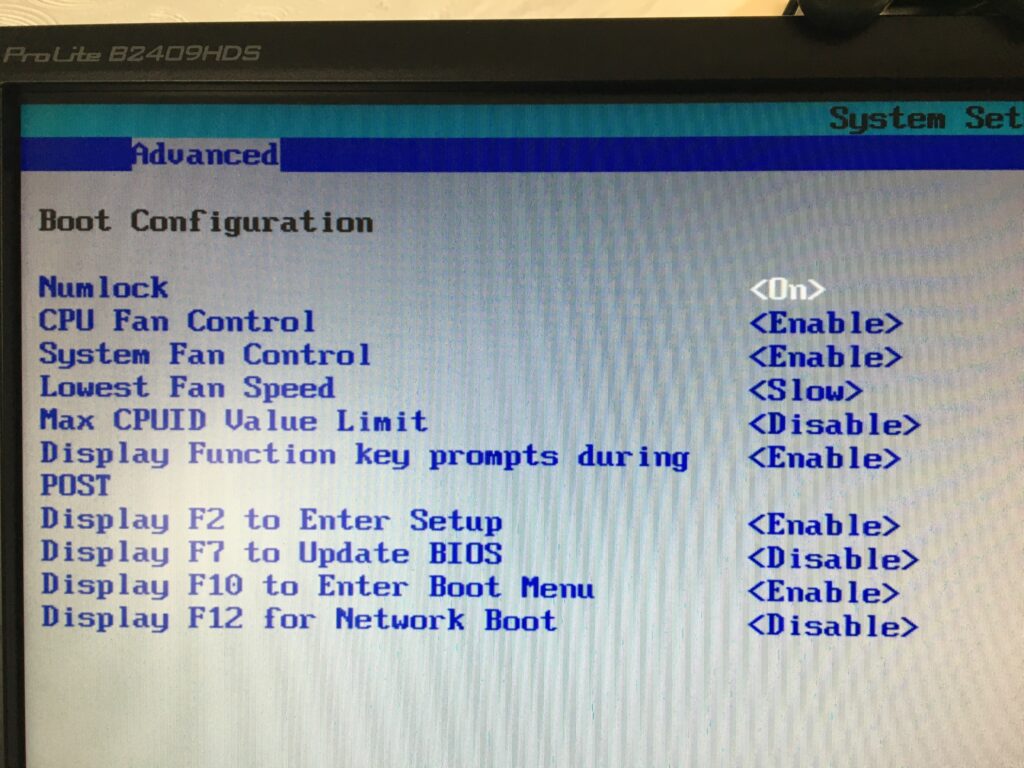
You should look at these settings in your BIOS on a PC. Often the key to press when you want to access BIOS settings is F2.
Getting the Boot order correct, and making sure that USB Boot is enabled.
From the BIOS settings menu just make sure that Boot USB Devices First is enabled. If you have the USB Device inserted, it will also appear in this list. You could move it to the top of the list, but of course it will disappear from this list when you take it out – that’s why Boot USB Devices First is important. You could also Disable the Boot to Network option.
Making sure you can Boot from your USB device
From the same F2 BIOS Settings menu you should make sure that F10 is enabled (or whatever key is designated to Enter Boot Menu) and F12 is disabled as you don’t want to boot from the Network at this time. [You can always enable it at a later date, in the unlikely event this ever becomes a requirement.]