
Google Photos & Snapseed – an update

I’ve posted articles on using Google Photos a few times. Of course with the passage of time, features, and interfaces, change, so it is always useful to just review “what’s occurring”, and see whether there’s anything that needs correcting, or adding to. I will try and go back and edit the posts listed below to reflect changes that I’m aware of.

First and foremost it’s important to note that I don’t tend to use Google Photos for anything other than sharing photos with family and friends, so my use of the editing features is a bit limited. I am however a strong advocate of using Snapseed (available from both the Google Play, and Apple App Store) as a photo editor, but as it works best with the Google Photos app, it’s necessary to install Google Photos as well. [Snapseed is not available as a native desktop app on Windows or MacOS; it’s only available on mobile devices (Android and iOS/iPadOS).] So the first link that’s important to be aware of is this one …

Google Photos and Apple revisited – if you’re an Android user you can skip this article and move to the next paragraph – all your photos taken with your camera will be safely housed in the Google Photos app!!! If you’re an Apple user it’s important to understand how synchronisation works with Google Photos and the Photos app on iOS. If you’re not careful you can either end up with duplicate photos on both platforms, or worse still deleting photos from a device thinking that there’s a copy “in the cloud”.

The next bit of housekeeping is to understand what happens if you want to delete a photo from Google Photos – it’s not entirely straightforward (but it is easier than in the Apple world!!!). This article I wrote – “How do you delete photos from Google Photos?” – attempts to help you delete what you want to delete from your device, or from Google Photos on the web. This is particularly a problem if you’re an Apple user with a Camera Roll, rather than an Android user with Google Photos – so you’d be advised to read it.

So we finally get to editing our photos and using Snapseed. This article – “Snapseed and Google Photos” – is a good overview and will take you quite a way down the road of installing Snapseed, it covers the basics of how to get photos from a camera (rather than a smart phone) into Google Photos, and some basic editing of a photo. There are also links in the article to earlier posts on using Google Photos as well as a video on “getting started” and some additional references that I found useful.

The new stuff!

How To Use Google Photos: The Ultimate Beginner’s Guide [2023] – if you want to just stick with what’s possible for you to do in Google Photos this is just about as good a guide as you’ll get. It goes through all the features of the app, but doesn’t cover editing photos in any detail. If you want a video that covers the same ground, you might like to watch this [I’d like to remind you of the point I made about his reference to Backup and Sync if you’re an Apple user – my earlier comments apply!!! He has decided to use both iCloud and Google Photos on the web for two backups.]. Google’s help guide to editing photos is provided here.

So we turn to Snapseed – here’s a beginner’s video on how to use Snapseed for editing, you should also refer to the article quoted in the earlier post – Complete Guide To Using Snapseed To Edit Your iPhone Photos – from which I also recorded the video from my computer screen, but it’s obviously better using the link from the article. Also please note that although iPhone is mentioned in the title, it’s 100% applicable to Android phones as well. Finally you might probably want to look at this – SNAPSEED: ULTIMATE USER GUIDE + TIPS (2024 UPDATE) – if I’ve convinced you that Snapseed is the “goto” app for photo editing on your smart device.

Google is always updating its apps, and this is particularly true now that we have AI. So a recent update introduces the possibility of background blur – which can make a portrait of a person stand out more, by weakening the effect of the background. Google writes about its new AI features here, and here,

Finally … this article has been all about using Google Photos, which might have let you think that Apple’s Photos app is not so good. In a forthcoming post, I will be examining how Apple Intelligence (available in the autumn) will quite possibly revolutionise Apple’s photo applications, and will for some, if not all, Apple users mean they might be less likely to use Google Photos going forwards. They’ve already moved to allow the sharing of albums stored in iCloud to anyone via a link. That’s progress!!!

Where’s my media?

A short (I hope) note on where media (and text messages) are stored on WhatsApp and Signal, how to backup and restore messages, and how to “get rid” of them – mainly to save space on your phone. I’m going to rely on the links referred to in the post, rather than repeat their contents, so click on the relevant ones.

First, some important points to remember.

  • The primary device for both apps is the device that your phone number was registered with. Any other device that you access messages from the service are synchronised with the primary device (usually a phone). It follows from this that you should always think of both WhatsApp and Signal as mobile apps, not tablet or desktop applications.
  • If you lose your phone, or change your phone without backing it up in the app first, you will lose your message store, and all the media attached to messages. They will not be accessible from your tablet, or desktop, applications because the link for synchronisation will be broken.
  • This is because … NO MESSAGES OR MEDIA ARE STORED ON A SERVER – really, you must believe me!
  • All media that’s downloaded in WhatsApp will be (by default) saved to your Gallery (Android) or Camera Roll [Photos app] (iOS). This is not the case for Signal (see below).

For Android devices, if you want to switch this off, you should read this article. Media files are automatically saved in your WhatsApp/Media/folder. If you have Internal Storage, the WhatsApp folder is located in your Internal Storage. If you do not have internal storage, the folder will be on your SD Card or External SD Card.

For iOS devices, in the same vein, this article may be helpful if you don’t want WhatsApp to store media to your Camera Roll [Photos app].

  • It follows from the above that if you delete media inside WhatsApp and you haven’t changed the default settings, the media should still be in the Gallery, or Camera Roll of your device. [NB I haven’t checked this out because I no longer use WhatsApp.]

If you want to backup your WhatsApp message store, you can refer to this article to find out how to do it for Android and iOS devices, and for PCs (for downloaded media only).

The situation with iOS for Signal is different from that with Android when it comes to Downloading images. Signal does not save media to your Gallery or Camera Roll [Photos app]. If you want to manage the auto download of media to the app, you should read this article first which covers the situation well for Android users, but will need to have a look at this article to see how to switch-off automatic downloads into the app for iOS users. I’m not going to recommend this as a way forward for iOS. Stick to the default and only store the downloaded media in the app.

If you want to Backup or Restore your Signal message store, you are advised to carefully read this article which applies to Android and iOS devices.

Now some notes on deletion of media.

  • It follows from the note above on media saved outside the app that if you delete in the app, the media will still be in the Gallery or Camera Roll. If you delete in the Gallery, the media should still be in the app.
  • Deletion of a message from a Chat will delete the media attached to it, but will not delete the chat, or the media, from any recipients of any message you’ve sent – unless you’ve put an “automatic delete after”setting on the message (Signal only, I believe).
  • Thus, following from above, if a chat recipient replies to a message you’ve deleted, you may see a thumbnail of the media attached to the original message, in the reply.

For iOS users, to delete media from within WhatsApp chats you should read this article. For Android users, this article should help you.

For iOS and Android users, to delete media from within Signal chats you should read this article, save any media you want, select the items for deletion and press the trash icon.

Finally, and I hope you’ve got this far, I think this link summarises the situation really well for our preferred solution – Signal. Media is stored in the app, you have the option manually to save selected images to Gallery or Camera Roll [Photos app], thus saving on storage space and gaining additional security along the way too.

Phew! That’s taken a good deal longer than I expected it would.

Screen Prints

In case you are wondering how I take a picture of our Zoom meetings, the answer depends on which operating system you are using. (I am using Windows 10.)

David has supplied these instructions for Apple users:

Taking a screen shot on a Mac …

support.apple.com/en-gb/HT201361

Alternatively from MacOS Mojave onwards there’s a tool called Screenshot – here’s a link to the Help file …

support.apple.com/en-gb/guide/mac-help/mh26782/mac

To do a screenshot of an iOS or iPadOS device, press the power-off button and then the Home button.

With a Windows computer, the simple answer involves the ‘PrtSc’ key, near the right hand end of the top row of the keypad. You might have to press the Alt key or the Fn key, on the bottom row, at the same time. You will have to experiment. A message might pop up, saying the screen shot has been saved somewhere. If that doesn’t happen, the image might have been saved to the clipboard, in which case you will have to choose somewhere to paste it.

The less simple Windows answer involves the Snip and Sketch program, which you access by pressing the Windows key + Shift + S. This gives you the opportunity to crop the picture on the screen, so you only save the area you want.

For Android tablets and phones, press the power and volume-down buttons at the same time. I couldn’t get that to work with my phone though. I did have success by holding the power and ‘home’ buttons together. The screen flashed to show the shot had been taken. The picture went to Google Photos and to the Gallery.

Good luck!

Jim

Video-editing for Dummies

… and I am talking about myself here!

If I wanted to do video-editing and wasn’t doing “this U3A stuff”, I’d use Apple’s iMovie which is a “really nice and easy lemon squeezy” way of producing videos, but I can’t because for the Group it has to be cross-platform, and it has to be FREE!

I have suggested using YouTube for simple editing and indeed with the new YouTube Studio that may be your best solution – especially if you’re intending to share the video on YouTube through your Google Account; Google provides some Help & Assistance on how to do some basic video-editing and provides a useful help page with a short video on how to do video-editing using YouTube Studio, and there’s a load of other YouTube videos on the subject as you might expect.

However, not all of you have Google/YouTube accounts, and not all of you would want to “edit in the cloud”, so we need to find another solution that ticks all the boxes.

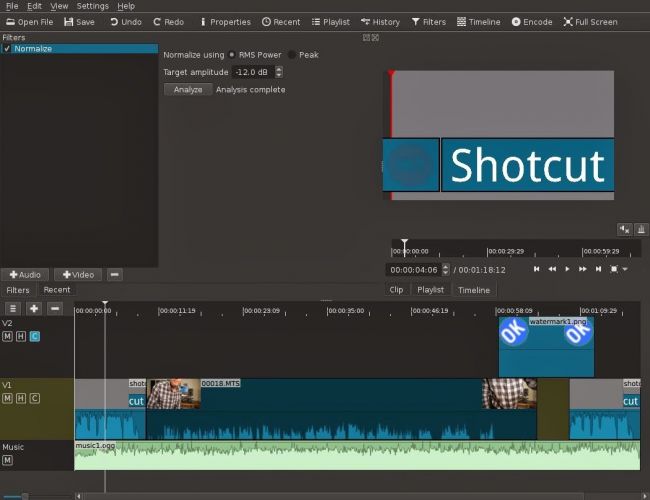
The one I found that does just that, and which also has a substantial amount of Help and Support documentation and video tutorials is Shotcut.

It’s a bit daunting when you first start it up; so many controls, icons, sliders, windows, options – but don’t let that put you off. Just try the basics to get started and then go back to learn more as you need it.

Here’s a link to a “Getting started …” video, and here’s one to a “manual” which tells you more about video-editing and using Shotcut. If you want to print something out to have beside you as you learn how to navigate the interface, you might find this short (3-page) guide useful.

Having created your video masterpiece you’ll want to save it in a format that is playable on most online services and applications – choose MPEG4 from the Export option – and then decide what you want to do with it. You can of course upload it to Google Photos – there’s no size limitation on videos you upload apart from the 15Gb per week that you get against your free storage limit – which is 15Gb!!!! You could use YouTube of course (see above) – but the quality of the video may be downgraded as you upload it; but I’d recommend you also look at Vimeo as it’s a more privacy-orientated platform for sharing videos and has a better-quality of video playback too. You can do quite a bit with a free subscription, but if you’re into video-production in  big way it might be worthwhile paying  £72 for an annual subscription. Alternatively, you could decide to host your own videos, on your own website – but that’s for another day!

… and that’s about it – except for the dreaded live-demo!

Recorded from Zoom, my first attempt. Not all the panes were showing, so I’m afraid the Timeline pane is not to be seen – it’s at the bottom of the screen. I’ll need to see if I can record the whole screen – not just the Window.

[PS: I’ve now found out how to share the Desktop, rather than just a Window, so there’s no stopping me now. Next time, next time …]


Upgrading the RAM on your Laptop PC

This is all you need

The only tool you need is a Posidrive #0 screwdriver for this laptop, I bought a set of six small screwdrivers made by Black & Decker some time ago; if you’re going to do more of this sort of thing, you might need to buy a more sophisticated toolset. I also attached an earth strap – just to show you how to the job properly – but to be perfectly honest I don’t usually bother.

But I’m jumping ahead. You first have to find out what upgrades you can do to your PC. I recommend using Crucial as the supplier of both RAM and hard disk upgrades. When you land on the site, you will see a screen something like this – it will change as new products are introduced …

… you click on Select Computer (you can download a tool to scan your computer, but that shouldn’t be necessary as all the information you need is usually on the bottom of the laptop) and supply the information required about your computer …

… and the following information should come up.

I’ve selected the Upgrade I want, but I’m also offered different DRAM memory choices, as well as SDD hard disk upgrades …

… from this I get the Part No. and then see if I can purchase it cheaper on Amazon – for old memory I usually can …

… so that’s saved £10. Now we turn to the removal of the old 1Gb DRAM module and the insertion of the new 2Gb module. Turn the laptop so that it’s back is facing upwards …

… take your screwdriver and unscrew the screws which are holding the back panel in place.

On this model the screws don’t totally come away from the panel which is great as there’s less likelihood of losing any of them. Unscrew them all, and slide the panel off …

… the DRAM is right in front of you on the left-hand side of this picture. All laptops have different layouts, but the DRAM modules are very easy to pick out! Next comes the first tricky bit (not really). You need to prise the two clips holding the module in place on either side of it. Here’s me prising one clip away …

… you have to do them together of course, but as I don’t have three hands … the module will pop out and swing upwards so that you can easily remove it, which you should do and place it on an electrically inert surface – just in case you have to put it back! You then get your new module and slip it into the space vacated by the old one at an angle. [My apologies – I should have taken a picture of this.] Most problems occur at this point as it can be tricky to insert the new module in firmly enough. You then gently push it down so that the clips re-engage with the module.

Nearly finished now. The new DRAM module is in place and you just have to replace the back panel, tighten the screws and hope that the new memory will be recognised when you boot-up the computer. You may be advised that the Memory Configuration has changed when you re-boot, just ignore this the first time you attempt to re-boot your computer. Check the memory has been recognised from the Windows System Panel …

… and you’re good to go. Any problems, first try and check the module has been inserted firmly and far enough into the slot, and then if necessary run the System Configurator when asked to when you boot up. I’ve never had to do the latter, I have had to unscrew the panel and re-insert the memory module though.

And that’s it. It took me about 10mins, but I have done it before. Still 30mins tops will see you with more memory in your old laptop and hopefully improved performance.

New Guides available

I purchased some Guides from Black Dog Media yesterday. They were supplied in PDF format so I’ve uploaded them to the website so that I can access them from there; if you navigate yourself to the Guides Menu tab, you might also be able to see them 🙂

Here’s one on Google that you might find interesting …

BDM-WIN-004


Managing your eMail


This post was created for the Cardiff U3A Computer Group meeting on the 23rd January 2020, but is possibly of more general interest.

Starting Point – the givens; what we’re trying to achieve

  • Having a manageable amount of email will make your life easier and better.
  • Focus on lifestyle habits rather than hard-and-fast rules.
  • Work out what you don’t want from your email, and then create habits that prevent it from happening.
  • Work out how you will handle email daily and if you can – weekly, and monthly, and decide whether you need a method to archive or store emails, or the information contained in them.
  • The importance of context. Use the appropriate tool wherever possible.
    • You need an immediate answer – use the phone, and leave a voice message if there’s no reply, possibly with a text message – “please get back to me after you’re listened to your voice mail” – as backup.
    • You need a record of the answer to a question – use email; and seek confirmation by email if the answer comes back a different way.
    • You need to just keep in touch, or chat – use text (SMS) messaging or WhatsApp (or any other – I don’t want to recommend one – chat platform).

Tools you can use (all the “F’s”)

Forever email – whatever your email address is now, seriously consider getting an email address that will last forever and not be dependent upon your currently favoured Internet Service Provider (ISP). So … Google’s gmail.com mail would be a good choice, as (if you’re wedded to one technology, say Apple) would be the email provided by that supplier, eg icloud.com. Here’s an article that lists the best email accounts currently. Personally, I wouldn’t go beyond the first three, and I would be tempted to say only the first two! So that would give you a choice of Google, Microsoft plus (in my case) Apple.
Fake email address – you don’t have to have just one email address. Create a duplicate for using when a retailer asks for your email address.
For you alone – don’t share an email address with a partner; have separate ones; you can always setup an email programme to read both email accounts on one device (eg a tablet). Keep your personal email address for yourself, and for life!
Feature-rich email program (a rather contrived “f” this one) – use the mailer that your operating system provides for you. On Windows and Apple this would be called Mail. On your phone or tablet it might be called Gmail or Outlook. There are others as well.
Forward your email to one place – if you’ve set up a new email address, you can forward mail from your old address to your new one and then apply filters (see below).
Filters – these are very useful and relatively easy to set up (or create). They allow rules to be followed and your email to be handled the way you want it to be handled and not just hang around clogging up your Inbox.
Flags (or labels) – you can put a marker against individual messages in some email programs. Perhaps a colour code to indicate their urgency or priority.
Folders – these are invaluable and when combined with a service such as the three (Google, Microsoft or Apple) I’ve mentioned, can ensure that you have an archive of messages that should last as long as you realistically would ever want them.

Techniques to keep your eMail under control

Aim for Only 20 Items in Your In-box
[Warning … Do as I say, not as I do!!!]. Twenty e-mails means that you can see your whole in-box without scrolling. As soon as you deal with a message, file or delete it. Only messages from the past week that you’ve yet to respond to belong in your in-box.
Stick to a Schedule (difficult but invaluable)
[Warning … Discipline needed] Even though I check my mail several times a day just in case something pops up which really needs to be urgently handled, I try to not process them right away. I try to only do that once a day, either at the beginning of the day or in the evenings. So I need to adhere to respecting the difference between checking and processing. So …
Delete ruthlessly, when you’re checking
Don’t reply immediately unless …
Can you write back in two minutes or less? If so, do it immediately, and delete the incoming email from your Inbox. Your reply together with the original message should be in your Sent mail.
If an e-mail requires more time, perhaps flag it so it can be handled during a scheduled window later that day or the next morning.
Important … if an email looks as though it can’t be answered easily – pick up the phone!
Sounds obvious but … you don’t need to read every single mail that comes in. Pick and select what’s relevant to you.
I subscribe to several newsletters – but I don’t read all the mails that are sent to me. I don’t delete them either, because I know they may have valuable information contained in them. Instead, I sometimes set up filters to automatically archive them to different folders (labels on Gmail), or move them to the appropriate folder manually. I only read them when I want to get more information on the topic.
Remember you can Unsubscribe from an email list – it’s not difficult and can reduce the amount of email you get quite considerably!
Turn off notifications that appear on your desktop. You really don’t need that kind of message appearing which drags you to your Inbox!!
Close email when you need to concentrate on something else. Close your email application or sign out of webmail when you need to do work that requires real focus for at least 30 minutes. When an email program is open, it’s tempting to check periodically (or obsessively) for new mail. Closing the program entirely (not hiding it)  removes the temptation.
Try to remember to remove old email messages from your Trash Can, unless you’ve set it to Auto-Delete after a week, or a month, or whatever.
Email programs and setting up accounts. This is much easier now than it used to be and instructions are usually provided for your email provider on their website, eg Google’s Gmail.

More on Folders and Filters, and Flags (Apple)

Folders (or labels, if you use gmail) are there to help you organise your mails.
Firstly, use a relevant naming system to what you’re doing.
Secondly, use hierarchy structure. First level folders are for the big categories, and second level folders are for sub-categories, and so on.
These work best when you’re using an email program such as Mail or Outlook.
Filters are tools that help you sort out the mail automatically when it gets into your mail. There are 2 basic things are required for a filter – (1) The term to look out for (2) Action to apply if the term is matched.  You can set up filters for different email addresses, subject titles, body text … whatever! Depending on what filter it is, the mail will be automatically sorted into a respective folder / archived, or moved to the Trash can.
Flags are ways of colour coding a message to give you an indication of how you might want to handle the message.

Starting to Blog with WordPress.com

I promised a tutorial on how to setup a WordPress account and create your own website. Here it is. It doesn’t cover writing posts and the like, that is covered elsewhere in the WordPress tutorials, where you could start at Lesson 5,  but it does get you to the point when you can begin to be creative. Hope you have some fun!

Step 1 – Go to WordPress.com and click on Start with Free …

Step 2 – The following screen will show …

Step 3 – Click on Get started, and you will be presented with a choice, to setup a WordPress.com account, or create one linked to your Google (Gmail) account. I will do the former …

… and supply an email address (it happens to be a Google one) and then a Password. I will then be asked to supply a Username. A Username can only contain lowercase letters and numbers …

You’ve setup your WordPress.com account – remember those details – UserID and Password (as well as the email address you used).

Step 4 – You are now asked some questions to help set up the website.

I suggest you choose the first option for now …

… and then maybe the last one on the next screen …

… then click on Continue with Free on this last Setup screen …

… before you give your website an address – a URL …

Step 5 – I’m not expecting that you’ll own a domain yourself at this stage, so just click on Continue …

WordPress will then check to see whether it can find a unique URL for you to use. There will be one in the list that is Free – select that one …

… ignore all others. You can see I’m going to grab cardiffu3acg.wordpress.com – which is quite a nice one …

… so I’ll Confirm my choice!

Step 6 – I’ll change the name of the site on the next screen from cardiffu3acg to …

[NB – This website was not created with this URL, it was used purely for demonstration purposes and does not exist.]

That should then be accepted and you’ve got a website. Congratulations! You can then go on to supply a little more information before you start to write your first Post …

… perhaps do the first one which explains a little more what your site is all about, and then start “playing” with the menu bar on the left-hand side of your browser screen …


… or even Add a New Site!