Apple Trade In Scheme

I had an Apple MacBook Air. I bought it early in the lockdown year 2020. At the time, I bought the base model with just 256 Gb of storage. I decided that I could probably get around that limitation simply by storing things in my Apple Cloud. For a while, that appeared to work. Then a few weeks ago I decided to find out how much actual storage I had left available. I’d actually used nearly 200 Gb.

It was then that I discovered that Apple operated a trade in scheme. It works like this. You log on to the Trade In website and provide the details of your device; serial number and the state of its general condition. The then give you an indication of the estimated value. I was offered £275. Considering that I’d made good use of this laptop for about five years, I felt that was a good deal.

Problem was, until then, I really hadn’t thought of getting a new computer. Perhaps about two years in the future was my thinking. However, if my laptop was worth £275 now, I really didn’t think it would be worth that much in two years time.

I’d heard so many good things about the Apple Mac Mini that I decided that this might be for me. It dawned on me that although I’d bought a laptop five years ago, I had never ever taken it out. I had it connected to a large monitor. I also had Apple bluetooth keyboard and mouse. I really didn’t need a laptop.

You start the Trade-In process by filling in an on-line form. Basically, you get asked about the device’s condition. Any scratches, bumps or bulges, that sort of thing. From this, you get awarded a valuation. If you accept, in a few days time, you receive a delivery; a box to pack your device and some instructions on how to proceed.

This isn’t just limited to Apple devices. They accept other brands but they only pay out in the form of an Apple gift card.

I had to create a back-up using something called Time Machine. This, supposedly creates a file containing all of your documents and settings from your old machine. This can then be plugged in to your new machine, which will then set itself up just like your old machine. Well. We’ll see.

I then had to re-set my laptop to day one, thus deleting everything from my old laptop. After that, I packed up the laptop using the provided box and took it to the post office.

I’ll be honest, I found this process a bit emotional. Watching the laptop delete all of the data, then handing it over to the post office, it was a bit like taking an old dog to the vet for the last time. But, hey ho, we must move on.

I made one mistake. Apple devices have a feature called Find My. This is a security device. If your device is lost or stollen, Find My helps you to locate it. It has to be turned off before you start the procedure. They can’t proceed until it is turned off. Eventually I found that you could turn off this feature ‘in the cloud’.

Be prepared for a wait. This isn’t a fast process. It appeared to me that every step along the journey takes 3-5 days. 3-5 days to receive your box. 3-5 days for your device to be delivered to Apple. 3-5 days for them to confirm your valuation, 3-5 days to receive your Apple gift card. Only then will you be able to order your new device.

I suppose you need to think long and hard before considering this service. You could find yourself without your computer for three to four weeks. Also, I estimate that I’m going to get about 25%-30% of my original purchase. Maybe I should have delayed or found another way to fund my new computer. However, I console myself by looking at YouTube videos that tell me that the new Mac Mini is indeed the best thing since sliced bread.

Digital matters does Energy!

Updated 6th September 2024

A further update to comment upon our experience with Intelligent Octopus Flux. The change to the tariff went smoothly enough; the extraction from it to change to another one didn’t go smoothly, although I can’t fault the support from Octopus – just the documentation they had to follow to enable a move off the tariff. After a few weeks on Intelligent Octopus Flux, it became apparent that it might well be a good tariff for the winter (and for anyone not wanting to actively manage their solar and battery), but not necessarily for the summer when our solar power generation was at its optimum level. I won’t go into details – maybe another post sometime – but we moved on to Agile Octopus for Import and Fixed Octopus for Export, which enabled us to take advantage of both “plunge pricing”, and also allowed us to choose when to charge up the battery from the grid, and to what level. [This takes about 2mins each day after 16:00 when the pricing for the following day becomes available using this website – which gives the pricing of electricity from the grid region by region.] In summary, Intelligent Octopus Flux appears to maximise the benefit to Octopus by allowing them to use your battery for off-grid storage, and not enable the maximum charging of your battery. Good for the planet, but not necessarily good for the consumer with an investment in solar panels and battery. 

Updated 18th July 2024

This post to accompany the presentation on 11th July could be sub-titled “The data driven house”; but most certainly not “The smart house” – it would be along-time before our early-Edwardian semi could even begin to compete in that category. However, over the last year we have move significantly to reduce our carbon footprint and I believe saved quite a lot of money off our household bills – at the expense it has to be said of a reduction in our capital. Spending the kids Inheritance so-to-speak, but with their full support and encouragement. So here goes …

A brief history of our energy in days gone by.

We’ve tried over the years to switch suppliers and have been with EDF, E-On before a long-stint with British Gas which we switched to when we got our first smart meter, partly on the promise of supplying us with a tool to monitor our energy usage in an app.

However the smart meter they supplied us with was a SMETS-1 one which was soon after our installation replaced in the national rollout by a SMETS-2 version – but not given to existing customers. We were assured that British Gas was working with the regulators to ensure compatibility which would also allow users to switch providers seamlessly – but this never happened. Whilst other suppliers (eg Octopus) have found a way of jury-rigging SMETS-1 meters to work with their smart tariffs, British Gas have done nothing. In fact our experience was even worse because after a period of time (perhaps a couple of years) the app ceased giving usage information to us. We pursued them for at least 18 months but eventually – disgusted with their lack of customer service and inability to respond to enquiries first, and then complaints, we decided we should move suppliers. Family members had already chosen Ovo, and Octopus, and on their experience and after substantial review and research, and also following the recommendation from Which? we chose to switch to Octopus using our existing SMETS-1 meter – with the assurance that we could, and would, be upgraded to the SMETS-2 system in due course. This meant initially we would have no monitoring locally, but we would have access to their excellent website to monitor our usage. We had to take quite a few meter readings during the switch-over period – presumably whilst they got their systems talking to our SMETS-1 meter -but we did the switch and joined their standard Octopus Flexible tariff.

Around about the same time we got confirmation that we would have to tackle the heating of the kitchen as Jenny had a confirmed diagnosis of a health issue that meant we would have to ensure the house was much warmer than it had been in previous years. [We have been extraordinarily fortunate that last winter must have been one of the mildest on record.] So we (or Jenny to be accurate) set about getting draft excluders, heavier lined curtains, the purchase of Chimney Sheep draft excluders, replacement of double glazing with triple glazing in the main rooms Jenny used, enhancement of the insulation in the space above the kitchen extension and … upgrading of the heating in the kitchen and garden room using Infra-red Panels.

These we researched on the recommendation of a friend who has started progressively to replace all the traditional gas-heated water-filled radiators in their house with IR panels.

We visited Herschel in Bristol. We were hugely impressed at the rapid and effective performance of the panels, the fact they could be mounted on the ceilings, or walls, or standalone, and that some could have pictures or even mirrors on them, and also the low power draw and the fact they could be controlled as smart devices. Herschel provided us with an estimate of the requirement to meet our needs. We asked them to provide details of a local approved installer, who we contacted and came to do a site visit. They proposed a larger pair of panels than Herschel had suggested and furthermore suggested also fitting an IR unit in the garden room, which has not been used as yet, but it was logical to install it at the same time – future-proofing the back of the house in its heating needs..

View of kitchen triple glazed windows with IR Panel (1100W) in ceiling

The installer mentioned that he could provide good pricing on Solar panels and batteries and VAT-free panels if done as one installation. [It also has to be added that he was able to get the panels at discount from Herschel, so although the units could be installed by any competent electrician (or even me!) the purchase of the units was cheaper than if we had ordered direct.] We had experience soft-pressure from the family to “do something green” – so went for it realising that we could never recover the installation costs in our lifetime but we could reduce our usage costs which were heading towards £3,600 (British Gas) in our old Edwardian house and likely to go higher.

At this time I also researched whether an air source heat pump might be a good idea but determined that given the generally poor insulation of our old house, such a solution would not be a great idea, but that a gradual replacement (as my friend was doing) of replacing radiators with IR panels when a room was being decorated was the better way to go.

The installation of the IR panels, the solar panels and the battery was very professional and they followed my preference for siting of cable routing and units so that it was very difficult to see what had been done. The after-sales support, warranty and documentation they provided was excellent, and it’s comforting to know that Craig is just a WhatsApp call away and can monitor our system and make changes as necessary.

Enphase solar panels (5) on top roof
Solar panels on kitchen extension (4) – solar panels on side (top) roof not shown (2)
GivEnergy All-in-One Battery using micro-inverters (13.5kWh capacity)
GivEnergy Gateway connecting Battery to Grid and to Household supply

When we had committed to the installation I also started pressuring Octopus to provide us with a SMETS-2 meter so that we could benefit from Smart Tariffs. They responded in a reasonable time (I suppose given the backlog of their work), but after continual pressure, the electric and gas meters were replaced, and we had new meters and the mini-hub – which allows the meters to communicate with the app on the smart phone/tablet – in place by late-October following a September installation of the solar panels and battery. Now the fun could really start!

Replacement SMETS-2 gas meter from Octopus
Octopus mini-hub to connect smart meters to Home network for monitoring locally.
Choice of tariff

Octopus has many, many tariffs. It would be impossible to go through them here, but be advised that if you have an EV (electric vehicle), or a heat pump, there are tariffs for you. They also provide tools to help you decide which tariff is the right one for you. We however were only interested in those that worked best with our solar panels and battery. The obvious one for us to start with was Octopus Flux. This had the benefit of allowing us to charge our battery up to its maximum for a very low rate between 02:00 and 05:00 and enable us to discharge from the batter gradually through the day whilst with the management of the GivEnergy battery we could ensure that there was a full battery for the hours of 16:00 to 19:00. It also ensured that the battery was full when we most wanted heat from the IR panels so we set them to kick-in at 04:00 in the morning and with scheduled time periods arranged for them to be on (subject to the temperature not exceeding the threshold) when we needed them on.

Herschel Plugin WiFi Thermostat and Govee smart temperature device to check thermostat
Monitoring, reduction in monthly direct debit

I started an intensive monitoring of our electricity usage, changing the various settings possible on the GivEnergy Dashboard

The dashboard control for the inverter and battery
Screenshot of what is happening to your GivEnergy Battery on the web dashboard

I won’t detail the experiments and changes I tried. Suffice to say it educated me about how the system could work and what I needed to consider to get optimum benefit from the system/installation. I was also very soon able to reduce the monthly direct debit that we were paying to Octopus from the initial figure they suggested (when on the standard Flexible tariff – which in itself was less than the £300 that BG had wanted from us) to now £200 a month – and we’re over £600 in credit at the moment. So an immediate 33% reduction in our energy costs – but it could be more!!!

Octopus Flux pays you when your system exports to the grid. The payment you get is less than the amount you’re paying for the import of power into the household. Last year Octopus introduced a tariff that was the same for import and export, which meant that charging the battery at a fixed time no longer was necessary and that you could get a higher payback for export during the grid high-demand period of 16:00 to 19:00. So it seemed a tariff I should try out.

Change of tariff to Intelligent Octopus Flux

We’ve been on this tariff now since May and I have had some issues with understanding how exactly it works, but essentially you’re letting your battery be controlled by Octopus and become part of the National Grid. I don’t have any difficulties with that after learning that the grid is just one huge battery effectively and that the cable that feeds your house doesn’t effectively belong to anyone except the National Grid (or its surrogates). However I’m having a dialogue with them currently on the range of battery charging/discharging they’re deploying and whether it’s too narrow. When I was on Octopus Flux I was charging the battery to 100% between 02:00 and 05:00, or something less if there was a lot of sun expected in the day, and discharging down to as low as 4%. Currently Intelligent Octopus Flux appears to be only operating in a range of 55% to 77%. I’m asking them why??

The upshot of this is that if you’re prepared to be an active battery monitor, it might be worthwhile to be on Octopus Flux, if you’re passive (or just want to save the planet), then Intelligent Octopus Flux is the one for you. I suspect a combination is best for us with Octopus Flux in the winter 6 months, and Intelligent Octopus Flux in the summer 6 months. Especially if I can combine it with smart monitoring for the winter months. Watch this space!!

For completeness, the screens from the various apps I’m using …

The apps I use in the Home
The control screen for the IR panels
The settings screen for the IR panels
Govee smart temperature and humidity
Govee dashboard
GivEnergy app Dashboard
GivEnergy app power consumption screen
GivEnergy app power graph
GivEnergy app customising options
Enphase app solar panel power production
Enphase app – power production graph
Octopus app – recording power usage
Update – 18th July 2024

In the meeting I mentioned that we were having some outstanding issues in respect of the Tariff we had decided to move on to – this was a move from Octopus Flux (import and export) to Intelligent Octopus Flux. This move just didn’t work for us. We had to give up control of our battery to Octopus and it began to emerge that they were manipulating the settings to maximise operational benefits for themselves. We might have got some small financial benefit over standard tariffs, but not really very significant ones.

We’ve now changed to Agile Octopus for Import and Octopus Fixed (12m) for Export. As we don’t really want to export energy, but maximise the use of our battery, this makes much more sense. The very low Import rates on Agile we can utilise to charge our battery – something which wasn’t happening the way we’d wanted it to on the other tariffs.

So hopefully a closed chapter – I’ll of course update you on any subsequent developments.

Digital sound

Starting small

Our smartphone capability – (audio memos, sound recording apps for Android and Apple music recognition (Shazam) and streaming services.

The terminology and technology involved in audio is mind-boggling. You really have to be an expert to get your head around it – and I’m not going to try. There are a wide range of differences in Audio Formats – What is HiRes Audio? It would appear that Spotify has only just recently entered the field of HiRes audio. I’ll just take it as read that I want the best, if I possibly can get it. Currently Apple seem as good, if not better, than the rest.

How to play hi-res music and lossless audio on your iPhone

To get the best quality audio for iPhone and for Android, you may need to dip into those two articles. For the Apple user, you can use AirPlay to stream audio (Apple) to a different device (eg a TV or HomeHub), or use Bluetooth (both Apple and Android) – but Bluetooth is generally not up to the mark on both platforms. Alternatively you should seriously consider using a wired connection using the headphone jack (some Android) or a lightning to aux (headphone jack) dongle (Apple). On my MacBook I do have a headphone jack and when on the desktop it’s connected to a pair of powered Logitech speakers.

Streaming services and their apps

As mentioned above, there a huge set of services requiring you to set up accounts, and install apps – unfortunately (but understandably) most of the free ones are not ad free, which can be distracting …

Best free music apps 2023: free music on Android and iPhone (from What Hi*Fi?)

The best free music apps for iOS and Android (from Digital Trends)

The 7 Best Free Music Streaming Apps for iOS and Android (2023) (from LifeWire)

8 Best Streaming Music Services With an Offline Mode (from LifeWire)

My conclusions from this? We use Apple Music with the recently launched and integrated Classical service as well. Both of these are part of our Apple One subscription which we share with other members of our family. Three of the family still use Spotify, but our son in Australia uses Tidal (for HiRes streaming) and Soundcloud (for new music). You can (and I have) convert Spotify playlists to Apple Music playlists (and vice versa) and I have using this app – Songshift but there are other apps.

Then we turn to Audiophiles, and the world of digital to analog convertors. By an audiophile (in this instance) I’m really just talking about someone who wants to connect a better set of speakers to their digital devices than the internal speakers that are supplied with the device. [In other words I’m setting the bar very low.]

The starting point is to begin to understand the world of Digital to Analog convertors (DACs), so this video hopefully will give an introduction and explain what’s going on in this mysterious world of interconnecting equipment.


I’ll follow this with a couple of articles that you might wish to peruse ..

What is a DAC? And why do you need one? (from What Hi*Fi?)

What is a DAC and why would you need one? (from Digital Trends)

You want to use your mobile device as your music player? Use a lightning to USB dongle to connect Apple to a DAC and then to your speakers, or headphones, but be sure to get a Samsung ACTIVE USB to AUX dongle for Android phones, or a USB-C to USB-C (or USB-A depending on your DAC) dongle to connect to your DAC, and on to the headphones or speakers.

So, if you’ve got this far, you might wish to really play your music at the best quality that it has been stored in digital format on your device Watching these two videos might help – or confuse you even more!

For Android …

For iOS …


Recording and editing music/sound on your device – use Audacity, Garage Band (iOS, MacOS) or BandLab (Android or iOS).

Then we turn to digital sound playing systems.

A wide field of options including the portable MP3 player – but would anyone want one of these nowadays – and the smart home speaker (with voice assistant) – which we looked at last year, and is definitely a device to look at.

Finally integrating with your home HiFi system.

I wrote about my setup in 2016 and again in 2019 for the group. I also wrote about my experiences on trying to make iTunes work for me better back in 2018 – from this latter post, the MacMini and Plex still remain as part of my setup but I don’t use either to stream music, and iTunes is thankfully dead and buried – well almost!

So what has changed from 2016? Well the external speakers connected to the Marantz amp have disappeared to be replaced by a Sonos Beam Soundbar connected to a new Samsung TV. All the other HifI components remain and are connected to the Marantz amp which is in turn connected to the Sonos Connect “hub”. The Bose speakers are still connected to the Marantz amp, but are rarely used now as we now have an Apple HomeHub which I can stream to using AirPlay, and which can be integrated with the Sonos speakers (I now also have a Sonos Move portable speaker) to provide home wide sound.

It has to be said this is a technological project, rather than an audiophile one, as my hearing has deteriorated to the point where I couldn’t detect HiRes from ordinary sound anyway, and the last time we actually had the same music in the whole house must have been the week after we bought the HomeHub.

The Apple HomeHub is a delightful device – we can “talk” to it using Siri or from Apple Music, and link the Sonos devices to it so that we can direct music to different speakers as required. It’s also the heart of our SmartHome project – more another day, and will provide moths of technology challenges for me using the Apple HomeKit and the interfaces that are being developed to link smart devices to that platform.

The next project – we’re installing solar panels this week, with a battery and a gateway to link to link to the Grid (using Octopus flexible tariffs) – definitely a topic for next year when we’ve got it all sorted.

Jonathan sent me his Sound setup which I reproduce below …

Just for info. – my home audio/cinema set up has some similarities to yours.

When we moved to Cardiff we bought a new house in Pontcanna which was still being built and I took the opportunity to have wiring installed in the walls to ceiling speakers in three rooms. I took advice from an AV specialist who advised Sonos, Spotify, blu-ray player and mini mac for my digital collection. 

Sonos serves all 3 rooms, plus a portable speaker, via a marantz amp in the main tv room ( surround plus sub ) and Sonos amps in the other two ( stereo )

Spotify provides all my music needs and I never now use the mac. Nor do I have a CD player in the house since the blu ray/receiver packed up. My cds are all packed up in boxes in the loft! The only stuff I miss is Neil Young and Joni Mitchel after Neil left in a huff!

I have Samsung tvs in 4 rooms – 3 of them Smart and all of them now support Spotify, Youtube, netflix etc. We subscribe to Sky with a main Sky Q box in the main tv room and mini boxes in 3 others.

I’m really happy with it but conscious that the Sonos gear is now 12 years old. They keep trying to get me to upgrade. One day it will be inevitable I guess. Sky might be considered an expensive luxury but we all need one or two of those. It’s brilliant!

Creating your own online magazine

[Originally published 23rd Nov 2018]

I am a creature of routine. I used to listen to Today on Radio 4 when I got up in the morning; now because I can’t stand the egos being pushed into my ears, I have a much more peaceful and indeed useful start to the day – after I’ve scanned The Guardian and Independent (online subscriptions) and BBC News (online) websites, and checked my email and other social media such as Signal, Discord and Twitter (and possibly in the future Mastodon), I look to see what else is going on in “my world” – my internet of interests.


I’ll start at the beginning and describe what I do to curate my interests, my daily internet workflow. The jumping-off point is to check my RSS Feeds using Feedly. What is an RSS Feed I hear some of you say? Well it’s a signal from a website that new content has been posted on a website. So if there are a number of sites that you are interested in, you can get an alert with an extract of content sent to you by what is called a RSS Feed, which you can then pick-up and read in full using a RSS Reader.

Now the favoured Reader for a long-time was Reader (from Google) – but as is their wont, Google “sunsetted” it. That is they killed it off. Fortunately a really good alternative came to the rescue in Feedly. Every time I come across a website I want to follow, I add it to my Feedly and, as long as a RSS Feed can be setup for the site, I place it in a category for the feed (eg photography, or IT) so that my stream of reading is organised to some level. I could stop there, after all I’ve got the link to the webpage, it’s stored in a category and I can go back and read it anytime I’m online.

However, what if I just want to scan quickly the content, and go back to it later, or what if I want to read it online? That’s where Pocket comes in. If I see an article in Feedly that I want to read later, or even archive, I add it to my Pocket, giving it some tags to help me find it later. I do both of these tasks on a smartphone, or tablet, it’s much easier than using a desktop/laptop as there are good apps which work together for both Feedly and Pocket. Once in Pocket, the article, stripped of everything that is irrelevant, can be read offline – once it’s sync’d the content from the web to your device – or alternatively you can click on a button to read the original article online.

But then occasionally, I come across some content that I want to share more widely – to the Thought grazing community for instance; and for this I use Flipboard which is a really easy way of creating an online magazine; made up of articles (perhaps with comments added) which you found interesting. From my Pocket app, I just click on the Share button and select <Share via …> and chose Flipboard.

On Flipboard I’ve created a couple of “magazines”, so I chose which one I want to “publish” the article to, and perhaps write a comment about the article; and then Post it. That’s all there is to it, but what do you need to do to replicate my workflow and produce something like this …


View my Flipboard Magazine.

Curating the web
Step 1 – create a Feedly account, and download the app if you’re going to use a smartphone, or tablet
Step 2 – select websites you want to get an RSS feed from [see above, or read What is an RSS feed?]Step 3 – check periodically to see what has “popped-up” in your feed reader.


Saving for another day, or for off-line reading (bookmarking+)
Step 1 – create a Pocket account, and download the app if you’re going to use a smartphone, or tablet
Step 2 – save to Pocket from your browser (perhaps using a browser extension), or from a sharing icon in Feedly
Step 3 – tag your articles, and read at your leisure, or when you want to


Creating a magazine to share with others
Step 1 – create a Flipboard account, and download the app if you’re going to use a smartphone, or tablet
Step 2 – create a Magazine within your Flipboard account, and decide whether to make it Private or Public
Step 3 – add articles to your magazine from your Pocket app (as described above) , or from your web browser
Good luck!

Home Networking

This article was written to accompany a presentation done on 22nd January 2023. All the videos embedded in the post were current at that date. They could be removed from YouTube, or replaced by later ones, at any time.

The presentation built upon one that Paul de Geus did and which is included below. I’m indebted to him for pointing me to the video from RSAweb, which is a really good and short introduction to improving Home WiFi signal, and also including at least one video in the show from PowerCert. They are so good, I’ve used them as the basis of this presentation.

I’ve also written a couple of articles that you might find it useful to refer to …

Improving home network performance“, and

Home networks – some notes

Also, remember there’s a “Network issues” Forum that has several Topics relating to Home Networking, and if you have discovered a really good bit of technology, or you want help with the kit you’ve got, that would be a great place to look, or contribute to.

First however take a look at Paul’s presentation, of 2019 – yes five years ago, I can’t believe that! You can scroll through the slides using the arrow keys at the bottom of the window and make the text bigger using the +/- keys.

U3A-Cardiff_-Computer-Group

I suppose we should start with perhaps the main problem – a poor WiFi signal – and then work back from that to see whether we can improve our understanding of how networking works and how we can improve our Home Networking experience.

How to improve your WiFi signal at home

A more detailed look at possible quick wins are detailed in this article, and again some of the suggestions it mentions are covered later.

You might be able to improve your home WiFi by following the advice in that video and the article; indeed WiFi Extenders could do the trick (see later), but it’s probably better to understand a little more about the devices you’re using. So we start with Modem and Router. Almost always in new installations combined into one device called a Super Hub, or Smart Hub. Often an Internet Service Provider (ISP) will package that with a streaming TV service which includes the capability of recording TV channels and this will use the Hub to transmit by ethernet, or WiFi, to the TV.

Modem vs Router – What’s the difference?

So we have a device – a modem, that is connected to the internet by either a fibre-optic cable (eg VirginMedia), or DSL copper/fibre connection (eg OpenReach); it will almost always have a router with both WiFi and Ethernet ports included in it. The WiFi will normally offer two bands (wireless frequencies) at 2.4GHz and 5.0GHz. These two bands have different characteristics which are explained in the following video. [NB It’s important to note that Smart Devices mostly seem to prefer to operate on the 2.4Ghz band, so if you’re having difficulty connecting them, it might be prudent to check you have enable that band.]

2.4GHz vs 5GHz WiFi: What’s the difference?

Older WiFi devices will tend to use the 2.4GHz frequency and newer ones the 5GHz frequency. If you were experiencing poor WiFi on the 2.4GHz frequency it used to be recommended that you checked the channels that were being used in the neighbourhood and for you to change to a different one, usually 1 or 11 – the default is often 6. This is easily done by logging into your router (hub) and configuring a default channel.

However another possibility is to install a WiFi Extender. This device, as it suggests) accepts a WiFi signal from your WiFi Router (hub) and extends the signal to a part of the house where the signal is not so strong.

WiFi Extender (Booster) Explained

One of these devices may well suit your purposes and you may well be able to get one that has auto-sync that enables the network name (the Service Set Identifier or SSID) of your router to be used on the WiFi extender, but not always, and you may find yourself with two WiFi networks – one SSID for the router, another SSID for the extender, and you will have to choose your network depending upon the area of the house you are in and seamless roaming between the two will not be possible. Examples of WiFi Extenders (or Boosters) are listed here.

A different approach is to use the electric power circuits in your house to extend an ethernet network from the router (hub) to a power outlet on the same electric circuit. [NB This is the only configuration I’m happy to recommend. If you have more than one ring main, you may find that you don’t get good results when trying to connect between the two.] This technology is called Powerline and you can purchase devices that have both ethernet and WiFi capability. Again, look for ones that have auto-sync that will extend the SSID of the router to provide a single WiFi network. The video below explains how Powerline networking works.

Powerline Ethernet Networking Explained

One of our members (David Hughes) has recently installed this system, a TP-Link AV600 Powerline system which he is happy with. There are a couple of videos on that page which demonstrate how easy these new Powerline systems are to setup.

However, for some people (me included) the houses we live in are not well suited to any kind of WiFi (or ethernet) networking, and so Mesh wireless may be the solution. Interestingly most mesh systems use a dedicated 5GHz channel to let the devices “talk” to each other. In routing terms these are therefore tri-band routers. One example of a Mesh solution is the one offered by Google.

Mesh WiFi Explained

A popular Mesh solution is the one offered by BT

How to set up your Complete Wi-fi Disc

… whilst Renee Martin has recently installed a TP-Link Deco E4 Mesh WiFi system. However, not all mesh systems are alike; some appear to work seamlessly behind your router in Access mode, others like mine require you to switch your hub into modem mode so that the main mesh hub works in Router mode. For the TP-Link system the difference between Access Mode and Router Mode is described here.

Should you be considering a Mesh system here are a some reviews – here, here and here. My system is a Netgear Orbi RBK53 one and I’m including a few screen shots from the app that you use to manage the network to describe what it does.

You have a main hub device, connected to the internet through a modem (my VirginMedia SuperHub – configured to be in modem mode), it then has two satellite hubs, one connected by an ethernet cable to my office, the other using WiFi to the back of the house which provides a WiFi facility to the upstairs, kitchen and garden. [I have tried connecting it using Powerline but there doesn’t appear to be any benefit from doing so.]

The devices connected to the satellite hub in my office at the time I took a screenshot were …

The devices connected to the satellite in the back of the house (when this map was created) were …

There are then a number of devices also connected to the Main Hub with one port being used to connect the ethernet cable to the Orbi in the office, one port connecting to a switch behind the TV (to connect the TV, HiFi etc), one to Powerline (not being used currently), and of course one to the VirginMedia Hub.

Looking at the configuration of the Orbi in the Office, you can see that it has an IP Address which it has obtained from the Main Hub. All IP addresses within the home network will always start 192.168.1.xxx – the individual devices being recognised by unique MAC addresses which are held against the IP address in the hubs.
… so when you look at the router settings on the Main Hub you can see it’s IP address is 192.168.1.1
Looking at the internet port settings of the router you can see that it has an external IP address of 86.29.24.114. This is effectively the IP address of my house. I am extremely lucky that this IP address does not seem to change – a VirginMedia “bug”, or is it because my VirginMedia Superhub is now just a modem?? This then makes it possible for me to host a server on my network, because I have a quasi-static IP address. Normally the external device is dynamically set so that when there is a power outage you may find you have been given a different external IP address.

The other setting that is interesting is the DNS server. Your ISP will have setup your router to point at their server, but these servers will usually be based in the area that it provides service to. So, it is often a good idea to change the defaults to Cloudflare (1.1.1.1), or Google (8.8.4.4, or 8.8.8.8) because their servers are worldwide and so should provide quicker lookup of the directory. [NB what we’re talking about here is the translation of a friendly domain name eg google.com, to a set of four digits.] When your router is given a domain it has to look up it will look first at the the first one in your list; if it’s very busy, it will drop to the second, etc. So My router will look at Cloudflare first, then Google before dropping to VirginMedia.

That’s about it. I haven’t covered a number of topics that you might be interested in, eg

Understanding IP addresses and how they’re constructed
How a DNS Server (Domain Name System) works.
What is a Firewall?
VPN (Virtual Private Network) Explained

A few more refs. that you probably don’t need to know anything about:
Subnet mask explained
DHCP Explained – Dynamic Host Configuration Protocol
WiFi (Wireless) Password Security – WEP, WPA, WPA2, WPA3, WPS Explained

Photobooks

Photobooks are becoming popular to keep a limited number of holiday / family photos

in a book form. They are better than arranging individual photos in an album. Besides

many people would prefer this format rather than seeing them on a computer or I-pad.

The main websites / apps are Bonusprint and Vista but other alternatives are available.

The books are composed on the website or app from digital photos from your computer,

S.D card or flash drive.

Prices are from £17 upwards, depending on gloss or matt finish, size, quantity and

whether the book is hard or soft cover. Hardback is the standard type. You pay online and

the books are delivered.

Linux

What is it and why might I be interested in it.

Before I start, a little information for you.

I’m typing this on my Acer laptop.

It is a dual-boot system. It has both Windows and Linux Ubuntu installed on it. When I turn it on, it asks me at boot-up, whether I want to use Windows or Ubuntu. I hardly ever use Windows because I find Ubuntu so much better. However, for this, I’m using Windows because I know that most of the afternoon Zoom group use Windows. I’m using Windows this afternoon so I can see how the Windows installation of Linux works.

Windows is horrible.

So far I’ve had five pop-ups and two programs starting without me wanting them to start. Added to that, with Windows, this laptop takes ages to start. 

You don’t get those sort of problems with Linux.

You will also not need anti-virus software as Linux doesn’t appear to get viruses.

Now, you might be interested in taking a look at Linux from a purely academic standpoint; something new to learn during lockdown.

OR … you might have an old computer lying around; one that you’d like to drag back from the grave.

So let’s get started

Linux is an operating system. Windows and MacOS are also operating systems. An operating system is the program that actually makes your computer work.

To proceed, you’ll need to do the following … and it would be best if you did this before next Thursday’s meeting because some of the processes take a bit of time, otherwise you’ll just have to accept being an observer.

  1. Take a look at the computer that you’ll be trying to revive – but remember you can run Linux from the USB drive without making changes to your computer, so it could be any machine. Make sure it has a USB drive. You’ll need an empty USB pen drive doohicky, at least 4Gb in size. Also, the computer that you intend targetting, it would be best to be a 64-bit system. Google your computer’s make and model to find out whether it is 64-bit.

  2. Download the Ubuntu Linux image file. Here’s the link.   https://ubuntu.com/download/desktop

This is for Ubuntu Linux 20.04 LTS. LTS (Long-term support) means that the software will be supported for 5 years. A new version of Ubuntu comes out every April and every two years you have a new LTS release. This page also tells you the minimum requirements that you need on your computer for Ubuntu to run well. Incidentally Ubuntu is a South African enterprise. It is totally free to download, install and use. In fact, everything in the Linux world is totally free. Linux comes in many different flavours e.g. Mint, Red Hat, Fedora … you chose the flavour that best suits your needs. My opinion; they are all very similar. Ubuntu is probably the easiest to get to know and with the best support. It will take a while to download as it is a big file … about one hour in my house but I have Virgin cable.

If you only have a 32-bit system there is another Linux operating system that works well on older 32-bit computers. It is called Bodhi Linux. Download the image file here. https://www.bodhilinux.com/download/   download the legacy version.

You can also download an older versions of Ubuntu Linux for 32-bit systems from here. http://releases.ubuntu.com/16.04.6/

Once Ubuntu has finished downloading, don’t do anything with it. Don’t double click on it or try to get it to run. Just make a note of where you’ve stored it.

  1. Now, you can’t just put the file that you’ve downloaded onto your USB drive. It is just a bit more tricky than that. You’ll need one more piece of software. It will transfer the Ubuntu file you’ve downloaded onto your USB drive and create a bootable disk image. These pages will give you a run down on what to do next on a Windows computer.

You will need a piece of software called Rufus (free, open-source) to create the bootable disk image. Here’s the link to get it.

You should Download AND install Rufus 3.11 1.1Mb onto your machine.

Please note. These pages show you how to prepare a Ubuntu image if you are using a Mac to prepare the Ubuntu disk image. You need a piece of software called balenaEtcher instead of Rufus to do that. You can get it here.

Now, on Thursday afternoon, in order to proceed, you will need the Ubuntu file stored in your computer and have Rufus downloaded and installed. We’ll talk you through the rest of the procedure over Zoom but rest assured, you’ve already done an awful lot.

Please note. All the above assumes you will be working on the target machine; BUT you could prepare the USB pen drive on one machine and then apply it to another. For instance David prepared his Ubuntu installs on a Mac, with the intention of targeting an old Windows machine. It’s just important to know what your target machine is, that it’s 32-bit, or preferably 64-bit.

Things you need to understand.

Once you have Ubuntu on your USB pen drive you can:-

  1. Run Ubuntu on your computer just to see what it is like. This won’t make any changes to your computer. After you’ve taken a look around the system you can just shut down, pull out the USB drive and re-start. All will be just as it was before.
  2. Make a full Ubuntu install. This will completely change your computer to a Ubuntu device. There will be no turning back from this option. However, you will have use of all of the space on the hard-drive.
  3. You can choose a dual-boot installation. This will partition your drive into two sections. You can keep Windows on one section and Install Ubuntu on the other. Although this sounds complicated, it really isn’t … you just need to make a choice on the size of the partitions that you’ll need. If you chose this, every time the computer starts you’ll be asked whether you want to start Windows or Ubuntu.

Other things to consider.

You can get Windows programs to run on a Linux machine but this is a bit of a black art and beyond the scope of this project.

However, Ubuntu comes with quite a few pieces of software pre-installed including Libre Office. This is very similar to Microsoft Office. You should know though that when you create a document in Libre Office, you can choose to save it in Microsoft Office format and a Windows computer will be able to read the document. Similarly Libre Office will open Microsoft Office files seamlessly.

One of the pre-installed programs is called Synaptic. This is a bit like the app store on many mobile phones. You can find oodles of pieces of software within Synaptic, all totally free.

One last thing to consider.

Both myself and David have successfully undertaken these procedures and everything worked just fine. However, please realise that if anything does go wrong then you really should be prepared to take the responsibility yourself. We can’t really be held responsible for the vagaries of a variety of computer systems. However, usually just preparing the Disk Image on the USB stick and trying again is usually quite successful. All I can say is that many people have installed Ubuntu. I’ve just checked the website to find out how many Ubuntu users there are. It was quite refreshing to learn that Canonical; Ubuntu’s parent company do not harvest that sort of data. A rough estimate is that 1-2% of all of the computers in use world wide use some sort of Linux installation.

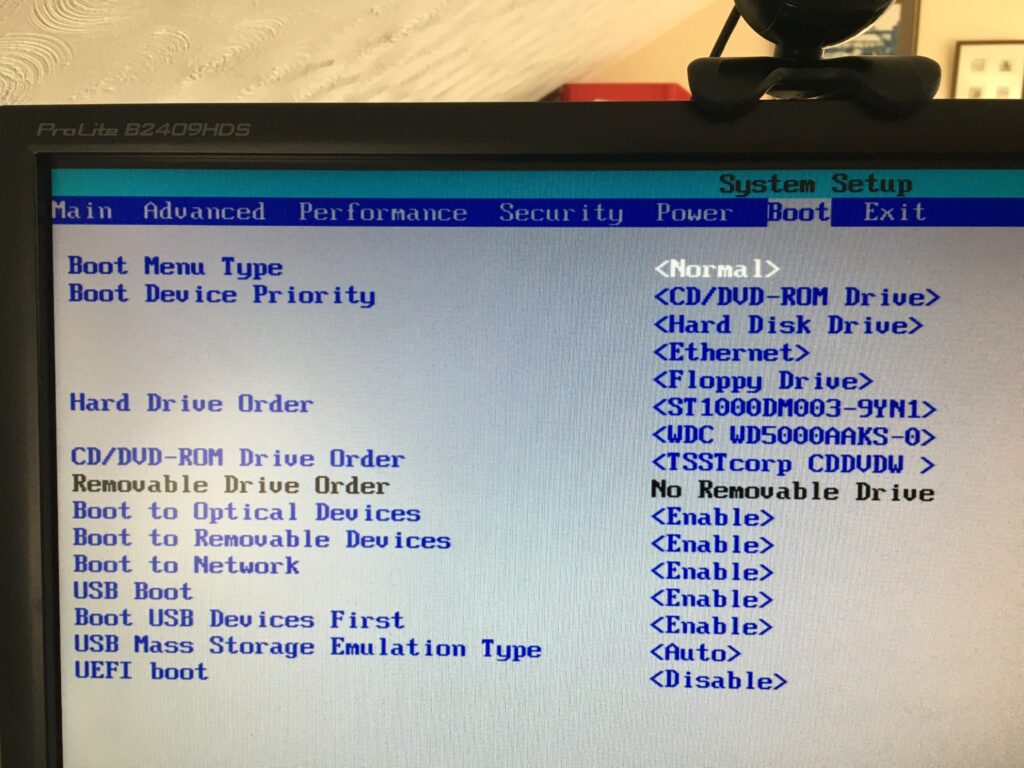
Addendum. A note on Boot Order for PC-folk and your BIOS

You’ve got your USB install drive; you’ve got a PC; the only “tricky” bit left for you is to change the boot order of your PC. By default the machine will look to boot from an internal hard drive, but it doesn’t have to. You want it to start from your USB drive. So read this to see how to change the boot order.

If there’s no bootable USB drive in your machine it doesn’t matter; the boot sequence just looks for the next drive it could boot from – usually the internal hard drive. That’s why on some BIOS you’ll see the CD/DVD drive as first in the list as that’s where (traditionally) you would have installed/upgraded your Windows from – before the internet! Before that it was the floppy drive (a: or b:) – remember that; and that explains why the late-comer the hard-drive is always labelled c: or later, d: etc.

Of course on the Mac, it’s much easier , you just have to keep the Alt/Opt depressed as you boot-up and then select the boot device 😉

Second Addendum. Having problem with Booting your USB disk?

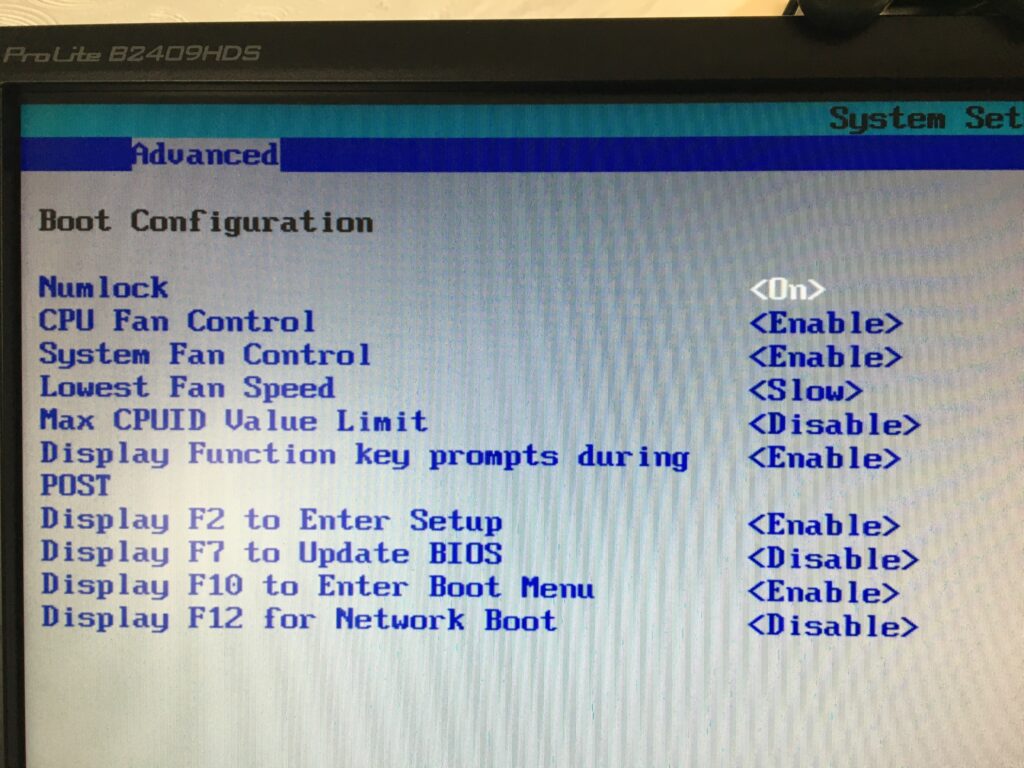
You should look at these settings in your BIOS on a PC. Often the key to press when you want to access BIOS settings is F2.

Getting the Boot order correct, and making sure that USB Boot is enabled.

From the BIOS settings menu just make sure that Boot USB Devices First is enabled. If you have the USB Device inserted, it will also appear in this list. You could move it to the top of the list, but of course it will disappear from this list when you take it out – that’s why Boot USB Devices First is important. You could also Disable the Boot to Network option.

Making sure you can Boot from your USB device

From the same F2 BIOS Settings menu you should make sure that F10 is enabled (or whatever key is designated to Enter Boot Menu) and F12 is disabled as you don’t want to boot from the Network at this time. [You can always enable it at a later date, in the unlikely event this ever becomes a requirement.]

Identity Theft

This will probably be one of the most challenging posts I’ve ever attempted to write because in all truth, I don’t think we really still know what actually happened to my daughter’s online identity, let alone wholly knowing how it happened, but I’m going to try and explain the sequence of events as an alert to you all, and a reminder to us too!

Some background and a plausible explanation of why they got themselves into the situation they found themselves.

They’d been self-employed for a short while now, working as a freelancer, and had just submitted their first tax returns in that capacity.

They were working from home, with two young children with one under six months old, and both very demanding of their time.

The family is living in another family member’s house whilst they “do up” their new house.

They’re adept at multi-tasking (obviously too adept as it turns out) and is (as many of their age are able to do) capable of nestling their phone between chin and shoulder whilst doing other tasks!

What happened next!

She had a phone call purporting to come from HMRC (we’re presuming this was just a fortuitous coincidence from the fraudster’s point of view – they had no way of knowing the employment status of the family member) – saying that they had a refund owing. As explained above she thought this was quite possibly the case as she had just completed a tax return – again an unhappy coincidence! She was told to click on a link in a text message to complete the process of getting the refund. She had their youngest child on her hip, was preparing a meal and was “distracted”. She filled-in the required information from the link!!!!

Agh! No!

Shortly afterwards (the same day) she presented her credit card at a supermarket and payment was refused. She realised something was wrong. She found she didn’t have access to her online banking. She contacted the bank by phone. The bank “supposedly” froze the account there and then but it was apparent that at least two transfers of money had been made to someone who was a Payee in her account – why? That’s the clever bit of the scam, I’ll explain later!

More payments appeared to have been made … help!!!

How could this be? The account was frozen … wasn’t it?

Get the family involved!

Having a son who’s an IT expert comes in useful, especially if he lives on the other side of the world! He worked through the night (day) in securing as many of her accounts as he could. Changing passwords, which were admittedly rather weak and used more than once (should have listened to Dad) – but he had no idea just how much data had been downloaded, or indeed just how much they had to start with as a result of perhaps a previous “pwned” event.

Having another local son who’s also very practical and logical helps also. He suggested that she contact the payee and tell them about the payment and request it be refunded. What transpired next turns out to be the “clever” part of the scam, although on this occasion it wasn’t conducted very expertly because they attempted multiple payments to the same payee. The payee confirmed that they’d had this payment, wondered what it was and had been a bit puzzled as to why Mr X had contacted them and requested a refund to a bank account because “he’d made a mistake”.

This was obviously NOT the same account as that from which the payment had originated and turned out to be the way the scammers were hoping to transfer funds from the hi-jacked bank account to one of their own! Fortunately, my son’s suggestion alerted the payee and the payee advised their bank NOT to transfer the money.

Phew! How did this all happen when the bank account was supposed to be frozen?

The key to this scam was getting control of my daughter’s mobile phone number. She didn’t realise it immediately, but soon became aware that it had been “stolen” through a scam called SIM swapping. This usually is done by a seemingly distressed person going into a mobile phone shop and pleading for a new SIM with a phone number “because their phone has been stolen” and “it’s absolutely imperative they have their number back immediately as there’s something very important happening right now”.  This is described here.

Why do they want to do this? Because they can transfer calls made to the rightful owner of the phone to their own phone.

Why do they want to do this? Because they can then request the bank account to be unfrozen, and also use their access to the phone number for any number of authorisation features.

And what is more they can lock you out of your phone accounts.

How did they do this in this case? Well GiffGaff is an online service provider and they have stated that they did everything they were supposed to do to authenticate the request for a SIM swap – but it is evident that there are serious weaknesses in their processes. They have stated they are looking at this for the future. Just Google “GiffGaff SIM swap Fraud” to see what is returned – it’s frightening!

So what happened next, and was there a happy ending?

Well, believe it or not, even with a personal visit to the bank and assurances that no more payments would be made, the bank did allow the account to be unfrozen and transfers out of her account were attempted. A second visit to the bank resulted in heartfelt apologies being made and offered over the way their fraud department had handled the problem and a complaint being raised by the branch against their own department on my daughter’s behalf – I don’t know the outcome of that!

Well, there was a happy financial outcome. Thanks to the prompt action and thinking of my local son, the initial transfer was halted. It’s not conclusive whether my daughter could have received compensation (as detailed here) as she was the instigator of the problem through her own mistake (the HMRC phone call). All other attempted transfers were eventually trapped by the bank and refunded to her – so no financial loss.

However …

Much more significant than the potential financial loss was what it did to her confidence. She insisted on getting a new phone, because she wouldn’t accept any advice from any family member (especially me) that there wasn’t anything on her phone that wouldn’t continue to monitor her.

She also lost all confidence in using any online systems – which up until then she’d been very reliant upon.

She also lost a lot of confidence in herself as she realised just how gullible (but extremely unfortunate) she’d been … but the positive side of this, and the main reason for sharing this is that she’ll be much more careful in the future!

Postscript.

We don’t know whether the identity theft side of this will ever be resolved. We all know that a huge amount of information is held on us on the internet. We all know that some websites have had their security breached and identity information stolen. We don’t know what was held by others about my daughter. She had a public profile, they now have the potential to add even more information to their database about her if they had managed to download information from her email (and other) accounts before my son locked them down. We just don’t know.

There was a mysterious book that arrived at her house with a cryptic message in it.

There have been some scamming emails purporting to come from her since this event.

She now uses a different email account.

We just don’t know whether these are connected to the fraud event or are just strange random occurrences … and I suppose we never will know just how much additional information they may have downloaded – emails, photographs, documents, etc. etc. Very frightening.

NatWest Guide to Fraud
Some privacy tips for iPhone users.

A satisfying and pleasant end to a trying day.

You’ve got to hand it to Apple. They do look after their customers well – at least this one they do!
You may remember I’d been having trouble with the boot-up of my 2013 iMac – yes, it’s at least 5 years old. It’s a powerful machine which I bought to do photo work and it’s been a delight, but the problems reported here …
I’ve now had an introduction to the SBOD
… had come back this month. After a couple of attempts to fix the problem myself, which I had assumed to be software problems, which involved me re-installing the operating system on a completely clean disk (ie I had to re-install all my data and applications from backup which was painless and automatic, but took a bit of time), I contacted their support via online chat, and after Traci had exhausted everything she could remotely, I was referred to the Genius Bar in the local Apple Store for an appointment that same day (actually 18:45 in the evening). A very competent and pleasant hardware technician (David) did “triage” on the machine and announced that the Fusion Drive was in fact faulty – it was a hardware problem.
And … they offered to replace and repair it at no cost to myself as I’d bought it from Apple, not elsewhere.
That’s the way to create brand loyalty. Thanks David. Thanks Apple Store, Cardiff.