[Revised 17th January 2023 and February 22nd 2024]
Now there’s a question. Once upon a time it was a little easier to answer. You connected your computer with a piece of wire to a socket in the wall and beyond the wall was ??
So perhaps it’s never been easy to answer that question. It’s not magic, it’s not fluffy, it’s actually really complicated technology which works in a relatively simple way to make things relatively easy for us to use it. Let’s start with a few videos …
How does the internet work? – This [updated] BBC Bitesize page (produced for children) is a really good starting point to help you understand how the internet works and introduces some of the terminology (ie protocols, packets) that will be useful to you to understand the other videos.
How the Internet Works in 5 Minutes – the internet is not a fuzzy cloud. The internet is in effect a wire (or a fibre-optic cable), actually buried in the ground or carried as wires between posts. Computers connected directly to the internet are called Servers, while the computers you and I use are clients, because they are not connected directly to the internet, but through an Internet Service Provider. Mobile devices away from the home, connect to the internet using radio-waves to connect to cell-towers with increasing capacity being generated by increasing the frequency modulation of the waves (ie 3G, 4G, 5G and even 6G). Mobile devices in the home or in the office, or in public hot-spot spaces, use WiFi to connect to the internet using two frequencies – 2.4GHz and 6GHz. All of these require Routers to shuttle packets of information across the internet, and transmit e-mail, pictures, and web pages. Although this video is a little dated, it really does explain the process of what happens when you connect to the internet …
A more recent video and the ones that are referenced at the end of the video will get you a long way to understanding the technology that makes up the Internet.
How Does the Internet Actually Work? – this discusses how internet traffic can be labelled to ensure that packets of data can arrive at their destination with the minimum amount of disruption [- but it is a biased view in favour of scheduling]. However for an impartial point of view of Net neutrality, you should probably look at this video produced by Vimeo – strong supporters of Net Neutrality …
Finally a couple of alternative views of the internet. First, Andrew Blum (in a TED Global talk) philosophically examines What is the Internet, really? A journey that started for him when he found out a squirrel had chewed through a cable led to him exploring trans-ocean cables and the very physical nature of the internet – a wire! Then this rather entertaining video …
… takes us from very local internet and cell-phone technology, through an examination of data centres such as the former Western Union office at 60 Hudson in Manhattan, to laying ocean cables and the future with balloons acting as transmitting stations for low-density inhabitation, or remote areas.
You might also be interested in seeing a Google Data Centre, in particular the pieces on security and cooling are interesting. [However, all of this increasing use of the internet comes at a cost to our environment as the advance of Artificial Intelligence and its huge need for energy for increased computing power comes at a cost.]
This article is prompted by a combination of a casual enquiry about sending photos from your iPhone to Google Photos (hosted on a Google Drive), and my own discovery that I was backing-up iPhone photos to BOTH iCloud and Google Photos.
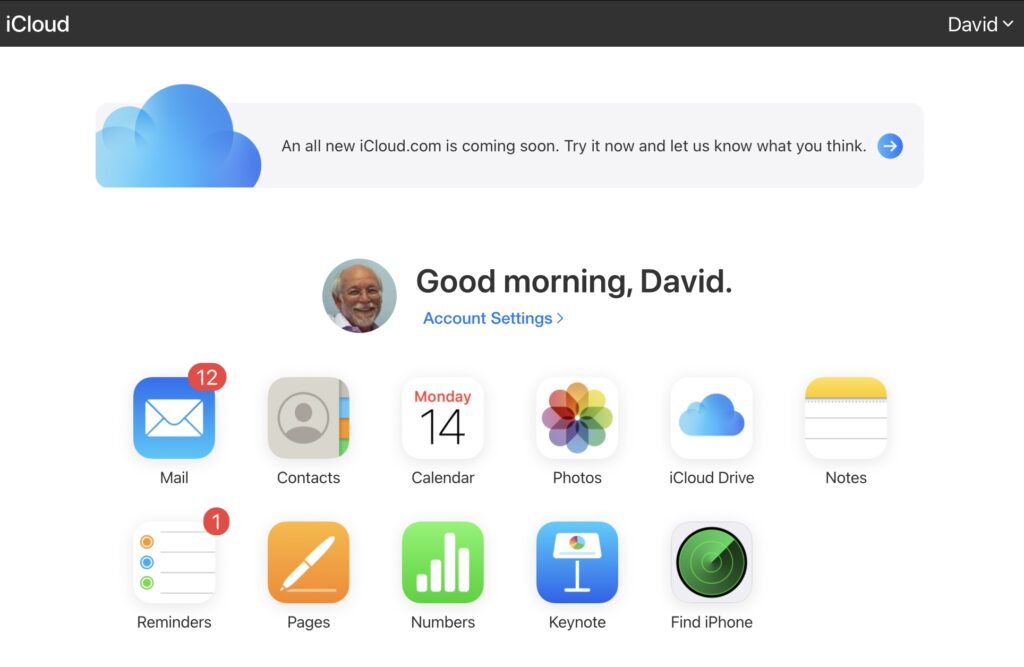
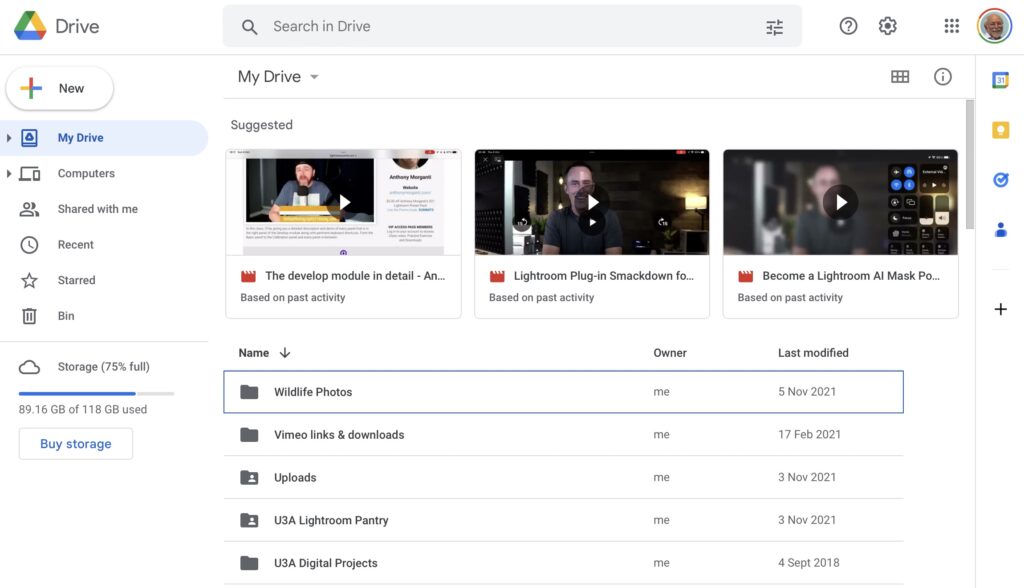
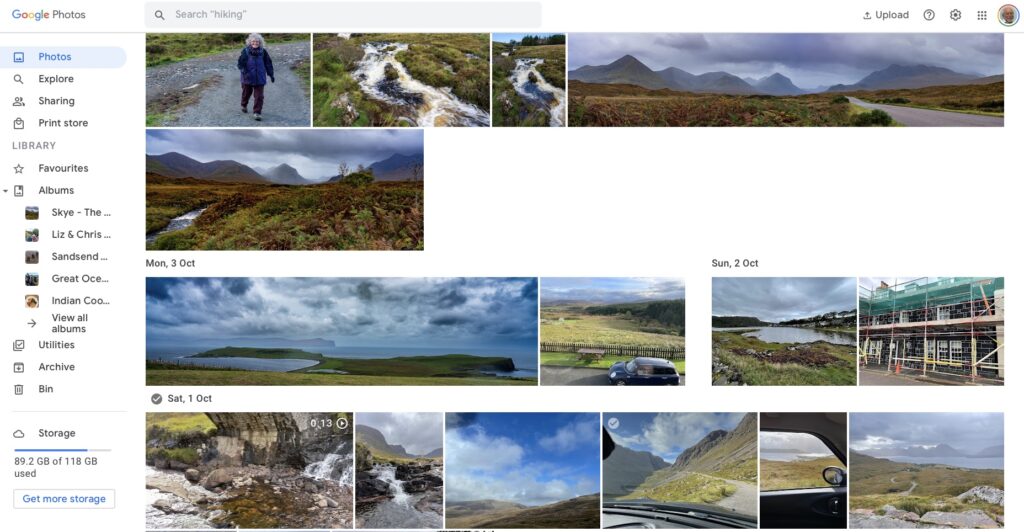
Observation one. Google Photos and iCloud Photos don’t work in quite the same way. Whereas you can access the Photos you may have stored on Apple’s iCloud storage from icloud.com through the iCloud Photos app, you cannot access Google Photos from drive.google.com directly – you have to go to photos.google.com to access them. Google Photos uses up some of your Google Drive storage – you get 15Gb “for free” with a Google account – but it’s a standalone application, in the same way as Google Mail is. It’s an important distinction. Google provides you with applications which make use of their cloud storage, Apple provides cloud storage alongside access to applications which use that storage and which synchronises back to devices.
The iCloud window {Access to all Apple applications and cloud storage}
The Google Drive window {NB No access to Photos, or Mail}
The Google Photos window {separate from Google Drive}
Observation Two. This article concentrates principally on Google and Apple, because they are the two principal players in the Camera and Cloud Storage space. There are other cloud storage solutions on which you can store photos, eg Microsoft’s OneDrive, and Dropbox. I will only refer to these briefly at the end of this article. There are undoubtedly other cloud storage solutions, but I won’t be writing about them.
Observation Three. Anything I write about the link between Camera and Photos on an Android/Google system is second-hand knowledge, and I cannot verify it!
Observation Four – the final one. This article does not seek to cover the general topic of transferring photos from a phone to your computer. This is more than adequately covered in this article. I suggest you read it too.
Not wishing to be dismissive, but just because it’s so straightforward – I’m going to discuss Google Photos first. If you have an Android phone and thereby have a Google account, you automatically have 15Gb of cloud storage and the two are linked, and by default any photos you take on your phone are backed-up to your Google account. This is described well in the Google Support article. A couple of things are worth highlighting however: a) you can switch-off automatic back-up and synchronisation of your photos, in which case all backups would need to be done manually; b) you should carefully choose the “quality” of the photos you back-up – they may not be the same as that of the photo on your device; and c) it would appear that you could backup photos to a different account from your main one, thus adding to the free 15Gb you get with each account. [Alternatively, for £15.99 a year you could get an additional 100Gb of storage from Google. If you aren’t an Apple user this is definitely worth considering.]
It’s not that much more difficult if you want to save photos from your iOS (iPhone or iPad) device to the Google cloud storage. Again the Google Support article describes the process and the options quite well.
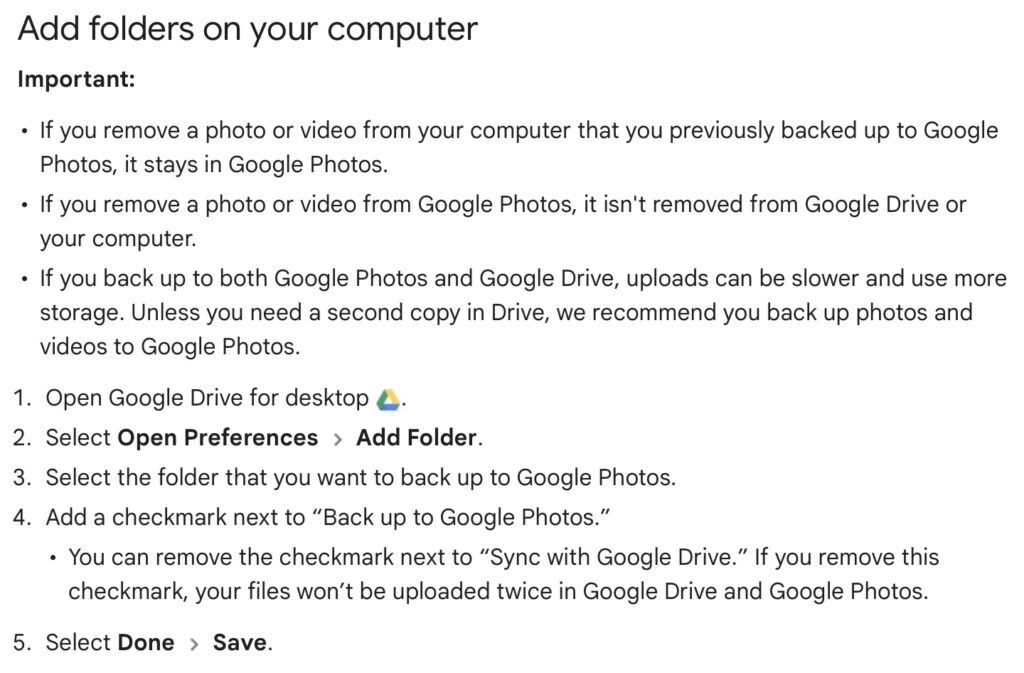
Similarly if you’ve transferred photos to your computer (eg from a camera SD-card), then Google’s got you covered to back-up and sync to their Cloud storage in this article. You should nominate a folder on your computer that Google Drive will monitor for newly added files which will then be backed-up and synced to either Google Drive, or to Google Photos, or both, depending upon the option(s) you’ve chosen.
Note (4) – you might get two copies if you don’t uncheck “Sync with Google Drive”
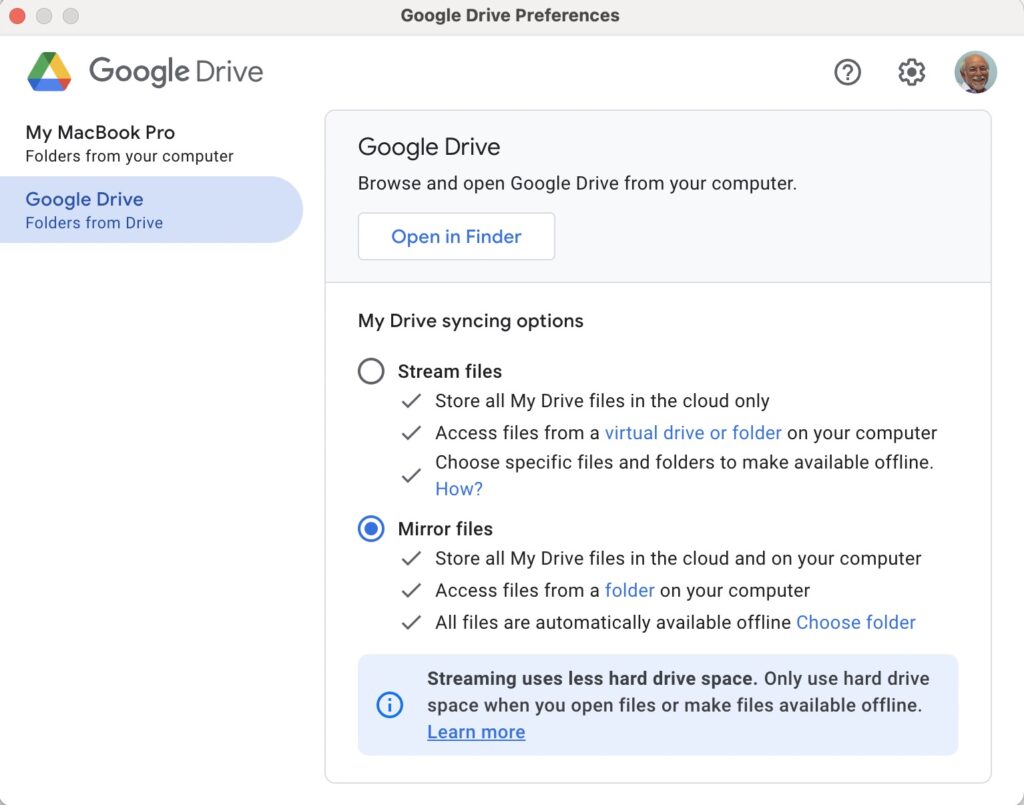
For this to work however, you do need to be sure you’ve a) installed the Google Drive on your computer, and b) you’ve set the preferences the way you want them. In my case, since I’ve increased the amount of Google storage I have, I’ve chosen to Mirror a folder (in itself called Google Drive) – then both the folder on the computer, and the one in the cloud should be exactly the same. A mirror in fact. Anything I add to (or edit on) my local Google Drive will be copied to my Google Drive in the cloud.
So we turn next to the Apple ecosystem. [I should feel more confident here, but as you may have noted that I disclosed at the start of this article that I was doing something extremely stupid and not noticing my idiocy.] Here the support page on Apple Photos and iCloud I think really does a good job of explaining your choices and how to set up backup to their cloud storage. I don’t think I can improve on it. But what if you’ve got Google Photos installed as well on your iOS device? This is where I made my foolish mistake. I enabled Backup and Sync on my iPhone and so I got TWO copies of every photo – one in my Google storage in Google Photos and the other in my iCloud storage. Duh!!!
Disabling the Backup and Sync left me with an image which was shared locally between the Google Photos and Apple Photos apps. How could I get that image (or group of images) onto Google Photos to perhaps share with friends or family?
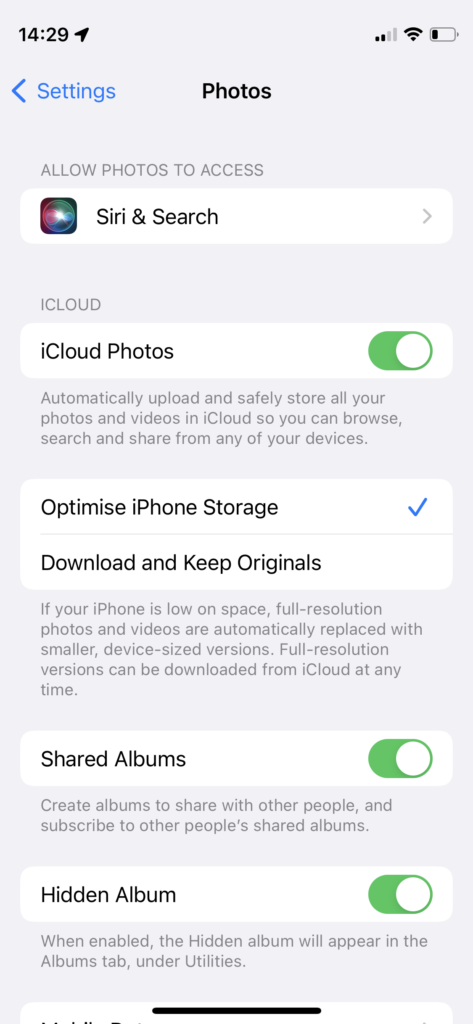
It turns out that there are two reasonably easy ways of doing this. By enabling iCloud Photos on the phone (or tablet) …
Set iCloud Photos to On
… I can then download from iCloud to a folder on my computer which I can then upload to Google Photos from. Really rather simple and not a use case for Google Photos Backup and Sync to be employed.
Alternatively, I could go into the Google Photos app, select the image I want to send to Google Photos in the cloud and Share it by getting a link and then sending myself a message. The act of sharing it copies the image to the cloud, from which I can then add it albums, etc.
Using either of these approaches allows you then to obtain a link for the album which you can then Share to a list of users, or obtain a link for public sharing.
Once you get the photos onto Google Photos the fun starts. It’s not intuitive what happens when you decide you want to delete them either from the cloud, or from your device. In fact it’s downright confusing. I’ve written about this in another place (the public Thought grazing) and life is too short to repeat anything on here that I’ve already written over there, and believe still to be correct. Best of luck!!!
The situation with deleting photos from Apple Photos and iCloud Photos is slightly more straightforward and I’ve written this up already, so won’t repeat it.
It goes without saying that keeping it all in the Apple ecosystem (for me) makes a lot of sense, and with the ability to share albums on the way – it’s not yet as sophisticated as the Google Photo Albums service – I may transition away from Google Photos altogether in time.
For Dropbox users, you can setup an automatic upload of photos to the service. They even give you a bit more free storage if you enable this, or at least they used to!
Originally posted by David Harrison on the Thought Grazing Forums
The seed for this topic was sown by Ian at our meeting on October 13th 2022. I had to admit that although I had a reasonable idea of what happened with Google Photos, I was unsure what happened with Apple’s cloud offering.
I was reasonable quick in advising (and it’s reported in the notes of the meeting), that as expected …
“I can confirm that deleting a file on iCloud Drive from the Files app on an iPhone will delete it from icloud.com and your iCloud drive on MacOS as well – which is what you would expect should happen.”
However, the situation of Photos stored in the Apple Photos app (on iPhone or iPad) and iCloud Photos should also be noted – for completeness.
I’m not going to write anything; just provide three links to follow to clarify …
If you want to delete a Photo from both device and iCloud Photos. Just ensure Sync is left on and then you can delete the image from either the device or icloud.com
Having confirmed all this, and having more storage space on iCloud, and understanding that sharing Photo Albums is about to come to Apple Photos, and having checked that Sync’ing does seem to be working for iCloud Photos (from my Apple devices), I checked my Google Photos settings settings and switched-off Back up and Sync. I was doing far too many cloud backups!!! Always worth checking. If I want a Photo to be on Google Photos (for sharing for instance), I will now Upload, not rely on syncing.
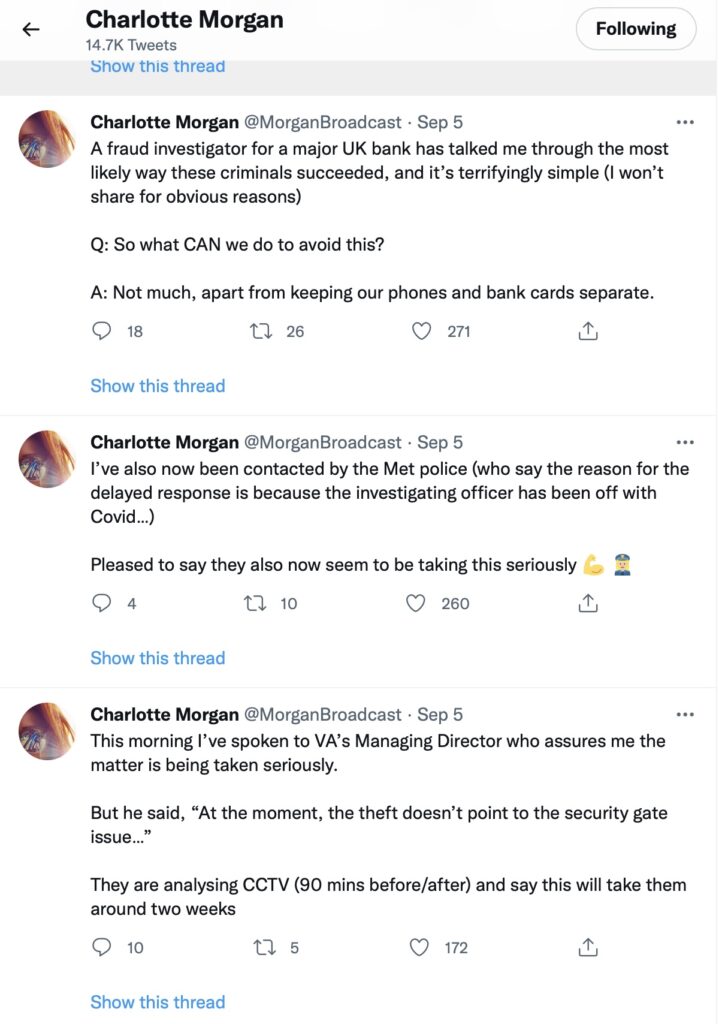
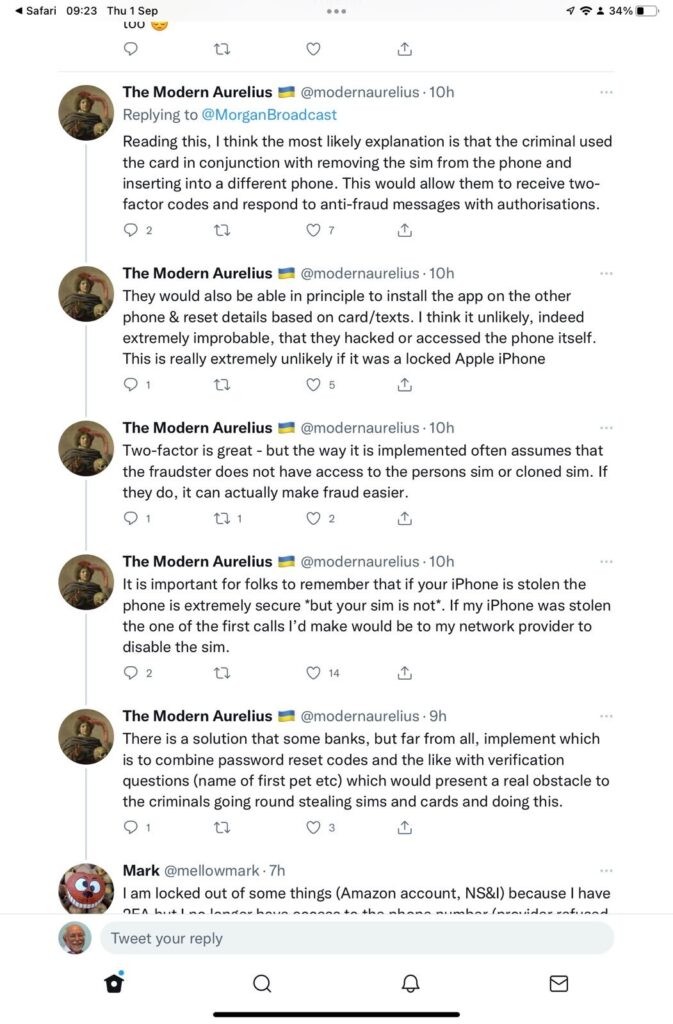
A rather disturbing incident involving a stolen phone and credit cards and the ability of a fraudster/thief being able to reset a user’s password/pass-number for a high-street bank occurred in September involving a journalist called Charlotte Morgan. She described what happened to her (and it transpired others) when her phone and credit cards were stolen from a locker in her local gym.
Charlotte chose to broadcast her experiences on twitter and got a range of helpful and supportive pieces of advice.
So we start with the first piece of advice – keep your phone and your credit cards separate. Don’t store/keep them in the same place. Maybe, if you follow the advice that follows later you should just keep the credit card details only on your phone and dispense with using plastic. For Apple that involves storing the card information in your Wallet.
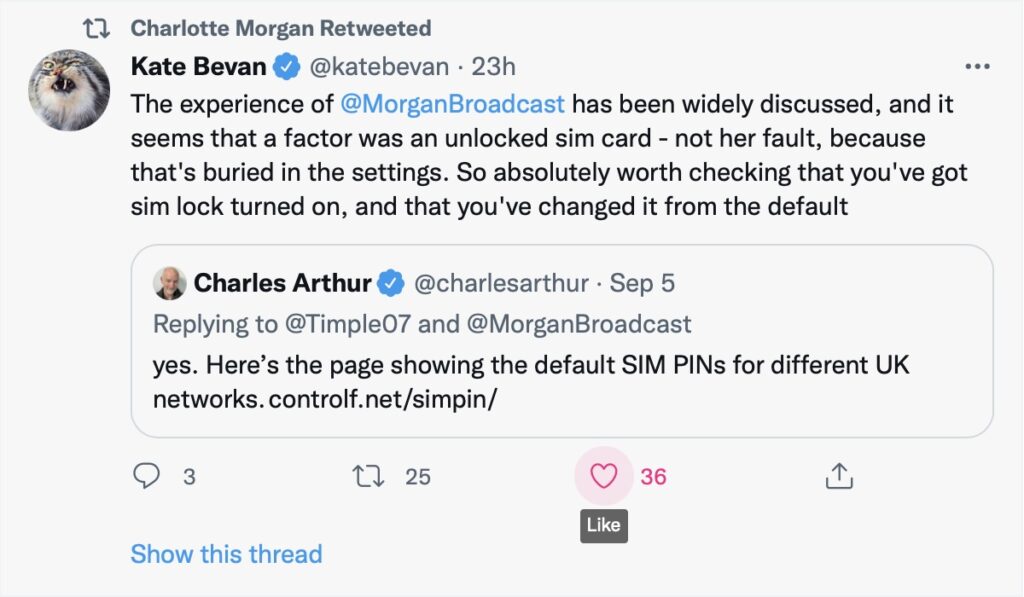
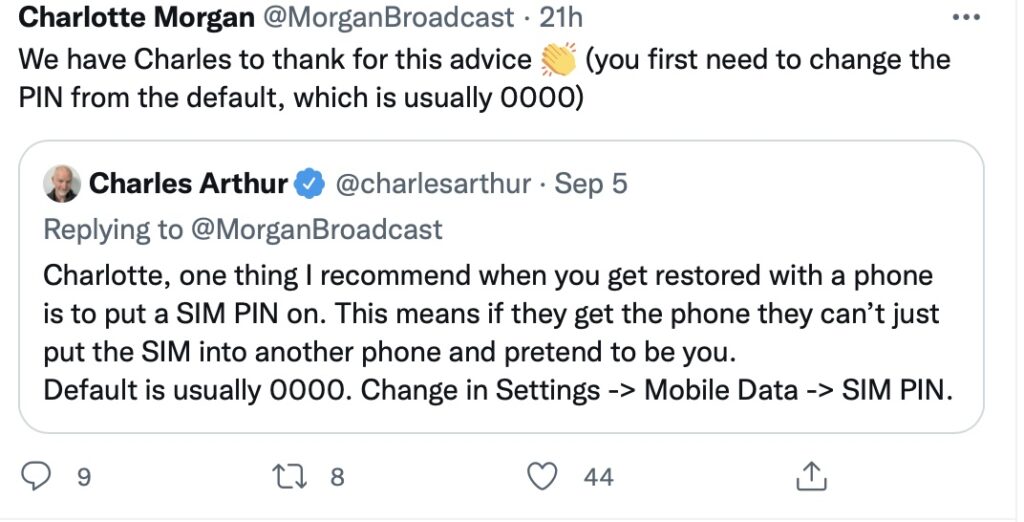
And this is the security loophole that the thief was exploiting. The default setting when you get your new phone, and insert the SIM is to leave the SIM unlocked. This means that the SIM can be taken out of the phone with your network details (and more), and inserted into another phone. Not really what you want, is it? So, lock the SIM to your phone, and by doing that, if the SIM is taken out – it is of no use in another phone. You will need to remember the new PIN you create which you will have to supply when you power-up your phone, or when you change it for a new/replacement. This is obviously an important piece of information to remember!!! There is no way of recovering the SIM PIN if you forget it!!!
So what actually happened. This thread explains it well …
But what are the default SIM PINs that network operators use?
This link will be useful as it lists the default SIM PINs for the major network operators. These are the ones you need to change to your own personally chosen PIN.
It really is quite important. Change your SIM PIN and keep your credit cards separate from your phone.
It’s always worth reviewing which search engine you should use, as it is the browser of choice to “surf the web”. The reasons you might wish to consider which search engine you might wish to use are greater privacy, enhanced security, minimise adverts being displayed, or to get more meaningful pages being displayed, but first we’ll look at the web browser you might want to use.
First things first. If you’re using Internet Explorer you must seriously consider moving to Edge as Microsoft are removing support for Internet Explorer and one day you’ll find it just doesn’t work. If you’re using the initial release of Edge you should also upgrade to the latest version. It’s faster, more stable and uses the same code base (which is the open source Chromium) as some of the other browsers I’ll talk about later.
The next thing to remember is that Google is not a Browser. If you have a Google app on your smart device, it’s just Google’s “convenient” way of getting you to use their search engine and capture lots of useful marketing data from you! Google’s browser is called Chrome, and it uses the same code base as Edge (as mentioned above) – others include Brave, Opera and Vivaldi.
Chrome is by far the most popular browser accounting for more than 80% of the internet browser traffic, it has a wide range of useful extensions, and if you can be bothered to create a Google account and navigate through the preference screens, you can make it reasonably private – but you may wish to install the AdBlock Plus extension – an advert blocker, to stop intrusive adverts appearing on your web pages. [Another way of doing this is to look for Reader View, created for users with visual disability originally, which simplifies the view of a page on your browser screen.
But why use Chrome when you can use another browser which has built-in privacy. I’m talking about Brave. You can deploy many of Chrome’s extensions in Brave and virtually everything you see looks like Chrome, but without tying you to Google. I seriously recommend you look at Brave.
If not Brave, why not Microsoft Edge. The complete re-write of Edge using Chromium and with the support of Microsoft behind it makes this an excellent choice for those who use a lot of Microsoft applications (eg Office 365 which you can run in the browser, just as you can run the Google apps in Chrome) and is growing fast in popularity even if it’s Preferences menus are a bit tricky to work your way through.
If you’re an Apple user, I suggest you look no further than Safari, although all of the others can run on MacOS. It’s optimised for the Apple platform and integrates well with the other apps in the Mac/iPhone/iPad ecosystem.
That leaves two “outliers”. Firefox was one of the first browsers growing out the original work done on Netscape, it’s open source and has a huge and committed user-base. I have nothing to say against it, and nothing much to say for it either. It’s a good solid internet browser.
So we turn to Search Engines. You want to find something out on the internet – you just google it, don’t you? Well you can, but there are other choices as well, and this is where privacy concerns might suggest you might want to look at an alternative.
I’ll be upfront. I’ve been using DuckDuckGo (often in combination with Brave) for a couple of years now. I value the fact that my activity on the internet isn’t tracked and the results that are returned are not slanted towards my prior search history, and most importantly my activities are not farmed off to marketing agencies.
There’s nothing wrong with Google Search – it’s the most popular on the internet, but that’s by default rather than choice. The results are presented well, but there is a slant towards promoted results and results based on previous searches. You can change your search preferences a bit, deploy an ad blocker (see above), but why should you haver to!
DuckDuckGo is now presented as an alternative search engine in most, if not all, browsers and exists as an app on smart devices as well. Give a try! It’s my default search engine on my Apple devices.
The only real alternative to Google Search and DuckDuckGo is Microsoft’s Bing. The service has its origins in Microsoft’s previous search engines: MSN Search, Windows Live Search and later Live Search. Bing is now the code base for Yahoo’s search facility as it is for Ecosia – an ethical green alternative. Ecosiaimportantly doesn’t use any third-party tracking tools, meaning that any search made on the service won’t be seen by any party other than Ecosia. Furthermore, any search made on Ecosia becomes anonymized after one week. In contrast, Google and Bing will hold onto bits of search data (such as the device or date), even after deleting browser history and cookies.
A short (I hope) note on where media (and text messages) are stored on WhatsApp and Signal, how to backup and restore messages, and how to “get rid” of them – mainly to save space on your phone. I’m going to rely on the links referred to in the post, rather than repeat their contents, so click on the relevant ones.
First, some important points to remember.
The primary device for both apps is the device that your phone number was registered with. Any other device that you access messages from the service are synchronised with the primary device (usually a phone). It follows from this that you should always think of both WhatsApp and Signal as mobile apps, not tablet or desktop applications.
If you lose your phone, or change your phone without backing it up in the app first, you will lose your message store, and all the media attached to messages. They will not be accessible from your tablet, or desktop, applications because the link for synchronisation will be broken.
This is because … NO MESSAGES OR MEDIA ARE STORED ON A SERVER – really, you must believe me!
All media that’s downloaded in WhatsApp will be (by default) saved to your Gallery (Android) or Camera Roll [Photos app] (iOS). This is not the case for Signal (see below).
For Android devices, if you want to switch this off, you should read this article. Media files are automatically saved in your WhatsApp/Media/folder. If you have Internal Storage, the WhatsApp folder is located in your Internal Storage. If you do not have internal storage, the folder will be on your SD Card or External SD Card.
For iOS devices, in the same vein, this article may be helpful if you don’t want WhatsApp to store media to your Camera Roll [Photos app].
It follows from the above that if you delete media inside WhatsApp and you haven’t changed the default settings, the media should still be in the Gallery, or Camera Roll of your device. [NB I haven’t checked this out because I no longer use WhatsApp.]
If you want to backup your WhatsApp message store, you can refer to this article to find out how to do it for Android and iOS devices, and for PCs (for downloaded media only).
The situation with iOS for Signal is different from that with Android when it comes to Downloading images. Signal does not save media to your Gallery or Camera Roll [Photos app]. If you want to manage the auto download of media to the app, you should read this article first which covers the situation well for Android users, but will need to have a look at this article to see how to switch-off automatic downloads into the app for iOS users. I’m not going to recommend this as a way forward for iOS. Stick to the default and only store the downloaded media in the app.
If you want to Backup or Restore your Signal message store, you are advised to carefully read this article which applies to Android and iOS devices.
Now some notes on deletion of media.
It follows from the note above on media saved outside the app that if you delete in the app, the media will still be in the Gallery or Camera Roll. If you delete in the Gallery, the media should still be in the app.
Deletion of a message from a Chat will delete the media attached to it, but will not delete the chat, or the media, from any recipients of any message you’ve sent – unless you’ve put an “automatic delete after”setting on the message (Signal only, I believe).
Thus, following from above, if a chat recipient replies to a message you’ve deleted, you may see a thumbnail of the media attached to the original message, in the reply.
For iOS and Android users, to delete media from within Signal chats you should read this article, save any media you want, select the items for deletion and press the trash icon.
Finally, and I hope you’ve got this far, I think this link summarises the situation really well for our preferred solution – Signal. Media is stored in the app, you have the option manually to save selected images to Gallery or Camera Roll [Photos app], thus saving on storage space and gaining additional security along the way too.
Phew! That’s taken a good deal longer than I expected it would.
Great article Jenny! I missed this when the mag. came out a couple of weeks back. Our Jenny has an article in “The Pensioner” – the magazine of the Civil Pensioners’ Alliance (which I joined because of the good deals on Insurance products).
This article will record the progress of the planned switch-off of the analogue PSTN (public switched telephone network) by 2025, and its implications to all of our generation, as Openreach moves to implement a fully digital service. The issue was brought to the attention of the Cardiff u3a Computer Group by Jenny Sims, a group member, who has a number of roles including being Chair of the National Pensioners Convention (NPC) Digital Working party and an NPC Executive Member.
It’s an article that will change over the next few months and years, so please look back for updates and further information as we become aware of issues, problems and hopefully solutions.
What implications might this have for older people?
Digital services are not universally good across rural areas
There will need to be a solution to the issue of digital services requiring power – what happens if there’s a break in power supply, this has been highlighted recently after the storms brought down power lines in Scotland and NE England
Cell telephony doesn’t provide a 100% coverage as a backup to digital services
What implications might this have for people with certain disabilities?
It’s been reported to us that certain people with visual problems have been experiencing difficulties in the Salisbury pilot area with the withdrawal of the 1471 service, with call-back not working, and with needing to install a new phone number
A video showing the opportunities and issues for Telecare
Here’s a link to the Progress Openreach has reported by January 2022. Much of this is very technical, so some of the following information might be more readable.
Here’s a briefing from BT on the project; and an update on what’s happening in Wales forwarded to Jenny in her role sitting on the National Pensioners Convention. Which? have also published a briefing on the subject which I encourage you all to look at.
Jenny has also written the article below, which will hopefully appear in the latest Cardiff u3a magazine …
====
Ring, ring: Ready for the big ‘phone switchover?
Only three years until 2025 when all telephone providers will do the big “switchover” moving landline customers from the country’s traditional telephone network to digital technologies and analogue services are finally shut down.
Though BT published a timescale back in 2019, many older people’s organisations have expressed concern that the public have not been given enough information about the Public Switched Telephone Network (PSTN) moving to Voice Over Internet Protocol (VoIP), what it really means and how it could adversely affect older and vulnerable people.
Among them is the National Pensioners Convention (NPC), which represents 1.5 million members in Wales, England and Northern Ireland.
Among the big questions is what happens if there’s a break in power supplies and people need to access emergency services – because the new system will run off broadband – and handsets will have to be plugged into an electricity socket.
Providers say solutions will be found – which will include the provision of emergency battery-powered backups for phones and routers.
This scenario became a reality last November when Storm Arwen hit the UK, causing widespread power outages and left 9,000 homes without power for more than a week.
Jan Shortt, NPC General Secretary did interviews with Talk Radio and other stations, and heard from affected listeners.
She said: “They raised the issue of not being able to charge mobile phones and other devices and therefore not able to summon help. It is clear that the majority of the population had not heard of the digital switch.”
In January Ofcom held an online public meeting to give an update on the “switchover” rollout throughout the UK and provide an opportunity to ask questions.
Jeff Richards, an NPC Wales executive member and a retired Swansea BT engineer, attended. He said: “Unfortunately they did not answer any questions that I raised regarding vulnerable customers nor anything on power supply. I felt that my questions were merely swatted away.”
BT have agreed to meet the NPC to address their concerns – which include, who will pay for the battery packs (some around £160) – the customer or provider?
Virgin Media has already promised that vulnerable customers with “accessibility needs or don’t have a mobile phone” will be given an emergency backup line at no extra cost.
Unsurprisingly, customers in various areas have reported teething problems as the system is being rolled out. For example, people in the Salisbury pilot area with visual problems have experienced difficulties with the withdrawal of the 1471 service and the need to get new phone numbers.
Hopefully, in the three years left of the rollout, teething problems will have been sorted. But be prepared: only an estimated 1.5million out of 29million landlines have so far been converted – and one day those old phones will stop ringing!
It was suggested that members might be interested in finding out how one group – the Computer Group – has handled and coped with the Covid pandemic by using Zoom. We haven’t actually met in person since the beginning of the 2020 session in September. We were quick out of the blocks however even before that and we held our first Zoom meeting on the 23rd April even before the Committee had taken out a subscription to Zoom I believe. Since then, almost without a break, we’ve met virtually every fortnight.
Supporting us in our meetings we’ve kept Notes and added them to our website – “Thought grazing” at https://thoughtgrazing.org – which any Cardiff u3a member is welcome to view by just sending an email message to computer@cardiffu3a.org.uk.
We’ve had an attendance of between 12 and 24 at our meetings with 16 being an average number, so that means probably 50% of the group have been able to participate at any meeting, but of course it’s not always the same 16!!! We’ve adopted a new way of organising the meetings to match with the virtual world, focussing on getting members to share issues and problems, matters of interest and general chitchat about matters digital. It’s become a much more social group with everyone encouraged and requested to participate – when it’s their turn at the very minimum. This has led to reduced time for presentations and facilitator-led talks. Some might say this is a good thing … I couldn’t possibly comment!
The pluses …
We’ve enjoyed each others company and supported each other through these difficult times.
The technology has really helped, since we’ve found screen-sharing to be an excellent way of showing and telling what we’re discussing. [Not having to rely on the venue WiFi has also been a real boon!]
The technology, I think, has actually made us much more inclusive as every member has a chance to make a contribution – far more so than when we met face-to-face.
... and the minuses.
Nothing can make up for meeting people face-to-face, the chance for casual chatter, the chance to add a cup of coffee or share lunch before (or after) the meeting.
Perhaps the number of informational presentations has dropped, but this doesn’t seem to have been a factor in attendance.
As a technology group we would hope that our members would find using Zoom relatively straightforward. Hopefully, we can still encourage some “lapsed” members to try this way of meeting, but we do accept that some memberts are perhaps “over-Zoomed” as well.
Could we manage so-called hybrid-meetings?
The occasional one-off event with some members remote on Zoom and some face-to-face might work but it would have to be a presentation-style meeting.
We have concluded that we might try an alternate meeting style when we are able to return to face-to-face, with Zoom meetings still being scheduled.
Would we miss meeting over Zoom?
In the end, probably not, because the benefits of face-to-face would outweigh any benefit from the new form of interaction, much as we like it. However, I think we’d want to take some of what we’ve learnt from our Zoom meetings into the way we organised our in-person meetings in the future. Roll on that day when Zoom doesn’t have that view!