Always good to get a review of the latest scams, and to put your mind at rest too. I intend to write another post for the Cardiff u3a website soon, and this article will be useful background …
It was less than 12 months ago that we had a session looking at the emerging technology of Large Learning Models (LLM) and in particular Chat-GPT and Dall-E from Open AI. In fact it was the meeting we had on the 23rd March, and this was the article I created for that meeting; I also put a slightly different version of it on the public Cardiff u3a website. Sianed and I also debated the topic in September, an experience neither of us would willingly go through again!!!! So with so much having happened in such a short period of time, it certainly seemed right to revisit the topic and see what’s happened.
First some background, some developments and some resources for you to follow-up, then some notes and content from three member contributions. We have Jonathan, Iain and Phil to thank for these.
What do we mean by Artificial Intelligence. Well, nothing that’s really appeared in the past 15 months it would have to be said. Some articles for you to consider …
Race to AI: the origins of artificial intelligence, from Turing to ChatGPT – in this article from The Guardian the background to what is, and what is not, artificial intelligence is explored and whilst recognising that a step-change has occurred, we have not yet reached the “nirvana” of artificial intelligence.
A simple guide to help you understand AI – in this animated webpage from the BBC, you have the “Janet and John” introduction to artificial intelligence. That’s not meant as an insult in any way, it’s a very straightforward introduction to the subject and if you switch the animations on you will get a full-experience.
Much of the attention in the past year or so has been focussed on LLM and Chat-GPT. Which? attempts to answer the question – “is it safe to use” in this article, but comes up with more questions than answers, but it does a bit of explaining along the way, but actually the best way to find out what Chat-GPT can do, is to try it yourself, which you can do here, after signing-up for an account on the Open AI servers.
Some experiments and experiences. We kicked-off here with Jonathan telling us about his experience of using Microsoft Copilot.
Microsoft Copilot
Microsoft has released several AI “Copilots” that can complete different tasks for different purposes.
At a basic level Copilot can be accessed directly through copilot.microsoft.com where it acts as a kind of Bing-ChatGPT. It can answer questions, create text, jokes, poems, songs and images much as we’ve seen in Chat GPT. When providing information it will reference the source material. And also send you on a shopping spree if you wish!
Copilot is now fully integrated into the Bing search engine and Edge browser. Open Edge from the Windows taskbar to bring up the browser. Copilot is the top icon in the vertical tabs on the right. Clicking on it will open a sidebar which looks much like the page we’ve seen above. A different tab will open the AI Image Creator. Copilot in Edge can work with web pages, for instance generating a summary of complex articles. It will work in chat, compose and insight modes. It offers three conversation styles for your own composition – creative, balanced or precise!
Copilot in Windows is currently being rolled out in Windows 11 updates. It can help with a variety of tasks, both relating to your PC’s settings and to generative assistance. For example, Copilot in Windows can turn on your computer’s dark room, organize your windows, write an essay, help you shop, and more with a simple conversational prompt.
Copilot for Microsoft 365 involves the integration of the Copilot AI assistant into Microsoft’s 365 productivity software family. For example the suite of Microsoft 365 applications, including Word, Excel, PowerPoint, Outlook, and Teams, will be infused with Copilot to optimize workflow, such as generating text and tables in Word, summarizing and drafting emails in Outlook, and generating Python visualizations in Excel. This is clearly a more advanced development of Copilot AI, intended for the business market, currently on offer for £30/month!
There are further business related Copilots for Security, Service and Sales.
All are under continuous development so will no doubt involve rapid change and improvement over time.
Of all the commercial developments in the past year it’s Microsoft that’s led the way, but Google’s working hard to keep-up, first with it’s Bard model, and latterly with it’s Gemini software.
Iain led us through some of the features of Bard and this article indicates the differences between Bard and Chat-GPT. Iain was particularly struck by the way the system seemed to learn from one day to another. An inappropriate response to a question of taking your grandchildren somewhere in Cardiff, had been replaced by a much more acceptable answer. How does this happen? Has it learnt something? Or, is it’s previous answer become part of the resource that it uses to find responses. I guess we’ll never know!!
Since the meeting Iain has also shared with us in the Artificial Intelligence Forum a really interesting and potentially useful use of AI in interpreting scrolls recovered from the eruption of Vesuvius. There are many really useful uses of AI, as the Royal Institution lectures showed us. I aim to add Topics to that Forum over the next few weeks (and months) as they emerge, and I encourage you to do the same.
We then had an illuminating presentation from Phil, that I encourage you to look at.
It starts off with Phil’s interest in Family History and his ancestor’s death from cholera which prompted him to enquire about that epidemic.
He then asked Chat-GPT to write an essay (which he’d had to do in an earlier life) on the topic “Liberal and Utilitarian Educational Thinking in 19th Century Great Britain: A Comprehensive Analysis with Reference to Cardinal Newman”
He felt that the attempt was worth at least a B+
He then shared with us some images created by Image2Go.com not all of which totally hit the brief he’d requested.
Finally a very thought-proking article – AI Needs to Be Both Trusted and Trustworthy – a theme picked-up by Ian (not Iain) on Signal with his reference to the fact that Chinese academics wary of their reputations have moved towards implementing new guidelines to protect the quality of their research.
I’ve put quite a few articles up on Flipboard in the past couple of months. I aim now to move some of them into the Artificial Intelligence Forum on Thought grazing with a brief commentary, and I invite your replies/comments. I think this move indicates that I will be using the Forum more for reference, and Flipboard more for news. I think that makes sense.
[A short series of posts that I aim to also put up on the Digital Matters page of the Cardiff u3a website]
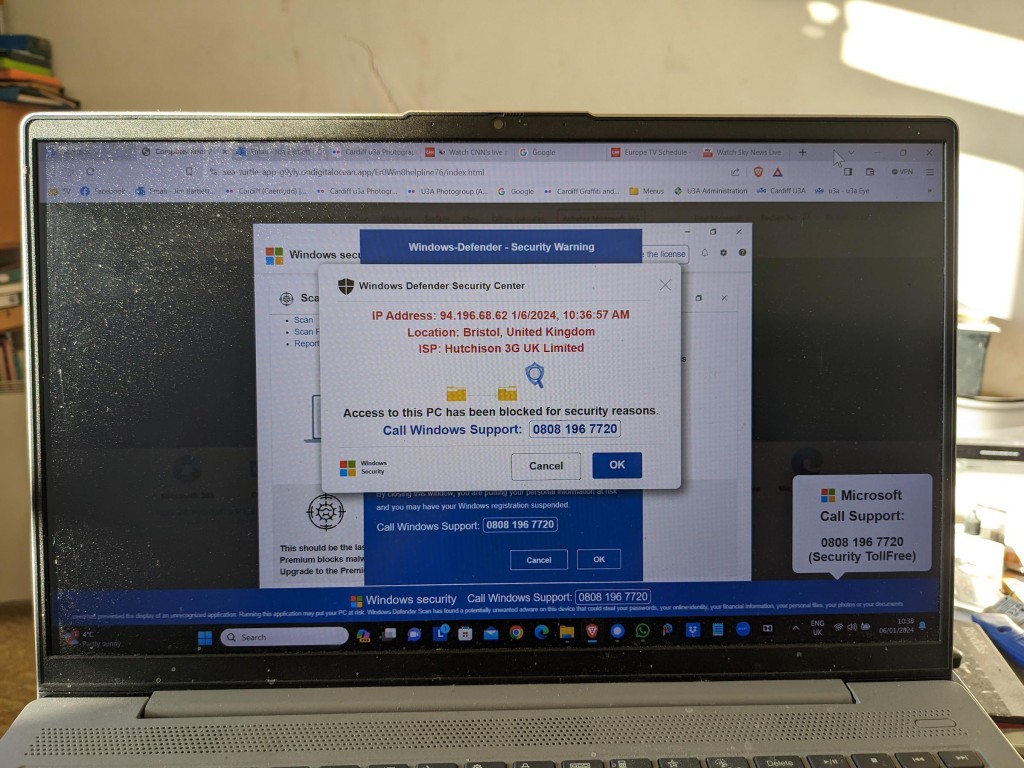
If you watched Rip Off Britain on January 15th [Episode 35 of Series 15 at c. 29mins 45secs into the programme] you will see an expert describe the Scam that one of our members has experienced recently and which has led me to write this post which may well be the first of a number on the subject of Scams.
This scam manifests itself by your computer screen being taken over by a popup which also freezes your screen. You are instructed by a voice-over not to turn off your machine but instead to ring a telephone number where you will be “assisted” to unlock your computer which has been locked – in this case supposedly by Microsoft, but it could be any large tech company – for your protection.
This alarming message plus the fact that your screen has frozen may lead you into thinking you better click on the button to seemingly connect to Microsoft. This will lead to a telephone conversation where you will be requested to supply information that will undoubtedly lead to fraud.
Do nothing!
Note well: No tech company will approach you in this way. They will not be doing this form of online monitoring of your devices. In this case the scam is preying on the fact that you are being led to think that your Windows Defender Security package is not working properly. No tech company would readily admit to its users of a deficiency in their programs in this way – that could lead potentially to legal action being taken against them. For a genuine issue they might issue an alert on their webpages and a request to upgrade (or whatever), or they might be forced to send an email to registered users, but they would not send unsolicited messages in this way.
It is important to realise that with this scam, at this stage, the scammers know NOTHING about you. The scam works by malicious code having been added to a website you are visiting, or to an advert on the website you are visiting. The simple solution is to press F11 to unlock your screen, note the website address and make a note not to go to that site again. [I would probably also recommend clearing your internet cache and history from your browser before closing down your computer; waiting a few moments; and then re-booting it.]
The more long-term solution is to install an Ad Blocker such as AdBlock Plus as an extension to your browser. This would act in conjunction with your standard security software which on a Windows machine could well be Windows Defender.
Happy, safer surfing.
If you want to see the recording of the message that our Digital Matters member made of the scam, watch the video below …
The terminology and technology involved in audio is mind-boggling. You really have to be an expert to get your head around it – and I’m not going to try. There are a wide range of differences in Audio Formats – What is HiRes Audio? It would appear that Spotify has only just recently entered the field of HiRes audio. I’ll just take it as read that I want the best, if I possibly can get it. Currently Apple seem as good, if not better, than the rest.
To get the best quality audio for iPhone and for Android, you may need to dip into those two articles. For the Apple user, you can use AirPlay to stream audio (Apple) to a different device (eg a TV or HomeHub), or use Bluetooth (both Apple and Android) – but Bluetooth is generally not up to the mark on both platforms. Alternatively you should seriously consider using a wired connection using the headphone jack (some Android) or a lightning to aux (headphone jack) dongle (Apple). On my MacBook I do have a headphone jack and when on the desktop it’s connected to a pair of powered Logitech speakers.
Streaming services and their apps
As mentioned above, there a huge set of services requiring you to set up accounts, and install apps – unfortunately (but understandably) most of the free ones are not ad free, which can be distracting …
My conclusions from this? We use Apple Music with the recently launched and integrated Classical service as well. Both of these are part of our Apple One subscription which we share with other members of our family. Three of the family still use Spotify, but our son in Australia uses Tidal (for HiRes streaming) and Soundcloud (for new music). You can (and I have) convert Spotify playlists to Apple Music playlists (and vice versa) and I have using this app – Songshift but there are other apps.
Then we turn to Audiophiles, and the world of digital to analog convertors. By an audiophile (in this instance) I’m really just talking about someone who wants to connect a better set of speakers to their digital devices than the internal speakers that are supplied with the device. [In other words I’m setting the bar very low.]
The starting point is to begin to understand the world of Digital to Analog convertors (DACs), so this video hopefully will give an introduction and explain what’s going on in this mysterious world of interconnecting equipment.
I’ll follow this with a couple of articles that you might wish to peruse ..
You want to use your mobile device as your music player? Use a lightning to USB dongle to connect Apple to a DAC and then to your speakers, or headphones, but be sure to get a Samsung ACTIVE USB to AUX dongle for Android phones, or a USB-C to USB-C (or USB-A depending on your DAC) dongle to connect to your DAC, and on to the headphones or speakers.
So, if you’ve got this far, you might wish to really play your music at the best quality that it has been stored in digital format on your device Watching these two videos might help – or confuse you even more!
For Android …
For iOS …
Recording and editing music/sound on your device – use Audacity, Garage Band (iOS, MacOS) or BandLab (Android or iOS).
Then we turn to digital sound playing systems.
A wide field of options including the portable MP3 player – but would anyone want one of these nowadays – and the smart home speaker (with voice assistant) – which we looked at last year, and is definitely a device to look at.
Finally integrating with your home HiFi system.
I wrote about my setup in 2016 and again in 2019 for the group. I also wrote about my experiences on trying to make iTunes work for me better back in 2018 – from this latter post, the MacMini and Plex still remain as part of my setup but I don’t use either to stream music, and iTunes is thankfully dead and buried – well almost!
So what has changed from 2016? Well the external speakers connected to the Marantz amp have disappeared to be replaced by a Sonos Beam Soundbar connected to a new Samsung TV. All the other HifI components remain and are connected to the Marantz amp which is in turn connected to the Sonos Connect “hub”. The Bose speakers are still connected to the Marantz amp, but are rarely used now as we now have an Apple HomeHub which I can stream to using AirPlay, and which can be integrated with the Sonos speakers (I now also have a Sonos Move portable speaker) to provide home wide sound.
It has to be said this is a technological project, rather than an audiophile one, as my hearing has deteriorated to the point where I couldn’t detect HiRes from ordinary sound anyway, and the last time we actually had the same music in the whole house must have been the week after we bought the HomeHub.
The Apple HomeHub is a delightful device – we can “talk” to it using Siri or from Apple Music, and link the Sonos devices to it so that we can direct music to different speakers as required. It’s also the heart of our SmartHome project – more another day, and will provide moths of technology challenges for me using the Apple HomeKit and the interfaces that are being developed to link smart devices to that platform.
The next project – we’re installing solar panels this week, with a battery and a gateway to link to link to the Grid (using Octopus flexible tariffs) – definitely a topic for next year when we’ve got it all sorted.
Jonathan sent me his Sound setup which I reproduce below …
Just for info. – my home audio/cinema set up has some similarities to yours.
When we moved to Cardiff we bought a new house in Pontcanna which was still being built and I took the opportunity to have wiring installed in the walls to ceiling speakers in three rooms. I took advice from an AV specialist who advised Sonos, Spotify, blu-ray player and mini mac for my digital collection.
Sonos serves all 3 rooms, plus a portable speaker, via a marantz amp in the main tv room ( surround plus sub ) and Sonos amps in the other two ( stereo )
Spotify provides all my music needs and I never now use the mac. Nor do I have a CD player in the house since the blu ray/receiver packed up. My cds are all packed up in boxes in the loft! The only stuff I miss is Neil Young and Joni Mitchel after Neil left in a huff!
I have Samsung tvs in 4 rooms – 3 of them Smart and all of them now support Spotify, Youtube, netflix etc. We subscribe to Sky with a main Sky Q box in the main tv room and mini boxes in 3 others.
I’m really happy with it but conscious that the Sonos gear is now 12 years old. They keep trying to get me to upgrade. One day it will be inevitable I guess. Sky might be considered an expensive luxury but we all need one or two of those. It’s brilliant!
This article from Norton is as good as any at summarising what you should do by way of maintenance – regular tasks that will make your machine run smoother, and possibly faster.
Backups
There are built-in options supplied for both Windows and MacOS – there’s no real reason to look beyond these. This table (for Windows 10) shows the different methods you might consider. I’ve also included this article that might help you understand what your need to do. However, with Windows (it’s never straightforward) you have another option File History, which maybe a better option, as it focuses on saving files to an external hard disk.
For the Mac, I wouldn’t bother going further than TimeMachine. You’ve heard me rave on about the Mac, but it’s true. You may do things differently on a Mac, but they’re just easier.
The most important thing is to do Backups, and do them regularly. My TimeMachine does an incremental backup every hour to an external hard disk. So the most I can lose should the machine crash, is the last 59 minutes. Some items will be excluded from this backup (eg photos) as they are backed-up automatically to iCloud when I import them on to my machine.
Windows 10 and 11 Maintenance
Let’s start by looking at this short video. You’ll want to go back and watch it more than once. Although it is aimed at Windows 10, I think all the utilities mentioned are available from Windows 11 too.
If you prefer reading to watching, and you’re a Windows 11 user, you will possibly find this article useful. If you don’t trust yourself to do the maintenance regularly, then Windows 10 users might find this article useful as it tells you how to schedule automatic maintenance and what it will do, but if you prefer your instruction to be visual you could watch this video instead, or as well.
If it’s just a speed-up you want from your Windows 11 system, you could work your way through the list in this article, but I’d be tempted to do the more comprehensive list of tasks mentioned in the videos above.
MacOs Housekeeping
Here it’s more housekeeping than maintenance, there are some things you can do to improve performance on your Mac, regular maintenance (as mentioned above) is not really required. This article aims to make your machine run better and faster – I’ll have to read it!!
The software I use on my Mac is CleanMyMac X – this article describes what you should do to automatically do some decluttering, which is probably a good thing and which I run once in a while; it obviously recommends that you use CleanMyMac to do it. Quelle surprise!
Operating system updates and upgrades
These are usually well announced by Microsoft and Apple. Generally, if the update is described as a Security Update, you should do it immediately; if it’s described as a bug-fix, or a point release with new features, I would counsel waiting a while … perhaps a couple of weeks, before installing it. Of course you can leave your operating system to do these automatically, so check your settings (as described in the videos) and select the time that your updates will be done.
More substantial upgrades are less frequent and my advice is to wait a while before installing these as it’s always challenging to go back to a previous release, and sometimes the upgrade will affect the running of one of your applications. All serious software developers will apply to get advance access to operating system upgrades to test their software on the new platform; but even with this access some bugs may not appear until the operating system is “out-in-the-wild”.
Internet history, cache and cookie cleaning
These were covered in the earlier videos but you should probably do these quite regularly anyway. You might have noticed that cookies weren’t “cleaned-out”. That’s probably because the majority of them will be re-installed the next time you go to a website, and cleaning them will also mean you have to re-enter information again. Generally, with good anti-virus software these days, cookie cleaning is not essential, as the malware threat has been reduced before they’re added to the browser.
Anti-virus and malware checking
For the Mac I have MalwareBytes (supplied by my bank). For the PC/Windows you know that I recommend Widows Defender, as it’s more than adequate for the “ordinary” user who’s not surfing the dark web! It’s evident that Microsoft have upped their game in this area and you can also deploy other tools to protect your machine. Take a look!
Hardware upgrades – memory, batteries
You might wonder whether you’re up to upgrading memory or batteries on your laptop or desktop, but actually this is a relatively easy job. You can use components from Crucial for memory and hard disk upgrades, and they describe how to do it for specific machines, or you can search for compatible components on the internet. Search for the instructions on how to fit for the specific DIY task. You’ll feel a sense of pride when you’ve completed the task too! A triumph for “person kind” over the machine
A really good upgrade is to replace an old Hard Disk Drive (HDD) with a Solid State Drive (SSD). The performance enhancement you will experience will be noticeable. You can always deploy the old HDD as an external disk and maybe use it for your backups when you place it in an appropriate caddy.
If you’ve not got the courage to do it yourself, you can always ask We will fix your PC to do it for you.
Cleaning screens and keyboards
Often overlooked, your screen and keyboard can always do with a clean, and you’ll be surprised at the difference it makes – to your mood if nothing else. I recently purchased this kit from Amazon to clean screens, keyboards and TV.
Application housekeeping
Another often overlooked consideration. You should look at whether your software should be upgraded. If it was purchased through an AppStore then you should be able to find out if there’s an upgrade available – you may have to purchase it, but often the upgrade will be free. Often the software provider – if you’ve registered your ownership – will inform/advise you of an upgrade to a new version, or release. Generally bug-fixes are not chargeable, but you may have to pay for feature-enhancements.
Please be aware that it’s impossible to expect that a software developer will keep their software compatible with every release of operating system software, so if advised that this is the case you should seriously consider an Upgrade, or finding a replacement if the software passes “out-of-support”.
You should also look to see whether (as was mentioned in the videos) you actually need the software anymore. At best it might just be taking up disk space you might need, at worst (as it becomes more outdated) it might provide a “backdoor” for malware to enter your system and upset your life!
Some applications (as was mentioned in the videos) also have local data caches and backups (genealogy database software is notorious for this). As you exit your session you are prompted to save a backup – the question is … how many backups do you actually need!!
All-in-one solutions
For the PC/Windows you could look at CCleaner (free version) – I love this quote from the article “Macs don’t need standard cleaning” but I do have MacPaw’s CleanMyMac X on my machine, and I bought it! However if you’re a Windows user there’s a lot to be said to doing the cleanup manually following the suggestions mentioned in the videos, I have shown.
Not strictly maintenance but something to bear in mind and perhaps make a regular task, is maintaining your “everyday” applications.
Do you need to keep all your eMails? It may be possible to Archive them outside the Mail application – thus making it run faster and more efficiently. You can also if you’re using a local mail client (recommended) occasionally rebuild, or optimise, the email storage. It’s just a database and it will run more efficiently if it doesn’t have a lot of redundant links to deleted messages, and the like, contained in it. You may be surprised at the large number of files (especially photos) that are stored in your email. Perhaps you should save them to a Photos app, or at least download them to a folder on your machine – they’d be more accessible there.
It’s surprising how many Contacts are duplicated, or how details and lists can get out-of-date. Always a good idea to review them and merge duplicates, edit changes and delete no longer needed entries.
Calendars are less needing of maintenance. If the day has passed, so what; it’s more important to know the forthcoming events are accurate and up-to-date. However recurring entries should be reviewed occasionally.
Again, like the above, it’s more important to keep Reminders up-to-date, and if you decide to use that utility, to stick to it. It’s an application that you shouldn’t use occasionally, you should commit to using it, and then be able to rely on it. As I demonstrated recently you can talk to it – as of course you can with a lot of utilities and applications.
Notes can become a bit of a dustbin, and I suppose you should be allowed to have somewhere you just dump stuff. However, they do have a very useful role in planning, and charting progress of a project, or a trip – especially when you can show completion with a bullet-point format. The functionality is always improving and now you can store website addresses, photos, maps, music and more in a note and then share it with someone else so that they can collaborate with you on the topic. It’s just a bit embarrassing when you look back at what you’ve “noted” and realise it never actually “turned-out-like-that”.
Finally Photos. Probably the biggest hard disk grabber of all. You need to plan a strategy for what you want to keep, the application you want to use to access them, or share them, and then – if at all possible – stick to your plan! Not always easy, but for your sanity, probably essential. The first task is to work out your duplicates. This is where DupeGuru comes in. Apiece of open source software that has proven to be a life-saver to me, and a tool that has allowed me to recover a lot of disk space. It works well with phoitos, but can also be used to find duplicates of other file types as well.
Here’s a video that explains what a Virtual Private Network does. I use NordVPN, but I must remember to switch it off when in the house as it’s quite unnecessary behind my router. It is useful when travelling however, and some might say essential when cruising.
The second half is a bit techie and can be skipped if all you want to do is understand what it does and how it can be used.
I last ran this topic in 2019 pre-Covid, so a lot of water (dare I say streams) will have gone under the bridge since then, but actually not much has changed either. Essentially screen technology has improved and some suppliers have adopted a standard LED technology across their range, which makes choice easier, and also they (particularly LG, but other main players too) now use the same operating system platform across their range – thus making it easier to use different TVs from the same manufacturer.
What hasn’t changed is the way they compete with each other for the “smartness” of their devices, so I will spend some time on that, without giving too much in the way of recommendations – that has to be a very personal choice, but hopefully if you’re undecided you may find something of use to make a choice.
So first the questions you need to ask yourself, with a guide to possible answers.
Do you need a Smart TV? Concerns about privacy; advertising; snooping [Reveal – you don’t need a Smart TV, it’s just terribly difficult to avoid getting/buying a new one – and I certainly wouldn’t recommend buying an older model second-hand!]
Links to non-Smart TVs (from Amazon UK) – one model from LG; Sharp quite possibly; Cello the major supplier in the UK market.
Finally a dated article from my last summary, but the findings are no less valid and do indicate that a streaming device might be worth considering.
Is the built-in Smart TV provided the best way forward? Well from a convenience point of view, quite probably yes; but if you’re concerned about obsolescence of the Apps on the platform; privacy etc – quite possibly not. An alternative is to buy a TV monitor (or a computer monitor) and pair it with a streaming box from Apple, Roku, Amazon or Google. [This is an option I’m carefully looking at for a new TV in the kitchen, because all the main suppliers don’t seem to supply an option smaller than about 29″ which would (I feel) be just too imposing in a relatively small space).]
Freeview or FreeSat? Both require an aerial or satellite dish, but there are ways of watching Freeview (Freeview Play) as a stream, or watch Freeview as an app on your mobile device and cast/play it to your TV. If you only want the main “terrestrial” services and don’t require streamed services (from the Internet) – these could be for you. There’s also YouView which is a packaged service combining terrestrial channels with some popular streamed services which is then available on certain platforms (ie BT TV, EE TV, TalkTalk TV and Sony TV) – a sort of semi-Smart TV service.
Do you need a TV at all, or could you just use your laptop/tablet instead? Well that’s certainly a possibility. For personal use I’d not discount it and all the major streaming services do have apps for laptops/tablets.
However as the reference to Youview (above) makes clear, if you choose to get your TV service from BT, or Virgin, or TalkTalk or EE, they will provide a box which could provide a lot of what you need for your TV viewing with out the need for Smart TV. These boxes will have replay, and recording as standard features.
Then there are the streaming service boxes – all of which have their own Smart TV features. I’ve mentioned Roku already, but there’s Google Chromecast, Now TV (which is built on the Roku platform) and of course Apple TV boxes, which can all run alongside your Smart TV apps, or add to your Dumb TV offerings. With a Roku device you can also use Apple’s Homekit and Airplay – useful for sending your Apple device’s screen to the TV – and control it with Amazon Alexa or Google Assistant.
Which neatly leads into Voice assistants and Sound.
Without much risk of contradiction I can say that the audio quality from all TVs is poor unless you are willing to pay mega-bucks. If you’re willing to pay a little bit extra, it’s worth investigating the Soundbar that pairs with your TV manufacturer, or alternatively to look at an offering such as Sonos – there are others, and I’m not going into this area.
What is worth considering when looking at a Smart TV is how it integrates into the rest of your Smart Home. It really is worth stopping and considering whether you’re a Alexa, Google Assistant or Siri home. You quite possibly have acquired devices from several manufacturers not realising that they all have different voice assistants and not all of them integrate easily (if at all) into your Smart Home Hub – Nest, HomeKit, Echo, or SmartThings – to name a few.
If we look at just the Voice assistants and TVs – Samsung supports its own Bixby (which integrates, I believe with it’s own SmartThings smart home platform), Google Assistant and Amazon Alexa and whilst it has a very good integration withe Apple through its Apple TV app, and through AirPlay doesn’t allow you to use Siri voice assistant, or integrate it into Apple’s Homekit ecosystem. Indeed it’s only LG that has a good integration with Apple Homekit enabling you to use Siri to control the TV. [Indeed LG is a good platform for voice assistants because it supports Google Assistant and Alexa as well as it’s own little known ThinQ system.]
What other alternatives are there to watching streamed digital content on your TV? Well the most obvious one is to use your PC/Mac as the TV and use software on the PC/Mac to record Free-to-Air content. You will need a digital tuner for the PC/Mac to get the content.
There are other companies in this field but I can only vouch for Hauppage. I once installed a card in my Windows PC, and I still use a USB Tuner with my MacBook Pro to watch TV. Postscript.
There also DIY streaming solutions. I have built a Plex server, but Plex as an app is also a possibility, streaming content across the internet from an app. My Plex server allows me to archive content I want to watch and watch it from anywhere in the world from a server running at home. That used to be useful for my family in Australia before they started using a VPN.
I’d known about Plex for quite a long time but had (prior to 2016) not done anything about it. I’d formally used iTunes essentially as a media server built around a MacMini that sat under the TV with all content that I could record from Get iPlayer Automator and my media that I’d digitised including my CD collection, as well as the streamed versions purchased and downloaded from iTunes/Amazon.
I set about a project to install Plex on the MacMini (which I’d upgraded with a new SSD drive, an extra 4Gb of RAM and an install of the latest MacOS (then High Sierra, it now runs Catalina). Here are a few links to show you my direction of travel.
I forgot to mention new display technologies from LG/Sony/Panasonic called OLED, and Samsung – QLED. This article explains what these are. It would appear that Samsung and Sony just lead the pack on their use of QLED technology, but it is a race that all will try and compete and try to win. WYSIWYG or what you like is what you buy (WYLIWYB).
I haven’t handled other screen technology – 4K, 8K, HD-Ready, Curve-screen 3D and more – notes from the last time I did this topic, here and here (two different links).
Other links (useful if you have an online Which? account) – not sure whether they’re open to everyone …
Just too much to mention!!!!! So in conclusion, some more links …
For the Samsung aficionados – their argument why their platform is the best for Smart TV; a persuasive argument (for me) from LG as to why their support for Apple Homekit maybe the best way forward for me; a review of HomeHubs which might be of use/interest in helping to come to a decision on what you might want to do in your house re. smart homes (a topic we will definitely study again in “Digital matters”); and finally a review of all the major Smart TV platforms for you to ponder over and consider whether anyone has a significant advantage over any of the others FOR YOU! I stress again, this is a very personal decision.
And finally, some more links from the previous presentation to maybe make you think and help your decision-making.
Ian recently had problems with his phone in which he lost his past Signal conversations. Renee had a similar problem last year as I recall. For those changing their phone and not wanting to lose their Signal conversations, this might be a useful link – https://screenrant.com/signal-transfer-conversations-new-iphone-android/
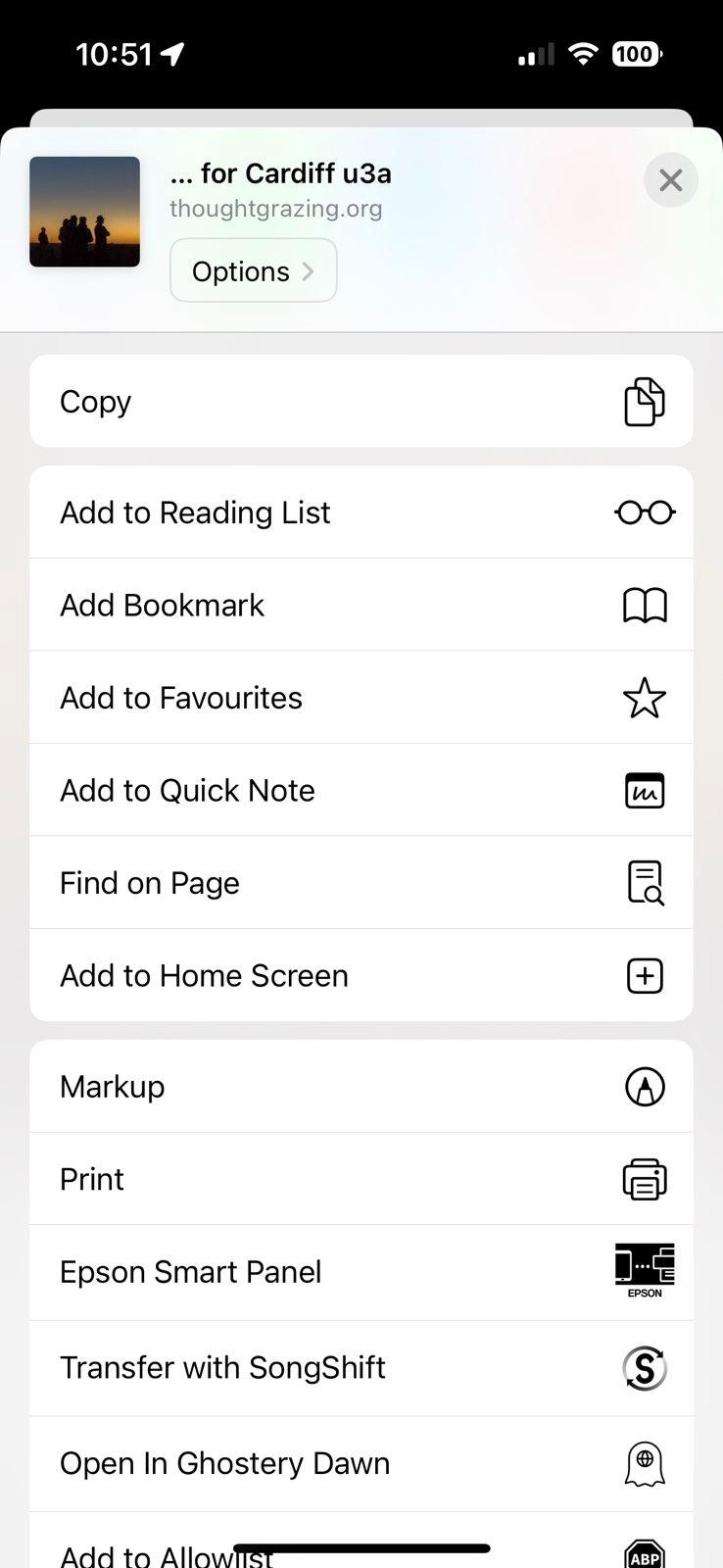
Did you know … you can create a shortcut to Thought grazing on an iPhone (probably similar on an Android phone) by pressing the Share button when you’re on a page you want to have a quick link to; and then selecting Add to Home Screen and possibly editing the suggested name; then moving it to where you can easily find it on your phone Home screen. You can setup any number of shortcuts this way to any website you frequently use.