Keeping safe online …

The threats – real and perceived

Luckily, there’s plenty of advice and guidance available – often slanted particularly towards our demographic (ie oldies) …

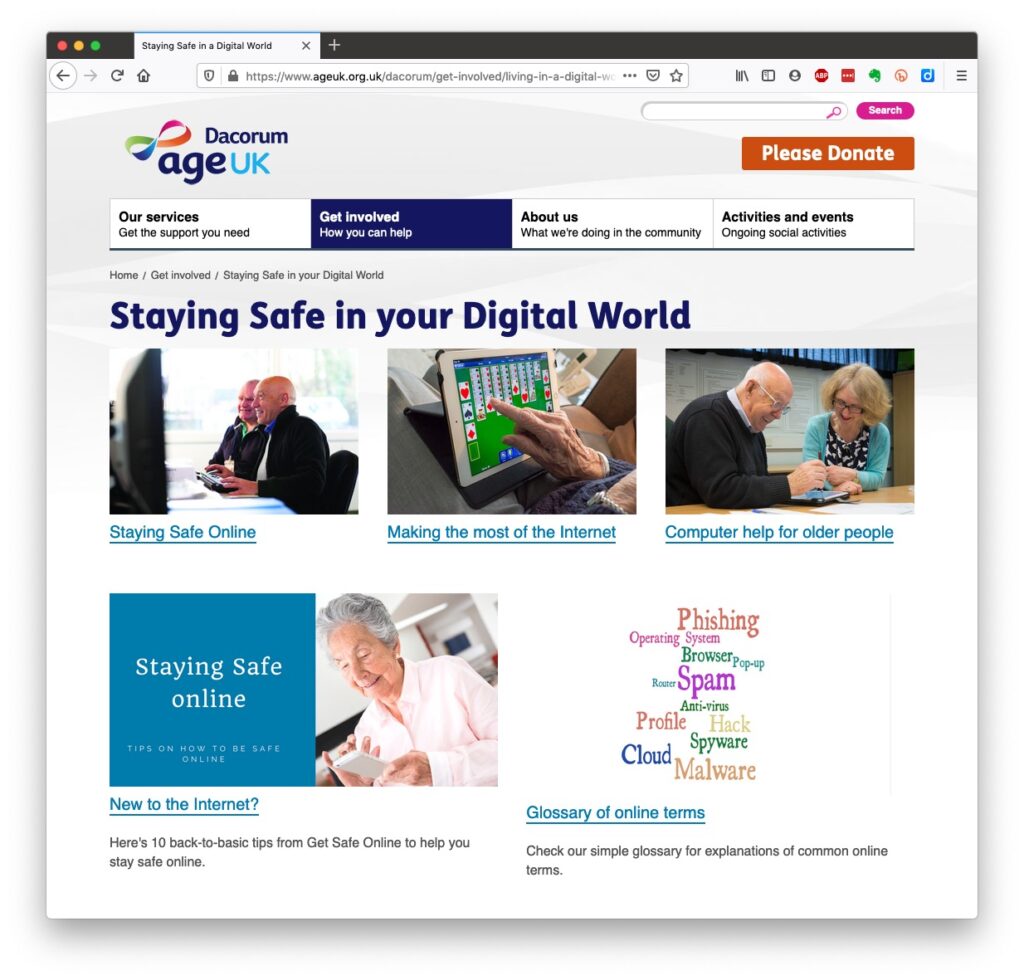
Those two sites are particularly easy to follow and understand, but others are equally informative and targeted.

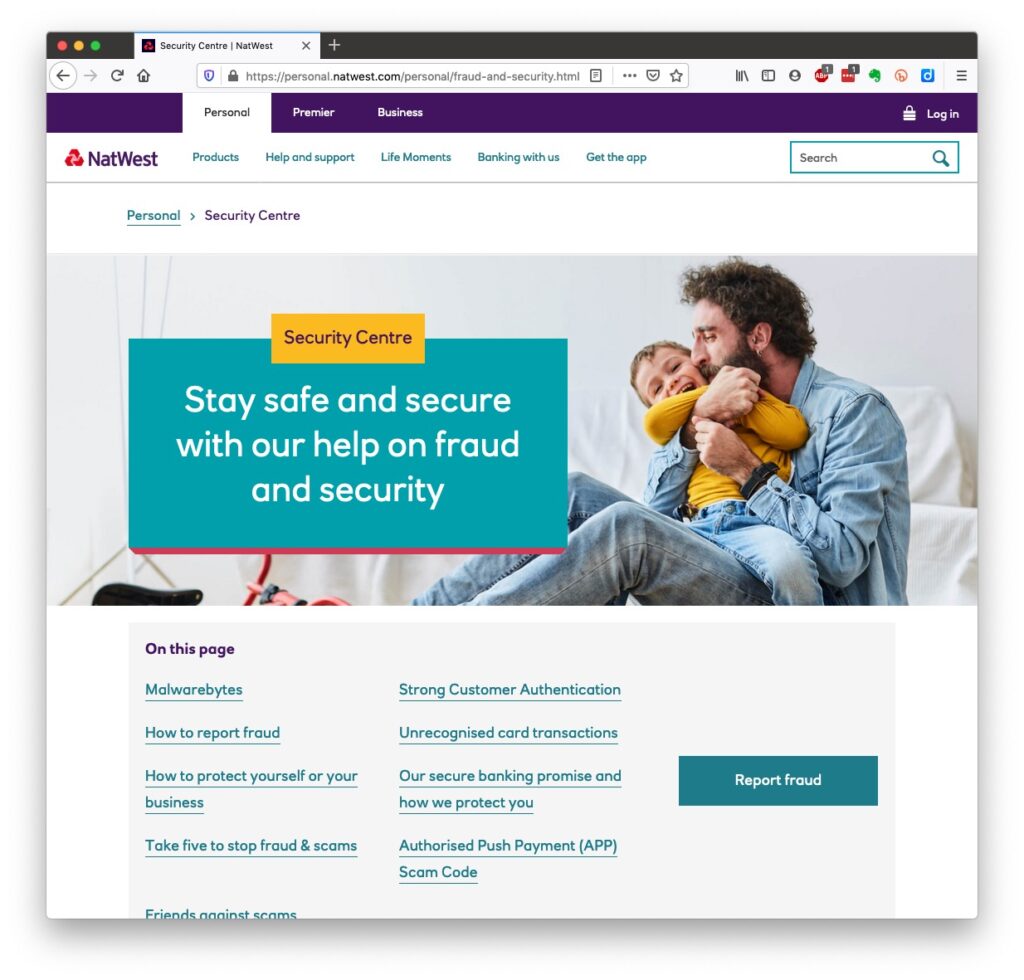
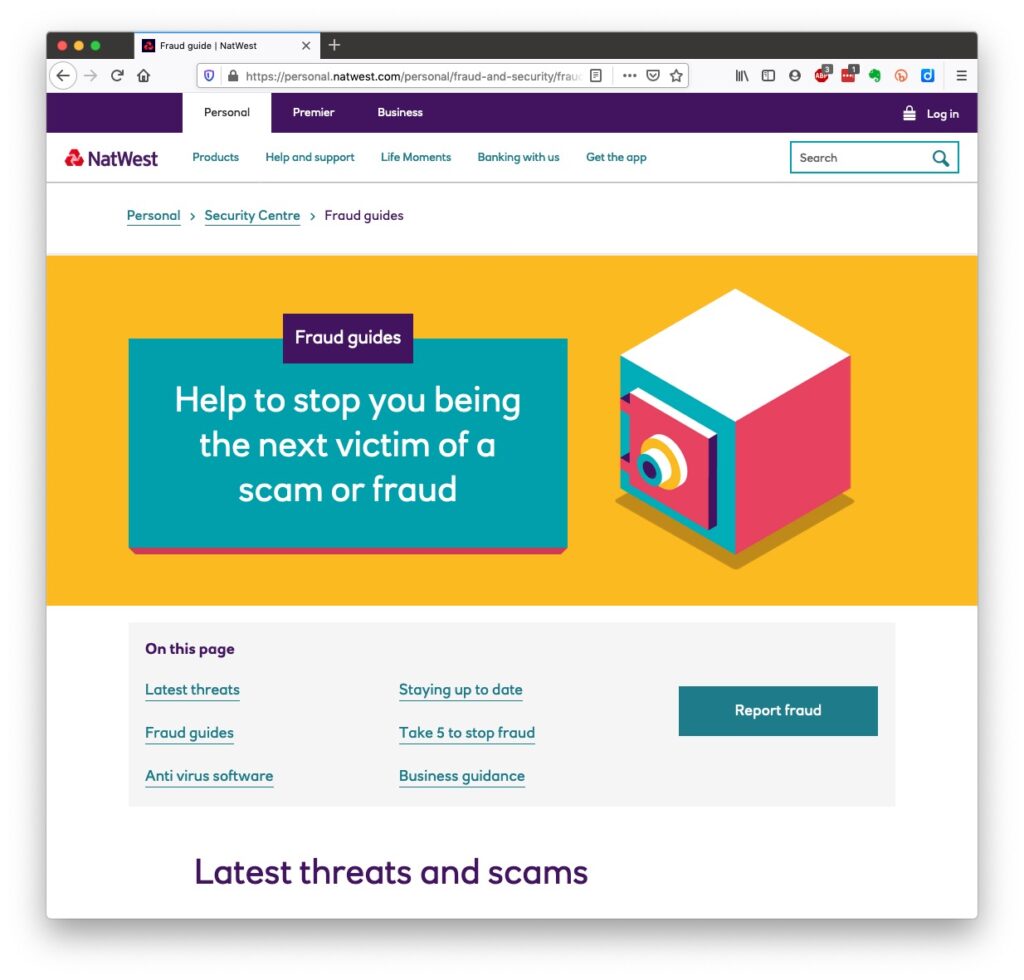
Your bank probably has guidance which it publishes online and which is accessible to everyone, not just their customers …
I’ll return to further information, guidance and references at the end of the talk, but first we need to look at a few issues, discuss some terminology that’s widely used and try and tease out what’s really important, and what’s just an inconvenience and then it’s up to you to judge where you find yourself on the scale of …

Terrified -> Apprehensive -> Sensibly Aware -> Relaxed -> Unconcerned

First let’s distinguish the difference between online security and online privacy. These are two different issues which are however linked. Sometimes you have to relinquish some privacy to receive a service – unless you choose to pay for it (and I’ve long been an advocate of paying for services if they do a job that is necessary); exactly how much privacy are you prepared to relinquish?

Security on the other hand is an absolute – you should not be prepared to accept less than your very best efforts . We’ll deal with that in the third part of the talk.

How do you relinquish your privacy, and how much of a loss of privacy is acceptable?

Some services could not be offered without income from adverts, or paid-for advertising – eg Facebook, twitter and instagram; and some eg Google and Amazon track and provide information to resellers if you don’t block them from doing so. As an example of how much value Google sees in getting knowledge of what you’re doing and where you’re doing it, they paid Apple $8bn recently to remain as the default search engine for any browser that’s running on an Apple device!

Incidentally, if you clicked on that link you’d have been asked whether you wanted to accept cookies – what exactly are they, and what do they do …
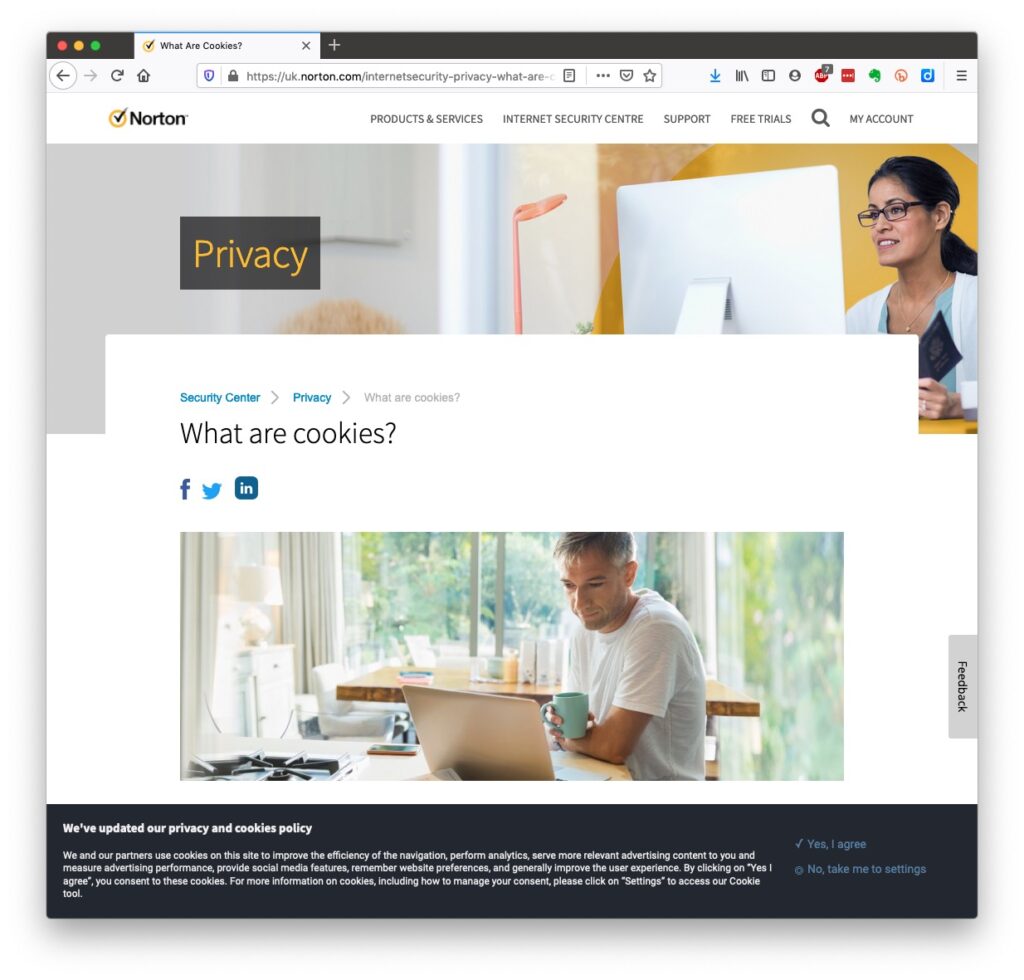
This article from Norton explains what they do quite well. Essentially, they record what you do on a website so that when you return some of the settings are remembered and applied. They do however also have a downside in that some can also act to track your activity once you’ve left the site. For that reason, you should disable in your browser the ability of third-parties to glean information from a cookie, and also to prevent them tracking your activity once you’ve left the site. You can at anytime, clear the cookies from your browser, and indeed on some internet browsers set them up to delete cookies when you leave (close the window) the site. You might also have noticed that my browser – Firefox – alerted me to the fact that Norton was using a Fingerprinting cookie itself …
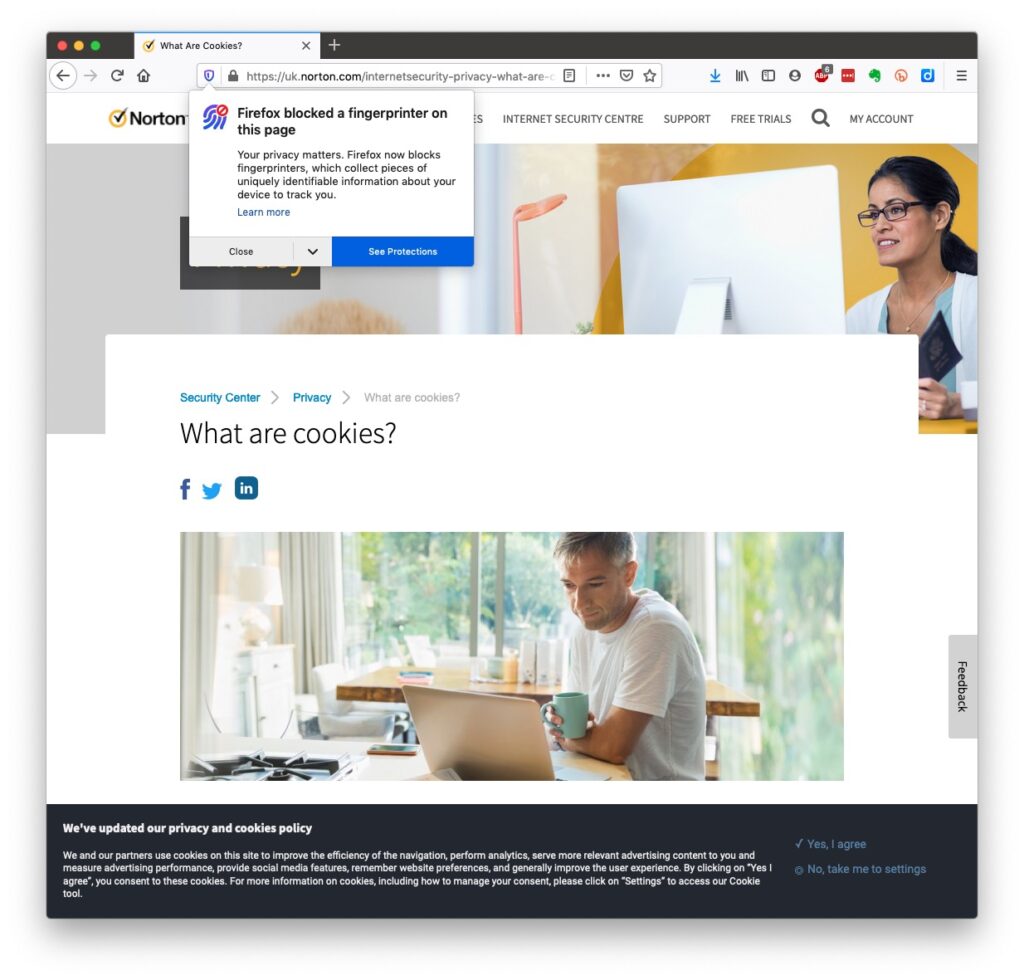
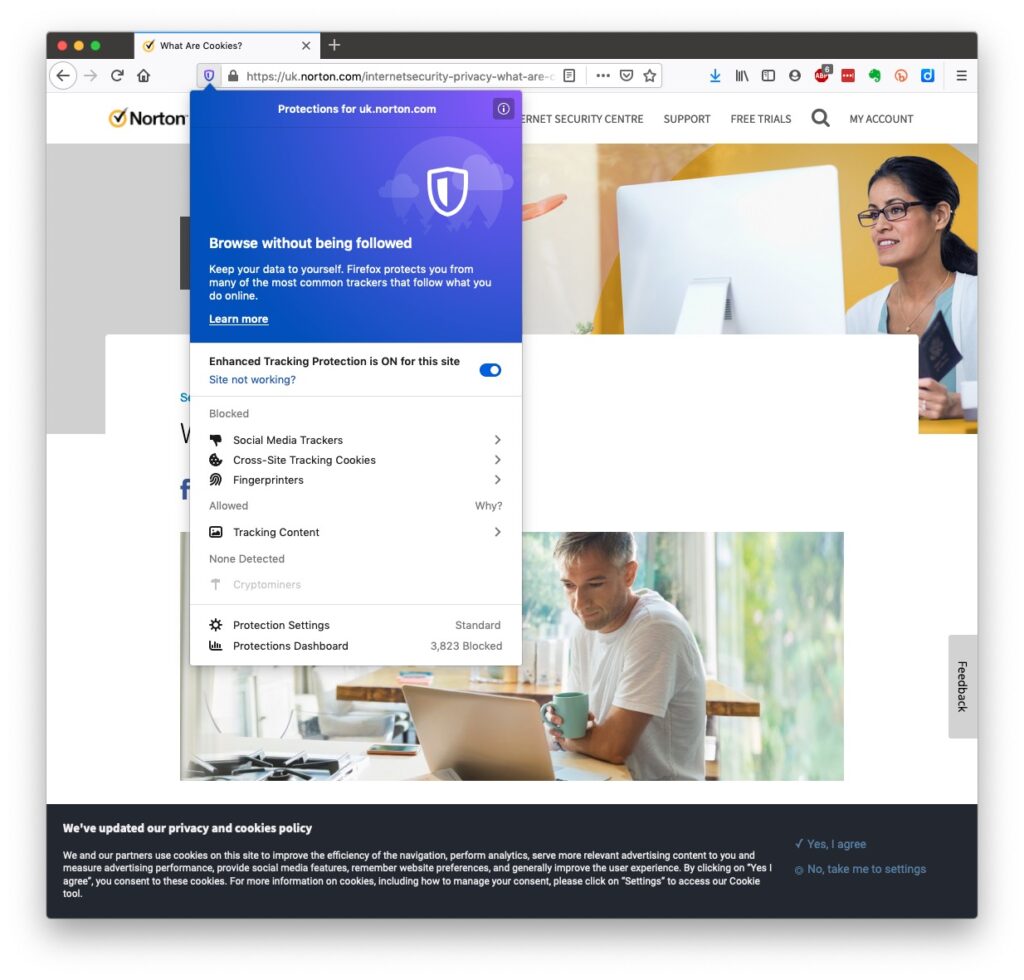
… we’ll leave that for another day!

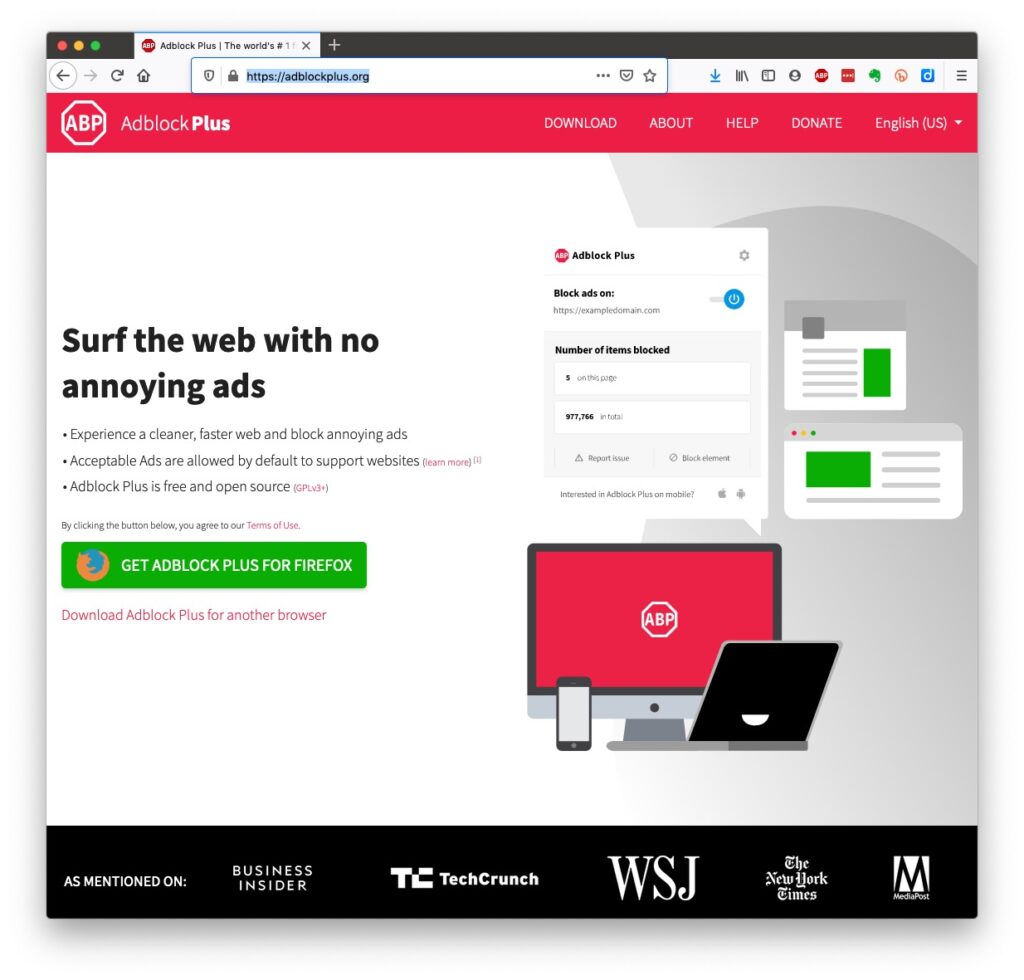
Another thing you might have observed when I opened the link in my Firefox browser was that the site requested that I enabled adverts to be shown. That is because Firefox, like Brave and Microsoft Edge, by default switches adverts off. These are often annoying and having a browser that blocks adverts, or if you use Chrome – using an ad-blocker like AdBlock Plus often makes for a more “pleasurable browsing experience” by limiting the intrusion you might feel upon your privacy.
Which brings us to browsers and search engines

Search engines are not created equal! Whilst Google is often thought to be the same as the internet and is often mistaken by U3A members to be an internet browser, it is in fact just one of a range of possible search engines that you can use to look for information on the internet. It uses a platform called Chromium to display the results of its searches to you through a browser called Chrome. However, other browsers – Microsoft’s new Edge, Brave and Opera all use the same underlying Chromium technology – the difference being they don’t track what you’re doing “to present the content that most meets your needs” (Google’s philosophy) and in some cases (eg Brave) they can actually prevent tracking of your browsing history. For the reasons given above, I use Apple’s Safari, or either Brave or Firefox as my internet browser.

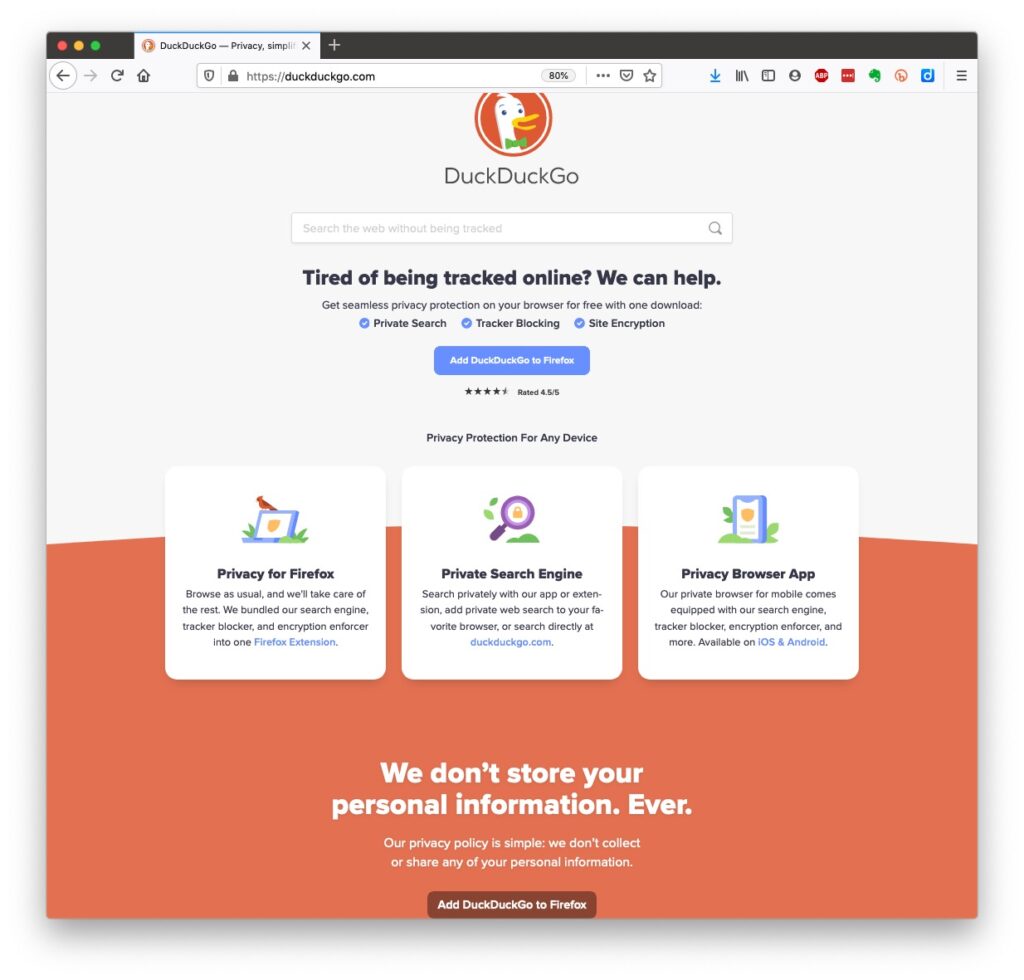
So what safe and private search engine could you use as an alternative to Google. I use DuckDuckGo

… but others I could have used might have been Bing, Yahoo or another one included in this article or in the list of articles at the foot of the post …
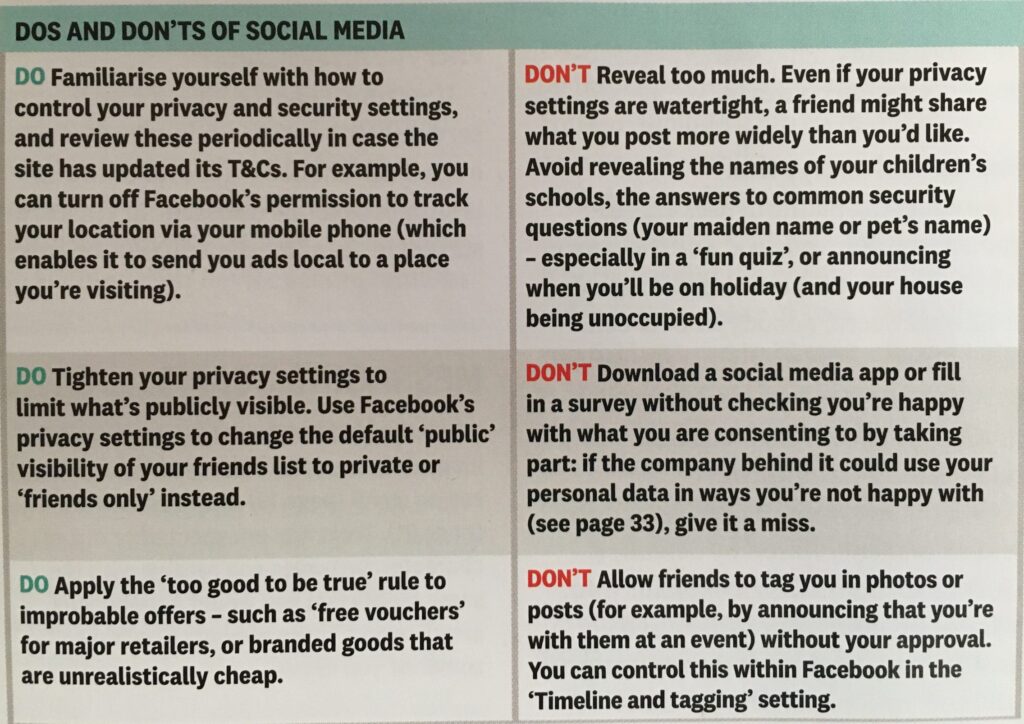
Finally, no discussion of Privacy can ignore Social Media and Facebook in particular. These applications if left to their own default settings are effectively personal information mining engines. They grab what information they can from you, and sell it on to whoever is willing to pay for it, or are indeed the platform for data mining, vis the Cambridge Analytica affair. Online retailers are not exempt from this and Amazon for instance has a wonderful record of your browsing history and who knows what they do with it! So look at this table taken from the recent Which? Publication – Staying Secure in a Digital World – and just check whether you need to change your settings, if you use any Social Media apps …
So that’s Privacy dealt with.


Should you be frightened?

The take away message I want you to have is Frightened – no; cautious – yes!

Online banking is very secure – a recent survey in Which? produced the following scores …

… plus you are protected and most of the banks are increasingly opting to adopt an online and mobile guarantee to refund you where you’ve been the innocent victim of a fraud. Here for instance is Barclay’s “Online and Mobile Banking Guarantee.”

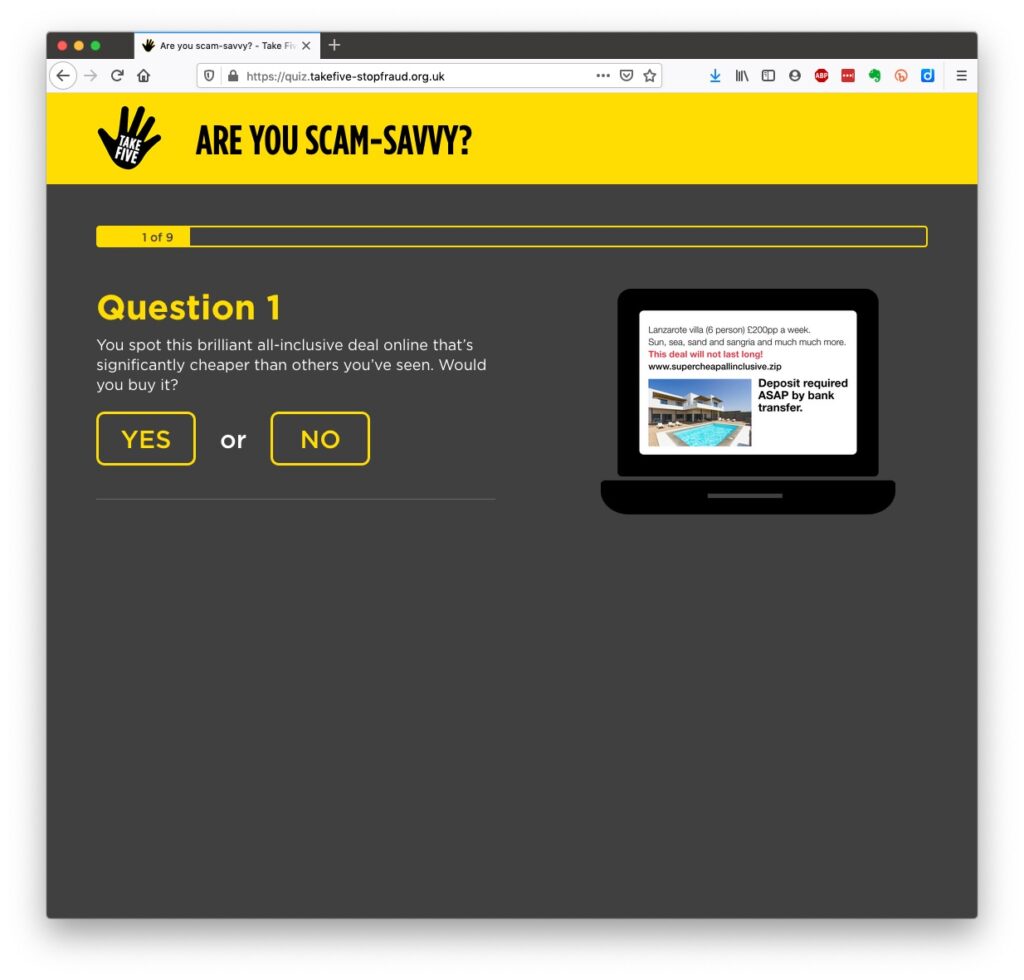
They really don’t want to shell out money, so are trying to educate us to be wise to scams. So let’s take a scam test

Banks are also often supplying software free (or at reduced cost) for you to install to protect your machine, to protect you from fraud – and of course themselves from having to pay out! I was recently offered a piece of software called Malwarebytes by the NatWest and although I have an Apple Mac computer which are well known to be relatively secure from Viruses, Spyware, Trojans and other malware, I installed it. I was pleased to note that I didn’t have any malware on the machine. We’ll return to this later!

Surprisingly you might think … it’s safer to use the mobile app on your phone, or tablet to do online banking and retail purchases than a web browser. This is because the app on the mobile device has to be verified by Google for Android (Google Play Store) or Apple for iOS/iPadOS (Apple Store). Whereas a browser could be infected, or compromised with malware. That’s something I’ve learnt from preparing this talk!!!

What is more with the advent of Two-factor Authentication (2FA) which makes use of a personal device associated with you, your phone which you’ve protected with your fingerprint, or facial image), is even more secure.

When you’re out and about and NEED to do an online transaction from your mobile – use cellular rather than WiFi. The latter can be really open to “sniffers”. [I must admit I try to avoid doing online transactions when away from a domestic network.] Alternatively use a Virtual Private Network (VPN) to connect through the Public WiFi “Hotspot”.

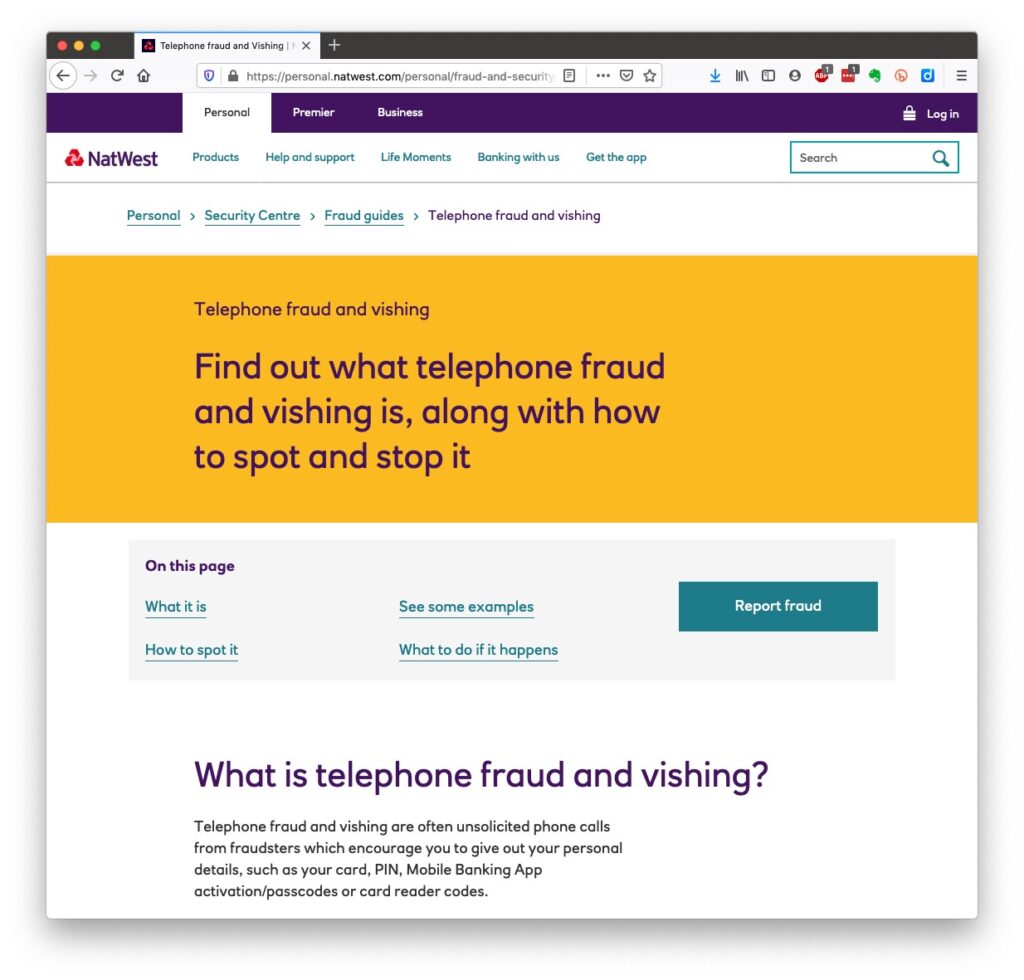
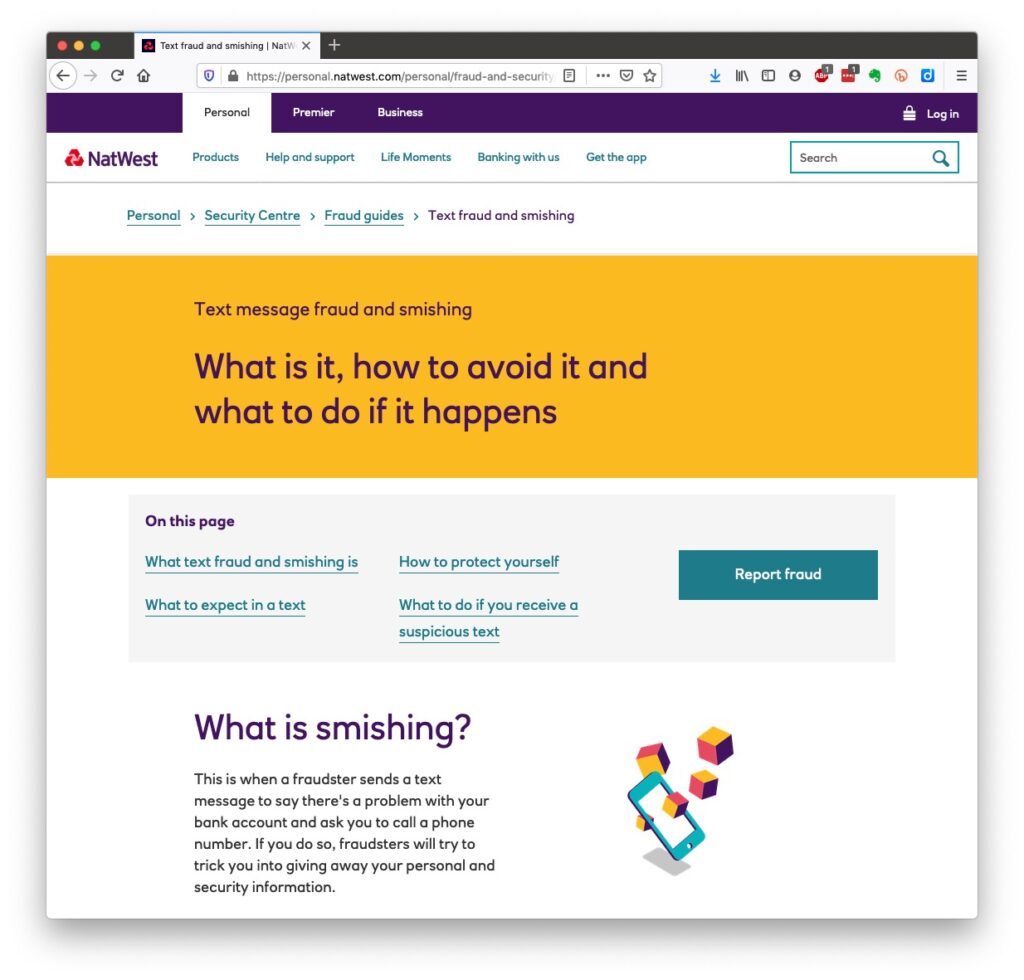
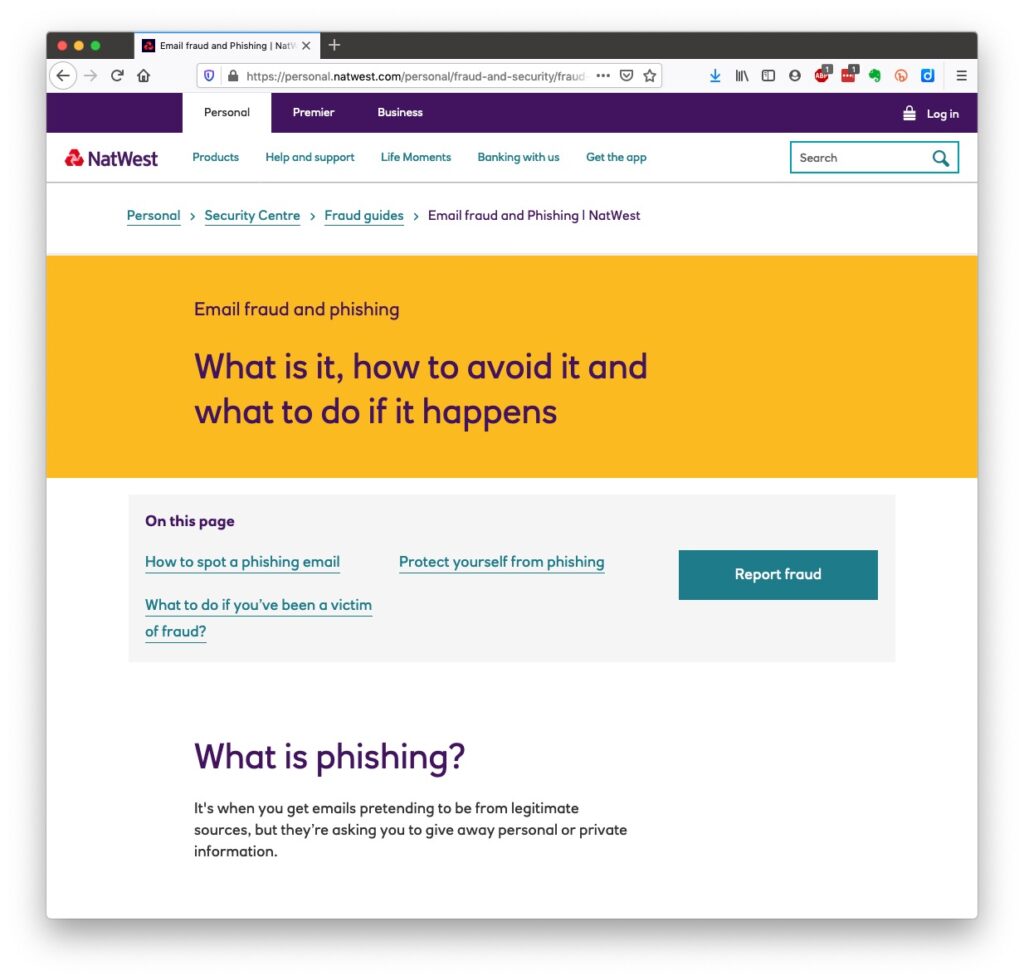
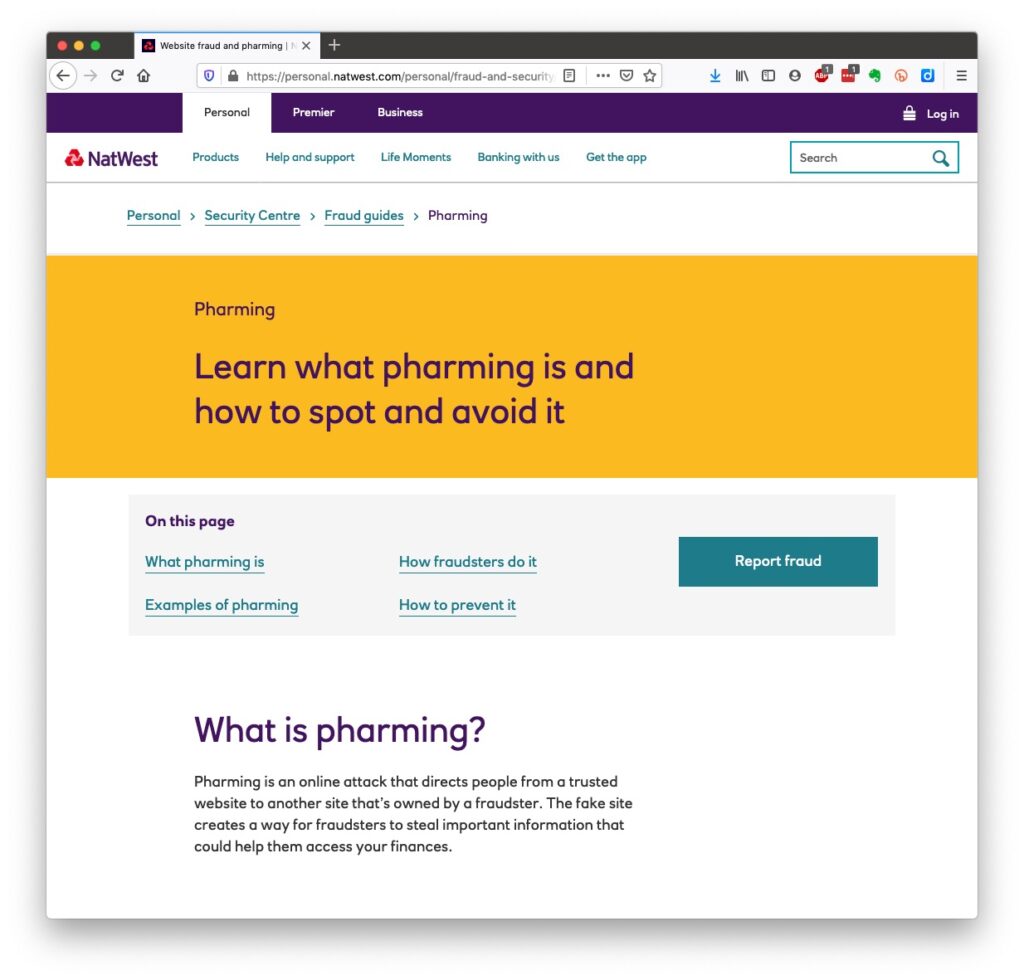
So we come to phishing and pharming, vishing and smishing – I kid you not! We’ll leave aside spear phishing because we’re not important enough for that! [Please excuse me not going into details on any of these. You can follow the links for further information.]
However the most scary scam I’ve been made aware of is one that befell a member of my family when they were distracted sufficiently to become the victim of SIM swapping.
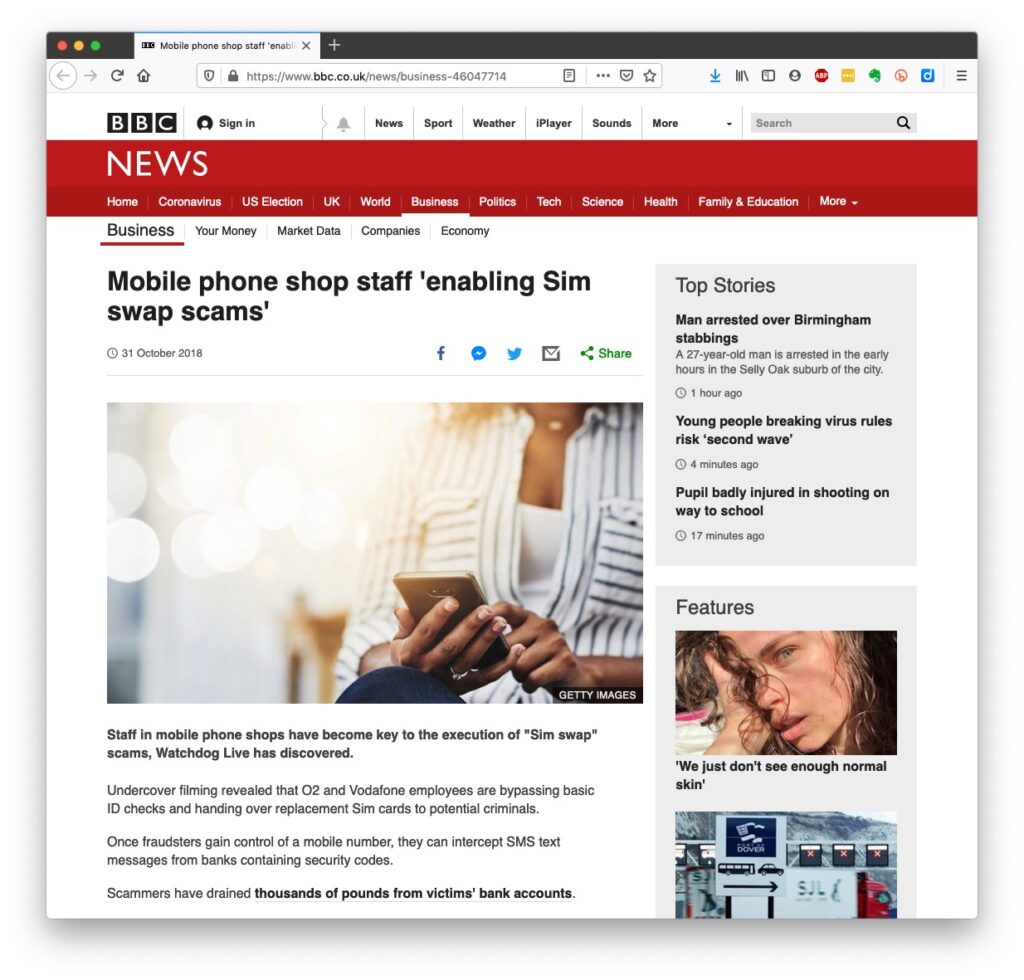
I have discussed this with you before and you can read read the updated post on the public Thought grazing site.


Bruce Springsteen shouts out at his legendary concerts “Is there anyone alive out there?” I hope there are still many of you alive out there with me, because we now arrive at perhaps the most important part of the talk.

What should you do to protect yourself?

Some of these are really quite straightforward, some require some intervention by yourselves.

  • Keep your operating software up to date. This is particularly true if you’re a Windows user, and even more true if you are still running an older version of Windows than Windows 10. If you’re using Windows XP, Windows Vista or even Windows 7 you should seriously consider disconnecting your machine from the internet.
  • Install anti-malware, or anti-virus software if you’re a Windows user. Don’t pay more than you need to. Windows Defender from Microsoft is Free and for us relatively undemanding users more than sufficient. Keep it up-to-date as well! [As I said previously, your bank might be offering free software as well.]
  • Keep the software you use regularly up to date as well. Consider removing any software from your machine you don’t use – this is because software vulnerabilities are discovered sometimes quite a while after the software was first released.
  • Be cautious over installing extensions into your browser. These are often extremely useful and valuable tools, ie password managers, Dropbox, note taking, Google Back up and Sync, but if you don’t get them from the official sources then you might be importing vulnerabilities, eg spyware and trojans to your system.
  • Very seriously consider logging-out from social media and other retail sites when you’ve finished using them, especially Facebook, you just don’t know what tracking and logging of what you do, even where you are, if you’re logged in on a mobile device.
  • Free software is both a boon and a curse. Only download open source software from a reputable site such as Softpedia, and never try and get proprietary software for free. Read this article about Free download sites if you want to know more.
  • Remember the golden rule 1 – if it seems too good to be true, it probably is, so steer clear!
  • Remember the golden rule 2 – don’t speak to strangers (an oldie but goldie one, that); in other words if you don’t know where an email has come from – ignore it; if the website address looks a little strange – do an internet search on the company or organisation to check if the address you’re looking at is a spoof of the proper one.
  • Have more than one email address. Use one as your personal address, other ones you can use to “throw away”when you need to register to a website, but you’re unlikely ever to go back to it again. Or have an email address (UserID) specifically for online purchases. Splitting things like this reduces the risk of you being the victim of fraud.
  • Seriously consider using an email service that is NOT connected to your Internet Service Provider (ISP) – if you decide to change your ISP, and you should review them periodically, then you will have real problems if your email address is linked to their service!
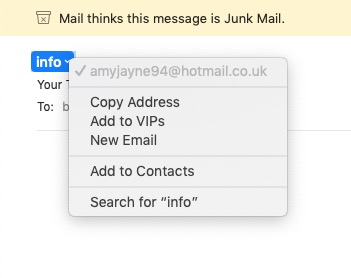
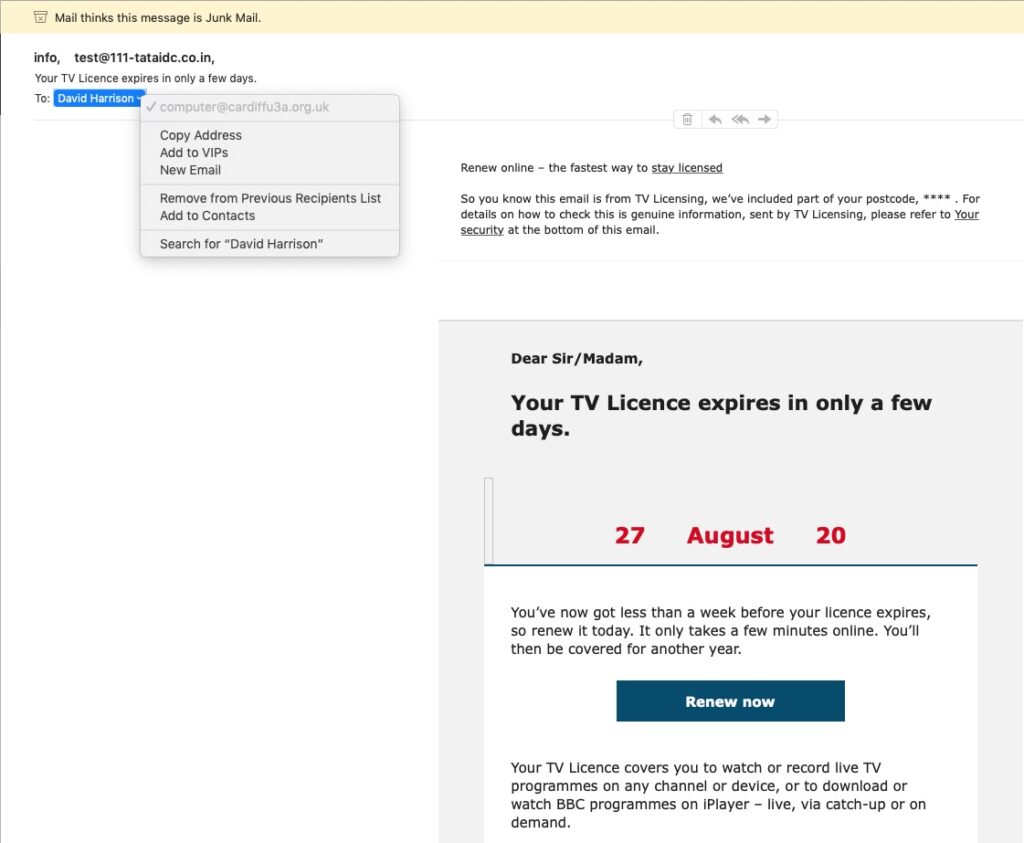
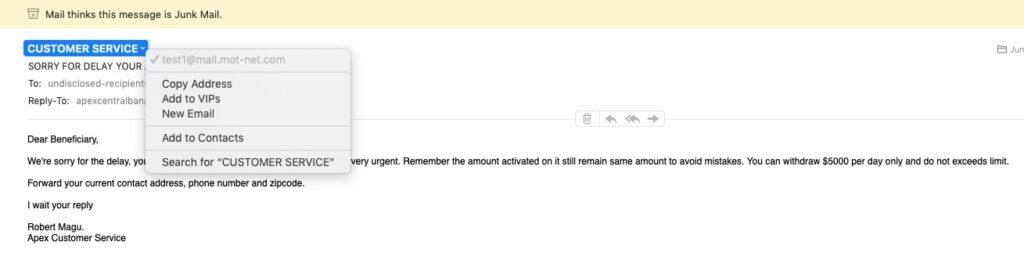
  • You’ve got Spam filters running? Of course you have – but you better check! Probably your ISP, or email provider (eg Gmail, Yahoo, Microsoft Outlook or Hotmail) is filtering out what it thinks is spam, but occasionally some gets through. If that’s the case then you can always look at the real sender of your message.
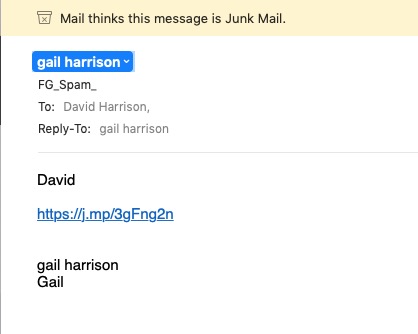
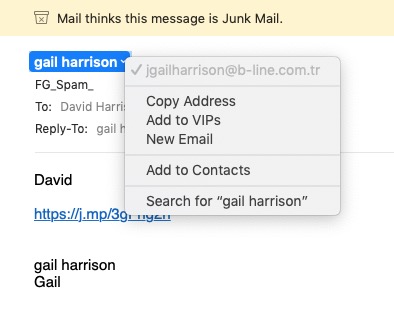
You can also apply filters to divert incoming email into different folders in your email system. That reduces the amount of Junk that you need to review. [I’ve also advocated using the “native” email application for your device rather than rely on the web-based service the email provider has. Thus on a Windows device – use Windows Mail (or Outlook); on a Mac use Mail. You can then easily synchronise your email between devices from multiple email accounts. Tidy!]

So we come to Passwords …

… this is the point at which you need to consider intervention and changing your behaviour! You might also need to do a fair bit of work, but it’s worth it if you want to have a secure internet experience.

Let’s just see what using an insecure Password can lay yourself open to. Frightening eh!?
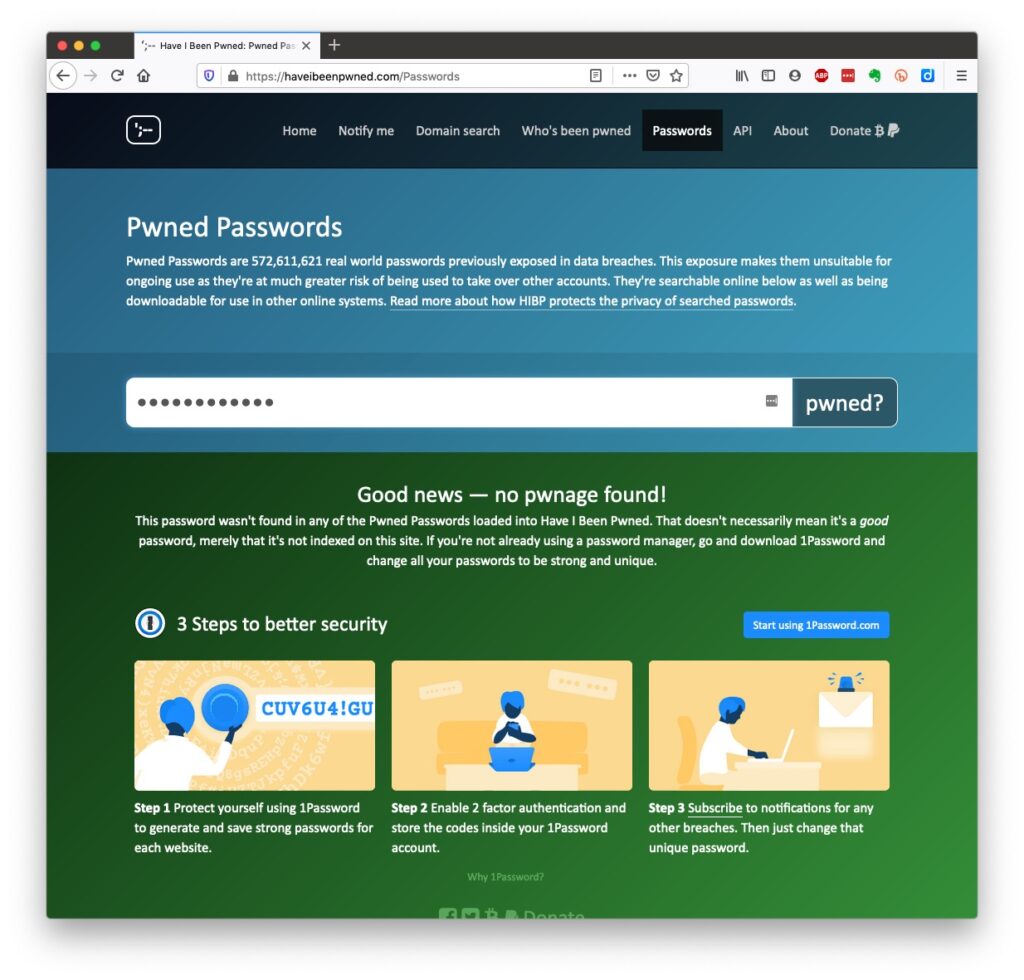
The most common password I use, has not been discovered on any pwned site. Phew!

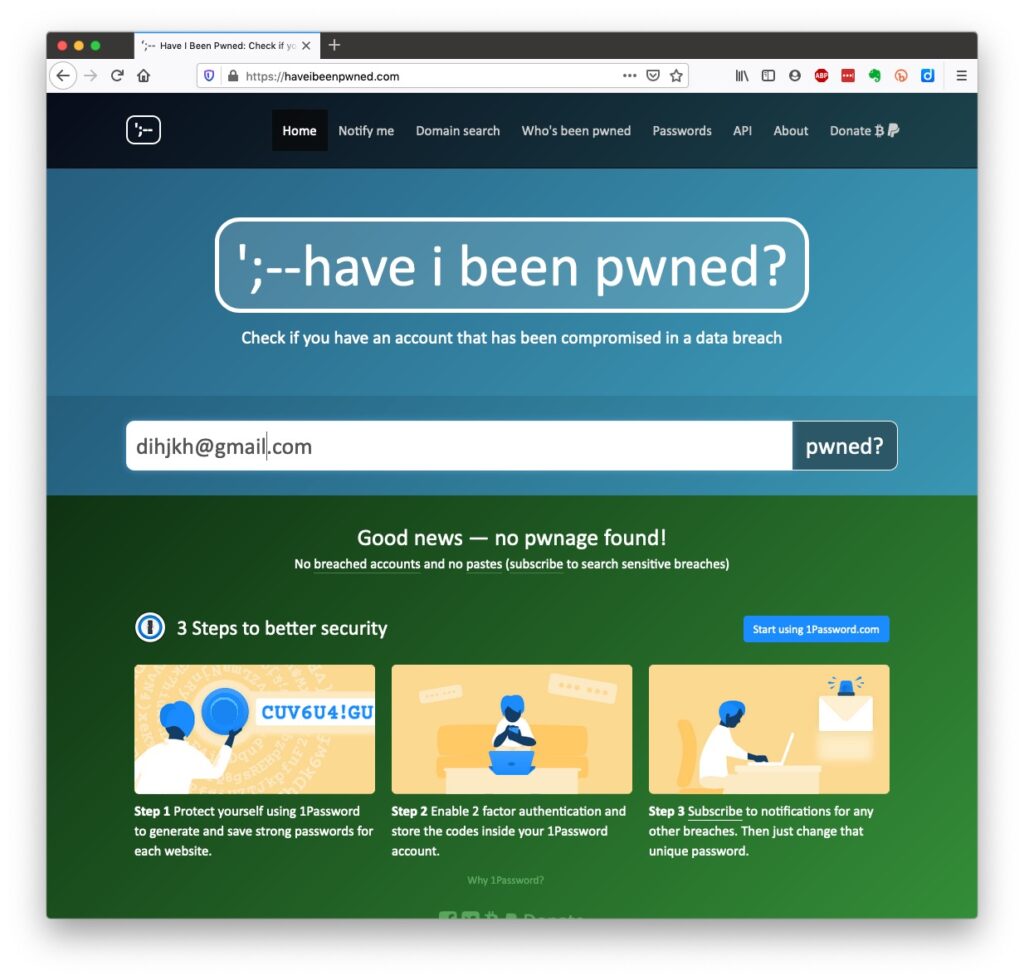
What about the combination of your email address with your password has that been “pwned” (ie stolen through a data breach)?
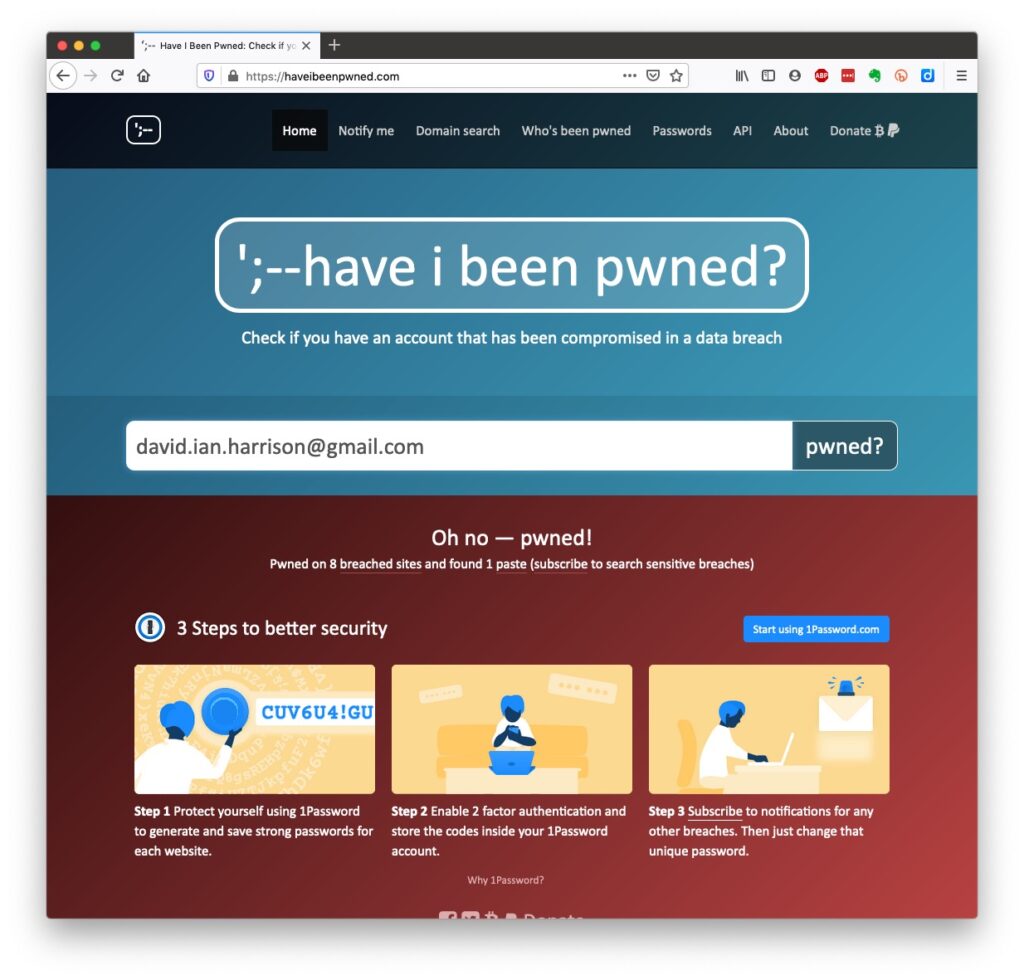
Oh no! I’ve been pwned … but it was a long time ago and I’ve changed my password many times since then!
Ah! That’s better – my “throwaway” email and passwords are “safe”!

And if you want to see a list of which websites have been breached, it’s alarmingly long!

So … use a unique password for everywhere you sign on. There’s lots of tricks to achieve this; some of which I wrote about in a post quite a long time ago …
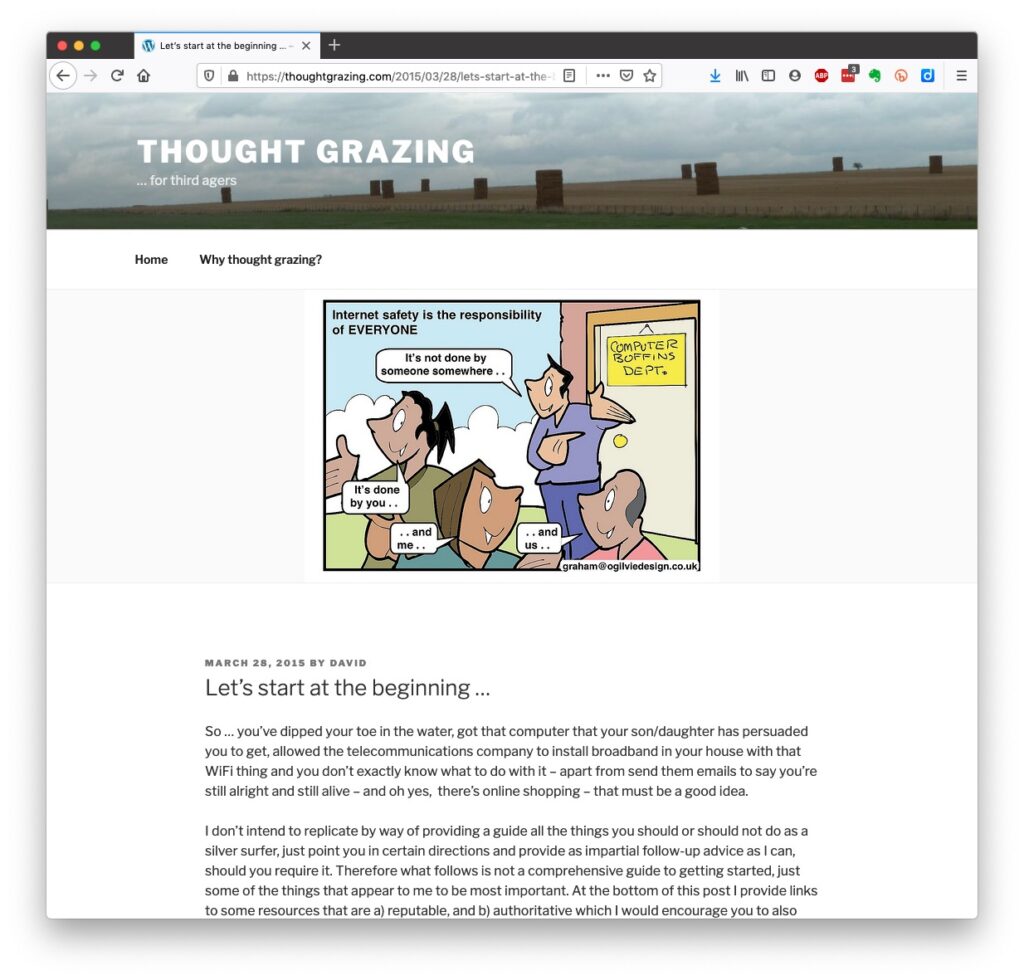
… but the real change of behaviour is to use a Password Manager – again I wrote about this a little while ago and linked it to using Two Factor Authentication, which I described earlier.
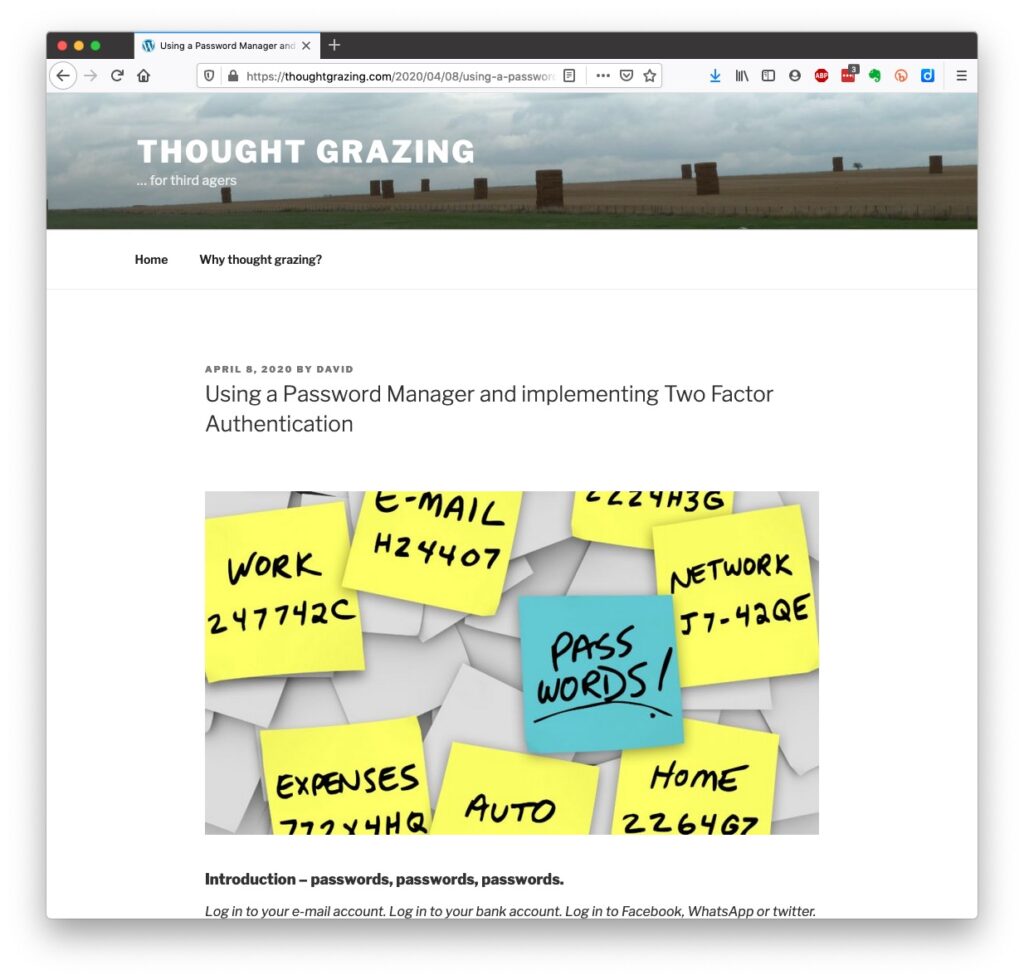
Password managers

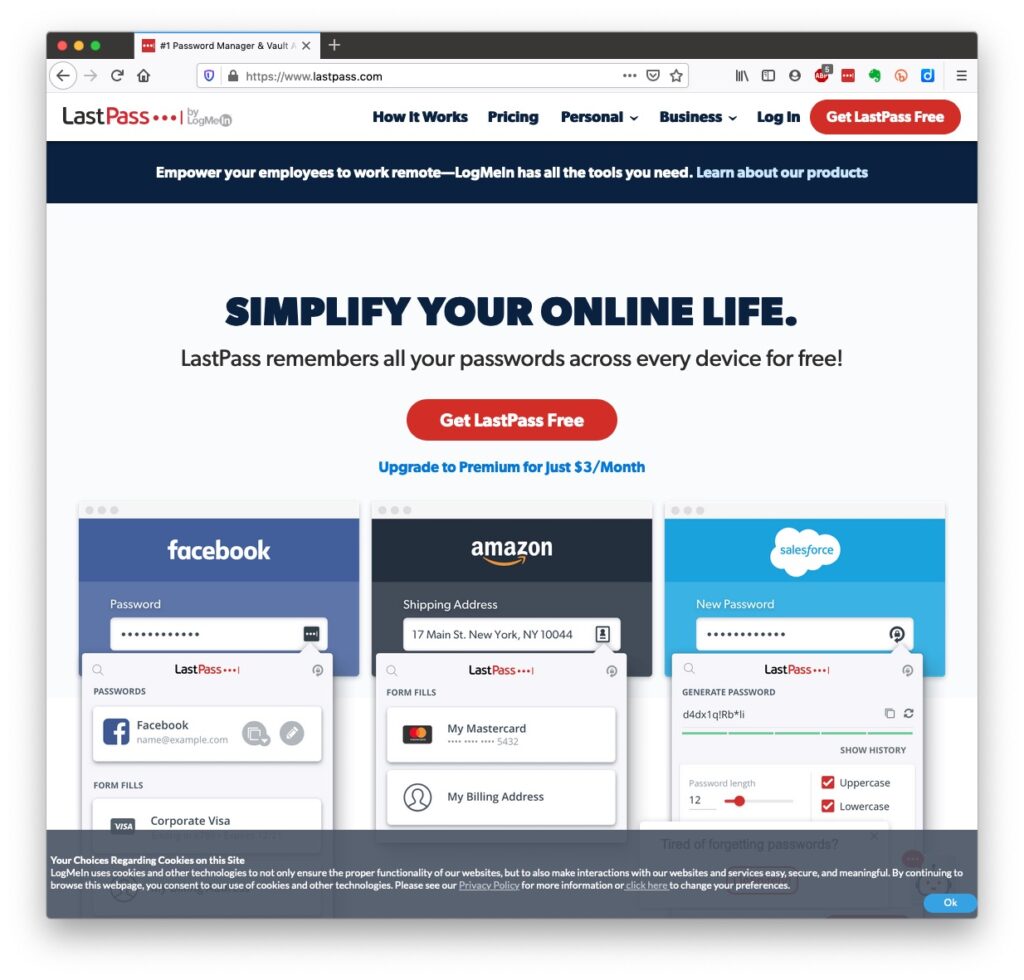
I used to use LastPass and I believe there’s nothing wrong with it – despite the security scares last year, but other common ones are Dashlane and 1Password. Please make up your own minds after reading some Reviews and seriously consider using one. 
However the biggest change in Online Security which started last year with Apple’s announcement of the launch of its’ implementation of FIDO is Passkeys.

The Video and the Slides from the talk given to the Cardiff u3a General Meeting

Slides: https://thoughtgrazing.org/wp-content/uploads/2020/09/Keeping-safe-online.pdf

References

Which? webpages – Scams & older people

Which? Scam Alert Service – sign up for an email alert

Age UK webpages – Staying safe in your digital world and specifically How to stay safe online

Your bank, eg NatWest – mine has a Security Centre web presence and particularly they provide a number of Fraud Guides

I could give a million references to changing your privacy settings on Social Media, but here are a couple relating to Facebook, perhaps the most challenging service of the lot.

First – what Facebook unchallenged will want to get from you. You are able to disable (prevent) all or some of these … Sign up for Facebook – this is not sign-up site, it’s just one to educate you on the privacy you might give up without realising then How to change settings on Facebook and finally Securing Facebook: Keep your data safe with these privacy settings.

Linux on Mac

Not a Spielberg masterpiece but something I knocked up this morning. There is one mistake in it, corrected in the second-half of the video. The Mac requires a 64-bit Linux distro, not a 32-bit one, so the same .iso file I used for the Dell Inspiron was used in trialling Ubuntu 20.0.4 on the 2008 MacBook Pro.

How I built a Ubuntu Linux 20.0.4 system on an iMac and tested it on an old MacBook Pro

I’ve also discovered that Etcher is available for Windows as well – go to pull-down button on this page. It might be worth looking at this as an alternative to Rufus.

The Ubuntu page that is mentioned in the video is here.

Improving home network performance

This short note is written to advise on possible performance improvements you can employ if you feel that your network is “slowing down”. It may be that you just feel files, or pages, are taking longer to download, or display; or it may be that you feel it’s taking “too long” to connect to the remote site from your browser.

The first case can often be resolved by moving your WiFi router, if possible, to a better location. Remember that although WiFi can appear to go through walls and ceilings, the more you expect it to do, the worse will be the signal. So move the WiFi router and perhaps you’ll get a better signal. This is often not possible, so the next thing to consider is to use one of the ethernet ports on the back of the router and connect the computer to the router by ethernet cable, rather than using WiFi. This will always provide better network performance. This may not always be convenient so the last solution is to “extend” your network using either a WiFi extender, or a different approach called Powerline. This article explains the difference between the two and also includes a commentary on ethernet cable as well.

If you opt for Powerline, you will plug a unit into a 13amp socket near to your router and connect it with an ethernet cable to the router, and then on the same electric circuit (ring main) plug in another box which can be just another ethernet socket, or more likely it will have a WiFi capability. Systems from Trendnet, TP-Link, D-Link and others are amongst those you could purchase. Here’s a review of possible systems, most of which can be purchased from Amazon. It is possible to configure these to use the same SSID as your router, but you may have to make do with having a separate network when you connect to these points.

Alternatively, your ISP will often have a solution that will mean that you can use the same SSID for the extended WiFi access points, or you can purchase WiFi extenders (as described above) from Amazon which you can then configure to use the same SSID as your router. So that’s the first case taken care of. What if you just feel that your network is lazy, is there anything you can try to improve performance.

Well first – and perhaps you should have done this first anyway – you should check whether your ISP is delivering something near to the broadband speed it’s contracted to provide. We’ve talked about this before but test your internet speed using something like Speedtest. [As an aside, you can also download the Speednet app for your mobile device and walk round the house testing your signal this way too.] If that’s not the problem, and it just seems to take too long to make connections, then perhaps you should apply some new configurations to your router.

The first thing you can do is to see if you and your neighbours are battling to use the same wireless channels. The common ones used are 1, 6 and 11 as they don’t overlap. However for this reason, sometimes, routers might be “hard-wired” to use one of these channels and so two nearby networks might actually be using the same channel which could then be interfering with each other. Read this article to learn more about this, and then once you’ve tested your network and it looks as though you could be suffering this way, you’ll need to refer to your router manual (or talk to your ISP) to change the channel(s) you use. Why channels? Well because most routers now broadcast signals at two wavelengths – 2.4Ghz and 5Ghz. What’s the difference – read this article.

The other thing you can do is look at how your router is setup with its DNS server. Your ISP will have configured your router to use their DNS servers, but it might be that these are not the best ones for your locality – especially if you’re on a laptop and are moving about a bit! So what is a DNS server, and what does it do, and why might this be important?

A DNS server translates a URL (such as https://thoughtgrazing.org) into a sequence of numbers – an IP address – that instructs the modem that transmits and receives data going and coming from the internet where to go. This whole process is explained in some detail in this article. If you decide to change the DNS settings on your router, or just on a device, you can look at this article which shows you how to do it.

In my case, I’d been disappointed in the performance of my new Netgear Orbi routers which although they seemed to shovel the data around very fast, there was a noticeable lag/delay in achieving connections, and I’d also felt that the router was dropping connections more than it should. So, bearing in mind I have a Virgin Media Superhub that’s only running in modem mode with the Netgear Orbi router behind it, I changed the configuration of the router which was pointing at VirginMedia’s DNS servers to point at Google’s secondary DNS server. I also checked what channels were being used by nearby WiFi networks using the Mac’s Wireless Diagnostics tool described in this article

… which indicated that I should change the 2.4Ghz channel that was being used from 1 to 11, and to set my 5Ghz channel to 161.

I left the DNS server setting on my devices to be ‘automatic’. This makes it much easier to “roam” away from the house with a mobile device. I then ran a test called namebench (from Google) to try and find the best DNS server for my home network, but you don’t need to do this. I would suggest you look at this article and then experiment with Cloudflare, Google, and OpenDNS perhaps in that order until you get a response to your internet request that satisfies you. Leave your ISPs DNS server in the list of servers (the third in the list below) – just-in-case.

Video-editing for Dummies

… and I am talking about myself here!

If I wanted to do video-editing and wasn’t doing “this U3A stuff”, I’d use Apple’s iMovie which is a “really nice and easy lemon squeezy” way of producing videos, but I can’t because for the Group it has to be cross-platform, and it has to be FREE!

I have suggested using YouTube for simple editing and indeed with the new YouTube Studio that may be your best solution – especially if you’re intending to share the video on YouTube through your Google Account; Google provides some Help & Assistance on how to do some basic video-editing and provides a useful help page with a short video on how to do video-editing using YouTube Studio, and there’s a load of other YouTube videos on the subject as you might expect.

However, not all of you have Google/YouTube accounts, and not all of you would want to “edit in the cloud”, so we need to find another solution that ticks all the boxes.

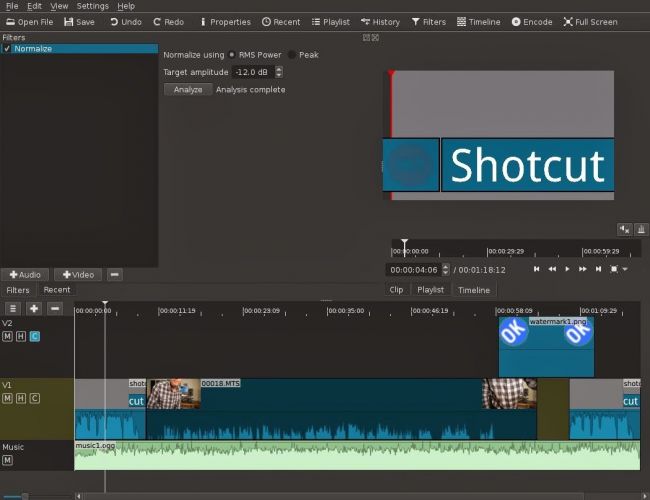
The one I found that does just that, and which also has a substantial amount of Help and Support documentation and video tutorials is Shotcut.

It’s a bit daunting when you first start it up; so many controls, icons, sliders, windows, options – but don’t let that put you off. Just try the basics to get started and then go back to learn more as you need it.

Here’s a link to a “Getting started …” video, and here’s one to a “manual” which tells you more about video-editing and using Shotcut. If you want to print something out to have beside you as you learn how to navigate the interface, you might find this short (3-page) guide useful.

Having created your video masterpiece you’ll want to save it in a format that is playable on most online services and applications – choose MPEG4 from the Export option – and then decide what you want to do with it. You can of course upload it to Google Photos – there’s no size limitation on videos you upload apart from the 15Gb per week that you get against your free storage limit – which is 15Gb!!!! You could use YouTube of course (see above) – but the quality of the video may be downgraded as you upload it; but I’d recommend you also look at Vimeo as it’s a more privacy-orientated platform for sharing videos and has a better-quality of video playback too. You can do quite a bit with a free subscription, but if you’re into video-production in  big way it might be worthwhile paying  £72 for an annual subscription. Alternatively, you could decide to host your own videos, on your own website – but that’s for another day!

… and that’s about it – except for the dreaded live-demo!

Recorded from Zoom, my first attempt. Not all the panes were showing, so I’m afraid the Timeline pane is not to be seen – it’s at the bottom of the screen. I’ll need to see if I can record the whole screen – not just the Window.

[PS: I’ve now found out how to share the Desktop, rather than just a Window, so there’s no stopping me now. Next time, next time …]


Gr gr gr gr granny Rebekha

Thought you might enjoy this story. My gr gr gr gr granny Rebekha lived on a farm right next to the site of these shipwrecks.

https://theedwardsfamilytree.blogspot.com/2019/06/granny-rebekhas-shipwreck.html

Phil

— Forum Responses —

Yes, I enjoyed reading your account. Like you, I’ve enjoyed “constructing” stories around events in my ancestor’s lives – filling-in the gaps so-to-speak. Factumentary you might call it, or Life Stories.

David Harrison June 4, 2020 11:03 am

Cleaning-up your PC or Mac???

Try dupeGuru – it’s very good at finding direct matches of files on your machine even when they have different names. It also provides a matching score so that if it’s not exactly sure that it’s found a match it will score it and you can then make a decision after inspection. Otherwise you can delete or move it to an archive folder – just in case!

Upgrading the RAM on your Laptop PC

This is all you need

The only tool you need is a Posidrive #0 screwdriver for this laptop, I bought a set of six small screwdrivers made by Black & Decker some time ago; if you’re going to do more of this sort of thing, you might need to buy a more sophisticated toolset. I also attached an earth strap – just to show you how to the job properly – but to be perfectly honest I don’t usually bother.

But I’m jumping ahead. You first have to find out what upgrades you can do to your PC. I recommend using Crucial as the supplier of both RAM and hard disk upgrades. When you land on the site, you will see a screen something like this – it will change as new products are introduced …

… you click on Select Computer (you can download a tool to scan your computer, but that shouldn’t be necessary as all the information you need is usually on the bottom of the laptop) and supply the information required about your computer …

… and the following information should come up.

I’ve selected the Upgrade I want, but I’m also offered different DRAM memory choices, as well as SDD hard disk upgrades …

… from this I get the Part No. and then see if I can purchase it cheaper on Amazon – for old memory I usually can …

… so that’s saved £10. Now we turn to the removal of the old 1Gb DRAM module and the insertion of the new 2Gb module. Turn the laptop so that it’s back is facing upwards …

… take your screwdriver and unscrew the screws which are holding the back panel in place.

On this model the screws don’t totally come away from the panel which is great as there’s less likelihood of losing any of them. Unscrew them all, and slide the panel off …

… the DRAM is right in front of you on the left-hand side of this picture. All laptops have different layouts, but the DRAM modules are very easy to pick out! Next comes the first tricky bit (not really). You need to prise the two clips holding the module in place on either side of it. Here’s me prising one clip away …

… you have to do them together of course, but as I don’t have three hands … the module will pop out and swing upwards so that you can easily remove it, which you should do and place it on an electrically inert surface – just in case you have to put it back! You then get your new module and slip it into the space vacated by the old one at an angle. [My apologies – I should have taken a picture of this.] Most problems occur at this point as it can be tricky to insert the new module in firmly enough. You then gently push it down so that the clips re-engage with the module.

Nearly finished now. The new DRAM module is in place and you just have to replace the back panel, tighten the screws and hope that the new memory will be recognised when you boot-up the computer. You may be advised that the Memory Configuration has changed when you re-boot, just ignore this the first time you attempt to re-boot your computer. Check the memory has been recognised from the Windows System Panel …

… and you’re good to go. Any problems, first try and check the module has been inserted firmly and far enough into the slot, and then if necessary run the System Configurator when asked to when you boot up. I’ve never had to do the latter, I have had to unscrew the panel and re-insert the memory module though.

And that’s it. It took me about 10mins, but I have done it before. Still 30mins tops will see you with more memory in your old laptop and hopefully improved performance.

Scams

You might want to consider signing up for the Which! Scam Service, I have …

There are necessary steps we can all make to protect ourselves from fraud. But as they become more sophisticated, it can be difficult to know what’s genuine. We’re here to act as a source of trusted advice for those times when you’re just not sure.

From email scams and copycat websites to nuisance calls and tax rebate scams, our guides help you to spot a scam or get money back.

— Forum Responses —

Here’s a nasty one, which on the surface looks OK – just remember that if you’re using Facebook Messenger, you shouldn’t need to login to Facebook again, and vice versa.

Passwords harvested by fraudster (from Which? Scam Watch)

remember also my advise, if you do use Fb, or FB Messenger please Logout – I know it’s a pain but there’s a distinct chance that if you don’t Fb will record all your internet comings and goings and you’ll get loads on unsolicited emails, etc.

David Harrison May 29, 2020 6:26 pm

Hardware issues? We will fix your PC

Several members of the Computer Group, and others in U3A, have reason to be grateful to Neil the principal of “We will fix your PC” a local computer “fixer”. He also is a dab hand at fixing Macs, and mobile devices, and will give you an honest assessment of whether a job can be done, or not. No job is too small, and his pricing is very fair.